1
SPECIFICATIONS FOR P/N: 406-10115-00
Color:
CMYK (4-color process)
MATERIAL:
FINISH SIZE: 16.5" x 16.5" (419 x 419mm)
1
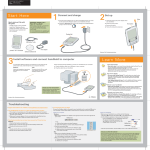
Start Here
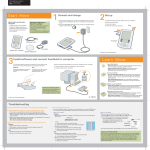
Here’s what you’ll do with
this guide:
Important! Already use a
palmOne™ handheld?
• Charge and set up your handheld.
Before going on to step 1, synchronize
your current handheld with your computer
so that the information is up-to-date.
• Install Palm® Desktop software and
other software for synchronizing,
moving files, and more.
• Synchronize your handheld with
your computer.
Connect and charge
a. Plug the sync cable into your handheld and into a USB port on the back
of your computer.
2
Set up
Stylus
a. Unplug the sync cable from your handheld.
b. Press the power button.
b. Plug the AC charger into the Multi-connector on the sync cable and into
an outlet.
c. Remove the stylus.
Power button
d. Follow the onscreen instructions
to set up your handheld.
c. Charge for three hours. Be sure to fully charge your handheld before
going on to the next step.
Tip: Take the Quick Tour
to learn
more about the great features of
your Tungsten T5.
For more information on upgrading, go to
www.palmOne.com/support/tungstent5.
USB
Stylus
USB sync cable
Flip cover
Multi-connector
Tungsten™ T5 handheld
by palmOne
3
Software installation CD
Problems? See Troubleshooting below.
AC charger
Install software
To install Palm Desktop software, the new File Transfer application, and
other important software, insert the CD into your computer’s CD drive.
Windows:
Mac:
Follow the installation instructions
that appear on your computer
screen.
Double-click the CD icon,
and then double-click
palmOneDesktop.pkg.
Get answers, learn more
Look for these great features
Take the tutorial
On your computer desktop
Palm Desktop software. Enter info in Palm Desktop
software and it shows up on your handheld the next
time you synchronize.
Learn to use the popular features
of your handheld. Insert the
installation CD in your computer
and click here for an interactive
tutorial.
File Transfer (Windows only). Copy files and folders from
your computer into your handheld’s internal flash drive.
Manage them in File Transfer or on your handheld.
Documents To Go (Windows only). Synchronize
Microsoft Word, Excel, and PowerPoint files between
your handheld and your computer. View and edit these
files on your handheld.
Find your manual
On your handheld
Open Palm Desktop software on
your computer and click Help.
Already use a palmOne handheld?
Click here for the manual.
For more detail, go online:
www.palmOne.com/mytungstent5.
Want to synchronize with Microsoft
Outlook? Select “Change your
synchronization method” at the end
of the installation process on the CD.
Problems? See Troubleshooting below.
Files. Access files and folders in your handheld’s
internal flash drive.
Media. View and organize photos and videos.
Bluetooth® wireless technology. Set up wireless
communication to sync with your desktop computer.
Browse the web and send email and short messages
(requires phone with Bluetooth wireless capability, data
service, and ISP, sold separately).
Click Online Support for the latest
software updates and answers to
frequently asked questions.
Done
Troubleshooting
Support information is also available at www.palmOne.com/support/tungstent5
Synchronization does not begin
Be sure the sync cable is plugged into your handheld and a USB port on the back of your computer.
Your handheld does not turn on, or does not respond when you tap it
1. Try turning it on by pressing one of the quick buttons on the front panel.
2. Do a soft reset. Unscrew the top of the stylus and use the tool inside to gently
press the reset button inside the hole on the back of the handheld.
3. Make sure the AC charger is fully connected to the handheld or the sync cable
and to a working outlet. Charge for another three full hours.
Check your computer:
Windows:
1. Make sure the HotSync® icon appears in the group of icons in the lower-right part of
your screen.
HotSync icon
Palm Desktop Installer does not start when you put the CD into the drive
Windows:
1. Click the Start button and select Run.
2. Click Browse to locate the drive that contains the CD that came with
your Tungsten T5.
3. Double-click autorun.exe on the CD.
Mac:
1. Double-click the CD icon on the Mac desktop.
2. Double-click palmOneDesktop.pkg.
If not:
a. Click the Start button and select Programs.
b. Select Palm Desktop, and then select HotSync Manager.
2. Check the connection type:
a. Disconnect and then reconnect the sync cable.
b. Make sure there is a checkmark next to Local USB.
If not, click Local USB.
Mac:
1. Make sure the HotSync Manager is enabled:
a. Double-click the HotSync Manager icon in the Palm folder.
b. In the HotSync Controls tab, click Enabled.
2. Make sure the USB connection is working:
a. Disconnect and then reconnect the sync cable.
b. Restart your computer.
Check your handheld:
1. Press the Home
button twice, and then tap HotSync
2. In the HotSync application, make sure of the following:
– Local is highlighted. If it isn’t highlighted, tap Local.
– The phrase Cable/Cradle appears. If not,
tap the pick list, and then tap Cradle/Cable.
3. Press the HotSync button on the cable.
in Applications.
Local
HotSync icon
Cradle/Cable
Already use a palmOne handheld?
Did you load any third-party applications on your previous palmOne handheld?
You’ll have to update them if they are not compatible with your new handheld.
If any of the following symptoms occur on your new handheld after you
synchronize, remove these applications and contact the vendor for updated
versions: handheld freezes or resets when you open an application; slow
performance; unusual screen display; difficulties using handheld features;
uneven sound quality.
SPECIFICATIONS FOR P/N: 406-10115-00
Color:
CMYK (4-color process)
MATERIAL:
FINISH SIZE: 16.5" x 16.5" (419 x 419mm)
Stylus
Headphone jack
IR (infrared) port
Power button
Press to turn
handheld on/off.
Expansion card slot
Speaker (on back)
Tasks
Calculator
Note Pad
Status bar
(See insert below.)
Memos
Files
Press to turn on
handheld and
open Files.
Home
Press to turn on
handheld and go to
Favorites. Press again
to go to Applications.
Calendar
Press to turn on handheld
and open Calendar.
Home
Find
Menu
Contacts
Press to turn on
handheld and open
Contacts.
5-way navigator
Input
HotSync® button
palmOne, Inc.
400 N. McCarthy Blvd.
Milpitas, CA 95035
Copyright
© 2004 palmOne, Inc. All rights reserved.
palmOne, Tungsten, “T” (Stylized), Palm Powered, Palm OS, and HotSync are among the trademarks or registered trademarks owned
by or licensed to palmOne, Inc. palmOne, Inc. uses the Bluetooth wireless technology trademark under express license from
Bluetooth SIG, Inc. All other brand and product names are or may be trademarks of, and are used to identify products or services
of, their respective owners.
Disclaimer and Limitation of Liability
palmOne, Inc. assumes no responsibility for any damage or loss resulting from the use of this guide.
palmOne, Inc. assumes no responsibility for any loss or claims by third parties which may arise through use of this software. palmOne,
Inc. assumes no responsibility for any damage or loss caused by deletion of data as a result of malfunction, dead battery, or repairs.
Be sure to make backup copies of all important data on other media to protect against data loss.
IMPORTANT
Please read the End User Software License Agreement with this product before using the accompanying software program(s).
Using any part of the software indicates that you accept the terms of the End User Software License Agreement.
Software Download Available
Palm® Desktop software is available on CD. Check www.palmOne.com for updates and new versions of the software.
Agency Compliance Information
Product regulatory and compliance information can be found in the User Guide at www.palmOne.com/tungstent5-userguide
Screen rotation
Full-screen writing
System info Alert
Bluetooth® controls
PN: 406-10115-00