1
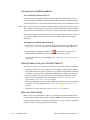
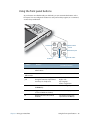
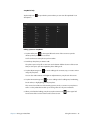
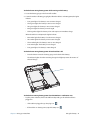
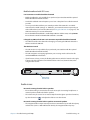
3. Press the camera, Windows® Security, and Motion Tablet Center buttons
simultaneously. For the locations of these buttons, see below.
Motion Tablet Center button
A
B
Windows® Security button
Camera button
The tablet won’t enter Hibernation mode
• Hibernation might not be enabled. Enable hibernation by adjusting the power button
behavior from Motion Tablet Center’s Power settings. See Power Settings on page 25.
The tablet doesn’t return from Hibernation mode while on battery power
• The battery might be depleted. Plug the Tablet PC’s power adapter into an AC outlet and
into the Tablet PC.
The power button is blinking but nothing is happening
• The tablet is in Sleep mode. Press the power button to wake up the tablet. To power off
the tablet completely, you can press and hold the power button for
about five
seconds. However, this is not recommended. Under normal conditions, power off the
Tablet PC by swiping from the right to open the Charms bar, tap Settings, and then tap
the Power icon.You should see three options: Sleep, Restart, and Shut down. Tapping
Shut down will close Windows 8 and turn off your PC.
The display goes black while the Tablet PC is still turned on
• The tablet might have turned off the display to save power. To restore the display, touch
the screen with your finger or the pen.
• The tablet might have gone into Sleep mode. Press and hold the power button
for
about one second.
• The tablet might have gone into low-battery Hibernation mode. In Hibernation mode,
the power status light is off. Plug the tablet in to AC power, then press and hold the
power button for about one second.
Chapter 4 Troubleshooting and FAQs
Troubleshooting 62