1
These user’s setup instructions cover typical user environments. The onscreen messages may differ depending on the level of your hardware and
software. In some cases you may need to vary the setup procedures.
For more information, refer to your computer or operating system manuals or
consult your system administrator or dealer.
Ces instructions de configuration s’appliquent aux environnements
d’utilisation typiques. Les messages affichés à l’écran peuvent varier en
fonction de votre configuration matérielle et logicielle. Dans certains cas, il
peut être nécessaire de changer les procédures de configuration.
Pour de plus amples informations, veuillez consulter les manuels de votre
ordinateur et de votre système d’exploitation, ou consultez l’administrateur de
votre système ou votre revendeur.
Diese Anweisungen zur Installation durch den Benutzer gelten für typische
Betriebsumgebungen. Die Bildschirmmeldungen können je nach Art der
verwendeten Hardware und Software auch anders lauten. In einigen Fällen
müssen die Einstellungsschritte unter Umständen abgeändert werden.
Weitere Informationen finden Sie im Computer-order Betriebssystemhandbuch, oder wenden Sie sich an lhren System-administrator oder
Fachhändler.
Estas instrucciones sobre la configuración abarcan típicos entornos de
usuario. Los mensajes en pantalla pueden diferir según el nivel de su
hardware y software. En algunos casos, puede que sea necesario variar los
procedimientos de configuración.
Para mayor información, consulte los manuales de su ordenador o sistema
perativo, o consulte a su administrador de sistema o proveedor.
Queste istruzioni utente per il setup coprono ambienti utente tipici. I
messaggi su - schermo possono variare a seconda del livello del proprio
hardware e software. In alcuni casi puo’ essere necessario modificare le
procedure di setup.
Per maggiori informazioni, fare riferimento ai manuali del proprio computer o
del sistema operativo, oppure consultare il proprio amministratore di sistema
o il proprio rivenditore.
これらのユーザーズセットアップガイドでは、一般的なユーザー環境につ
いてサポートしています。画面上のメッセージは使用されているハードウ
ェアのレベルやソフトウェアの種類によって異なる場合があります。また、
場合によっては、セットアップ手順の変更が必要な場合もあります。
詳細につきましては、現在使用中のコンピュータに付属のコンピューター
マニュアルかオペレーションマニュアルを参照するか、システム管理者か
I
販売元にお尋ね下さい。
DANGER
To avoid shock hazard:
Do not remove the covers.
Do not operate this product unless the stand is attached.
Do not connect or disconnect this product during an electrical storm.
The power cord plug must be connected to a properly wired and grounded
power outlet.
Any equipment to which this product will be attached must also be connected
to properly wired and grounded power outlets.
To isolate the monitor from the electrical supply, you must remove the plug
from the power outlet. The power outlet should be easily accessible.
DANGER
Pour éviter les risques d’électrocution :
Ne retirez pas les capots du moniteur.
N’utilisez pas ce produit si le socle n’est pas fixé.
Ne connectez, ni ne déconnectez ce produit pendant un orage.
Le câble d’alimentation doit être connecté à une prise électrique correctement
mise à la terre et en bon état de marche.
Tout équipement auquel ce produit est relié doit être également connecté à
une prise correctement mise à la terre et en bon état de marche.
Pour isoler le moniteur de la source d’alimentation électrique, vous devez le
débrancher de la prise électrique. Cette prise doit être facile d’accès
GEFAHRENHINWEIS
Um die Gefahr eines elektrischen Schlags zu vermeiden, folgendes
beachten:
Unter keinen Umständen die Abdeckungen abnehmen.
Das Produkt nicht in Betrieb nehmen, wenn der Sockel nicht montiert ist.
Das Gerät nicht während eines Gewitters an eine Steckdose anschließen
oder von ihr trennen.
Das Netzkabel ist an eine ordnungsgemäß verdrahtete und geerdete
Steckdose anzuschließen.
Jedes Gerät, mit dem dieses Produkt verbunden wird, muß ebenfalls an eine
ordnungsgemäß verdrahtete und geerdete Steckdose angeschlossen
werden.
Um den Monitor von der Stromversorgung zu trennen, muß der Stecker aus
der Steckdose gezogen werden. Die Steckdose sollte leicht zugänglich sein.
II
GEVAAR
Ga als volgt te werk om het gevaar van een elektrische schok te voorkomen:
Verwijder in geen enkel geval de kap.
Stel dit produkt alleen in werking als de voet is bevestigd.
Sluit dit apparaat niet aan op, of verbreek de aansluiting van dit apparaat niet
van een contactdoos tijdens onweer.
Het netsnoer moet worden aangesloten op een geaarde contactdoos met
correcte bedrading.
Ook alle apparatuur waarop dit produkt wordt aangesloten moet zijn
aangesloten op een contactdoos met correcte bedrading.
Om het beeldscherm te ontkoppelen van de netvoeding, dient u de stekker uit
de contactdoos te trekken. De contactdoos dient goed toegankelijk te zijn.
PELIGRO
Para evitar riesgos de descargas eléctricas:
No retire bajo ningún concepto las cubiertas.
No maneje el monitor sin antes acoplar el soporte.
No conecte ni desconecte el equipo de una toma de alimentación durante
una tormenta eléctrica.
El cable de alimentación debe estar conectado a un enchufe debidamente
cableado y con toma de tierra.
Cualquier equipo al que se vaya a conectar este producto también debe estar
conectado a tomas de alimentación cableadas y conectadas a tierra
correctamente.
Para aislar el monitor del suministro eléctrico, debe retirar el enchufe de la
toma de alimentación. Esta toma deberá ser de fácil acceso.
PERICOLO
Per evitare il rischio di scariche elettriche:
Non rimuovere nessuna parte del telaio.
Non accendere il prodotto se il piedistallo non è stato montato.
Non collegare o scollegare il prodotto nel corso di un temporale.
La spina del cavo di alimentazione deve essere collegata ad una presa di
corrente con messa a terra, installata in maniera appropriata.
Le apparecchiature a cui il prodotto viene attaccato devono essere collegate
a prese di corrente con messa a terra, installate in maniera appropriata.
Per isolare il monitor dalla corrente elettrica, staccare la spina dalla presa di
alimentazione, che deve essere facilmente accessibile.
PERIGO
Para evitar o perigo de choques eléctricos:
Não retire as coberturas.
III
Não utilize este produto antes de montar a base.
Não ligue nem desligue este produto durante uma tempestade eléctrica.
O cabo de alimentação deve ser ligado a uma tomada eléctrica devidamente
ligada à terra.
Qualquer equipamento ligado a este produto deve estar ligado a tomadas
eléctricas devidamente ligadas à terra.
Para isolar o monitor da fonte de alimentação, retire a ficha do cabo de
alimentação da tomada eléctrica. A tomada eléctrica deve ser de fácil acesso.
FARE
Sådan undgår du elektrisk stød:
Kabinettet må under ingen omstændigheder fjernes.
Undgå at anvende dette produkt, uden at vippe/drejefoden er monteret.
Undgå at tilslutte eller frakoble dette produkt i tordenvejr.
Netledningen skal være tilsluttet en korrekt jordet stikkontakt med korrekt
ledningsføring.
Alt udstyr, som tilsluttes dette produkt, skal også være tilsluttet korrekt
jordede stikkontakter med korrekt ledningsføring.
For at isolere skærmen fra strømforsyningen, skal stikket tages ud af
stikkontakten. Stikkontakten bør være let tilgængelig.
FARE
Slik unngår du fare for elektrisk støt:
Ikke ta av dekslene.
Ikke bruk produktet dersom sokkelen ikke er montert.
Ikke koble produktet til eller fra under tordenvær.
Pluggen på strømledningen må kobles til korrekt montert og jordet
strømuttak.
Utstyr som dette produktet eventuelt blir koblet til, må også kobles til korrekt
montert og jordet strømuttak.
For å isolere skjermen fra strømkilden må du ta ut pluggen fra strømuttaket.
Strømuttaket bør være lett tilgjengelig.
Varning - livsfara
För att undvika risk för elektriska stötar måste du tänka på följande:
Ta inte bort några skyddskåpor.
Använd inte den här produkten innan du har satt fast stativet.
Anslut inte produkten till ett eluttag under åskväder. Koppla inte heller ur
produkten från ett eluttag under åskväder.
Strömkabeln måste anslutas till ett felfritt och jordat uttag.
All utrustning som den här produkten kopplas till måste också anslutas till
felfria och jordade uttag.
IV
För att bryta strömmen till bildskärmen måste du dra ut kontakten.
Vägguttaget bör vara lätt att komma åt.
VAARA
Sähköiskun vaaran välttämiseksi:
Älä avaa laitteen kansia missään tilanteessa.
Älä käytä laitetta, ellei jalustaa ole kiinnitetty.
Älä kytke laitetta pistorasiaan tai irrota sitä pistorasiasta ukonilman aikana.
Virtajohto on kytkettävä asianmukaisesti johdotettuun ja maadoitettuun
pistorasiaan.
Kaikki muutkin laitteet, joihin tämä tuote on liitetty, on kytkettävä
asianmukaisesti johdotettuihin pistorasioihin.
Kun haluat erottaa näyttimen sähköverkosta, sinun pitää irrottaa sen
verkkojohto pistorasiasta. Pistorasian pitäisi olla mahdollisimman lähellä
näytintä ja vaivattomasti käsillä.
ΚΙΝΔΥΝΟΣ
Για να αποφύγετε τον κίνδυνο από χτυπήματα:
Μην αφαιρείτε τα καλύμματα.
Μη θέτετε το προϊόν αυτό σε λειτουργία εκτός εάν είναι τοποθετημένο στη
βάση του.
Μη συνδέετε ή αποσυνδέετε το προϊόν αυτό κατά τη διάρκεια ηλεκτρικής
καταιγίδας.
Ο ηλεκτροδέκτης του καλωδίου πρέπει να συνδέεται σε κανονικά
καλωδιωμένο και γειωμένο ηλεκτροδότη.
Οποιαδήποτε συσκευή με την οποία θα συνδεθεί το προϊόν αυτό πρέπει
επίσης να συνδέεται σε κανονικά καλωδιωμένους και γειωμένους
ηλεκτροδότες.
Για να μονώσετε τον ενδείκτη από την ηλεκτρική παροχή, πρέπει να
αφαιρέσετε τον ηλεκτροδέκτη από την έξοδο ηλεκτρικού ρεύματος. Η έξοδος
ηλεκτρικού ρεύματος πρέπει να είναι εύκολα προσβάσιμη.
Tehlike !
Þok tehlikesini önlemek için :
Kapaklarýn yerini deðiþtirmeyin.
Eðer destek baðlý deðilse, bu üretimi çalýþtýrmayýn.
Elektrik cereyaný açýk olduðu zaman bu üretimi baðlamayýn veya kesmeyin.
Kablo fiþi elektrik þebekesi ile çok iyi baðlanmýþ olmalýdýr ve tam tesisat
borusuna baðlanmalýdýr.
Hangi tesisat veya hangi üretim olursa olsun, tam elektrik þebekesine iyi bir
þekilde baðlanmalýdýr ve tam tesisat borusuna takýlmalýdýr.
V
Elektrik cereyaný ekranýný tam izole etmek için, kablo fiþini elektrik
borusundan çýkarýnýz. Elektrik borusu giriþe kolaylýkla açýk olmalýdýr.
危険
安全にお使いいただくためには、以下について実行してください。
カバーを外さないこと。
スタンドを装着していない時は、本体を作動させないこと。
落雷の最中に本体を接続したり切断したりしないこと。
電気コードプラグを正確に接地されたプラグの差込口に挿入すること。
又、本体付属の部品についても、きちんと接地されたプラグの差込口に挿
入すること。
電源からモニタを絶縁させたい場合には、プラグをコンセント差込口から
抜いてください。
VI
IBM T86A
LCD Color Monitor
User’s Manual
First Edition (January 2000)
This publication could contain technical inaccuracies or typographical errors.
Known inaccuracies and errors may be corrected in later editions. IBM may
make improvements and/or changes in the product(s) and/or program(s) at
any time.
It is possible that this publication may contain reference to, or information
about, IBM products (machines and programs), programming, or services
that are not announced in your county.
Requests for copies of this publication and for technical information about
IBM products should be made to your IBM Authorized Dealer or IBM Retailer.
No part of this publication may be reproduced or distributed in any form or by
any means without prior permission in writing from the International Business
Machines Corporation.
© Copyright International Business Machines Corporation, 2000. All
RIGHTS RESERVED.
ii
Notices:
References in this publication to IBM products, programs, or services do not
imply that IBM intends to make these available in countries in which IBM
operates. Any reference to an IBM product, program or service is not intended
to state or imply that only IBM’s product, program, or service may be used.
Any functionally equivalent product, program, or service that does not infringe
IBM‘s intellectual property rights or other legally protectable rights may be
used instead of the IBM product, program, or service. Evaluation and
verification of operation in conjunction with other products, programs, or
services, except those expressly designated by IBM, are the user’s
responsibility.
IBM may have patents or pending patent applications covering subject matter
in this document. The furnishing of this document does not give you any
license to these patents.
Trademarks
The following terms, used in this publication, are trademarks or service marks
of the IBM Corporation in the United States or other countries:
IBM
IBM HelpCenter
iii
TABLE OF CONTENTS
Setup...............................................................................................................1
Unpacking........................................................................................................1
Hardware Requirements .................................................................................1
Workplace Preparation....................................................................................1
Working Practices............................................................................................2
Adjusting the Monitor Position.........................................................................3
Removing the Locking Pin and Lifting the Monitor..........................................4
Removing the Stand from the monitor.............................................................5
Add Another Signal Cable ...............................................................................7
Caring for your Monitor....................................................................................8
Maintenance ....................................................................................................9
Installing the Monitor ..................................................................................10
Installing the Monitor .....................................................................................10
Configuring Your Monitor...........................................................................12
Automatic Setup ............................................................................................12
SETUP Diskette for Windows 95 or Windows 98 or Windows 2000.............12
Auto Setup for Windows 3.1, Windows 95, Windows 98 or Windows 2000 or
Windows NT ..................................................................................................13
Adjusting the Monitor .................................................................................15
User Controls.................................................................................................15
CONTROLS LOCK / UNLOCK......................................................................16
On-screen display (OSD) controls.................................................................17
Further Information .....................................................................................22
Supported Timing Modes ..............................................................................22
Power Management ......................................................................................24
Product Disposal ...........................................................................................24
Troubleshooting ..........................................................................................25
Specification ................................................................................................27
Warranty Statements ..................................................................................28
Compliance ..................................................................................................43
Statement ......................................................................................................43
Power Cord....................................................................................................44
iv
Industry Canada Compliance Statement ......................................................44
Déclaration de Conformité Industrielle du Canada .......................................44
TCO’95 applies to 9497-AG1 ......................................................................45
TCO’99 applies to 9497-AW1 ......................................................................45
Hinweise ........................................................................................................47
v
Setup
Unpacking
1
Check following items. If they are missing or damaged, consult your place of
purchase immediately.
9
9
9
9
9
9
LCD monitor
DVI-Analogue signal cable
Power Adapter
Power Cord
User Guide
Installation Diskette
Hardware Requirements
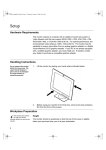
This monitor requires a computer with a suitable on-board sub-system or
Video Adapter card that can support SXGA 1280x1024, XGA 1024x768,
SVGA 800x600, or VGA 640x480 at 60Hz.
Note: Recommended operating mode is 1280 x 1024 @ 60 Hz.
Workplace Preparation
9
Height
The monitor should be positioned so that the top of the screen is slightly
below your eye level when sitting at your workstation.
9
Orientation
¾
Choose a position that gives the least reflection from lights and windows,
usually at a right angle to any windows.
1
¾
¾
The monitor should be positioned directly in front of you so that you do
not have to twist your body to use it.
Tilt the monitor to a comfortable viewing angle.
Working Practices
9
Rest
Take regular breaks. Vary your posture, stand up and stretch occasionally, as
prolonged use of computer workstations can be tiring.
9
Back
You should sit back in your chair and use the backrest.
9
Hands
Use a light touch on the keyboard, keeping your hands and fingers relaxed.
Allow a space in front of the keyboard to rest your wrists when not typing.
Consider using a wrist pad.
9
Eyesight
Working with monitors, in common with any prolonged close work, can be
visually demanding. Look away from the screen periodically and have your
eyesight checked regularly.
9
Screen settings
Set the screen brightness and contrast to a comfortable level. You may have
to adjust this as the lighting changes during the day. Many application
programs let you select color combinations, which can help you to view in
comfort. See the Adjusting the Monitor section for more information.
2
Adjusting the Monitor Position
9
Rotation
The monitor can be put in portrait or landscape mode as shown below.
Note: The rotate mechanism will not operate when the monitor is in the lowest
position.
Step 1
Step 2
Step 3
You can tilt the screen backward and forward –tilt 1-29 degrees as shown
below.
You can adjust the screen height by a maximum of 130mm.
3
You can swivel the base around – swivel 300 degrees..
Removing the Locking Pin and Lifting the Monitor
The monitor has a locking pin to stop the screen from moving in transit. Before
the height adjustment can be used, you must remove the locking pin from the
stand.
1.
With the rear of the monitor facing you, locate the locking pin as show in
diagram
2.
Turn the locking pin a quarter of a turn and remove
4
3.
The monitor height can now be adjusted
Removing the Stand from the monitor
1. Lay the monitor face down on a flat surface
(NOTE: It is important to place a soft cloth or other protective material
beneath the monitor to avoid scratching the screen.)
5
2. Push up the cable cover and remove it
3. Remove the four mounting screws on the monitor.
Caution: The stand is heavy and care should be taken to avoid dropping it.
4. Separate the cables from the Stand
6
5. Remove the stand from the monitor
Add Another Signal Cable
1. Remove the stand from the monitor as shown above.
2. Remove the plate.
3. Attach the other cable.
4. Attach the plate.
7
5. Insert the power cable and signal cables into the hole of the stand.
6. Attach the 4 screws.
7. Push down the cable cover and fasten it.
Caring for your Monitor
Be sure to turn off the power before you perform any maintenance on the
monitor. Clean your monitor as follows:
z
Gently wipe the covers and the screen with a soft cloth.
z
Remove finger marks and grease with a damp cloth and mild detergent;
do not use solvents or abrasives.
z
Never apply detergent or other liquid directly to the screen. Dampen the
cloth and then wipe.
z
Never use flammable cleaning material to clean your IBM monitor or any
other electrical apparatus.
8
Maintenance
Do not expose the monitor to direct sunlight or heat.
Do not spill liquid on the monitor.
Do not attempt to open the monitor. For service, see the
Troubleshooting section.
Do not place anything on your monitor. Poor ventilation will elevate
the temperature in the monitor.
9
Installing the Monitor
2
Installing the Monitor
This monitor is equipped with an auto-sensing power supply for voltage range
100V ac to 240V ac at 50Hz or 60Hz.
Be sure to read the “ Safety instructions” at the front of this User’s
Guide before carrying out this procedure.
1.
Make sure that the computer power is turned off.
2.
Plug the video signal cable into the video signal connector of your
computer.
10
3.
Plug the power cord into the monitor.
4. Connect the other end of power cord to a properly grounded electrical
outlet.
5. Switch on the computer and the monitor.
11
Configuring
Your Monitor
3
Automatic Setup
When you first use your monitor you must perform Automatic Setup (AUTO
SETUP). This procedure sets up your monitor to process the video signals
from your computer without image discoloration or smearing. After you
perform AUTO SETUP, the settings are stored and used each time you turn
on the monitor.
The Setup Utility included on the setup diskette is for displaying a test pattern.
It does not replace or modify the display driver. The Automatic Setup
instructions require the monitor to be warmed up for 15 minutes. This is not
required for normal operation.
SETUP Diskette for Windows 95 or Windows 98 or
Windows 2000
To use the Plug and Play feature in Windows 95 or Windows 98 or Windows
2000, files should be loaded from the IBM FLAT PANEL Monitor Installation
diskette as follows:
1.
2.
3.
4.
5.
6.
Turn off the computer and all attached devices.
Ensure that the monitor is connected correctly.
Turn on the monitor and then the system unit. Allow the system to boot
into Windows 95 or Windows 98 or Windows 2000.
Your computer’s Plug and Play code may warn you that your system
hardware has changed. This probably means that it has detected your
new monitor for the first time.
Open the DISPLAY PROPERTIES windows by clicking on START,
SETTINGS, CONTROL PANEL and then double clicking on the
DISPLAY icon.
Select the SETTINGS tab.
12
7.
8.
Select the CHANGE DISPLAY TYPE button.
Select the CHANGE MONITOR TYPE button. Insert the Setup diskette
into drive A: and select the HAVE DISK button.
9. Choose the 9497 monitor and select OK>, the files will be copied from
the diskette to your hard drive.
10. Close all open windows and remove the diskette.
11. Reboot the system. The system will automatically select the maximum
refresh rate and corresponding Color Matching Profile.
Auto Setup for Windows 3.1, Windows 95, Windows
98 or Windows 2000 or Windows NT
1.
Turn on the monitor first; then the computer.
If the message NO SIGNAL is displayed, or if nothing is displayed check:
The video interface cable is connected properly.
The correct video adapter card is installed.
Video card is set for a mode within the operating range of your new
monitor.
2. Wait approximately 15 minutes, until the monitor warms up.
3. Insert the “Flat Panel Monitor Installation Diskette” into the diskette drive.
4. Check the operating system installed on your computer and follow the
instructions from the table below.
When test pattern appears, press the OSD (On Screen Display) entry key ( )
and then use the left and right arrow key to highlight the image set-up icon
( ). Press enter key to enter sub-menu and then press enter key again to
activate the auto setup procedure. Image Setup will auto-adjust H-position,
V-position, Pixel Clock and Phase.
Note : Direct access to the auto setup function is also provided by
simultaneously pressing the left and right arrow keys.
13
Operating
System
Windows 3.1
Step1
Step2
Open
PROGRAM
Windows NT 3.5
MANGER
Select START
Windows 95
Step3
Step4
Select Select RUN Type
“A:\TESTPAT”
FILE
and press
ENTER
Select RUN
Windows 98
Windows 2000
Windows NT 4.0
z
You have completed the monitor setup for Windows operating system.
14
Adjusting the Monitor
4
User Controls
User controls features
Icon
Direct Access Function
Function Using OSD Menu
Controls
1.
Selects video input 1or 2
2.
Brings up Brightness control
OSD
2. Left and Right arrows pressed
together bring up auto setup
OSD
1. Brings up Contrast control
OSD
2. Left and Right arrows pressed
together bring up auto setup
OSD
Control lock activated when
pressed for 10 seconds
Controls unlocked if held for 10
seconds.
Exits from menus, sub
menus
Exits from OSD
1.
Moves the cursor to highlight
icons or make adjustments
Moves the cursor to highlight
icons or make adjustments
1.
2.
3.
Displays main OSD menu
Enters highlighted menus
and submenus
Selects highlighted option
Switches the monitor on or off
15
The image is already optimized for many display modes, however the user
controls can be used to adjust the image to your liking.
The settings are saved after
be effective thereafter.
adjustment and when exiting the OSD, and will
CONTROLS LOCK / UNLOCK
This feature allows you to secure the current control settings, so that they
cannot be inadvertently changed. Note: This does not include brightness and
contrast.
Push and hold the enter button [
Locked” appears.
] for 10 seconds; the message “Controls
You can unlock the OSD controls at any time by pushing the enter button [
for 10 seconds; the message “Controls Unlocked” will appear.
16
]
On-screen display (OSD) controls
The LCD monitor takes up to 15
minutes to become thermally
#
stable after each time you switch !
"
$$
it on. To make accurate adjustments,
wait until the monitor has warmed up.
i
MAIN MENU
H-POSITION
BRIGHTNESS
75
17
OSD Icon
BRIGHTNESS
CONTRAST
Description
Sub-menu(s)
Control and
Adjustment
Adjusts Brightness
Í
Î
Í
Î
Adjusts Contrast
The IMAGE SET-UP
function is used to
compensate for noise in
the video signals, which
causes horizontal lines or
areas on the screen
where the image appears
IMAGE SET-UP to be unstable and jitters
or shimmers. This can be
done automatically or
manually.
If manual is selected, the
user will go to the manual z
z
adjustment screen.
18
Auto
If
AUTO
is
selected
the
image will be
automatically
adjusted.
Manual
Fine
Coarse
This allows you to
remove
any
horizontal
noise
and
clear
or
sharpen
the
appearance
of
characters.
Fine adjustments
should be made
after
making
Coarse
adjustments.
OSD Icon
Description
sub-menu(s)
Control and
Adjustment
Preset 1
(Warm White)
COLOR MODE
Preset 2
(Normal White)
Preset 3
(Cool white)
COLOR
Select the Preset Color
Mode you find most
comfortable.
USER COLOR
Use the User Color Mode
MODE
menu, if necessary, to
Increases or
define your own color z Red
decreases
preference.
redness
z
Green
z
Blue
Increases or
decreases
greenness
Increases or
decreases
blueness
OSD Position
RESET
Changes the position of
the OSD on the screen.
H-POSITION
V-POSITION
Reset
returns
all
available functions (apart
from language, which will
z
not
change
unless
adjusted
via
the z
LANGUAGE menu,) to
their factory presets.
19
YES
NO
Í
Î
Í
Î
OSD Icon
Description
Control and
Adjustment
sub-menu(s)
Selects video input 1 or
video input 2
Input 1
Í
input 2
Î
Input Selection
H-POSITION
V-POSITION
IMAGE SIZE
Language
OSD time
Moves the displayed
image left or right.
AZ
Í
Moves the displayed
image up or down.
AZ
AZ
Î
AZ
Í
Î
NORMAL-original
Displays the image in its original size or image size.
expanded size to fill the full screen of your EXPANDEDmonitor.
image expanded
to fill the screen.
The language chosen affects only the
language used for the OSD.
It has no effect on any software running on
the computer.
Selects the OSD display duration time.
( Between 5 and 60 seconds)
20
z
z
z
z
z
z
ENGLISH
FRANCAIS
DEUTSCH
ITALIANO
ESPANOL
JAPANESE
Adjust to your
preference.
Information
The model name, serial number, year of
manufacture and current display mode
are included in the information screen.
Informs the user of the current display z
mode, and also shows the preset and user
modes stored in the monitor. The current
display mode is shown at the base of the z
preset mode and user mode displays.
Use the left and right buttons to see the
preset modes and user modes screens.
21
PRESET
USER MODE
Further Information
5
Supported Timing Modes
The Display mode the monitor uses is controlled by the computer. Therefore,
you should refer to you computer documentation for details on how to change
display modes.
For the display modes listed below, the screen image has been optimized
during manufacture.
22
Input display mode
Address
ability
*640x350
*720x400
*640x480
*640x480
*640x480
*640x480
*800x600
*800x600
*800x600
832X624
*1024x768
1024x768
*1024x768
1024X768
1152x864
1152x870
1152x900
*1280x1024
*1280x1024
*1280x1024
1280x1024
Multi-scan
operation
Actual
display
resolution
Remark
Dot Clock
Vertical
Horizontal
Frequency Frequency Frequency
(MHz)
(Hz)
(KHz)
31.47(P)
70.08(N)
25.17
DOS
31.47(N)
70.08(P)
28.32
DOS
31.47(N)
60.00(N)
25.18
DOS
35.00(N)
67.00(N)
30.24
Macintosh
37.86(N)
72.80(N)
31.5
VESA
full screen
37.50(N)
75.00(N)
31.5
VESA
1280x1024
37.88(P)
60.32(P)
40.00
VESA
48.08(P)
72.19(P)
50.00
VESA
46.86(P)
75.00(P)
49.50
VESA
49.72(N)
74.55(N)
57.29
Macintosh
48.36(N)
60.00(N)
65.00
VESA
56.48(N)
70.10(N)
75.00
VESA
60.02(P)
75.00(P)
78.75
VESA
60.24(N)
74.93(N)
80.00
Macintosh
67.50(P)
75.00(P)
108.00
VESA
68.68(N)
75.06(N)
100.00
61.84(P)
66.00(P)
94.50
64.00(P)
60.00(P)
108.00
VESA
75.83(N)
71.53(N)
128.00
80.00(P)
75.00(P)
135.00
VESA
81.18(N)
76.16(N)
135.09
Notes (1) The timing with “*” symbol are adjusted in the factory.
(2) (P), (N) stands for “Positive”, “Negative” polarity of incoming
timing.
23
Power Management
To benefit from power management, the monitor must be used in conjunction
with a computer that implements the Video Electronics Standards Association
(VESA) Display Power Management Signaling (DPMS) Standard.
The power management feature is invoked when the computer recognizes
that you have not used your mouse or keyboard for a user-definable period.
There are several states as described in the table below.
IBM recommends that you switch off your monitor at the end of each working
day, or whenever you expect to leave it unused for long periods during the day.
State
On
DPMS Standby
Power
Indicator
Steady green
Steady amber
Screen
Normal
Blank
DPMS Suspend
Flashing amber
Blank
DPMS Off
Flashing amber
Blank
Restoring
Operation
Press a key or
move the mouse.
Press a key or
move the mouse.
Press a key or
move the mouse.
Your flat panel monitor consumes less than 3W when in the DPMS “standby”,
“suspend” or “off ” state.
Product Disposal
The fluorescent lamp in the liquid crystal display contains mercury. Dispose of
it as required by local ordinances and regulations.
24
Troubleshooting
6
If you encounter trouble with this product, first check that the monitor is
properly installed.
Can't find the 9497 Monitor on the Windows 95® or
Windows 98® or Windows 2000® monitor lists.
You need to update the Windows 95® or Windows 98® or Windows 2000®
setup information for your 9497 Monitor.
There is no picture on the screen.
Check:
Power saving mode. Press any key or move the mouse to deactivate the
mode.
Signal cable connector pins. If there are bent or missing pins, consult your
place of purchase.
That the video mode selected is within the operating range of the monitor. If
the power indicator on the monitor bezel is green and flashing then the
monitor has detected signals that are outside its operating range.
The picture is unstable.
Check:
Signal cable connector pins. If there are bent or missing pins, consult your
place of purchase.
Graphics card. Ensure a valid mode is selected.
Characters look too dark or too light.
Adjust Contrast or Brightness
25
The image has a few tiny dots that are not the same color as
the surrounding area.
The Liquid Crystal Display (LCD) contains about 3 million Thin Film
Transistors (TFTs). A small number of missing, discolored, or lighted dots
may be present on the screen. This is an intrinsic characteristic of TFT LCD
technology and is not an LCD defect.
Need More Help?
If your problems remain after checking this manual, please contact your
reseller or call your IBM Help Center.
In the US call 1-800-772-2227
In Canada call 1-800-565-3344
26
Specification
LCD Panel 18.1", TFT
Dimensions (W x H x D)
7
418mm (W)
260mm (H)
400-530mm (D)
Weight (net)
10.5 Kg
Stand Range
Vertical (Tilt)
Range: 1-29 degrees
Vertical (Lift)
Range: 130mm
Swivel
Range: 300 degrees
Rotate
Range: 90 degrees
Power Supply (Universal) Input voltage
100 ~ 240VAC at
50 ~ 60Hz
Power consumption 65W max.
Max. Addressability
1280 x 1024 (SXGA)
Video Input
RGB input
User controls
Power ON/OFF, OSD
Regulatory Compliance
UL, CSA, FCC, TÜV/GS,
VCCI, CE, D.N.S.F.,
SASO, CCIB/CCE,
TÜV/Ergo, SISIR, MEEI,
PCBC, EZU, SIQ, NOM,
GOST, C-Tick, BCIQ,
TCO95 (9497-AG1),
TCO99 (9497-AW1),
MPRIII, NUTEK, SQTSB
Display Area
359mm(H) x 287.2mm(V)
Ambient Temperature
Operating
+ 5ºC ~ +35ºC
Shipping
-20ºC ~ +60ºC
Storage
-20ºC ~ +60ºC
Humidity
10% ~ 80%
Operating
5% ~ 95%
Shipping
5% ~ 95%
Storage
Width
Depth
Height
27
Warranty Statements
8
The warranty statements consist of two parts: Part 1 varies by country. Part2
is the same for both statements. Be sure to read both the Part 1 that applies
to your country and Part 2.
z
z
z
Worldwide except Canada, Puerto Rico, Turkey and United States
(Z125-5697-01 11/97)
(Part 1 - General Terms)
Worldwide Country-Unique Terms
(Part 2 – Country Unique Terms)
United States, Puerto Rico, and Canada (Z125-4753-05 11/97)
(Part 1 - General Terms)
Translations of IBM's warranty statements also can be found on the
Installation Diskette. Your Installation Diskette includes translations of IBM's
Statement of Warranty in the following languages:
Worldwide Statement of Warranty (Except Turkey, U.S. ,Puerto Rico and
Canada):
Arabic
Z1255697-ara.htm
Brazilian Portuguese
Z1255697-bra.htm
Bulgarian
Z1255697-bul.htm
Chinese
Z1255697-chi.htm
Croatian
Z1255697-cor.htm
Czech
Z1255697-cze.htm
Danish
Z1255697-dan.htm
Dutch
Z1255697-dut.htm
English
Z1255697-eng.htm
Finnish
Z1255697-fin.htm
French
Z1255697-fre.htm
German
Z1255697-ger.htm
Greek
Z1255697-gre.htm
Hebrew
Z1255697-heb.htm
Hungarian
Z1255697-hun.htm
Italian
Z1255697-ita.htm
28
Japanese
Z1255697-jap.htm
Korean
Z1255697-kor.htm
Norwegian
Z1255697-nor.htm
Polish
Z1255697-pol.htm
Portuguese
Z1255697-por.htm
Russian
Z1255697-rus.htm
Slovakian
Z1255697-sla.htm
Slovenian
Z1255697-sle.htm
Spanish
Z1255697-spa.htm
Swedish
Z1255697-swe.htm
Taiwanese
Z1255697-tai.htm
Turkey Statement of Warranty
Turkish
Z1255698-tur.htm
English
Z1255698-eng.htm
United States, Puerto Rico and Canada Statement of Limited Warranty
English
Z1254753-eng.htm
French Canadian
Z1254753-fca.htm
IBM Statement of Warranty World-wide except Canada, Puerto Rico,
Turkey, United States (Part 1 - General Terms)
This Statement of Warranty includes Part 1 - General Terms and Part 2 Country-unique Terms. The terms of Part 2 may replace or modify those
of Part 1. The warranties provided by IBM in this Statement of Warranty apply
only to Machines you purchase for your use, and not for resale, from IBM or
your reseller. The term "Machine" means an IBM machine, its features,
conversions, upgrades, elements, or accessories, or any combination of them.
The term "Machine" does not include any software programs, whether preloaded with the Machine, installed subsequently or otherwise. Unless IBM
specifies otherwise, the following warranties apply only in the country where
you acquire the Machine. Nothing in this Statement of Warranty affects any
statutory rights of consumers that cannot be waived or limited by contract. If
you have any questions, contact IBM or your reseller.
Machine - 9497
Warranty Period* - Three (3) years
*Contact your place of purchase for warranty service information. Some IBM
Machines are eligible for On-site warranty service depending on the country where
service is performed.
29
The IBM Warranty for Machines
IBM warrants that each Machine 1) is free from defects in materials and
workmanship and 2) conforms to IBM's Official Published Specifications. The
warranty period for a Machine is a specified, fixed period commencing on its
Date of Installation. The date on your sales receipt is the Date of Installation,
unless IBM or your reseller informs you otherwise.
During the warranty period IBM or your reseller, if approved by IBM to provide
warranty service, will provide repair and exchange service for the Machine,
without charge, under the type of service designated for the Machine and will
manage and install engineering changes that apply to the Machine.
If a Machine does not function as warranted during the warranty period, and
IBM or your reseller are unable to either 1) make it do so or 2) replace it with
one that is at least functionally equivalent, you may return it to your place of
purchase and your money will be refunded. The replacement may not be new,
but will be in good working order.
Extent of Warranty
The warranty does not cover the repair or exchange of a Machine resulting
from misuse, accident, modification, unsuitable physical or operating
environment, improper maintenance by you, or failure caused by a product for
which IBM is not responsible. The warranty is voided by removal or alteration
of Machine or parts identification labels.
THESE WARRANTIES ARE YOUR EXCLUSIVE WARRANTIES AND
REPLACE ALL OTHER WARRANTIES OR CONDITIONS, EXPRESS OR
IMPLIED, INCLUDING, BUT NOT LIMITED TO, THE IMPLIED
WARRANTIES OR CONDITIONS OF MERCHANTABILITY AND FITNESS
FOR A PARTICULAR PURPOSE. THESE WARRANTIES GIVE YOU
SPECIFIC LEGAL RIGHTS AND YOU MAY ALSO HAVE OTHER RIGHTS
WHICH VARY FROM JURISDICTION TO JURISDICTION. SOME
JURISDICTIONS DO NOT ALLOW THE EXCLUSION OR LIMITATION OF
EXPRESS OR IMPLIED WARRANTIES, SO THE ABOVE EXCLUSION OR
LIMITATION MAY NOT APPLY TO YOU. IN THAT EVENT, SUCH
WARRANTIES ARE LIMITED IN DURATION TO THE WARRANTY
PERIOD. NO WARRANTIES APPLY AFTER THAT PERIOD.
Items Not Covered by Warranty
IBM does not warrant uninterrupted or error-free operation of a Machine.
30
Unless specified otherwise, IBM provides non-IBM machines WITHOUT
WARRANTIES OF ANY KIND.
% & ' ( ) & ** +
regarding Machine
set-up and installation will be provided WITHOUT WARRANTIES OF ANY
KIND.
Warranty Service
To obtain warranty service for the Machine, contact your reseller or IBM. You
may be required to present proof of purchase.
IBM or your reseller provides certain types of repair and exchange service,
either at your location or at a service center, to keep Machines in, or restore
them to, conformance with their Specifications. IBM or your reseller will inform
you of the available types of service for a Machine based on its country of
installation. IBM may repair the failing Machine or exchange it at its discretion.
When warranty service involves the exchange of a Machine or part, the item
IBM or your reseller replaces becomes its property and the replacement
becomes yours. You represent that all removed items are genuine and
unaltered. The replacement may not be new, but will be in good working order
and at least functionally equivalent to the item replaced. The replacement
assumes the warranty service status of the replaced item.
Any feature, conversion, or upgrade IBM or your reseller services must be
installed on a Machine which is 1) for certain Machines, the designated,
serial-numbered Machine and 2) at an engineering-change level compatible
with the feature, conversion, or upgrade. Many features, conversions, or
upgrades involve the removal of parts and their return to IBM. A part that
replaces a removed part will assume the warranty service status of the
removed part.
Before IBM or your reseller exchanges a Machine or part, you agree to
remove all features, parts, options, alterations, and attachments not under
warranty service.
You also agree to ensure that the Machine is free of any legal obligations or
restrictions that prevent its exchange; obtain authorization from the owner to
have IBM or your reseller service a Machine that you do not own; and where
applicable, before service is provided follow the problem determination,
problem analysis, and service request procedures that IBM or your reseller
31
provides, secure all programs, data, and funds contained in a Machine,
provide IBM or your reseller with sufficient, free, and safe access to your
facilities to permit them to fulfill their obligations, and inform IBM or your
reseller of changes in a Machine's location.
IBM is responsible for loss of, or damage to, your Machine while it is 1) in
IBM's possession or 2) in transit in those cases where IBM is responsible for
the transportation charges.
Neither IBM nor your reseller is responsible for any of your confidential,
proprietary or personal information contained in a Machine which you return
to IBM or your reseller for any reason. You should remove all such information
from the Machine prior to its Production Status
Each IBM Machine is manufactured from new parts, or new and used parts. In
some cases, the Machine may not be new and may have been previously
installed. Regardless of the Machine's production status, IBM's appropriate
warranty terms apply.
Limitation of Liability
Circumstances may arise where, because of default on IBM's part or other
liability, you are entitled to recover damages from IBM. In each such instance,
regardless of the basis on which you are entitled to claim damages from IBM
(including fundamental breach, negligence, misrepresentation, or other
contract or tort claim), IBM is liable for no more than damages for bodily injury
(including death) and damage to real property and tangible personal property;
and
The amount of any other actual direct damages, up to the greater of U.S.
$100,000 (or equivalent in local currency) or the charges (if recurring, 12
months' charges apply) for the Machine that is the subject of the claim.
This limit also applies to IBM's suppliers and your reseller. It is the maximum
for which IBM, its suppliers, and your reseller are collectively responsible.
UNDER NO CIRCUMSTANCES IS IBM LIABLE FOR ANY OF THE
FOLLOWING: 1) THIRD-PARTY CLAIMS AGAINST YOU FOR DAMAGES
(OTHER THAN THOSE UNDER THE FIRST ITEM LISTED ABOVE); 2)
LOSS OF, OR DAMAGE TO, YOUR RECORDS OR DATA; OR 3) SPECIAL,
INCIDENTAL, OR INDIRECT DAMAGES OR FOR ANY ECONOMIC
CONSEQUENTIAL DAMAGES (INCLUDING LOST PROFITS OR
SAVINGS), EVEN IF IBM, ITS SUPPLIERS OR YOUR RESELLER IS
32
INFORMED OF THEIR POSSIBILITY. SOME JURISDICTIONS DO NOT
ALLOW THE EXCLUSION OR LIMITATION OF INCIDENTAL OR
CONSEQUENTIAL DAMAGES, SO THE ABOVE LIMITATION OR
EXCLUSION MAY NOT APPLY TO YOU.
Statement of Warranty Part 2 - Country-unique Terms
ASIA PACIFIC
AUSTRALIA: The IBM Warranty for Machines: The following paragraph is
added to this Section:
The warranties specified in this Section are in addition to any rights you may
have under the Trade Practices Act 1974 or other legislation and are only
limited to the extent permitted by the applicable legislation.
Extent of Warranty: The following replaces the first and second sentences of
this Section:
The warranty does not cover the repair or exchange of a Machine resulting
from misuse, accident, modification, unsuitable physical or operating
environment, operation in other than the Specified Operating Environment,
improper maintenance by you, or failure caused by a product for which IBM is
not responsible.
Limitation of Liability: The following is added to this Section:
Where IBM is in breach of a condition or warranty implied by the Trade
Practices Act 1974, IBM's liability is limited to the repair or replacement of the
goods or the supply of equivalent goods. Where that condition or warranty
relates to right to sell, quiet possession or clear title, or the goods are of a kind
ordinarily acquired for personal, domestic or household use or consumption,
then none of the limitations in this paragraph apply.
PEOPLE'S REPUBLIC OF CHINA: Governing Law: The following is added
to this Statement:
The laws of the State of New York govern this Statement.
INDIA: Limitation of Liability: The following replaces items 1 and 2 of this
Section:
1. liability for bodily injury (including death) or damage to real property and
tangible personal property will be limited to that caused by IBM's negligence;
2. as to any other actual damage arising in any situation involving
nonperformance by IBM pursuant to, or in any way related to the subject of
this Statement of Warranty, IBM's liability will be limited to the charge paid by
33
you for the individual Machine that is the subject of the claim.
NEW ZEALAND: The IBM Warranty for Machines: The following paragraph
is added to this Section:
The warranties specified in this Section are in addition to any rights you may
have under the Consumer Guarantees Act 1993 or other legislation which
cannot be excluded or limited. The Consumer Guarantees Act 1993 will not
apply in respect of any goods which IBM provides, if you require the goods for
the purposes of a business as defined in that Act.
Limitation of Liability: The following is added to this Section:
Where Machines are not acquired for the purposes of a business as defined
in the Consumer Guarantees Act 1993, the limitations in this Section are
subject to the limitations in that Act.
EUROPE, MIDDLE EAST, AFRICA (EMEA)
The following terms apply to all EMEA countries.
The terms of this Statement of Warranty apply to Machines purchased from
an IBM reseller. If you purchased this Machine from IBM, the terms and
conditions of the applicable IBM agreement prevail over this warranty
statement.
Warranty Service
If you purchased an IBM Machine in Austria, Belgium, Denmark, Estonia,
Finland, France, Germany, Greece, Iceland, Ireland, Italy, Latvia, Lithuania,
Luxembourg, Netherlands, Norway, Portugal, Spain, Sweden, Switzerland or
United Kingdom, you may obtain warranty service for that Machine in any of
those countries from either (1) ,-( & '$ & '$,-(
If you purchased an IBM Personal Computer Machine in Albania, Armenia,
Belarus, Bosnia and Herzegovina, Bulgaria, Croatia, Czech Republic,
Georgia, Hungary, Kazakhstan, Kirghizia, Federal Republic of Yugoslavia,
Former Yugoslav Republic of Macedonia (FYROM), Moldova, Poland,
Romania, Russia, Slovak Republic, Slovenia, or Ukraine, you may obtain
warranty service for that Machine in any of those countries from either (1) an
IBM reseller approved to perform warranty service or (2) from IBM.
The applicable laws, Country-unique terms and competent court for this
Statement are those of the country in which the warranty service is being
provided. However, the laws of Austria govern this Statement if the warranty
34
service is provided in Albania, Armenia, Belarus, Bosnia and Herzegovina,
Bulgaria, Croatia, Czech Republic, Federal Republic of Yugoslavia, Georgia,
Hungary, Kazakhstan, Kirghizia, Former Yugoslav Republic of Macedonia
(FYROM), Moldova, Poland, Romania, Russia, Slovak Republic, Slovenia,
and Ukraine.
The following terms apply to the country specified:
EGYPT: Limitation of Liability: The following replaces item 2 in this Section:
2. as to any other actual direct damages, IBM's liability will be limited to the
total amount you paid for the Machine that is the subject of the claim.
Applicability of suppliers and resellers (unchanged).
FRANCE: Limitation of Liability: The following replaces the second
sentence of the first paragraph of this Section:
In such instances, regardless of the basis on which you are entitled to claim
damages from IBM, IBM is liable for no more than: (items 1 and 2
unchanged).
GERMANY: The IBM Warranty for Machines: The following replaces the
first sentence of the first paragraph of this Section:
The warranty for an IBM Machine covers the functionality of the Machine for
its normal use and the Machine's conformity to its Specifications.
The following paragraphs are added to this Section:
The minimum warranty period for Machines is six months.
In case IBM or your reseller are unable to repair an IBM Machine, you can
alternatively ask for a partial refund as far as justified by the reduced value of
the unrepaired Machine or ask for a cancellation of the respective agreement
for such Machine and get your money refunded.
Extent of Warranty: The second paragraph does not apply.
Warranty Service: The following is added to this Section:
During the warranty period, transportation for delivery of the failing Machine to
IBM will be at IBM's expense.
Production Status: The following paragraph replaces this Section:
Each Machine is newly manufactured. It may incorporate in addition to new
parts, re-used parts as well.
35
Limitation of Liability: The following is added to this Section:
The limitations and exclusions specified in the Statement of Warranty will not
apply to damages caused by IBM with fraud or gross negligence and for
express warranty.
In item 2, replace "U.S. $100,000" with "1.000.000 DEM."
The following sentence is added to the end of the first paragraph of item 2:
IBM's liability under this item is limited to the violation of essential contractual
terms in cases of ordinary negligence.
IRELAND: Extent of Warranty: The following is added to this Section:
Except as expressly provided in these terms and conditions, all statutory
conditions, including all warranties implied, but without prejudice to the
generality of the foregoing all warranties implied by the Sale of Goods Act
1893 or the Sale of Goods and Supply of Services Act 1980 are hereby
excluded.
Limitation of Liability: The following replaces items one and two of the first
paragraph of this Section:
1. death or personal injury or physical damage to your real property solely
caused by IBM's negligence; and 2. the amount of any other actual direct
damages, up to the greater of Irish Pounds 75,000 or 125 percent of the
charges (if recurring, the 12 months' charges apply) for the Machine that is the
subject of the claim or which otherwise gives rise to the claim.
Applicability of suppliers and resellers (unchanged).
The following paragraph is added at the end of this Section:
IBM's entire liability and your sole remedy, whether in contract or in tort, in
respect of any default shall be limited to damages.
ITALY: Limitation of Liability: The following replaces the second sentence
in the first paragraph:
In each such instance unless otherwise provided by mandatory law, IBM is
liable for no more than: (item 1 unchanged) 2)as to any other actual damage
arising in all situations involving non-performance by IBM pursuant to, or in
any way related to the subject matter of this Statement of Warranty, IBM's
liability, will be limited to the total amount you paid for the Machine that is the
subject of the claim.
36
Applicability of suppliers and resellers (unchanged).
The following replaces the second paragraph of this Section:
Unless otherwise provided by mandatory law, IBM and your reseller are not
liable for any of the following: (items 1 and 2 unchanged) 3) indirect damages,
even if IBM or your reseller is informed of their possibility.
SOUTH AFRICA, NAMIBIA, BOTSWANA, LESOTHO AND SWAZILAND:
Limitation of Liability: The following is added to this Section:
IBM's entire liability to you for actual damages arising in all situations involving
nonperformance by IBM in respect of the subject matter of this Statement of
Warranty will be limited to the charge paid by you for the individual Machine
that is the subject of your claim from IBM.
TURKIYE: Production Status: The following replaces this Section:
IBM fulfills customer orders for IBM Machines as newly manufactured in
accordance with IBM's production standards.
UNITED KINGDOM: Limitation of Liability: The following replaces items 1
and 2 of the first paragraph of this Section:
1. death or personal injury or physical damage to your real property solely
caused by IBM's negligence;
2. the amount of any other actual direct damages or loss, up to the greater of
Pounds Sterling 150,000 or 125 percent of the charges (if recurring, the 12
months' charges apply) for the Machine that is the subject of the claim or
which otherwise gives rise to the claim.
The following item is added to this paragraph:
3. breach of IBM's obligations implied by Section 12 of the Sale of Goods Act
1979 or Section 2 of the Supply of Goods and Services Act 1982.
Applicability of suppliers and resellers (unchanged).
The following is added to the end of this Section:
IBM's entire liability and your sole remedy, whether in contract or
in tort, in respect of any default will be limited to damages.
37
NORTH AMERICA
CANADA: Warranty Service: The following is added to this Section:
To obtain warranty service from IBM, call 1-800-565-3344.
UNITED STATES OF AMERICA: Warranty Service: The following is added
to this Section:
To obtain warranty service from IBM, call 1-800-772-2227.
IBM Statement of Limited Warranty for United States, Puerto Rico, and
Canada (Part 1 - General Terms)
This Statement of Limited Warranty includes Part 1 - General Terms and Part
2 - Country-unique Terms. The terms of Part 2 may replace or modify
those of Part 1. The warranties provided by IBM in this Statement of Limited
Warranty apply only to Machines you purchase for your use, and not for
resale, from IBM or your reseller. The term "Machine" means an IBM machine,
its features, conversions, upgrades, elements, or accessories, or any
combination of them. The term "Machine" does not include any software
programs, whether pre-loaded with the Machine, installed subsequently or
otherwise. Unless IBM specifies otherwise, the following warranties apply
only in the country where you acquire the Machine. Nothing in this Statement
of Warranty affects any statutory rights of consumers that cannot be waived or
limited by contract. If you have any questions, contact IBM or your reseller.
Machine - 9497
Warranty Period* - Three (3) years
*Contact your place of purchase for warranty service information. Some IBM
Machines are eligible for On-site warranty service depending on the country
where service is performed.
The IBM Warranty for Machines
IBM warrants that each Machine 1) is free from defects in materials and
workmanship and 2) conforms to IBM's Official Published Specifications. The
warranty period for a Machine is a specified, fixed period commencing on its
Date of Installation. The date on your sales receipt is the Date of Installation,
unless IBM or your reseller informs you otherwise.
38
During the warranty period IBM or your reseller, if approved by IBM to provide
warranty service, will provide repair and exchange service for the Machine,
without charge, under the type of service designated for the Machine and will
manage and install engineering changes that apply to the Machine.
If a Machine does not function as warranted during the warranty period, and
IBM or your reseller are unable to either 1) make it do so or 2) replace it with
one that is at least functionally equivalent, you may return it to your place of
purchase and your money will be refunded. The replacement may not be new,
but will be in good working order.
Extent of Warranty
The warranty does not cover the repair or exchange of a Machine resulting
from misuse, accident, modification, unsuitable physical or operating
environment, improper maintenance by you, or failure caused by a product for
which IBM is not responsible. The warranty is voided by removal or alteration
of Machine or parts identification labels.
THESE WARRANTIES ARE YOUR EXCLUSIVE WARRANTIES AND
REPLACE ALL OTHER WARRANTIES OR CONDITIONS, EXPRESS OR
IMPLIED, INCLUDING, BUT NOT LIMITED TO, THE IMPLIED
WARRANTIES OR CONDITIONS OF MERCHANTABILITY AND FITNESS
FOR A PARTICULAR PURPOSE. THESE WARRANTIES GIVE YOU
SPECIFIC LEGAL RIGHTS AND YOU MAY ALSO HAVE OTHER RIGHTS
WHICH VARY FROM JURISDICTION TO JURISDICTION. SOME
JURISDICTIONS DO NOT ALLOW THE EXCLUSION OR LIMITATION OF
EXPRESS OR IMPLIED WARRANTIES, SO THE ABOVE EXCLUSION OR
LIMITATION MAY NOT APPLY TO YOU. IN THAT EVENT, SUCH
WARRANTIES ARE LIMITED IN DURATION TO THE WARRANTY
PERIOD. NO WARRANTIES APPLY AFTER THAT PERIOD.
Items Not Covered by Warranty
IBM does not warrant uninterrupted or error-free operation of a Machine.
Unless specified otherwise, IBM provides non-IBM machines WITHOUT
WARRANTIES OF ANY KIND.
Any technical or other support provided for a Machine under warranty, such
as assistance via telephone with "how-to" questions and those regarding
Machine set-up and installation, will be provided WITHOUT WARRANTIES
OF ANY KIND.
39
Warranty Service
To obtain warranty service for the Machine, contact your reseller or IBM. In
the United states, call IBM at 1-800-772-2227. In Canada, call IBM at 1-800565-3344. You may be required to present proof of purchase.
IBM or your reseller provides certain types of repair and exchange service,
either at your location or at a service center, to keep Machines in, or restore
them to, conformance with their Specifications. IBM or your reseller will inform
you of the available types of service for a Machine based on its country of
installation. IBM may repair the failing Machine or exchange it at its discretion.
When warranty service involves the exchange of a Machine or part, the item
IBM or your reseller replaces becomes its property and the replacement
becomes yours. You represent that all removed items are genuine and
unaltered. The replacement may not be new, but will be in good working order
and at least functionally equivalent to the item replaced. The replacement
assumes the warranty service status of the replaced item.
Any feature, conversion, or upgrade IBM or your reseller services must be
installed on a Machine which is 1) for certain Machines, the designated,
serial-numbered Machine and 2) at an engineering-change level compatible
with the feature, conversion, or upgrade. Many features, conversions, or
upgrades involve the removal of parts and their return to IBM. A part that
replaces a removed part will assume the warranty service status of the
removed part.
Before IBM or your reseller exchanges a Machine or part, you agree to
remove all features, parts, options, alterations, and attachments not under
warranty service.
You also agree to
1. ensure that the Machine is free of any legal obligations or restrictions that
prevent its exchange;
2. obtain authorization from the owner to have IBM or your reseller service a
Machine that you do not own; and
3. where applicable, before service is provided
a. follow the problem determination, problem analysis, and service request
procedures that IBM or your reseller provides,
b. secure all programs, data, and funds contained in a Machine,
c. provide IBM or your reseller with sufficient, free, and safe access to your
40
facilities to permit them to fulfill their obligations, and
d. inform IBM or your reseller of changes in a Machine's location.
IBM is responsible for loss of, or damage to, your Machine while it is 1) in
IBM's possession or 2) in transit in those cases where IBM is responsible for
the transportation charges.
Neither IBM nor your reseller is responsible for any of your confidential,
proprietary or personal information contained in a Machine which you return
to IBM or your reseller for any reason. You should remove all such information
from the Machine prior to its return.
Production Status
Each IBM Machine is manufactured from new parts, or new and used parts. In
some cases, the Machine may not be new and may have been previously
installed. Regardless of the Machine's production status, IBM's appropriate
warranty terms apply.
Limitation of Liability
Circumstances may arise where, because of a default on IBM's part or other
liability, you are entitled to recover damages from IBM. In each such instance,
regardless of the basis on which you are entitled to claim damages from IBM
(including fundamental breach, negligence, misrepresentation, or other
contract or tort claim), IBM is liable for no more than
damages for bodily injury (including death) and damage to real property and
tangible personal property; and
the amount of any other actual direct damages, up to the greater of U.S.
$100,000 (or equivalent in local currency) or the charges (if recurring, 12
months' charges apply) for the Machine that is the subject of the claim.
This limit also applies to IBM's suppliers and your reseller. It is the maximum
for which IBM, its suppliers, and your reseller are collectively responsible.
UNDER NO CIRCUMSTANCES IS IBM LIABLE FOR ANY OF THE
FOLLOWING: 1) THIRD-PARTY CLAIMS AGAINST YOU FOR DAMAGES
(OTHER THAN THOSE UNDER THE FIRST ITEM LISTED ABOVE); 2)
LOSS OF, OR DAMAGE TO, YOUR RECORDS OR DATA; OR 3) SPECIAL,
INCIDENTAL, OR INDIRECT DAMAGES OR FOR ANY ECONOMIC
CONSEQUENTIAL DAMAGES (INCLUDING LOST PROFITS OR
SAVINGS), EVEN IF IBM, ITS SUPPLIERS OR YOUR RESELLER IS
41
INFORMED OF THEIR POSSIBILITY. SOME JURISDICTIONS DO NOT
ALLOW THE EXCLUSION OR LIMITATION OF INCIDENTAL OR
CONSEQUENTIAL DAMAGES, SO THE ABOVE LIMITATION OR
EXCLUSION MAY NOT APPLY TO YOU.
42
Compliance
9
Statement
This equipment has been tested and found to comply with the limits for a
Class B digital device, pursuant to Part 15 of the FCC Rules. These limits are
designed to provide reasonable protection against harmful interference in a
residential installation. This equipment generates, uses, and can radiate radio
frequency energy and, if not installed and used in accordance with the
instructions, may cause harmful interference to radio communications.
However, there is no guarantee that interference will not occur in a particular
installation.
If this equipment does cause harmful interference to radio or television
reception, which can be determined by turning the equipment off and on, the
user is encouraged to try to correct the interference by one or more of the
following measures:
z
z
z
z
Reorient or relocate the receiving antenna.
Increase the separation between the equipment and receiver.
Connect the equipment into an outlet on a circuit different from that to
which the receiver is connected.
Consult an IBM authorized dealer or service representative for help.
Properly shielded and grounded cables and connectors must be used in order
to meet FCC emission limits. Proper cables and connectors are available
from IBM authorized dealers. IBM is not responsible for any radio or television
interference caused by using other than recommended cables and
connectors or by unauthorized changes or modifications to this equipment.
Unauthorized changes or modifications could void the user’s authority to
operate the equipment.
This device complies with Part 15 of the FCC Rules.
Operation is subject to the following two conditions: (1) this device may not
cause harmful interference, and (2) this device must accept any interference
43
received, including interference that may cause undesired operation. This
Class B digital apparatus meets all requirements of the Canadian
Interference-Causing Equipment Regulations.
Power Cord
For your safety, IBM provides a power cord with a grounded attachment plug
to use with this IBM product. To avoid electrical shock, always use the power
cord and plug with a properly grounded power outlet.
IBM power cords used in the United States and Canada are listed by the
Underwriters Laboratories (UL) and certified by the Canadian Standards
Association (CSA).
For units intended to be operated at 115 volts: Use a UL listed and CSA
certified cord set consisting of a minimum 18 AWG, type SVT or SJT, three
conductor cord, a maximum of 4.5 meters (15 feet) in length and a parallel
blade, grounding type attachment plug rated 15 amperes, 125 volts.
For units intended to be operated at 230 volts (U.S. use): Use a UL listed and
CSA certified cord set consisting of a minimum 18 AWG, type SVT or SJT,
three conductor cord, a maximum of 4.5 meters (15 feet) in length and a
tandem blade, grounding type attachment plug rated 15 amperes 250 volts.
For units intended to be operated at 230 volts (outside the U.S.): Use a cord
set with a grounding type attachment plug rated 13 amperes (minimum), 250
volts. The cord set should be marked <HAR> and have the appropriate safety
approvals for the country in which the equipment will be installed.
Note: The accessible metal parts of the display power adapter output
connector are not directly connected to Safety Ground.
Industry Canada Compliance Statement
The Class B digital apparatus meets the requirements of the Canadian
Interface-Causing Equipment Regulation.
Déclaration de Conformité Industrielle du Canada
Cet appareil numérique de Catégorie B est conforme aux exigences de la
Réglementation canadienne concernant les interfaces provoquant une
interférence.
44
E
N
E R GO
Y
RG
EC
OGY E N
OL
O
95
IO
MI
NS
CS E M I S
S
TCO’95 applies to 9497-AG1
Mercury is sometimes found in batteries relays and switches. Mercury
damages the nervous system and is toxic in high doses.
TCO'95 requirement states that batteries may contain no more than 25 ppm
(parts per million) or mercury. It also demands that no mercury is present in
any of the electrical or electronics components concerned with the display.
Mercury is, for the time being, permitted in the back light system of flat panel
monitors, as there today is no commercially available alternative.
TCO aims on removing this exception when a mercury free alternative is
available.
TCO’99 applies to 9497-AW1
Congratulations!
You have just purchased a TCO'99 approved and labelled product! Your
choice has provided you with a product developed for professional use. Your
purchase has also contributed to reducing the burden on the environment and
also to the further development of environmentally adapted electronics
products.
Why do we have environmentally labeled computers?
In many countries, environmental labelling has become an established
method for encouraging the adaptation of goods and services to the
environment. The main problem, as far as computers and other electronics
equipment are concerned, is that environmentally harmful substances are
used both in the products and during their manufacture. Since it is not so far
possible to satisfactorily recycle the majority of electronics equipment, most of
these potentially damaging substances sooner or later enter nature.
45
There are also other characteristics of a computer, such as energy
consumption levels, that are important from the viewpoints of both the work
(internal) and natural (external) environments. Since all methods of electricity
generation have a negative effect on the environment (e.g. acidic and
climate-influencing emissions, radioactive waste), it is vital to save energy.
Electronics equipment in offices is often left running continuously and thereby
consumes a lot of energy.
What does labeling involve?
This product meets the requirements for the TCO'99 scheme, which provides
for international and environmental labeling of personal computers. The
labeling scheme was developed as a joint effort by the TCO (The Swedish
Confederation of Professional Employees), Svenska Naturskyddsforeningen
(The Swedish Society for Nature Conservation) and Statens Energimyndighet
(The Swedish National Energy Administration).
Approval requirements cover a wide range of issues: environment,
ergonomics, usability, emission of electric and magnetic fields, energy
consumption and electrical and fire safety.
The environmental demands impose restrictions on the presence and use of
heavy metals, brominated and chlorinated flame retardants, CFCs (freons)
and chlorinated solvents, among other things. The product must be prepared
for recycling and the manufacturer is obliged to have an environmental policy
which must be adhered to in each country where the company implements its
operational policy.
The energy requirements include a demand that the computer and/or display,
after a certain period of inactivity, shall reduce its power consumption to a
lower level in one or more stages. The length of time to reactivate the
computer shall be reasonable for the user.
Labeled products must meet strict environmental demands, for example, in
respect of the reduction of electric and magnetic fields, physical and visual
ergonomics and good usability.
As an ENERGY STAR Partner, IBM Corporation has determined
that
this product meets the ENERGY STAR guidelines for
energy efficiency.
MPRIII
This product complies with Swedish National Council for Metrology (MPR)
standards issued in 1989 according to MPRIII /SVENSK standards SS 436
14 90 for very low frequency ( VLF) and extremely low frequency ( ELF)
emissions .
46
Hinweise
Gemäß der Amtsblätter des BMPT Nm. 61/1991 und 6/1992 wird der
Betreiber darauf aufmerksam gemächt, daß die von ihm mit diesem Gerät
zusammengestellte Anlage auch den technischen Bestimmungen dieser
Amtsblätter genügen muß.
Aus ergonomischen Gründen wird empfohlen, die Grundfarbe Blau nicht auf
dunklem
Untergrund
zu
verwenden
(schlechte
Erkennbarkeit,
Augenbelastung bei zu geringem Zeichenkontrast).
Aus ergonomischen Gründen sollten nur Darstellungen auf dunklem
Hintergrund bei Vertikalfrequenzen ab 60 Hz (ohne Zeilensprung) benutzt
werden.
Die Konvergenz des Bildes kann sich auf Grund des Magnetfeldes am Ort der
Aufstellung aus der Korrekten Grundeinstellung verändern. Zur Korrektur
empfiehlt es sich deshalb, die Regler an der Frontseite für H STAT und V
STAT so einzustellen, daß die getrennt sichtbaren Farblinien für Rot. Grün
und Blau bei z.B. der Darstellung eines Buchstabens zur Deckung
(Konvergenz) gelangen. Siehe hierzu auch die Erklärungen zu H STAT und V
STAT.
European Union (EU) Statement
This product had been tested and found to comply with the limits for Class B
Information Technology Equipment according to CISPR 22 / European
Standard EN 55022. The limits for Class B equipment were derived for typical
residential environments to provide reasonable protection against interface
with licensed communication devices.
Properly shielded and grounded cables and connectors must be used in order
to reduce the potential for causing interface to radio and TV communications
and to other electrical or electronic equipment. Such cables and connectors
are available form IBM authorised dealers.
In accordance with EN 50082-1 1992, Performance Criterion A:, it should be
noted that in the presence of certain electromagnetic fields, some screen jitter
may be observed.
Spécifications de la CEE
Ce produit a été testé et déclaré conforme aux limites de la Classe B définies
47
pour les équipements informatiques conformément à la norme europ;eenne
CISPR 22/EN 55022. Les limites imposées aux équipements de Classe B
visent à garantir une protection raisonnable, dans des environnements
résidentiels, contre toute interférence avec des équipements de
communication agréés.
Des câbles blindés et correctment reliés à la terre doivent être utilisés pour
réduire les risques d’interférence avec des communications radio et
télévisées, ainsi qu’avec des équipements électriques ou électroniques. Ces
câbles et connecteurs sont disponibles auprès de vos revendeurs IBM
agréés.
Conformément à la norme EN 50082-1 1992 (Critère de Performance A),
l’utilisateur doit être conscient du fait qu’en présence de certains champs
électromagnétiques, l’image peut être instable.
Erklärung für die Europäische Union (EU)
Dieses Produkt worde getestet, und dabei wurde festgestellt, daß es gemäß
CISPR-2 / Europäische Norm EN 55022 die Grenzwerte für Ausrüstung der
Informationstechnik, Klasse B, einhält. Die Grenzwerte für Ausrüstung der
Klasse B wurden für eine typische Wohnumgebung erarbeitet, um einen
angemessenen Schutz vor Störungen im Zusammenhang mit zugelassenen
Kommunikations-geräten zu gewährleisten.
Es sind ordnungsgemäß abgeschirmte und geerdete Kabel und Stecker zu
verwenden, um das Störungspotential in bezug auf Radio- und
Fernsehempfang oder andere elektrische oder elekronische Geräte zu
reduzieren. Solche Kabel und Stecker sind bei autorisierten IBM-erhältlich.
In Übereinstimmung mit EN 50082-1 1992, Leistungskriterium A wird darauf
hingewiesen, daß bestimmte elektromagnetische Felder ein Flattern auf dem
Bildschirm hervorrufen können.
Declaración de la Unión Europea (UE)
Este producto ha sido probado y cumple con las limitaciones estipuladas para
la Clase B ITE (Information Technology Equipment), de conformidad con
CISPR 22 / Estándar Europeo EN 55022. Las limitaciones de los equipos de
Clase B se estableicieron para que los entornos residenciales típicos a fin de
proporcionar una protección razonable contra interferencias con dispositivos
de comunicación autorizados.
Se deben utilizar concetores y cables debidamente protegidos y conectados
48
a tierra a fin de reducir las posibilidades de que se produzcan interferencias
con comunicaciones por radio o televisión y otros equipos eléctricos o
electrónicos. Este tipo de cables y conectores pueden adquirirse en
concesionarios autorizados de IBM.
De acuerdo con la norma EN 50082-1 1992, Performance Criterion A, habría
que destacar que en presencia de determinados campos electromagnéticos,
podría observarse una marcada inestabilidad e la imagen.
Dichiarazione di conformità dell’Unione Europea (EU)
Questo prodotto è stato collaudato e trovato conforme ai limiti de Classe B
relativi agli apparecchi informatici secondo quanto dispone la normativa
europea CISPR 22 / EN 55022. I limiti degli apparecchi di Classe B sono stati
definiti per i normali ambienti domestici al fine de fornire un’adeguata
protezione con dispositivi di comunicazione autorizzati.
Utilizzare cavi e connettori collegati a terra per ridurre il rischio potenziale di
interferenza delle comunicazioni radiotelevisive e di a;tri apparecchi elettrici o
elettronici. I cavi sono disponibili presso i rivenditori IBM.
In accordo con quando previsto nel documento EN 50082-1 1992,
Performance Criterion A, è importante sottolineare che in presenza di
determinati campi elettromagnetici è possibile che si verifichi un certo
tremolio delle immagini.
Europeiska unionen (EU)
Denna produkt har testats och följer gränsvärdena för Klass B Information
Technology Equipment enligt CISPR 22 / Europeisk standard EN 55022.
Gränsvärden för Klass B-utrutning utgår frår vanliga bostadsomräden för att
ge ett rimligt skydd mot störningar i kommunikationsenheter.
Korrekt avskärmade och jordade kablar och kontakter måste användas för att
minska risken för störningar i radio- och TV-kommunikationer och annan
elektrisk utrustning. Sådana kablar och kontakter finns tillgängliga hos
auktoriserade IBM-återförsäljare.
I enlighet med EN 50082-1 1992, Performance Criterion A påpekas följande:
I närheten av en del elektromagnetiska fält kan vissa bildstörningar uppstår
på skårmen.
49
VCCI Class B Notice (Japan Only)
This product complies with the limits for a Class B digital device (devices used
in or adjacent to a residential environment) and conforms to the standards for
information technology equipment that are set by the Voluntary Control
Council for Interference for preventing radio frequency interference in
residential areas.
この装置は、情報処理装置等電波障害自主規制協議会(VCCI)の基準に基
づくクラス B 情報技術装置です。この装置は家庭環境で使用することを目
的としていますが、この装置がラジオやテレビジョン受信機に近接して使
用させると、受信障害を引き起こすことがあります。取扱説明書に従って
正しい取り扱いをして下さい。
50