1
Epson PowerLite S3
®
®
Quick Setup
2 Connect your video source
Choosing a location
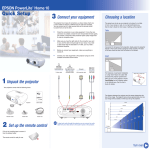
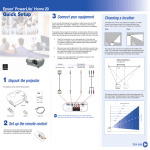
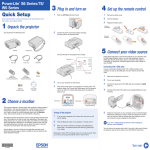
The projector has 3 video connectors, as shown below. Each one requires a
different type of cable. A computer cable is included. You can purchase optional
video cables through Epson or at local electronics stores. You can connect up
to 3 video devices and use the remote control to switch among them.
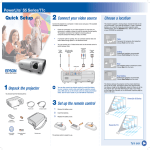
The projector supports 4 viewing setups. Choose the best one for
your environment. If you install the projector in a rear or overhead
position, you’ll need to choose the correct projection option,
identified below, from the Extended menu. See the User’s Guide
on your CD-ROM for instructions.
1
Check the connectors on your video equipment. If more than one
connection is available, choose the one that provides the best quality.
(The projector connectors from highest to lowest quality are
Computer/Component Video, S-Video, and Composite Video.)
2
Make sure you have the right cable(s) for the connection(s) you want
to use, and the cables are long enough for your setup. If you need
a cable longer than the standard 6 to 10 feet, you may need a
distribution amplifier. (See the next page for accessory information.)
3
Before you connect your equipment, make sure everything is turned off.
4
Table
Convenient for temporary front projection.
Choose Front from the menu.
Ceiling
Professional installation recommended.
Choose Front /Ceiling from the menu.
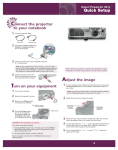
Connect your video equipment to the projector.
Component
video to
VGA cable
Computer
cable
(included)
S-Video
cable
RCA video cable
(composite
video)
Rear
For permanent installation behind a
translucent screen. Choose Rear
from the menu.
Rear/Ceiling
Professional installation behind a translucent
screen recommended. Choose Rear/Ceiling
from the menu.
Audio in ports
1 Unpack the projector
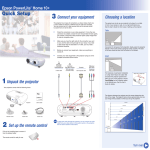
The distance between the projector and the screen determines the
size of the image. The diagram below shows approximately how big
your image will be, based on where you set up the projector.
You should have the following items:
Distance from projector to screen (ft.)
NOTE
Projector
Projector
remote control
Power cord
Password protect
sticker
User’s Guide
CD-ROM
NOTE
Computer cable
29.4(Wide)–39.8(Tele) ft.
To play back audio through the projector, you can connect an audio
cable from your video device to the audio in ports on the projector.
See the User’s Guide on your CD-ROM for instructions.
19.6–26.5
3 Set up the remote control
1
Remove the battery cover.
2
Insert the batteries.
3
Replace the battery cover.
(in.)
9.7–13.2
7.8–10.5
5.8–7.9
4.8–6.6
3.8–5.2
2.9–3.9
Carrying case
The carrying case may be different from the one shown in
the illustration.
The remote control is ready for use.
Turn over
Epson PowerLite S3
®
®
Quick Setup
2 Connect your video source
Choosing a location
The projector has 3 video connectors, as shown below. Each one requires a
different type of cable. A computer cable is included. You can purchase optional
video cables through Epson or at local electronics stores. You can connect up
to 3 video devices and use the remote control to switch among them.
The projector supports 4 viewing setups. Choose the best one for
your environment. If you install the projector in a rear or overhead
position, you’ll need to choose the correct projection option,
identified below, from the Extended menu. See the User’s Guide
on your CD-ROM for instructions.
1
Check the connectors on your video equipment. If more than one
connection is available, choose the one that provides the best quality.
(The projector connectors from highest to lowest quality are
Computer/Component Video, S-Video, and Composite Video.)
2
Make sure you have the right cable(s) for the connection(s) you want
to use, and the cables are long enough for your setup. If you need
a cable longer than the standard 6 to 10 feet, you may need a
distribution amplifier. (See the next page for accessory information.)
3
Before you connect your equipment, make sure everything is turned off.
4
Table
Convenient for temporary front projection.
Choose Front from the menu.
Ceiling
Professional installation recommended.
Choose Front /Ceiling from the menu.
Connect your video equipment to the projector.
Component
video to
VGA cable
Computer
cable
(included)
S-Video
cable
RCA video cable
(composite
video)
Rear
For permanent installation behind a
translucent screen. Choose Rear
from the menu.
Rear/Ceiling
Professional installation behind a translucent
screen recommended. Choose Rear/Ceiling
from the menu.
Audio in ports
1 Unpack the projector
The distance between the projector and the screen determines the
size of the image. The diagram below shows approximately how big
your image will be, based on where you set up the projector.
You should have the following items:
Distance from projector to screen (ft.)
NOTE
Projector
Projector
remote control
Power cord
Password protect
sticker
User’s Guide
CD-ROM
NOTE
Computer cable
29.4(Wide)–39.8(Tele) ft.
To play back audio through the projector, you can connect an audio
cable from your video device to the audio in ports on the projector.
See the User’s Guide on your CD-ROM for instructions.
19.6–26.5
3 Set up the remote control
1
Remove the battery cover.
2
Insert the batteries.
3
Replace the battery cover.
(in.)
9.7–13.2
7.8–10.5
5.8–7.9
4.8–6.6
3.8–5.2
2.9–3.9
Carrying case
The carrying case may be different from the one shown in
the illustration.
The remote control is ready for use.
Turn over
Epson PowerLite S3
®
®
Quick Setup
2 Connect your video source
Choosing a location
The projector has 3 video connectors, as shown below. Each one requires a
different type of cable. A computer cable is included. You can purchase optional
video cables through Epson or at local electronics stores. You can connect up
to 3 video devices and use the remote control to switch among them.
The projector supports 4 viewing setups. Choose the best one for
your environment. If you install the projector in a rear or overhead
position, you’ll need to choose the correct projection option,
identified below, from the Extended menu. See the User’s Guide
on your CD-ROM for instructions.
1
Check the connectors on your video equipment. If more than one
connection is available, choose the one that provides the best quality.
(The projector connectors from highest to lowest quality are
Computer/Component Video, S-Video, and Composite Video.)
2
Make sure you have the right cable(s) for the connection(s) you want
to use, and the cables are long enough for your setup. If you need
a cable longer than the standard 6 to 10 feet, you may need a
distribution amplifier. (See the next page for accessory information.)
3
Before you connect your equipment, make sure everything is turned off.
4
Table
Convenient for temporary front projection.
Choose Front from the menu.
Ceiling
Professional installation recommended.
Choose Front /Ceiling from the menu.
Connect your video equipment to the projector.
Component
video to
VGA cable
Computer
cable
(included)
S-Video
cable
RCA video cable
(composite
video)
Rear
For permanent installation behind a
translucent screen. Choose Rear
from the menu.
Rear/Ceiling
Professional installation behind a translucent
screen recommended. Choose Rear/Ceiling
from the menu.
Audio in ports
1 Unpack the projector
The distance between the projector and the screen determines the
size of the image. The diagram below shows approximately how big
your image will be, based on where you set up the projector.
You should have the following items:
Distance from projector to screen (ft.)
NOTE
Projector
Projector
remote control
Power cord
Password protect
sticker
User’s Guide
CD-ROM
NOTE
Computer cable
29.4(Wide)–39.8(Tele) ft.
To play back audio through the projector, you can connect an audio
cable from your video device to the audio in ports on the projector.
See the User’s Guide on your CD-ROM for instructions.
19.6–26.5
3 Set up the remote control
1
Remove the battery cover.
2
Insert the batteries.
3
Replace the battery cover.
(in.)
9.7–13.2
7.8–10.5
5.8–7.9
4.8–6.6
3.8–5.2
2.9–3.9
Carrying case
The carrying case may be different from the one shown in
the illustration.
The remote control is ready for use.
Turn over
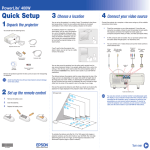
4 Plug in and turn on
1
Press in the tabs and remove the lens cover.
5 Adjust the image
1
Where to get help
To raise the image, press the foot adjust button and lift the front
of the projector. Release the button to lock the foot in the position
you want.
Telephone Support Services
To use the Epson PrivateLine® Support service, call (800) 637-7661 and
enter the PIN on the included Epson PrivateLine Support card. This
service is available 6 AM to 6 PM, Pacific Time, Monday through Friday,
for the duration of your warranty period. You may also speak with a
projector support specialist by dialing one of these numbers:
U.S.:
(562) 276-4394, 6 AM to 6 PM, Pacific Time, Monday-Friday
Canada: (905) 709-3839, 6 AM to 6 PM, Pacific Time, Monday-Friday
2
Connect the power cord to the projector and plug
the other end into an electrical outlet.
Toll or long distance charges may apply.
Electronic Support Services
2
The
Accessories
power light turns orange.
3
3
If you are connecting a device other than a computer,
turn on your equipment. (If you are connecting to a
computer, don’t turn it on yet.)
4
Press the
Power button on the projector or remote control.
You hear a beep, the
power light flashes green, and the
projector lamp comes on in about 6 seconds. The
power
light stays green.
TIP
4
If your image looks like
or
, first make sure the projector
is facing the screen squarely. Then, if necessary, press the
and
buttons on the projector’s control panel until the image is corrected.
If the projector cannot be placed directly in front of the screen, you can
use the Image Shift feature to move the image over the screen. See your
User’s Guide on the CD-ROM.
To select the best color mode, press the
Color Mode button on the projector
remote control repeatedly to move through
the options.
See your User’s Guide on the CD-ROM for more
information about image adjustments.
5
If you are using a computer, turn it on now.
6
Start your video or presentation. If you have
connected more than one video source, press
the Computer or S-Video/Video button on the
projector remote control to select the one you
want to watch.
NOTE
If you connected a notebook
computer and no image is being
projected, you may need to set up
the notebook to output signals
externally. See the Troubleshooting
section for instructions.
Source buttons
1
2
Turning off the projector
When you’re finished using the projector, first turn off the
video source.
2
3
Press the
Power button on the projector or remote control.
When you see the confirmation message, press the
Power
button again. The
power light flashes orange as the projector
cools down.
When the
power light is a steady orange, unplug the projector.
Caution: Never unplug the projector when the
flashing orange.
power light is green or
Troubleshooting
If you see a blank screen or the No signal message after turning on your
notebook, check the following:
Color Mode
button
Make sure the
power light on the projector is green and not
flashing and the lens cover is off.
Try turning off the notebook and restarting it.
If you’ve connected more than one computer and/or video source,
you may need to press the Source Search button on top of the
projector to select your video source. (Allow a few seconds for the
projector to sync up after pressing it.)
If you’re using Windows,® hold down the Fn key and press the
function key that lets you display on an external monitor. It may
have an icon such as
, or it may be labeled CRT/LCD.
Allow a few seconds for the projector to sync up after pressing it.
and register your projector
NOTE
1
You can purchase video cables, screens, carrying cases or other
accessories from an Epson authorized reseller. Please call 800-GO-EPSON
(800-463-7766) for product information and to find the nearest authorized
reseller. To purchase online, visit the Epson StoreSM at www.epsonstore.com
(U.S. sales only). In Canada, call (800) 463-7766 for dealer referral.
If you see a blank screen
6 Install your User’s Guide
3
4
Epson provides technical assistance through electronic support
services 24 hours a day at http://support.epson.com. For tips,
templates, and training for developing successful presentations
go to http://www.presentersonline.com.
Rotate the focus ring to sharpen the image.
4
Insert the CD-ROM in your drive. If the installer doesn’t open
automatically, double-click the Epson CD-ROM icon, then
double-click the Epson installer icon.
If the projector and the notebook don’t display
the same image
If you’re using a Windows notebook:
On most systems, the
or CRT/LCD key lets you toggle
between the LCD screen and the projector, or display on both at
the same time.
You might need to use the Display utility in the Control Panel to
enable both the LCD screen and external monitor port. Check your
notebook’s manual or online help for details.
When you are done registering, click User’s Guide to install it.
If you have dual monitor support, you may need to uncheck the
option to extend your Windows desktop in the Display Properties.
If you don’t already have Adobe® Reader,® click Adobe Reader and
follow the on-screen instructions to install it.
If you’re using a Macintosh® PowerBook® with OS X:
Choose English, then follow the instructions on-screen to register
your projector.
You can also register at www.epson.com/webreg.
When the guide is installed, double-click the User’s Guide icon on
your desktop to open your User’s Guide.
Register today to get product updates, special promotions,
and customer-only offers.
1.
From the Apple® menu, select System Preferences, then click
Displays.
2.
Select VGA Display or Color LCD, click Arrangement or Arrange,
and click Mirror Displays.
Epson is a registered trademark of Seiko Epson Corporation. PowerLite and PrivateLine are registered
trademarks and Epson Store is a service mark of Epson America, Inc.
General Notice: Other product names used herein are for identification purposes only and may be trademarks
of their respective owners. Epson disclaims any and all rights in those marks.
© 2005 Epson America, Inc. 1/05
Printed in XXXXX
CPD-19502
4 Plug in and turn on
1
Press in the tabs and remove the lens cover.
5 Adjust the image
1
Where to get help
To raise the image, press the foot adjust button and lift the front
of the projector. Release the button to lock the foot in the position
you want.
Telephone Support Services
To use the Epson PrivateLine® Support service, call (800) 637-7661 and
enter the PIN on the included Epson PrivateLine Support card. This
service is available 6 AM to 6 PM, Pacific Time, Monday through Friday,
for the duration of your warranty period. You may also speak with a
projector support specialist by dialing one of these numbers:
U.S.:
(562) 276-4394, 6 AM to 6 PM, Pacific Time, Monday-Friday
Canada: (905) 709-3839, 6 AM to 6 PM, Pacific Time, Monday-Friday
2
Connect the power cord to the projector and plug
the other end into an electrical outlet.
Toll or long distance charges may apply.
Electronic Support Services
2
The
Accessories
power light turns orange.
3
3
If you are connecting a device other than a computer,
turn on your equipment. (If you are connecting to a
computer, don’t turn it on yet.)
4
Press the
Power button on the projector or remote control.
You hear a beep, the
power light flashes green, and the
projector lamp comes on in about 6 seconds. The
power
light stays green.
TIP
4
If your image looks like
or
, first make sure the projector
is facing the screen squarely. Then, if necessary, press the
and
buttons on the projector’s control panel until the image is corrected.
If the projector cannot be placed directly in front of the screen, you can
use the Image Shift feature to move the image over the screen. See your
User’s Guide on the CD-ROM.
To select the best color mode, press the
Color Mode button on the projector
remote control repeatedly to move through
the options.
See your User’s Guide on the CD-ROM for more
information about image adjustments.
5
If you are using a computer, turn it on now.
6
Start your video or presentation. If you have
connected more than one video source, press
the Computer or S-Video/Video button on the
projector remote control to select the one you
want to watch.
NOTE
If you connected a notebook
computer and no image is being
projected, you may need to set up
the notebook to output signals
externally. See the Troubleshooting
section for instructions.
Source buttons
1
2
Turning off the projector
When you’re finished using the projector, first turn off the
video source.
2
3
Press the
Power button on the projector or remote control.
When you see the confirmation message, press the
Power
button again. The
power light flashes orange as the projector
cools down.
When the
power light is a steady orange, unplug the projector.
Caution: Never unplug the projector when the
flashing orange.
power light is green or
Troubleshooting
If you see a blank screen or the No signal message after turning on your
notebook, check the following:
Color Mode
button
Make sure the
power light on the projector is green and not
flashing and the lens cover is off.
Try turning off the notebook and restarting it.
If you’ve connected more than one computer and/or video source,
you may need to press the Source Search button on top of the
projector to select your video source. (Allow a few seconds for the
projector to sync up after pressing it.)
If you’re using Windows,® hold down the Fn key and press the
function key that lets you display on an external monitor. It may
have an icon such as
, or it may be labeled CRT/LCD.
Allow a few seconds for the projector to sync up after pressing it.
and register your projector
NOTE
1
You can purchase video cables, screens, carrying cases or other
accessories from an Epson authorized reseller. Please call 800-GO-EPSON
(800-463-7766) for product information and to find the nearest authorized
reseller. To purchase online, visit the Epson StoreSM at www.epsonstore.com
(U.S. sales only). In Canada, call (800) 463-7766 for dealer referral.
If you see a blank screen
6 Install your User’s Guide
3
4
Epson provides technical assistance through electronic support
services 24 hours a day at http://support.epson.com. For tips,
templates, and training for developing successful presentations
go to http://www.presentersonline.com.
Rotate the focus ring to sharpen the image.
4
Insert the CD-ROM in your drive. If the installer doesn’t open
automatically, double-click the Epson CD-ROM icon, then
double-click the Epson installer icon.
If the projector and the notebook don’t display
the same image
If you’re using a Windows notebook:
On most systems, the
or CRT/LCD key lets you toggle
between the LCD screen and the projector, or display on both at
the same time.
You might need to use the Display utility in the Control Panel to
enable both the LCD screen and external monitor port. Check your
notebook’s manual or online help for details.
When you are done registering, click User’s Guide to install it.
If you have dual monitor support, you may need to uncheck the
option to extend your Windows desktop in the Display Properties.
If you don’t already have Adobe® Reader,® click Adobe Reader and
follow the on-screen instructions to install it.
If you’re using a Macintosh® PowerBook® with OS X:
Choose English, then follow the instructions on-screen to register
your projector.
You can also register at www.epson.com/webreg.
When the guide is installed, double-click the User’s Guide icon on
your desktop to open your User’s Guide.
Register today to get product updates, special promotions,
and customer-only offers.
1.
From the Apple® menu, select System Preferences, then click
Displays.
2.
Select VGA Display or Color LCD, click Arrangement or Arrange,
and click Mirror Displays.
Epson is a registered trademark of Seiko Epson Corporation. PowerLite and PrivateLine are registered
trademarks and Epson Store is a service mark of Epson America, Inc.
General Notice: Other product names used herein are for identification purposes only and may be trademarks
of their respective owners. Epson disclaims any and all rights in those marks.
© 2005 Epson America, Inc. 1/05
Printed in XXXXX
CPD-19502
4 Plug in and turn on
1
Press in the tabs and remove the lens cover.
5 Adjust the image
1
Where to get help
To raise the image, press the foot adjust button and lift the front
of the projector. Release the button to lock the foot in the position
you want.
Telephone Support Services
To use the Epson PrivateLine® Support service, call (800) 637-7661 and
enter the PIN on the included Epson PrivateLine Support card. This
service is available 6 AM to 6 PM, Pacific Time, Monday through Friday,
for the duration of your warranty period. You may also speak with a
projector support specialist by dialing one of these numbers:
U.S.:
(562) 276-4394, 6 AM to 6 PM, Pacific Time, Monday-Friday
Canada: (905) 709-3839, 6 AM to 6 PM, Pacific Time, Monday-Friday
2
Connect the power cord to the projector and plug
the other end into an electrical outlet.
Toll or long distance charges may apply.
Electronic Support Services
2
The
Accessories
power light turns orange.
3
3
If you are connecting a device other than a computer,
turn on your equipment. (If you are connecting to a
computer, don’t turn it on yet.)
4
Press the
Power button on the projector or remote control.
You hear a beep, the
power light flashes green, and the
projector lamp comes on in about 6 seconds. The
power
light stays green.
TIP
4
If your image looks like
or
, first make sure the projector
is facing the screen squarely. Then, if necessary, press the
and
buttons on the projector’s control panel until the image is corrected.
If the projector cannot be placed directly in front of the screen, you can
use the Image Shift feature to move the image over the screen. See your
User’s Guide on the CD-ROM.
To select the best color mode, press the
Color Mode button on the projector
remote control repeatedly to move through
the options.
See your User’s Guide on the CD-ROM for more
information about image adjustments.
5
If you are using a computer, turn it on now.
6
Start your video or presentation. If you have
connected more than one video source, press
the Computer or S-Video/Video button on the
projector remote control to select the one you
want to watch.
NOTE
If you connected a notebook
computer and no image is being
projected, you may need to set up
the notebook to output signals
externally. See the Troubleshooting
section for instructions.
Source buttons
1
2
Turning off the projector
When you’re finished using the projector, first turn off the
video source.
2
3
Press the
Power button on the projector or remote control.
When you see the confirmation message, press the
Power
button again. The
power light flashes orange as the projector
cools down.
When the
power light is a steady orange, unplug the projector.
Caution: Never unplug the projector when the
flashing orange.
power light is green or
Troubleshooting
If you see a blank screen or the No signal message after turning on your
notebook, check the following:
Color Mode
button
Make sure the
power light on the projector is green and not
flashing and the lens cover is off.
Try turning off the notebook and restarting it.
If you’ve connected more than one computer and/or video source,
you may need to press the Source Search button on top of the
projector to select your video source. (Allow a few seconds for the
projector to sync up after pressing it.)
If you’re using Windows,® hold down the Fn key and press the
function key that lets you display on an external monitor. It may
have an icon such as
, or it may be labeled CRT/LCD.
Allow a few seconds for the projector to sync up after pressing it.
and register your projector
NOTE
1
You can purchase video cables, screens, carrying cases or other
accessories from an Epson authorized reseller. Please call 800-GO-EPSON
(800-463-7766) for product information and to find the nearest authorized
reseller. To purchase online, visit the Epson StoreSM at www.epsonstore.com
(U.S. sales only). In Canada, call (800) 463-7766 for dealer referral.
If you see a blank screen
6 Install your User’s Guide
3
4
Epson provides technical assistance through electronic support
services 24 hours a day at http://support.epson.com. For tips,
templates, and training for developing successful presentations
go to http://www.presentersonline.com.
Rotate the focus ring to sharpen the image.
4
Insert the CD-ROM in your drive. If the installer doesn’t open
automatically, double-click the Epson CD-ROM icon, then
double-click the Epson installer icon.
If the projector and the notebook don’t display
the same image
If you’re using a Windows notebook:
On most systems, the
or CRT/LCD key lets you toggle
between the LCD screen and the projector, or display on both at
the same time.
You might need to use the Display utility in the Control Panel to
enable both the LCD screen and external monitor port. Check your
notebook’s manual or online help for details.
When you are done registering, click User’s Guide to install it.
If you have dual monitor support, you may need to uncheck the
option to extend your Windows desktop in the Display Properties.
If you don’t already have Adobe® Reader,® click Adobe Reader and
follow the on-screen instructions to install it.
If you’re using a Macintosh® PowerBook® with OS X:
Choose English, then follow the instructions on-screen to register
your projector.
You can also register at www.epson.com/webreg.
When the guide is installed, double-click the User’s Guide icon on
your desktop to open your User’s Guide.
Register today to get product updates, special promotions,
and customer-only offers.
1.
From the Apple® menu, select System Preferences, then click
Displays.
2.
Select VGA Display or Color LCD, click Arrangement or Arrange,
and click Mirror Displays.
Epson is a registered trademark of Seiko Epson Corporation. PowerLite and PrivateLine are registered
trademarks and Epson Store is a service mark of Epson America, Inc.
General Notice: Other product names used herein are for identification purposes only and may be trademarks
of their respective owners. Epson disclaims any and all rights in those marks.
© 2005 Epson America, Inc. 1/05
Printed in XXXXX
CPD-19502