1
■
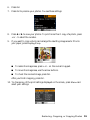
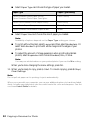
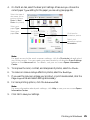
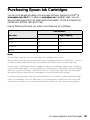
Select Paper Type and choose the type of paper you loaded.
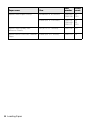
Paper Type
Paper Type setting
Epson Premium Photo Paper Glossy
Epson Premium Photo Paper Semi-gloss
Prem. Glossy
Epson Ultra Premium Photo Paper Glossy
Ultra Glossy
Epson Photo Paper Glossy
Photo Paper
Epson Premium Presentation Paper Matte
Matte
■
Select Paper Size and choose the size of paper you loaded.
Note:
Availability of options depends on the Paper Type setting you choose.
■
To print without borders, select Layout and then select Borderless. Or
select With Border to print with white margins at the edges of your
photos.
■
To adjust the amount of image expansion when printing borderless
photos, select Expansion and choose Standard, Min, or Mid.
Note:
You may see white borders on your printed photo if you use the Min setting.
When you’re done changing the menu settings, press OK.
11. When you’re ready to copy, press x Start. To cancel copying, press y Stop/
Clear Settings.
Note:
Do not pull out paper as it is printing; it ejects automatically.
When you scan with your computer, you can use additional options to transform faded,
dusty, or badly exposed photos into ones with true-to-life color and sharpness. See the
on-screen User’s Guide for details.
12 Copying a Document or Photo