1
Epson Stylus Photo R1800
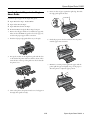
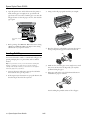
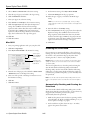
❏ Load letterhead or preprinted paper into the printer top
edge first.
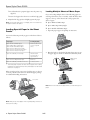
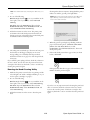
Loading Multiple Sheets of Matte Paper
If you are loading multiple sheets of the following papers in
sizes larger than letter (8.5 × 11 inches), attach the matte sheet
support to the top of the sheet feeder to help separate the
sheets of paper:
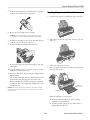
❏ Don’t load paper above the arrow on the left edge guide.
5. Adjust the left edge guide to fit lightly against the paper.
Note: The left edge guide moves out slightly, then moves back in as
the paper feeds into the printer.
❏ Epson Enhanced Matte Paper
❏ Epson Matte Paper Heavyweight
❏ Epson Double-Sided Matte Paper
Loading Special Paper in the Sheet
Feeder
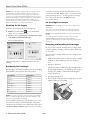
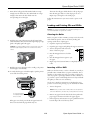
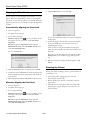
1. Open the paper support and pull up its extensions.
You can load these Epson ink jet papers in the sheet feeder as
follows:
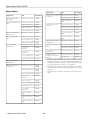
Paper type
Loading capacity
Epson Enhanced Matte Paper*
Epson Matte Paper Heavyweight*
Epson Double-Sided Matte Paper*
Epson Premium Glossy Photo Paper
Epson Premium Semigloss Photo Paper
Epson Premium Luster Photo Paper
20 sheets (10 sheets
for A3 or Super B
sizes)
Epson Photo Quality Ink Jet Paper
100 sheets (50
sheets for A3 or
Super B sizes)
Epson Premium Bright White Paper
80 sheets
Epson Photo Quality Self Adhesive Sheets
1 sheet at a time
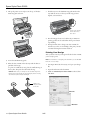
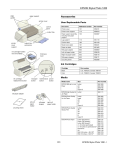
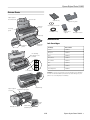
2. Place the hooks on the back of the matte sheet support over
the paper support extension, then slide it all the way down.
Matte sheet
support
* This matte paper requires the matte sheet support when loading
multiple sheets larger than letter-size; smaller paper can be loaded
without it. See page 8.
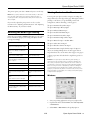
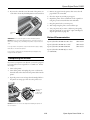
If the special paper has a cut corner, load the paper so the cut
corner is positioned as shown here. Check the paper package
for additional handling instructions.
Cut corner
Note: Remove the matte sheet support when you load other types of
paper.
Note: Always keep unused paper in the original package and store it
flat to prevent curling.
8 - Epson Stylus Photo R1800
2/05