1
w w w. d e l l . c o m / s u p p l i e s | s u p p o r t . d e l l . c o m
Cleaning the ink cartridge nozzles
To improve print quality, you may need to clean the ink cartridge nozzles.
Clean the nozzles when:
•
Characters are not printing completely.
•
White dashes appear in graphics or printed text.
•
Print is smudged or too dark.
•
Colors on print jobs are faded or they differ from the colors on the screen.
•
Vertical, straight lines are not smooth.
You can use the operator panel or the Dell Printer Solution Center to clean the
nozzles.
Using the operator panel
1 Load plain paper in the printer. For
help, see page 15.
2 Press Options until Cartridges
displays.
3 Press + until Clean displays.
4 Press Select.
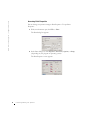
Using the printer software
1 Load plain paper in the printer. For
help, see page 15.
2 Open the Dell Printer Solution
Center. For help, see page 10.
3 Click the Maintenance tab.
4 From the Maintenance tab, click
Clean to fix horizontal streaks.
5 Click Print.
A nozzle page prints, forcing ink through the nozzles to clean the clogged
nozzles.
42
M a i nt e n a nc e
•
Print your document again to verify your print quality has improved.
•
To further improve print quality, try wiping the ink cartridge nozzles
and contacts (refer to your User’s Guide), and then print your
document again.
•
If print quality has not improved, try cleaning the ink cartridge nozzles
up to two more times.