1
i450
Start Here
Series
Color Bubble Jet Printer
Easy Setup Instructions
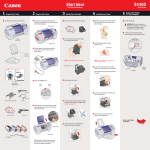
1 Unpack the Printer
3 Install the Print Head
2 Prepare the Printer
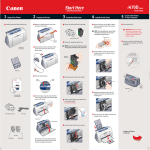
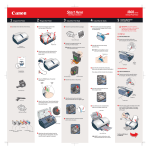
1 Carefully remove all items from the box.
1 Remove all shipping tape from the front
1 Remove the print head from its package.
4 Install the Ink Tanks
5
1 Remove the black ink tank (BCI-24 Black)
Connect the Printer
To Your Computer
1 Turn the printer off.
from its package and pull off the orange
protective cap.
and sides of the printer.
NOTE: To avoid spilling ink, do not touch
the bottom of the tank once you have
removed the protective cap.
IMPORTANT: Be sure printer is
off before continuing, or the
computer will attempt to install
the printer driver before the
printer is ready.
Protective cap
Tear at notch to open
Shipping
Tape
i450 Series
Color Bubble Jet Printer
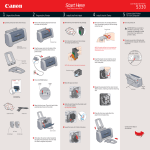
2 Plug the power cord into the back of the
printer and connect the other end to a
power outlet.
2 Connect one end of a USB cable (not
2 Remove the orange protective cap.
included) to the computer, the other to
the printer.
NOTE: Do not touch the electrical contacts
on the back and bottom of the print head.
2 Insert the black ink tank into the slot on
the right, then push in until the ink tank
locks into place.
Electrical
contacts
Paper Rest
3 Press the Power button.
Power
Button
3 Raise the gray lock lever on the printer.
Power
Lamp
Click
USB Port
USB Cable
3 Repeat the procedure for the color ink
Documentation
and Software Kit
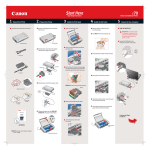
4 Open the output tray, then open the front
cover. The print head holder automatically
moves to the center.
i450 Series Print Head
tank (BCI-24 Color), inserting it into the
remaining slot.
4 Slide the print head into the holder until
it is securely seated.
Do not press it down.
Power Cord
4 Close the front cover, attach the paper rest
and pull out the output tray.
Output Tray
5 Lower the lever until it locks into place.
Serial number
Ink Tanks
BCI-24 Black
BCI-24 Color
Write down the serial number located to
the right of the print head. You will need
this later to register the product.
Continue with Step 6
on side two.
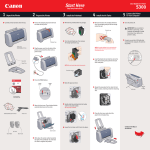
6 Install the Printer Driver (Windows )
6 Install the Printer Driver (Macintosh )
®
7 Align the Print Head
M
ac
in
to
sh
W
in
do
ws
®
1 Be sure to TURN THE PRINTER OFF.
Power
Button
5 When the Printer Port window appears,
TURN THE PRINTER ON so the printer port
(connection) can be automatically detected.
Power
Lamp off
1 Turn on your Mac and your printer and
insert the “i450 Setup Software & User's
Guide” CD-ROM.
8 Click Install. When a message asking for
your confirmation to proceed with the
installation, click Continue Installation.
1 Place a sheet of blank paper in the
paper rest.
2 Start the alignment procedure.
Windows:
a. For Windows XP/2000, click Start,
select Control Panel, Printers and
Other Hardware, then Printers and
Faxes.
2 Double-click the CD-ROM icon, then the
Mac OS X folder, then the Printer Driver
folder.
b. Right-click the Canon i450 icon, then
click Printing Preferences.
NOTE: For Windows® XP or Windows
2000, log on to Windows as an
Administrator before continuing.
9 When the message “The software was
6 When the Terminate Installation window
successfully installed” appears, click
Restart.
appears, click OK.
IMPORTANT: If you see the Found
New Hardware Wizard, click Cancel.
NOTE: Remember to register your
product. The serial number is
located on the inside of the printer,
to the right of the print head.
7
3 Double-click the i450 180.pkg icon.
Application folder, double-click on the
software to be installed.
enter your administrator name and
password, then click OK.
2 Close any open software applications, then
insert the “i450 Setup Software & User's
Guide” CD-ROM. The setup program
should run automatically.
5 When the “Welcome to the BJ printer driver
Installer” screen appears, click Continue.
3 Read the License Agreement, then click
Yes to continue.
4 When the main menu appears, click
Install.
c. Click the Maintenance tab, then click
the Print Head Alignment icon.
When the Application screen appears,
click Install. Then follow the on-screen
instructions.
4 When the “Authenticate” screen appears,
NOTE: If the setup program does not
run, click Start, then Run, then type
D:\msetup.exe, where D is your
CD-ROM drive.
10 Access your CD-ROM again. From the
NOTE: For Windows 98/Me, click
Start, Settings, then Printers. Rightclick the Canon i450 icon, then
click Properties.
8 When the Terminate Installation window
appears, click OK, then Exit.
11 Follow the on-screen instructions. When the
“Installation has finished” screen appears,
click OK.
NOTE: Be sure to register your product.
The serial number is located on the
inside of the printer, to the right of the
print head.
6 Read the Software License Agreement
d. When asked to start print head
alignment, click OK.
Macintosh OS X:
a. Double-click the Macintosh HD icon, then
Applications folder. Double-click the
Utilities folder, then the Print Center icon.
When the Printer List screen appears,
Select i450.
and click Continue, then click Agree.
9 Click Yes if you are prompted to restart your
computer
IMPORTANT: To ensure highest quality
output, continue with Step 7 Align the
Print Head.
7 Select a destination for the printer driver
to be installed. Then click Continue.
IMPORTANT: To ensure highest
quality output, continue with Step 7
Align the Print Head.
Under Printers menu, select Configure
Printer. Select i450, and click Select.
b. Click the down-arrow to select Test Print.
c. Click the Print Head Alignment icon.
3 Follow the on-screen instructions.
4 Click OK (Windows) or Send (Macintosh)
when finished.
Part no. QA7-2586-V01
40-42408-1102
© 2003 Canon U.S.A. Inc.
Canon is a registered trademark of Canon Inc.
All other products and brand names are registered
trademarks or trademarks of their respective owners.
Specifications subject to change without notice.
PRINTED IN VIETNAM