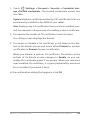
1
For AndroidTM mobile technology platform 4.1 Nexus 7 Guidebook i Copyright © 2012 Google Inc. All rights reserved. No part of this guide, including the products and software described in it, may be reproduced, transmitted, transcribed, stored in a retrieval system, or translated into any language in any form or by any means, except documentation kept by the purchaser for backup purposes, without the express written permission of Google. This clause does not apply to such software which is licensed under the General Public License (“GPL” ) or other Free Open Source Licenses. Copies of the respective license terms, and where required an offer to provide the respective source code, are included in the product. Google, Android, Gmail, Google Maps, Chrome, Nexus 7, Google Play, YouTube, Google+, and other trademarks are property of Google Inc. A list of Google trademarks is available at http://www.google.com/permissions/ guidelines.html. ASUS and the ASUS logo are trademarks of ASUSTek Computer Inc. All other marks and trademarks are properties of their respective owners. The content of this guide may differ in some details from the product or its software. All information in this document is subject to change without notice. The Nexus 7 tablet is certified by ASUS under the name ASUS Pad ME370T. For online Help and support, visit support.google.com/nexus. Nexus 7 Guidebook ii Table of contents 1. Get started1 Turn on & sign in 1 Charge the battery 2 Why use a Google Account? 3 Jelly Bean tips 4 2. Play & explore7 Browse Home screens Swipe up for Google Now Swipe down for notifications 7 8 10 Get around 12 Touch & type 14 Try Face Unlock 15 3. Make yourself at home17 Relax with Google Play 17 Manage Downloads 20 Use apps 21 Organize your Home screens 22 Start Gmail 24 Find People 24 Manage your Calendar 24 Change sound settings 24 Change the wallpaper 25 Nexus 7 Guidebook iii 4. Make Search personal26 About Google Now 26 About Google Now cards 29 Use Google Now cards 29 Turn off Google Now 31 Control location reporting & history 32 Search tips & tricks 36 Use Voice Actions 37 Voice Actions commands 38 Search settings 40 Privacy and accounts 42 5. Tune performance44 Optimize battery life 44 Optimize data usage 46 Optimize memory usage 47 6. Enter & edit text51 Use the keyboard 51 Type text by speaking 53 Nexus 7 Guidebook iv 7. Connect to networks55 Connect to Wi-Fi networks 55 Connect to virtual private networks 59 Control airplane mode & other network settings 61 8. Connect to devices 63 Beam screen content 63 Connect to Bluetooth devices 64 Connect to keyboards, mice, & other devices 67 Connect to a Windows computer via USB 69 Connect to a Macintosh computer via USB 70 9. Manage accounts72 Add or remove accounts 72 Configure sync options 74 Change backup & reset options 76 10. Secure your tablet78 Set screen lock 78 Encrypt your tablet 80 Work with certificates 82 Nexus 7 Guidebook v 11. Accessibility Accessibility overview Set up your tablet Use Talkback Use Explore by Touch Accessibility settings Nexus 7 Guidebook vi 1 Get started Turn on & sign in To turn on your Nexus 7, press the Power button on the right edge near the top for a few seconds, then release it. The first time, you’ll see a Welcome screen. • To choose a different language, touch the menu. • To continue, touch Start and follow the instructions. When prompted, sign in using the email address and password for your Google Account. If you don’t have one yet, go ahead and create one. An email address that you use for any of the following counts as a Google Account: • Gmail • YouTube Nexus 7 Guidebook get started 1 • Google Apps • AdWords • Any other Google product When you sign in with a Google Account, all the email, contacts, Calendar events, and other data associated with that account are automatically synced with your tablet. If you have multiple Google Accounts, you can add the others later. Charge the battery The printed Quick Start Guide that comes with Nexus 7 contains basic operating instructions for your new tablet. The battery may not be fully charged at first. It’s a good idea to fully charge it as soon as you can. Connect the micro USB cable to Nexus 7 and to the charging unit, and the charging unit to a power outlet: a Nexus 7 Guidebook get started 2 Important: Use the charging unit and micro USB cable that come with your Nexus 7. Other charging units and USB cables may charge more slowly or not at all. Why use a Google Account? A Google Account lets you organize and access your personal information from any computer or mobile device: • Use Google Play. Google Play brings together all your favorite content in one place: movies, books, music, magazines, apps, and more. When you sign in with your Google Account, you can reach any of this content from any of your devices – as long as you have a network connection. You can also shop for more in the Google Play store. • Synchronize and back up everything. Whether you draft an email, add an event to your calendar, or add a friend’s address, your work gets backed up continuously by Google and synchronized with any computer where you use the same Google Account. • Access from anywhere. Check your latest calendar, email, text messages, or social stream, no matter what computer or mobile device you’re using. • Keep your stuff secure and available. Google works round the clock to protect your personal data from unauthorized access and to ensure that you get it when you need it, wherever you need it. • Simplify shopping. You can connect your Google account with Nexus 7 Guidebook get started 3 Google Wallet, which makes it easy to purchase music, books, apps, and more on Google Play and other online stores. • Use other Google services. Your Google Account also lets you take full advantage of any other Google apps and services that you may want to use, such as Gmail, Google Maps, Navigation, Google Play, YouTube, Google Talk, Messaging, and many more. Jelly Bean tips Whether you’re new to Android or an old hand, check out these new features in Android 4.1 (Jelly Bean). Home screen Google Play widgets Rearrange Home screen New widgets on your Home screens display recently used apps, music, movies, books, or games you already have – including free content that comes with your Nexus 7. Other widgets offer suggestions for browsing Google Play. Touch a widget to access content from Google Play. Slide an icon slowly to move other icons or widgets gently aside. This makes it much easier to change your Home screen layout. Touch & hold an icon and slide slowly to the location of your choice. Touch & hold a widget to resize or remove it. Slide an icon quickly to drop it into a folder. Nexus 7 Guidebook get started 4 Google Search Google Now Say “Google” Google Now gets you just the right information, at just the right time – such as today’s weather before you start your day, how much traffic to expect before you leave for work, and even your favorite team’s score while they’re playing. Swipe up from the bottom center of any screen. Touch the Google Search bar at the top of any Home screen. When the Google Now screen is open, Touch the Google you can just say “Google” to activate Search bar at the top of any Home screen, a voice search. or swipe up from the bottom of any screen. Say “Google” and your query to search. Notifications Notification shade Supports expandable notifications that let you perform additional actions right from the notification itself. Swipe one finger from the top of any screen to open the notification shade. Swipe two fingers vertically or pinch-zoom to expand or collapse a notification. Touch an icon inside certain notifications to handle a task directly. Swipe to dismiss a notification. Email guests for a calendar event You can email attendees from the Calendar app, or send a canned or custom response directly from a calendar notification. Touch Email guests in the calendar event or notification. From the notification, you’ll have the option to choose a canned or custom response. Nexus 7 Guidebook get started 5 Notification volume You can now control the volume for notifications separately from your tablet’s main volume. Press the volume button on the side of your tablet, then touch the Settings icon. Drag slider to change the volume for notifications. Rotation lock Lock your screen to keep it in portrait mode. Pull down the notification shade and touch the Rotation icon. Other improvements Chrome Chrome for Android includes unlimited tabs, incognito tabs, and syncs your tabs across your devices when you sign in to your Google Account. Important: Flash isn’t available with Chrome for Android. If you need Flash, download the Browser from the Google Play Store app . Accessibility Swipe to navigate unlimited tabs, or touch, hold, & drag a tab to a different position. Touch the tab switcher icon to switch back and forth between incognito mode tabs and regular tabs. Gesture Mode supports navigation by using touch and swipe gestures in combination with speech output. To navigate, swipe: Platform supports external Braille input and output devices via USB and Bluetooth. Left to right: Scroll up Right & down: Next Left & up: Previous Right to left: Scroll down Blink for For improved security, you can Face Unlock now set Face Unlock to request a blink when you unlock your tablet. Touch Settings > Security > Screen lock. Add an account Touch Settings > Accounts > Add account. Easily add an email account to your device from the main Settings screen. Nexus 7 Guidebook get started 6 2 Play & explore Browse Home screens To move between Home screens, swipe left or right. The My Library widget displays apps, music, movies, books, and games you already have – including free content that comes with your Nexus 7: Touch any title to open it Nexus 7 Guidebook Play & explore 7 When you’re ready to shop for more, try the suggestions in one of the Play Recommendations widgets: Touch to learn more Touch to avoid future suggestions like this Touch to see a different suggestion To resize a widget, touch & hold, then let go and drag the blue dots. To remove it, touch & hold, then drag it to the Remove icon at the top of the screen. Swipe up for Google Now Google Now is about getting you just the right information, at just the right time. It tells you today’s weather before you start your day, how much traffic to expect before you leave for work, the next train as you’re standing on the platform, and even your favorite team’s score while they’re playing. And all of this happens automatically. Google Now intelligently brings you the information you want to see, when you want to see it. No digging required. For example, here’s a Google Now card that appears when you’re Nexus 7 Guidebook Play & explore 8 about to start your commute home: Give it a try! Swipe your finger up from the bottom of any screen, or touch the Google Search bar at the top of the screen. When you want to see more cards, touch Show more cards at the bottom of the screen. When you don’t need them any more, swipe them out of the way. You’re in control When you opt in to Google Now, you’re also turning on location reporting and location history. Google Now also uses location information provided by Google’s location service and GPS, if those are currently turned on. Google’s location service must be turned on for Google Now to work. Google Now also uses data from other sources, such as your data in Google products or in third-party products that you allow Google Now to access. For example, your tablet’s synced calendar may include entries from non-Google calendar products. For example, if you have a synced calendar entry for a dentist appointment that includes the dentist’s address, Google Now can Nexus 7 Guidebook Play & explore 9 check traffic and suggest when to leave. And if you have searches stored in your Web History, Google Now can also show cards based on sports scores, flight status, and so on. You’re in control. You can choose exactly which cards you’d like to see, adjust the details of what they display, and adjust your privacy settings. For more information about Google Now and your location information, see “Chapter 4, Make search personal,” on page 26. Swipe down for notifications Notifications alert you to the arrival of new messages, calendar events, and alarms, as well as ongoing events, such as video downloads. When a notification arrives, its icon appears at the top of the screen. Icons for pending notifications appear on the left, and system icons showing things like Wi-Fi signal or battery strength on the right: Pending notifications Nexus 7 Guidebook Bluetooth, Wi-Fi, & battery status Play & explore 10 To open the notifications shade, swipe down from the top: Toggle screen rotation lock Go to settings Dismiss all Touch to respond to other guests Swipe up or down with two fingers to open or close an expandable notification Certain notifications can be expanded to show more information, such as email previews or calendar events. The one at the top is Nexus 7 Guidebook Play & explore 11 always expanded when possible. To expand or collapse a notification, use two fingers to either swipe vertically or twist together. To open the related app, touch the notification icon on the left. Some notifications also allow you to take specific actions by touching icons within the notification. For example, Calendar notifications allow you to Snooze (remind you later) or send email to other guests. When you’re finished with a notification, just swipe it away to the left or right. If you want to dismiss all notifications, touch the Dismiss icon [icon] at the top of the notification shade. drawer. Get around At the bottom of each Home screen, notice the Favorites tray: another quick way to get to your books, magazines, apps, movies, and music: Open folder of popular apps View all your apps Shop on Google Play At the bottom of every Nexus 7 screen, no matter what you’re doing, you’ll always find these three navigation buttons: Nexus 7 Guidebook Play & explore 12 Back Opens the previous screen you were working in, even if it was in a different app. Once you back up to the Home screen, you can’t go back any further in your history. Home Opens Home. If you’re viewing a left or right Home screen, opens the central Home screen. To open Google Now, swipe up. Google Now gives just what you need to know, right when you need it. Recent apps Opens a list of thumbnail images of apps you’ve worked with recently. To open an app, touch it. To remove a thumbnail from the list, swipe it left or right. After a short time without getting used, these buttons may shrink to dots or fade away, depending on the current app. To bring them back, touch their location. On the All Apps screen available from the Favorites tray, notice the Settings icon. This brings you to the Settings screens for your tablet, where you can adSettings just things like network, sound, and account settings, among many others. Nexus 7 Guidebook Play & explore 13 Tip: To get to Settings quickly no what screen you’re on, swipe down your Notifications from the top of any screen and touch the small Settings icon near the top. At the top of the screen you’ll find Google Search, which lets you search your tablet or the Internet. Touch Google to type your search terms, or to speak them. Touch & type Use your fingers to manipulate icons, buttons, menus, the onscreen keyboard, and other items on the touchscreen. You can also change the screen’s orientation. To select or activate something, touch it. To type something, such as a name, password, or search terms, just touch where you want to type. A keyboard pops up that lets you type into the field. Other common gestures include: • Touch & hold: Touch & hold an item on the screen by touching it and not lifting your finger until an action occurs. • Drag: Touch & hold an item for a moment and then, without lifting your finger, move your finger on the screen until you reach the target position. For example, you can move apps around on the Home screen. • Swipe or slide: Quickly move your finger across the surface of the screen, without pausing when you first touch (so you don’t Nexus 7 Guidebook Play & explore 14 drag something instead). For example, you can slide a Home screen left or right to view the other Home screens. • Double-tap: Tap quickly twice on a webpage, map, or other screen to zoom. For example, double-tap a picture in Browser to zoom in, and double-tap again to zoom out. • Pinch: In some apps (such as Maps, Browser, and Gallery), you can zoom in and out by placing two fingers on the screen at once and pinching them together (to zoom out) or spreading them apart (to zoom in). • Rotate the screen: On most screens, the orientation of the screen rotates with your device as you turn it. You can change this in Display settings. To change your phone’s ringtone and notification sounds, volumes, and more, go to Settings > Device > Sound. Settings To change your phone’s brightness, font size, and more, go to Settings > Device > Display. Try Face Unlock Depending how you use your phone, you may want to set some form of automatic screen lock to prevent unauthorized access. If a lock has been set, the screen locks when your tablet’s display goes to sleep. When you touch the power button to wake up a locked tablet, you must take some action, ranging from a simple swipe to typing a lengthy password, to unlock it. Nexus 7 Guidebook Play & explore 15 You can set locks of different strengths using your tablet’s lock settings. To do so, go to Settings > Personal > Security > Screen lock and touch the type of lock you’d like to use. Face Unlock is one of the options available. After you’ve set it up, you can unlock your phone simply by looking at it. Although Face Unlock is not very secure, it can be convenient and fun to use. Give it a try. Go to the Screen lock setting described above, touch Face Unlock, and follow the instructions. Tip: After you set up Face Unlock, look under Settings > Personal > Security for two additional settings: Improve face matching and Liveness check. Use these to make Face Unlock more reliable and secure. Nexus 7 Guidebook Play & explore 16 3 Make yourself at home Relax with Google Play Google Play brings together all your favorite content in one place – movies, books, music, magazines, apps, and more – so you can reach it from any of your devices. Use Google Play widgets These widgets are available on your Home screens: • My Library: Displays your most recently used music, books, and so on. Touch any of the images to see your content – plus free gifts from Google. • Recommended on Play: Suggests music, movies, and other content that may interest you. Touch the suggestion to learn more about it. • Recommended apps: Recommends apps that you can add to Nexus 7 Guidebook Make yourself at home 17 your Home screen. Touch the recommendation to learn more about it. All Google Play recommendation widgets work the same way: Touch to learn more Touch to avoid future suggestions like this Touch to see a different suggestion To resize a widget, touch & hold, then let go and drag the blue dots. To remove it, touch & hold, then drag it to the Remove icon at the top of the screen. To add another Play widget, touch the All Apps icon, then Widgets, and swipe from right to left until you see the one you want. Then touch & hold, and let go in the Home screen location you want. Shop on Google Play To launch the Google Play Store app, touch the Play Store icon in your Favorites tray at the bottom of every Home screen. Play Store Anything you purchase on Google Play using your Nexus 7 is available from your computer or from any of your Android mobile devices. Sign in to play.google.com to get your enNexus 7 Guidebook Make yourself at home 18 tertainment from anywhere. Access your content If you purchased from Google Play in the past, you’ll automatically have access to this content on your Nexus 7—just make sure you’re signed in using the same account that you used to purchase it. You can get to your content using any of the Google Play icons in your Favorites tray, including Books, Magazines, Movies, and Music. Or, touch the Play Store icon to open Google Play. In the up- per right corner, to the left of the Menu and Search icons, you’ll find a My Library icon corresponding to the section of Google Play you’re currently viewing. For example, while browsing the Movies & TV section, you’ll see the Google Play Movies app icon, which will take you to My Movies & TV: Touch icon in this location to see your content of that type You can quickly access your content this way, from the Google Play Store app, even if you originally purchased it on Google Play using a different phone or tablet. If you get a new device, all your media will automatically be waiting for you here when you power on and sign in. Nexus 7 Guidebook Make yourself at home 19 Google Play settings To adjust your Google Play settings, switch accounts, or get help, choose the option you want from the Menu at the upper right. The Google Play Settings screen lets you control when you’re notified about updates to apps and games, clear your search history, and enable user controls. To filter Android apps based on maturity level or require a PIN before completing any purchase, touch Content filtering or Set or change PIN. For more detailed information about Google Play, visit support. google.com/googleplay. Manage Downloads To manage most downloads, touch the Downloads icon on the All Apps screen. Note that movies and some other content can be downloaded to your tabDownloads let but won’t show up in the Downloads app. Unless you pin (download) content such as books or movies to your tablet so you can access it offline, Google Play streams your purchases and rentals from Google servers while you’re playing them – so they don’t occupy any permanent storage space. In addition to downloading content from Google Play, you can download files from Gmail messages or a variety of other sources. Use the Downloads app to view, reopen, or delete what you’ve downloaded in this way Some mobile networks restrict the size of the files you can down- Nexus 7 Guidebook Make yourself at home 20 load, to manage the demands on their networks or to help you avoid unexpected charges. When you try to download an oversized-file when connected to such networks, you may be required to delay downloading until your device is connected to a Wi-Fi network, when the download will resume automatically. You can view and manage these queued files in the Downloads app as well. From the Download app: • Touch an item to open it. • Touch headings for earlier downloads to view them. • Check items you want to share. Then touch the Share icon and choose a sharing method from the list. • Check items you want to delete. Then touch the Trash icon. • At the bottom of the screen, touch Sort by size or Sort by date to switch back and forth. Files available in the Download app can also be viewed in the Download directory that’s visible when your tablet is connected to a computer. You can view and copy files from this directory. Use apps To see all your apps, touch All Apps in the Favorites tray on any home screen. The main All Apps screen opens. This is where you can see all your apps, including those downloaded on Google Play. You can move app icons to any of your Home screens. Nexus 7 Guidebook Make yourself at home 21 From All Apps, you can • Move between screens: Swipe left or right. • Launch an app: Touch its icon. • Place an app icon on a Home screen: Touch & hold the app icon, slide your finger, and lift your finger to drop the icon in place. • Browse widgets: Touch the Widgets tab at the top of any All Apps screen. • Get more apps: Touch the Google Play icon in the list of app icons, or the Shop icon at the upper right. To remove an app icon from the Home screen, touch and hold it, slide your finger toward the top of the screen, and drop the app over the Remove icon . To view info about an app from an All App screen, touch and hold it, slide your finger toward the top of the screen, and drop the app over the App Info icon . Most apps include a Menu icon near the top or bottom of the screen that lets you control the app’s settings. Organize your Home screens To add a widget to a Home screen: 1. Go to the Home screen where you want to place the widget. 2. Touch the All Apps icon. 3. Swipe right to the Widgets tab and keep swiping, if necessary, Nexus 7 Guidebook Make yourself at home 22 to find the widget. 4. Touch and hold the widget until the Home screen appears, slide it into place, and lift your finger. To move an app or widget icon to a different location on a Home screen: 1. Touch & hold the icon. 2. Slide your finger to the new position. To move between Home screens, slide toward the edge of the screen. To bump another icon out of the way, slide slowly into it. 3. Lift your finger. The icon drops into its new position. To combine two icons in a folder, slide one quickly over the other. To open a folder, touch it. To rename a folder, touch its name. Nexus 7 Guidebook Make yourself at home 23 Start Gmail Content to come Find People Content to come Manage your Calendar Content to come Change sound settings Your tablet uses sounds to communicate, including notifications, alarms, and navigation feedback. To customize the sounds your tablet makes, go to Settings > Device > Sound: • Volumes sets the master volume separately for music, notifications, and alarms. You can still use the physical volume control on the tablet to raise or lower volume of whatever sound is currently playing. • Default notification announces the arrival of notifications unless you specify a different sound in an individual app. • Touch sounds give audible feedback when you touch active icons or buttons on the screen. • Screen lock sound is triggered when you unlock the screen. Nexus 7 Guidebook Make yourself at home 24 Change the wallpaper Content to come Nexus 7 Guidebook Make yourself at home 25 4 Make Search personal About Google Now Google Now gives you just the right information at just the right time—before you even ask. Just swipe up from the bottom of your tablet to get commute traffic before work, popular nearby places, your favorite team’s current score, and more. You can turn Google Now on or off at any time. Swipe up the same way and touch Menu > Settings > Now cards. If you need to lower the keyboard to see the menu, touch . After you opt in to Google Now, you don’t need to do anything else. If you like, you can adjust settings for different types of Now cards as they appear, but Google Now doesn’t need any elaborate setup. The information you need is always at your fingertips. To know when to display which cards, Google Now uses contextual data from your tablet and data in Google products and thirdparty products that you allow Google Now to access. Nexus 7 Guidebook Make Search personal 26 For example, Google Now uses the time of day, your location, and your location history to show you what the traffice on your commute is like when you wake up in the morning. It also uses information from Google services such as your Web History for sports or flight status cards, or from your synced calendar entries for appointment cards. About location reporting & history When you opt-in to Google Now, you’ll start reporting your location and turn on your location history. You have complete control over this information. Google won’t share it with other users or marketers without your permission. If you opted in to location history in the past, Google Now uses your previously recorded locations as well as ongoing locations when making suggestions. Turning off location history pauses the collection of location information, but doesn’t delete your history. To manage or delete your location details, visit https://www. google.com/latitude/b/0/history/dashboard. Google Now doesn’t turn on sharing with friends. Your location is not shared unless you explicitly opt in to sharing from Google Maps settings. Along with location history, Google Now uses Google’s location service and GPS. Google’s location service must be turned on for Google Now to work. To manage this setting, go to Settings > personal > Location services. For more details, see “Control location reporting & history” on page 32. Nexus 7 Guidebook Make Search personal 27 Defining home & work As you use Google Now, you may be asked to confirm your home or work address to get commute traffic information, travel help, and more. You can change these addresses in several other ways: • When a Traffic card appears for home or work, touch Menu> Edit. • Open the Maps app, find your own location, touch your image on the map, and then Location history > Change home location / Change work location. • Visit maps.google.com from a browser and open My Places. • Visit https://www.google.com/latitude/b/0/history/dashboard from a browser, click Change next to Time at Work or Time at Home, edit the address, and click Save. You can turn off and delete your location history and still use Google Now, but certain kinds of information, such as commute traffic, may be limited or won’t show up at all. About Web History & other data Google Now uses data from multiple sources to help predict what you need. For example, if you have a synced calendar entry for a dentist appointment, Google Now can check traffic and suggest when to leave. And if you have relevant searches saved in your Web History, such as for your favorite sports team or for upcoming flights, Google Now can also show cards for sports scores, flight status, and more. To manage your Web History, visit google.com/history/. You can Nexus 7 Guidebook Make Search personal 28 delete or pause your Web History and still use Google Now, but certain kinds of information, such as flight details, won’t show up. About Google Now cards A Google Now card is a short snippet of useful information that slides into view right when you’re most likely to need it. After you opt-in to Google Now, you can view these cards easily no matter what else you’re doing—just swipe up from the bottom of your tablet or touch the Google Search bar on any Home screen. To see some sample cards right now, swipe up from the bottom of your tablet and touch Menu > Sample cards. When you’re fin- ished and want to get back to the main Google Now screen, touch Hide sample cards. Use Google Now cards To view the Now cards that are waiting for you at any particular time, swipe up from the bottom of your tablet, or touch the Google Search bar on any Home screen. Google Now displays cards when they are most likely to be useful and relevant based on the current time and your current location. To expand that search and get additional ones, touch Show more cards at the bottom of the main Google Now screen. When you’re finished with a card, just swipe it away to dismiss it from the Now screen. Don’t worry – it appears again when a new update is available. Nexus 7 Guidebook Make Search personal 29 Edit individual card settings You can change the settings for each Google Now card. • Touch the Menu > Settings on the Now card you want to edit, or go to Menu > Settings > Now cards. The settings screen appears, which allows you to make changes as well as turn a specific card On or Off. When you turn off a card, it won’t appear when you launch Google Now. Dismiss cards To dismiss a card from your Now screen, swipe it away. The card will return the next time it’s relevant, which may be hours or days from now. Adjust notifications When a card has a new update, you’ll receive a notification at the top of your screen. You can pull down the notifications menu to open the card or dismiss the notification. Most notifications for Now cards can be turned off or set to low priority or standard priority. Low priority notifications appear at the bottom of the notifications shade without any additional signal. Standard notifications appear like the others, in chronological order, and you can set vibration and a ringtone to accompany them. To set notifications to low priority or standard for an individual Nexus 7 Guidebook Make Search personal 30 card that supports both options: • Touch Menu > Settings when the card appears. OR • From the lower right corner of the Google Now screen, touch Menu > Settings > Now cards > card name > Notifications. To change ringtone and vibrate options for all standard notifications, start from the Google Now screen, touch Menu > Settings > Now cards, and adjust the options under Standard Notifications. Turn off Google Now In addition to stopping the display of Google Now cards, turning off Google Now also returns settings for individual cards or notifications to their defaults. 1. Open the Google Now screen. Touch the Search bar at the top of a Home screen, or swipe up from the bottom of your tablet while viewing any screen. 2. Touch Menu > Settings > Now cards, then slide the switch at the top right to Off. 3. In the Turn of Now cards dialog, decide whether you also want to turn off location history. If you do, check Also turn off Location history. Turning off location history may affect the way other Google products work. Turning off Google Now and location history does not delete exNexus 7 Guidebook Make Search personal 31 isting history or turn off all forms of location reporting. For more information, see the next section, “Control location reporting & history.” Control location reporting & history Location reporting refers to the ability of your tablet to report your current location. Location history refers to a related feature that stores your past locations, including your home and work locations. Important: Turning off location reporting does not turn off ongoing recording of location history or delete any location history that Google has already stored. Unless you explicitly delete the history of your locations and turn off location history, Google Now and other Google services will continue to use this information. To turn off both location reporting and location history from the Google Now screen: 1. Touch Menu > Settings > Privacy and accounts > Manage location settings. This brings you to the Settings screen for Google Maps. You may have to sign in to Google Maps if you haven’t done so already. 2. Touch Location settings. 3. To turn off location reporting, touch Location reporting > Do Nexus 7 Guidebook Make Search personal 32 not update your location. 4. To turn off location history, uncheck Enable location history. Even if you turn off both location reporting and location history, your previously recorded history is still available to Google services such as Google Now along with location information provided by Google’s location service and GPS, if they’re turned on. To delete location history details and also turn off location history, follow these steps from a web browser on a desktop computer: 1. Open a web browser and make sure you’re signed in with the account whose location history you want to manage. 2. Visit: https://www.google.com/latitude/b/0/history/manage. A page appears that allows you to view your location history for any date. 3. To delete all your recorded location history, click Delete all history. Alternatively, from this screen you can delete a portion of your location history starting from a date you choose in the calendar. 4. Click Dashboard from the location history page. Or visit this link from a desktop computer: https://www. google.com/latitude/b/0/history/dashboard. 5. Click the Gear icon at the upper right and choose History settings. 6. Select Disable. 7. Click Save. Nexus 7 Guidebook Make Search personal 33 Google’s location service & GPS support Even when location reporting and location history are turned off, Google periodically reports data for use by various apps from sources such as Wi-Fi, mobile networks, and GPS to determine your approximate location at any given time. To turn off these services, go to Settings > Personal > Lo- cation services and uncheck both Google’s location service and GPS satellites. Doing so will disable most of Google Now’s capabilities as well as many other useful features of your tablet. Search & Voice Actions basics To use Google Search, touch the search bar at the top of any Home screen or swipe up from the bottom of your tablet. You can use Voice Actions with Google Search to get directions, send messages, and perform a number of other common tasks. Voice Search & Voice Actions You can initiate a Voice Search or Voice Action in several ways: • Touch the Microphone icon in the Google Chrome omnibox. • Touch the Microphone icon on the Home screen or Google Now screen and speak. • Touch the search bar on the Home screen and say “Google”. • When you’re viewing the Google Now screen, you don’t have to touch anything. Just say “Google.” Nexus 7 Guidebook Make Search personal 34 Next, speak the terms to search for or the Voice Action to perform. For more details on Voice Actions, see “Use Voice Actions” on page 37 The ability to trigger a search or action by saying “Google” is called hotword detection. To turn it off or on, start from the Google Now screen and touch Menu > Settings > Voice > Hotword detection. Important: To detect when you say “Google” to launch Voice Search or Voice Actions, Google analyzes sound picked up by your tablet’s microphone in intervals of a few seconds or less. The sound is immediately discarded after analysis and is not stored on the device or sent to Google servers. For more information about Voice Actions, see “Use Voice Actions” on page 37 and”Voice Actions commands” on page 38. Search by typing Type your query in the search box on the Home screen or Google Now card, or in Google Chrome’s omnibox. As you type, suggestions appear below the Search box. The first few suggestions attempt to complete what you’re typing: • To search for a suggestion immediately, touch it. • To search for the contents of the search field, touch the Search Nexus 7 Guidebook Make Search personal 35 icon on the right side of the keyboard. Search tips & tricks What you want What to type or say Examples Sports information [team’s name] San Francisco Giants Pictures Pictures of [topic] Pictures of San Francisco images of [topic] Images of cats Convert measurements [original measurement] in [new measurement] 30 degrees Celsius in Fahrenheit Movie showtimes Movie Movie Movie [location] Movie Chicago [movie name] The Horse’s Mouth Word definition Define [word] Define campanile Weather forecast Weather Weather Weather [location] WeatherDetroit Identify an area code Area code [###] Area code 215 Identify zip code Zip code [#####] Zip code 46202 Time Time Time Time [location] Time in London Nexus 7 Guidebook Make Search personal 36 Flight information [Airline] [flight number] American airlines flight 390 Translation Translate to [language] [phrase] Translate to Spanish, Where is the Palace Hotel?’ Calculator [A math phrase] 75 divided by 6 Food [Type of food] Mexican food [Type of food] in [location] Mexican food in Urbana, Illinois Use Voice Actions You can use Voice Actions with Google Search to get directions, send messages, and perform a number of other common tasks. You initiate a Voice Action the same way you initiate a voice search, by touching a Microphone icon in a search box or the Chrome omnibox, or by saying “Google” when the Google Now screen is open. For details, see “Search & Voice Actions basics” on page 34. Next, speak the Voice Action you want to use. Here are some typical examples: • “Set alarm for 8:30 a.m.” • “Send email to Marcus Foster. Subject: Coming tonight? Message: Hope to see you later.” • “Navigate to Mike’s bikes in Palo Alto.” Nexus 7 Guidebook Make Search personal 37 As you speak, Voice Search analyzes your speech and initiates the action. If Voice Search doesn’t understand you, it lists a set of possible meanings. Just touch the one you want. Some Voice Actions, such as “send email” and “note to self,” open a panel that prompts you to complete the action by speaking or typing more information. • Touch any text already entered in the panel to add or edit the text by typing. To speak text instead of typing, first touch the Microphone key near the bottom right of the onscreen keyboard. • Touch underlined words or phrases or drag across multiple words to view a list of alternate transcriptions, or to edit by speaking or typing. When confident that the transcription is accurate, Voice Search displays transcribed words as regular text. Words or phrases for which it has provided alternate transcriptions are underlined. • Touch a button at the bottom of the window to add any optional fields (you can also speak the name and content of any of these fields in your original voice action). • When you’re done, touch the button appropriate to complete the action, such as Send. Voice Actions commands You can search and control your tablet with the following Voice Nexus 7 Guidebook Make Search personal 38 Action commands. For details, see “Use Voice Actions” on page 37. Say Followed by Examples Words you want to search for “bike shoes” “Map of” Address, name, business name, type of business, or other location “Map of Golden Gate Park, San Francisco.” “Directions to” or “Navigate to” Address, name, business name, type of business, or other destination “Directions to 1299 Colusa Avenue, Berkeley, California” or “Navigate to Union Square, San Francisco.” Contact name “Mike LeBeau” (opens Mike’s contact card) “Go to” Search string or URL “Go to Google.com” “Send SMS” or “Send Text” “To” & contact names, “Message” & message text (speak punctuation) “Send text to Hugh Briss, message, I can’t wait to show you my new shoes, period” Nexus 7 Guidebook Make Search personal 39 One or more of: “Send email” “To” & contact names, “Cc” & contact names, “Bcc” & contact names, “Subject” & subject text “Send email to Hugh Briss, subject, new shoes, message, I can’t wait to show you my new shoes, period.” “Message” & message text (speak punctuation) Message text “Note to self” “Note to self: remember the milk” “Set alarm” “Time” or “for” & time, such as “10:45 a.m.” or “20 minutes from now,” “Label” & name of alarm “Set alarm for 7:45 p.m., label, switch the laundry” “Listen to” Words to search YouTube for, such as the name of a song, artist, or album. “Listen to: Smells Like Teen Spirit” Search settings To view Google Search settings, including those for Google Now, scroll to the bottom of the Google Now screen and touch Menu > Settings. The first three types of settings are described here. For Privacy & accounts, see the next section. Now cards The Now cards setting lets you turn Google Now on or off. If you Nexus 7 Guidebook Make Search personal 40 turn it on, you’re taken through a brief introduction and given the chance to opt in. While Google Now is on, you can also set your preferences for individual Now cards and related notifications from the Now cards settings screen. Options for each card vary. Most include a Notifications section that lets you control how you’re informed when a card changes. Typically, you can choose between Off, Low priority, or Standard notifications. Low priority notifications appear at the bottom of the notifications shade without any additional signal. Standard notifications appear like the others, in chronological order, and you can set vibration and a ringtone. To set the vibrate and ringtone options for standard notifications, go to touch Menu > Settings > Now cards and look at the bot- tom of the list. Voice settings Voice settings control different aspects of speech input and output when you search by voice or use voice actions: • Language. The language you select here for Voice Search input and output can be different from the language displayed by your tablet. • Speech output. To turn on speech output only when you’ve got a headset attached to your tablet, select Hands-free only. • Block offensive words. Check to ensure that search results Nexus 7 Guidebook Make Search personal 41 with offensive language are blocked. • Hotword detection. When this is checked, you can say “Google” when viewing the Google Now screen rather than touching the Microphone icon to initiate a voice search or action. To detect when you say “Google,” your tablet may record a few seconds of ambient background noise in temporary memory whenever the Google Now screen is open. This recording remains on the device only fleetingly and is not sent to Google. • Download offline speech recognition. Check to select one or more additional languages for speech recognition when you don’t have a network connection. • Personalized recognition. Check to associate your recorded voice with your Google Account. This improves speech recognition by allowing Google to customize voice recognition to your voice. Tablet search The Tablet search settings let you select which apps on your tablet are included in Google searches. Privacy and accounts These settings control the account for use with Google Search and search-related privacy options for that account. For more details, see the next section. You can view Privacy and accounts in two ways: • From the main Google Search screen: Touch Nexus 7 Guidebook Menu > Set- Make Search personal 42 tings > Privacy & accounts. • From your tablet’s main Settings app: Settings > Accounts > Google > Privacy > Search. Touch each setting to learn more: • Google Account. The account used with Google Search and Google Now. • Manage location settings. Opens Google Maps settings, where you can turn location settings related to Google Maps on or off. Note that this doesn’t affect the settings for Google’s location service or GPS. To turn those settings off or on, go to Settings > Personal > Location services. • Location & Google search. Check if you want your location taken into account for Google search results and related services. • Show recent searches. Check if you want search suggestions based on your recent searches. • Manage Web History. Opens your Web History settings in a browser. You may have to sign in to reach them. Nexus 7 Guidebook Make Search personal 43 5 Tune performance Optimize battery life You can extend your battery’s life between charges by turning off features that you don’t need. You can also monitor how apps and system resources consume battery power. To control Battery settings, go to Settings > Device > Battery. Extend the life of your battery • If you aren’t using Wi-Fi, Bluetooth, or GPS, use the Settings app to turn them off. The GPS setting is located in Settings > Personal > Location services. • Don’t leave the Maps or Navigation apps open on the screen when you’re not using them. They use GPS (and thus more power) only when they’re running. • Turn down screen brightness and set a shorter Sleep timeout: Nexus 7 Guidebook Tune performance 44 Settings > Device > Display. • If you don’t need it, turn off automatic syncing for all apps: Settings > Accounts > Google account-name. This means you need to sync manually to collect messages, email, and other recent information, and won’t receive notifications when updates occur. • If you know you won’t be near a mobile or Wi-Fi network for a while, switch to Airplane mode: press and hold the Power button, or go to Settings > Wireless & Networks > More > Airplane mode. Check battery level and usage details Open Settings > Device > Battery. The list at the bottom of the screen shows the breakdown of battery usage for individual apps and services. Touch a graph for more details. The details screen for some apps includes buttons that allow you to adjust settings affecting power usage, or stop the app completely. Warning: If you stop some apps or services, your device may not work correctly. Battery status (charging, discharging) and level (as a percentage of fully charged) are displayed at the top of the screen. The discharge graph shows battery level over time since you last charged the device, and how long you’ve been running on battery power. Nexus 7 Guidebook Tune performance 45 Optimize data usage Data usage refers to the amount of data uploaded or downloaded by your device during a given period. To monitor your data usage, go to Settings > Wireless & networks > Data usage. Data usage settings allow you to: • View data usage by app and access app settings. • Identify mobile hotspots and restrict background downloads that may result in extra charges. To view mobile hotspot settings, touch Menu > Mobile hotspots. Near the top of the screen, note the data usage cycle. Touch it to choose a different cycle. This date range is the period of time for which the graph displays data usage. The vertical white lines on the graph show a period of time within the data usage cycle. This range determines the usage amount displayed just below the graph. Drag lines to change the period. Set data usage warning Drag the orange line by its right side to the level where you want to receive a warning. When your data usage reaches this level, you’ll receive a notification. View data usage by app Some apps transfer data in the background—that is, when you’re Nexus 7 Guidebook Tune performance 46 not actually using the app, it may download data for future reference. Some apps allow you to restrict background data usage from the app’s own settings. Touch the graph for any app in the bottom part of the screen for more usage details and access to itss settings. Set auto-sync You can also conserve data usage by syncing your apps manually, only when you need the data, rather than relying on auto-sync. To turn auto-sync off or on, touch Menu > Auto-sync data. Optimize memory usage You typically don’t need to worry about managing apps beyond installing, opening, and using them. But there may be times when you want to know more about what’s happening behind the scenes. Apps use two kinds of memory: internal storage and RAM. They use internal storage for themselves and any files, settings, and other data they use. They also use RAM (memory designed for temporary storage and fast access) when they’re running. Android manages and carefully guards the portion of internal storage where the system, apps, and most data for those apps are stored, because this area may contain your private information. It’s not possible to view this portion of internal storage when you connect your device to a computer with a USB cable. The other portion of internal storage, where music, downloaded files, and so on are stored, remains visible for your convenience. Nexus 7 Guidebook Tune performance 47 Android also manages how apps use RAM. It may cache some things you’ve been using recently, for quicker access if you need them again, but it will erase the cache if it needs the RAM for new activities. You affect the way apps use internal storage directly and indirectly in many ways—for example, by: • Installing or uninstalling apps. • Downloading files in Chrome, Gmail, and other apps. • Creating files (for example, by taking pictures). • Deleting downloaded files or files you created. • Copying files between your device and a computer via USB or Bluetooth. You rarely need to manage the way apps use RAM. But you can monitor apps’ RAM usage and stop them if they misbehave. Use the Apps screen The Apps screen allows you to adjust several aspects of the way your device uses memory. To view these settings, go to Settings > Wireless & networks Settings > Data usage. You’ll see three tabs at the top of the screen, each displaying a list of apps or their components: • Downloaded. Displays apps you’ve downloaded on Google Play or other sources. • Running. Displays all apps, processes, and services that are Nexus 7 Guidebook Tune performance 48 currently running or that have cached processes, and how much RAM they are using. • The graph at the bottom of the Running tab shows the total RAM in use and the amount free. At the top right of the screen, touch Show cached processes or Show running services to switch back and forth. • All. Displays all apps that came with Android and all apps you downloaded on Google Play or other sources. To switch the order of the lists displayed in the Downloaded or All tabs, touch Menu > Sort by name or Sort by size. To view details about an app or other item listed under any tab, touch its name. The information and controls available vary among different types of apps, but commonly include: • Force stop button: Stops an app that is misbehaving. Stopping an app, process, or service may cause your device to stop working correctly. You may need to restart your device after doing this. • Uninstall button: Deletes the app and all of its data and settings. • Disable button: Prevents the app from running, but does not uninstall it. This option is available for some apps and services that can’t be uninstalled. • Clear data button: Delete an app’s settings and other data without removing the app itself. • Clear cache: If the app stores data in a temporary area of the tablet’s memory, lists how much information is stored, and includes a button for clearing it. Nexus 7 Guidebook Tune performance 49 • Launch by default: If you have configured an app to launch certain file types by default, you can clear that setting here. • Permissions: Lists the kinds of information about your tablet and data the app has access to. Nexus 7 Guidebook Tune performance 50 6 Enter & edit text Use the keyboard You can enter text using the onscreen keyboard. Some apps open it automatically. In others, you open it by touching where you want to type. Touch a suggestion to type it Touch and hold to type character at upper right Touch and hold to see imput and keyboard settings Nexus 7 Guidebook Touch and hold to choose a smiley face enter and edit text 51 To make the keyboard go away, touch the modified Back but- ton below it. Basic editing • Move the insertion point: Touch where you want to type. The cursor blinks in the new position, and a green tab appears below it. Drag the tab to move the cursor. • Select text: Touch & hold or double-tap within the text. The nearest word highlights, with a tab at each end of the selection. Drag the tabs to change the selection. The tab disappears after a few moments, to get out of your way. To make it reappear, touch the text again. • Delete text: Touch to delete selected text or the charac- ters before the cursor. • Type capital letters: Touch the Shift key once to switch to capital letters for one letter. Or touch & hold Shift key while you type. When you release the key, the lowercase letters reappear. • Turn caps lock on: Double-tap or touch & hold changes to . Touch Shift key, so it Shift key again to return to lowercase. • Cut, copy, paste: Select the text you want to manipulate. Then touch Cut, Nexus 7 Guidebook Copy or Paste button: enter and edit text 52 To change your tablet’s keyboard and input methods, go to Settings > Personal > Language & input. Settings Type text by speaking You can use voice input to type text by speaking. This feature uses Google’s speech-recognition service, so your tablet must be connected to a Wi-Fi network to use it. Text that you enter by speaking is underlined. You can continue entering text to keep it, or delete it. You can speak to enter text in most places that you can enter text with the onscreen keyboard. • Touch a text field, or a location in text you’ve already entered in a text field. • Touch Microphone key on the onscreen keyboard. Nexus 7 Guidebook enter and edit text 53 • When you see the microphone image, speak what you want to type. Say “comma,” “period,” “question mark,” “exclamation mark,” or “exclamation point” to enter punctuation. When you pause, what you spoke is transcribed by the speechrecognition service and entered in the text field, underlined. You can touch the Delete key to erase the underlined text. If you start typing or entering more text by speaking, the underline disappears. To improve processing of your voice input, Google may record a few seconds of ambient background noise in temporary memory at any time. This recording remains on the device only fleetingly and is not sent to Google. To change your tablet’s speech settings, go to Settings > Personal > Language & input. Settings Nexus 7 Guidebook enter and edit text 54 7 Connect to networks Connect to Wi-Fi networks Wi-Fi is a wireless networking technology that can provide Internet access at distances of up to 100 meters, depending on the Wi-Fi router and your surroundings. To use Wi-Fi, you connect to a wireless access point, or “hotspot.” Some hotspots are open and you can simply connect to them. Others implement security features that require other steps to set up, such as digital certificates or other ways to ensure that only authorized users can connect. To extend the life of your battery between charges, turn off Wi-Fi when you’re not using it. You can also set your device to disconnect automatically from Wi-Fi networks when it’s sleeping. To work with Wi-Fi settings, go to Settings > Wireless & net- works > Wi-Fi. Nexus 7 Guidebook Connect to networks 55 Turn Wi-Fi on & connect to a Wi-Fi network If you’re adding a Wi-Fi network when first setting up your device, Wi-Fi is turned on automatically. 1. Touch Settings > Wireless & networks > Wi-Fi. 2. Slide the Wi-Fi switch to the On position. 3. The device scans for available Wi-Fi networks and displays the names of those it finds. Secured networks are indicated with a Lock icon. If the device finds a network that you connected to previously, it connects to it. 4. Touch a network name to see more details or connect to it, and type a password if necessary. 5. Or, if your Wi-Fi router supports Wi-Fi Protected Setup, touch the WPS icon on your tablet, and then touch the same button on your router. To modify a network’s settings, touch & hold the network name. Add a Wi-Fi network You can add a Wi-Fi network so your device will remember it, along with any security credentials, and connect to it automatically when it’s in range. You must also add a Wi-Fi network if the network does not broadcast its name (SSID), or to add a Wi-Fi network when you are out of range. To join a secured network, you first need to learn security details from the network’s administrator. 1. Turn on Wi-Fi, if it’s not already on. Nexus 7 Guidebook Connect to networks 56 2. Touch the Plus icon at the top of the screen. 3. Enter the SSID (name) of the network. If necessary, enter security or other network configuration details. 4. Touch Save. The information about the network is saved. Your device will connect to this network automatically the next time you come within range. Forget a Wi-Fi network You can make the tablet forget about the details of a Wi-Fi network that you added—for example, if you don’t want the tablet to connect to it automatically or if it’s a network that you no longer use. 1. Turn on Wi-Fi, if it’s not already on. 2. In the Wi-Fi settings screen, touch the name of the network. 3. Touch Forget in the dialog that opens. Configure proxy settings for a Wi-Fi network Some network administrators require you to connect to internal or external network resources via a proxy server. By default, the Wi-Fi networks you add are not configured to connect via a proxy, but you can change that for each Wi-Fi network you’ve added. Proxy settings are used by Browser but may not be used by other apps. Nexus 7 Guidebook Connect to networks 57 1. Touch & hold a network in the list of Wi-Fi networks you’ve added. 2. Touch Modify network in the dialog that opens. 3. Select Show advanced options. 4. If the network has no proxy settings, touch None under Proxy Settings, then touch Manual in the menu that opens. 5. Enter the proxy settings supplied by your network admini strator. 6. Touch Save. The proxy settings apply only to the Wi-Fi network you modified. To change the proxy settings for other Wi-Fi networks, modify them individually. Set Wi-Fi notifications, disconnect policy, & other advanced options To work with advanced Wi-Fi settings: 1. Turn on Wi-Fi, if it’s not already on. 2. In the Wi-Fi settings screen, touch Menu icon > Advanced. These are the settings you can adjust: • Network notification: By default, when Wi-Fi is on, you receive notifications in the Status bar when your device detects an open Wi-Fi network. Uncheck this option to turn off notifications. • Keep Wi-Fi during sleep: To conserve mobile data usage, your device stays connected to Wi-Fi when the screen goes Nexus 7 Guidebook Connect to networks 58 to sleep. Touch this option to change this default behavior: either to stay connected to Wi-Fi only when the device is connected to a charger (when battery life isn’t a problem), or never to stay connected to Wi-Fi during sleep. The latter choice is likely to increase mobile data usage. You may want to revisit this setting if you receive a notification that you’re approaching your specified mobile data limit. This screen also displays the following information: • MAC address: The Media Access Control (MAC) address of your device when connected to a Wi-Fi network. • IP address: The Internet Protocol (IP) address assigned to the device by the Wi-Fi network you are connected to (unless you used the IP settings to assign it a static IP address). To turn Wi-Fi on or off, go to Settings > Wireless & networks > Wi-Fi. Settings To manage mobile data options, go to Settings > Wireless & networks > Data usage. Connect to virtual private networks Virtual private networks (VPNs) allow you to connect to the resources inside a secured local network, from outside that network. VPNs are commonly deployed by corporations, schools, and other institutions to let people access local network resources when not on campus, or when connected to a wireless network. Nexus 7 Guidebook Connect to networks 59 To configure VPN access, you must first obtain the details from your network administrator. Depending on your organization’s solution, you may need to obtain a VPN app, either from your administrator or on Google Play. The VPN settings screen allows you to add VPN networks and adjust their settings. To view this screen and perform the tasks described here, go to SetSettings tings > Wireless & networks > More > VPN. Add a VPN 1. From the VPN screen, touch Add VPN profile. 2. In the form that appears, fill in the information provided by your network administrator 3. Touch Save. The VPN is added to the list on the VPN screen. Connect to a VPN 1. From the VPN screen, touch the name of the VPN. 2. In the dialog that opens, enter any requested credentials. 3. Touch Connect. When you’re connected to a VPN, a Status icon and notification are displayed continuously. To disconnect, touch the notification for the VPN connection. Nexus 7 Guidebook Connect to networks 60 Edit a VPN 1. From the VPN screen, touch & hold the name of the VPN profile. 2. In the dialog that opens, touch Edit profile. 3. Edit the VPN settings you want. 4. Touch Save. Delete a VPN 1. From the VPN screen, touch & hold the name of the VPN profile. 2. Touch & hold the VPN you want to delete. 3. In the dialog that opens, touch Delete profile. Control airplane mode & other network settings These settings are available under Settings > Wireless & networks > More. Follow the links for detailed instructions: • Airplane mode. Check to turn off all data transmission from the device. • VPN. Touch to adjust settings that allow you to connect to websites and other resources within a secured local network from outside that network. See “Connect to virtual private networks” on page 59. • NFC. Check to turn on Near Frequency Communication (NFC) feature (required for Android Beam) • Android Beam. Touch to turn Android Beam off or on. When Nexus 7 Guidebook Connect to networks 61 NFC is checked and Android Beam is on, you can touch your tablet to other devices to exchange web pages, contact info, and other data. See “Beam screen content” on page 63. Nexus 7 Guidebook Connect to networks 62 8 Connect to devices Beam screen content You can beam a web page, a video, or other content from your screen to another device by bringing the devices together (typically back to back). Before you begin: Make sure both devices are unlocked, support Near Field Communication (NFC), and have both NFC and Android Beam turned on. Follow these steps: 1. Open a screen that contains something you’d like to share, such as a Browser page, YouTube video, or place page in Maps. 2. Move the back of your phone toward the back of the other device. When the devices connect, you hear a sound, the image on your screen reduces in size, and you see the message Touch Nexus 7 Guidebook Connect to devices 63 to beam. 3. Touch your screen anywhere. Your friend’s device displays the transferred content. Or, if the necessary app isn’t installed, Google Play opens to a screen where your friend can download the app. To turn on NFC, go to Settings > Wireless & networks > More > NFC. Settings To turn on Android Beam, go to Settings > Wireless & networks > More > Android Beam. Connect to Bluetooth devices Bluetooth is a short-range wireless communications technology used to communicate between devices over a distance of about 8 meters. The most common Bluetooth devices are headsets for making calls or listening to music, hands-free kits for cars, and other portable devices, including laptops. There are several Bluetooth profiles that define the features and communications standards for Bluetooth devices. For a list of the profiles supported by your device, read the owner’s guide. To connect to a Bluetooth device, first turn on your tablet’s Bluetooth. Then, the first time you use a new Bluetooth device, you need to “pair” it with your tablet so that both devices know how to connect securely to each other. After that, they connect automatically. To extend the life of your battery between charges, turn off Blue- Nexus 7 Guidebook Connect to devices 64 tooth when you’re not using it. You may also be required to turn Bluetooth off in some locations. Bluetooth is turned off when you switch to Airplane mode. System bar icons indicate Bluetooth status. Turn Bluetooth on or off 1. Touch Settings > Wireless & networks. 2. Slide the Bluetooth switch on or off. Change your tablet’s Bluetooth name Your tablet has a generic Bluetooth name by default, which is visible to other Bluetooth devices when you connect them. You can change the name so that it is more recognizable. 1. Under Settings > Wireless & networks, make sure Bluetooth is turned on. 2. Touch Bluetooth. 3. In the Bluetooth screen, touch Menu icon > Rename tablet. 4. Type a new name and touch Rename. Pair your tablet with a Bluetooth device You must pair your tablet with a device before you can connect to it. Once you pair your tablet with a device, they stay paired unless you unpair them. If the device you want to pair with isn’t in the list, ensure that the it’s turned on and set to be discoverable. See the documentation Nexus 7 Guidebook Connect to devices 65 that came with your device to learn how to make it discoverable. 1. Under Settings > Wireless & networks, make sure Bluetooth is turned on. 2. Touch Bluetooth. Your tablet scans for and displays the IDs of all available Bluetooth devices in range. 3. If your mobile device stops scanning before your Bluetooth device is ready, touch Search for devices. 4. Touch the ID of the Bluetooth device in the list to pair with it. Follow the instructions to complete the pairing. If you’re prompted to enter a passcode, try entering 0000 or 1234 (the most common passcodes), or consult the documentation that came with the device. If the pairing is successful, your tablet connects to the device. Connect to a Bluetooth device Once you’ve paired with a Bluetooth device, you can connect to it manually—for example, to switch devices or to reconnect after it is back in range. • Under Settings > Wireless & networks > Bluetooth, make sure Bluetooth is turned on. • In the list of devices, touch a paired but unconnected device. When the tablet and the device are connected, the device is displayed as connected in the list. Nexus 7 Guidebook Connect to devices 66 Configure or unpair a Bluetooth device Some Bluetooth devices have multiple profiles. Profiles can includes the ability to transmit your conversations, play music in stereo, or transfer files or other data. You can select which profiles you want to use with your tablet. You can also change the name of the Bluetooth device as it appears on your tablet. 1. Under Settings > Wireless & networks > Bluetooth,, make sure Bluetooth is turned on. 2. In the Bluetooth settings, touch the Settings icon beside the connected Bluetooth device you want to configure. A screen opens that allows you to change the device’s name, unpair it, or select profiles. Touch the Back button when you’re finished. Connect to keyboards, mice, & other devices You can connect a keyboard, mouse, or even a joystick or other input device to your tablet via USB or Bluetooth and use it just as you would with a PC. You may need an adapter to connect the keyboard or other device to your tablet’s USB port. To connect more than one USB device at a time, use a powered USB hub to reduce the drain on your tablet’s battery. You pair and connect Bluetooth input devices to your tablet in the same way as any other Bluetooth device. Nexus 7 Guidebook Connect to devices 67 Keyboards In addition to entering text, you can use your keyboard to navigate your tablet’s features: • Use the arrow keys to select items on screen. • Pressing Return when an item is selected is equivalent to touching that item. • Pressing Escape is equivalent to touching Back. • Press Tab or Shift-Tab to move from field to field in a form or other screen with multiple text fields. Mice When you connect a mouse to your tablet and move the mouse, an arrow-shaped cursor appears, just as on a computer: • Use the mouse to move the cursor. • Clicking, pressing, and dragging with the mouse button is equivalent to touching, touching & holding, and dragging with your finger. • Only one mouse button is supported. • If your mouse has a trackball or scroll wheel, you can use it to scroll both vertically and horizontally. Other input devices You can connect joysticks, gamepads, and other input devices to your tablet. If they work without special drivers or adapters on your PC, they will likely work with your tablet. However, games Nexus 7 Guidebook Connect to devices 68 and other apps must be designed to support any special features of an input device, such as dedicated buttons or other controls, to take full advantage of them. Connect to a Windows computer via USB You can use a USB cable to connect your tablet to a Windows computer and transfer music, pictures, and other files in both directions. This connection uses the MTP protocol, which is supported by most recent versions of Windows. If you are using USB tethering, you must turn that off before you can use USB to transfer files between your tablet and computer. When you connect your tablet to the USB port on your computer, its USB storage is mounted as a drive and appears on your computer screen. You can now copy files back and forth as you would using any other external device. When you’re finished, simply disconnect the tablet by unplugging the USB cable. To turn USB tethering on or off, go to Settings > Wireless & networks > More > Tethering & portable hotspot. Settings To change your tablet’s USB connection options, go to Settings > Device > Storage > Menu > USB computer connection. Nexus 7 Guidebook Connect to devices 69 Connect to a Macintosh computer via USB You can use a USB cable to connect your tablet to a computer running Mac OS X with a USB cable and transfer music, pictures, and other files in both directions. This connection uses the MTP protocol, which is not supported by Mac OS X natively. Therefore, you first need to install the free Android File Transfer application on your Macintosh. It’s available from www.android.com/filetransfer, along with instructions on how to install it. After you install Android File Transfer, follow these steps: 1. If you are using Android File Transfer for the first time, doubleclick it to open it. After you start Android File Transfer once, it opens automatically whenever you connect your device to your computer. 2. Connect your device to your computer with a USB cable. Android File Transfer starts, if it’s not already running, and opens a window that displays the contents of your device, along with storage space details at the bottom of the window. You work with this window much as if it were a Finder window: opening and closing folders, creating new folders, and dragging files to or from it and other Finder windows. Disconnect the USB cable when you’re finished. Nexus 7 Guidebook Connect to devices 70 To turn USB tethering on or off, go to Settings > Wireless & networks > More > Tethering & portable hotspot. Settings To change your tablet’s USB connection options, go to Settings > Device > Storage > Menu > USB computer connection. Nexus 7 Guidebook Connect to devices 71 9 Manage accounts Add or remove accounts You can use multiple Google Accounts and Microsoft Exchange ActiveSync accounts on your device. You may also be able to add other kinds of accounts, depending on your apps. Some you can add in the Accounts section of Settings, as described here. Others you add using an app that works with those kinds of accounts. For example, you can add IMAP and POP3 email accounts with the Email app. To reach the settings described here, start from Settings > Accounts. Add an account To add some accounts, you may need to obtain details from system administrator about the service to which the account connects. For example, you may need to know the account’s domain Nexus 7 Guidebook Connect to devices 72 or server address. 1. Go to Settings > Accounts > Add account. 2. Touch the kind of account to add. 3. Follow the on-screen instructions. 4. Most accounts require a username and password, but the details depend on the kind of account and the configuration of the service you’re connecting to. Depending on the kind of account, you may be asked to configure what kinds of data you want to sync, name the account, and other details. When you’re finished, the account is added in one of two places: • Google Accounts show up under Settings > Accounts > Google. • Other accounts show up under Accounts on the main Settings screen. Remove an account You can remove any account and all information associated with it from your device, including email, contacts, settings, and so on. To remove a Google account, touch Menu > Remove account. For any other type of account go, to Settings > Accounts > account-name and look for the Remove option. Nexus 7 Guidebook Connect to devices 73 Configure sync options You can configure synchronization options for any of your apps. You can also decide what kinds of data to synchronize for each account. To reach settings for Google accounts, start from Settings > Accounts > Google. For some accounts, syncing is two-directional; changes that you make to the information on your device are made to the copy of that information on the web. Your Google Account works this way. Other accounts support only one-way sync: the information on your mobile device is read-only. Some apps, such as Gmail and Calendar, have separate synchronization settings that provide more fine-grained control. For example, to control message syncing in the Gmail app, touch Menu > Label settings > Sync messages. In such cases, the settings you select at the account level are still valid. Configure auto-sync for all apps To control Anto-sync for all apps that use it, open Settings > Data usage > Menu and check or uncheck Auto-sync data. If you turn off Auto-sync, you need to sync manually to collect messages, email, and other recent information, and won’t receive notifications when updates occur. For example, changes that you make in your People app are automatically made to your Google contacts on the web. Nexus 7 Guidebook Connect to devices 74 If this option is not checked, you may be able to use an app’s tools to sync data manually. You can also sync manually to collect messages, email, and other recent information. Leaving Autosync off can help extend your battery life, but will prevent you from receiving notifications when updates occur. Configure Google Account sync settings To adjust a single Google Account’s sync settings: 1. Go to Settings > Personal > Accounts > Google. indicates that some or all of an account’s information is configured to sync automatically. indicates that none of an account’s information is configured to sync automatically. 2. Touch the account whose sync settings you want to change. 3. The Sync Settings screen opens, displaying a list of the kinds of information the account can sync. 4. Check or uncheck items as needed. Unchecking an option does not remove the information from your device; it simply stops it from being kept in sync with the version on the web. Sync a Google account manually 1. Go to Settings > Accounts > Google. 2. Touch the account whose data you want to sync. 3. Touch Menu > Sync now. Nexus 7 Guidebook Connect to devices 75 Change backup & reset options You can back up settings and other data associated with one or more of your Google Accounts. If you need to replace or factory reset your device, you can restore your data for any accounts that were previously backed up. To view the settings described here, go to Settings > Backup & reset. These options are available: • Back up my data. If you check this option, a wide variety of your personal data is backed up automatically, including your Wi-Fi passwords, Browser bookmarks, a list of the apps you’ve installed on Google Play, the words you’ve added to the dictionary used by the onscreen keyboard, and most of your customized settings. Some third-party apps may also take advantage of this feature, so you can restore your data if you reinstall an app. If you uncheck this option, your data stops getting backed up, and any existing backups are deleted from Google servers. • Backup account. Displays the Google Accounts whose information gets backed up. You must sign in with one or more of these accounts on a new or reset device to retrieve the associated information. To add a new account, touch Backup account > Add account. • Automatic restore. Check this option to restore settings and other data when you reinstall an app. This feature requires that you are backing up your data with your Google Account and Nexus 7 Guidebook Connect to devices 76 that the app is using the backup service. • Factory data reset. Touch this option, then Reset tablet to erase all your personal data from internal storage, including information about your Google Account, any other accounts, your system and app settings, any downloaded applications, and your music, photos, videos, and other files. • After resetting your tablet, you’ll need to re-enter the same information requested when you first set up your tablet. If you’ve been backing up your data to a Google account, an option during the setup process allows you to restore it. Some third-party apps also make use of the backup service, so if you reinstall one, its settings and data are restored. Nexus 7 Guidebook Connect to devices 77 10 Secure your tablet Set screen lock Depending how you use your phone, you may want to set some form of automatic screen lock to prevent unauthorized access. If a screen lock has been set, the screen locks when your tabelt’s display goes to sleep. If your tablet’s playing music when the screen locks, you can continue listening or pause the selection without unlocking. To adjust your lock settings: 1. Go to Settings > Personal > Security > Screen lock. 2. Touch the type of lock you want and follow the onscreen instructions. If you have previously set a lock, you must enter the pattern, PIN, or password to unlock the lock settings. Nexus 7 Guidebook secure your tablet 78 You can choose among these lock options, listed in approximate order of strength: • Slide provides no protection, but lets you get to the Home screen quickly, or open Camera and start taking pictures immediately. • Face Unlock lets you unlock your phone by looking at it. This is the least secure lock option. Tip: Face Unlock lets you unlock your phone by looking at the screen. After you set it up, look under Settings > Personal > Security for two additional settings: Improve face matching and Liveness check. Use these to make Face Unlock more reliable and secure. • Pattern lets you draw a simple pattern with your finger to unlock the phone. This is slightly more secure than Face Unlock. • PIN requires four or more numbers. Longer PINs tend to be more secure. • Password requires four or more letters or numbers. This is the most secure option, as long as you create a strong password. Password tips: For best security, specify a password that is • A least 8 characters long. • Contains a mixture of numbers, letters, and special symbols. • Doesn’t contain any recognizable words or phrases. Nexus 7 Guidebook secure your tablet 79 To change when your phone goes to sleep, go to Settings > Device > Display > Sleep. Settings To see your passwords when you input them, go to Settings > Personal > Security > Make passwords visible. Encrypt your tablet You can encrypt all the data on your tablet: Google Accounts, app data, music and other media, downloaded information, and so on. If you do, you must enter a numeric PIN or password each time you turn on your tablet. Note that this is the same PIN or password that you use to unlock your tablet without encryption, and cannot be set independently. Warning: Encryption is irreversible. The only way to revert to an unencrypted tablet is to perform a factory data reset, which erases all your data. Encryption provides additional protection in case your tablet is stolen, and may be required or recommended in some organizations. Consult your system administrator before turning it on. In many cases the PIN or password you set for encryption is controlled by the system administrator. Before turning on encryption, prepare as follows: 1. Set a lock screen PIN or password. Nexus 7 Guidebook secure your tablet 80 2. Charge the battery. 3. Plug in your tablet. 4. Schedule an hour or more for the encryption process: you must not interrupt it or you will lose some or all of your data. When you’re ready to turn on encryption: 1. Touch Settings > Personal > Security > Encryption > Encrypt tablet. 2. Read the information about encryption carefully. The Encrypt tablet button is dimmed if your battery’s not charged or your tablet’s not plugged in. If you change your mind about encrypting your tablet, touch the Back button. Warning: If you interrupt the encryption process, you will lose data. 3. Touch Encrypt tablet. 4. Enter your lock screen PIN or password and touch Continue. 5. Touch Encrypt tablet again. The encryption process starts and displays its progress. Encryption can take an hour or more, during which time your tablet may restart several times. When encryption is complete, you’re prompted to enter your PIN or password. Subsequently, you must enter your PIN or password each time Nexus 7 Guidebook secure your tablet 81 you power on your tablet, to decrypt it. Work with certificates You can use digital certificates to identify your device for a variety of purposes, including VPN or Wi-Fi network access as well as authentication to servers by apps such as Email or Browser. To use a certificate to identify your device, you must obtain it with help from your system administrator, and install it in your device’s trusted credential storage . Android supports DER-encoded X.509 certificates, saved in files with a .crt or .cer file extension. If your certificate file has a .der or other extension, you must change it to .crt or .cer or you won’t be able to install it. Android also supports X.509 certificates saved in PKCS#12 key store files with a .p12 or .pfx extension. If your key store has some other extension, you much change it to .p12 or .pfx or you won’t be able to install it. When you install a certificate from a PKCS#12 key store, Android also installs any accompanying private key or certificate authority certificates. Install client & CA certificates To install a certificate from your tablet’s internal storage: 1. Copy the certificate or key store from your computer to the root of your device’s internal storage (that is, not in a folder). 2. Touch Settings > Personal > Security > Credential storage > Install from storage. Nexus 7 Guidebook secure your tablet 82 3. Touch the filename of the certificate or keystore to install. Only certificates that you haven’t already installed are displayed. 4. If prompted, enter the key store password and touch OK. 5. Enter a name for the certificate and touch OK. Typically, a CA certificate included with a client certificate is installed at the same time. You can also install separate CA certificates using the same steps. If you have not already set a pattern, PIN, or password for your device, you’re prompted to set one up. The type of lock that’s acceptable may be predetermined by your system administrator. You can now use the certificate that you installed when connecting to a secure network or for client authentication with Email, Browser, and third-party apps. After a certificate is installed successfully, the copy in storage is deleted. Warning: Apps such as Email and Browser that support certificates allow you to install certificates directly from within the app. For details, see the Help or other instructions that come with each app. Work with CA certificates If a certificate authority (CA) certificate gets compromised, or for some other reason your organization doesn’t want to trust it, you can disable or remove it. To do so, follow these steps: Nexus 7 Guidebook secure your tablet 83 1. Touch Settings > Personal > Security > Credential stor- age >Trusted credentials. The trusted credentials screen has two tabs: System displays certificate authority (CA) certificates that are permanently installed in the ROM of your tablet. User displays any CA certificates that you have installed yourself, for example in the process of installing a client certificate. 2. To examine the details of CA certificate, touch its name. A scrolling screen displays the details. 3. To remove or disable a CA certificate, scroll down to the bottom of the details screen and touch either Disable for system certificates or Remove for user certificates. When you disable a system CA certificate, the button at the bottom of its details screen changes to Enable, so you can enable the certificate again if necessary. When you remove a user-installed CA certificate, it is gone permanently and must be re-installed if you want it back. In the confirmation dialog that appears, click OK. Nexus 7 Guidebook secure your tablet 84