1
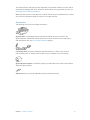
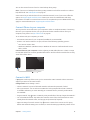
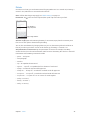
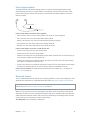
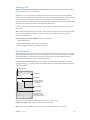
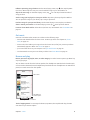
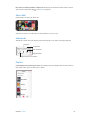
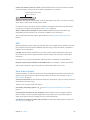
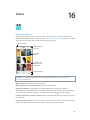
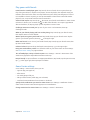
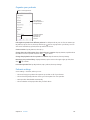
Set the slow-motion section of a video. Tap the thumbnail, then use the vertical bars beneath
the frame viewer to set the section you want to play back in slow motion.
Slide to adjust the slow-motion
section of the video.
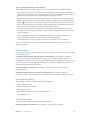
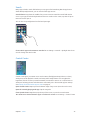
Zoom in or out. (iSight camera) Stretch or pinch the image on the screen. For iPhone 5 or later,
zoom works in video mode as well as photo mode.
If Location Services is turned on, photos and videos are tagged with location data that can be
used by apps and photo-sharing websites. See Privacy on page 36.
Want to capture what’s displayed on your screen? Simultaneously press and release the
Sleep/Wake and Home buttons. The screenshot is added to your Camera Roll.
You can edit photos and trim videos, right on iPhone. See Edit photos and trim videos on
page 77.
HDR
HDR (“high dynamic range”) helps you get great shots, even in high-contrast situations. The best
parts of three quick shots, taken at different exposures (long, normal, and short), are blended
together into a single photo.
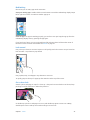
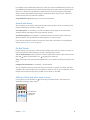
Use HDR. (iSight cameras and iPhone 5s FaceTime camera) Tap the HDR button at the top of
the screen. For best results, keep both iPhone and the subject still. (The flash is turned off for
HDR shots.)
On iPhone 5s, you can choose HDR Auto and iPhone will use HDR when it’s most effective.
Keep the normal photo in addition to the HDR version. Go to Settings > Photos and Camera.
HDR versions of photos in your Camera Roll are marked with “HDR” in the corner.
View, share, and print
Photos and videos you take are saved in your Camera Roll. With Photo Stream, new photos also
appear in your photo stream on iPhone and your other iOS devices and computers. See My
Photo Stream on page 75.
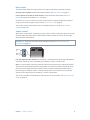
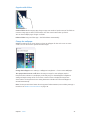
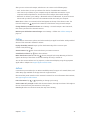
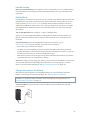
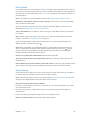
View your Camera Roll. Tap the thumbnail image, then swipe left or right. You can also view your
Camera Roll in the Photos app.
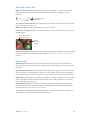
Tap the screen to show or hide the controls.
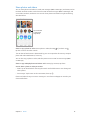
Get sharing and printing options. Tap
page 32.
. See AirDrop, iCloud, and other ways to share on
Upload photos and videos to your computer. Connect iPhone to your computer to upload
items to iPhoto or another supported application on your Mac or PC. If you delete photos or
videos in the process, they’re removed from your Camera Roll album.
Sync photos and videos to iPhone from your Mac. Use the Photos settings pane in iTunes. See
Sync with iTunes on page 18.
Chapter 12    Camera
80