1
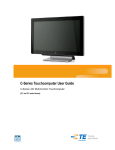
C-Series Touchcomputer User Guide
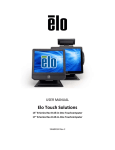
C-Series LCD Multi-function Touchcomputer
[22” model shown]
Elo Touch Solutions
C-Series Touchcomputer User Guide
Multi-function Touchcomputer
Revision D
SW 601354
1-800-ELOTOUCH (1-800-356-8682)
www.elotouch.com
Copyright © 2012 Elo Touch Solutions, Inc. All Rights Reserved.
No part of this publication may be reproduced, transmitted, transcribed, stored in a
retrieval system, or translated into any language or computer language, in any form or by
any means, including, but not limited to, electronic, magnetic, optical, chemical, manual, or
otherwise without prior written permission of Elo Touch Solutions, Inc.
Disclaimer
The information in this document is subject to change without notice. Elo Touch Solutions,
Inc. and its affiliates (collectively "Elo") makes no representations or warranties with
respect to the contents herein, and specifically disclaims any implied warranties of
merchantability or fitness for a particular purpose. Elo reserves the right to revise this
publication and to make changes from time to time in the content hereof without obligation
of Elo to notify any person of such revisions or changes.
Trademark Acknowledgments
AccuTouch, CarrollTouch, IntelliTouch, iTouch, Elo (logo), Elo TouchSystems (logo), and
Elo Touch Solutions (logo) are trademarks of Elo and its Affiliates. Windows is a trademark
of Microsoft Corporation. Other product names mentioned herein may be trademarks or
registered trademarks of their respective companies. Elo claims no interest in trademarks
other than its own.
C-SERIES TOUCHCOMPUTER USER GUIDE
iii
Table of Contents
Chapter 1: Setup...................................................................................... 1
Unpacking Your Touchcomputer ....................................................................................................1
Adjusting the Display ......................................................................................................................2
Setting Up the Operating System.....................................................................................................2
Calibrating the Touchscreen ..........................................................................................................10
Securing the Base...........................................................................................................................12
Chapter 2: Operation ............................................................................. 13
On-Screen Display (OSD) .............................................................................................................14
L.E.D. Functionality ......................................................................................................................16
Using the Input/Output Panel.........................................................................................................17
Chapter 3: Options and Upgrades ....................................................... 18
Adding Optional Peripherals..........................................................................................................18
Magnetic Stripe Reader (MSR) .....................................................................................................19
Customer Display...........................................................................................................................21
Fingerprint Reader (FPR) ..............................................................................................................22
Cash Drawer Port Card ..................................................................................................................23
Second VGA Port Card..................................................................................................................23
Wireless Adapter............................................................................................................................24
Second Hard Disk Drive ................................................................................................................25
Solid State Drive ............................................................................................................................25
Modem Card ..................................................................................................................................25
Parallel Port Card...........................................................................................................................26
RAID Controller Card....................................................................................................................26
Webcam Kit ...................................................................................................................................26
Elo POS Demo Software ...............................................................................................................27
Chapter 4: Safety and Maintenance ..................................................... 28
Safety .............................................................................................................................................28
Care and Handling .........................................................................................................................29
Recovering the Operating System .................................................................................................31
Reassigning COM Ports after System Recovery ...........................................................................36
C-SERIES TOUCHCOMPUTER USER GUIDE
iv
Chapter 5: Technical Support............................................................... 42
Technical Assistance......................................................................................................................42
Regulatory Information............................................................................44
Warranty ...................................................................................................47
C-SERIES TOUCHCOMPUTER USER GUIDE
v
C H A P T E R
1
SETUP
This chapter discusses how to set up and test your touchcomputer. For information
on peripheral options, refer to Chapter 3, “Options and Upgrades.”
Unpacking Your Touchcomputer
Check that the following items are present and in good condition:
Touchcomputer
Power cable US/Canada
Quick Install Guide
Power Adapter
Power cable Europe
Cable Cover Locking
Screw
C-SERIES TOUCHCOMPUTER USER GUIDE
1
Adjusting the Display
The display screen can be adjusted from 0 to 70 degrees, as shown below.
CAUTION: To prevent tipping or dropping, be sure to hold the base when adjusting
the display.
Setting Up the Operating System
If configured with an operating system, the initial setup of the operating system
takes approximately 5-10 minutes. Additional time may be needed depending on
touchcomputer hardware configurations and connected devices.
To set up the Microsoft® Windows® Operating System for the touchcomputer, turn
on the touchcomputer by pressing the power button, and then follow the
instructions on the screen.
C-SERIES TOUCHCOMPUTER USER GUIDE
2
Selecting the Language (For Windows XP and POSReady 2009 Only)
Microsoft Windows® uses English as the default language in menus and dialog
boxes. You can change this language to suit your preferences at the screen below.
Note: If you choose to change the language after initial setup, you can follow steps
1-2 to arrive at the same screen below:
1. From the desktop, click Start > Control Panel
2. In the Control Panel screen, select Regional and Language Options.
3. Click Customize. The Regional and Language Options window appears.
Select the Languages tab.
C-SERIES TOUCHCOMPUTER USER GUIDE
3
4. If required, check the boxes for “Install files for complex script and right-to-left
languages” and “Install files for East Asian languages.”
5. Select the Regional Options tab.
6. Select your preferred language from the drop-down list in the Standards and
formats pane.
C-SERIES TOUCHCOMPUTER USER GUIDE
4
7. Click Apply.
8. Select your location from the drop-down list in the Locations pane.
9. Click OK.
C-SERIES TOUCHCOMPUTER USER GUIDE
5
Selecting the Time Zone (For Windows XP and POSReady 2009 Only)
When the following window appears, you can change the time zone, date, and time
of the touchcomputer.
After making any changes, click Next to finish. Windows Setup completes the
installation of the touchcomputer.
Injecting the Languages (For Windows 7 Only)
Windows 7 Professional only allows the use of one language at one time. But you
can use the Elo TouchSystems language injection tool to update your language
preference. English is set as the default language, but you can change this
language to suit your preferences.
1. After the Elo logo shows up, press F8 several times to enter Advanced Boot
Options.
2. Select Repair your computer.
3. Click Next Æ OK (Shall not have password) Æ Click Elo Touch System Tool.
4. The following User Interface will be presented:
C-SERIES TOUCHCOMPUTER USER GUIDE
6
5. Click Inject, and the following window will pop out.
6. Click the drop-down list and select the preference language.
7. Click Inject Selected Language
8. The following window will be presented:
C-SERIES TOUCHCOMPUTER USER GUIDE
7
9. After the language package is installed correctly, press any key to exit this
window.
10. Click Exit Æ Exit Æ Restart
Selecting the Region (For Windows 7 Only)
When the following window appears, you can change the country, time and
currency, and keyboard layout of the touchcomputer.
After making any changes, click Next to continue.
C-SERIES TOUCHCOMPUTER USER GUIDE
8
Choosing the Computer Name (For Windows 7 Only)
When the following window appears, you can choose a computer name of the
touchcomputer.
After making any changes, click Next to continue.
Selecting the Update Options (For Windows 7 Only)
When the following window appears, you can select one of the update options of
the touchcomputer. In general, you can choose Use recommended settings as
your default option.
C-SERIES TOUCHCOMPUTER USER GUIDE
9
After making any changes, click Next to continue.
Reviewing the Time and Date Settings (For Windows 7 Only)
When the following window appears, you can set up the time and date of the
touchcomputer.
After making any changes, click Next to finish. Windows Setup completes the
installation of the touchcomputer.
Calibrating the Touchscreen
The touchscreen is pre-calibrated for accurate touch response.
If for any reason the touchscreen needs to be recalibrated, right-click the Elo icon
in the Taskbar and then click “Properties.” The following window opens.
NOTE:
Calibration is not applicable on APR touchscreen models.
C-SERIES TOUCHCOMPUTER USER GUIDE
10
Click the Align button. This launches the calibration program. The window shown
below opens. Follow the instructions to calibrate the touchscreen.
C-SERIES TOUCHCOMPUTER USER GUIDE
11
Securing the Base
Use the four pretapped holes to secure the touchcomputer from below the
mounting surface. The holes are designed to work with ISO metric M4 screws.
Mounting screws are not included with the product but should be readily available
at any hardware store. Refer to the figure below for the location of the holes. All
dimensions are in millimeters.
Mounting Diagram
1)
C-SERIES TOUCHCOMPUTER USER GUIDE
12
C H A P T E R
2
OPERATION
This chapter describes how to control the On-Screen Display (OSD), power
buttons, and I/O panel.
All adjustments made to the OSD and power controls are automatically saved.
User settings remain unchanged after powering off/on or in the case of a power
failure.
C-SERIES TOUCHCOMPUTER USER GUIDE
13
On-Screen Display (OSD)
OSD Menu
10. To display the OSD Menu, press the Menu button.
Press the RIGHT button or LEFT button to toggle and the SELECT button to
select from the different OSD sub-menus and functions.
11. When the function you want to change is shown, press the SELECT button.
12. To adjust the value of the function:
13. Pressing the RIGHT button increases the value of the selected OSD control
option.
14. Pressing the LEFT button decreases the value of the selected OSD control
option.
The OSD provides the following settings.
Feature
Description
Auto adjust
Automatically adjusts system clock.
Brightness
Adjust brightness and contrast.
•
Brightness: Adjusts the backlight of the monitor.
•
Contrast: Adjusts the maximum luminance level of the monitor.
C-SERIES TOUCHCOMPUTER USER GUIDE
14
Feature
Description
Image setting
Adjusts H position, V position, clock, and phase.
•
H position: Moves the screen horizontally right and left (1 pixel
pitch increment).
•
V position: Moves the screen vertically up and down (1 line
increment).
•
Clock: Adjusts the ratio of dividing frequency of the dot clock.
•
Phase: Adjusts the phase of the dot clock.
Color
Sets color temperature (9300K, 7500K, 6500K, 5500K, or User
Preset).
OSD
Adjusts H position, V position, and OSD timeout.
•
H position: Adjusts the OSD menu screen position left or right.
•
V position: Adjusts the OSD menu screen position up or down.
•
Timeout: Adjusts the amount of time that the OSD menu is
displayed.
Language
Changes language to English, French, Italian, German, Spanish,
Japanese, Simplified Chinese, or Traditional Chinese.
Recall
Sets color recall and recall defaults. Restores original factory settings.
Miscellaneous
Adjusts sharpness, enables/disables DDC/CI function.
Exit
Exits the OSD.
OSD and Power Button Control
The OSD menu and power button are enabled by default.
To enable or disable the OSD function:
15. Simultaneously press Menu/Exit and the Left (<-) key for two seconds. A
window appears displaying OSD ENABLE or OSD DISABLE.
16. When the OSD is disabled, the OSD menu is not visible.
To enable or disable the power button (PWR) lock function:
17. Simultaneously press Menu/Exit and the Right (->) key for two seconds. A
window appears displaying PWR ENABLE or PWR DISABLE.
18. When the power button lock feature is activated, the power button is disabled.
C-SERIES TOUCHCOMPUTER USER GUIDE
15
L.E.D. Functionality
The C-Series base has a LED indicating the state of the touchcomputer. The table
below shows LED state and corresponding color.
LED Color to Observer
State
Off
No input power — Off mode
Red
Input power present – Off mode or hibernation
Orange
Input power present — Standby
Green
Input power present — Power On
C-SERIES TOUCHCOMPUTER USER GUIDE
16
Using the Input/Output Panel
To access the input/output (I/O) ports, remove the cable cover at the bottom of the
unit. A security screw is included and may be used to secure the cable cover to the
touchcomputer. Below are the I/O descriptions by model:
C1 and C3 models
C2 models
Note: The DB9 Serial (COM) ports are defaulted (from left to right) COM3 and COM4
Note: As a safety precaution, always leave the cable cover door attached when the
system is powered on.
C-SERIES TOUCHCOMPUTER USER GUIDE
17
C H A P T E R
3
OPTIONS AND UPGRADES
Adding Optional Peripherals
When adding a peripheral, complete installation and setup instructions are
provided with the field-installable kits. The following peripherals are available for
purchase separately as field-installable kits:
•
Magnetic stripe reader (MSR)*
•
Customer display*
•
Fingerprint reader (FPR)*
•
Cash drawer port expansion card**
•
Second VGA port expansion card**
•
USB Wireless adapter (802.11 B/G/N)*
•
Second hard disk drive (HDD)
•
Solid State Drive (SSD)
•
Modem PCI-E***
•
Parallel Port PCI-E***
•
RAID PCI-E***
•
Webcam Kit
* External Elo Peripheral
** Elo Expansion Card
*** Elo PCI-E Expansion Card
Note: Software drivers and applications for all peripherals are located in the C:\EloTouchSystems
directory of the touchcomputer.
Note: May install up to two (2) Elo Expansion Cards OR one (1) Elo Expansion Card + one (1)
PCI-E Expansion Card
C-SERIES TOUCHCOMPUTER USER GUIDE
18
Magnetic Stripe Reader (MSR)
You can add a magnetic stripe reader (MSR) to the C-Series touchcomputer to any
of the three mounting locations located on the display head top, left, and right.
Software application and drivers can be found in the following directory or on
www.elotouch.com
C:\EloTouchSystems\Peripherals
The MSR is a USB 2.0 device that reads all three data stripes on standard credit
cards or driver’s licenses conforming to ISO/ANSI standards. The MSR has foreign
language capability. The credit card is read by sliding the credit card forward or
backward through the MSR, stripe side toward the display. The MSR is powered
from the USB port; no external power is needed. The MSR features are:
•
Reads up to 3 tracks of information
•
Bi-directional swipe reading
•
Superior reading of high jitter, scratched, and worn MagStripe cards
•
Reliable for over 1,000,000 card swipes
•
Reads ISO7811, AAMVA, and most other card data formats
•
PC software makes configuration changes easy
•
Swipe speeds from 3 to 60 inches per second
•
Interfaces: USB-KB and USB-HID
•
Fully supports USB 2.0
•
Part number: E545781
Testing the MSR
Testing in USB MSR Keyboard (KB) Emulation Mode
1. Open the Notepad application (click Start > Accessories > Notepad).
2. Slide the card through the MSR and verify that the data is displayed in the
application window.
C-SERIES TOUCHCOMPUTER USER GUIDE
19
Testing in USB MSR Human Interface Device (HID) Mode
1. Double-click the MagSwipe HID Demo icon to start the test application.
2. Slide a card through the MSR and verify that the data is displayed in the
application window.
C-SERIES TOUCHCOMPUTER USER GUIDE
20
3. If the card ID appears in the Reader Output window, the reader is functioning.
Customer Display
You can optionally add a customer display to the C-Series touchcomputer to any of
the three mounting locations located on the display head top, left, and right of the
touchcomputer. Software application and drivers can be found in the following
directory or on www.elotouch.com
C:\EloTouchSystems\Peripherals
Feature
Description
Display type
Vacuum fluorescent display
Display color
Green
Display pattern
5 x 7 dot matrix
Brightness
350-600 cd/m2
Characters available
95 alphanumeric & 32 international characters
Dot size (X x Y)
0.86 x 1.2 mm
Font size
5.5(W) x 10.5(H)
Character number
20 characters by 2 lines, for a 5 x 7 dot matrix font
Interface
USB
Part number
E879762
C-SERIES TOUCHCOMPUTER USER GUIDE
21
Fingerprint Reader (FPR)
You can add a fingerprint reader to the C-Series touchcomputer to any of the three
mounting locations located on the display head top, left, and right. Software
application and drivers can be found in the following directory or on
www.elotouch.com
C:\EloTouchSystems\Peripherals
The fingerprint reader is powered by the USB bus. The reader optically scans the
fingerprint when the user touches the glowing window. Optical technology gives
the highest quality fingerprint scans and reliability.
Fingerprint reader specifications are shown in the table below.
Feature
Specification
Fingerprint reader
DigitalPersona U.are.U
Power supply
5.0VDC +/- 0.25V
Current draw – scanning mode
190 mA (typical)
Current draw – idle mode
140 mA (typical)
Current draw – suspend mode
1.5 mA (typical)
Image resolution
512 dpi
Image color
8-bit gray level
Scan capture size
14.6mm (nominal width) x 18.1mm (nominal length)
Image capture speed
100 ms
USB type
1.0, 1.1, or 2.0
Operating temperature
0 to 40°C
Electrostatic discharge (ESD)
Up to 15kV mounted in case
Part number
E375206
Testing the FPR
4. Double-click the Fingerprint Reader Test icon to start the test application.
5. Place your finger on the fingerprint reader sensor and verify that the image of
your fingerprint is displayed on the application window.
C-SERIES TOUCHCOMPUTER USER GUIDE
22
Cash Drawer Port Card
A Cash Drawer Port Card can be installed in any available expansion slot. This
card provides:
•
1 x 12V or 24V selectable cash drawer RJ11 port. The voltage setting can
be set via jumper on the card prior to installing into the touchcomputer.
Software application and drivers can be found in the following directory or on
www.elotouch.com
C:\EloTouchSystems\Peripherals
Part number: E318237
Second VGA Port Card
A second VGA video card can be added to any available expansion slot. This card
provides a VGA port to drive another VGA display. Software application and
drivers can be found in the following directory or on www.elotouch.com
C-SERIES TOUCHCOMPUTER USER GUIDE
23
C:\EloTouchSystems\Peripherals
Part number: E017487
Wireless Adapter
A wireless adapter can be installed as an option in the C-Series touchcomputer in
the I/O area under the cable cover.
Typical specifications for the wireless adapter are:
•
USB dongle module
•
Compliant to USB 2.0 industry standards
•
IEEE 802.11b/g/n compliant
•
Support for Windows XP, Windows POSReady 2009 and Windows 7
•
RoHS compliant
•
Part number: E249774
Testing the Wireless Adapter
To test the wireless adapter:
1. From the desktop, click Start > Control Panel > Network Connections
2. Double-click the Wireless Network Connections icon to display available
networks and verify that the wireless network is detected.
NOTE:
If a wireless network needs to be initialized, please see your system
administrator.
C-SERIES TOUCHCOMPUTER USER GUIDE
24
Second Hard Disk Drive
A second hard disk drive can be added via the second hard drive mounting kit. This
addition provides extra data storage or can be used in conjunction with the RAID
controller card for RAID functionality. This option occupies a single expansion slot.
Part number: E596876
Solid State Drive
A solid state drive can be added to (or used to replace) the original hard disk drive.
This addition provides additional performance and more mechanically reliability in
harsh environments.
Part number: E112963
Modem Card
A modem card can be added to any expansion slot. This provides modem/fax
functionality. Software drivers can be found in the following directory or on
www.elotouch.com :
C:\EloTouchSystems\Peripherals
Part number: E763313
Note: To use this option ALSO requires the purchase and installation of the Elo
PCI-E Expansion Card Option Kit, part number E827958.
C-SERIES TOUCHCOMPUTER USER GUIDE
25
Parallel Port Card
A parallel port card can be added to any Expansion slot. This option provides a
parallel port for printer interfaces only. Software drivers can be found in the
following directory or on www.elotouch.com :
C:\EloTouchSystems\Peripherals
Part number: E368899
Note: To use this option ALSO requires the purchase and installation of the Elo
PCI-E Expansion Card Option Kit, part number E827958.
RAID Controller Card
A RAID controller card can be added when used in conjunction with a second HDD
kit to provide RAID 0 and 1 functionality. Software drivers can be found in the
following directory or on www.elotouch.com:
C:\EloTouchSystems\Peripherals
Part number: E383216
Note: To use this option ALSO requires the purchase and installation of the Elo
PCI-E Expansion Card Option Kit, part number E827958.
Webcam Kit
An integrated webcam kit with a built-in microphone is available for the C-Series
touchcomputer. The Webcam module is a USB-powered device that includes a 2.0
megapixel camera, with stereo microphones built in. This webcam is capable of
2.0MP video at 5fps. This webcam can run on the drivers that are already preset in
Windows Vista and Windows 7, and POSReady 2009. The built-in digital
microphone for this webcam module is compliant with USB Audio Class 1.0.
Webcam module specifications are shown in the table below:
Feature
2.0MP Webcam w/2 x Digital
Microphone
Description
MIT-AA20DA1
USB Type
1.0, 1.1 or 2.0
C-SERIES TOUCHCOMPUTER USER GUIDE
26
Video Resolution
1600x1200, 1280x1024, 640x480, 352x388,
320x240, 176x144, 160x120
Auto Frame Rate
5fps max @ 2.0 megapixels (1600x1200);
24fps max @ VGA mode (640x480)
Field Of View (FOV)
66°
Focus Range
40cm ~ Infinity
Input Voltage
5.0VDC ± 0.25V
Operation Current
Under 150mA
Standby Mode
40mA ± 5mA
Operating Temperature
Supported Operating
Systems
0 to 40°C
Windows XP, Windows 7, Windows Vista, POSReady
2009
Part Number
E682058
Elo POS Demo Software
POS demo software created by Elo TouchSystems is located at the following
directory.
C:\EloTouchSystems\Demos
C-SERIES TOUCHCOMPUTER USER GUIDE
27
C H A P T E R
4
SAFETY AND MAINTENANCE
Safety
Important information regarding the proper setup and maintenance of your touchcomputer:
•
To reduce the risk of electric shock, follow all safety notices and never open the
touchcomputer case.
•
Turn off the product before cleaning (refer to “Care and Handling” on page 30 for
proper cleaning methods).
•
Your touchcomputer is equipped with a 3-wire, grounding power cord. The power cord
plug only fits into a grounded outlet. Do not attempt to fit the plug into an outlet that has
not been configured for this purpose. Do not use a damaged power cord. Only use the
power cord that comes with your Elo TouchSystems touchcomputer. Use of an
unauthorized power cord might invalidate your warranty.
•
The slots located on the sides and top of the touchcomputer case are for ventilation.
Do not block or insert anything inside the ventilation slots.
•
It is important that your touchcomputer remains dry. Do not pour liquid into or onto your
touchcomputer. If your touchcomputer becomes wet, do not attempt to repair it
yourself. Contact Elo Customer Service for instructions.
C-SERIES TOUCHCOMPUTER USER GUIDE
28
Care and Handling
The following tips help keep your touchcomputer functioning at the optimal level.
To avoid risk of electric shock, do not disassemble the power adapter or display
unit cabinet. The unit is not user serviceable. Remember to unplug the display unit
from the power outlet before cleaning.
Do not use alcohol (methyl, ethyl, or isopropyl) or any strong solvent. Do not use
thinner or benzene, abrasive cleaners, or compressed air.
To clean the display unit cabinet, use a cloth lightly dampened with a mild
detergent.
Avoid getting liquids inside your touchcomputer. If liquid does get inside, have a
qualified service technician check it before you power it on again.
Do not wipe the screen with a cloth or sponge that could scratch the surface.
To clean the touchscreen, use window or glass cleaner. Put the cleaner on the rag
and wipe the touchscreen. Never apply the cleaner directly on the touchscreen.
Warning
This product consists of devices that might contain mercury, which must be
recycled or disposed of in accordance with local, state, or federal laws. (Within this
system, the backlight lamps in the monitor display contain mercury.)
C-SERIES TOUCHCOMPUTER USER GUIDE
29
WEEE Directive
In the European Union, the Waste Electrical and Electronic Equipment (WEEE)
directive label shown to the left indicates that this product should not be disposed
of with household waste. It should be deposited at an appropriate facility for
recovery and recycling.
UL Directive
B-Series touchcomputer has included a lithium battery on the motherboard. There
is a risk of explosion if battery is replaced by an incorrect type. Please dispose of used batteries
according the region instructions.
China RoHS
C-SERIES TOUCHCOMPUTER USER GUIDE
30
Recovering the Operating System
If for any reason the touchcomputer’s operating system and software need to be
recovered TO FACTORY SETTINGS, there are two ways you can recover your
system:
I) Use the Elo recovery utility (included in POSReady 2009 and Windows 7
systems)
i. Use the included image to recover the touchcomputer (For POSReady
2009 Only.)
1. After the Elo logo shows up, press DOWN repeatedly to enter Windows
Boot Manager.
2. Select OS Recovery
3. The following UI shall be presented
4. Click Recover Æ Start Recovery Process
C-SERIES TOUCHCOMPUTER USER GUIDE
31
5. After finished, click Exit Recovery Process Æ Exit. Then System will
restart automatically
ii. Use the included image to recover the touchcomputer (For Windows 7
Only.)
1. After the Elo logo shows up, press F8 repeatedly to enter Advanced
Boot Options.
2. Select Repair your computer
3. Click Next Æ OK (There is no password) Æ Elo Touch System Tool
4. The following UI shall be presented
C-SERIES TOUCHCOMPUTER USER GUIDE
32
5. Click Recover Æ Start Recovery Process
6. After finished, click Exit Recovery Process Æ Exit. Then system will
restart automatically.
C-SERIES TOUCHCOMPUTER USER GUIDE
33
OR
II) Use the Elo recovery DVD
(All C-Series touchcomputer come with the built-in recovery partition on the
installed HDD; they do not include recovery media. In the event the HDD
recovery partition is accidentally deleted or becomes or inaccessible, you
will need to request a recovery DVD from Elo TouchSystems customer
service. Contact information can be found on the last page of this guide.)
Hardware needed:
1. Elo Touchcomputer
2. External USB DVD Drive
3. Elo POSReady 2009 or Windows 7 Recovery DVD
Procedure
1. Connect the USB DVD drive to the touchcomputer.
2. Place the recovery DVD in the DVD drive.
3. Power on your touchcomputer and press “F11” to enter Device Boot Menu
and boot from DVD.
4. If “F11” doesn’t open the Device Boot Menu (depending on your model),
power off, then power on again and press “F8” to enter the Device Boot
Menu.
5. After entering the System Recovery Tool, click the “WINPE” button.
6. Once you see the “Command Prompt” window to start the recovery process
type:
• “pos9” to start the recovery process for POSReady 2009
OR
C-SERIES TOUCHCOMPUTER USER GUIDE
34
• “win7” to start the recovery process for Windows 7
7. Then press “Enter”.
8. Follow the on-screen instructions to complete the recovery.
9. Once you are prompted to reboot:
• Remove the recovery DVD from your DVD drive
• Shut down your touchcomputer by pressing and holding the power button
for 5 seconds
• Disconnect the DVD drive from your touchcomputer
• Restart your touchcomputer by pressing the power button
10. Follow the on-screen instructions to setup your system.
NOTE:
All data is deleted during the recovery process. The user must back up
files when necessary. Elo TouchSystems does not accept liability for lost
data or software.
NOTE:
If your hard disk is corrupted, you can request a Recovery DVD from Elo
TouchSystems customer service.
NOTE:
The end user must adhere to Microsoft's Licensing Agreement.
C-SERIES TOUCHCOMPUTER USER GUIDE
35
NOTE:
After recovering your touchcomputer by using the included image, the
operating system may reassign your USB Serial Ports during the first
bootup. You can follow the instructions below to reassign them manually.
Reassigning COM Ports after System Recovery
(The section is required once you recovered your system either from recovery partition or DVD) • Instructions to reassign the USB Serial Port(s) 1. For POSReady 2009, right click on the “Computer”icon on the desktop Æ Left click “Properties” Æ Then “Hardware” Æ Then “Device Manager”. For Windows 7, right click on the “Computer” icon on the desktop Æ Left click “Properties” Æ Then “Device Manager”. C-SERIES TOUCHCOMPUTER USER GUIDE
36
2. Double click the “Ports (COM & LPT)” and verify that all of the “USB Serial Port” settings are IDENTICAL to the following table: Description USB Serial Port (COM3) USB Serial Port (COM4) Location On USB Serial Converter A On USB Serial Converter B 3. If they are not, and you see the assignments as shown below, then the operating system has reassigned these serial ports. You need to re‐assign (correct) them manually. C-SERIES TOUCHCOMPUTER USER GUIDE
37
Normally, even if the operating system reassigns these serial ports, they are still in order. In this case, you should re‐assign them as shown in the following table. Original one USB Serial Port (COM5) USB Serial Port (COM6) Change to USB Serial Port (COM3) USB Serial Port (COM4) Thus, the settings for these USB Serial Ports should begin at COM3 and end at COM4 in order. 4. To re‐assign them, please follow the instructions below: Double click the port you need to change. In this case, it is COM5. C-SERIES TOUCHCOMPUTER USER GUIDE
38
COM5 is the 1st port of these USB serial ports so the “Location:” should be “on USB Serial Converter A”. Please assign this serial port to COM3. (COM4 for the USB Serial Converter B). Change to COM3
Location Information Select “Port Settings” Æ Click “Advanced…” C-SERIES TOUCHCOMPUTER USER GUIDE
39
In this case, select COM3 from the drop‐down menu Æ click OK Æ OK back to the Device Manager. Follow the same steps to accomplish these settings for other ports. C-SERIES TOUCHCOMPUTER USER GUIDE
40
After completing the above steps, right click on “Ports (COM & LPT)” and click Scan for hardware changes. 5. This should result in the following assignments: COM3 location: USB Serial Converter A COM4 location: USB Serial Converter B
If not, please repeat steps 1‐5. C-SERIES TOUCHCOMPUTER USER GUIDE
41
C H A P T E R
5
TECHNICAL SUPPORT
Technical Assistance
There are three methods to obtain contact information for technical assistance on
the touchcomputer:
•
The touchcomputer
•
The web
•
The phone
Using the Touchcomputer
You can access support information in System Properties by clicking the Support
Information button. You can get to System Properties by either of the following
methods:
Right-click My Computer and choose Properties.
OR
Click the Start button, select Control Panel, and double-click the System icon.
Using the Web
For online self-help, go to www.elotouch.com/go/websupport
For technical support, go to www.elotouch.com/go/contactsupport
For current Elo news, product updates, and announcements, or to register to
receive our Touchcomputer newsletter, go to www.elotouch.com/go/news
C-SERIES TOUCHCOMPUTER USER GUIDE
42
Using the Phone
For technical support, see the table at the end of the user guide for contact
information.
C-SERIES TOUCHCOMPUTER USER GUIDE
43
REGULATORY INFORMATION
I. Electrical Safety Information
A) Compliance is required with respect to the voltage, frequency, and current
requirements indicated on the manufacturer’s label. Connection to a different
power source than those specified herein may result in improper operation,
damage to the equipment, invalidation of warranty, or a fire hazard if the
requirements are not followed.
B) There are no operator-serviceable parts inside this equipment. There are
hazardous voltages generated by this equipment which constitute a safety hazard.
Service should be provided only by a qualified service technician.
C) This equipment is provided with a detachable power cord which has an integral
safety ground wire intended for connection to a grounded safety outlet.
1) Do not substitute the cord with other than the provided approved type. Under
no circumstances use an adapter plug to connect to a 2-wire outlet as this
defeats the continuity of the grounding wire.
2) The equipment requires the use of the ground wire as a part of the safety
certification. Modification or misuse can provide a shock hazard that can result
in serious injury or death.
3) Contact a qualified electrician or the manufacturer if there are questions
about the installation prior to connecting the equipment to main power.
II. Emissions and Immunity Information
A) Notice to Users in the United States: This equipment has been tested and found
to comply with the limits for a Class A digital device, pursuant to Part 15 of FCC
Rules. These limits are designed to provide reasonable protection against harmful
interference in a residential or commercial installation. This equipment generates,
uses, and can radiate radio frequency energy, and if not installed and used in
accordance with the instructions, may cause harmful interference to radio
communications.
B) Notice to Users in Canada: This equipment complies with the Class A limits for
radio noise emissions from digital apparatus as established by the Radio
Interference Regulations of Industry Canada.
C-SERIES TOUCHCOMPUTER USER GUIDE
44
C) Notice to Users in the European Union: Use only the provided power cords and
interconnecting cabling provided with the equipment. Substitution of provided
cords and cabling may compromise electrical safety or CE Mark Certification for
emissions or immunity as required by the following standards: This Information
Technology Equipment (ITE) is required to have a CE Mark on the manufacturer’s
label which means that the equipment has been tested to the following Directives
and Standards:
This equipment has been tested to the requirements for the CE Mark as required
by EMC Directive 2004/108/EC indicated in European Standard EN 55022 Class A
and the Low Voltage Directive 2006/95/EC as indicated in European Standard EN
60950-1.
D) General Information to all Users: This equipment generates, uses, and can
radiate radio frequency energy. If not installed and used according to this manual,
the equipment may cause interference with radio and television communications.
There is, however, no guarantee that interference will not occur in any particular
installation due to site-specific factors.
1) In order to meet emission and immunity requirements, the user must
observe the following:
a) Use only the provided I/O cables to connect this digital device with any
computer.
b) To ensure compliance, use only the provided manufacturer’s approved
power cord.
c) The user is cautioned that changes or modifications to the equipment not
expressly approved by the party responsible for compliance could void the
user’s authority to operate the equipment.
2) If this equipment appears to cause interference with radio or television
reception, or any other device:
a) Verify as an emission source by turning the equipment off and on.
b) If you determine that this equipment is causing the interference, try to
correct the interference by using one or more of the following measures:
i) Move the digital device away from the affected receiver.
ii) Reposition (turn) the digital device with respect to the affected
receiver.
iii) Reorient the affected receiver’s antenna.
C-SERIES TOUCHCOMPUTER USER GUIDE
45
iv) Plug the digital device into a different AC outlet so the digital device
and the receiver are on different branch circuits.
v) Disconnect and remove any I/O cables that the digital device does
not use. (Unterminated I/O cables are a potential source of high RF
emission levels.)
vi) Plug the digital device into only a grounded outlet receptacle. Do not
use AC adapter plugs. (Removing or cutting the line cord ground may
increase RF emission levels and may also present a lethal shock
hazard to the user.)
vii) If you need additional help, consult your dealer, manufacturer, or an
experienced radio or television technician.
III. Agency Certifications
The following certifications have been issued for the touchcomputer:
•
UL/cUL
•
FCC
•
TUV
•
CE
•
CB
•
Argentina S-mark
•
Russia GOST-R
•
Australia C-Tick
•
Japan VCCI
•
China CCC
•
IPX1
•
•
•
•
C-SERIES TOUCHCOMPUTER USER GUIDE
46
WARRANTY
Except as otherwise stated herein or in an order acknowledgment delivered to
Buyer, Seller warrants to Buyer that the Product shall be free of defects in
materials and workmanship. With the exception of the negotiated warranty
periods; the warranty for the touchcomputer and components of the product is 3
years.
Seller makes no warranty regarding the model life of components. Seller’s
suppliers may at any time and from time to time make changes in the components
delivered as Products or components. Buyer shall notify Seller in writing promptly
(and in no case later than thirty (30) days after discovery) of the failure of any
Product to conform to the warranty set forth above; shall describe in commercially
reasonable detail in such notice the symptoms associated with such failure; and
shall provide to Seller the opportunity to inspect such Products as installed, if
possible. The notice must be received by Seller during the Warranty Period for
such product, unless otherwise directed in writing by the Seller. Within thirty (30)
days after submitting such notice, Buyer shall package the allegedly defective
Product in its original shipping carton(s) or a functional equivalent and shall ship to
Seller at Buyer’s expense and risk.
Within a reasonable time after receipt of the allegedly defective Product and
verification by Seller that the Product fails to meet the warranty set forth above,
Seller shall correct such failure by, at Seller’s options, either (i) modifying or
repairing the Product or (ii) replacing the Product. Such modification, repair, or
replacement and the return shipment of the Product with minimum insurance to
Buyer shall be at Seller’s expense. Buyer shall bear the risk of loss or damage in
transit, and may insure the Product. Buyer shall reimburse Seller for transportation
cost incurred for Product returned but not found by Seller to be defective.
Modification or repair, of Products may, at Seller’s option, take place either at
Seller’s facilities or at Buyer’s premises. If Seller is unable to modify, repair, or
replace a Product to conform to the warranty set forth above, then Seller shall, at
Seller’s option, either refund to Buyer or credit to Buyer’s account the purchase
price of the Product less depreciation calculated on a straight-line basis over
Seller’s stated Warranty Period.
C-SERIES TOUCHCOMPUTER USER GUIDE
47
THESE REMEDIES SHALL BE THE BUYER’S EXCLUSIVE REMEDIES FOR
BREACH OF WARRANTY. EXCEPT FOR THE EXPRESS WARRANTY SET
FORTH ABOVE, SELLER GRANTS NO OTHER WARRANTIES, EXPRESS OR
IMPLIED BY STATUTE OR OTHERWISE, REGARDING THE PRODUCTS,
THEIR FITNESS FOR ANY PURPOSE, THEIR QUALITY, THEIR
MERCHANTABILITY, THEIR NONINFRINGEMENT, OR OTHERWISE. NO
EMPLOYEE OF SELLER OR ANY OTHER PARTY IS AUTHORIZED TO MAKE
ANY WARRANTY FOR THE GOODS OTHER THAN THE WARRANTY SET
FORTH HEREIN. SELLER’S LIABILITY UNDER THE WARRANTY SHALL BE
LIMITED TO A REFUND OF THE PURCHASE PRICE OF THE PRODUCT. IN NO
EVENT SHALL SELLER BE LIABLE FOR THE COST OF PROCUREMENT OR
INSTALLATION OF SUBSTITUTE GOODS BY BUYER OR FOR ANY SPECIAL,
CONSEQUENTIAL, INDIRECT, OR INCIDENTAL DAMAGES.
Buyer assumes the risk and agrees to indemnify Seller against and hold Seller
harmless from all liability relating to (i) assessing the suitability for Buyer’s intended
use of the Products and of any system design or drawing and (ii) determining the
compliance of Buyer’s use of the Products with applicable laws, regulations, codes,
and standards. Buyer retains and accepts full responsibility for all warranty and
other claims relating to or arising from Buyer’s products, which include or
incorporate Products or components manufactured or supplied by Seller. Buyer is
solely responsible for any and all representations and warranties regarding the
Products made or authorized by Buyer. Buyer will indemnify Seller and hold Seller
harmless from any liability, claims, loss, cost, or expenses (including reasonable
attorney’s fees) attributable to Buyer’s products or representations or warranties
concerning same.
C-SERIES TOUCHCOMPUTER USER GUIDE
48
www.elotouch.com
Get the latest...
•
Product information
•
Specifications
•
News on upcoming events
•
Press release
•
Software drivers
•
Touchcomputer Newsletter
Getting in Touch with Elo
To find out more about Elo’s extensive range of touch solutions, visit our Website at www.elotouch.com or
simply call the office nearest you:
Europe
Asia-Pacific
Elo Touch Solutions
Elo Touch Solutions
Elo Touch Solutions
301 Constitution Drive
Diestsesteenweg 692
Sun Hamada Bldg. 2F
Menlo Park, CA 94025
B-3010 Kessel-Lo
USA
Belgium
1-19-20
ShinYokohama
Kanagawa 222-0033
Japan
Tel +32(0)(16)35 21 00
(800) ELO-TOUCH
Fax +32(0)(16)35 21 01
(800) 356-8682
[email protected]
Tel 650-361-4800
Tel +81(45)478-2161
Fax 650-361-4747
Fax +81(45)478-2180
[email protected]
www.tps.co.jp
© 2012 Elo Touch Solutions Printed in USA
North America
C-SERIES TOUCHCOMPUTER USER GUIDE
49