1
8 Chapter 1 Using Oracle ASM
n
Note in this example that we made the start mode manual so the service will not start
automatically when the system is started. You will want to configure the service startup as
required by your system.
Step 4: Starting the ASM Instance
You are now ready to start the Oracle ASM instance. Note that until you have added a
disk group, you will get an error when the ASM instance is started. This is expected. In
Exercise 1.2, you will see how to start an ASM instance.
E x e r c i s e 1. 2
Starting an ASM Instance
Starting an ASM instance is quite easy, as shown in this exercise.
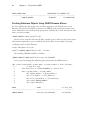
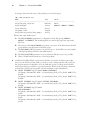
1. The name of the resulting instance will be +ASM. You can log into the ASM instance
from SQL*Plus, as shown in this example:
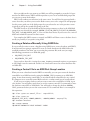
C:\Documents and Settings\Robert>Set ORACLE_SID=+ASM
C:\Documents and Settings\Robert>Sqlplus sys/Robert as sysasm
SQL*Plus: Release 11.1.0.6.0 - Production on Mon Jul 14 19:55:33 2008
Copyright (c) 1982, 2007, Oracle.
All rights reserved.
Connected to:
Oracle Database 11g Enterprise Edition Release 11.1.0.6.0 – Production
With the Partitioning, OLAP and Data Mining options
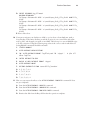
2. Now, start the ASM instance with the startup command:
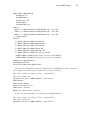
SQL> startup
ASM instance started
Total System Global Area
Fixed Size
83886080 bytes
1247420 bytes
Variable Size
57472836 bytes
ASM Cache
25165824 bytes
ORA-15110: no disk groups mounted
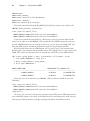
You will get an ORA-15110 error, but this is no concern at this time. This error is expected
because you have not yet created any ASM disk groups. We will cover the creation and
management of ASM disk groups later in this chapter.
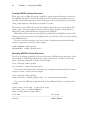
Step 5: Creating the ASM Spfile
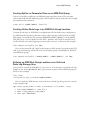
Having started the ASM instance, create the instance spfile from the pfile created in step 2.
Here is an example:
create spfile from pfile=’/u01/opt/oracle/admin/+ASM/pfile/init.ora’;