1
SSPX-100
User Manual
Ver. 1.00
All brand names and trademarks are properties of their
respective owners.
May/07
1
MN7000000038
Features and Benefits
z
Fully compliant with ExpressCard Specification 1.0
z
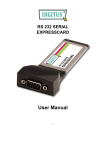
ExpressCard/34 Form Factor Module
z
Provides one DB9 RS232 port
z
Supports serial transmission rate up to 230,400 bps
z
No IRQ resource required
z
Bus Powered – no separate power supply or battery required
z
Easy Plug and Play Installation
z
Works with various types of RS232 serial devices including
modems, PDAs, label printers, bar code scanners, digital
cameras, and more
z
Supports Windows® 2000, XP, Server 2003 and Vista
Package Contents
z
1 x SSPX-100 ExpressCard
z
1 x Driver CD
System Requirements
z
Windows® 2000/XP/Server 2003/Vista
z
ExpressCard-enabled system with an available ExpressCard slot
May/07
2
MN7000000038
Hardware Installation
General instructions for installing the card are provided below. Since
the design of your system may vary, refer to your system’s reference
manual for further information, if needed.
Insert the SSPX-100 into the ExpressCard slot of your system only
after driver installation is complete. When prompted to do so, make
sure it is inserted all the way in for a solid connection.
Driver Installation
For Windows® 2000/XP/Server 2003
1.
Don’t insert the SSPX-100 into the ExpressCard slot.
2.
Please insert the Driver CD that came with your SSPX-100
ExpressCard into your CD-ROM Drive.
3.
At the Windows desktop click Start, then Run.
4.
Type D:\Drivers\ExpressCard\SSPX-100\Setup.exe, then click
OK.
(Change D: to match your CD-ROM drive letter)
5.
Follow the on-screen instructions to complete the installation.
6.
Insert the SSPX-100 into the ExpressCard slot.
7.
Open “Device Manager” under System Properties and you should
see “Prolific USB-to-Serial Comm Port …”.
May/07
3
MN7000000038
8.
Now the SSPX-100 ExpressCard is ready to use.
For Windows® Vista
1.
Don’t insert the SSPX-100 into the ExpressCard slot.
2.
Please insert the driver CD that came with your SSPX-100 into
your CD-ROM Drive.
3.
At the Windows desktop click Start, then Run.
4.
Type D:\ Drivers\ExpressCard\SSPX-100\Setup.exe, then click
OK.
(Change D: to match your CD-ROM drive letter)
5.
Follow the on-screen instructions to complete the installation.
6.
Insert the SSPX-100 into the ExpressCard slot.
7.
Open “Device Manager” under System Properties and check if
there is the device you install under “Prolific USB-to-Serial
Comm Port …”.
8.
Now the SSPX-100 is ready to use.
May/07
4
MN7000000038
Changing COM Port Number
Some serial devices need a special COM port number in order to work.
If your serial device works properly, do not change this setting.
1.
From the Device Manager window double click Ports(COM &
LPT), then double click the Prolific USB-to-Serial Comm
Port … you want to change.
2.
Click Port Settings tab and click Advanced… button.
3.
Click the down arrow that is next to the COM Port Number box,
select a COM port that is not in use, then click OK.
4.
Click OK, then close Device Manager to save the changes.
May/07
5
MN7000000038


![[EN] Interface USB-To-Serial Comm Port for Gas systems (DIEGO](http://vs1.manualzilla.com/store/data/005974853_1-d7519f85a73b2428da2cd304d1566286-150x150.png)