1
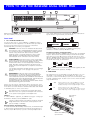
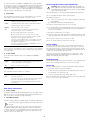
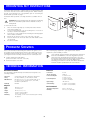
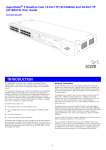
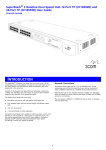
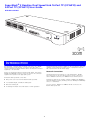
Positioning the Baseline Dual Speed Hub To connect the hub to a 10 Mbps or 100 Mbps unit, connect an MDIX port on the unit to port 16 or 24 on the Hub. Ensure that the MDI switch on the Hub is in (MDI). If an MDI/MDIX port is used on the other unit, ensure that the MDI switch for that port is out (MDIX). Alternatively, you can use “cross-over” TP cable to connect any MDIX port on the Baseline Dual Speed Hub to any MDIX port on another unit. 3 CAUTION: When installing the Baseline Dual Speed Hub in a stack of different size units, the Baseline Dual Speed Hub must be installed above any larger units. Do not have a free standing stack of more than six units. ! When deciding where to position the Baseline Dual Speed Hub ensure: Status LEDs The Status LEDs show the state of a port and whether or not the Link Pulse signal is present on the segment connected to a port: It is accessible and cables can be connected easily. Cabling is away from: ■ Sources of electrical noise such as radios, transmitters and broadband amplifiers. ■ Power lines and fluorescent lighting fixtures. Green A 100 Mbps Link Pulse signal is being received and the 100BASE-TX segment attached to the port is functional. Yellow A 10 Mbps Link Pulse signal is being received and the 10BASE-T segment attached to the port is functional. Water or moisture cannot enter the case of the unit. Flashing Packets are being received on the port. Off The Link Pulse signal is not being received. Either nothing is connected to the port, or there is a problem: Air flow around the unit and through the vents in the side of the case is not restricted (3Com recommends that you provide a minimum of 25 mm (1 in.) clearance). ■ Check that the attached device is powered on. To prolong the operational life of your units: ■ Check that the cable is the correct type and is not faulty. Never stack units more than six high if free standing, and ensure that cables are supported so that they do not cause the stack to fall over. Do not place objects on top of any unit or stack. Do not obstruct any vents at the sides of the case. If the LED is off for port 16 or 24, check the setting of the MDI switch. Refer to 2. Try toggling the MDI switch. If you have connected different types of unit together, check that your configuration conforms to the network configuration rules for 10BASE-T and 100BASE-TX. If the port is connected to another unit’s MDI/MDIX port, check the other unit’s MDI switch position. Power Supply Power problems can be the cause of serious failures and downtime in your network. Ensure that the power input to your system is clean and free from sags and surges to avoid unforeseen network outages. 3Com recommends that you install power conditioning, especially in areas prone to black outs, power dips and electrical storms. If these checks do not identify the cause of a problem, it may be that the unit or the device connected to the port is faulty. Contact your supplier for further advice. 4 Collision LEDs The unit is intended to be grounded. Ensure it is connected to earth ground during normal use. Installing proper grounding helps to avoid damage from lightning and power surges. The Collision LEDs indicate activity on the 10 Mbps and 100 Mbps segments: Rack Mounting Flashing yellow Collisions are occurring on the segment. A low level of collisions is a part of normal Ethernet and Fast Ethernet operation. Excessive collisions may indicate a network problem. The Baseline Dual Speed Hub can be mounted in a 19-in. equipment rack. Refer to the “Mounting Kit Instructions” section in this guide. Off There is no collision on the segment. Power Up Use the following sequence to power up the Baseline Dual Speed Hub: 5 Power LED The Power LED indicates a number of conditions: Green The unit is powered on and ready for use. Off The unit is powered off. If the unit appears to be operating and the LED is off, contact your supplier. Rear Panel Connections Power Supply The Baseline Dual Speed Hub automatically adjusts to the supply voltage. Only use the power cord that is supplied with the Baseline Dual Speed Hub, or a power cord of the same type and rating. 7 Check the network connections and cables. 2 Connect the power supply cable to the appropriate power socket on the rear panel of the unit; refer to 6. 3 Connect the plug to the power supply outlet socket. When the Baseline Dual Speed Hub is powered on, the Power LED should be lit. If it is not, refer to 5, “Power LED”. The power cable may be connected incorrectly or the fuse within the power cord’s plug may be faulty (UK models only). 6 1 Self-adhesive Pads The hub is supplied with four standard height, self-adhesive rubber pads. You do not need to apply the pads if you intend to rack mount the unit. If you are placing the units one on top of the other, you must use the self-adhesive rubber pads supplied. Apply the pads to the underside of each unit, sticking one in the marked area at each corner. Place the units on top of each other, ensuring that the pads of the upper unit line up with the recesses of the lower unit. 3