1
Overview
LevelOne IES-0882 Industry Ethernet Switch provides 4 PoE ports of
10/100Base-TX plus 4 ports of 10/100Base-TX Ethernet plus 2 ports
of Gigabit Combo SFP to enable high speed network at missioncritical environment. The compact metal housing is designed for
desktop space saving, plus the clearly visible status LEDs provide
simple monitoring of port link activity. Moreover, the SFP slots
support pluggable modules that enabling you to choose from a
variety of transceivers.
IES-0882
Resilient Ring Network
4 x 802.3at + 2 FE + 2 GE Combo Managed Switch -40
40 to 75C, Desktop
Quick Installation Guide
Supports Ring topology network providing simple installation and
ultra fast network recovery performance, less than 15ms. Unlike
much complex resilient topology, such as a redundant star, the Ring
simplifies the network design and requires less cabling installation.
In addition, fast network recovery time helps minimize system
downtime.
Default Setting
IP
Login
Password
Console
Management
192.168.1.10
Supports a variety of management features including: CLI via
Console or Telnet; Graphic User Interface via Web Browser or
Simple Network Management Protocol via SNMP tools. It provides
better visibility and management of those critical assets.
root
[blank]
115200, n, 8, 1
Power over Ethernet
v1.00 - 1206
This switch is Power Sourcing Equipment (PSE), and it is fully
complied with IEEE 802.3at PoE standard at maximum 30W power
budget per port. It helps to save infrastructure wiring costs
dramatically by eliminating electric wiring and less UPS needed.
Also, it is compatible with IEEE802.3af standard PD devices.
IES-0882
Features
Page 1
LED Status
• Meets NEMA TS1/TS2 Environmental requirements such as temperature, shock,
and vibration for traffic control equipment.
• Meets EN61000-6-2 & EN61000-6-4 EMC Generic Standard Immunity for
industrial environment.
• RS-232 console, Telnet, SNMP v1 & v2c & v3, RMON, Web Browser, and TFTP
management.
• Supports Command Line Interface in RS-232 console.
• Supports 8192 MAC addresses. Provides 2M bits memory buffer.
• Supports IEEE802.3af Power over Ethernet (PoE) and IEEE802.3at PoE+ Power
Sourcing Equipment (PSE).
• Supports IEEE802.3/802.3u/802.3ab/802.3z/802.3x. Auto-negotiation:
1000Mbps-full-duplex; 10/100Mbps-full/half-duplex; Auto MDI/MDIX.
• Provides up to two combo Gigabit ports. SFP socket for Gigabit fiber optic
expansion.
• Supports digital diagnostics monitoring (DDM)/digital optical monitoring (DOM)
functions according to the industry-standard SFF-8472.
• Store-and-forward mechanism. Full wire-speed forwarding rate.
• Power Supply: 47~57VDC Terminal Block power input.
• Operating voltage and Max. current consumption: 0.37A @ 48VDC, 0.32A @
55VDC. Power consumption: 17.7W Max.
• -40℃ to 75℃ (-40℉ to 167℉) operating temperature range.
• Tested for functional operation @ -40℃ to 85℃ (-40℉ to 185℉).
• Hardened metal case
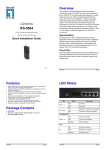
LED
Status
Description
Steady
Power On
Off
Power Off
Steady
Network connection established
Flashing
Transmitting or Receiving data
PoE
Steady
Power Device (PD) is connected
(High Power)
Off
Power Device (PD) is disconnected
PWR
10/100Base-TX
LNK/ACT
10/100/1000Base-TX & 1000Base-FX & SFP
Package Contents
IES-0882
Quick Installation Guide
CD User Manual
IES-0882
Steady
Network connection established
Flashing
Transmitting or Receiving data
Steady
A valid connection established
Off
No connection is being established
LNK/ACT
SFP
Page 2
IES-0882
Page 3
Terminal Block
Power Input
Console Configuration
+
47 – 57VDC
–
Power Ground
1. Connect to the switch console:
2. Connect the DB9 straight cable to the RS-232 serial port of the
device and the RS-232 serial port of the terminal or computer
running the terminal emulation application. Direct access to the
administration console is achieved by directly connecting a
terminal or a PC equipped with a terminal-emulation program
(such as HyperTerminal) to the switch console port.
3. Configuration settings of the terminal-emulation program:
4. Baud rate: 115,200bps, Data bits: 8, Parity: none, Stop bit: 1, Flow
control: none.
5. Press the “Enter” key. The Command Line Interface (CLI) screen
should appear as below:
6. Logon to Exec Mode (View Mode):
7. At the “switch_a login:” prompt just type in “root” and press
<Enter> to logon to Exec Mode (or View Mode). And the
“switch_a>” prompt will show on the screen.
Power
Earth Ground
8. Logon to Privileged Exec Mode (Enable Mode):
9. At the “switch_a>” prompt just type in “enable” and press
<Enter> to logon to Privileged Exec Mode (or Enable Mode). And
the “switch_a#” prompt will show on the screen.
10. Logon to Configure Mode (Configure Terminal Mode):
11. At the “switch_a#” prompt just type in “configure terminal”
and press <Enter> to logon to Configure Mode (or Configure
IES-0882
Page 4
Terminal Mode). And the “switch_a(config)#” prompt will show
on the screen.
12. Set new IP address and subnet mask for Switch:
13. At the “switch_a(config)#” prompt just type in “interface
vlan1.1” and press <Enter> to logon to vlan 1 (vlan1.1 means
vlan 1). And the “switch_a(config-if)#” prompt will show on the
screen.
14. Command Syntax: “ip address A.B.C.D/M”. “A.B.C.D” specifies
IP address. “M” specifies IP subnet mask. “M”= 8: 255.0.0.0,
16:255.255.0.0, or 24: 255.255.255.0.
15. For example, At the “switch_a(config-if)#” prompt just type in
“ip address 192.168.1.10/24” and press <Enter> to set new IP
address (192.168.1.10) and new IP subnet mask (255.255.255.0)
for Switch
IES-0882
Page 5
Web Configuration
1. Login the switch:
2. Specify the default IP address (192.168.1.10) of the switch in the
web browser. A login window will be shown as below:
3. Enter the factory default login ID: root.
4. Enter the factory default password (no password).
5. Then click on the “Login” button to log on to the switch.
Note: Please refer to User Manual for more detailed information
IES-0882
Page 6
IES-0882
Page 7