1
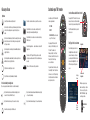
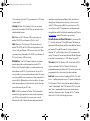
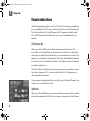
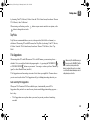
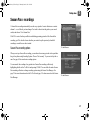
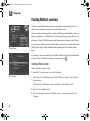
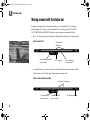
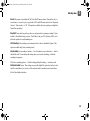
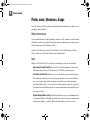
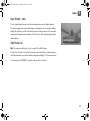
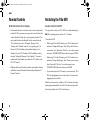
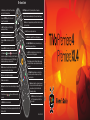
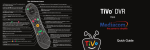
TiVo® Remote Control
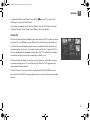
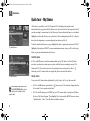
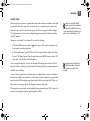
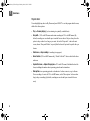
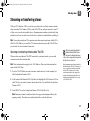
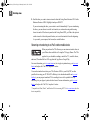
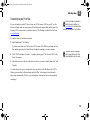
The TiVo button takes you to the TiVo Central® screen, the starting
point for all your TiVo features and settings.
If programmed, TV PWR turns your TV or A/V receiver on/off.
See page 74 for more information.
Use Input to select the input (such as TiVo box, DVD player,
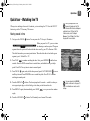
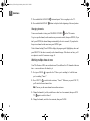
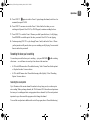
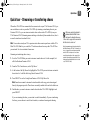
game system) your TV displays.
If programmed, Mute turns the volume on your TV or stereo on or off.
Use the Thumbs Up and
Thumbs Down
buttons to rate shows for TiVo
Suggestions. You can give up to three Thumbs Up (great!) or three Thumbs Down
(terrible!). In TiVo with HD menus, you can also use the THUMBS UP button to
mark any video provider, category, or collection as a favorite.
Rewind rewinds a show. Press it up to three times for three speeds. When a
show is paused, press Rewind to go back frame-by-frame.
Pause freezes a show. Press it again to resume playing.
Slow plays a show in slow motion.
Replay repeats the last 8 seconds of the show. Press and hold to jump to the beginning
of a show.
In TiVo with HD menus, the
onscreen tips.
buttons sort and filter views. Look for the
Use Number buttons to enter channel numbers.
Guide takes you to the program guide, where you can find shows to watch or record. Press
it again to clear the guide.
Use Select to choose menu options or shows to record.
Use the Arrow Buttons to navigate the TiVo menus and the program guide.
Use the Channel Up/Down buttons to change the channel and to page up or
down while in the program guide or TiVo menus.
Press Record to start recording the show you’re watching, or to set up a
recording for a show selected in the program guide.
Play starts playing a show from the My Shows list. When you are using
pause, rewind, fast-forward or slow, pressing Play will resume playing at
normal speed.
Fast-Forward fast-forwards through a show. Press it up to three
times for three speeds. When a show is paused, press Forward to
advance frame-by-frame.
Advance moves forward in 30-second increments; press and
hold to jump to the end of the show. While viewing a recorded
show, press Advance to jump to the next tick mark when
fast-forwarding or rewinding.
Enter/Last returns you to the last channel tuned to in
live TV. In the program guide, press Enter/Last to see
Guide Options.
Clear removes the display of the channel banner or program guide, and deletes titles from the
My Shows or To Do list.
SDOC-00138-002 A1
®
If programmed, Volume controls the volume on your TV or A/V
receiver.
Info shows the channel banner while watching live TV; press it again to make it disappear.
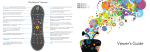
TiVo Premiere 4/XL4 Viewer’s Guide
Use Zoom to change aspect ratio of shows on your TV.
Live TV/Swap takes you to live TV. If you’re watching live TV, use it to swap tuners.
4
4
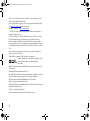
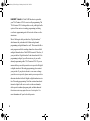
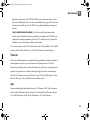
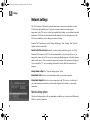
Customize your TiVo® remote
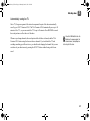
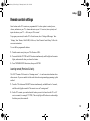
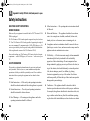
Glossary of icons
My Shows
(Green) This show will be saved until you delete it.
Plain folder – contains more than one episode of the same series.
(Yellow circle) In less than three days, this show may be deleted to make
room for other recordings you have requested, but only if space is
needed.
Folder with red or blue dot – contains a show that is currently
recording (red) or downloading/transferring (blue).
TV POWER
Folder with white star – contains one or more shows recorded by a
WishList search.
(Yellow circle with exclamation point) In less than one day, this show may
be deleted to make room for other recordings you have requested, but
only if space is needed.
Folder with Suggestions icon – contains all shows recorded as TiVo
Suggestions.
(Yellow triangle) In less than three days, this show will be deleted due to
copyright restrictions.
(Yellow triangle with exclamation mark) In less than one day, this show
will be deleted due to copyright restrictions.
(Red) This show is currently being recorded.
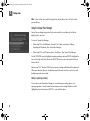
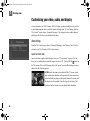
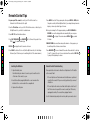
Some buttons on your TiVo Premiere 4/XL4
remote are programmable:
This show is a TiVo® Suggestion. TiVo Suggestions are recorded
only if space is available, and are the first to be deleted when space
is needed.
®
Format
TiVo box – for a TiVo box connected to your network.
(Blue) This show is currently downloading or transferring.
To Do List and View Upcoming Episodes
TV INPUT
VOLUME & MUTE (can control sound
on your TV or A/V receiver)
To program your TiVo Premiere 4/XL4
remote, press the TiVo button to go to the
TiVo Central® screen and select
‘Messages & Settings,’ then ‘Settings,’
then ‘Remote, CableCARD, & Devices,’ then
‘Remote Control.’ Follow the easy
on-screen instructions.
If you have a Premiere XL4 remote control,
it has the ability to “learn” functions from
other remotes. See the “Settings” chapter
for instructions and for more information
about your remote control.
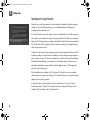
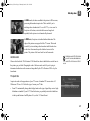
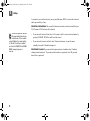
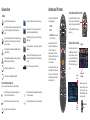
On-Screen Menus and the Remote Control
To navigate the TiVo® Premiere 4/XL4’s on-screen
menus, use the remote control’s arrow buttons
to move to the option you want, then press SELECT.
The LEFT arrow button often takes you to the
previous screen.
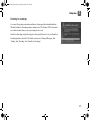
Two Types of On-Screen Arrows
The arrows that appear beside or near
the highlight bar show the directions it
can move. For example, on this screen,
you could press the RIGHT arrow to view
details about the highlighted title, or the
LEFT arrow to go back to the previous
screen.
Page Up
Arrow
(Blue) Show will be downloaded as an individual download (not part
of a Season Pass download).
(Red) Show will be recorded as part of a Season Pass recording.
(Blue) Show will be downloaded as part of a Season Pass download.
Show will be recorded as part of a WishList search.
Arrows near the
Highlight Bar
When you see page up or page
down arrows at the top or bottom
of the screen (or a list), press the
CHAN UP/DOWN button to jump
an entire page at a time.
(These icons appear beside shows scheduled to be recorded or downloaded.)
(Red) Show will be recorded as an individual recording (not part of a
Season Pass® recording or WishList® search).
Highlight Bar
Page
Down
Arrow
CHAN UP/DOWN
Button
PremiereSeries_VG.book Page i Monday, June 18, 2012 5:20 PM
Welcome
PremiereSeries_VG.book Page ii Monday, June 18, 2012 5:20 PM
This Viewer’s Guide describes features of the TiVo® service running on the TiVo
Premiere 4/XL4 Digital Video Recorder.
Your use of this product is subject to TiVo's Service Agreement and Privacy Policy.
Visit www.tivo.com/policies for the latest versions.
Patented. U.S. pat. nos. at www.tivo.com/patents.
© 2012 TiVo Inc. Reproduction in whole or in part without written permission is
prohibited. All rights reserved.
TiVo, the TiVo logo, TiVo Central, WishList, Season Pass, TiVoToGo, the Jump
logo, the Instant Replay logo, the Thumbs Up logo, the Thumbs Down logo,
Overtime Scheduler, Overlap Protection, Swivel, the TiVo Circle logo, and the
sounds used by the TiVo service are trademarks or registered trademarks of TiVo Inc.
or its subsidiaries worldwide, 2160 Gold Street, P.O. Box 2160, Alviso, CA 950022160.
Amazon, Amazon.com, and the Amazon.com logo are registered trademarks of
Amazon.com, Inc. or its affiliates.
CableCARD is a trademark of Cable Television Laboratories, Inc.
Manufactured under license from Dolby Laboratories. “Dolby”
and the Double-D symbol are trademarks of Dolby
Laboratories.
HDMI is a registered trademark of HDMI Licensing LLC in the United States and
other countries.
Hulu and Hulu Plus are trademarks of Hulu, LLC.
iOS, iPad, iPhone, and iPod touch are registered trademarks of Apple Inc., registered
in the U.S. and other countries. App Store is a service mark of Apple Inc.
MoCA is a registered trademark of Multimedia over Coax Alliance.
Netflix is a registered trademark of Netflix, Inc.
THX and the THX logo are trademarks of THX Ltd. which may be registered in some
jurisdictions. All rights reserved.
YouTube is a trademark of Google Inc.
All other trademarks are the properties of their respective owners.
ii
PremiereSeries_VG.book Page iii Monday, June 18, 2012 5:20 PM
Table of contents
Using this guide . . . . . . . . . . . . . . . . . . . . . . . . . . . . . . . . . . .iv
Chapter 1: Quick tours . . . . . . . . . . . . . . . . . . . . . . . . . . 1
Quick tour - the TiVo Central® screen . . . . . . . . . . . . . . . . . . 2
Quick tour - My Shows . . . . . . . . . . . . . . . . . . . . . . . . . . . . . 4
Quick tour - Watching live TV . . . . . . . . . . . . . . . . . . . . . . . . 7
Quick tour - Streaming or transferring shows . . . . . . . . . . . 11
Chapter 2: Finding shows . . . . . . . . . . . . . . . . . . . . . . 13
Using the guide and mini-guide to find shows . . . . . . . . . . .
Finding & recording shows using TiVo with HD menus . . .
Finding & recording shows using TiVo with SD menus . . .
Recording by time or channel . . . . . . . . . . . . . . . . . . . . . . . .
Recommended shows . . . . . . . . . . . . . . . . . . . . . . . . . . . . . .
Season Pass® recordings . . . . . . . . . . . . . . . . . . . . . . . . . . . .
Creating WishList® searches . . . . . . . . . . . . . . . . . . . . . . . . .
Finding shows online . . . . . . . . . . . . . . . . . . . . . . . . . . . . . .
Managing recordings . . . . . . . . . . . . . . . . . . . . . . . . . . . . . .
14
16
19
21
24
27
28
31
33
Chapter 3: Watching shows . . . . . . . . . . . . . . . . . . . . . 39
Moving around with the status bar . . . . . . . . . . . . . . . . . . . .
Getting information with the channel banner . . . . . . . . . . . .
Setting a show’s recording options . . . . . . . . . . . . . . . . . . . .
Customizing your video, audio, and display . . . . . . . . . . . .
Parental Controls and KidZone . . . . . . . . . . . . . . . . . . . . . .
Streaming or transferring shows . . . . . . . . . . . . . . . . . . . . . .
40
42
44
46
51
57
Chapter 4: Video on demand . . . . . . . . . . . . . . . . . . . . 61
What is video on demand? . . . . . . . . . . . . . . . . . . . . . . . . . . 62
Video providers . . . . . . . . . . . . . . . . . . . . . . . . . . . . . . . . . . 62
Photos, music, Showcases, & apps . . . . . . . . . . . . . . . . . . . 66
Chapter 5: Settings . . . . . . . . . . . . . . . . . . . . . . . . . . . 69
Channel settings . . . . . . . . . . . . . . . . . . . . . . . . . . . . . . . . . .
Network settings . . . . . . . . . . . . . . . . . . . . . . . . . . . . . . . . . .
Remote control settings . . . . . . . . . . . . . . . . . . . . . . . . . . . .
Device settings . . . . . . . . . . . . . . . . . . . . . . . . . . . . . . . . . . .
Messages . . . . . . . . . . . . . . . . . . . . . . . . . . . . . . . . . . . . . . .
Account & system information . . . . . . . . . . . . . . . . . . . . . .
Restart or reset system . . . . . . . . . . . . . . . . . . . . . . . . . . . . .
Standby . . . . . . . . . . . . . . . . . . . . . . . . . . . . . . . . . . . . . . . . .
70
72
75
77
79
80
81
83
Chapter 6: Troubleshooting . . . . . . . . . . . . . . . . . . . . . 85
Appendix A: Safety, FCC info, front/back panels, & specs
99
Safety instructions . . . . . . . . . . . . . . . . . . . . . . . . . . . . . . .
FCC statement to the user . . . . . . . . . . . . . . . . . . . . . . . . .
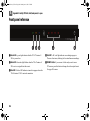
Front panel reference . . . . . . . . . . . . . . . . . . . . . . . . . . . . .
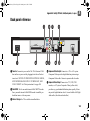
Back panel reference . . . . . . . . . . . . . . . . . . . . . . . . . . . . .
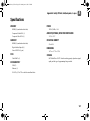
Specifications . . . . . . . . . . . . . . . . . . . . . . . . . . . . . . . . . . .
100
103
104
105
107
Appendix B: Copy Protection, Warranty, & Licensing 109
Copy protection and the TiVo® service . . . . . . . . . . . . . . . 110
TiVo DVR Limited Warranty . . . . . . . . . . . . . . . . . . . . . . 111
Licensing Information . . . . . . . . . . . . . . . . . . . . . . . . . . . . 114
Index . . . . . . . . . . . . . . . . . . . . . . . . . . . . . . . . . . . . . 115
iii
PremiereSeries_VG.book Page iv Monday, June 18, 2012 5:20 PM
Using this guide
Thank you for choosing a high-definition TiVo® Premiere 4 or TiVo
Premiere XL4 DVR.
Unless otherwise noted, features described in this guide apply to
both the Premiere 4 and the Premiere XL4. Features that are
available only on particular models will be so noted.
Getting started:
1. Activate the TiVo service. The TiVo service is what makes
your TiVo Premiere 4/XL4 smart. It includes everything from
your show listings to Season Pass® recordings and WishList®
searches. If you haven’t yet activated your TiVo service, visit
tivo.com/activate or call 1-877-367-8486.
TiVo service is required and is sold separately. No functionality
is represented or should be expected without a paid subscription
to the TiVo service.
2. Connect your TiVo Premiere 4/XL4. If the TiVo service is the
brains, the TiVo Premiere 4/XL4 is the body. Use the Start Here
poster to connect the TiVo Premiere 4/XL4 to your TV
programming source, your home network, and your television.
3. Complete Guided Setup. After connecting your TiVo Premiere 4/
XL4, follow the steps in on-screen Guided Setup. This
configures the TiVo Premiere 4/XL4 for your home, and ensures
you have the latest product updates.
iv
4. Take a tour! Once you’re done with Guided Setup, the Quick
tours in Chapter 1 of this guide will introduce you to the TiVo
service, available in both HD and standard definition. And don’t
forget to watch the helpful tutorial video in your My Shows list,
and to keep checking My Shows for additional videos.
5. Optimize THX® sound and video (TiVo Premiere XL4 only) Your
TiVo Premiere XL4 includes a video in the My Shows list that
helps you optimize THX sound and video. If your TV screen
exceeds 50", THX recommends playing the THX Optimizer. For
optimal audio performance, THX recommends utilizing the
HDMI® or Digital Audio (Optical) output.
6. Visit tivo.com/howto From time to time you’ll get updates to the
TiVo service. For the latest information on how to use new
features as they become available on your TiVo Premiere 4/
XL4, visit tivo.com/howto.
Basic terms
When we talk about the TiVo service, here are some terms you
should know:
Live TV. If you’re watching a show as it’s being broadcast,
you’re watching live TV. You can pause live TV for up to 30
minutes. When you resume watching, you’re “behind” live TV.
PremiereSeries_VG.book Page v Monday, June 18, 2012 5:20 PM
(You can always get to live TV by pressing the Live TV button
on your remote).
Streaming. With the TiVo Premiere 4/XL4, you can stream
shows to or from another TiVo DVR in your network or from
other broadband sources.
Host. When your TiVo Premiere 4/XL4 streams shows to
another TiVo DVR, your Premiere 4/XL4 is a “host.”
Client. When your TiVo Premiere 4/XL4 streams shows to
another TiVo DVR, the TiVo DVR receiving the shows is the
“client.” And your Premiere 4/XL4 can be a client, too! When
you stream shows from another TiVo DVR to your Premiere 4/
XL4, your Premiere 4/XL4 is a client.
Wired/Wireless. Your TiVo Premiere connects to your home
network using either a wireless connection (via the TiVo
Wireless G or Wireless N adapter) or a wired connection (via
either Ethernet or MoCA). To get the most out of your TiVo
box, especially if you want to stream shows to other TiVo boxes
or to your mobile devices, you must use a wired connection. For
more on MoCA (Multimedia over Coax), see below. For more
details on connecting to your home network, see the Start Here
poster that came with your TiVo box.
MoCA®. A MoCA (pronounced “Mocha,” like the chocolate!)
connection is a great option if you want a wired connection to
your TiVo box but you don’t have easy access to a wired
Ethernet cable. MoCA delivers the same high-speed network
connection you get through an Ethernet cable, but delivers it
through your existing coax wire (the wire you use to receive
cable TV). When you set up MoCA in your home, your TiVo
box will receive cable TV and connect to your home network
through that one cable! Just follow the instructions you’ll find at
tivo.com/moca, and you’ll be ready to go in no time.
TiVo with HD menus and TiVo with SD menus. If you have an HD
TV, you’ll be able to use TiVo with HD menus! HD menus are
optimized for HD televisions, and offer some additional features
not found in TiVo with SD menus. If you have a standard
definition TV, you’ll still enjoy the core TiVo experience with
classic TiVo menus! You can switch between HD and SD menus
at any time. For instructions, see “TiVo Menus” on page 87.
TiVo service. If the TiVo Premiere 4/XL4 is the body, the TiVo
service is the brains! The TiVo Premiere 4/XL4 uses the
program information provided by the TiVo service to power the
program guide, allow you to search for shows, and more.
Quad Tuner. A tuner is a device found inside DVRs, TVs, cable
boxes — anything designed to receive TV signals, including the
TiVo Premiere 4/XL4. A tuner picks one channel to display; it
“tunes” to that channel. Your TiVo Premiere 4/XL4 is a “quad
tuner” device, meaning that it has four tuners inside and can
record up to four shows at once. Pressing the Live TV button
while in live TV will cycle through your tuners.
v
PremiereSeries_VG.book Page vi Monday, June 18, 2012 5:20 PM
CableCARD™ decoder. A CableCARD decoder is required for
your TiVo Premiere 4/XL4 to receive cable programming. The
TiVo Premiere 4/XL4 is designed for use only with digital cable
systems. It does not receive analog programming, including
over-the-air programming, and will not work with an over-theair antenna.
Most of the largest cable providers have “digital simulcast,”
which means they rebroadcast all of their analog channel
programming on digital channels as well. This means that all or
most programs available on analog channels are also available
on digital channels when a CableCARD is inserted. Therefore, if
your provider has “digital simulcast” and rebroadcasts all of its
programming in digital, you will not miss any of your cable
channel programming with a TiVo Premiere 4/XL4. If you are
unsure whether your cable operator's service provides all-digital
or digital simulcast of all analog programming, please contact
your provider. If you plan to relocate to a new area or change
your video service provider, please contact your new provider to
determine whether it offers all-digital or digital simulcast service
for all its analog programming. Note that certain advanced and
interactive digital cable services such as video-on-demand, a
cable operator's enhanced program guide, and data-enhanced
television services may require the use of a set-top box. For
more information call your local cable operator.
vi
PremiereSeries_VG.book Page 1 Monday, June 18, 2012 5:20 PM
1
Quick tours
Quick tour - the TiVo Central® screen
2
Quick tour - My Shows
4
Quick tour - Watching live TV
7
Quick tour - Streaming or transferring shows
11
PremiereSeries_VG.book Page 2 Monday, June 18, 2012 5:20 PM
1
Quick tours
Quick tour - the TiVo Central screen
®
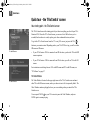
Your starting point - the TiVo Central screen
The TiVo Central screen is the starting point for just about everything you do with your TiVo
Premiere 4/XL4. From the TiVo Central screen, you can see a list of all the shows you’ve
recorded, find new shows to watch, explore great video on demand choices, and more.
To get to the TiVo Central screen from live TV or any TiVo screen, just press the TiVo
button on your remote control. Depending on how your TiVo DVR is set up, you will see either
HD menus or SD menus:
TiVo with HD menus
•
If your TiVo Premiere 4/XL4 is connected to an HD television, you have the TiVo with HD
menus experience.
•
If your TiVo Premiere 4/XL4 is connected to an SD television, you will see TiVo with SD
menus.
For instructions on switching between TiVo with HD menus and TiVo with SD menus, see
“TiVo Menus” on page 87.
The Video Window
TiVo with SD menus
The Video Window is located in the upper right corner of the TiVo Central screen and most
other TiVo with HD menus screens, unless you choose to turn it off or temporarily hide it. The
Video Window continues playing the show you were watching when you entered the TiVo
Central screen.
You can press PAUSE
on your TiVo remote to pause the Video Window, and press
PAUSE again to resume playing.
2
PremiereSeries_VG.book Page 3 Monday, June 18, 2012 5:20 PM
Quick tours
To temporarily hide the Video Window, press SLOW
SLOW again to restore the Video Window.
1
on your TiVo remote. Press
If you’d rather permanently turn off the Video Window, from the TiVo Central screen select
‘Settings & Messages,’ then ‘Settings,’ then ‘Displays,’ then ‘Video Window.’
Discovery Bar
The Discovery Bar is the bar of thumbnail images across the top of the TiVo Central screen and
many other TiVo with HD menus screens. What you’ll see in the Discovery Bar depends on
you! Often, Discovery Bar displays ideas for show you might like based on what shows you
record and mark as your favorites. For example, if you record the show “American Idol,” the
Discovery Bar might display thumbnails for other shows, like “So You Think You Can Dance.”
It all depends on what you’re interested in and what’s available to you.
The Discovery Bar also displays lots of other great viewing options: popular shows or sports
events that are playing on live TV, items from your My Shows list, TiVo Suggestions, new
video on demand shows, and more!
Press the UP arrow to move up to the Discovery Bar, then the LEFT and RIGHT arrows to
move around. Press SELECT on an image that interests you to open an information screen about
that item.
3
PremiereSeries_VG.book Page 4 Monday, June 18, 2012 5:20 PM
1
Quick tours
Quick tour - My Shows
All the shows recorded by your TiVo Premiere 4/XL4, including video podcasts and
downloaded shows, appear on the My Shows screen. Icons to the left of the program’s title tell
you the recording’s current status. See the Glossary of Icons on the inside front cover for details.
Highlight any title in My Shows (even a show that’s still recording) and press PLAY to play the
show from the beginning, or to resume playing from where you left off.
To delete an individual show or a group, highlight the show or group name and press CLEAR.
TiVo with HD menus
Highlight a title and press SELECT to open an information screen, where you’ll be able to play,
delete, or get more information about the show.
Available space
In TiVo with HD menus, a small bar underneath the words “My Shows” on the My Shows
screen lets you know how much space you have available for new recordings on your TiVo
Premiere 4/XL4. If you don’t want to see the amount of space used, press the yellow
button on your TiVo remote while viewing the My Shows screen to hide the bar.
TiVo with SD menus
Sorting shows
You can view My Shows either alphabetically by title (from A to Z) or by date recorded.
When viewing the My Shows list, use
the CHAN UP/DOWN buttons on your
remote control to jump an entire
page at a time.
4
•
In TiVo with HD menus, press the blue
button on your TiVo remote to change how the
list is sorted. Press it again to switch back.
•
In TiVo with SD menus, press ENTER on your TiVo remote while viewing the My Shows
list to see ‘My Shows Options.’ Then highlight ‘Sort’, and press the RIGHT arrow to choose
‘Alphabetically.’ Select ‘View My Shows with these options.’
PremiereSeries_VG.book Page 5 Monday, June 18, 2012 5:20 PM
Quick tours
1
Grouping shows
When Groups are on, shows are organized into folders, and a number in parentheses to the right
of each folder shows how many shows it contains. If you’ve recorded several episodes of the
same show, they can all be collected into a group. You’ll also see groups for HD recordings,
TiVo Suggestions (if you have auto-recording of Suggestions turned on), and auto-recording
WishList ® searches.
When you’re using TiVo with SD
menus, you can sort or group shows
right from your My Shows list: press
1 on your remote control to change the sort
order, or press 2 to turn Groups on or off.
Groups are on by default. To turn them off, do one of the following:
•
In TiVo with HD menus, press the red
Press it again to turn Groups back on.
button on your TiVo remote to turn groups off.
•
In TiVo with SD menus, press ENTER on your TiVo remote while viewing the My Shows
list to see ‘My Shows Options.’ Select Groups, then press the RIGHT arrow to choose ‘Off.’
Then select ‘View My Shows with these options.’
Even if Groups are turned off, you’ll see the Recently Deleted group at the bottom of the My
Shows list. Shows you delete go to the Recently Deleted group, where they remain until space is
needed for new recordings.
Deleted shows go to the Recently
Deleted group, where they remain
until space is needed for new
recordings.
A show’s title may appear in more than one group, even though there is only one recording of
the show. For example, you might have several episodes of a show in that show’s group, and the
same titles in the HD Recordings group, which includes all shows recorded in HD. When you
delete a show in one group, the title also disappears from any other group.
When your shows are grouped, you can highlight the group name and press PLAY to play all of
the shows in the group in sequence, beginning with the oldest.
5
PremiereSeries_VG.book Page 6 Monday, June 18, 2012 5:20 PM
1
Quick tours
Program details
You can highlight any show in My Shows and press SELECT to see the program details screen,
which offers these options:
6
•
Play (or Resume playing if you’re returning to a partially watched show).
•
Keep until... (TiVo with SD menus and certain recordings in TiVo with HD menus) By
default, recordings are saved until space is needed for new shows. But you always have the
option to keep a show for as long as you want. Just select ‘Keep until...’ and on the next
screen, choose ‘Keep until I delete’ or specify that the show be kept until a specific date you
choose.
•
Delete now (or Stop recording if recording is in progress).
•
Bonus features (TiVo with HD menus only) Watch YouTube™ videos related to the show
and more.
•
Explore this show (or Explore this program in TiVo with SD menus) Find details about the
show, including information about upcoming episodes and cast members.
•
More options view upcoming episodes or broadcasts of a show or movie, or get a Season
Pass® recording of a series. In TiVo with HD menus, select ‘More options’ to choose how
long to keep a recording (by default, recordings are saved until space is needed for new
ones),
PremiereSeries_VG.book Page 7 Monday, June 18, 2012 5:20 PM
Quick tours
1
Quick tour - Watching live TV
When you’re watching a show as it’s broadcast, you’re watching live TV. Press the LIVE TV
button to go to live TV from any TiVo screen.
Moving around in time
1. First, press the PAUSE
button. You can pause live TV for up to 30 minutes.
Before you begin, take a few
moments to make sure the TiVo
Premiere 4/XL4’s video settings are
optimized for your TV. From the TiVo
Central screen, select ‘Settings &
Messages’, then ‘Settings’, then ‘Video.’
See page 46 for more details.
When you pause live TV, you see a status
bar showing a one-hour period. The green
segment shows the portion of the hour that has been saved by your TiVo Premiere 4/XL4.
The white line marks your current point in time. When the white line is back in the green
segment, you’re “behind” live TV.
2. Press PLAY
to continue watching the show. Next, press REWIND and the show
rewinds. Press REWIND a second time to rewind faster, and a third time to go at triple
speed. Press PLAY at any time to return to normal speed.
3. Press PAUSE
again, and, with the show paused, press FAST FORWARD to move a
small step forward. Press REWIND to move a small step back. Press PLAY to resume
watching at normal speed.
4. Press the REPLAY
® button. The show jumps back 8 seconds — useful for when you
miss a great sports play or a bit of dialog, or for when you fast forward too far.
5. Press REPLAY again, then immediately press SLOW
replay.
6. Press the ADVANCE
®
to see your own slow-motion
You can customize the ADVANCE
button on the remote. See page 75
for information on remote control
settings.
button. You’ll instantly move forward 30 seconds.
7
PremiereSeries_VG.book Page 8 Monday, June 18, 2012 5:20 PM
1
Quick tours
7. Press and hold the ADVANCE
8. Press and hold the REPLAY
button and presto! You’re caught up to live TV.
button to skip back to the beginning of the saved portion.
Changing channels
To move one channel at a time, press CHANNEL UP/DOWN
on the TiVo remote.
To go to a specific channel, use the numbers on your remote control, then press ENTER. (If you
don’t press ENTER, the channel changes automatically after a few seconds.) To jump back to
the previous channel on the same tuner, press ENTER again.
Tired of channel surfing? Press GUIDE to display the program guide. Highlight any show and
press SELECT. If the show is currently on, the channel changes. If the show is on later, you’ll
see options to record it. Learn more on page 14.
Watching multiple shows at once
Your TiVo Premiere 4/XL4 can watch (and record!) four different live TV channels at the same
time — one on each tuner. Go ahead, try it:
1. First, press PAUSE
to pause the live TV show you’re watching. Let’s call the tuner
you’re watching “Tuner 1.”
2. Press LIVE TV
to switch to the next tuner, “Tuner 2.” Whenever you press LIVE TV,
you’ll switch to the next tuner in line.
Note: You may see the same channel on more than one tuner.
3. Change the channel if you like, watch the new show for a few moments, then press LIVE
TV
again to switch to Tuner 3.
4. Change the channel, watch for a few moments, then press PAUSE.
8
PremiereSeries_VG.book Page 9 Monday, June 18, 2012 5:20 PM
Quick tours
1
5. Press LIVE TV
again to switch to Tuner 4. Again, change the channel, watch for a few
moments, then press PAUSE.
6. Press LIVE TV once more to switch to Tuner 1. Notice that the first show you were
watching is still paused. Press PLAY (or PAUSE again) to continue watching the show.
7. Press LIVE TV to switch to Tuner 2. Because you didn’t pause this show, it’s still playing.
Press REWIND to watch the part of the show you missed. Press PLAY to start playing.
8. Continue pressing LIVE TV to cycle through Tuners 3 and 4, and back to Tuner 1. Shows
you that paused are still paused; shows you were watching are still playing. You can rewind
them to catch what you missed!
Recording the show you’re watching
You can always record the show you’re watching — just press RECORD
either tuner — or on all tuners to record up to four shows at the same time.
while watching
•
In TiVo with HD menus select ‘Record this showing.’ Select ‘Season Pass & other options’
or ‘Explore this show’ for more choices.
•
In TiVo with SD menus select ‘Record this showing at Best Quality.’ Select ‘Recording
Options’ for more choices.
Recording the saved portion
Up to 30 minutes of the current channel’s broadcast is always being saved, even when you’re
not recording. When you change channels, the TiVo Premiere 4/XL4 clears the saved portion on
the tuner you’re watching and starts saving again on the new channel. So, if the saved portion is
important to you, either record the program or don’t change the channel.
To record the saved portion in addition to the rest of the program, choose ‘Record this showing.’
9
PremiereSeries_VG.book Page 10 Monday, June 18, 2012 5:20 PM
1
Quick tours
Stopping a recording
You can stop any recording in either of two ways: press the RECORD button in live TV, then
choose ‘Stop the current recording’ or,
10
•
In TiVo with HD menus, select the title in your My Shows list, then choose ‘Modify
recording,’ then choose ‘Stop recording.’
•
In TiVo with SD menus, select the title in your My Shows list, then choose ‘Stop recording.’
PremiereSeries_VG.book Page 11 Monday, June 18, 2012 5:20 PM
Quick tours
1
Quick tour - Streaming or transferring shows
When other TiVo DVRs are connected to the same network as your TiVo Premiere 4/XL4, you
can watch shows saved on your other TiVo DVRs by streaming or transferring them to your
Premiere 4/XL4. Or, you can stream or transfer shows to those other TiVo DVRs from your
TiVo Premiere 4/XL4! (Streaming means watching a video directly from another device; there’s
no need to transfer or download it first.)
Note: You can also extend your TiVo experience into other rooms in your home with the TiVo
Mini. The TiVo Mini lets you watch live TV and stream shows from any other TiVo DVR on
your network. See tivo.com/mini to learn more.
Streaming or transferring shows is easy:
1. Go to the TiVo DVR that you want to stream or transfer shows to. For this example, let’s
call it the Bedroom Premiere 4/XL4.
HD shows cannot be transferred to
standard-definition DVRs. Shows
that cannot be transferred because
of this or due to copy protection are marked
with the red circle-slash icon.*
*Not all programming may be transferred using the
Mulit-Room Viewing or TiVoToGo™ features due to
the use of copy protection mechanisms permitted
under the FCC’s encoding rules. Some shows
cannot be transferred due to the copy protection
assigned to them by the program provider. These
shows usually are marked with a red circle-slash
icon (47 C.F.R. 76.1904).
2. From the TiVo Central screen, select ‘My Shows.’
3. At the bottom of the My Shows list, highlight the TiVo DVR you want to stream or transfer
shows from. Let’s call this the Living Room Premiere 4/XL4.
4. Press SELECT to see the Living Room Premiere 4/XL4’s My Shows list.
Note: Some shows cannot be streamed or transferred due to the copy protection assigned
them by the program provider. These shows are usually marked with a red circle-slash icon.
5. Find the show you want to stream or transfer from the other TiVo DVR. Highlight it and
press SELECT.
If you are streaming the show, you can start to watch it immediately. If you are transferring
the show, you can choose to watch it as it transfers, or continue browsing and choosing
11
PremiereSeries_VG.book Page 12 Monday, June 18, 2012 5:20 PM
1
Quick tours
shows to transfer. If the show is paused on the Living Room DVR, you’ll have the option to
watch or transfer it from the paused location, or to watch or transfer it from the beginning.
As you watch, you can pause, fast-forward, or rewind the show.
For more on streaming or transferring shows, including how to transfer shows to your portable
device, see “Streaming or transferring shows” on page 57.
12
PremiereSeries_VG.book Page 13 Monday, June 18, 2012 5:20 PM
2
Finding shows
Using the guide and mini-guide to find shows
14
Finding & recording shows using TiVo with HD menus
16
Finding & recording shows using TiVo with SD menus
19
Recommended shows
24
Season Pass® recordings
27
Creating WishList® searches
28
Finding shows online
31
Managing recordings
33
PremiereSeries_VG.book Page 14 Monday, June 18, 2012 5:20 PM
2
Finding shows
Using the guide and mini-guide to find shows
TiVo Live Guide
Date & time
Show description
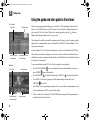
The on-screen program guide displays up to two weeks of TV programming at the touch of a
button — the GUIDE button on your TiVo remote. You can choose to display the guide as a
grid, or use the TiVo Live Guide. When you’re viewing the guide, press the
button to
display Guide Options and choose the view you want.
The mini-guide is a smaller version of the program guide. It shows you what’s coming up on the
channel you’re watching and the next two channels. Press SELECT while watching live TV to
bring up the mini-guide.
Channels & shows
Upcoming shows on the
currently airing
selected channel
To move around in the guides (TiVo Live Guide, grid guide, or mini-guide):
Mini-Guide
Date & time
Current channel &
next two channels
14
In the grid guide, TiVo Live Guide, and mini guide, new shows are marked with a NEW icon.
Shows that are currently recording have a red circle icon next to the title, while shows that are
scheduled to record are marked with a check mark (for individual shows) or double check mark
(for Season Pass recordings.)
Show description
Upcoming shows
•
Press FAST FORWARD
to move the displayed time ahead one half-hour at a time, or
press REWIND to move it backward.
•
Press ADVANCE
•
Press SELECT on a show in progress, and the channel changes to that show. Press
RECORD
to record it.
•
Press SELECT on an upcoming show, and you’ll see a screen with recording options. Set up
your recording or press LEFT to go back to the guide.
•
Don’t see what you’re looking for? Press ENTER while viewing the full program guide to
jump directly to the Search screen.
®
to jump 24 hours ahead, or REPLAY
®
to jump 24 hours back.
PremiereSeries_VG.book Page 15 Monday, June 18, 2012 5:20 PM
Finding shows
2
Choosing channels for the guide
You can use the Guide Options screen to choose which channels to display in the guide.
All Display all channels available from your service provider, even channels you don’t receive.
My Channels Display only the channels that are checked in the Channel List (recommended).
Favorites Display only the channels you rated as your favorites in the Channel List. See page 70
for more information on the Channels List.
Finding more showings
For a comprehensive list of all upcoming showings of a program, including repeats:
•
In TiVo with HD menus, select the show from the guide, then select ‘Season Pass & other
options,’ then choose ‘Upcoming’ from the program details screen. You can use this list to
choose the showing that you want to record.
•
In TiVo with SD menus, select the show from the guide, then select ‘Season Pass & other
options,’ then ‘View upcoming episodes.’ You can use this list to choose the showing that
you want to record.
15
PremiereSeries_VG.book Page 16 Monday, June 18, 2012 5:20 PM
2
Finding shows
Finding & recording shows using TiVo with HD
menus
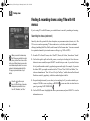
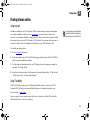
If you’re using TiVo with HD menus, you can find shows to record by searching or browsing.
Searching for shows (and more!)
Search by show title, episode title, show description, or person name (actor, director, etc.). The
TiVo service searches upcoming TV shows and movies, web videos, and video on demand
offerings (including Hulu Plus, Netflix, and Amazon!) all at the same time. You can even search
for a particular channel by its network name or call sign (e.g., NBC or ESPN).
When you search for shows using
the TiVo app on your tablet or mobile
phone, you don’t have to use a letter
grid to select letters. Instead, you can enter
search terms using the device’s on-screen
keyboard. Just download and install the
TiVo app on your mobile device to get
started.
Press the
button on your
remote to filter the type of episodes
displayed in your results: choose
from 'All,' 'Available,' and 'Free.'
16
1. From the TiVo Central® screen, select ‘Find TV, Movies, & Videos,’ then choose ‘Search.’
2. Use the letter grid to spell out the title, person, or word you’re looking for. Press the arrow
buttons to move around, then press SELECT on each letter you want. As you select letters, a
list of possible matches sorted by popularity appears on the right. For example, if you enter
the letters HOW, you might see matches for the TV show “How I Met Your Mother,” the
video on demand movie “How To Lose A Guy In Ten Days,” and the director Ron Howard.
Results are sorted by popularity, with better matches higher in the list.
3. Keep selecting letters until you see what you’re searching for. If you make a mistake, you
can press CLEAR to erase everything, or REWIND to erase one letter at a time. Insert a
space by pressing FAST FORWARD .
4. Use the RIGHT arrow to highlight the show or person name, and press SELECT to view the
information screen.
PremiereSeries_VG.book Page 17 Monday, June 18, 2012 5:20 PM
Finding shows
2
5. For a show, select ‘Get this show’ to record the next showing or to set up a Season Pass®
recording. From the information screen, you can also view upcoming episodes or an episode
guide, learn more about cast members, and access bonus features!
Browsing TV & movies
When using TiVo with HD menus, you can browse specific categories of TV shows and
movies.
1. From the TiVo Central screen, select ‘Find TV, Movies, & Videos,’ then choose ‘Browse
TV & Movies.’ You’ll be able to browse for shows using any of the following:
Collections Browse shows that are grouped by related subject matter, like holiday movies or
trendy topics.
Movies Browse movies that are available either on channels you receive or from video on
demand.
TV Browse upcoming TV shows that are available either on channels you receive or from
video on demand.
Sports Browse upcoming sporting events that are available either on channels you receive or
from video on demand.
Available From... Choose a video provider, or a featured channel or network, and browse its
shows.
Categories Browse shows by subject matter, such as “Kids & Family,” “Travel,” or “Food.”
Top Picks Browse the most popular mix of TV shows, movies, video providers, or
collections. The TiVo service keeps Top Picks updated, so you’ll always find something
new.
17
PremiereSeries_VG.book Page 18 Monday, June 18, 2012 5:20 PM
2
Finding shows
My favorites You can mark any video provider (like Netflix or Amazon), category (like
sports or cooking), or collection (like award-winning movies or holiday shows) as your
favorite by selecting it and pressing THUMBS UP. Then browse your favorites when you’re
looking for something you know you’ll like.
Browsing web videos
Your TiVo Premiere 4/XL4 DVR gives you access to web videos — both YouTube™ and video
podcasts — from a wide variety of providers. Video podcasts offer hundreds of titles, all for
delivery to your TiVo Premiere 4/XL4, as part of the TiVo service. To browse web videos when
using TiVo with HD menus:
1. From the TiVo Central screen, select ‘Find TV, Movies, & Videos,’ then choose ‘Browse
Web Videos.’ You’ll see a list of content categories.
2. Choose a content category and press SELECT. You’ll see a list of available titles in the
chosen category.
3. Select a video from the list of titles.
4. Choose ‘Watch now’ to begin watching the show, ‘Download this program’ to send the
show to My Shows, ‘Get a Season Pass’ to receive all episodes of the show, or ‘Past
programs’ to find a show that has already aired.
The show will appear in My Shows. (If you selected a past program to download, the show will
appear within moments. Otherwise, your show will download automatically on the date that it
airs.)
18
PremiereSeries_VG.book Page 19 Monday, June 18, 2012 5:20 PM
Finding shows
2
Finding & recording shows using TiVo with SD
menus
If you’re using TiVo with SD menus, you can search by title, use Swivel™ Search to search
both broadcast and broadband content, or set up recordings by time or channel.
Searching by title
If you know the title of the show you want to record, finding it is easy.
1. From the TiVo Central® screen, select ‘Find Shows’, then ‘Search by Title.’
2. Choose whether to narrow the search to a particular category and sub-category, or select
‘All programs.’
3. Use the letter grid to spell out the title. Use the arrow buttons to move around, then press
SELECT on each letter you want. (Skip “a,” “an,” or “the.”) As you select letters, an
alphabetical list of shows appears on the right. Keep selecting letters until you see your
show.
If you make a mistake, you can press CLEAR to erase everything, or REWIND
one letter at a time. Insert a space by pressing FAST FORWARD .
to erase
4. When you see your show, press the RIGHT arrow to move to the list. Then use the
UP/DOWN arrows to highlight your show, and press SELECT. Select the showing you want
more information about. The next screen shows your available options.
5. To record the show, select ‘Record this episode.’ You can also choose to schedule a Season
Pass recording or view upcoming episodes of the show.
Replace hyphens ( - ), slashes ( / )
and periods ( . ) with spaces. For
example, use 20 20 to search for the
title “20/20.” Any other marks, such as
apostrophes ( ’ ), asterisks ( * ), and
ampersands ( & ), are ignored.
For example, use 6 OCLOCK NEWS to
search for the title “6 O’Clock News.”
When you search for shows using
the TiVo app on your tablet or mobile
phone, you don’t have to use a letter
grid to select letters. Instead, you can enter
search terms using the device’s on-screen
keyboard. Just download and install the
TiVo app on your mobile device to get
started.
19
PremiereSeries_VG.book Page 20 Monday, June 18, 2012 5:20 PM
2
Finding shows
Using Swivel™ Search
When you use Swivel Search, your search results show both broadcast shows and shows that are
available through your broadband Internet connection.
1. To start searching, choose ‘Find Shows’ from the TiVo Central screen, then select ‘Swivel
Search.’
2. Enter the first few letters of a show title or actor’s name. A list of search results will appear
in the middle pane of the screen.
3. Select a show title or actor’s name to see more details and schedule recordings.
20
•
For a show, you can schedule a recording or a create a Season Pass from the Details
screen. You can also view upcoming episodes, browse the episode guide, explore details
about the cast, learn about other shows that might interest you, or view bonus features.
•
For an actor, you can browse TV shows or movies featuring him or her, or create a
WishList® search.
PremiereSeries_VG.book Page 21 Monday, June 18, 2012 5:20 PM
Finding shows
2
Recording by time or channel
Whether you’re using TiVo with HD menus orTiVo with SD menus, you can browse by time or
channel, or you can set up a manual recording. Here’s how.
•
When using TiVo with HD menus, from the TiVo Central screen, choose ‘Manage
Recordings & Downloads,’ then ‘Record by Time or Channel.’
•
When using TiVo with SD menus, from the TiVo Central screen, choose ‘Find Shows,’ then
‘Record by Time or Channel.’
TiVo with HD menus
Browse by time
Browse shows on a specified day and time. You can filter the list to see only shows in a
particular category. For example, you can browse all movies airing on Saturday night.
1. From the ‘Record by Time or Channel’ screen, choose ‘Browse by Time.’
2. If you want to limit your search to a particular category or set of channels (for instance, HD
shows or your favorite channels, use the arrow buttons to highlight an option (for example,
Movies), then press SELECT. If you don't want to limit your search, select ‘All channels.’
TiVo with SD menus
3. Press the UP/DOWN arrows to select the date you want to see, then press the RIGHT arrow
to move to the time column, and press the UP/DOWN arrows to select a time.
4. Press SELECT to see the list of shows without leaving the time selector, or press the RIGHT
arrow to see the list of shows and move to the list.
5. Highlight the show you want to record and press SELECT to schedule your recording.
21
PremiereSeries_VG.book Page 22 Monday, June 18, 2012 5:20 PM
2
Finding shows
Browse by channel
Browse through shows airing on a particular channel. You can start with all channels, or just
your favorites.
1. From the ‘Record by Time or Channel’ screen, choose ‘Browse by Channel.’
2. Choose either “All Channels,” which includes all the channels you receive, or “Favorite
Channels,” which includes just the channels you have selected as your favorites. (For
information on selecting favorite channels, see “Customizing your channel list” on page 70.)
3. Press the UP/DOWN arrows to select the date you want to see, then press RIGHT arrow to
move to the channel column.
4. Press the UP/DOWN arrows to select a channel. (You can also use the numbers on the
remote to enter a channel, then press ENTER.)
5. Press SELECT to see the list of shows without leaving the channel selector, or press the
RIGHT arrow to see the list of shows and move to the list.
6. Highlight the show you want to record and press SELECT to schedule your recording.
Manually record time/channel
Schedule a recording on a specific channel at a specific time.
1. From the ‘Record by Time or Channel’ screen, choose ‘Set Up Manual Recording.’
2. Choose the frequency of the recording, using the UP/DOWN arrows to select ‘Once’ or
‘Repeat,’ then press the RIGHT arrow.
22
PremiereSeries_VG.book Page 23 Monday, June 18, 2012 5:20 PM
Finding shows
2
3. Choose the day(s) for the recording, using the UP/DOWN arrows to change the current
selection. If you chose ‘Repeat,’ you can choose to repeat the recording on a specified day of
the week (‘Every Tuesday’) or several times a week (‘Every M – F’ or ‘Every Day’).
4. Press the RIGHT arrow and choose a channel using the UP/DOWN arrows (or by entering a
number with the remote, then pressing ENTER).
5. Press the RIGHT arrow and set the hour, minute, and am/pm for the start and stop time,
using the UP/DOWN arrows to change the current selection.
6. Press the RIGHT arrow or SELECT.
7. You'll see a confirmation screen. The TiVo DVR shows a ‘best guess’ show title based on
guide listings for that time and channel. Select ‘Record this showing’ (or ‘Create repeating
recording’).
23
PremiereSeries_VG.book Page 24 Monday, June 18, 2012 5:20 PM
2
Finding shows
Recommended shows
With all the programming available to your TiVo® Premiere 4/XL4, sometimes you might want
show recommendations. The TiVo service is here to help: the Discovery Bar, Collections, and
Top Picks (all available on TiVo with HD menus) and TiVo Suggestions (available on both
TiVo with HD menus and TiVo with SD menus) put a variety of recommendations at your
fingertips.
The Discovery Bar
When you use TiVo with HD menus, the Discovery Bar appears at the top of most TiVo
screens. What you’ll see in the Discovery Bar depends on you! Often, Discovery Bar displays
ideas for show you might like based on what shows you record and mark as your favorites. For
example, if you record the show “American Idol,” the Discovery Bar might display thumbnails
for other shows, like “So You Think You Can Dance.” It all depends on what you’re interested
in and what’s available to you.
The Discovery Bar is also displays lots of other great viewing options: popular shows or sports
events that are playing on live TV, items from your My Shows list, TiVo Suggestions, new
video on demand shows, and more!
You can customize what appears in the Discovery Bar by going to ‘Settings & Messages,’ then
‘Displays,’ then ‘Customize Discovery Bar.’
Collections
When you use TiVo with HD menus, you can browse collections, or groups of shows on related
subject matter recommended by the TiVo service, partners, or video providers. Find Collections
24
PremiereSeries_VG.book Page 25 Monday, June 18, 2012 5:20 PM
Finding shows
2
by choosing ‘Find TV, Movies, & Videos’ from the TiVo Central screen, then choose ‘Browse
TV & Movies,’ then ‘Collections.’
When viewing a collection, press the
button to change the sort order.
button on your remote control to see options, or the
Top Picks
Top Picks are recommended shows, movies, video providers (like Netflix or Amazon), or
collections. When using TiVo with HD menus, find Top Picks by choosing ‘Find TV, Movies,
& Videos’ from the TiVo Central screen, then choose ‘Browse TV & Movies,’ then ‘Top
Picks.’
TiVo Suggestions
When using either TiVo with HD menus or TiVo with SD menus, you can rate any show —
whether it’s live, recorded, or listed in the program guide — by pressing the THUMBS UP
®
or THUMBS DOWN ® button on your remote. You can give a show up to three Thumbs Up
(great!) or three Thumbs Down (terrible!).
TiVo Suggestions uses these ratings to create a list of shows you might like. The more shows
you rate over time, the better TiVo Suggestions will get at finding interesting shows for you.
When using TiVo with HD menus,you
can also use the THUMBS UP button
to mark any video provider (like
Amazon), category (like sports or cooking),
or collection (like award-winning movies or
holiday shows) as a favorite.
Auto-recording TiVo Suggestions
When your TiVo Premiere 4/XL4 has available space, it automatically records TiVo
Suggestions. But you don’t ever need to worry about recorded Suggestions taking up space —
here’s why:
•
TiVo Suggestions never replace shows you record, or prevent your shows from being
recorded.
25
PremiereSeries_VG.book Page 26 Monday, June 18, 2012 5:20 PM
2
Finding shows
•
TiVo Suggestions are always the first shows deleted to make room for your recordings.
If you’d prefer not to record TiVo Suggestions automatically, you can turn them off. From the
TiVo Central screen choose ‘Settings & Messages,’ then ‘Settings,’ then ‘Recording,’ then
‘TiVo Suggestions.’
On the TiVo Suggestions screen, choose ‘No, don’t record TiVo Suggestions.’ You can still see
the TiVo Suggestions list and choose to record individual shows.
Watching TiVo Suggestions
Recorded suggestions appear in the TiVo Suggestions group inside the My Shows list. You can
watch, save, or delete them just like any other shows.
Viewing the Suggestions list
You can easily review a list of upcoming TiVo Suggestions.
•
When using TiVo with HD menus, from the TiVo Central screen choose ‘Find TV, Movies,
& Videos,’ then ‘Browse TV & Movies,’ then ‘TV,’ then ‘Suggestions.’
•
When using TiVo with SD menus, from the TiVo Central screen choose ‘Find Shows,’ then
‘TiVo Suggestions.’
To make sure a show records, highlight it and press SELECT on your remote. You can also use
THUMBS UP or THUMBS DOWN to rate shows in this list and improve future
recommendations.
Any time you choose to record a
show, it automatically gets one
Thumbs Up.
26
To display a list of all shows that you’ve rated, while viewing the upcoming TiVo Suggestions
screen, press ENTER on your remote to see the Review Thumbs screen. Then, highlight a show
and use the THUMBS UP and THUMBS DOWN buttons on your remote to change its rating.
PremiereSeries_VG.book Page 27 Monday, June 18, 2012 5:20 PM
Finding shows
2
Season Pass recordings
®
A Season Pass recording automatically records every episode of a series that airs on a certain
channel — even if the day or time changes! Just select a show from the guide or your search
results, and choose ‘Get a Season Pass.’
If the TiVo service finds any conflicts in scheduling upcoming episodes of the Season Pass
recording, you’ll be asked to choose whether you want to keep the previously scheduled
recording or record the new show instead.
Season Pass recording options
TiVo with HD menus
When you set up a Season Pass recording, you can choose how many episodes to keep and how
long to keep them using Recording Options. Choose ‘First run only’ if you want to skip the reruns. See page 44 for more about recording options.
You can cancel the recording of any episode in a Season Pass recording collection by
highlighting the title in the To Do List and pressing CLEAR. You can delete the entire Season
Pass recording collection or change recording options using the Season Pass Manager. See
page 33 for more information about the To Do List and page 34 to learn more about the Season
Pass Manager.
TiVo with SD menus
27
PremiereSeries_VG.book Page 28 Monday, June 18, 2012 5:20 PM
2
Finding shows
Creating WishList searches
®
A WishList search finds shows that match your search criteria on any channel you receive —
and it keeps on searching for as long as you keep the WishList search.
You can search for something specific by creating a WishList search with multiple criteria: for
instance, you might create a WishList search for actor George Clooney, category Movies, and
sub-category Action. This WishList search would find action movies starring George Clooney.
TiVo with HD menus
You can even use WishList searches to find something very specific. For example, the Keyword
GIANTS with category Football would find Giants football games, but not Giants baseball
games.
If you choose to auto-record matches to your WishList search, you’ll find any recorded matches
in your My Shows list. WishList recordings are marked with a star
.
Creating a WishList search
Creating a WishList search is simple:
1. From the TiVo Central screen, do one of the following:
TiVo with SD menus
•
When using TiVo with HD menus, choose ‘Find TV, Movies, & Videos,’ then ‘WishList
Saved Searches.’
•
When using TiVo with SD menus, choose ‘Find Shows,’ then ‘WishList Search.’
2. Select ‘Create a WishList Search.’
3. Next, start choosing criteria for your WishList search. You can choose any or all of the
following:
28
PremiereSeries_VG.book Page 29 Monday, June 18, 2012 5:20 PM
Finding shows
Keyword Search for shows with specific words in the show or episode title, description,
actor, director, year, or category.
Title Keyword Search for shows with specific words in the show or episode title.
Actor Search for shows with your favorite actor.
Director Search for shows by a specific director.
2
Not all actor or director names may
be listed. To search for a name that
is not on the list, enter the name in
the format: LAST NAME, FIRST NAME. (You
must match the spelling of the name
exactly, and you must use a comma).
Category Search for specific categories and sub-categories of shows (for example, action
movies or nature documentaries).
4. After entering your initial search criteria, you’ll return to the Create WishList Search screen.
Continue adding as many search criteria to your WishList search as you like. For instance,
you could create a WishList search like this:
•
Keyword: Pirate
•
Actor: Johnny Depp
•
Category: Movies
Your results would include only pirate movies starring Johnny Depp.
5. The TiVo service automatically assigns a name to your WishList search. To assign a
different name, select ‘WishList Name.’
6. When you’re finished entering search criteria, select ‘Done creating this WishList Search.’
After you’ve created the WishList search, you can do any of the following:
View upcoming programs You’ll see a list of shows airing in the next two weeks or so that
match your WishList search criteria. You can choose to record individual shows from the
list.
29
PremiereSeries_VG.book Page 30 Monday, June 18, 2012 5:20 PM
2
Finding shows
Auto-record WishList programs Your TiVo Premiere 4/XL4 will automatically record any
shows matching your Wishlist search criteria until you modify or delete the WishList search.
Edit or delete Wishlist search You can change the WishList search — for example, to correct
a misspelling or to add a category to narrow the results — or cancel it.
Using the Asterisk (*) in WishList Searches
You can use the asterisk only at the
end of a keyword, not to omit letters
at the beginning or in the middle of a
word.
To search for similar words in a Keyword or Title WishList, use the asterisk (*) as a wild card
symbol that replaces the endings of words. For example, the keyword AIRP* would find shows
containing “airport,” “airplane,” “airplanes,” as well as the movie “Airplane!” To enter an
asterisk, press the SLOW
button on the remote.
Auto-recording a WishList search
The more specific a WishList Search
is, the better suited it is to autorecording. For example, a Category
WishList Search for the category
Documentary would find every upcoming
documentary. You might not want to record
them all, but you could occasionally browse
the search results list and choose the ones
you do want to record.
30
You can set a WishList search to auto-record, and it will record every show it finds, on any
channel you receive.
Each auto-recording WishList Search and its upcoming recordings are marked with a star
in To Do List and the Season Pass Manager. If you want to be sure that all matching shows are
recorded, give the auto-recording WishList search a high priority in the Season Pass Manager.
See page 34 for details.
PremiereSeries_VG.book Page 31 Monday, June 18, 2012 5:20 PM
Finding shows
2
Finding shows online
Using tivo.com
Schedule recordings on your TiVo Premiere 4/XL4 at home from any computer with Internet
access and a standard web browser. Go to tivo.com/tco to search for shows by time, title,
keyword, or actor/director. Schedule a single episode, or set up a Season Pass recording with all
the options you have on your TiVo Premiere 4/XL4 at home. You can even set the show not to
record if it conflicts with a recording already scheduled on your TiVo Premiere 4/XL4.
You can schedule a recording within
an hour of its air time from any place
that you have access to the Internet!
To schedule recordings online:
1. Go to tivo.com/tco and sign in.
2. In the upper right corner of the Find TV Shows page, select the name of the TiVo DVR for
which you want to schedule recordings.
3. Use the simple or advanced search of your TV listings, browse by category or channel, or
search the TV Listings Guide.
4. From the list of search results, click the name of a show and choose either ‘1-Click Record,’
‘1-Click Season Pass,’ or ‘Record with Options.’
Using TiVo Mobile
With TiVo Mobile, you can access TV listings and schedule shows to record on your TiVo
Premiere 4/XL4, all from your web-enabled mobile phone. Just launch your phone’s web
browser and go to m.tivo.com.
Once you sign in, you can search by show title, actor, or director; view Daily Picks; find the
Most Popular shows; or browse by category.
31
PremiereSeries_VG.book Page 32 Monday, June 18, 2012 5:20 PM
2
Finding shows
Using your smart phone or tablet to schedule shows
You can schedule shows on your TiVo Premiere 4/XL4 using your smart phone or tablet using
the TiVo app.
For more information on using your smart phone or tablet with your TiVo Premiere 4/XL4, go
to tivo.com/howtoand click on “Scheduling, remotes, & mobile devices.”
32
PremiereSeries_VG.book Page 33 Monday, June 18, 2012 5:20 PM
Finding shows
2
Managing recordings
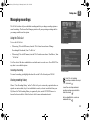
The To Do List shows all your scheduled recordings and lets you change recording options or
cancel recordings. The Season Pass Manager prioritizes all your repeating recordings and lets
you manage conflicts and set options.
Using the To Do List
To view the To Do List:
•
When using TiVo with HD menus, from the TiVo Central screen choose ‘Manage
Recordings & Downloads,’ then ‘To Do List.’
•
When using TiVo with SD menus, from the TiVo Central screen choose ‘Find Shows,’ then
‘To Do List.’
TiVo with HD menus
You’ll see a list of all shows scheduled to record in the next two weeks or so. Press SELECT on
any show to see available options.
Canceling a Recording
TiVo with SD menus
To cancel a recording, just highlight the show title on the To Do List and press CLEAR.
Viewing recording history
Choose ‘View Recording History’ on the To Do List if you’re curious why a particular show or
episode was not recorded, why it’s not scheduled to record, or when it was deleted from your
My Shows list. The Recording History is organized by date; use the UP/DOWN arrows to
browse the shows in the list. Select the show’s title for more information about it.
In the To Do List, individual
recordings are marked with a single
check mark:
Season Pass® recordings and manual
repeating recordings are marked with a
double check mark:
Auto-recording WishList® searches are
marked with a star:
33
PremiereSeries_VG.book Page 34 Monday, June 18, 2012 5:20 PM
2
Finding shows
Note: A show will not be recorded if it appeared in your My Shows list or To Do List in the
previous 28 days.
Using the Season Pass Manager
Season Pass recordings are prioritized by the order in which you set them up: the first has
highest priority, and so on.
To view the Season Pass Manager:
•
When using TiVo with HD menus, from the TiVo Central screen choose ‘Manage
Recordings & Downloads,’ then ‘Season Pass Manager.’
•
When using TiVo with SD menus, choose ‘Find Shows,’ then ‘Season Pass Manager.’
Use the UP/DOWN arrows to highlight a repeating recording, and press RIGHT to highlight the
arrows to the right of the title, then use the UP/DOWN arrows to move the selected title up or
down in the list.
Because your TiVo® Premiere 4/XL4 has four tuners, recording conflicts should be minimized.
When more than four shows are scheduled to record at the same time, however, the four with
the highest priorities are recorded.
Editing a repeating recording
You can also use the Season Pass Manager to view and change recording options, view
upcoming episodes, or cancel Season Pass recordings or auto-recording WishList searches.
Highlight the show title and press SELECT to view available options.
34
PremiereSeries_VG.book Page 35 Monday, June 18, 2012 5:20 PM
Finding shows
2
Using the Download Manager
When using TiVo with HD menus, you can use the Download Manager to set options and
priorities for all video podcasts to which you have a Season Pass recording. To view the
Download Manager, from the TiVo Central screen choose ‘Manage Recordings & Downloads,’
then ‘Download Manager.’
35
PremiereSeries_VG.book Page 36 Monday, June 18, 2012 5:20 PM
2
Finding shows
Recording with Overlap Protection
Being able to record four programs at the same time doesn’t eliminate all possible recording
conflicts. The Overlap Protection feature gives you additional options for dealing with
recording conflicts when they occur.
If Overlap Protection is turned off, when two shows are scheduled to record on the same tuner
but overlap by a few minutes (for example, one program ends at 8:33, while the next program
begins at 8:30), the lower priority recording is cancelled. But with Overlap Protection turned on,
the TiVo Premiere 4/XL4 simply clips the lower priority recording by just enough minutes to
allow both programs to record.
Overlap Protection works by determining the priority of each program scheduled to record. For
repeating recordings, it uses the Season Pass Manager to learn which programs have higher or
lower priorities (see page 34). One-time recordings are not listed on the Season Pass Manager;
these individual recordings that you schedule receive the highest priority. The most recent
individual recording that you requested always has the highest priority. (TiVo Suggestions
always have the lowest priority.)
When scheduling new recordings, the TiVo Premiere 4/XL4 notifies you of any recording
conflict and gives you options for resolving it. If Overlap Protection is on, your options include
clipping the lower priority program.
Overlap Protection is a global setting, not a show-specific choice. To set your Overlap
Protection preference, from the TiVo Central screen, choose ‘Settings & Messages,’ then
‘Settings,’ then ‘Recording,’ then ‘Overlap Protection.’
36
PremiereSeries_VG.book Page 37 Monday, June 18, 2012 5:20 PM
Finding shows
2
Extending live recordings
Live events (like sporting events and awards shows) often run past their scheduled end time.
When the Extend Live Recordings setting is turned on, the TiVo Premiere 4/XL4 will remind
you to add extra time when you set up a recording of a live event.
Extend Live Recordings is a global setting, not a show-specific choice. To set your Extend Live
Recording preference, from the TiVo Central screen, choose ‘Settings & Messages,’ then
‘Settings,’ then ‘Recording,’ then ‘Extend Live Recordings.’
37
PremiereSeries_VG.book Page 38 Monday, June 18, 2012 5:20 PM
2
38
Finding shows
PremiereSeries_VG.book Page 39 Monday, June 18, 2012 5:20 PM
3
Watching shows
Moving around with the status bar
40
Getting information with the channel banner
42
Setting a show’s recording options
44
Customizing your video, audio, and display
46
Parental Controls and KidZone
51
Streaming or transferring shows
57
PremiereSeries_VG.book Page 40 Monday, June 18, 2012 5:20 PM
3
Watching shows
Moving around with the status bar
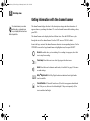
In general, watching shows works the same whether you’re watching live TV, recordings,
streaming shows, web videos, or video on demand. You can always press PLAY, PAUSE,
FAST FORWARD, and REWIND to display a status bar and move around in the show.
•
In live TV, the status bar represents one hour and the white tick marks are 15 minutes apart.
Status bar for live TV
Tick marks are 15
minutes apart.
The white line and time indicate
Live TV is paused.
where you are now.
•
This end is where you
catch up with live TV.
In recorded shows, web videos, and video on demand, the bar shows the program’s length.
The tick marks are 15 minutes apart (further apart for a longer show).
Status bar for a two-hour recording
Tick marks are 15 minutes apart.
40
You have watched 40
The REWIND button has
minutes of the show.
been pressed twice.
The show is two hours long.
PremiereSeries_VG.book Page 41 Monday, June 18, 2012 5:20 PM
Watching shows
3
Automatically saving live TV
In live TV, the green segment of the status bar represents the part of the show automatically
saved by your TiVo® Premiere 4/XL4. The TiVo Premiere 4/XL4 automatically saves up to 30
minutes of live TV, so you can rewind live TV for up to 30 minutes. Press RECORD to record
the saved portion as well as the rest of the show.
Whenever you change channels, the saved portion of the old show is cleared, and the TiVo
Premiere 4/XL4 starts saving the show on the new channel. If you’re behind live TV and
watching something you still want to see, you should avoid changing the channel. But you can
watch one of your other tuners by pressing the LIVE TV button without losing what’s been
saved.
Press the CLEAR button to hide the
status bar, the program guide, the
channel banner, and anything else
that is not part of the show.
41
PremiereSeries_VG.book Page 42 Monday, June 18, 2012 5:20 PM
3
Watching shows
Getting information with the channel banner
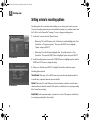
The channel banner you see when
watching video on demand shows
may look slightly different and have
different capabilities.
The channel banner displays the show’s title, description, ratings, and other information. It
appears whenever you change the channel. To view the channel banner while watching a show,
press INFO.
The channel banner can be displayed in three different sizes. Press the RIGHT arrow cycle
through the sizes of the channel banner. Press the LEFT arrow or CLEAR to hide it.
Icons in the large version of the channel banner are shortcuts to corresponding features. Use the
UP/DOWN arrows in the large channel banner to highlight an icon, then press SELECT.
Record Record the show you’re watching. If a recording is in progress, select this
icon to stop the recording.
Tuner Swap Select this icon to see what’s playing on the other tuners.
Audio Select this icon for alternate audio tracks, if available. See page 49 for more
on audio settings.
Dolby® Digital audio The Dolby Digital audio icon indicates that a digital audio
track is available.
Parental Controls. If Parental Controls are off, the lock icon appears unlocked and
dim. If they are on, the icon is locked and bright. If they are temporarily off, the
icon is unlocked and bright.
42
PremiereSeries_VG.book Page 43 Monday, June 18, 2012 5:20 PM
Watching shows
3
KidZone When KidZone is turned on, the KidZone icon is displayed instead of the
Parental Controls lock icon. If you’re using TiVo with HD menus, KidZone is
unavailable.
Closed Caption Toggle closed captioning on or off.
43
PremiereSeries_VG.book Page 44 Monday, June 18, 2012 5:20 PM
3
Watching shows
Setting a show’s recording options
Recording options let you customize each recording, so you always get the results you want.
You can set recording options when you first schedule a recording, or by selecting a show from
the To Do List or the Season Pass® manager. To view or change recording options:
1. On the show’s screen, select the ‘Options’ button:
TiVo with HD menus
•
When using TiVo with HD menus, select ‘Get this show’ and then highlight either ‘Get a
Season Pass’ or ‘Record next episode.’ Then press the RIGHT arrow to highlight
‘Options’ and press SELECT.
•
When using TiVo with SD menus, highlight either ‘Record this episode’ or ‘Get a
Season Pass.’ Then press the RIGHT arrow to highlight ‘Options’ and press SELECT.
2. On the Recording Options screen, use the UP/DOWN arrows to highlight an option, then the
RIGHT and LEFT arrows to change the setting.
3. When you’re finished, press SELECT or highlight ‘Record show with these options.’
Recording Options include:
Time & Channel When using TiVo with HD menus, choose the time and channel on which to
record the show, when more than one option is available.
TiVo with SD menus
Channel When using TiVo with HD menus, choose the channel on which to record the show,
when more than one channel is available. (This option is available only for a repeating recording
like a Season Pass recording.)
Keep At Most Set the maximum number of episodes to be saved. (This option is available only
for a repeating recording like a Season Pass.)
44
PremiereSeries_VG.book Page 45 Monday, June 18, 2012 5:20 PM
Watching shows
3
Record Skip reruns or watch them all? In TiVo with HD menus, choose ‘Season Pass only’ to
avoid reruns, or ‘re-runs’ to get every episode. In TiVo with SD menus, choose from ‘Repeats &
first run,’ ‘First-run only,’ or ‘All’. (This option is available only for a repeating recording like a
Season Pass recording.)
Keep Until Choose how long to keep a show (or each episode of a repeating recording). ‘Space
needed’ is the default setting, or choose ‘Until I delete’ and your TiVo Premiere 4/XL4 won’t
delete this episode to record something new.
Start Recording Start recording up to ten minutes before a show is scheduled to begin. (This
option is available only before recording starts.)
Stop Recording Set a recording to continue — for a few minutes or up to three hours — after it’s
scheduled to end. You can change this setting when you set up the recording, or while the
recording is in progress.
The last two recording options — Start Recording and Stop Recording — are known as the
Overtime Scheduler feature. These settings are especially helpful for sports fans, but they’re also
useful for award shows, live events, or if the network tends to broadcast your favorite show a
little off its scheduled start time.
45
PremiereSeries_VG.book Page 46 Monday, June 18, 2012 5:20 PM
3
Watching shows
Customizing your video, audio, and display
You can customize your TiVo Premiere 4/XL4 to display your shows exactly the way you like
to watch them using the choices available from the Settings menu. To view Settings, from the
TiVo Central® screen, choose ‘Settings & Messages.’ The settings for video, audio, channels,
and displays all affect how your find and watch shows.
Video settings
From the TiVo Central screen, choose ‘Settings & Messages,’ then ‘Settings,’ then ‘Video’ to
customize your TiVo Premiere 4/XL4’s video settings.
Aspect correction mode
Aspect correction is applied when the aspect ratio (see “TV aspect ratio” on page 47) of the
show you’re watching doesn’t match the aspect ratio of your TV. Use the ZOOM
button on
the TiVo remote (TiVo with SD menus only) or the Aspect Correction Mode settings screen to
choose from the following options:
In FULL mode, the picture is stretched to fill the TV screen, which
may result in some distortion. In the picture of the bears shown here,
notice that black bars appear at the top and bottom of the screen, and
the bears look a bit squished. Since the Aspect Correction is Full,
you know that the letterbox bars are included in the broadcast.
46
PremiereSeries_VG.book Page 47 Monday, June 18, 2012 5:20 PM
Watching shows
3
In PANEL mode, side bars are added to the picture to fill the screen,
preserving the broadcast aspect ratio. This is useful if you’re
watching a show broadcast in 4:3 on a 16:9 TV, or vice-versa. In
the picture of the bears, notice that the bears no longer look
squished, but the picture size is dramatically decreased.
In ZOOM mode, the picture is stretched without distortion. The
edges of the picture are cropped to fit the TV screen. This mode
is useful if you’re watching a show broadcast with letterbox bars
or side bars. Zoom mode crops the letterbox bars out of the
picture. The picture of the bears looks best in Zoom mode.
Letterbox color
Choose which color the TiVo Premiere 4/XL4 should use when it adds letterbox or side bars to
the picture: gray or black. Changing the color of the bars can be useful if you’re trying to
determine whether bars on the screen are being added by the TiVo Premiere 4/XL4 or by the
broadcaster.
Letterbox is used to fit a 16 x 9 show
on a 4 x 3 screen, and sidebars are
used to fit a 4 x 3 show on a 16 x 9
screen.
TV aspect ratio
Aspect ratio refers to the proportions of your TV screen. A standard TV screen ratio is 4:3.
Widescreen TVs are 16:9. Select the type of screen your TV has.
•
Some TVs automatically change their display based on the type of signal they receive: highdefinition or standard. If your 4:3 TV has this feature, you probably notice that it adds bars
to the top and bottom of an HD picture. If so, select ‘4:3 Smart Screen.’
47
PremiereSeries_VG.book Page 48 Monday, June 18, 2012 5:20 PM
3
Watching shows
•
If your TV does not have this feature, you may notice that it squeezes an HD picture into the
4:3 shape. If so, select ‘4:3 Standard Screen.’ Check your TV’s manual for its capabilities.
Video output formats
TV shows are broadcast in a variety of formats, and TV equipment receives and displays video
in a variety of formats. For any given show, the format in which a show is broadcast may or may
not match a format that your TV is capable of displaying.
The TiVo Premiere 4/XL4 receives video signals in any of the four broadcast formats (1080i,
720p, 480p and 480i).
If you are using an HDMI® cable to connect your TiVo Premiere 4/XL4 to your television, the
TiVo Premiere 4/XL4 will automatically set the optimal video output format for your TV. You
can also set the output format automatically by selecting ‘Auto Detect’ from the Video Output
Formats screen.
The Video Output Formats screen also allows you to test and set the video output format
manually. Select ‘Test Formats’ and then follow the on-screen prompts to test which formats
your television can display. The supported formats will be automatically selected in the list of
available video formats.
Using the Format button
Normally you'll specify video output formats using the Video Output Settings screen (see
“Video output formats” on page 48). But if your screen is black and you can’t get to the TiVo
menus, you can press the Format button on the front of the TiVo Premiere 4/XL4 to change the
Video Output format. Continue to press the Format button until you see the desired format
displayed on your television.
48
PremiereSeries_VG.book Page 49 Monday, June 18, 2012 5:20 PM
Watching shows
3
Audio settings
From the TiVo Central screen, choose ‘Settings & Messages,’ then ‘Settings,’ then ‘Audio’ to
customize audio settings.
Alternate audio
Some shows are broadcast with more than one audio track, such as alternate language tracks.
When alternate audio tracks are available, you’ll see a bright alternate audio icon in the channel
banner:
The Default Audio Language setting lets you choose which audio language track is recorded.
The Default Audio Program setting lets you choose to have the default audio in stereo or mono,
or have a secondary audio program (SAP) recorded when one is available.
Dolby Digital
If you have an A/V receiver or home theater system that supports Dolby Digital audio, use this
setting to choose how the TiVo Premiere 4/XL4 will record and output digital audio. Check
your A/V receiver or home theater system manual for its capabilities.
When selecting the Dolby Digital to
PCM setting, the audio signal will be
downmixed from Dolby Digital 5.1 to
2-channel PCM.
If a show is broadcast with a Dolby Digital audio track, you’ll see a dim Dolby Digital icon in
the channel banner:
. If the icon is bright, alternate digital audio tracks are also available.
Select the bright icon for options.
Sound effects volume
Change the volume of or turn off the TiVo Premiere 4/XL4’s sound effects (the tones played
when you press buttons on the remote control). The default is Medium.
49
PremiereSeries_VG.book Page 50 Monday, June 18, 2012 5:20 PM
3
Watching shows
Display settings
From the TiVo Central screen, choose ‘Settings & Messages,’ then ‘Settings,’ then ‘Displays’ to
customize the display of the channel banner, closed captioning, and the lights on the TiVo
Premiere 4/XL4.
Channel Banner Normally, when you change channels, the channel banner is displayed for a few
seconds. If you want it to disappear quickly, select ‘Clear Banner Quickly.’
TiVo with HD menus
Closed Captioning Change the way the TiVo Premiere 4/XL4 displays closed captioning text.
To turn closed captioning on or off while watching a show, press INFO to view the channel
banner, and select the closed captioning icon:
.
Displays on the Front of the DVR You can change the display of the lights on the TiVo Premiere
4/XL4’s front panel (the lights indicate when the TiVo Premiere 4/XL4 is receiving power,
recording, receiving a transferred show, or downloading shows over the network connection).
You can choose to turn the lights on or off.
TiVo with SD menus
Choose TiVo Menus Switch between TiVo with HD menus and TiVo with SD menus.
If you’re using TiVo with HD menus, you’ll also see more display settings:
Even if you choose to turn off the
front panel lights, one of the lights
on the front panel will flash briefly
when a button on the remote is pressed.
This indicates that the TiVo Premiere 4/XL4
is receiving a signal from the remote.
50
Customize Discovery Bar Personalize the contents of the Discovery Bar based on your own
preferences.
Video Window Turn the Video Window on or off.
PremiereSeries_VG.book Page 51 Monday, June 18, 2012 5:20 PM
Watching shows
3
Parental Controls and KidZone
Your TiVo Premiere 4/XL4 gives you two great ways to make sure your family has access to
only those shows you want them to watch.
•
Use Parental Controls to set limits on movie and television ratings, to lock specific channels,
and to prevent viewing of recorded shows that violate the settings you choose.
•
Use KidZone to set up an environment where only age-appropriate channels and recordings
are available. Children cannot set up new recordings or change any settings on the TiVo
Premiere 4/XL4.
Note: KidZone is available only when you use TiVo with SD menus, not when you use TiVo
with HD menus. See page 87 for information on switching from TiVo with HD menus to TiVo
with SD menus.
Using Parental Controls
From the TiVo Central screen, choose ‘Settings & Messages,’ then ‘Settings,’ then ‘Parental
Controls.’ (Or, select the padlock icon from the large channel banner.)
The padlock icon in the channel banner shows the current state of Parental Controls.
Off No password or controls are set. The icon is dim and unlocked.
On Password and controls are set. The icon is bright and locked.
Temporarily Off Controls are set but turned off. The icon is bright and unlocked.
51
PremiereSeries_VG.book Page 52 Monday, June 18, 2012 5:20 PM
3
Watching shows
Changing Parental Controls settings
When you turn Parental Controls off,
your password is deleted. You may
prefer to temporarily turn off
Parental Controls, so that another person in
your household does not choose a new
password.
Once Parental Controls are on, you must enter your Parental Controls password to change any
Parental Controls settings.
Turn on Parental Controls Use the number buttons on the remote control to enter a four-digit
password, then enter the same password again for confirmation.
Turn off Parental Controls Enter the password, and press SELECT. When Parental Controls are
off, the password is deleted and anyone can view any shows or watch any channels.
Temporarily turn off Parental Controls Either enter the password to watch a show or channel, or
select ‘Temporarily turn off Parental Controls’ from the Parental Controls screen. When
Parental Controls are temporarily turned off, any show or channel can be viewed, but the
password is still required to change Parental Controls settings.
Auto Re-lock When Parental Controls are temporarily turned off, they re-lock automatically
after four hours of no remote control activity. Parental Controls won’t re-lock in the middle of a
show. Use this setting to disable Auto Re-lock.
Change the Password While Parental Controls are on, select ‘Change Password’ from the
Parental Controls screen. Enter a new password, then re-enter the new password to confirm.
Adjusting ratings settings for TV and movies
Movies originally meant for release to theaters have a different rating system from shows made
for TV. Use rating limits to set rules for both rating systems, as well as for specific types of TV
content. Select the rating type to change it.
TV/Movie rating limits Ratings shaded in green are not locked; ratings in red are locked. Use the
UP/DOWN arrows to adjust which ratings are locked.
52
PremiereSeries_VG.book Page 53 Monday, June 18, 2012 5:20 PM
Watching shows
3
Block by TV content Types of content marked by broadcasters as able to be blocked are listed.
Select each type of content you want to block, then use the UP/DOWN arrows to adjust which
ratings are blocked (shaded in red).
Block Unrated Programs Some movies and TV shows are unrated. Use this setting to block all
unrated movies or TV shows.
Manage Other Ratings Additional regional ratings may be available.
Locking channels
When a channel is locked, the Parental Controls password must be entered to view the channel.
You can lock specific channels, or all channels.
Using KidZone
KidZone creates a child-friendly environment on your TiVo Premiere 4/XL4. In KidZone, only
age-appropriate channels and recordings are visible. Children cannot set up new recordings or
change any settings on the TiVo Premiere 4/XL4.
Turning on KidZone
To use KidZone, you must be using TiVo with SD menus. Go to the TiVo Central screen and
choose ‘Settings & Messages,’ then ‘Turn on TiVo KidZone.’ Choose the appropriate age range
and create a password.
You’ll be able to further customize which shows should appear in KidZone from within
KidZone itself or by selecting ‘KidZone Settings’ from the ‘Settings & Messages’ screen (or
selecting the KidZone icon in the large channel banner) after KidZone is turned on.
KidZone and Parental Controls
cannot be used together. Setting up
KidZone clears all Parental Controls
settings and turns off Parental Controls.
53
PremiereSeries_VG.book Page 54 Monday, June 18, 2012 5:20 PM
3
Watching shows
Watching shows in KidZone
When KidZone is turned on, your kids get their own My Shows list. To enter KidZone, select
Enter TiVo KidZone from the top of your My Shows list.
•
The KidZone My Shows list contains only the shows allowed by the KidZone settings you
choose.
•
While watching live TV in KidZone, the only channels available are those your children
have permission to watch. Pressing the CHANNEL UP and CHANNEL DOWN buttons on
the remote changes the channel only to allowed channels, skipping channels that are not
allowed in KidZone. In KidZone, you cannot use the number buttons to change channels.
Adding Shows to KidZone
To add pre-approved shows to your kids’ My Shows list, go to ‘KidZone My Shows’ and select
‘Add Programs and Change Settings.’ You’ll find three options for adding shows:
View TiVo KidZone Guides KidZone guides automatically record pre-selected kid-friendly
content to your broadband-connected TiVo Premiere 4/XL4. Choose a Guide from the list, then
select ‘Get This Guide.’
Add Programs from My Shows Use this option to add shows from your My Shows list to the
KidZone My Shows list. Use the SELECT button on your remote control to check the boxes
next to each show you want to add to KidZone.
Find Programs to Record or Hide Use this option to find shows as you would outside of KidZone
(for example, by using Search). When you select a show to record, select ‘Options’ and set
‘Allow in TiVo KidZone’ to Yes.
54
PremiereSeries_VG.book Page 55 Monday, June 18, 2012 5:20 PM
Watching shows
3
Hiding shows in KidZone
To make sure your kids can’t see a particular show, go to ‘KidZone My Shows’ and select ‘Add
Programs and Change Settings.’ Use either of these options for hiding shows:
Add Programs from My Shows Hide shows previously added from your My Shows list. Use the
SELECT button on your remote control to uncheck the boxes next to each show you want to
hide.
You can hide an upcoming show so
that it will not appear in live TV. Just
search for the show, then select
Hide from KidZone on the program
information screen.
Find Programs to Record or Hide Use this option to find shows as you would outside of KidZone
(for example, by using Search). When you select a show to record, select ‘Options’ and set
‘Allow in TiVo KidZone’ to No.
Adjusting KidZone settings
KidZone settings include the following:
•
KidZone Channels Select channels to allow or block when watching live TV in KidZone.
•
Change Age Range Change the age range most appropriate for your household. KidZone
chooses content based on this range.
•
Change Password Change your KidZone password.
•
Modify Rating Settings Restrict viewing depending on a show’s content rating.
•
Clear KidZone Program Settings Clear choices you have made. This will not clear the rating
settings or the KidZone channels list.
55
PremiereSeries_VG.book Page 56 Monday, June 18, 2012 5:20 PM
3
Watching shows
Exiting and Turning off KidZone
Turning off KidZone clears any
choices you have made about the
age range, channels, or rating limits.
If you later decide to get KidZone again, you
will be prompted to make these choices
again.
56
Select ‘Exit TiVo KidZone’ from the top of ‘KidZone My Shows.’ You must enter the password
to exit KidZone. The TiVo Premiere 4/XL4 automatically re-enters KidZone after four hours of
no TiVo remote activity.
You can turn off KidZone permanently by choosing ‘Settings & Messages,’ then ‘KidZone
Settings,’ then ‘Turn off KidZone.’ You can always get KidZone again if you change your
mind.
PremiereSeries_VG.book Page 57 Monday, June 18, 2012 5:20 PM
Watching shows
3
Streaming or transferring shows
With your TiVo Premiere 4/XL4, you can take your shows with you. Easily stream or transfer
shows to another TiVo Premiere 4/XL4 or other TiVo DVR on your home network, to your PC
or Mac, even to your favorite portable device. (Streaming means watching a video directly from
another device; there’s no need to wait for the video to transfer or download before watching it.)
Note: You can also extend your TiVo experience into other rooms in your home with the TiVo
Mini. The TiVo Mini lets you watch live TV and stream shows from any other TiVo DVR on
your network. See tivo.com/mini to learn more.
Streaming or transferring to/from another TiVo DVR
When you have more than one TiVo DVR connected to your home network, you can easily
stream or transfer shows between them.
Note: These instructions do not apply to the TiVo Mini box. Please see the instructions that
came with the TiVo Mini.
1. Go to the TiVo DVR that you want to stream or transfer shows to. For this example, let’s
call it the Bedroom Premiere 4/XL4.
2. At the bottom of the Bedroom DVR’s My Shows list, highlight the TiVo Premiere 4/XL4 or
other TiVo box you want to stream or transfer shows from. Let’s call this the Living Room
Premiere 4/XL4.
HD shows cannot be transferred to
standard-definition DVRs. Shows
that cannot be transferred because
of this or due to copy protection are marked
with the red circle-slash icon. *
*Not all programming may be transferred using the
Mulit-Room Viewing or TiVoToGo™ features due to
the use of copy protection mechanisms permitted
under the FCC’s encoding rules. Some shows
cannot be transferred due to the copy protection
assigned to them by the program provider. These
shows usually are marked with a red circle-slash
icon (47 C.F.R. 76.1904).
3. Press SELECT to see the Living Room Premiere 4/XL4’s My Shows list.
Note: Some shows cannot be transferred due to the copy protection assigned them by the
program provider. These shows are usually marked with a red circle-slash icon.
57
PremiereSeries_VG.book Page 58 Monday, June 18, 2012 5:20 PM
3
Watching shows
4. Find the show you want to stream or transfer from the Living Room Premiere 4/XL4 to the
Bedroom Premiere 4/XL4. Highlight it and press SELECT.
If you are streaming the show, you can start to watch it immediately. If you are transferring
the show, you can choose to watch it as it transfers, or continue browsing and choosing
shows to transfer. If the show is paused on the Living Room DVR, you’ll have the option to
watch or transfer it from the paused location, or to watch or transfer it from the beginning.
As you watch, you can pause, fast-forward, or rewind the show.
Streaming or transferring to an iPad or other mobile device
®
When you purchase the TiVo Stream, you can stream or transfer shows to
your iPad or other mobile device* using the TiVo app. (Bonus: The TiVo
app also lets you schedule recordings, control live TV, search for shows,
and more!) Download the free TiVo app from the App Store or Google Play.
For more information, go to tivo.com/stream or, for step-by-step instructions, go to tivo.com/
howto and explore the “Get TiVo Anywhere” section.
You can also transfer shows from your TiVo Premiere 4/XL4 to your iPod, PSP, or other
portable device using your PC. With TiVo Desktop (a free download available on tivo.com/
desktop), you can prepare transferred TiVo recordings for use with a portable device by
converting it to your player’s preferred video format. For more information, go to tivo.com/
howto and explore the “Get TiVo Anywhere” section.
* Compatible with iPad, iPhone®, and iPod touch® devices running iOS® 5. See tivo.com/stream for other
device compatibility.
58
PremiereSeries_VG.book Page 59 Monday, June 18, 2012 5:20 PM
Watching shows
Transferring to your PC or Mac
It’s easy to transfer recorded TV shows from your TiVo Premiere 4/XL4 to your PC or Mac.
Before you begin, make sure that you have TiVo Desktop software installed, and that your TiVo
Premiere 4/XL4 is connected to your home network. TiVo Desktop is available for free from
tivo.com/desktop.
3
Roxio Toast software is required to
transfer shows to your Mac. See
tivo.com/howto for more information
and links to the latest Roxio Toast software.
To transfer a show to your home computer:
1. Install and launch TiVo Desktop.
If you have more than one TiVo Premiere 4/XL4 or other TiVo DVR in your home network,
their names appear in a list. Select the one that has the recording you want to transfer.
2. Click ‘Pick Recordings to Transfer.’ A window showing your TiVo Premiere 4/XL4’s My
Shows list appears.
Shows that cannot be transferred
due to copy protection restrictions
are marked with a red circle slash.
3. Check the box next to the title of the show (or shows) you want to transfer, then click ‘Start
Transfer.’
To watch a show after you’ve transferred it, select any title from the My Shows list on TiVo
Desktop (even one that’s still transferring) and click Play. Your computer’s default media
player starts automatically. (Refer to your media player’s instructions for more about playing
recordings.)
59
PremiereSeries_VG.book Page 60 Monday, June 18, 2012 5:20 PM
3
60
Watching shows
PremiereSeries_VG.book Page 61 Monday, June 18, 2012 5:20 PM
4
Video on demand
What is video on demand?
62
Video providers
62
Photos, music, Showcases, & apps
66
PremiereSeries_VG.book Page 62 Monday, June 18, 2012 5:20 PM
4
Video on demand
What is video on demand?
Your TiVo® Premiere 4/XL4 DVR is constantly working to find you all of your favorite
entertainment. But the TiVo service is about more than just recording shows — much more.
Your TiVo Premiere 4/XL4 is the hub for movies, music, and TV shows on demand!
Video providers
Your TiVo Premiere 4/XL4 has access to movies, TV shows, and videos from a wide variety of
video providers. Below are some of the most popular video providers, but be sure to check
tivo.com to see what great new videos might be available for rent or purchase.
Shows and movies from video providers appear in your results when you browse or search the
TiVo menus. To customize which video providers appear in your results, go to ‘Settings &
Messages,’ then ‘Settings,’ then ‘My Video Providers.’
Amazon® Instant Video
When you link your TiVo account to your amazon.com account, you can rent or buy over
100,000 movies and TV shows and download them to the My Shows list on your broadbandconnected TiVo Premiere 4/XL4. You can even download movies and TV shows in HD!
The first time you use Amazon Instant Video, you’ll go through a one-time setup process. Just
follow the on-screen instructions. To access Amazon Instant Video:
•
62
When using TiVo with HD menus, from the TiVo Central® screen choose ‘Find TV,
Movies, & Videos,’ then ‘Amazon Instant Video.’
PremiereSeries_VG.book Page 63 Monday, June 18, 2012 5:20 PM
Video on demand
•
4
When using TiVo with SD menus, from the TiVo Central screen choose ‘Video On
Demand,’ then ‘Amazon Instant Video.’
You can find Amazon videos to watch from the main Amazon page accessed above, or search
and browse for them using the TiVo menus (TiVo with HD menus only). When you search or
browse using the TiVo menus, shows available Amazon Instant Video displays an Amazon logo
on the right side of the screen.
For more instructions on using Amazon Instant Video, including how to download shows and
movies from the amazon.com website, visit tivo.com/howto and select the “Get Video on
Demand” option.
Netflix®
With Netflix on the TiVo service, you can instantly watch thousands movies and TV episodes
streamed from Netflix to your TiVo Premiere 4/XL4. You just need to link your Netflix account
to your TiVo Premiere 4/XL4, and then start watching.
The first time you use Netflix, you’ll go through a one-time setup process. Just follow the onscreen instructions. To access Netflix:
•
When using TiVo with HD menus, from the TiVo Central screen choose ‘Find TV, movies,
& video,’ then ‘Netflix.’
•
When using TiVo with SD menus, from the TiVo Central screen choose ‘Video On
Demand,’ then ‘Netflix.’
Search or browse for shows and movies available on Hulu Plus from the main Hulu Plus page
accessed above, or search and browse using the TiVo menus (TiVo with HD menus only).
When you search or browse using the TiVo menus, shows available from Netflix display a
Netflix logo on the right side of the screen.
63
PremiereSeries_VG.book Page 64 Monday, June 18, 2012 5:20 PM
4
Video on demand
For more instructions on using Netflix, visit tivo.com/howto and select the “Get Video on
Demand” option.
Hulu Plus™
With Hulu Plus on the TiVo service, you can stream TV episodes and movies right to your TiVo
Premiere 4/XL4, with many titles in HD!
The first time you use Hulu Plus, you’ll go through a one-time setup process. Just follow the onscreen instructions. To access Hulu Plus:
•
When using TiVo with HD menus, from the TiVo Central screen choose ‘Find TV, Movies,
& Videos,’ then ‘Hulu Plus.’
•
When using TiVo with SD menus, from the TiVo Central screen choose ‘Video On
Demand,’ then ‘Hulu Plus.’
Search or browse for shows and movies available on Hulu Plus from the main Hulu Plus page
accessed above, or search and browse using the TiVo menus (TiVo with HD menus only).
When you search or browse using the TiVo menus, shows available from Hulu Plus display a
Hulu Plus logo on the right side of the screen.
For more instructions on using Hulu Plus, including how to control playback of the video you’re
watching, visit tivo.com/howto and select the “Get Video on Demand” option.
YouTube™ videos
Browsing YouTube videos with your TiVo Premiere 4/XL4 is just as easy as browsing
YouTube videos on the Internet.
•
64
When using TiVo with HD menus, from the TiVo Central screen choose ‘Find TV, Movies,
& Videos,’ then ‘YouTube.’
PremiereSeries_VG.book Page 65 Monday, June 18, 2012 5:20 PM
Video on demand
•
4
When using TiVo with SD menus, from the TiVo Central screen choose ‘Video On
Demand,’ then ‘YouTube.’
On the YouTube home page, use the arrow buttons on your TiVo remote to explore the menus.
You can browse by channel (categories covering everything from animation, to comedy, to
music, and more), search for a particular video, or sign in to see your subscriptions and favorite
videos.
Note: A “BACK” option appears on every page except the home page. Select it to back to the
previous menu. (Using the LEFT arrow on your remote control will not take you to the previous
menu.).
You can also search and browse for YouTube videos using the TiVo menus (TiVo with HD
menus only). When you search or browse using the TiVo menus, shows available from
YouTube display a YouTube logo on the right side of the screen.
For more instructions on using YouTube, including how to control playback of the video you’re
watching, visit tivo.com/howto and select the “Get Video on Demand” option.
65
PremiereSeries_VG.book Page 66 Monday, June 18, 2012 5:20 PM
4
Video on demand
Photos, music, Showcases, & apps
Your TiVo Premiere 4/XL4 is really an entire digital home entertainment center, with access to
your photos, music, and more!
Photos & home movies
You can watch slide shows of the digital photos stored on your PC, connect to your Picasa and
Photobucket accounts to view photos stored there, and even watch home movies stored on your
PC or Mac right on your TiVo Premiere 4/XL4.
From the TiVo Central screen, select ‘Music & Photos’ (TiVo with HD menus) or ‘Music,
Photos, & Showcases’ (TiVo with SD menus) for available options.
Music
With your TiVo Premiere 4/XL4, you’ll have a constant supply of all your favorite music.
Stream music from your PC or Mac. Use the free TiVo Desktop application to stream your
MP3 music library from your PC or Mac to any TiVo DVR in your home network.
Use Pandora® Internet Radio. Pandora is a free service that lets you create custom Internet
radio stations personalized just for you, playing only the music you love! Just tell Pandora
one of your favorite songs, artists, or composers, and it will create a radio station that
explores that kind of music. You can even create stations based on genre (rock, pop, dance,
show tunes, classical). Pandora plays all your current and old favorites and introduces you to
new songs you’ll love.
Enjoy the Rhapsody Music service.The Rhapsody Music service gives you unlimited access
to a catalog of millions of CD-quality tracks in dozens of genres. Listen to your old favorites
and the newest releases — instantly. With a paid subscription, you can log in to your
66
PremiereSeries_VG.book Page 67 Monday, June 18, 2012 5:20 PM
Video on demand
4
Rhapsody account from your TiVo DVR. You'll have access to the same library of songs
that you see on Rhapsody online. You can even search Rhapsody using your PC or Mac, and
have the music available on your TiVo DVR for easy playback through your living room
speakers.
Listen to Live365 Internet radio network. Live365 is the world's largest Internet radio
network, and its thousands of stations are available to you through your TiVo DVR. From
popular hits to specialty programming, Live365 on TiVo offers an easy way to access the
incredible variety of radio stations available via the Internet.
To view music options, from the TiVo Central screen, select ‘Music & Photos’ (TiVo with HD
menus) or ‘Music, Photos, & Showcases’ (TiVo with SD menus) for available options.
Showcases
Showcases often include interactive content that offers opportunities to schedule recordings of
featured programs, or allows you to watch previews of upcoming movies or TV shows.
Showcases may include exclusive content: the inside scoop on hit movies, exciting miniseries,
special events, popular series, and shows featuring the biggest stars of the screen and stage.
From the TiVo Central screen, select ‘Showcases & Apps’ (TiVo with HD menus) or ‘Music,
Photos, & Showcases’ (TiVo with SD menus) for available options.
Apps
Apps are additional applications available on your TiVo Premiere 4/XL4. Want to buy movie
tickets on line? Watch music videos? Just go to TiVo Central and select ‘Showcases & Apps’
(TiVo with HD menus) or ‘Music, Photos, & Showcases’ (TiVo with SD menus).
67
PremiereSeries_VG.book Page 68 Monday, June 18, 2012 5:20 PM
4
68
Video on demand
PremiereSeries_VG.book Page 69 Monday, June 18, 2012 5:20 PM
5
Settings
Channel settings
70
Network settings
72
Remote control settings
75
Device settings
77
Messages
79
Account & system information
80
Restart or reset system
81
Standby
83
PremiereSeries_VG.book Page 70 Monday, June 18, 2012 5:20 PM
5
Settings
Channel settings
From the TiVo Central® screen, select ‘Settings & Messages,’ then ‘Settings,’ then ‘Channels.’
Your channel list
The channel list is the list of channels provided by your TV programming source. The TiVo
Premiere 4/XL4 DVR uses this list to determine which channels to display in the guide and
which channels are available for searching and recording shows.
If your channel list is incorrect, you can change your channel lineup. From the Channel List,
press ENTER to display the Change Channel Lineup screen.
Customizing your channel list
If there is a change to your cable
subscription package or channel
lineup, a TiVo message will inform
you. Use Channel Settings to ensure that
your Channel List reflects the change to
your lineup.
The Channel List screen displays the complete list of channels available in your channel lineup.
A check mark appears next to each channel that will appear in the program guide and in search
results. (You may see the group of checked channels referred to as “My Channels” in the TiVo
menus.) Press SELECT to remove the check mark next to channels you want to hide. For
example, you may uncheck the channels to which you don’t subscribe.
Favorite Channels Select favorite channels that you watch frequently. Include only a few
channels in this list, so that you can quickly see what’s coming up on them using the “Favorite
Channels” filter in the guide. To indicate your Favorite Channels, highlight each and press
THUMBS UP. Press THUMBS DOWN to remove a channel from your Favorites.
Channel Scan
Scanning for channels will identify all available cable channels. At the end of the scan, you will
have the option to add any newly discovered channels to your Channel List.
70
PremiereSeries_VG.book Page 71 Monday, June 18, 2012 5:20 PM
Settings
5
Signal Strength - Cable
Use the Signal Strength screens to test the incoming signal on specific digital channels.
The signal strength meter can also help diagnose cable signal issues. For example, adding
multiple RF splitters to your RF cable source (the cable coming from the wall) can result in
reduced signal strength on some channels. Use the meter to check signal strength with and
without splitters.
Video Provider List
Note: This setting is available only if you’re using TiVo with HD menus.
Use the Video Provider List to select the video providers (like Netflix or Amazon) that you
would like included in your results when browsing and searching for TV shows and movies.
You can also press THUMBS UP to mark a video provider as a favorite.
71
PremiereSeries_VG.book Page 72 Monday, June 18, 2012 5:20 PM
5
Settings
Network settings
The TiVo Premiere 4/XL4 needs a network connection to stream or transfer shows to other
TiVo devices and mobile devices. It also uses a network connection to make regular
connections to the TiVo service, where it gets updated show listings, service updates, and other
information. The Network screen includes details about the last successful connection to the
TiVo service and allows you to change your network settings.
From the TiVo Central screen, select ‘Settings & Messages,’ then ‘Settings,’ then ‘Network.’
Options on this screen include:
Connect to the TiVo service now Normally, you don’t need to select this option — the TiVo
Premiere 4/XL4 connects to the TiVo service automatically every few hours. However, you
may need to connect to the TiVo service as a routing troubleshooting step. Select this option to
connect to the service. After you start the connection, the status of the connection is displayed.
You can watch live TV, set up recordings, and search for shows while the connection is in
progress.
Change network settings See “Network settings options” below.
View network status Select to review information about your network connection.
View network diagnostics Select to test your connection to the TiVo service, see a history of
your video downloads and transfers, and run other diagnostic tests related to your network
connection.
Network settings options
The network settings options will vary depending on whether you’re using a wired (Ethernet or
MoCA) or wireless connection.
72
PremiereSeries_VG.book Page 73 Monday, June 18, 2012 5:20 PM
Settings
5
Note: If you want to use the Premiere 4/XL4 to stream shows to/from other TiVo boxes or to
your mobile devices, a wired Ethernet or MoCA connection is required. Wireless connection
speeds are typically not fast enough to stream shows reliably.
Wired Ethernet settings
Most of the time, you will not need to configure these settings, as they are usually configured
automatically when you first set up your TiVo Premiere 4/XL4. However, if necessary, you can
use this page to configure how the TiVo Premiere 4/XL4 receives an IP address, or you can
assign a static IP address and other network information manually. Follow the on-screen
instructions to configure your wired network.
MoCA settings
A MoCA (pronounced “Mocha,” like the chocolate!) connection is a great option if you want a
wired connection to your TiVo box but you don’t have easy access to a wired Ethernet cable.
MoCA delivers the same high-speed network connection you get through an Ethernet cable, but
delivers it through your existing coax wire (the wire you use to receive cable TV). When you set
up MoCA in your home, your TiVo box will receive cable TV and connect to your home
network through that one cable!
To learn more about installing and using MoCA, including how to secure your MoCA network,
visit tivo.com/moca.
Wireless settings
Note: For streaming shows to other TiVo boxes or to your mobile devices, a wired Ethernet or
MoCA connection is required.
73
PremiereSeries_VG.book Page 74 Monday, June 18, 2012 5:20 PM
5
Settings
To connect to your wireless network, you may need the name (SSID) of your wireless network
and its password/key (if any).
Enter Wireless Network Name This screen lists the names of nearby wireless networks that your
TiVo Premiere 4/XL4 has been able to identify.
You must use capital and lowercase
letters appropriately when entering
a network name. To find a network
named “My Network” you must capitalize
the “M” and “N;” entering “my network”
won’t work. Use THUMBS UP and THUMBS
DOWN to change to uppercase or
lowercase.
74
•
If your network’s name is listed, select it. (You may be able to see more network names by
pressing CHANNEL DOWN to scroll down the screen.)
•
If your network’s name is not listed, select ‘Enter network name’ to enter the name
manually, then select ‘Finished entering text.’
Enter Network Password If your network has a password, enter it and then select ‘Finished
entering network password.’ If your network does not have a password, select ‘My network
doesn’t have a password.’
PremiereSeries_VG.book Page 75 Monday, June 18, 2012 5:20 PM
Settings
5
Remote control settings
Some buttons on the TiVo remote are programmable. You have options to control power,
volume, and mute on your TV; volume and mute on your A/V receiver (stereo system); and
input selection on your TV — all from your TiVo remote!
To program your remote, from the TiVo Central screen, select ‘Settings & Messages,’ then
‘Settings,’ then ‘Remote, CableCARD, & Devices,’ then ‘Remote Control Setup.’ Follow the
on-screen instructions.
To reset all the programmable buttons:
1. Point the remote away from your TiVo Premiere 4/XL4.
2. Press and hold the TV PWR and TiVo buttons simultaneously until the light on the remote
lights, and remains lit when you release the buttons.
3. Press THUMBS DOWN three times, then press ENTER.
Learning remote (Premiere XL4 only)
The TiVo® Premiere XL4 remote is a “learning remote” — it can learn certain functions from
other remotes. If you were unable to find a code that works using manual programming, try this
method:
1. Press the TiVo button and SELECT buttons simultaneously, and hold them for 3 seconds,
until the activity light remains lit. The remote is now in “learning mode.”
2. On the TiVo remote, press and release the button you want it to learn from the TV or A/V
receiver remote (for example, TV PWR). The activity light will flash once to acknowledge
the button press, then remain lit.
75
PremiereSeries_VG.book Page 76 Monday, June 18, 2012 5:20 PM
5
Settings
3. Point the remotes directly at each other, no more than 4 inches apart.
4” max.
4. Press the corresponding button on the TV or A/V receiver remote (for example, Power).
TV or A/V receiver remote
TiVo DVR remote
If learning is successful, the activity light will flash 4 times. If it is not successful, it will
blink 10 times very quickly.
5. Repeat steps 2-4 for any additional buttons. NOTE: In learning mode, VOL UP and VOL
DOWN are separate buttons.
6. When done, press the TiVo button to exit learning mode and return the remote to normal
operation.
Advance button
You can customize the behavior of the ADVANCE
®
button on your TiVo remote.
By default, pressing ADVANCE moves you forward 30 seconds. When you choose this setting,
you can press and hold ADVANCE to move to the end of a show, and press and hold REPLAY
to move to the beginning.
If you prefer, you can choose to have a press of the ADVANCE button move you to the end of a
recorded show, or catch up with live TV. Pressing it again takes you to the beginning of the
recorded show, or to the beginning of the saved portion of live TV.
No matter which setting you choose, if you press ADVANCE while fast-forwarding or
rewinding, you’ll move to the next tick mark on the status bar. See page 40 for more
information.
76
PremiereSeries_VG.book Page 77 Monday, June 18, 2012 5:20 PM
Settings
5
Device settings
From the TiVo Central screen, select ‘Settings & Messages,’ then ‘Settings,’ then ‘Remote,
CableCARD, & Devices.’
CableCARD™ Decoder
This screen is typically used only during CableCARD installation.
A CableCARD decoder receives encrypted digital cable programming and decodes it for display
on your TV without the need for a cable box. The CableCARD decoder plugs into the
CableCARD slot on the back of the TiVo Premiere 4/XL4.
A CableCARD decoder is available only from your cable company and additional fees may
apply from your cable company. It replaces your digital cable box, and allows you to receive the
same programming channels in your subscription. To watch and record digital cable
programming, you must install one Multi-Stream CableCARD decoder (M-CARD). This one
card will let you watch and record multiple shows at once.
External storage
Use this screen when you want to add or remove a TiVo-verified external storage device. Visit
tivo.com/expand for more information on external storage solutions.
Network remote control
You can integrate your TiVo Premiere 4/XL4, home automation, and entertainment control
devices on your network. These devices include touch panel remotes and other devices that are
configured to work with TiVo’s network-based remote control protocol. This setting will be
enabled by your home entertainment or automation installer.
Note: The TiVo Premiere 4/XL4 is intended for
use with digital cable systems only and does
not work with external cable boxes, analog
cable, or over-the-air antennas. A CableCARD
decoder is required to receive cable
programming.
Most of the largest cable providers have “digital
simulcast,” which means they rebroadcast all
of their analog channel programming on digital
channels as well. This means that all or most
programs available on analog channels are also
available on digital channels when a CableCARD
is inserted. Therefore, if your provider has
“digital simulcast” and rebroadcasts all of its
programming in digital, you will not miss any of
your cable channel programming with a TiVo
Premiere 4/XL4.
Note that certain advanced and interactive
digital cable services such as video-ondemand, a cable operator's enhanced program
guide, and data-enhanced television services
may require the use of a set-top box. For more
information call your local cable operator.
77
PremiereSeries_VG.book Page 78 Monday, June 18, 2012 5:20 PM
5
Settings
Note: This setting must be enabled for certain iPhone® and iPad® applications to work properly
with your TiVo Premiere 4/XL4.
Tuning adapter
If your cable provider uses a technology called switched digital video (SDV), you will need a
tuning adapter in order for your TiVo Premiere 4/XL4 to receive all channels in your
subscription package. Please contact your cable provider if you are not sure whether you need a
tuning adapter.
For more information on tuning adapters and switched digital video, please visit tivo.com/
switched.
78
PremiereSeries_VG.book Page 79 Monday, June 18, 2012 5:20 PM
Settings
5
Messages
From time to time, you may receive messages from the TiVo service. Messages may alert you to
information about your account, new TiVo service features, important TV schedule changes,
channel lineup changes, or other information.
When you receive a new message, the TiVo Central screen will display the an envelop icon
next to the ‘Settings & Messages’ menu item.
To access your messages:
TiVo with HD menus
1. From the TiVo Central screen, select ‘Settings & Messages.’
2. Select ‘Messages.’ A list of all of your messages appears. Messages you have not yet read
.
are marked with an envelope icon:
3. Use the UP/DOWN arrows to highlight a message, then press SELECT to read it. Use
CHANNEL UP/DOWN to page through a message if it doesn’t fit on the screen.
TiVo with SD menus
79
PremiereSeries_VG.book Page 80 Monday, June 18, 2012 5:20 PM
5
Settings
Account & system information
The Account & System Information screen provides information about your TiVo® Premiere 4/
XL4 and your TiVo service account. From the TiVo Central screen, select ‘Settings &
Messages,’ then ‘Account & System Information.’
System Information You’ll need some of the information provided here if you contact TiVo
Customer Support. This screen contains your TiVo service number, TiVo Premiere 4/XL4
manufacturer, model number, software version, storage capacity, and information about recent
connections to the TiVo service. Use the CHANNEL UP/DOWN button to see the rest of the
screen.
Media Access Key Your Media Access Key keeps your TiVo recordings secure and prevents
them from being played or transferred outside your home network. Do not share this key with
anyone outside your household. You may need to enter this key when you install TiVo Desktop
or use other home networking features of your TiVo Premiere 4/XL4.
Copyright & Trademarks This screen contains copyright, trademark, and other information
related to the TiVo service.
Tuning Adapter This screen displays information about your tuning adapter, if one is connected.
Please contact your cable provider if you are not sure whether you need a tuning adapter.
DVR Diagnostics This screen contains information about tuners and other TiVo Premiere 4/XL4
functions. You may be asked to provide some of this information if you contact TiVo Customer
Support.
CableCARD Decoder This screen contains information about the installed CableCARD decoder.
80
PremiereSeries_VG.book Page 81 Monday, June 18, 2012 5:20 PM
Settings
5
Restart or reset system
Options on this screen allow you to restart your TiVo Premiere 4/XL4, erase information, or
restore original factory settings.
•
When using TiVo with HD menus, from the TiVo Central screen choose ‘Settings &
Messages,’ then ‘Help,’ then ‘Restart or Reset System.’
•
When using TiVo with SD menus, from the TiVo Central screen choose ‘Settings &
Messages,’ then ‘Restart or Reset System.’
Options include:
Restart the TiVo Box Shuts down the TiVo Premiere 4/XL4 and starts it up again. This will not
affect recorded shows, Season Pass® recordings, WishList® searches, or TiVo Suggestions. You
may need to restart your TiVo Premiere 4/XL4 as a routine troubleshooting step.
Repeat Guided Setup You must repeat Guided Setup if you move or if you change your cable
provider. Repeating Guided Setup will reset your channel lists. This will not affect recorded
shows, Season Pass recordings, WishList Searches, or TiVo Suggestions.
Choose TiVo menus This option lets you choose whether to use TiVo with HD menus or TiVo
with SD menus. For the best TiVo experience with a 16:9 widescreen television, choose TiVo
with HD menus. For the best TiVo experience with a standard 4:3 television, choose TiVo with
SD menus.
Clear Thumb Ratings and Suggestions Removes all Thumbs Up and Thumbs Down ratings and
deletes the list of upcoming TiVo Suggestions. This does not delete TiVo Suggestions that have
already been recorded.
81
PremiereSeries_VG.book Page 82 Monday, June 18, 2012 5:20 PM
5
Settings
Operations like Clear & Delete
Everything may take over an hour.
During this time, it is recommended
that you turn off your TV to avoid “burn-in”
of static images on sensitive video
displays.
Clear program information & To Do List Clears all program information, cancels all Season Pass
recordings and everything in the To Do List, and removes all Thumbs Up and Thumbs Down
ratings. This does not delete shows in the My Shows list. The TiVo Premiere 4/XL4 acquires
new program information during the next connection to the TiVo service. Completing this
process may take over an hour.
Clear & delete everything This option restores the TiVo Premiere 4/XL4’s original factory
settings. It clears all Season Pass recordings, WishList Searches, Thumbs Up and Thumbs
Down ratings, TiVo Suggestions, My Shows list recordings, program information, To Do List
and setup information, including channel lists and Parental Controls. Completing this process
may take over an hour.
82
PremiereSeries_VG.book Page 83 Monday, June 18, 2012 5:20 PM
Settings
5
Standby
To conserve power, you can put your TiVo DVR into Standby mode. From the TiVo Central
screen, select ‘Settings & Messages,’ then ‘Settings,’ then ‘Standby’ to put your TiVo®
Premiere 4/XL4 in Standby mode. To return to normal mode from Standby, press the TiVo
button or the LIVE TV button on the remote, or the FORMAT button on the front of the TiVo
Premiere 4/XL4.
When the TiVo Premiere 4/XL4 is in Standby:
•
Your TV shows a black screen and the lights on the front of the TiVo Premiere 4/XL4 go
out.
•
Shows that are being recorded or are scheduled to record will still be recorded.
•
The TiVo Premiere 4/XL4 will still connect to the TiVo service.
•
If you temporarily turned off Parental Controls, Standby mode re-enables them. See page 51
for more on Parental Controls.
•
If live TV is paused when Standby is selected, the TiVo Premiere 4/XL4 will remain paused
for up to 30 minutes.
83
PremiereSeries_VG.book Page 84 Monday, June 18, 2012 5:20 PM
5
84
Settings
PremiereSeries_VG.book Page 85 Monday, June 18, 2012 5:20 PM
6
Troubleshooting
PremiereSeries_VG.book Page 86 Monday, June 18, 2012 5:20 PM
6
Troubleshooting
Getting more info
TiVo is dedicated to providing you with quality information and
customer service. Got a question? Here’s how you’ll always be able
to find answers:
Connecting your TiVo Premiere 4/
XL4 DVR
I don’t see the Welcome screen when I plug in my TiVo
Premiere 4/XL4 for the first time.
1. Use this chapter. This chapter contains answers to some of the
most common questions customers have while getting started
with the TiVo® service.
•
Make sure cables are connected from the OUT jack of one
device to the IN jack of the next. Never connect OUT to OUT or
IN to IN.
2. Use the help screens on your TiVo Premiere 4/XL4 DVR. For
general troubleshooting, go to the TiVo Central® screen and
select ‘Settings & Messages,’ then ‘Help.’
•
Make sure your TV is displaying the appropriate video source.
Use the Input, Source, or TV/Video button on your TV’s remote
to change video sources. If you are having trouble changing the
video source, refer to your TV owner’s manual.
•
4. Use online support. Visit TiVo Customer Support online at
tivo.com/support. If you have issues with missing channels,
incorrect channels, or other channel lineup issues,
visit tivo.com/lineup.
Try pressing the FORMAT button on the TiVo Premiere 4/
XL4’s front panel several times, cycling through the various
video formats.
•
If your TiVo Premiere 4/XL4 is connected to an A/V receiver,
and you are having trouble finding the correct input, try
connecting the TiVo Premiere 4/XL4 directly to the TV instead.
5. Call Customer Support. If you still have questions, contact a
TiVo Customer Support agent by calling 1-877-367-8486 (1877-FOR-TIVO).
•
The cables you are using to connect your TiVo Premiere 4/XL4
to your TV or other equipment may be damaged or defective.
Try using cables that you know are working properly.
3. Get how-to information online. You’ll always find the latest
information about what you can do with your TiVo Premiere 4/
XL4 online at tivo.com.
86
PremiereSeries_VG.book Page 87 Monday, June 18, 2012 5:20 PM
Troubleshooting
Completing Guided Setup
TiVo Menus
Do I have to connect the TiVo Premiere 4/XL4 to a broadband
connection for Guided Setup?
How can I switch from HD to SD menus, or vice versa?
•
Yes. To complete Guided Setup, the TiVo Premiere 4/XL4
needs to connect to the TiVo service. To do this, the TiVo
Premiere 4/XL4 uses a broadband Internet connection. See the
Start Here poster for help.
•
6
Select ‘Settings & Messages’ from the TiVo Central screen.
Then select ‘Settings,’ then ‘Displays,’ then ‘Choose TiVo
Menus.’
TiVo service
How do I choose the correct cable lineup?
•
Make sure you have an accurate list of channels you subscribe to
from your cable provider. This list may be in the form of a
channel lineup card or a recent bill from your cable provider. If
you’re not sure which channels you subscribe to, contact your
cable provider.
What is the TiVo service?
•
Think of TiVo service as the brains behind your TiVo Premiere
4/XL4. The TiVo Premiere 4/XL4 uses the program information
provided by the TiVo service to power the program guide, allow
you to search for shows and schedule recordings, and more.
Will my TiVo Premiere 4/XL4 work without the TiVo service?
•
The TiVo® Premiere 4/XL4 is designed to be used exclusively
with the TiVo service. The TiVo service is required for proper
operation of the TiVo Premiere 4/XL4. No functionality is
represented, warranted, or should be expected without a
subscription to the TiVo service. The TiVo Premiere 4/XL4 uses
the program information provided by the TiVo service to record
the shows you request, to provide Season Pass® recording
functionality, to power the program guide, to allow you to search
for shows.
87
PremiereSeries_VG.book Page 88 Monday, June 18, 2012 5:20 PM
Index
Does the TiVo service collect information about my viewing
habits?
•
TiVo has designed its system and instituted policies to ensure
that TiVo is unable to access any of your personally identifiable
viewing information without your prior consent. For details,
refer to the Privacy Policy in the Legal Terms booklet included
in the TiVo Premiere 4/XL4 carton.
What happens if my TiVo DVR temporarily loses power?
•
In the event of a power outage, any programs scheduled to
record during the power outage will not be recorded. If a
recording is in progress during a power outage, the recording
will resume once power is restored and the DVR restarts. The
recording will show up in two parts if the power is restored
during the time the recording was made.
Your Season Pass® requests, WishList® Searches, and all the
existing recordings in the My Shows list will not be affected.
Shows in your To Do List will record as scheduled once the
power is restored.
Channels
I can’t go to one of my channels.
•
88
Review your channel list to make sure all the channels you
subscribe to are marked with a yellow check. Compare the
channel list to the list of channels in your cable plan. See
page 70 for more information about your channel list.
•
The TiVo Premiere 4/XL4 requires a CableCARD™ decoder to
receive any cable programming. Contact your cable company to
order a CableCARD decoder or to make sure that all of the
channels in your cable subscription have been activated on the
CableCARD decoder. See “CableCARD™ Decoder” on
page 77 for more information.
•
You may be trying to access an antenna or analog cable channel.
The TiVo Premiere 4/XL4 is designed for use only with digital
cable systems. It does not receive analog programming,
including over-the-air programming, and will not work with an
over-the-air antenna.
Note: Most of the largest cable providers have “digital
simulcast,” which means they rebroadcast all of their analog
channel programming on digital channels as well. This means
that all programs available on analog channels are also available
on digital channels when a CableCARD is inserted. Therefore, if
your provider has “digital simulcast,” you will not miss any of
your cable channel programming with a TiVo Premiere 4/XL4.
PremiereSeries_VG.book Page 89 Monday, June 18, 2012 5:20 PM
Troubleshooting
6
The TiVo Remote Control
My Shows
My TiVo remote control doesn't work with my TiVo Premiere
4/XL4.
I haven’t recorded enough shows to fill my TiVo Premiere 4/
XL4, but when I try to schedule more shows, the TiVo
Premiere 4/XL4 says there isn’t room.
•
•
•
Be sure you are using the TiVo Premiere 4/XL4’s remote
control, and that you hold it so that the TiVo button points
toward the TiVo Premiere 4/XL4.
•
The TiVo service includes smart scheduling features that track
not only how much space you currently have on your TiVo
Premiere 4/XL4, but also how much space will be needed in the
near future to record all the shows you have scheduled. If your
TiVo Premiere 4/XL4 will be full in the near future, the TiVo
service informs you and suggests options — such as allowing
some shows to be deleted early — that will allow you to
schedule additional recordings. With the TiVo service, you
always have the final say over what gets recorded and how long
it’s kept.
•
The amount of recording space the TiVo Premiere 4/XL4 needs
varies from channel to channel and from show to show. In
general, the more action you see on your screen, such as in fastmoving sports or action movies, the more recording space is
required. High-definition shows take up much more space than
standard-definition shows.
Press any button on the remote. Does the light on the remote
flash?
•
If the light does not flash, make sure the batteries are
positioned correctly in the remote. If they are correctly
positioned, try a new set of batteries. See the inside back
cover of this guide for instructions on installing batteries.
•
If the light on the remote does flash, watch the lights on the
front of the TiVo Premiere 4/XL4. If lights on the front of
the TiVo Premiere 4/XL4 do not respond to the remote,
restart your TiVo Premiere 4/XL4. See “Restarting the TiVo
DVR” on page 98 for instructions.
You may not have the correct input selected on your TV. Use the
Input, Source, or TV/Video button on your TV’s remote to
change the input.
How can I fit more shows in My Shows?
•
To make space, delete some shows. To delete a show, highlight
the title and press CLEAR.
89
PremiereSeries_VG.book Page 90 Monday, June 18, 2012 5:20 PM
Index
•
Reduce the number of recordings that are marked ‘Keep Until I
Delete.’
Recording shows
•
Set up Season Pass recordings with the Recording Option ‘Firstrun only’ or ‘New only’ to record only new episodes.
Can I record more than one show at the same time, or watch
one channel and record another?
Watching Live TV
Can I watch a show while it’s being recorded?
•
Yes, you can watch a show as it is being recorded; you can also
watch any show from the My Shows list while other shows are
being recorded.
Your TiVo Premiere 4/XL4 is capable of recording up to four shows
on different channels at the same time (quad tuner).
How can I record a show (or shows) when there is a conflict?
•
The TiVo Premiere 4/XL4 gives each repeating recording a
priority. You can resolve some conflicts using the Season Pass
Manager to change priorities. See page 34.
•
If you encounter a conflict for a single episode, you can see if
the episode you want will air at a different time. Select the show
from the To Do List, then select ‘View Upcoming Episodes.’
•
You can sometimes resolve recording conflicts by changing the
‘Stop Time’ or ‘Start Time’ Recording Options. See page 44 for
more about Recording Options.
•
If a single episode of a repeating recording conflicts with
another show, you can select that episode in the To Do List and
change it independently of the rest of the repeating recording.
•
Set up Season Pass recordings with the Recording Option ‘Firstrun only’ to record only new episodes. You’ll be less likely to
run out of space in the My Shows list and less likely to encounter
conflicts.
I can’t find my show in the guide, even though I know it’s on.
•
90
Occasionally the program information provided by the networks
includes errors. We would like to hear of any inaccuracies you
discover so that we can work with our providers to correct them.
Contact TiVo Customer Support at 1-877-367-8486 (1-877FOR-TIVO).
PremiereSeries_VG.book Page 91 Monday, June 18, 2012 5:20 PM
Troubleshooting
•
for TiVo Customer Support contact information and give us a
call.
Turn on the Overlap Protection™ feature. See page 36.
I can’t find my show in a search even though I know it’s on.
•
•
•
The TiVo Premiere 4/XL4 uses your Channel List to search for
shows. Verify that the channel is selected in your Channel List.
Does the channel have a check mark next to it? To give it one,
highlight the channel and press SELECT. For more, see page 70.
Look on the Network screen (from the TiVo Central screen,
select ‘Settings & Messages,’ then ‘Settings,’ then ‘Network’)
for the time of the last successful connection to the TiVo service.
If it was more than 36 hours ago, your TiVo Premiere 4/XL4
may be having trouble connecting to the TiVo service. Select
‘View network diagnostics,’ then ‘Test Connection’ to test the
current settings. If the test connection does not succeed, see page
93 for connection troubleshooting. Once you have made a
successful test connection, start a regular connection by
selecting ‘Connect To The TiVo service Now.’ If your
connection is successful, new program information will be
downloaded and organized, and will become available to search
in about one to five hours.
Is your TiVo service account up to date? Check your account
status on the System Information screen (from the TiVo Central
screen, select ‘Settings & Messages,’ then ‘System
Information’). If your account is suspended or closed and you
wish to re-activate it, go to tivo.com/manage, or refer to page 86
6
I can’t search for shows. The TiVo Premiere 4/XL4 says it is
organizing program information.
•
Your TiVo Premiere 4/XL4 may not have all its program
information yet. The first time you go through Guided Setup, the
TiVo Premiere 4/XL4 downloads some program information
from the TiVo service. More program information becomes
available after the next time the TiVo Premiere 4/XL4 connects
to the TiVo service. After 24 hours, full information (up to 2
weeks) is available.
•
If the TiVo Premiere 4/XL4 loses power while it is organizing
program information, the organizing process will stop until the
TiVo Premiere 4/XL4 makes a successful connection to the
TiVo service, and then will start again. If your TiVo Premiere 4/
XL4 lost power while it was organizing program information,
you can get it to start organizing again by starting a connection
to the TiVo service. See page 93.
What happens if a live event I have scheduled to record goes
into overtime?
•
If the TiVo service detects that a recording you’re setting up is
of a live show (like a sporting event or an awards show) you’ll
see a message asking whether you’d like to add more time at the
end of the recording, just in case it goes into overtime.
91
PremiereSeries_VG.book Page 92 Monday, June 18, 2012 5:20 PM
Index
•
If you are watching a show while it’s being recorded, you can
add extra recording time from the Recording Options screen.
See page 37.
Is there a way to record a show that will not be aired for
weeks or months?
•
Create an auto-recording WishList® search for shows that are
not yet listed in the guide. See page 30 for more.
•
If you know the date, time, and channel on which the show will
air, you can create a manual recording to record it.
Why wasn’t my show recorded?
•
•
92
Make sure the TiVo Premiere 4/XL4 is connecting to the TiVo
service. See page 93.
View your Recording History for an explanation of why the
show did not record. Recording History is the first selection in
the To Do List (see page 33). Here are some reasons why a show
may not have recorded:
•
When Season Pass recordings and other repeating recordings
conflict, shows are recorded according to their priority in the
Season Pass Manager. See page 34.
•
If the show was a rerun, your Season Pass recording may be
set to record First Run Only shows.
•
The show may have been deleted from the My Shows list by
someone else in your household.
•
The show may have been canceled by the network.
•
There may have been a conflict when requesting another
show, and the proposed resolution was to delete the missing
show earlier than planned. If you accepted that resolution,
the show would have been deleted.
•
There may have been a power outage that affected the
recording.
Online Scheduling
My TiVo Premiere 4/XL4 did not record a show I requested on
TiVo.com.
•
A show’s air time shown in red on tivo.com/tco indicates that
this show is upcoming quickly and might not record on your
TiVo Premiere 4/XL4 if you schedule it online. This is due to
the fact that there might not be enough time for your TiVo
Premiere 4/XL4 to connect to the TiVo service and retrieve your
recording request.
•
Your TiVo Premiere 4/XL4’s Recording History may explain
why the show did not record. See page 33.
PremiereSeries_VG.book Page 93 Monday, June 18, 2012 5:20 PM
Troubleshooting
•
If you chose to record the show only if it did not conflict with
other recordings at the same time, the TiVo Premiere 4/XL4
may have found another airing of the show that did not conflict
with other recordings. Check the To Do List to determine
whether the show is still scheduled to record. See page 33.
•
Make sure the TiVo Premiere 4/XL4 is connecting to the TiVo
service. See page 72.
•
If the show you requested airs on a channel you don’t receive,
the TiVo Premiere 4/XL4 cannot record it. If you receive the
channel but it is not checked on the Channel List, the TiVo
Premiere 4/XL4 cannot record from it. Every channel you
receive that you wish to schedule recordings from should have a
check mark beside it. See page 70.
6
Your TiVo Premiere 4/XL4 connects to the TiVo service using your
home network’s broadband Internet connection.
If you’re having trouble connecting to the TiVo service, the problem
might be in the connection of your TiVo Premiere 4/XL4 to your
home network, or it might be in the connection of your home
network to the Internet.
To figure out where the problem is, start by trying to go online from
a computer on the same network as your TiVo Premiere 4/XL4. If
you can’t browse the web from your computer, there is a problem
with your home network. Troubleshoot the connection from your
home network to the Internet.
A show recorded at a different time than I requested.
If you can browse the Internet from a computer on the same network
as your TiVo DVR, there is a problem connecting to your TiVo
DVR. Try the suggestions below:
•
•
Check physical connections and cables. Ensure that all network
equipment is receiving power and that all cable connections for
routers, hubs, access points, and computers in the network are
working. Verify that the “link” light is lit on all devices
connected to the network.
Connecting to the TiVo service
•
Restart network devices. If you have a router or wireless access
point, unplug it, wait a moment, and then plug it back in.
You can make a connection with the TiVo service at any time. Go to
the TiVo Central screen and select ‘Settings & Messages,’ then
‘Settings,’ then ‘Network,’ then ‘Connect to the TiVo service Now.’
•
Check your Network Settings. Verify that your Network Settings
are correct. See page 72.
If you chose to record the show only if it did not conflict with
other recordings at the same time, the TiVo Premiere 4/XL4
may have found another showing of the show that did not
conflict with other shows.
93
PremiereSeries_VG.book Page 94 Monday, June 18, 2012 5:20 PM
Index
•
Update router or home gateway firmware. If your home network
uses a router, home gateway, or wireless access point, it may
need a firmware update. Firmware is a software program that is
loaded onto a hardware device. You can usually find any
updated firmware at the Customer Support website for the
manufacturer of your hardware.
•
Check Static IP Address. If you assigned an IP address to your
TiVo Premiere 4/XL4, check that its IP address is unique on
your network. Also, confirm that the first three sets of numbers
of the TiVo Premiere 4/XL4’s IP address are the same as those
of other devices on the network. (For example, if your
computer’s IP address starts with 192.168.1, then your TiVo
Premiere 4/XL4’s IP address must also start with 192.168.1.)
•
Restart the TiVo Premiere 4/XL4. See “Restarting the TiVo
DVR” on page 98 for instructions.
When the adapter is functioning properly, a MAC address — an
identifier unique to the network adapter you purchased — is
visible on the Network screen. To check, go to TiVo Central and
select ‘Settings & Messages,’ then ‘Settings,’ then ‘Network.’
The MAC address should be on the top right side of the Network
screen. If you do not see a MAC address listed, the TiVo
Premiere 4/XL4 does not recognize the network adapter you
installed. The adapter is either not compatible, not functioning
properly, or not properly connected.
•
Check connection to the network adapter. Unplug the network
adapter from the back of your TiVo Premiere 4/XL4, wait 10
seconds, then plug it back in. Make sure the cable is pushed all
the way in; sometimes lights on the adapter turn on before the
cable is pushed all the way in.
•
Check power at wireless access point. Ensure the wireless
access point or wireless router is receiving power and that the
“link” light is on.
•
Check signal strength. On the Network screen, check the
wireless signal strength. The following may improve wireless
signal strength:
My wireless network adapter doesn’t seem to be working.
If you can browse the web from a computer on your home network,
but your TiVo Premiere 4/XL4 can’t connect to the TiVo service,
try the suggestions below.
•
94
Check wireless adapter. The wireless network adapter that you
attached may not be supported. Only the TiVo Wireless G USB
Network Adapter and the TiVo Wireless N Network Adapter are
compatible with your TiVo Premiere 4/XL4. These adapters are
available for purchase from tivo.com/store.
•
Make sure the wireless network adapter is placed well away
from the TiVo Premiere 4/XL4’s power supply, power strips,
or surge protectors. Any of these may cause interference and
reduce signal strength. Some household appliances, such as
microwave ovens and 2.4 GHz cordless phones (even a
PremiereSeries_VG.book Page 95 Monday, June 18, 2012 5:20 PM
Troubleshooting
neighbor’s cordless phone), may also reduce signal strength
when they are in use.
•
•
•
•
•
Move the wireless network adapter to a higher position, or
give it a better line of sight to your wireless access point
(router).
Reduce the distance between the wireless network adapter
and the wireless access point. Wireless networks typically
have a range of 100 to 300 feet, but distances can vary based
on walls, floors, and other obstructions. It may be necessary
to adjust the location adapter of your wireless access point or
router to be closer to the network adapter attached to your
TiVo Premiere 4/XL4.
Consider adding a signal booster to your network (available
from some wireless equipment manufacturers).
Check network name. In Wireless Settings (from the TiVo
Central screen select ‘Settings & Messages,’ then ‘Settings,’
then ‘Network,’ then ‘Change Network Settings’), check that the
network name (SSID) for your wireless access point is listed
correctly.
Disable MoCA (Wirless N only). The TiVo Wireless N Network
Adapter will not work properly if MoCA is enabled. To verify
that MoCA is not enabled, go to ‘Settings & Messages,’ then
‘Settings,’ then ‘Network,’ then ‘Change Network Settings.’
6
Note that if you want to stream shows to/from other TiVo
DVRs, a wired connection (Ethernet or MoCA) is required.
How do I set up a MoCA network?
•
In a MoCA (Multimedia over Coax) network, your devices
connect to each other through your cable network -- the same
coaxial cable that brings cable TV to your television set. To
learn more about installing and using MoCA, including how to
secure your MoCA network, visit www.tivo.com/moca.
Audio and Video
How can I get the best picture quality?
•
Make sure you are using the best video output format for your
TV. See “Video output formats” on page 48 to learn more.
•
Do not connect the unit through a VCR. Video signals fed
through VCRs may be affected by copyright protection systems
and the picture will be distorted on the television.
How do I get rid of the bars at the top & bottom or sides of the
picture?
Letterbox bars (at the top & bottom) and side bars may be added to a
show by the broadcaster, by the TiVo Premiere 4/XL4, or by your
TV. In some cases, it may be difficult to determine the source of the
bars in order to determine how to eliminate them.
95
PremiereSeries_VG.book Page 96 Monday, June 18, 2012 5:20 PM
Index
Set the TiVo Premiere 4/XL4’s Letterbox Color to gray. From
‘Settings & Messages,’ select ‘Settings,’ then ‘Video,’ then
‘Letterbox Color.’ Since most broadcasters add black bars,
making the TiVo Premiere 4/XL4 bars gray will help you
determine the source of the bars.
My TiVo Premiere 4/XL4 was working, but now the picture is
frozen.
•
Make sure your TV Aspect Ratio is set correctly. From ‘Settings
& Messages,’ select ‘Settings,’ then ‘Video,’ then ‘TV Aspect
Ratio.’
•
Use the ZOOM button on the TiVo remote to find an Aspect
Correction mode that minimizes the bars.
•
Check your TV’s owner’s manual for information about how it
may be adding letterbox or side bars to the picture.
•
•
Try changing channels several times.
•
Press PAUSE, then PLAY.
•
Restart your TiVo Premiere 4/XL4. See “Restarting the TiVo
DVR” on page 98 for instructions.
I don’t get a picture now, even though I have been able to get
one in the past.
•
Your TV may not be set to the correct input. Most TVs have an
input button that says either “TV/Video,” “Input,” or “Source.”
It may be on the TV or on the TV remote control. Look at your
TV and TV remote and try changing the input setting.
•
Use the FORMAT button on the front of the TiVo Premiere 4/
XL4 to cycle through the various video output formats.
•
Check to make sure all of the appropriate cables are firmly
connected to your TiVo Premiere 4/XL4, television, and other
audio/video equipment. For help with your audio/video
connections, see the Start Here poster or Appendix A of this
guide.
•
Someone in your household may have placed the TiVo Premiere
4/XL4 in Standby mode. To return to normal mode from
Standby, press either the TiVo button or the LIVE TV button on
your TiVo remote control.
The audio and video are out of sync.
•
The audio and video may re-sync if you change channels.
•
You may be able to re-sync audio and video by pressing the
REPLAY button on the remote control.
•
Press the TiVo button to go to the TiVo Central screen, then
press the LIVE TV button to return to live TV.
•
Restart your TiVo Premiere 4/XL4. See “Restarting the TiVo
DVR” on page 98 for instructions.
96
PremiereSeries_VG.book Page 97 Monday, June 18, 2012 5:20 PM
Troubleshooting
6
My audio system is set up to play in stereo, but it is only
playing mono.
I see a gray screen with a message that says “Searching for
signal.”
•
Your TiVo Premiere 4/XL4 is having trouble tuning to the channel
you are on. Follow these steps to restore the video:
Make sure that Default Audio Program (stereo) is selected on the
Audio settings screen (see page 49), and be sure you connected
audio using the TiVo Premiere 4/XL4’s L/R Audio Out jacks.
•
Try changing channels. If the message appears on just a few
channels, you may be tuned to a channel to which you do not
subscribe, or you may be experiencing a weak signal on a
channel to which you do subscribe.
•
A multi-stream CableCARD (M-CARD) decoder may not be
installed.
•
You may be experiencing a temporary cable outage; check with
your cable provider.
•
Your video cable may have come loose. Make sure all the cable
connections on the back of your TiVo Premiere 4/XL4 are
secure.
•
The cables you are using to connect your TiVo Premiere 4/XL4
to your TV or other equipment may be damaged or defective.
Try exchanging the cables connected to the TiVo Premiere 4/
XL4 with other cables that you know are working properly.
I can’t select an alternate audio track.
•
Recorded shows, such as those in the My Shows list, always
have only one audio track, the one they were recorded with.
•
You cannot change the audio track if you are watching a live
show, but are not caught up to live TV. Catch up to live TV by
pressing the ADVANCE button. Changing the audio program
will clear the saved part of the show you are watching, so you
will only be able to rewind live TV to the point where you
changed the audio program.
My shows are playing in the wrong language.
•
You may have selected the wrong language in the Default Audio
Language setting. To modify this setting, select ‘Settings &
Messages,’ then ‘Settings,’ then ‘Audio,’ then ‘Alternate
Audio.’
97
PremiereSeries_VG.book Page 98 Monday, June 18, 2012 5:20 PM
Index
Parental Controls
Restarting the TiVo DVR
My Parental Controls are not working.
How do I restart the TiVo DVR?
•
You may need to restart your TiVo DVR as a troubleshooting step.
•
For Parental Controls to work, they must be on (not temporarily
turned off). When you enter your password to watch a show that
violates Parental Controls, they are temporarily turned off. You
can re-enable them on the Parental Controls screen (from the
TiVo Central screen, select ‘Settings & Messages,’ then
‘Settings,’ then ‘Parental Controls’), or by putting your TiVo
Premiere 4/XL4 in Standby mode and then taking it out of
Standby. (Put your TiVo Premiere 4/XL4 in Standby mode by
selecting ‘Settings & Messages,’ then ‘Standby.’ To return to
normal mode from Standby, press either the TiVo button or the
LIVE TV button.)
KidZone and Parental Controls cannot be used together. Setting
up KidZone clears all Parental Controls settings and turns off
Parental Controls.
Note: The restarting process can take 10 - 15 minutes.
To restart the DVR:
•
When using TiVo with HD menus, go to TiVo Central screen
and select ‘Settings & Messages,’ then ‘Help,’ then ‘Restart or
reset system,’ then ‘Restart the TiVo Box.’ As a safety measure,
enter press THUMBS DOWN three times, then press ENTER.
•
When using TiVo with SD menus, go to TiVo Central screen
and select ‘Settings & Messages,’ then ‘Restart or reset system,’
then ‘Restart the TiVo Box.’ As a safety measure, press
THUMBS DOWN three times, then press ENTER.
•
If you cannot access the TiVo menus, you can restart the TiVo
DVR by unplugging the power cord, waiting 15 seconds, and
plugging the power back in.
When the restart process is complete, a TiVo welcome video may
begin playing automatically. Press the TiVo button to bypass this
video and go directly to the TiVo Central screen.
98
PremiereSeries_VG.book Page 99 Monday, June 18, 2012 5:20 PM
A
Appendix A: Safety, FCC info,
front/back panels, & specs
Safety instructions
100
FCC statement to the user
103
Front panel reference
104
Back panel reference
105
Specifications
107
PremiereSeries_VG.book Page 100 Monday, June 18, 2012 5:20 PM
A
Appendix A: Safety, FCC info, front/back panels, & specs
Safety instructions
SAVE THESE SAFETY INSTRUCTIONS.
BEFORE YOU BEGIN
Make sure all your equipment is turned off and the TiVo® Premiere 4/XL4
DVR is unplugged.
The TiVo Premiere 4/XL4 is not designed to support a heavy load, such as a
TV. Your TiVo Premiere 4/XL4 is only capable of supporting the weight of
one or two common A/V components such as VCRs, DVD players, or A/V
receivers (provided they have four good, broad, padded feet that distribute
of the weight near the corners of the TiVo Premiere 4/XL4).
Also, avoid stacking your TiVo Premiere 4/XL4 on top of other electronic
components — such as DVD players, A/V receivers — or the vents of your
TV.
SAFETY INFORMATION
This product was designed and manufactured to meet strict quality and
safety standards. There are, however, some installation and operation
precautions of which you should be particularly aware. Please read these
instructions before operating the equipment and save them for future
reference.
1. Read Instructions — All the safety and operating instructions
should be read and understood before the appliance is operated.
2. Retain Instructions — The safety and operating instructions
should be retained for future reference.
3. Heed Warnings — All warnings on the appliance and in the
operating instructions should be followed.
100
4. Follow Instructions — All operating and use instructions should
be followed.
5. Water and Moisture — The appliance should not be used near
water - for example, near a bathtub, washbowl, kitchen sink,
laundry tub, in a wet basement, near a swimming pool, etc.
6. An appliance and cart combination should be moved with care.
Quick stops, excessive force, and uneven surfaces may cause the
appliance and cart combination to overturn.
7. Tilt/Stability — All televisions must comply with recommended
international global safety standards for tilt and stability
properties of their cabinet design. Do not compromise these
design standards by applying excessive pull force to the front, or
top, of the cabinet, which could ultimately overturn the product.
Also, do not endanger yourself, or children, by placing
electronic equipment/toys on top of the cabinet. Such items
could unexpectedly fall from the top of the set and cause product
damage and/or personal injury.
8. Ventilation — The appliance should be situated so that its
location or position does not interfere with its proper ventilation.
For example, the appliance should not be situated on a bed, sofa,
rug, or similar surface that may block the ventilation openings;
or, placed in a built-in installation, such as a bookcase or cabinet
PremiereSeries_VG.book Page 101 Monday, June 18, 2012 5:20 PM
Appendix A: Safety, FCC info, front/back panels, & specs
that may impede the flow of air through the ventilation
openings.
9. Heat — The appliance should be situated away from heat
sources such as radiators, heat registers, stoves, or other
appliances (including amplifiers) that produce heat.
10. Power Cord Protection — Power supply cords should be routed
so that they are not likely to be walked on or pinched by items
placed upon or against them, paying particular attention to cords
and plugs, convenience receptacles, and the point where they
exit from the appliance.
11. Object and Liquid Entry — Never push objects of any kind into
this product through cabinet slots, as they may touch dangerous
voltage points or short the parts, resulting in the risk of fire or
electric shock. Never spill liquid of any kind on this product.
12. Damage Requiring service — The appliance should be serviced
by qualified service personnel when:
A. The power supply cord or plug is damaged or frayed;
B. liquid has spilled into the product;
C. the product has been exposed to rain or water;
D. the product does not operate normally when you follow the
operating instructions (adjust only those controls that are discussed
in this guide, as improper adjustment of other controls may result in
damage, often requiring extensive work by a qualified technician to
restore the product to normal performance);
A
E. the product has been dropped or the cabinet damaged;
F. the product exhibits a distinct change in performance.
13. Servicing — The user should not attempt service to the
appliance beyond that described in the Troubleshooting section
of this guide. All other servicing should be referred to qualified
service personnel.
14. Cleaning — Unplug this product from the wall outlet before
cleaning. Do not use liquid cleaners or aerosol cleaners; use a
damp cloth for cleaning. If the product comes in contact with
any liquid, unplug the power cord and let the unit dry thoroughly
before plugging it back in.
15. Power Source — This product should be operated only from the
type of power source indicated on the marking label or in this
guide. If you are not sure of the type of power supply to your
home, consult your dealer or local power company.
16. Overloaded Power Outlets — do not overload wall outlets and
extension cords, as this can result in the risk of fire or electric
shock.
17. Coaxial Cable Grounding — For this product, the coaxial cable
shield/screen shall be grounded as close as practical to the point
of entry of the cable into the building. For products sold in the
US and Canada, this is per Article 800-93 and Article 800-100
of the NEC (or Canadian Electrical Code Part 1), which provides
guidelines for proper grounding of the coaxial cable shield.
101
PremiereSeries_VG.book Page 102 Monday, June 18, 2012 5:20 PM
A
Appendix A: Safety, FCC info, front/back panels, & specs
18. Electric Shock — To reduce the risk of electric shock, do not
disassemble this product. Take it to a qualified service person
when service or repair work is required. Opening or removing
covers may expose you to dangerous voltage or other risks.
Incorrect reassembly can cause electric shock when this product
is subsequently used.
19. Moving — Avoid moving the unit while it is plugged in to avoid
accumulative shock and vibration damage to the internal hard
disk drive.
20. CAUTION — Danger of explosion if battery is incorrectly
replaced. Replace only with the same or equivalent type
recommended by the manufacturer. Dispose of used batteries
according to the manufacturer’s instructions.
102
PremiereSeries_VG.book Page 103 Monday, June 18, 2012 5:20 PM
Appendix A: Safety, FCC info, front/back panels, & specs
A
FCC statement to the user
This equipment has been tested and found to comply with the limits for a
Class B digital device, pursuant to part 15 of the FCC Rules. These limits
are designed to provide reasonable protection against harmful interference
in a residential installation. This equipment generates, uses and can radiate
radio frequency energy and, if not installed and used in accordance with the
instructions, may cause harmful interference to radio communications.
However, there is no guarantee that interference will not occur in a
particular installation.
103
PremiereSeries_VG.book Page 104 Monday, June 18, 2012 5:20 PM
A
Appendix A: Safety, FCC info, front/back panels, & specs
Front panel reference
���
� Green LED. A green light indicates that the TiVo ® Premiere 4/
XL4 is powered on.
� Amber LED. An amber light flashes when the TiVo Premiere 4/
XL4 receives a signal from the remote.
� Blue LED. The blue LED indicates a transfer in progress from the
TiVo Premiere 4/XL4’s network connection.
104
�
�
� Red LED 1 – 4. A red light indicates a recording in progress.
There are four tuners, allowing for four simultaneous recordings.
� FORMAT button. If your screen is black and you can't access
TiVo menus, press this button to change the video output format.
See page 48 for more.
PremiereSeries_VG.book Page 105 Monday, June 18, 2012 5:20 PM
Appendix A: Safety, FCC info, front/back panels, & specs
A
Back panel reference
AUDIO
CableCARD
™
(MULTI-STREAM ONLY)
DIGITAL
AUDIO
(OPTICAL)
HDMI
ETHERNET
USB
USB
EXTERNAL
STORAGE
COMPONENT
�
�
��
�
�
� Power In. Connects to power outlet. The TiVo Premiere 4/XL4
does not have a power switch; plugging it into the wall socket
turns it on. CAUTION: TO PREVENT ELECTRICAL SHOCK,
MATCH WIDE BLADE OF PLUG TO WIDE SLOT, AND
FULLY INSERT. See “Safety instructions” on page 100.
� CableCARD. Slot for one multi-stream CableCARD™ decoder.
Once your multi-stream CableCARD decoder is installed, you
should not remove it for any reason.
COMPOSITE
��
� 쐅
쐈
� Component Video Output. Connects to a TV or A/V system.
Component Video provides a high-definition picture using a
Component Video cable. Connect a separate cable for audio.
� Composite Video Output. Connects to a TV, VCR, DVD
recorder, or A/V system. Composite Video (yellow cable)
provides very good standard definition picture quality. It does
not provide high-definition video. It is used with the Left/Right
Audio cables (the white and red cables).
� External Storage. For TiVo-verified external hard drive.
105
PremiereSeries_VG.book Page 106 Monday, June 18, 2012 5:20 PM
A
Appendix A: Safety, FCC info, front/back panels, & specs
� Left/Right Audio Outputs. Connects to a TV, VCR, DVD
recorder, or A/V system. Connect the Left/Right Audio cables
(the white and red cables) to these jacks for analog stereo sound.
� Digital Audio (Optical). Connects to an A/V receiver or home
theater system. Use an optical digital audio cable (sold
separately) to connect the TiVo Premiere 4/XL4 to your home
theater system for digital sound.
� HDMI® port. Connects to a TV, A/V receiver, or home theater
system. The HDMI port provides a pure digital connection for
high-definition video and digital audio all in one cable.
� Ethernet. Use this jack to connect the TiVo Premiere 4/XL4 to
your home network using an Ethernet cable or a TiVo Wireless
N Network Adapter (available for purchase from tivo.com/
store). Note that a wired Ethernet or MoCA connection is
required for streaming shows.
쐅 USB. Use one of the two USB ports to connect the TiVo
Premiere 4/XL4 to your home network using the TiVo Wireless
G Network Adapter. Note that a wired Ethernet or MoCA
connection is required for streaming shows.
쐈 Cable/MoCA. Connects to your cable TV source. If using a
MoCA home network, also connects the TiVo Premiere 4/XL4
to your home network. Connect the Coaxial RF cable coming
from the wall to this jack.
106
PremiereSeries_VG.book Page 107 Monday, June 18, 2012 5:20 PM
Appendix A: Safety, FCC info, front/back panels, & specs
A
Specifications
VIDEO OUT
HDMI (1) (combined audio/video)
Component Video RCA (1)
Composite Video RCA (1)
AUDIO OUT
HDMI (1) (combined audio/video)
Digital Audio (Optical) (1)
Stereo L/R RCA (1 pair)
RF IN
Cable/MoCA (1)
EXPANSION PORT
POWER
120VAC, 60Hz, 1.0A
AMBIENT (EXTERNAL) OPERATING TEMPERATURE
15 °C to 35 °C
OPERATING HUMIDITY
5% to 80%
DIMENSIONS
16.5” w x 9.7” d x 2.4” h
STORAGE
SATA Hard Drive. NOTE: Actual recording capacity depends on signal
quality and the type of programming being recorded.
USB (2)
Ethernet (1)
E-SATA (1) *for TiVo-verified external hard drive
107
PremiereSeries_VG.book Page 108 Monday, June 18, 2012 5:20 PM
A
108
Appendix A: Safety, FCC info, front/back panels, & specs
PremiereSeries_VG.book Page 109 Monday, June 18, 2012 5:20 PM
B
Appendix B: Copy Protection,
Warranty, & Licensing
Copy protection and the TiVo® service
110
TiVo DVR Limited Warranty
111
Licensing Information
114
PremiereSeries_VG.book Page 110 Monday, June 18, 2012 5:20 PM
B
Appendix B: Copy Protection, Warranty, & Licensing
®
Copy protection and the TiVo service
The TiVo service allows you to enjoy many kinds of media content:
television programs, movies, digital music and photos, and new
forms of entertainment delivered by broadband.
Copyright is a form of legal protection provided to the authors of
media content. Copyright holders may set limits on how their
content may be used. And content providers may restrict or limit the
ability to record, display, view or transfer any particular program
using a variety of copy protection mechanisms.
Different types of content may require different types of copyright
protection. For example, programs may be encoded with rules that
specify how long a program can be saved, whether it can be copied
to another device, or whether it can be recorded at all.
TiVo, along with all other licensees of copyright protection
technology, respects the rules defined by the copyright holder. As
such, the TiVo Service incorporates technology that ensures that
you are allowed to enjoy the content, and that the copyright holder is
protected.Licensing Information
110
PremiereSeries_VG.book Page 111 Monday, June 18, 2012 5:20 PM
Appendix B: Copy Protection, Warranty, & Licensing
B
TiVo DVR Limited Warranty
Limited Warranty
TiVo Digital Video Recorder
90 Days Free Labor/One Year Parts Exchange
WHO IS COVERED?
All products, including replacement products, are covered only for
the original warranty period. When the warranty on the original
product expires, the warranty on the replacement product also
expires. After one year from the date of purchase, you pay for the
replacement of all parts, and for all labor and shipping charges.
You must have proof of purchase to receive warranty service. A
sales receipt or other document showing that you purchased the
product is considered proof of purchase.
WHAT IS EXCLUDED?
WHAT IS COVERED?
•
•
TiVo has its digital video recorders (“DVRs”) manufactured from
parts and components that are new or equivalent to new in
accordance with industry-standard practices. TiVo warrants that the
DVR will be free from defects in materials and workmanship during
the limited warranty period described herein. The limited warranty
coverage begins the day you purchase the product as further
described in the following text. For 90 days from the purchase date,
the DVR will be replaced with a repaired, renewed or comparable
product (whichever is deemed necessary by TiVo) if it becomes
defective or inoperative. This exchange is done without charge to
you for parts and labor (except applicable taxes, if any). You will be
responsible for the cost of shipping. From 90 days to 1 year from the
date of purchase, your DVR will be replaced with a repaired,
renewed, or comparable product (whichever is deemed necessary by
TiVo) if it becomes defective or inoperative. You will be
responsible for all labor and shipping costs. Contact Customer
Support at the phone number found in the “Troubleshooting”
chapter of this guide to obtain your cost (labor costs) for exchange.
Your warranty does not cover:
•
•
•
•
•
Labor charges for installation or setup of the product.
Any taxes imposed on TiVo for units replaced or repaired under
this warranty.
Installation, performance of, or repair of: audio/video cabling,
telephone line, or accessory attachments used with the product.
Product replacement because of misuse, accident, lightning
damage, unauthorized repair, or other cause not within the
control of TiVo Inc. Please note that removing the cover of the
DVR for any reason voids the warranty.
Reception transmission problems caused by signal conditions,
telephone line, or cable or antenna systems outside the unit.
Damages to, or viruses that may infect your DVR or other
devices arising from the use of unauthorized third party devices
in connection with your DVR.
Incidental or consequential damages resulting from the product.
(Some states do not allow the exclusion of incidental or
consequential damages, so the above exclusion may not apply to
you.)
111
PremiereSeries_VG.book Page 112 Monday, June 18, 2012 5:20 PM
B
•
•
•
Appendix B: Copy Protection, Warranty, & Licensing
A product that has been modified or adapted to enable it to
operate in any country other than the country for which it was
designed, damaged by these modifications.
A product used for commercial or institutional purposes.
Access connections (telephone or broadband), including charges
from your communications provider.
MAKE SURE YOU KEEP...
chapter of this guide to obtain the cost of out-of-warranty exchange
for your product.
REMEMBER...
Record the model and service numbers found on the product below:
MODEL # ____________________________________________
SERVICE # ____________________________________________
Please keep your sales receipt or other document showing proof of
purchase. Attach it to this guide and keep both nearby. Also keep the
original box and packing material in case you need to return your
product.
BEFORE REQUESTING SERVICE...
Please check the Troubleshooting chapter of this guide before
calling Customer Support. Following the troubleshooting tips
contained therein may save you a call to Customer Support.
TO GET WARRANTY SERVICE...
If you believe you need service for your DVR, contact Customer
Support at the number found in the Troubleshooting chapter of this
guide. A representative will go through a diagnostic checklist with
you. If it is determined that the product needs to be exchanged, you
will receive a return authorization number. The representative will
give you complete shipping details.
TO GET OUT-OF-WARRANTY SERVICE...
Out-of-warranty service can be obtained at a nominal cost for
replacement and handling. To obtain out-of-warranty service
contact Customer Support at the number in the Troubleshooting
112
All implied warranties, including implied warranties of
merchantability and fitness for a particular purpose, are limited in
duration to the duration of this express warranty. Some states do not
allow limitations on how long an implied warranty lasts, so the
above limitation may not apply to you.
This warranty gives you specific legal rights. You may have other
rights which vary from state to state (or jurisdiction to jurisdiction).
TIVO’S RESPONSIBILITY FOR MALFUNCTIONS AND
DEFECTS IN DVRS IS LIMITED TO REPAIR AND
REPLACEMENT AS SET FORTH IN THIS LIMITED
WARRANTY. ALL EXPRESS AND IMPLIED WARRANTIES
FOR THE DVR, INCLUDING BUT NOT LIMITED TO ANY
IMPLIED WARRANTIES OF AND ALL CONDITIONS OF
MERCHANTABILITY AND FITNESS FOR A PARTICULAR
PURPOSE, ARE LIMITED IN DURATION TO THE LIMITED
WARRANTY PERIOD SET FORTH ABOVE AND NO
WARRANTIES, WHETHER EXPRESS OR IMPLIED, WILL
APPLY AFTER SUCH PERIOD. Some states (or jurisdictions) do
not allow limitations on how long an implied warranty lasts, so the
above limitation may not apply to you.
PremiereSeries_VG.book Page 113 Monday, June 18, 2012 5:20 PM
Appendix B: Copy Protection, Warranty, & Licensing
B
TIVO DOES NOT ACCEPT LIABILITY BEYOND THE
REMEDIES SET FORTH IN THIS LIMITED WARRANTY OR
LIABILITY FOR INCIDENTAL OR CONSEQUENTIAL
DAMAGES, INCLUDING WITHOUT LIMITATION ANY
LIABILITY FOR PRODUCTS NOT BEING AVAILABLE FOR
USE OR FOR LOST DATA. Some states do not allow the
exclusion of incidental or consequential damages, so the above
exclusion may not apply to you.
113
PremiereSeries_VG.book Page 114 Monday, June 18, 2012 5:20 PM
B
Appendix B: Copy Protection, Warranty, & Licensing
Licensing Information
OPEN SOURCE
This product contains open source software. Notices and licenses
are provided in the product’s “System Information” screen, and are
incorporated herein by reference.
For open source software included in this product in executable
form, if required by the applicable open source license, you may
obtain a copy of the corresponding source code at any time during
the period required by sending a money order or check for US$10
to: TiVo Inc., 2160 Gold Street, Alviso, CA 95002, attn: Legal
Department. TiVo also makes source code available at tivo.com/
linux.
MPEG
Any use of this product in any manner other than personal use that
complies with the MPEG-2 standard for encoding video information
for packaged media is expressly prohibited without a license under
applicable patents in the MPEG-2 patent portfolio, which license is
available from MPEG LA, LLC, 6312 S. Fiddlers Green Circle,
Suite 400E, Greenwood Village, Colorado 80111 U.S.A.
ROVI COPYRIGHT PROTECTION
This product incorporates copyright protection technology that is
protected by U.S. patents and other intellectual property rights. Use
of this copyright protection technology must be authorized by Rovi
Corporation, and is intended for home and other limited consumer
114
uses only unless otherwise authorized by Rovi. Reverse engineering
or disassembly is prohibited.
MICROSOFT
This product contains technology subject to certain intellectual
property rights of Microsoft. Use or distribution of this technology
outside of this product is prohibited without the appropriate
license(s) from Microsoft. Content owners use Windows Media
digital rights management technology (WMDRM) to protect their
intellectual property, including copyrights. This device uses
WMDRM software to access WMDRM-protected content. If the
WMDRM software fails to protect the content, content owners may
ask Microsoft to revoke the software’s ability to use WMDRM to
play or copy protected content. Revocation does not affect
unprotected content. When you download licenses for protected
content, you agree that Microsoft may include a revocation list with
the licenses. Content owners may require you to upgrade WMDRM
to access their content. If you decline an upgrade, you will not be
able to access content that requires the upgrade.
PremiereSeries_VG.book Page 115 Monday, June 18, 2012 5:20 PM
Index
Index
Numerics
C
30-second advance 76
30-second fast-forward 7
Cable In jack 106
CableCARD decoder vi
information screen 80
settings 77
cache 9
capacity, managing 89
categories, browsing 17
channel banner
hiding 41
icons and 42
viewing 42
channels
changing 8
channel lists 70
favorites 70
locking 53
recording programs by 21
settings 70
showing in the program guide 14
CLEAR button, deleting shows 4
clearing all settings 82
clipping recordings 36
closed captioning 50
collections 24
browsing 17
A
ADVANCE button, customizing 76
Amazon Instant Video 62
apps 67
aspect
correction 46
ratio 47
audio
jacks 105
settings 49
troubleshooting 95
auto-recording
TiVo Suggestions 25
WishList searches 30
Available From..., browsing 17
available space 4
B
blocking programs 53
broadband features 66
browsing TV and movies 17
Component Video jack 105
Composite Video jacks 105
Customer Support, contacting 86, 90
D
deleted programs 5
deleted recordings 33
deleting all settings 82
deleting shows, the CLEAR button 4
digital audio jack 106
Discovery Bar
about 3, 24
customizing 24
disk space 4
display settings 50
Dolby Digital audio 49
Dolby Digital icon 42
Download Manager 35
E
error, in the program guide 90
Ethernet jack 106
Extend Live Recordings 37
external storage 77
F
factory reset 82
favorite channels
115
PremiereSeries_VG.book Page 116 Monday, June 18, 2012 5:20 PM
Index
setting 70
showing in the program guide 15
favorite shows, browsing 18
Find Shows screen 19
Finding 13
FORMAT button 48, 104
front panel lights 50
full mode 46
G
green bar, see status bar
groups
HD Recordings 5
in My Shows (HD menus) 5
Guide Options screen 14
Guide, finding programs with 14
Guided Setup
repeating 81
troubleshooting 87
H
HD Recordings group 5
HDMI jack 106
home movies, viewing 66
home networks, connecting your TiVo DVR
66
Hulu Plus 64
I
Internet scheduling 92
iPad applications 78
116
iPhone applications 78
iPod, transferring shows to 58
K
keeping recordings 6, 44
KidZone 53
L
Left/Right Audio jacks 105
letterbox color 47
lights, front panel 50
live TV
about 7
rewinding 41
Live365 67
locking channels 53
M
Media Access Key 80
messages, about 79
MoCA network
about v, 73
settings 73
troubleshooting 95
More options 6
movies, browsing 17
multi-room viewing 57
music
Live365 67
Pandora Internet Radio 66
Rhapsody Music Service 66
streaming from PC or Mac 66
my favorites, browsing 18
My Shows (HD menus)
groups 5
sorting 4
troubleshooting 89
My Shows (SD menus), troubleshooting 89
N
Netflix 63
network connection, settings 72, 73
network connection, types v
network remote control 77
Network Settings screen 72
O
online scheduling 92
Overlap Protection 36
Overtime Scheduler 45
P
Pandora Internet Radio 66
panel mode 47
Parental Controls
settings 51
Standby mode and 83
temporarily disabling 52
password protection
networks and 73, 74
Parental Controls and 52
photos
PremiereSeries_VG.book Page 117 Monday, June 18, 2012 5:20 PM
Index
Photobucket 66
Picasa 66
viewing 66
podcasts 18
program guide
customizing 14
hiding 41
program information screen, more options 6
program options 6
PS, transferring shows to 58
Q
quad tuner 34, 90
R
ratings for movies and TV shows 55
recently deleted folder 5
recording capacity 107
actual 107
managing 89
Recording History screen 33
recording multiple programs at once 90
Recording Options screen 44
recordings
canceling 33
clipping 36
deleted 33
keeping 45
managing 33
maximum number saved 45
options 44
setting for overtime 45
remote control
A button 4
automatically programming 75
B button 4
C button 5
entering text with 74
programmable buttons 75
resetting buttons 75
settings 75
troubleshooting 89
repeating Guided Setup 81
Replay button 7
reruns, skipping 45
restarting the DVR 81
Rhapsody Music Service 66
S
SAP 49
saved portion of a program 9
searching for programs
by category 28
by title 19
Season Pass recordings
about 27
changing or canceling 34
managing 34
setting up 27
secondary audio programs 49
service number, finding 80
settings
audio 49
CableCARD 77
channels 70
closed captioning 50
deleting all 82
display 50
external storage 77
network 72
network remote control 77
Parental Controls 51
remote control 75
TiVo Suggestions 25
tuning adapter 78
video 46
setup, repeating 81
Showcases 67
shows
transferring to a PC or Mac 59
transferring to a portable device 58
transferring to another TiVo DVR 57
Smartphone or tablet, scheduling from 32
sound effects, volume of 49
space, available on disk 4
sports, browsing 17
Standby mode 83
status bar
about 40
hiding 41
storage 107
streaming music from PC or Mac 66
117
PremiereSeries_VG.book Page 118 Monday, June 18, 2012 5:20 PM
Index
suggested programs 25
Swivel Search 20
system information 80
system restart or reset 81
T
technical support, contacting 86, 90
thumb ratings
clearing 81
using for suggestions 25
THX, optimizing iv
time, recording programs by 21
title, searching by 19
TiVo app 58
TiVo Desktop 59
TiVo KidZone 53
TiVo menus 87
TiVo Mobile 31
TiVo service
connecting to 72
finding your service number 80
messages about 79
TiVo Suggestions
about 25
clearing 81
settings 25
To Do List
about 33
managing 33
Top Picks 25
browsing 17
118
transferring shows
to a PC or Mac 59
to a portable device 58
to another TiVo DVR 57
tuning adapter
information screen 80
settings 78
TV, browsing 17
watching multiple shows at once 8
web videos 18
web videos, and the status bar 40
wireless network, name of 74
WishList searches 28
changing 30
viewing results 29
wild cards and 30
U
Y
upcoming programs, viewing 15
upcoming recordings, viewing 33
YouTube 64
V
Zoom button 46
Zoom mode 47
video
settings 46
troubleshooting 95
video on demand
and the status bar 40
video providers, about 62
video providers, customizing in search
results 62
video podcasts 18
managing 35
video window
about 2
hiding 3
turning off 3, 50
W
watching multiple programs at once 90
Z
Premiere4_XL4_Last Page_RemoteTips.pdf 1 6/14/2012 1:51:58 PM
Remote Control Tips
Program your TiVo® remote to control your TV or A/V receiver. See
Customize Your TiVo Remote to the right.
Press the TiVo button once to go to the TiVo Central® screen, or twice to go to
the My Shows list—your list of recorded shows.
Press LIVE TV to switch between tuners.
Press FAST-FORWARD and REWIND
PLAY
to resume normal play.
C
M
Y
REPLAY
®
up to 3 times for 3 speeds. Press
replays the last 8 seconds of a show.
Press CLEAR to delete a title in a list (like the My Shows list) or to hide things
that aren’t part of the show you’re watching (like the TiVo channel banner).
Press GUIDE to see the TiVo program guide, then press ENTER or INFO (while
the guide is visible) for Guide Options that let you change the way channels
display or show only certain types of shows.
When you’re viewing the TiVo program guide, press FAST-FORWARD or
REWIND to move the displayed time incrementally. Or, you can press
ADVANCE
to go back
® to jump 24 hours ahead and REPLAY
24 hours.
CHAN UP/DOWN does more than change the channel—it also pages up or
down through lists of shows or menu items.
Press ADVANCE
to move forward 30 seconds. Press and hold to catch up
to live TV or jump to the end of a recorded show. Press and hold REPLAY
to jump to the beginning of a show.
CM
MY
CY
CMY
K
Inserting the Batteries
Remote Control Troubleshooting
1. Open the battery door:
Push the battery door where it comes to a point, near the center
of the back of the remote, to open.
Press any button on the remote. Does the red light above the TiVo button
on the remote flash?
2. Insert the batteries (supplied). Match the + and - marks on the
batteries to the + and - marks in the compartment.
3. Replace the battery door.
If the red light does not flash, make sure the batteries are positioned
correctly in the remote. If they are correctly positioned, try a new set
of batteries.
If the red light on the remote does flash, but the lights on the front of
the TiVo box do not respond to the remote, restart your TiVo box by
unplugging it, waiting 15 seconds, then plugging it back in.
See the Troubleshooting chapter for more help with your remote control.
Customize your TiVo® remote
Glossary of icons
My Shows
(Green) This show will be saved until you delete it.
Plain folder – contains more than one episode of the same series.
(Yellow circle) In less than three days, this show may be deleted to make
room for other recordings you have requested, but only if space is
needed.
Folder with red or blue dot – contains a show that is currently
recording (red) or downloading/transferring (blue).
TV POWER
Folder with white star – contains one or more shows recorded by a
WishList search.
(Yellow circle with exclamation point) In less than one day, this show may
be deleted to make room for other recordings you have requested, but
only if space is needed.
Folder with Suggestions icon – contains all shows recorded as TiVo
Suggestions.
(Yellow triangle) In less than three days, this show will be deleted due to
copyright restrictions.
(Yellow triangle with exclamation mark) In less than one day, this show
will be deleted due to copyright restrictions.
(Red) This show is currently being recorded.
Some buttons on your TiVo Premiere 4/XL4
remote are programmable:
This show is a TiVo® Suggestion. TiVo Suggestions are recorded
only if space is available, and are the first to be deleted when space
is needed.
®
Format
TiVo box – for a TiVo box connected to your network.
(Blue) This show is currently downloading or transferring.
To Do List and View Upcoming Episodes
TV INPUT
VOLUME & MUTE (can control sound
on your TV or A/V receiver)
To program your TiVo Premiere 4/XL4
remote, press the TiVo button to go to the
TiVo Central® screen and select
‘Messages & Settings,’ then ‘Settings,’
then ‘Remote, CableCARD, & Devices,’ then
‘Remote Control.’ Follow the easy
on-screen instructions.
If you have a Premiere XL4 remote control,
it has the ability to “learn” functions from
other remotes. See the “Settings” chapter
for instructions and for more information
about your remote control.
On-Screen Menus and the Remote Control
To navigate the TiVo® Premiere 4/XL4’s on-screen
menus, use the remote control’s arrow buttons
to move to the option you want, then press SELECT.
The LEFT arrow button often takes you to the
previous screen.
Two Types of On-Screen Arrows
The arrows that appear beside or near
the highlight bar show the directions it
can move. For example, on this screen,
you could press the RIGHT arrow to view
details about the highlighted title, or the
LEFT arrow to go back to the previous
screen.
Page Up
Arrow
(Blue) Show will be downloaded as an individual download (not part
of a Season Pass download).
(Red) Show will be recorded as part of a Season Pass recording.
(Blue) Show will be downloaded as part of a Season Pass download.
Show will be recorded as part of a WishList search.
Arrows near the
Highlight Bar
When you see page up or page
down arrows at the top or bottom
of the screen (or a list), press the
CHAN UP/DOWN button to jump
an entire page at a time.
(These icons appear beside shows scheduled to be recorded or downloaded.)
(Red) Show will be recorded as an individual recording (not part of a
Season Pass® recording or WishList® search).
Highlight Bar
Page
Down
Arrow
CHAN UP/DOWN
Button
TiVo® Remote Control
The TiVo button takes you to the TiVo Central® screen, the starting
point for all your TiVo features and settings.
If programmed, TV PWR turns your TV or A/V receiver on/off.
See page 74 for more information.
Use Input to select the input (such as TiVo box, DVD player,
game system) your TV displays.
If programmed, Mute turns the volume on your TV or stereo on or off.
Use the Thumbs Up and
Thumbs Down
buttons to rate shows for TiVo
Suggestions. You can give up to three Thumbs Up (great!) or three Thumbs Down
(terrible!). In TiVo with HD menus, you can also use the THUMBS UP button to
mark any video provider, category, or collection as a favorite.
Rewind rewinds a show. Press it up to three times for three speeds. When a
show is paused, press Rewind to go back frame-by-frame.
Pause freezes a show. Press it again to resume playing.
Slow plays a show in slow motion.
Replay repeats the last 8 seconds of the show. Press and hold to jump to the beginning
of a show.
In TiVo with HD menus, the
onscreen tips.
buttons sort and filter views. Look for the
Use Number buttons to enter channel numbers.
Guide takes you to the program guide, where you can find shows to watch or record. Press
it again to clear the guide.
Use Select to choose menu options or shows to record.
Use the Arrow Buttons to navigate the TiVo menus and the program guide.
Use the Channel Up/Down buttons to change the channel and to page up or
down while in the program guide or TiVo menus.
Press Record to start recording the show you’re watching, or to set up a
recording for a show selected in the program guide.
Play starts playing a show from the My Shows list. When you are using
pause, rewind, fast-forward or slow, pressing Play will resume playing at
normal speed.
Fast-Forward fast-forwards through a show. Press it up to three
times for three speeds. When a show is paused, press Forward to
advance frame-by-frame.
Advance moves forward in 30-second increments; press and
hold to jump to the end of the show. While viewing a recorded
show, press Advance to jump to the next tick mark when
fast-forwarding or rewinding.
Enter/Last returns you to the last channel tuned to in
live TV. In the program guide, press Enter/Last to see
Guide Options.
Clear removes the display of the channel banner or program guide, and deletes titles from the
My Shows or To Do list.
SDOC-00138-002 A1
®
If programmed, Volume controls the volume on your TV or A/V
receiver.
Info shows the channel banner while watching live TV; press it again to make it disappear.
TiVo Premiere 4/XL4 Viewer’s Guide
Use Zoom to change aspect ratio of shows on your TV.
Live TV/Swap takes you to live TV. If you’re watching live TV, use it to swap tuners.
4
4