1
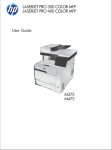
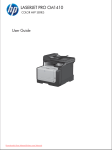
OFFICEJET PRO X476 AND X576
MFP SERIES
User Guide
HP Officejet Pro X476 and X576 MFP
Series
User Guide
Copyright and License
Trademark Credits
© 2012 Copyright Hewlett-Packard
Development Company, L.P.
Adobe®, Acrobat®, and PostScript® are
trademarks of Adobe Systems
Incorporated.
Reproduction, adaptation, or translation
without prior written permission is
prohibited, except as allowed under the
copyright laws.
The information contained herein is subject
to change without notice.
The only warranties for HP products and
services are set forth in the express
warranty statements accompanying such
products and services. Nothing herein
should be construed as constituting an
additional warranty. HP shall not be liable
for technical or editorial errors or omissions
contained herein.
Edition 2, 6/2012
Intel® Core™ is a trademark of Intel
Corporation in the U.S. and other countries.
Java™ is a US trademark of Sun
Microsystems, Inc.
Microsoft®, Windows®, Windows® XP, and
Windows Vista® are U.S. registered
trademarks of Microsoft Corporation.
UNIX® is a registered trademark of The
Open Group.
ENERGY STAR and the ENERGY STAR
mark are registered U.S. marks.
Conventions used in this guide
TIP: Tips provide helpful hints or shortcuts.
NOTE:
Notes provide important information to explain a concept or to complete a task.
CAUTION: Cautions indicate procedures that you should follow to avoid losing data or damaging
the product.
WARNING! Warnings alert you to specific procedures that you should follow to avoid personal
injury, catastrophic loss of data, or extensive damage to the product.
ENWW
iii
iv
Conventions used in this guide
ENWW
Table of contents
1 Product basics ................................................................................................................................................ 1
Product overview .................................................................................................................................. 2
HP Officejet Pro X476 MFP Series models ......................................................................... 2
HP Officejet Pro X576 MFP Series models ......................................................................... 3
Environmental features ........................................................................................................................ 3
Accessibility features ............................................................................................................................ 4
Product views ....................................................................................................................................... 5
Front view ............................................................................................................................ 5
Back view ............................................................................................................................. 6
Interface ports ...................................................................................................................... 7
Serial number and model number location .......................................................................... 8
Control panel layout ............................................................................................................. 9
2 Control panel menus .................................................................................................................................... 13
Copy menu ......................................................................................................................................... 13
Fax menus .......................................................................................................................................... 15
Scan menus ....................................................................................................................................... 16
Apps ................................................................................................................................................... 17
Plug and Print ..................................................................................................................................... 17
Setup Menu ........................................................................................................................................ 17
Fax Setup menu ................................................................................................................ 18
Network Setup menu ......................................................................................................... 21
HP Digital Solutions Setup menu ....................................................................................... 23
Device Setup menu ........................................................................................................... 23
Tools menu ........................................................................................................................ 27
Print Reports menu ............................................................................................................ 28
3 Connect the product ..................................................................................................................................... 29
Connect the product using a USB cable ............................................................................................ 29
CD installation .................................................................................................................... 29
Connect the product to a network ...................................................................................................... 30
Supported network protocols ............................................................................................. 30
Install the product on a wired network ............................................................................... 30
Configure IP network settings ............................................................................................ 31
HP ePrint ........................................................................................................................... 33
Install the product on a wireless network (wireless models only) ....................................................... 34
ENWW
v
Connect the product to a wireless network using the Wireless Setup Wizard ................... 34
Connect the product to a wireless network using WPS ..................................................... 34
Install the software for a wireless product currently on the network .................................. 35
Manually connect the product to a wireless network ......................................................... 35
4 Use the product with Windows .................................................................................................................... 37
Supported operating systems and printer drivers for Windows .......................................................... 37
Select the correct printer driver for Windows ..................................................................................... 37
HP Universal Print Driver (UPD) ........................................................................................ 39
Change print job settings for Windows ............................................................................................... 39
Priority for print settings ..................................................................................................... 39
Change the settings for all print jobs until the software program is closed ........................ 40
Change the default settings for all print jobs ...................................................................... 40
Change the product configuration settings ........................................................................ 40
Remove the printer driver from Windows ........................................................................................... 41
Supported utilities for Windows .......................................................................................................... 41
Other Windows components and utilities ........................................................................... 41
5 Use the product with Mac ............................................................................................................................ 43
Supported operating systems and printer drivers for Mac .................................................................. 43
Software for Mac computers .............................................................................................................. 43
HP Utility for Mac ............................................................................................................... 43
Priority for print settings for Mac ......................................................................................................... 45
Change printer-driver settings for Mac ............................................................................................... 45
Change the settings for all print jobs until the software program is closed ........................ 45
Change the default settings for all print jobs ...................................................................... 45
Change the product configuration settings ........................................................................ 45
Remove the printer driver from Mac operating systems ..................................................................... 46
Supported utilities for Mac .................................................................................................................. 46
HP Embedded Web Server ............................................................................................... 46
Fax with Mac ...................................................................................................................................... 46
Scan with Mac .................................................................................................................................... 47
Use the HP Scan software to scan images to a Mac computer. ........................................ 47
Scan using Apple Preview and Image Capture applications (Mac OS X v10.6 and
later) ................................................................................................................................... 47
Solve problems with Mac ................................................................................................................... 48
6 Paper and print media .................................................................................................................................. 49
Understand paper use ........................................................................................................................ 49
Change the printer driver to match the paper type and size in Windows ........................................... 50
vi
ENWW
Supported paper sizes ....................................................................................................................... 50
Supported paper types and tray capacity ........................................................................................... 53
Load paper trays ................................................................................................................................ 55
Load Tray 1 (multi-purpose tray on left side of the product) .............................................. 55
Load Tray 2 or optional Tray 3 ........................................................................................... 56
Load the document feeder ................................................................................................. 57
Configure trays ................................................................................................................................... 58
7 Ink cartridges ................................................................................................................................................ 61
Ink cartridge information ..................................................................................................................... 61
Supplies views .................................................................................................................................... 62
Ink cartridge view ............................................................................................................... 62
Manage ink cartridges ........................................................................................................................ 62
Change settings for ink cartridges ..................................................................................... 62
Store and recycle supplies ................................................................................................. 63
HP anticounterfeit website ................................................................................................. 63
Replacement instructions ................................................................................................................... 64
Replace the ink cartridges ................................................................................................. 64
Solve issues with supplies .................................................................................................................. 66
Check the ink cartridges .................................................................................................... 66
Interpret control panel messages for supplies ................................................................... 69
8 Print ................................................................................................................................................................ 73
Print tasks (Windows) ......................................................................................................................... 73
Open the printer driver with Windows ................................................................................ 73
Get help for any printing option with Windows ................................................................... 74
Change the number of print copies with Windows ............................................................. 75
Save custom print settings for reuse with Windows .......................................................... 75
Improve print quality with Windows ................................................................................... 78
Print on both sides (duplex) with Windows ........................................................................ 79
Print multiple pages per sheet with Windows .................................................................... 81
Select page orientation with Windows ............................................................................... 82
Set Advanced color options with Windows ........................................................................ 83
Print tasks (Mac) ................................................................................................................................ 83
Create and use printing presets with Mac ......................................................................... 83
Print a cover page with Mac .............................................................................................. 84
Print multiple pages on one sheet of paper with Mac ........................................................ 84
Print on both sides of the page (duplex printing) with Mac ................................................ 85
Set the color options with Mac ........................................................................................... 85
Additional print tasks (Windows) ........................................................................................................ 86
Cancel a print job with Windows ........................................................................................ 86
ENWW
vii
Print colored text as black (grayscale) with Windows ........................................................ 86
Print on special paper or labels with Windows .................................................................. 86
Print the first or last page on different paper with Windows ............................................... 88
Scale a document to fit page size with Windows ............................................................... 91
Add a watermark to a document with Windows ................................................................. 92
Create a booklet with Windows ......................................................................................... 93
Additional print tasks (Mac OS X) ...................................................................................................... 94
Cancel a print job with Mac ................................................................................................ 94
Change the paper size and type with Mac ......................................................................... 95
Resize documents or print on a custom paper size with Mac ............................................ 95
Use watermarks with Mac .................................................................................................. 95
Use HP ePrint ..................................................................................................................................... 95
Use the HP ePrint Mobile Driver ........................................................................................................ 96
AirPrint ................................................................................................................................................ 97
Connect the printer with HP Wireless Direct ...................................................................................... 98
Connect and print from a WiFi capable mobile device ...................................................... 98
Connect and print from a WiFi capable computer over a wireless router and Wireless
Direct ................................................................................................................................. 99
Connect and print from a WiFi capable computer over Wireless Direct only ..................... 99
Change from printing over USB to a Wireless Direct connection ...................................... 99
Plug and Print USB Drive printing .................................................................................................... 100
9 Color ............................................................................................................................................................. 103
Adjust color ....................................................................................................................................... 103
Change the color theme for a print job ............................................................................ 103
Change the color options ................................................................................................. 104
Use the HP EasyColor option ........................................................................................................... 105
Match colors to your computer screen ............................................................................................. 106
Print fade- and water-resistant prints ............................................................................................... 107
10 Copy ........................................................................................................................................................... 109
Use copy functions ........................................................................................................................... 110
Copy ................................................................................................................................ 110
Multiple copies ................................................................................................................. 110
Copy a multiple-page original .......................................................................................... 111
Copy identification cards .................................................................................................. 112
Cancel a copy job ............................................................................................................ 113
Reduce or enlarge a copy ................................................................................................ 113
Collate a copy job ............................................................................................................ 114
Copy settings .................................................................................................................................... 114
Check the scanner glass for dirt and smudges ................................................................ 114
viii
ENWW
Adjust the lightness or darkness for copies ..................................................................... 115
Define custom copy settings ............................................................................................ 116
Set the paper size and type for copying on special paper ............................................... 116
Copy photos ..................................................................................................................................... 117
Copy mixed size originals ................................................................................................................. 117
Copy on both sides ........................................................................................................................... 118
Copy on both sides automatically .................................................................................... 118
11 Scan ........................................................................................................................................................... 121
Use scan functions ........................................................................................................................... 122
Scan methods .................................................................................................................. 122
Cancel a scan .................................................................................................................. 124
Scan settings .................................................................................................................................... 124
Scanner resolution and color ........................................................................................... 124
Scan quality ..................................................................................................................... 126
Scan a photo to USB ........................................................................................................................ 127
12 Fax .............................................................................................................................................................. 129
Set up fax ......................................................................................................................................... 129
Install and connect the hardware ..................................................................................... 129
Configure fax settings ...................................................................................................... 129
Use the phone book ......................................................................................................................... 130
Use speed dials ............................................................................................................... 131
Manage group-dial entries ............................................................................................... 132
Set fax settings ................................................................................................................................. 132
Send-fax settings ............................................................................................................. 132
Receive-fax settings ........................................................................................................ 135
Set fax polling .................................................................................................................. 138
Use fax ............................................................................................................................................. 139
Fax software .................................................................................................................... 139
Cancel a fax ..................................................................................................................... 139
Use fax on a DSL, PBX, or ISDN system ........................................................................ 139
Use fax on a VoIP service ............................................................................................... 140
Fax memory ..................................................................................................................... 141
Delete faxes from memory ............................................................................................... 141
Send a fax ........................................................................................................................ 141
Receive a fax ................................................................................................................... 149
Solve fax problems ........................................................................................................................... 150
Fax troubleshooting checklist .......................................................................................... 150
Fax error messages ......................................................................................................... 152
ENWW
ix
Fax logs and reports ........................................................................................................ 157
Change error correction and fax speed ........................................................................... 158
Solve problems sending faxes ......................................................................................... 158
Solve problems receiving faxes ....................................................................................... 165
Solve general fax problems ............................................................................................. 169
Regulatory information and warranties ............................................................................................. 170
13 Manage and maintain ............................................................................................................................... 171
Print information pages .................................................................................................................... 171
Use the HP Embedded Web Server ................................................................................................. 172
About cookies .................................................................................................................. 173
Open the HP Embedded Web Server .............................................................................. 173
Features ........................................................................................................................... 173
Use HP Web Jetadmin software ...................................................................................................... 176
Product security features .................................................................................................................. 177
Security statements ......................................................................................................... 177
Assign an administrator password in the HP Embedded Web Server ............................. 177
Control Panel Lock .......................................................................................................... 177
Disable unused protocols and services ........................................................................... 177
Administrator Settings ...................................................................................................... 178
Color Access Control ....................................................................................................... 178
Protected Protocols – HTTPS .......................................................................................... 179
Firewall ............................................................................................................................ 179
Scan-to and Fax-to Folder Authentication ....................................................................... 179
Syslog .............................................................................................................................. 179
Certificates ....................................................................................................................... 179
Signed Firmware .............................................................................................................. 179
Wireless Authentication ................................................................................................... 179
Economy settings ............................................................................................................................. 180
Print with General Office mode ........................................................................................ 180
Power handling ................................................................................................................ 180
Clean the product ............................................................................................................................. 181
Clean the printhead ......................................................................................................... 181
Clean the scanner glass strip and platen ......................................................................... 181
Clean the document feeder pickup rollers and separation pad ....................................... 182
Clean the touch screen .................................................................................................... 183
Product updates ............................................................................................................................... 183
14 Solve problems ......................................................................................................................................... 185
Customer support ............................................................................................................................. 185
Problem-solving checklist ................................................................................................................. 185
x
ENWW
Step 1: Check that the product power is on ..................................................................... 186
Step 2: Check the control panel for error messages ....................................................... 186
Step 3: Test print functionality ......................................................................................... 186
Step 4: Test copy functionality ......................................................................................... 186
Step 5: Test the fax sending functionality ........................................................................ 187
Step 6: Test the fax receiving functionality ...................................................................... 187
Step 7: Try sending a print job from a computer .............................................................. 187
Step 8: Test the Plug and Print USB Drive printing functionality ..................................... 187
Factors that affect product performance .......................................................................... 187
Restore the factory-set defaults ....................................................................................................... 188
Paper feeds incorrectly or becomes jammed ................................................................................... 189
The product does not pick up paper ................................................................................ 189
The product picks up multiple sheets of paper ................................................................ 189
Prevent paper jams .......................................................................................................... 189
Clear jams ........................................................................................................................................ 190
Jam locations ................................................................................................................... 190
Clear jams from the document feeder ............................................................................. 191
Clear jams in Tray 1(Multi-purpose tray) ......................................................................... 192
Clear jams in Tray 2 ......................................................................................................... 196
Clear jams in optional Tray 3 ........................................................................................... 197
Clear jams in the left door ................................................................................................ 198
Clear jams in the output bin ............................................................................................. 200
Clear jams in the duplexer ............................................................................................... 201
Improve print quality ......................................................................................................................... 203
Use the correct paper type setting in the printer driver .................................................... 204
Adjust color ...................................................................................................................... 204
Use paper that meets HP specifications .......................................................................... 208
Check the ink cartridges .................................................................................................. 208
Clean ink smears ............................................................................................................. 210
Clean the printhead ......................................................................................................... 211
Use the printer driver that best meets your printing needs .............................................. 211
Improve print quality for copies ........................................................................................ 212
The product does not print or it prints slowly .................................................................................... 213
The product does not print ............................................................................................... 213
The product prints slowly ................................................................................................. 214
Solve Plug and Print USB Drive printing problems .......................................................................... 214
The USB Print menu does not open when you insert the USB accessory ...................... 215
The file does not print from the USB storage device ....................................................... 215
The file that you want to print is not listed in the USB Print menu ................................... 215
Solve product connectivity problems ................................................................................................ 216
Solve USB direct-connect problems ................................................................................ 216
ENWW
xi
Solve network problems .................................................................................................. 216
Solve wireless network problems ..................................................................................................... 218
Wireless connectivity checklist ........................................................................................ 218
The control panel displays the message: The wireless feature on this product has
been turned off ................................................................................................................. 219
The product does not print after the wireless configuration completes ............................ 219
The product does not print, and the computer has a third-party firewall installed ........... 219
The wireless connection does not work after moving the wireless router or product ...... 220
Cannot connect more computers to the wireless product ................................................ 220
The wireless product loses communication when connected to a VPN .......................... 221
The network does not appear in the wireless networks list ............................................. 221
The wireless network is not functioning ........................................................................... 221
Solve product software problems with Windows .............................................................................. 221
Solve product software problems with Mac ...................................................................................... 222
The printer driver is not listed in the Print & Scan list ...................................................... 223
The product name does not appear in the product list in the Print & Scan list ................ 223
The printer driver does not automatically set up the selected product in the Print &
Scan list ........................................................................................................................... 223
A print job was not sent to the product that you wanted .................................................. 223
When connected with a USB cable, the product does not appear in the Print & Scan
list after the driver is selected. ......................................................................................... 223
You are using a generic printer driver when using a USB connection ............................. 224
Appendix A Supplies and accessories ........................................................................................................ 225
Order parts, accessories, and supplies ............................................................................................ 225
Part numbers .................................................................................................................................... 225
Appendix B Service and support ................................................................................................................. 227
Hewlett-Packard limited warranty statement .................................................................................... 227
End User License Agreement .......................................................................................................... 228
OpenSSL .......................................................................................................................................... 230
Customer support ............................................................................................................................. 231
Appendix C Product specifications ............................................................................................................. 233
Physical specifications ..................................................................................................................... 234
Power consumption, electrical specifications, and acoustic emissions ............................................ 234
Acoustic emissions ........................................................................................................................... 234
Environmental specifications ............................................................................................................ 234
Appendix D Environmental product stewardship program ....................................................................... 237
Protecting the environment .............................................................................................................. 237
xii
ENWW
Ozone production ............................................................................................................................. 237
Power consumption .......................................................................................................................... 238
Paper use ......................................................................................................................................... 238
Plastics ............................................................................................................................................. 238
HP Officejet print supplies ................................................................................................................ 238
Return and recycling instructions ..................................................................................................... 239
United States and Puerto Rico ........................................................................................ 239
Non-U.S. returns .............................................................................................................. 240
Battery disposal ............................................................................................................... 240
Printer recycling ............................................................................................................... 240
Paper ................................................................................................................................................ 240
Material restrictions .......................................................................................................................... 240
Disposal of waste equipment by users ............................................................................................. 241
Electronic Hardware Recycling ........................................................................................................ 241
Chemical substances ....................................................................................................................... 241
Material Safety Data Sheet (MSDS) ................................................................................................. 242
For more information ........................................................................................................................ 243
Substances Table (China) ................................................................................................................ 243
Restriction on Hazardous Substances statement (Turkey) .............................................................. 243
Restriction on Hazardous Substances statement (Ukraine) ............................................................. 244
Restriction on Hazardous Substances statement (Vietnam) ............................................................ 244
Appendix E Regulatory information ............................................................................................................. 245
Regulatory Notices ........................................................................................................................... 245
Regulatory model identification number .......................................................................... 245
FCC Statement ................................................................................................................ 245
VCCI statement (Japan) ................................................................................................................... 246
Power cord instructions .................................................................................................................... 246
Power cord statement (Japan) ......................................................................................................... 246
EMC statement (Korea) .................................................................................................................... 246
GS statement (Germany) ................................................................................................................. 247
European Union Regulatory Notice .................................................................................................. 247
Additional statements for telecom (fax) products ............................................................................. 248
EU Statement for Telecom Operation .............................................................................. 248
New Zealand Telecom Statements .................................................................................. 248
Additional FCC statement for telecom products (US) ...................................................... 249
Telephone Consumer Protection Act (US) ...................................................................... 250
Industry Canada CS-03 requirements ............................................................................. 250
Note à l’attention des utilisateurs du réseau téléphonique Canadien/notice to users of
the Canadian telephone network ..................................................................................... 251
Australia Wired Fax Statement ........................................................................................ 251
ENWW
xiii
Notice to users of the German telephone network .......................................................... 251
Vietnam Telecom wired marking for ICTQC Type approved products ............................ 251
Additional statements for wireless products ..................................................................................... 251
FCC compliance statement—United States .................................................................... 251
Notice to users in the US and Canada ............................................................................ 252
Australia statement .......................................................................................................... 252
Brazil ANATEL statement ................................................................................................ 252
Canadian statements ....................................................................................................... 252
Japan statement .............................................................................................................. 253
Korean statement ............................................................................................................ 253
Taiwan statement ............................................................................................................ 253
Mexico statement ............................................................................................................. 253
Anonymous usage information storage ............................................................................................ 253
Appendix F How do I? ................................................................................................................................... 255
Index ................................................................................................................................................................. 257
xiv
ENWW
1
ENWW
Product basics
●
Product overview
●
Environmental features
●
Accessibility features
●
Product views
1
Product overview
HP Officejet Pro X476 MFP Series models
Officejet Pro X476dn models
Paper handling:
CN460A
●
Tray 1 (50-sheet capacity for 75 GSM or
20 lb. Bond paper)
●
Tray 2 (500-sheet capacity for 75 GSM or
20 lb. Bond paper)
●
Optional Tray 3 (500- sheet capacity for
75 GSM or 20 lb. Bond paper)
●
ADF Feeder Tray (50- sheet capacity for
75 GSM or 20 lb. Bond paper)
●
Standard output bin (250- sheet capacity
for 75 GSM or 20 lb. Bond paper)
●
●
Windows XP, 32-bit (Service Pack 2 or
Higher)
●
Windows Vista, 32-bit and 64-bit
●
Windows 7, 32-bit and 64-bit
●
Windows 8, 32–bit and 64–bit
●
Windows 8 Pro, 32-bit & 64-bit
●
Mac OS X v10.6 and later
NOTE: For additional information on
Operating System support, see Supported
operating systems and printer drivers for
Windows.
Plug and Print USB Drive printing (no computer
required)
Copy:
●
Copies at up to 20 ppm in black and 15 ppm in
color
●
50-page document feeder that supports page
sizes from 127 to 356 mm (5 to 14 in) in length
and from 127 to 216 mm (5 to 8.5 in) in width
●
Flatbed scanner supports page sizes up to 297
mm (11.7 in) in length and up to 215 mm (8.5
in) in width
●
Automatic duplex copying
Automatic duplex printing
Supported operating systems:
●
Print:
Scan:
●
Automatic duplex scanning
●
Scan to Memory Device (no computer required)
Fax:
●
V.34 with an RJ-11 fax port
Connectivity:
2
●
Hi-Speed USB 2.0
●
10/100 Ethernet (wired) LAN connection
Officejet Pro X476dw models
Has the same features as the Officejet Pro X476dn Series, but includes the following:
CN461A
●
802.11 B/G/N Single Band wireless adapter
●
HP Wireless Direct printing
Chapter 1 Product basics
ENWW
HP Officejet Pro X576 MFP Series models
Officejet Pro X576dw models
Paper handling:
CN462A
●
Tray 1 (50-sheet capacity for 75 GSM or
20 lb. Bond paper)
●
Tray 2 (500-sheet capacity for 75 GSM or
20 lb. Bond paper)
●
Optional Tray 3 (500- sheet capacity for
75 GSM or 20 lb. Bond paper)
●
ADF Feeder Tray (50- sheet capacity for
75 GSM or 20 lb. Bond paper)
●
Standard output bin (250- sheet capacity
for 75 GSM or 20 lb. Bond paper)
●
●
Windows XP, 32-bit (Service Pack 2 or
Higher)
●
Windows Vista, 32-bit and 64-bit
●
Windows 7, 32-bit and 64-bit
●
Windows 8, 32–bit and 64–bit
●
Windows 8 Pro, 32-bit & 64-bit
●
Mac OS X v10.6 and later
NOTE: For additional information on
Operating System support, see Supported
operating systems and printer drivers for
Windows.
Plug and Print USB Drive printing (no computer
required
Copy:
●
Copies at up to 20 ppm in black and 15 ppm in
color
●
50-page document feeder that supports page
sizes from 127 to 356 mm (5 to 14 in) in length
and from 127 to 216 mm (5 to 8.5 in) in width
●
Flatbed scanner supports page sizes up to 297
mm (11.7 in) in length and up to 215 mm (8.5
in) in width
●
Automatic duplex copying
Automatic duplex printing
Supported operating systems:
●
Print:
Scan:
●
Automatic duplex scanning
●
Scan to Memory Device (no computer required)
Fax:
●
V.34 with an RJ-11 fax port
Connectivity:
●
Hi-Speed USB 2.0
●
802.11 B/G/N Single Band wireless
adapter
●
10/100 Ethernet (wired) LAN connection
●
HP ePrint
●
HP Wireless Direct printing
Environmental features
ENWW
Duplex printing
Automatic duplex printing is available with the Officejet Pro X476 and Officejet Pro X576.
Duplex printing saves the environment and saves you money.
Print multiple pages per
sheet
Save paper by printing two or more pages of a document side-by-side on one sheet of paper.
Access this feature through the printer driver.
Environmental features
3
Copies multiple pages per
sheet
Save paper by copying two pages of an original document side-by-side on one sheet of
paper.
Recycling
Reduce waste by using recycled paper.
Recycle ink cartridges by using the HP Planet Partners return process.
Energy savings
Sleep modes and timer options enable this product to quickly go into reduced power states
when not printing, thus saving energy.
NOTE: Additional energy savings may be realized by turning off the printer if it will not be used for
more than four hours.
Accessibility features
The product includes several features that aid users with limited vision, hearing, dexterity or strength.
4
●
Online user guide that is compatible with text screen-readers.
●
Ink cartridges can be installed and removed using one hand.
●
All doors and covers can be opened using one hand.
Chapter 1 Product basics
ENWW
Product views
Front view
1
2
3
4
11
5
10
9
6
8
7
1
Document feeder cover, provides access for clearing jams
2
Document feeder input tray
3
Document feeder input tray extension
4
Document feeder output bin
5
Output bin extension
6
Output bin
7
Tray 2 - Main paper tray
8
On/Off button
9
Ink cartridge door
10
Color touch screen control panel
11
USB 2.0 port
IMPORTANT: Caution should be taken when moving the printer since tilting at an angle of > 15
degrees could result in ink leakage, especially soon after startup.
ENWW
Product views
5
Back view
6
1
5
4
3
6
1
Left door (access for clearing jams)
2
Tray 1 (Multi-purpose tray)
3
Power connection
4
Hi-Speed USB 2.0 ports
5
Ethernet port
6
Fax line port
Chapter 1 Product basics
2
ENWW
Interface ports
1
2
3
4
1
Fax line port
2
Ethernet port
3
USB Host port accepts USB storage devices for Scan-to-USB and Plug and Print.
NOTE: A USB Host port is also located on the front of the product behind the control panel.
4
ENWW
USB Device port accepts a USB cable from a PC (alternative to Network and Wireless connections).
Product views
7
Serial number and model number location
Open the ink cartridge door to view the serial number and product model number label.
8
Chapter 1 Product basics
ENWW
Control panel layout
Jan 00 00 00:00a
1
Display and touch screen area
2
Help button: provides access to the product help system
3
Right arrow button: moves the cursor to the right or moves the display image to the next screen
NOTE:
4
Cancel button: cancels the current job or exits the current screen.
NOTE:
5
This button illuminates only when the current screen can use this feature.
Back button: returns to the previous screen
NOTE:
6
This button illuminates only when the current screen can use this feature.
This button illuminates only when the current screen can use this feature.
Left arrow button: moves the cursor to the left
NOTE:
This button illuminates only when the current screen can use this feature.
7
Home button: provides quick access to the Home screen. This button only illuminates only when the current
screen can use this feature.
8
Wireless light: indicates the wireless network is enabled. The light blinks while the product is establishing a
connection to the wireless network. When connected, the light stops blinking and stays lit.
ENWW
Product views
9
Buttons on the Home screen
The Home screen provides access to the product features, and it indicates the product status.
NOTE: Depending on the product configuration, the features on the Home screen can vary. The
layout might also be reversed for some languages.
Jan 00 00 00:00a
1
Web Services
button: provides quick access to HP Web Services features, including HP ePrint.
HP ePrint is a tool that prints documents by using any e-mail enabled device to send them to the product’s e-mail
address.
2
Network
button: provides access to network settings and information. From the network settings screen, you
can print the Network Summary page, set up a wireless network connection, and access advanced network
settings.
NOTE:
The wireless network feature is only available on select models.
NOTE:
When you are connected to a wireless network, this icon changes to a set of signal strength bars.
3
Eco Settings
4
Fax Status
5
Supplies
button: provides a list of options to help reduce energy and paper consumption.
button: provides a list of available fax reports and settings.
button: provides information about supplies status. From the supplies summary screen, you can
print the Supplies Status page.
10
6
Apps
button: provides access to the Apps menu to print directly from select Web applications.
7
Scan
button: provides access to the scan feature.
Chapter 1 Product basics
ENWW
8
Status display. When the product is idle, this area of the control panel displays the time and date and allows for
access to the time and date settings by touching this area. When the product is processing a job, job status
information replaces the time and date display.
9
Fax
10
Copy
button: provides access to the fax feature.
button: provides access to the copy feature.
From the Home screen you can touch the right arrow button of the Control Panel to access the USB Doc Print
按钮 and Setup
button. The USB Doc Print button provides access to the Plug and Print USB Drive
printing and scanning feature (no computer is required), and the Setup button provides access to the product
settings.
ENWW
Product views
11
Control panel help system
The product has a built-in Help system that explains how to use each screen. To open the Help
system, press the Help button in the upper-right corner of the control panel.
For some screens, the Help opens to a global menu where you can search for specific topics. You
can browse through the menu structure by touching the buttons in the menu.
Some Help screens include animations that guide you through procedures, such as clearing paper
jams.
For screens that contain settings for individual tasks, the Help opens to a topic that explains the
options for that task.
12
Chapter 1 Product basics
ENWW
2
Control panel menus
●
Copy menu
●
Fax menus
●
Scan menus
●
Apps
●
Plug and Print
●
Setup Menu
Copy menu
To access these features, touch the Copy
NOTE:
button, from the Control Panel.
Settings that you change with this menu expire 2 minutes after the last copy completes.
Menu item
Sub-menu item
Number of Copies
(1–99)
Specifies the number of copies
Two-Sided
1-Sided to 1-Sided Copy*
Specifies the duplex setting for
copies.
1-Sided to 2-Sided Copy
Sub-menu item
Description
2-Sided to 1-Sided Copy
2-Sided to 2-Sided Copy
Lighter/Darker
Start
Specifies how light or dark you
would like to make the copy.
Black
Color
Preview
ENWW
Specifies to make a black and
white or color copy.
Provides an on-screen preview
of what is being copied.
Copy menu
13
Menu item
Sub-menu item
Sub-menu item
Description
Settings
HP Copy Fix
On
Enhances printouts by removing
dark edges and fixing page
skew problems for black and
white copies.
Off*
ID Copy
On
Off*
Resize
Actual*
Copies both sides of
identification cards, or other
small-size documents, onto the
same side of one sheet of
paper.
Resizes the copy.
Full Page=91%
Fit to Page
Legal to Letter=72%
A4 to Letter=91%
Custom Size
2 on 1
Quality
Presentation
Sets the copy quality.
Professional*
General Office
Collate
On
Off*
Margin Shift
On
Specifies whether to collate
copy jobs
Shifts the left margin for binding.
Off*
Crop
Allows you to copy a specific
portion of the page.
Copy Preview
Provides an on-screen preview
of what is being copied.
Tray Selection
Tray 1
Tray 2*
Specifies which tray, and the
paper size and type, to use for
copies.
Tray 3
Enhancements
Text
Photo
Enhances specific aspects of
your copy
Mixed*
None
Set as New Defaults
14
Chapter 2 Control panel menus
Saves any changes you have
made to this menu as the new
defaults
ENWW
Fax menus
To open these menus, touch the Fax
button.
Menu item
Sub-menu item
Sub-menu item
Description
Settings
Resolution
Standard
Sets the resolution for sent
documents. Higher resolution
images have more dots per inch
(dpi), so they show more detail.
Lower resolution images have
fewer dots per inch and show
less detail, but the file size is
smaller.
Fine*
Very Fine
Photo
Lighter/Darker
Fax Send Original
Sets the brightness level of the
fax.
1–Sided Original
2–Sided Original
Sets how faxes are sent on
paper.
2–Sided Original With Cover
Page
Fax Methods
ENWW
Set as New Defaults
Saves any adjusted settings as
the new default for the product.
Scan and Fax
Allows the product to scan the
entire document before dialing,
and it prints an image of the first
page faxed on the confirmation
page.
Broadcast Fax
The broadcast feature can be
used to send a fax to a
distribution list. A broadcast list
must be created before sending
a broadcast fax.
Send Fax Later
Allows a fax to be sent at a later
time and date.
Poll to Receive
Allows the product to send a fax
from another machine remotely .
Fax menus
15
Scan menus
To open these menus, touch the Scan
Menu item
button.
Sub-menu item
Sub-menu item
Description
Computer
Scans to a computer that is on
the same network or connected
to the product
Memory Device
Scans to a USB drive connected
to the product.
Network Folder
Scans to a folder or directory on
the network.
Email
Sends the scan to a specified
email address.
Document Type
PDF Color (Compressed)
PDF Color
PDF Black
JPEG Color
JPEG Grayscale
TIFF Black
Resolution
600 dpi* (default resolution for
scanning from glass)
Specifies the resolution to use
for the scanned image.
300 dpi* (default resolution for
from ADF)
Scan quality increases with
higher resolution, but the file
size also increases.
200 dpi
75 dpi
Filename
Settings (Settings can be
adjusted after you select the
scanning method)
Provides a way to set a
standard name prefix for scan
job files.
Original
2–Sided Original
Lighter/Darker
16
1–Sided Original*
Chapter 2 Control panel menus
Specifies the number of sides of
the original document to scan.
Allows the scan to be darkened
or lightened based on the slider
selection.
ENWW
Menu item
Sub-menu item
Sub-menu item
Description
Paper Size
Automatic*
Specifies the size of the page to
use for the scanned file. The
default page size will vary
depending on your country.
Letter (8.5 x 11in.)
Legal (8.5 x 14in.)
4x6
5x7
Set as New Defaults
Saves any changes you have
made to this menu as the new
defaults.
Apps
Use the Apps menu to enable Web Services on the product and use HP ePrint and print Apps.
Plug and Print
Use the Plug and Print menu to print directly from a USB Flash or Hard Drive device.
Setup Menu
To open this menu, touch the Setup
ENWW
●
Fax Setup menu
●
Network Setup menu
●
HP Digital Solutions Setup menu
●
Device Setup menu
●
Tools menu
●
Print Reports menu
button. The following sub menus are available:
Apps
17
Fax Setup menu
In the following table, items that have an asterisk (*) indicate the factory default setting.
Menu item
Sub-menu item
Speed-Dial Setup
Add/Edit Speed-Dial
Sub-menu item
Description
Configures stored individual and group contact fax information.
Group Speed-Dial
Delete Speed-Dial
Print Speed-Dial
Basic Fax Setup
Fax Header
Enter your name.
Enter your fax
number.
Two-Sided Fax Print
Print on 1 Side*
Sets the identifying information that is sent to the receiving
product.
Print incoming faxes for ease or economy.
Print on 2 Sides
Auto Answer
On*
Off
Rings to Answer
Fax Paper Size
Receive faxes automatically (on) or manually (off). Default
setting varies by country.
Sets the number of rings that must occur before the fax modem
answers. The default setting is 5.
Letter (8.5 x 11in.)
Sets the default paper size for outgoing faxes.
A4 (297 x 210 mm)
Legal (8.5 x 14in.)
Fax Sound Volume
Soft*
Sets the volume for listening to initial fax connection signals.
Loud
Off
Dial Type
Tone Dialing*
Sets whether the product should use tone or pulse dialing.
Pulse Dialing
Dial Prefix
On
Off*
Block Junk Faxes
Block Junk Faxes
Add Numbers
Remove All Numbers
Print Reports
Specifies a prefix number that must be dialed when sending
faxes from the product. If you turn this feature on, the product
prompts you to enter the number and then it automatically
includes that number every time you send a fax.
Modifies the junk fax list. The junk fax list can contain up to 100
numbers. When the product receives a call from one of the junk
fax numbers, it deletes the incoming fax. It also logs the junk fax
in the activity log with other job-accounting information. Print
reports allows you to chose from printing the Junk Fax List,
Caller ID History, and Fax Log.
NOTE: This feature requires subscription of caller ID services
with your telephone company.
18
Chapter 2 Control panel menus
ENWW
Menu item
Sub-menu item
Sub-menu item
Description
HP Digital Fax
View Settings
To use the HP Digital Fax feature, set it up using the software
that came with the product and a computer that is connected to
the same network as the product.
Fax Print
Disable HP Digital
Fax
Advanced Fax Setup
Distinctive Ring
Ring Pattern
Detection
If you have distinctive ring phone service, use this item to
configure how the product responds to incoming calls.
All Rings*
●
All Rings: The product answers any calls that come through
the telephone line.
●
Single: The product answers any calls that produce a
single-ring pattern.
●
Double: The product answers any calls that produce a
double-ring pattern.
●
Triple: The product answers any calls that produce a triplering pattern.
●
Double and Triple: The product answers any calls that
produce a double-ring or triple-ring pattern.
Single
Double
Triple
Double and Triple
Redial Setup
Busy Redial
No Answer Redial
Sets whether the product should attempt to redial if the line is
busy, there is no answer, or if there is a communication error.
Communication Error
Redial
Fax Stamping
On
Off*
Fax Confirmation
On (Fax Send)*
On (Fax Receive)
Sets the product to print the date, time, sender's phone number,
and page number on each page of incoming faxes.
Prints a thumbnail image of the fax on the Fax Confirmation
page, if enabled.
On (Send and
Receive)
Off
Automatic Reduction
On*
Off
If the fit-to-page option is turned on, the product automatically
reduces long faxes up to 75% to fit the information on the default
paper size (for example, the fax is reduced from legal to letter
size).
If the fit-to-page option is turned off, long faxes print at full size
on multiple pages. The factory-set default for incoming fax auto
reduction is On.
If you have the stamp-received faxes option turned on, you might
also want to turn on auto reduction. This reduces the size of the
incoming faxes slightly, and prevents the page-stamp from
forcing a fax onto two pages.
Backup Fax
Reception
On*
Stores an electronic backup of received faxes
On Error Only
Off
ENWW
Setup Menu
19
Menu item
Sub-menu item
Sub-menu item
Description
Error Correction Mode
On*
The error correction mode allows the sending device to retransmit data if it detects an error signal.
Off
Confirm Fax Number
On
Sets whether the product confirms a fax number before sending.
Off*
Fax Speed
Fast (33600 bps)*
Sets the fax communication speed.
Medium (14400 bps)
Slow (9600 bps)
Fax forwarding
On (Print and
Forward)
Forwards the fax to another fax machine. Select the print and
forward option to print a hard copy.
On (Forward)
Off*
Fax Report
On (Fax Send)*
Prints a fax information page based on the selected settings.
On (Fax Receive)
On (Send and
Receive)
Off
Fax Tools
Fax Reports
20
Restore Fax Defaults
Resets all fax configurations to their factory defaults.
Reprint Faxes in
Memory
The product reprints all stored faxes.
Run Fax Test
Performs a fax test to verify that the phone cord is plugged in the
correct outlet and that there is a signal on the phone line. A fax
test report is printed indicating the results.
Clear Fax Log
Clears all faxes in memory.
Last Transaction
Prints a detailed report of the last fax operation, either sent or
received.
Fax Log
Prints the last 30 entries in the fax log.
Speed-Dial List
Prints a list of the speed dials that have been set up for this
product. The speed-dial list holds up to 99 numbers.
Caller ID Report
Prints a list of all incoming fax phone numbers, up to the
maximum of 30 numbers.
Junk Fax Report
Prints a list of phone numbers that are blocked from sending
faxes to this product.
Chapter 2 Control panel menus
ENWW
Network Setup menu
In the following table, items that have an asterisk (*) indicate the factory default setting.
NOTE: Wireless menu options are only available on products that support wireless connectivity. For
more information, refer to the Product Basics chapter of this user guide.
Menu item
Sub-menu item
Wireless Menu
(wireless products only)
On
Sub-menu item
Description
Enables or disables the wireless network feature.
Off
NOTE: You can also
access this menu by
touching the Wireless
button on the control
panel.
Wireless Direct
(wireless products only)
On
Configure the Wireless Direct settings for the product.
On With Security
Off
Wireless Setup Wizard
(wireless products only)
Print Guide
Wi-Fi Protected Setup
(wireless products only)
Continue
View Network
Summary
View Wired
Guides you through the steps to set up the product on a
wireless network.
Continue
Push Button
PIN
If your wireless router supports WPS, use this method to
set up the product on a wireless network. This is the
simplest method.
Prints a summary of your network settings.
View Wireless
Print Wireless Test
Report (wireless
products only)
Prints a wireless test report.
Print Network
Configuration Page
Prints a report of your network configuration settings.
Advanced Setup
Link Speed
Automatic*
10T Full
Sets the link speed. After setting the link speed, the
product automatically restarts.
10T Half
100TX Full
100TX Half
IP Settings
Automatic (DHCP)*
Manual (Static)
IPv6
On*
Set whether the product's IP setting are configured
automatically with DHCP or set manually.
Enable or disable the IPv6 protocol on the product.
Off
Hostname
OK
Change
ENWW
Use this setting the change how the product is identified
on the network.
Setup Menu
21
Menu item
Sub-menu item
Sub-menu item
Legacy Default IP
On
Description
Off
Restore Network
Defaults
22
Chapter 2 Control panel menus
Resets all network configurations to their factory defaults.
ENWW
HP Digital Solutions Setup menu
In the following table, items that have an asterisk (*) indicate the factory default setting.
Menu item
Sub-menu item
Digital Solution Setup
Wizard
Description
Guides you through the steps to set up HP Digital Solutions
Device Setup menu
In the following table, items that have an asterisk (*) indicate the factory default setting.
Menu item
Sub-menu item
Preferences
Date and Time
Sub-menu item
Sub-menu item
Description
Sets the time format, current time, date format, and
current date for the product.
Language
List of available
control-panel
display
languages.
Country/Region
List of available
countries/regions
Keyboard
QWERTY*
AZERTY
Sets the language in which the control panel displays
messages and product reports.
Selects which keyboard layout to use on the Control
Panel.
OWERTZ
Screen Brightness
Sound Effects
Volume
Adjust the sliding bar to control the screen brightness
on the Control Panel
Soft*
Adjusts the product's sound effect level.
Loud
Off
Faster Browsing
On
Sets the browsing speed to go faster than the default.
Off*
Paper Handling
Default Tray
Tray 1
(Multipurpose)
Sets the default tray to print from for copying
documents.
Tray 2 (Main)*
Tray 3
(Accessory) only
if installed
Tray Selection
For Copy
For Plug and Print
Sets the default tray for copying, for plug and print
printing, and fax printing.
For Fax Print
ENWW
Setup Menu
23
Menu item
Sub-menu item
Sub-menu item
Sub-menu item
Description
Paper Selection
Tray 1
Default paper size
Sets the default media size and type for each tray.
Tray 2
Letter (8.5 x 11in.)
Tray 3
A4 (297 x 210
mm)
...
For a complete
list of paper sizes,
see Supported
paper sizes.
Default paper
type
Plain Paper
Premium Inkjet
...
For a complete
list of paper sizes,
see Supported
paper types and
tray capacity.
Default Paper in
Tray
Tray 1
Default Paper
Size
Letter (8.5 x 11in.)
A4 (297 x 210
mm)
Select the default paper size for Tray 1 (multi-purpose
tray).
...
For a complete
list of paper sizes,
see Supported
paper sizes.
Default Paper
Type
Plain Paper
Premium Inkjet
Sets the paper type for printing internal reports, faxes,
or any print job that does not specify a type.
...
For a complete
list of paper sizes,
see Supported
paper types and
tray capacity.
Tray 2
Default Paper
Size
Letter (8.5 x 11in.)
A4 (297 x 210
mm)
Select the default paper size for Tray 2 (main paper
tray).
...
For a complete
list of paper sizes,
see Supported
paper sizes.
24
Chapter 2 Control panel menus
ENWW
Menu item
Sub-menu item
Sub-menu item
Sub-menu item
Description
Default Paper
Type
Plain Paper
Sets the paper type for printing internal reports, faxes,
or any print job that does not specify a type.
Premium Inkjet
...
For a complete
list of paper sizes,
see Supported
paper types and
tray capacity.
Tray 3
Default Paper
Size
Letter (8.5 x 11in.)
Sets the default paper size for the optional Tray 3.
A4 (297 x 210
mm)
...
For a complete
list of paper sizes,
see Supported
paper sizes.
Default Paper
Type
Plain Paper
Premium Inkjet
Sets the type of paper for printing internal reports,
faxes, or any print job that does not specify a type.
...
For a complete
list of paper sizes,
see Supported
paper types and
tray capacity.
Tray Lock
Tray 1
Tray Lock is a feature that “locks" a tray so that the
only time the printer will draw from that tray is when it
is specifically requested. This is useful when putting
special paper in a tray, such as letterhead. If using
“Automatically Select" for the paper source and Tray 1
is locked, the printer will only draw from the remaining
trays, either Tray 2 or optional Tray 3, if it is installed.
Printing can still be done from the locked tray, but the
source must be specified. Tray 1 lock may be
overridden under certain conditions.
Tray 2
Tray 3
None*
Ink Low Warning
Level
Automatic
Power Handling
Standby
Determines when the Low Ink warning message
appears on the control panel. Chose Custom to select
a cartridge color and ink level value from 1–99.
Custom
5 minutes
Determines when to put the product in Standby mode.
10 minutes*
15 Minutes
30 Minutes
1 Hour
ENWW
Setup Menu
25
Menu item
Sub-menu item
Sub-menu item
Sleep after
Standby
15 Minutes After
Standby
Sub-menu item
Description
Determines when to put the product to sleep after it
has been put into Standby mode.
30 Minutes After
Standby
1 hour After
Standby
2.hours.after.stan
dby*
Schedule On/Off
Schedule On
Schedule Off
Print Settings
Personality
Automatic*
PCL5 Only
Schedules a time to automatically turn the product on
or off.
Sets the printer language. By default, the product
automatically selects which language to use.
PCL6 Only
PS Only
Copies
Quality
Sets the number of copies (0–99) to make when the
Copy button is touched. The default value is 1.
General Office
Sets the default print quality.
Professional
Presentation
Duplex
On
Set the product's auto-duplexing feature.
Off
PCL Configuration
Form Length
Orientation
Sets the text attributes for the printer control language
being used.
Font Number
Font Pitch
Font Point Size
Symbol Set
Append CR to LF
Print Postscript
Error
26
On
Off
Chapter 2 Control panel menus
Sets the product to print any postscript errors that
occur.
ENWW
Tools menu
Use the Tools menu to improve the product's print quality and view estimated ink levels.
Menu item
Description
Display Estimated Ink
Levels
Displays a graph of how much ink has been consumed for each cartridge.
Clean Printhead
Use this feature to clean, adjust, and align the printheads. Follow the on-screen instructions to correctly
improve the product's print quality.
Cartridge Chip Information
The cartridge chip stores anonymous information about the usage of the product.
Control Panel Lock
Use this feature to lock the product's control panel and prevent unauthorized use of the product.
Clean Ink Smear
Use this feature to solve print quality problems caused by ink smearing on printed pages.
Restore Factory Defaults
Sets all settings to the factory default values.
ENWW
Setup Menu
27
Print Reports menu
Use the Print Reports menu to print reports that provide information about the product.
Menu item
Sub-menu item
Description
Printer Status Report
Prints current product information, cartridge status, and more
assistance.
Print Quality Report
Prints a quality test that will help you diagnose minor print issues
Usage Page
Shows a count of all paper sizes that have passed through the
product; lists whether they were monochrome or color, simplex or
duplex, and reports the page count. This report is useful for
reconciling contractual billing statements.
Network Configuration Page
Prints useful information about the product's wired or wireless
network connection.
Event Log
Prints a list of errors and intermittent failures designed to help you
troubleshoot problems.
Fax Reports
Last Transaction
Fax Log
Provides a list of report options that will help you manage the
product's fax features.
Speed-Dial List
Caller ID Report
Junk Fax Report
28
PCL Font List
Prints a list of all the PCL fonts that are installed.
PCL6 Font List
Prints a list of all the PCL6 fonts that are installed.
PS Font List
Prints a list of all the PS fonts that are installed
Chapter 2 Control panel menus
ENWW
3
Connect the product
●
Connect the product using a USB cable
●
Connect the product to a network
●
Install the product on a wireless network (wireless models only)
Connect the product using a USB cable
This product supports a USB 2.0 connection. Use an A-to-B type USB cable. HP recommends using
a cable that is no longer than 2 m (6.5 ft).
CAUTION: Do not connect the USB cable until the installation software prompts you to connect it.
CD installation
1.
Quit all open programs on the computer.
2.
Install the software from the CD, and follow the onscreen instructions.
NOTE: If you are installing on a Mac, click the HP Installer icon to install the software.
3.
When prompted, select the USB-Connect the printer to the computer using a USB cable
option, and then click the Next button.
NOTE: A dialog displays warning that Web Services (HP ePrint and print Apps) will not be
available with a USB installation. Click the Yes button to proceed with the USB installation, or
click the No button to cancel the USB installation.
ENWW
4.
When the software prompts you, connect the USB cable to the computer and the product.
5.
When the installation is complete, print a page from any program to make sure that the printing
software is correctly installed.
Connect the product using a USB cable
29
Connect the product to a network
Supported network protocols
To connect a networking-equipped product to a network, you need a network that uses one or more
of the following protocols.
●
TCP/IP (IPv4 or IPv6)
NOTE: While this product can be used over IPv6 networks, a product software installation from
the CD is not supported over IPv6 networks.
●
LPD Printing
●
SLP
●
WS-Discovery
●
HP Wireless Direct
Install the product on a wired network
Use this procedure to intall the product on a wired network using Windows.
Obtain the IP address
1.
Connect the ethernet cable to the product and to the network. Turn the product on.
2.
Wait for 60 seconds before continuing. During this time, the network recognizes the product and
assigns an IP address or host name for the product.
3.
Touch the Network
button to display the IP address.
For more information about the network connection, print a network configuration page:
30
1.
Touch the Print Reports menu.
2.
Touch the Network Configuration Page menu item to print the network configuration report.
Chapter 3 Connect the product
ENWW
3.
Find the IP address on the network configuration report.
Printer Status Report
[
[
[
[ [
[
[
[
Install the software
1.
Quit all programs on the computer.
2.
Install the software from the CD.
3.
Follow the onscreen instructions.
4.
When prompted, select the Wired Network - Connect the printer to your network using an
Ethernet cable. option, and then click the Next button.
5.
From the list of available printers, select the printer that has the correct IP address.
6.
When the installation is complete, print a page from any program to make sure that the printing
software is correctly installed.
Configure IP network settings
View or change network settings
Use the embedded Web server to view or change IP configuration settings.
1.
Print a configuration page, and locate the IP address.
●
If you are using IPv4, the IP address contains only digits. It has this format:
xxx.xxx.xxx.xxx
●
If you are using IPv6, the IP address is a hexadecimal combination of characters and digits.
It has a format similar to this:
xxxx::xxxx:xxxx:xxxx:xxxx
ENWW
2.
To open the HP Embedded Web Server, type the IP address (IPv4) into the address line of a
Web browser. For IPv6, use the protocol established by the Web browser for entering IPv6
addresses.
3.
Click the Networking tab to obtain network information. You can change settings as needed.
Connect the product to a network
31
Set or change the product password
Use the HP Embedded Web Server to set a password or change an existing password for a product
on a network so unauthorized users cannot change the product settings.
1.
Type the product IP address into the address line of a Web browser. Click the Settings tab, click
Security, and then click the Password Settings link.
NOTE: If a password has previously been set, you are prompted to type the password. Type
“admin” for User Name along with the password, and then click the Apply button.
2.
Type the new password in the Password box and in the Confirm Password box.
3.
At the bottom of the window, click the Apply button to save the password.
Manually configure IPv4 TCP/IP parameters from the control panel
Use the control-panel menus to manually set an IPv4 address, subnet mask, and default gateway.
32
1.
Touch the Setup
2.
Scroll to and touch the Network Setup menu.
3.
Touch the Advanced Setup menu, and then touch the IPv4 Settings button.
4.
Touch the Manual IP Address button
5.
Use the numeric keypad to enter the IP address, and touch the OK button. Touch the Yes button
to confirm.
6.
Use the numeric keypad to enter the subnet mask, and touch the OK button. Touch the Yes
button to confirm.
7.
Use the numeric keypad to enter the default gateway, and touch the OK button. Touch the Yes
button to confirm.
button.
Chapter 3 Connect the product
ENWW
Link speed and duplex settings
NOTE: This information applies only to Ethernet (wired) networks. It does not apply to wireless
networks.
The link speed and communication mode of the print server must match the network hub. For most
situations, leave the product in automatic mode. Incorrect changes to the link speed and duplex
settings might prevent the product from communicating with other network devices. If you need to
make changes, use the product control panel.
NOTE: The setting must match with the network product to which you are connecting (a network
hub, switch, gateway, router, or computer).
NOTE: Making changes to these settings causes the product to turn off and then on. Make changes
only when the product is idle.
1.
Touch the Setup
2.
Scroll to and touch the Network Setup menu.
3.
Touch the Advanced Setup menu item.
4.
Touch the Link Speed menu.
5.
Select one of the following options.
6.
button.
Setting
Description
Automatic
The print server automatically configures itself for the highest link speed and
communication mode allowed on the network.
10T Half
10 megabytes per second (Mbps), half-duplex operation
10T Full
10 Mbps, full-duplex operation
100TX Half
100 Mbps, half-duplex operation
100TX Full
100 Mbps, full-duplex operation
Touch the OK button. The product turns off and then on.
HP ePrint
With HP ePrint , you can print anywhere, anytime, from a mobile phone, laptop, or any other mobile
device. HP ePrint works with any email-capable device. If you can e-mail, you can print to an
HP ePrint-enabled product. For more details, go to www.hpeprintcenter.com.
NOTE:
The product must be connected to a network and have Internet access to use HP ePrint.
HP ePrint is disabled as a default setting in the product. Use this procedure to enable it.
ENWW
1.
Type the product IP address into the address line of a Web browser to open the HP Embedded
Web Server.
2.
Click the HP Web Services tab.
3.
Select the option to enable Web Services.
Connect the product to a network
33
Install the product on a wireless network (wireless
models only)
Before installing the product software, make sure the product is not connected to the network using a
ehternet cable.
If your wireless router does not support Wi-Fi Protected Setup (WPS), obtain the wireless router
network settings from your system administrator, or complete the following tasks:
●
Obtain the wireless network name or service set identifier (SSID).
●
Determine the security password or encryption key for the wireless network.
Connect the product to a wireless network using the Wireless Setup
Wizard
The wireless setup wizard is the best method for installing the product on a wireless network.
1.
From the Home screen on the product control panel, touch the Setup
2.
Touch the Network button, and then touch the Wireless Setup Wizard button.
3.
The product scans for available wireless networks and returns a list of network names (SSIDs).
Select the SSID for your wireless router from the list if it is available. If the SSID for your wireless
router is not in the list, touch the Enter SSID button. When prompted for the type of network
security, select the option that your wireless router uses. A keypad opens on the control panel
display.
4.
If your wireless router uses WPA security, type the passphrase on the keypad.
button.
If your wireless router uses WEP security, type the key on the keypad.
5.
Touch the OK button, and wait while the product establishes a connection with the wireless
router. Establishing the wireless connection can take a few minutes.
Connect the product to a wireless network using WPS
1.
From the Home screen on the product control panel, touch the Setup
2.
Touch the Network menu button, and then touch Continue.
3.
Use one of these methods to complete the setup:
button.
●
Pushbutton: Select the Push Button option and follow the instructions on the control panel.
Establishing the wireless connection can take a few minutes.
●
PIN: Select the Generate PIN option and follow the instructions on the control panel. The
product generates a unique PIN, which you must type into the wireless router's setup
screen. Establishing the wireless connection can take a few minutes.
NOTE: If this method is not successful, try using the Wireless Setup Wizard on the product control
panel or try using the USB cable connection method.
34
Chapter 3 Connect the product
ENWW
Install the software for a wireless product currently on the network
If the product already has an IP address on a wireless network and you want to install product
software on a computer, complete the following steps.
1.
From the product control panel, print a configuration page to obtain the product IP address.
2.
Install the software from the CD.
3.
Follow the on-screen instructions.
4.
When prompted, select the Wireless- Connect the printer to your wireless network and
internet. option, and then click the Next button.
5.
From the list of available printers, select the printer that has the correct IP address.
Manually connect the product to a wireless network
During the first 120 minutes of product setup, or after resetting the product's network defaults (and
without a network cable attached to the product), the product's wireless radio will broadcast a
wireless setup network for the product.
The name of this network is “HP-Setup-xx-[product name]”.
NOTE: The “xx” in the network is name is the last two characters of the product's MAC address.
The product name will be either HP Officejet Pro X476 MFP Series or HP Officejet Pro X576 MFP
Series.
1.
From a wireless enabled product, connect to the setup network for the device.
2.
Open a web browser while connected to this setup network, and open the HP Embedded Web
Server (HP EWS) using the following IP address:
●
3.
192.168.223.1
Find the Wireless Setup Wizard in the product's EWS and follow the on screen instructions to
manually connect the product.
NOTE: The product uses Automatic DHCP by default.
ENWW
Install the product on a wireless network (wireless models only)
35
36
Chapter 3 Connect the product
ENWW
4
Use the product with Windows
●
Supported operating systems and printer drivers for Windows
●
Select the correct printer driver for Windows
●
Change print job settings for Windows
●
Remove the printer driver from Windows
●
Supported utilities for Windows
Supported operating systems and printer drivers for
Windows
The product supports the following Windows operating systems:
Recommended software installation
Print and scan drivers only
●
Windows XP (32-bit, Service Pack 2 or higher)
●
Windows 2003 Server (32-bit, Service Pack 3)
●
Windows Vista (32-bit and 64-bit)
●
Windows 2008 Server
●
Windows 7 (32-bit and 64-bit)
●
Windows 2008 Server R2
●
Windows 8 (32-bit and 64-bit)
NOTE: Windows Server install support is available through
the Enterprise (command line) install method only.
The product supports the following Windows printer drivers:
●
HP PCL 6 (this is the default printer driver and is included on the CD)
●
HP Universal Print Driver for Windows Postscript
●
HP Universal Print Driver for PCL 5
●
HP Universal Print Driver for PCL 6
The printer drivers include online Help that has instructions for common printing tasks and also
describes the buttons, checkboxes, and drop-down lists that are in the printer driver.
NOTE: For downloads of, and more information about, the HP UPD Postscript, PCL 5, and PCL 6
drivers, see www.hp.com/go/upd.
Select the correct printer driver for Windows
Printer drivers provide access to the product features and allow the computer to communicate with
the product (using a printer language). The following printer drivers are available at
http://www.hp.com/go/support.
ENWW
Supported operating systems and printer drivers for Windows
37
HP PCL 6 driver (This print driver is
provided on the in-box CD and is also
available from http://www.hp.com/go/
support.)
HP UPD PS driver (This print driver is
available for download from
www.hp.com/go/upd)
HP UPD PCL 5 (This print driver is
available for download from
www.hp.com/go/upd)
HP UPD PCL 6 (This print driver is
available for download from
www.hp.com/go/upd)
38
●
Provided as the default driver. This driver is automatically installed unless
you select a different one.
●
Recommended for all Windows environments
●
Provides the overall best speed, print quality, and product-feature support for
most users
●
Developed to align with the Windows Graphic Device Interface (GDI) for the
best speed in Windows environments
●
Might not be fully compatible with third-party and custom software programs
that are based on PCL 5
●
Recommended for printing with Adobe® software programs or with other
highly graphics-intensive software programs
●
Provides support for printing from postscript emulation needs, or for
postscript flash font support
●
Recommended for general office printing in Windows environments
●
Compatible with previous PCL versions and older HP Officejet products
●
The best choice for printing from some third-party or custom software
programs
●
The best choice when operating with mixed environments, which require the
product to be set to PCL 5 (UNIX, Linux, mainframe)
●
Designed for use in corporate Windows environments to provide a single
driver for use with multiple printer models
●
Preferred when printing to multiple printer models from a mobile Windows
computer
●
Recommended for printing in all Windows environments
●
Provides the overall best speed, print quality, and printer feature support for
most users
●
Developed to align with Windows Graphic Device Interface (GDI) for best
speed in Windows environments
●
May not be fully compatible with third-party and custom solutions based on
PCL5
Chapter 4 Use the product with Windows
ENWW
HP Universal Print Driver (UPD)
The HP Universal Print Driver (UPD) for Windows is a single driver that gives you instant access to
virtually any HP Officejet product, from any location, without downloading separate drivers. It is built
on proven HP print driver technology and has been tested thoroughly and used with many software
programs. It is a powerful solution that performs consistently over time.
The HP UPD communicates directly with each HP product, gathers configuration information, and
then customizes the user interface to show the product’s unique, available features. It automatically
enables features that are available for the product, such as two-sided printing, so you do not need to
enable them manually.
For more information, go to www.hp.com/go/upd.
UPD installation modes
Traditional mode
Dynamic mode
●
Use this mode if you are installing the driver for a single computer. See
www.hp.com/go/upd.
●
When installed in Traditional mode, UPD operates like a discrete printer
driver. It operates with a specific product.
●
If you use this mode, you must install UPD separately for each computer and
for each product.
●
To use this mode, download UPD from the Internet. See www.hp.com/go/
upd.
●
Dynamic mode allows you to use a single driver installation, so you can
discover and print to HP products in any location.
●
Use this mode if you are installing UPD for a workgroup or to have
convenient access to a fleet of printers for individual users.
Change print job settings for Windows
Priority for print settings
Changes to print settings are prioritized depending on where the changes are made:
NOTE: The names of commands and dialog boxes might vary depending on your software
program. In managed environments, administrators may enforce printing policies and restrictions.
ENWW
●
Page Setup dialog box: Click Page Setup or a similar command on the File menu of the
program you are working in to open this dialog box. Settings changed here override settings
changed anywhere else.
●
Print dialog box: Click Print, Print Setup, or a similar command on the File menu of the
program you are working in to open this dialog box. Settings changed in the Print dialog box
have a lower priority and usually do not override changes made in the Page Setup dialog box.
●
Printer Properties dialog box (printer driver): Click Properties in the Print dialog box to open
the printer driver. Settings changed in the Printer Properties dialog box usually do not override
Change print job settings for Windows
39
settings anywhere else in the printing software, but will be applied if no conflicting command is
sent with a print job. You can change most of the print settings here.
●
Default printer driver settings: The default printer driver settings determine the settings used
in all print jobs, unless settings are changed in the Page Setup, Print, or Printer Properties
dialog boxes.
●
Printer control panel settings: Settings changed at the printer control panel have a lower
priority than changes made anywhere else.
Change the settings for all print jobs until the software program is closed
1.
On the File menu in the software program, click Print.
2.
Select the driver, and then click Properties or Preferences.
The steps can vary; this procedure is most common.
Change the default settings for all print jobs
1.
Windows XP, Windows Server 2003, and Windows Server 2008 (using the default Start
menu view): Click Start, and then click Printers and Faxes.
Windows XP, Windows Server 2003, and Windows Server 2008 (using the Classic Start
menu view): Click Start, click Settings, and then click Printers.
Windows Vista: Click Start, click Control Panel, and then in the category for Hardware and
Sound click Printer.
Windows 7: Click Start, and then click Devices and Printers.
2.
Right-click the driver icon, and then select Printing Preferences.
Change the product configuration settings
1.
Windows XP, Windows Server 2003, and Windows Server 2008 (using the default Start
menu view): Click Start, and then click Printers and Faxes.
Windows XP, Windows Server 2003, and Windows Server 2008 (using the Classic Start
menu view): Click Start, click Settings, and then click Printers.
Windows Vista: Click Start, click Control Panel, and then in the category for Hardware and
Sound click Printer.
Windows 7: Click Start, and then click Devices and Printers.
40
2.
Right-click the driver icon, and then select Properties or Printer properties.
3.
Click the Device Settings tab.
Chapter 4 Use the product with Windows
ENWW
Remove the printer driver from Windows
Windows XP
1.
Click Start, Control Panel, and then Add or Remove Programs.
2.
Find and select the product from the list.
3.
Click the Change/Remove button to remove the software.
Windows Vista
1.
Click Start, Control Panel, and then Programs and Features.
2.
Find and select the product from the list.
3.
Select the Uninstall/Change option.
Windows 7
1.
Click Start, Control Panel, and then under the Programs heading, click Uninstall a program.
2.
Find and select the product from the list.
3.
Select the Uninstall option.
Supported utilities for Windows
●
HP Web Jetadmin
●
HP Embedded Web Server
●
HP ePrint
●
HP Wireless Direct
Other Windows components and utilities
ENWW
●
HP OfficeJet Scan
●
HP Digital Fax
●
HP Printer Assistant (available when the product software is installed from CD)
Remove the printer driver from Windows
41
42
Chapter 4 Use the product with Windows
ENWW
5
Use the product with Mac
●
Supported operating systems and printer drivers for Mac
●
Software for Mac computers
●
Priority for print settings for Mac
●
Change printer-driver settings for Mac
●
Remove the printer driver from Mac operating systems
●
Supported utilities for Mac
●
Fax with Mac
●
Scan with Mac
●
Solve problems with Mac
Supported operating systems and printer drivers for Mac
The product supports the following Mac operating systems:
●
Mac OS X 10.6 and later
NOTE: See www.hp.com/support for the latest drivers for Mac.
NOTE:
For Mac OS X 10.6 and later, Intel Core Processor Macs are supported.
The HP Officejet software installer provides PostScript® Printer Description (PPD) files, Printer Dialog
Extensions (PDEs), and the HP Utility for use with Mac OS X computers. The HP printer PPD and
PDE files, in combination with the built-in Apple PostScript printer drivers, provide full printing
functionality and access to specific HP printer features.
Software for Mac computers
HP Utility for Mac
Use the HP Utility to set up product features that are not available in the printer driver.
You can use the HP Utility when the product uses a universal serial bus (USB) cable or is connected
to a TCP/IP-based network.
ENWW
Supported operating systems and printer drivers for Mac
43
Open the HP Utility
Use any of the following methods to open the HP Utility:
●
From the dock, click HP Utility.
●
From Applications, open the Hewlett-Packard folder, and then click HP Utility.
●
Click the Utility tab of the Options and Supplies panel from Print and Fax.
HP Utility features
Use the HP Utility software to perform the following tasks:
44
●
Obtain information about supplies status.
●
Obtain information about the product, such as the firmware version and the serial number.
●
Print a configuration page.
●
For products connected to an IP-based network, obtain network information and open the
HP Embedded Web Server.
●
Configure the paper type and size for the tray.
●
Configure basic fax settings.
Chapter 5 Use the product with Mac
ENWW
Priority for print settings for Mac
Changes to print settings are prioritized depending on where the changes are made:
NOTE: The names of commands and dialog boxes might vary depending on your software
program.
●
Page Setup dialog box: Click Page Setup or a similar command on the File menu of the
program you are working in to open this dialog box. Settings changed here might override
settings changed anywhere else.
●
Print dialog box: Click Print, Print Setup, or a similar command on the File menu of the
program you are working in to open this dialog box. Settings changed in the Print dialog box
have a lower priority and do not override changes made in the Page Setup dialog box.
●
Default printer driver settings: The default printer driver settings determine the settings used
in all print jobs, unless settings are changed in the Page Setup, Print, or Printer Properties
dialog boxes.
●
Printer control panel settings: Settings changed at the printer control panel have a lower
priority than changes made anywhere else.
Change printer-driver settings for Mac
Change the settings for all print jobs until the software program is closed
1.
On the File menu, click the Print button.
2.
Change the settings that you want on the various menus.
Change the default settings for all print jobs
1.
On the File menu, click the Print button.
2.
Change the settings that you want on the various menus.
3.
On the Presets menu, click the Save As... option and type a name for the preset.
These settings are saved in the Presets menu. To use the new settings, you must select the saved
preset option every time you open a program and print.
Change the product configuration settings
ENWW
1.
From the Apple menu
icon.
, click the System Preferences menu and then click the Print & Scan
2.
Select the product in the left side of the window.
3.
Click the Options & Supplies button.
4.
Click the Driver tab.
5.
Configure the installed options.
Priority for print settings for Mac
45
Remove the printer driver from Mac operating systems
You must have administrator rights to remove the software.
1.
Open System Preferences.
2.
Select Print & Scan.
3.
Highlight the product.
4.
Click the minus (-) symbol to delete the print queue.
Supported utilities for Mac
HP Embedded Web Server
The product is equipped with the HP Embedded Web server, which provides access to information
about product and network activities. Access the HP Embedded Web Server from the HP Utility.
Open the Printer Settings menu, and then select the Additional Settings option.
You can also access the HP Embedded Web Server by entering the product's IP address into Safari
Web browser:
1.
Select the page icon in the left side of the Safari toolbar.
2.
Click the Bonjour logo.
3.
In the list of printers, double-click this product. The HP Embedded Web Server opens.
To access the HP Embedded Web Server from other web browsers, type the product's IP address in
the browser's address field.
The HP Embedded Web Server can also be accessed through the System Preferences menu. Click
System Preferences, click Print and Scan, select your product name, click Options and Supplies,
click General, and then click Show Printer Webpage.
Fax with Mac
To send a fax by printing to a fax driver, complete the following steps:
46
1.
Open the document that you want to fax.
2.
Click File and then click Print.
3.
In the Printer pop-up menu, select the fax print queue that you want to use.
4.
In the Copies field, adjust the number of copies if necessary.
5.
In the Paper Size pop-up menu, adjust the paper size if necessary.
Chapter 5 Use the product with Mac
ENWW
6.
In the Fax Information area, enter the fax number of one or more recipients. Other Fax Options
may also be available, including Preview, Color or Black & White, Layout, Paper Handling,
and Scheduler settings.
NOTE: If you need to include a dialing prefix, enter it in the Dialing Prefix field.
7.
Click Fax.
Scan with Mac
Use the HP Scan software to scan images to a Mac computer.
If you have installed an HP driver for your product that supports scanning, use the following steps to
scan:
1.
Load the document onto the scanner glass or into the document feeder.
2.
Open the Applications folder, and then click Hewlett-Packard. Select HP Scan.
3.
Open the HP Scan menu and click Preferences. From the Scanner pop-up menu, select this
product from the list.
4.
To use the standard preset settings, which produce acceptable results for images and text, click
the Continue button.
To use presets optimized for pictures or text documents, select a preset from the Scanning
Presets pop-up menu. When you are ready to scan, click the Continue button.
5.
To scan more pages, load the next page and click the + button. Adjust scanner and presets as
needed, and then click the Continue button. If using the flatbed scanner, you are prompted to
Scan Next Item when the scan is complete. Repeat until you have scanned all the pages. Use
the - button to delete unwanted scanned items.
6.
Click the Send button, and then browse to the folder on your computer where you want to save
the file, or choose a printer to print the scanned items.
NOTE: Use Edit tools to modify scanned items. To modify all scanned items at once, use the
Batch menu.
Scan using Apple Preview and Image Capture applications (Mac OS X
v10.6 and later)
Use the Apple Preview or Image Capture applications with Mac OS X v10.6 and later to scan during
any of the following conditions:
ENWW
●
You recently upgraded to Mac OS X v10.6 or later and cannot access the HP Scan application.
●
A full feature driver update is not available for your product, or your product released before the
HP drivers that support scanning for your product.
●
You have not yet installed the available HP software that includes scanning.
●
You are troubleshooting a scanning problem and trying to identify the source of the problem.
Scan with Mac
47
Scan using Apple Preview
1.
Click the Apple Preview icon in the dock, or open Preview from the Applications folder.
2.
From the Preview File menu, select the Import from Scanner option.
NOTE: If your product connects to a network, select the Include Networked Devices option,
and then select the Import from Scanner option from the Preview File menu to display your
networked product in the list.
3.
Select your product from the list. The scan interface opens.
NOTE: You can click the Show Details button to view settings and options.
Scan using Image Capture
1.
Click the Apple Image Capture icon in the dock, or open Image Capture from the Applications
folder.
2.
Select your product from the list, or if your product connects to a network, select it from the
Shared list. The scan interface opens.
NOTE: You can click the Show Details button to view settings and options.
Solve problems with Mac
For information about solving problems with a Mac, see Solve product software problems with Mac
on page 222.
48
Chapter 5 Use the product with Mac
ENWW
6
Paper and print media
●
Understand paper use
●
Change the printer driver to match the paper type and size in Windows
●
Supported paper sizes
●
Supported paper types and tray capacity
●
Load paper trays
●
Configure trays
Understand paper use
HP Officejet inks for business are specifically developed for use with HP printheads. Unique ink
formulations help extend the life of the printheads and enhance reliability. When used with ColorLok®
paper, these inks provide laser-like color output that dries quickly and is ready for distribution.
This product supports a variety of paper and other print media. Paper or print media that does not
meet the following guidelines might cause poor print quality, increased jams, and premature wear on
the product.
It is possible for paper to meet all of these guidelines and still not produce satisfactory results. This
might be the result of improper handling, unacceptable temperature and/or humidity levels, or other
variables over which Hewlett-Packard has no control.
CAUTION: Using paper or print media that does not meet Hewlett-Packard's specifications might
cause problems for the product, requiring repair. This repair is not covered by the Hewlett-Packard
warranty or service agreements.
●
For best results, use only HP-brand paper and print media designed for inkjet printers or
multiuse.
●
Use paper or print media made for inkjet printers.
●
Hewlett-Packard Company cannot recommend the use of other brands of media because HP
cannot control their quality.
NOTE: Based on HP internal testing using a range of plain papers, HP highly recommends using
papers with the ColorLok® logo for this product. For details, go to www.hp.com/go/printpermanence.
Use the following guidelines to obtain satisfactory results when using special paper or print media.
Set the paper type and size in the printer driver to obtain the best results.
ENWW
Understand paper use
49
Media type
Do
Do not
Envelopes
●
Store envelopes flat.
●
●
Use envelopes where the seam
extends all the way to the corner
of the envelope.
Do not use envelopes that are
wrinkled, nicked, stuck together, or
otherwise damaged.
●
Do not use envelopes that have
clasps, snaps, windows, or coated
linings.
●
Do not use labels that have
wrinkles or bubbles, or are
damaged.
●
Do not print partial sheets of
labels.
●
Use only labels that have no
exposed backing between them.
●
Use labels that lie flat.
●
Use only full sheets of labels.
Letterhead or preprinted forms
●
Use only letterhead or forms
approved for use in inkjet printers.
●
Do not use raised or metallic
letterhead.
Heavy paper
●
Use only heavy paper that is
approved for use in inkjet printers
and meets the weight
specifications for this product.
●
Do not use paper that is heavier
than the recommended media
specification for this product
unless it is HP paper that has
been approved for use in this
product.
Glossy or coated paper
●
Use only glossy or coated paper
that is approved for use in inkjet
printers.
●
Do not use glossy or coated paper
designed for use in laser products.
Labels
Change the printer driver to match the paper type and
size in Windows
1.
On the File menu in the software program, click Print.
2.
Select the product, and then click the Properties or Preferences button.
3.
Click the Paper/Quality tab.
4.
Select a size from the Paper size drop-down list.
5.
Select a paper type from the Paper type drop-down list.
6.
Click the OK button.
Supported paper sizes
NOTE: To obtain best print results, select the appropriate paper size and type in your print driver
before printing.
50
Chapter 6 Paper and print media
ENWW
Table 6-1 Supported paper and print media sizes
Size
Dimensions
Letter
216 x 279 mm (8.5 x 11 inches)
Oficio 8.5 x 13
(8.5 x 13 inches)
Oficio
216x340 mm
216 x 340 mm
Legal
216 x 356 mm (8.5 x 14 inches)
A4
210 x 297 mm (8.3 x 11.7 inches)
Executive
184 x 267 mm (7.25 x 10.5
inches)
Statement
140 by 216 mm (5.5 x 8.5 inches)
A5
148 x 210 mm (5.8 x 8.3 inches)
A6
105 x 148.5 mm (4.13 x 5.83
inches)
B5 (JIS)
182 x 257 mm (7.17 x 10.12
inches)
B6 (JIS)
128x182mm (5 x 7 inches)
16k
184 x 260 mm (7.24 x 10.23
inches)
Tray 1
Tray 2
Tray 3
Automatic duplex
printing
Width: (3 to 8.5
inches)
Width: (4 to 8.5
inches)
Width: (4 to 8.5
inches)
Length: (5 to 14
inches)
Length: (8.27 to
11.7 inches)
Length: (8.27 to
14 inches)
Tray 1
Tray 2
Tray 3
195 x 270 mm (7.68 x 10.62
inches)
197 x 273 mm (7.75 x 10.75
inches)
Custom
Minimum: (3 x 5 inches)
Maximum: (8.5 to 14 inches)
Table 6-2 Supported envelopes
Size
Dimensions
Envelope
#10
105 x 241 mm (4.13 x 9.49 inches)
Envelope DL
110 x 220 mm (4.33 x 8.66 inches)
Envelope C5
162 x 229 mm (6.4 x 9 inches)
Envelope B5
176 x 250 mm (6.7 x 9.8 inches)
ENWW
Automatic duplex
printing
Supported paper sizes
51
Table 6-2 Supported envelopes (continued)
Size
Dimensions
Envelope C6
114 x 162 mm (4.5 x 6.4 inches)
Envelope
Monarch
98 x 191 mm (3.9 x 7.5 inches)
Japanese
Envelope
Chou #3
120 x 235 mm (4.7 x 9.3 inches)
Japanese
Envelope
Chou #4
90 x 205 mm (3.5 x 8.1 inches)
Tray 1
Tray 2
Tray 3
Automatic duplex
printing
Tray 1
Tray 2
Tray 3
Automatic duplex
printing
Tray 1
Tray 2
Tray 3
Automatic duplex
printing
Table 6-3 Supported cards
Size
Dimensions
3x5
(76.2 x 127 mm) (3 x 5 inches)
4x6
(102 x 152 mm) (4 x 6 inches)
5x8
(127 x 203 mm) (5 x 8 inches)
A6
(105 x 148.5 mm) (4.13 x 5.83
inches)
Japanese
Postcard
(100 x 148 mm) (3.9 x 5.8 inches)
Double
Japan
Postcard
Rotated
(148 x 200 mm) (5.8 x 7.9 inches)
Table 6-4 Supported photo media
Size
Dimensions
4x6
(102 x 152 mm) (4 x 6 inches)
10x15cm
(100 x 150 mm) (3.9 x 5.9 inches)
L
(89 x 127 mm) (3.5 x 5 inches)
5x7 Photo
Media (5 x 7
in no-tabs)
(127 x 178 mm) (5 x 7 inches)
Photo Media
(Letter &A4)
52
Chapter 6 Paper and print media
ENWW
Table 6-4 Supported photo media (continued)
Size
Dimensions
Japanese
Postcard
(100 x 148 mm) (3.9 x 5.8 inches)
Custom
Minimum: (3 to 5 inches)
Maximum: (8.5 to 14 inches)
Tray 1
Tray 2
Tray 3
Automatic duplex
printing
Width: (3 to 8.5
inches)
Width: (4 to 8.5
inches)
Width: (4 to 8.5
inches)
Length: (5 to 14
inches)
Length: (8.27 to
11.7 inches)
Length: (8.27 to
14 inches)
Tray 1
Tray 2
Tray 3
Table 6-5 Other supported media
Size
Dimensions
Automatic duplex printing
Labels
(Letter and
A4)
Supported paper types and tray capacity
Table 6-6 Tray 1 (multi-purpose) on left side of the product
Paper type
Weight
Capacity1
Paper orientation
Every day:
60 to 175 g/m2 (16 to 47 lb)
Up to 50 sheets
Side to be printed on face-down,
with the top edge at the front of
the tray
Up to 220 g/m2 (58 lb)1
Up to 25 sheets
Side to be printed on face-down,
with the top edge at the back of
the tray
●
Unspecified and Plain
●
HP EcoSMART Lite
●
Light 60-74g
●
Intermediate 85-95g
●
Mid-Weight 96-110g
●
Heavy 111-130g
●
HP Premium Presentation
Matte 120g
●
Extra Heavy 131-175g
●
HP Brochure Matte 180g
●
HP Brochure Glossy 180g
●
Cardstock 176-220g
●
HP Cover Matte 200g
●
HP Advanced Photo
Papers
ENWW
Supported paper types and tray capacity
53
Table 6-6 Tray 1 (multi-purpose) on left side of the product (continued)
Paper type
Weight
●
Envelope
●
Heavy Envelope
●
Labels
1
Capacity1
Paper orientation
Up to 7 envelopes or labels
Side to be printed on face-down,
with the top edge toward the
product
Capacity can vary depending on paper weight and thickness, and environmental conditions.
Table 6-7 Tray 2 (main tray) and Tray 3 (accessory tray)
Paper type
Weight
Capacity1
Paper orientation
●
Unspecified and Plain
60 to 175 g/m2 (16 to 47 lb)
Up to 500 sheets
●
HP EcoSMART Lite
Side to be printed on face-up,
with the top edge at the front of
the tray
●
Light 60-74g
●
Intermediate 85-95g
●
Mid-Weight 96-110g
●
Heavy 111-130g
●
HP Premium Presentation
Matte 120g
●
Extra Heavy 131-175g
●
HP Brochure Matte 180g
Up to 220 g/m2 (58 lb)1
Up to 100 sheets
●
HP Brochure Glossy 180g
Side to be printed on face-up,
with the top edge at the back of
the tray
●
Cardstock 176-220g
●
HP Cover Matte 200g
●
HP Advanced Photo
Papers
●
Envelope
Up to 30 envelopes or labels.
●
Heavy Envelope
●
Labels
NOTE: Tray 3 does not
support envelope printing.
Side to be printed on face-up,
with the top edge toward the
product
1
54
Capacity can vary depending on paper weight and thickness, and environmental conditions.
Chapter 6 Paper and print media
ENWW
Load paper trays
Load Tray 1 (multi-purpose tray on left side of the product)
1.
Open Tray 1.
2.
Pull out the extension tray.
3.
Extend the paper guides fullyand then load
the paper stack into Tray 1. Adjust the paper
guides to the size of the paper.
NOTE: Place the paper into Tray 1 with the
side to be printed on face-down and top of
page toward the front of the tray.
ENWW
Load paper trays
55
Load Tray 2 or optional Tray 3
1.
Pull the tray out of the product.
2.
Slide open the paper length and width guides.
3.
Place the paper in the tray and make sure
that it is flat at all four corners. Slide the side
paper width guides so that they align with the
paper-size marking in the bottom of the tray.
Slide the front paper length guide so that it
pushes the stack of paper against the back of
the tray.
NOTE: Place the paper into the tray with the
side to be printed on face-up.
56
Chapter 6 Paper and print media
ENWW
4.
Push down on the paper to make sure that
the paper stack is below the paper limit tabs
on the side of the tray.
5.
Slide the tray into the product.
Load the document feeder
The document feeder holds up to 50 sheets of 75 g/m2 (20 lb bond) paper.
CAUTION: To prevent damage to the product, do not load an original document that contains
correction tape, correction fluid, paper clips, or staples. Also, do not load photographs, small originals,
or fragile originals into the document feeder.
ENWW
Load paper trays
57
1.
Insert the originals into the document feeder
face-up.
2.
Adjust the guides until they are snug against
the paper.
Configure trays
By default, the product pulls paper from Tray 2. If Tray 2 is empty, the product pulls paper from Tray
1, or Tray 3 if it is installed. Configuring a tray on this product changes the speed settings to obtain
the best print quality for the type of paper that you are using. If you are using special paper for all or
most print jobs on the product, change this default tray setting on the product.
The following table lists possible ways you can use the tray settings to meet your printing needs.
58
Paper use
Configure the product
Print
Load Tray 1 and one other tray with the
same paper, and have the product pick
paper from one tray if the other one is
empty.
Load paper in Tray 1. No configuration
is needed, if the default settings for type
and size have not been changed.
From the software program, print the
job.
Chapter 6 Paper and print media
ENWW
Paper use
Configure the product
Print
Occasionally use special paper, such
as heavy paper or letterhead, from a
tray that usually contains plain paper.
Load special paper in Tray 1.
From the software program print dialog,
choose the paper type that matches the
special paper loaded in the tray before
sending the print job. Select Tray 1 as
the Paper Source from the Paper/
Quality tab (Windows) or Paper Feed
menu (Mac).
Frequently use special paper, such as
heavy paper or letterhead, from one
tray.
Load special paper in Tray 1, and
configure the tray for the paper type.
From the software program print dialog,
choose the paper type that matches the
special paper loaded in the tray before
sending the print job. Select Tray 1 as
the Paper Source from the Paper/
Quality tab (Windows) or Paper Feed
menu (Mac).
Configure trays
1.
Make sure the product is turned on.
2.
Perform one of the following tasks:
3.
ENWW
●
button, touch Paper Handling, and then touch Paper
Control panel: Touch the Setup
Selection. Select the tray that you want to configure.
●
Embedded Web server: Click the Settings tab, and then click Paper Settings in the left
panel. Select a Default Media Size and a Default Media Type for each tray.
Press OK or click Apply.
Configure trays
59
60
Chapter 6 Paper and print media
ENWW
7
Ink cartridges
The information contained herein is subject to change without notice. For the latest User Guide
information go to www.hp.com/support.
●
Ink cartridge information
●
Supplies views
●
Manage ink cartridges
●
Replacement instructions
●
Solve issues with supplies
Ink cartridge information
Color
Cartridge number
Part number
Standard-capacity replacement black
ink cartridge
HP 970
CN621A
High-capacity replacement black ink
cartridge
HP 970XL
CN625A
Standard-capacity replacement cyan
ink cartridge
HP 971
CN622A
High-capacity replacement cyan ink
cartridge
HP 971XL
CN626A
Standard-capacity replacement yellow
ink cartridge
HP 971
CN624A
High-capacity replacement yellow ink
cartridge
HP 971XL
CN628A
Standard-capacity replacement
magenta ink cartridge
HP 971
CN623A
High-capacity replacement magenta ink
cartridge
HP 971XL
CN627A
Accessibility: The ink cartridge can be installed and removed by using one hand.
Environmental features: Recycle ink cartridges by using the HP Planet Partners return and
recycling program.
For more information about supplies, go to www.hp.com/go/learnaboutsupplies.
ENWW
Ink cartridge information
61
Supplies views
Ink cartridge view
1
1
Metal connector and ink nozzle. Do not touch. Fingerprints may cause supply error messages. Dust may also cause
supply error messages; do not leave ink cartridges outside the product for prolonged periods of time.
Manage ink cartridges
Correctly using, storing, and monitoring the ink cartridge can help ensure high-quality print output.
Change settings for ink cartridges
Print when an ink cartridge is at estimated end of life
Supply-related notifications are communicated on the product control panel.
●
A <Supply> Low message—where <Supply> is the cartridge—appears when an ink cartridge is
nearing the estimated end of its useful life. Printing can continue, but consider having a
replacement supply on hand.
●
A <Supply> Very Low message appears when the ink cartridge is near its estimated end of
useful life. Have a replacement ink cartridge on hand.
●
<Supply> Out of Ink message appears when the ink cartridge is empty.
NOTE: Although using the Continue setting allows printing beyond Very Low without replacing the
cartridge, the product will shut down before any print problems occur.
62
Chapter 7 Ink cartridges
ENWW
Modify the Low on Ink Warning Level settings from the control panel
You can enable or disable the default settings at any time, and you do not have to re-enable them
when you install a new ink cartridge.
1.
From the Home screen on the control panel, touch the Setup
2.
Touch the Device Setup menu item.
3.
Touch the Ink Low Warning Level item.
4.
Select from the following options:
button.
●
Select Automatic to keep the default low ink warning.
●
Select Custom to choose what ink level prompts a low ink level warning.
Print with General Office mode
General Office print mode uses less ink, which might extend the life of the cartridge.
1.
On the File menu in the software program, click Print.
2.
Select the product, and then click the Properties or Preferences button.
3.
Click the Paper/Quality tab.
4.
Select General Office from the Print Quality drop-down box.
Store and recycle supplies
Recycle supplies
Go to hp.com/recycle for full information on recycling, and to order postage-paid labels, envelopes,
and boxes for recycling.
Ink cartridge storage
Do not remove the ink cartridge from its package until you are ready to use it.
HP policy on non-HP ink cartridges
Hewlett-Packard Company cannot recommend the use of non-HP ink cartridges, either new or
remanufactured.
NOTE: Any damage caused by a non-HP print cartridge is not covered under the HP warranty and
service agreements.
HP anticounterfeit website
Go to www.hp.com/go/anticounterfeit when you install an HP print cartridge and the control-panel
message says the cartridge is used or counterfeit. HP will help to take steps to resolve the problem.
ENWW
Manage ink cartridges
63
Your ink cartridge might not be a genuine HP ink cartridge if you notice the following:
●
The supplies status page indicates that a used or counterfeit supply is installed.
●
You are experiencing a high number of problems with the ink cartridge.
●
The cartridge does not look like it usually does (for example, the packaging differs from
HP packaging).
Replacement instructions
Replace the ink cartridges
The product uses four colors and has a different ink cartridge for each color: yellow (Y), cyan (C),
magenta (M), and black (K).
64
1.
Open the ink cartridge door.
2.
Push the old ink cartridge inward to unlock it.
Chapter 7 Ink cartridges
ENWW
3.
Grasp the edge of the old ink cartridge and
then pull the cartridge straight out to remove
it.
4.
Remove the new ink cartridge from the
packaging.
5.
Do not touch the metal connector of the ink
cartridge. Fingerprints on the connector can
cause print-quality problems.
ENWW
Replacement instructions
65
6.
Insert the new ink cartridge into the product.
7.
Close the ink cartridge door.
8.
Place the old ink cartridge in the box and refer
to HP's recycling instructions at
http://wwww.hp.com/recycle.
Solve issues with supplies
Check the ink cartridges
If you are experiencing print quality problems, see Improve print quality on page 203.
NOTE:
If you are using a General Office print setting, the printing might appear light.
If you determine that you need to replace an ink cartridge, look on the cartridge or print the Supplies
Status Page to find the part number for the correct genuine HP ink cartridge.
Refilled or remanufactured ink cartridges
Hewlett-Packard Company cannot recommend the use of non-HP supplies, either new or
remanufactured. Because they are not HP products, HP cannot influence their design or control their
66
Chapter 7 Ink cartridges
ENWW
quality. If you are using a refilled or remanufactured ink cartridge and are not satisfied with the print
quality, replace the cartridge with a genuine HP cartridge.
NOTE: If you replace a non-HP ink cartridge with a genuine HP ink cartridge, the printhead may still
contain non-HP ink until the printhead is depleted of that ink and is supplied with ink from the newly
installed, genuine HP ink cartridge.
Interpret the Print Quality Page
1.
On the control panel, touch the Setup
2.
Touch the Print Reports menu.
3.
Select the Print Quality Report item to print it.
4.
Follow the instructions on the page that prints.
button.
This page contains four bands of color, which are divided into the groups as indicated in the following
illustration. By examining each group, you can isolate the problem to a particular ink cartridge.
1
2
3
4
ENWW
Section
Ink cartridge
1
Black
2
Cyan
Solve issues with supplies
67
68
Section
Ink cartridge
3
Magenta
4
Yellow
●
If dots or streaks appear in one or more groups, clean the printhead. If this does not solve the
problem, contact HP.
●
If streaks appear in multiple color bands, see if the problem still persists by performing an
additional print head cleaning, and then contact HP. A component other than the ink cartridge is
probably causing the problem.
Chapter 7 Ink cartridges
ENWW
Interpret control panel messages for supplies
Use SETUP cartridges
Description
The SETUP cartridges have been removed before the product has completed initialization.
Recommended action
Use the SETUP cartridges that came with your product for product initialization.
Do not use SETUP cartridges
Description
SETUP cartridges cannot be used after the device has been initialized.
Recommended action
Remove and install non-SETUP cartridges.
<Color>Cartridge Low
Description
The ink cartridge is nearing the end of its useful life.
Recommended action
Printing can continue, but consider having a replacement supply on hand.
<Color>Cartridge Very Low
Description
The ink cartridge is near the end of its useful life.
Recommended action
Have a replacement ink cartridge on hand.
Counterfeit or used <color> cartridge installed
Description
The original HP ink in this cartridge has been depleted.
Recommended action
Click OK to continue printing or replace with genuine HP cartridge.
Genuine HP supply installed
Description
A genuine HP supply was installed.
ENWW
Solve issues with supplies
69
Recommended action
No action necessary.
Incompatible <color>
Description
You have installed an ink cartridge that is intended for use in a different HP product model. The
product will NOT function with this print cartridge installed.
Recommended action
Install the correct ink cartridge for this product.
Install [color] cartridge
Description
This message can appear during the initial set up of the product and may also appear after the initial
set up of the product has been completed.
If this message appears during initial setup, it means one of the color cartridges is not installed with
the door closed. The product will not print if a cartridge is missing.
If this message appears after the initial set up of the product, it means that the cartridge is missing or
is installed but damaged.
Recommended action
Install or replace the indicated color cartridge.
Non-HP ink cartridges installed
Description
No action necessary, this is a notification only.
Recommended action
No action necessary, this is a notification only.
Out of Ink <Color>
Description
The ink cartridge is at the end of its useful life, and the product will no longer print.
Recommended action
Replace the ink cartridge.
Used [color] installed
Description
A used, but still genuine, HP color ink cartridge has been installed or moved.
70
Chapter 7 Ink cartridges
ENWW
Recommended action
You have a used, but still genuine, HP cartridge installed. No action required.
ENWW
Solve issues with supplies
71
72
Chapter 7 Ink cartridges
ENWW
8
Print
●
Print tasks (Windows)
●
Print tasks (Mac)
●
Additional print tasks (Windows)
●
Additional print tasks (Mac OS X)
●
Use HP ePrint
●
Use the HP ePrint Mobile Driver
●
AirPrint
●
Connect the printer with HP Wireless Direct
●
Plug and Print USB Drive printing
Print tasks (Windows)
The methods to open the print dialog from software programs can vary. The procedures that follow
include a typical method. Some software programs do not have a File menu. See the documentation
for your software program to learn how to open the print dialog.
Open the printer driver with Windows
1.
On the File menu in the software program,
click Print.
2.
Select the product, and then click the
Properties or Preferences button.
ENWW
Print tasks (Windows)
73
Get help for any printing option with Windows
1.
74
Click the Help button to open the online Help.
Chapter 8 Print
ENWW
Change the number of print copies with Windows
1.
On the File menu in the software program, click Print.
2.
Select the product, and then select the number of copies.
Save custom print settings for reuse with Windows
Use a printing shortcut with Windows
1.
On the File menu in the software program,
click Print.
2.
Select the product, and then click the
Properties or Preferences button.
ENWW
Print tasks (Windows)
75
3.
Click the Printing Shortcuts tab.
4.
Select one of the shortcuts, and then click the
OK button.
NOTE: When you select a shortcut, the
corresponding settings change on the other
tabs in the printer driver.
Create printing shortcuts
1.
76
On the File menu in the software program,
click Print.
Chapter 8 Print
ENWW
2.
Select the product, and then click the
Properties or Preferences button.
3.
Click the Printing Shortcuts tab.
4.
Select an existing shortcut as a base.
NOTE: Always select a shortcut before
adjusting any of the settings on the right side
of the screen. If you adjust the settings and
then select a shortcut, all your adjustments
are lost.
ENWW
Print tasks (Windows)
77
5.
Select the print options for the new shortcut.
6.
Click the Save As button.
7.
Type a name for the shortcut, and click the
OK button.
Improve print quality with Windows
Select the page size with Windows
78
1.
On the File menu in the software program, click Print.
2.
Select the product, and then click the Properties or Preferences button.
Chapter 8 Print
ENWW
3.
Click the Paper/Quality tab.
4.
Select a size from the Paper size drop-down list.
Select a custom page size with Windows
1.
On the File menu in the software program, click Print.
2.
Select the product, and then click the Properties or Preferences button.
3.
Click the Paper/Quality tab.
4.
Click the Custom button.
5.
Type a name for the custom size and specify the dimensions.
●
The width is the short edge of the paper.
●
The length is the long edge of the paper.
NOTE: Always load paper into the trays short edge first.
6.
Click the OK button, and then click the OK button on the Paper/Quality tab. The custom page
size will appear in the list of paper sizes the next time you open the printer driver.
Select the paper type with Windows
1.
On the File menu in the software program, click Print.
2.
Select the product, and then click the Properties or Preferences button.
3.
Click the Paper/Quality tab.
4.
From the Paper type drop-down list, click the More... option.
5.
Expand the list of Type is: options.
6.
Expand the category of paper types that best describes your paper, and then click the paper
type that you are using.
Select the paper tray with Windows
1.
On the File menu in the software program, click Print.
2.
Select the product, and then click the Properties or Preferences button.
3.
Click the Paper/Quality tab.
4.
Select a tray from the Paper source drop-down list.
Print on both sides (duplex) with Windows
Automatically print on both sides with Windows
1.
On the File menu in the software program,
click Print.
ENWW
Print tasks (Windows)
79
80
2.
Select the product, and then click the
Properties or Preferences button.
3.
Click the Finishing tab.
4.
Select the Print on both sides check box.
Click the OK button to print the job.
Chapter 8 Print
ENWW
Print multiple pages per sheet with Windows
1.
On the File menu in the software program,
click Print.
2.
Select the product, and then click the
Properties or Preferences button.
3.
Click the Finishing tab.
ENWW
Print tasks (Windows)
81
4.
Select the number of pages per sheet from
the Pages per sheet drop-down list.
5.
Select the correct Print page borders, Page
order, and Orientation options.
Select page orientation with Windows
82
1.
On the File menu in the software program,
click Print.
2.
Select the product, and then click the
Properties or Preferences button.
Chapter 8 Print
ENWW
3.
Click the Finishing tab.
4.
In the Orientation area, select the Portrait or
Landscape option.
To print the page image upside down, select
the Rotate by 180 degrees option.
Set Advanced color options with Windows
1.
On the File menu in the software program, click Print.
2.
Select the product, and then click the Properties or Preferences button.
3.
Click the Color tab.
4.
Click the HP EasyColor check box to clear it.
5.
In the Color Options area, click the Ink Settings button.
6.
Use the sliders to adjust the settings, and then click OK.
Print tasks (Mac)
Create and use printing presets with Mac
Use printing presets to save the current printer driver settings for reuse.
ENWW
Print tasks (Mac)
83
Create a printing preset
1.
On the File menu, click the Print option.
2.
Select the product from the printer list.
3.
Select the print settings that you want to save for reuse.
4.
In the Presets menu, click the Save As... option, and type a name for the preset.
5.
Click the OK button.
Use printing presets
1.
On the File menu, click the Print option.
2.
Select the product from the printer list.
3.
In the Presets menu, select the printing preset.
NOTE:
To use printer-driver default settings, select the standard or Default Settings option.
Print a cover page with Mac
1.
On the File menu, click the Print option.
2.
Select the product from the printer list.
3.
Open the Cover Page menu, and then select where to print the cover page. Click either the
Before Document button or the After Document button.
4.
In the Cover Page Type menu, select the message that you want to print on the cover page.
NOTE: To print a blank cover page, select the standard option from the Cover Page Type
menu.
Print multiple pages on one sheet of paper with Mac
84
1.
On the File menu, click the Print option.
2.
Select the product from the Printer list.
3.
Open the Layout menu.
Chapter 8 Print
ENWW
4.
From the Pages per Sheet menu, select the number of pages that you want to print on each
sheet (1, 2, 4, 6, 9, or 16).
5.
In the Layout Direction area, select the order and placement of the pages on the sheet.
6.
From the Borders menu, select the type of border to print around each page on the sheet.
Print on both sides of the page (duplex printing) with Mac
Use automatic duplex printing
1.
Insert enough paper into one of the trays to accommodate the print job.
2.
On the File menu, click the Print option.
3.
Open the Layout menu.
4.
From the Two-Sided menu, select a binding option. This sets the default binding; subsequent
duplex jobs can be printed by simply checking the Two-Sided checkbox next to the Copies
field.
Set the color options with Mac
If you are using the HP Postscript printer driver for Mac, HP EasyColor technology scans all
documents and automatically adjusts all photographic images with the same improved photographic
results.
In the following example, the images on the left were created without using the HP EasyColor option.
The images on the right show the enhancements that result from using the HP EasyColor option.
The HP EasyColor option is enabled by default in the HP Mac Postscript printer driver, so you do not
need to make manual color adjustments. To disable the option so you can manually adjust the color
settings, use the following procedure.
ENWW
1.
On the File menu, click the Print option.
2.
Select the product from the Printers list.
3.
Open the Color Options menu, and then click the HP EasyColor check box to clear it.
4.
Adjust the RGB Color Settings by selecting a setting from the RGB Color drop-down menu.
Print tasks (Mac)
85
Additional print tasks (Windows)
Cancel a print job with Windows
1.
If the print job is currently printing, cancel it by touching the Printing <filename> display near the
that becomes available on the
bottom of the product control panel, and then touch the Cancel
right-side of the control panel.
NOTE: Cancelling a job clears the job that the product is currently processing. If more than one
process is running, repeat step one to cancel the other jobs.
2.
You can also cancel a print job from a software program or a print queue.
●
Software program: Typically, a dialog box appears briefly on the computer screen,
allowing you to cancel the print job.
●
Windows print queue: If a print job is waiting in a print queue (computer memory) or print
spooler, delete the job there.
◦
Windows XP, Server 2003, or Server 2008: Click Start, click Settings, and then click
Printers and Faxes. Double-click the product icon to open the window, right-click the
print job that you want to cancel, and then click Cancel.
◦
Windows Vista: Click Start, click Control Panel, and then, under Hardware and
Sound, click Printer. Double-click the product icon to open the window, right-click the
print job that you want to cancel, and then click Cancel.
◦
Windows 7: Click Start, and then click Devices and Printers. Double-click the
product icon to open the window, right-click the print job that you want to cancel, and
then click Cancel.
Print colored text as black (grayscale) with Windows
1.
On the File menu in the software program, click Print.
2.
Select the product, and then click the Properties or Preferences button.
3.
Click the Advanced tab.
4.
Expand the Document Options section.
5.
Expand the Printer Features section.
6.
In the Print All Text as Black drop-down list, select the Enabled option.
Print on special paper or labels with Windows
1.
86
On the File menu in the software program,
click Print.
Chapter 8 Print
ENWW
2.
Select the product, and then click the
Properties or Preferences button.
3.
Click the Paper/Quality tab.
4.
From the Paper type drop-down list, click the
More... option.
ENWW
Additional print tasks (Windows)
87
5.
Expand the list of Type is: options.
6.
Expand the category of paper types that best
describes your paper.
NOTE: Labels are in the list of Other
options.
7.
Select the option for the type of paper you are
using, and click the OK button.
Print the first or last page on different paper with Windows
1.
88
On the File menu in the software program,
click Print.
Chapter 8 Print
ENWW
2.
Select the product, and then click the
Properties or Preferences button.
3.
Click the Paper/Quality tab.
4.
In the Special pages area, click the Print
pages on different paper option, and then
click the Settings button.
ENWW
Additional print tasks (Windows)
89
90
5.
In the Pages in document area, select either
the First or Last option.
6.
Select the correct options from the Paper
source and Paper type drop-down lists. Click
the Add button.
Chapter 8 Print
ENWW
7.
If you are printing both the first and last pages
on different paper, repeat steps 5 and 6,
selecting the options for the other page.
8.
Click the OK button.
Scale a document to fit page size with Windows
1.
On the File menu in the software program,
click Print.
2.
Select the product, and then click the
Properties or Preferences button.
ENWW
Additional print tasks (Windows)
91
3.
Click the Effects tab.
4.
Select the Print document on option, and
then select a size from the drop-down list.
Add a watermark to a document with Windows
1.
On the File menu in the software program, click Print.
2.
Select the product, and then click the Properties or Preferences button.
3.
Click the Effects tab.
4.
Select a watermark from the Watermarks drop-down list.
Or, to add a new watermark to the list, click the Edit button. Specify the settings for the
watermark, and then click the OK button.
5.
92
To print the watermark on the first page only, select the First page only check box. Otherwise,
the watermark is printed on each page.
Chapter 8 Print
ENWW
Create a booklet with Windows
1.
On the File menu in the software program,
click Print.
2.
Select the product, and then click the
Properties or Preferences button.
3.
Click the Finishing tab.
ENWW
Additional print tasks (Windows)
93
4.
Select the Print on both sides check box.
5.
In the Booklet layout drop-down list, click the
Left binding or Right binding option. The
Pages per sheet option automatically
changes to 2 pages per sheet.
Additional print tasks (Mac OS X)
Cancel a print job with Mac
1.
If the print job is currently printing, cancel it by touching the Printing <filename> display near the
that becomes available on the
bottom of the product control panel, and then touch the Cancel
right-side of the control panel.
NOTE: Canceling a job clears the job that the product is currently processing. If more than one
process is running, repeat step one to cancel the other jobs.
2.
94
You can also cancel a print job from a software program or a print queue.
●
Software program: Typically, a dialog box appears briefly on the computer screen,
allowing you to cancel the print job.
●
Mac print queue: Open the print queue by double-clicking the product icon in the dock.
Highlight the print job, and then click Delete.
Chapter 8 Print
ENWW
Change the paper size and type with Mac
1.
On the File menu in the software program, click the Print option.
2.
Select a size from the Paper Size drop-down list.
3.
Open the Paper/Quality panel.
4.
Select a type from the Media Type drop-down list.
5.
Click the Print button.
Resize documents or print on a custom paper size with Mac
Mac OS X 10.6 and later
1.
On the File menu, click the Print option.
Use one of these methods.
2.
Select the product, and then select the correct settings for the Paper Size
and Orientation options.
1.
On the File menu, click the Print option.
2.
Open the Paper Handling menu.
3.
In the Destination Paper Size area, click the Scale to fit paper size box,
and then select the size from the drop-down list.
Use watermarks with Mac
1.
On the File menu, click the Print option.
2.
Open the Watermarks menu.
3.
Check the Watermark box to print a semi-transparent message.
4.
From the Watermarks menu, select whether to print the watermark on all pages or on the first
page only.
5.
From the Text menu, select one of the standard messages, or select the Custom option and
type a new message in the box.
6.
Select options for the remaining settings.
Use HP ePrint
Use HP ePrint to print documents by sending them as an e-mail attachment to the product's e-mail
address from any e-mail enabled device.
ENWW
Use HP ePrint
95
NOTE: The product must be connected to a wired or wireless network and have Internet access to
use HP ePrint.
1.
To use HP ePrint, you must first enable HP Web Services.
a.
From the Home screen on the product control panel, touch the Web Services
b.
Touch the Enable Web Services button.
button.
2.
From the HP Web Services menu, touch the Display E-Mail Address button to display the
product's e-mail address on the control panel.
3.
Use the HP ePrintCenter Web site to define security settings and to configure default print
settings for all HP ePrint jobs sent to this product.
a.
Go to www.hpeprintcenter.com.
b.
Click Sign In, and enter your HP ePrintCenter credentials or sign up for a new account.
c.
Select your product from the list, or click + Add printer to add it. To add the product, you
need the printer code, which is the segment of the product e-mail address that is before the
@ symbol.
NOTE: This code is valid for only 24 hours from the time you enable HP Web Services. If
it expires, follow the instructions to enable HP Web Services again, and obtain a new code.
4.
d.
To prevent your product from printing unexpected documents, click ePrint Settings, and
then click the Allowed Senders tab. Click Allowed Senders Only, and add the e-mail
addresses from which you want to allow ePrint jobs.
e.
To set up default settings for all ePrint jobs sent to this product, click ePrint Settings, click
Print Options, and select the settings that you want to use.
To print a document, attach it to an e-mail message sent to the product's e-mail address.
NOTE: The email will be printed once it is received. As with any email, there is no guarantee when,
or whether, it will be received. You can check the print status at www.eprintcenter.com.
NOTE: Documents printed with HP ePrint may appear different from the original. Style, formatting,
and text flow may differ from the original document. For documents that need to be printed with a
higher quality (such as legal documents), we recommend that you print from the software application
on your computer, where you will have more control over what your printout looks like.
Use the HP ePrint Mobile Driver
The HP ePrint Mobile Driver makes it easy to print from a desktop or laptop computer to any HP
ePrint-capable product. After installing the driver, open the Print option from within your application,
and then select HP ePrint Mobile from the installed printers list. This single driver makes it easy to
find HP ePrint-enabled products that are registered to your ePrintCenter account. The target HP
product can be at your desk or in a remote location, such as a branch office or across the globe—you
can do remote printing by using the Internet without file type or size limitations. The target product
can be anywhere in the world; if it is Web-connected and registered in ePrintCenter, you can send a
print job to the product.
For Windows, the HP ePrint Mobile Driver also supports traditional direct IP printing to local network
printers on the network (LAN or WAN) to supported PostScript® products.
96
Chapter 8 Print
ENWW
Go to www.hp.com/go/eprintmobiledriver for drivers and information.
Supported operating systems
●
Windows® XP (32-bit, SP 2 or greater)
NOTE: Microsoft retired mainstream support for Windows XP in April 2009. HP will continue to
provide best-effort support for the discontinued XP operating system.
●
Windows Vista® (32-bit and 64-bit)
●
Windows 7 (32-bit and 64-bit)
●
Windows .Net 3.5 SP1
NOTE: Windows .Net 3.5 is installed if you are not using the Add Printer wizard.
●
Mac OS X v10.5 and v10.6
NOTE: The HP ePrint Mobile Driver is a PDF workflow utility for Mac, and is not technically a
print driver. HP ePrint Mobile for Mac supports print paths only through ePrintcenter and does
not support direct IP printing to local network printers.
AirPrint
Direct printing using Apple’s AirPrint is supported for iOS 4.2 and Mac OS X 10.7 or later. Use
AirPrint to print directly to the product from an iPad (iOS 4.2), iPhone (3GS or later), or iPod touch
(third generation or later) in the following mobile applications:
●
Mail
●
Photos
●
Safari
●
Select third-party applications
To use AirPrint, the product must be connected to a wireless network. For more information about
using AirPrint and about which HP products are compatible with AirPrint, go to www.hp.com/go/
airprint.
NOTE: You might need to upgrade the product firmware to use AirPrint. Go to www.hp.com/
support.
NOTE: When using the AirPrint driver, the options and settings will differ from the full-featured driver
provided by HP. This document describes the full-featured HP driver features.
ENWW
AirPrint
97
Connect the printer with HP Wireless Direct
Connect a computer, smart phone, tablet, or other Wi-Fi capable device directly to your HP printer
with HP Wireless Direct. With an HP Wireless Direct connection you can print wirelessly, without a
router, from your Wi-Fi capable devices.
●
HP printing software is required for printing over Wireless Direct from a computer. A compatible
printing application is required for printing over Wireless Direct from a smart phone or tablet.
●
A Wireless Direct connection is turned on and managed from the printer’s control panel.
●
If your WiFi capable device supports WPA2 encryption, you can enable security when you setup
a Wireless Direct connection.
●
Five devices or fewer can simultaneously use Wireless Direct to connect to your printer.
●
A Wireless Direct connection can be used while your printer is also connected to a wireless
network or a USB cable.
●
Wireless Direct cannot connect to the internet.
This section covers the following topics:
●
Connect and print from a WiFi capable mobile device
●
Connect and print from a WiFi capable computer over a wireless router and Wireless Direct
●
Connect and print from a WiFi capable computer over Wireless Direct only
●
Change from printing over USB to a Wireless Direct connection
Connect and print from a WiFi capable mobile device
1.
Setup your printer. A compatible print application is required for printing from a mobile device. If
your mobile print application can print over a wireless network connection, you can print over
Wireless Direct.
NOTE: Compatible with mobile devices with HP ePrint mobile app installed, HP Printer Control
app installed, Apple devices with iOS 4.2+, and HP webOS devices.
2.
98
Turn on your printer’s Wireless Direct connection.
●
Press (X476 Series) or touch (X576 Series) the Setup
●
Open the Network Setup menu.
●
Open the Wireless Direct menu.
●
Select On to enable Wireless Direct connections or select On With Security to enable
secure, Wireless Direct connections to the printer.
button from the control panel.
3.
Turn on your mobile device’s Wi-Fi capability.
4.
From your mobile device, search for and connect to the Wireless Direct name for your printer,
such as HP-Setup-xx-Officejet Pro X576.
5.
From your mobile device’s print application, confirm your HP printer is the default printer, select
print, and then print your document.
Chapter 8 Print
ENWW
Connect and print from a WiFi capable computer over a wireless router
and Wireless Direct
1.
Setup and install your printer over a wireless router. Make sure you can successfully print over
your wireless router before proceeding.
2.
Turn on your printer’s Wireless Direct connection.
●
Press (X476 Series) or touch (X576 Series) the Setup
●
Open the Network Setup menu.
●
Open the Wireless Direct menu.
●
Select On to enable Wireless Direct connections or select On With Security to enable
secure, Wireless Direct connections to the printer.
button from the control panel.
3.
Turn on your computer’s Wi-Fi capability.
4.
From your computer, search for and connect to the Wireless Direct name for your printer, such
as HP-Setup-xx-Officejet Pro X576.
5.
From your computer, select print, and then confirm to print your document.
Connect and print from a WiFi capable computer over Wireless Direct only
1.
Setup your printer, but do not install the HP printer software.
2.
Turn on your printer’s Wireless Direct connection.
●
Press (X476 Series) or touch (X576 Series) the Setup
●
Open the Network Setup menu.
●
Open the Wireless Direct menu.
●
Select On to enable Wireless Direct connections or select On With Security to enable
secure, Wireless Direct connections to the printer.
button from the control panel.
3.
Turn on your computer’s Wi-Fi capability.
4.
From your computer, search for and connect to the Wireless Direct name for your printer, such
as HP-Setup-xx-Officejet Pro X576.
5.
Install the HP printer software.
●
When the Connection Options software screen is shown, select Wireless.
●
When the list of detected printers is shown, select your HP printer, and then finish installing.
Change from printing over USB to a Wireless Direct connection
Follow these steps after setting up your printer with a USB connection.
1.
ENWW
Turn on your printer’s Wireless Direct connection.
●
Press (X476 Series) or touch (X576 Series) the Setup
●
Open the Network Setup menu.
button from the control panel.
Connect the printer with HP Wireless Direct
99
●
Open the Wireless Direct menu.
●
Select On to enable Wireless Direct connections or select On With Security to enable
secure, Wireless Direct connections to the printer.
2.
Turn on your computer’s Wi-Fi capability.
3.
From your computer, search for and connect to the Wireless Direct name for your printer, such
as HP-Setup-xx-Officejet Pro X576.
4.
From your computer, configure the printer software to print over Wireless Direct.
a.
Select Windows Start button > All Programs > HP > HP Officejet Pro X576 MFP
SeriesPrinter Setup & Software
b.
Select Connect New Printer.
IMPORTANT: Do not select Convert a USB connected printer to wireless.
5.
c.
When the Connection Options software screen is shown, select Wireless.
d.
When the list of detected printers is shown, select your HP printer, and then finish installing.
When you want to print over Wireless Direct, select your printer labeled (Network) from the
Windows Printers group in the software application that you are using.
NOTE: There are will be two instances of your printer in the Printers group, so be sure to
select the printer named HP Officejet Pro X576 MFP Series(Network).
Plug and Print USB Drive printing
This product features printing from a USB flash drive, so you can quickly print files without sending
them from a computer. The product accepts standard USB storage accessories in the USB port on
the front and back of the product. You can print the following types of files:
100
●
.PDF
●
.JPEG
●
.JPG
●
.PNG
●
.TIFF
Chapter 8 Print
ENWW
1.
Insert the USB drive into the USB port on the
front or back of the product. The Plug and
Print menu opens.
2.
Select a document from the list of documents
and folders on the USB device.
3.
Touch the Settings button to modify the print
settings for the job, if necessary.
4.
Touch Start Black or Start Color to start the
print job.
5.
To scan a document and save it as a .JPEG
or .PDF file onto the USB drive, load the
document onto the scanner glass or into the
document feeder. Touch the Scan to USB
Drive item. Touch the Settings button to
adjust the scan settings.
ENWW
Plug and Print USB Drive printing
101
102
Chapter 8 Print
ENWW
9
Color
●
Adjust color
●
Use the HP EasyColor option
●
Match colors to your computer screen
●
Print fade- and water-resistant prints
Adjust color
Manage color by changing the settings on the Color (Windows) and Color Options tab (Mac) in the
printer driver.
Change the color theme for a print job
ENWW
1.
On the File menu in the software program, click Print.
2.
Click Properties or Preferences (Windows).
3.
Click the Color tab (Windows) or Color Options tab (Mac) and uncheck HP EasyColor.
4.
Select a color theme from the Color Themes (Windows) or RGB Color (Mac) drop-down list.
●
Default (sRGB): This theme sets the product to print RGB data in raw device mode. When
using this theme, manage color in the software program or in the operating system for
correct rendering.
●
Vivid: The product increases the color saturation in the midtones. Use this theme when
printing business graphics.
●
Photo: The product interprets RGB color as if it were printed as a photograph using a
digital mini lab. The product renders deeper, more saturated colors differently than with the
Default (sRBG) theme. Use this theme when printing photos.
Adjust color
103
●
Photo (Adobe RGB 1998): Use this theme with printing digital photos that use the
AdobeRGB color space rather than sRGB. Turn off color management in the software
program when using this theme.
●
None: No color theme is used.
Change the color options
Change the color options settings for the current print job from the color tab of the printer driver.
1.
On the File menu in the software program, click the Print item.
2.
Click Properties or Preferences (Windows).
3.
Click the Color tab (Windows) or Color Options tab (Mac).
4.
Clear the HP EasyColor check box.
5.
Click the Ink Settings button (Windows) or expand the Advanced menu (Mac), and then use the
slider to make the following adjustments:
●
Dry Time
●
Saturation
●
Black Ink Spread
NOTE: Changing color settings manually can impact output. HP recommends that only
color graphics experts change these settings.
104
Chapter 9 Color
ENWW
NOTE: Changing color settings manually can impact output. HP recommends that only color
graphics experts change these settings.
6.
Click OK so save your adjustments and close the window, or click Reset to return the settings to
the factory defaults (Windows).
7.
Click the Print in Grayscale option (Windows) or Print Color as Gray (Mac) to print a color
document in black and shades of gray. Use this option to print color documents for photocopying
or faxing. You can also use this option to print draft copies or to save color cartridge life.
8.
Click the OK button (Windows).
Use the HP EasyColor option
If you are using the HP PCL 6 printer driver for Windows, the HP EasyColor technology automatically
improves mixed-content documents that are printed from Microsoft Office programs. This technology
scans documents and automatically adjusts photographic images in .JPEG or .PNG format.
HP EasyColor technology enhances the entire image at one time, rather than dividing it into several
pieces, which results in improved color consistency, sharper details, and faster printing.
ENWW
Use the HP EasyColor option
105
If you are using the HP Postscript printer driver for Mac, HP EasyColor technology scans all
documents and automatically adjusts all photographic images with the same improved photographic
results.
In the following example, the images on the left were created without using the HP EasyColor option.
The images on the right show the enhancements that result from using the HP EasyColor option.
The HP EasyColor option is enabled by default in both the HP PCL 6 printer driver and the HP Mac
Postscript printer driver, so you do not need to make manual color adjustments. To disable the option
so you can manually adjust the color settings, open the Color tab in the Windows driver or the Color
Options tab in the Mac driver, and then click the HP EasyColor check box to clear it.
Match colors to your computer screen
For most users, the best method for matching colors is to print sRGB colors.
The process of matching printer output color to your computer screen is complex, because printers
and computer monitors use different methods of producing color. Monitors display colors by using
light pixels that use an RGB (red, green, blue) color process, but printers print colors by using a
CMYK (cyan, magenta, yellow, and black) process.
106
Chapter 9 Color
ENWW
Many factors can influence your ability to match printed colors to those on your monitor:
●
Print media
●
Printer ink
●
Printing process (inkjet, press, or laser technology, for example)
●
Overhead lighting
●
Personal differences in perception of color
●
Software programs
●
Printer drivers
●
Computer operating systems
●
Monitors
●
Video cards and drivers
●
Operating environment (humidity, for example)
Keep these factors in mind when colors on your screen do not perfectly match your printed colors.
Print fade- and water-resistant prints
HP Officejet pigment inks designed for business use are like liquid laser toner—providing
professional, durable color documents that stand up to handling and dry quickly. Print professional,
water-resistant documents on plain paper.
Not only do HP Officejet pigment inks offer vivid colors and bold blacks, they provide benefits over
traditional dye-based inks, including superior water and fade resistance and better durability. These
unique qualities are possible because the pigment solid does not dissolve in water but is dispersed to
prevent pigment settling. As a result, output resists rain and water spills, and you can handle
important documents with confidence.
HP Officejet inks for business are specifically developed for use with HP printheads. Unique ink
formulations help extend the life of the printheads and enhance reliability. When used with ColorLok®
paper, these inks provide laser-like color output that dries quickly and is ready for distribution.
NOTE: Based on HP internal testing using a range of plain papers, HP highly recommends using
papers with the ColorLok® logo for this product. For details, go to http://www.hp.com/go/
printpermanence.
ENWW
Print fade- and water-resistant prints
107
108
Chapter 9 Color
ENWW
10 Copy
ENWW
●
Use copy functions
●
Copy settings
●
Copy photos
●
Copy mixed size originals
●
Copy on both sides
109
Use copy functions
Copy
1.
Load the document onto the scanner glass or into the document feeder.
CAUTION: When using the document feeder, ensure there are no staples in your document.
CAUTION: When performing a copy, ensure the scan lid is closed.
2.
From the Home screen, touch the Copy
3.
Touch the Black or Color button to start copying.
button.
Multiple copies
110
1.
Load the document onto the scanner glass or into the document feeder.
2.
From the Home screen, touch the Copy
Chapter 10 Copy
button.
ENWW
3.
Touch the arrows to change the number of copies, or touch the existing number and type the
number of copies.
4.
Touch the Black or Color button to start copying.
Copy a multiple-page original
ENWW
1.
Insert the originals into the document feeder face-up.
2.
Adjust the guides until they are snug against the paper.
3.
From the Home screen, touch the Copy
4.
Touch the Black or Color button to start copying.
button.
Use copy functions
111
Copy identification cards
Use the ID Copy feature to copy both sides of identification cards, or other small-size documents,
onto the same side of one sheet of paper. The product prompts you to copy the first side and then to
place the second side on a different area of the scanner glass and copy again. The product prints
both images at the same time.
1.
Load the document onto the scanner glass.
2.
From the Home screen, touch the Copy
button.
3.
Touch the Settings button, and then touch ID
Copy.
4.
Touch the Black or Color button to start
copying.
5.
The product prompts you to place the next
page on a different section of the scanner
glass.
6.
Touch the OK button if you have more pages
to copy, or touch the Done button if this is the
last page.
7.
The product copies all pages onto one side of
a sheet of paper.
112
Chapter 10 Copy
ENWW
Cancel a copy job
1.
Touch the Cancel
button on the product control panel.
NOTE: Use the Cancel
button if the current job screen has not timed out. You can also
cancel the job from the queue of the status bar.
2.
Remove the remaining pages from the document feeder.
Reduce or enlarge a copy
1.
Load the document onto the scanner glass or
into the document feeder.
2.
From the Home screen, touch the Copy
button.
3.
Touch the Settings button, and then touch the
Reduce/Enlarge button. Touch the arrow
buttons to scroll through the options, and then
touch an option to select it.
4.
Touch the Black or Color button to start
copying.
ENWW
Use copy functions
113
Collate a copy job
1.
Load the document onto the scanner glass or
into the document feeder.
2.
From the Home screen, touch the Copy
button.
3.
Touch the Settings button, and then touch the
Collate button to select.
4.
Touch the Black or Color button to start
copying.
Copy settings
Check the scanner glass for dirt and smudges
Over time, specks of debris might collect on the scanner glass and white plastic backing, which can
affect performance. Use the following procedure to clean the scanner glass and white plastic backing.
1.
Use the power switch to turn off the product,
and then unplug the power cord from the
electrical socket.
2.
Open the scanner lid.
114
Chapter 10 Copy
ENWW
3.
Clean the scanner glass and the white plastic
backing with a soft cloth or sponge that has
been moistened with nonabrasive glass
cleaner.
CAUTION: Do not use abrasives, acetone,
benzene, ammonia, ethyl alcohol, or carbon
tetrachloride on any part of the product; these
can damage the product. Do not place liquids
directly on the glass or platen. They might
seep and damage the product.
4.
Dry the glass and white plastic with a chamois
or a cellulose sponge to prevent spotting.
5.
Plug in the product, and then use the power
button to turn on the product.
Adjust the lightness or darkness for copies
1.
Load the document onto the scanner glass or
into the document feeder.
2.
From the Home screen, touch the Copy
button.
3.
Touch the Settings button, select Lighter/
Darker, and then touch the arrow buttons to
adjust the setting.
4.
Touch the Black or Color button to start
copying.
ENWW
Copy settings
115
Define custom copy settings
When you change the copy settings at the control panel, the custom settings remain in effect for
approximately 2 minutes after the job completes, and then the product returns to the default settings.
button from the Home screen.
To immediately return to the default settings, press the Cancel
Print or copy edge-to-edge
The product cannot print fully edge-to-edge. The maximum printing area is 203.2 x 347 mm (8 x
13.7 in), leaving a 4.23 mm (1/6 inch) unprintable border around the page.
Considerations for printing or scanning documents with cropped edges:
●
When the original is smaller than the output size, move the original 5 mm (3/16 inch) away from
the corner indicated by the icon on the scanner. Recopy or scan in this position.
●
When the original is the size of the desired output, use the Reduce/Enlarge feature to reduce the
image so the copy is not cropped.
Set the paper size and type for copying on special paper
1.
From the Home screen, touch the Copy
button.
Jan 00 00 00:00a
2.
Touch the Settings button, and then scroll to
and touch the Tray Selection button.
3.
Set the paper size/type as needed for the
tray.
NOTE: Your settings may be saved as
defaults for the tray.
4.
116
Touch the Black or Color button to start
copying.
Chapter 10 Copy
ENWW
Copy photos
NOTE:
Copy photos from the scanner glass, not from the document feeder.
1.
Place the photo on the scanner glass, picture-side down at the upper left corner of the glass,
and close the scanner lid.
2.
From the Home screen, touch the Copy
3.
Touch the Settings button, and then scroll to and touch the Enhancements button.
4.
Touch the Mixed button.
5.
Touch the Black or Color button to start copying.
button.
Copy mixed size originals
Use the scanner glass to make copies of mixed size originals.
NOTE: You can use the document feeder to copy mixed size originals only if the pages share a
common dimension. For example, you can combine Letter and Legal size pages because they have
the same width. Stack the pages so the top edges are even with each other and so the pages have
the same width but varying lengths.
1.
ENWW
Load paper into the tray that is large enough for the largest page in the original document.
Copy photos
117
2.
Place one page of the original document face down in the upper left corner of the scanner glass.
3.
From the Home screen, touch the Copy
4.
Touch the Settings button, and then scroll to and touch the Tray Selection button.
5.
From the list of paper sizes, touch the name of the paper size that is loaded in the tray.
6.
Touch the Black or Color button to start copying.
7.
Repeat these steps for each page.
button.
Copy on both sides
Copy on both sides automatically
1.
Load the first page of the document onto the
scanner glass or into the document feeder.
2.
From the Home screen, touch the Copy
button.
3.
Touch the Two-Sided button.
118
Chapter 10 Copy
ENWW
4.
Select the duplexing option that you want to
use. For example, to copy a two-sided original
with two-sided output, select the 2-Sided to 2Sided option.
5.
Touch the Black or Color button to start
copying.
ENWW
Copy on both sides
119
120
Chapter 10 Copy
ENWW
11 Scan
ENWW
●
Use scan functions
●
Scan settings
●
Scan a photo to USB
121
Use scan functions
Use the product to scan a document from the scanner glass or document feeder.
CAUTION: When using the document feeder, ensure there are no staples in your document.
CAUTION: For best scan quality, close scanner lid before you turn on the printer. This will allow the
scanner to calibrate.
Scan methods
Perform scan jobs in the following ways.
●
Scan to a USB drive from the product control panel.
●
Scan from a computer by using HP Scan software
●
Scan from TWAIN-compliant or Windows Imaging Application (WIA)-compliant software
NOTE: To learn about and use text-recognition software, install the Readiris program from the
software CD. Text-recognition software is also known as optical character recognition (OCR)
software.
Scan to a USB drive
1.
Load the document onto the scanner glass or into the document feeder.
2.
Connect a USB drive into the port on the front or back of the product.
3.
From the Home screen, touch the Scan
4.
Touch the Scan to USB Drive screen.
5.
Touch the Scan button to scan and save the file. The product creates a folder named HP on the
USB drive, and it saves the file in .PDF or .JPG format using an automatically generated file
name.
button.
NOTE: When the summary screen opens, you can touch it to adjust settings.
Scan an original from HP scanning software
Follow the instructions for your operating system.
NOTE: Use the HP software to scan documents into editable text, a format that allows you to
search, copy, paste, and edit within the scanned document. Use this format to edit letters, newspaper
clippings, and many other documents.
Windows
122
1.
Load your original print-side down on the left–rear corner of the glass or print-side up in the ADF.
2.
On the computer, open the HP scanning software:
●
From the computer desktop, click Start.
●
Select Programs or All Programs.
Chapter 11 Scan
ENWW
●
Select the folder for your HP printer.
●
Select HP Scan.
3.
Select a scan shortcut. Make changes to the scan settings, if needed.
4.
To start the scan, click Scan.
Mac OS X
1.
Load your original print-side down on the left–rear corner of the glass or print-side up in the ADF.
2.
Double-click the HP Scan icon. This icon is located in the Hewlett-Packard folder in the
Applications folder at the top level of the hard disk.
3.
Follow the prompts to complete the scan.
Scan by using other software
The product is TWAIN-compliant and Windows Imaging Application (WIA)-compliant. The product
works with Windows-based programs that support TWAIN-compliant or WIA-compliant scanning
devices and with Macintosh-based programs that support TWAIN-compliant scanning devices.
While you are in a TWAIN-compliant or WIA-compliant program, you can gain access to the scanning
feature and scan an image directly into the open program. For more information, see the Help file or
the documentation that came with your TWAIN-compliant or WIA-compliant software program or see
How to Scan in Windows without Using HP Software.
Scan from a TWAIN-compliant program
Generally, a software program is TWAIN-compliant if it has a command such as Acquire, File
Acquire, Scan, Import New Object, Insert from, or Scanner. If you are unsure whether the
program is compliant or you do not know what the command is called, see the software program Help
or documentation.
When scanning from a TWAIN-compliant program, the HP Scan software program might start
automatically. If the HP Scan program starts, you can make changes while previewing the image. If
the program does not start automatically, the image goes to the TWAIN-compliant program
immediately.
Start the scan from within the TWAIN-compliant program. See the software program Help or
documentation for information about the commands and steps to use.
Scan from a WIA-compliant program
WIA is another way to scan an image directly into a software program. WIA uses Microsoft software
to scan, instead of the HP Scan software.
Generally, a software program is WIA-compliant if it has a command such as Picture/From Scanner
or Camera in the Insert or File menu. If you are unsure whether the program is WIA-compliant, see
the software program Help or documentation.
Start the scan from within the WIA-compliant program. See the software program Help or
documentation for information about the commands and steps to use.
-Or-
ENWW
Use scan functions
123
From the Windows control panel, in the Cameras and Scanner folder (located inside the Hardware
and Sound folder for Windows Vista and Windows 7), double-click the product icon. This opens the
standard Microsoft WIA Wizard, which enables you to scan to a file.
Scan by using optical character recognition (OCR) software
To import scanned text into your preferred word-processing program for editing, open the HP Scan
software and select the shortcut named Save as Editable Text (OCR).
You can also use third-party OCR software. The Readiris Pro OCR program is included on a separate
CD that shipped with the product. To use the Readiris Pro program, install it from the appropriate
software CD, and then follow the instructions in the online Help.
Cancel a scan
To cancel a scan job, use one of the following procedures.
●
On the product control panel, touch the Cancel
●
Select and delete the job from the status bar after the time-out occurs.
button.
Scan settings
Scanner resolution and color
If you are printing a scanned image, and the quality is not what you expected, you might have
selected a resolution or color setting in the scanner software that does not match your needs.
Resolution and color affect the following qualities of scanned images:
●
Clarity
●
Texture of gradations (smooth or rough)
●
Scan time
●
File size
Scanning resolution is measured in pixels per inch (ppi).
NOTE:
Scanning ppi levels are not interchangeable with printing dpi (dots per inch) levels.
Color, grayscale, and black and white define the number of colors possible. You can adjust the
scanner hardware resolution to up to 600 ppi.
The resolution and color guidelines table lists simple tips that you can follow to meet your scanning
needs.
NOTE: Setting the resolution and color to a higher values can create large files on disk and slow the
scanning process. Before setting the resolution and color, determine how you are going to use the
scanned image.
124
Chapter 11 Scan
ENWW
Resolution and color guidelines
The following table describes the recommended resolution and color settings for different types of
scan jobs.
NOTE: The default resolution setting is approximately 600 dpi for flatbed scanning and
approximately 300 dpi for ADF scanning.
Intended use
Recommended resolution
Recommended color settings
Fax
300 dpi
●
Black and White
E-mail
300 dpi
●
Black and White, if the image does not require
smooth gradation
●
Grayscale, if the image requires smooth
gradation
●
Color, if the image is in color
Edit text
300 dpi
●
Black and White
Print (graphics or text)
600 dpi for normal graphics and text
●
Grayscale for shaded or colored graphics and
photos
●
Color, if the image is in color
●
Black and White for text
●
Grayscale for graphics and photos
●
Color, if the image is in color
Display on screen
75 dpi
Lighter/Darker
You can set the brightness values by using the slider to lighten or darken your scanned image.
ENWW
Scan settings
125
Scan quality
Over time, specks of debris might collect on the scanner glass and white plastic backing, which can
affect performance. Use the following procedure to clean the scanner glass and white plastic backing.
1.
Use the power switch to turn off the product,
and then unplug the power cord from the
electrical socket.
2.
Open the scanner lid.
3.
Clean the scanner glass and the white plastic
backing with a soft cloth or sponge that has
been moistened with nonabrasive glass
cleaner.
CAUTION: Do not use abrasives, acetone,
benzene, ammonia, ethyl alcohol, or carbon
tetrachloride on any part of the product; these
can damage the product. Do not place liquids
directly on the glass or platen. They might
seep and damage the product.
4.
Dry the glass and white plastic with a chamois
or a cellulose sponge to prevent spotting.
5.
Plug in the product, and then use the power
switch to turn on the product.
126
Chapter 11 Scan
ENWW
Scan a photo to USB
ENWW
1.
Place the photo on the scanner glass, picture-side down at the upper left corner of the glass,
and close the scanner lid.
2.
Insert a USB storage device into the port on the front or back of the product.
3.
From the Home screen, touch the Scan
4.
Touch the Scan to USB Drive button. The control panel shows a summary of scan settings.
Touch this screen to adjust any settings.
5.
Touch the Scan button to scan the document and save it in a folder on the USB flash drive.
button.
Scan a photo to USB
127
128
Chapter 11 Scan
ENWW
12 Fax
●
Set up fax
●
Use the phone book
●
Set fax settings
●
Use fax
●
Solve fax problems
●
Regulatory information and warranties
Set up fax
Install and connect the hardware
Connect fax to a telephone line
▲
Connect the telephone cable to the line port
wall.
on the product and to the telephone jack on the
The product is an analog device. HP recommends using the product on a dedicated analog telephone
line. If you are using a digital environment, such as DSL, PBX, ISDN, or VoIP, make sure to use the
correct filters and configure the digital settings correctly. For more information, contact your digital
service provider.
NOTE: Some countries/regions might require an adapter to the phone cord that came with the
product.
Configure fax settings
You can configure the product fax settings from the control panel or from the HP Embedded Web
Server.
In the United States and many other countries/regions, setting the time, date, and other fax header
information is a legal requirement.
Use the control panel to set the fax time, date, and header
To use the control panel to set the date, time, and header, complete the following steps:
ENWW
1.
From the Home screen, touch the Setup
2.
Touch the Device Setup menu.
3.
Touch the Preferences menu.
4.
Scroll to and touch the Date and Time button.
button.
Set up fax
129
5.
Select the 12-hour clock or 24-hour clock.
6.
Use the keypad to enter the current time, and then touch the OK button.
7.
Select the date format.
8.
Use the keypad to enter the current date, and then touch the OK button.
9.
From the Fax Setup menu, touch the Basic Fax Setup menu, and then touch the Fax Header
menu.
10. Use the keypad to enter your name and fax's telephone number when prompted, and then touch
the OK button.
NOTE: The maximum number of characters for the fax number is 20.
11. Use the keypad to enter your company name or other header identifying information, and then
touch the OK button.
NOTE: The maximum number of characters for the fax header is 25.
Include common localized characters
When using the control panel to enter text, or to enter a name for a one-touch key, speed-dial entry,
or group-dial entry, touch the 123 button to open a keypad that contains special characters.
Use the phone book
You can store frequently dialed fax numbers (up to 75 entries) either as individual fax numbers or as
other phone book fax number entries.
130
Chapter 12 Fax
ENWW
Use speed dials
Create and edit speed-dial entries
1.
From the product's Home screen, touch the
button.
Fax
Jan 00 00 00:00a
2.
Touch the Speed-Dial Setup menu.
3.
Touch the Add/Edit Speed-Dial button.
4.
Touch an unassigned number from the list.
5.
When prompted, use the keypad to enter a
number for the entry, and then touch the Next
button.
6.
Use the keypad to enter a name for the fax
number, and then touch the Done button.
Delete speed-dial entries
1.
From the Home screen, touch the Fax
button.
Jan 00 00 00:00a
2.
Touch the Speed-Dial Setup menu.
3.
Touch the Delete Speed-Dial button.
4.
Touch the entry that you want to delete.
ENWW
Use the phone book
131
Manage group-dial entries
Create and edit group-dial entries
1.
Create an individual entry for each fax number that you want in the group.
a.
From the Home screen, touch the Fax
b.
Touch the Speed-Dial Setup menu.
c.
Touch the Add/Edit Speed-Dial button.
d.
Touch an unassigned number from the list.
e.
Use the keypad to enter the fax number for the entry, and then touch the Next button.
f.
Use the keypad to enter a name for the entry, and then touch the Done button.
button.
2.
From the Speed-Dial Setup menu, touch the Group Speed-Dial button.
3.
Touch an unassigned number from the list.
4.
Touch the name of each individual entry that you want to include in the group. When you are
finished, touch the OK button.
5.
Use the keypad to enter a name for the group, and then touch the Done button.
Set fax settings
Send-fax settings
Set special dialing symbols and options
You can insert pauses into a fax number that you are dialing. Pauses are often needed when dialing
internationally or connecting to an outside line. To access these symbols, touch the * character on the
key pad.
Special symbol
Button
Description
Pause for dial tone
The W button is available on the control panel keypad for entering a fax
number. This character causes the product to wait for a dial tone before
dialing the remainder of the telephone number.
Hook flash
The R button is available on the control panel keypad for entering a fax
number. This character causes the product to insert a hook flash.
Set a dialing prefix
A dial prefix is a number or group of numbers that are automatically added to the beginning of every
fax number you enter at the control panel or from the software. The maximum number of characters
for a dial prefix is 50.
132
Chapter 12 Fax
ENWW
The default setting is Off. You might want to turn this setting on and enter a prefix if, for example, you
have to dial a number such as 9 to get a telephone line outside of your company telephone system.
While this setting is active, you can dial a fax number without the dial prefix by using manual dial.
1.
From the Home screen, touch the Setup
2.
Touch the Fax Setup menu.
3.
Touch the Basic Setup menu.
4.
Scroll to and touch the Dial Prefix button, and then touch the On button.
5.
Use the keypad to enter the prefix, and then touch the Done button. You can use numbers,
pauses, and dialing symbols.
button.
Set tone-dialing or pulse-dialing
Use this procedure to set the product to tone-dialing or pulse-dialing mode. The factory-set default is
Tone Dialing. Do not change this setting unless you know that the telephone line cannot use tone
dialing.
NOTE:
The pulse-dialing option is not available in all countries/regions.
1.
From the Home screen, touch the Setup
2.
Touch the Fax Setup menu.
3.
Touch the Basic Setup menu.
4.
Scroll to and touch the Dial Type button, and then touch the Tone Dialing or Pulse Dialing
button.
button.
Set autoredial and the time between redials
If the product was unable to send a fax because the receiving fax machine did not answer or was
busy, the product attempts to redial based on the redial-on-busy, redial-on-no-answer, and redial-oncommunication-error options.
Set the redial-on-busy option
If this option is on, the product redials automatically if it receives a busy signal. The factory-set default
for the redial-on-busy option is On.
ENWW
1.
From the Home screen, touch the Setup
2.
Touch the Fax Setup menu.
3.
Touch the Advanced Fax Setup menu.
4.
Touch the Redial Setup button.
5.
Scroll to and touch the Busy Redial button, and then touch the On button.
button.
Set fax settings
133
Set the redial-on-no-answer option
If this option is on, the product redials automatically if the receiving machine does not answer. The
factory-set default for the redial-on-no-answer option is Off.
1.
From the Home screen, touch the Setup
2.
Touch the Fax Setup menu.
3.
Touch the Advanced Fax Setup menu.
4.
Touch the Redial Setup button.
5.
Scroll to and touch the No Answer Redial button, and then touch the On button.
button.
Set the redial-on-communication-error option
If this option is on, the product redials automatically if some sort of communication error occurs. The
factory-set default for the redial-on-communication-error option is On.
NOTE: The redial on communication error functionality is only available with Scan and Fax, Send
Fax Later, or Broadcast Fax methods.
1.
From the Home screen, touch the Setup
2.
Touch the Fax Setup menu.
3.
Touch the Advanced Fax Setup menu.
4.
Touch the Redial Setup button
5.
Scroll to and touch the Communication Error Redial button, and then touch the On button.
button.
Set light/dark and resolution
Set the light/dark setting
This setting affects the lightness and darkness of an outgoing fax as it is being sent.
The default light/dark setting is normally applied to items that are being faxed. The slider is set to the
middle as the default setting.
1.
From the Home screen, touch the Fax
2.
Touch the Settings menu.
3.
Touch the Lighter/Darker button, and then touch one of the arrows to adjust the slider.
button.
Set resolution
NOTE: Increasing the resolution increases the fax size. Larger faxes increase the send time and
could exceed the available memory in the product.
Use this procedure to change the default resolution for all fax jobs to one of the following settings:
134
●
Standard: This setting provides the lowest quality and the fastest transmission.
●
Fine: This setting provides a higher resolution quality than Standard, which is usually appropriate
for text documents.
Chapter 12 Fax
ENWW
●
Very Fine: This setting is best used for documents that mix text and images. The transmission
time is slower than the Fine setting.
●
Photo: This setting is best for documents that contain images.
The factory-set default resolution setting is Fine.
Set the default resolution setting
1.
From the Home screen, touch the Fax
2.
Touch the Settings button.
3.
Touch the Resolution button, and then touch one of the options.
button.
Cover-page templates
Several business and personal fax cover-page templates are available in the HP Digital Fax software
program.
NOTE:
You cannot alter cover-sheet templates, but you can edit the fields within the templates.
Receive-fax settings
Set fax forwarding
You can set your product to forward incoming faxes to another fax number. When the fax arrives at
your product, it is stored in the memory. The product then dials the fax number that you have
specified and sends the fax. If the product cannot forward a fax because of an error (for example, the
number is busy) and repeated redial attempts are unsuccessful, your product prints the fax.
If the product runs out of memory while receiving a fax, it terminates the incoming fax and only
forwards the pages and partial pages that have been stored in the memory.
When using the fax-forwarding feature, the product (rather than the computer) must be receiving the
faxes, and the answer mode must be set to Automatic.
1.
From the Home screen, touch the Setup
2.
Touch the Fax Setup menu.
3.
Touch the Advanced Fax Setup menu.
4.
Touch the Fax forwarding menu.
5.
Touch the Forward Fax button, and touch the On button.
6.
Use the keypad to enter the fax-forwarding number, and then touch the Done button.
button.
Block or unblock fax numbers
NOTE:
Faxing blocking is only supported where the caller ID feature is supported.
If you do not want to receive faxes from specific people or businesses, you can block as many as 30
fax numbers by using the control panel. When you block a fax number and someone from that
ENWW
Set fax settings
135
number sends you a fax, the control-panel display indicates that the number is blocked, the fax does
not print, and the fax is not saved in memory. Faxes from blocked fax numbers appear in the fax
activity log with a “discarded” designation. You can unblock blocked fax numbers individually or all at
one time.
NOTE:
The sender of a blocked fax is not notified that the fax failed.
1.
From the Home screen, touch the Setup
2.
Touch the Fax Setup menu.
3.
Touch the Basic Fax Setup menu.
4.
Touch the Block Junk Faxes button.
5.
Touch the Add Numbers button.
6.
Use the keypad to enter the fax number that you want to block, and then touch the Done button.
button.
Set the number of rings-to-answer
When the answer mode is set to Automatic, the product rings-to-answer setting determines the
number of times the telephone rings before the product answers an incoming call.
If the product is connected to a telephone line that receives both fax and voice calls (a shared line)
and that also uses an answering machine, you might need to adjust the rings-to-answer setting. The
number of rings-to-answer for the product must be greater than the rings-to-answer on the answering
machine. This allows the answering machine to answer the incoming call and record a message if it is
a voice call. When the answering machine answers the call, the product listens to the call and
automatically answers it if it detects fax tones.
The default setting for rings-to-answer is five for the U.S. and Canada, and two for other countries/
regions.
Use the following table to determine the number of rings-to-answer to use.
136
Type of telephone line
Recommended rings-to-answer setting
Dedicated fax line (receiving only fax calls)
Set to a number of rings within the range shown on the
control-panel display. (The minimum and maximum number
of rings allowed varies by country/region.)
One line with two separate numbers and a ring-pattern
service
One or two rings. (If you have an answering machine or
computer voicemail for the other telephone number, make
sure that the product is set to a greater number of rings than
the answering system. Also, use the distinctive-ring feature
to differentiate between voice and fax calls.)
Shared line (receiving both fax and voice calls) with only an
attached telephone
Five rings or more.
Shared line (receiving both fax and voice calls) with an
attached answering machine or computer voicemail
Two rings more than the answering machine or computer
voicemail.
Chapter 12 Fax
ENWW
To set or change the number of rings-to-answer, use the following steps:
1.
From the Home screen, touch the Setup
2.
Touch the Fax Setup menu.
3.
Touch the Basic Fax Setup menu.
4.
Touch the Rings to Answer button.
5.
Use the keypad to enter the number of rings, and then touch the Done button.
button.
Set distinctive ring
Ring-pattern or distinctive-ring service is available through some local telephone companies. The
service allows you to have more than one telephone number on a single line. Each telephone number
has a unique ring pattern, so that you can answer voice calls and the product can answer fax calls.
If you subscribe to a ring-pattern service with a telephone company, you must set the product to
answer the correct ring pattern. Not all countries/regions support unique ring patterns. Contact the
telephone company to determine if this service is available in your country/region.
NOTE: If you do not have ring-pattern service and you change the ring-pattern settings to
something other than the default, All Rings, the product might not be able to receive faxes.
The settings are as follows:
●
Ring Pattern Detection: Turn off or on the product's ring pattern detection capability.
●
All Rings: The product answers any calls that come through the telephone line.
●
Single: The product answers any calls that produce a single-ring pattern.
●
Double: The product answers any calls that produce a double-ring pattern.
●
Triple: The product answers any calls that produce a triple-ring pattern.
●
Double and Triple: The product answers any calls that produce a double-ring or triple-ring
pattern.
To change ring patterns for call answering, complete the following steps:
1.
From the Home screen, touch the Setup
2.
Touch the Fax Setup menu.
3.
Touch the Advanced Fax Setup menu.
4.
Touch the Distinctive Ring button, and then touch the name of an option.
button.
Use autoreduction for incoming faxes
The factory-set default for incoming fax autoreduction is On.
If you have the Fax Stamping option turned on, you might also want to turn on autoreduction. This
reduces the size of the incoming faxes slightly, and prevents the page-stamp from forcing a fax onto
two pages.
ENWW
Set fax settings
137
NOTE:
Make sure that the default paper size setting matches the size of the paper in the tray.
1.
From the Home screen, touch the Setup
2.
Touch the Fax Setup menu.
3.
Touch the Advanced Fax Setup menu.
4.
Touch the Automatic Reduction button, and then touch the On button.
button.
Set the fax sounds volume
Control the volume of the fax sounds from the control panel.
Set stamp-received faxes
The product prints the sender identification information at the top of each received fax. You can also
stamp the incoming fax with your own header information to confirm the date and time that the fax
was received. The factory-set default for stamp-received faxes is Off.
NOTE: Turning on the stamp-received setting might increase the page size and cause the product
to print a second page.
NOTE:
This option applies only to received faxes that the product prints.
1.
From the Home screen, touch the Setup
2.
Touch the Fax Setup menu.
3.
Touch the Advanced Fax Setup menu.
4.
Scroll to and touch the Fax Stamping button, and then touch the On or Off button.
button.
Set fax polling
If someone else has set up a fax to be polled (sent on demand), you can request that the fax be sent
to your product. (This is known as polling another machine).
1.
From the Home screen, touch the Fax
2.
Touch the Fax Methods button.
3.
Touch the Poll to Receive button.
4.
Use the keypad to enter the number of the fax machine that you want to poll, and then touch the
Start Fax button.
button.
The product dials the other fax machine and requests the fax.
138
Chapter 12 Fax
ENWW
Use fax
Fax software
Supported fax programs
The PC fax program that came with the product is the only PC fax program that works with the
product. To continue to use a PC fax program previously installed on the computer, use the modem
that is already connected to the computer; it will not function through the product modem.
Cancel a fax
Use these instructions to cancel a single fax that is currently dialing or a fax that is being transmitted
or received.
Cancel the current fax
Press the Cancel
button on the control panel if the current job screen has not timed out. You may
also go to the status bar and select the job to cancel it after it has timed out.
Cancel a pending fax job
Use this procedure to cancel a fax job in the following situations:
●
The product is waiting to redial after encountering a busy signal, an unanswered call, or a
communication error.
●
The fax is scheduled to be sent at a future time.
Use the following steps to cancel a fax job by using the Fax Job Status menu:
1.
From the Home screen, touch the Fax
2.
Touch the Fax Job Status button.
3.
Touch the fax number for the job that you want to cancel.
button.
Use fax on a DSL, PBX, or ISDN system
HP products are designed specifically for use with traditional analog phone services. They are not
designed to work on DSL, PBX, ISDN lines, or VoIP services, but they work with the proper setup and
equipment.
NOTE: HP recommends discussing DSL, PBX, ISDN, and VoIP setup options with the service
provider.
The HP Officejet product is an analog device that is not compatible with all digital phone
environments (unless a digital-to-analog converter is used). HP does not guarantee that the product
will be compatible with digital environments or digital-to-analog converters.
ENWW
Use fax
139
DSL
A digital subscriber line (DSL) uses digital technology over standard copper telephone wires. This
product is not directly compatible with those digital signals. However, if the configuration is specified
during DSL setup, the signal can be separated so that some of the bandwidth is used to transmit an
analog signal (for voice and fax) while the remaining bandwidth is used to transmit digital data.
NOTE: Not all faxes are compatible with DSL services. HP does not guarantee that the product will
be compatible with all DSL service lines or providers.
A typical DSL modem employs a filter to separate the higher frequency DSL modem communication
from lower frequency analog phone and fax modem communication. It is often necessary to use a
filter with analog phones and analog fax products that are connected to a telephone line used by a
DSL modem. The DSL service provider usually provides this filter. Contact the DSL provider for more
information or for assistance.
PBX
The product is an analog device that is not compatible in all digital phone environments. Digital-toanalog filters or converters may be needed for faxing functionality. If faxing issues occur in a PBX
environment, it might be necessary to contact the PBX provider for assistance. HP does not
guarantee that the product will be compatible with digital environments or digital-to-analog converters.
Contact the PBX provider for more information and for assistance.
ISDN
The product is an analog device that is not compatible in all digital phone environments. Digital-toanalog filters or converters may be needed for faxing functionality. If faxing issues occur in an ISDN
environment, it might be necessary to contact the ISDN provider for assistance. HP does not
guarantee that the product will be compatible with ISDN digital environments or digital-to-analog
converters.
Use fax on a VoIP service
Voice over internet protocol (VoIP) services are often not compatible with fax machines unless the
provider explicitly states that it supports fax over IP services.
If the product experiences problems getting a fax to work on a VoIP network, verify that all cables and
settings are correct. Decreasing the fax-speed setting might allow the product to send a fax over a
VoIP network.
If the VoIP provider offers a "Pass through" mode for the connection, that will offer better fax
performance on VoIP. Also if the provider has "comfort noise" added to the line, fax performance can
be enhanced if this feature is not enabled.
If faxing problems continue, contact the VoIP provider.
140
Chapter 12 Fax
ENWW
Fax memory
Fax memory contents are retained when there is a loss of power
The product's NEND memory protects against data loss when a power failure occurs. NAND RAM
can maintain its data for years without power applied.
Delete faxes from memory
Use this procedure if you are concerned that someone else has access to your product and might try
to reprint faxes from the memory.
CAUTION: In addition to clearing the reprint memory, this procedure clears any fax that is currently
being sent, unsent faxes that are pending redial, faxes that are scheduled to be sent at a future time,
and faxes that are not printed or forwarded.
1.
From the Home screen, touch the Setup
2.
Touch the Fax Setup menu.
3.
Touch the Fax Tools Menu
4.
Touch the Clear Fax Log button.
button.
Send a fax
Fax from the flatbed scanner
1.
Place the document face-down on the
scanner glass.
2.
From the Home screen, touch the Fax
button.
3.
Use the keypad to type the fax number.
4.
Touch the Start Black or Start Color button.
ENWW
Use fax
141
5.
The product scans the first page. If the
document has multiple pages, load the next
page and touch the Yes button. Continue this
process until you have scanned all the pages.
6.
When you have scanned the last page, touch
the No button at the prompt. The product
sends the fax.
Fax from the document feeder
1.
Insert the originals into the document feeder
face-up.
NOTE: The document feeder capacity is up
to 50 sheets of 75 g/m2 or 20 lb paper.
CAUTION: To prevent damage to the
product, do not use an original that contains
correction tape, correction fluid, paper clips,
or staples. Also, do not load photographs,
small originals, or fragile originals into the
document feeder.
2.
Adjust the paper guides until they are snug
against the paper.
3.
From the Home screen, touch the Fax
button.
4.
Use the keypad to type the fax number.
5.
Touch the Start Black or Start Color button.
142
Chapter 12 Fax
ENWW
Use speed dials and group-dial entries
ENWW
1.
Load the document into the document feeder or onto the scanner glass.
2.
From the Home screen, touch the Fax
3.
On the keypad, touch the Speed-Dial icon.
4.
Touch the name of the individual or group entry that you want to use.
5.
Touch the Start Black or Start Color button.
button.
Use fax
143
Send a standard fax from the computer
You can send a document on your computer as a fax, without printing a copy and faxing it from the
printer.
NOTE: Faxes sent from your computer by this method use the printer’s fax connection, not your
Internet connection or computer modem. Therefore, make sure the printer is connected to a working
telephone line and that the fax function is set up and functioning correctly.
To use this feature, you must install the printer software using the installation program provided on
the HP software CD provided with the printer.
Windows
1.
Open the document on your computer that you want to fax.
2.
On the File menu in your software application, click Print.
3.
From the Name list, select the printer that has “fax” in the name.
4.
To change settings (such as Orientation, Page Order, Pages Per Sheet), click the button that
opens the Properties dialog box. Depending on your software application, this button might be
called Properties, Options, Printer Setup, Printer, or Preferences.
5.
After you have changed any settings, click OK.
6.
Click Print or OK.
7.
Enter the fax number and other information for the recipient, change any further settings for the
fax (such as selecting to send the document as a black fax or a color fax), and then click Send
Fax. The printer begins dialing the fax number and faxing the document.
Mac OS X
1.
Open the document on your computer that you want to fax.
2.
From the File menu in your software application, click Print.
3.
Select the printer that has “(Fax)” in the name.
4.
Select Fax Information from the pop-up menu.
NOTE: If you cannot find the pop-up menu, try clicking the disclosure triangle next to the
Printer selection.
5.
Enter the fax number and other information in the boxes provided.
TIP: To send a color fax, select Fax Options from the pop-up menu, and then click Color.
6.
Select any other fax options you want, and then click Fax to begin dialing the fax number and
faxing the document.
Send a fax from the software
The following information provides basic instructions for sending faxes by using the software that
came with the product. All other software-related topics are covered in the software Help, which can
be opened from the software-program Help menu.
144
Chapter 12 Fax
ENWW
You can fax electronic documents from a computer if you meet the following requirements:
●
The product is connected directly to the computer or to a network to which the computer is
connected.
●
The product software is installed on the computer.
●
The computer operating system is one that this product supports.
Send a fax from the software
ENWW
1.
Click Start, click Programs (or All Programs in Windows XP), and then click HP.
2.
Click the product name, and then click HP Printer Assistant.
3.
Click the Send a Fax icon to open the fax software.
4.
Load the document onto the scanner glass.
5.
Enter a recipient or add one from the address book.
6.
Click the Add Cover Page button and then click the Add Scan button to scan the document on
the scanner glass and add it to the fax job.
7.
Click the Send Fax button to send the fax.
Use fax
145
Send a fax by dialing from a telephone connected to the fax line
Occasionally, you might want to dial a fax number from a telephone that is connected to the same line
as the product. For example, if you are sending a fax to a person whose device is in the manual
receive mode, you can precede the fax with a voice call to let that person know that the fax is coming.
NOTE: The telephone must be connected on the same telephone line as the printer (but through a
separate port).
1.
Load the document into the document feeder.
2.
From the Home screen, touch the Fax
3.
Pick up the handset of a telephone that is connected to the same line as the product. Dial the fax
number by using the telephone keypad.
4.
When the recipient answers, instruct the person to start the fax machine.
5.
When you hear the fax tones, touch the Start Fax button on the control panel, wait until
Connecting appears on the control panel display, and then hang up the telephone.
button.
Send a fax with confirmation
You can set the product so that it prompts you to enter the fax number a second time to confirm that
you are sending the fax to the correct number.
1.
From the Home screen, touch the Setup
2.
Touch the Fax Setup menu.
3.
Touch the Advanced Fax Setup menu.
4.
Scroll to and touch the Fax Confirmation menu, and then touch the On button.
5.
Send the fax.
button.
Schedule a fax to be sent later
Use the product control panel to schedule a fax to be sent automatically at a future time to one or
more destinations. After you have entered the scheduled time, your document will be scanned into
memory and then returns to the Ready state.
NOTE: If the product cannot transmit the fax at the scheduled time, that information is indicated on
the fax error report (if that option is turned on) or recorded in the fax activity log. The transmittal might
not be initiated because the fax-sending call is not answered, or because a busy signal stops the
redial attempts.
If a fax has been scheduled to be sent at a future time but it requires updating, send the additional
information as another job. All faxes that are scheduled to go to the same fax number at the same
time are delivered as individual faxes.
146
Chapter 12 Fax
ENWW
1.
Load the document into the document feeder.
2.
From the Home screen, touch the Fax
button.
3.
Touch the Fax Methods button.
4.
Touch the Send Fax Later button.
5.
Use the keypad to enter the time of day to
send the fax. Touch the OK button.
6.
Use the keypad to enter the date to send the
fax. Touch the OK button.
7.
Use the keypad to type the fax number or
select one from the phone book/speed-dial
list. Touch the OK button. The product scans
the document and saves the file in memory
until the designated time.
Send a fax using monitor dialing
Monitor dialing allows you to dial a number from the printer control panel as you would dial a regular
telephone. When you send a fax using monitor dialing, you can hear the dial tones, telephone
prompts, or other sounds through the speakers on the printer. This enables you to respond to
prompts while dialing, as well as control the pace of your dialing.
TIP: If you are using a calling card and do not enter your PIN fast enough, the printer might start
sending fax tones too soon and cause your PIN not to be recognized by the calling card service. If
this is the case, you can create a speed dial entry to store the PIN for your calling card.
NOTE:
Make sure the volume is turned on to hear a dial tone.
To send a fax using monitor dialing from the printer control panel
1.
Load your originals.
2.
Touch Fax, and then touch Start Black or Start Color.
If the printer detects an original loaded in the automatic document feeder, you hear a dial tone.
ENWW
Use fax
147
3.
When you hear the dial tone, enter the number by using the keypad on the printer control panel.
4.
Follow any prompts that might occur.
TIP: If you are using a calling card to send a fax and you have your calling card PIN stored as
a speed dial, when prompted to enter your PIN, touch Speed Dial to select the speed dial entry
where you have your PIN stored.
Your fax is sent when the receiving fax machine answers.
Use access codes, credit cards, or calling cards
To use access codes, credit cards, or calling cards, dial manually to allow for pauses and dialing
codes.
Send faxes internationally
To send a fax to an international destination, dial manually to allow for pauses and international
dialing codes.
148
Chapter 12 Fax
ENWW
Receive a fax
Print a fax
The product stores about 2MB of memory. This is ~100 black and white A4 pages at FINE resolution.
These faxes are stored continuously. Reprinting them does not clear them from the memory.
Reprint a fax
1.
From the Home screen, touch the Setup
2.
Touch the Fax Setup button.
3.
Touch the Fax Tools button.
4.
Touch the Reprint Faxes button.
5.
Touch the entry for the fax that you want to reprint.
button.
Receive faxes when fax tones are audible on the phone line
If you have a telephone line that receives both fax and telephone calls, and you hear fax tones when
you answer the telephone, you can start the receiving process in one of two ways:
ENWW
●
If you are close to the product, press the Start Fax button on the control panel.
●
If not, press 1-2-3 in sequence on the telephone keypad, listen for fax transmission sounds, and
then hang up.
Use fax
149
Solve fax problems
Fax troubleshooting checklist
●
Several possible fixes are available. After each recommended action, retry faxing to see if the
problem is resolved.
●
For best results during fax problem solving, make sure the line from the product is plugged
directly into the wall phone port. Disconnect all other devices that are connected to the product.
1.
Verify that the telephone cord is plugged into the correct port on the back of the product.
2.
Check the phone line by using the fax test:
a.
On the control panel, open the Setup
b.
Select the Fax Tools button.
c.
Select the Run Fax Test option. The product prints a fax test report.
menu, and then open the Fax Setup menu.
The report contains the following possible results:
3.
●
Pass: The report contains all of the current fax settings for review.
●
Fail: The cord is in the wrong port. The report contains suggestions for how to resolve
the issue.
●
Fail : The phone line is not active. The report contains suggestions for how to resolve
the issue.
Verify that the product firmware is current:
a.
Print a configuration page from the control panel Print Reports menu to obtain the current
firmware date code.
b.
Go to www.hp.com.
1.
Click the Support & Drivers link.
2.
Click the Download drivers and software (and firmware) link option.
3.
In the For product box, type the product model number, and then click the Go button.
4.
Click the link for your operating system.
5.
Scroll to the Firmware section of the table.
◦
If the listed version matches the version on the configuration page, you have the
most current version.
◦
If the versions are different, download the firmware upgrade and update the
firmware on the product following the on-screen instructions.
NOTE: The product must be connected to a computer with internet access to
upgrade firmware.
◦
150
Chapter 12 Fax
Resend the fax.
ENWW
4.
Verify that the fax was set up when the product software was installed.
From the computer, in the HP program folder, run the Fax Setup Utility.
5.
6.
ENWW
Verify that the telephone service supports analog fax.
●
If using ISDN or digital PBX, contact your service provider for information about configuring
to an analog fax line.
●
If using a VoIP service, change the Fax Speed setting to Slow (9600 bps) or disable Fast
(33600 bps) from the control panel. Ask if your service provider supports fax and for the
recommended fax modem speed. Some companies might require an adapter.
●
If using a DSL service, ensure that a filter is included on the phone line connection to the
product. Contact the DSL service provider or purchase a DSL filter if you do not have one.
If a DSL filter is installed, try another since these filters can be defective.
If the error persists, find more detailed problem-solving solutions in the sections that follow this
one.
Solve fax problems
151
Fax error messages
Alert and warning messages appear temporarily and might require you to acknowledge the message
button to cancel the job. With
by touching the OK button to resume or by touching the Cancel
certain warnings, the job might not complete or the print quality might be affected. If the alert or
warning message is related to printing and the auto-continue feature is on, the product will attempt to
resume printing the job after the warning has appeared for 10 seconds without acknowledgement.
Communication error.
Description
A fax communication error occurred between the product and the sender or receiver.
Recommended action
Allow the product to retry sending the fax. Unplug the product telephone cord from the wall, plug in a
telephone, and try making a call. Plug the product phone cord into a jack for another phone line.
Try a different phone cord.
Set the Fax Speed option to the Slow (9600 bps) setting or set the fax speed to a lower value.
Turn off the Error Correction Mode feature to prevent automatic error correction.
NOTE:
Turning off the Error Correction Mode feature can reduce image quality.
Print the Fax Activity Log report from the control panel to determine if the error occurs with a specific
fax number.
If the error persists, contact HP. See www.hp.com/support or the support flyer that came in the
product box.
Document feeder door is open. Canceled fax.
Description
The cover at the top of the document feeder is open, and the product cannot send the fax.
Recommended action
Close the cover, and send the fax again.
Fax is busy. Canceled send.
Description
The fax line to which you were sending a fax was busy. The product has canceled sending the fax.
Recommended action
Call the recipient to ensure that the fax machine is on and ready.
Check that you are dialing the correct fax number.
Check that the Busy Redial option is enabled.
152
Chapter 12 Fax
ENWW
Open the Service menu, and touch the Fax Service button. Touch the Run Fax Test button. This test
verifies that the phone cord is connected to the correct port and that the phone line has a signal. The
product prints a report with the results.
If the error persists, contact HP. See www.hp.com/support or the support flyer that came in the
product box.
Fax is busy. Redial pending.
Description
The fax line to which you were sending a fax was busy. The product automatically redials the busy
number.
Recommended action
Allow the product to retry sending the fax.
Call the recipient to ensure that the fax machine is on and ready.
Check that you are dialing the correct fax number.
Open the Service menu, and touch the Fax Service button. Touch the Run Fax Test button. This test
verifies that the phone cord is connected to the correct port and that the phone line has a signal. The
product prints a report with the results.
If the error persists, contact HP. See www.hp.com/support or the support flyer that came in the
product box.
Fax receive error.
Description
An error occurred while trying to receive a fax.
Recommended action
Ask the sender to resend the fax.
Try faxing back to the sender or another fax machine.
Check for a dial tone on the phone line by touching the Start Fax button.
Check that the telephone cord is securely connected by unplugging and replugging the cord.
Make sure that you are using the telephone cord that came with the product.
Open the Service menu, and touch the Fax Service button. Touch the Run Fax Test button. This test
verifies that the phone cord is connected to the correct port and that the phone line has a signal. The
product prints a report with the results.
Decrease the fax speed. Ask the sender to resend the fax.
Turn off error-correction mode. Ask the sender to resend the fax.
NOTE: Turning off error-correction mode can reduce the quality of the fax image.
Connect the product to a different phone line.
ENWW
Solve fax problems
153
If the error persists, contact HP. See www.hp.com/support or the support flyer that came in the
product box.
Fax Send error.
Description
An error occurred while trying to send a fax.
Recommended action
Try resending the fax.
Try faxing to another fax number.
Check for a dial tone on the phone line by touching the Start Fax button.
Check that the telephone cord is securely connected by unplugging and replugging the cord.
Make sure that you are using the telephone cord that came with the product.
Make sure that the phone line is working by disconnecting the product, plugging in a telephone to the
phone line, and making a voice call.
Connect the product to a different phone line.
Set the fax resolution to Standard instead of the default of Fine.
If the error persists, contact HP. See www.hp.com/support or the support flyer that came in the
product box.
Fax storage is full. Canceling the fax receive.
Description
The amount of available memory for storing faxes is insufficient to store an incoming fax.
Recommended action
If you are using the Private Receive feature, print all received faxes to regain some memory.
If you still need more memory, clear faxes from memory. Open the Service menu. In the Fax Service
menu, select the Clear Fax Log option.
Fax storage is full. Canceling the fax send.
Description
During the fax job, the memory filled. All pages of the fax have to be in memory for a fax job to work
correctly. Only the pages that fit into memory were sent.
Recommended action
Cancel the current job. Turn the product off, and then turn it on again. Try sending the job again.
If the error reoccurs, cancel the job and turn the product off and then on a second time. The product
might not have enough memory for some jobs.
154
Chapter 12 Fax
ENWW
No dial tone.
Description
The product could not detect a dial tone.
Recommended action
Check for a dial tone on the phone line by touching the Start Fax button.
Unplug the telephone cord from both the product and the wall and replug the cord.
Make sure that you are using the telephone cord that came with the product.
Unplug the product telephone cord from the wall, plug in a telephone, and try making a voice call.
Make sure that the phone cord from the wall telephone jack is plugged into the line-in port.
Plug the product phone cord into a port for another phone line.
Check the phone line by using the Run Fax Test option from the Service menu on the control panel.
If the error persists, contact HP. See www.hp.com/support or the support flyer that came in the
product box.
NOTE: This product is not designed to be connected to a digital PBX or VOIP system. Disable Dial
Tone Detection and try again.
No fax answer. Canceled send.
Description
Attempts to redial a fax number failed, or the No Answer Redial option was turned off.
Recommended action
Call the recipient to ensure that the fax machine is on and ready.
Check that you are dialing the correct fax number.
Check that the redial option is enabled.
Unplug the telephone cord from both the product and the wall and replug the cord.
Unplug the product telephone cord from the wall, plug in a telephone, and try making a voice call.
Make sure that the phone cord from the wall telephone jack is plugged into the line-in port.
Plug the product phone cord into a jack for another phone line.
If the error persists, contact HP. See www.hp.com/support or the support flyer that came in the
product box.
No fax answer. Redial pending.
Description
The receiving fax line did not answer. The product attempts to redial after a few minutes.
ENWW
Solve fax problems
155
Recommended action
Allow the product to retry sending the fax.
Call the recipient to ensure that the fax machine is on and ready.
Check that you are dialing the correct fax number.
If the product continues to redial, unplug the product telephone cord from the wall, plug in a
telephone, and try making a voice call.
Make sure that the phone cord from the wall telephone jack is plugged into the line-in port.
Plug the product phone cord into a jack for another phone line.
Try a different phone cord.
If the error persists, contact HP. See www.hp.com/support or the support flyer that came in the
product box.
No fax detected.
Description
The product answered the incoming call but did not detect that a fax machine was calling.
Recommended action
Allow the product to retry receiving the fax.
Try a different phone cord.
Plug the product phone cord into a jack for another phone line.
If the error persists, contact HP. See www.hp.com/support or the support flyer that came in the
product box.
156
Chapter 12 Fax
ENWW
Fax logs and reports
Use the following instructions to print fax logs and reports:
Print individual fax reports
1.
From the Home screen, touch the Setup
button, and then touch the Print Reports
menu.
Jan 00 00 00:00a
2.
Touch the Fax Reports menu.
3.
Touch the name of the report that you want to
print.
Set the fax error report
A fax error report is a brief report that indicates the product experienced a fax job error. You can set it
to print after the following events:
●
Every fax error (the factory-set default)
●
Send fax error
●
Receive fax error
●
Never
NOTE: With this option, you will have no indication that a fax failed to be transmitted unless
you print a fax activity log.
1.
From the Home screen, touch the Fax
button.
Jan 00 00 00:00a
2.
Touch the Setup
ENWW
button.
Solve fax problems
157
3.
Touch the Fax Setup button.
4.
Touch the Advanced Setup button.
5.
Touch the Fax Error Report button, and then
touch the printing option that you want to use.
Change error correction and fax speed
Set the fax-error-correction mode
Usually, the product monitors the signals on the telephone line while it is sending or receiving a fax. If
the product detects an error during the transmission and the error-correction setting is On, the
product can request that the portion of the fax be resent. The factory-set default for error correction is
On.
You should turn off error correction only if you are having trouble sending or receiving a fax, and you
are willing to accept the errors in the transmission. Turning off the setting might be useful when you
are trying to send a fax overseas or receive one from overseas, or if you are using a satellite
telephone connection.
1.
From the Home screen, touch the Setup
2.
Touch the Fax Setup menu.
3.
Touch the Advanced Fax Setup menu.
4.
Touch the Error Correction Mode button, and then touch the On button.
button.
Change the fax speed
The fax-speed setting is the modem protocol that the product uses to send faxes. It is the worldwide
standard for full-duplex modems that send and receive data across telephone lines at up to 33,600
bits per second (bps). The factory-set default for the fax-speed setting is Fast (33600 bps).
You should change the setting only if you are having trouble sending a fax to or receiving a fax from a
particular device. Decreasing the fax speed might be useful when you are trying to send a fax
overseas, or receive one from overseas, or if you are using a satellite telephone connection.
1.
From the Home screen, touch the Setup
2.
Touch the Fax Setup menu.
3.
Touch the Advanced Fax Setup menu.
4.
Scroll to and touch the Fax Speed button, and then touch the speed setting that you want to use.
button.
Solve problems sending faxes
158
●
An error message displays on the control panel
●
The control panel displays a Ready message with no attempt to send the fax
●
The control panel displays the message "Storing page 1" and does not progress beyond that
message
Chapter 12 Fax
ENWW
●
Faxes can be received, but not sent
●
Unable to use fax functions from the control panel
●
Unable to use speed dials
●
Unable to use group dials
●
Receive a recorded error message from the phone company when trying to send a fax
●
Unable to send a fax when a phone is connected to the product
An error message displays on the control panel
The Communication error. message appears
●
Allow the product to retry sending the fax. Re-sending temporarily reduces the fax speed.
●
Unplug the product telephone cord from the wall, plug in a telephone, and try making a call. Plug
the product phone cord into a jack for another phone line.
●
Try a different phone cord.
●
From the control panel, change the Fax Speed option to the Medium (14400 bps) setting or Slow
(9600 bps) setting.
●
a.
From the Home screen, touch the Setup
b.
Open the Fax Setup menu.
c.
Open the Advanced Fax Setup menu.
d.
Open the Fax Speed menu.
e.
Select the correct setting.
button.
Turn off the Error Correction Mode option.
a.
From the Home screen, touch the Setup
b.
Open the Fax Setup menu.
c.
Open the Advanced Fax Setup menu.
d.
Open the Error Correction Mode menu.
e.
Select the Off setting.
button.
NOTE: Turning off the Error Correction Mode option can reduce image quality.
●
If the error persists, contact HP. See www.hp.com/support or the support flyer that came in the
product box.
No dial tone.
ENWW
●
Make sure that the telephone cord from the product is plugged directly into the wall telephone
jack.
●
Check for a dial tone on the phone line by using the Start Fax button.
Solve fax problems
159
●
Unplug the product telephone cord from the wall, plug in a telephone, and try making a voice
call.
●
Unplug the telephone cord from both the product and the wall and replug the cord.
●
Make sure that you are using the telephone cord that came with the product.
●
Plug the product phone cord into a jack for another phone line.
●
Check the phone line by using the Run Fax Test option from the Service menu on the control
panel.
a.
From the Home screen, touch the Setup
b.
Open the Fax Setup menu.
c.
Open the Fax Tools menu.
d.
Select the Run Fax Test item.
button.
The Fax is busy. message appears
●
Try sending the fax again.
●
Call the recipient to ensure that the fax machine is on and ready.
●
Check that you are dialing the correct fax number.
●
Check for a dial tone on the phone line by using the Start Fax button.
●
Make sure that the phone is working by disconnecting the product, plugging in a telephone to the
phone line, and making a voice call.
●
Plug the product phone cord into a jack for another phone line, and try sending the fax again.
●
Try a different phone cord.
●
Send the fax at a later time.
●
If the error persists, contact HP. See www.hp.com/support or the support flyer that came in the
product box.
The No fax answer. message appears
160
●
Try to resend the fax.
●
Call the recipient to ensure that the fax machine is on and ready.
●
Check that you are dialing the correct fax number.
●
Unplug the product telephone cord from the wall, plug in a telephone, and try making a voice
call.
●
Plug the product phone cord into a jack for another phone line.
●
Try a different phone cord.
●
Make sure that the phone cord from the wall telephone jack is plugged into the line-in port.
Chapter 12 Fax
ENWW
●
●
Check the phone line by using the Run Fax Test option from the Fax Setup menu on the control
panel.
a.
From the Home screen, touch the Setup
b.
Open the Fax Setup menu.
c.
Open the Fax Tools menu.
d.
Select the Run Fax Test item.
button.
If the error persists, contact HP. See www.hp.com/support or the support flyer that came in the
product box.
Document feeder paper jam
●
Verify that the paper meets product size requirements. The product does not support pages
longer than 381 mm (15 in) for faxing.
●
Copy or print the original to letter, A4, or legal size paper, and then resend the fax.
The Fax storage is full. message appears
●
Turn the product off then on.
●
Print stored faxes that have not been printed.
●
●
a.
Touch the Setup
b.
Open the Fax Tools menu.
c.
Select the Reprint Faxes in Memory item.
button, and then touch the Fax Setup menu.
Delete stored faxes from memory.
a.
From the Home screen, touch the Setup
b.
Open the Fax Setup menu.
c.
Open the Fax Tools menu.
d.
Select the Clear Fax Log item.
button.
Divide the large fax job into smaller sections, and then fax them individually.
Scanner error
●
Verify that the paper meets product size requirements. The product does not support pages
longer than 381 mm (15 in) for faxing.
●
Copy or print the original onto letter, A4, or legal size paper and then resend the fax.
The control panel displays a Ready message with no attempt to send the fax
●
ENWW
Check the fax activity log for errors.
a.
Touch the Setup
b.
Open the Fax Reports menu.
button, and then touch the Print Reports menu.
Solve fax problems
161
c.
Open the Fax Log menu.
d.
Select the Print Log Now option.
●
If an extention phone is connected between the product and the wall, make sure that the phone
is hung up.
●
Connect the product directly into the wall telephone jack and resend the fax.
The control panel displays the message "Storing page 1" and does not progress
beyond that message
●
Delete stored faxes from memory.
a.
From the Home screen, touch the Setup
b.
Open the Fax Setup menu.
c.
Open the Fax Tools menu.
d.
Select the Clear Fax Log item.
button.
Faxes can be received, but not sent
Send fax and nothing happens.
1.
Check for a dial tone on the phone line by using the Start Fax button.
2.
Turn the product off then on.
3.
Use the control panel to configure the fax time, date, and fax
header information.
a.
From the Home screen, touch the Setup
b.
Open the Fax Setup menu.
c.
Open the Basic Setup menu.
d.
Open the Fax Header menu.
e.
Enter the correct settings.
button.
4.
Verify that any extension phones on the line are hung up.
5.
If the phone line also provides DSL service, make sure that the phone line connection to the
product includes a high-pass filter.
Unable to use fax functions from the control panel
162
●
The product might be password protected. Use the HP Embedded Web Server, HP Toolbox
software, or the control panel to set a password.
●
If you do not know the password for the product, contact your system administrator.
●
Verify with the system administrator that the fax functionality has not been disabled.
Chapter 12 Fax
ENWW
Unable to use speed dials
●
Make sure that the fax number is valid.
●
If an outside line requires a prefix, turn on the Dial Prefix option or include the prefix in the speed
dial number.
a.
From the Home screen, touch the Setup
b.
Open the Fax Setup menu.
c.
Open the Basic Fax Setup menu.
d.
Open the Dial Prefix menu.
e.
Select the On setting.
button.
Unable to use group dials
●
Make sure that the fax number is valid.
●
If an outside line requires a prefix, turn on the Dial Prefix option or include the prefix in the speed
dial number.
●
a.
From the Home screen, touch the Setup
b.
Open the Fax Setup menu.
c.
Open the Basic Fax Setup menu.
d.
Open the Dial Prefix menu.
e.
Select the On setting.
button.
Set up all entries in the group with speed dial entries.
a.
Open an unused speed dial entry.
b.
Enter the fax number for the speed dial.
c.
Touch the OK button to save the speed dial.
Receive a recorded error message from the phone company when trying to send a fax
ENWW
●
Make sure you dial the fax number correctly, and make sure that the phone service is not
blocked. For example, some phone services might prevent long distance calling.
●
If an outside line requires a prefix, turn on the Dial Prefix option or include the prefix in the speed
dial number.
a.
From the Home screen, touch the Setup
b.
Open the Fax Setup menu.
c.
Open the Basic Fax Setup menu.
d.
Open the Dial Prefix menu.
e.
Select the On setting.
button.
Solve fax problems
163
NOTE: To send a fax without a prefix, when the Dial Prefix option is turned on, send the fax
manually.
●
Send a fax to an international number
a.
If a prefix is required, manually dial the telephone number with the prefix.
b.
Enter the country/region code before dialing the phone number.
c.
Wait for pauses as you hear the tones on the phone.
d.
Send the fax manually from the control panel.
Unable to send a fax when a phone is connected to the product
164
●
Make sure that the telephone is hung up.
●
Make sure that an extension telephone on the same line is not being used for a voice call when
faxing.
●
Unplug the phone from the line, and then try sending the fax.
Chapter 12 Fax
ENWW
Solve problems receiving faxes
●
The fax does not respond
●
An error message displays on the control panel
●
A fax is received but does not print
●
Sender receives a busy signal
●
No dial tone
●
Cannot send or receive a fax on a PBX line
The fax does not respond
Voice mail is available on the fax line
●
●
Add a distinctive ring service to your telephone line and change the Distinctive Ring setting on
the product to match the ring pattern supplied by the telephone company. Contact your
telephone company for information.
a.
Verify that the answer mode is set to the Automatic setting.
b.
From the Home screen, touch the Setup
c.
Open the Fax Setup menu.
d.
Open the Basic Fax Setup menu.
e.
Open the Distinctive Ring menu.
f.
Select the correct setting.
button.
Buy a dedicated line for faxing.
The product is connected to a DSL phone service
●
Check the installation and features. A DSL modem requires a high-pass filter on the phone line
connection to the product. Contact your DSL service provider for a filter or buy a filter.
●
Verify that the filter is plugged in.
●
Replace the existing filter to make sure that it is not defective.
The product uses a fax over IP or VoIP phone service
●
ENWW
Set the Fax Speed option to the Slow (9600 bps) or Medium (14400 bps) setting, or disable the
Fast (33600 bps) setting.
a.
From the Home screen, touch the Setup
b.
Open the Fax Setup menu.
c.
Open the Advanced Fax Setup menu.
button.
Solve fax problems
165
●
d.
Open the Fax Speed menu.
e.
Select the correct setting.
Contact your service provider to make sure that fax is supported and for a recommended fax
speed settings. Some companies might require an adapter.
An error message displays on the control panel
The No fax detected. message appears
NOTE: This error does not always refer to a missed fax. If a voice call is made to a fax number by
mistake and the caller hangs up, the No fax detected. message appears on the control panel.
●
Ask the sender to resend the fax.
●
Make sure that the telephone cord from the product is plugged into the wall telephone jack.
●
Try a different phone cord.
●
Plug the product phone cord into a jack for another phone line.
●
Make sure the telephone line and phone wall jack are active by plugging in a telephone and
checking for a dial tone.
●
Make sure that the telephone cord is plugged into the “line” port on the product.
●
Check the phone line by running a fax test from the control panel.
●
If the error persists, contact HP. See www.hp.com/support or the support flyer that came in the
product box.
The Communication error. message appears
●
Ask the sender to send the fax again or send at a later time when line conditions have improved.
●
Unplug the product telephone cord from the wall, plug in a telephone, and try making a call. Plug
the product phone cord into a jack for another phone line.
●
Try a different phone cord.
●
Set the Fax Speed option to the Slow (9600 bps) or Medium (14400 bps) setting, or disable the
Fast (33600 bps) setting.
●
166
a.
From the Home screen, touch the Setup
b.
Open the Fax Setup menu.
c.
Open the Advanced Fax Setup menu.
d.
Open the Fax Speed menu.
e.
Select the correct setting.
button.
Turn off the Error Correction Mode feature to prevent automatic error correction.
Chapter 12 Fax
ENWW
NOTE: Turning off the Error Correction Mode feature can reduce image quality.
●
●
a.
From the Home screen, touch the Setup
b.
Open the Fax Setup menu.
c.
Open the Advanced Fax Setup menu.
d.
Open the Error Correction Mode menu.
e.
Select the Off setting.
button.
Print the Fax Activity Log report from the control panel to determine if the error occurs with a
specific fax number.
a.
Touch the Setup button, and then touch the Reports button.
b.
Open the Fax Reports menu.
c.
Select the Fax Activity Log item.
If the error persists, contact HP. See www.hp.com/support or the support flyer that came in the
product box.
The Fax storage is full. message appears
●
Turn the product off then on.
●
Print all of the faxes, and then have the sender resend the fax.
●
Ask the sender to divide a large fax job into smaller sections, and then fax them individually.
●
Make sure that the resolution of the sending fax machine is not set to the Photo setting or the
Superfine setting.
●
a.
From the Home screen, touch the Setup
b.
Open the Fax Setup menu.
c.
Open the Advanced Fax Setup menu.
d.
Open the Resolution menu.
e.
Select the correct setting.
button.
Cancel all fax jobs or clear the faxes from memory.
A fax is received but does not print
The Private Receive feature is on
●
When the Private Receive feature is activated, received faxes are stored in memory. A password
is required to print the stored faxes.
●
Enter the password to print the fax. If you do not know the password, contact the product
administrator.
NOTE: Memory errors might occur if the faxes are not printed. The product will not answer if the
memory is full.
ENWW
Solve fax problems
167
Sender receives a busy signal
A handset is connected to the product
●
Make sure the phone is hung up.
●
Change the Answer Mode option to match the product setup.
a.
From the Home screen, touch the Setup
b.
Open the Fax Setup menu.
c.
Open the Basic Fax Setup menu.
d.
Open the Auto Answer menu.
e.
Select On.
button.
A phone line splitter is being used
●
If you are using a phone line splitter, remove the splitter and set up the phone as a downstream
phone.
●
Make sure the phone is hung up.
●
Make sure the phone is not being used for a voice call when faxing.
No dial tone
●
If using a phone line splitter, remove the phone line splitter and set up the phone as a
downstream phone.
Cannot send or receive a fax on a PBX line
●
168
If you are using a PBX phone line, contact your PBX administrator to configure an analog fax
line for your product.
Chapter 12 Fax
ENWW
Solve general fax problems
●
Faxes are sending slowly
●
Fax quality is poor
●
Fax cuts off or prints on two pages
Faxes are sending slowly
The product is experiencing poor phone line quality.
●
Retry sending the fax when the line conditions have improved.
●
Check with the phone service provider that the line supports fax.
●
Turn off the Error Correction Mode setting.
a.
Open the Setup
b.
Open the Fax Setup menu.
c.
Open the Advanced Fax Setup menu.
d.
Open the Error Correction Mode menu.
e.
Select the Off setting.
menu.
NOTE: This can reduce image quality.
ENWW
●
Use white paper for the original. Do not use colors such as gray, yellow, or pink.
●
Increase the Fax Speed setting.
a.
Open the Setup
b.
Open the Fax Setup menu.
c.
Open the Advanced Fax Setup menu.
d.
Open the Fax Speed menu.
e.
Select the correct setting.
menu.
●
Divide large fax jobs into smaller sections, and then fax them individually.
●
Change the fax settings on the control panel to a lower resolution.
a.
From the home screen, touch the Fax
b.
Touch the Settings button.
c.
Open the Resolution menu.
d.
Select the correct setting.
button.
Solve fax problems
169
Fax quality is poor
Fax is blurry or light.
●
Increase fax resolution when sending faxes. Resolution does not affect received faxes.
a.
From the home screen, touch the Fax
b.
Touch the Settings menu.
c.
Open the Resolution menu.
d.
Select the correct setting.
button.
NOTE: Increasing resolution slows transmission speed.
●
Turn on the Error Correction Mode setting from the control panel.
a.
Open the Setup
b.
Touch the Fax Setup menu.
c.
Touch the Advanced Setup menu.
d.
Open the Error Correction Mode menu.
e.
Select the On setting.
menu.
●
Check the ink cartridges and replace if necessary.
●
Ask the sender to darken the contrast setting on the sending fax machine, and then resend the
fax.
Fax cuts off or prints on two pages
●
●
Set the Default Paper Size setting. Faxes print on a single size of paper based on the Default
Paper Size settings.
a.
Open the Setup
b.
Touch the Fax Setup menu.
c.
Touch the Basic Fax Setup menu.
d.
Touch the Fax Paper Size menu.
e.
Select the correct setting.
menu.
Set the paper type and size for the tray used for faxes.
NOTE:
If the Default Paper Size setting is set to letter, a legal size original prints on two pages.
Regulatory information and warranties
For regulatory and warranty information, see the HP OfficeJet Pro X476 AND X576 MFP Series
Warranty and Legal Guide.
170
Chapter 12 Fax
ENWW
13 Manage and maintain
●
Print information pages
●
Use the HP Embedded Web Server
●
Use HP Web Jetadmin software
●
Product security features
●
Economy settings
●
Clean the product
●
Product updates
Print information pages
Information pages reside within the product memory. These pages help diagnose and solve problems
with the product.
NOTE: If the product language was not correctly set during installation, you can set the language
manually so the information pages print in one of the supported languages. Change the language by
using the Device Setup menu on the control panel or the HP Embedded Web Server.
1.
From the Home screen, touch the Setup
2.
Touch the Print Reports button.
3.
Touch the name of the report that you want to print.
Menu Item
Printer Status Report
Sub Menu Item
button.
Description
Prints the ink cartridge status. Includes the following information:
●
Estimated percentage of cartridge life remaining
●
Approximate pages remaining
●
Part numbers for HP ink cartridges
●
Number of pages printed
●
Information about ordering new HP ink cartridges and recycling used HP
ink cartridges
Print Quality Report
Prints a page that helps solve problems with print quality
Usage Page
Shows a count of all paper sizes that have passed through the product; lists
whether they were monochrome or color, simplex or duplex, and reports the
page count. This report is useful for reconciling contractual billing statements.
ENWW
Print information pages
171
Menu Item
Sub Menu Item
Network Configuration
Page
Description
Displays status for:
Event Log
●
Network hardware configuration
●
Enabled features
●
TCP/IP and SNMP information
●
Network statistics
●
Wireless network configuration (wireless models only)
Prints a log of errors and other events during product use.
Fax Reports
Fax Confirmation
Sets whether the product prints a confirmation report after a successful fax job.
Fax Error Report
Sets whether the product prints a report after a failed fax job.
Last Transaction
Prints a detailed report of the last fax operation, either sent or received.
Fax Log
The fax service log prints out the last 40 entries in the fax log.
Speed Dial List
Prints a list of the speed dials that have been set up for this product.
Caller ID Report
Prints a list of all incoming fax phone numbers
Junk Fax Report
Prints a list of phone numbers that are blocked from sending faxes to this
product.
PCL Font List
Prints a list of all installed PCL fonts
PS Font List
Prints a list of all installed PS fonts
PS Font List
Prints a list of all the PS fonts that are installed
Use the HP Embedded Web Server
This product is equipped with an embedded Web server (EWS), which provides access to information
about product and network activities. A Web server provides an environment in which Web programs
may run, much in the same way that an operating system, such as Windows, provides an
environment for programs to run on a computer. The output from these programs can then be
displayed by a Web browser.
An “embedded” Web server resides on a hardware device (such as an HP printer) or in firmware,
rather than as software that is loaded on a network server.
The advantage of an EWS is that it provides an interface to the product that anyone with a networkconnected product and computer can use. There is no special software to install or configure, but you
must have a supported Web browser on the computer. To gain access to the EWS, type the IP
address for the product in the address line of the browser.
NOTE: For Macintosh operating systems, you can use the HP EWS over a USB connection after
installing the Macintosh software included with the product.
172
Chapter 13 Manage and maintain
ENWW
About cookies
The HP EWS places very small text files (cookies) on your hard drive when you are browsing. These
files let the HP EWS recognize your computer the next time you visit. For example, if you have
configured the HP EWS language, a cookie helps remember which language you have selected so
that the next time you access the HP EWS, the pages are displayed in that language. Though some
cookies are cleared at the end of each session (such as the cookie that stores the selected
language), others (such as the cookie that stores customer-specific preferences) are stored on the
computer until you clear them manually.
IMPORTANT: The cookies that the HP EWS stores on your computer are only used for saving
settings on your computer or for sharing information between the printer and the computer. These
cookies are not sent to any HP Websites.
You can configure your browser to accept all cookies, or you can configure it to alert you every time a
cookie is offered, which allows you to decide which cookies to accept or refuse. You can also use
your browser to remove unwanted cookies.
Depending on your printer, if you disable cookies, you also disable one or more of the following
features:
●
Starting where you left the application (especially useful when using setup wizards).
●
Remembering the HP EWS browser language setting.
●
Personalizing the HP EWS Home page.
For information about how to change your privacy and cookie settings and how to view or delete
cookies, see the documentation available with your Web browser.
Open the HP Embedded Web Server
To open the HP Embedded Web Server (HP EWS), type the IP address or host name of the product
in the address field of a supported Web browser. To find the IP address, print a Printer Status Report
or Network Configuration Page, or get the IP address from the product control panel.
You can also open the HP EWS from the Windows printer driver. Open the Services tab and then
click the Device and Supplies Status icon.
For Mac, the HP EWS can be opened from the HP Utility or from System Preferences -> Print &
Scan -> [product name] -> Options & Supplies -> General -> Show Printer Webpage.
NOTE: If an error occurs while opening the HP EWS, confirm that the proxy settings are correct for
your network.
TIP: After you open the URL, bookmark it so that you can return to it quickly in the future.
Features
ENWW
●
Home tab
●
Scan tab
●
Fax tab
●
Web Services tab
Use the HP Embedded Web Server
173
●
Network tab
●
Tools Tab
●
Settings Tab
NOTE: Changing network settings in the HP EWS might disable some of product, or product
software or features.
Home tab
Use the Home tab to customize various views and tasks related to your device. The Home tab
includes the following items:
NOTE: Not all of the following items are visible by default. Use the Personalize this page button
show or hide the items of your choice.
●
Recently Visited: Displays 5 most recently visited embedded HP EWS links
●
Printer Status: Displays current printer status.
●
Diagnostic: Provide links to diagnostic tasks.
●
ePrint: Displays the status of ePrint connection.
●
Fax Status: Displays the five most-recent entries in the fax log.
●
Ink Level Status: Displays ink level status.
●
Manage: Useful links for managing the HP EWS.
●
Wired Network Status: Displays wired (802.3) status or wired (802.11) status (wireless
models).
●
Setup: Displays setup options.
●
Custom Shortcut: Customize quick links to be added as shortcut.
●
Support: Links to Hewlett-Packard's support Web site.
●
Scan to Computer: Starts a scan to a computer.
NOTE: Settings for this page are automatically saved in the Web browser's cookies. If the Web
browser's cookies are deleted, these settings are lost.
174
Chapter 13 Manage and maintain
ENWW
Scan tab
Use the Scan tab to configure the product's scan features. The Scan tab includes the following items:
●
Scan to Computer: Use Webscan.
IMPORTANT: For security purposes, Webscan is disabled by default. To enable Webscan,
open the Settings tab, click on Administrator Settings, click the Enable checkbox beside
Webscan, and then click the Apply button.
When Webscan is enabled, anyone with access to the printer can scan whatever is on the
scanner glass.
●
●
Scan to Email
◦
Scan to Email Setup: Use this to setup the Scan to Email function.
◦
Outgoing Email Profiles: Configure the sender of the scanned documents.
◦
Email Address Book: Configure the list of people to whom you can send the scanned
documents.
◦
Email Options: Configure a default SUBJECT line and body text and configure the default
scan settings.
Scan to Network Folder
◦
Network Folder Setup: Configure a network folder for saving scanned images or
documents from the printer.
Fax tab
Use the Fax tab to configure the product's fax features. The fax tab includes the following items:
●
Basic Fax Settings: Change the header name/fax number and set other basic fax settings.
●
Advanced Fax Settings: Set fax details such as Error Reporting, Confirmation, etc.
●
Fax Speed-dial: Enter and store speed dial numbers.
●
Fax Forwarding: Automatically redirect incoming faxes to another fax number.
●
Junk Fax Blocker: Block faxes from specific people or businesses.
Information area:
●
Fax Log: Contains a list of the faxes that have been sent from or received by this product.
HP Digital Fax area:
●
Digital Fax Profile: Save incoming black-and-white faxes to a designated folder on the network
or forward them as email.
Web Services tab
Use the HP Web Services tab to configure and enable HP Web Services for this product. You must
enable HP Web Services to use the HP ePrint feature.
ENWW
Use the HP Embedded Web Server
175
Network tab
Use the Network tab to configure and secure network settings for the product when it is connected to
an IP-based network. This tab does not display if the product is connected to other types of networks.
Tools Tab
Product Information
●
Printer Information: Find basic device information such as serial number, name and firmware
version.
●
Ink Gauge: See estimated ink levels, ink cartridge part numbers, and estimated printable pages
remaining for each cartridge.
●
Ink Settings: Change the threshold at which the printer provides the "Low on Ink" notification.
Reports
●
Usage Report: View the number of pages processed for printing, scanning, copying and faxing.
●
Printer Reports: Print various reports.
●
Event Log: View logged events such as firmware errors.
Utilities
●
Bookmarking: Bookmark pages in the HP EWS.
●
Print Quality Toolbox: Run maintenance tools to improve the print quality of your printouts.
●
Asset Tracking: Assign an asset number/location to this device.
Backup and Restore
●
Backup: Create a password-encrypted file that stores the printer's settings.
●
Restore: Restore the printer's settings using a backup file created by the HP EWS.
Job Management
●
Job Monitor: Monitor or cancel jobs currently active or pending in the printer.
Printer Restart
●
Power Cycle: Allows you to turn off and restart the printer.
Settings Tab
Set and maintain various options on your product including power management, date and time,
security, printing, and paper settings, email alerts, default copy settings, restore factory defaults and
firewall settings.
Use HP Web Jetadmin software
HP Web Jetadmin is an award-winning, industry-leading tool for efficiently managing a wide variety of
networked HP devices, including printers, multifunction products, and digital senders. This single
solution allows you to remotely install, monitor, maintain, troubleshoot, and secure your printing and
176
Chapter 13 Manage and maintain
ENWW
imaging environment — ultimately increasing business productivity by helping you save time, control
costs, and protect your investment.
HP Web Jetadmin updates are periodically made available to provide support for specific product
features. Visit www.hp.com/go/webjetadmin and click the Self Help and Documentation link to learn
more about updates.
Product security features
Security statements
This product supports security standards and protocols that help secure the product, protect
information on your network, and simplify monitoring and maintenance of the product.
For information about HP's secure imaging and printing solutions, visit www.hp.com/go/
Secureprinting. The site provides links to white papers and FAQ documents about security features
and may include information about additional security features that are not contained in this
document.
Assign an administrator password in the HP Embedded Web Server
The HP Embedded Web Server allows you to assign an administrator password so that unauthorized
users cannot change product configuration settings in the HP Embedded Web Server. When the
admin password is assigned and applied, you must enter the password to make any configuration
changes that are done through the HP Embedded Web Server. If you change an existing password,
you must first enter that password. You can also remove the password by entering the existing
password and then deleting the assigned password.
Control Panel Lock
The HP Embedded Web Server allows the ability to lock certain features on the product’s control
panel to prevent unauthorized use. Once the control panel lock is enabled, certain control panel
configuration features cannot be changed from the control panel. The control panel lock setting itself
can also be secured. This is accomplished by setting the HP Embedded Web Server administrator
password. Once the HP Embedded Web Server administrator password is set, the admin password
must be entered when accessing the control panel lock enable/disable setting.
Disable unused protocols and services
The HP Embedded Web Server allows the ability to disable unused protocols and services. These
protocol and services settings can also be protected from being changed by setting the EWS admin
password. These protocols and services include the following:
ENWW
●
IPv4 and IPv6 disable/enable: To operate properly on a TCP/IP network, the product must be
configured with valid TCP/IP network configuration settings, such as an IP address that is valid
for your network. This product supports two versions of this protocol: version 4 (IPv4) and
version 6 (IPv6). IPv4 and IPv6 can be enabled/disable individually or simultaneously enabled.
●
Bonjour disable/enable: Bonjour services are typically used on small networks for IP address
and name resolution where conventional a DNS server is not used. The Bonjour service can be
enabled or disabled.
Product security features
177
●
SNMP disable/enable: SNMP (Simple Network Management Protocol) is used by network
management applications for product management. This product supports the SNMPv1 protocol
on IP networks. This product allows the ability to enable/disable SNMPv1.
●
WINS disable/enable: If you have a Dynamic Host Configuration Protocol (DHCP) service on
your network, the product automatically obtains its IP address from that server and registers its
name with any RFC 1001 and 1002-compliant dynamic name services as long as the Windows
Internet Name Service (WINS) server IP address has been specified. The WINS server IP
address configuration can be enable or disabled. If enabled, then the primary and secondary
WINS server can be specified.
●
SLP disable/enable: Service Location Protocol (SLP) is an Internet standard network protocol
that provides a framework to allow network applications to discover the existence, location and
configuration of networked services in enterprise networks. This protocol can be enabled or
disabled.
●
LPD disable/enable: Line Printer Daemon (LPD) refers to the protocol and programs associated
with line-printer spooling services that may be installed on various TCP/IP systems. LPD can be
enabled or disabled.
●
LLMNR disable/enable: Link-Local Multicast Name Resolution (LLMNR) is a protocol based on
the Domain Name System (DNS) packet format that allows both IPv4 and IPv6 hosts to perform
name resolution for hosts on the same local link. LLMNR can be enabled or disabled.
●
Port 9100 disable/enable: The product supports raw IP printing through TCP Port 9100. This
HP-propriety TCP/IP port on the product is the default port for printing and it is accessed by HP
software. Port 9100 can be enabled or disabled.
●
Web Services disable/enable: The product supports the ability to enable or disable Microsoft
Web Services Dynamic Discovery (WS Discovery) protocols or Microsoft Web Services for
Devices (WSD) Print services supported on the product. These web services can be enabled or
disabled together or WS Discovery can be enabled separately.
●
Internet Printing Protocol (IPP) disable/enable: Internet Printing Protocol (IPP) is an Internetstandard protocol that allows you to print documents and manage jobs over the internet. IPP can
be disabled or enabled.
Administrator Settings
The HP Embedded Web Server allows the ability to enable and disable certain product capabilities.
These include network, Ethernet, wireless, wireless access point (i.e. disables wireless direct
capability), USB, fax, fax reprint, copy, digital send, webscan, control panel lock, color fax, color copy,
color print from memory devices, all web services, only ePrint, and only Apps. The product must be
turned off, and then turned on again, for settings to take effect.
Color Access Control
HP’s suite of color access control tools allows you to enable or disable color by individuals users or
groups and applications. For more information see www.hp.com/go/upd. The HP Embedded Web
Server also allows you to disable color faxing, color copying, and color print from memory devices.
178
Chapter 13 Manage and maintain
ENWW
Protected Protocols – HTTPS
The HP Embedded Web Server features the ability to enable encryption of product communication
through the HTTPS redirection feature. When used, HTTPS prevents others from viewing information
between the EWS and the product via encryption – providing a secure communication method.
Firewall
The HP Embedded Web Server allows the ability to enable and configure product firewall rules,
priorities, templates, services and policies. The firewall feature provides a network-layer of security on
both IPv4 and IPv6 networks. The firewall configuration capability provides control over IP addresses
that are allowed access the product, and the ability to set permissions and priorities for digital send,
management, discovery, and print services--providing a more secure way of controlling access to the
product.
Scan-to and Fax-to Folder Authentication
The Scan-to and Fax-to network folder allows sending to a network folder via the Windows file
sharing mechanism. A username and password may be required to log onto the network where the
network folder is located. In addition, appropriate privileges may be required to have write access to
the network folder.
Syslog
Support of Syslog, a standard protocol for logging status messages to a designated server, can be
used to track the activities and status of devices on the network. The HP Embedded Web Service
provides the ability to enable Syslog and to specify the server to which the status messages will be
sent. Specifying the priority of those status messages is also supported.
Certificates
The HP Embedded Web Server provides the ability to install and manage certificates for the
authentication of product, server and network. This includes the ability to create a certificate, install a
certificate, and import and export certificates.
Signed Firmware
Support of digitally-signed firmware updates eliminates exposure to malicious software by preventing
the installation of non-approved firmware on the product.
Wireless Authentication
The HP Embedded Web Server provides the ability to configure wireless networking via such 802.1x
wireless enterprise authentication protocols as EAP-TLS, LEAP, and PEAP to support access control.
The HP Embedded Web Server also provides the ability to configure wireless dynamic key encryption
such as WEP encryption and WPA-PSK authentication. In addition, Wireless Direct Authentication
can be enabled or disabled.
ENWW
Product security features
179
Economy settings
Print with General Office mode
General Office print mode uses less ink, which might extend the life of the cartridge.
1.
On the File menu in the software program, click Print.
2.
Select the product, and then click the Properties or Preferences button.
3.
Click the Paper/Quality tab.
4.
Select General Office from the Print Quality drop-down box.
Power handling
The product includes power handling features that can help reduce energy consumption
The Standby and Sleep After Standby modes reduce power consumption when the product has been
inactive for an extended period. You can set the length of time before the product enters Standby or
Sleep After Standby modes.
The Schedule On/Off feature turns the product on or off after a certain length of time. You can adjust
this time-delay setting.
Set Standby
1.
From the Home screen, touch the Setup
2.
Open the following menus:
3.
●
Device Setup
●
Power Handling
●
Standby
button.
Select the time for the standby delay.
NOTE: The default value is 10 minutes.
Set Sleep After Standby
1.
From the Home screen, touch the Setup
2.
Open the following menus:
3.
●
Device Setup
●
Power Handling
●
Sleep After Standby
button.
Select the time for the sleep after standby delay.
NOTE: The default is 2 hours.
180
Chapter 13 Manage and maintain
ENWW
Schedule On/Off
1.
From the Home screen, touch the Setup
2.
Open the following menus:
3.
●
Device Setup
●
Power Handling
●
Schedule On/Off
button.
Enable Schedule On or Schedule Off and set the times for those events to take affect.
Clean the product
Clean the printhead
During the printing process, paper, ink, and dust particles can accumulate inside the product. Over
time, this buildup can cause print-quality problems such as ink specks or smearing. This product has
a cleaning mode that can correct and prevent these types of problems.
Clean the printhead from the product control panel
1.
From the Home screen, touch the Setup
2.
Touch the Tools menu.
3.
Touch the Clean Printhead button.
4.
Load plain letter or A4 paper when you are prompted.
5.
Touch the OK button to begin the cleaning process.
button.
A page feeds through the product slowly. Discard the page when the process is completed.
Clean the scanner glass strip and platen
Over time, specks of debris might collect on the scanner glass and white plastic backing, which can
affect performance. Use the following procedure to clean the scanner glass and white plastic backing.
ENWW
1.
Use the power switch to turn off the product, and then unplug the power cord from the electrical
socket.
2.
Open the scanner lid.
Clean the product
181
3.
Clean the scanner glass and the white plastic backing with a soft cloth or sponge that has been
moistened with nonabrasive glass cleaner.
CAUTION: Do not use abrasives, acetone, benzene, ammonia, ethyl alcohol, or carbon
tetrachloride on any part of the product; these can damage the product. Do not place liquids
directly on the glass or platen. They might seep and damage the product.
4.
Dry the glass and white plastic backing with a chamois or a cellulose sponge to prevent spotting.
5.
Plug in the product, and then use the power switch to turn on the product.
Clean the document feeder pickup rollers and separation pad
If the product document feeder experiences paper-handling problems, such as jams or multiple-page
feeds, clean the document feeder rollers and separation pad.
1.
182
Open the document feeder cover.
Chapter 13 Manage and maintain
ENWW
2.
Use a moist, lint-free cloth to wipe both pickup rollers and the separation pad to remove dirt.
3.
Close the document feeder cover.
Clean the touch screen
Clean the touch screen whenever it is necessary to remove fingerprints or dust. Wipe the touch
screen gently with a clean, water-dampened, lint-free cloth.
CAUTION: Use water only. Solvents or cleaners can damage the touch screen. Do not pour or
spray water directly onto the touch screen.
Product updates
Software and firmware updates and installation instructions for this product are available at
www.hp.com/support . Click Support & Drivers, click the operating system, and then select the
download for the product.
ENWW
Product updates
183
184
Chapter 13 Manage and maintain
ENWW
14 Solve problems
●
Customer support
●
Problem-solving checklist
●
Restore the factory-set defaults
●
Paper feeds incorrectly or becomes jammed
●
Clear jams
●
Improve print quality
●
The product does not print or it prints slowly
●
Solve Plug and Print USB Drive printing problems
●
Solve product connectivity problems
●
Solve wireless network problems
●
Solve product software problems with Windows
●
Solve product software problems with Mac
Customer support
Get telephone support, free during your warranty period, for
your country/region
Country/region phone numbers are on the flyer that was in
the box with your product or at www.hp.com/support/.
Have the product name, serial number, date of purchase,
and problem description ready.
Get 24-hour Internet product support and troubleshooting
and download drivers and software, and electronic
information
www.hp.com/support
Get support for products used with a Macintosh computer
www.hp.com/go/macosx
Download software utilities, drivers, and electronic
information
http://www.hp.com/go/support
Order additional HP service or maintenance agreements
www.hp.com/go/carepack
Register your product
www.register.hp.com
Problem-solving checklist
Follow these steps when trying to solve a problem with the product.
●
ENWW
Step 1: Check that the product power is on
Customer support
185
●
Step 2: Check the control panel for error messages
●
Step 3: Test print functionality
●
Step 4: Test copy functionality
●
Step 5: Test the fax sending functionality
●
Step 6: Test the fax receiving functionality
●
Step 7: Try sending a print job from a computer
●
Step 8: Test the Plug and Print USB Drive printing functionality
●
Factors that affect product performance
Step 1: Check that the product power is on
1.
Make sure the product is plugged in and turned on.
2.
Make sure the power cable is connected to the product and the outlet.
3.
Check the power source by connecting the power cable to a different outlet.
4.
If the product motors do not rotate, make sure the ink cartridges are installed and that the doors
are all closed. The control panel displays messages to indicate these problems.
5.
If the document feeder motor does not rotate, open the document feeder cover and remove any
packing material or shipping tape.
6.
If the scanner bulb does not light during copying, scanning, or faxing, contact HP support.
Step 2: Check the control panel for error messages
The control panel should indicate ready status. If an error message appears, resolve the error.
Step 3: Test print functionality
1.
From the control panel Home screen, touch the Setup
2.
Open the Print Reports menu, and select the Printer Status Report item to print the report.
3.
If the report does not print, make sure paper is loaded in the tray, and check the control panel to
see if paper is jammed inside the product.
button.
NOTE: Make sure the paper in the tray meets specifications for this product.
Step 4: Test copy functionality
186
1.
Place the configuration page into the document feeder and make a copy. If paper does not feed
smoothly through the document feeder, you might need to clean the document feeder rollers and
separation pad. Make sure the paper meets specifications for this product.
2.
Place the configuration page onto the scanner glass and make a copy.
3.
If the print quality on the copied pages is not acceptable, clean the scanner glass and the small
glass strip.
Chapter 14 Solve problems
ENWW
Step 5: Test the fax sending functionality
1.
From the control panel Home screen, touch the Setup
2.
Open the Fax Setup menu, and then open the Fax Tools menu. Touch the Run Fax Test button
to test the fax functionality.
3.
Touch the Fax
button.
button on the product control panel, and then touch the Start Fax button.
Step 6: Test the fax receiving functionality
1.
From the control panel Home screen, touch the Setup
2.
Touch the Fax Setup menu, and then touch the Fax Tools menu. Touch the Run Fax Test button
to test the fax functionality.
3.
Use another fax machine to send a fax to the product.
4.
Review and reset the product fax settings.
button.
Step 7: Try sending a print job from a computer
1.
Use a word-processing program to send a print job to the product.
2.
If the job does not print, make sure you selected the correct printer driver.
3.
Uninstall and then reinstall the product software.
Step 8: Test the Plug and Print USB Drive printing functionality
1.
Load a .PDF document or .JPEG photo onto a USB flash drive, and insert it in the slot on the
front of the product.
2.
The USB Print menu opens. Try printing the document or photo.
3.
If no documents are listed, try a different type of USB flash drive.
Factors that affect product performance
Several factors affect the time it takes to print a job:
ENWW
●
The software program that you are using and its settings
●
The use of special paper (such as transparencies, heavy paper, and custom-size paper)
●
Product processing and download time
●
The complexity and size of graphics
●
The speed of the computer you are using
●
The USB or network connection
●
Whether the product is printing in color or in monochrome
●
The type of USB drive, if you are using one
Problem-solving checklist
187
Restore the factory-set defaults
CAUTION: Restoring the factory-set defaults returns all of the product and network settings to the
factory defaults, and it also clears the fax header name, phone number, and any stored faxes in the
product memory. This procedure also clears the fax phone book, and deletes any pages that are
stored in the memory. The procedure then automatically restarts the product.
1.
On the product control panel, touch the Setup
2.
Scroll to and touch the Tools menu.
3.
Scroll to and touch the Restore Factory Defaults button, and then touch the OK button.
button.
The product automatically restarts.
188
Chapter 14 Solve problems
ENWW
Paper feeds incorrectly or becomes jammed
●
The product does not pick up paper
●
The product picks up multiple sheets of paper
●
Prevent paper jams
The product does not pick up paper
If the product does not pick up paper from the tray, try these solutions.
1.
Open the product and remove any jammed sheets of paper.
2.
Load the tray with the correct size of paper for your job.
3.
Make sure the paper guides in the tray are adjusted correctly for the size of paper. Align the
guides with the paper-size markings in the bottom of the tray.
4.
Remove the stack of paper from the tray and flex it, rotate it 180 degrees, and flip it over. Do not
fan the paper. Return the stack of paper to the tray.
5.
Check the product control panel to see if the product is waiting for you to acknowledge a prompt
to feed the paper manually through Tray 1, the multi-purpose tray on the left side of the product.
Load paper, and continue.
The product picks up multiple sheets of paper
If the product picks up multiple sheets of paper from the tray, try these solutions.
1.
Remove the stack of paper from the tray and flex it, rotate it 180 degrees, and flip it over. Do not
fan the paper. Return the stack of paper to the tray.
2.
Use only paper that meets HP specifications for this product.
3.
Use paper that is not wrinkled, folded, or damaged. If necessary, use paper from a different
package. Make sure all paper in the tray is the same type and size.
4.
Make sure the tray is not overfilled. If it is, remove the entire stack of paper from the tray,
straighten the stack, and then return less paper to the tray.
5.
Make sure the paper guides in the tray are adjusted correctly for the size of paper. Align the
guides with the paper-size markings in the bottom of the tray.
Prevent paper jams
To reduce the number of paper jams, try these solutions.
ENWW
1.
Use only paper that meets HP specifications for this product. Light-weight, short grain paper is
not recommended for use in this product.
2.
Use paper that is not wrinkled, folded, or damaged. If necessary, use paper from a different
package.
3.
Use paper that has not previously been printed or copied on.
Paper feeds incorrectly or becomes jammed
189
4.
Make sure the tray is not overfilled. If it is, remove the entire stack of paper from the tray,
straighten the stack, and then return some of the paper to the tray.
5.
Make sure the paper guides in the tray are adjusted correctly for the size of paper. Adjust the
guides so they are touching the paper stack without bending it.
6.
Make sure that the tray is fully inserted in the product.
7.
If you are printing on heavy, embossed, or perforated paper, use Tray 1, the multi-purpose tray
on the left side of the printer, and then feed sheets manually one at a time.
Clear jams
Jam locations
Jams can occur in these locations:
1
7
6
2
4
3
5
1
Document feeder
2
Scanner
3
Output bin
4
Tray 2
5
Optional Tray 3 and left jam-access door
6
Tray 1
7
Left door
Traces of ink might remain in the product after a jam. This problem typically resolves itself after a few
sheets have been printed.
190
Chapter 14 Solve problems
ENWW
Clear jams from the document feeder
1.
Turn the product off.
2.
Open the document feeder cover.
3.
Lift the document feeder roller assembly, and
gently pull the jammed paper out.
ENWW
Clear jams
191
4.
Close the document feeder cover.
5.
Open the scanner lid. If paper is jammed
behind the white plastic backing, gently pull it
out.
Clear jams in Tray 1(Multi-purpose tray)
1.
If the jammed sheet is visible and easily
accessible in Tray 1, pull it from Tray 1.
NOTE: If the sheet tears, make sure that all
of the fragments are removed before you
resume printing.
192
Chapter 14 Solve problems
ENWW
2.
The jammed sheet may also be accessible by
removing Tray 2 and removing the jammed
sheet by pulling it to the right and then out of
the product.
3.
If the jammed sheet is not visible or easily
accessible in Tray 1, open the left door to
access the jammed sheet.
4.
If the paper is still not visible or accessible,
remove the duplexer by pulling it out with both
hands. Set the duplexer aside, upright, on a
piece of paper to prevent ink spills.
CAUTION: When pulling out the duplexer,
avoid making direct contact with the black
cylinder to prevent ink smear on skin or
clothes.
ENWW
Clear jams
193
5.
Lower the platen by pressing down on the
green tab. This will cause the product to try to
feed the sheet through the print zone. You
may need to gently pull on the sheet if it does
not feed. Remove the sheet.
6.
Lift the green tab to place the platen back into
its operating position.
194
Chapter 14 Solve problems
ENWW
7.
Reinstall the duplexer.
8.
Close the left door.
ENWW
Clear jams
195
Clear jams in Tray 2
1.
Open Tray 2 by pulling it out and releasing
the latch at the rear left of the tray.
2.
Remove the jammed sheet by pulling it to the
right and then out of the product.
3.
Close Tray 2.
NOTE: To close the tray, push in the middle
or with even pressure on both sides. Avoid
pushing on one side only.
196
Chapter 14 Solve problems
ENWW
Clear jams in optional Tray 3
1.
Open Tray 3.
2.
Remove the jammed sheet by pulling it to the
right and then out of the product.
ENWW
Clear jams
197
3.
If the jam cannot be cleared at the tray, try
clearing the jam from the Tray 3 left door.
4.
Close Tray 3.
NOTE: To close the tray, push in the middle
or with even pressure on both sides. Avoid
pushing on one side only.
Clear jams in the left door
1.
198
Open the left door.
Chapter 14 Solve problems
ENWW
2.
Gently remove any visible paper from the
rollers and delivery area.
NOTE: If the sheet tears, make sure that all
fragments are removed before you resume
printing. Do not use sharp objects to remove
fragments.
3.
Close the left door.
ENWW
Clear jams
199
Clear jams in the output bin
1.
Look for jammed paper in the output bin area.
2.
Remove any visible media.
NOTE: If the sheet tears, make sure that all
fragments are removed before resuming
printing.
3.
200
Open and then close the left door to clear the
message.
Chapter 14 Solve problems
ENWW
Clear jams in the duplexer
1.
Open the left door.
2.
If you can see the trailing edge of the sheet,
remove the sheet from the product.
3.
If the paper is not visible or accessible,
remove the duplexer by pulling it out with both
hands. Set the duplexer aside, upright, on a
piece of paper to prevent ink spills.
CAUTION: When pulling out the duplexer,
avoid making direct contact with the black
cylinder to prevent ink smear on skin or
clothes.
ENWW
Clear jams
201
4.
Lower the platen by pressing down on the
green tab. This will cause the product to try to
feed the sheet through the print zone. You
may need to gently pull on the sheet if it does
not feed. Remove the sheet.
5.
Lift the green tab to place the platen back into
its operating position.
202
Chapter 14 Solve problems
ENWW
6.
Reinstall the duplexer.
7.
Close the left door.
Improve print quality
You can prevent most print-quality problems by following these guidelines.
ENWW
●
Use the correct paper type setting in the printer driver
●
Adjust color
●
Use paper that meets HP specifications
●
Check the ink cartridges
●
Clean ink smears
●
Clean the printhead
●
Use the printer driver that best meets your printing needs
●
Improve print quality for copies
Improve print quality
203
Use the correct paper type setting in the printer driver
Check the paper type setting if you are having any of the following problems:
●
Ink is smearing on the printed pages.
●
Repeated marks occur on the printed pages.
●
Printed pages are curled.
●
Printed pages have small unprinted areas.
Change the paper type and size setting for Windows
1.
From a software program that has the Print feature available, click on the File menu, and then
click Print.
2.
Select the product, and then click the Properties or Preferences button.
3.
Click the Paper/Quality tab.
4.
From the Paper type drop-down list, click the More... option.
5.
Expand the list of Type is: options.
6.
Expand each category of paper types until you find the paper type that you are using.
7.
Select the option for the type of paper you are using, and click the OK button.
Change the paper type and size setting for Mac
1.
On the File menu in the software program, click the Print option.
2.
Select a size from the Paper Size drop-down list.
3.
Open the Paper/Quality menu.
4.
Select a type from the Media Type drop-down list.
5.
Click the Print button.
Adjust color
Manage color by changing the settings on the Color (Windows) and Color Options tab (Mac) in the
printer driver.
Change the color theme for a print job
204
1.
On the File menu in the software program, click Print.
2.
Click Properties or Preferences (Windows).
3.
Click the Color tab (Windows) or Color Options tab (Mac) and uncheck HP EasyColor.
4.
Select a color theme from the Color Themes (Windows) or RGB Color (Mac) drop-down list.
Chapter 14 Solve problems
ENWW
●
Default (sRGB): This theme sets the product to print RGB data in raw device mode. When
using this theme, manage color in the software program or in the operating system for
correct rendering.
●
Vivid: The product increases the color saturation in the midtones. Use this theme when
printing business graphics.
●
Photo: The product interprets RGB color as if it were printed as a photograph using a
digital mini lab. The product renders deeper, more saturated colors differently than with the
Default (sRBG) theme. Use this theme when printing photos.
●
Photo (Adobe RGB 1998): Use this theme with printing digital photos that use the
AdobeRGB color space rather than sRGB. Turn off color management in the software
program when using this theme.
●
None: No color theme is used.
Change the color options
Change the color options settings for the current print job from the color tab of the printer driver.
ENWW
1.
On the File menu in the software program, click the Print item.
2.
Click Properties or Preferences (Windows).
3.
Click the Color tab (Windows) or Color Options tab (Mac).
Improve print quality
205
4.
Clear the HP EasyColor check box.
5.
Click the Ink Settings button (Windows) or expand the Advanced menu (Mac), and then use the
slider to make the following adjustments:
●
Dry Time
●
Saturation
●
Black Ink Spread
NOTE: Changing color settings manually can impact output. HP recommends that only
color graphics experts change these settings.
NOTE: Changing color settings manually can impact output. HP recommends that only color
graphics experts change these settings.
6.
206
Click OK so save your adjustments and close the window, or click Reset to return the settings to
the factory defaults (Windows).
Chapter 14 Solve problems
ENWW
ENWW
7.
Click the Print in Grayscale option (Windows) or Print Color as Gray (Mac) to print a color
document in black and shades of gray. Use this option to print color documents for photocopying
or faxing. You can also use this option to print draft copies or to save color cartridge life.
8.
Click the OK button (Windows).
Improve print quality
207
Use paper that meets HP specifications
Use different paper if you are having any of the following problems:
●
The printing is too light or seems faded in areas.
●
Specks of ink are on the printed pages.
●
Ink is smearing on the printed pages.
●
Printed characters seem misformed.
●
Printed pages are curled.
Always use a paper type and weight that this product supports. In addition, follow these guidelines
when selecting paper:
●
Use paper that is of good quality and free of cuts, nicks, tears, spots, loose particles, dust,
wrinkles, voids, staples, and curled or bent edges.
●
Use paper that has not been previously printed on.
●
Use paper that is designed for use in inkjet printers.
●
Use paper that is not too rough. Using smoother paper generally results in better print quality.
NOTE: Based on HP internal testing using a range of plain papers, HP highly recommends using
papers with the ColorLok® logo for this product. For details, go to http://www.hp.com/go/
printpermanence.
Check the ink cartridges
Check the ink cartridges by printing a status report, and replace them if necessary, if you are having
any of the following problems:
●
Printed pages have small unprinted areas.
●
Printed pages have streaks or bands.
NOTE:
If you are using a draft print setting, the printing might appear light.
If you determine that you need to replace an ink cartridge, look on the cartridge or print the Supplies
Status Page to find the part number for the correct genuine HP ink cartridge.
Refilled or remanufactured ink cartridges
Hewlett-Packard Company cannot recommend the use of non-HP supplies, either new or
remanufactured. Because they are not HP products, HP cannot influence their design or control their
208
Chapter 14 Solve problems
ENWW
quality. If you are using a refilled or remanufactured ink cartridge and are not satisfied with the print
quality, replace the cartridge with a genuine HP cartridge.
NOTE: If you replace a non-HP ink cartridge with a genuine HP ink cartridge, the printhead may still
contain non-HP ink until the printhead is depleted of that ink and is supplied with ink from the newly
installed, genuine HP ink cartridge.
Interpret the Print Quality Page
1.
On the control panel, touch the Setup
2.
Touch the Print Reports menu.
3.
Select the Print Quality Report item to print it.
4.
Follow the instructions on the page that prints.
button.
This page contains four bands of color, which are divided into the groups as indicated in the following
illustration. By examining each group, you can isolate the problem to a particular ink cartridge.
1
2
3
4
ENWW
Section
Ink cartridge
1
Black
2
Cyan
Improve print quality
209
Section
Ink cartridge
3
Magenta
4
Yellow
●
If dots or streaks appear in one or more groups, clean the printhead. If this does not solve the
problem, contact HP.
●
If streaks appear in multiple color bands, see if the problem still persists by performing an
additional print head cleaning, and then contact HP. A component other than the ink cartridge is
probably causing the problem.
Inspect the ink cartridge for damage
1.
Remove the ink cartridge from the product, and verify that there is no debris in the cartridge
path.
2.
Examine the metal connector of the ink cartridge.
CAUTION: Do not touch the metal connector on the edge of the cartridge. Fingerprints on the
metal connector can cause print-quality problems.
3.
If you see any scratches, or other damage on the metal connector, replace the ink cartridge.
4.
If the metal connector does not appear to be damaged, push the cartridge gently back into its
slot until it locks in place. Print a few pages to see if the problem has resolved.
Clean ink smears
Print a cleaning page to remove dust and excess ink from the printhead and paper path if you are
having any of the following problems:
210
●
Specks of ink are on the printed pages.
●
Ink is smearing on the printed pages.
●
Repeated marks occur on the printed pages.
Chapter 14 Solve problems
ENWW
Use the following procedure to clean ink smears.
1.
Load plain letter or A4 paper when you are prompted.
2.
From the control panel, touch the Setup
3.
Press or touch the Tools menu button.
4.
Press or touch the Clean ink Smear menu button.
5.
Press or touch the OK button to begin the cleaning process.
button.
A page feeds through the product slowly. Retain this page for further print quality evaluation.
Clean the printhead
Printhead cleaning can help fix many print quality problems.
Use the following procedure to clean the printhead.
1.
Load plain letter or A4 paper.
2.
From the control panel, touch the Setup
3.
Press or touch the Tools menu button.
4.
Press or touch the Clean Printhead menu button.
5.
Press or touch the OK button to begin the cleaning process.
button.
A page feeds through the product slowly. Retain this page for further print quality evaluation.
6.
Follow the steps on the steps on the control panel.
Use the printer driver that best meets your printing needs
You might need to use a different printer driver if the printed page has unexpected lines in graphics,
missing text, missing graphics, incorrect formatting, or substituted fonts.
HP PCL 6 driver
HP UPD PS driver
ENWW
●
Provided as the default driver. This driver is automatically installed when
using the CD.
●
Recommended for all Windows environments
●
Provides the overall best speed, print quality, and product-feature support for
most users
●
Developed to align with the Windows Graphic Device Interface (GDI) for the
best speed in Windows environments
●
Might not be fully compatible with third-party and custom software programs
that are based on PCL 5
●
Recommended for printing with Adobe® software programs or with other
highly graphics-intensive software programs
●
Provides support for printing from postscript emulation needs, or for
postscript flash font support
●
This driver is available for download at http://www.hp.com/go/upd.
Improve print quality
211
HP UPD PCL 5
HP UPD PCL 6
●
Recommended for general office printing in Windows environments
●
Compatible with previous PCL versions and older HP Inkjet products
●
The best choice for printing from third-party or custom software programs
●
The best choice when operating with mixed environments, which require the
product to be set to PCL 5 (UNIX, Linux, mainframe)
●
Designed for use in corporate Windows environments to provide a single
driver for use with multiple printer models
●
Preferred when printing to multiple printer models from a mobile Windows
computer
●
This driver is available for download at http://www.hp.com/go/upd.
●
Recommended for printing in all Windows environments
●
Provides the overall best speed, print quality, and printer feature support for
most users
●
Developed to align with Windows Graphic Device Interface (GDI) for best
speed in Windows environments
●
May not be fully compatible with third-party and custom solutions based on
PCL5
●
This driver is available for download at http://www.hp.com/go/upd.
Download additional printer drivers from this Web site: http://www.hp.com/go/support.
Improve print quality for copies
If you encounter print quality problems in copied documents, review the solutions for printed
documents listed previously in this document. However, some print-quality problems occur only in
copied documents.
212
●
If streaks appear on copies made by using the document feeder, clean the small glass strip on
the left side of the scanner assembly.
●
If dots or other defects appear on copies made by using the scanner glass, clean the scanner
glass and the white plastic backing.
Chapter 14 Solve problems
ENWW
1.
Use the power switch to turn off the product, and then unplug the power cord from the electrical
socket.
2.
Open the scanner lid.
3.
Clean the scanner glass and the white plastic backing with a soft cloth or sponge that has been
moistened with nonabrasive glass cleaner.
CAUTION: Do not use abrasives, acetone, benzene, ammonia, ethyl alcohol, or carbon
tetrachloride on any part of the product; these can damage the product. Do not place liquids
directly on the glass or platen. They might seep and damage the product.
4.
Dry the glass and white plastic backing with a chamois or a cellulose sponge to prevent spotting.
5.
Plug in the product, and then use the power switch to turn on the product.
The product does not print or it prints slowly
The product does not print
If the product does not print at all, try the following solutions.
1.
2.
ENWW
Make sure the product is turned on and that the control panel indicates it is ready.
◦
If the control panel does not indicate the product is ready, turn the product off and then on
again.
◦
If the control panel indicates the product is ready, try sending the job again.
If the control panel indicates the product has an error, resolve the error and then try to print a
test page from the control panel. If the test page prints, there may be a communication problem
between the product and the computer you are trying to print from.
The product does not print or it prints slowly
213
3.
Make sure the cables are all connected correctly. If the product is connected to a network, check
the following items:
◦
Check the light next to the network connection on the product. If the network is active, the
light is green.
◦
Make sure that you are using a network cable and not a phone cord to connect to the
network.
◦
Make sure the network router, hub, or switch is turned on and that it is working correctly.
4.
Install the HP software from the CD that came with the product. Using generic printer drivers can
cause delays clearing jobs from the print queue.
5.
From the list of printers on your computer, right-click the name of this product, click Properties,
and open the Ports tab.
◦
If you are using a network cable to connect to the network, make sure the printer name
listed on the Ports tab matches the product name on the product configuration page.
◦
If you are using a USB cable and are connecting to a wireless network, make sure the box
is checked next to Virtual printer port for USB.
6.
If you are using a personal firewall system on the computer, it might be blocking communication
with the product. Try temporarily disabling the firewall to see if it is the source of the problem.
7.
If your computer or the product is connected to a wireless network, low signal quality or
interference might be delaying print jobs.
The product prints slowly
If the product prints, but it seems slow, try the following solutions.
1.
Make sure the computer meets the minimum specifications for this product. For a list of
specifications, go to this Web site: www.hp.com/support .
2.
If the paper type setting is not correct for the type of paper you are using, change the setting to
the correct paper type.
3.
If your computer or the product is connected to a wireless network, low signal quality or
interference might be delaying print jobs.
Solve Plug and Print USB Drive printing problems
214
●
The USB Print menu does not open when you insert the USB accessory
●
The file does not print from the USB storage device
●
The file that you want to print is not listed in the USB Print menu
Chapter 14 Solve problems
ENWW
The USB Print menu does not open when you insert the USB accessory
1.
You might be using a USB storage device or a file system that this product does not support.
Save the files on a standard USB storage device that uses File Allocation Table (FAT) file
systems. The product supports FAT12, FAT16, and FAT32 USB storage accessories.
2.
If another menu is already open, close that menu and then reinsert the USB storage device.
3.
The USB storage device might have multiple partitions. (Some USB storage device
manufacturers install software on the accessory that creates partitions, similar to a CD.)
Reformat the USB storage device to remove the partitions, or use a different USB storage
device.
4.
The USB storage device might require more power than the product can provide.
5.
a.
Remove the USB storage device.
b.
Turn the product off and then on.
c.
Use a USB storage device that has its own power supply or that requires less power.
The USB storage device might not be functioning correctly.
a.
Remove the USB storage device.
b.
Turn the product off and then on.
c.
Try printing from another USB storage device.
The file does not print from the USB storage device
1.
Make sure paper is in the tray.
2.
Check the control panel for messages. If paper is jammed in the product, clear the jam.
The file that you want to print is not listed in the USB Print menu
ENWW
1.
You might be trying to print a file type that the USB printing feature does not support. The
product supports .PDF, PNG, .JPEG, and PostScript file types.
2.
You might have too many files in a single folder on the USB storage accessory. Reduce the
number of files in the folder by moving them to subfolders.
3.
You might be using a character set for the file name that the product does not support. In this
case, the product replaces the file names with characters from a different character set. Rename
the files using ASCII characters.
Solve Plug and Print USB Drive printing problems
215
Solve product connectivity problems
Solve USB direct-connect problems
If you have connected the product directly to a computer, check the USB cable.
●
Verify that the cable is connected to the computer and to the product.
●
Verify that the cable is not longer than 5 m (16.4 ft). Try using a shorter cable.
●
Verify that the cable is working correctly by connecting it with another product. Replace the cable
if necessary.
Solve network problems
Check the following items to verify that the product is communicating with the network. Before
beginning, print a configuration page from the product control panel and locate the product IP
address that is listed on this page.
●
Poor physical connection
●
The computer is using the incorrect IP address for the product
●
The computer is unable to communicate with the product
●
The product is using incorrect link and duplex settings for the network
●
New software programs might be causing compatibility problems
●
The computer or workstation might be set up incorrectly
●
The product is disabled, or other network settings are incorrect
Poor physical connection
1.
Verify that the product is attached to the correct ethernet port using the proper cable.
2.
Verify that cable connections are securely attached.
3.
Look at the ethernet port on the back of the product, and verify that the amber activity light and
the green link-status light are active.
4.
If the problem continues, try a different cable or port on the network router, switch, or hub.
The computer is using the incorrect IP address for the product
216
1.
On the computer, open the printer properties and click the Ports tab. Verify that the current IP
address for the product is selected. The product IP address is listed on the product configuration
page or through the control panel.
2.
If you installed the product using an HP standard TCP/IP port, select the box labeled Always
print to this printer, even if its IP address changes.
Chapter 14 Solve problems
ENWW
3.
If you installed the product using a Microsoft standard TCP/IP port, use the hostname instead of
the IP address.
If you installed the product using the CD installer, or downloaded the fully-featured installer from
the HP's web site, you can view or change the product IP address using the following steps:
4.
a.
Click Start.
b.
Click All Programs.
c.
Click HP.
d.
Click your product.
e.
Click Update IP Address to open a utility that reports the known (“previous”) IP address for
the product and allows you to change the IP address, if necessary.
If the IP address is correct, delete the product entry from the list of installed printers, and then
add it again.
The computer is unable to communicate with the product
1.
2.
Test network communication by pinging the product.
a.
Open a command-line prompt on your computer. For Windows, click Start, click Run, and
then type cmd.
b.
Type ping followed by the IP address for your product.
c.
If the window displays round-trip times, both the network and device are working.
If the ping command failed, verify that the network router, hubs, or switches are on, and then
verify that the network settings, the product, and the computer are all configured for the same
network.
The product is using incorrect link and duplex settings for the network
Hewlett-Packard recommends leaving this setting in automatic mode (the default setting). If you
change these settings, you must also change them for your network.
New software programs might be causing compatibility problems
Verify that any new software programs are correctly installed and that they use the correct printer
driver.
The computer or workstation might be set up incorrectly
1.
Check the network drivers, printer drivers, and the network redirection.
2.
Verify that the operating system is configured correctly.
The product is disabled, or other network settings are incorrect
ENWW
1.
Review the configuration page to check the status of the network protocol. Enable it if
necessary.
2.
Reconfigure the network settings if necessary.
Solve product connectivity problems
217
Solve wireless network problems
●
Wireless connectivity checklist
●
The control panel displays the message: The wireless feature on this product has been turned
off
●
The product does not print after the wireless configuration completes
●
The product does not print, and the computer has a third-party firewall installed
●
The wireless connection does not work after moving the wireless router or product
●
Cannot connect more computers to the wireless product
●
The wireless product loses communication when connected to a VPN
●
The network does not appear in the wireless networks list
●
The wireless network is not functioning
Wireless connectivity checklist
218
●
The product and the wireless router are turned on and have power. Also make sure the wireless
radio in the product is turned on.
●
The service set identifier (SSID) is correct. Print a configuration page to determine the SSID. If
you are not sure the SSID is correct, run the wireless setup again.
●
With secured networks, make sure the security information is correct. If the security information
is incorrect, run the wireless setup again.
●
If the wireless network is working correctly, try accessing other computers on the wireless
network. If the network has Internet access, try connecting to the Internet over another wireless
connection.
●
The encryption method (AES or TKIP) is the same for the product as it is for the wireless access
point, such as a wireless router (on networks using WPA security).
●
The product is within the range of the wireless network. For most networks, the product must be
within 30 m (100 ft) of the wireless access point (wireless router).
●
Obstacles do not block the wireless signal. Remove any large metal objects between the access
point and the product. Make sure poles, walls, or support columns containing metal or concrete
do not separate the product and wireless access point.
●
The product is located away from electronic devices that might interfere with the wireless signal.
Many devices can interfere with the wireless signal including motors, cordless phones, security
system cameras, other wireless networks, and some Bluetooth devices.
●
The printer driver is installed on the computer.
●
You have selected the correct printer port.
●
The computer and product connect to the same wireless network.
Chapter 14 Solve problems
ENWW
The control panel displays the message: The wireless feature on this
product has been turned off
1.
Touch the Setup
2.
Touch the Turn Wireless On/Off button, and then touch the On button.
button, and then touch the Wireless Setup menu.
The product does not print after the wireless configuration completes
1.
Make sure the product is turned on and in the ready state.
2.
Make sure you are connecting to the correct wireless network.
3.
Make sure that the wireless network is working correctly.
4.
a.
On the control panel, touch the Setup
item.
b.
Select the Print Wireless Network Test item to test the wireless network. The product prints
a report with the results.
Make sure that the correct port or product is selected.
a.
b.
5.
button, and then touch the Network Setup menu
For printers installed without the fully-featured installer:
1.
From the list of printers on your computer, right-click the name of this product, click
Properties, and then open the Ports tab.
2.
Make sure the box is checked next to Virtual printer port for USB.
If you installed the product using the CD installer, or downloaded the fully-featured installer
from the HP's web site, you can view or change the product IP address using the following
steps:
i.
Click Start.
ii.
Click All Programs.
iii.
Click HP.
iv.
Click your product.
v.
Click Update IP Address to open a utility that reports the known (“previous”) IP
address for the product and allows you to change the IP address, if necessary.
Make sure that your computer is working correctly. If necessary, restart your computer.
The product does not print, and the computer has a third-party firewall
installed
ENWW
1.
Update the firewall with the most recent update available from the manufacturer.
2.
If programs request firewall access when you install the product or try to print, make sure you
allow the programs to run.
3.
Temporarily turn off the firewall, and then install the wireless product on the computer. Enable
the firewall when you have completed the wireless installation.
Solve wireless network problems
219
The wireless connection does not work after moving the wireless router or
product
Make sure that the router or product connects to the same network that your computer connects to.
1.
From the control panel, touch the Setup
2.
Select the Network Configuration Page item to print the report.
3.
Compare the service set identifier (SSID) on the configuration report to the SSID in the printer
configuration for your computer.
4.
If the SSIDs are not the same, the devices are not connecting to the same network. Reconfigure
the wireless setup for your product.
button, and then touch the Print Reports menu.
Cannot connect more computers to the wireless product
1.
Make sure that the other computers are within the wireless range and that no obstacles block
the signal. For most networks, the wireless range is within 30 m (100 ft) of the wireless access
point.
2.
Make sure the product is turned on and in the ready state.
3.
Turn off any third-party firewalls on your computer.
4.
Make sure that the wireless network is working correctly.
5.
a.
On the product control panel, touch the Setup
menu.
b.
Touch the Print Wireless Test Report item to test the wireless network. The product prints a
report with the results.
Make sure that the correct port or product is selected.
a.
b.
6.
220
button, and then touch the Network Setup
For printers installed without the fully-featured installer:
1.
From the list of printers on your computer, right-click the name of this product, click
Properties, and then open the Ports tab.
2.
Make sure the box is checked next to Virtual printer port for USB.
If you installed the product using the CD installer, or downloaded the fully-featured installer
from the HP's web site, you can view or change the product IP address using the following
steps:
i.
Click Start.
ii.
Click All Programs.
iii.
Click HP.
iv.
Click your product.
v.
Click Update IP Address to open a utility that reports the known (“previous”) IP
address for the product and allows you to change the IP address, if necessary.
Make sure that your computer is working correctly. If necessary, restart your computer.
Chapter 14 Solve problems
ENWW
The wireless product loses communication when connected to a VPN
●
Typically, you cannot connect to a VPN and other networks at the same time.
The network does not appear in the wireless networks list
●
Make sure the wireless router is turned on and has power.
●
The network might be hidden. However, you can still connect to a hidden network.
The wireless network is not functioning
1.
To verify if the network has lost communication, try connecting other devices to the network.
2.
Test network communication by pinging the network.
3.
a.
Open a command-line prompt on your computer. For Windows, click Start, click Run, and
then type cmd.
b.
Type ping followed by the service set identifier (SSID) for your network.
c.
If the window displays round-trip times, the network is working.
Make sure that the router or product connects to the same network that your computer connects
to.
a.
From the product control panel, touch the Setup
Reports menu.
b.
Touch the Network Configuration Page item to print the report.
c.
Compare the service set identifier (SSID) on the configuration report to the SSID in the
printer configuration for your computer.
d.
If the SSIDs are not the same, the devices are not connecting to the same network.
Reconfigure the wireless setup for your product.
button, and then touch the Print
Solve product software problems with Windows
Problem
Solution
A printer driver for the product is
not visible in the Printer folder
Reinstall the product software.
NOTE: Close any applications that are running. To close an application that has an icon in the
system tray, right-click the icon, and select Close or Disable.
Try plugging the USB cable into a different USB port on the computer.
An error message was
displayed during the software
installation
Reinstall the product software.
NOTE: Close any applications that are running. To close an application that has an icon in the task
bar, right-click the icon, and select Close or Disable.
Check the amount of free space on the drive where you are installing the product software. If
necessary, free up as much space as you can, and reinstall the product software.
If necessary, run the Disk Defragmenter, and reinstall the product software.
ENWW
Solve product software problems with Windows
221
Problem
Solution
The product is in Ready mode,
but nothing prints
Print a Configuration page from the product Control Panel, and verify the product functionality.
Verify that all of the cables are correctly seated and within specifications. This includes the USB and
power cables. Try a new cable.
Verify the IP Address on the Configuration Page matches the IP address for the software port. Use
one of the following procedures:
Windows XP, Windows Server
2003, Windows Server 2008,
and Windows Vista, installed
without using the fully-featured
installer (such as Add Printer
Wizard in Windows)
Windows 7, installed without
using the fully-featured installer
(such as Add Printer Wizard in
Windows)
Windows XP, Windows Server
2003, Windows Server 2008,
and Windows Vista, Windows 7,
installed using the fully-featured
installer
1.
Click Start.
2.
Click Settings.
3.
Click Printers and Faxes (using the default Start menu view)
or click Printers (using the Classic Start menu view).
4.
Right-click the product driver icon, and then select Properties.
5.
Click the Ports tab, and then click Configure Port.
6.
Verify the IP address, and then click OK or Cancel.
7.
If the IP Addresses are not the same, delete the driver, and
reinstall the driver using the correct IP address.
1.
Click Start.
2.
Click Devices and Printers.
3.
Right-click the product driver icon, and then select Printer
properties.
4.
Click the Ports tab, and then click Configure Port.
5.
Verify the IP address, and then click OK or Cancel.
6.
If the IP Addresses are not the same, delete the driver, and
reinstall the driver using the correct IP address.
1.
Click Start.
2.
Click All Programs.
3.
Click HP.
4.
Click your product.
5.
Click Update IP Address to open a utility that reports the
known (“previous”) IP address for the product and allows you
to change the IP address, if necessary.
Solve product software problems with Mac
222
●
The printer driver is not listed in the Print & Scan list
●
The product name does not appear in the product list in the Print & Scan list
●
The printer driver does not automatically set up the selected product in the Print & Scan list
●
A print job was not sent to the product that you wanted
Chapter 14 Solve problems
ENWW
●
When connected with a USB cable, the product does not appear in the Print & Scan list after the
driver is selected.
●
You are using a generic printer driver when using a USB connection
The printer driver is not listed in the Print & Scan list
1.
Make sure that the product .GZ file is in the following hard-drive folder: Library/Printers/
PPDs/Contents/Resources. If necessary, reinstall the software.
2.
If the GZ file is in the folder, the PPD file might be corrupt. Delete the file and then reinstall the
software.
The product name does not appear in the product list in the Print & Scan
list
1.
Make sure that the cables are connected correctly and the product is on.
2.
Print a configuration page to check the product name. Verify that the name on the configuration
page matches the product name in the Print & Scan list.
3.
Replace the USB or ethernet cable with a high-quality cable.
The printer driver does not automatically set up the selected product in
the Print & Scan list
1.
Make sure that the cables are connected correctly and the product is on.
2.
Make sure that the product .GZ file is in the following hard-drive folder: Library/Printers/
PPDs/Contents/Resources. If necessary, reinstall the software.
3.
If the GZ file is in the folder, the PPD file might be corrupt. Delete the file and then reinstall the
software.
4.
Replace the USB or ehternet cable with a high-quality cable.
A print job was not sent to the product that you wanted
1.
Open the print queue and restart the print job.
2.
Another product with the same or similar name might have received your print job. Print a
configuration page to check the product name. Verify that the name on the configuration page
matches the product name in the Print & Scan list.
When connected with a USB cable, the product does not appear in the
Print & Scan list after the driver is selected.
Software troubleshooting
▲
ENWW
Make sure that your Mac operating system is Mac OS X 10.6 or later.
Solve product software problems with Mac
223
Hardware troubleshooting
1.
Make sure that the product is turned on.
2.
Make sure that the USB cable is connected correctly.
3.
Make sure that you are using the appropriate high-speed USB cable.
4.
Make sure that you do not have too many USB devices drawing power from the chain.
Disconnect all of the devices from the chain, and connect the cable directly to the USB port on
the computer
5.
Check to see if more than two non-powered USB hubs are connected in a row on the chain.
Disconnect all of the devices from the chain, and then connect the cable directly to the USB port
on the computer.
NOTE: The iMac keyboard is a non-powered USB hub.
You are using a generic printer driver when using a USB connection
If you connected the USB cable before you installed the software, you might be using a generic
printer driver instead of the driver for this product.
224
1.
Delete the generic printer driver.
2.
Reinstall the software from the product CD. Do not connect the USB cable until the software
installation program prompts you.
3.
If multiple printers are installed, make sure that you have selected the correct printer in the
Format For drop-down menu in the Print dialog box.
Chapter 14 Solve problems
ENWW
A
Supplies and accessories
●
Order parts, accessories, and supplies
●
Part numbers
Order parts, accessories, and supplies
Order supplies and paper
www.hp.com/go/suresupply
Order genuine HP parts or accessories
www.hp.com/buy/parts
Order through service or support providers
Contact an HP-authorized service or support provider.
Part numbers
ENWW
Item
Part number
Cartridge number
Description
Ink cartridges
CN621A
HP 970
Standard-capacity black ink cartridge with HP Officejet
pigment ink
CN625A
HP 970XL
High-capacity black ink cartridge with HP Officejet
pigment ink
CN622A
HP 971
Standard-capacity cyan ink cartridge with HP Officejet
pigment ink
CN626A
HP 971XL
High-capacity cyan ink cartridge with HP Officejet pigment
ink
CN624A
HP 971
Standard-capacity yellow ink cartridge with HP Officejet
pigment ink
CN628A
HP 971XL
High-capacity yellow ink cartridge with HP Officejet
pigment ink
CN623A
HP 971
Standard-capacity magenta ink cartridge with HP Officejet
pigment ink
CN627A
HP 971XL
High-capacity magenta ink cartridge with HP Officejet
pigment ink
Paperhandling
accessories
CN595A
500-sheet paper feeder (optional Tray 3)
USB cable
8121-0868
2-meter A-to-B cable
Order parts, accessories, and supplies
225
NOTE: For information about the yield for the cartridges, see www.hp.com/go/pageyield. Actual
yield depends on specific use.
Some ink cartridges may not be available in all regions.
226
Appendix A Supplies and accessories
ENWW
B
Service and support
●
Hewlett-Packard limited warranty statement
●
End User License Agreement
●
OpenSSL
●
Customer support
Hewlett-Packard limited warranty statement
HP PRODUCT
DURATION OF LIMITED WARRANTY
HP Officejet Pro X476dn, X476dw, X576dw
1 year
HP warrants to you, the end-user customer, that HP hardware and accessories will be free from
defects in materials and workmanship after the date of purchase, for the period specified above. If HP
receives notice of such defects during the warranty period, HP will, at its option, either repair or
replace products which prove to be defective. Replacement products may be either new or equivalent
in performance to new.
HP warrants to you that HP software will not fail to execute its programming instructions after the date
of purchase, for the period specified above, due to defects in material and workmanship when
properly installed and used. If HP receives notice of such defects during the warranty period, HP will
replace software which does not execute its programming instructions due to such defects.
HP does not warrant that the operation of HP products will be uninterrupted or error free. If HP is
unable, within a reasonable time, to repair or replace any product to a condition as warranted, you will
be entitled to a refund of the purchase price upon prompt return of the product.
HP products may contain remanufactured parts equivalent to new in performance or may have been
subject to incidental use.
Warranty does not apply to defects resulting from (a) improper or inadequate maintenance or
calibration, (b) software, interfacing, parts or supplies not supplied by HP, (c) unauthorized
modification or misuse, (d) operation outside of the published environmental specifications for the
product, or (e) improper site preparation or maintenance.
TO THE EXTENT ALLOWED BY LOCAL LAW, THE ABOVE WARRANTIES ARE EXCLUSIVE AND
NO OTHER WARRANTY OR CONDITION, WHETHER WRITTEN OR ORAL, IS EXPRESSED OR
IMPLIED AND HP SPECIFICALLY DISCLAIMS ANY IMPLIED WARRANTIES OR CONDITIONS OF
MERCHANTABILITY, SATISFACTORY QUALITY, AND FITNESS FOR A PARTICULAR PURPOSE.
Some countries/regions, states or provinces do not allow limitations on the duration of an implied
warranty, so the above limitation or exclusion might not apply to you. This warranty gives you specific
legal rights and you might also have other rights that vary from country/region to country/region, state
to state, or province to province.
ENWW
Hewlett-Packard limited warranty statement
227
HP's limited warranty is valid in any country/region or locality where HP has a support presence for
this product and where HP has marketed this product. The level of warranty service you receive may
vary according to local standards. HP will not alter form, fit or function of the product to make it
operate in a country/region for which it was never intended to function for legal or regulatory reasons.
TO THE EXTENT ALLOWED BY LOCAL LAW, THE REMEDIES IN THIS WARRANTY STATEMENT
ARE YOUR SOLE AND EXCLUSIVE REMEDIES. EXCEPT AS INDICATED ABOVE, IN NO EVENT
WILL HP OR ITS SUPPLIERS BE LIABLE FOR LOSS OF DATA OR FOR DIRECT, SPECIAL,
INCIDENTAL, CONSEQUENTIAL (INCLUDING LOST PROFIT OR DATA), OR OTHER DAMAGE,
WHETHER BASED IN CONTRACT, TORT, OR OTHERWISE. Some countries/regions, states or
provinces do not allow the exclusion or limitation of incidental or consequential damages, so the
above limitation or exclusion may not apply to you.
THE WARRANTY TERMS CONTAINED IN THIS STATEMENT, EXCEPT TO THE EXTENT
LAWFULLY PERMITTED, DO NOT EXCLUDE, RESTRICT OR MODIFY AND ARE IN ADDITION
TO THE MANDATORY STATUTORY RIGHTS APPLICABLE TO THE SALE OF THIS PRODUCT
TO YOU.
End User License Agreement
PLEASE READ CAREFULLY BEFORE USING THIS SOFTWARE PRODUCT: This End-User
License Agreement (“EULA”) is a contract between (a) you (either an individual or the entity you
represent) and (b) Hewlett-Packard Company (“HP”) that governs your use of the software product
(“Software”). This EULA does not apply if there is a separate license agreement between you and HP
or its suppliers for the Software, including a license agreement in online documentation. The term
“Software” may include (i) associated media, (ii) a user guide and other printed materials, and (iii)
“online” or electronic documentation (collectively “User Documentation”).
RIGHTS IN THE SOFTWARE ARE OFFERED ONLY ON THE CONDITION THAT YOU AGREE TO
ALL TERMS AND CONDITIONS OF THIS EULA. BY INSTALLING, COPYING, DOWNLOADING,
OR OTHERWISE USING THE SOFTWARE, YOU AGREE TO BE BOUND BY THIS EULA. IF YOU
DO NOT ACCEPT THIS EULA, DO NOT INSTALL, DOWNLOAD, OR OTHERWISE USE THE
SOFTWARE. IF YOU PURCHASED THE SOFTWARE BUT DO NOT AGREE TO THIS EULA,
PLEASE RETURN THE SOFTWARE TO YOUR PLACE OF PURCHASE WITHIN FOURTEEN
DAYS FOR A REFUND OF THE PURCHASE PRICE; IF THE SOFTWARE IS INSTALLED ON OR
228
Appendix B Service and support
ENWW
MADE AVAILABLE WITH ANOTHER HP PRODUCT, YOU MAY RETURN THE ENTIRE UNUSED
PRODUCT.
1.
THIRD PARTY SOFTWARE. The Software may include, in addition to HP proprietary software
(“HP Software”), software under licenses from third parties (“Third Party Software” and “Third
Party License”). Any Third Party Software is licensed to you subject to the terms and conditions
of the corresponding Third Party License. Generally, the Third Party License is in a file such as
“license.txt” or a “readme” file. You should contact HP support if you cannot find a Third Party
License. If the Third Party Licenses include licenses that provide for the availability of source
code (such as the GNU General Public License) and the corresponding source code is not
included with the Software, then check the product support pages of HP's website (hp.com) to
learn how to obtain such source code.
2.
LICENSE RIGHTS. You will have the following rights provided you comply with all terms and
conditions of this EULA:
Use. HP grants you a license to Use one copy of the HP Software. “Use” means installing,
copying, storing, loading, executing, displaying, or otherwise using the HP Software. You
may not modify the HP Software or disable any licensing or control feature of the
HP Software. If this Software is provided by HP for Use with an imaging or printing product
(for example, if the Software is a printer driver, firmware, or add-on), the HP Software may
only be used with such product (“HP Product”). Additional restrictions on Use may appear
in the User Documentation. You may not separate component parts of the HP Software for
Use. You do not have the right to distribute the HP Software.
b.
Copying. Your right to copy means you may make archival or back-up copies of the
HP Software, provided each copy contains all the original HP Software’s proprietary notices
and is used only for back-up purposes.
3.
UPGRADES. To Use HP Software provided by HP as an upgrade, update, or supplement
(collectively “Upgrade”), you must first be licensed for the original HP Software identified by HP
as eligible for the Upgrade. To the extent the Upgrade supersedes the original HP Software, you
may no longer use such HP Software. This EULA applies to each Upgrade unless HP provides
other terms with the Upgrade. In case of a conflict between this EULA and such other terms, the
other terms will prevail.
4.
TRANSFER.
5.
ENWW
a.
a.
Third Party Transfer. The initial end user of the HP Software may make a one-time transfer
of the HP Software to another end user. Any transfer will include all component parts,
media, User Documentation, this EULA, and if applicable, the Certificate of Authenticity.
The transfer may not be an indirect transfer, such as a consignment. Prior to the transfer,
the end user receiving the transferred Software will agree to this EULA. Upon transfer of
the HP Software, your license is automatically terminated.
b.
Restrictions. You may not rent, lease or lend the HP Software or Use the HP Software for
commercial timesharing or bureau use. You may not sublicense, assign or otherwise
transfer the HP Software except as expressly provided in this EULA.
PROPRIETARY RIGHTS. All intellectual property rights in the Software and User
Documentation are owned by HP or its suppliers and are protected by law, including applicable
copyright, trade secret, patent, and trademark laws. You will not remove any product
identification, copyright notice, or proprietary restriction from the Software.
End User License Agreement
229
6.
LIMITATION ON REVERSE ENGINEERING. You may not reverse engineer, decompile, or
disassemble the HP Software, except and only to the extent that the right to do so is allowed
under applicable law.
7.
CONSENT TO USE OF DATA. HP and its affiliates may collect and use technical information
you provide in relation to (i) your Use of the Software or the HP Product, or (ii) the provision of
support services related to the Software or the HP Product. All such information will be subject to
HP’s privacy policy. HP will not use such information in a form that personally identifies you
except to the extent necessary to enhance your Use or provide support services.
8.
LIMITATION OF LIABILITY. Notwithstanding any damages that you might incur, the entire
liability of HP and its suppliers under this EULA and your exclusive remedy under this EULA will
be limited to the greater of the amount actually paid by you for the Product or U.S. $5.00. TO
THE MAXIMUM EXTENT PERMITTED BY APPLICABLE LAW, IN NO EVENT WILL HP OR ITS
SUPPLIERS BE LIABLE FOR ANY SPECIAL, INCIDENTAL, INDIRECT, OR
CONSEQUENTIAL DAMAGES (INCLUDING DAMAGES FOR LOST PROFITS, LOST DATA,
BUSINESS INTERRUPTION, PERSONAL INJURY, OR LOSS OF PRIVACY) RELATED IN
ANY WAY TO THE USE OF OR INABILITY TO USE THE SOFTWARE, EVEN IF HP OR ANY
SUPPLIER HAS BEEN ADVISED OF THE POSSIBILITY OF SUCH DAMAGES AND EVEN IF
THE ABOVE REMEDY FAILS OF ITS ESSENTIAL PURPOSE. Some states or other
jurisdictions do not allow the exclusion or limitation of incidental or consequential damages, so
the above limitation or exclusion may not apply to you.
9.
U.S. GOVERNMENT CUSTOMERS. Software was developed entirely at private expense. All
Software is commercial computer software within the meaning of the applicable acquisition
regulations. Accordingly, pursuant to US FAR 48 CFR 12.212 and DFAR 48 CFR 227.7202, use,
duplication and disclosure of the Software by or for the U.S. Government or a U.S. Government
subcontractor is subject solely to the terms and conditions set forth in this End User License
Agreement, except for provisions which are contrary to applicable mandatory federal laws.
10. COMPLIANCE WITH EXPORT LAWS. You will comply with all laws, rules, and regulations (i)
applicable to the export or import of the Software, or (ii) restricting the Use of the Software,
including any restrictions on nuclear, chemical, or biological weapons proliferation.
11. RESERVATION OF RIGHTS. HP and its suppliers reserve all rights not expressly granted to
you in this EULA.
© 2009 Hewlett-Packard Development Company, L.P.
Rev. 04/09
OpenSSL
This product includes software developed by the OpenSSL Project for use in the OpenSSL Toolkit
(http://www.openssl.org/)
THIS SOFTWARE IS PROVIDED BY THE OpenSSL PROJECT ``AS IS'' AND ANY EXPRESSED
OR IMPLIED WARRANTIES, INCLUDING, BUT NOT LIMITED TO, THE IMPLIED WARRANTIES
OF MERCHANTABILITY AND FITNESS FOR A PARTICULAR PURPOSE ARE DISCLAIMED. IN
NO EVENT SHALL THE OpenSSL PROJECT OR ITS CONTRIBUTORS BE LIABLE FOR ANY
DIRECT, INDIRECT, INCIDENTAL, SPECIAL, EXEMPLARY, OR CONSEQUENTIAL DAMAGES
(INCLUDING, BUT NOT LIMITED TO, PROCUREMENT OF SUBSTITUTE GOODS OR SERVICES;
230
Appendix B Service and support
ENWW
LOSS OF USE, DATA, OR PROFITS; OR BUSINESS INTERRUPTION) HOWEVER CAUSED AND
ON ANY THEORY OF LIABILITY, WHETHER IN CONTRACT, STRICT LIABILITY, OR TORT
(INCLUDING NEGLIGENCE OR OTHERWISE) ARISING IN ANY WAY OUT OF THE USE OF THIS
SOFTWARE, EVEN IF ADVISED OF THE POSSIBILITY OF SUCH DAMAGE.
This product includes cryptographic software written by Eric Young ([email protected]). This
product includes software written by Tim Hudson ([email protected]).
Customer support
Get telephone support, free during your warranty period, for
your country/region
Country/region phone numbers are on the flyer that was in
the box with your product or at www.hp.com/support/.
Have the product name, serial number, date of purchase,
and problem description ready.
ENWW
Get 24-hour Internet product support and troubleshooting
and download drivers and software, and electronic
information
www.hp.com/support
Get support for products used with a Macintosh computer
www.hp.com/go/macosx
Download software utilities, drivers, and electronic
information
http://www.hp.com/go/support
Order additional HP service or maintenance agreements
www.hp.com/go/carepack
Register your product
www.register.hp.com
Customer support
231
232
Appendix B Service and support
ENWW
C
ENWW
Product specifications
●
Physical specifications
●
Power consumption, electrical specifications, and acoustic emissions
●
Acoustic emissions
●
Environmental specifications
233
Physical specifications
Table C-1 Physical specifications
Product
Height
Depth
Width
Weight
HP Officejet Pro X476
MFP Series
521 mm (20.5 inches)
406 mm (16.0 inches)
521 mm (20.5 inches)
23.7 kg (50.0 lb)
HP Officejet Pro X576
MFP Series
518 mm (20.4 inches)
399 mm (15.7 inches)
516 mm (20.3 inches)
23.1 kg (51 lb), without
supplies
Power consumption, electrical specifications, and
acoustic emissions
CAUTION: Power requirements are based on the country/region where the product is sold. Do not
convert operating voltages. This will damage the product and any such damage is not covered under
the HP limited warranty and service agreements.
Acoustic emissions
Table C-2 Acoustic emission levels
Operation
LwAd-mono (B)
LwAd-color (B)
Notes
Print
6.9
6.8
Copy
7.1
6.9
ADF models
Scan
6.9
6.7
ADF models
HP recommends that the machine be located in a room in which no employee has his/her regular
work station.
Environmental specifications
Table C-3 Environmental specifications1
Operating
Transporting
15° to 30° C
–40° to 60° C
(59° to 86° F)
(–40° to 140° F)
Relative humidity
20 to 80%
90% or less (non-condensing)
Altitude
0 to 3048 m (0 to 10,000 ft)
Temperature
234
Appendix C Product specifications
ENWW
Table C-3 Environmental specifications1 (continued)
Operating
Tilt
1
ENWW
Transporting
IMPORTANT: Caution should be
taken when moving the printer since
tilting at an angle of > 15 degrees could
result in ink leakage, especially soon
after startup
Values are subject to change.
Environmental specifications
235
236
Appendix C Product specifications
ENWW
D
Environmental product stewardship
program
●
Protecting the environment
●
Ozone production
●
Power consumption
●
Paper use
●
Plastics
●
HP Officejet print supplies
●
Return and recycling instructions
●
Paper
●
Material restrictions
●
Disposal of waste equipment by users
●
Electronic Hardware Recycling
●
Chemical substances
●
Material Safety Data Sheet (MSDS)
●
For more information
●
Substances Table (China)
●
Restriction on Hazardous Substances statement (Turkey)
●
Restriction on Hazardous Substances statement (Ukraine)
●
Restriction on Hazardous Substances statement (Vietnam)
Protecting the environment
Hewlett-Packard Company is committed to providing quality products in an environmentally sound
manner. This product has been designed with several attributes to minimize impacts on our
environment.
Ozone production
This product generates no appreciable ozone gas (O3).
ENWW
Protecting the environment
237
Power consumption
Power usage drops significantly while in Ready or Sleep mode, which saves natural resources and
saves money without affecting the high performance of this product. Hewlett-Packard printing and
imaging equipment marked with the ENERGY STAR® logo is qualified to the U.S. Environmental
Protection Agency's ENERGY STAR specifications for imaging equipment. The following mark will
appear on ENERGY STAR qualified imaging products:
Additional ENERGY STAR qualified imaging product model information is listed at:
www.hp.com/go/energystar
NOTE: Additional energy savings may be realized by turning off the printer if it will not be used for a
longer time.
Paper use
This product’s optional automatic duplex feature (two-sided printing) and N-up printing (multiple
pages printed on one page) capability can reduce paper usage and the resulting demands on natural
resources.
NOTE:
Recycled paper and A4 sized paper can be used for duplexing.
Plastics
Plastic parts over 25 grams are marked according to international standards that enhance the ability
to identify plastics for recycling purposes at the end of the product’s life.
HP Officejet print supplies
HP is committed to providing inventive, high-quality products and services that are environmentally
sound, from product design and manufacturing to distribution, customer use and recycling. When you
participate in the HP Planet Partners program, we ensure your HP Officejet ink cartridges are
recycled properly, processing them to recover plastics and metals for new products and diverting
millions of tons of waste from landfills. Since this cartridge is being recycled and used in new
materials, it will not be returned to you. Thank you for being environmentally responsible!
NOTE: Go to http://www.hp.com/recycle for complete recycling information and to order postagepaid labels, envelopes, or boxes, for recycling.
238
Appendix D Environmental product stewardship program
ENWW
Return and recycling instructions
United States and Puerto Rico
Go to www.hp.com/recycle for complete recycling information and to order post-paid labels and
envelopes or boxes. Please follow the applicable instructions below.
Multiple returns (more than one cartridge)
1.
Package each HP Officejet ink cartridge in its original box and bag.
2.
Tape the boxes together using strapping or packaging tape. The package can weigh up to 31 kg
(70 lb).
3.
Use a single pre-paid shipping label.
OR
1.
Use your own suitable box, or request a free bulk collection box from www.hp.com/recycle or
1-800-340-2445 (holds up to 31 kg (70 lb) of HP Deskjet ink cartridges).
2.
Use a single pre-paid shipping label.
Single returns
1.
Package the HP Officejet ink cartridge in its original bag and box.
2.
Place the shipping label on the front of the box.
Shipping
For US and Puerto Rico HP Officejet ink cartridge recycling returns, use the pre-paid, pre-addressed
shipping label contained in the box. To use the UPS label, give the package to the UPS driver during
your next delivery or pick-up, or take it to an authorized UPS drop-off center. (Requested UPS
Ground pickup will be charged normal pick-up rates) For the location of your local UPS drop-off
center, call 1-800-PICKUPS or visit www.ups.com.
If you are returning the package with the FedEx label, give the package to either the U.S. Postal
Service carrier or FedEx driver during your next pick-up or delivery. (Requested FedEx Ground
pickup will be charged normal pick-up rates). Or, you can drop off your packaged ink cartridge(s) at
any U.S. Post Office or any FedEx shipping center or store. For the location of your nearest U.S. Post
Office, please call 1-800-ASK-USPS or visit www.usps.com. For the location of your nearest FedEx
shipping center/store, please call 1-800-GOFEDEX or visit www.fedex.com.
For more information, or to order additional labels or boxes for bulk returns, visit www.hp.com/recycle
or call 1-800-340-2445. Information subject to change without notice.
Residents of Alaska and Hawaii
Do not use the UPS label. Call 1-800-340-2445 for information and instructions. The U.S. Postal
Service provides no-cost cartridge return transportation services under an arrangement with HP for
Alaska and Hawaii.
ENWW
Return and recycling instructions
239
Non-U.S. returns
To participate in HP Planet Partners return and recycling program, just follow the simple directions in
the recycling guide (found inside the packaging of your new product supply item) or visit
www.hp.com/recycle. Select your country/region for information on how to return your HP Officejet
printing supplies.
Battery disposal
For battery disposal information, see http://www8.hp.com/us/en/hp-information/environment/productrecycling.html
Printer recycling
For printer recycling information, see http://www8.hp.com/us/en/hp-information/environment/productrecycling.html
Paper
This product is capable of using recycled papers when the paper meets HP guidelines. This product
is suitable for the use of recycled paper according to EN12281:2002.
Material restrictions
This HP product does not contain intentionally added mercury.
This HP product contains a battery that might require special handling at end-of-life. The batteries
contained in or supplied by Hewlett-Packard for this product include the following:
HP Officejet Pro X476 and X576 MFP Series
240
Type
Lithium Manganese Dioxide
Weight
3.0 g
Location
On main board
User-removable
No
Appendix D Environmental product stewardship program
ENWW
For recycling information, you can go to www.hp.com/recycle, or contact your local authorities or the
Electronics Industries Alliance: www.eiae.org.
Disposal of waste equipment by users
This symbol means do not dispose of your product with your other household waste. Instead, you
should protect human health and the environment by handing over your waste equipment to a
designated collection point for the recycling of waste electrical and electronic equipment. For more
information, go to http://www.hp.com/recycle
Electronic Hardware Recycling
HP encourages customers to recycle used electronic hardware. For more information about recycling
programs go to: http://www.hp.com/recycle.
Chemical substances
HP is committed to providing our customers with information about the chemical substances in our
products as needed to comply with legal requirements such as REACH (Regulation EC No
1907/2006 of the European Parliament and the Council). A chemical information report for this
product can be found at: www.hp.com/go/reach.
ENWW
Disposal of waste equipment by users
241
Material Safety Data Sheet (MSDS)
Material Safety Data Sheets (MSDS) for supplies containing chemical substances (for example, ink)
can be obtained by accessing the HP Web site at www.hp.com/go/msds or www.hp.com/hpinfo/
community/environment/productinfo/safety.
242
Appendix D Environmental product stewardship program
ENWW
For more information
To obtain information about these environmental topics:
●
Product environmental profile sheet for this and many related HP products
●
HP’s commitment to the environment
●
HP’s environmental management system
●
HP’s end-of-life product return and recycling program
●
Material Safety Data Sheets
Visit www.hp.com/go/environment or www.hp.com/hpinfo/globalcitizenship/environment.
Substances Table (China)
Restriction on Hazardous Substances statement (Turkey)
Türkiye Cumhuriyeti: EEE Yönetmeliğine Uygundur
ENWW
For more information
243
Restriction on Hazardous Substances statement
(Ukraine)
Обладнання відповідає вимогам Технічного регламенту щодо обмеження використання деяких
небезпечних речовин в електричному та електронному обладнанні, затвердженого постановою
Кабінету Міністрів України від 3 грудня 2008 № 1057
Restriction on Hazardous Substances statement
(Vietnam)
“Các sản phẩm của công ty Hewlett-Packard tuân thủ Thông tư 30/2011/TT-BCT quy định tạm thời
về giới hạn hàm lượng cho phép của một số hóa chất độc hại trong sản phẩm điện, điện từ”
244
Appendix D Environmental product stewardship program
ENWW
E
Regulatory information
●
Regulatory Notices
●
VCCI statement (Japan)
●
Power cord instructions
●
Power cord statement (Japan)
●
EMC statement (Korea)
●
GS statement (Germany)
●
European Union Regulatory Notice
●
Additional statements for telecom (fax) products
●
Additional statements for wireless products
●
Anonymous usage information storage
Regulatory Notices
Regulatory model identification number
For regulatory identification purposes, your product is assigned a Regulatory Model Number. The
Regulatory Model Number for your product is VCVRA-1212. This regulatory number should not be
confused with the marketing name (HP Officejet Pro X476 MFP Series, HP Officejet Pro X576 MFP
Series, etc.) or product numbers (CN459A, CN463A, CN596A, CV037A etc.).
FCC Statement
This equipment has been tested and found to comply with the limits for a Class B digital device,
pursuant to Part 15 of the FCC rules. These limits are designed to provide reasonable protection
against harmful interference in a residential installation. This equipment generates, uses, and can
radiate radio frequency energy. If this equipment is not installed and used in accordance with the
instructions, it may cause harmful interference to radio communications. However, there is no
guarantee that interference will not occur in a particular installation. If this equipment does cause
harmful interference to radio or television reception, which can be determined by turning the
equipment off and on, the user is encouraged to try to correct the interference by one or more of the
following measures:
ENWW
●
Reorient or relocate the receiving antenna.
●
Increase separation between equipment and receiver.
●
Connect equipment to an outlet on a circuit different from that to which the receiver is located.
●
Consult your dealer or an experienced radio/TV technician.
Regulatory Notices
245
NOTE: Any changes or modifications to the printer that are not expressly approved by HP could
void the user’s authority to operate this equipment.
Use of a shielded interface cable is required to comply with the Class B limits of Part 15 of FCC rules.
For further information, contact: Manager of Corporate Product Regulations Hewlett-Packard
Company 3000 Hanover Street Palo Alto, Ca 94304 (650) 857-1501
This device complies with Part 15 of FCC Rules. Operation is subject to the following two conditions:
(1) this device may not cause interference, and (2) this device must accept any interference, including
interference that may cause undesired operation of the device.
VCCI statement (Japan)
Power cord instructions
Make sure your power source is adequate for the product voltage rating. The voltage rating is on the
product label. The product uses either 100-127 Vac or 220-240 Vac and 50/60 Hz.
Connect the power cord between the product and a grounded AC outlet.
CAUTION: To prevent damage to the product, use only the power cord that is provided with the
product.
Power cord statement (Japan)
EMC statement (Korea)
246
Appendix E Regulatory information
ENWW
GS statement (Germany)
Das Gerät ist nicht für die Benutzung im unmittelbaren Gesichtsfeld am Bildschirmarbeitsplatz
vorgesehen. Um störende Reflexionen am Bildschirmarbeitsplatz zu vermeiden, darf dieses Produkt
nicht im unmittelbaren Gesichtsfeld platziert warden.
European Union Regulatory Notice
Products bearing the CE marking
comply with the following EU Directives:
●
Low Voltage Directive 2006/95/EC
●
EMC Directive 2004/108/EC
●
Ecodesign Directive 2009/125/EC, where applicable
CE compliance of this product is valid only if powered with the correct CE-marked AC adapter
provided by HP.
If this product has wired and/or wireless telecommunications functionality, it also complies with the
essential requirements of the following EU Directive:
●
R&TTE; Directive 1999/5/EC
Compliance with these directives implies conformity to applicable harmonized European standards
(European Norms) that are listed in the EU Declaration of Conformity issued by HP for this product or
product family and available (in English only) either within the product documentation or at the
following website: www.hp.com/go/certificates (type the product number in the search field).
The compliance is indicated by one of the following conformity markings placed on the product:
For non-telecommunications products and for EU
harmonized telecommunications products, such
as Bluetooth® within power class below 10mW.
For EU non-harmonized telecommunications
products (If applicable, a 4-digit notified body
number is inserted between CE and !).
Please refer to the regulatory label provided on the product.
The telecommunications functionality of this product may be used in the following EU and EFTA
countries: Austria, Belgium, Bulgaria, Cyprus, Czech Republic, Denmark, Estonia, Finland, France,
Germany, Greece, Hungary, Iceland, Ireland, Italy, Latvia, Liechtenstein, Lithuania, Luxembourg,
Malta, Netherlands, Norway, Poland, Portugal, Romania, Slovak Republic, Slovenia, Spain, Sweden,
Switzerland, and United Kingdom.
The telephone connector (not available for all products) is intended for connection to analogue
telephone networks.
Products with wireless LAN devices
ENWW
GS statement (Germany)
247
Some countries may have specific obligations or special requirements about the operation of
Wireless LAN networks such as indoor use only or restrictions of the channels available. Please
make sure that the country settings of the wireless network are correct.
France
For 2.4-GHz Wireless LAN operation of this product, certain restrictions apply: This product may be
used indoors for the entire 2400-MHz to 2483.5-MHz frequency band (channels 1 to 13). For outdoor
use, only the 2400-MHz to 2454-MHz frequency band (channels 1 to 7) may be used. For the latest
requirements, see www.arcep.fr.
The point of contact for regulatory matters is:
Hewlett-Packard GmbH, Dept./MS: HQ-TRE, Herrenberger Strasse 140, 71034 Boeblingen,
GERMANY
Additional statements for telecom (fax) products
EU Statement for Telecom Operation
This product is intended to be connected to the analog Public Switched Telecommunication Networks
(PSTN) of European Economic Area (EEA) countries/regions.
Network compatibility depends on customer selected settings, which must be reset to use the
equipment on a telephone network in a country/region other than where the product was purchased.
Contact the vendor or Hewlett-Packard Company if additional product support is necessary.
This equipment has been certified by the manufacturer in accordance with Directive 1999/5/EC
(annex II) for Pan-European single-terminal connection to the public switched telephone network
(PSTN). However, due to differences between the individual PSTNs provided in different countries,
the approval does not, of itself, give an unconditional assurance of successful operation on every
PSTN network termination point.
In the event of problems, you should contact your equipment supplier in the first instance.
This equipment is designed for DTMF tone dialing and loop disconnect dialing. In the unlikely event of
problems with loop disconnect dialing, it is recommended to use this equipment only with the DTMF
tone dial setting.
New Zealand Telecom Statements
The grant of a Telepermit for any item of terminal equipment indicates only that Telecom has
accepted that the item complies with minimum conditions for connection to its network. It indicates no
endorsement of the product by Telecom, nor does it provide any sort of warranty. Above all, it
provides no assurance that any item will work correctly in all respects with another item of
Telepermitted equipment of a different make or model, nor does it imply that any product is
compatible with all of Telecom’s network services.
This equipment may not provide for the effective hand-over of a call to another device connected to
the same line.
This equipment shall not be set up to make automatic calls to the Telecom “111” Emergency Service.
248
Appendix E Regulatory information
ENWW
This product has not been tested to ensure compatibility with the FaxAbility distinctive ring service for
New Zealand.
Additional FCC statement for telecom products (US)
This equipment complies with Part 68 of the FCC rules and the requirements adopted by the ACTA.
On the rear (or bottom) of this equipment is a label that contains, among other information, a product
identifier in the format US:AAAEQ##TXXXX. If requested, this number must be provided to the
telephone company.
Applicable connector jack Universal Service Order Codes (“USOC”) for the Equipment is: RJ-11C.
A plug and jack used to connect this equipment to the premises wiring and telephone network must
comply with the applicable FCC Part 68 rules and requirements adopted by the ACTA. A compliant
telephone cord and modular plug is provided with this product. It is designed to be connected to a
compatible modular jack that is also compliant. See installation instructions for details.
The REN is used to determine the number of devices that may be connected to a telephone line.
Excessive RENs on a telephone line may result in the devices not ringing in response to an incoming
call. In most but not all areas, the sum of RENs should not exceed five (5.0). To be certain of the
number of devices that may be connected to a line, as determined by the total RENs, contact the
local telephone company. For products approved after July 23, 2001, the REN for this product is part
of the product identifier that has the format US:AAAEQ##TXXXX. The digits represented by ## are
the REN without a decimal point (e.g., 00 is a REN of 0.0).
If this equipment causes harm to the telephone network, the telephone company will notify you in
advance that temporary discontinuance of service may be required. But if advance notice isn't
practical, the telephone company will notify the customer as soon as possible. Also, you will be
advised of your right to file a complaint with the FCC if you believe it is necessary.
The telephone company may make changes in its facilities, equipment, operations or procedures that
could affect the operation of the equipment. If this happens the telephone company will provide
advance notice in order for you to make necessary modifications to maintain uninterrupted service.
If trouble is experienced with this equipment, please contact the manufacturer, or look elsewhere in
this manual, for repair or warranty information. If the equipment is causing harm to the telephone
network, the telephone company may request that you disconnect the equipment until the problem is
resolved.
Connection to party line service is subject to state tariffs. Contact the state public utility commission,
public service commission or corporation commission for information.
CAUTION: If your home has specially wired alarm equipment connected to the telephone line,
ensure the installation of this equipment does not disable your alarm equipment. If you have
questions about what will disable alarm equipment, consult your telephone company or a qualified
installer.
WHEN PROGRAMMING EMERGENCY NUMBERS AND(OR) MAKING TEST CALLS TO
EMERGENCY NUMBERS:
●
Remain on the line and briefly explain to the dispatcher the reason for the call.
●
Perform such activities in the off-peak hours, such as early morning or late evening.
NOTE:
ENWW
The FCC hearing aid compatibility rules for telephones are not applicable to this equipment.
Additional statements for telecom (fax) products
249
The Telephone Consumer Protection Act of 1991 makes it unlawful for any person to use a computer
or other electronic device, including FAX machines, to send any message unless such message
clearly contains in a margin at the top or bottom of each transmitted page or on the first page of the
transmission, the date and time it is sent and an identification of the business or other entity, or other
individual sending the message and the telephone number of the sending machine or such business,
other entity, or individual. (The telephone number provided may not be a 900 number or any other
number for which charges exceed local or long-distance transmission charges.)
In order to program this information into your FAX machine, you should complete the steps described
in the software.
Telephone Consumer Protection Act (US)
The Telephone Consumer Protection Act of 1991 makes it unlawful for any person to use a computer
or other electronic device, including fax machines, to send any message unless such message clearly
contains, in a margin at the top or bottom of each transmitted page or on the first page of the
transmission, the date and time it is sent and an identification of the business, other entity, or
individual sending the message and the telephone number of the sending machine or such business,
or other entity, or individual. (The telephone number provided cannot be a 900 number or any other
number for which charges exceed local or long distance transmission charges).
Industry Canada CS-03 requirements
Notice: The Industry Canada label identifies certified equipment. This certification means the
equipment meets certain telecommunications network protective, operational, and safety
requirements as prescribed in the appropriate Terminal Equipment Technical Requirement
document(s). The Department does not guarantee the equipment will operate to the user’s
satisfaction. Before installing this equipment, users should ensure that it is permissible for the
equipment to be connected to the facilities of the local telecommunications company. The equipment
must also be installed using an acceptable method of connection. The customer should be aware that
compliance with the above conditions may not prevent degradation of service in some situations.
Repairs to certified equipment should be coordinated by a representative designated by the supplier.
Any repairs or alterations made by the user to this equipment, or equipment malfunctions, may give
the telecommunications company cause to request the user to disconnect the equipment. Users
should ensure for their own protection that the electrical ground connections of the power utility,
telephone lines, and internal metallic water pipe system, if present, are connected together. This
precaution can be particularly important in rural areas.
CAUTION: Users should not attempt to make such connections themselves, but should contact the
appropriate electric inspection authority, or electrician, as appropriate. The Ringer Equivalence
Number (REN) of this device is 0.0.
Notice: The Ringer Equivalence Number (REN) assigned to each terminal device provides an
indication of the maximum number of terminals allowed to be connected to a telephone interface. The
termination on an interface may consist of any combination of devices subject only to the requirement
that the sum of the Ringer Equivalence Number of all the devices does not exceed five (5.0). The
standard connecting arrangement code (telephone jack type) for equipment with direct connections to
the telephone network is CA11A.
250
Appendix E Regulatory information
ENWW
Note à l’attention des utilisateurs du réseau téléphonique Canadien/notice
to users of the Canadian telephone network
Cet appareil est conforme aux spécifications techniques des équipements terminaux d’Industrie
Canada. Le numéro d’enregistrement atteste de la conformité de l’appareil. L’abréviation IC qui
précède le numéro d’enregistrement indique que l’enregistrement a été effectué dans le cadre d’une
Déclaration de conformité stipulant que les spécifications techniques d’Industrie Canada ont été
respectées. Néanmoins, cette abréviation ne signifie en aucun cas que l’appareil a été validé par
Industrie Canada. Pour leur propre sécurité, les utilisateurs doivent s’assurer que les prises
électriques reliées à la terre de la source d’alimentation, des lignes téléphoniques et du circuit
métallique d’alimentation en eau sont, le cas échéant, branchées les unes aux autres. Cette
précaution est particulièrement importante dans les zones rurales. Le numéro REN (Ringer
Equivalence Number) attribué à chaque appareil terminal fournit une indication sur le nombre
maximal de terminaux qui peuvent être connectés à une interface téléphonique. La terminaison d’une
interface peut se composer de n’importe quelle combinaison d’appareils, à condition que le total des
numéros REN ne dépasse pas 5.
Basé sur les résultats de tests FCC Partie 68, le numéro REN de ce produit est 0.0B.
Australia Wired Fax Statement
In Australia the HP device must be connected to the Telecommunications Network through a line cord
which meets the requirements of the Technical Standard AS/ACIF S008.
Notice to users of the German telephone network
This HP fax product is designed to connect only to the analogue public-switched telephone network
(PSTN). Please connect the TAE N telephone connector plug, provided with the HP All-in-One into
the wall socket (TAE 6) code N. This HP fax product can be used as a single device and/or in
combination (in serial connection) with other approved terminal equipment.
Vietnam Telecom wired marking for ICTQC Type approved products
Additional statements for wireless products
FCC compliance statement—United States
Exposure to radio frequency radiation
ENWW
Additional statements for wireless products
251
CAUTION: The radiated output power of this device is far below the FCC radio frequency exposure
limits. Nevertheless, the device shall be used in such a manner that the potential for human contact
during normal operation is minimized.
In order to avoid the possibility of exceeding the FCC radio frequency exposure limits, human
proximity to the antenna shall not be less than 20 cm ( (8 in)) during normal operation.
Notice to users in the US and Canada
CAUTION: When using IEEE 802.11a wireless LAN, this product is restricted to indoor use, due to
its operation in the 5.15- to 5.25-GHz frequency range. The FCC/Industry Canada requires this
product to be used indoors for the frequency range of 5.15 GHz to 5.25 GHz to reduce the potential
for harmful interference to co-channel mobile satellite systems. High-power radar is allocated as the
primary user of the 5.25- to 5.35-GHz and 5.65- to 5.85-GHz bands. These radar stations can cause
interference with and/or damage to this device.
Australia statement
This device incorporates a radio-transmitting (wireless) device. For protection against radio
transmission exposure, it is recommended that this device be operated no less than 20 cm from the
head, neck, or body.
Brazil ANATEL statement
Este equipamento opera em caráter secundário, isto é, não tem direito à proteção contra
interferência prejudicial, mesmo de estações do mesmo tipo, e não pode causar interferência a
sistemas operando em caráter primário (Res. ANTEL 282/2001).
Canadian statements
Under Industry Canada regulations, this radio transmitter may only operate using an antenna of a
type and maximum (or lesser) gain approved for the transmitter by Industry Canada. To reduce
potential radio interference to other users, the antenna type and its gain should be so chosen that the
equivalent isotropically radiated power (e.i.r.p.) is not more than that necessary for successful
communication.
This device complies with Industry Canada licence-exempt RSS standard(s). Operation is subject to
the following two conditions: (1) this device may not cause interference, and (2) this device must
accept any interference, including interference that may cause undesired operation of the device.
WARNING! Exposure to Radio Frequency Radiation The radiated output power of this device is
below the Industry Canada radio frequency exposure limits. Nevertheless, the device should be used
in such a manner that the potential for human contact is minimized during normal operation.
To avoid the possibility of exceeding the Industry Canada radio frequency exposure limits, human
proximity to the antennas should not be less than 20 cm (8 inches).
252
Appendix E Regulatory information
ENWW
Japan statement
Korean statement
Taiwan statement
Mexico statement
Aviso para los usuarios de México
La operación de este equipo está sujeta a las siguientes dos condiciones: (1) es posible que este
equipo o dispositivo no cause interferencia perjudicial y (2) este equipo o dispositivo debe aceptar
cualquier interferencia, incluyendo la que pueda causar su operación no deseada. Para saber el
modelo de la tarjeta inalámbrica utilizada, revise la etiqueta regulatoria de la impresora.
Anonymous usage information storage
The HP cartridges used with this printer contain a memory chip that assists in the operation of the
printer.
In addition, this memory chip stores a limited set of anonymous information about the usage of the
printer, which might include the following: the date when the cartridge was first installed, the date
when the cartridge was last used, the number of pages printed using the cartridge, the page
ENWW
Anonymous usage information storage
253
coverage, frequency of printing, the printing modes used, any printing errors that might have
occurred, and the printer model.
This information helps HP design future printers to meet our customers’ printing needs. The data
collected from the cartridge memory chip does not contain information that can be used to identify a
customer or user of the cartridge or their printer.
HP collects a sampling of the memory chips from cartridges returned to HP's free return and recycling
program (HP Planet Partners:www.hp.com/hpinfo/globalcitizenship/environment/recycle/). The
memory chips from this sampling are read and studied in order to improve future HP printers. HP
partners who assist in recycling this cartridge might have access to this data, as well.
Any third party possessing the cartridge might have access to the anonymous information on the
memory chip. If you prefer to not allow access to this information, you can render the chip inoperable.
However, after you render the memory chip inoperable, the cartridge cannot be used in an HP printer.
If you are concerned about providing this anonymous information, you can make this information
inaccessible by turning off the memory chip's ability to collect the printer's usage information:
To disable the usage information function
1.
On the printer control panel, touch Setup.
2.
Select Preferences, and then select Cartridge Chip Information.
3.
Touch OK to turn off usage information collection.
NOTE:
To re-enable the usage information function, restore the factory defaults.
NOTE: You can continue to use the cartridge in the HP printer if you turn off the memory chip's
ability to collect the printer’s usage information.
254
Appendix E Regulatory information
ENWW
F
ENWW
How do I?
●
Connect the product on page 29
●
Use the product with Windows on page 37
●
Use the product with Mac on page 43
●
Paper and print media on page 49
●
Ink cartridges on page 61
●
Print on page 73
●
Color on page 103
●
Copy on page 109
●
Scan on page 121
●
Fax on page 129
●
Manage and maintain on page 171
●
Solve problems on page 185
255
256
Appendix F How do I?
ENWW
Index
A
accessories
ordering 225
acoustic specifications 234
advanced setup
fax 19
AirPrint 97
answering machines, connecting
fax settings 136
anticounterfeit supplies 63
autoreduction settings, fax 137
B
batteries included 240
bin, output
jams, clearing 200
locating 5
blocking faxes 135
booklets
creating (Windows) 93
brightness scanning 125
busy signals, redialing options
133
C
canceling
copy jobs 113
faxes 139
print job 86, 94
scan jobs 124
cartridges
non-HP 63
recycling 63, 238
replacing 64
storage 63
cautions iii
change
ink cartridge 64
checklist
fax troubleshooting 150
clean
touch screen 183
cleaning
glass 114, 126, 181
ENWW
paper path 210
printhead 181
collating copies 114
color
adjusting 103, 204
Colorlok technology 107
manage 103
matching 106
printed vs. monitor 106
printing in grayscale
(Windows) 86
using 103
color options
HP EasyColor (Windows) 105
setting (Windows) 83
Color tab settings 85
color, scanning settings 124, 125
comparison, product models 1
connecting to a wireless network
34
connectivity
solving problems 216
USB 29
contrast settings
copy 115
control panel
buttons and lights 9
clean touch screen 183
cleaning page, printing 181
help 12
Home screen 10
menus 17
Reports menu 28
settings 39, 45
conventions, document iii
copies
changing number of
(Windows) 75
copy menu 13
copying
canceling 113
collation 114
contrast, adjusting 115
double-sided 118
edge-to-edge 116
enlarging 113
light/dark settings 115
multiple copies 110
one-touch 110
paper settings 116
photos 117
quality, adjusting 212
reducing 113
counterfeit supplies 63
cover pages
printing (Mac) 84
printing on different paper
(Windows) 88
custom print settings (Windows)
75
custom-size copies 113
custom-size paper settings
Macintosh 95
customer support
online 185, 231
D
darkness settings
fax 134
darkness, contrast settings
copy 115
default gateway, setting 32
defaults, restoring 188
delaying fax sending 146
deleting faxes from memory 141
Device setup menu 23
dialing
from a telephone 146
pauses, inserting 132
prefixes, inserting 132
redialing automatically,
settings 133
tone or pulse settings 133
dimensions 234
disposal, end-of-life 240
distinctive-ring settings 137
document conventions iii
document feeder
jams 191
Index
257
loading 57
locating 5
door release, locating 5
dots per inch (dpi)
fax 134
dpi (dots per inch)
fax 134
scanning 124
drivers
changing paper types and
sizes 50
changing settings (Mac) 45
changing settings (Windows)
39
presets (Mac) 83
settings 39
settings (Mac) 83
settings (Windows) 73
supported (Windows) 37
universal 39
DSL
faxing 139
duplex printing (double-sided)
settings (Windows) 79
duplex settings, changing 33
E
e-mail, scanning to
resolution settings 125
economy settings 180
edge-to-edge printing 116
electrical specifications 234
electronic faxes
sending 144
embedded Web server (EWS)
features 172
end-of-life disposal 240
enlarging documents
copying 113
environmental features 3
environmental specifications 234
error messages, fax 152, 158,
165
error report, fax
printing 157
error-correction setting, fax 158
errors
software 221
ethernet port
locating 6, 7
258
Index
extension phones
sending faxes from
146
F
factory-set defaults, restoring 188
fade- and water-resistant prints
107
fax
autoreduction 137
blocking 135
canceling 139
confirming number 146
contrast setting 134
delaying sending 146
deleting from memory 141
dial prefixes 132
dialing, tone or pulse 133
error report, printing 157
error-correction 158
factory-set defaults, restoring
188
forwarding 135
monitor dialing 147
pauses, inserting 132
polling 138
printing 149
receiving when you hear fax
tones 149
redial settings 133
reports 20
reprinting from memory 149
resolution 134
ring patterns 137
ring type 19
rings-to-answer 136
sending from a telephone 146
sending from software 144
solve general problems 169
speed dials 143
stamp-received 138
unable to receive 165
unable to send 158
using DSL, PBX, or ISDN 139
using VoIP 140
V.34 setting 158
volume settings 138
fax date, setup
use control panel 129
fax header, setup
use control panel 129
fax menu 15
fax ports, locating 6, 7
fax reports, printing 20
fax time, setup
use control panel 129
fax troubleshooting
checklist 150
faxing
from a computer (Mac) 46,
144
from a computer (Windows)
144
features 2
firewall 34
first page
printing on different paper
(Windows) 88
use different paper 84
Fit to Page setting, fax 137
fonts
lists, printing 28
forwarding faxes 135
fraud Web site 63
G
gateway, setting default 32
General Office setting 63, 180
glass, cleaning 114, 126, 181
grayscale
printing (Windows) 86
group-dial entries
creating 132
editing 132
H
help
printing options (Windows) 74
help, control panel 12
Home screen, control panel 10
HP Customer Care 185, 231
HP Digital Solutions Setup menu
23
ENWW
HP Easy Color
disabling 105
using 105
HP Embedded Web Server 41
HP ePrint
description 33
HP ePrint Mobile Driver 96
HP ePrint, using 95
HP fraud website 63
HP Universal Print Driver 39
HP Utility 44
HP Utility, Mac 43
HP Web Jetadmin 176
HP Web Services, enabling 95
humidity specifications
environment 234
I
identification cards
copying 112
ink cartridges
checking for damage 210
non-HP 63
part numbers 61, 225
replacing 64
storage 63
input tray
loading 55
locating 5
installing
product on wired networks 30
software, USB connections 29
software, wired networks 31
interface ports
locating 6, 7
IP address
obtaining 30
IPv4 address 32
ISDN
faxing 139
J
jams
causes of 189
document feeder, clearing
191
locating 190
output bin, clearing 200
paper path, clearing 198
Japanese VCCI statement 246
ENWW
Jetadmin, HP Web 176
K
Korean EMC statement 246
L
labels
printing (Windows) 86
landscape orientation
selecting, Windows 82
last page
printing on different paper
(Windows) 88
left door
jams, clearing 198
license, software 228
light/dark settings
fax 134
lighter/darker scanning 125
lightness
copy contrast 115
fax light/dark 134
link speed settings 33
loading paper
input tray 55
logs, fax
error 157
M
Mac
changing paper types and
sizes 95
driver settings 45, 83
faxing 46
HP Utility 44
problems, troubleshooting
222
removing software 46
scanning from TWAINcompliant software 123
supported operating systems
43
Macintosh
resize documents 95
support 185, 231
Macintosh driver settings
custom-size paper 95
watermarks 95
managing network 31
manual faxing
send 147
matching colors 106
material restrictions 240
Material Safety Data Sheet
(MSDS) 242
media
custom-size, Macintosh
settings 95
first page 84
pages per sheet 84
supported sizes 50
memory
deleting faxes 141
reprinting faxes 149
menu
control panel, access 17
copy 13
Device setup 23
fax 15
Fax setup 18
HP Digital Solutions Setup
Network config 21
scan 16
Service 27
menus, control panel
Reports 28
mercury-free product 240
model
comparison 1
number, locating 8
models, feature overview 2
monitor dialing 147
multiple pages per sheet 84
printing (Windows) 81
23
N
n-up printing 84
selecting (Windows) 81
network
configuring 21
password, changing 32
password, setting 32
settings, changing 31
settings, viewing 31
Network config menu 21
networks
default gateway 32
HP Web Jetadmin 176
IPv4 address 32
subnet mask 32
Index
259
networks, wired
installing product 30
non-HP supplies 63
notes iii
number of copies, changing
110
O
obtaining
IP address 30
OCR software 124
online help, control panel 12
online support 185, 231
opening printer drivers
(Windows) 73
operating environment,
specifications 234
operating systems supported 37,
43
optical character recognition
software 124
ordering
supplies and accessories 225
ordering supplies
Web sites 225
orientation
selecting, Windows 82
output bin
jams, clearing 200
locating 5
outside lines
dial prefixes 132
pauses, inserting 132
P
page sizes
scaling documents to fit
(Windows) 91
pages per sheet 84
selecting (Windows) 81
paper
copy settings 116
covers, using different paper
88
custom-size, Macintosh
settings 95
default size for tray 58
fax autoreduction settings 137
first and last pages, using
different paper 88
first page 84
260
Index
jams 189
pages per sheet 84
selecting 208
supported sizes 50
paper path
jams, clearing 198
paper pickup problems
solving 189
paper size
changing 50
paper sizes
selecting 78
selecting custom 79
paper type
changing 204
paper types
changing 50
selecting 79
paper, ordering 225
paper, special
printing (Windows) 86
pauses, inserting 132
PBX
faxing 139
PCL drivers 37
universal 39
PCL font list 28
PCL6 font list 28
phone book, fax
adding entries 143
phones
receiving faxes from 149
phones, downstream
sending faxes from 146
photos
copying 117
scanning 127
physical specifications 234
pixels per inch (ppi), scanning
resolution 124
Plug and Print USB Drive
printing 100
polling faxes 138
portrait orientation
selecting, Windows 82
ports
locating 6, 7
power
consumption 234
ppi (pixels per inch), scanning
resolution 124
prefixes, dial 132
presets (Mac) 83
print cartridges
door release, locating 5
recycling 63, 238
print job
canceling 94
canceling, with Windows 86
print media
supported 50
print quality
improving 203, 204
improving (Windows) 78
print quality page
interpreting 67, 209
printing 67, 209
printer driver
configuring wireless network
35
printer drivers
choosing 211
printer drivers (Mac)
changing settings 45
settings 83
printer drivers (Windows)
changing settings 39
settings 73
supported 37
printing
edge-to-edge 116
from USB storage
accessories 100
settings (Mac) 83
settings (Windows) 73
printing on both sides
settings (Windows) 79
priority, settings 39, 45
problem-solving
no response 213
slow response 214
product
model comparison 1
serial number, locating 8
product overview 2
protocol settings, fax 158
PS Emulation drivers 37
PS font list 28
pulse-dialing 133
ENWW
R
Readiris OCR software 124
receiving faxes
autoreduction settings 137
blocking 135
error report, printing 157
polling 138
reprinting 149
ring patterns, settings 137
rings-to-answer settings 136
stamp-received setting 138
when you hear fax tones 149
recycling 3, 238
HP printing supplies returns
and environmental program
239
recycling supplies 63
redialing
automatically, settings 133
reducing documents
copying 113
removing Mac software 46
removing Windows software 41
reports
event log 172
fax 20
network configuration page
172
PCL font list 172
printer status report 171
PS font list 172
PS fonts list 172
quality report 171
Reports menu 28
reports, fax
error 157
reprinting faxes 149
resize documents
Macintosh 95
Windows 91
resizing documents
copying 113
resolution
fax 134
scanning 124
restoring factory-set defaults 188
ring patterns 137
ring tones
distinctive 137
rings-to-answer setting 136
ENWW
S
scale documents
Macintosh 95
Windows 91
scaling documents
copying 113
scan menu 16
scanner
glass cleaning 114, 126, 181,
212
scanning
adjust 125
canceling 124
color 124
from Mac software 47
grayscale 125
methods 122
OCR software 124
photos 127
resolution 124
TWAIN-compliant software
123
WIA-compliant software 123
send faxes
monitor dialing 147
sending faxes
canceling 139
confirmation 146
delaying 146
error report, printing 157
forwarding 135
from downstream telephone
146
from software 144
serial number, locating 8
Service menu 27
settings
driver presets (Mac) 83
drivers 39
drivers (Mac) 45
factory-set defaults, restoring
188
priority 39, 45
shortcuts (Windows)
creating 76
using 75
size 234
size, copy
reducing or enlarging 113
sizes, media
Fit to Page setting, faxing 137
small documents
copying 112
software
embedded Web server 41
HP Utility 44
installing, USB connections
29
installing, wired networks 31
problems 221
Readiris Pro OCR 124
scanning from TWAIN or WIA
123
sending faxes 144
settings 39, 45
software license agreement
228
supported operating systems
37, 43
uninstalling for Windows 41
uninstalling Mac 46
Windows 41
Windows components 37
solve
fax problems 158
solve problems
fax 169
solving
network problems 216
Plug and Print USB Drive
printing problems 214
USB direct-connect problems
216
special paper
printing (Windows) 86
specifications
electrical and acoustic 234
environmental 234
physical 234
speed dials
programming 143
speed-dial entries
creating 131
editing 131
standby
disabling 180
enabling 180
Index
261
status
Home screen, control panel
10
HP Utility, Mac 44
storing
environmental specifications
234
ink cartridges 63
subnet mask 32
supplies
counterfeit 63
non-HP 63
ordering 225
recycling 63, 238
status, viewing with HP Utility
44
support
online 185, 231
supported media 50
T
TCP/IP
manually configuring IPv4
parameters 32
technical support
online 185, 231
telephones
receiving faxes from 149
telephones, downstream
sending faxes from 146
temperature specifications
environment 234
tips iii
tone-dialing 133
touch screen, clean 183
Tray 1
jams, clearing 192
Tray 2
jams, clearing 196, 197
Tray 3
part number 225
trays
default paper size 58
jams, clearing 196, 197
locating 5
selecting (Windows) 79
troubleshooting
checklist 185
fax error-correction setting
158
262
Index
faxes 150
jams 189
Mac problems 222
network problems 216
paper feed problems 189
Plug and Print USB Drive
printing problems 214
receive fax 165
send fax 158
USB direct-connect problems
216
TWAIN-compliant software,
scanning from 123
two-sided printing
settings (Windows) 79
U
unblocking fax numbers 135
uninstalling Mac software 46
uninstalling Windows software
universal print driver 39
USB cable, part number 225
USB configuration 29
USB port
locating 6, 7
USB storage accessories
printing from 100
V
V.34 setting 158
VoIP
faxing 140
volume, adjusting 138
41
Material Safety Data Sheet
(MSDS) 242
ordering supplies 225
universal print driver 39
websites
fraud reports 63
weight 234
WIA-compliant software, scanning
from 123
Windows
driver settings 39
drivers supported 37
faxing from 145
scanning from TWAIN or WIA
software 123
software components 37, 41
supported operating systems
37
universal print driver 39
wireless
configuring 21
wireless network
configuring with the setup
wizard 34
configuring with WPS 34
installing the driver 35
wireless network connection 34
Wireless Setup Wizard
configuring wireless network
34
WPS
configuring wireless network
34
W
warnings iii
warranty
license 228
product 227
Waste disposal 241
watermarks 95
adding (Windows) 92
Web printing
HP ePrint 33
Web sites
customer support 185, 231
HP Web Jetadmin,
downloading 176
Macintosh customer support
185, 231
ENWW
Appendix A
Third-party licenses
LICENSE.aes-pubdom--crypto
--------------------/* rijndael-alg-fst.c
*
* @version 3.0 (December 2000)
*
* Optimised ANSI C code for the Rijndael cipher (now AES)
*
* @author Vincent Rijmen <[email protected]>
* @author Antoon Bosselaers <[email protected]>
* @author Paulo Barreto <[email protected]>
*
* This code is hereby placed in the public domain.
*
* THIS SOFTWARE IS PROVIDED BY THE AUTHORS ''AS IS'' AND ANY EXPRESS
* OR IMPLIED WARRANTIES, INCLUDING, BUT NOT LIMITED TO, THE IMPLIED
* WARRANTIES OF MERCHANTABILITY AND FITNESS FOR A PARTICULAR PURPOSE
* ARE DISCLAIMED. IN NO EVENT SHALL THE AUTHORS OR CONTRIBUTORS BE
* LIABLE FOR ANY DIRECT, INDIRECT, INCIDENTAL, SPECIAL, EXEMPLARY, OR
* CONSEQUENTIAL DAMAGES (INCLUDING, BUT NOT LIMITED TO, PROCUREMENT OF
* SUBSTITUTE GOODS OR SERVICES; LOSS OF USE, DATA, OR PROFITS; OR
* BUSINESS INTERRUPTION) HOWEVER CAUSED AND ON ANY THEORY OF LIABILITY,
* WHETHER IN CONTRACT, STRICT LIABILITY, OR TORT (INCLUDING NEGLIGENCE
* OR OTHERWISE) ARISING IN ANY WAY OUT OF THE USE OF THIS SOFTWARE,
* EVEN IF ADVISED OF THE POSSIBILITY OF SUCH DAMAGE.
*/
LICENSE.expat-mit--expat
--------------------Copyright (c) 1998, 1999, 2000 Thai Open Source Software Center Ltd
Permission is hereby granted, free of charge, to any person obtaining
a copy of this software and associated documentation files (the
"Software"), to deal in the Software without restriction, including
without limitation the rights to use, copy, modify, merge, publish,
distribute, sublicense, and/or sell copies of the Software, and to
permit persons to whom the Software is furnished to do so, subject to
the following conditions:
The above copyright notice and this permission notice shall be included
in all copies or substantial portions of the Software.
THE SOFTWARE IS PROVIDED "AS IS", WITHOUT WARRANTY OF ANY KIND,
EXPRESS OR IMPLIED, INCLUDING BUT NOT LIMITED TO THE WARRANTIES OF
MERCHANTABILITY, FITNESS FOR A PARTICULAR PURPOSE AND NONINFRINGEMENT.
IN NO EVENT SHALL THE AUTHORS OR COPYRIGHT HOLDERS BE LIABLE FOR ANY
CLAIM, DAMAGES OR OTHER LIABILITY, WHETHER IN AN ACTION OF CONTRACT,
TORT OR OTHERWISE, ARISING FROM, OUT OF OR IN CONNECTION WITH THE
SOFTWARE OR THE USE OR OTHER DEALINGS IN THE SOFTWARE.
LICENSE.hmac-sha2-bsd--nos_crypto
--------------------/* HMAC-SHA-224/256/384/512 implementation
* Last update: 06/15/2005
* Issue date: 06/15/2005
*
* Copyright (C) 2005 Olivier Gay <[email protected]>
* All rights reserved.
*
* Redistribution and use in source and binary forms, with or without
* modification, are permitted provided that the following conditions
* are met:
* 1. Redistributions of source code must retain the above copyright
* notice, this list of conditions and the following disclaimer.
* 2. Redistributions in binary form must reproduce the above copyright
* notice, this list of conditions and the following disclaimer in the
* documentation and/or other materials provided with the distribution.
* 3. Neither the name of the project nor the names of its contributors
* may be used to endorse or promote products derived from this software
* without specific prior written permission.
*
* THIS SOFTWARE IS PROVIDED BY THE PROJECT AND CONTRIBUTORS ``AS IS'' AND
* ANY EXPRESS OR IMPLIED WARRANTIES, INCLUDING, BUT NOT LIMITED TO, THE
* IMPLIED WARRANTIES OF MERCHANTABILITY AND FITNESS FOR A PARTICULAR
* PURPOSE ARE DISCLAIMED. IN NO EVENT SHALL THE PROJECT OR CONTRIBUTORS
* BE LIABLE FOR ANY DIRECT, INDIRECT, INCIDENTAL, SPECIAL, EXEMPLARY, OR
* CONSEQUENTIAL DAMAGES (INCLUDING, BUT NOT LIMITED TO, PROCUREMENT OF
* SUBSTITUTE GOODS OR SERVICES; LOSS OF USE, DATA, OR PROFITS; OR
* BUSINESS INTERRUPTION) HOWEVER CAUSED AND ON ANY THEORY OF LIABILITY,
* WHETHER IN CONTRACT, STRICT LIABILITY, OR TORT (INCLUDING NEGLIGENCE OR
* OTHERWISE) ARISING IN ANY WAY OUT OF THE USE OF THIS SOFTWARE, EVEN IF
* ADVISED OF THE POSSIBILITY OF SUCH DAMAGE.
*/
LICENSE.open_ssl--open_ssl
--------------------Copyright (C) 1995-1998 Eric Young ([email protected])
All rights reserved.
Appendix A
This package is an SSL implementation written
by Eric Young ([email protected]).
The implementation was written so as to conform with Netscapes SSL.
This library is free for commercial and non-commercial use as long as
the following conditions are aheared to. The following conditions
apply to all code found in this distribution, be it the RC4, RSA,
lhash, DES, etc., code; not just the SSL code. The SSL documentation
included with this distribution is covered by the same copyright terms
except that the holder is Tim Hudson ([email protected]).
Copyright remains Eric Young's, and as such any Copyright notices in
the code are not to be removed.
If this package is used in a product, Eric Young should be given attribution
as the author of the parts of the library used.
This can be in the form of a textual message at program startup or
in documentation (online or textual) provided with the package.
Redistribution and use in source and binary forms, with or without
modification, are permitted provided that the following conditions
are met:
1. Redistributions of source code must retain the copyright
notice, this list of conditions and the following disclaimer.
2. Redistributions in binary form must reproduce the above copyright
notice, this list of conditions and the following disclaimer in the
documentation and/or other materials provided with the distribution.
3. All advertising materials mentioning features or use of this software
must display the following acknowledgement:
"This product includes cryptographic software written by
Eric Young ([email protected])"
The word 'cryptographic' can be left out if the rouines from the library
being used are not cryptographic related :-).
4. If you include any Windows specific code (or a derivative thereof) from
the apps directory (application code) you must include an acknowledgement:
"This product includes software written by Tim Hudson ([email protected])"
THIS SOFTWARE IS PROVIDED BY ERIC YOUNG ``AS IS'' AND
ANY EXPRESS OR IMPLIED WARRANTIES, INCLUDING, BUT NOT LIMITED TO, THE
IMPLIED WARRANTIES OF MERCHANTABILITY AND FITNESS FOR A PARTICULAR
PURPOSE ARE DISCLAIMED. IN NO EVENT SHALL THE AUTHOR OR CONTRIBUTORS BE
LIABLE FOR ANY DIRECT, INDIRECT, INCIDENTAL, SPECIAL, EXEMPLARY, OR
CONSEQUENTIAL DAMAGES (INCLUDING, BUT NOT LIMITED TO, PROCUREMENT OF
SUBSTITUTE GOODS OR SERVICES; LOSS OF USE, DATA, OR PROFITS; OR BUSINESS
INTERRUPTION) HOWEVER CAUSED AND ON ANY THEORY OF LIABILITY, WHETHER IN
CONTRACT, STRICT LIABILITY, OR TORT (INCLUDING NEGLIGENCE OR OTHERWISE)
ARISING IN ANY WAY OUT OF THE USE OF THIS SOFTWARE, EVEN IF ADVISED OF THE
POSSIBILITY OF SUCH DAMAGE.
The licence and distribution terms for any publically available version or
derivative of this code cannot be changed. i.e. this code cannot simply be
copied and put under another distribution licence
[including the GNU Public Licence.]
====================================================================
Copyright (c) 1998-2001 The OpenSSL Project. All rights reserved.
Redistribution and use in source and binary forms, with or without
modification, are permitted provided that the following conditions
are met:
1. Redistributions of source code must retain the above copyright
notice, this list of conditions and the following disclaimer.
2. Redistributions in binary form must reproduce the above copyright
notice, this list of conditions and the following disclaimer in
the documentation and/or other materials provided with the
distribution.
3. All advertising materials mentioning features or use of this
software must display the following acknowledgment:
"This product includes software developed by the OpenSSL Project
for use in the OpenSSL Toolkit. (http://www.openssl.org/)"
4. The names "OpenSSL Toolkit" and "OpenSSL Project" must not be used to
endorse or promote products derived from this software without
prior written permission. For written permission, please contact
[email protected].
5. Products derived from this software may not be called "OpenSSL"
nor may "OpenSSL" appear in their names without prior written
permission of the OpenSSL Project.
6. Redistributions of any form whatsoever must retain the following
acknowledgment:
"This product includes software developed by the OpenSSL Project
for use in the OpenSSL Toolkit (http://www.openssl.org/)"
THIS SOFTWARE IS PROVIDED BY THE OpenSSL PROJECT ``AS IS'' AND ANY
EXPRESSED OR IMPLIED WARRANTIES, INCLUDING, BUT NOT LIMITED TO, THE
IMPLIED WARRANTIES OF MERCHANTABILITY AND FITNESS FOR A PARTICULAR
PURPOSE ARE DISCLAIMED. IN NO EVENT SHALL THE OpenSSL PROJECT OR
Appendix A
ITS CONTRIBUTORS BE LIABLE FOR ANY DIRECT, INDIRECT, INCIDENTAL,
SPECIAL, EXEMPLARY, OR CONSEQUENTIAL DAMAGES (INCLUDING, BUT
NOT LIMITED TO, PROCUREMENT OF SUBSTITUTE GOODS OR SERVICES;
LOSS OF USE, DATA, OR PROFITS; OR BUSINESS INTERRUPTION)
HOWEVER CAUSED AND ON ANY THEORY OF LIABILITY, WHETHER IN CONTRACT,
STRICT LIABILITY, OR TORT (INCLUDING NEGLIGENCE OR OTHERWISE)
ARISING IN ANY WAY OUT OF THE USE OF THIS SOFTWARE, EVEN IF ADVISED
OF THE POSSIBILITY OF SUCH DAMAGE.
====================================================================
This product includes cryptographic software written by Eric Young
([email protected]). This product includes software written by Tim
Hudson ([email protected]).
====================================================================
Copyright (c) 1998-2006 The OpenSSL Project. All rights reserved.
Redistribution and use in source and binary forms, with or without
modification, are permitted provided that the following conditions
are met:
1. Redistributions of source code must retain the above copyright
notice, this list of conditions and the following disclaimer.
2. Redistributions in binary form must reproduce the above copyright
notice, this list of conditions and the following disclaimer in
the documentation and/or other materials provided with the
distribution.
3. All advertising materials mentioning features or use of this
software must display the following acknowledgment:
"This product includes software developed by the OpenSSL Project
for use in the OpenSSL Toolkit. (http://www.openssl.org/)"
4. The names "OpenSSL Toolkit" and "OpenSSL Project" must not be used to
endorse or promote products derived from this software without
prior written permission. For written permission, please contact
[email protected].
5. Products derived from this software may not be called "OpenSSL"
nor may "OpenSSL" appear in their names without prior written
permission of the OpenSSL Project.
6. Redistributions of any form whatsoever must retain the following
acknowledgment:
"This product includes software developed by the OpenSSL Project
for use in the OpenSSL Toolkit (http://www.openssl.org/)"
THIS SOFTWARE IS PROVIDED BY THE OpenSSL PROJECT ``AS IS'' AND ANY
EXPRESSED OR IMPLIED WARRANTIES, INCLUDING, BUT NOT LIMITED TO, THE
IMPLIED WARRANTIES OF MERCHANTABILITY AND FITNESS FOR A PARTICULAR
PURPOSE ARE DISCLAIMED. IN NO EVENT SHALL THE OpenSSL PROJECT OR
ITS CONTRIBUTORS BE LIABLE FOR ANY DIRECT, INDIRECT, INCIDENTAL,
SPECIAL, EXEMPLARY, OR CONSEQUENTIAL DAMAGES (INCLUDING, BUT
NOT LIMITED TO, PROCUREMENT OF SUBSTITUTE GOODS OR SERVICES;
LOSS OF USE, DATA, OR PROFITS; OR BUSINESS INTERRUPTION)
HOWEVER CAUSED AND ON ANY THEORY OF LIABILITY, WHETHER IN CONTRACT,
STRICT LIABILITY, OR TORT (INCLUDING NEGLIGENCE OR OTHERWISE)
ARISING IN ANY WAY OUT OF THE USE OF THIS SOFTWARE, EVEN IF ADVISED
OF THE POSSIBILITY OF SUCH DAMAGE.
====================================================================
This product includes cryptographic software written by Eric Young
([email protected]). This product includes software written by Tim
Hudson ([email protected]).
====================================================================
Copyright 2002 Sun Microsystems, Inc. ALL RIGHTS RESERVED.
ECC cipher suite support in OpenSSL originally developed by
SUN MICROSYSTEMS, INC., and contributed to the OpenSSL project.
LICENSE.sha2-bsd--nos_crypto
--------------------/* FIPS 180-2 SHA-224/256/384/512 implementation
* Last update: 02/02/2007
* Issue date: 04/30/2005
*
* Copyright (C) 2005, 2007 Olivier Gay <[email protected]>
* All rights reserved.
*
* Redistribution and use in source and binary forms, with or without
* modification, are permitted provided that the following conditions
* are met:
* 1. Redistributions of source code must retain the above copyright
* notice, this list of conditions and the following disclaimer.
* 2. Redistributions in binary form must reproduce the above copyright
* notice, this list of conditions and the following disclaimer in the
* documentation and/or other materials provided with the distribution.
* 3. Neither the name of the project nor the names of its contributors
Appendix A
* may be used to endorse or promote products derived from this software
* without specific prior written permission.
*
* THIS SOFTWARE IS PROVIDED BY THE PROJECT AND CONTRIBUTORS ``AS IS'' AND
* ANY EXPRESS OR IMPLIED WARRANTIES, INCLUDING, BUT NOT LIMITED TO, THE
* IMPLIED WARRANTIES OF MERCHANTABILITY AND FITNESS FOR A PARTICULAR
* PURPOSE ARE DISCLAIMED. IN NO EVENT SHALL THE PROJECT OR CONTRIBUTORS
* BE LIABLE FOR ANY DIRECT, INDIRECT, INCIDENTAL, SPECIAL, EXEMPLARY, OR
* CONSEQUENTIAL DAMAGES (INCLUDING, BUT NOT LIMITED TO, PROCUREMENT OF
* SUBSTITUTE GOODS OR SERVICES; LOSS OF USE, DATA, OR PROFITS; OR BUSINESS
* INTERRUPTION) HOWEVER CAUSED AND ON ANY THEORY OF LIABILITY, WHETHER IN
* CONTRACT, STRICT LIABILITY, OR TORT (INCLUDING NEGLIGENCE OR OTHERWISE)
* ARISING IN ANY WAY OUT OF THE USE OF THIS SOFTWARE, EVEN IF ADVISED OF
* THE POSSIBILITY OF SUCH DAMAGE.
*/
LICENSE.zlib--zlib
--------------------zlib.h -- interface of the 'zlib' general purpose compression library
version 1.2.3, July 18th, 2005
Copyright (C) 1995-2005 Jean-loup Gailly and Mark Adler
This software is provided 'as-is', without any express or implied
warranty. In no event will the authors be held liable for any damages
arising from the use of this software.
Permission is granted to anyone to use this software for any purpose,
including commercial applications, and to alter it and redistribute it
freely, subject to the following restrictions:
1. The origin of this software must not be misrepresented; you must not
claim that you wrote the original software. If you use this software
in a product, an acknowledgment in the product documentation would be
appreciated but is not required.
2. Altered source versions must be plainly marked as such, and must not be
misrepresented as being the original software.
3. This notice may not be removed or altered from any source distribution.
Jean-loup Gailly Mark Adler
[email protected] [email protected]
The data format used by the zlib library is described by RFCs (Request for
Comments) 1950 to 1952 in the files http://www.ietf.org/rfc/rfc1950.txt
(zlib format), rfc1951.txt (deflate format) and rfc1952.txt (gzip format).
LICENSE.md4-pubdom--jm_share_folder
--------------------LibTomCrypt is public domain. As should all quality software be.
All of the software was either written by or donated to Tom St Denis for the purposes
of this project. The only exception is the SAFER.C source which has no known
license status (assumed copyrighted) which is why SAFER,C is shipped as disabled.
Tom St Denis
LICENSE.md5-pubdom--jm_share_folder
--------------------LibTomCrypt is public domain. As should all quality software be.
All of the software was either written by or donated to Tom St Denis for the purposes
of this project. The only exception is the SAFER.C source which has no known
license status (assumed copyrighted) which is why SAFER,C is shipped as disabled.
Tom St Denis
LICENSE.unicode--jm_share_folder
--------------------Copyright 2001-2004 Unicode, Inc.
Disclaimer
This source code is provided as is by Unicode, Inc. No claims are
made as to fitness for any particular purpose. No warranties of any
kind are expressed or implied. The recipient agrees to determine
applicability of information provided. If this file has been
purchased on magnetic or optical media from Unicode, Inc., the
sole remedy for any claim will be exchange of defective media
within 90 days of receipt.
Limitations on Rights to Redistribute This Code
Unicode, Inc. hereby grants the right to freely use the information
supplied in this file in the creation of products supporting the
Unicode Standard, and to make copies of this file in any form
for internal or external distribution as long as this notice
remains attached.
© 2012 Hewlett-Packard Development Company, L.P.
www.hp.com