1
Always there to help you
Register your product and get support at
www.philips.com/welcome
Question?
Contact
Philips
User manual
DS3150/12
Contents
1Important Risk of swallowing coin battery 3
4
2 Your Docking Speaker 5
3 Get started 7
4Play 9
Introduction What's in the box Overview of the main unit Overview of the remote control Prepare the remote control Connect power Turn on Play from iPod/iPhone Play from an external device Adjust volume Mute sound 5
5
5
6
7
7
8
9
11
12
12
5 Specifications 13
6Troubleshooting 14
7Notice 15
Amplifier iPhone Speakers General information 13
13
13
13
EN
2
1Important
•
•
This 'bolt of lightning' indicates uninsulated
material within the device may cause an
electrical shock. For the safety of everyone in
your household, please do not remove the
covering.
The 'exclamation mark' calls attention to
features for which you should read the enclosed
literature closely to prevent operating and
maintenance problems.
WARNING: To reduce the risk of fire or electric
shock, the device should not be exposed to rain
or moisture and objects filled with liquids, such
as vases, should not be placed on the device.
CAUTION: To prevent electric shock, fully
insert the plug. (For regions with polarized
plugs: To prevent electric shock, match wide
blade to wide slot.)
• Read these instructions.
• Heed all warnings.
• Follow all instructions.
• Do not use this device near water.
• Do not block any ventilation openings.
Install in accordance with the
manufacturer's instructions.
• Do not install near any heat sources such
as radiators, heat registers, stoves, or other
devices (including amplifiers) that produce
heat.
• Protect the power cord from being
walked on or pinched, particularly at plugs,
convenience receptacles, and the point
where they exit from the device.
• Only use attachments/accessories specified
by the manufacturer.
• Unplug this device during lightning storms
or when unused for long periods of time.
3
EN
•
•
•
•
Refer all servicing to qualified service
personnel. Servicing is required when
the device has been damaged in any way,
such as power-supply cord or plug is
damaged, liquid has been spilled or objects
have fallen into the apparatus, the device
has been exposed to rain or moisture,
does not operate normally, or has been
dropped.
Battery usage CAUTION – To prevent
battery leakage which may result in bodily
injury, property damage, or damage to the
unit:
• Install all batteries correctly, + and - as
marked on the unit.
• Do not mix batteries (old and new or
carbon and alkaline, etc.).
• Batteries (battery pack or batteries
installed) shall not be exposed to
excessive heat such as sunshine, fire or
the like.
• Remove batteries when the unit is not
used for a long time.
The device shall not be exposed to
dripping or splashing.
Do not place any sources of danger on
the device (e.g. liquid filled objects, lighted
candles).
The USB socket is for data transmission
only.
Where the plug of the Direct Plug-in
Adapter is used as the disconnect device,
the disconnect device shall remain readily
operable.
Warning
•• Never remove the casing of this device.
•• Never place this device on other electrical equipment.
•• Make sure that you always have easy access to the
power cord, plug or adaptor to disconnect the device
from the power.
Risk of swallowing coin
battery
•
•
•
•
The product/remote control may contain
a coin/button type battery, which can be
swallowed. Keep the battery out of reach
of children at all times! If swallowed, the
battery can cause serious injury or death.
Severe internal burns can occur within two
hours of ingestion.
If you suspect that a battery has been
swallowed or placed inside any part of the
body, seek immediate medical attention.
When you change the batteries, always
keep all new and used batteries out of
reach of children. Ensure that the battery
compartment is completely secure after
you replace the battery.
If the battery compartment cannot be
completely secured, discontinue use of the
product. Keep out of reach of children and
contact the manufacturer.
EN
4
2 Your Docking
Speaker
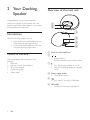
Overview of the main unit
Congratulations on your purchase, and
welcome to Philips! To fully benefit from the
support that Philips offers, register your product
at www.philips.com/welcome.
a
b
c
Introduction
d
With this docking speaker, you can
• enjoy audio from the iPod/iPhone, and
other external audio devices; and
• synchronize the iPod/iPhone with your
computer through USB socket.
What's in the box
Check and identify the contents of your
package:
• Main unit
• Remote control (with battery)
• AC power adaptor
• Quick start guide
• Safety sheet
e
f
a Dock for the iPod/iPhone
b
c
/
• Adjust volume.
• As LED indicators, show system status.
• Turn the docking speaker on or off.
• Switch the docking speaker to standby
mode.
d Power supply socket
• Connect AC power.
e
• Sync with PC through a USB cable.
f MP3-LINK
• Connect an external audio device.
5
EN
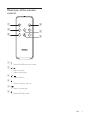
Overview of the remote
control
a
f
b
e
c
a
d
• Select iPod/iPhone dock mode.
b
/
• Skip to a track.
• Search within play.
c
/
• Adjust volume.
d
e
f
• Mute or restore volume.
• Start or pause play.
• Select MP3 link mode.
EN
6
3 Get started
Always follow the instructions in this chapter in
sequence.
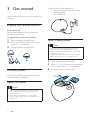
Connect the AC power adaptor to:
• the power socket at the back of the
docking speaker.
• the wall socket.
Prepare the remote control
For first-time use:
Remove the protective tab to activate the
remote control battery.
To replace the remote control battery:
1
2
3
Open the battery compartment.
Insert one CR2025 battery with correct
polarity (+/-) as indicated.
Close the battery compartment.
Option 2: Battery power
Caution
•• Risk of explosion! Keep batteries away from heat,
sunshine or fire. Never discard batteries in fire.
•• Batteries contain chemical substances, so they should
be disposed of properly.
•• Danger of explosion if battery is incorrectly replaced.
1
Replace only with the same or equivalent type.
2
3
Connect power
This docking speaker can be powered on by
either AC power or batteries.
Option 1: AC power
Caution
•• Risk of product damage! Make sure that the power
supply voltage matches the voltage printed on the
bottom of the unit.
•• Risk of electric shock! When you unplug the AC
adaptor, always pull the plug from the socket. Never
pull the cord.
7
EN
1
2
3
Open the battery compartment.
Insert 4 x 1.5 V AA batteries (not supplied)
with correct polarity (+/-) as indicated.
Close the battery compartment.
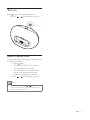
Turn on
Press to turn the docking speaker on.
»» The /
LED indicators light up.
Switch to standby mode
The docking speaker switches to standby mode
in following situations:
• Press again;
• The speaker is idle for 15 minutes
when powered by AC supply.
• The iPod/iPhone or external audio
device is disconnected when the
speaker is operated on batteries.
»» The /
LED indicators light off.
Note
•• In standby mode, if you press or
on the
remote control, the docking speaker switches to the
corresponding selected source.
EN
8
4Play
Play from iPod/iPhone
You can enjoy audio from your iPod/iPhone
through this docking speaker.
Compatible iPod/iPhone
The docking speaker supports the following
iPod and iPhone models:
Made for.
• iPod touch (1st, 2nd, 3rd, and 4th
generation)
• iPod classic
• iPod nano (1st, 2nd, 3rd, 4th, 5th, and 6th
generation)
• iPhone 4S
• iPhone 4
• iPhone 3GS
• iPhone 3G
• iPhone
2
3
4
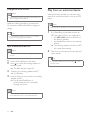
For first-time use, you will be asked to
install DockStudio app on your iPod/
iPhone.
Tap [Yes] (yes) to accept the installation
request.
Follow the on-screen instructions to
complete the installation.
Listen to the iPod/iPhone
Philips DockStudio app brings a suite of new
features to your docking speaker, including
Internet radio and a multi-function alarm clock.
To enjoy more features, you are recommended
to install this free application.
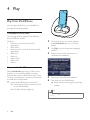
1
Insert the iPod/iPhone into the dock.
»» The docking system switches to Dock
source automatically.
»» The LED indicators light up.
5
6
Launch the app after the installation.
Play audio on your iPod/iPhone.
»» Audio comes out through this docking
speaker.
Tip
•• You can press on the remote control to select Dock
source.
9
EN
Note
•• With the DockStudio app, you can enjoy music, set
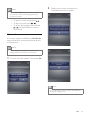
2
Follow the on-screen instructions to
complete the firmware update.
clock and alarm, adjust sound settings, and update
firmware if necessary.
• To pause or resume play, press
.
• To skip to a track, press / .
• To search during play, press and hold
/ , and then release to resume
normal play.
Update firmware
If firmware update is available, the DockStudio
app will search for it automatically and ask you
to download it.
Note
•• Make sure that your iPod/iPhone is inserted in the
docking speaker and connected to the Internet.
1
If a new firmware update is found, tap OK.
Note
•• Do not disconnect power or undock the iPod/iPhone
during the updating process.
EN
10
Charge the iPod/iPhone
Note
•• If the docking speaker is operated on the batteries, you
cannot charge your iPod/iPhone.
When the docking speaker is connected to
AC power, the docked iPod/iPhone begins to
charge.
Tip
Play from an external device
With this docking speaker, you can also enjoy
audio from an external device such as an MP3
player.
Note
•• Make sure that no iPod/iPhone is docked in the speaker.
1
•• For certain iPod models, it may take up to a minute
before the charging indication appears.
Sync iPod/iPhone with PC
Note
•• Make sure that iTunes has been configured properly in
2
If no iPod/iPhone is docked, connect an
MP3 link cable (3.5mm, not supplied) to:
• the MP3-LINK socket at the back of
the docking speaker.
• the headphone socket on an external
device.
»» The docking speaker switches to MP3
link mode automatically.
Play music on the device (see the device's
user manual).
your PC.
1
2
3
4
Tip
Insert the iPod/iPhone in the dock.
Press to switch the docking speaker to
standby mode.
»» The LED indicators light off.
Connect your docking speaker and PC
with a USB cable.
Launch iTunes to synchronize your docking
speaker with PC.
»» The docked iPod/iPhone is
synchronized with PC successfully
through the iTunes.
Note
•• Due to different materials and product techniques,
some USB cables may not work with this device. 11
EN
•• You can select MP3 link source by pressing
remote control.
on the
Adjust volume
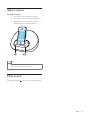
To adjust volume:
• Press +/- on the remote control;
• Press +/- on your docking speaker; or
• Adjust the volume control of your
iPod/iPhone or external device.
Tip
•• If the docking speaker is powered by batteries, the
volume is lower than that by AC supply.
Mute sound
During play, press
to mute or restore sound.
EN
12
5Specifications
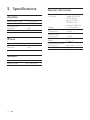
Power supply
- AC Power
Amplifier
Rated Output Power
Signal to Noise Ratio
Total Harmonic
Distortion
MP3 link
2 X 6 W RMS
>62 dBA
<1%
500 mV RMS
iPhone
Signal to Noise Ratio
Total Harmonic
Distortion
>62 dBA
<1%
Speakers
Speaker Impedance
Speaker Driver
13
EN
General information
4 ohm
2 X 2" full range
- Battery
Operation Power
Consumption
Standby Power
Consumption
Max. load for iPod/
iPhone
Dimensions: Main Unit
(W x H x D)
Weight: Main Unit
Model: AS190-090AE190 (Philips);
Input: 100-240 V ~,
50/60Hz, 0.7A;
Output: 9 V 1.9 A
4 x AA batteries
<10 W
<0.5 W
5V
1A
224 x 162 x 120 mm
1.1 kg
6Troubleshooting
Warning
•• Never remove the casing of this device.
To keep the warranty valid, never try to repair
the system yourself.
If you encounter problems when using this
device, check the following points before
requesting service. If the problem remains
unsolved, go to the Philips Web page
(www.philips.com/support). When you contact
Philips, make sure that the device is nearby
and the model number and serial number are
available.
No power
•• Make sure that the AC power adaptor of
the device is connected properly.
•• Make sure that there is power at the AC
outlet.
•• Make sure that the batteries have been
installed correctly.
No sound or poor sound
•• Adjust the volume of your docking speaker.
•• Adjust the volume of your iPod/iPhone or
external audio device.
No response from the unit
•• Disconnect and reconnect the AC power
plug, and then switch on the device again.
Cannot sync with PC
•• Switch the docking speaker to standby
mode.
•• Try another USB cable.
•• Install iTunes in PC properly.
EN
14
7Notice
Any changes or modifications made to this
device that are not expressly approved by
Philips Consumer Lifestyle may void the user’s
authority to operate the equipment.
This product complies with the radio
interference requirements of the European
Community.
Your product is designed and manufactured
with high quality materials and components,
which can be recycled and reused.
When this crossed-out wheeled bin symbol is
attached to a product it means that the product
is covered by the European Directive 2002/96/
EC.
Please inform yourself about the local separate
collection system for electrical and electronic
products.
Please act according to your local rules and
do not dispose of your old products with your
normal household waste. Correct disposal of
your old product helps to prevent potential
negative consequences for the environment and
human health.
Your product contains batteries covered by
the European Directive 2006/66/EC, which
cannot be disposed with normal household
waste.Please inform yourself about the local
rules on separate collection of batteries
15
EN
because correct disposal helps to prevent
negative consequences for the environmental
and human health.
Environmental information
All unnecessary packaging has been omitted.
We have tried to make the packaging easy to
separate into three materials: cardboard (box),
polystyrene foam (buffer) and polyethylene
(bags, protective foam sheet.)
Your system consists of materials which can
be recycled and reused if disassembled by
a specialized company. Please observe the
local regulations regarding the disposal of
packaging materials, exhausted batteries and old
equipment.
“Made for iPod” and “Made for iPhone”
mean that an electronic accessory has been
designed to connect specifically to iPod or
iPhone respectively, and has been certified by
the developer to meet Apple performance
standards. Apple is not responsible for the
operation of this device or its compliance with
safety and regulatory standards. Please note that
the use of this accessory with iPod or iPhone
may affect wireless performance.
iPod and iPhone are trademarks of Apple Inc.,
registered in the U.S. and other countries.
Note
•• The type plate is located on the bottom of the
apparatus.
Specifications are subject to change without notice
© 2012 Koninklijke Philips Electronics N.V.
All rights reserved.
DS3150_12_UM_V1.0