1
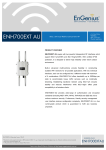
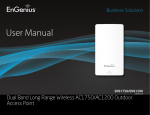
WIRELESS OUTDOOR
DUAL RADIO 802.11a/b/g/n ACCESS POINT
Model: ENH700EXT
User Manual
Version 1.0
Edition: 1.0
Version: 1.1.10
Table of Contents
About This Document ........................................................................................................................4
About EnGenius Technologies, Inc. .....................................................................................................4
Product Manual Formatting ...............................................................................................................4
Before You Start ................................................................................................................................4
1
2
3
Product Overview .......................................................................................................................5
1.1
Contents .................................................................................................................................. 5
1.2
Features and Benefits .............................................................................................................. 6
1.3
Environments .......................................................................................................................... 8
1.4
Hardware Overview ................................................................................................................ 9
1.5
System Requirements for Installation ..................................................................................... 9
Installation and Setup .................................................................................................................9
2.1
Installation Considerations .................................................................................................... 10
2.2
Assembling the ENH700EXT................................................................................................... 10
2.3
Configuring a TCP/IP connection on Windows® 7/Vista ........................................................ 12
2.4
Configuring a TCP/IP connection on Windows® XP ............................................................... 16
2.5
Configuring the TCP/IP connection on Apple® Macintosh OS X ............................................. 18
2.6
Logging onto the ENH700EXT ................................................................................................ 18
Wireless Network Modes .......................................................................................................... 18
3.1
Access Point Mode ................................................................................................................ 18
3.2
Client Bridge Mode ................................................................................................................ 19
3.3
WDS Mode ............................................................................................................................ 20
4
User Interface........................................................................................................................... 22
5
Status ....................................................................................................................................... 23
5.1
Save/Reload .......................................................................................................................... 23
5.2
Main (System Information) ................................................................................................... 23
5.3
2.4G Wireless Client List ........................................................................................................ 24
5.4
5G Wireless Client List ........................................................................................................... 24
1
5.5
6
7
System ..................................................................................................................................... 25
6.1
Operation Mode .................................................................................................................... 25
6.2
IP Settings.............................................................................................................................. 26
6.3
Spanning Tree Settings .......................................................................................................... 26
2.4G Wireless and 5G Wireless .................................................................................................. 27
7.1
Wireless Network .......................................................................................................... 29
7.1.2
SSID Profile .................................................................................................................... 30
7.1.3
Wireless MAC Filter ....................................................................................................... 30
7.1.4
Wireless Advanced Settings ........................................................................................... 32
Client Bridge .......................................................................................................................... 33
7.2.1
Wireless Network .......................................................................................................... 33
7.2.2
Wireless Advanced Settings ........................................................................................... 34
7.3
9
Access Point Mode ................................................................................................................ 28
7.1.1
7.2
8
System Log ............................................................................................................................ 24
WDS....................................................................................................................................... 36
7.3.1
WDS Station ................................................................................................................... 36
7.3.2
WDS Link Settings .......................................................................................................... 36
Wireless Security Settings ......................................................................................................... 38
8.1
WPA-PSK, WPA2-PSK, or WPA-PSK Mixed ............................................................................. 38
8.2
WPA, WPA2, or WPA Mixed .................................................................................................. 39
8.3
WEP ....................................................................................................................................... 40
Management ............................................................................................................................ 42
9.1
Administration ...................................................................................................................... 42
9.2
Management VLAN ............................................................................................................... 43
9.3
Wireless Traffic Shaping ........................................................................................................ 44
9.4
SNMP Settings ....................................................................................................................... 44
9.5
Backup / Restore Settings ..................................................................................................... 45
9.6
Auto Reboot Settings............................................................................................................. 45
9.7
Firmware Upgrade................................................................................................................. 46
9.8
Time Settings ......................................................................................................................... 47
9.9
Log ......................................................................................................................................... 48
9.10
Diagnostics ............................................................................................................................ 48
2
10
EnGenius Technologies Inc.: EZ ZoneController ...................................................................... 49
10.1
ZoneController Overview ...................................................................................................... 49
10.2
Features ................................................................................................................................ 49
10.3
Benefits ................................................................................................................................. 50
10.4
Compatible Devices ............................................................................................................... 51
10.5
System Requirements............................................................................................................ 51
Appendix A – Troubleshooting ......................................................................................................... 52
Appendix B – Contacting Technical Support ...................................................................................... 57
Appendix C – Glossary ...................................................................................................................... 58
Appendix D – Statements of Conformity ........................................................................................... 63
D.1 Federal Communication Commission Interference Statement ................................................... 63
D.2 Industry Canada Statement ........................................................................................................ 63
D.3 Europe Declaration of Conformity .............................................................................................. 64
3
About This Document
This document is written by EnGenius Technologies, Inc. EnGenius Technologies, Inc. reserves
the right to change this document without notice and all rights are reserved. This document is
written and edited for use of the configuration of the ENH700EXT by EnGenius Technologies,
Inc. Please read this document carefully before setting up the ENH700EXT. Any damage which is
caused by inappropriate use will not be covered under the warranty.
About EnGenius Technologies, Inc.
EnGenius Technologies, Inc. is an industry expert in wireless communications and radio
frequency (RF) technology. The company pioneered “Affordable Long-Range Wireless”
communication solutions, and creates wireless voice and data products for home, SOHO, and
SMB use that are versatile, feature-rich, business-class and affordable. Our complete line of
award-winning devices is designed to deliver long-range, fast speeds, robust security, and easeof-use. Established in 1999, EnGenius Technologies, Inc. is a wholly-owned subsidiary of Senao
Networks, a Taiwan RF communications company.
Product Manual Formatting
The following symbols are using in the ENH700EXT Product manual to highlight key items.
Caution: This symbol represents a vital message and is critical for the device
and/or its settings.
Note: This Symbol represents an important message of the settings.
Tip: This symbol represents an alternative choice that can save time or
resources.
Before You Start
The following equipment is required to setup the ENH700EXT:
• Computer Desktop or Laptop (Windows®, Macintosh®, or Linux-Based with Ethernet
Adaptor)
• CAT 5E or CAT 6 Ethernet Cables (QTY: 2)
• EnGenius Technologies, Inc. ENH700EXT
4
•
•
•
Ethernet crimping tool
Screw driver set
Refer to Chapter 2 for additional equipment that may be needed based on the network
infrastructure.
1 Product Overview
Thank you for purchasing the ENH700EXT. It is a powerful and enhanced Enterprise class
Dual-Band Wireless-N Access Point product with 4 multi-functions: Access Point, Client Bridge,
WDS (AP & Bridge), and Client Router.
The EnGenius Technologies, Inc. ENH700EXT uses the latest IEEE802.11 standard,
802.11n, which allows for faster wireless throughput. The ENH700EXT affords a great
advantage to minimize the time and cost required to expand an existing business network. It
operates in both 2.4 GHz and 5 GHz frequency spectrums and is also backwards compatible
with legacy 802.11a/b/g networking equipment.
The ENH700EXT is easy to install in virtually any locations with its included PoE (Power
over Ethernet) injector for quick outdoor installation. In addition, the ENH700EXT enables
network administrators to control its transmit power and features settings for selecting narrow
bandwidth and traffic shaping. The ENH700EXT supports wireless encryption including Wi-Fi
Protected Access (WPA-PSK/WPA2-PSK), [64/128/152]-bit WEP Encryption, and IEEE 802.1x
with RADIUS. Additionally, the ENH700EXT can be paired with other EnGenius Technologies, Inc.
Outdoor Wireless Access Point and Bridge products in Access Point – Client Bridge or WDS
Bridge – WDS Bridge deployments.
Damage may occur if installing with another PoE adaptor that is not provided
with the ENH700EXT.
1.1 Contents
Open the ENH700EXT Wireless Access Point / Client Bridge package to ensure that all the
following contents are present:
• EnGenius Technologies, Inc. ENH700EXT Wireless Access Point / Client Bridge
• 48V/380mA Power Adaptor
• PoE (Power Over Ethernet) Injector (EPE-48GR)
• 2.4 GHz 5dBi Onmi Antenna (x 2) and 5 GHz 5dBi Onmi Antenna (x 2)
• Mounting Kit with Bracket-Mount Special Screw Set
5
•
•
•
Mounting Installation Guide
ENH700EXT Quick Installation Guide
ENH700EXT Product CD - includes EZ Controller Access Point Management Software
and ENH700EXT User Manual in Adobe Acrobat PDF)
Do not discard the packing materials in case of a return. The unit must be shipped in its original
packaging for a valid return. If any of the contents are missing, please contact your reseller.
Using a power adaptor other than the one included with the ENH700EXT may
cause damage to the device and void the product warranty.
1.2 Features and Benefits
Dual Mode
Separate Mode
Access Point Mode
Client Bridge Mode
Client Router Mode
WDS AP
WDS Station mode
WDS Bridge mode
Simultaneously transmits wireless signals in both the 2.4GHz and
5GHz frequency spectrums. This expands the number of wireless
client devices that can access the network.
Each one of the two radio having its own operation mode. This
increase more options to have a flexible wireless network design.
The most typically used operation mode for the ENH700EXT. In
Access Point mode, the ENH700EXT will allow wireless devices
access to transmit and receive data from ENH700EXT
In this mode, the ENH700EXT can connect to another Access
Point to extend the range of the wireless network.
In this mode, the ENH700EXT can be used as a Client Bridge but
with support for a WAN type of Internet connection. This is
rarely used in commercial environment.
With this mode selected, the device can pair with other devices
with either WDS AP mode or WDS STA mode. When connected
with other ENH700EXT with WDS AP, the device acts as AP plus
WDS bridge, therefore repeater function is available while with
significant performance cut; When paring WDS AP to WDS STA to
other devices (point-to-multipoints), transparent bridging is
supported.
WDS Station (STA) pairs with WDS AP mode. see above
In the WDS Bridge Mode, the ENH500 can wirelessly connect
different local area networks by configuring each device’s MAC
address and security settings. WDS Bridge mode provide
transparent bridging function. unlike Access Point Mode. APs
linked by WDS are using the same wireless channel, and
connecting excessive numbers of APs on the same channel may
result in lower throughput. Please be aware to avoid loop
connections; otherwise enable the Spanning Tree Function.
6
Multiple SSIDs
WMM
Wi-Fi Protected Access
High Speed Data Rate
(Up to 300 Mbps)
High Output Power
(Up to 27 dBm)
IEEE 802.11 a/b/g/n
Compliant
MAC Address filtering in
Access Point mode
Support RSSI Indicator in
Client Bridge mode
Power-Over-Ethernet
IP 68
The ENH700EXT supports up to 16 SSIDs (Service Set Identifiers)
in Access Point mode (8 SSIDs per frequency band). The following
options can be set to each SSID:
• SSID for public or private network
• Each SSID can be suppressed
• Authentication is fully supported
• VLAN Identifier
This feature provide QoS (Quality of service) for prioritizing
multimedia traffic.
Wi-Fi Protected Access is a standards-based interoperable
security enhancement that increases the level of data protection
and access control for existing and future Wireless LAN systems.
It is compatible with the IEEE802.11i standard WPA that
leverages TKIP and 802.1x for authenticated key management.
As specified in the IEEE802.11n standard; capable of handling
heavy data payloads such as HD Video Streaming.
Designed to extend range and maximize signal coverage area.
Fully interoperable with IEEE 802.11 a/b/g/n compliant devices.
Allows network administrators to grant network access only to
computers and other devices based on their known MAC (Media
Access Control) addresses
Enables device installer to select the best signal when aiming to
Access Points therefore to have proper installation
Enables installers to connect the ENH700EXT to a switch via
Ethernet in locations where a power outlet may be unavailable.
(NOTE: The ENH700EXT includes the proprietary PoE Adaptor,
EPE-48GR).
The ENH700EXT'S housing is rated with IP68, which is highest IP
rating with total water and dust proof. so it to be placed on a
building’s exterior for maximum range and coverage and allows
it to operate in the extremely harsh environmental conditions.
7
1.3 A Cost-Effective Wireless Solution to Extend and Expand an Existing Network
The following list describes the solutions that the ENH700EXT offers as a flexible, robust and
powerful Outdoor Access Point or Bridge:
•
•
•
•
•
Difficult-to-Wire Environments - In outdoor environments sometimes extending a
network by laying Ethernet or fiber cabling is either cost prohibitive or physically not
possible. The ENH700EXT, enables the extension of an existing company network via the
propagation of a wireless signal rather than cable as a much more cost-effective
alternative.
Temporary Workgroups – Creating a wired network infrastructure for a temporary
outdoor worksite/workgroup or special event venue may not be a cost- or time-efficient
solution and may present deployment issues if trenches for cabling cannot be dug in
existing landscaping. The ENH700EXT enables companies, in a matter of minutes, to
create an outdoor wireless network that can provide Internet access (based on an
existing broadband connection) or access to the company’s networked resources like
printers, hard drives and databases.
Wireless Extensions of Ethernet Networks – The range of a wired network is typically
limited within the confines of a single building. In situations where there are multiple
buildings on a campus or another company building very remote from the main building
then a Wireless Access Point or Bridge deployment using the ENH700EXT provides a
very cost-effective way to cover large outdoor areas around a company office or even
connect to other company buildings.
Expanding User Capacity and Connectivity To Additional Devices – The ENH700EXT is
designed specifically to extend and expand existing company networks. Its high transmit
power capability and enhanced receive sensitivity results in the ability for a company to
connect to more employees, company guests or other wireless clients. The
ENH700EXT’s additional 5GHz frequency radio can be act as a separate AP or bridge to
either provide 5GHz wireless access to 5GHz clients; Or connect to other 5GHz devices
to provide backhaul service.
Redundancy – In situations where a portion of an existing wired network may fail, the
ENH700EXT offers a measure of stability and redundancy to other employees can
continue to communicate with one another or access mission critical databases.
8
1.4 Hardware Overview
Physical Interface
Maximum Wireless Data Rate
Antennas
10/100/1000 LAN Port with (48v Proprietary) PoE Support
300Mbps + 300Mbps
2.4 GHz – 5dBi Omni directional antenna x2
5 GHz – 5dBi Omni directional antenna x2
1.5 System Requirements for Installation
The minimum requirements for settings up the ENH700EXT are:
• A computer with an Ethernet interface and a Windows
(XP, Vista, 7), Mac OSX, or Linux based Operating
System.
• An Internet browser the supports HTTP and JavaScript.
2 Installation and Setup
This chapter will describe how to assemble and set up the ENH700EXT. It will also cover where
to place the ENH700EXT to allow for maximum range and signal.
9
Only experienced installation professionals who are familiar with outdoor
wireless network should attempt to install the ENH700EXT.
2.1 Installation Considerations
There are many considerations on where to place the ENH700EXT. The followings are the main
considerations on where to mount the device. The first consideration is available line of sight to
the area or building that you wish to provide wireless network connectivity. Other buildings,
mountains, hills, trees, thick brush can all attenuate the or inhibit the wireless signal.
The second consideration is distance. You should calculate the EIRP (Effective Isotropic
Radiated Power) correctly to properly configure the ENH700EXT using this calculation for the
distance you intend to build the wireless link (see Glossary at the end of this manual for the
EIRP formula). Don't place multiple ENH700EXT’s too far away from one another since the AP
uses default Omni directional (not directional) antennas. If you plan to have a longer range
connection, you can consider identically-matching directional antennas to connect to the
ENH700EXT on both transmit and receiving ends.
2.2 Assembling the ENH700EXT
Carefully remove the ENH700EXT unit, the Omni 5dBi and 2.4dBi Antennas(two each), EPE48GR PoE Injector, and power adaptor. As mentioned earlier in this Manual, the Ethernet cables
are required and not provided within the ENH700EXT package.
1. Install all 4 antennas onto the ENH700EXT by screwing them toward the ENH700EXT
until the threads on the screw are not visible.
2.
Ensure that all antennas screw on straight. Failure to do so may
damage the ENH700EXT antenna connectors
3. Insert a shielded Ethernet cable into the RJ-45 port on the ENH700EXT. You need to
consider the length of this cable based on the distance from where the PoE injector is
which in a weather protected place such as indoor or a water tight box to the
ENH700EXT. Use high quality cable is highly recommended.
4. Insert the other end of the Ethernet cable to the EPE-48GR PoE Injector on the port
labeled AP/Bridge.
5. Take a second Ethernet cable and connect it to the Network port of the EPE-48GR PoE
Injector.
10
6. Insert the other end of the second Ethernet cable into the Ethernet controller of the
computer system in which the ENH700EXT will be set up.
7. Plug the power cord of the power adapter into the EPE-48GR port labeled DC IN.
8. Plug the power adaptor into the power outlet.
The ENH700EXT provides a proprietary PoE adapter. Please only use the
supplied PoE adapter and its power adapter.
11
2.3 Configuring a TCP/IP connection on Windows® 7/Vista
Use the following procedure to configure a computer running Microsoft® Windows 7.
1. In the Start menu search box, type: ncpa.cpl
2.
When the Network Connections List appears, right-click the Local Area Connection icon and
click Properties.
12
3.
In the Networking tab, click Internet Protocol Version 4 (TCP/IPv4), and then click Properties.
4.
In the properties dialog box, click Use the following IP address: to configure your
computer for Static TCP/IP. Enter an IP address (i.e. 192.168.1.10), the subnet mask of the
ENH700EXT, and the default gateway which is the ENH700EXT’s IP address, 192.168.1.1. Note:
the subnet mask must match that of the ENH700EXT and the IP address must be on that subnet.
5.
Click the OK button to save your changes and close the dialog box.
6.
Click the OK button again to save your changes.
Configuring Microsoft® Windows Vista
Use the following procedure to configure a computer running Microsoft® Windows Vista with
the default Windows interface.
1.
On the Windows taskbar, click Start, click Control Panel, and then select the Network
and Internet icon.
2.
Click View Network Status and tasks and then click Manage Networks Connections.
3.
Right-click the Local Area Connection icon and click Properties.
4.
Click Continue. The Local Area Connection Properties dialog box appears.
13
5.
In the Local Area Connection Properties dialog box, verify that Internet Protocol
(TCP/IPv4) is checked. Then select Internet Protocol (TCP/IPv4) and click the Properties button.
The Internet Protocol Version 4 Properties dialog box appears.
6.
In the properties dialog box, click Use the following IP address: to configure your
computer for Static TCP/IP. Enter an IP address (i.e. 192.168.1.10), the subnet mask of the
ENH700EXT, and the default gateway which is the ENH700EXT’s IP address, 192.168.1.1. Note:
the subnet mask must match that of the ENH700EXT and the IP address must be on that subnet.
14
7.
8.
Click the OK button to save your changes and close the dialog box.
Click the OK button again to save your changes.
15
2.4 Configuring a TCP/IP connection on Windows® XP
Use the following procedure to configure a computer running Microsoft® Windows XP with the
default Windows interface.
1. On the Windows taskbar, click Start, click Control Panel, and then click Network and
Internet Connections.
2. Click the Network Connections icon.
3. Click Local Area Connection for the Ethernet adapter connected to the ENH700EXT. The
Local Area Connection Status dialog box appears.
4. In the Local Area Connection Status dialog box, click the Properties button. The Local Area
Connection Properties dialog box appears.
5.
In the Local Area Connection Properties dialog box, verify that Internet Protocol (TCP/IP)
is checked. Then select Internet Protocol (TCP/IP) and click the Properties button. The Internet
Protocol (TCP/IP) Properties dialog box appears.
6.
In the properties dialog box, click Use the following IP address: to configure your
computer for Static TCP/IP. Enter an IP address (i.e. 192.168.1.10), the subnet mask of the
ENH700EXT, and the default gateway which is the ENH700EXT’s IP address, 192.168.1.1. Note:
the subnet mask must match that of the ENH700EXT and the IP address must be on that subnet.
7.
Click the OK button to save your changes and close the dialog box.
16
8.
Click the OK button again to save your changes.
2.4.1 Configuring Apple® Mac OS X
The following procedure describes how to configure TCP/IP on an Apple® Macintosh running
Mac OS X 10.2 or later. Note: The menu titles and placement vary in each OS X (10.x) operating
system but are similar.
Pull down the Apple Menu, click System Preferences, and select Network.
Verify that the NIC connected to the ENH700EXT is selected in the Show field.
In the Configure field on the TCP/IP tab, select Manually.
Click Apply Now to apply your settings and close the TCP/IP dialog box.
Enter an IP address (i.e. 192.168.1.10), the subnet mask of the ENH700EXT, and the Router
which is the ENH700EXT’s IP address, 192.168.1.1. Note: the subnet mask must match that
of the ENH700EXT and the IP address must be on that subnet.
6. Click Apply Now to apply your settings and close the TCP/IP dialog box.
1.
2.
3.
4.
5.
In Step 2, if the Configure IPv4 menu list isn’t available, select Advanced. In the
TCP/IP tab, you will be able to enter the information in Step 4.
17
2.5 Logging onto the ENH700EXT
After completing the TCP/IP settings from the beginning of the Chapter, you can now access the webbased configuration menu.
1.
Open your web browser.
2.
Enter IP 192.168.1.1 into your address bar.
The default username of the ENH700EXT is admin. The default password of the
ENH700EXT is admin. If you have changed the ENH700EXT LAN IP address,
make sure to enter the correct IP Address.
3 Wireless Network Modes
This chapter will explain the different operation modes that the ENH700EXT has to offer. This
will help in determining how you would like to set up the ENH700EXT for the proper mode for
your specific networking needs in the later chapters of the User Manual.
The three native operation modes of the ENH700EXT are Access Point, Client Bridge, and WDS
(WDS AP, WDS STA, WDS Bridge). Both Radio 1 and Radio 2 support these modes.
3.1 Access Point Mode (AP mode)
Access Point Mode is the most typically used mode for the ENH700EXT. In Access Point mode,
the ENH700EXT extends an existing network by providing signal coverage outside of a building
creating a Wireless LAN enabling employees or company guest to access the company network
and the company’s broadband Internet connection as designated and authorized by the
network administrator. Stations and clients must utilize the same SSID and Security Password
to associate while within range of the wireless signal.
18
3.2 Client Bridge Mode
In the Client Bridge mode, the ENH700EXT functions like a wireless network adaptor. This
allows the ENH700EXT to share the acquired wireless network access (via another device in
Access Point mode) with wired devices connected via Ethernet to it (typically via a networked
switch).
19
3.3 WDS Mode
In WDS (Wireless Distribution System) mode, the ENH700EXT connects multiple networks
wirelessly without being just an Access Point. It maximizes range of service but at a loss of
throughput speeds.
1) WDS with Access Point – Expands the WDS through the use of Access Points. Clients can
connect to the device as a normal Access Point.
2) WDS Station – Expands the WDS by receiving a wireless signal/service and sharing
through the Ethernet port.
ENH700EXT with WDS AP and WDS STA (Station) modes example
20
3) WDS with Bridge – Expands the Wireless Distribution System through the use of wireless
bridges. Clients won’t connect to the device as a bridge
ENH700EXT with WDSAP and WDS Bridge mode as backhaul example
WDS Bridge Mode
In the WDS Bridge mode, the ENH700EXT can wirelessly connect different LANs (Local Area
Networks) by applying a device’s MAC address to its associated security settings as prescribed
by the network administrator. WDS Bridge mode can bridge up to four local wired networks
together as one logical network. Every computer on this logical network can see each other,
sharing files as if they are in the same location. With high output power and MIMO antenna
technology, the connection distance can extend beyond 1000 feet with great performance,
assuming the antennae are within line of sight. The WDS bridge network is a MAC-based
network that provides transparent bridging
21
4 User Interface
Once logged into the ENH700EXT, the home screen will appear.
1
3
4
5
2
1. The operation mode of the ENH700EXT will be displayed. The current 2.4GHz operation
mode will be displayed first followed by the current 5GHz operation mode.
2. The main menu of the ENH700EXT will contain all the configuration options and settings.
3. The current configuration menu will be displayed in this section of the user interface.
4. Selecting the Home button will bring the user interface back to the main status page.
5. The Reset button will prompt you with a couple of system commands:
a. Reboot the Device – This selection will allow restart the ENH700EXT.
b. Restore to Factory Defaults – This selection will restore all the default settings of
the ENH700EXT to the base factory settings.
22
5 Status
5.1 Save/Reload
When making any changes to ENH700EXT, it will be placed in the Save / Reload option of the
Status section.
No changes made in the proceeding chapters of this manual will take effect
until Save & Apply is selected. Selecting Revert will erase any changes made.
5.2 Main (System Information)
The Main option of the Status section of the user interface menu contains the information and
status of the ENH700EXT. The device current status information includes four section:
1) System Information – This sections displays general information of the ENH700EXT such
as the device name, firmware version, and the MAC addresses associated with different
Wireless Bands and SSIDs.
2) LAN Settings – This section displays the LAN settings, such as the IP Address, subnet
mask, default gateway and Spanning Tree Protocol, of the ENH700EXT.
3) Current 2.4G Wireless Settings – This sections displays the current operation mode of
the 2.4 GHz wireless radio and the various settings associated with it.
4) Current 5G Wireless Settings – This sections displays the current mode of the 5 GHz
wireless radio and the various settings associated with it.
23
5.3 2.4GHz Wireless Client List
The 2.4GHz Wireless Client List option of the Status section of the user interface menu displays
all the clients connected to the 2.4GHz operation of the ENH700EXT.
5.4 5GHz Wireless Client List
The 5GHz Wireless Client List option of the Status section of the user interface menu displays
all the clients connected to the 2.4GHz operation of the ENH700EXT.
5.5 System Log
The System Log option of the Status section displays all actions and events taking place in the
ENH700EXT. Older entries are deleted for newer entries. This option is used to help users debug
the ENH700EXT.
24
6 System
The System section of the user interface menu allows the user to change of the operation
modes of both the 2.4GHz and 5GHz radios as well as set up the Spanning Tree settings
between multiple ENH700EXT units.
No changes made in the System section of the ENH700EXT will be in effect until
Save & Apply is selected in the Save/Reload option of the Status section.
Selecting Accept or Save in the System section will not reconfigure the router.
6.1 Operation Mode
In Operation Mode, the user will select how each wireless band will operate.
Device Name
Country / Region
Operation Mode
The name associated with the ENH700EXT on the wireless
network or to other network devices.
Select the country in which the ENH700EXT will operate in.
Select the operation mode for both the 2.4GHz wireless band
and the 5GHz wireless band. When WDS mode is selected,
the type of WDS must be specified by selecting Access Point,
Bridge, or WDS Station.
25
6.2 IP Settings
The IP Settings option of the System section allows the user to configure the IP settings.
1) IP Network Settings – The user can select whether the ENH700EXT will obtain the IP
Settings automatically from the network or if the information will be inputted manually.
2) IP Address – Specify the default IP Address that the ENH700EXT will be accessed by.
3) IP Subnet Mask – Specify the Subnet Mask of the ENH700EXT.
4) Default Gateway – Specify the default gateway of the ENH700EXT.
5) Primary DNS - Specify the Primary DNS of the ENH700EXT.
When changing the IP Address or Default Gateway, the IP Address used to
access the ENH700EXT when logging in will change.
6.3 Spanning Tree Settings
The Spanning Tree Settings option of the System section allows the user to configure the
spanning tree settings of the ENH700EXT.
Setting up a Spanning Tree for large networks when using Client Bridge Mode
or WDS Bridge can improve throughput. Spanning trees ensure that data will
never pass through the same node when going from point A to point B.
26
Spanning Tree Status
Bridge Hello Time
Bridge Max Age
Bridge Forward Delay
Priority
Enable the use of Spanning Tree on the ENH700EXT.
The amount of time before the connections times out.
The maximum amount of time the connection between
nodes will last.
The amount of time to elapse before data is forwarded.
The priority of the device in the spanning tree.
7 2.4GHz Wireless and 5GHz Wireless
In both the 2.4GHz Wireless and 5GHz Wireless sections, the user will be able to configure
operation mode settings the 2.4GHz or the 5GHz radio respectively. The settings that will be
available to change is dependent on the selections chosen in Operation Mode (Chapter 6.1 Page 13) option in the System section of the user interface menu. For more information about
the modes of operation, refer to Chapter 3 (Page 10).
ENH700EXT can only operate a Client Bridge (WDS or not) or WDS Station on a
single band. It cannot operate bridges or stations concurrently on both 2.4GHz
or 5GHz.
The changes made in the 2.4GHz Wireless or 5GHz Wireless sections of the
ENH700EXT won’t be in effect until Save & Apply is selected in the Save/Reload
option of the Status section. Selecting Accept or Save in the 2.4GHz Wireless or
5GHz Wireless sections will not reconfigure the device.
27
7.1 Access Point Mode
When Access Point is the selected mode of operation for either the 2.4GHz or 5GHz bands,
three options will be available to configure. The three options that can be configured are
Wireless Network, Wireless MAC Filter, and Wireless Advanced Settings.
Access Point configuration
Step 1
Login to the web-based configuration interface with default IP 192.168.1.1
Step 2
Select your country or region’s regulation.
Step 3
Use site survey to scan channels of the nearby area.
Step 4
Select a channel with less interference.
Step 5
Specify the SSID for your broadcast SSID and you can also configure multiple SSID
at the same time.
Step 6
Verify VLAN identifier in order to separate services among clients
Step 7
Setup the authentication settings.
Step 8
Select Apply to process all of the configurations.
ENH700EXT Access Point to Client Bridge mode setting diagram
28
7.1.1 Wireless Network
Wireless Mode
Channel HT Mode
Extension Channel
Channel / Frequency
AP Detection
Current Profiles
Select the wireless mode that the current band of operation
will use. The options are:
1) 802.11 b/g/n Mixed
2) 802.11 b
3) 802.11 b/g Mixed
4) 802.11 g
5) 802.11 n only
Select the channel bandwidth of the antennas. The larger the
channel used, the throughput will be much better. Using a
lower channel, will increase the distance and stability of the
signal.
If the Channel HT Mode was set to 40Hz, the Channel
Frequency can be set if Auto is not selected. The Upper
Channel is associated with frequency channels 1-7, while the
Lower Channel is associated with channels 5-11.
Select the specific channel / frequency the ENH700EXT will
operate in for the corresponding band. This option is only
available if Auto is not selected.
To help select a specific channel / frequency to use, the
ENH700EXT can scan all the wireless access points in the area
to help select the optimal settings.
The ENH700EXT can operate up to total 16 SSIDs
29
concurrently in Access Point mode (8 SSIDs per Radio). Each
SSID will have associated settings that can be edited by
pressing the Edit button. For an SSID to be active and
discoverable, the checkbox associated to the SSID must be
marked.
7.1.2 SSID Profile
SSID
Suppressed SSID
Station Separation
Security Mode
The SSID is the identifier (name) of the Access Point.
By checking the Suppressed SSID so clients scan for access
point will not see the SSID of ENH700EXT
When enabled, clients will not be able to communicate with
other devices connected via Access Point within the
ENH700EXT.
Set the security options for the Access Point. For more
information on Wireless security, refer to Chapter 8 (Page
23).
7.1.3 Wireless MAC Filter
ACL Mode
Add
#
Select whether the MAC Addresses listed will be the only
clients granted access or denied service in the Access Point.
Enter the MAC Address of the device to be added to the
filtering list. Once entered, press Add.
The number on the list associated with the client MAC
address.
30
MAC Address
The MAC Address of the client.
31
7.1.4 Wireless Advanced Settings
Data Rate
Transmit Power
RTS / CTS Threshold (1-2346)
Distance (1-30km)
Aggregation
The Data Rate of the ENH700EXT affects the throughput of
data transfer. A higher data rate selected will have a faster
throughput. Lower will increase the distance in which the
signal will reach.
The transmit power will allow the ENH700EXT to extend the
area of coverage. However, when increasing it too much, the
wireless connection may be unstable.
The number on the list associated with the client MAC
address. This option affects the size of the packets that will
be passed along to transmit data. Smaller thresholds will
result in more transmissions of data.
Specify the distance between the access points and clients.
Further distances will result in lower connection speeds.
Aggregation allows packets to be sent together to lower the
amount of transmissions.
32
7.2 Client Bridge
When Client Bridge is the selected mode of operation for either the 2.4GHz or 5GHz bands, two
options will be available to configure. The two options that can be configured are Wireless
Network and Wireless Advanced Settings.
7.2.1 Wireless Network
Wireless Mode
SSID
Preferred BSSID
Security Mode
Select the wireless mode that the current band of operation
will use. The options are:
1) 802.11 b/g/n Mixed
2) 802.11 b
3) 802.11 b/g Mixed
4) 802.11 g
5) 802.11 n only
In Specify the static SSID, enter the name of the Access Point
the client will connect to. This area is automatically filled out
if an access point in Site Survey is selected.
Specify the MAC address of the Access Point the client will
connect to. This section will be filled if an access point in Site
Survey is selected.
Set the security options for the client bridge. For more
information on Wireless Security, refer to Chapter 8 (Page
23).
33
7.2.2 Wireless Advanced Settings
Data Rate
Transmit Power
RTS / CTS Threshold (1-2346)
Distance (1-30km)
Aggregation
The Data Rate of the ENH700EXT affects the throughput of
data transfer. A higher data rate selected will have a faster
throughput. Lower will increase the distance in which the
signal will reach.
The transmit power will allow the ENH700EXT to extend the
area of coverage. However, when increasing it too much, the
wireless connection may be unstable.
The number on the list associated with the client MAC
address. This option affects the size of the packets that will
be passed along to transmit data. Smaller thresholds will
result in more transmissions of data.
Specify the distance between the access points and clients.
Further distances will result in lower connection speeds.
Please note, the distance setting allows you to control to ACK
timing, it is not a tool for you to measure distance.
Aggregation allows packets to be sent together to lower the
amount of transmissions.
No changes made in the System section of the ENH700EXT will be in effect until
Save & Apply is selected in the Save/Reload option of the Status section.
Selecting Accept or Save in the System section will not reconfigure the router.
Changing Wireless Advanced Settings may lower the wireless connection
quality. Please keep all settings as default unless you understand the
modifications which you have made
34
Client Bridge Configuration
Step 1
Login to the web-based configuration interface with the default IP: 192.168.1.1
Step 2
Select your country or region’s regulation.
Step 3
Select Operation Mode to Client Bridge from System Properties.
Step 4
Use site survey to scan channels of the nearby area.
Step 5
Select the AP that you would like to associate with.
Step 6
Setup the authentication settings that match to the Access Point’s settings.
Step 7
Select Apply to process all of the configurations.
The Client-Bridge’s IP settings must match the Access Point’s settings to be on the
same subnet.
ENH700EXT Access point to Client Bridge mode setting diagram
35
7.3 WDS Mode
When a WDS mode is selected, WDS Access Point is set up the same as Access Point mode and
WDS Bridge is set up the same as Client Bridge mode. The only difference is WDS Link Settings.
The WDS Link Settings is used to setup a connection between access points without limiting or
removing functionality. Wireless Distributed Systems are used to greatly increase coverage and
allow different LANs to communicate with each other.
7.3.1 WDS Station
Another mode of operation of the ENH700EXT is WDS Station. In WDS Station, the ENH700EXT
will be used as the central location of the WDS. To setup the Wireless Network and Wireless
Advanced Settings for the WDS, refer to Chapter 7.2 (Page 19).
7.3.2 WDS Link Settings
Security
WEP Key
AES Passphrase
MAC Address
Set the security options for the WDS Link Settings. For more
information on Wireless security, refer to Chapter 8 (Page
23).
Enter the WEP Key to be used.
Enter the AES Passphrase (password) to be used.
Specify the distance between the access points and clients.
Further distances will result in lower connection speeds.
36
WDS Bridge Configuration
Step 1
Login to the web-based configuration interface with default IP 192.168.1.1
Step 2
Select your country or region’s regulation.
Step 3
Change Operation Mode to WDS Bridge under System Properties.
Step 4
Set the device’s IP settings under System -> IP Settings
Step 5
Set the WLAN settings under Wireless Network.
Step 6
Configure WDS Link Settings under Wireless.
Step 7
Specify the MAC address of the bridge(s) which you would like to connect with.
Step 8
Press Apply under Save / Reload to process all of the configurations.
Step 9
Verify the device’s settings by browsing to Status -> Main. View the WDS link status.
* Each WDS bridge device must use the same Subnet, Wireless Mode, Wireless Channel, and
Security Setting.
* With the MAC secured based WDS bridge network, only WEP encryption is available
ENH700EXT multiple buildings bridged network (WDS)
37
8 Wireless Security Settings
Wirelessly securing the Wireless network is essential to ensuring a safe and secure network for
all the clients. The recommended security setting for wireless LANs is WPA2-PSK, however, the
ENH700EXT allows the usage of WEP, WPA-PSK, WPA-PSK Mixed, WPA, WPA2, and WPA Mixed.
No changes made in the System section of the ENH700EXT be in effect until
Save & Apply is selected in the Save/Reload option of the Status section.
Selecting Accept or Save in the System section will not reconfigure the router.
8.1 WPA-PSK, WPA2-PSK, or WPA-PSK Mixed
Using WPA-PSK, WPA2-PSK, or WPA-PSK Mixed security allows for the most common data
encryption. Using a Wi-Fi Protected Access security protocol with a Pre-Shared Key allows for
both maximum security and ease of use. WPA2 is the newer security protocol of WPA, but
setting up WPA in Mixed mode allows all clients with WPA access to use the wireless network.
Security Mode
Encryption
Passphrase
Group Key Update Interval
Select WPA-PSK, WPA2-PSK, or WPA-PSK Mixed.
Select whether TKIP, AES, or both encryptions will be used.
Enter the password used for the current SSID.
Enter the amount of time (in seconds) for the Group Key to
update.
38
When using TKIP, 802.11g will be selected by default.
8.2 WPA, WPA2, or WPA Mixed
When selecting one of the various modes of WPA encryption without a Pre-Shared Key,
authentication can be determined through RADIUS (Remote Authentication Dial in User
Service).
Security Mode
Encryption
RADIUS Server
RADIUS Port
RADIUS Secret
Group Key Update Interval
Select WPA, WPA2, or WPA Mixed.
Select whether TKIP, AES, or both encryptions will be used.
Enter the IP Address of the RADIUS server.
Enter the RADIUS port that will be used (Port 1812 is default).
Enter the password in which the RADIUS server will use.
Enter the amount of time (in seconds) for the Group Key to
39
RADIUS Accounting Server
RADIUS Accounting Port
RADIUS Accounting Secret
Interim Accounting Interval
update.
Enter the IP address of the Accounting server.
Enter the accounting port that will be used (Port 1813 is
default).
Enter the password in which the RADIUS Accounting will use.
The interval in which the accounting will change.
Example diagram of ENH700EXT supports 802.1x with
RADIUS server (sample encryption: WPA2 AES)
8.3 WEP
When using WEP encryption, the security protocol used on the wireless network uses the same
principles used in a secure wired network.
40
Security Mode
Auth Type
Input Type
Key Length
Default Key
Key[1-4]
Select WEP.
Select the type of authentication to be used in the WEP mode
of encryption.
Select the character type to be used in the WEP key.
Select the length of the WEP key based on bit length.
Select which of the 4 keys to use as the WEP key.
Enter the WEP key to be used.
Hexadecimal characters are 0-9 and A-F.
ASCII characters are the equivalent to the English alphanumeric characters and
the common non-printable characters such as backspace.
The IEEE 802.11n standard does not include WEP/WPA-PSK/WPA-PSK TKIP
security mode. To comply with the standard, when you use the above
encryptions, the wireless transmit mode will drop from 802.11n to 802.11g.
41
9 Management
The Management portion of the ENH700EXT allows the user to change some generic system
settings.
No changes made in the Management section of the ENH700EXT be in effect
until Save & Apply is selected in the Save/Reload option of the Status section.
Selecting Accept or Save in the Management section will not reconfigure the
device.
9.1 Administration
In the Administration option of the Management section of the user interface, users change
the username and password of the ENH700EXT. The default username is admin and the default
password is admin.
New Name
Old Password
New Password
Confirm Password
Enter the username used to login to the ENH700EXT.
Enter the current password of the ENH700EXT.
Enter the password that will become the new password for
the ENH700EXT.
Reenter the password that will become the new password
for the ENH700EXT.
42
9.2 Management VLAN
In the Management VLAN option in the Management section allows users to assign a VLAN tag
to packets being transmitted in the ENH700EXT. Clients on a VLAN normally act if they were on
a separate LAN.
2.4GHz Current Profiles
5GHz Current Profiles
Management VLAN ID
The user can change the VID of the 2.4GHz Access Points that
have been set up as well as enable or disable them.
The user can change the VID of the 2.4GHz Access Points that
have been set up as well as enable or disable them.
If the network includes VLANs and if tagged packets need to
pass through the Access Point, specify the VLAN ID in this
field. If not, select the No VLAN tag radio button.
43
9.3 Wireless Traffic Shaping
Enable Traffic Shaping
Incoming Traffic Limit
Outgoing Traffic Limit
The user can select whether or traffic shaping is enabled or
not.
Specify the maximum rate of incoming traffic speed.
Specify the maximum rate of outgoing traffic speed.
9.4 SNMP Settings
The SNMP Settings controls the how data is sent to the SNMP-compatible clients.
SNMP
Contact
Location
Community Name (Read Only)
Community Name
(Read/Write)
Trap Destination Address
Trap Destination Community
Name
The user can select whether SNMP is enabled or not.
Specify the contact details of the device.
Specify the location of the device.
Specify the password for access by the SNMP community for
read only access.
Specify the password for access by the SNMP community for
read and write access.
Specify the IP address that receives the SNMP trap.
Specify the password of the SNMP trap community.
44
9.5 Backup / Restore Settings
In the Backup / Restore Settings option of the Management section allows the users to save
the configurations of the ENH700EXT into a file as backup to later restore.
Save a Copy of Current
Settings
Restore Saved Settings from A
File
Revert to Factory Default
Settings
The user can save the configuration settings of the
ENH700EXT into a file.
The user can browse the computer file system for a
previously saved settings file of the ENH700EXT to restore to.
The user can restore all settings of the ENH700EXT to the
factory defaults.
9.6 Auto Reboot Settings
The users can use the Auto Reboot Settings option in the Management section to setup a time
frame in which the ENH700EXT will automatically restart.
Auto Reboot Setting
Frequency of Auto Reboot
The user can enable automatic rebooting of the ENH700EXT.
If enabled, the user can set the amount of time to elapse
before the ENH700EXT will automatically restart.
45
9.7 Firmware Upgrade
In the Firmware Upgrade option of the Management section, users can view the current
firmware version of the ENH700EXT. Also, if there is a new firmware upgrade, the user may
download it from www.EnGeniusTech.com and upload it to the ENH700EXT.
Current Firmware Version
Choose File
Displays the current firmware version of the ENH700EXT.
Selecting Choose File will bring up a prompt to locate the .bin
file associated to the firmware upgrade. Once uploaded, the
ENH700EXT will restart and the user will need to log in once
again. Refer to Chapter 2.6 (Page 9) on how to log on to the
ENH700EXT.
46
9.8 Time Settings
In the Time Settings option of the Management section, users can change the system time of
the ENH700EXT.
Manually Set Date and Time
Automatically Get Date and
Time
Enable Daylight Saving
The user can manually set the date and time of the
ENH700EXT.
Date Format: <Year>/<Month>/<Day>
Time Format: <Hour> : <Minute>
Allow the ENH700EXT to obtain the time automatically from
either online or a NTP server specified by the user. Selecting
the Time Zone will increase accuracy.
Users can manually enter the Daylight Savings times by
inputting the date and time of Daylight Savings.
47
9.9 Log
Syslog
Log Server IP Address
Local Log
9.10
The user can select to enable the Syslog function of the
ENH700EXT.
The user can enter the IP address of the Log Server.
The user can select to enable the Local Log service.
Diagnostics
The Diagnostics option in the Management section of the user interface allows users to test
connection quality between the ENH700EXT and the specified client.
Target IP
Ping Packet Size
Number of Pings
Traceroute of Pings
Specify the IP address of the client system that will be tested.
Specify the size of the packets per ping.
Specify the number of pings to be tested.
Specify the IP address of the client system that will be pinged
back forth.
48
10 EnGenius Technologies Inc.: EZ Controller
The EnGenius Technologies Inc.’s EZ Controller Access Point Management software provides a
robust suite of tools for IT managers, installers and network administrators who deploy,
manage and maintain wireless networks. With EZ Controller, EnGenius Wireless Indoor and
Outdoor Access Points and Client Bridges can be configured, controlled, and monitored from
one central location.
For more information about the EZ Controller and for the download link, visit the EZ Controller
Information page at: http://www.engeniustech.com/networking/productsdatacom/businessnetworking/zone-controller
10.1
EZ Controller Overview
In enhancing the real-time functionality of a network, applying the best network management
software tool is necessary. With an aggressive network management tool you can perform
monitoring, controlling, deploying and allocating of data that are being transmitted to different
units/systems in a network. This application helps to ensure the entire network runs without
fewer faults and interruptions.
Real-time monitoring means that the requests made by the software tool to different units in a
network must be executed with precision and manage simultaneously. Such equipment
includes Access Points, Client Bridges, AP Routers and so forth for indoor or outdoor
deployments.
If you are an IT manager, installer or network administrator tasked with meeting with the
growing demand of new client devices, additional users and other performance-related
requirements into the network then EZ Controller can help to identify issues that can effect
network performance or help to optimize the network by indicating where additional Access
Points or Client Bridges may be necessary.
10.2
Features
49
Users will have a visual representation of
the coverage area in which all EnGenius
Technology access point products (if they
are compatible with the EZ Controller).
The EZ Controller has the ability to provide
real time information of all the monitored
devices.
The EZ Controller conveniently lists all the
Access Points with some generic
information such as MAC Address or
number of connected clients.
10.3
Benefits
The EZ Controller provides the following features and benefits:
•
•
•
•
•
•
•
•
An intuitive Graphical User Interface
Helps to optimize network performance
Helps to minimize AP/Bridge downtime
Monitors and controls each EnGenius AP/Bridge asset
Monitors traffic load by AP, MAC, or IP Address
Sequential Firmware Upgrades to deployed Access Points and Bridges
Enables network administrators to import and archive maps and floor plans for radio
coverage plotting
Label assets by IP Address, MAC Address, or manual aliases
50
10.4
Compatible Devices
Currently, not all EnGenius Technologies Inc. products are compatible with the EZ Controller.
The current products compatible with EZ Controller are:
•
•
•
•
•
•
•
•
•
•
•
•
•
EAP150 [v. 1.2.3]
EAP300 [v. 1.2.3]
EAP350 [v. 1.1.0]
ECB150 [v. 1.0.3]
ECB300 [v. 1.0.3]
ECB350 [v. 1.1.3]
ENH200 [v. 1.0.8]
ENH200EXT [v. 1.0.8]
ENH700EXT [v. 1.1.6]
ENH202 [v. 1.1.0]
ENH500 [v. 1.1.0]
ENH210 [v. 1.1.0]
ENH700EXT [v. 1.1.0]
Note: As EnGenius continues to improve the products. New firmware versions and new models
will continue to be released. The above list is subject to change.
10.5
System Requirements
Currently, the system requirements of the EZ Controller require a Personal Computer running
Windows XP, Windows Vista, or Windows 7.
51
Appendix A – Troubleshooting
If there are problems with the ENH700EXT, refer to the Troubleshooting section before
contacting EnGenius Technologies Inc.
How do I reset the
ENH700EXT back to factory
defaults?
There are two ways to reset the ENH700EXT. There is both a
hardware method and a software method.
Hardware Method: Press and hold the reset button behind
the hole of the PoE projector for 10 seconds.
What is the default IP address
of the ENH700EXT?
I plugged the PoE to the
Ethernet port on the back of
the ENH700EXT, but the unit
isn’t turning on, how come?
When I install the PoE injector
to the ENH700EXT, what kind
of PoE should I use?
What if my signal isn’t strong?
Why can’t I get a wireless
connection?
Software Method: Refer to Chapter 9.5 (Page 30) on how to
restore back to factory defaults.
The default IP address of the ENH700EXT is 192.168.1.1 .
You need to connect the Ethernet cable to the PoE injector
and connect the power adaptor to the DCIN port of the PoE
injector. Refer to Chapter 2 (Page 8) on how to properly set
up the ENH700EXT.
The ENH700EXT uses a proprietary PoE injector and is also
workable with standard 802.3af/at-compliant PoE switches.
Ensure that the ENH700EXT is positioned in such a way that
will maximize signal radius. Refer to Chapter 2.1 (Page 8) for
installation considerations.
Ensure that the encryption set on the client matches the one
set up on the ENH700EXT.
52
Appendix B – Specification
Hardware Specification
Standard
IEEE 802.11 a/b/g/n
MCU
Atheros AR7161
RF
2 x AR9220
Memory
64MB
Flash
8MB
Physical Interface
1 x RJ-45 for 10/100/1000 Gigabit Ethernet
Reset Button in PoE Injector
Power Requirements
- Active Ethernet (Power over Ethernet)
- Proprietary PoE design
- Power Adapter 48V / 0.8A
RF Specification
Frequency Band
802.11a
5.15 ~ 5.35GHz, 5.47 ~ 5.725GHz, 5.725~5.825GHz
802.11b/g
U.S., Europe and Japan product covering 2.400 to 2.484 GHz,
programmable for different country regulations
Data rate
300 Mbps per radio
Receive Sensitivity (Typical)
802.11n (5GHz)
802.11n (2.4GHz)
-89dBm @ MCS0
-97dBm @ MCS0
-70dBm @ MCS7
-78dBm @ MCS7
-89dBm @ MCS8
-96dBm @ MCS8
53
-70dBm @ MCS15
Available transmit power
Antenna
-76dBm @ MCS15
802.11a
802.11g
802.11b
-90dBm @ 6Mbps
-96dBm @ 6Mbps
-99dBm @ 1Mbps
-72dBm @ 54Mbps
-82dBm @ 54Mbps
-93dBm @ 11Mbps
802.11n (5GHz)
802.11n (2.4GHz)
26dBm @ MCS0~2/MCS8~10
26dBm @ MCS0~2/MCS8~10
25dBm @ MCS3/MCS11
26dBm @ MCS3/MCS11
24dBm @ MCS4/MCS12
25dBm @ MCS4/MCS12
23dBm @ MCS5/MCS13
24dBm @ MCS5/MCS13
23dBm @ MCS6/MCS14
22dBm @ MCS6/MCS14
21dBm @ MCS7/MCS15
21dBm @ MCS7/MCS15
802.11a
802.11g
802.11b
26dBm @ 6~24Mbps
26dBm @ 6~24Mbps
26dBm @1~11Mbps
25dBm @ 36Mbps
25dBm @ 36Mbps
24dBm @ 48Mbps
24dBm @ 48Mbps
23dBm @ 54Mbps
23dBm @ 54Mbps
4 x N-type connector
Software Specification
Operation Mode
Access Point / Client Bridge / WDS for each radio
Wireless
Auto Channel Selection (Setting varies by Regular Domains)
Distance Control (802.1x Ack timeout)
Narrow Bandwidth Selection
Multiple SSID (4 SSID)
VLAN Function
54
WDS AP / WDS Bridge
BSSID
Security
- WEP Encryption-64/128/152 bit
- WPA/WPA2 Personal (WPA-PSK using TKIP or AES)
- WPA/WPA2 Enterprise (WPA-EAP using TKIP)
- 802.1x Authenticator
- Hide SSID in beacons
- MAC address filtering, up to 50 field
- Wireless STA (Client) connected list
QoS
WMM
Management
Configuration
Web-based configuration (HTTP)/Telnet
Firmware Upgrade
Upgrade firmware via web browser
Fix latest setting parameter when firmware upgrading
Administrator Setting
Administrator password can be changed
System monitoring
Status in hand , useful statistic and Event log
Reset Setting
Reset to factory default and reboot
MIB
MIB I , MIB II and Private MIB
SNMP
V1 , V2c
Backup
Save all setting and condition to a file by web
Environment & Mechanical
Temperature Range
Operating -20°C~70°C
Storage -30°C to 80°C
Humidity (non-condensing)
0%~90% typical
Waterproof
IP68
55
Dimensions
245mm (L) x 200mm (W) x 75mm (H)
Weight
1450g
Note: As we continue to improve our products, the specification is subject to change without
notice
56
Appendix C – Contacting Technical Support
If the problem could not be resolved using the ENH700EXT product manual, please contact the
vendor who provided the ENH700EXT. If you cannot contact your vendor, or they were unable
to resolve the issue, contact the EnGenius Customer Service department.
Before you contact the EnGenius Customer Service Department, please have the following
information:
• Product Model Name and Serial Number
• Vendor Name and Location
• Warranty Information
• The Date of Purchase
• Firmware Version
• A Brief Description of the issue and the attempts were performed tried to resolved the
issue.
Telephone: 1.888.735.7888
E-Mail: [email protected]
57
Appendix D – Glossary
Here is a selection of terms and definitions that may help reader to be more familiar with WLAN
technologies and understand the user manual better.
Ad Hoc Network
A short-term WLAN framework created between two or more WLAN adapters, without going
through an Access Point. An ad hoc network lets computers send data directly to and from one another.
For an ad hoc network to work, each computer on the network needs a WLAN card installed configured
for Ad Hoc mode.
Access point
A base station in a WLAN that acts as a central transmitter of data throughput and receiver of
WLAN radio signals.
Antenna
A device that sends and receives radio-frequency (RF) signals. Often camouflaged on existing buildings,
trees, water towers or other tall structures, the size and shape of antennas are generally determined by
the frequency of the signal they manage.
Authentication
A process that verifies the identity of a wireless device or end-user. A common form of authentication is
to verify identities by checking a user name and password to allow network access.
Backbone
A high-speed line or series of connections that form a major pathway within a network.
Bandwidth
The part of the frequency spectrum required to transmit desired information. Each radio channel has a
center frequency and additional frequencies above and below this carrier frequency that carry the
transmitted information. The range of frequencies from the lowest to the highest used is called the
bandwidth.
Bridge
A wireless device that connects multiple networks that are physically separate or use different media,
but which use similar standards.
Bridge Mode
An Access Pointy in bridge mode can operate as a WLAN bridge that connects two wired network
segments. The peer device also must be in bridge mode. This wireless bridge connection is equivalent to
a Wireless Distribution System (WDS).
CHAP
58
Challenge Handshake Authentication Protocol. An alternative protocol that uses a challenge/response
technique instead of sending passwords over the wire.
Collision
Interference resulting from two network devices sending data at the same time. The network detects the
collision of the two transmitted packets and discards both of them.
Coverage
The region within which a paging receiver can reliably receive the transmission of paging signals.
Coverage Area
The geographical area that can be served by a mobile communications network or system.
Coverage Hole
An area within the radio coverage footprint of a wireless system where the RF signal level is below the
design threshold. Physical obstructions such as buildings, foliage, hills, tunnels, and indoor parking
garages are usually the cause of coverage holes.
Cyclic Redundancy Check (CRC)
A common technique for detecting data transmission errors.
Dynamic Host Configuration Protocol (DHCP)
A protocol that assigns temporary IP addresses automatically to client stations logging onto an IP
network, so the IP addresses do not have to be assigned manually. The ENH210EXT contains an internal
DHCP server that automatically allocates IP address using a user-defined range of IP addresses.
Dead Spot
An area within the coverage area of a WLAN where there is no coverage or transmission falling off.
Electronic interference or physical barriers such as hills, tunnels, and indoor parking garages are usually
the cause of dead spots. See also coverage area.
802.11
A category of WLAN standards defined by the Institute of Electrical and Electronics Engineers (IEEE).
802.11a
An IEEE standard for WLANs that operate at 5 GHz, with data rates up to 54 Mbps.
802.11n
An IEEE standard for WLANs that operates at 2.4 GHz, with 5GHz band as option and data rate of 300
Mbps. The new standard also raises the encryption bar to WPA2. The 40 HT option can be added to
increase the data rate.
Encryption
Translates data into a secret code to achieve data security. To read an encrypted file, you must have a
secret key or password for decryption. Unencrypted data is referred to as plain text; encrypted data is
referred to as cipher text
59
ESS ID
The unique identifier for an ESS. All Access Points and their associated wireless stations in the same
group must have the same ESSID.
Footprint
Geographical areas where an entity is licensed to broadcast its signal.
Gateway
A computer system or other device that acts as a translator between two systems that use different
communication protocols, data formatting structures, languages, and/or architecture.
HT mode
In the 802.11n system, two new formats, called High Throughput (HT), are defined for the Physical Layer,
Mixed Mode, and Green Field. If a system runs 40 HT, two adjacent 20 MHz channels are used. The larger
40 MHz bandwidth can provide better transmit quality and speed.
Keys
Like passwords, keys open (decrypt) and close (encrypt) messages. While many encryption algorithms
are commonly known and public, the key must be kept secret.
Local-Area Network (LAN)
A small data network covering a limited area, such as a building or group of buildings. Most LANs
connect workstations or personal computers. LANs let many users share devices such as printers as well
as data. LANs also facilitate communication through e-mail or chat sessions.
Media Access Control (MAC) Address
Address associated with every hardware device on the network. Every 802.11 wireless device has its own
specific MAC address. This unique identifier is hard-coded into the device and can be used to provide
security for WLANs. When a network uses a MAC table, only the 802.11 radios that have their MAC
addresses added to that network's MAC table can access the network.
Network Address Translation (NAT)
An Internet standard that lets a LAN use one set of IP addresses for internal traffic and a second set of
addresses for external traffic.
Network Time Protocol (NTP)
A protocol that lets devices synchronize their time with a time server. NTP uses TCP or UDP port 123 by
default.
Passphrase
A text string that automatically generates WEP keys on wireless client adapters.
Power Over Ethernet (PoE)
A PoE provides power to PoE-enabled devices using an 8-pin CAT 5 Ethernet cable, eliminating the need
for a power source.
60
Preamble
Synchronizes transmissions in a WLAN. The preamble type defines the length of the Cyclic Redundancy
Check block for communication between a device and roaming wireless stations.
Protected Extensible Authentication Protocol (PEAP)
Authentication protocol of IEEE 802.1x used to send authentication data and passwords over 802.11
WLANs.
Quality of Service (QoS)
A network’s ability to deliver data with minimum delay. QoS also refers to the networking methods used
to provide bandwidth for real-time multimedia applications.
Remote Authentication Dial-In User Service (RADIUS)
Networking protocol that provides centralized authentication, authorization, and accounting
management for computers to connect and use a network service. Because of its broad support and
ubiquitous nature, the RADIUS protocol is often used by ISPs and enterprises to manage access to the
Internet or internal networks, WLANs, and integrated e-mail services.
Service Set Identifier (SSID)
Name of a WLAN. All wireless devices on a WLAN must use the same SSID to communicate with each
other.
Simple Network Management Protocol (SNMP)
An Internet-standard protocol for managing devices on IP networks.
Snooping
Passively watching a network for data, such as passwords, that can be used to benefit a hacker.
Temporal Key Integrity Protocol (TKIP)
An encryption protocol that uses 128-bit keys. Keys are dynamically generated and distributed by the
authentication server. TKIP regularly changes and rotates encryption keys, with an encryption key never
being used twice.
Transmission Control Protocol/Internet Protocol (TCP/IP)
A protocol that allows communications over and between networks. TCP/IP is the basis for Internet
communications.
Weighted Fair Queuing (WFQ)
WFQ services queues are based on priority and queue weight. Queues with larger weights get more
service than queues with smaller weights. This highly efficient queuing mechanism divides available
bandwidth across different traffic queues.
Wired Equivalent Privacy (WEP)
Security protocol that provides a WLAN with a level of security and privacy comparable to that of a wired
LAN. WEP encrypts data sent between wired and WLANs to keep transmissions private.
Wireless Local-Area Network (WLAN)
61
WLANs use RF technology to send and receive data wirelessly in a certain area. This lets users in a small
zone send data and share resources such as printers without using cables to physically connect each
computer.
Wi-Fi Protected Access (WPA )
A subset of the IEEE 802.11i standard. WPA applies IEEE 802.1x and Extensible Authentication Protocol
(EAP) to authenticate wireless clients using an external RADIUS database. WPA uses Temporal Key
Integrity Protocol (TKIP), Message Integrity Check (MIC), and IEEE 802.1x to encrypt data. See also WPAPSK (WPA -Pre-Shared Key).
Wi-Fi MultiMedia (WMM)
Part of the IEEE 802.11e QoS enhancement to the Wi-Fi standard that ensures quality of service for
multimedia applications in WLANs.
Wireless Client Supplicants
Software that runs on an operating system, instructing the wireless client how to use WPA.
WPA -Pre-Shared Key (WPA-PSK)
WPA-PSK requires a single (identical) password entered into each Access Point, wireless gateway, and
wireless client. A client is granted access to a WLAN if the passwords match.
WPA2
A wireless security standard that defines stronger encryption, authentication, and key management than
WPA. It includes two data encryption algorithms, Temporal Key Integrity Protocol (TKIP) and Advanced
Encryption Standard (AES), in the Counter mode with Cipher block chaining Message authentication
Code Protocol (CCMP).
Wireless Distribution System (WDS)
A technology that lets Access Points communicate with one another to extend the range of a WLAN.
62
Appendix E – Statements of Conformity
D.1 Federal Communication Commission Interference Statement
This equipment has been tested and found to comply with the limits for a Class B digital device,
pursuant to Part 15 of the FCC Rules. These limits are designed to provide reasonable
protection against harmful interference in a residential installation. This equipment generates,
uses and can radiate radio frequency energy and, if not installed and used in accordance with
the instructions, may cause harmful interference to radio communications. However, there is
no guarantee that interference will not occur in a particular installation. If this equipment does
cause harmful interference to radio or television reception, which can be determined by
turning the equipment off and on, the user is encouraged to try to correct the interference by
one of the following measures:
•
•
•
•
Reorient or relocate the receiving antenna.
Increase the separation between the equipment and receiver.
Connect the equipment into an outlet on a circuit different from that to which the
receiver is connected.
Consult the dealer or an experienced radio/TV technician for help.
FCC Caution: Any changes or modifications not expressly approved by the party responsible for
compliance could void the user's authority to operate this equipment.
This device complies with Part 15 of the FCC Rules. Operation is subject to the following two
conditions: (1) This device may not cause harmful interference, and (2) this device must accept
any interference received, including interference that may cause undesired operation.
IMPORTANT NOTE:
Radiation Exposure Statement:
This equipment complies with FCC radiation exposure limits set forth for an uncontrolled
environment. This equipment should be installed and operated with minimum distance 20cm
between the radiator & your body.
This transmitter must not be co-located or operating in conjunction with any other antenna or
transmitter.
Note: Country selection is not available in the US model.
D.2 Industry Canada Statement
This device complies with RSS-210 of the Industry Canada Rules. Operation is subject to the
following two conditions: (1) This device may not cause harmful interference, and (2) this
63
device must accept any interference received, including interference that may cause undesired
operation.
Ce dispositif est conforme à la norme CNR-210 d'Industrie Canada applicable aux appareils
radio exempts de licence. Son fonctionnement est sujet aux deux conditions suivantes: (1) le
dispositif ne doit pas produire de brouillage préjudiciable, et (2) ce dispositif doit accepter
tout brouillage reçu, y compris un brouillage susceptible de provoquer un fonctionnement
indésirable.
IMPORTANT NOTE: Radiation Exposure Statement:
This equipment complies with IC radiation exposure limits set forth for an uncontrolled
environment. This equipment should be installed and operated with minimum distance 20cm
between the radiator & your body.
NOTE IMPORTANTE: (Pour l'utilisation de dispositifs mobiles):
Déclaration d'exposition aux radiations:
Cet équipement est conforme aux limites d'exposition aux rayonnements IC établies pour un
environnement non contrôlé. Cet équipement doit être installé et utilisé avec un minimum de
20 cm de distance entre la source de rayonnement et votre corps.
D.3 Europe Declaration of Conformity
This device complies with the essential requirements of the R&TTE Directive 1999/5/EC. The
following test methods have been applied in order to prove presumption of conformity with
the essential requirements of the R&TTE Directive 1999/5/EC:
•
•
•
•
•
EN60950-1:2006 A11:2009
Safety of Information Technology Equipment
EN50385 : 2002
Generic standard to demonstrate the compliance of electronic and electrical apparatus
with the basic restrictions related to human exposure to electromagnetic fields (0 Hz 300 GHz)
EN 300 328 V1.7.1: 2006-10
Electromagnetic compatibility and Radio spectrum Matters (ERM); Wideband
Transmission systems; Data transmission equipment operating in the 2,4 GHz ISM band
and using spread spectrum modulation techniques; Harmonized EN covering essential
requirements under article 3.2 of the R&TTE Directive
EN 301 489-1 V1.8.1: 2008-04
64
Electromagnetic compatibility and Radio Spectrum Matters (ERM); Electromagnetic
Compatibility (EMC) standard for radio equipment and services; Part 1: Common technical
requirements.
EN 301 489-17 V2.1.1 2009-05
Electromagnetic compatibility and Radio spectrum Matters (ERM); Electromagnetic
Compatibility (EMC) standard for radio equipment and services; Part 17: Specific conditions for
2.4 GHz wideband transmission systems and 5 GHz high performance RLAN equipment
This device is a 2.4 GHz wideband transmission system (transceiver), intended for use in all EU
member states and EFTA countries, except in France and Italy where restrictive use applies.
In Italy the end-user should apply for a license at the national spectrum authorities in order to
obtain authorization to use the device for setting up outdoor radio links and/or for supplying
public access to telecommunications and/or network services.
This device may not be used for setting up outdoor radio links in France and in some areas the
RF output power may be limited to 10 mW EIRP in the frequency range of 2454 – 2483.5 MHz.
For detailed information the end-user should contact the national spectrum authority in France.
65