1
TL-PA551
AV500+ Powerline Adapter with AC Pass Through
Rev: 1.0.0
1910010649
COPYRIGHT & TRADEMARKS
Specifications are subject to change without notice.
is a registered trademark of
TP-LINK TECHNOLOGIES CO., LTD. Other brands and product names are trademarks or registered
trademarks of their respective holders.
No part of the specifications may be reproduced in any form or by any means or used to make any
derivative such as translation, transformation, or adaptation without permission from TP-LINK
TECHNOLOGIES CO., LTD. Copyright © 2012 TP-LINK TECHNOLOGIES CO., LTD. All rights
reserved.
http://www.tp-link.com
CE Mark Warning
This is a class B product. In a domestic environment, this product may cause radio interference, in which
case the user may be required to take adequate measures.
Продукт сертифіковано згідно с правилами системи УкрСЕПРО на відповідність вимогам
нормативних документів та вимогам, що передбачені чинними законодавчими актами України.
TP-LINK TECHNOLOGIES CO., LTD
DECLARATION OF CONFORMITY
For the following equipment:
Product Description: AV500+ Powerline Adapter with AC Pass Through
Model No.: TL-PA551
Trademark: TP-LINK
We declare under our own responsibility that the above products satisfy all the technical regulations
applicable to the product within the scope of Council Directives:
Directives 2004 / 108 / EC, Directives 2006 / 95 / EC, Directives 2011/65/EU
The above product is in conformity with the following standards or other normative documents:
EN 55022:2010
EN 55024:2010
EN 61000-3-2:2006+A1:2009+A2:2009
EN 61000-3-3:2008
EN 50412-2-1:2005
EN 60950-1:2006+A11:2009+A1:2010
The product carries the CE Mark
Person is responsible for marking this declaration:
Yang Hongliang
Product Manager of International Business
Date of issue: 2012
TP-LINK TECHNOLOGIES CO., LTD.
Building 24 (floors 1, 3, 4, 5), and 28 (floors 1-4) Central Science and Technology Park, Shennan
Rd, Nanshan, Shenzhen, China
CONTENTS
Package Contents......................................................................................... 1
Conventions .................................................................................................. 1
Chapter 1 Introduction ................................................................................. 2
1.1 System Requirement.......................................................................... 2
1.2 Important Safety Instructions ............................................................. 2
1.3 LED Indicator ..................................................................................... 3
1.4 Physical Interface............................................................................... 4
Chapter 2 Connecting Mechanism .............................................................. 6
2.1 Introduction ........................................................................................ 6
2.2 Connection Instruction ....................................................................... 6
2.3 Hardware Connection – Computer..................................................... 7
2.4 Hardware Connection – Internet ........................................................ 7
Chapter 3 Installing Management Utility..................................................... 9
Chapter 4 Using the Management Utility .................................................. 13
4.1 Status ............................................................................................... 13
4.1.1 Set Local Device’s Network Name ......................................... 14
4.2 Network ............................................................................................ 14
4.2.1 Rename the Remote Device/Enter Password........................ 15
4.2.2 Add Device ............................................................................. 16
4.3 Advanced ......................................................................................... 17
4.4 System ............................................................................................. 17
4.4.1 Upgrade Firmware ................................................................. 18
4.4.2 Reset Device.......................................................................... 19
4.4.3 Set All Devices’ Network Name.............................................. 19
Chapter 5 Advanced Feature: How to Use the Pair Buttons ................... 20
5.1 Pair (Secure with 128 bits-AES)....................................................... 20
5.2 Set Up a Secured Powerline AV Network with the Pair Button ........ 20
Appendix A: Troubleshooting .................................................................... 22
Appendix B: Specifications........................................................................ 23
TL-PA551
AV500+ Powerline Adapter with AC Pass Through
Package Contents
The AV500+ Powerline Adapter with AC Pass Through package contains the following items:
¾
One AV500+ Powerline Adapter with AC Pass Through (There are two powerline adapters in Starter
Kit)
¾
One RJ-45 Cable (There are two RJ-45 Cables in Starter Kit)
¾
One Quick Installation Guide
¾
One Resource CD (Management Utility and User Guide)
) Note:
Make sure that the package contains the above items. If any of the above items are damaged or missing,
please contact your dealer immediately.
Conventions
The powerline adapter or AV500+ Powerline Adapter with AC Pass Through mentioned in this guide stands for
TL-PA551 AV500+ Powerline Adapter with AC Pass Through without any explanation.
1
TL-PA551
Chapter 1
AV500+ Powerline Adapter with AC Pass Through
Introduction
This device is an AV500+ Powerline Adapter with AC Pass Through which transforms your house’s
existing electrical wiring into a ubiquitous networking infrastructure. Simply plug this AV500+ Powerline
Adapter with AC Pass Through into an ordinary AC power outlet which will easily extend your
Cable/xDSL broadband connection or existing Ethernet (LAN) network to any other electrical outlet in
any room of a house without the need of any new cabling.
This Powerline Adapter supports up to 500Mbps data rate over the existing household power circuit.
With data rates of 500Mbps, full multimedia application can easily be supported throughout the whole
house in addition to Internet access. This Mini Powerline Adapter uses the existing power lines installed
in a home as a path to transmit digital data, voice, audio and video between devices.
To ensure data communication’s security and multimedia applications, this Mini Powerline Adapter
support built-in 128-bit AES encryption.
The new Powerline Adapter TL-PA551 from TP-LINK provides extra convenience and better
performance for your home network with its integrated electrical socket and mains filer. The common
problem of wasting an electrical outlet is solved and additional terminal devices or multiple sockets can
be connected to the adapter just like to a normal wall socket. What’s more, the data transmission in the
network can be significantly improved by the integrated mains filter.With minimum setup, you can install
and use this Mini Powerline Adapter within minutes. The adapter adds two useful functions.
1. Existing connection with a new unassociated device added via the Pair Button.
2. Reset to default setting via the Management Utility.
1.1 System Requirement
a) At least two AC 100V ~ 240V (50~60Hz) power outlets with standard home power wiring
b) A computer with the following:
¾ Operating System with TCP/IP installed
¾ Pentium III compatible processor and above
¾ Ethernet LAN card installed with TCP/IP protocol
¾ 64 MB RAM or more
¾ 50 MB of free disk space (Minimum)
¾ CD-ROM Drive
1.2 Important Safety Instructions
1. Do not open this product or attempt to service it; it may expose you to dangerous high voltage or
other risks.
2. Do not operate this product near water.
3. Do not place or operate this product near a radiator or a heat register.
4. Do not expose this product to dampness, dust or corrosive liquids.
5. Do not connect this product or disconnect it from a wall socket during a lightning or a thunderstorm
6. Do not block the ventilation slots of this product, for insufficient airflow may harm it.
7. Do not put anything on this product.
8. Plug this product directly into a wall socket (100V~240V, 50~60Hz). Do not use an extension cord
2
TL-PA551
AV500+ Powerline Adapter with AC Pass Through
between this product and the AC power source.
9. When plugging this product into a wall socket, make sure that the electrical socket is not damaged,
and that there is no gas leakage.
10. Place the connecting cables properly so that people won’t stumble or walk on it.
11. This product should be operated from the type of power indicated on the marking label. If you are not
sure of the type of power available, consult the qualified technician.
12. Unplug this product from the mains and refer the product to qualified service personnel for the
following conditions:
¾ If liquid has been spilled on the product
¾ If the product has been exposed to rain or water
13. Unplug this product from the wall socket before cleaning. Use a damp cloth for cleaning. Do not use
liquid cleaners or aerosol cleaners.
14. The specification of the fuse is T2.5AL250V. To avoid damage, please do not change the fuse.
15. The Operating temperature is 0℃~40℃ (32℉~104℉).
16. The Storage temperature is -40℃~70℃ (-40℉~158℉).
1.3 LED Indicator
The LED indicator displays information about the device’s status.
3
TL-PA551
Item
Status
On
Power LED
Blinking
Off
Powerline LED
Ethernet LED
AV500+ Powerline Adapter with AC Pass Through
Indication
The adapter is on.
The adapter is in power-saving mode or in pairing
procedure.
The adapter is off.
Green
Data rate is more than or equal to 80Mbps.
Orange
Data rate is between 48Mbps and 80Mbps.
Red
Data rate is less than or equal to 48Mbps.
Off
The adapter isn’t connected to any powerline network or
is in power-saving mode.
On
The Ethernet port is connected, but there is no data
being transferred.
Blinking
Off
The Ethernet port is transferring data.
The Ethernet port isn’t connected.
) Note:
5 minutes after the device connected to the adapter is turned off, the adapter will automatically switch to
the power-saving Mode.
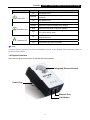
1.4 Physical Interface
There are four physical interfaces on this Mini Powerline Adapter.
Integrated Electrical Socket
Power Plug
Ethernet Port
Pair Button
4
TL-PA551
AV500+ Powerline Adapter with AC Pass Through
Interface
Description
Ethernet Port
It is a 10/100Mbps Ethernet port on the AV adapter for connecting it
to the PC or the broadband device with the network cable.
Power Plug*
A Power Plug connected to any 100V ~ 240V AC (50~60Hz) power
socket
Pair Button
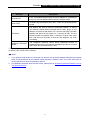
Pair buttons are used to secure a powerline network. To secure
your network, please follow the steps below. Firstly, plug in a new
adapter, and press its pair button for 1 second; then plug in another
adapter and press its pair button for 1 second as well. The two
buttons should be pressed within 2 minutes of each other. After
that, wait about 60 seconds so that the two adapters can finish
connecting.
Integrated Electrical
Socket
The integrated electrical socket allows additional devices or
multiple sockets to be connected to the adapter just like to a normal
wall socket. No electrical socket is lost.
* The provided power plug may differ from the picture due to different regional power specifications. Here
we take the EU version as an example.
) Note:
1.
If you press the pair button for more than 10 seconds, the powerline adapter will leave the network
which it has joined and its new network name assumes a random value. The Power LED turns off
when it disconnects from the powerline network.
2.
For detailed information about the pair button, please refer to Charpter 5 Advanced Feature: How to
Use the Pair Buttons.
5
TL-PA551
Chapter 2
AV500+ Powerline Adapter with AC Pass Through
Connecting Mechanism
2.1 Introduction
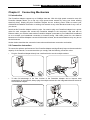
The Powerline Adapter supports up to 500Mbps data rate. With this high speed connection rate, this
Powerline Adapter allows you to set up a high speed home network by using your home existing
electrical wiring. Simply plug this Powerline Adapter into an ordinary power outlet to extend your
Cable/xDSL broadband connection or existing LAN network to any other electrical outlet in any room of
your house.
Note that this Powerline Adapter works in pairs. You need to plug one Powerline Adapter into a power
outlet for each computer and connect the Powerline Adapter to the computer’s LAN card with an
Ethernet cable; you will also need another Powerline Adapter connected to your Cable/xDSL broadband
so as to extend your broadband connection or Internet surfing. With clean power line, the distance
between two Powerline Adapters can reach 300 meters at lease, but the actual distance may vary due to
the environment.
Section below describes the connection instructions and hardware connection mechanism.
2.2 Connection Instruction
To ensure the optimum performance of the Powerline Adapter and significantly improve the transmission
capacity of the network, we recommend that you comply with the following connection rules:
y
Plug the Powerline Adapter directly into a wall socket but not the multiple sockets.
y
To take full advantage of the filter function of the Powerline Adapter and to improve data
transmission in the network, always plug the multiple sockets into the integrated electrical socket of
the Powerline Adapter.
6
TL-PA551
AV500+ Powerline Adapter with AC Pass Through
2.3 Hardware Connection – Computer
For those computers you wish to be networked by Powerline Adapter, each of the computers must be
properly connected with a Powerline Adapter through an Ethernet (RJ-45) cable.
Following are the steps to properly connect the Powerline Adapter to your computer:
1. Connect one end of the provided Ethernet (RJ-45) cable to the Powerline Adapter’s Ethernet port.
2. Connect the other end of the Ethernet (RJ-45) cable to you computer’s LAN port.
3. Plug the Powerline Adapter into a wall socket next to the computer.
4. Turn on your computer.
5. Check and confirm that the Power LED
ON.
and Ethernet LED
on the Powerline Adapter are
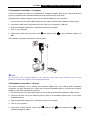
The hardware connection mechanism is shown below:
) Note:
Do not connect the Powerline adapter to any extension lead, power strip, extension cord or surge
protector, as these may degrade the network performance.
2.4 Hardware Connection – Internet
This section describes how to connect the Powerline Adapter into your existing ADSL broadband
connection via ADSL Ethernet port. Follow the procedures described below to connect the Powerline
Adapter to your ADSL broadband connection:
1. Connect one end of the provided Ethernet (RJ-45) cable to the Powerline Adapter’s Ethernet port.
2. Connect the other end of the Ethernet (RJ-45) cable to an available Ethernet port of your ADSL
broadband Router.
3. Plug the Powerline Adapter into a wall socket next to the computer.
4. Turn on your computer.
5. Check and confirm that the Power LED
Powerline Adapter are ON.
, Ethernet LED
7
, and Powerline LED
on the
TL-PA551
AV500+ Powerline Adapter with AC Pass Through
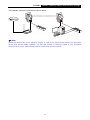
The hardware connection mechanism is shown below:
) Note:
Where the MAINS plug or an appliance coupler is used as the disconnected device, the disconnect
device shall remain readily operable. The idle wall sockets or electrical outlets in your household
electrical circuit can be used normally without interference from the network.
8
TL-PA551
Chapter 3
AV500+ Powerline Adapter with AC Pass Through
Installing Management Utility
Please verify that no other Powerline Adapter or any Encryption Management Utilities are installed
before installing the provided software. If other Powerline Utilities are installed, uninstall them and restart
your personal computer before installing this provided software.
) Note:
To install Management Utility, please make sure that WinPcap 4.1.2 has been installed in your computer.
Otherwise, a window will pop up for you to install WinPcap 4.1.2.
Take the following procedures to properly install the provided Management Utility:
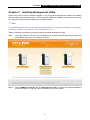
Step 1:
Insert the Resource CD into your CD-ROM drive, and then the following Setup Wizard will
automatically pop up on your computer’s screen.
Step 2:
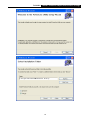
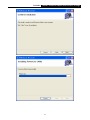
Select 500Mbps Powerline and click Management Utility, and then the program installation
process will carry out and copy all the necessary files to your system.
9
TL-PA551
AV500+ Powerline Adapter with AC Pass Through
10
TL-PA551
AV500+ Powerline Adapter with AC Pass Through
11
TL-PA551
Step 3:
AV500+ Powerline Adapter with AC Pass Through
After the installation, a shortcut to the “Powerline Utility” application icon is provided on the
windows desktop.
12
TL-PA551
Chapter 4
AV500+ Powerline Adapter with AC Pass Through
Using the Management Utility
After you’d successfully installed the Powerline Adapter hardware and Management Utility software, you
can set up or configure the devices according to your need.
This Powerline Utility enables the users to identify powerline devices on the powerline network,
measures data rate performance and ensures privacy by setting user defined secure powerline
networks.
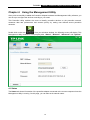
Double click on the icon “
” from your windows desktop, the following screen will display. This
Management Utility consists of a four property tabs, “Status”, “Network”, “Advanced” and “System”.
4.1 Status
The Status tab shows information of the powerline adapter connected to the current computer where the
Management Utility is running. On this page, you can also set its network name.
13
TL-PA551
AV500+ Powerline Adapter with AC Pass Through
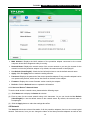
¾
MAC Address: Displays the MAC address of the powerline adapter connected to the current
computer where this management utility is running.
¾
Network Name: Displays the network name of the current network or you can give a name for the
network in which the powerline adapter is. By default, the network name is HomeplugAV.
¾
Use Default (HomePlugAV): Check the box before this item to use the default network name.
¾
Apply: Click the Apply button to make the setting effective.
¾
Password: Displays the password of the current powerline adapter. Every powerline adapter has its
own password by default, which can be also found on the back of the adapter.
¾
Firmware: Displays the current firmware version used by the adapter.
¾
Refresh: Click the Refresh button to update the information.
4.1.1 Set Local Device’s Network Name
To set the local device’s network name, please take the following steps:
(1) Click Status tab to display the Status tab window.
(2) Enter a name for the current network using 4~23 characters. Or you can check the Use Default
(HomePlugAV) to use the default name as the network name. By default, the network name is
HomeplugAV.
(3) Click the Apply button to make the settings take effect.
4.2 Network
The Network tab window shows information of all the powerline adapters found on the current logical
network. Furthermore, here you can change the Name of the listed powerline adapters as well as add
14
TL-PA551
AV500+ Powerline Adapter with AC Pass Through
another device to the current network.
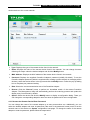
¾
Type: Displays the type of the remote device found in the network.
¾
Name: Displays the name of the remote device found in the network. You can change its name
following two steps: select the desired adapter and click the Modify button.
¾
MAC Address: Displays the MAC address of the remote device found in the network.
¾
Password: Displays the supplied Powerline Adapter’s password (Initially left blank). To set the
Powerline Adapter password (Which is required when creating a private network or managing all the
devices), select the device shown in the figure and click the Modify button. Follow the pop-up dialog
box to complete your password setting.
¾
Rate: Shows the current transmission rate of the Powerline Adapter.
¾
Rescan: Click the “Rescan” button to perform an immediate search of the remote Powerline
Adapter. The Management Utility will automatically perform the scanning process and update the
display every few seconds by default.
¾
Option: Select the device and click the Modify button to display a configuration dialog. There you
can change the corresponding adapter’s name and enter its password for future configuration.
4.2.1 Rename the Remote Device/Enter Password
You can change the name of the remote adapter to an easy-to-remember one. Additionally, you can
select the desired adapter and enter its password (Take note of the password format) so as to set the
network name of this device on System configuration homepage. To change the name of the remote
adapter or enter its password, please follow the steps below:
15
TL-PA551
AV500+ Powerline Adapter with AC Pass Through
(1) Select the desired device and click the Modify button to display the following dialog.
(2) Enter a new name for the selected adapter and enter its password (Take note of the password
format). The password can be found on the back of adapter.
(3) Click the Save button to make the settings effective.
) Note:
Password is unnecessary to enter for renaming.
4.2.2 Add Device
You can add a remote Powerline Adapter to your network that is not in the displayed list. You are
suggested to locate the passwords for all Powerline Adapters you wish to manage and add them to the
local logical network by clicking the Add button.
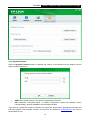
Click the Add button to display the following dialog box. This dialog box allows you to enter both the
selected device’s name and password. Note that the Powerline Adapter must be present on the power
grid in order to activate the set password and be added to the local network.
Enter your Device Name and Password (Take note to the password format) and click the Save button
after setup.
16
TL-PA551
AV500+ Powerline Adapter with AC Pass Through
4.3 Advanced
The third tab window labeled “Advanced” is for Quality of Service. With the proper configuration, the
limit bandwidth can be took full advantage. QoS requirements are different for various data types such as
streaming video or music, voice and raw data. To provide higher QoS for streaming data, priority levels
can be set using tags at the beginning of data frames. Virtual Local Area Network (Vlan) 802.1p priority
tags on Ethernet frames are used to specify 8 (0~7) levels of “user priority”. Homeplug AV powerline
allows for 4 levels of Channel Access Priority CAP 0-3)). Therefore, the 8 levels of VLAN Ethernet tags
must be mapped to the 4 levels of CAP priority, where CAP 3 is the highest priority and CAP 0 is the
lowest. CAP 3 priority might be used for voice and network management frames, CAP 2 is used for
streaming video while CAP 1 and CAP 0 are used for data. Mapping VLAN tags to CAP levels is easily
done using the VLAN Priority Mapping function on the QoS tab window.
¾
Simple Application Mapping: The group allows you to choose what type of traffic with the highest
user priority you will use your local HomePlug device for by pitching one of the following radios.
Please select the radio type according to your demand.
¾
Advanced Priority Mapping: The group sets VLAN priority to CAP mapping and default priority.
Note that in HomePlug, CAP 3 is the highest priority while CAP 0 is the lowest priority. The values
shown in VLAN Tags Priority are the default settings for the first running.
4.4 System
The System tab window is for some basic settings of the adapter. On this tab window, you can upgrade
the firmware to the latest version, reset the adapter’s settings to the factory defaults and configure all
adapters’ network names.
17
TL-PA551
AV500+ Powerline Adapter with AC Pass Through
4.4.1 Upgrade Firmware
Click the Upgrade Firmware button to upgrade the version of the firmware for the adapter and the
following dialog will pop up.
z
z
NVM: None-volatile memory. It is used for upgrading the firmware.
PIB: Parameter Information Block. It contains configuration values that establish device
network identity, general capabilities and operational modes.
If you want to upgrade the version of firmware for the device, please select appropriate Firmware and
PIB files together. New firmware versions and PIB files are posted at www.tp-link.com and can be
downloaded for free.
18
TL-PA551
AV500+ Powerline Adapter with AC Pass Through
) Note:
The parameter information of PIB will restore to the factory defaults after resetting the PLC.
To upgrade the device's firmware, follow these instructions:
1.
Download PIB file and firmware upgrade file from the TP-LINK website (www.tp-link.com).
2.
Enter the path name or click
corresponding blanks.
3.
Click the OK button.
to select the downloaded files on the computer into the
) Note:
Do not turn off the device while the firmware is being upgraded. The device will reboot after the
Upgrading has been finished.
4.4.2 Reset Device
This Management Utility allows you to reset the Powerline Adapter to its default settings.
z
z
Reset Local Device: Click this button to reset the settings of the local Powerline Adapter device
only.
Reset All Devices: Click this button to reset the settings of all devices that appear on the
Network configuration homepage whose Device’s Password had been entered for the same
logical network.
4.4.3 Set All Devices’ Network Name
The Set All Devices’ Network Name button allows you to change the logical network of all devices that
appear on the Network configuration homepage whose Device’s Password had been entered for the
same logical network. A dialog window will appear to report the success of this operation.
All Powerline devices are shipped using a default logical network (network name), which is normally
“HomePlugAV”.
To set all devices’ network name, please type the name in the field and click the Set Network Name to
apply the setting.
) Note:
Every Mini Powerline Adapter on your home network MUST have the same Network Password for
connectivity to be established throughout your home.
19
TL-PA551
Chapter 5
AV500+ Powerline Adapter with AC Pass Through
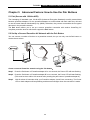
Advanced Feature: How to Use the Pair Buttons
5.1 Pair (Secure with 128 bits-AES)
The Homeplug AV standard uses 128-bit AES (Advanced Encryption Standard) to safely transmit data
between powerline adapters. For the powerline adapters to communicate with each other they all need
to use the same Network Membership Key (NMK). Otherwise, they cannot unscramble the encrypted
data sent in the powerline network.
The Pair button allows you to set up a secure powerline connection with another HomePlug AV
compliant powerline devices which also support the Pair feature.
5.2 Set Up a Secured Powerline AV Network with the Pair Button
You can connect a number of devices on a powerline network, but you can only use the Pair button on
two devices at a time.
Create a secured Powerline network using the Pair button:
Step 1. Press the Pair button of Powerline adapter A for one second, the Power LED will start flashing.
Step 2. Press the Pair button of Powerline adapter B for one second, the Power LED will start flashing.
(This must be done within 120 seconds after pressing the pair button of powerline adapter A.)
Step 3.
Wait for about 60 seconds while your Powerline adapter A and B are connecting. The Power
LED on both adapters will stop flashing and become solid light when the connection is made.
20
TL-PA551
AV500+ Powerline Adapter with AC Pass Through
Join an existing secured Powerline AV Network:
Powerline adapter A and Powerline adapter B form a HomeplugAV Network, Powerline adapter C wants
to join this network.
Step 1.
Press and hold the Pair button on Powerline adapter C for one second.
Step 2.
Press and hold the Pair button on Powerline adapter A/B for one second.
(This step must be taken within 120 seconds after step 1 is finished.)
Step 3.
Wait for about 60 seconds while your Powerline adapters are connecting. The Power LED on
Powerline adapter A/B and C will stop flashing and become solid light when the connection is
made.
) Note:
The sequence of Step 1 and Step 2 can be exchanged.
Leave an existing secured Powerline AV Network:
As the figure above shown, Powerline adapter A, B and C have formed a HomeplugAV Network. The
user wants to remove one device (Powerline adapter A) from this network.
Step 1.
Press and hold the Pair button on Powerline adapter A for at least 10 seconds. Powerline
adapter A will reset and restart. (The Power LED of Powerline adapter A will momentarily
extinguish during resetting, flash during restarting then illuminate steadily.)
Step 2.
Wait for the reset to complete.
21
TL-PA551
AV500+ Powerline Adapter with AC Pass Through
Appendix A: Troubleshooting
The Troubleshooting provides answers to common problems regarding the Powerline Adapter.
1. The Power LED
does not light up.
Ans. Check the following:
a) Make sure that the Powerline Adapter is properly plugged into a power outlet.
b) Make sure the power outlet is active (working) by plugging another electric device into it.
c) Re-plug the Powerline Adapter to the power outlet again. If the Power LED still fails to light up,
contact your local dealer for technical support.
2. The Ethernet LED
does not light up.
Ans. Check the following:
1. Make sure that the Ethernet cable (RJ-45) is properly connected to the Powerline Adapter’s
Ethernet port.
2. Make sure that the other end of the Ethernet cable (RJ-45) is properly connected to the
computer LAN card or to you Cable/xDSL Ethernet port.
3. Make sure your computer LAN card is properly installed and configured.
4. Make sure your Cable/xDSL broadband access is working and configured correctly.
5. Contact your local dealer for technical support if the Ethernet LED still fails to light up after the
above procedures.
3. The Powerline LED
does not light up.
Ans. Check the following:
1. Double click to enable the Management Utility and click the “Rescan” tab under the Network
configuration homepage. The Management Utility will automatically detect all other Powerline
Adapter on your power line network.
2. Try to plug a second Powerline Adapter into a nearby power outlet and check whether the
Powerline LED lights up or not.
3. Contact your local dealer for technical support if the Powerline LED still fails to light up after the
above procedures.
22
TL-PA551
AV500+ Powerline Adapter with AC Pass Through
Appendix B: Specifications
General
Standards
HomePlug AV, IEEE802.3, IEEE802.3u
Modulation Technology
OFDM, 1024/256/64/16/8-QAM, QPSK, BPSK and ROBO
Data Rate
500Mbps
Range
300meters in house
LEDs
Power, Powerline, Ethernet
Interface
1 Ethernet LAN Port, 1 Integrated Electrical Socket
Encryption
128-bit AES
Power Consumption
5.4W
Physical and Environment
Dimensions (L×W×H)
126×64×42 mm (exclude power plug)
126×64×79 mm (include power plug)
Operating Temperature
0℃~40℃ (32℉~104℉)
Operating Humidity
10%~90%RH, Non-condensing
23