1
MY PASSPORT ESSENTIAL AND ESSENTIAL SE
USER MANUAL
4. After the software installation completes:
IF you clicked . . . at step 1,
THEN the WD SmartWare software displays . . .
Install WD SmartWare
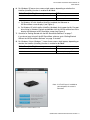
The initial Backup screen for performing your first backup
(see Figure 5 on page 9). Here you can either:
• Run your first backup—See “Backing Up Your
Computer Files” on page 14 before clicking
Start Backup and then proceed to step 5.
• Skip the backup for now and display the initial Drive
Settings screen (Figure 6 on page 9)—See
“Password Protecting the Drive” on page 25 and
“Registering the Drive” on page 34 before clicking
Skip Backup and then skip to step 6.
Note: In this case, the initial Drive
Settings screen includes a Return
to Backup button for returning to
the initial Backup screen.
Install Drive Settings
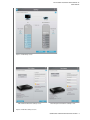
The initial Drive Settings screen for securing and
registering your drive (Figure 6 on page 9).
a. See:
• “Password Protecting the Drive” on page 25
• “Registering the Drive” on page 34
b. Skip to step 6.
Retrieve a backup
The Home screen for accessing all WD SmartWare
functions:
a. See Figure 7 on page 10 and “Retrieving Backed
Up Files” on page 21.
b. This completes the getting started procedure after
selecting Retrieve a backup.
Note: The initial Backup and Drive Settings screens only appear one time—the
first time you install the WD SmartWare software on your computer. After
that, launching the software displays the Home screen so you can choose
what you want to do.
5. After completing your initial backup, click Continue on the initial Backup screen to
display the WD SmartWare Home screen (Figure 7 on page 10).
This completes the getting started procedure after selecting Install WD SmartWare.
6. After making your drive security selections or registering the drive, click Finish to
close the initial Drive Settings screen.
This completes the getting started procedure after selecting Install Drive Settings.
In this case, however:
•
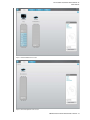
Opening the WD SmartWare software displays the drive management Home
screen (see Figure 8 on page 10) with the Settings tab for performing all drive
management functions (see “Customizing Your Drive Settings” on page 33).
•
Clicking the Settings tab displays the drive management Drive Settings screen
with a Preferences button that you can use to enable the WD SmartWare
Backup and Retrieve functions (see Figure 16 on page 25 and “Enabling the
Backup and Retrieve Functions” on page 37).
CONNECTING THE DRIVE AND GETTING STARTED – 8