1
Español
Français
English
LCD Television Built-in
DVD Player Users Guide
LT-19D200
19" class (18.5" Diagonal)
HIGH DEFINITION TELEVISION
Important Note:
In the spaces below, enter the model and serial number of your television (located at the rear of the television cabinet). Staple your
sales receipt or invoice to the inside cover of this guide. Keep this user’s guide in a convenient place for future reference. Keep the
carton and original packaging for future use.
Model No:
Serial Number:
0209TKH-FU-FU
5 Precautions
WARNING: TO REDUCE THE RISK OF FIRE OR ELECTRIC SHOCK, DO NOT EXPOSE THIS APPARATUS
TO RAIN OR MOISTURE.
APPARATUS SHALL NOT BE EXPOSED TO DRIPPING OR SPLASHING AND NO OBJECTS
FILLED WITH LIQUIDS, SUCH AS VASES, SHALL BE PLACED ON THE APPARATUS.
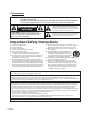
The lightning flash with arrowhead symbol, within an
equilateral triangle, is intended to alert the user to the
presence of uninsulated “dangerous voltage” within the
apparatus’s enclosure that may be of sufficient magnitude
to constitute a risk of electric shock to persons.
CAUTION
RISK OF ELECTRIC SHOCK
DO NOT OPEN
CAUTION: TO REDUCE THE RISK OF ELECTRIC
The exclamation point within an equilateral triangle is
intended to alert the user to the presence of important
operating and maintenance (servicing) instructions in
the literature accompanying the apparatus.
SHOCK, DO NOT REMOVE COVER (OR BACK). NO USER
SERVICEABLE PARTS INSIDE. REFER SERVICING TO
QUALIFIED SERVICE PERSONNEL.
The caution marking is located on the rear or bottom of the cabinet.
Important Safety Instructions
1.
2.
3.
4.
5.
6.
7.
Read these instructions.
Keep these instructions.
Heed all warnings.
Follow all instructions.
Do not use this apparatus near water.
Clean only with dry cloth.
Do not block any ventilation openings. Install in
accordance with the manufacture’s instructions.
8. Do not install near any heat sources such as radiators,
heat registers, stoves, or other apparatus (including
amplifiers) that produce heat.
9. Do not defeat the safety purpose of the polarized or
grounding-type plug. A polarized plug has two blades
with one wider than the other. A grounding type plug
has two blades and a third grounding prong. The wide
blade or the third prong are provided for your safety. If
the provided plug does not fit into your outlet, consult
an electrician for replacement of the obsolete outlet.
10. Protect the power cord from being walked on or
pinched particularly at plugs, convenience receptacles,
and the point where they exit from the apparatus.
11. Only use attachments/accessories specified by the
manufacturer.
12. Use only with the cart, stand, tripod, bracket,
or table specified by the manufacturer, or
sold with the apparatus. When a cart is used,
use caution when moving the cart/apparatus
combination to avoid injury from tip-over.
13. Unplug this apparatus during lightning storms or when
unused for long periods of time.
14. Refer all servicing to qualified service personnel.
Servicing is required when the apparatus has been
damaged in any way, such as power-supply cord or
plug is damaged, liquid has been spilled or objects
have fallen into the apparatus, the apparatus has
been exposed to rain or moisture, does not operate
normally, or has been dropped.
Do not place the unit on the furniture that is capable of being tilted by a child and an adult leaning, pulling, standing or climbing
on it. A falling unit can cause serious injury or even death.
FCC WARNING
This apparatus may generate or use radio frequency energy. Changes or modifications to this apparatus may cause
harmful interference unless the modifications are expressly approved in the manual. The user could lose the authority to
operate this apparatus if an unauthorized change or modification is made.
RADIO-TV INTERFERENCE
This apparatus has been tested and found to comply with the limits for a Class B digital device, pursuant to Part 15 of
the FCC Rules. These limits are designed to provide reasonable protection against harmful interference in a residential
installation. This apparatus generates, uses, and can radiate radio frequency energy and, if not installed and used in
accordance with the instructions, may cause harmful interference to radio communications. However, there is no
guarantee that interference will not occur in a particular installation. If this apparatus does cause harmful interference to
radio or television reception, which can be determined by turning the apparatus off and on, the user is encouraged to
try to correct the interference by one or more of the following measures:
1) Reorient or relocate the receiving antenna.
2) Increase the separation between the apparatus and receiver.
3) Connect the apparatus into an outlet on a circuit different from that to which the receiver is connected.
4) Consult the dealer or an experienced radio/TV technician for help.
This Class B digital apparatus complies with Canadian ICES-003.
2
EN
English
This apparatus should not be placed in a built-in installation such as a bookcase or rack unless proper ventilation is provided.
Make sure to leave a space of 2.8 inches (7cm) or more around this apparatus.
Disconnect the mains plug to shut off when find trouble or not in use. The mains plug shall remain readily operable.
CAUTION: Danger of explosion if battery is incorrectly replaced. Replace only with the same or equivalent type.
WARNING: Batteries (battery pack or battery installed) shall not be exposed to excessive heat such as sunshine, fire or the like.
LAMP IN LCD CONTAINS MERCURY, DISPOSE ACCORDING TO LOCAL, STATE OR FEDERAL LAW.
WARNING: To prevent injury, this apparatus must be securely attached to the floor/wall in accordance with the instructions.
LASER SAFETY
This unit employs a laser. Only a qualified service person should remove the cover or attempt to service this device, due
to possible eye injury.
CAUTION:USE OF CONTROLS OR ADJUSTMENTS OR PERFORMANCE OF PROCEDURES OTHER THAN THOSE SPECIFIED
HEREIN MAY RESULT IN HAZARDOUS RADIATION EXPOSURE.
CAUTION:VISIBLE AND INVISIBLE LASER RADIATION WHEN OPEN AND INTERLOCK DEFEATED. DO NOT STARE INTO BEAM.
LOCATION:INSIDE, NEAR THE DECK MECHANISM.
IMPORTANT COPYRIGHT INFORMATION
Unauthorized copying, broadcasting, public performance and lending of discs are prohibited. This product incorporates
copyright protection technology that is protected by U.S. patents and other intellectual property rights. Use of this
copyright protection technology must be authorized by Macrovision, and is intended for home and other limited
viewing uses only unless otherwise authorized by Macrovision. Reverse engineering or disassembly is prohibited.
TO AVOID THE HAZARDS OF ELECTRICAL SHOCK AND FIRE
• Do not handle the AC power cord with wet hands.
• Do not remove this unit’s cabinet. Touching parts inside the cabinet could result in electric shock and/or damage to
this unit. For service and adjustment inside the cabinet, call a qualified dealer or an authorized service center.
• Do not pull on the AC power cord when disconnecting it from an AC outlet. Grasp it by the plug.
• Do not put your fingers or objects into the unit.
LOCATION AND HANDLING
• The openings should not be blocked by placing the unit on a bed, sofa, carpet, rug, or other similar surface.
• Do not install the unit near or over a radiator or heat register.
• Do not install the unit in direct sunlight, near strong magnetic fields, or in a place subject to dust or strong vibration.
• Avoid a place with drastic temperature changes.
• Install the unit in a horizontal and stable position. Do not place anything directly on top or bottom of the unit.
Depending on your external devices, noise or disturbance of the picture and/or sound may be generated if the unit is
placed too close to them. In this case, please ensure enough space between the external devices and the unit.
• Depending on the environment, the temperature of this unit may increase slightly. This is not a malfunction.
DEW CONDENSATION WARNING
• Dew condensation may form inside the unit in the following conditions. If so, do not use this unit at least for a few
hours until its inside gets dry.
- The unit is moved from a cold place to a warm place.
- Under conditions of high humidity.
- After heating a cold room.
NOTE ABOUT RECYCLING
• This unit’s packaging materials are recyclable and can be reused.
Please dispose of any materials in accordance with your local recycling regulations.
• Batteries should never be thrown away or incinerated but disposed of in accordance with your
local regulations concerning chemical wastes.
5 Trademark Information
• HDMI, the HDMI logo and High-Definition Multimedia Interface are trademarks or registered trademarks of HDMI
Licensing LLC.
• Manufactured under license from Dolby Laboratories. “Dolby” and the double-D symbol are trademarks of Dolby
Laboratories.
• Products that have earned ENERGY STAR® are designed to protect the environment through superior energy efficiency.
•
is a trademark of DVD Format/Logo Licensing Corporation.
3
EN
INTRODUCTION
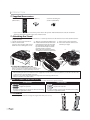
5 Supplied Accessories
remote control
(RM-C-2152)
batteries (AA x 2)
Screw for attaching the
stand x 3 (FPH34120)
AA
AA
• If you need to replace these accessories, please refer to the part No. with the illustrations and call our toll free
customer support line found on the cover of this manual.
5 Attaching the Stand
You must attach the stand to the unit to have it as a table top unit. Be sure the front and rear of the stand match the
proper direction.
Spread a thick and soft cloth over a
Align the 2 stand hooks with the two
Drive Screws in the 3 threaded
table as shown below.
hooks under the bottom of the main
holes at the bottom of the stand
Place the main unit face down onto it.
unit (shown by arrow ➀), then slide
until they are tight.
Make sure not to damage the screen.
the stand in the direction as shown
by arrow ➁ until it stops and the 4
mounting holes are aligned.
screw holes
Make sure not to put the AC power
cord between the stand and the unit.
1
2
3
fron
t sid
e
To remove the stand from this unit
Unscrew the screws indicated by above “➂”screw holes.
After the screws are removed pull the stand up toward the rear of
the unit. Be careful not to drop the stand when you remove it.
Note:
• When attaching the stand, ensure that all screws are tightly fastened. If the stand is not properly attached, it could cause the unit to fall,
resulting in injuries as well as damage to the unit.
• Make sure to use a table which can support the weight of this unit and is larger than this unit.
• Make sure the table is in a stable location.
5 Symbols Used in this Manual
The following is the description for the symbols used in this manual. Description refers to:
TV FUNCTIONS
DVD FUNCTIONS
TV
: Analog TV operation
DVD
DTV
: Digital TV operation
CD
• If neither symbol appears under the function heading,
operation is applicable to both.
You can adjust the stand to change the angle of the unit (-2.5° to 10°).
EN
: Playback of audio CD
• If neither symbol appears under the function heading,
operation is applicable to both.
5 Tilt Stand
4
: Playback of DVD-video
-2.5°
10°
English
INTRODUCTION
5 Features
TV
TROUBLESHOOTING
INFORMATION
Accessing from [AUDIO] button
DVD SETTING
Accessing from [MODE] button
In Stop mode
• Program Playback for audio CD
- You can program the order of tracks to play them
back in designated order.
• Random Playback for audio CD
- This unit can shuffle the order of tracks to play them
back in randomly.
OPERATING DVD
During playback
• Subtitles in a Desired Language
- You can select a desired language for displaying
subtitle, if that language is available on a DVD-video.
• Selecting a Camera Angle
- You can select the desired camera angle, if a DVD
contains sequences recorded from different angles.
• Zoom
- Allows you to enlarge the size of picture image.
• Black Level Adjustment
• Virtual Surround
• Search
- chapter search / title search / track search / time
search
• Marker
- The part on the disc designated by user can be
called back.
• Repeat
- chapter / title / track / all / A-B
OPTIONAL SETTING
Accessing from [MODE] button
WATCHING TV
• Dolby Digital Sound
- Enjoy Dolby Digital multi-channel surround sound
when you connect the unit to your Dolby Digital
decoder.
• Still / Fast / Slow / Step Playback
- Various playback modes are available including still
pictures, fast forward/reverse, slow motion and step
frames.
• DVD Menus in a Desired Language
- You can display DVD menus in a desired language, if
available on a DVD-video.
• Auto Power Off
- If there is no operation for 20 minutes, the unit will
turn itself off automatically.
• Parental Lock
- Block the viewing of DVD-video unsuitable for children.
• Resume Playback
- Lets you resume playback from the point at which
playback was stopped.
• Bit Rate Indication
• DRC (dynamic range control)
- You can control the range of sound volume.
PREPARATION
• DTV/TV/CATV
- You can use your remote control to select
channels which are broadcast in digital format and
conventional analog format. Also, cable subscribers
can access their cable TV channels.
• Information Display (DTV only)
- You can display the title, contents and other
information of the current DTV program on the TV
screen.
• Autoscan
- This unit automatically scans and memorizes
channels available in your area, eliminating difficult
setup procedures.
• Child Lock
- This feature allows you to block children’s access to
inappropriate programs.
• Closed Caption Decoder
- Built-in closed caption decoder displays text for
closed caption supported programs.
• MTS/SAP Tuner
- Audio can be selected from the remote control.
• Auto Shut Off Function
- If there is no signal input from the antenna terminal
and no operation for 15 minutes, the unit will turn
off automatically.
• Sleep Timer
- This feature will automatically turn off the power of
the unit at a specific time.
• Choices for On-screen Language
- Select your on-screen language:
English, Spanish or French.
• Stereo Sound Function
• PLL Frequency Synthesized Tuning
- Provides free and easy channel selection and lets
you tune directly to any channel using the number
buttons on the remote control.
• Various Adjustment for Picture and Sound
- Customizes image quality to suitable for your room
and sets the sound as your preference.
• HDMI Input
• Component Video Input
• PC Input
• S-video Input
• AV Input
• Digital Audio Output
• Headphone Audio Output
DVD
During playback
• Choices for Audio Language and Stereo Sound
Function
- Select your desired languages or stereo sound
function when different options are available on
your disc.
5
EN
INTRODUCTION
5 Contents
Precautions . . . . . . . . . . . . . . . . . . . . . . . . . . . . . . . . . . . . . . . . . . . . . 2
Trademark Information. . . . . . . . . . . . . . . . . . . . . . . . . . . . . . . . . . 3
INTRODUCTION
Supplied Accessories . . . . . . . . . . . . . . . . . . . . . . . . . . . . . . . . . . . . 4
Attaching the Stand . . . . . . . . . . . . . . . . . . . . . . . . . . . . . . . . . . . . . 4
Symbols Used in this Manual . . . . . . . . . . . . . . . . . . . . . . . . . . . . 4
Tilt Stand . . . . . . . . . . . . . . . . . . . . . . . . . . . . . . . . . . . . . . . . . . . . . . . . 4
Features. . . . . . . . . . . . . . . . . . . . . . . . . . . . . . . . . . . . . . . . . . . . . . . . . 5
Control Panel . . . . . . . . . . . . . . . . . . . . . . . . . . . . . . . . . . . . . . . . . . . 7
Terminals . . . . . . . . . . . . . . . . . . . . . . . . . . . . . . . . . . . . . . . . . . . . . . . 7
Remote Control Function . . . . . . . . . . . . . . . . . . . . . . . . . . . . . . . 8
Installing the Batteries. . . . . . . . . . . . . . . . . . . . . . . . . . . . . . . . . . . 9
PREPARATION
Antenna Connection . . . . . . . . . . . . . . . . . . . . . . . . . . . . . . . . . . .10
Connection to Cable Receiver or Satellite Box . . . . . . . . . .10
External Device Connection . . . . . . . . . . . . . . . . . . . . . . . . . . . .11
Plug In the AC Power Cord . . . . . . . . . . . . . . . . . . . . . . . . . . . . .14
TV Functions
Initial Setup . . . . . . . . . . . . . . . . . . . . . . . . . . . . . . . . . . . . . . . . . . . .15
WATCHING TV
Channel Selection . . . . . . . . . . . . . . . . . . . . . . . . . . . . . . . . . . . . . .16
Volume Adjustment . . . . . . . . . . . . . . . . . . . . . . . . . . . . . . . . . . . .16
Sleep Timer . . . . . . . . . . . . . . . . . . . . . . . . . . . . . . . . . . . . . . . . . . . .16
Still Mode . . . . . . . . . . . . . . . . . . . . . . . . . . . . . . . . . . . . . . . . . . . . . .17
Switching Each Input Mode . . . . . . . . . . . . . . . . . . . . . . . . . . . .17
Switching Audio Mode . . . . . . . . . . . . . . . . . . . . . . . . . . . . . . . . .17
TV Screen Information. . . . . . . . . . . . . . . . . . . . . . . . . . . . . . . . . .18
TV Screen Display Mode . . . . . . . . . . . . . . . . . . . . . . . . . . . . . . . .19
OPTIONAL SETTING
Main Menu . . . . . . . . . . . . . . . . . . . . . . . . . . . . . . . . . . . . . . . . . . . . .20
Autoscan . . . . . . . . . . . . . . . . . . . . . . . . . . . . . . . . . . . . . . . . . . . . . . .20
Channel List . . . . . . . . . . . . . . . . . . . . . . . . . . . . . . . . . . . . . . . . . . . .21
Manual Register . . . . . . . . . . . . . . . . . . . . . . . . . . . . . . . . . . . . . . . .21
Antenna Confirmation . . . . . . . . . . . . . . . . . . . . . . . . . . . . . . . . .22
Language Selection . . . . . . . . . . . . . . . . . . . . . . . . . . . . . . . . . . . .22
Picture Adjustment . . . . . . . . . . . . . . . . . . . . . . . . . . . . . . . . . . . .23
Sound Adjustment . . . . . . . . . . . . . . . . . . . . . . . . . . . . . . . . . . . . .24
Closed Caption . . . . . . . . . . . . . . . . . . . . . . . . . . . . . . . . . . . . . . . . .25
Child Lock . . . . . . . . . . . . . . . . . . . . . . . . . . . . . . . . . . . . . . . . . . . . . .28
PC Settings . . . . . . . . . . . . . . . . . . . . . . . . . . . . . . . . . . . . . . . . . . . . .32
Energy Saving Mode . . . . . . . . . . . . . . . . . . . . . . . . . . . . . . . . . . .33
Location . . . . . . . . . . . . . . . . . . . . . . . . . . . . . . . . . . . . . . . . . . . . . . .33
Current Software Info . . . . . . . . . . . . . . . . . . . . . . . . . . . . . . . . . .34
6
EN
DVD Functions
OPERATING DVD
Playable Media . . . . . . . . . . . . . . . . . . . . . . . . . . . . . . . . . . . . . . . . .35
Unplayable Media . . . . . . . . . . . . . . . . . . . . . . . . . . . . . . . . . . . . . .35
Playback . . . . . . . . . . . . . . . . . . . . . . . . . . . . . . . . . . . . . . . . . . . . . . .36
Disc Menu. . . . . . . . . . . . . . . . . . . . . . . . . . . . . . . . . . . . . . . . . . . . . .36
Resume Playback . . . . . . . . . . . . . . . . . . . . . . . . . . . . . . . . . . . . . .36
Paused and Step-by-step Playback . . . . . . . . . . . . . . . . . . . . .36
Fast Forward / Fast Reverse . . . . . . . . . . . . . . . . . . . . . . . . . . . .37
Slow Forward / Slow Reverse . . . . . . . . . . . . . . . . . . . . . . . . . . .37
Zoom . . . . . . . . . . . . . . . . . . . . . . . . . . . . . . . . . . . . . . . . . . . . . . . . . .37
Search Functions . . . . . . . . . . . . . . . . . . . . . . . . . . . . . . . . . . . . . . .38
Repeat Playback. . . . . . . . . . . . . . . . . . . . . . . . . . . . . . . . . . . . . . . .39
Repeat A-B Playback . . . . . . . . . . . . . . . . . . . . . . . . . . . . . . . . . . .40
Random Playback . . . . . . . . . . . . . . . . . . . . . . . . . . . . . . . . . . . . . .40
Programmed Playback . . . . . . . . . . . . . . . . . . . . . . . . . . . . . . . . .40
On-screen Display . . . . . . . . . . . . . . . . . . . . . . . . . . . . . . . . . . . . . .41
Special Settings . . . . . . . . . . . . . . . . . . . . . . . . . . . . . . . . . . . . . . . .41
DVD SETTING
DVD Language Setting . . . . . . . . . . . . . . . . . . . . . . . . . . . . . . . . .44
DVD Audio Setting . . . . . . . . . . . . . . . . . . . . . . . . . . . . . . . . . . . . .45
Parental Setting . . . . . . . . . . . . . . . . . . . . . . . . . . . . . . . . . . . . . . . .46
Others. . . . . . . . . . . . . . . . . . . . . . . . . . . . . . . . . . . . . . . . . . . . . . . . . .47
Reset to the Default Setting . . . . . . . . . . . . . . . . . . . . . . . . . . . .48
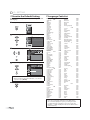
Language Code List . . . . . . . . . . . . . . . . . . . . . . . . . . . . . . . . . . . .48
TROUBLESHOOTING
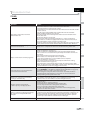
FAQ . . . . . . . . . . . . . . . . . . . . . . . . . . . . . . . . . . . . . . . . . . . . . . . . . . . .49
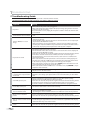
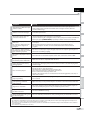
Troubleshooting Guide . . . . . . . . . . . . . . . . . . . . . . . . . . . . . . . .50
INFORMATION
Glossary . . . . . . . . . . . . . . . . . . . . . . . . . . . . . . . . . . . . . . . . . . . . . . . .52
Maintenance . . . . . . . . . . . . . . . . . . . . . . . . . . . . . . . . . . . . . . . . . . .52
Cable Channel Designations . . . . . . . . . . . . . . . . . . . . . . . . . . .53
General Specifications. . . . . . . . . . . . . . . . . . . . . . . . . . . . . . . . . .53
Electrical Specification . . . . . . . . . . . . . . . . . . . . . . . . . . . . . . . . .53
Other Specifications . . . . . . . . . . . . . . . . . . . . . . . . . . . . . . . . . . . .53
Limited Warranty. . . . . . . . . . . . . . . . . . . . . . . . . . . . . .Back Cover
English
6
5
POWER ON
4
3
2
1
5 Terminals
[Side Panel]
17
*
19
20
14
22
23
15
HEAD PHONE
25
Note:
terminal (service use only)
*• service
User should not connect any devices to the service terminal
such as digital camera, keyboard, mouse, etc. (because these
will not work).
16
INFORMATION
24
17. antenna input jack (p. 10)
RF coaxial cable connection for your antenna or cable
TV signal.
18. disc loading slot (p. 36)
Insert the disc with the label side facing forward.
19. AC power cord (p. 14)
Connect to a standard AC outlet to supply power to
this unit.
20. PC input jack (p. 14)
VGA cable connection for PC.
21. HDMI 1 input jack (p. 10 / p. 11)
HDMI connection for HDMI or DVI device.
22. component video and audio input jack (p. 10 / p. 12)
RCA component video cable and RCA audio cable
connection from an external device.
23. digital audio output jack (p. 13)
Coaxial digital cable connection for a decoder or an
audio receiver.
24. audio input jack for PC connection (p. 14)
Mini-plug audio cable connection for PC.
25. audio input jack for HDMI 1 (p. 11)
RCA audio cable connection from a DVI device.
(For HDMI 1 input jack only)
TROUBLESHOOTING
13
21
[Rear Panel]
DVD SETTING
12
HDMI 2
12. HDMI 2 input jack (p. 10 / p. 11)
HDMI connection from HDMI device.
13. S-video input jack (p. 12)
S-video cable connection from an external device.
14. video input jack (p. 13)
RCA video cable connection from an external
device.
15. audio input jack (p. 12 / p. 13)
RCA audio cable connection from an external
device.
16. headphone jack
Headphone connection for personal listening.
OPERATING DVD
18
OPTIONAL SETTING
7
S AND BY
WATCHING TV
DVD
PREPARATION
8
9
10
11
1. y (power) (p. 15)
Press to turn the unit on and off.
2. B (play) (p. 36)
Press to begin the disc playback.
3. C (stop) (p. 36)
Press to stop the disc playback.
4. A (eject) (p. 36)
Press to eject the disc.
5. CH - / + (p. 16 / p. 17)
Press to select channels or move up (+) / down (-)
through the main menu items.
6. SETUP (p. 15 / p. 44)
Press to display the main menu.
7. VOL - / + (p. 16)
Press to adjust the volume or move right (+) / left (-)
through the main menu items.
8. DVD indicator
Lights up orange when the disc is inserted.
9. STAND BY indicator
Lights up red when power is off.
10. POWER ON indicator
Lights up blue when power is on.
11. infrared sensor window
Receives infrared rays transmitted from the remote
control.
INTRODUCTION
5 Control Panel
7
EN
INTRODUCTION
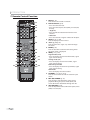
5 Remote Control Function
13
1
14
15
16
2
17
3
18
4
5
6
19
7
20
8
8
9
9
21
12
8
EN
22
10
23
11
24
25
1. MUTE (p. 16)
Press to turn the sound on and off.
2. Number buttons (p. 16)
• Press to select channels.
• Press to select chapter, title (DVD), or track (CD)
directly.
- (hyphen)
• Press to shift the subchannel from the main
channel.
+10 button
• Press to select 10 or higher number of chapters.
3. SETUP (p. 15 / p. 44)
Press to display the main menu.
4. s / B / K / L (p. 15)
Press to move left / right / up / down through
the items.
5. ENTER (p. 15)
Press to decide the command of setting when
the main menu is displayed.
6. INFO (p. 18 / p. 41)
Digital mode (DTV)
• Press to display the channel information, signal
type and TV setting.
Analog mode (TV)
• Press to display the channel number, signal
type and TV setting.
External input mode
• Press to display the external input mode, signal
type and TV setting.
DVD mode
• Press to display the current status.
7. CHANNEL - / + (p. 16 / p. 17)
Press to select channels and the external input
mode.
8. REV E / FWD D (p. 37)
Press to begin slow forward or slow reverse
playback during the pause mode (DVD) and
search forward or backward through the disc.
9. SKIP H / G (p. 38)
Press to skip forward or backward chapters, titles
(DVD) or tracks (CD).
English
PREPARATION
WATCHING TV
OPTIONAL SETTING
OPERATING DVD
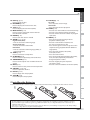
23. PAUSE F (p. 17)
TV mode
• Press to pause screen image.
DVD mode
• Press to pause the disc playback.
24. CLEAR (p. 39)
• Press to clear the numbers entered incorrectly.
• Press to cancel the point A for A-B repeat.
• Press to remove the track number in program
input (CD).
25. MODE (p. 5)
• Press to arrange the playing order or
playback randomly (CD).
• Press to set the black level (DVD) and
the virtual surround on or off.
• Press to change the camera angle to see the
sequence being played back from different
angle (DVD).
• Press to search chapter, title (DVD),
track (CD) or time.
• Press to set the marker.
• Press to repeat playback chapter, title (DVD),
track, disc (CD) repeatedly or between
designated point A and B.
• Press to magnify the part of picture
(2x and 4x : DVD).
• Press to select the subtitles on the disc (DVD).
INTRODUCTION
DVD SETTING
TROUBLESHOOTING
10. EJECT A (p. 36)
Press to eject the disc.
11. DISC MENU (p. 36)
Press to display the menu on the disc.
12. TITLE (p. 36)
Press to display the title menu (DVD).
13. INPUT SELECT (p. 17)
Press to access connected external devices
like a BD/DVD recorder.
14. POWER (p. 15)
Press to turn the unit on and off.
15. AUDIO (p. 17 / p. 42)
Digital mode (DTV)
• Press to select the audio language.
Analog mode (TV)
• Press to select the audio mode.
DVD mode
• Press to select the audio language (DVD), or
sound mode (CD).
16. SLEEP (p. 16)
Press to activate the sleep timer.
17. CH RETURN (p. 16)
Press to return to previously viewed channel.
18. SCREEN MODE (p. 19)
Press to select aspect ratio available for the TV
screen.
19. BACK (p. 18)
Press to return to the previous menu operation.
20. VOLUME - / + (p. 16)
Press to adjust the volume.
21. PLAY B (p. 36)
Press to begin the disc playback.
22. STOP C (p. 36)
Press to stop the disc playback.
5 Installing the Batteries
Install the batteries (AA x 2) matching the polarity indicated inside battery compartment of the remote control.
INFORMATION
Battery Precautions:
• Be sure to follow the correct polarity as indicated in the battery compartment. Reversed batteries may cause damage to the device.
• Do not mix different types of batteries together (e.g., Alkaline and Carbon-Zinc, or rechargeable batteries like ni-cad, ni-mh, etc) or
old batteries with fresh ones.
• If the device is not to be used for a long period of time, remove the batteries to prevent damage or injury from possible battery leakage.
• Do not try to recharge batteries; they can overheat and rupture.
9
EN
PREPARATION
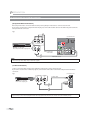
No supplied cables are used in this connection:
Please purchase the necessary cables at your local store.
High Speed HDMI cable (also known as HDMI category 2 cable) is recommended for the better compatibility.
Before you connect...
Be sure your antenna or other device is connected properly before plugging in the AC power cord.
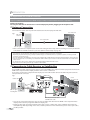
5 Antenna Connection
Connect the RF coaxial cable on your home outlet to the antenna input jack of this unit.
rear of this unit
e.g.)
VHF / UHF
antenna
RF coaxial cable
or
cable TV signal
* Once connections are completed, turn on the unit and begin initial setup. Channel scanning is necessary for the unit
to memorize all available channels in your area. (Refer to “Initial Setup” on page 15.)
Note:
• If you have any question about the DTV’s antenna, visit www.antennaweb.org for further information.
• Depending on your antenna system, you may need different types of combiners (mixers) or separators (splitters). Contact your local
electronics store for these items.
• For your safety and to avoid damage to this unit, please unplug the RF coaxial cable from the antenna input jack before moving the unit.
• If you use an antenna to receive analog TV, it should also work for DTV reception. Outdoor or attic antennas will be more effective than
settop versions.
• To switch your reception source easily between antenna and cable, install an antenna selector.
• If you connect to the cable system directly, contact the CATV installer.
5 Connection to Cable Receiver or Satellite Box
Use an HDMI or an RCA component video cable to connect the HDMI or the component video input jack of the unit to the
HDMI or the component video output jack of the cable receiver / satellite box.
If you connect to the unit’s component Video Input jack, connect RCA audio cables to the Audio L/R jacks below the
Component Video connector.
e.g.)
HDMI cable
HDMI OUT
satellite dish
side or
rear of this unit
or
AUDIO OUT
L
R
COMPONENT VIDEO OUT
Y
Pb/Cb
Pr/Cr
or
HDMI 2
ANT IN
or
cable TV signal
including PPV
RF coaxial
cable
(gree
een)
(blue)
bu
(red)
(red
TE EO
CM
(gr
( reen))
cable receiver / satellite box
(blue)
(b
e)
(red)
d)
RCA component video cable
and RCA audio cable
10
EN
* You can also connect this unit to the cable receiver or satellite box other than the HDMI or the component video
output jack because they might have different output jacks.
* Required cables and connecting methods of the cable receiver / satellite box, or the availability channel for the
clear QAM may differ depending on the cable / satellite provider. For more information, please contact your cable /
satellite provider.
English
INTRODUCTION
No supplied cables are used in this connection:
Please purchase the necessary cables at your local store.
High Speed HDMI cable (also known as HDMI category 2 cable) is recommended for the better compatibility.
PREPARATION
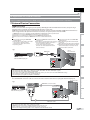
5 External Device Connection
[HDMI Connection]
HDMI connection offers the highest picture quality. HDMI (High-Definition Multimedia Interface) transports high
definition video and multi-channel digital audio through a single cable.
HDMI CEC (Consumer Electronics Control) allows the TV to connect and control multiple HDMI CEC enabled devices
with a single remote. CEC (Consumer Electronics Control) is an optional protocol used in HDMI.
Control the HDMI CEC enabled device
Send status of the TV to the HDMI CEC
using the TV
enabled device
Turn off the operating device by pressing When switching the TV’s external input
the power button for three seconds or
or channel.
more, and turning off the TV.
When switching the TV’s menu language.
* Some device may not support this
* Information regarding behaviour of the
function. For more details refer to the
device when status is received, refer to
device’s manual.
the external device’s manual.
e.g.)
side or
rear of this unit
HDMI cable
HDMI OUT
TI LE
5
HAPT R 5
EPEAT A B
OPTIONAL SETTING
Control the TV using the HDMI CEC
enabled device
Turn the TV on and switch to the video
source of the operating device.
Switch to the video source of the
operating device.
WATCHING TV
HDMI CEC on this TV is compliant with “High-Definition Multimedia Interface Specification”.
The TV does not support HDMI CEC functions that are not listed below.
The TV does not guarantee to support use of all HDMI CEC enabled devices.
Devices that are not enabled to HDMI CEC cannot be controlled with this TV.
HDMI 2
BD/DVD recorder
with the HDMI output jack
OPERATING DVD
or
DVD SETTING
Note:
• This unit accepts 480i / 480p / 720p / 1080i video signals, and 32kHz / 44.1kHz / 48kHz audio signals.
• This unit accepts only 2 channel audio signal (LPCM).
• You need to select “PCM” for the digital audio output of the device you connected or check the HDMI audio setting.
There may be no audio output if you select “Bitstream”, etc.
• This unit only accepts signals in compliance with EIA861.
TROUBLESHOOTING
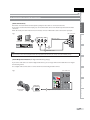
[HDMI-DVI Connection]
Use an HDMI-DVI conversion cable to connect the unit to external video devices equipped with DVI output jack.
rear of this unit
e.g.)
DVI OUT
S ER O
P M
HDMI-DVI conversion cable
To HDMI1
input jack only
AUDIO OUT
L
R
INFORMATION
cable receiver or satellite box
with the DVI output jack
RCA audio cable
Note:
•
•
•
•
This unit accepts 480i / 480p / 720p / 1080i video signals.
HDMI-DVI connection requires separate RCA audio connections as well.
Audio signals are converted from digital to analog for this connection.
DVI does not display 480i image that is not in compliance with EIA/CEA-861/861B.
11
EN
PREPARATION
No supplied cables are used in this connection:
Please purchase the necessary cables at your local store.
[Component Video Connection]
RCA component video connection offers better picture quality for video devices connected to the unit.
If you connect to the unit’s component Video Input jack, connect RCA audio cables to the Audio L/R jacks below the
Component Video connector.
e.g.)
rear of this unit
(green)
(blue)
(red)
Y
Pb/Cb
Pr/Cr
COMPONENT VIDEO OUT
T TLE
5
CHAP ER 15
REPE T -B
BD/DVD recorder with
the component video output jack
AUDIO OUT
L
R
(g e n)
(gree
RCA component
video cable
(blue)
(b u )
(red)
RCA audio cable
Note:
• This unit accepts 480i / 480p / 720p / 1080i video signals.
[S-video Connection]
S-video connection offers good picture quality for video devices connected to the unit.
If you connect to the unit’s S-Video Input jack, connect RCA audio cables to the Audio L/R jacks below the Video
connector.
side of this unit
e.g.)
AUDIO OUT
L
R
S-VIDEO
OUT
S-video cable
T TLE
5
CHAP ER 15
REPE T -B
BD/DVD recorder with
the S-video output jack
RCA audio cable
Note:
• If you connect to the S-video input jack and the video input jack at the same time, the S-video connection will have priority.
12
EN
English
INTRODUCTION
No supplied cables are used in this connection:
Please purchase the necessary cables at your local store.
PREPARATION
[Video Connection]
RCA video connection offers standard picture quality for video devices connected to the unit.
If you connect to the unit’s Video Input jack, connect RCA audio cables to the Audio L/R jacks below the Video
connector.
When the audio jack of the video device is monaural, connect an RCA audio cable to the audio L input jack.
e.g.)
side of this unit
camcorder
VIDEO
OUT
WATCHING TV
AUDIO OUT
L
R
RCA video cable
video game
OPTIONAL SETTING
STAND BY
ST REO
VCR
RCA audio cable
Note:
• If you connect to the S-video input jack and the video input jack at the same time, the S-video connection will have priority.
OPERATING DVD
[Audio Output Connection (for digital broadcasting only)]
If you connect this unit to an external digital audio device, you can enjoy multi-channel audio like 5.1ch digital
broadcasting sound.
Use a digital audio coaxial cable to connect the unit to external digital audio devices.
DVD SETTING
e.g.)
rear of this unit
TROUBLESHOOTING
DIGITAL AUDIO
COAXIAL IN
INFORMATION
Dolby Digital
decoder
digital audio coaxial cable
13
EN
PREPARATION
No supplied cables are used in this connection:
Please purchase the necessary cables at your local store.
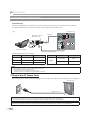
[PC Connection]
This unit is equipped with a PC input jack. If you connect this unit to your PC, you can use this unit as a PC monitor.
Use an VGA cable for this connection and it requires stereo mini plug audio cable as well.
e.g.)
rear of this unit
VGA cable should be
with ferrite core.
VGA cable
personal computer
stereo mini plug audio cable
The following signals can be displayed:
Format
Resolution
Refresh rate
VGA
640 x 480
60Hz
SVGA
800 x 600
60Hz
XGA
1,024 x 768
60Hz
Format
Resolution
Refresh rate
1,280 x 768
60Hz
1,360 x 768
60Hz
WXGA
Other formats or non-standard signals will not be displayed correctly.
Note:
• Please purchase the VGA conversion cable that has a ferrite core.
• The following operations may reduce noise.
- Attach a ferrite core to the AC power cord of your PC.
- Unplug the AC power cord and use the built-in battery of your PC.
5 Plug In the AC Power Cord
Make sure that the AC power cord must be plugged to an AC outlet after all the necessary connections are completed.
rear of this unit
AC power cord
AC outlet
Caution:
• Do not connect the AC power cord to a power supply outside the indicated voltage of this unit (AC 120V).
Connecting the AC power cord to a power supply outside of this range may result in fire or electrical shocks.
Note:
• Each time you plugged in the AC power cord, any operations will not be performed for a few seconds. This is not a malfunction.
14
EN
English
INTRODUCTION
These operations are accessible by remote control. Some may also be accessible by controls on the main unit.
TV Functions
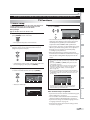
This section will guide you through the unit’s initial setting which includes
selecting a language for your on-screen menu and autoscan, which
automatically scans and memorizes viewable channels.
4 Use [Cursor s/ B] to select the desired location setting,
then press [ENTER].
Before you begin:
Initial
i l Setup
S
Make sure the unit is connected to antenna or cable.
Select “Retail” or “Home” for your ocation
press [POWER] to turn on the unit.
Retail
Select
• This operation may take a few moments.
from the choices on the right side of the TV screen.
(English / Español / Français)
Initial
it Setup
p
Engl sh
Elija el idioma de ajuste
Español
Sélect onner langue écran config
Français
Select
E TER
SETUP
Enter
Skip
• “Initial Setup” menu on step 3 will be displayed in the
selected language after you press [ENTER].
or “Cable” for CATV channels, then press [ENTER].
Initial Setup
Make sure the antenna is connected o“ANT IN” jack
• Select ”Retail”, the unit will be set up with predefined
setting for retail displays. In this setting, the power
consumption may possibly exceed the limited
requirement of the ENERGY STAR® qualification.
• Select ”Home”, the unit is set to maximize the energy
efficiency for home setting and it can be adjusted
through a choice of picture and sound quality
according to your preference.
• When the initial setup is completed, the lowest
memorized channel with the confirmation message
of the location setting will be displayed on the TV
screen.
Note:
• If you connect the cable system directly, contact the CATV
installer.
• If you press [POWER] or [SETUP] during autoscan, this
setting will be canceled.
• The initial autoscan function can be executed for either
“Antenna” or “Cable” only once. When you change the
connection (Antenna / Cable), set autoscan again.
(Refer to page 20.)
• If there is no signal input from the antenna terminal and
no operation for several seconds after you turn on the unit,
“Helpful Hints” appears. Follow the instructions listed on
the TV screen.
DVD SETTING
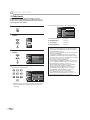
3 Use [Cursor K/L] to select “Antenna” for TV channels
Enter
OPERATING DVD
Select the language for setup display
NTER
OPTIONAL SETTING
2 Use [Cursor K/L] to select the on-screen language
Home
WATCHING TV
1 After making all the necessary connections,
PREPARATION
5 Initial Setup
Antenna
Se ect he dest nation of “ANT IN” jack
Cable
Initial
Setup
In
p
Skip
Select
Or
ENT R
Enter
ANT N
BACK
Back
SETUP
Skip
Retry
No channel s registered
Try Autoscan again?
Ver fy that you have a cable connected o he " ANT IN" jack
on he back of the TV the channel nstallation p ocess
searches this connection If you are using a cable or satel ite
box please conf rm the input which you have connec ed the
box and press the “INPUT SELECT” key on the remote con rol to
se ect he appropr ate source input
Select
• “Autoscan” will begin.
EN ER
Enter
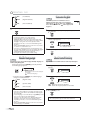
TROUBLESHOOTING
Antenna
Cab e
Later
SETUP
Skip
• You must set ”Home” in step 4. Otherwise, the settings
of picture and sound quality you adjusted will not be
memorized after you turn off the unit.
Initial
it Setup
p
0%
Analog channels
0ch
Digital channels
0ch
SETUP
After an initial setup is completed...
Skip
• If you want to scan the channels automatically again,
refer to “Autoscan” on page 20.
• You can add the desired channels unmemorized by
“Autoscan”. Refer to “Manual Register” on page 21.
• If you want to change to another language, refer to
“Language Selection” on page 22.
• If you want to change the Location setting, refer to
“Location” on page 33.
INFORMATION
Now the system s scanning for channels p ease wait
Autoscan w ll take up to 20 m nu es to complete
15
EN
WATCHING TV
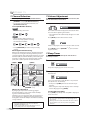
5 Channel Selection
Select channels by using [CHANNEL - / +] or [the Number buttons].
• To select the memorized channels, use
[CHANNEL - / +] or [the Number buttons].
• To select the non-memorized channels, use
[the Number buttons].
5 Volume Adjustment
This section describes how to adjust the volume. The mute function, which
turns the sound off and on, is also described.
Use [VOLUME - / +] to adjust the audio volume.
To Use [the Number buttons]
Volume
30
TV
- When selecting channel 11
The volume bar will be displayed at the bottom of the
TV screen when adjusting the volume.
• The volume bar will automatically disappear in a few
seconds.
DTV
Press [MUTE] to turn off and on the sound.
- When selecting digital channel 11-1
Be sure to press [-] before entering
the subchannel number.
Mute
“Mute” is displayed on the TV screen for a few seconds.
• Press [CH RETURN] to return to the previously
channel.
About digital TV broadcasting:
With its high definition broadcast, digital broadcasting
far surpasses analog broadcasting in both its picture
and sound quality. Not all digital TV broadcasts are high
definition (HD). To confirm whether your watching TV
program is in HD, refer to the program guide, contact
your cable / satellite provider or local TV stations.
NTSC
(analog mode)
CH4 (Soccer)
ATSC
Air time
Press [MUTE] again or [VOLUME - / +] to recover the
original volume.
5 Sleep Timer
The sleep timer can be set to automatically turn off the unit after an
incremental period of time.
1 Press [SLEEP] to set the sleep timer.
(digital mode)
6:00pm
Sleep
CH4-1 (Soccer)
Off
Sleep timer display appears on the TV screen.
main channel
CH4 (Soccer)
6:30pm
CH4-1 (Soccer) CH4-2 (News) CH4-3 (Tennis)
main channel
CH4 (Soccer)
7:00pm
subchannel
subchannel
2 Press [SLEEP] repeatedly to change the amount of time
until shut off.
CH4-1 (Soccer)
Sleep
120min.
main channel
CH4 (Soccer)
7:30pm
8:00pm
CH4-1 (Soccer)
CH4-2 (News)
main channel
subchannel
can be changed by using
[CHANNEL - / +].
You can set your unit to turn off after a set period of
time (from 30 to 120 minutes).
• Each press of [SLEEP] will increase the time by 30
minutes.
• After setup, the sleep timer display can be called up
for checking by pressing [SLEEP].
What is the subchannel?
By using high compression technology, digital
broadcasting offers a service that enables multiple
signals to send simultaneously.
Therefore, you can select more than one program per
main channel since digital broadcasting technology
distinguishes between multiple channels broadcast by
a single network.
Note:
• “No Signal” will appear on the TV screen after the
subchannel broadcast is over.
• “Audio only program“ message will appear on the TV
screen, when you receive only sound signal.
16
EN
To cancel the sleep timer
Press [SLEEP] repeatedly until “Sleep Off” is displayed
on the TV screen.
Note:
• The sleep timer display will automatically disappear in a
few seconds.
• When you disconnect the unit from the AC outlet or when
a power failure occurs, the sleep timer setting will be
canceled.
English
5 Switching Audio Mode
You can pause the image shown on the TV screen.
This section describes how to switch the audio in the analog mode and how
to switch the audio language in the digital mode.
INTRODUCTION
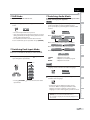
5 Still Mode
TV
Still
Press [AUDIO] to display the currently selected
audio mode. While receiving an MTS broadcast,
press repeatedly to cycle through the available audio
channel.
PREPARATION
Press [PAUSE F] to pause the image shown on the TV
screen.
11
SAP / STEREO
WATCHING TV
• The sound output will not be paused.
• If no signal is detected or protected signal is received
during still mode, the image remains paused and the
sound output will be muted.
• The still function will be released after 5 minutes.
When all audio are available
SAP / STEREO
SAP / MONO
SAP / STEREO
To cancel still mode, press any button except [POWER].
When stereo and monaural audio are available
MONO / STEREO
OPTIONAL SETTING
MONO / STEREO
When SAP and monaural audio are available
5 Switching Each Input Mode
You can easily switch with the remote control to the DTV (ATSC) and TV
(NTSC) or to access external devices when they are connected to the unit.
SAP / MONO
SAP / MONO
When only monaural audio is available
MONO
(cannot be switched)
] repeatedly to
STEREO
SAP
MONO
OPERATING DVD
Press [INPUT SELECT] or [CHANNEL
cycle through the input modes.
: Outputs stereo-audio
: Outputs second audio program
: Outputs mono-audio
DTV/TV channel
DTV
Video
or
1 Press [AUDIO] to display the currently selected
language and the number of available languages.
DVD SETTING
Component
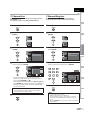
11-1
HDMI1
English 1/3
HDMI2
2 Press [AUDIO] repeatedly to cycle through the
TROUBLESHOOTING
PC
available audio languages.
• Pressing [CHANNEL
input modes.
] reverses the direction of the
INFORMATION
• Available languages differ depending on the
broadcast. “Other” is displayed when the audio
language cannot be acquired, or the acquired
languages are other than English, Spanish or French.
Note:
• [AUDIO] does not control external audio devices.
• The information display will automatically disappear in a
few seconds.
17
EN
WATCHING TV
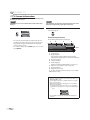
5 TV Screen Information
You can display the currently selected channel or other information such as
the audio mode on the TV screen.
DTV
TV
In the analog mode, the current channel number and the audio mode are
displayed.
In the digital mode, the detailed broadcasting information for the current
channel such as program title, program guides are displayed.
Press [INFO] to display the details of the currently
selected program.
Press [INFO].
11
SAP / STEREO
480i
80
SD
D
4:3
43
TV-PG DLSV CC
Broadcasting information
• The current channel number, audio mode, type of
resolutions for video signal, TV aspect ratio, CC and
TV program rating are displayed on the top-right
corner of the TV screen.
• To clear the display, press [INFO] again. You can also
press [BACK].
The following information is displayed.
1
A Day
Da of Memories
M m ie
2
3
4
KABC
C
A quarter-century ago,which may now qualify as the
good old days of newspapering,run-of-paper sales
accounted for 80 percent of the industry's advertising
revenues. Department stores and supermarket were
11-1
English 1/2
1080i
08
TV: TV-14
HD
Rating
16:9
1
CC
C
5
6, 7, 8
9
10
1 program title
2 program guide
(The program guide added to broadcasting
information is displayed to a maximum of 4 lines.)
3 broadcast station
4 channel number
5 audio language
(Refer to “Switching Audio Mode” on page 17.)
6 effective scanning lines and scan mode
7 digital TV format
8 program aspect ratio
9 CC (not available if closed caption is set to “Off”)
10 child lock rating
Note:
• When the program guide consists of more than 4 lines, use
[Cursor K/ L] to scroll.
• “No description provided.” is displayed when the program
guide is not provided.
• While the program guide is displayed, the closed caption
function is interrupted.
• In external input mode, the following screen is displayed;
e.g.) When an external device is connected to VIDEO input
jack.
Video
480i
480i
SD
TV-PG DLSV CC
C
• The information display will automatically disappear in
1 minute.
18
EN
English
INTRODUCTION
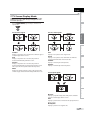
5 TV Screen Display Mode
4 types of display modes can be selected when the broadcasting station
is sending 4:3 or 16:9 video signal. And 3 types of display modes can be
selected for PC input signal.
PREPARATION
Press [SCREEN MODE] repeatedly to switch the TV
aspect ratio.
For 16:9 video signal
For 4:3 video signal
Full
Zoom
Wide
Cinema
Expand
Cinema
Sidebar
Full
Display a 4:3 picture at its original size. Sidebars appear
on both edges of the screen.
Display a 16:9 picture at its original size.
Full
Display a 16:9 picture at its maximum size without
changing its horizontal and vertical ratio.
Zoom
OPERATING DVD
Display a 4:3 picture at a 16:9 size; the picture is
stretched horizontally to fill the screen.
OPTIONAL SETTING
Full
WATCHING TV
Sidebar
Cinema
Cinema
Display a vertically stretched picture.
Display a 4:3 picture at a 16:9 size; the picture is
stretched horizontally and vertically to fill the screen.
This crops out the top and bottom of the picture.
Expand
Display a horizontally stretched picture.
DVD SETTING
Wide
Display the picture with its center at the original size
and the edges stretched horizontally to fill the screen.
For PC input signal
TROUBLESHOOTING
Normal
Full
INFORMATION
Dot By Dot
Normal
Display a proportionately stretched picture. Sidebars
appear on both edges of the screen.
Full
Display a picture that is stretched out of proportion to
fill the screen.
Dot By Dot
Display a picture in its original size.
19
EN
OPTIONAL SETTING
5 Main Menu
5 Autoscan
This section describes the overview of the main menu displayed when you
press [SETUP]. For more details, see the reference page for each item.
The main menu consists of the function setting items below.
If you switch wires (e.g., between antenna and CATV) or if you move the
unit to a different area after the initial setting, or if you restore the DTV
channel you deleted, you will need to perform autoscan.
Before you begin: Make sure the unit is connected to antenna or cable.
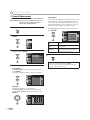
1 Press [SETUP] to display the main menu.
Press [SETUP].
PICTURE
S OUND
CHANNEL
DETAIL
LANGUAGE
2 Use [Cursor K/L] to select “CHANNEL” , then press
[ENTER].
DVD
PICTURE
PICTURE
You can adjust the picture quality.
(Refer to “Picture Adjustment” on page 23.)
S OUND
SOUND
You can adjust the sound quality.
(Refer to “Sound Adjustment” on page 24.)
DVD
CHANNEL
• You can automatically scan the viewable channels.
(Refer to “Autoscan” on page 20.)
• You can skip the undesired channels when selecting
the channels using [CHANNEL -/ +].
(Refer to “Channel List” on page 21.)
• You can add the channels that were not scanned by
the autoscan.
(Refer to “Manual Register” on page 21.)
DETAIL
• You can change the display format for closed
caption, which displays the dialogue of a TV program
or other information across the TV screen.
(Refer to “Closed Caption” on page 25.)
• You can set the viewing limitations.
(Refer to ‘‘Child Lock” on page 28.)
• You can adjust the position, stability and clarity of the
PC screen.
(Refer to “PC Settings” on page 32.)
• You can select the energy saving mode.
(Refer to “Energy Saving Mode” on page 33.)
• When you adjust the desired “PICTURE” and
“SOUND” mode, you must switch the setting from
“Retail” to “Home”. (Refer to “Location” on page 33.)
• You can confirm the version of the software currently
used in this unit.
(Refer to ”Current Software Info” on page 34.)
LANGUAGE
You can change the language (English, Spanish,
French) displayed on the main menu.
(Refer to “Language Selection” on page 22.)
DVD
You can customize some functions for the disc
playback. Make sure the player is in stop mode.
(Refer to “DVD SETTING“ section on page 44.)
20
EN
CHANNEL
DETAIL
LANGUAGE
3
Use [Cursor K / L] to select “Autoscan”, then press
[ENTER].
Channell
PICTURE
Autoscan
S OUND
CHANNEL
Channel List
Manual Reg ster
Antenna
DETAIL
LANGUAGE
DVD
Use [Cursor K / L] to select an appropriate option, then
press [ENTER].
Autoscan
o
PICTURE
S OUND
Autoscan will rescan all channels
Autoscan will take up to 20 minutes to
complete
CHANNEL
Select the destination of "ANT IN" jack
DETAIL
LANGUAGE
Back
Antenna
Cable
Antenna
Or
Cable
ANT N
DVD
• When aerial antenna is connected, select “Antenna”.
• When connected to CATV, select “Cable”.
• “Autoscan” will begin.
Now the system is scanning for Channe s please wait
Autoscan w ll take up to 20 minutes to complete
75%
Analog channels
10ch
Digital channels
SETUP
6ch
Exit
• When the scanning and memorizing are completed,
the lowest memorized channel will be displayed.
Note:
• After setting “Autoscan”, using [CHANNEL - / +] on the
remote control skips unavailable programs automatically.
• If you connect the cable system directly, contact the CATV
installer.
• If you press [POWER] or [SETUP] during autoscan, the
setting will be canceled.
• Even if “Autoscan“ is completed, the channel setting will be
lost if the AC power cord is unplugged before turning off
the unit by pressing [POWER].
• The PIN Code will be required once you set a PIN Code in
the “Child Lock“ (Refer to page 28).
• If you want to change your PIN Code, follow the instruction
of “New Password” (Refer to page 31).
English
INTRODUCTION
5 Manual Register
The channels selected here can be skipped when selecting the channels
using [CHANNEL -/ +].
Those channels can still be selected with [the Number buttons].
This function lets you add the channels that were not added by
the autoscan due to the receptible condition at the initial setting.
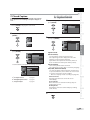
1 Press [SETUP] to display the main menu.
1 Press [SETUP] to display the main menu.
2 Use [Cursor K/L] to select “CHANNEL”, then press
2 Use [Cursor K/L] to select “CHANNEL”, then press
PICTURE
PICTURE
S OUND
S OUND
CHANNEL
CHANNEL
DETAIL
DETAIL
LANGUAGE
LANGUAGE
DVD
DVD
3 Use [Cursor K/L] to select “Manual Register”, then
press [ENTER].
Channel
Channel
h
PICTURE
PICTURE
Autoscan
Autoscan
S OUND
CHANNEL
OPTIONAL SETTING
Use [Cursor K / L] to select “Channel List”, then press
[ENTER].
WATCHING TV
[ENTER].
[ENTER].
3
PREPARATION
5 Channel List
S OUND
Channel List
Manual Register
CHANNEL
Channel List
Manual Register
Antenna
Antenna
DETAIL
OPERATING DVD
DETAIL
LANGUAGE
LANGUAGE
DVD
DVD
4 Use [the Number buttons] to enter the number of the
4 Use [Cursor K/L] to select the channel you want to
channel you want to add, then press [ENTER].
remove, then press [ENTER].
Channel
List
h
i
PICTURE
6
CHANNEL
DTV
8
DETAIL
DTV
48
27
11
9
58
LANGUAGE
DTV
DVD
DVD SETTING
Highlight channe s for Ch
Up/Down key selection
DTV
S OUND
Ch Select
E TER
Watch/Skip
BACK
Manual Register
g
PICTURE
67
Back
S OUND
CHANNEL
For digital channe s you must
perform Autoscan function
DETAIL
TROUBLESHOOTING
• The channel display for the removed channel
darkens. You will not be able to select the channel
again using [CHANNEL / ].
• To reactivate a removed channel, use [Cursor K/L] and
press [ENTER]. The registered channels are highlighted.
• When you remove a main channel, its subchannels
are removed as well.
Reg ster
For analog channels select a
channel to register using number
keys
LANGUAGE
DVD
Ch Change
BACK
Back
5 Press [SETUP] to exit.
INFORMATION
Note:
• The channel with the “DTV” indicated on the display is
ATSC. Otherwise the channel is NTSC.
5 Press [SETUP] to exit.
Note:
• If setup completes successfully,
“Added to the channel list” is displayed.
• If external input is used, it is not possible to register the
channel and “Unavailable” will be displayed on the TV
screen.
• By using [CHANNEL - / + ], you can select the memorized
channels only.
21
EN
OPTIONAL SETTING
5 Antenna Confirmation
5 Language Selection
You can choose English, Spanish, or French as your on-screen language.
DTV
This function lets you check the digital signal strength of each channel.
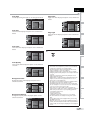
1 Press [SETUP] to display the main menu.
1 Press [SETUP] to display the main menu.
2 Use [Cursor K/L] to select “CHANNEL”, then press
[ENTER].
2 Use [Cursor K/L] to select “LANGUAGE”, then press
PICTURE
[ENTER].
S OUND
CHANNEL
PICTURE
DETAIL
S OUND
LANGUAGE
CHANNEL
DVD
DETAIL
LANGUAGE
3 Use [Cursor K/ L] to select “Antenna”, then press
DVD
[ENTER].
3 Use [Cursor K/L] to select “English”, “Español” or
Channel
PICTURE
Autoscan
S OUND
CHANNEL
Channel List
“Français”, then press [ENTER].
Manual Register
Antenna
DETAIL
Language
PICTURE
LANGUAGE
S OUND
DVD
CHANNEL
Se ect the language for setup disp ay
English
Elija el idioma de ajuste
Español
Sélect onner langue écran config
França s
DETAIL
4 Use [the Number buttons] or [CHANNEL
/ ] to
select the channel for which you want to check the
digital signal strength.
LANGUAGE
DVD
4 Press [SETUP] to exit.
11-1
Antenna
n
a
PICTURE
Back
S OUND
Current 50 Max
DETAIL
50
LANGUAGE
DVD
CH
- +
Ch Change
• If the channel is set to analog channel or external
input, you cannot confirm the antenna condition.
Video
Antenna
n
a
PICTURE
Back
S OUND
CHANNEL
DETAIL
Indicator s available
for digital broadcasting
only
LANGUAGE
DVD
CH
- +
5 Press [SETUP] to exit.
22
EN
Ch Change
Note:
• If you need the English menus instead of the Spanish or
French menus, press [SETUP]. Use [Cursor K / L] to select
“IDIOMA” or “LANGUE”, then press [ENTER].
Use [Cursor K / L] to select “English”, then press [ENTER].
Press [SETUP] to exit the main menu.
CHANNEL
English
INTRODUCTION
5 Picture Adjustment
You can adjust brightness, contrast, color, tint, sharpness and color
temperature.
Before you begin: You must set ”Home” in ”Location” (Refer to page 33).
1 Press [SETUP] to display the main menu.
PREPARATION
Otherwise, the settings you adjusted will not be
memorized after you turn off the unit.
Brightness, Contrast, Color, Tint, Sharpness,
Color Temperature
Use [Cursor K / L] to select the desired setting, then
use [Cursor s / B] to adjust.
WATCHING TV
2 Use [Cursor K/L] to select “PICTURE”, then press
[ENTER].
PICTURE
S OUND
Cursor s
CHANNEL
Brightness
DVD
30
Adjust
3 Use [Cursor K/L] to select the item you want to adjust,
then press [ENTER].
Picture
i u
Personal
Brightness
30
Contrast
60
Color
36
Tint
Color Temperature
Move
ENTER
Enter
Move
ENTER
Enter
Move
ENTER
Enter
Move
ENTER
Enter
ENTER
Enter
to decrease
brightness
to increase
brightness
Contrast
60
to decrease
contrast
to increase
contrast
Color
36
Adjust
to decrease
color intensity
to increase
color intensity
to add red
to add green
to soften
to sharpen
to add warm
colors
to add cool
colors
0
Sharpness
LANGUAGE
Enter
OPERATING DVD
DETAIL
ENT R
Color
PICTURE
Picture Mode
Move
Contrast
Adjust
CHANNEL
OPTIONAL SETTING
LANGUAGE
S OUND
Cursor B
Brightness
DETAIL
0
Normal
DVD
Tint
Tint
0
Adjust
4 Adjust the picture quality.
Sharpness
0
Adjust
Use [Cursor K / L] to select the desired setting, then
press [ENTER].
(‘‘Personal“, ‘‘Standard“, ‘‘Sports“, ‘‘Movie“ and ‘‘Game“)
Color Temperature
Color Temp. Normal
Adjust
Move
DVD SETTING
Sharpness
Picture Mode
Picture
S OUND
CHANNEL
DETAIL
Picture Mode
Personal
Brightness
Standard
Contrast
Sports
Color
Movie
Tint
Game
Sharpness
LANGUAGE
TROUBLESHOOTING
PICTURE
5 Press [SETUP] to exit.
Color Temperature
DVD
Note:
INFORMATION
• To cancel picture adjustment, press [SETUP].
• Only the “Personal” setting can be adjusted.
23
EN
OPTIONAL SETTING
5 Sound Adjustment
You can adjust the sound mode, equalizer and some other sound functions.
Before you begin: You must set ”Home” in ”Location” (Refer to page 33).
Otherwise, the settings you adjusted will not be
memorized after you turn off the unit.
1 Press [SETUP] to display the main menu.
TV Speakers
Select the audio output from the unit’s speakers, or not.
If your amplifier compatible with the CEC function is
connected to this unit using an HDMI cable, some part
of the sound operations such as volume up can access
synchronized by using this unit’s remote control.
Use [Cursor K / L] to select the desired option, then
press [ENTER].
TV Speakers
PICTURE
SOUND
2 Use [Cursor K/L] to select “SOUND”, then press
CHANNEL
[ENTER].
DETAIL
LANGUAGE
"On":
Sound will be output from he TV
speakers
"Off":
Sound will not be output from he
TV speakers
"Ext Amp":
Operation s possib e by connecting
to the HDMI CEC compa ible amp
with a HDMI cable For deta ls look
in the user manual
On
Off
Ext Amp
DVD
PICTURE
S OUND
CHANNEL
On
DETAIL
LANGUAGE
Off
DVD
3 Use [Cursor K/L] to select the sound type you want to
Ext. Amp
adjust, then press [ENTER].
5 Press [SETUP] to exit.
Sound
u
PICTURE
Sound Mode
SOUND
CHANNEL
The sound will be output from the unit’s
speakers.
The sound will not be output from the
unit’s speakers.
This function allows you to control audio
output from CEC-compatible devices
with the unit’s remote control.
Standard
Equalizer
Ext Amp
TV Speakers
DETAIL
LANGUAGE
DVD
Note:
• To cancel sound adjustment, press [SETUP].
• We do not guarantee 100% interoperability with other
brands of CEC compliant devices.
4 Adjust the following items.
Sound Mode
Use [Cursor K / L] to select the desired setting, then
press [ENTER].
(“Personal “, “Standard “, “Movie “, “Music “and “News “)
Sound
PICTURE
SOUND
Sound Mode
Personal
Equalizer
Standard
TV Speakers
Movie
CHANNEL
Music
News
DETAIL
LANGUAGE
DVD
Equalizer
Adjust tonal quality for each frequencies.
Use [Cursor s / B] to select the specific frequency
and use [Cursor K / L] to adjust the level, then press
[ENTER].
Equalizer
qu
r
PICTURE
SOUND
0
0
0
0
0
CHANNEL
DETAIL
LANGUAGE
DVD
24
EN
120Hz 500Hz 1 5kHz
5kHz
10kHz
English
INTRODUCTION
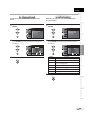
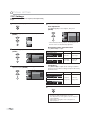
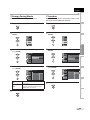
5 Closed Caption
A. Caption Service
You can view closed captioning (CC) for TV programs, movies and news.
Closed caption refers to text of dialogue or descriptions displayed onscreen.
4 Use [Cursor K/L] to select “Caption Service”, then
press [ENTER].
PREPARATION
1 Press [SETUP] to display the main menu.
Closed
d Caption
C
io
PICTURE
S OUND
CHANNEL
Caption Service
Off
Digital Caption Service
Off
Caption Style
DETAIL
LANGUAGE
DVD
WATCHING TV
2 Use [Cursor K/L] to select “DETAIL”, then press
[ENTER].
5 Use [Cursor K/L] to select the desired closed caption,
PICTURE
then press [ENTER].
S OUND
CHANNEL
Closed Caption
PICTURE
DETAIL
S OUND
LANGUAGE
DETAIL
Off
CC1
Caption Style
CC2
OPTIONAL SETTING
CHANNEL
DVD
Caption Service
Digital Caption Service
CC3
CC4
Text1
LANGUAGE
3 Use [Cursor K/L] to select “Closed Caption”, then
press [ENTER].
Detail
Closed Caption
DETAIL
Energy Sav ng Mode
On
Location
Home
Current Software Info
LANGUAGE
DVD
See the following description for setting each item.
Closed
Caption
lo
p
PICTURE
CHANNEL
Caption Service
Off
Digital Caption Service
Off
Caption Style
DETAIL
LANGUAGE
DVD
D page 25
B... “B. Digital Caption Service”
D page 26
C... “C. Caption Style”
D page 26
Caption mode
A
B
C
are the primary caption and text services.
The captioning or text is displayed in the same
language as the program’s dialogue
(up to 4 lines of script on the TV screen, where it
does not obstruct relevant parts of the picture).
CC3 and Text3;
serve as the preferred data channels.
The captioning or text is often a secondary language.
CC2, CC4, Text2 and Text4;
are rarely available and broadcasters use them only
in special conditions, such as when “CC1” and “CC3”
or “Text1” and “Text3” are not available.
• There are 3 display modes according to programs:
Paint-on mode:
Displays input characters on the TV screen
immediately.
Pop-on mode:
Once characters are stored in memory, they are
displayed all at once.
Roll-up mode:
Displays the characters continuously by scrolling
(max. 4 lines).
TROUBLESHOOTING
A... “A. Caption Service”
Text4
DVD SETTING
S OUND
Text3
OPERATING DVD
Child Lock
PC Sett ngs
CHANNEL
Text2
CC1 and Text1;
PICTURE
S OUND
DVD
INFORMATION
6 Press [SETUP] to exit.
25
EN
OPTIONAL SETTING
B. Digital Caption Service
C. Caption Style
DTV
DTV
In addition to the basic closed caption described on page 25, DTV has its
own closed caption called digital caption service. Use this menu to change
the settings for digital caption service.
You can change the caption style such as font, color or size, etc.
4 Use [Cursor K/L] to select “Digital Caption Service”,
4 Use [Cursor K/L] to select “Caption Style”, then press
then press [ENTER].
[ENTER].
Closed
Caption
lo
p
Closed Caption
PICTURE
S OUND
CHANNEL
Caption Service
Off
Digital Caption Service
Off
PICTURE
S OUND
Caption Style
CHANNEL
DETAIL
Off
Caption Style
LANGUAGE
DVD
DVD
5 Use [Cursor K/L] to select the desired digital caption
service, then press [ENTER].
PICTURE
Caption Service
Off
Digital Caption Service
Service1
Caption Style
Service2
DETAIL
5 Use [Cursor K/L] to select “User Setting”, then press
[ENTER].
Closed Caption
CHANNEL
Off
D gital Caption Service
DETAIL
LANGUAGE
S OUND
Caption Service
Caption
n Style
S
PICTURE
User Setting
Service3
S OUND
Service4
CHANNEL
Service5
LANGUAGE
Service6
DETAIL
DVD
LANGUAGE
DVD
Off
Select if you do not want digital caption
service. This is the default.
Service 1~6
Select one of these before changing
any other item in “Closed Caption”
menu. Choose “Service1” under normal
circumstances.
Font Sty e
Off
Font0
Font Size
Middle
Font Color
Wh te
Font Opacity
So id
Background Color
Black
Background Opacity
So id
Edge Color
Black
Edge Type
None
6 Use [Cursor K/L] to select “On”, then press [ENTER].
Caption
Style
t
yle
PICTURE
S OUND
User Setting
On
Font Style
Off
Font Size
CHANNEL
DETAIL
Font Color
Font Opacity
Background Color
6
LANGUAGE
Note:
• “Digital Caption Service” that you can switch differs
depending on the broadcast description.
Background Opacity
Edge Color
Press [SETUP] to exit.
DVD
Edge Type
7 Use [Cursor K/L] to select an item, then press
[ENTER]. Then use [Cursor K / L] to select the desired
setting and press [ENTER].
Picture display
A B C D E FG
F GH I J K L
Edge
(Edge Color and Edge Type)
Font
(Font Style, Font Size, Font Color and Font Opacity or
Transparency)
Background
(Background Color and Background Opacity or
Transparency)
26
EN
• The setting description for each item is shown on the
next page.
• Review your setting choice made on the next page
by looking in the upper right corner of the displayed
setting box (not all selections show the differences
selected).
English
INTRODUCTION
Font Style
Edge Color
Closed Captioning font style can be changed as below.
Caption
Style
p
S
Closed Caption
PICTURE
Edge color of the displayed caption can be switched as
below.
User Setting
S OUND
Caption
Style
t
yle
Font Style
User Setting
Font Color
S OUND
Font Opacity
Background Color
LANGUAGE
CHANNEL
Background Opacity
DETAIL
Edge Co or
DVD
Edge Type
LANGUAGE
DVD
Font Style
White
Font Size
Black
Font Color
Red
Font Opacity
Green
Background Color
Blue
Background Opacity
Yel ow
Edge Color
Magenta
Edge Type
Cyan
PREPARATION
DETAIL
Closed Caption
PICTURE
Font Size
CHANNEL
Font Size
Font size of the displayed caption can be switched as
below.
Closed Caption
User Setting
S OUND
CHANNEL
DETAIL
Edge type of the displayed caption can be switched as
below.
Font Style
Font Size
Large
Font Color
Middle
Font Opacity
Small
Caption
Style
t
yle
User Setting
S OUND
CHANNEL
Edge Type
DETAIL
DVD
Font Color
Font color of the displayed caption can be switched as
below.
Closed Caption
PICTURE
User Setting
S OUND
CHANNEL
LANGUAGE
DVD
White
Font Size
Black
Red
Font Opacity
Green
Background Color
Blue
Background Opacity
Yellow
Edge Co or
Magenta
Edge Type
Cyan
None
Font Opacity
Raised
Background Color
Depressed
Background Opacity
Uniform
Edge Color
L Shadow
Edge Type
R Shadow
8 Press [SETUP] to exit.
OPERATING DVD
DETAIL
Font Style
Font Color
Font Color
OPTIONAL SETTING
LANGUAGE
Caption
Style
p
S
Font Style
Font Size
Background Opacity
Edge Co or
DVD
Closed Caption
PICTURE
Background Color
LANGUAGE
WATCHING TV
Caption
Style
p
S
PICTURE
Edge Type
Font Opacity
Font opacity of the displayed caption can be switched
as below.
Closed Caption
PICTURE
User Setting
S OUND
Font Style
Font Size
CHANNEL
DETAIL
LANGUAGE
DVD
Font Color
Font Opacity
Solid
Background Color
Flash
Background Opacity
Translucent
Edge Co or
Transparent
Edge Type
Background color of the displayed caption can be
switched as below.
Caption
Style
p
S
Closed Caption
PICTURE
User Setting
S OUND
CHANNEL
DETAIL
DVD
White
Font Size
B ack
Font Color
Red
Font Opacity
Green
Background Color
Blue
Background Opacity
Yellow
Edge Color
Magenta
Edge Type
Cyan
Background Opacity
Background opacity of the displayed caption can be
switched as below.
Caption
Style
p
S
Closed Caption
PICTURE
User Setting
S OUND
Font Style
Font Size
CHANNEL
DETAIL
LANGUAGE
DVD
Font Color
Font Opacity
Background Color
Solid
Background Opacity
Flash
Edge Co or
Translucent
Edge Type
Transparent
INFORMATION
LANGUAGE
Font Style
• To show the closed caption on your TV screen, broadcast
signal must contain the closed caption data.
• Not all TV programs and commercials have the closed
caption or all types of the closed caption.
• Captions and texts may not match the TV voice exactly.
• Changing channels may delay the closed caption for a few
seconds.
• Adjusting or muting the volume may delay the closed
caption for a few seconds.
• Abbreviations, symbols and other grammatical shortcuts
may be used in order to keep pace with the on-screen
action. This is not a malfunction.
• The caption or text characters will not be displayed while
the main menu or functions display is shown.
• If a black box appears on the TV screen, this means that
the closed caption is set to the text mode. To clear the box,
select “CC1”, “CC2”, “CC3”, “CC4” or “Off”.
• If the unit receives poor quality television signals, the
captions may contain errors, or there might be no captions
at all. Some possible causes of poor quality signals are:
- Automobile ignition noise
- Electric motor noise
- Weak signal reception
- Multiplex signal reception (ghosts or screen flutter)
• The unit retains the closed caption setting if the power
fails.
• Closed caption will not be displayed when you are using
an HDMI connection.
• When the unit receives special effects playback signal (i.e.,
Search, Slow and Still) from a VCR’s video output channel
(CH3 or CH4), the unit may not display the correct caption
or text.
TROUBLESHOOTING
Background Color
Note:
DVD SETTING
Caption
Style
p
S
27
EN
OPTIONAL SETTING
5 Child Lock
Child lock reads the ratings for programs, then denies access to the
programs which exceed the rating level you set. With this function, you
can block certain programs inappropriate for children and any channels or
external input modes can be invisible.
1 Press [SETUP] to display the main menu.
See the following description for setting each item.
Child
ld Lock
PICTURE
Channel Lock
S OUND
CHANNEL
MPAA Rating
TV Rating
Canadian Eng ish Rating
DETAIL
2 Use [Cursor K/L] to select “DETAIL”, then press
S OUND
CHANNEL
DETAIL
LANGUAGE
DVD
Canadian French Rating
Downloadable Rating
LANGUAGE
DVD
[ENTER].
PICTURE
A
B
C
Clear Downloadable Rating
New Password
A... “A. Channel Lock”
D page 29
B... “B. MPAA Rating”
D page 29
C... “C. TV Rating”
D page 30
D... “D. New Password”
D page 31
D
Note:
3 Use [Cursor K/L] to select “Child Lock”, then press
[ENTER].
Detail
t
PICTURE
Closed Caption
S OUND
Child Lock
PC Sett ngs
CHANNEL
DETAIL
Energy Saving Mode
On
Location
Home
Current Software Info
LANGUAGE
DVD
4 Use [the Number buttons] to enter the 4-digit
numbers for your PIN Code.
Child
h Lock
PICTURE
S OUND
CHANNEL
Enter password.
DETAIL
- - - -
LANGUAGE
DVD
PIN Code
BACK
Back
• When you have not set up your PIN Code, enter 0000.
• When the PIN Code is correct, “Child Lock” menu is
displayed.
28
EN
• When you select a rating and set it to “Block”, the higher
ratings will be blocked automatically. The lower ratings
will be available for viewing.
• When you set the highest rating to “View”, all ratings turn
to “View” automatically.
• To block any inappropriate programs, set your limits in
“MPAA Rating”, “TV Rating” and “Downloadable Rating”.
• The child lock setting will be retained after a power failure
(except the access code reverts to 0000).
• If the rating is blocked, will appear.
• “Downloadable Rating” will be available when the unit
receives a digital broadcast using the new rating system.
• If the broadcasting signal does not have the
Downloadable Rating information, “Downloadable
Rating is currently not available.” will appear.
This message will also appear when you try to access
“Downloadable Rating” after you have cleared the
Downloadable Rating information, and the new
information has not been downloaded since.
• The Canadian rating systems on this unit based on
CEA-766-A and the Canadian Radio-Television and
Telecommunications Commission (CRTC) policy.
English
INTRODUCTION
A. Channel Lock
B. MPAA Rating
MPAA Rating is the rating system created by MPAA (Motion Picture
Association of America).
5 Use [Cursor K/L] to select “Channel Lock”, then press
5 Use [Cursor K/L] to select “MPAA Rating”, then press
[ENTER].
[ENTER].
Child
h Lock
Child Lock
PICTURE
PICTURE
Cannel Lock
S OUND
CHANNEL
Cannel Lock
S OUND
MPAA Rat ng
TV Rating
CHANNEL
Canadian English Rat ng
DETAIL
DETAIL
New Password
DVD
press [ENTER] repeatedly to switch between “View”
and “Block”.
Clear Downloadable Rating
New Password
6 Use [Cursor K/L] to select the desired rating, then
press [ENTER] repeatedly to switch between “View”
and “Block”.
OPTIONAL SETTING
Channel
Lockk
h
MPAA Rating
in
PICTURE
PICTURE
V deo
S OUND
X
NC 17
R
PG 13
PG
G
NR
S OUND
Component
HDMI 1
CHANNEL
CHANNEL
HDMI 2
PC
DETAIL
DETAIL
DVD
11 1 DTV
LANGUAGE
LANGUAGE
Select
E TER
View/B ock
BACK
DVD
Back
Select
Rating
EN ER
View/Block
BACK
Back
OPERATING DVD
7 Press [SETUP] to exit.
Canadian French Rating
Downloadable Rating
LANGUAGE
C ear Downloadable Rating
6 Use [Cursor K/L] to select the desired rating, then
DVD
TV Rating
WATCHING TV
DVD
MPAA Rating
Canadian Eng ish Rating
Canadian French Rating
Downloadable Rating
LANGUAGE
PREPARATION
Particular channels or external input modes can be invisible in this
function.
Category
Mature audience only
NC-17
No one under 17 admitted
R
Restricted; under 17 requires accompanying
parent or adult guardian
PG-13
Unsuitable for children under 13
PG
Parental guidance suggested
G
General audience
NR
No rating
DVD SETTING
X
7 Press [SETUP] to exit.
TROUBLESHOOTING
INFORMATION
29
EN
OPTIONAL SETTING
C. TV Rating
5 Use [Cursor K/L] to select “TV Rating”, then press
Rating
[ENTER].
Child
h Lock
Category
TV-MA
Mature audience only
TV-14
Unsuitable for children under 14
higher
TV-PG
Parental guidance suggested
TV-G
General audience
TV-Y7
Appropriate for all children 7 and
older
TV-Y
Appropriate for all children
PICTURE
Cannel Lock
S OUND
CHANNEL
MPAA Rat ng
TV Rating
Canadian English Rat ng
DETAIL
Canadian French Rating
Downloadable Rating
LANGUAGE
DVD
C ear Downloadable Rating
New Password
6 Use [Cursor K/L/s/B] to select the desired rating,
Sub Rating
then press [ENTER] repeatedly to switch between
“View” and “Block”.
TV Rating
Category
CHANNEL
DETAIL
LANGUAGE
FV V
S
L
D
TV MA
TV 14
TV PG
TV G
TV Y7
TV Y
DVD
Select
ENT R
View/Block
BACK
Back
Fantasy Violence
TV-Y7
V
Violence
S
Sexual Situation
L
Coarse Language
TV-PG
TV-14
TV-MA
D
Suggestive Dialogue
TV-PG, TV-14
To set the sub ratings
As for TV-MA, TV-14, TV-PG, or TV-Y7, you can further
set the sub ratings to block specific elements of
programming. To set the sub ratings, follow the step
below.
Use [Cursor K / L / s / B] to select the desired rating,
then press [ENTER] repeatedly to switch between
“View” and “Block”.
TV Rating
R i g
PICTURE
S OUND
CHANNEL
DETAIL
LANGUAGE
FV V
S
L
D
TV MA
TV 14
TV PG
TV G
TV Y7
TV Y
DVD
Select
EN
Note:
• Blocked sub rating will appear beside the main rating
category in “TV Rating” menu.
• You cannot block a sub rating (D, L, S or V) if the main
rating is set to “View”.
• Changing the category to “Block” or “View” automatically
changes all its sub ratings to the same (“Block” or “View”).
7 Press [SETUP] to exit.
30
Rating
FV
PICTURE
S OUND
lower
NTER
View/Block
BACK
Back
English
INTRODUCTION
D. New Password
Although the default code “0000” is supplied with the unit, you can set
your own PIN Code.
PREPARATION
5 Use [Cursor K/L] to select “New Password”, then press
[ENTER].
Child
h Lock
PICTURE
Channel Lock
S OUND
CHANNEL
MPAA Rat ng
TV Rating
Canadian English Rat ng
DETAIL
Canadian French Rating
Downloadable Rating
LANGUAGE
C ear Downloadable Rating
WATCHING TV
DVD
New Password
6 Press [the Number buttons] to enter the new 4-digit
OPTIONAL SETTING
PIN Code.
• Enter PIN Code again in “Confirm password.” entry
field.
New
w Password
w r
PICTURE
S OUND
Enter password.
- - - -
Confirm password.
- - - -
CHANNEL
DETAIL
LANGUAGE
PIN Code
BACK
OPERATING DVD
DVD
Back
7 Press [SETUP] to exit.
DVD SETTING
Note:
TROUBLESHOOTING
• Make sure new PIN Code and confirm PIN Code must be
exactly the same. If they are different, the space is cleared
for reentering.
• Your PIN Code will be erased and return to the default
(0000) when a power failure occurs.
If you forget the PIN Code, unplug the AC power cord for 10
seconds to restore the PIN Code to 0000.
INFORMATION
31
EN
OPTIONAL SETTING
5 PC Settings
This function lets you adjust the PC screen position, clock and phase during
PC input.
1 Press [SETUP] to display the main menu.
5 Adjust the setting.
Auto Adjustment
Use [Cursor K / L] to select “Adjust”, then press
[ENTER].
2 Use [Cursor K/L] to select “DETAIL”, then press
Auto
o Adjustment
ju
PICTURE
S OUND
[ENTER].
To automatical y synchronize the
phase and clock on the TV and PC
Cancel
Adjust
CHANNEL
DETAIL
PICTURE
LANGUAGE
S OUND
DVD
CHANNEL
DETAIL
• The horizontal/vertical position, clock and phase of
the PC screen are automatically adjusted.
LANGUAGE
DVD
Horizontal Position, Vertical Position
Use [Cursor s / B] to adjust.
3 Use [Cursor K/L] to select “PC Settings”, then press
Cursor s
[ENTER].
Horizontal Position
Detail
+
to move PC
screen left
to move PC
screen right
+
to move PC
screen down
to move PC
screen up
PICTURE
Closed Caption
S OUND
H. Position
CHANNEL
DETAIL
0
Child Lock
Adjust
PC Sett ngs
Energy Sav ng Mode
On
Location
Home
Move
EN ER
Enter
EN ER
Enter
Vertical Position
Current Software Info
LANGUAGE
V. Position
0
DVD
Adjust
Move
Cursor B
Clock, Phase
4 Use [Cursor K/L] to select the setting you want to
Use [Cursor { / B] to adjust “Clock” setting to stabilize
the PC screen and “Phase” setting to improve the clarity
of the PC screen.
adjust, then press [ENTER].
PC
C Settings
in
PICTURE
Auto Ad ustment
Cursor s
S OUND
CHANNEL
DETAIL
LANGUAGE
Hor zontal Pos t on
0
Vertical Position
0
Clock
0
Phase
0
Cursor B
Clock
Clock
0
Adjust
DVD
Move
EN ER
Enter
Move
EN ER
Enter
Phase
Phase
to decrease
setting value
to increase
setting value
0
Adjust
6 Press [SETUP] to exit.
Note:
• You may not obtain an appropriate screen with
“Auto Adjustment” for some signals. In this case, adjust the
settings manually.
• Adjust “Phase” setting after “Clock” setting has been
properly adjusted.
32
EN
English
When you select ”Retail”, the power consumption may possibly exceed the
limited requirement of the ENERGY STAR® qualification.
1 Press [SETUP] to display the main menu.
1 Press [SETUP] to display the main menu.
2 Use [Cursor K/L] to select “DETAIL”, then press
2 Use [Cursor K/L] to select “DETAIL”, then press
PREPARATION
5 Location
You can set whether the power consumption is saved or not.
PICTURE
PICTURE
S OUND
S OUND
CHANNEL
CHANNEL
DETAIL
DETAIL
LANGUAGE
LANGUAGE
DVD
DVD
WATCHING TV
[ENTER].
[ENTER].
OPTIONAL SETTING
[Cursor K / L] to select “Location”, then press
3 Use [Cursor K/L] to select “Energy Saving Mode”, then 3 Use
[ENTER].
press [ENTER].
Detail
Detail
t
PICTURE
PICTURE
Closed Caption
Closed Caption
S OUND
S OUND
Child Lock
Location
On
DETAIL
Home
Energy Saving Mode
On
Location
Home
OPERATING DVD
DETAIL
Energy Saving Mode
Child Lock
PC Settings
CHANNEL
PC Sett ngs
CHANNEL
Current Software Info
Current Software Info
LANGUAGE
LANGUAGE
DVD
DVD
press [ENTER].
4 Use [Cursor K/L] to select the desired location, then
press [ENTER].
DVD SETTING
4 Use [Cursor K/L] to select the desired mode, then
Location
io
PICTURE
Energy
r Saving
i g Mode
PICTURE
S OUND
On
S OUND
CHANNEL
When set to “On”, power
consumption is reduced by
decreasing backl ght
brightness
INTRODUCTION
5 Energy Saving Mode
Off
CHANNEL
Location Home is
recommended for normal
home use
In the Retail Store mode, all
settings are fixed
Retail
Home
DETAIL
DETAIL
LANGUAGE
LANGUAGE
TROUBLESHOOTING
DVD
DVD
On
Off
Select if you want to reduce the power
consumption.
The power consumption may possibly
exceed the limited requirement of the
ENERGY STAR® qualification.
5 Press [SETUP] to exit.
INFORMATION
5 Press [SETUP] to exit.
33
EN
OPTIONAL SETTING
5 Current Software Info
This function shows what version of the software currently used.
1 Press [SETUP] to display the main menu.
2 Use [Cursor K/L] to select “DETAIL”, then press
[ENTER].
PICTURE
S OUND
CHANNEL
DETAIL
LANGUAGE
DVD
3 Use [Cursor K/L] to select “Current Software Info”,
then press [ENTER].
Detail
t
PICTURE
Closed Caption
S OUND
Child Lock
PC Sett ngs
CHANNEL
DETAIL
Energy Saving Mode
On
Location
Home
Current Software Info
LANGUAGE
DVD
4 Confirm the version of the software currently used.
Current
u n Software
f
r Info
PICTURE
Back
S OUND
CHANNEL
DETAIL
LANGUAGE
DVD
5 Press [SETUP] to exit.
34
EN
Release Vers on:
CJ19OD 1 0
English
INTRODUCTION
OPERATING DVD
DVD Functions
5 Playable Media
DVD-VIDEO
DVD-RW
DVD-R
CD-DA
CD-RW
CD-R
PREPARATION
Media Type
Logo
digital video (MPEG2)
Media Size
digital audio
WATCHING TV
Recorded
Signal
5 inches (12 cm)
5 Unplayable Media
On the following disc, the sound MAY NOT be heard.
super audio CD
Any other discs without compatibility indications
OPERATING DVD
Note:
Region Codes
DVD SETTING
• Unfinalized discs cannot be played back.
• For DVD-RW/R, discs recorded in the VR (video recording) format cannot be played back. Only the finalized video format discs can be
played back.
• Some discs cannot be played back because of incompatible recording conditions, characteristics of the recorder or special properties of
discs.
• Only the sound recorded on the normal CD layer can be delivered. The sound recorded on the high density super audio CD layer cannot be
delivered.
• Do not use a single CD adaptor which makes 3 inch (8 cm) to 5 inch (12 cm) disc.
• You can play back discs with the marks listed in “Playable Media”. If you use non-standardized discs, this unit may not play them back or
the sound and video quality will be compromised.
• If the recorded portion of the disc is too small (less than 2-3/16 inches (55 mm) across), it may not play back properly.
Color Systems
TROUBLESHOOTING
This unit has been designed to play back DVD
with region 1. DVD must be labeled for ALL
regions or for region 1 in order to play back on
the unit. You cannot play back DVD that are
labeled for other regions. Look for the symbols on
your DVD. If these region symbols are not on your
DVD, you cannot play back the DVD in this unit.
OPTIONAL SETTING
NEVER play back the following discs. Otherwise, malfunction may result!
3 inch (8 cm) disc, DVD-RAM, DVD-audio, CD-i, photo CD, Video CD, DVD with region codes other than 1 or ALL, DTS-CD,
DVD-ROM for personal computers, CD-ROM for personal computers, the discs with labels, scratches, stains, blemishes, etc.,
HD DVD, Blu-ray Disc, CD-RW/-R with MP3 files and CD-RW/-R with JPEG files including Kodak Picture CD.
DVD is recorded in different color systems throughout the
world. The most common color system is NTSC (which is
used primarily in the United States and Canada).
This unit uses NTSC, so DVD you play back must be
recorded in the NTSC system. You cannot play back DVD
recorded in PAL color systems.
INFORMATION
The number inside the globe refers to region of the world.
A DVD labeled for a specific region can only be played
back on the unit with the same region code.
35
EN
OPERATING DVD
These operations are accessible by remote control. Some may also be accessible by controls on the main unit.
5 Playback
Before you begin:
Turn on the amplifier and any other equipment which is connected to this unit.
Make sure the external audio receiver (not included) are set to the correct channel.
1 Press [POWER] to turn on the unit.
2 Insert a disc with label facing forward.
DVD
Some discs contain disc menus which describe the contents of the disc or
allow you to customize disc playback, or title menu which lists the titles
available on the DVD.
To display the DVD menu, press [DISC MENU] and use
[Cursor K / L / s / B] to select an item, then press
[ENTER] (or [PLAY B]).
To display the top menu, press [TITLE] and use
[Cursor K / L / s / B] to select an item, then press
[ENTER] (or [PLAY B]).
Note:
label
• Menu operations may vary depending on the disc.
Refer to the manual accompanying the disc for more details.
• In case the DVD was recorded on both sides, make
sure the label of the side you want to play back is
facing forward.
3 The unit switches to the DVD mode when the unit was
in TV mode and detects the type of disc.
e.g.) DVD
DVD
• Press [PLAY B] if the unit does not go to the DVD mode.
4
5 Disc Menu
5 Resume Playback
Press [STOP C] during playback.
Resume message will appear on
the TV screen.
Press [PLAY B]. Playback will
resume from the point at which
playback was stopped.
Note:
• To cancel resume, press [STOP C] one more time in the
stop mode. On some discs, [STOP C] will not work while
the resume message appears. Please wait until the message
disappears.
• The resume information will be kept even when the unit is
turned off. However, ejecting the disc will cancel the resume
feature. Playback will start at the beginning the next time
you insert the disc.
The unit starts playback.
• If playback does not start automatically, press [PLAY B]
again.
5 Press [STOP C] to stop playback temporarily.
• If playback remains stopped for 20 minutes, the unit will
turn itself off automatically when “AUTO POWER OFF“ is
set to “ON“.
6 Press [EJECT A] to eject the disc.
Note:
• “ ” may appear at the top-right on the TV
screen when the operation is prohibited by the
disc or this unit.
• Some DVD may start playback from title 2 or 3 due to
specific programs.
• During the playback of a 2-layered disc, pictures may stop
for a moment. This happens while the 1st layer is being
switched to the 2nd layer. This is not a malfunction.
• When you cannot remove the disc, you may try either
following operations.
- Press and hold [EJECT A] on the unit for more than 5
seconds.
- Unplug the AC power cord and plug it in again, then press
[EJECT A].
It will take about 10 seconds to eject the disc, while that the
unit will not respond to any key commands.
36
EN
Resume ON
Press 'PLAY' to play from here.
To play the beginning,
press 'S TOP' first and then 'PLAY'.
5 Paused and Step-by-step Playback
Press [PAUSE F] during playback.
• Playback will be paused and sound will be
muted.
To continue playback, press [PLAY B].
DVD
Each time you press [PAUSE F] in the pause mode, the
disc goes forward one frame at a time.
To continue playback, press [PLAY B].
Note:
• Set “STILL MODE” to “FIELD” in the “OTHERS” menu if
pictures in the pause mode are blurred. (Refer to page 47.)
English
E1
3 Once a desired zoom factor is set,
use [Cursor K / L / s / B] to slide the zoomed picture
across the TV screen.
PREPARATION
Press [FWD D] or [REV E] repeatedly
during playback to select the desired
forward or reverse speed.
To continue playback, press [PLAY B].
INTRODUCTION
5 Fast Forward / Fast Reverse
Note:
5 Slow Forward / Slow Reverse
[ENTER] repeatedly until “OFF“ appears.
Note:
DVD
1
Note:
OPERATING DVD
• Set “STILL MODE” to “FIELD” in the “OTHERS” menu if
pictures in the slow playback mode are blurred. (Refer to
page 47.)
• Slow forward / slow reverse speed varies with disc.
Approximate speed is 1(1/16x), 2(1/8x) and 3(1/2x).
• The sound will be muted during this function.
• The gray box with an inner blue box that shows during
zoomed playback is the position guide indicates the position
of the zoomed image within the overall image.
Position guide stays on the TV screen until you press
[ENTER].
Press [ENTER] one more time to recall the position guide
when disappears.
• Zoom function does not work while the disc menu is
displayed.
• 4x zoom is not available on some discs.
• Zoom function is also available during pause mode.
OPTIONAL SETTING
Press [FWD D] or [REV E] repeatedly
during the paused mode to select the
desired forward or reverse speed.
To continue playback, press [PLAY B].
4 To exit zoom, repeat steps 1 to 2 above and press
WATCHING TV
• Set “STILL MODE” to “FIELD” in the “OTHERS” menu if
pictures in the fast playback mode are blurred. (Refer to
page 47.)
• Fast forward / fast reverse speed varies with disc.
Approximate speed is 1(2x), 2(8x), 3(20x), 4(50x) and 5(100x)
on DVD and 1(2x), 2(8x) and 3(30x) on audio CD.
• For DVD, sound will be muted during this function.
• For audio CD, sound will be intermittent during the search.
5 Zoom
DVD
DVD SETTING
The zoom function allows you to enlarge the video image and to pan
through the enlarged image.
1 During playback, press [MODE] repeatedly until
“
” appears.
TROUBLESHOOTING
OFF (ZOOM)
• The picture becomes twice as large.
INFORMATION
2 Press [ENTER] repeatedly to change the zoom factor,
“2x” or “4x”.
4x (ZOOM)
37
EN
OPERATING DVD
5 Search Functions
Chapter / Title / Track Search
Using [SKIP H / G]
1 During playback, press [SKIP H / G] repeatedly
until a desired chapter, title or track will be selected.
current chapter/track
(CH) (TR)
You can select chapters, titles or tracks on the disc.
playback, press [MODE] repeatedly until
1 During
“
“ / “ “ appears.
or
• If you want to perform the title search, use
[Cursor K / L] repeatedly until “ “ appears.
CH/TR 1 CH/TR 2 CH/TR 3 CH/TR 4
[SKIP H]
[SKIP G]
or
current title
(TT)
TT 1 TT 2 TT 3 TT 4
[SKIP H]
[SKIP G]
(If the disc has no chapter.)
e.g.) DVD
/12 (S EARCH)
2 Playback will start automatically from the chapter, title
or track you selected.
2 Press [the Number buttons] to select your desired
chapter, title or track within 60 seconds.
/12 (S EARCH)
To play back a single-digit chapter, title or track when
there are more than 10 chapters, titles or tracks, press
[ENTER] after entering the chapter, title or track
number.
3 Playback will start automatically from the chapter, title
or track you selected.
Note:
• Chapter, title or track search can only be performed during
playback or when the unit has kept the resume information.
It cannot be performed in the stop mode.
• The total number of chapters / titles / tracks in your disc;
with less than 10 chapters / titles / tracks, press the chapter /
title / track number directly. To play a double-digit chapter /
title / track, press the chapter / title / track number.
• Track search is not available for programmed or random
playback.
38
EN
Note:
• [SKIP H / G] are not available when playback is stopped.
English
Direct Search
You can select the desired time which the disc is played back from.
1 During playback, press [MODE] repeatedly until
“/“
Press [the Number buttons] to select your desired
chapter, title or track.
“ appears.
PREPARATION
“
INTRODUCTION
Time Search
e.g.) DVD
/12 (S EARCH)
TOTAL
“ appears.
Note:
1:29:00
time lapse within 60 seconds.
1:29:00
• To select a single-digit chapter, title or track number, press the
number directly.
• To select double digit chapter, title or track number:
- If the disc contains more than 9 and less than 100 chapter, title or
track, press [+10] first, then enter the double digit chapter, title or
track number.
(e.g., for track 26, press [+10], [2] and [6].)
OPTIONAL SETTING
3 Press [the Number buttons] to select your desired
TOTAL
WATCHING TV
2 Use [Cursor K / L] repeatedly until “
5 Repeat Playback
Repeat function is available only during playback.
”
OPERATING DVD
1 During playback, press [MODE] repeatedly until “
appears.
4 Playback will start automatically from the time you
OFF (REPEAT)
selected.
Note:
2 Press [Cursor K / L] to change the repeat mode.
DVD
OFF
DVD SETTING
• When there is no need to enter a number, “0” appears
automatically. For example, “0: 0_: _ _” appears in the time
search menu if the total time of the title or track is less than
10 minutes.
• Press [CLEAR] to erase the incorrect input at step 3.
• Time search can only be performed during playback or
when the unit has kept the resume information.
It cannot be performed in the stop mode.
(repeat off)
CHAPTER (current chapter repeat)
TITLE
(current title repeat)
OFF
(repeat off)
TRACK
(current track repeat)
ALL
(entire disc repeat)
TROUBLESHOOTING
CD
INFORMATION
3 Press [BACK] to exit.
39
EN
OPERATING DVD
5 Repeat A-B Playback
5 Programmed Playback
You can repeat playback between A and B on a disc.
During playback, press [MODE] repeatedly until
“ A B ” appears.
1
A B OFF (A B REPEAT)
CD
You may determine the order in which tracks will play back.
stop mode, press [MODE] repeatedly until
1 In“PROGRAM”
menu appears.
2 Press [ENTER] at your desired starting point (A).
PROGRAM
CD DA
T
T
T
T
T
T
T
A B A- (A B REPEAT)
ENTER OK
A B A-B (A B REPEAT)
• Point B should be in the same title or track as point A.
• Within a few seconds, the section A-B will begin to
play back repeatedly.
cancel repeat A-B playback, press [MODE]
4 To
repeatedly until “
“ appears.
1/ 1
T 1 3:31
• Additional tracks may be on other screens. Use
[Cursor K / L] to go on to the next / previous pages.
• Repeat this step until you have selected all the tracks
you wish to play back in the program.
PROGRAM
or
A B
CD DA
TOTAL
0 08 22
T 15 3:18
T 16 4:24
ALL CLEAR
T 4
T 16
3:58
4:24
EN ER/OK
PLAY
CLEAR
3/ 3
1/ 1
T 16 4:24
• Up to 99 tracks can be ordered.
• If 8 or more tracks were in a program, use
[SKIP H / G] to see all the tracks.
Note:
• Repeat setting (except “ALL”) will be cleared when moving to
another title or chapter, track.
• During programmed playback, repeat setting will be
effective for the tracks in the program.
• Repeat playback or repeat A-B playback may not available
with some discs.
• Repeat A-B playback does not function during other repeat mode.
• To cancel point A, press [CLEAR] at step 2 in
“Repeat A-B Playback”.
• Stopping playback will cancel repeat A-B playback.
5 Random Playback
CD
This function shuffles the playing order of tracks instead of playback in the sequence.
1 In stop mode, press [MODE] repeatedly until “RANDOM”
menu appears.
RANDOM
CD DA
TOTAL 0 45 55
RANDOM PROGRAM
no ndication
PLAY
2 Press [PLAY B] to start random playback.
Note:
• To repeat the current track in the random mode, follow the
steps 1 and 2 in “Repeat Playback” on page 39 and select
“
TRACK”.
• To repeat the entire random selections, follow the steps 1
and 2 in “Repeat Playback” on page 39 and select “
ALL”.
EN
0 00 00
[Cursor K / L] to select a desired track, then press
2 Use
[ENTER] to store.
Press [ENTER] so “OFF” appears.
40
TOTAL
3:31
4:28
4:19
3:58
4:12
4:02
3:55
1/ 3
PLAY
CLEAR
3 Press [ENTER] at your desired ending point (B).
1
2
3
4
5
6
7
3 Press [PLAY B] to start programmed playback.
Note:
• Press [CLEAR] to erase the last track in the program if you
make an error.
• To erase all programmed tracks at once, select “ALL CLEAR”
and press [ENTER] at step 2.
• While a program is being played back, [STOP C] works as
follows:
- Pressing [STOP C] once: The track will be in the resume
standby mode. Next time you press [PLAY B], the playback
will resume from the point where it is stopped in the
programmed playback.
- Pressing [STOP C] twice: Resume mode will be canceled.
Next time you press [PLAY B], playback will restart
from the first track in the original order. However, your
programmed playback can be restarted when you follow
the above steps. (Your programs are still stored until either
the disc is ejected or the unit is turned off.)
- On some discs, [STOP C] will not work while the resume
message appears. Please wait until the message disappears.
• To repeat the current track in the program, follow the steps 1
and 2 in “Repeat Playback” on page 39 and select “TRACK”.
• To repeat the entire program, follow the steps 1 and 2 in
“Repeat Playback” on page 39 and select “ALL”.
• Turning off the unit or ejecting the disc will erase the
program.
• You cannot use [the Number buttons] to select another
track during programmed playback. Use [SKIP H / G] to
select other tracks in the program.
• You cannot combine random playback with programmed
playback.
• You cannot alter a programmed order during playback.
• You can start programmed playback only while in
“PROGRAM” menu.
English
INTRODUCTION
5 On-screen Display
You can check the information about the current disc by pressing [INFO]
on the remote control.
DVD
CD
1
current playback status
1
11/16 0:00:00 - 0:03:30
4/12 0:03:21 - 0:02:15
T
remaining time of the current
track
elapsed time of the current track
TR (Track):
current track number /
total tracks
1/3
4/12 0:13:45 - 0:45:40
0:00:00 - 1:23:45
remaining time of the current title
elapsed time of the current title
TT (Title):
current title number / total titles
3
T L1
layer number, appears only when
playing a 2-layered disc
L0 : Layer 0 is playing
L1 : Layer 1 is playing
Note:
• When you are playing back an audio CD in program or
random mode, “
PROGRAM” (or “
RANDOM”) will be
displayed instead of 2 .
DVD SETTING
5 Special Settings
Subtitle Language
DVD
This unit allows you to select a subtitle language (if available) during DVD
playback.
TROUBLESHOOTING
current repeat setting appears
only when the repeat setting is
active
C : Chapter repeat
T : Title repeat
A B : A-B repeat
bit rate indication for the amount
of audio and video data currently
being read
4
elapsed time of the entire disc
OPERATING DVD
3
T
OPTIONAL SETTING
2
ALL:
current track number /
total tracks
current repeat setting appears only
when the repeat setting is active
T : Track repeat
A : All tracks repeat
A B : A-B repeat
remaining time of the entire disc
WATCHING TV
remaining time of the current
chapter
elapsed time of the current
chapter
CH (Chapter):
current chapter number /
total chapters
2
PREPARATION
appears only when multiangle is available on the DVD
current playback status
1 During playback, press [MODE] repeatedly until
“
“ appears.
INFORMATION
2 Use [Cursor K / L] repeatedly until your desired
language appears.
1.ENG / 6 (S UBTITLE)
subtitles can be varied on the
displayed number.
current subtitles language.
• Each time you press [Cursor K / L], the subtitle
language changes as shown on the next page.
41
EN
OPERATING DVD
OFF
(no subtitles)
ENG
(English subtitles)
(French subtitles)
...
FRE
3 Press [BACK] to exit.
Camera Angles
DVD
Some DVD may contain scenes which have been shot
simultaneously from various angles. You can change the
camera angle if “ ” appears on the screen. If “ANGLE ICON”
is set to “OFF” in “OTHERS” menu, “ ” will not appear. (Refer
to page 47.)
1 During playback, press [MODE] repeatedly until
“
“ appears.
Note:
• To cancel the subtitle, select “OFF” at step 2.
• If your language is not shown after pressing
[Cursor K / L] several times, the disc may not have that
language. However, some discs allow you to change subtitle
languages setting in the disc menu. (Operation varies
depending on the disc, so refer to the manual along with
the disc.)
• When “NOT AVAILABLE” appears on the TV screen, it means
no subtitle is recorded on the scene.
• If you choose a language that has 3-letter-language code,
the code will be displayed every time you change the subtitle
language setting. If you choose any other languages, “---”
will be displayed instead. (Refer to page 48.)
• Ejecting the disc will cancel your subtitle setting.
2 Use [Cursor K / L] repeatedly until your desired
camera angle appears.
1 / 8 (ANGLE)
angles can be varied on the
displayed number.
3 Press [BACK] to exit.
Audio Language
DVD
Black Level Setting
DVD
This unit allows you to select an audio language (if multiple languages are
available) during DVD playback.
During playback, press [AUDIO] repeatedly until the
desired language appears.
1 ENG Do by D 3/2 1ch 48k/3
Adjust the black level to make the dark areas of the TV picture brighter.
1 During playback, press [MODE] repeatedly until “
appears.
OFF (BLACK LEVEL)
audio can be varied on the displayed
number.
current audio language.
...
• Each time you press [AUDIO], the audio language
changes as example below.
ENG
(English audio)
SPA
(Spanish audio)
FRE
(French audio)
Note:
• Some discs will only allow you to change the audio setting
from the disc menu. Refer to the manual accompanying the
discs for details.
• If your language is not shown after pressing [AUDIO] several
times, the disc may not have that language.
However, some discs allow you to change multiple audio
languages setting in the disc menu. (Operation varies
depending on the disc, so refer to the manual along with
the disc.)
• When “NOT AVAILABLE” appears on the TV screen, it means
audio language is not available.
42
EN
2 Press [Cursor K/ L] to adjust the black level.
ON (BLACK LEVEL)
ON : Makes the dark areas brighter.
OFF : Shows the original picture as recorded.
3 Press [BACK] to exit.
Note:
• The setting will be kept even if the unit is turned off.
”
English
Marker Setup
This feature allows you to assign a specific point on a disc to be called back later.
CD
To set a marker
This unit allows you to select a sound mode during CD playback.
“
”/“
” appears.
e.g.) DVD
_ _ /12 (S EARCH)
S TEREO
WATCHING TV
2 Use [Cursor K / L] repeatedly until marker search
menu appears.
• Each time you press [AUDIO], the sound mode
changes as example below.
1 2 3 4 5 6 7 8 9 10 AC
STEREO (stereo sound with left and
right channels)
L-ch
(left channel sound only)
3 Use [Cursor s / B] to select an available marker within
(right channel sound only)
OPTIONAL SETTING
R-ch
PREPARATION
1 During playback, press [MODE] repeatedly until
During playback, press [AUDIO] repeatedly until the
desired sound mode appears.
60 seconds.
1 2 3 4 5 6 7 8 9 10 AC
Note:
• Virtual surround cannot be changed when the sound mode
is set to either “L-ch” or “R-ch”.
Virtual Surround
OPERATING DVD
1 During playback, press [MODE] repeatedly until “
4 When the playback reaches the point at which you
want to set a marker, press [ENTER].
• Marker is now set.
You can enjoy virtual surround on your 2 channel stereo system.
2 3 4 5 6 7 8 9 10 AC
”
appears.
OFF (S URROUND)
1 (S URROUND)
5 Press [BACK] to exit.
DVD SETTING
2 Press [Cursor K/ L] to select the sound level.
To return to the marker later
1 Repeat steps 1-2 in “To set a marker”. Use [Cursor s / B]
to select the desired marker.
e.g.) DVD
3 Press [BACK] to exit.
2 3 4 5 6 7 8 9 10 AC
2 Press [ENTER] at the desired marker to restart playback
from the specific point which you set.
TROUBLESHOOTING
1:
Natural effect.
2:
Emphasized effect.
OFF : No effects (original sound).
INTRODUCTION
Stereo Sound Mode
2 3 4 5 6 7 8 9 10 AC
• The setting will be kept even if the unit is turned off.
• For audio CD, virtual surround will not be effective if the
sound mode is set to something other than “STEREO”.
(Refer to “Stereo Sound Mode” on page 43.)
• Turn down the level or select “OFF” if the sound is distorted.
INFORMATION
Note:
Note:
• Marker search menu will disappear in about 60 seconds
when there is no input.
• You can mark up to 10 points.
• To clear a marker, select the marker to be cleared, and then
press [CLEAR].
• Ejecting the disc or turning off the power will erase all
markers.
• Selecting “
” at step 3 in the section “To set a marker” will
also erase all markers.
43
EN
DVD SETTING
Settings are only effective when the unit is in DVD mode and any discs should not be played back.
5 DVD Language Setting
You can change the desired language when playing back the disc.
1 Press [SETUP] to display the main menu.
SUBTITLE *1, *2
(Default: OFF)
Select the desired subtitle language.
PICTURE
S OUND
CHANNEL
LANGUAGE
DETAIL
LANGUAGE
DVD
ENTER/OK
2 Use [Cursor K/ L] to select “DVD”, then press [ENTER].
SUBTITLE
OFF
ENGLISH
FRENCH
SPANISH
GERMAN
ITALIAN
SWEDISH
Setup
t
PICTURE
S OUND
Press “ENTER” key to move to DVD Setup
CHANNEL
DISC MENU *1
(Default: ENGLISH)
Select the desired language in DVD menu.
DETAIL
LANGUAGE
DVD
LANGUAGE
3 Use [Cursor s / B] to select “
”, then press [ENTER].
ENTER/OK
DISC MENU
ENGLISH
FRENCH
SPANISH
GERMAN
ITALIAN
SWEDISH
DUTCH
LANGUAGE
AUDIO
SUBTITLE
DISC MENU
ORIGINAL
OFF
ENGLISH
ENTER/OK
4 Use [Cursor K/ L] to select the desired item, then press
[ENTER].
LANGUAGE
AUDIO
SUBTITLE
DISC MENU
ORIGINAL
OFF
ENGLISH
ENTER/OK
5 Use [Cursor K/ L] to select the desired item, then press
[ENTER].
AUDIO *1, *2
(Default: ORIGINAL)
Select the desired audio language.
LANGUAGE
ENTER/OK
44
EN
AUDIO
ORIGINAL
ENGLISH
FRENCH
SPANISH
GERMAN
ITALIAN
SWEDISH
Note:
• To change the on-screen language, call up “LANGUAGE”
from the main menu and set the desired language.
(Refer to “Language Selection” on page 22.)
*1
• Language options are not available with some discs.
• If “OTHER” is selected in “AUDIO”, “SUBTITLE” or
“DISC MENU” menu, press 4-digit number to enter the code
for the desired language. (Refer to “Language Code List”
on page 48.)
• Only the languages supported by the disc can be selected.
*2
• Language setting for Audio and Subtitle are not available
with some discs.
- Use [MODE] to select subtitles available on the DVD.
- Use [AUDIO] to select audio available on the DVD.
• If the DVD’s default settings for audio and subtitle are the
same language, the subtitles may not show unless you
turn them on.
6 Press [SETUP] to exit.
English
INTRODUCTION
5 DVD Audio Setting
Choose the appropriate audio settings for your equipment. It only affects
during the playback of DVD.
1 Press [SETUP] to display the main menu.
DOWN SAMPLING
(Default: ON)
S OUND
CHANNEL
DETAIL
LANGUAGE
AUDIO
DVD
DRC
DOWN SAMPLING
DOLBY DIGITAL
ENTER/OK
Setup
t
PICTURE
S OUND
Press “ENTER” key to move to DVD Setup
ON : When outputting in 48kHz.
OFF : When outputting the original sound.
CHANNEL
DETAIL
LANGUAGE
Note:
”, then press [ENTER].
AUDIO
DRC
DOWN SAMPLING
DOLBY DIGITAL
• When playing back a 96 kHz disc with the copyright
protection or when ‘‘Virtual Surround” is set to “1” or “2”,
the sound will be down sampled at 48 kHz even if the
“DOWN SAMPLING” is set to “OFF”.
(Refer to “Virtual Surround” on page 43.)
DOLBY DIGITAL
ON
ON
BITSTREAM
ENTER/OK
(Default: BITSTREAM)
Set to “BITSTREAM“ when this unit is connected to a
Dolby Digital decoder.
4 Use [Cursor K/ L] to select the desired item, then press
AUDIO
DRC
DOWN SAMPLING
DOLBY DIGITAL
[ENTER].
ON
ON
BITSTREAM
OPTIONAL SETTING OPERATING DVD
DVD
3 Use [Cursor s / B] to select “
ON
ON
BITSTREAM
WATCHING TV
2 Use [Cursor K/ L] to select “DVD”, then press [ENTER].
PREPARATION
This function is available only on digital outputting of a
disc recorded in 96kHz.
PICTURE
ENTER/OK
(Default: ON)
This function is available only on the discs which are
recorded in the Dolby Digital format.
AUDIO
ON
ON
BITSTREAM
Outputs Dolby Digital signals.
Converts the Dolby Digital into PCM.
(2 channel)
5 Press [SETUP] to exit.
TROUBLESHOOTING
DRC
DOWN SAMPLING
DOLBY DIGITAL
BITSTREAM :
PCM :
DVD SETTING
DRC (dynamic range control)
ENTER/OK
ON : Compress the range between soft and loud
sounds.
OFF : No effects (original sound).
INFORMATION
45
EN
DVD SETTING
5 Parental Setting
Parental setting prevents your children from viewing inappropriate
materials. (password protected.) Playback will stop if the ratings exceed
the levels you set.
6 Use [Cursor K/ L] to select the desired item, then press
[ENTER].
1 Press [SETUP] to display the main menu.
PARENTAL
PICTURE
S OUND
CHANNEL
ENTER/OK
DETAIL
LANGUAGE
PARENTAL LEVEL
ALL
8 [ ADULT ]
7 [ NC 17 ]
6 [R]
5 [ PGR ]
4 [ PG13 ]
3 [ PG ]
DVD
2 Use [Cursor K/ L] to select “DVD”, then press [ENTER].
Setup
t
PICTURE
S OUND
Press “ENTER” key to move to DVD Setup
CHANNEL
DETAIL
LANGUAGE
7 Press [SETUP] to exit.
DVD
3 Use [Cursor s / B] to select “
PARENTAL LEVEL
ALL :
All parental locks are cancelled.
8 [ADULT] :
All ratings (adult / general / children)
can be played back.
7 [NC-17]-2 [G] : Only DVD intended for general use
and children can be played back.
1 [KID SAFE] : Only DVD intended for children can
be played back.
”, then press [ENTER].
To change the password
PARENTAL
PARENTAL LEVEL
ALL
5 Follow steps 1 to 4. Use [Cursor K/ L] to select
“PASSWORD CHANGE”, then press [ENTER].
ENTER/OK
PARENTAL
4 Use [the Number buttons] to enter the 4-digit
PARENTAL LEVEL ALL
PASSWORD CHANGE
numbers for your password, then press [ENTER].
ENTER/OK
6 Use [the Number buttons] to enter the new 4-digit
PARENTAL
password.
Enter current password
ENTER/OK
PARENTAL
• If you have set password already, use
[the Number buttons] to enter the current 4-digit
password.
• You cannot use the default password (4737) to play back
a DVD.
5 Use [Cursor K/ L] to select the “PARENTAL LEVEL”, then
press [ENTER].
PARENTAL
PARENTAL LEVEL ALL
PASSWORD CHANGE
ENTER/OK
46
EN
PASSWORD
Please enter a 4 digit password
0
ENTER/OK
0
0
0
Don’t forget the password
Press ‘ENTER/OK’ to activate
password
Note:
• DVD-video may not respond to parental lock settings. Make
sure this function works with your DVD-video.
• Record the password in case you forget it.
• If you forget the password, press [4], [7], [3], [7], then enter
your new password. Password will be cleared and parental
levels will be set to “ALL”.
• A power failure will not erase your password.
7 Press [SETUP] to exit.
English
INTRODUCTION
5 Others
You can change the other functions.
1 Press [SETUP] to display the main menu.
PICTURE
CHANNEL
DETAIL
PREPARATION
S OUND
STILL MODE
(Default: AUTO)
Set the picture quality in the still mode.
If you select “AUTO”, it automatically selects the best
resolution setting (“FRAME” or “FIELD”) based on the
date characteristics of the pictures.
LANGUAGE
FIELD :
DVD
FRAME :
Setup
t
PICTURE
S OUND
Press “ENTER” key to move to DVD Setup
OTHERS
CHANNEL
DETAIL
ANGLE ICON
ON
S TILL MODE
AUTO
AUTO POWER OFF ON
LANGUAGE
DVD
ENTER OK
OPTIONAL SETTING OPERATING DVD
3 Use [Cursor s / B] to select “
WATCHING TV
2 Use [Cursor K/ L] to select “DVD”, then press [ENTER].
The picture in the still mode will be
stabilized.
The picture in the still mode will be highly
defined.
”, then press [ENTER].
AUTO POWER OFF
OTHERS
(Default: ON)
Set to “ON” to turn this unit off automatically after 20
minutes of no use.
ANGLE ICON
ON
S TILL MODE
AUTO
AUTO POWER OFF ON
OTHERS
ENTER/OK
ANGLE ICON
ON
S TILL MODE
AUTO
AUTO POWER OFF ON
4 Use [Cursor K/ L] to select the desired item, then press
ENTER OK
[ENTER].
5 Press [SETUP] to exit.
DVD SETTING
ANGLE ICON
(Default: ON)
Set to “ON” to show the angle icon when multiple
camera angles are available during DVD playback.
OTHERS
ANGLE ICON
ON
S TILL MODE
AUTO
AUTO POWER OFF ON
TROUBLESHOOTING
ENTER/OK
INFORMATION
47
EN
DVD SETTING
5 Reset to the Default Setting
You can reset all the settings except for the parental setting and on-screen
menu language.
1 Press [SETUP] to display the main menu.
PICTURE
S OUND
CHANNEL
DETAIL
LANGUAGE
DVD
2 Use [Cursor K/ L] to select “DVD”, then press [ENTER].
Setup
PICTURE
S OUND
Press “ENTER” key to move to DVD Setup
5 Language Code List
Language
DETAIL
LANGUAGE
DVD
”, then press [ENTER].
INITIALIZE
Initialize?
NO
YES
ENTER/OK
4 Use [Cursor K/ L] to select “YES”, then press [ENTER].
INITIALIZE
Initialize?
NO
YES
ENTER/OK
Note:
• When you want to cancel the initialization, select “NO” at
step 4, then press [ENTER].
5 Press [SETUP] to exit.
4748
4747
4752
6563
4759
4764
5471
4765
4771
4772
4847
5167
4860
5072
4854
4855
4864
4853
5971
4851
C-E
CHANNEL
3 Use [Cursor s / B] to select “
Code
A-B
Abkhazian
Afar
Afrikaans
Albanian
Amharic
Arabic
Armenian
Assamese
Aymara
Azerbaijani
Bashkir
Basque
Bengali;Bangla
Bhutani
Bihari
Bislama
Breton
Bulgarian
Burmese
Byelorussian
Cambodian
Catalan
Chinese [CHI]
Corsican
Croatian
Czech [CZE]
Danish [DAN]
Dutch [DUT]
English [ENG]
Esperanto
Estonian
F-H
Faroese
Fiji
Finnish [FIN]
French [FRE]
Frisian
Galician
Georgian
German [GER]
Greek [GRE]
Greenlandic
Guarani
Gujarati
Hausa
Hebrew
Hindi
Hungarian [HUN]
I-K
Icelandic [ICE]
Indonesian
Interlingua
Interlingue
Inupiak
Irish [IRI]
Italian [ITA]
Japanese [JPN]
Javanese
Kannada
Kashmiri
Kazakh
Kinyarwanda
Kirghiz
Kirundi
Korean [KOR]
Kurdish
L-N
Laothian
Latin
Latvian;Lettish
Lingala
Lithuanian
Macedonian
Malagasy
Malay
Malayalam
Maltese
Maori
5759
4947
7254
4961
5464
4965
5047
6058
5160
5161
5166
5261
5256
5255
5264
5271
5358
5747
5051
5158
5758
5360
5367
5447
5569
5455
5467
5565
5560
5547
5551
5557
5347
5566
5647
5669
5760
5765
5757
6469
5771
6460
5761
5767
5861
5847
5868
5860
5866
5957
5953
5965
5958
5966
5955
Language
Marathi
Moldavian
Mongolian
Nauru
Nepali
Norwegian [NOR]
O-R
Occitan
Oriya
Oromo(Afan)
Panjabi
Pashto;Pushto
Persian
Polish [POL]
Portuguese [POR]
Quechua
Rhaeto-Romance
Romanian [RUM]
Russian [RUS]
S
Samoan
Sangho
Sanskrit
Scots Gaelic
Serbian
Serbo-Croatian
Sesotho
Setswana
Shona
Sindhi
Singhalese
Siswat
Slovak
Slovenian
Somali
Spanish [SPA]
Sundanese
Swahili
Swedish [SWE]
T
Tagalog
Tajik
Tamil
Tatar
Telugu
Thai
Tibetan
Tigrinya
Tonga
Tsonga
Turkish [TUR]
Turkmen
Twi
U-Z
Ukrainian
Urdu
Uzbek
Vietnamese
Volapuk
Welsh
Wolof
Xhosa
Yiddish
Yoruba
Zulu
Code
5964
5961
5960
6047
6051
6061
6149
6164
6159
6247
6265
5247
6258
6266
6367
6459
6461
6467
6559
6553
6547
5350
6564
6554
6566
6660
6560
6550
6555
6565
6557
6558
6561
5165
6567
6569
6568
6658
6653
6647
6666
6651
6654
4861
6655
6661
6665
6664
6657
6669
6757
6764
6772
6855
6861
4971
6961
7054
5655
7161
7267
Note:
• If you choose a language that has a 3-letter abbreviation,
the code will be displayed every time you change the audio
or subtitle language setting above. If you choose any other
language, ‘---’ will be displayed instead. (3-letter abbreviation is
written in bracket.)
48
EN
English
INTRODUCTION
TROUBLESHOOTING
5 FAQ
How come there is no image from the
connected external devices?
• Check if the right input mode is selected by pressing [INPUT SELECT] or
using [CHANNEL - / +]. (Refer to “Switching Each Input Mode” on page 17.)
• Check the antenna or cable connection to the unit.
• When using the Composite Video Connection check that the Green
(Y), Blue (Pb/Cb) and Red (Pr/Cr) connectors are connected to their
corresponding colored jacks on the unit.
Whenever I entered channel number,
it changes automatically.
• Many digital channels have alternate channel numbers. The unit changes
the numbers automatically to the ones signifying the broadcasting
stations. These are the numbers used for analog broadcasts.
My disc cannot be played back.
Is there any way I can play my disc?
•
•
•
•
•
•
Why are captions not displayed entirely?
Or, captions are delayed behind the
dialogue.
• Captions that are delayed a few seconds behind the actual dialogue are
common for live broadcasts. Most captioning production companies can
display a dialogue to maximum of 220 words per minute. If a dialogue
exceeds that rate, selective editing is used to insure that the captions
remain up-to date with the current TV screen dialogue.
How can I set the clock ?
• There is no clock function on this unit.
TROUBLESHOOTING
Why I cannot watch some TV programs?
• Make sure autoscan has been completed.
(Refer to “Autoscan” on page 20.)
• Autoscan must be completed when you set up the unit for the first
time or move it to a location where previously unavailable channels are
broadcast.
• The selected channel may not be broadcasting.
• When autoscan is interrupted and not completed,
some channels will not be received. Make sure to complete.
(Refer to “Autoscan” on page 20.)
• The selected channel cannot be viewed by the “Child Lock” setting.
(Refer to ‘‘Child Lock” on page 28.)
• The unit requires some kind of antenna input. An indoor antenna (VHF /
UHF), an external antenna (VHF /UHF) or an RF coaxial cable from your wall
cable/satellite box needs to be plugged into the unit.
DVD SETTING
• Connect the RF coaxial cable to the unit directly and run the initial setup.
• Make sure to complete the channel scan before turning off the unit.
OPERATING DVD
How come the Initial setup appears every
time I turn on this unit?
OPTIONAL SETTING
My remote control does not work.
What should I do?
• Check the antenna or cable connection to the main unit.
• Check the batteries of the remote control.
• Check if there is an obstacle between the infrared sensor window and the
remote control.
• Test the signal output. If OK, then possible infrared sensor trouble.
(Refer to “IR Signal Check” on page 52.)
• Aim the remote control directly at the infrared sensor window on the
front of the unit.
• Reduce the distance to the unit.
• Re-insert the batteries with their polarities (+/– signs) as indicated.
• When there is an infrared-equipped device such as PC near this unit, it
may interrupt the remote control signal of this unit.
• Move the infrared-equipped device away from this unit, change the angle
of the infrared sensor or turn off the infrared communication function.
WATCHING TV
Answer
PREPARATION
Question
INFORMATION
Clean the disc.
Ensure the disc is correctly inserted.
Check if the disc is defective by trying another disc.
Cancel the parental lock or change the control level.
Insert a correct disc that plays back on this unit.
Handle a disc with special care so that it does not have fingerprints,
scratches or dusts on its surface.
49
EN
TROUBLESHOOTING
5 Troubleshooting Guide
If the unit does not perform properly when operated as instructed in this manual,
check the following chart and all connections once before calling for service.
Symptom
Remedy
No power
• Make sure the AC power cord is plugged in.
• Make sure that the AC outlet supplies the proper voltage, plug another electrical
appliance into the AC outlet.
• If a power failure occurs, unplug the AC power cord for 1 minute to allow the unit
to reset itself.
Control button does not work.
• Press only one button at a time. Do NOT press more than one buttons at the same
time.
Power is ON but no screen
image.
• Check whether the connection of the antenna, cable receiver or satellite box is
connected correctly.
• Check whether all the cables to the unit are connected to the correct output jack
of your device like BD/DVD recorder.
• Make sure that the selected input mode is connected to the working input jack.
• Check if your computer is NOT in sleep mode when the input mode of this unit is
in PC mode. Tap any key on the keyboard to wake up your computer.
No picture or sound
• Check if the power is on.
• Check if the right input mode is selected.
• Check whether all the cables to the unit are connected to the correct output jack
of your device like BD/DVD recorder.
• View other TV channels. The problem might be limited to the broadcasting station.
• Turn off the unit and wait for about 1 minute, then turn on the unit again.
• Check whether the connection of the antenna, cable receiver or satellite box is
connected correctly.
• Make sure that the selected input mode is connected to the working input jack.
• Check if your computer is NOT in sleep mode when the input mode of this unit is
in PC mode. Tap any key on the keyboard to wake up your computer.
• Make sure that the sound is not muted. Press [MUTE] so that the volume bar and
current volume level will appear on the TV screen.
• Make sure that the volume is NOT set to “0” or “Mute”. If so, use [VOLUME - / +] to
adjust the desired volume.
No color
• View other TV channels. The problem might be limited to the broadcasting station.
• Adjust “Color” in the main menu.
T
V
Adjusted ‘‘PICTURE” or ‘‘SOUND” • You must set ”Home” in ”Location” (Refer to page 33).
is not effective every time turn
Otherwise, the settings you adjusted will not be memorized after you turn off the
on the unit.
unit.
Sound OK, picture poor
•
•
•
•
Electrical interference from nearby appliances may affect picture quality.
Adjust “Contrast” and “Brightness” in the main menu.
View other TV channels. The problem might be limited to the broadcasting station.
For the best picture quality, watch “high definition” wide screen programs.
If the HD content is not available, watch “standard definition” programs instead.
Picture OK, sound poor
• View other TV channels. The problem might be limited to the broadcasting station.
• Check if the audio cable is connected in correctly .
You see a distorted picture or
hear an unusual sound.
• You may be getting interference from electrical appliances, automobiles,
motorcycles or fluorescent lights.
• Try moving the unit to another location to see if this is the cause of the problem.
Ghosts, lines or streaks in
picture
• Electrical interference from nearby appliances may affect picture quality.
• View other TV channels. The problem might be limited to the broadcasting station.
You see “noise” or “trash” on the
screen.
• When the capabilities of the unit exceed the capabilities of the digital
broadcasting, the signal will be increased to match the capabilities of the display
of the unit. This may cause noise or trash.
Different color marks on the TV
• View other TV channels. The problem might be limited to the broadcasting station.
screen
50
EN
English
INTRODUCTION
PREPARATION
You switch to a different input
and the volume.
You switch to a different input
and the screen size changes.
• This unit will memorize the viewing mode from the last time you used the
particular input modes.
The display image does not
cover the entire screen.
T
• If you are using the unit as a PC monitor, make sure that “Horizontal Position” and
“Vertical Position” in “PC Settings” are set correctly.
• If you are watching TV or using the video, S-video, component video or HDMI with
480i input, press [SCREEN MODE] repeatedly to switch various screen modes.
Captions are displayed as a
V white box.
No caption is displayed in the
Closed Caption-supported
program.
• Interference from buildings or weather conditions may cause captioning to be
incomplete.
• Broadcasting station may shorten the program to insert advertisement.
The closed caption decoder cannot read the information of the shortened
program.
OPTIONAL SETTING
Remedy
• This unit will memorize the volume level from the last time you adjusted it.
• If the volume of the sound from another device is higher or lower, then the
loudness will change.
WATCHING TV
Symptom
No caption is displayed when
• The disc or cassette tape may be illegally copied, or the caption signal might not
playing back a disc or a cassette
have been read during copying.
tape containing captions.
OPERATING DVD
Black box is displayed on the TV
• The text mode is selected for caption. Select “CC1”, “CC2”, “CC3”, “CC4” or “Off”.
screen.
Completely distorted picture or • Make sure the disc is compatible with the unit.
black/white picture with DVD.
Picture freezes momentarily
during playback.
D
•
•
•
•
•
•
Clean the disc.
Ensure the disc is correctly inserted.
Check if the disc is defective by trying another disc.
Cancel the parental lock or change the control level.
Insert a correct disc that plays on this unit.
Handle a disc with special care so that it does not have fingerprints, scratches, or
dusts on its surface.
DVD SETTING
Disc cannot be played.
• Check the disc for finger prints/scratches and clean with a soft cloth wiping from
center to edge.
D The unit does not respond to
some operating commands
during playback.
TROUBLESHOOTING
V Buttons do not work or the unit • To completely reset the unit, unplug the AC power cord from the power outlet for
stops responding.
5-10 seconds.
• Operations may not be permitted by the disc. Refer to the instructions of the disc.
• The angle cannot be switched for DVD which do not contain multiple angles. In
some cases multiple angles are only recorded for specific scenes.
Playback does not start when
the title is selected.
• Check the “PARENTAL” setting.
INFORMATION
Angle does not switch.
The password for rating level • Enter the default password “4737”, then your forgotten password will be cleared.
has been forgotten.
Note:
• The LCD panel is manufactured to provide many years of useful life. Occasionally a few non active pixels may appear as a fixed point of
blue, green or red. This is not to be considered a defect in the LCD screen.
• Some functions are not available in specific modes, but this is not a malfunction. Read the description in this manual for more details on
correct operations.
• Some functions are prohibited on some discs.
51
EN
INFORMATION
5 Glossary
ATSC
Dolby Digital
Region Code
Acronym that stands for Advanced
Television Systems Committee and the
name of the digital broadcasting standards.
The system developed by Dolby
Laboratories to compress digital sound. It
offers stereo sound (2ch) or multi-channel
audio.
Regions associate discs and players with
particular areas of the world.
This unit will only play back discs that have
compatible region codes.
You can find the region code of your unit
by looking on the rear panel.
Some discs are compatible with more than
one region (or all regions).
Aspect Ratio
The width of a TV screen relative to its
height. Conventional TVs are 4:3 (in other
words, the TV screen is almost square);
widescreen models are 16:9 (the TV screen
is almost twice as wide as its height).
CEC (Consumer Electronics Control)
HDMI (High-Definition Multimedia
Interface)
Interface that supports all uncompressed,
digital audio/video formats including
set-top box, BD/DVD recorder or digital
television, over a single cable.
This allows you to operate the linked
functions between our brand devices with
CEC feature and this unit.
HDTV (High Definition TV)
Component Video
NTSC
This is a video signal format that conveys
each of 3 principal colors of light (red,
blue and green) through different signal
lines. This allows the viewers to experience
picture colors as original as it is. There are
several signal formats, including Y / Pb / Pr
and Y / Cb / Cr.
Acronym that stands for National Television
Systems Committee and the name of the
current analog broadcasting standards.
Off the air NTSC signals will no longer be sent
by broadcasting stations after Feb 17, 2009.
Ultimate digital format that produces high
resolution and high picture quality.
Password / PIN Code
SAP (Secondary Audio Program)
Second-audio channel delivered separately
from main-audio channel. This audio
channel is used as an alternate in bilingual
broadcasting.
SDTV (Standard Definition TV)
Standard digital format that is similar to the
NTSC picture quality.
S-video
Offers higher quality images by delivering
each signal, color (c) and luminance (y)
independently of each other through a
separate cable.
A stored 4-digit number that allows access
to parental control features.
5 Maintenance
Cabinet Cleaning
• Wipe the front panel and other exterior surfaces of the
unit with a soft cloth immersed in lukewarm water and
wrung dry.
• Never use a solvent or alcohol. Do not spray insecticide
liquid near the unit. Such chemicals may cause damage
and discoloration to the exposed surfaces.
Panel Cleaning
Wipe the panel of the unit with a soft cloth. Before
cleaning the panel, disconnect the AC power cord.
Disc Handling
Handle the discs so that fingerprints and dust do not
adhere to the surfaces of the discs.
Servicing
Should your unit become inoperative, do not try to correct
the problem yourself. There are no user serviceable parts
inside. Turn off the unit, unplug the AC power cord and call
our toll free customer support line found on the cover of
this manual to locate an authorized service center.
If the Laser Optical Pickup Unit is Dirty
If the unit still does not perform properly when it is
operated, while referring to the relevant sections and to
"Troubleshooting Guide" in this owner’s manual, the laser
optical pickup unit may be dirty. Consult your dealer or an
Authorized Service Center for inspection and cleaning of
the laser optical pickup unit.
IR Signal Check
If the remote control is not working properly, you can use
a digital camera (including a cellular phone with built-in
camera) to see if it is sending out an infrared signal.
• Always store the disc in its protective case when it is not
used.
• To clean-off, use a soft cloth.
• Do not use a hard cloth since this will mar the disc.
• Wipe the disc in a straight line form center to edge.
• Never wipe with a circular motion.
• Do not use detergent or abrasive cleaning agents.
52
EN
• With a digital camera
(including built-in cell phone cameras):
Point the Digital Camera towards the
remote control infrared diode at the front
of the remote control. Press any button on
the remote control and look through the
camera display. If the infrared pulsating
light appears through the camera, the
remote control is sending out an IR signal.
English
INTRODUCTION
5 Cable Channel Designations
If you subscribe to cable TV, the channels are displayed as 1-135. Cable companies often designate channels with letters or letter-number combinations.
Please check with your local cable company. The following is a chart of common cable channel designations.
TV Display
3
3
K
24
W+9
45
W+30
66
W+51
87
W+67
108
W+88
129
4
4
L
25
W+10
46
W+31
67
W+52
88
W+68
109
W+89
130
5
5
M
26
W+11
47
W+32
68
W+53
89
W+69
110
W+90
131
6
6
N
27
W+12
48
W+33
69
W+54
90
W+70
111
W+91
132
7
7
O
28
W+13
49
W+34
70
W+55
91
W+71
112
W+92
133
8
8
P
29
W+14
50
W+35
71
W+56
92
W+72
113
W+93
134
9
9
Q
30
W+15
51
W+36
72
W+57
93
W+73
114
W+94
135
10
10
R
31
W+16
52
W+37
73
W+58
94
W+74
115
TV
DVD
Sound Output:
1W, 16Ω x 2
B
15
W
36
W+21
57
W+42
78
A-1
99
W+79
120
C
16
W+1
37
W+22
58
W+43
79
W+59
100
W+80
121
D
17
W+2
38
W+23
59
W+44
80
W+60
101
W+81
122
E
18
W+3
39
W+24
60
W+45
81
W+61
102
W+82
123
F
19
W+4
40
W+25
61
W+46
82
W+62
103
W+83
124
G
20
W+5
41
W+26
62
W+47
83
W+63
104
W+84
125
H
21
W+6
42
W+27
63
W+48
84
W+64
105
W+85
126
5 Other Specifications
Terminals:
Antenna input: VHF/UHF/CATV
Audio input: RCA jack (L/R) x 6
Video input: RCA jack x 1
S-video input: Mini DIN 4-pin jack x 1
Component video input:
RCA jack x 3
75Ω unbalanced (F-type)
500mV rms
1V p-p (75Ω)
Y: 1V p-p (75Ω)
C: 286mV p-p (75Ω)
Y:
1V p-p (75Ω)
Pb/Cb:700mV p-p (75Ω)
Pr/Cr: 700mV p-p (75Ω)
HDMI input:
PC input:
HDMI 19pin x 2
D-Sub 15pin x 1 (RGB)
Mini jack ø3.5mm x 1 (audio)
Coaxial digital audio output:
RCA jack x1
500mV p-p (75Ω)
Headphone: 1/8 inches x 1 (3.5mm)
Remote control: Digital encoded infrared light system
Operating temperature:
41°F (5°C) to 104°F (40°C)
Power requirements:
120V~ AC +/- 10%, 60Hz +/- 0.5%
TROUBLESHOOTING
5 Electrical Specification
A
14
V
35
W+20
56
W+41
77
A-2
98
W+78
119
DVD SETTING
Discs (playback compatibility):
DVD-video, DVD-RW/-R,
audio CD, CD-RW/-R
Frequency response:
DVD (linear sound): 20 Hz to 20 kHz (sample rate: 48 kHz)
20 Hz to 44 kHz (sample rate: 96 kHz)
CD:
20 Hz to 20 kHz
Signal-to-noise ratio (S/N ratio):
CD:
90 dB (JEITA)
Total distortion factor:
DVD:
1 KHz 0.007% (JEITA)
CD:
1 KHz 0.007% (JEITA)
13
13
U
34
W+19
55
W+40
76
A-3
97
W+77
118
OPERATING DVD
TV format:
ATSC / NTSC-M TV standard
Closed caption system:
§15.122/FCC (digital CC)
§15.119/FCC (analog CC)
Channel coverage (ATSC/NTSC):
Terrestrial
VHF: 2~13 UHF: 14~69
CATV
2~13, A~W,
W+1~W+94 (analog W+1~W+84),
A-5~A-1, 5A
Tuning system:
Channel frequency synthesized tuning system
Channel access:
Direct access keyboard,
Programmable scan, and up/down
12
12
T
33
W+18
54
W+39
75
A-4
96
W+76
117
OPTIONAL SETTING
5 General Specifications
11
11
S
32
W+17
53
W+38
74
A-5
95
W+75
116
WATCHING TV
2
2
J
23
W+8
44
W+29
65
W+50
86
W+66
107
W+87
128
PREPARATION
5A
1
CATV channel
I
TV Display
22
CATV channel W+7
TV Display
43
CATV channel W+28
TV Display
64
CATV channel W+49
TV Display
85
CATV channel W+65
TV Display
106
CATV channel W+86
TV Display
127
CATV channel
INFORMATION
Power consumption (maximum):
65W
LCD:
19 inches class (18.5 inches measured diagonally)
Dimensions:
<without stand>
<with stand>
W: 18.8 inches (477.5mm) 18.8 inches (477.5mm)
H: 13.1 inches (330.4mm) 14.5 inches (365.8mm)
D: 5.4 inches (134.7mm) 8.3 inches (210.0mm)
Weight:
9.1 lbs.
(4.1kg)
10.0 lbs. (4.5kg)
• Designs and specifications are subject to change without notice and without
our legal obligation.
• If there is a discrepancy between languages, the default language will be
English.
53
EN
Do not attempt to service the product yourself
JVC Loves the Earth
JVC COMPANY OF AMERICA
Division of JVC Americas Corp.
1700 Valley Road
Wayne, New Jersey, 07470
Printed in China
A94N5UH
1EMN24939 ★★★★★