1
5.1.3 Sharing a network drive (File Server/Samba Server)
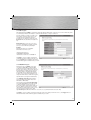
Select the File Server Setup menu item.
5.1.3.1 Network settings
Name: The device will be displayed in My Network Places with the
name entered here. Letters, numbers and underscores are allowed.
Workgroup: Enter the workgroup name here. Letters, numbers,
spaces and underscores are allowed. If you don‘t know the workgroup
name, go to the desktop. Right-click on My Computer and select
on Properties from the menu. The System Properties will now
be displayed. Switch to the Computer Name tab. You can see the
workgroup name here.
Description: Additional description (optional)
5.1.3.2 Adding/changing/deleting shared folders
Shared folders on the storage medium are listed in the Shared Folders
table.
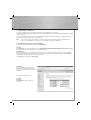
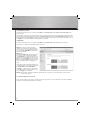
Click ADD to share a new folder.
Folder Name: Name of the share folder, such as „Music”. Letters,
numbers and underscores are allowed. You must remember this name
in order access this share on your PC.
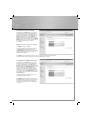
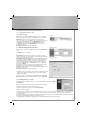
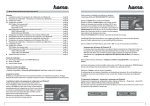
Shared Folder‘s Path: Click Browse. The window displayed at the top
right appears. Click on the USB icon in the left column. All partitions
will now be displayed in the window, such as C:. Click the desired
partition. All existing folders in this partition will now be displayed.
Click on the desired folder, or on New Folder to create a new folder.
Then click on Submit.
User: All users you have created are listed in the window on the left.
Select the desired user from the list and click Add to add it.
Authority: Select whether the user is allowed to both read and write to
the share or only read it.
Description: Additional description (optional).
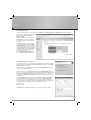
Click Save to save your settings and to enter them in the table. To make
changes to the settings of a shared folder, select it from the Select
column and click Edit.
To remove a share, select the folder from the Select column and click
Delete Selected, or delete all shared folders by clicking on Delete All.
5.1.3.3 Installing the share on your PC
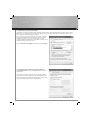
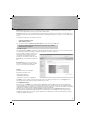
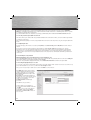
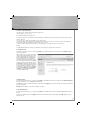
Open My Computer or Windows Explorer on your PC. From the Tools menu, choose Map
Network Drive.
Drive: Select a drive letter that the network drive should be mapped to.
Folder: Enter the path to the desired folder, such as:
„\\Router‘s IP address\name you entered under Folder Name”
Example: „\\192.168.2.1\Music”
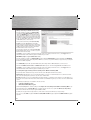
You can also choose whether to reconnect the share after you restart or log on again. Click Finish. You must now enter the user
name and password. If the entry is correct, the selected folder will open and you can add, copy or delete fi les, depending on
your authorisation.
If an error message appears that informs you that the folder could not be found or the connection could not be established, check that
the path, user name and password that you entered are correct.
Open My Computer to find the drive again later. The entry will be displayed there under Network Drives.
15