1
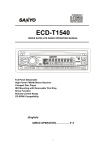
ECD-T1540
SIRIUS SATELLITE RADIO OPERATING MANUAL
VOLUME
45W x 4
MANU/SKIP
S-MOD
SAT
CAT
LOUD/
ENTER
P.SCAN
Full Panel Detachable
High Power FM/AM Stereo Receiver
Compact Disc Player
ISO Mounting with Removable Trim Ring
Sirius Function
Remote Control Ready
CD-R/RW Compatibility
(English)
SIRIUS OPERATION……………. 2~3
1
SIRIUS OPERATION
3
5
VOLUME
45W x 4
MANU/SKIP
S-MOD
SAT
CAT
LOUD/
ENTER
P.SCAN
2
4
8
6
7
1
SWITCHING TO SIRIUS MODE……………………..…(1)
Press MOD button (1) to select Sirius mode.
SELECTING USER-PRESET CHANNEL……………..(2)
At Sirius mode, the Sirius user-preset channel group (3 groups) is toggled cyclically through the
group by quickly pressing the BND/LOUD/ENTER button (2).
The channel will change in the following order:
SR1
SR2
SR3
SELECTING CHANNEL UP/DOWN……………………(3)
Press the MANU/SKIP
or
button (3) to select the channel up or down.
SEARCHING STATION…………………………….……(4)
When the AS/PS/P.SCAN button (4) is pressed, the channel searches for each user preset
station from SR1 to SR2 to SR3.
When an available channel is detected, the station will be held at that preset number and play for
5 seconds. After that, it will mute and search for another available station
STORING PRESET STATIONS .................................(8)
The preset buttons (8) can be used to store 6 stations for convenient access to your favorite
stations.
• Programming stations ..... 1. Select the desired station you want to store in memory.
2. Press and hold one of the preset buttons (8) for more than 2
seconds until the corresponding preset button number appears.
Repeat steps 1. and 2. to program additional stations.
• Quick tuning .................... Press one of the six preset buttons 8 shortly to select a preset
station directly.
2
SIRIUS MODE SELECTION ...........................…..(5)
Press LOC/S-MOD button (5) to switch Category mode, Skip mode or normal. It is used as the
selection of each:
Normal
Category mode
Direct Tune
Skip Channel mode
When Category mode or Skip mode is engaged, the “CATEGORY” or “SKIP” function is turned
on in the display. When Category mode or Skip mode is released, the “CATEGORY” or “SKIP”
function is turned off. When Direct mode is engaged, “DIRECT” of alphanumeric display is turned
on.
Select Category and TUNE UP/DOWN within selected Category
Use CAT
button (7) or
CAT button (6) to select desire Category and press
BND/LOUD/ENTER button (2).
In Category mode, stations can be tuned within the same category.
-
When the user wishes to search by Category, press LOC/S-MOD button (5) can be pressed
until it goes into Category search mode.
button (7) or
CAT button (6) up and down to get to the desired category.
-
Press CAT
-
To change channels, press LOC/S-MOD button (5) again to Normal mode, and then press
MANU/SKIP
or
button (3) to select the channel up or down.
The operation of skip channel function
In Skip mode, pressing LOC/S-MOD button (5) for more than 3 seconds sets the SKIP channel
mode. Details for set or release skip channel is as follows.
Use MANU/SKIP
or
button (3) to be switched to SKIP channel set or release mode
sequentially.
-
Press BND/LOUD/ENTER button (2) to select skip or release the following channel. (If the
channel was skipped, the “SKIP” icon will be displayed.
-
Press LOC/S-MOD button (5) for more than 3 seconds again to return to basic mode
automatically after 10 seconds.
Note:
In skip mode, use MANU/SKIP
or
button (3) to show skipped channels.
How to direct tune
1. In direct mode, display shows DIRECT and “000” channel number. (Hundred Digit flashing
on/off)
2. Use MANU/SKIP
or
button (3) to select hundred digit.
3. Press LOC/S-MOD button (5) again to confirm entry of the hundred digit and the 10s digit is
flashing on/off.
4. Use MANU/SKIP
or
button (3) to select 10s digit.
5. Press LOC/S-MOD button (5) again to confirm entry of the 10s digit and the 1s digit is
flashing on/off.
6. Press LOC/S-MOD button (5) again to confirm entry of the 1s digit.
7. Press BND/LOUD/ENTER button (2) to direct tune.
3
21605 Plummer Street
Chatsworth, CA91311
ECD-T1540. Issue Number 1.
Printed in Hong Kong
4