1
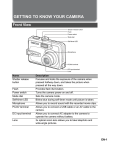
GETTING TO KNOW YOUR CAMERA Front View Shutter release button Flash Power button Mode dial Microphone Viewfinder Self-timer LED PC/AV terminal DC input terminal Lens Name Self-timer LED Viewfinder Flash Shutter release button Lens Power button Mode dial DC input terminal PC/AV terminal Microphone Description Blinks green during Self-timer mode until picture is taken. Allows you to frame the subject of the picture. Provides flash illumination. Focuses and locks the exposure of the camera when pressed halfway down, and takes the picture when pressed all the way down. 3x optical zoom lens allows you to take telephoto and wide-angle pictures. Turns the camera power on and off. Sets the camera mode. Allows you to connect AC power adapter to the camera to operate the camera without battery. Allows you to connect a USB cable or an AV cable to the camera. Allows you to record sound with the recorded movie clips. EN-1 Rear View Viewfinder Diopter adjustment dial Viewfinder LED Zoom/ / / / button button Strap holder Four-way controller DISPLAY/ button button MENU button Battery/SD card cover Tripod socket LCD monitor Name Viewfinder Viewfinder LED Diopter adjustment dial / button / button button MENU button button DISPLAY button EN-2 button Strap holder Tripod socket Battery/Card cover Description Allows you to frame the subject of the picture. Displays the camera current state. Provides a clearer image when using the viewfinder. Zooms the lens to telephoto position. During zoom playback, it changes the size of the Zoom Display image displayed on the LCD monitor. Zooms the lens to wide-angle position. Changes the display into nine images (thumbnail) in the playback mode. Switches to Playback mode. The latest image and information appear on the LCD monitor. Toggles OSD menu on and off. Confirms the menu item selection. Turns the LCD monitor display and live view on and off. Allows you to erase the picture. Camera strap attachment. Allows tripod mounting. Allows you to access to the battery and insert or remove the memory card. LCD monitor Provides menu information to operate the camera, and previews the picture before taking it and review it afterwards. Four-way controller Allows you to scroll through menus and pictures, and then select choices. (e)- Selects the flash mode in Capture mode. (f)- Selects the self-timer mode in Capture mode. (S)- Selects the focus mode in Capture mode. (T)- Adjusts the exposure compensation value in Capture mode. Mode Dial Mode dial PEN TAX DISPLA Y Mode Simple Program Description Lets the camera set the functions automatically. In program mode, the shutter speed and aperture will be set automatically, but other parameters may be set manually. Picture Lets you select the Picture mode according to the shooting scene. Aperture priority Lets you specify the aperture value while the camera sets the corresponding shutter speed. Shutter speed priority Lets you specify the shutter speed while the camera sets the corresponding aperture value. Manual For full manual control over exposure, aperture and other settings. Setup Lets you select the camera preferences. Movie Lets you take moving pictures. EN-3 GETTING STARTED Attaching the Camera Strap Attach the camera strap as shown in the illustration. 1 2 ME MU DISP LA Y Inserting the Battery 1 1 2 2 DISPLAY 1. Open the battery/card cover. 2. Insert the battery in the correct orientation as shown on the right. 3. Close the battery/card cover. MEMU • You can use 2 AA size batteries (alkaline or Ni-MH rechargeable) to power the camera. • Due to the characteristics of AA alkaline battery, camera performance may deteriorate. AA alkaline battery is not recommended except in emergencies and checking the camera's functionality. EN-4 Inserting the SD Memory Card (Optional Accessory) 1. Open the battery/card cover. 2. Insert the SD memory card in the correct orientation as shown on the right. J Hold the SD memory card with its metal contact end surface facing the rear side of the camera, and then insert the card as far as it can go. 3. Close the battery/card cover. DISPLAY MEMU Turning the Power On Power button PEN TAX DISPLA Y Press the button to turn the power on. The viewfinder LED lights green and the camera is ready to take pictures. EN-5 Choosing the OSD (On-Screen Display) Language 1. Set the mode dial to . PEN TAX DISPLA Y 2. Use the four-way controller (d ) to select [Language] and press the button. 3. Use the four-way controller (cd) to select the language. button to confirm the 4. Press the language selection. EN-6 Set-up1 Set-up2 Set-up3 Format Sound Date Adjust Language OK : Off d/m/y English 4/4 Setting the Date and Time 1. Set the mode dial to . 2. Select [Date Adjust] with the four-way controller (d). 3. Use the four-way controller (ef) to select the date type. button. 4. Press the J The Date Adjust screen appears. 5. Use the four-way controller (ef) to select item’s field and adjust the value for the date and time with the four-way controller (cd). 6. After confirming all settings are button. correct, press the Set-up1 Set-up2 Set-up3 Format Off Sound Date Adjust Language d/m/y English OK : 3/4 Date Adjust 01 /07 / 2005 04:00 OK : Select : • The date illustration shown is for the purpose of explanation and may differ from the actual setting of your camera. EN-7 Taking Still Pictures Shutter release button Mode dial Power button Viewfinder Zoom LCD monitor / / / button button PEN TAX DISPLAY 1. 2. 3. 4. Press the button to turn on the camera. Set the mode dial to . Compose your image in the LCD monitor or through the viewfinder. Press the shutter release button halfway down to automatically focus the image. Proper exposure is determined and locked at the same time. 5. Press the shutter release button down fully to take the pictures. Playing Back Still Pictures Power button Playback button LCD monitor Four - way controller PEN TAX DISPLA Y 1. Press the button. J The last image appears on the screen. 2. Use the four-way controller (ef) to view the pictures. J Four-way controller (e): go back to the previous image. J Four-way controller (f): advance to the next image. EN-8 Recording Movie Clips This mode allows you to record movie clips with sound via built-in microphone. and turn 1. Rotate the mode dial to your camera on by pressing the button. 2. Press the shutter button to start recording. 3. To stop recording, press the shutter button again. 1 PEN TAX DISPL AY Playing Back Movie Clips You can play back the recorded movie clips on the LCD monitor. However, the sound recorded with movie clips can only be played back on TV or computers. 1. Press the button. 2. Use the four-way controller (ef) to go through the images until the movie clip you want to play back is displayed. To view the previous image, press the four-way controller (e). To view the next image, press the four-way controller (f). button to start playing 3. Press the back the movie clips. To pause or resume movie playback, button again. press the 100-0001 Size EV 01.07. '05 320X240 0.0 05:22 1 EN-9 Erasing Images 1. Press the button. J The last image will be displayed on the screen. 2. Select the image you want to erase with the four-way controller (ef). button. 3. Press the 4. Use the four-way controller (cd) to select [This Image]. button. 5. Press the 6. Use the four-way controller (cd) to select [OK]. button to confirm the 7. Press the deletion. Delete This Image Delete All Cancel OK : Delete OK Cancel TRANSFERRING RECORDED IMAGES AND OK : EN-10 TRANSFERRING RECORDED IMAGES AND MOVIES TO YOUR COMPUTER Setting Up Your Digital Camera After installing the necessary software on your computer, you must now set up your digital camera to transfer images from the camera to your computer. The USB driver included in the CD-ROM (S-SW38) is exclusively for Windows 98/98SE. For more details on driver installation process, you can refer to your Operating Manual. Setting the USB Connection Mode to [PC] 1. Set the mode dial to . Set-up2 Set-up1 2. Press the four-way controller (f) to USB Con. USB display the [Set-up2] menu. Video Out 3. Use the four-way controller (d ) to select [USB Con.]. Brightness button. 4. Press the Auto Power Off OK : 5. Use the four-way controller (cd) to select [PC]. button. 6. Press the Set-up3 PC NTSC 0 2min 1/4 USB Con. PC PictBridge PC Camera OK : 1/3 • Do not connect the camera to your computer while [PictBridge] is selected for the USB Connection mode. • Do not connect the camera to your printer while [PC] or [PC Camera] is selected for the USB Connection mode. • On Windows 98/98SE/ME/2000, if the camera is connected to your computer and you unintentionally set the camera's USB connection to PictBridge, the "Install Driver" message will appear. Ignore this message and click "Cancel". EN-11 Connecting the Camera to Your Computer DC IN 3.0V PC/AV terminal 1. Connect the camera to the PC with the USB cable. If there is no SD Memory Card in the camera, the images stored in the internal memory will be transmitted to the computer. 2. Turn the camera on. 3. Look for a new “Removable Disk” icon appearing in the “My Computer” window. Your recorded images/movie clips will be in a folder on this “removable disk”. (For Mac users, double-click the “untitled” disk on the desktop.) EN-12 Downloading Images/Movie Clips When the camera is turned on and connected to your computer, it is considered to be a disk drive, just like a floppy disk or CD. You can download (transfer) images by copying them from the “removable disk” (“untitled” disk on a Macintosh) to your computer hard drive. For Computers Running Windows Open the “removable disk” by double clicking on it. Double click on the folder containing your recorded images/movie clips. Select the images/ movie clips that you prefer and then choose “Copy” from the “Edit” menu. After that, open the destination location and choose “Paste” from the “Edit” menu. J For Computers Running Mac OS Open the “untitled” disk window and the hard disk or the destination location. Drag and drop from the camera disk to the desired destination. J EN-13 USING THE DIGITAL CAMERA AS A PC CAMERA Your digital camera can act as a PC camera, which allows you to videoconference , or have a real-time conversation with friends or family. 1. Install the PC camera driver. The PC-camera driver included in the CD-ROM (S-SW38) is exclusively for Windows. The PC camera function is not supported for Mac platforms. and turn your camera on by pressing the 2. Rotate the mode dial to button. 3. Press X to select the [Set-up2] menu, then use T to select [USB USB Con. Con.]. PC button. 4. Press the PictBridge 5. Use S or T to select [PC Camera], PC Camera button. then press the 6. Connect your camera and the computer via a supplied USB cable. OK : 3/3 7. Position the digital camera steadily on top of your computer monitor or use a tripod. EN-14 To use Windows NetMeeting for videoconferencing 1. Go to Start=>Programs=>Accessories=>Communications => NetMeeting to launch the NetMeeting program. 2. Click the Start Video button to view live video. 3. Click the Place Call button. 4. Type the e-mail address or the network address of the computer that you are calling. 5. Click Call. The person that you are calling must also have Windows NetMeeting running and be willing to accept your call to start the videoconference. • The video resolution for videoconferencing applications is generally 320 x 240. EN-15