1
&
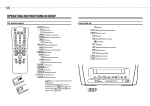
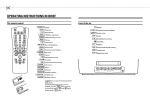
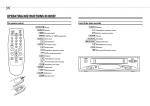
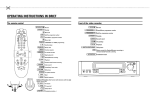
OPERATING INSTRUCTIONS IN BRIEF
The remote control
Front of the set
RECORD n
Record
STANDBY m Standby
SV/V+
’VIDEOPlus+’ programming
TIMER k TIMER programming on the set
CLEAR b
0-9
Reset/clear
m Standby
Pp
5
Record
H
Rewind/Reverse scanning
Digit buttons 0-9
STOP h Pause/Stop
Programme number Plus/Minus
Sp Volume control
h Pause/Stop
G
Playback
D Menu left
I
Forward wind/ Forward scanning
C Menu right
J
Cassette eject
w
Headphones socket
GPLAY
Playback
Sp Volume control
A
menu Up
B
menu Down
Pp
MUTE y
MENU
OK
Programme number Plus/Minus
Mute sound
Call menu
Confirm button
INDEX E
Index search
STILL R
Still picture
The following buttons are only available for some
sets:
CLEAR b
TELETEXT concealed information
d
TELETEXT off (temporarily)
e
TELETEXT on/off
f
TELETEXT page stop
g
TELETEXT enlarged print
&
Programming with ’VIDEOPlus+’
How to enter, check or clear a TIMER-block manually
All the information required for programming is encoded in the ’VIDEOPlus+’ code.
1
Press the
2
Select a free TIMER block or the TIMER block you want to check or clear.
3
Clear: Press the
SV/V+
1
Press the
2
Enter the entire ’VIDEOPlus+ code’. This code (up to 9 digits) is found next to the start time of a
TV programme in your TV guide.
If you entered an incorrect code number, clear it with the CLEAR b button.
3
4
button on the remote control.
If you want to repeat programming at daily or weekly intervals, select the required settings in
the ’DAILY/WEEKLY’ line.
’Daily’ programming can only be used for recordings to be made from Mondays to Fridays
inclusive.
After confirming the corresponding data appears on the TV screen.
Note: If you use VIDEOPlus+ for the first time, the ’PROGRAMME NR.’ line appears when you
enter the VIDEOPlus+ code. Enter the required programme number.
d
DATE DW PR START END
01
01 17:15 18:45
v w x y 0-9
5
Confirm with the
OK
OK
button.
The data has been stored in a TIMER block.
Please ensure that you loaded a cassette without erase protection.
6
Press the
STANDBY m
button.
TIMER k
button.
CLEAR b
button.
4
Enter/Check: Press the
or C button to switch between ’DATE’ (date), ’DW’ (daily,
weekly), ’PR’ (programme number), ’START’ (start time) and ’END’ (end time).
A and the
B or the
0-9 buttons to change the data.
Press the
5
To end programming, press the
6
D
Press the
STANDBY m
MENU
button.
button.
Selecting a TV channel
Select the required TV channel (= programme number) with the P p button or the 0-9
buttons on the remote control.
The selected programme number (e.g.: ’P 01’ ) appears in the upper right corner of the TV screen.
Volume control
You can control the volume level with the Sp button.
MUTE y
If you want to mute the sound temporarily (e.g.: during a telephone call), press the
button on the remote control. When you press it again, the sound returns at the same volume level.
Picture control
You can control brightness, contrast, sharpness and colour here.
MENU
1
Press the
2
Select and confirm the line ’PICTURE’ .
3
Select and confirm the TV screen setting.
button.
* In addition, you can adjust the tint for the playback of cassettes in the NTSC standard.
OPERATING INSTRUCTIONS PHILIPS 14PV182/05
Congratulations on the purchase of one of the most sophisticated and simple-to-use television/video recorders combinations (TV combi) on the market. With this TV combi you can
record and play VHS-standard cassettes.
Please take the time to read this operating manual before
using your TV combi.
Safety instructions and other notes
•
•
•
•
•
•
•
•
•
•
Danger: high voltage! Do not open the set. The set does not
contain any components that can be repaired by the customer.
When the appliance is connected to the power supply there are
some components that are constantly operational. To switch off
the set completely you must disconnect it from the power
supply.
Note that this power pack is designed for a power supply of
220-240V/50Hz.
Ensure that air can circulate freely through the ventilation slots
on the set.
Ensure that no objects or liquids enter the set. If liquid is spilt
into it, disconnect the set immediately from the power supply
and call the After-sales Service for advice.
The set should not be used immediately after transportation
from a cold to a hot area or vice versa, or in conditions of
extreme humidity.
After unpacking the set, it should be allowed to acclimatize for
at least three hours before installation.
These operating instructions have been printed on nonpolluting
paper.
Deposit old batteries at the relevant collection points.
Please make use of the facilities available in your country for
disposing of the packaging of the set in a way that helps to
protect the environment.
This electronic equipment contains many materials that can be
recycled. Please inquire about the possibilities for recycling
your old set.
VIDEOPlus+ and PlusCode are trademarks of Gemstar Development Corpoation. The VIDEOPlus+ system is manufactured
under licence from Gemstar Development Corporation.
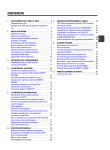
Contents
Page
1.
INSTALLATION . . . . . . . . . . . . . . . . . . . . . . . . . . . . . . . .
Connecting additional equipment . . . . . . . . . . . . . . . . . .
Emergency interrupt . . . . . . . . . . . . . . . . . . . . . . . . . . . .
User guide . . . . . . . . . . . . . . . . . . . . . . . . . . . . . . . . . . . .
Making standard settings . . . . . . . . . . . . . . . . . . . . . . . .
Setting the clock and date . . . . . . . . . . . . . . . . . . . . . . .
2
3
3
3
3
3
2.
PLAY BACK . . . . . . . . . . . . . . . . . . . . . . . . . . . . . . . . . . . 5
Continuous playback . . . . . . . . . . . . . . . . . . . . . . . . . . . 5
3.
RECORD . . . . . . . . . . . . . . . . . . . . . . . . . . . . . . . . . . . . . . 6
Programming with ’VIDEOPlus+’ . . . . . . . . . . . . . . . . . . 7
4.
SPECIAL FEATURES . . . . . . . . . . . . . . . . . . . . . . . . . . . .
On Screen Display (OSD) . . . . . . . . . . . . . . . . . . . . . . . .
Sleep function (switch off) . . . . . . . . . . . . . . . . . . . . . . .
Switch set on function . . . . . . . . . . . . . . . . . . . . . . . . . .
Child lock . . . . . . . . . . . . . . . . . . . . . . . . . . . . . . . . . . . . .
Before you call an engineer . . . . . . . . . . . . . . . . . . . . . .
8
8
8
8
9
9
1
1.
INSTALLATION
Important for the United Kingdom
Connecting the cables
This apparatus is fitted with an approved moulded 13 Amp
plug. To change a fuse in this type of plug proceed as
follows:
1 Remove fuse cover and fuse.
2 Fix new fuse which should be a BS1362 5A, A.S.T.A. or
BSI approved type.
3 Refit the fuse cover.
If the fitted plug is not suitable for your socket outlets, it
should be cut off and an appropriate plug fitted in its place.
If the mains plug contains a fuse, this should have a value of
5A. If a plug without a fuse is used, the fuse at the
distribution board should not be greater than 5A.
Note: * The severed plug must be destroyed to avoid a
possible shock hazard should it be inserted into a 13A
socket elsewhere.
How to connect a plug:
The wires in the mains lead are coloured in accordance with
the following code:
BLUE - ’NEUTRAL’ (’N’)
BROWN - ’LIVE’ (’L’)
1 The BLUE wire must be connected to the terminal which
1 Insert the aerial plug into the
2 Insert the plug of the mains cable into the wall socket.
3 Switch the set on. The power switch
3 Do not connect either wires to the earth terminal in the
•
•
•
•
•
•
2
is located on
Important notes for operation
plug which is marked with the letter ’E’ or by the safety
earth symbol \ or coloured green or green-andyellow.
Before replacing the plug cover, make certain that the cord
grip is clamped over the sheath of the lead - not simply over
the two wires.
m
the left side panel of the set.
•
which is marked with the letter ’L’ or coloured RED.
socket.
If you use the auxiliary aerial supplied, push the aerial into
the mounting on the back panel until it snaps into place.
Pull out the telescopic rod(s) as far as required. Tilt and
rotate the aerial until you have got the best picture quality.
is marked with the letter ’N’ or coloured BLACK.
2 The BROWN wire must be connected to the terminal
2
We advise you, from now on, to switch the set to standby
using the STANDBY m button on the front of the set or
on the remote control.
When the set is in the standby mode, a small red lamp on
the left of the front of the set will be alight.
You can switch on with the STOP h button, the
0-9 buttons or by inserting a cassette.
Attention: When you use the power switch m on the
side panel, you have completely switched off the set from
the mains power supply. No programmed recordings will
then be made. The red lamp on the left of the front of the
set will not be alight. After a few hours, the date and
clock settings will be lost.
Attention: Before you switch off the appliance with the
power switch m , remove the tape by pressing the
J button.
Keep your TV Combi connected to the mains and the
power switch in ’on’ position at all times to ensure that
programmed recordings can be made and that the
television functions normally. The power consumption
required is low.
Back-up power supply: TV channel storage - typically 1
year, Clock/Timer - typically 7 hours.
Connecting additional equipment
•
•
You can also connect additional equipment to the
EXTERNAL socket, for instance, a decoder satellite receiver
or camcorder.
•
•
•
Call up: Use the MENU button.
Select: Select a line with the A or B button. Use
the 0-9 buttons or the D or C menu button to
select within a line.
Enter/Alter: With the D or C or with the 0-9
button.
Confirm: With the OK button.
Exit: With the MENU .
Making standard settings
STOP h
1 To start, press the
button and the
C
button. Press the
button simultaneously.
D
Emergency interrupt
Both the set and the remote control have an ’Emergency
interrupt’ button. You can use the STANDBY m button to interrupt any function.
To interrupt a TIMER recording, press the STANDBY m button several seconds.
Whenever you have operating problems you can simply
interrupt the function and start again.
You can practise operating your set without any worries. No
matter which buttons you press, you cannot damage it.
INSTALLATION
vw
LANGUAGE
COUNTRY
AUTO STORE
MANUAL STORE
SORT
PP STORE
EN
GB
2 Select the required display language in the ’LANGUAGE’
line.
3 Select your country in the ’COUNTRY’ line.
User guide
Setting the clock and date
1 To start, press the
2 Press the
MENU
STOP h
button.
button.
3 Select and confirm the line ’FEATURES’ .
4 Select and confirm the line ’SET CLOCK’ .
With OSD (On Screen Display) the corresponding functions
appear on the TV-screen. The most important button-functions are displayed at the bottom of the screen.
Throughout this instruction manual, use the following buttons
for the functions ’Call up’, ’Select’, ’Enter’/’Adjust’, ’Confirm’
and ’Exit’:
SET CLOCK
TIME
YEAR
MONTH
DATE
20:00
1998
01
01
x y 0-9
5 Enter the time, year, month and date.
3
Automatic Channel Search
1 Switch on with the
button and the
C
STOP h
button. Press the
button simultaniously.
Allocating channel numbers
D
2 Select and confirm the line ’AUTO STORE’ .
1 Switch on with the
button and the
C
STOP h
button. Press the
button simultaneously.
D
2 Select and confirm the line ’SORT’ .
The ’Automatic Channel Search’ function starts.
SORT
AUTO STORE
FROM
TO
STORE
PRESS x y TO STOP
SEARCH
PLEASE WAIT
CHANNELS FOUND:
vw
C-21
P01
P02
1
aaabbbbbbbbbbbbbbbbb
3 On the TV screen, in the line ’FROM’ , select the TV
3 Wait until all TV channels have been stored.
All TV channels will be stored from programme number
69 downward.
channel to which you want to allocate a programme
number, e.g.: ’P 01’ .
4 In the line ’TO’ , select the required programme number,
How you can search for a TV channel manually, you can read
in chapter 4 ’SPECIAL FEATURES’ in the section ’Manual
channel search’.
e.g.: ’P 02’ .
5 Select and confirm the line ’STORE’ .
The allocated TV channels will be exchanged.
Note:
* If the ’Automatic channel search’ function is activated,
any previously programmed TIMER blocks will be
cleared.
You can store up to 69 TV channels.
4
6 Repeat steps 3to 5until you have allocated a pro-
gramme number to all the required TV channels.
To finish, press the MENU button twice.
2.
PLAY BACK
1 Insert a cassette into the cassette slot.
Tape position/Index search
2 Press the GPLAY play back button.
3 Picture search: Now press the
H
(rewind) or
I
(wind) button once or several times.
STOP h
4 Interrupt: Press the
button.
5 Wind: Stop the tape and press the
I
H
(rewind) or the
J
Index search: Every time you start to record, the tape is
marked with a code mark.
button. Press the I button to
select the next code mark or the H button for the
previous code mark.
1 Press the
(wind) button.
6 Eject: Press the
Tape position: If you press the OK button the tape position
will be shown in the display during Wind, Rewind, Record,
Play back and Pause/Stop.
button on the set.
Note: Some functions switch off automatically after a
while (e.g.: Pause, Still Picture, Scanning). This helps to
protect the cassette and prevent unnecessary power
consumption.
* With this set you can play back cassettes that have
been recorded on another TV combi in the NTSC
standard.
* If you load a cassette with erase protection, the TV
combi starts the play back automatically.
* The picture quality is affected during scanning. The
sound is switched off.
* Remove the cassette before transporting the TV
Combi.
INDEX E
2 Once the TV Combi finds the code mark or unrecorded
area it will automatically switch to play back.
Note: When you press any tape transport button (e.g.:
the H or I button) this search function will be
stopped.
* You cannot use this function with recordings made on
another video recorder that does not have this function.
Eliminating picture interference
1 During playback press the
MENU
button.
2 Select and confirm the ’SPECIAL’ line.
Still picture
3 Select the ’TRACKING’ line.
1 Press the
STILL R
button. You see a still picture.
Interference stripes will appear.
Each time you press the STILL R button again the picture will move on one step.
Continuous playback
D or
quality is at its best.
4 Press the
C
button until the playback
5 Press the
MENU button. This setting will remain until
you remove the cassette.
6 Cleaning function: Press the
MENU
button.
7 Select and confirm the ’SPECIAL’ line.
1 Press the
MENU
button.
8 Select the ’CLEANING’ line.
2 Select and confirm the ’SPECIAL’ line.
9 Press the
3 Select the ’REPEAT PLAY’ line. Switch on the continuous
OK
button. A blue screen appears for a few
seconds.
playback.
0 Wait until the blue screen disappears and press the
4 Press the
MENU
button.
5 Start the continuous playback with the GPLAY playback
button.
6 If you want to cancel the function, stop the continous
MENU
button.
Note:
* Some hired cassettes may have a poor picture/sound
quality. This is not a fault in your set.
playback in the ’REPEAT PLAY’ line.
5
3.
RECORD
1 Insert a cassette.
Programme a recording
P p button to select the programme number
from which you wish to record, e.g.: ’P 01’ .
2 Use the
3 Press the RECORD n button.
4 Use the
STOP h
button to stop the recording.
5 If, whilst recording, you want to switch off the TV screen,
press the STANDBY m button once.
To switch the TV screen on again, press the
button.
Pp
Important notes for recoding
•
•
•
•
•
•
6
OTR: If you do not want to record to the end of the
cassette, press the RECORD n button again. The display
shows at what time the recording will stop.
With the D or the C button you can change the
end time of the recording in 30 minute intervals.
If you wish to cancel the end time, press the CLEAR b
button.The recording goes on uninterruptedly. (This does
not effect the recording.)
Programme number ’E1’ is provided for recording from
external sources (via the EXTERNAL scart socket).
Programme number ’AV’ is provided for recording from
external sources (via the front socket).
Erase protection: So that you don’t accidentally delete an
important recording, you can remove the special tab
(erase protection) on the narrow side of the cassette with
a screwdriver or slide the special tab to the left.
Later, if you no longer want the cassette to be erase
protected, you can seal the gap again with adhesive tape
or slide the special tab to the right.
Auto-assembling: You can use the auto-assembling function to join individual recordings without any major
picture disturbance between the recordings.
Search for the correct position on the tape and then stop
the playback by pressing the STOP h button. ’PAUSE’
appears in the display.
Now start recording as usual by pressing the
RECORD n button.
Long play: Before recording, press the MENU button.
Select and confirm the ’SPECIAL’ line.
Select and confirm the ’TAPE SPEED’ line.
Select the ’LP’ (=LongPlay) recording speed and stop by
pressing the MENU button.
During playback the TV Combi will automatically select
the correct playback speed.
The set needs the following information for every programmed recording:
* the date on which the recording is to be made
* the programme number for the TV channel
* the start and end time of the recording
* VPS/PDC on or off
The set stores all the information mentioned above in what is
known as a TIMER block. It can store 6 TIMER blocks for up
to one month in advance.
’VPS’ (Video Programming System)/ ’PDC’
(Programme Delivery Control)
With ’VPS/PDC’, the TV station controls the start and the
duration of a programmed recording. This means that the
video recorder switches itself on and off at the right time
even if a TV programme you have programmed begins earlier
or finishes later than expected.
Usually the start time is the same as the ’VPS/PDC’ time. If,
however, a different ’VPS/PDC’ time is given, e.g.: ’20.15
(VPS/PDC 20.14)’, you have to enter ’20.14’ (the ’VPS/PDC’
time) exactly to the minute.
If you are not using ’VPS/PDC’, the ’VPS/PDC’ indication must
be off.
Programming with ’VIDEOPlus+’
How to enter, check or clear a TIMER
block manually
All the information required for programming is encoded in
the ’VIDEOPlus+’ code.
1 Press the
1 Press the
2 Select a free TIMER block or the TIMER block you want
SV/V+
button on the remote control.
3 Clear: Press the
ONCE
01
OK
3 If you want to repeat programming at daily or weekly
intervals, select the required setting in the ’DAILY/WEEKLY’ line.
’Daily’ programming can only be used for recordings to
be made from Mondays to Fridays inclusive.
or C button to switch
between ’DATE’ (date), ’DW’ (daily, weekly), ’PR’ (programme number), ’START’ (start time) and ’END’ (end
time).
Press the A and the B , or the 0-9 buttons to
change the data.
6 Press the
the TV screen.
•
•
Note: If you use ’VIDEOPlus+’ for the first time, the
’PROGRAMME NR.’ line appears when you enter the
’VIDEOPlus+’ code. Enter the required programme number for this TV channel.
•
•
•
d
DATE DW PR START END
01 17:15 18:45
•
OK
•
5 Confirm with the
OK
button.
The data has been stored in a TIMER block.
Please ensure that you loaded a cassette without erase
protection.
6 Press the
STANDBY m
D
STANDBY m
MENU
button.
button.
Important notes for programmed recordings
4 After the confirmation the corresponding data appear on
v w x y 0-9
button.
5 To end programming, press the
x y 0-9
01
CLEAR b
4 Enter/Check: Press the
VIDEOPLUS
CODE
DAILY/WEEKLY
PROGRAMME NR.
button.
to check or clear.
2 Enter the entire ’VIDEOPlus+ code’. This code (up to 9
digits) is found next to the start time of a TV programme
in your TV guide.
If you entered an incorrect code number, clear it with the
CLEAR b button.
TIMER k
•
If the message ’PLEASE PRESS STOP’ or ’PLEASE PRESS
STANDBY’ appears on the TV screen, press the
STOP h or the STANDBY m button.
A TIMER recording will function only, if the set isn’t used
for other video recorder functions (e.g.: playback).
The TIMER lamp on the front of the set lights up when
one or more of the TIMER blocks are occupied.
If the end of the cassette is reached during a recording,
the video recorder automatically ejects the cassette. The
set switches off after a few minutes.
If you forget to load a cassette, ’NO CASSETTE CANNOT
RECORD’ will appear.
If you inserted a cassette with erase protection when you
want to start a recording, the cassette will be ejected.
If ’CODE ERROR’ appears on the TV screen, you entered
an incorrect code number or the incorrect date. Repeat
the entry or end with the STANDBY m button.
With ’Daily’ programming, the first recording must take
place within a week.
If ’DAILY ERROR’ appears on the TV screen, the date was
incorrectly entered. ’Daily’ programming can only be used
for recordings to be made from Mondays to Fridays
inclusive.
The programmed recording will always be made at the
recording speed (SP/LP) that has already been selected
on the TV Combi.
button.
7
4.
SPECIAL FEATURES
5 Select and confirm the ’FEATURES’ line.
On Screen Display (OSD)
6 Select and confirm the ’PP RECALL’ line.
You can switch OSD on or off.
7 Press the
1 Press the
MENU
MENU
button. The set will use this setting.
button.
2 Select and confirm the ’FEATURES’ line.
Sleep function (switch off)
You can programme your set to switch off after a predetermined period.
FEATURES
vw
PP RECALL
ON TIMER
SLEEPTIMER
DISPLAY
CHILD LOCK
SET CLOCK
0
FULL
OFF
1 Press the
MENU
button.
2 Select and confirm the ’FEATURES’ line.
3 Select ’SLEEPTIMER’ line.
3 Select the ’DISPLAY’ line.
4 Select one of the options indicated.
’FULL’: OSD appears for a few seconds each time an
operating mode is selected and then disappears.
’OFF’: OSD is switched off.
’PROG’: only the programm number appears.
’COUNT’: only the counter appears.
5 Confirm it with the
MENU
button.
4 With the
D
or the C button you can determine
the minutes left until switch off in 15 minutes intervals.
When you set the time to ’0’ with the CLEAR b button
the sleep function is switched off.
5 Press the
MENU
button.
Switch set on function
Note: With the OK button you can superimpose the
actual operating mode on the TV screen.
You can programme your set to switch on at a predetermined
time.
1 Press the
Personal Preset
MENU
button.
2 Select and confirm the ’FEATURES’ line.
You can make your personal picture and volume settings
here. You can call up this setting and it will be used
automatically when you switch the set on.
1 select your personal setting. (see chapter ’The TV set
functions’). Press the
simultaniously.
D
button and the
C
button
MENU
5 Select the ’WAKE UP’ line and switch the ’on-timer’ on or
6 Press the
button. The personal setting
has been stored.
4 Calling up your Preset: Press the
8
4 Determine the time you wish the set to switch on.
off.
2 Select and confirm the ’PP STORE’ line.
3 To end press the
3 Select and confirm the ’ON TIMER’ line.
MENU
button.
MENU
button.
Child lock
1 Press the
MENU
button.
2 Select and confirm the ’FEATURES’ line.
3 Select the ’CHILD LOCK’ line.
4 Switch the child lock on or off.
5 Press the
MENU
Note:
* If you want to allocate a decoder, switch the decoder
function on or off with the D or C button in the
’DECODER’ line.
* If you want to change the automatic channel setting,
select the ’FINE TUNING’ line.
With the D or C button you can vary the automatic TV channel setting.
Important: This re-tuning is only necessary and useful in
special cases, e.g.: when there are stripes on the
picture with cable-TV systems.
button.
5 In the ’PROGRAMME NR.’ line use the
Note: If a button is pressed with the childlock ’on’,
’CHILD LOCK’ appears for a few seconds in the display.
* Programmed recordings are made despite the child
lock and cannot be interrupted.
Pp
button to
select the required programme number, e.g.: ’P 01’ .
6 Select and confirm the ’STORE’ line.
7 If you want to search for further TV channels, start again
Manual channel search
In certain cases the Automatic Channel Search may not be
able to find all of the TV channels (e.g.: coded TV channels).
You can then use this manual method to set the channels.
1 Switch on the set with the
D
C
button and the
STOP h button. Press the
button simultaniously.
2 Select and confirm the ’MANUAL STORE’ line.
MANUAL STORE
CHANNEL/FREQ.
SEARCH
FINE TUNING
PROGRAMME NR.
DECODER
STORE
vw
C-21
1
at step 4.
To finish, press the
MENU
button twice.
Before you call an engineer
If, contrary to expectation, you experience any difficulty in
operating this TV Combi, please call the customer service in
your country.
You will find the telephone numbers in the enclosed guarantee leaflet.
The set does not respond to any button being pressed:
• No power supply.
• Technical disturbance: disconnect from the mains for 30
seconds, then re-connect.
• The power switch on the side panel is switched off.
• Child lock is active.
Cassette jammed:
• Don’t use force. Pull out the mains plug for a moment.
3 Select the ’SEARCH’ line.
4 Press the
C
button as often as necessary, until you
have found the right TV channel.
Remote control does not operate:
• Remote control wasn’t pointed at the set.
• Batteries are exhausted.
No playback on TV Combi:
• No recording on the cassette.
No TV reception:
• The aerial is not connected.
• No TV channels have been stored.
9
Poor playback from TV combi:
• Cassette badly worn or of poor quality.
• Use the ’TRACKING’ function.
No recording possible:
• TV channel not stored or wrongly selected.
• Cassette with erase protection has been loaded.
Programmed recording does not function:
• TIMER not set properly.
• Time data wrongly programmed.
• A cassette with erase protection has been loaded.
• VPS/PDC switched on but ’VPS/PDC time’ wrong. Check
aerial.
This product complies with the requirements of the Directive
73/23/EEC + 89/336/EEC + 93/68/EEC.
TYPE
8135/003
3103 166 20301
(Wwn N Nw nwN nwnWwnN Nw nNnw N)
14PV182/05
VNxx
10
14PV182/05
SER.NR......