1
En
D I G I TA L C A M E R A
Quick Start Guide
Package Contents
pg. 2
Taking Pictures
pg. 3
Bundled software
PictureProject
pg. 13
Package Contents
Check that you have all the items listed below.
NOTE: A memory card is not included with the camera.
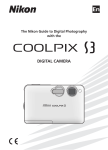
COOLPIX S3
digital camera
MV-11 / MV-11B
COOL-STATION*
Camera strap
EH-63 AC adapter†
(with power cable)
EN-EL8 rechargeable battery
(with terminal cover)
UC-E10 USB
interface cable
EG-E5000
audio / video cable
En
En
The Nikon Guide to Digital Photography
with the
D I G I TA L C A M E R A
DIGITAL CAMERA
Quick Start Guide
Quick Start Guide
(this guide)
Warranty
Guide to Digital
Photography with
the COOLPIX S3
Warranty
PictureProject
installer CD
(yellow)
PictureProject
reference manual
CD (silver)
* An MV-11 or MV-11B is provided, depending on the color of the camera body.
† Shape of cord depends on country of use.
Use Only Nikon Brand Electronic Accessories
Nikon COOLPIX cameras are designed to the highest standards and include complex
electronic circuitry. Only Nikon brand electronic accessories (including battery chargers, batteries, and AC adapters) certified by Nikon specifically for use with this Nikon
digital camera are engineered and proven to operate within the operational and safety
requirements of this electronic circuitry.
THE USE OF NON-NIKON ELECTRONIC ACCESSORIES COULD DAMAGE THE CAMERA AND MAY VOID YOUR NIKON
WARRANTY. The use of third-party rechargeable Li-ion batteries not bearing the Nikon
holographic seal* could interfere with normal operation of the camera or result in the
batteries overheating, igniting, rupturing, or leaking.
For more information about Nikon brand accessories, contact a local authorized Nikon
dealer.
* Holographic seal: Identifies this device as an authentic Nikon product.
2
Taking Pictures
Attach the camera strap
Attach the strap as shown.
Charge the battery
After inserting the battery, place the camera in the supplied MV-11 / MV-11B
COOL-STATION for charging.
1
Attach the camera strap / Charge the battery
Connect the EH-63 AC adapter to the COOL-STATION
� Connect the AC power cord to the AC adapter.
� Plug the DC cord into the COOL-STATION’s DC-IN connector.
� Plug the AC power cord into a wall outlet. The power lamp on
the AC adapter will light (�).
AC adapter
1
Power cord
MV-11 / MV-11B
COOL-STATION
3
2
DC-IN
connector
4
Power lamp
3
Taking Pictures
2
1
Open the battery-chamber cover
Slide the battery-chamber cover in
the direction shown (�), stopping
when the cover opens (�).
2
Insert the battery
Insert the battery as shown in the
label at the entrance to the battery
chamber, making sure that the positive (“+”) and negative (“–”) terminals are in the correct orientation.
3
Inserting the battery upside down
or backwards could damage the
camera. Be sure that the battery
is in the correct orientation.
When the battery is fully inserted,
the orange battery latch will pop
up, locking the battery in place.
battery latch
Charge the battery
4
1
2
4
Close the battery-chamber cover
Close the cover (�) and slide it in
until it latches (�).
Taking Pictures
5
Place the camera in the COOL-STATION
1
Power lamp
2 Camera connector
6
1
Confirm that the camera power-on lamp is off. The battery
will not charge while the camera is on.
2
Place the camera in the COOL-STATION with the monitor towards you, making sure that the connector is fully inserted in
the matching connector on the COOL-STATION.
Charge the battery
The indicator next to the camera
monitor will blink green while the
battery charges.
An exhausted battery will recharge in about two hours.
Charge the battery
Charging is complete when the indicator stops blinking. Remove the
camera from the COOL-STATION
and unplug the AC adapter.
5
Taking Pictures
Turn the camera on
1
Select
mode
Slide the mode selector to
mode).
2
Turn the camera on
Press the power switch until the
power-on lamp lights.
(auto
Auto Power off (Stand-by Mode)
If no operations are performed for about five seconds in shooting mode, the
monitor will gradually dim to save power. Full brightness can be restored by
pressing the shutter-release button or operating any of the controls next to the
monitor. If no operations are performed for about a minute, the monitor will
turn off altogether and the camera will enter stand-by mode, further reducing
the drain on the battery. The display can be reactivated by pressing the shutterrelease button halfway. The camera will turn off automatically if no operations
are performed for another three minutes.
Turn the camera on
See the Guide to Digital Photography for more information on the options
available for auto power off.
6
Taking Pictures
Choose a language and set the clock
The first time the camera is turned on, a language-selection dialog will
be displayed in the monitor. Follow the steps below to choose a language and set the time and date.
Use the multi selector to navigate the menus.
Move cursor up
Press center ( )
to make selection
Display sub-menu,
move cursor right,
or make selection
Cancel and return
to previous menu,
or move cursor left
Move cursor down
1
2
DATE
Set time and date?
No
Yes
Confirm
Highlight language.
3
DATE
Confirm
Confirmation dialog displayed.
4
Set time and date?
Choose a language and set the clock
Cancel
TIME ZONE
London, Casablanca
DaylightSaving
No
Yes
Confirm
Highlight Yes.
Confirm
TIME ZONE menu displayed. *
* To turn daylight saving time on or off, press multi selector down to highlight
DaylightSaving and press
button of multi selector. When DaylightSaving is
checked, time will automatically be advanced one hour. To return to Step 4, press
multi selector up to highlight current time zone.
7
Taking Pictures
5
HOME TIME ZONE
6
London, Casablanca
Back
Confirm
London, Casablanca
Back
Confirm
Display map of world time zones.
7
DATE
D
M
Y
Select home time zone.
8
01 . 01 . 2005
00
:
M
:
M
Y
:
00
Edit Day (order of Day, Month, and
Year may differ in some areas).
Y
10
01 . 10 . 2005
00
D
01 . 01 . 2005
00
DATE
D
DATE
00
Display DATE menu.
9
HOME TIME ZONE
DATE
D
M
Y
01 . 10 . 2005
00
15
:
10
Confirm
Choose a language and set the clock
Select Month. Repeat 8 – 9 to edit
Month, Year, hour, and minute.
11
DATE
M
D
Y
Highlight D M Y.
12
10 . 01 . 2005
15
:
10
Confirm
Choose order in which Day, Month,
and Year will be displayed.
8
AUTO
Exit to shooting mode.
9
Taking Pictures
Take pictures
Picture Storage
Pictures are stored either in the camera’s 12 MB internal memory or on removable memory cards. In the description that follows, pictures are stored in internal
memory. For information on using memory cards, see page 10 of the Guide to
Digital Photography.
1
Check indicators in the monitor
AUTO
AUTO
9
9
Number of exposures remaining
Battery level indicator: Battery level is shown as follows:
Display
Description
NO ICON Battery fully charged.
Low battery. If flash fires, monitor will turn off while
flash recharges. Prepare to recharge or change battery.
WARNING!! Battery exhausted. No pictures can be taken until batBATTERY tery has been recharged or replaced with fully-charged
EXHAUSTED spare battery.
Take pictures
9
Taking Pictures
2
Ready the camera
Hold the camera steadily in both hands.
Don’t Block the Shot
Important
3
To avoid dark or partially obscured pictures, keep your fingers and other
objects away from the lens and flash window.
Frame the subject
Position the subject in the center of the frame and use the zoom
buttons to compose the picture.
AUTO
Take pictures
10
9
Zoom buttons: Press T to zoom
in on the subject so that it fills
a larger area of the frame. Press
W to zoom out, increasing the
area visible in the frame.
Taking Pictures
The COOLPIX S3 has a two-stage shutter-release button. Pressing the shutter-release button halfway focuses the camera. Pressing it the rest of the way
down releases the shutter to record a picture.
Focus
Press the shutter-release button
halfway to set focus and exposure.
In
mode, the camera will automatically focus on the subject at
the center of the frame. Focus and
exposure will lock while the shutterrelease button is pressed halfway.
4
AUTO
9
With the shutter-release button
pressed halfway, check the focus
and flash indicators:
Focus indicator On (green) Subject in focus.
Camera unable to focus. Change compoBlinks red
sition and try again.
Indicator lamp On (red) Flash will fire when picture is taken.
(flash lamp) Blinks red Flash charging.
Off
Flash off or not required.
AUTO
9
Take pictures
Take the picture
Press the shutter-release button
the rest of the way down to take
the picture. To prevent blur, press
the shutter-release button down
smoothly.
5
11
Taking Pictures
View pictures
1
01.10.2005
15:30
100NIKON
0001.JPG
1/
1
(playback) button
2
View previous picture
View next picture
3
Press the
button
A picture will be displayed in the
monitor.
When the camera is off, pressbutton for about one
ing the
second will turn the camera on
with a picture displayed in the
monitor.
View additional pictures
Press the multi selector down or
right to view pictures in the order
recorded, up or left to view pictures
in reverse order. Keep the multi
selector pressed to scroll quickly to
the desired frame.
To return to shooting mode, press
button again.
the
Turn the camera off
Press the power switch. The camera
is off when the power-on lamp is
off.
View pictures
Now that you’ve taken a few pictures, you can install PictureProject and
transfer (copy) them to your computer as described on the following
pages.
12
Bundled software
PictureProject
Once the supplied PictureProject software has been installed, pictures can
be transferred to a computer for easy viewing and storage.
System Requirements for PictureProject
Windows
pg. 14
300 MHz Pentium or better recommended (550 MHz
Pentium III or better for muvee option)
Preinstalled versions of Windows XP Home Edition, Windows
OS
XP Professional, Windows 2000 Professional, Windows
Millennium Edition (Me), or Windows 98 Second Edition (SE)
Hard disk space 60 MB required for installation
RAM
Minimum 64 MB (128 MB with muvee option)
Video resolution 800 × 600 or more with 16-bit color (High Color) or better
Miscellaneous Only computers with built-in USB ports supported
CPU
Macintosh
pg. 18
Mac OS X version 10.1.5 or later (version 10.2.8 or later
required for Burn Disc option)
Hard disk space 60 MB required for installation
RAM
Minimum 64 MB
800 × 600 or more with 16-bit color (thousands of colors)
Video resolution
or better
Miscellaneous Only computers with built-in USB ports supported
OS
System Requirements for PictureProject
For the latest information on supported operating systems, visit:
• http://www.europe-nikon.com/support (for users in Europe and Africa)
• http://www.nikon-asia.com/ (for users in Asia, Oceania, and the Middle East)
Other Nikon Software (Nikon View / Nikon Capture)
Important
Uninstall Nikon View before installing PictureProject. For information on
using PictureProject with Nikon Capture, see the PictureProject Reference
Manual (on CD).
13
PictureProject
Install PictureProject
Bundled software
Windows
Windows
Windows XP / Windows 2000
Windows
Important
1
Log on to an account with administrator privileges when installing or
uninstalling PictureProject under Windows XP Home Edition, Windows XP
Professional, or Windows 2000 Professional.
Turn the computer on and wait for Windows to start up.
Before proceeding to the next step, turn off any virus-checking
software and exit any other applications that may be running.
2
Insert the PictureProject installer CD into
the CD-ROM drive. The Install Center
program will launch automatically and a
“Select Region” dialog will be displayed.
Select a region and click Next. (The “Select Region” dialog is
not displayed in the European release of PictureProject. European
users can proceed directly to Step 3 .)
3
A language selection dialog will be
displayed. Select a language and click
Next.
If the “Select Region” or “Select Language” Dialog Is Not Displayed
Install PictureProject
Open the “My Computer” window by selecting My Computer from the Start
menu (Windows XP Home Edition / Windows XP Professional) or by doubleclicking the My Computer icon on the desktop (other versions of Windows) and
then double-click the CD (PictureProject) icon.
14
Bundled software
PictureProject
Click Easy Install to begin installation of
the following software:
• PTP drivers for COOLPIX-series cameras
(Windows XP only)
• Nikon Mass Storage Camera Drivers
(Windows 98SE only)
• Panorama Maker
• Apple QuickTime 6
• Nikon FotoShare (Europe only)
• PictureProject
• Microsoft DirectX 9
5
The first components to be installed are the camera drivers.
The drivers installed depend on the computer’s operating system:
• Windows XP: Follow the on-screen
instructions to install the PTP driver
(on some systems the driver may be
installed by a wizard).
Windows
4
• Windows 2000 /Windows Me: No drivers are installed.
Proceed to Step 6 .
• Windows 98SE: Follow the on-screen
instructions to install the Mass Storage
Drivers.
The Panorama Maker install wizard will
start. Follow the on-screen instructions
to complete installation.
7
Click Yes to install QuickTime.
Install PictureProject
6
15
PictureProject
The Nikon FotoShare setup program will
start (Europe only). Follow the on-screen
instructions to complete installation.
9
The PictureProject setup program will now
start. After reading the license agreement,
click Yes to accept the agreement and
proceed with installation.
10
Click Next to install PictureProject to
the location shown under “Destination
Folder,” or click Browse… to choose a
different folder. Complete the following
steps:
Windows
8
Bundled software
1 Click Yes when prompted to create a new folder.
2 To create a shortcut to PictureProject on the desktop, click
Yes when prompted.
3 Click Finish to exit the PictureProject installer.
Install PictureProject
11
16
Panorama Maker and muvee options
require DirectX version 9 or later. If an
earlier version is installed, the dialog
shown at right will be displayed. Follow
the on-screen instructions to install
DirectX 9.
Bundled software
12
PictureProject
Click Finish or Yes to restart the computer.
Windows
Displayed if DirectX is installed
13
Displayed if DirectX is not installed
When the computer restarts, the
PictureProject Import Assistant will be
displayed.
The Import Assistant is used to catalog
pictures already on the computer for display in PictureProject. To proceed without
cataloging existing pictures, click Close (existing pictures can be
cataloged manually at any time; see the PictureProject reference
manual for details).
For more information on importing pictures into PictureProject,
see the PictureProject Reference Manual (on CD).
14
Remove the PictureProject installer CD from the CD-ROM drive.
Install PictureProject
Software updates
If the computer is connected to the Internet, PictureProject will periodically
check for updates. If an update is detected when PictureProject starts, an update dialog will be displayed. Follow the on-screen instructions to update to
the latest version of PictureProject.
This completes installation of PictureProject. The next step is to transfer
pictures to your computer as described on page 22.
17
PictureProject
Install PictureProject
Bundled software
Windows
Macintosh
Installing or Uninstalling PictureProject
Important
1
Log on to an account with administrator privileges when installing or
uninstalling PictureProject.
Turn the computer on and wait for it to start up.
Before proceeding to the next step, turn off any virus-checking
software and exit any other applications that may be running.
Macintosh
Install PictureProject
18
2
Insert the PictureProject installer CD into
the CD-ROM drive. Double-click the
PictureProject installer CD icon on the
desktop, then double-click the Welcome
icon. The “Select Region” dialog will be displayed. Select a region
and click Next. (The “Select Region” dialog is not displayed in the
European release of PictureProject. European users can proceed
directly to Step 3 .)
3
A language selection dialog will be
displayed. Select a language and click
Next.
4
Click Easy Install to begin installation of
the following software:
• Panorama Maker
• PictureProject
• Apple QuickTime 6 (if required)
Once installation is complete, European users can install Nikon FotoShare by
copying the “FotoShare” icon to the hard disk (Step 12 ).
Bundled software
PictureProject
6
The message shown at right will be
displayed (Europe only; users in other
areas can proceed directly to Step 7 ).
Click OK.
7
Enter your administrator name and password and click OK.
8
The PictureProject license agreement will
be displayed. After reading the license
agreement, click Accept to accept the
terms and conditions of the agreement
and view the ReadMe file. Take a few
moments to read this file, which may
contain important information that could not be included in this
manual. After viewing the ReadMe file, click Continue to proceed with installation.
Install PictureProject
The Panorama Maker installer will start. Follow the on-screen instructions to complete
installation.
Macintosh
5
19
PictureProject
9
Bundled software
The PictureProject installer will start. Click
Install and follow the steps below:
Macintosh
1
To have PictureProject Transfer start automatically when the
camera is connected, click Yes when prompted.
2
Click Yes to add PictureProject to the Dock.
3
Click Quit to exit the PictureProject installer.
Apple QuickTime 6
If an earlier version of QuickTime is installed, the
QuickTime 6 installer will start automatically. Follow
the on-screen instructions to complete installation.
When the dialog shown at right is displayed, click
Continue. Do not complete the “Registered To,”
“Organization,” and “Registration Number” fields.
On some systems, the QuickTime installer may require
considerable time to complete installation.
10
Click Restart to restart the computer.
Install PictureProject
Displayed if QuickTime 6
is not installed
20
Displayed if QuickTime 6
is installed
Bundled software
11
PictureProject
When the computer restarts, log
in to the “Admin” account. The
PictureProject Import Assistant will
be displayed.
The Import Assistant is used to catalog pictures already on the computer for display in PictureProject. To
proceed without cataloging existing
pictures, click Close (existing pictures can be cataloged manually
at any time; see the PictureProject reference manual for details).
12
Macintosh
For more information on importing pictures into PictureProject,
see the PictureProject Reference Manual (on CD).
After exiting the Import Assistant, open the “FotoShare” folder
on the PictureProject installer CD and install Nikon FotoShare by
dragging the Nikon FotoShare icon to the “Applications” folder
on the hard disk (note that FotoShare is included only with the
European release of PictureProject). When copying is complete,
remove the PictureProject installer CD from the CD-ROM drive.
Software updates
If the computer is connected to the Internet, PictureProject will periodically
check for updates. If an update is detected when PictureProject starts, an update dialog will be displayed. Follow the on-screen instructions to update to
the latest version of PictureProject.
Install PictureProject
This completes installation of PictureProject. The next step is to transfer
pictures to your computer as described on the following page.
21
PictureProject
Bundled software
View pictures on a computer
Connecting the Camera to a Computer
Important
Be sure to install PictureProject before connecting the camera to your
computer. If the Add New Hardware Wizard is displayed when the
camera is connected, click Cancel to exit the wizard.
1
Turn the camera off. If you will be transferring pictures from
a memory card to the computer, insert the card in the camera.
After making sure that the camera power-on lamp is off, place the
camera in the COOL-STATION.
2
Start the computer and connect it directly to the COOL-STATION
using the supplied UC-E10 USB cable. Do not connect the COOLSTATION via a USB hub or keyboard.
View pictures on a computer
UC-E10 USB cable
22
Bundled software
3
PictureProject
Turn the camera on. PictureProject Transfer will be displayed
in the computer monitor; click Transfer to transfer all pictures
in internal memory to the computer or, if an memory card is
inserted in the camera, to transfer all pictures on the card to the
computer.
Windows
Macintosh
AutoPlay (Windows XP Home Edition/Professional)
A dialog similar to that shown at right will
be displayed when the camera is turned on.
Select Copy pictures to a folder on my
computer using PictureProject and click OK
to start PictureProject. To bypass this dialog in
the future, check Always do the selected
action.
See the PictureProject reference manual (on CD)
for information on what to do if PictureProject
Transfer fails to start automatically.
During Transfer
View pictures on a computer
Important
While transfer is in progress, do not:
• Disconnect the USB cable
• Turn the camera off
• Remove the camera from the COOL-STATION
• Disconnect the AC adapter
Failure to observe this precaution could interfere with normal functioning
of both the camera and the computer.
23
PictureProject
4
Bundled software
The pictures will be displayed in PictureProject when transfer is
complete.
Windows
View pictures on a computer
Macintosh
24
Bundled software
PictureProject
The main controls in the PictureProject window are shown below:
Organize button: Click to view and
organize pictures.
Edit button: Click to enter edit
mode, where you can crop pictures, adjust brightness and hue,
and use other retouch tools.
Collection list: Group pictures into
collections.
Design button: Click to arrange
pictures in a variety of layouts.
Picture list: View the pictures in
the current collection or folder.
View pictures on a computer
PictureProject can also be used for a variety of other tasks, including
printing pictures, sending pictures by e-mail, viewing slide shows,
creating muvee videos (Windows only), and copying pictures to CD or
DVD (requires Windows or Mac OS X version 10.2.8 or later) .
25
PictureProject
5
Bundled software
Once transfer is complete and your pictures are displayed in
PictureProject, you can disconnect the camera.
Disconnecting the Camera
Before turning the camera off or disconnecting the USB cable, remove
the camera from the system as described below.
Windows XP Home Edition /Windows XP Professional
Click the “Safely Remove Hardware” icon ( )
in the taskbar and select Safely remove USB
Mass Storage Device from the menu that
appears.
Windows 2000 Professional
Click the “Unplug or Eject Hardware” icon
( ) in the taskbar and select Stop USB
Mass Storage Device from the menu that
appears.
Windows Millennium Edition (Me)
Click the “Unplug or Eject Hardware” icon
( ) in the taskbar and select Stop USB Disk
from the menu that appears.
View pictures on a computer
Windows 98 Second Edition (SE)
In My Computer, click with the right mouse
button on the removable disk corresponding
to the camera and select Eject from the menu
that appears.
Macintosh
Drag the camera volume (“NO NAME”) into
the Trash.
26
Bundled software
PictureProject
You have now taken pictures and copied them to your computer. This
completes the COOLPIX S3 Quick Start Guide. To make the most of all
the features of your Nikon digital camera, be sure to read the Guide to
Digital Photography.
Viewing the PictureProject Reference Manual
The PictureProject manual may be found on the PictureProject reference manual CD.
Insert the PictureProject reference manual CD in a CD-ROM drive.
2
Double-click the CD icon.
• Windows: Open “My Computer” and double-click the CD
(Nikon) icon.
• Macintosh: Double-click the CD (Nikon) icon on the desktop.
3
Double-click the INDEX or INDEX.pdf icon to display a languageselection screen. Clicking a language displays an index of the
documentation available for PictureProject; click a title to view.
View pictures on a computer
1
27
Do More with the COOLPIX S3!
D-Lighting
Bring out details in shadows.
Page 43
Advanced RedEye Reduction
PictBridge Printing
Print pictures via direct
USB connection.
Page 52
Reduce “red-eye.”
Page 18
Facepriority AF
Voice
Recordings
Let the camera
find the focus
point for portraits.
Record and play audio.
Page 33
Movies
Record movies—with sound.
Page 36
Page 24
Underwater Mode
Use the optional WP-CP5
waterproof case to take pictures
at depths of up to 40 m.
Page 31
Page numbers refer to the Guide to Digital Photography.
Printed in Japan
SB5G00800101(11)
6MA11511--