1
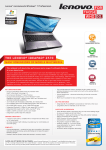
Lenovo 3000 G430/G530 SP V1.0_en_p1
Lenovo
Initial setup instructions
3000 G430/G530
Setup Poster
1
Install battery pack
Unlock both switches and insert the battery pack. After inserting the
battery pack, make sure both switches are in the lock position.
V1.0
5
Enjoying your computer with supplied softwares
OneKey Rescue System
OneKey Rescue System is an easy-to-use system which includes several
applications to help you detect and remove viruses, and recover Windows
system and personal data.
2
Connect to the power
Read the safety notices and important tips in the
included manuals before using your computer.
You can press OneKey Rescue System button to activate OneKey Rescue
System when your PC is turned off. Within the program, you can upgrade the
virus definition and use antivirus tools, repair system kernel files, restore your
system partition to the original factory status or to a previously generated
backup. You may also transfer critical data or documents to other storage
devices. All these features make OneKey Rescue System an important utility to
secure your data.
EnergyCut
EnergyCut manages your computer's power supply. It makes your
computer work effectively at a low energy cost according to different
modes.
Power2Go
Power2Go burns data, music, videos and photos onto CDs, DVDs.
Unpack
Computer
3
Battery pack
Turn on the Power
AC adapter
Norton Internet Security
Norton Internet Security, the newest product of Symantec company in
2008, is designed to protect the network security concerned by users
against the latest threats and has considerable functions, such as
anti-virus,fire wall, anti-spyware, privacy protection and anti-phishing.
Adobe Reader
Power cord
Manuals
- Setup Poster
- User Guide
- Other publications
4
Configure the Operating System following
on-screen instructions
Adobe Acrobat Reader enables you to view PDF files. With its snapshot tool
and text selector, you can copy the content into various editing software
programs.
Slide your finger across the TouchPad surface to move the cursor.
Click the left button to select items.
1
2
* Your computer may not come with these supplied softwares because
of the operation system and where you purchase the computer.
Some models may contain items that are not listed.
If any item is missing or damaged, please contact your retailer.
Lenovo, lenovo logo, IdeaPad, VeriFace, OneKey Recovery, OneKey Antivirus, OneKey Rescue,
APS, Power express, Energy management and ReadyComm are either registered trademarks or
trademarks of Lenovo in the United States and/or other countries.
Copyright Lenovo 2008 All rights reserved.
P/N:148000469
Printed in China
Lenovo 3000 G430/G530 SP V1.0_en_p2
Buttons and functions
Integrated camera (Specific model only)
Power button / OneKey Rescue System button
The integrated camera offers an improved notebook experience
for video-centric applications.
Start the computer.
Repair windows system kernel files or restore system to its
original state in case of an unrecoverable error.
Fn key
Use in combination with other keys to
access special features.
Custom buttons / Volume buttons
Function key combinations
Mute
Enter/exit
sleep mode.
Turn off/on the
LCD screen.
Volume down
Volume up
Choose the
display scheme.
Select the
aspect ratio.
Turn on/off the wireless
device function.
(Specific model only)
Enable/disable
TouchPad.
Play/Pause
Stop
Previous
Next
Open the User Define Utility.
Wireless device switch (Specific model only)
Turn on/off both Wireless LAN and Bluetooth.
Switch between character
or numeric input mode.
Activate the system
request.
Stop the scrolling of text.
Activate the break
function.
Adjust the
volume
Adjust the
display
brightness
* The illustrations in this manual may differ from the actual product.