1
EPSON Stylus Color 880/880i
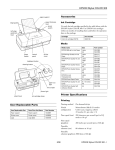
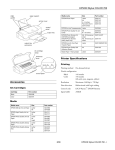
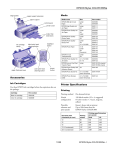
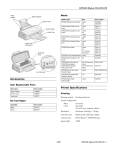
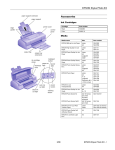
paper support
edge
guides
Media name
Size
Part number
EPSON Photo Paper
Letter
A4
4 × 6 inches
Panoramic (8.3 ×
23.4 inches)
S041141
S041140
S041134
S041145
EPSON Photo Stickers® Kit
(CD-ROM and paper)
EPSON Photo Stickers
(refill, paper only)
A6, 16 frames per
sheet
A6, 16 frames per
sheet
S041144-KIT
EPSON Iron-On Cool Peel
Transfer Paper
Letter
S041153/S041155
EPSON Photo Quality Self
Adhesive Sheets
A4
S041106
EPSON Matte
Paper - Heavyweight
Letter
A4
S041257
S041258
EPSON Premium Glossy Photo Letter
Paper
S041286
EPSON Glossy Photo Greeting Letter
Card Kit
S041267
printer cover
control
panel
output tray
output tray
extension
ink cartridge
clamp
thickness
lever
S041144
The availability of paper types varies by location. Not all paper
type names match the Media Type setting names in your
printer software. See the chart on page 6 or the instructions
that came with your paper to select the correct Media Type
setting.
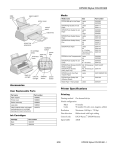
Ink Cartridges
control panel
Accessories
Cartridge
Part number
Black
T019201 (U.S.) T019311 (Canada)
Color
T020201 (U.S.) T020311 (Canada)
Printer Specifications
Media
Media name
Size
Part number
EPSON 360 dpi Ink Jet Paper
Letter
A4
S041060
S041059
EPSON Photo Quality Ink Jet
Paper
Letter
A4
Legal
S041062/S041029
S041061
S041067
EPSON High Quality Ink Jet
Paper
Letter
A4
S041111
S041117
EPSON Photo Quality Glossy
Paper
Letter
A4
S041124
S041126
Resolution
Maximum 2880 dpi × 720 dpi
EPSON Photo Quality Glossy
Film
Letter
A4
A6
S041072
S041071
S041107
Print direction
Bidirectional with logic seeking
EPSON Ink Jet Transparencies Letter
A4
S041064
S041063
Control code
EPSON ESC/P2, EPSON Remote
Input buffer
256KB
EPSON Photo Quality Ink Jet
Cards
S041054
A6
Printing
Printing method
On-demand ink jet
Nozzle configuration
Black
Color
8/00
144 nozzles
144 nozzles
(48 each: cyan, magenta, yellow)
EPSON Stylus Color 880/880i - 1
EPSON Stylus Color 880/880i
Paper
Paper type
Size
Single sheets
Paper types
Thickness
Weight
Plain bond paper and special ink jet
Letter (8.5 × 11 inches)
papers distributed by EPSON
Legal (8.5 × 14 inches)
Half letter (statement, 5.5 × 8.5 inches)
Executive (7.5 × 10 inches)
A4 (210 × 297 mm)
A5 (148 × 210 mm)
0.003 to 0.004 inch
(0.08 to 0.11 mm)
for plain bond
paper
17 to 24 lb
(64 to 90 g/m2)
for plain bond
paper
Transparencies, glossy
film, glossy paper
Letter (8.5 × 11 inches)
A4 (210 × 297 mm)
A6 (105 × 148 mm), glossy film only
Transparencies, glossy paper, and
glossy film distributed by EPSON
—
—
Matte Paper Heavyweight
Letter (8.5 × 11 inches)
Matte paper distributed by EPSON
—
—
Self-adhesive sheets
A4 (210 × 297 mm)
Self adhesive sheets distributed by
EPSON
—
—
Envelopes
No. 10, 4.1 × 9.5 inches (104 × 140 mm) Plain bond paper or air mail paper
DL, 4.3 × 8.7 inches (110 × 220 mm)
C6, 4.4 × 6.4 inches (114 × 162 mm)
132 × 220 mm (5.2 × 8.7 inches)
0.006 to 0.02 inch
(0.16 to 0.52 mm)
12 to 20 lb
(45 to 75 g/m2)
Index (ink jet) cards
A6 (105 × 148 mm)
8 × 10 inches (203 × 254 mm)
Ink jet cards distributed by EPSON
—
—
Photo Paper
Letter (8.5 × 11 inches)
A4 (210 × 297 mm)
4 × 6 inches (102 × 152 mm)
Panoramic (210 × 594 mm)
Photo paper distributed by EPSON
—
—
Photo Stickers
A6 (105 × 148 mm), 16 frames/sheet
Photo stickers distributed by EPSON —
—
Premium Glossy Photo
Paper
Letter (8.5 × 11 inches)
Glossy photo paper distributed by
EPSON
—
—
Iron-On Cool Peel
Transfer Paper
Letter (8.5 × 11 inches)
Transfer paper distributed by EPSON —
—
Printable area
Note:
Always load paper into the sheet feeder short edge first. Envelopes
should be loaded flap edge first, with the flap side down.
B-L
B-R
B-L
B-R
C
envelopes
C
Poor quality paper may reduce print quality and cause paper jams and
other problems. If you encounter problems, switch to a higher grade
of paper.
single sheets/index cards
Do not load curled or folded paper.
A:
The minimum top margin is 0.12 inch (3.0 mm).
When loading multiple sheets of EPSON Photo Quality Glossy
Film, the minimum top margin is 1.2 inches (30 mm).
B-L: The minimum left margin is 0.12 inch (3.0 mm).
B-R: The minimum right margin is as follows:
0.12 inch (3.0 mm) for single sheets and C6 envelopes
0.28 inch (7 mm) for DL envelopes.
1.10 inch (28 mm) for No. 10 envelopes.
C: The minimum bottom margin is 0.54 inch (14.0 mm).
*
You can extend the minimum bottom margin to 0.12 inch (3.0 mm)
by selecting Maximum as the Printable Area setting. However,
print quality may decline in the expanded area. Before printing
large jobs, print a single sheet to confirm print quality.
Use papers under these conditions:
Temperature: 59 to 77 °F (15 to 25 °C)
Humidity:
40 to 60% RH
Store printouts on EPSON Photo Quality Glossy Film and Self
Adhesive Sheets under these conditions:
Temperature: 59 to 86 °F (15 to 30 °C)
Humidity:
20 to 60% RH
The availability of paper types varies by location. Not all paper types
match the Media Type setting names in your printer software. See
the chart on page 6 or the instructions that came with your paper to
select the correct Media Type setting.
2 - EPSON Stylus Color 880/880i
A
A
Since the quality of any particular brand or type of paper may be
changed by the manufacturer at any time, EPSON cannot attest to
the quality of any non-EPSON brand or type of paper. Always test
samples of paper stock before purchasing large quantities or printing
large jobs.
8/00
EPSON Stylus Color 880/880i
Mechanical
.
A
L&R
Paper feed
method
Friction
Paper path
Sheet feeder, rear entry
Sheet feeder
capacity
100 sheets of 17 lb (64 g/m2) paper
Dimensions
Storage
Width: 17.7 inches (450 mm)
Depth: 10.6 inches (269 mm)
Height: 6.8 inches (172 mm)
Printing
Width: 17.7 inches (450 mm)
Depth: 21.5 inches (546 mm)
Height: 10.6 inches (269 mm)
C
EPSON 4 × 6-inch Photo Paper
(dotted lines indicate perforations)
A:
The maximum top margin is 0.67 inch (17.0 mm).
L & R: The maximum left and right margin is 0.24 inch (6.1 mm).
C:
The maximum bottom margin is 0.24 inch (6.1 mm).
Weight
Electrical
Ink Cartridges
Specification
Black ink cartridge
T019201 (U.S.)
T019311 (Canada)
Color(s)
Black
Print capacity* 900 pages text (ISO/IEC
10561 letter pattern at
360 dpi)
Cartridge life
−4 to 104 °F (−20 to 40 °C)
Transit
temperature
−22 to 140 °F (−30 to 60 °C)
Cyan, Magenta, Yellow
300 pages (A4, 360 dpi,
5% duty each color)
120 V Model
220−240 V Model
Input voltage
range*
99 to 132 V
198 to 264 V
Rated frequency
range
50 to 60 Hz
Input frequency
range
49.5 to 60.5 Hz
0.4 A
0.2 A
Power consumption Approx. 18 W (ISO/IEC 10561 Letter Pattern)
Approx. 3.5 W in standby mode
* Check the label on the back of the printer for your printer’s
voltage.
1 month at 104 °F (40 °C)
120 hours at 140 °F (60 °C)
1.09 (W) × 2.4 (D) × 1.5 (H)
inches
27.8 (W) × 59.7 (D) ×
38.5 (H) mm
Specification
Rated current
1 month at 104 °F (40 °C)
Freezing
3.2 °F (−16 °C)
temperature**
Dimensions
Color ink cartridge
T020201 (U.S.)
T020311 (Canada)
2 years from production date (if unopened)
(within 6 months after opening package, at 77 °F
[25 °C])
Storage
temperature
13.2 lb (6 kg) without the ink cartridges
Environmental
−0.4 °F (−18 °C)
Temperature
1.7 (W) × 2.4 (D) × 1.5 (H)
inches
42.9 (W) × 59.7 (D) ×
38.5 (H) mm
* The actual print capacity may vary, depending on how often you
turn on the printer and how often you clean the print head.
** Ink thaws and is usable after approximately 3 hours at
77 °F (25 °C).
Operation
50 to 95 °F (10 to 35 °C)
Storage*
-4 to 104 °F (-20 to 40 °C)
1 month at 104 °F (40 °C)
Transit*
–4 to 140 °F (–20 to 60 °C)
120 hours at 140 °F (60 °C)
Humidity (without condensation)
Operation
20 to 80% RH
Storage*
5 to 85% RH
To ensure good results, use genuine EPSON cartridges
and do not refill them. Other products may cause damage
to your printer not covered by EPSON’s warranties.
*Stored in shipping container
Don’t use an ink cartridge if the date on the package has
expired.
Safety Approvals
8/00
Safety standards
UL 1950, CSA C22.2 No. 950
EMC
FCC part 15 subpart B class B
EPSON Stylus Color 880/880i - 3
EPSON Stylus Color 880/880i
P SBA
are off
Control Panel
paper out
light
power
light
color ink
out light
black ink
out light
cleaning
button
load/eject
button
When all the lights are off, the printer is not
receiving power. Try these solutions:
❏ Make sure the printer is turned on.
❏ Turn off the printer, plug in the power cord
securely, and turn on the printer again.
❏ Make sure the outlet is operable and is not
controlled by a switch or timer. If in doubt, try
using another outlet.
Installing an Ink Cartridge for the First
Time
power
button
Follow these ink cartridge precautions:
Follow these guidelines when you check the control panel
lights.
P is on
S flashes
S is on
The P power light is on when the printer is on and
ready to print. It flashes when the printer is
receiving a print job, charging ink, or cleaning the
print head.
When the S paper out light flashes, you have a
paper jam. Press the S load/eject button to try to
clear the jam. If that doesn’t work, turn off the
printer and gently pull out all the paper. Make sure
none of the sheets are curled, creased, old, stuck
together, or too thin. Then reload the paper against
the right edge guide and slide the left edge guide
against it. Turn on the printer and press the
S load/eject button to resume printing.
When the S paper out light comes on, your paper
is out or incorrectly loaded. Make sure none of the
sheets are curled, creased, old, stuck together, or
too thin. Then reload the paper against the right
edge guide and slide the left edge guide against it.
Press the S load/eject button to resume printing.
B or A flash
When an ink out light flashes, your ink supply is
low. Make sure you have a replacement cartridge.
B or A are on
When an ink out light comes on, you need to
replace the ink cartridge. Make sure you have a
replacement cartridge. See page 6 for instructions.
P and S
flash and
B and A
are on
When the P power and S paper out lights flash
and the B black and A color ink out lights come
on, jammed paper may be blocking movement of
the print head or you may not have removed the
yellow tape seal from the installed ink cartridge(s).
Turn off the printer, open the cover, and check
inside for any jammed paper. Then turn the printer
back on. If an ink out light remains on and the print
head moves into replacement position, replace the
ink cartridge(s) as described on page 8. If the lights
still flash and/or come on, contact your dealer or
EPSON.
P SBA
flash
Install both ink cartridges, and leave them installed for
all types of printing, or the printer won’t work.
❏
Remove the yellow tape seal from the top of the ink
cartridges or you’ll permanently damage them. Don’t
remove the clear seals on the bottom or ink will leak
out.
❏
Don’t open an ink cartridge clamp to remove a
cartridge except to replace it with a new one. Once
you remove a cartridge, you can’t reuse it, even if it
contains ink.
❏
Never turn off the printer when the P power light is
flashing, unless the printer hasn’t moved or made any
noise for more than five minutes.
Keep ink cartridges out of the reach of children and don’t
drink the ink.
If ink gets on your hands, wash them thoroughly with soap
and water. If ink gets in your eyes, flush them immediately
with water.
1. Lower the output tray and open the printer cover.
2. Press the P power button to turn on the printer. The
P power light flashes and the B black and A color ink out
lights come on. The ink cartridge holders move left into
loading position.
Don’t use an outlet that is controlled by a wall switch or
timer, or one on the same circuit as a large appliance, to
avoid damaging the printer’s power supply.
Always use the P power button to turn the printer on or
off. Never use an external switch, such as a power strip
switch.
When all the lights flash, your printer may have an
internal error. Make sure you removed all the
packing material as described on the unpacking
sheet in your printer box. Then turn off the printer,
wait a few seconds, and turn it on again. If the
lights still flash, contact your dealer or EPSON.
4 - EPSON Stylus Color 880/880i
❏
8/00
EPSON Stylus Color 880/880i
3. Lift up the two ink cartridge clamps.
Don’t turn off the printer or interrupt charging or it will start
over, using more ink than necessary. It’s finished when the
P power light stops flashing.
Testing the Printer
You can run a printer check to determine whether a problem
comes from the printer itself or some other source. Follow
these steps to run the printer check:
1. Make sure both the printer and computer are turned off.
4. Unwrap the ink cartridges, then remove only the yellow
part of the tape seal on the top.
2. Disconnect the interface cable from the printer.
3. Make sure paper is loaded in the printer.
4. Hold down the S load/eject button, then press and release
the Ppower button. Continue holding down the
S load/eject button until the Ppower light starts to flash,
then release it.
black cartridge
The printer prints one page showing its ROM version
number, ink counter, and a nozzle check pattern. Only the
nozzle check pattern is shown below. (If the pattern has
gaps in its dots, you need to clean the print head; see
page 9.)
color cartridge
5. Tilt each cartridge forward slightly as you lower it into its
holder. Hang the tabs at the back of the cartridge on the
hooks.
5. To end the check, turn off the printer after it prints the
check page. Then reconnect the interface cable and turn on
your printer and computer.
If the check page prints, the problem probably lies in your
software settings, the interface cable, or your computer.
If the check page doesn’t print, you may have a problem with
your printer.
.
Don’t place the cartridges under
the hooks; you may damage the
clamp when you close it.
Try the suggestions in “Problems and Solutions” in the Printer
Basics book.
6. Press down on the ink cartridge clamps until they lock in
place, but don’t press down on the cartridges themseleves.
7. Press the A cleaning button and close the printer cover.
Ink charging takes about one and a half minutes, with the
P power light flashing and the printer making noise until it’s
finished.
8/00
EPSON Stylus Color 880/880i - 5
EPSON Stylus Color 880/880i
❏ Some special media have a cut corner that you need to
position correctly; follow any instructions in the package.
Always handle sheets by the edges, and don’t touch the
printable surface.
Printing on Special Media
Whether you print on plain paper or special media, you need
to select the Media Type setting according to the guidelines in
the table below.
For this paper name...
Select this Media Type
setting
Plain paper and envelopes
Plain paper
EPSON 360 dpi Ink Jet Paper
360 dpi Ink Jet Paper
cut corner
printable
side face up
EPSON Iron-On Cool Peel Transfer
Paper
EPSON High Quality Ink Jet Paper
Photo Quality Ink Jet Paper
EPSON Photo Quality Ink Jet Paper
EPSON Photo Quality Ink Jet Cards
EPSON Photo Quality Self Adhesive
Sheets
EPSON Photo Quality Glossy Paper
Photo Paper
Replacing an Ink Cartridge
EPSON Photo Paper
EPSON Glossy Photo Greeting Cards
EPSON Photo Quality Glossy Film
When the B black or A color ink out light flashes, the
indicated cartridge is low on ink. This is a good time to make
sure you have a new cartridge. When the light stays on, the
cartridge is empty and you need to replace it.
Photo Quality Glossy Film
EPSON Photo Stickers
EPSON Ink Jet Transparencies
Ink Jet Transparencies
EPSON Premium Glossy Photo Paper
Premium Glossy Photo Paper
EPSON Matte Paper - Heavyweight
Matte Paper - Heavyweight
You cannot print if either ink cartridge is empty. Leave the
empty cartridge installed in the printer until you have
obtained a replacement. Otherwise the ink remaining in
the print head nozzles may dry out.
The availability of paper types varies by location.
Use these EPSON ink cartridges within six months of
installing them and before the expiration date on the package:
Additional Media Loading Guidelines
❏ Black ink cartridge: T019201 (U.S.) T019311 (Canada)
Don’t use the cleaning sheets that may be included with
your special media; they may damage the printer.
❏ Color ink cartridge: T020201 (U.S.) T020311 (Canada)
To ensure good results, use genuine EPSON ink cartridges
and do not refill them. Other products may cause damage
to your printer not covered by EPSON’s warranty.
❏ Be sure to load the printable (whiter) side of the media face
up in the sheet feeder.
When you need new ink cartridges, contact your dealer or call
EPSON at (800) 873-7766 or visit the EPSON StoreTM at
www.epson.com (U.S. sales only). In Canada, please call
(800) 873-7766 for dealer referral.
❏ You can load paper up to the arrow mark on the left edge
guide.
❏ In addition to the Media Type option, remember to select
the correct Paper Size for your media on the Paper menu.
If you need to replace an ink cartridge before the lights flash
(because the ink is too old, for example) follow the
instructions in “Replacing an Outdated Ink Cartridge” on
page 8.
❏ If the special media has protective sheets between each sheet
of media, be sure to remove the protective sheets before
printing.
6 - EPSON Stylus Color 880/880i
8/00
EPSON Stylus Color 880/880i
5. Unwrap the new ink cartridge. Then remove only the yellow
part of the tape seal on top.
Removing and Installing Ink Cartridges
You can replace a cartridge when the B black or A color ink
out light is either flashing or on. (If you perform these steps
when both ink out lights are off, the printer cleans the print
heads as described on page 9.)
Be sure you have a new ink cartridge before you begin. Once
you start the ink cartridge replacement procedure, you must
complete all the steps in one session.
Follow these steps to replace ink cartridges:
black cartridge
1. Make sure the printer is turned on and not printing (the
Ppower light should be on, but not flashing), then open
the printer cover.
color cartridge
You must remove the yellow tape from the top of the
cartridge or you will permanently damage it. Don’t try to
remove the clear seal underneath the cartridge.
2. Press the A cleaning button and hold it for about three
seconds until the print head moves left and the Ppower
light begins flashing.
6. Tilt the new cartridge forward slightly as you lower it into
its holder. Hang the tabs at the back of the cartridge on the
hooks.
To avoid damaging the printer, never move the print head
by hand. Don’t open the clamp or remove a cartridge
except to replace it with a new one. Once you remove a
cartridge, you can’t reuse it, even if it contains ink.
3. Pull up the ink cartridge clamp. The cartridge rises up from
its holder. (The illustration shows color ink cartridge
replacement. To replace the black ink cartridge, lift up only
the smaller clamp on the left.)
Don’t place the cartridges under
the hooks; you may damage the
clamp when you close it.
4. Lift the cartridge out of the printer and dispose of it
carefully.
7. Press down the ink cartridge clamp until it locks in place,
but don’t press down on the cartridge itself.
Keep ink cartridges out of the reach of children and don’t
drink the ink.
8. If you need to replace the other ink cartridge, repeat steps 3
through 7 before continuing with step 9.
If ink gets on your hands, wash them thoroughly with
soap and water. If ink gets into your eyes, flush them
immediately with water.
8/00
EPSON Stylus Color 880/880i - 7
EPSON Stylus Color 880/880i
9. Press the A cleaning button and close the printer cover.
The printer moves the print head and begins charging the
ink delivery system.
4. Lift the cartridge out of the printer and dispose of it
carefully.
The P power light flashes, and the printer makes noise.
Charging takes about 30 seconds. When it’s finished, the
Ppower light stops flashing and stays on.
Never turn off the printer while the Ppower light is
flashing, unless the printer hasn’t moved or made noise for
more than 5 minutes.
Replacing an Outdated Ink Cartridge
When an ink cartridge is more than six months old, you may
need to replace it if you notice that your printouts don’t look
as good as they used to. If print quality doesn’t improve after
cleaning and aligning the print head, you can replace one or
both cartridges.
Keep ink cartridges out of the reach of children and don’t
drink the ink.
If ink gets on your hands, wash them thoroughly with soap
and water. If ink gets into your eyes, flush them
immediately with water.
Follow these steps to replace an ink cartridge before the B black
or A color ink out light is flashing or on:
5. Unwrap the new ink cartridge. Then remove only the yellow
part of the tape seal on top.
1. Make sure the printer is turned on and not printing (the
Ppower light should be on, but not flashing), then open
the printer cover.
2. Press the S load/eject button and hold it for about three
seconds until the print head moves left and the Ppower
light begins flashing.
To avoid damaging the printer, never move the print head
by hand. Don’t open the clamp or remove a cartridge
except to replace it with a new one. Once you remove a
cartridge, you can’t reuse it, even if it contains ink.
black cartridge
color cartridge
You must remove the yellow tape from the top of the
cartridge or you will permanently damage it. Don’t try to
remove the clear seal underneath the cartridge.
3. Pull up the ink cartridge clamp. The cartridge rises up from
its holder. (The illustration shows color ink cartridge
replacement. To replace the black ink cartridge, lift up only
the smaller clamp on the left.)
6. Tilt each cartridge forward slightly as you lower it into its
holder. Hang the tabs at the back of the cartridge on the
hooks.
Don’t place the cartridges under
the hooks; you may damage the
clamp when you close it.
8 - EPSON Stylus Color 880/880i
8/00
EPSON Stylus Color 880/880i
7. Press down the ink cartridge clamp until it locks in place,
but don’t press down on the cartridge itself.
Using the Head Cleaning Utility
Follow these steps to run the Head Cleaning utility:
1. Make sure the printer is turned on but not printing, and
both the B black and A color ink out lights are off. (If an
ink out light is flashing, replace the ink cartridge before
continuing.)
2. If you have an application running, access the printer
settings dialog box.
Or, with Windows, click Start, point to Settings, then
select Printers. Right-click your EPSON Stylus COLOR
880 printer icon in the Printers window. Then select
Properties in Windows 95 or Windows 98, Document
Defaults in Windows NT, or Printing Preferences in
Windows 2000.
8. If you need to replace the other ink cartridge, repeat steps 3
through 7 before continuing with step 9.
9. Press the S load/eject button again and close the printer
cover. The printer moves the print head and begins
charging the ink delivery system.
3. Windows: Click the Utility tab.
Macintosh: Click the
The Ppower light flashes and the printer makes noise.
Charging takes about 30 seconds. When it’s finished, the
Ppower light stops flashing and stays on.
Utility button.
4. On the Utility menu, click the Head Cleaning button.
5. Follow the instructions on the screen to clean the print
head. Cleaning takes about 30 seconds, during which the
printer makes some noise and the Ppower light flashes.
Never turn off the printer while the Ppower light is
flashing, unless the printer hasn’t moved or made noise for
more than 5 minutes.
Never turn off the printer while the Ppower light is
flashing, unless the printer hasn’t moved or made noise for
more than 5 minutes.
Cleaning the Print Head
6. When the Ppower light stops flashing, run a nozzle check
to confirm the print head nozzles are clean and reset the
cleaning cycle.
If your printed image is unexpectedly light or faint, or dots are
missing from the image, you may need to clean the print head.
This unclogs the nozzles so they can deliver ink properly.
Make sure paper is loaded in the printer and click Print
nozzle check pattern. Then click Next. The nozzle check
Cleaning the print head uses ink, so clean it only if print
quality declines. You can clean the print head in either of the
following ways:
pattern prints (see page 10 for details).
7. If the nozzle check pattern has no gaps in its dots, click
Finish.
❏ using the Head Cleaning utility (when the printer is
connected to a local port, not over a network), as described
on page 9
If the pattern is missing dots, click Clean to clean the print
head again. If you don’t see any improvement after cleaning
three or four times, check the solutions in the Printer Basics
book. You can also turn the printer off and wait
overnight—this allows any dried ink to soften—and then
try cleaning the print head again.
❏ using the printer’s control panel buttons, as described on
page 9
When you don’t turn on your printer for a long time, the
print quality can decline. It’s a good idea to turn on your
printer at least once a month to maintain good print quality.
Using the Control Panel to Clean the Print
Head
If any paper you buy comes with a cleaning sheet, don’t
use the cleaning sheet with your printer; it may jam inside
the printer.
Follow these steps to clean the print head:
1. Make sure the printer is turned on but not printing, and
both the B black and A color ink out lights are off. (If an
ink out light is flashing, replace the ink cartridge before
continuing.)
8/00
EPSON Stylus Color 880/880i - 9
EPSON Stylus Color 880/880i
2. Press the A cleaning button and hold it down for three
seconds. Cleaning takes about 30 seconds, during which the
printer makes some noise and the Ppower light flashes.
Each staggered horizontal and straight vertical line should be
complete, with no gaps in the dot pattern. If your printout
looks okay, you’re done. If any dots are missing, as shown
below, clean the print head again; see page 9 for instructions.
Never turn off the printer while the Ppower light is
flashing, unless the printer hasn’t moved or made noise for
more than 5 minutes.
missing dots
3. After the Ppower light stops flashing, print a page to test
the print quality and reset the cleaning cycle.
If your printer is connected directly to the computer, go
to step 4 to run a nozzle check.
If you’re printing over a network, open an application and
print a short document containing black and color data.
Then go to step 8.
4. If you have an application running, access the printer
settings dialog box.
Aligning the Print Head
If your printouts contain misaligned vertical lines, you may
need to align the print head. Your printer must be connected
to a local port, not on a network, to use the Print Head
Alignment utility.
Or, with Windows, click Start, point to Settings, then
select Printers. Right-click your EPSON Stylus COLOR
880 printer icon in the Printers window. Then select
Properties in Windows 95 or Windows 98, Document
Defaults in Windows NT, or Printing Preferences in
Windows 2000.
Follow these steps:
1. Make sure the printer is turned on, but not printing, and
letter-size paper is loaded.
5. Windows: Click the Utility tab.
Macintosh: Click the
missing dots
missing dots
Utility button.
Load paper that’s at least 8.27 inches (210 mm) wide to
prevent ink from spraying inside the printer and smudging
your printouts.
6. Make sure paper is loaded in the printer, click the Nozzle
Check button, and click Next. The nozzle check pattern
prints (see the next section for details).
For the best results, load EPSON ink jet paper in the
printer whenever you check the print head alignment.
7. If the nozzle check pattern has no gaps in its dots, click
Finish.
2. If you have an application running, access the printer
settings dialog box.
If the pattern is missing dots, click Clean to clean the print
head again.
Or, with Windows, click Start, point to Settings, then
select Printers. Right-click the EPSON Stylus COLOR 880
icon in the Printers windows. Then select Properties in
Windows 95 or Windows 98, Document Defaults in
Windows NT, or Printing Preferences in Windows 2000.
8. If you don’t see any improvement after cleaning three or
four times, check the solutions in the Printer Basics book.
You can also turn the printer off and wait overnight—this
allows any dried ink to soften—and then try cleaning the
print head again.
3. Windows: Click the Utility tab.
Macintosh: Click the
Examining the Nozzle Check Pattern
Utility button.
4. You see the Utility menu. Click the Print Head Alignment
button.
Examine the nozzle check pattern you print. It should look
something like this:
5. Follow the instructions on the screen to print a test page.
6. Select the most precise alignment pattern from the choices
on the test page. Enter the number of the best aligned
pattern following the instructions on the screen.
10 - EPSON Stylus Color 880/880i
8/00
EPSON Stylus Color 880/880i
4. Open the printer cover. Secure the ink cartridge holder to
the printer with tape as shown, then close the printer cover.
Cleaning the Printer
Tape the ink cartridge holder
to the printer case
To keep your printer working at its best, you should clean it
several times a year. Follow these steps:
1. Turn off the printer, unplug the power cord, and
disconnect the printer cable.
2. Remove all the paper from the sheet feeder.
3. Clean the exterior of the printer with a soft, damp cloth.
4. Clean ink out of the printer’s interior with a soft, damp
cloth.
Don’t touch the gears inside the printer.
5. Push in the output tray extensions and close the tray.
Never use alcohol or thinner for cleaning; they can damage
the printer components and case.
6. Repack the printer and attachments in the original box
using the protective materials that came with it. See the
unpacking sheet that was packed with your printer.
Don’t use a hard or abrasive brush.
Don’t get water on the printer components and don’t spray
lubricants or oils inside the printer.
Be sure to keep the printer level as you transport it.
After transporting the printer, remove the tape securing the
print head and test your printer. If you notice a decline in
print quality, clean the print head (see page 9); if output is
misaligned, align the print head (see page 10).
Don’t use any cleaning sheets included with special media;
they may jam inside the printer.
Transporting the Printer
Related Documentation
If you move your printer some distance, you need to prepare it
for transportation in its original box. Follow these steps:
TM-SC880/i
EPSON Stylus Color 880/880i Service
Manual
PL-SC880/i
EPSON Stylus Color 880/880i Parts Price
List
CPD-10637
EPSON Stylus Color 880/880i
Printer Basics
CPD-10638
EPSON Stylus Color 880/880i
Start Here
To avoid damage, always leave the ink cartridges installed
when transporting the printer.
Be sure to remove the tape used in step 4 after installing
the printer in its new location.
1. Turn on the printer, wait until the print head locks in the
far right position, then turn off the printer.
2. Unplug the power cord from the electrical outlet. Then
disconnect the printer cable from the printer.
3. Remove any paper from the printer and remove the paper
support.
8/00
EPSON Stylus Color 880/880i - 11
EPSON Stylus Color 880/880i
12 - EPSON Stylus Color 880/880i
8/00