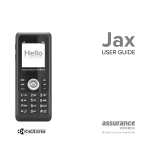
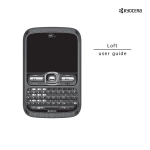
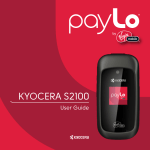
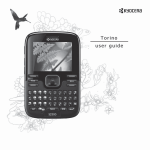
1
JAX S1360 User Guide Table of Contents 1 Get Started. . . . . . . . . . . . . . . . . . 4 2 Call Features . . . . . . . . . . . . . . . 10 Phone Accessories . . . . . . . . . . . . . . . Program Your Phone. . . . . . . . . . . . . . Phone Battery . . . . . . . . . . . . . . . . . . . Phone Overview . . . . . . . . . . . . . . . . . Main Menu. . . . . . . . . . . . . . . . . . . . . . Guide Conventions . . . . . . . . . . . . . . . Power Phone Up . . . . . . . . . . . . . . . . Make Phone Calls . . . . . . . . . . . . . . . Answer Phone Calls . . . . . . . . . . . . . End Phone Calls . . . . . . . . . . . . . . . . In-call Options . . . . . . . . . . . . . . . . . . Volume Control . . . . . . . . . . . . . . . . . Use Speed Dialing. . . . . . . . . . . . . . . Use Plus (+) Code Dialing . . . . . . . . . Missed Call Notification . . . . . . . . . . . 3-Way Calling . . . . . . . . . . . . . . . . . . Emergency Services . . . . . . . . . . . . . 10 10 10 11 11 11 11 12 12 12 12 3 Text Entry . . . . . . . . . . . . . . . . . 13 4 My Stuff . . . . . . . . . . . . . . . . . . . 16 My Stuff Menu . . . . . . . . . . . . . . . . . . 16 Ringtones . . . . . . . . . . . . . . . . . . . . . 16 Ringback Tones. . . . . . . . . . . . . . . . . 16 My Account . . . . . . . . . . . . . . . . 17 6 Settings . . . . . . . . . . . . . . . . . . . 19 Check your Account Balance . . . . . . 17 Top-Up your Account. . . . . . . . . . . . . 17 For More Information . . . . . . . . . . . . . 18 Settings Menu . . . . . . . . . . . . . . . . . . 19 Display. . . . . . . . . . . . . . . . . . . . . . . . 20 21 21 22 22 23 23 24 24 7 Contacts . . . . . . . . . . . . . . . . . . . 30 8 Messaging . . . . . . . . . . . . . . . . . 35 9 Tools . . . . . . . . . . . . . . . . . . . . . . 40 Text Entry Modes . . . . . . . . . . . . . . . 13 Text Entry Quick Reference . . . . . . . 15 5 2 Volume. . . . . . . . . . . . . . . . . . . . . . . . Ringtones. . . . . . . . . . . . . . . . . . . . . . Keyguard . . . . . . . . . . . . . . . . . . . . . . Text Entry . . . . . . . . . . . . . . . . . . . . . Phone Info . . . . . . . . . . . . . . . . . . . . . Lock Phone . . . . . . . . . . . . . . . . . . . . Reset/Delete . . . . . . . . . . . . . . . . . . . Others Settings . . . . . . . . . . . . . . . . . 4 4 5 6 8 9 Access Contacts . . . . . . . . . . . . . . . . Add Contacts . . . . . . . . . . . . . . . . . . . Use Contacts . . . . . . . . . . . . . . . . . . . Customize Contacts. . . . . . . . . . . . . . Contact Groups . . . . . . . . . . . . . . . . . Speed Dial List. . . . . . . . . . . . . . . . . . Dial Services . . . . . . . . . . . . . . . . . . . ICE Contacts . . . . . . . . . . . . . . . . . . . Messaging Menu . . . . . . . . . . . . . . . . Use Voicemail . . . . . . . . . . . . . . . . . . Send Messages . . . . . . . . . . . . . . . . . Threaded Messaging . . . . . . . . . . . . . Message Settings . . . . . . . . . . . . . . . Simple Data Exchange . . . . . . . . . . . Tools Menu . . . . . . . . . . . . . . . . . . . . Alarm . . . . . . . . . . . . . . . . . . . . . . . . . Calendar . . . . . . . . . . . . . . . . . . . . . . Bluetooth . . . . . . . . . . . . . . . . . . . . . . Use Calculator . . . . . . . . . . . . . . . . . . Countdown. . . . . . . . . . . . . . . . . . . . . Use Stopwatch. . . . . . . . . . . . . . . . . . World Clock . . . . . . . . . . . . . . . . . . . . 30 30 31 32 33 33 33 34 35 35 36 36 37 39 40 41 41 43 44 44 45 45 Table of Contents Notepad. . . . . . . . . . . . . . . . . . . . . . . . 45 Voice Services . . . . . . . . . . . . . . . . . . 46 10 History . . . . . . . . . . . . . . . . . . . . 48 Work with History . . . . . . . . . . . . . . . . 48 11 Web . . . . . . . . . . . . . . . . . . . . . . 49 Surf the Web . . . . . . . . . . . . . . . . . . . . 49 Search the Web . . . . . . . . . . . . . . . . . 49 12 Get Help . . . . . . . . . . . . . . . . . . . 50 Customer Support . . . . . . . . . . . . . . . . 50 Qualified Service . . . . . . . . . . . . . . . . . 50 Phone Accessories . . . . . . . . . . . . . . . 50 Become a Product Evaluator . . . . . . . 50 Important Safety Information . . . . . 51 General Precautions . . . . . . . . . . . . . . 51 Maintaining Safe Use of and Access to Your Phone . . . . . . . . . . . . . . . . . . . . . 51 Using Your Phone With a Hearing Aid Device . . . . . . . . . . . . . . . . . . . . . . . . . 53 Caring for the Battery . . . . . . . . . . . . . 54 Radio Frequency (RF) Energy . . . . . . 55 Owner’s Record . . . . . . . . . . . . . . . . . 57 Manufacturer’s Warranty . . . . . . . . 58 End User License Agreement . . . . 60 Index . . . . . . . . . . . . . . . . . . . . . . . . . 63 User Guide 3 1 Get Started Phone Accessories To shop for accessories for your phone, visit www.assurancewireless.com or kyocera.superiorcommunications.com. Program Your Phone Tip: Do not press while the phone is being activated. Pressing cancels the activation process. Note: If you are having any difficulty with activation, contact Assurance Wireless Customer Care at 1-888-321-5880 for assistance. Before you start using your Assurance Wireless phone, you will need to perform a few simple steps to set it up on the network: 1. Turn your phone on by pressing the End/Power key ( ). Your phone will automatically attempt Hands-Free Activation. 2. Follow the onscreen instructions to complete the activation process. You can also refer to the “Activation Guide” included with your phone. 3. Once completing activation and software update checks, the phone will reboot. 4. In order to complete your activation, you will need to dial 611 from your Assurance Wireless phone or 1-888-321-5880 from any other phone. You will need the Account PIN you received in your Approval Letter. 4 Get Started Phone Battery Install the Battery To install the battery: 1. Hold the phone face down. 2. Find the notch directly below the back cover. It is square. Using your thumbnail, pry the cover up from the bottom to remove. 3. Place the battery in the battery casing. The metal contacts of the battery must make contact with the metal contacts of the battery casing. 4. Replace the battery cover by sliding the notches into the openings on the top of the battery casing. 5. Snap the cover into place. User Guide Charge the Battery You must have at least a partial charge in the battery to make or receive calls. To charge the battery: 1. Connect the AC adapter to the microUSB jack on the side of the phone. 2. Plug the adapter into a wall outlet. The battery icon in the upper-right corner of the screen tells you whether the phone is: – Charging (the icon is animated) – Partially charged – Fully charged You can safely recharge the battery at any time, even if it has a partial charge. Note: Before removing the battery, make sure the phone is powered off. 5 Phone Overview Get to Know Your Phone ① ② ③ ④ ⑤ ⑥ ⑦ ⑧ ⑨ ⑩ ⑪ ⑫ ⑬ ⑭ ⑮ ⑯ ⑰ Earpiece. ձ Display screen. Volume key raises or lowers ringtone or call volume. պ Left softkey selects items that appear on the lower ղ left of the display. At the home screen, you can select ճ ջ MENU. Speakerphone key activates the speakerphone and answers incoming calls. Navigation key scrolls through lists and text entry fields and acts as a shortcut key from the home ռ մ screen. ս յ Talk key starts or answers a call. Press once to display վ ն the Recent History list and twice to redial the last տ շ number dialed. Press and hold to activate voice dialing. Keypad for entering numbers, letters, or symbols. ո * Shift key changes the text mode in text entry. Press and hold to call your In Case of Emergency (ICE) ր contacts. չ ց Jack for a hands-free headset (sold separately). Jack for AC adapter (included) and microUSB cable (sold separately). Right softkey selects items that appear on the lower right of the display. At the home screen, you can select CONTACTS. OK key selects a menu item or option. Back key erases characters in text entry and returns you to the previous screen when navigating through menus. Press and hold to activate the keyguard. End/Power key turns the phone on and off, ends a call or browser session, and returns you to the home screen. # Space key enters a space during text entry. Press and hold to call emergency number. Microphone. Warning: Inserting an accessory into the incorrect jack will damage the phone. 6 Get Started Screen Icons These icons may appear on your phone’s screen. Your phone’s current signal strength. (More bars = stronger signal.) Your phone cannot find a usable signal. Data service is available. When active, the icon is animated. Your phone is connected to or communicating with a Bluetooth device via Hands-free Profile (HFP). Your phone’s current battery charge level. (The icon to the left shows the battery is fully charged.) Data service is currently dormant. The volume level is set to between 1 and 8 and vibrate is turned on. Data service is currently unavailable. 1 Beep and vibrate are set. You have one or more missed voice calls. Your phone’s ringtone is turned off. You have event notifications. Your phone’s sound is turned off but vibrate is turned on. You have one or more new messages waiting. Your phone’s sound is turned off. You have one or more new voicemail messages waiting. Your phone’s location feature is on and available for location-based. You have one or more new urgent messages waiting. Your phone’s location feature is off. Your location is available only for 911. You have different kinds of alerts waiting. You have different kinds of alerts (including urgent messages) waiting. Your phone’s Bluetooth feature is enabled. Your phone is connected to a Bluetooth device. Your phone is connected to a TTY device. An alarm or countdown is set. Your phone’s HAC (hearing aid compatibility) setting is enabled. Your phone is in airplane mode. Your phone is visible to other Bluetooth devices. User Guide 7 Main Menu At the home screen, press Home Screen > OK key 8 (OK key) to access the main menu. Level 1 > Level 2 My Stuff Access these options: Ringtones, Graphics, and Ringback Tones. My Account Access account information and Top-Up your account. Settings Access these options: Display, Volume, Ringtones, Keyguard, Text Entry, Phone Info, Lock Phone, Reset/Delete, and Others. Contacts Access your Contacts list. Missed Alerts Access your missed call alerts. Messaging Access these options: Voicemail, Send Message, and Messages. Tools Access these options: Activate This Device, Alarm, Calendar, Bluetooth, Update Phone, Voice Services, Calculator, Countdown, Stopwatch, World Clock, and Notepad. History Access your recent history. Web Browse the web. Get Started Guide Conventions Back Up Within a Menu In this guide, the following conventions are used when describing phone features. Press Press screen. Navigate Through the Menus to go to the previous menu. to return to the home Select means to press the Left softkey, Right softkey or OK key to select an item seen on the display. For example, “Select MENU” tells you to physically press the left softkey to choose MENU from the display. Press means to press a phone key. For example, “Press to make a phone call” tells you to physically press the Talk key on your phone. Scroll means to use the Navigation key to move through a list on the display. For example, “Scroll through your contacts list to choose a contact” means to physically press the Navigation key up or down to scroll through the list on the display. > (greater than symbol) tells you to select an option from a menu or list. For example, “Select MENU >Settings” means to: 1. Press the left softkey to select MENU. 2. Scroll to the Settings option. 3. Press (OK key) to select Settings. User Guide 9 2 Call Features This section describes the basic features related to calls. Power Phone Up To turn your phone on, press and wait until the phone display lights up. To turn your phone off, press and hold for two seconds until you see the powering-down animation on the display screen. Make Phone Calls Make sure you are in an area where a signal can be received. Look for the signal strength icon on the home screen. The more bars, the stronger the signal. If there are no bars, move to where the signal strength is better. When the phone has been idle for a time, it changes to power save mode. Press any key to return to normal operating mode. There are several ways you can make a phone call. Call Using a Number 1. Enter a phone number. 2. Press . Call Using a Contact 1. From the home screen, select CONTACTS. 2. Highlight a contact and press . Call Using Voice Recognition You can use voice recognition to call a contact from your contact list or to dial a phone number. For more information, see “Voice Recognition” on page 46. Redial a Number 1. Press to open your history. 2. Highlight a phone number or contact and press . Note: To redial the last number called, received, or missed, press twice. Answer Phone Calls When a call comes in, the phone rings, vibrates, or lights up. The phone number of the caller also appears if it is not restricted. If the number is stored in your contacts list, the contact’s name appears. There are two ways to answer a phone call. Answer Using Earpiece Press . Answer Using Speakerphone Press 10 . Call Features End Phone Calls Press . In-call Options Selecting OPTIONS during a call displays a list of available in-call features. To select an option, highlight the option and press . Transfer Audio to switch the call to a Bluetooth device (if applicable). Save to save the current call’s phone number in your Contacts. Contact Details to display information about the caller stored in your Contacts (if applicable). Main Menu to display the phone’s main menu. 3-Way Call to open a call with two other parties. Contacts to display your Contacts list. Voice Memo to record the other party’s voice. Phone Info to display information about your phone. Volume Control Adjust Volume during a Call Press the Volume key up or down to adjust the earpiece volume during a call. User Guide Use the Speakerphone Your phone has a built-in speakerphone. To turn on the speakerphone, press . The speakerphone icon appears on the home screen when the speakerphone is on. To turn off the speakerphone, press again. Note: If you press during an incoming call, you will answer the call. Silence an Incoming Call To silence the phone without answering the call, press or press the Volume key up or down. To silence the phone and answer the call, press or press the Volume key up or down and then press . Use Speed Dialing Speed dialing allows you to assign a oneor two-digit shortcut to a contact. Before you can use speed dialing you must save a phone number as a contact and assign a speed dial location to it. See “Assign Speed Dials to Contacts” on page 32. To call a contact that has a speed dial location: 1. Enter the one- or two-digit speed dial location. 2. Press . 11 Use Plus (+) Code Dialing When placing international calls, use Plus Code Dialing to automatically enter the international access code for your location (for example, 011 for international calls made from the U.S.). 1. Press and hold to display "+" on your phone screen. 2. Enter the country code and phone number, and then press . (The phone automatically prepends the access code for international dialing, followed by the country code and phone number.) Missed Call Notification When an incoming call is not answered, your screen displays the Missed Call log. Press to dial the phone number. To display a Missed Alerts entry from the home screen: 1. Select Missed Alerts from the main menu. 2. Highlight the entry you wish to view and press . 3-Way Calling With 3-Way Calling, you can talk to two people at the same time. 1. Enter a number and press . 2. Once you have established the connection, press . (This puts the first caller on hold.) 12 3. Select Contacts, Recent History, or Enter Phone#. 4. Select a number from your Contacts or Recent History, or enter a number directly, and then press . 5. When you’re connected to the second party, press again to begin your 3-way call. Note: When using this feature, the normal airtime rates will be charged for each of the two calls. Emergency Services Call Emergency Service You can call an emergency number even if your phone is locked or your account is restricted. When you call, your phone enters emergency mode. This enables the emergency service exclusive access to your phone to call you back, if necessary. To make or receive regular calls after dialing the number, you must exit this mode. To dial an emergency number: Press and hold and select OK. – or – Press . Exit Emergency Services When you have completed the emergency call: Press and then press . Call Features 3 Text Entry Text Entry Modes You can enter letters, numbers, and symbols whenever you are prompted to enter text. 1. From a screen where you can enter text, select OPTIONS to change the text mode. (If you are in the message entry screen, select OPTIONS > Text Mode.) 2. Select one of the following options: – Abc to enter characters by using the alphabet mode. – T9Word to enter text using a predictive text system that reduces the number of key presses required while entering a word. – 123 to enter numeric characters. – Symbols to enter symbols. – Smileys to enter smile icons. – Emoticons to enter “emoticons” (if applicable). – Paste List to paste copied or cut text (if applicable). – Web Shortcuts to enter Web shortcuts (for example, www., http://, or .com). – Text Options to display the text entry options menu (if applicable). See “Text Entry” on page 22. User Guide Enter Numbers with Number Keypad From the text entry field, select OPTIONS > Text Mode > 123 to enter a number when you press a key once. The 123 icon indicates you are in numeric input mode. Enter Letters with Number Keypad From the text entry field, select OPTIONS > Text Mode > Abc to enter letters. You can enter text in the following ways: To enter a letter, press a key once for the first letter, twice of the second letter, and so on. If your phone is set to Spanish, accented letters are available. Wait for the cursor to move right and enter the next character. Press to enter a space. To change case mode, press . To enter a number, press and hold a number key until the number appears on the screen. Tip: The Abc/ABC/abc icon on the bottom right corner of the screen indicates you are in Abc input mode. 13 Rapid Entry (T9) with Number Keypad From the text entry field, select OPTIONS > Text Mode > T9Word to check words you are trying to spell against a dictionary of common words. You can enter text in the following ways: To enter words, press a key once. For example, to enter the word “any” press the 2 > 6 > 9 keys. If the word doesn’t match what you want, scroll up or down to look at other word matches. When you see the word you want, press . To change case mode, press . To enter a number, press and hold a number key until the number appears on the screen. Tip: The T9Word/T9WORD/T9word icon on the bottom right corner of the screen indicates you are in T9 input mode. Enter Symbols with Number Keypad While entering text in Abc mode, you can enter symbols by pressing until you see the symbol you want. To access the full set of symbols: 1. From the text entry field, select OPTIONS > Text Mode > Symbols. 2. Scroll up or down to view the list of symbols. 3. Highlight your desired symbol and press to enter it. 14 Text Entry Text Entry Quick Reference This table gives instructions for entering text. To.. Do this.. Enter a letter Use Abc or T9Word mode and press a key until you see the letter you want. Enter a number Use 123 mode and press a key. Enter a symbol Use Symbols mode and highlight a symbol you want and press . Enter a smiley Use Smileys mode and highlight a smiley you want and press . Enter an emoticon Use Emoticons mode and highlight an emoticon you want and press . Enter a web shortcut Use Web Shortcut mode and highlight a word you want and press . Enter a space Press . Erase a character Press . Erase all characters Press and hold Move the cursor right or left Scroll left or right. Move the cursor up or down Scroll up or down. Change case mode Press Capitalize any letter In Abc or T9Word mode, press uppercase (ABC or T9WORD). . Choose Lowercase any letter In Abc or T9Word mode, press lowercase (abc or T9word). . Choose Initial caps In Abc or T9Word mode, press sentence case (Abc or T9Word). . Choose Select options on the bottom of the screen Press the appropriate left or right softkey. User Guide . . 15 4 My Stuff This section describes how your phone can retrieve and playback media files and other downloads. My Stuff Menu Select My Stuff from the main menu to access the following functions: Level 1 > Level 2 > Level 3 My Stuff Ringtones Displays your ringtones and the Get New option. Graphics Displays your graphics. Ringback Tones Launch application to purchase Ringback Tone. Ringtones Ringtones stores your downloaded ringtones. You can download ringtones to your phone from the Assurance Wireless Website at www.assurancewireless.com. or directly from your phone. Charges apply. Download a Ringtone Before downloading, make sure you have enough money in your cash balance; otherwise you can Top-Up your account. 1. From Ringtones, select Get New and search for a ringtone. 2. Follow the prompts to purchase and download the selected ringtone. 16 Assign a Ringtone 1. From Ringtones, select a ringtone. 2. Select Assign and choose how you want to assign the ringtone. Ringback Tones Select Ringback Tones to purchase ringback tones for your account. For more information about your account, go to www.assurancewireless.com. My Stuff 5 My Account You can manage your Assurance Wireless account directly from your phone. The basic tasks are summarized in this chapter. For more information about your account, go to www.assurancewireless.com. Check your Account Balance You can check your Assurance Wireless account status by selecting My Account > Balance + Usage from the main menu. Your account information appears. When your account is low or empty, you receive a notification to Top-Up. Note: Additional charges may apply for multiple balance checks in one day. Visit www.assurancewireless.com for more details. User Guide Top-Up your Account Top-Up is how you add money to your Assurance Wireless account. You can Top-Up your Assurance Wireless account right from your phone. First, buy a Top-Up card from one of the thousands of retailers that carry them or register your debit card, credit card, or PayPal account at www.assurancewireless.com. Note: You cannot register a debit or credit card from your phone, and must register online first before you can Top-Up with this method via the phone. When your balance is low, you can Top-Up your Assurance Wireless account from your phone. Top-Up with a Top-Up Card 1. From the main menu, select My Account. 2. Highlight Top-Up link and press . 3. Enter your Account PIN and select DONE. 4. Scroll down to select Login and press . 5. Enter your Top-Up card’s PIN number and press . 6. Scroll down to select Top-Up Now and press . 7. You are now Topped-Up. Press to exit. 17 Top-Up with a Debit Card, Credit Card, or PayPal Account 1. From the main menu, select My Account. 2. Highlight Top-Up link and press . 3. Enter your Account PIN and select DONE. 4. Scroll down to select Login and press . 5. Scroll down to select either Credit Card or PayPal and press . 6. Enter the amount you want to Top-Up and press . (A minimum Top-Up of $10 may be required.) 7. Scroll down to select Top-Up Now and press . 8. You are now Topped-Up. Press to exit. Note: You can also Top-Up over the Web at www.assurancewireless.com. For More Information For more information about your Assurance Wireless account or Assurance Wireless service, visit www.assurancewireless.com. 18 My Account 6 Settings Settings Menu Select Settings from the main menu to access the following functions: Level 1 > Level 2 > Level 3 Display Access these options: Graphic, Brightness, Backlight, Notification, Picture ID, Power Save Mode, Keypad Light, Clock/Calendar, and Greeting. Volume Access these options: Incoming Ringtone, Playback Volume, Power Up/Down, Key Beeps, and Escalate Setting. Ringtones Access these options: Incoming Calls, Voicemail, Messages, Calendar, and Power Up/Down. Settings User Guide Keyguard Access these options: On or Off. Text Entry Access these options: Word Complete, Next Word Complete, Phrase Complete, Word Scan, Word Choice List, Input Language, My Words, and Help. Phone Info Access these options: My Phone#, Memory Status, Icon Glossary, Version, Advanced, My Account, and UL Environment Certification. Lock Phone Access these options: Lock Now, Change Lock Code, and Lock Code Hint. Reset/Delete Access these options: Reset Settings, Reset Phone, Delete Stuff, and Change Lock Code. Others Access these options: Accessibility, Airplane Mode, Alerts, Call Setup, Data Settings, Headset Mode, Language, Location, and Navigation Keys. 19 Display Adjusting your phone’s display settings not only helps you see what you want, they can also help increase battery life. Set Graphics From Graphic, select a graphic on the home screen. Set Main Menu View From the home screen, select MENU. Select one of the following: GRID VIEW displays icons of each menu item, with its name at the bottom of the screen. LIST VIEW displays a list of all menu items. Set Brightness 1. From Brightness, scroll to change the brightness level. 2. Select a brightness level. Backlight You can adjust Backlight to maximize brightness or maximize battery life. Set Backlight Dim Duration 1. From Backlight, select Backlight Dim. 2. Select Always Bright, Always Dim, or a preset length of time to elapse before the screen backlight dims. Set Backlight Off Duration 1. From Backlight, select Backlight Off. 2. Select a preset length of time to elapse before the screen and keypad backlights turn off. Set the Notification Pop-up This option allows you to enable or disable notification pop-up when you receive a new notification (except for incoming call and alarm) while an application is running. From Notification, select Enable Pop-up or Disable Pop-up. Set a Picture ID You can select Picture IDs for your contacts, unsaved numbers, private or unknown numbers. 1. From Picture ID, select Contact, Unsaved Numbers, or Private / Unknown. (If you select Contact, select an entry.) 2. Scroll up or down to select a picture ID option and select an image to assign. 20 Settings Set Power Save Mode This feature helps conserve your battery power by automatically adjusting the backlight and keypad setting of your phone. 1. From Power Save Mode, select On. 2. Read the message and select CONTINUE. Set Keypad Light – If you select Power Up/Down, select On or Off. – If you select Key Beeps, select Tone Volume or Tone Type. 2. Scroll up or down to select a volume level. Tip: You can adjust the ringtone volume from the home screen (or the earpiece volume during a call) by using the volume key. From Keypad Light, select On. Set Escalate Setting Set the Clock/Calendar 1. From Volume, select Escalate Setting > Escalate. 2. Select On or Off. – If you select On, select Time Interval to select a volume increase time interval. From Clock/Calendar, select a clock/calendar display option. Set a Custom Greeting You can display your own custom greeting on the home screen. 1. From Greeting, select Custom. 2. Enter a custom greeting. 3. Select DONE to save your greeting. Volume Warning: Turning off escalating ringer will make your phone ring loudly. Unexpected loud sounds could damage your hearing. Ringtones Adjust your phone’s volume settings to suit your needs and your environment. You can assign a ringtone or vibration pattern to incoming calls, messages, etc. and also enable audio guidance. Adjust Volume Select Ringtones for Incoming Calls and Messages 1. From Volume, select Incoming Ringtone, Playback Volume, Power Up/Down, or Key Beeps. User Guide 1. From Ringtones, select Incoming Calls or Messages. 2. Select Contacts, Unsaved Numbers, or Private / Unknown. 21 – If you select Contacts, select All Contacts, or select One Contact to select an entry. 3. Scroll up or down to select a ringtone option and select a ringtone. Select Ringtones for Voicemail, Calendar, and Power Up/Down 1. From Ringtones, select Voicemail, Calendar, or Power Up/Down. 2. Select Downloaded, Preloaded Ringtones, or No Ringtone. 3. Scroll up or down to select a ringtone option and select a ringtone. Keyguard Use Keyguard to lock the keypad immediately or to automatically lock the keypad after a period of inactivity to prevent accidental key presses. Enable Keyguard From Keyguard, select On. – or – From the home screen, press and hold . Unlock Keyguard Text Entry You can configure settings for text entry. From Text Entry, select one of the following: Word Complete to suggest possible words based on letters you have entered. Next Word Complete to automatically display the word that may follow the current text input. Phrase Complete to set the phone to predict possible phrases after one word with a space is entered. Word Scan to allow the predictive text input system to recognize words by searching Contacts. Word Choice List to select whether to display the word choice list. Input Language to select the language to enter (English or Spanish). My Words to edit or delete custom words you have added to the predictive text database. Select Text to select text for copying, cutting or adding (if applicable). Delete All to delete all text (if applicable). Help to view the T9 instructions. From the home screen, press and then press to unlock the keypad. 22 Settings Phone Info Lock Phone View Phone Number The Lock Phone settings menus let you set phone security, lock code, and more. Select My Phone# to view your phone’s phone number, MSID, and other information. Set Lock Phone View Phone Icons When your phone is locked, you can only make calls to 911 or ICE Contact. 1. From Lock Phone, enter your four- digit lock code. 2. Select Lock Now. Select Icon Glossary to view the icons used in your phone. Unlock the Phone View Version Information 1. From the home screen, select UNLOCK. 2. Enter your four-digit lock code. Check your Phone Memory Select Memory Status to check the memory usage of your phone. Select Version to check your phone’s software and hardware information. View Advanced Information Change Lock Code Select Advanced to view your phone’s advanced information. 1. From Lock Phone, enter your four- digit lock code. 2. Select Change Lock Code. 3. Enter a new four-digit code. 4. Re-enter your new lock code. (You will be prompted to create a lock code hint to help you remember your new lock code.) 5. Select YES to create a lock code hint or NO to return to the previous menu. My Account Select My Account to manage your account. UL Environment Certification Select UL Environment Certification to display the UL Environment Certification mark. User Guide 23 Reset/Delete Delete Phone Content You can quickly and easily delete all the content that you have created or stored in your phone. 1. From Reset/Delete, enter your fourdigit lock code. 2. Select Delete Stuff. 3. Select one of the following: – Messages to delete all messages. – Call Logs to delete all call histories from the phone. – Browser Cookies and Cache to delete all Web cookies and all Web cache memory saved in the phone. – Downloaded Content to delete all data downloaded to your phone. – Contacts to delete all of your Contacts including speed dial numbers saved in your Contacts. – Voice Memo to delete all voice data and call memos saved in the phone. – All Stuff to delete all user-added data. 4. Read the message and select DELETE. Reset Your Phone and Phone Content This option lets you clear different types of personal information stored on your phone, reset your phone to factory settings, or both. 1. From Reset/Delete, enter your fourdigit lock code. 2. Select one of the following: – Reset Settings to restore all the factory defaults, including ringtone types and display settings. Contacts, History, Calendar, and Messaging are not affected. – Reset Phone to reset all settings and erase all data on your phone. 3. Read the message and select RESET SETTINGS or RESET PHONE. Others Settings You can customize additional settings on your phone such as accessibility, airplane mode, alerts settings, call setup options, data settings, headset mode, display language, location mode, and navigation key shortcut. Accessibility Settings The Accessibility menu lets you enable and manage accessibility-related features. 24 Settings Voice Guide Voice Guide allows you to hear voice prompts and spoken numbers or key names as you press a key, and also to hear menus and options, Contacts names, email addresses, URLs, etc., as you select each item onscreen. (The default setting is Off.) To enable Voice Guide: 1. From Accessibility, select Voice Services > Voice Guide > Speech Output. 2. Select On or Off. To adjust the Speech Rate: 1. From Accessibility, select Voice Services > Voice Guide > Speech Rate. 2. Select Slow, Normal, or Fast. Voice Recognition Settings You can control the settings associated with voice recognition. See “Voice Recognition” on page 46 for more information. From Accessibility, select Voice Services > Voice Recognition to display the voice recognition settings menu. To change the voice recognition confirmation: 1. From Voice Recognition, select Confirmation. 2. Select one of the following: – Automatic to ask for confirmation only when the system is not sure what you said. – Always Confirm to always ask for confirmation. User Guide – Never Confirm to never ask for confirmation. To adapt the system to your voice: 1. From Voice Recognition, select Adaptation > Adapt Voice. 2. Select START and repeat each word, phrase, or telephone number you hear. To reset the adaptation: 1. From Voice Recognition, select Adaptation. 2. Select Reset Voice > YES. To change the audio mode: 1. From Voice Recognition, select Audio Modes. 2. Select one of the following: – Expert Mode to sound a beep only. – Prompt Mode to prompt for required information. – Readout Mode to prompt for required information and to read the text displayed on the main screen. To change the dialing region: 1. From Voice Recognition, select Dialing Region. 2. Select one of the following: – North America to recognize only numbers valid in North America. – Other to recognize any number regardless of location. To display the software version: From Voice Recognition, select About. 25 Connect to TTY Device Screen Contrast You can connect the phone to a teletype (TTY) device for the hearing impaired. (TTY device sold separately.) You can make your screen easier to read with a high contrast color scheme. 1. From Accessibility, select Screen Contrast. 2. Select Standard Color or High Contrast BW. Note: Enable TTY only when using the phone with a TTY device. 1. 2. 3. 4. Connect the TTY device to your phone. From Accessibility, select TTY. Select OK to clear the notification. Select one of the following: – TTY Off to disable TTY. – TTY VCO to enable TTY mode in Voice Carry Over mode. – TTY HCO to enable TTY mode in Hearing Carry Over mode. – TTY Full to enable all TTY settings. Vibrate Type You can select vibration patterns for incoming calls, messages, alarms, and scheduled events. 1. From Accessibility, select Vibrate Type. 2. Select Incoming Calls, Voicemail, Messages, or Alarm/Calendar. 3. Select a vibration pattern. 26 Connect to Hearing Aid Device With a hearing aid device (sold separately) connected, you can enable the hearing aid feature. 1. Connect the hearing aid device to your phone. 2. From Accessibility, select Hearing Aid. 3. Select OK to clear the notification. 4. Select On. Airplane Mode Airplane Mode allows you to use many of your phone’s features, such as games and voice memos, when you are on an airplane or in any other area where making or receiving calls or data is prohibited. When you set your phone to Airplane Mode, it cannot send or receive any calls or access online information. 1. From Airplane Mode, select OK to clear the notification. 2. Select one of the following: – On to activate Airplane Mode. Airplane Mode will be deactivated when you turn the phone off. Settings – Off to deactivate Airplane Mode. – On Power-up to activate Airplane Mode each time you turn the phone on. Call Setup Options Tip: While in Airplane Mode, your phone’s screen will display the airplane mode icon . Abbreviated Dialing Alerts You can change the alert settings according to your needs. Alerts Notification Set your phone to alert you with an audible tone when you change service areas, once a minute during a voice call, or when a call has been connected. 1. From Alerts, select Beep Each Minute, Out of Service, or Connect. 2. Select On or Off. Voicemail or Message Alerts You can set how often your phone alerts you when there is a new voicemail or message notification. 1. From Alerts, select Repeated Tone > Voicemail or Messages. 2. Select Single Tone (once only) or Repeated Tone (once every minute). Persistent Alerts You can set the type of Alert you would like to receive. 1. From Alerts, select Persistent Alerts. 2. Select Audible Tone or Vibrate. 3. Select On or Off. User Guide You can configure various call-related settings. Abbreviated Dialing is similar to speed dialing. You can use either of the following abbreviated dialing features: Contacts Match - Retrieve any number saved in your Contacts by entering four or more digits of any part of the number. Prepend - Prepend the first five or six digits (for example, the area code and prefix) to any four or five digits you enter. To activate the Prepend feature: 1. From Call Setup, select Abbrev. Dial. 2. Select Prepend > On. 3. Enter a five- or six-digit number and select OK. To place a call using Abbreviated Dialing: 1. Enter the four or more digits of any part of a Contacts entry’s phone number to use the Contacts Match feature. – or – Enter the last four or five digits of the number to use the Prepend feature. 2. Press to call the displayed number. Call Answer Mode You can select how to answer incoming calls on your phone. 1. From Call Setup, select Call Answer. 2. Select Talk Key or Any Key. 27 Auto-Answer Mode Set your phone to automatically pick up incoming calls. Remember, your phone will answer calls in auto-answer mode even if you are not present. 1. From Call Setup, select Auto-Answer. 2. Select one of the following: – Hands-free to answer calls automatically when the phone is connected to an optional headset or hands-free device. – Speakerphone to answer calls automatically in speakerphone mode. 3. Select the time you would like your phone to wait before answering. Data Settings Although your phone’s data services are turned off by default, you may enable them at any time. To enable data services: 1. From Data Settings, select Data > On. 2. Read the message and select YES. To disable data services: 1. From Data Settings, select Data > Off. 2. Read the disclaimer and select DISABLE. Net Guard The Net Guard helps you avoid accidental connections when you connect to the Web. To enable or disable Net Guard: 1. From Data Settings, select Net Guard. 28 2. Select On or Off. Note: When enabled, Net Guard appears only once as long as you have not turned the phone off and on. Update Data Profile If you choose to change your user name and select a new one online, or make any changes to your services, you must then update the profile on your phone. From Data Settings, select Update Data Profile. (To cancel, press before completing the update.) Headset Mode You can set the sound output destination of incoming ringtone on your phone. From Headset Mode, select one of the following: Normal to play the ringtone for incoming calls through both the headset and the speaker. Headset Only to play the ringtone for incoming calls only through the headset. Display Language You can choose to display your phone’s onscreen menus in English or in Spanish. To assign a language for the phone’s display: 1. From Others, select Language. 2. Select English or Español. Settings Location Navigation Key Shortcut Before using any of the location-based services, you must turn on your phone’s location feature. To enable your phone’s location feature: 1. From Location, select On/Off. 2. Select OK to clear the notification. 3. Select On. You can use the navigation keys as shortcuts to access specific menu items directly from the home screen. You can reassign the default shortcuts to the menu items you choose. 1. From Navigation Keys, select the navigation key you wish to reassign. 2. Scroll up or down to highlight a function. 3. Select ASSIGN to save. (For options with submenu levels, such as Settings, you can assign submenu options by navigating to the desired option.) Tip: When the Location feature is on, your phone’s home screen will display the icon. When Location is turned off, your phone will display the icon. To send the GPS log to other devices: 1. From Location, select NMEA Output. 2. Select USB. Note: Turning Location on will allow the network to detect your position using GPS technology, making some applications and services easier to use. Turning Location off will disable the GPS location function for all purposes except 911, but will not hide your general location based on the cell site serving your call. No application or service may use your location without your request or permission. GPS-enhanced 911 is not available in all areas. User Guide 29 7 Contacts Use Contacts to store information about a person or company. Access Contacts Add Contacts Access Contacts List Add Contacts from Home Screen 1. From the home screen, select CONTACTS. – or – Select Contacts from the main menu. 2. Enter the first letter of your desired contact and scroll to highlight it. 3. Do one of the following: – Press to call the contact. – Press to view the contact’s details. – Select Add New… to create a new contact. – Select OPTIONS to access more functions. 1. From the home screen, enter a phone number to save. 2. Select OPTIONS > Save. 3. Select New Entry or Existing Entry. 4. If you chose New Entry, select a number type, and then enter the new entry name. – or – If you chose Existing Entry, select an entry to which you want to save the number, and then highlight a number type and press . 5. When done, select DONE. View Contact Details 1. From the home screen, select CONTACTS. 2. Select a contact to show the details. 30 Contacts Add Contacts from Contacts Menu 1. From the Contacts list, select Add New... > New Contact. 2. Enter a name for the contact. Scroll down to the next field when done. 3. Enter a primary number for the contact and select a number type for the entry. 4. Enter additional phone numbers, email addresses, and other contact details. (Scroll up or down to move through the contact fields.) 5. When done, select DONE. Add a Code or Extension When saving the phone number of an automated service, you may include a pause for dialing an extension. 1. From the home screen, enter a phone number. 2. Select OPTIONS and a type of pause: – Hard Pause causes the phone to wait until you select SEND TONES while making the call. – 2-Sec. Pause causes the phone to stop dialing for two seconds. 3. Enter the remaining numbers and select OPTIONS > Save. 4. Complete the contact information and select DONE. User Guide Use Contacts Call Contacts 1. From the Contacts list, highlight a contact. 2. Press to dial the entry’s default phone number. – or – To dial another number from the same entry, select an entry to display the contact details screen, highlight a number and then press . Send a Text Message to Contacts 1. From the Contacts list, select a contact. 2. At the contact details screen, highlight a number or email address. 3. Select SEND MESSAGE. 4. Complete your text message and select SEND. Send a Contact 1. From the Contacts list, select a contact. 2. Select OPTIONS > Send Contact to send to a Bluetooth-enabled device. 3. Complete the appropriate task to send the contact information. 31 Customize Contacts Edit Contact Details 1. From the Contacts list, highlight a contact. 2. Select OPTIONS > Edit Contact. 3. Enter additional phone numbers, email addresses, and other contact details. (Scroll up or down to move through the contact fields.) 4. When done, select DONE. Assign Number Types 1. From the Contacts list, select a contact. 2. At the contact details screen, select OPTIONS > Edit. 3. Highlight the number and select OPTIONS > Set # Type. 4. Select a number type. The appropriate icon appears next to the number in your contacts list. 5. Select DONE. Assign Ringtones to Contacts 1. From the Contacts list, select a contact. 2. At the contact details screen, select Set Ringtones. 3. Select Incoming Calls or Message > Change. 4. Select a ringtone from the list. (Scroll to select a ringtone.) 32 Assign Pictures to Contacts 1. From the Contacts list, select a contact. 2. At the contact details screen, scroll up to select . 3. Select Choose Photo. 4. Select a picture from the list. (Scroll to select a picture.) Add a Prefix to Phone Numbers Use Prepend to add a prefix, such as an area code, to a phone number: 1. From the Contacts list, select a contact. 2. At the contact details screen, highlight a number. 3. Select OPTIONS > Prepend to enter the prefix at the beginning of the number. Assign Speed Dials to Contacts 1. From the Contacts list, select a contact. 2. At the contact details screen, highlight a number. 3. Select OPTIONS > Set Speed Dial. 4. Select a location from the list to assign the speed dial number. Contacts Delete Contacts 5. When finished, select SAVE. 1. From the Contacts list, select a contact. 2. Select OPTIONS > Delete Contact > DELETE. Delete a Group Note: You cannot recover deleted information. Contact Groups You can assign your contacts to groups. Create a New Group 1. From the Contacts list, select Add New... > New Group. 2. Read the message and select START. 3. Select contacts from the list provided. A checkmark appears next to each selection. (You can also remove checkmarks.) 4. When finished, select CONTINUE. 5. Enter a name for the group and select SAVE. Remove Contacts from Groups 1. From the Contacts list, highlight a group. 2. Select OPTIONS > Edit Group. 3. Highlight a member and select OPTIONS > Remove from Group > YES. 4. Repeat step 3 to remove additional members. User Guide 1. From the Contacts list, highlight a group. 2. Select OPTIONS > Delete Group > DELETE. Speed Dial List Assign Speed Dial Numbers 1. From the Contacts list, select OPTIONS > Settings > Speed Numbers. 2. Highlight an unassigned number (marked as empty) and select ASSIGN. 3. At the contacts list, select a contact. Clear Speed Dial Numbers 1. From the Contacts list, select OPTIONS > Settings > Speed Numbers. 2. Highlight an assigned number and select OPTIONS > Remove. Dial Services Your Contacts list is preprogrammed with contact numbers for various services. 1. From the Contacts list, select OPTIONS > Settings > Services. 2. Select a service and press . 33 ICE Contacts Emergency Message Your phone is equipped with a key that displays the ICE (In Case of Emergency) contacts, which could be very helpful in case of emergency. To send an emergency message: 1. From the Contacts list, select OPTIONS > Settings > ICE. 2. Select SEND TEXT > OK. Add an ICE Contact Note: When Location settings is turned off, it will be automatically turned on. 1. From the Contacts list, select OPTIONS > Settings > ICE > ICE Contacts. 2. Highlight Add to ICE Contacts under “Call” or “Text” field and select ASSIGN. 3. Select the entry to register as ICE contact. To enter or edit the emergency message: 1. From the Contacts list, select OPTIONS > Settings > ICE. 2. Select Emergency Message > EDIT. 3. Enter or edit the message and select DONE. Call an ICE Contact ICE Information 1. From the home screen, press and hold . 2. Read the message and select OK. 1. From the Contacts list, select OPTIONS > Settings > ICE. 2. Select My Information > EDIT. 3. Enter or edit the necessary information and select DONE. Replace or Remove an ICE Contact 1. From the Contacts list, select OPTIONS > Settings > ICE > ICE Contacts. 2. Highlight an entry and select OPTIONS. 3. Select Replace to select another contact. Select a new contact from the displayed list. – or – Select Remove > YES to remove the selected contact. 34 Contacts 8 Messaging Use Messaging to send, receive, and erase messages from your phone. Messaging Menu Select Messaging from the main menu to access the following functions: Level 1 > Messaging Level 2 > Level 3 Voicemail Access these options: Call Voicemail and Voicemail Details. Send Message Compose a text message. Messages Shows a list of threads. Use Voicemail Set Up your Voicemail You should set up your Voicemail and personal greeting as soon as your phone is activated. Always use a password to protect against unauthorized access. 1. Press and hold . 2. Follow the voice prompts to create your password and record your name and greeting. Note: It is strongly recommended that you set a voicemail password. Without a password, anyone who has access to your phone can access your messages. User Guide Check your Voicemail When you receive a voicemail message, a notification with a voicemail message icon appears at the top of your screen. 1. At the voicemail notification, press . 2. Enter your voicemail password if prompted. 3. Follow the voice prompts to listen to and manage your voicemail messages. Retrieve Your Voicemail Messages You can review your messages directly from your wireless phone or from any other touch-tone phone. From your wireless phone: Press and hold . 35 To use the phone's menu, select Messaging > Voicemail > Call Voicemail. From any other phone: 1. Dial your wireless phone number. 2. When your voicemail answers, press the asterisk key (*). 3. Enter your password. – NEW ADDRESS to enter a recipient's phone number or email address directly. Select CONTINUE to proceed. 3. Enter the message. (Select OPTIONS to access more features.) 4. When done, select SEND. Check Voicemail Details Read and reply to the messages you have received. To read a message: When you receive a message, your phone will display a notification message. Use your navigation key or select View. To reply to a message: 1. While the message is displayed, select REPLY. 2. Compose a reply. 3. When done, select SEND. You can review your voicemail messages on your wireless phone. From Messaging, select Voicemail > Voicemail Details. Send Messages You can send and receive text messages with most mobile phones and email addresses. Create a Text Message 1. From Messaging, select Send Message. 2. Select a recipient from the list or from the following options: – Go to Contacts to select a recipient from your Contacts. (Qualifying Contacts entries must contain a phone number or an email address.) – MULTIPLE to select multiple recipients. Select CONTINUE when you have finished selecting and entering recipients. 36 Access Messages Note: The Kyocera JAX is not capable of receiving picture and video messages. Threaded Messaging Threaded messaging lets you follow a chain of messages to and from a particular contact. To display the thread list: From Messaging, select Messages. Messaging View Messages Select a thread to display the messages sent to and received from a particular contact, in reverse chronological order. Failed, pending, and draft messages are also listed. Me - Message you sent. Me (Failed) - Message you did not send successfully. Me (Pending) - Message you have not sent yet because your phone has no network connection. The message will be sent automatically when your phone reconnects to the network. Me (Draft) - Message you saved as a draft. Only one draft can be saved in each thread, and that draft appears at the top of the thread. Threaded Messaging Options When you are viewing a messaging thread list, select OPTIONS. You can choose from the following options. (Options will vary according to screen.) Forward to forward the selected message. Lock to lock the selected message. Unlock to unlock the selected message. Unlock All to unlock all messages. Note: Messages are automatically deleted starting with the oldest. To save messages, lock them. Delete to delete the selected message. User Guide Call to dial the phone number appearing in the selected message. Launch to open the URL appearing in the selected message. Save Number to save the phone number appearing in the selected message. Save Email to save the email address appearing in the selected message. Manage Text Blocking to block text messages from specific phone numbers or email addresses. Block This Sender to block text messages from the phone number or email address of the selected message's sender. Settings to display the Messaging Settings menu. Combine/Uncombine to display segmented messages as one message or vice versa. More Information to display more information when receiving an Emergency Alert message. See “Emergency Alerts” on page 38. Message Settings Messaging settings allow you to set how the phone handles incoming and outgoing messages. Clear Alerts Icon Clear Alerts Icon will clear the envelope icon on the display. 37 1. From Messaging, select OPTIONS > Clear Alerts Icon. 2. Select YES. Message Alerts You can set how often your phone alerts you when there is a new message notification. 1. From Messaging, select OPTIONS > Repeated Tone > Messages. 2. Select Single Tone (once only) or Repeated Tone (once every minute). Callback Number With this feature, you can specify the callback number your recipients see when you send messages. 1. From Messaging, select OPTIONS > Callback Number. 2. Select None, My Phone Number, or Other. (If you select Other, enter a callback number.) Set your Signature Add a customized signature to each message you send. 1. From Messaging, select OPTIONS > Signature. 2. Select On (If you do not wish to attach a signature to your outgoing messages, select Off.) 3. Enter a signature and select OK. 38 Edit Preset Messages Your phone comes with preset messages, such as “Give me a call” which you can insert into the body of a text message. 1. From Messaging, select OPTIONS > Preset Messages. (The list of preset messages will be displayed.) 2. Select OPTIONS and do one of the following: – Select Send Message to insert a preset message to your text message. – Select Edit to edit the text. – Select Delete to delete the preset message. – Select Reset all messages to reset all messages. – Select Select Language to change the language of the preset message. Emergency Alerts Your phone is compatible with federally supervised cell phone alert services which send out broadcast SMS messages for public warning. 1. From Messaging, select OPTIONS > Emergency Alerts. 2. Check the box next to the options you wish to select: – Presidential Alerts to deliver a national Presidential alert. Presidential Alerts is always grayed out (not selectable) and cannot be excluded. Messaging – Imminent Threat - Extreme to deliver emergency alerts in an extreme emergency situation (an extraordinary threat to life or property). – Imminent Threat - Severe to deliver emergency alerts in a severe emergency situation (a significant threat to life or property). – Amber Alerts to deliver alerts related to missing or endangered children. – Emergency Alerts Test Messages to send a test message to make sure that the alert messages can be successfully received. Long Message Reassembly When you receive a long message, it is divided into up to 15 messages and delivered to your phone. You can choose to combine them to display as one message rather than segmented ones. 1. From Messaging, select OPTIONS > Long Message Re-assembly. 2. Select On or Off. User Guide Simple Data Exchange This feature makes it easy to select certain information in a message and automatically save it or use it in a related application. Simple Data Exchange works with these types of information: Email addresses Street addresses Phone numbers Web addresses (URLs) Data Exchange Options 1. When viewing a message, highlight an email address, a street address, a phone number, or a Web address (URL) and press . 2. You will find the list of available options. 3. Select an option and complete the appropriate task. 39 9 Tools Tools Menu Select Tools from the main menu to access the following functions: Level 1 > Level 2 > Level 3 Tools Activate This Device Launch the Device Self Service application. Alarm Set an alarm. Calendar Access your calendar. Bluetooth Access these options: On/Off, Visibility, Add New, Trusted Devices, and My Bluetooth Info. Update Phone Access these options: Update Firmware and Update PRL. Voice Services Access these options: Voice Recognition and Voice Memo. Calculator Perform basic calculations. Countdown Set a countdown timer. Stopwatch Use a stopwatch timer. World Clock View times from different time zones. Notepad Use the note pad. 40 Tools Alarm Calendar Your phone comes with a built-in alarm that has multiple alarm capabilities. Use Calendar to schedule events and set reminder alerts. Set an Alarm Create an Event 1. From Alarm, select an alarm number. 2. Turn the alarm on or off by selecting the Alarm field. 3. Enter a description by selecting the Description field. 4. Select a time by selecting the Time field. – Scroll left or right to move between hour, minute and AM/PM fields. – Scroll up or down to change hour, minute and AM/PM. 5. Select a repeat status by selecting the Repeat field. 6. Select a ringtone option by selecting the Ringtone field. 7. Select a volume level by selecting the Volume field. 8. Select a ringtone length by selecting the Ringtone Length field. 9. Select a snooze interval by selecting the Snooze Interval field. 10.Select the number of times the snooze should repeat by selecting the Snooze Times field. 11. Select SAVE. 1. From Calendar, highlight a day to which you would like to add an event. 2. Select OPTIONS > Add Schedule and enter a description. Scroll down to move to the next field when done. 3. Select a category by selecting the Category field. 4. Select a priority by selecting the Priority field. 5. Select a start and end time by selecting the Start and End fields. 6. Enter a location by selecting the Location field. Select EDIT to enter a text. 7. Select a ringtone option by selecting the Ringtone field. 8. Select an alarm time by selecting the Alarm Time field. 9. Select a repeat status by selecting the Repeat field. 10.Select SAVE. Tip: To change the calendar display views, select MONTH or WEEK repeatedly to toggle between monthly and weekly views. Tip: From Alarm, select ON or OFF to toggle the alarm on and off. User Guide 41 Add a To Do List Item View Events 1. From Calendar, highlight a day to which you would like add a To Do list item and select OPTIONS. 2. Scroll right to select Add To Do and enter a description. Scroll down to move to the next field when done. 3. Select a category by selecting the Category field. 4. Select a priority by selecting the Priority field. 5. Select a time and date for the item by selecting the Due Time/Date field. 6. Select a status for the item by selecting the Status field. When you add an item, set it to Needs Action. 7. Select SAVE. 1. From Calendar, select the day for which you would like to view events or select OPTIONS > Schedule List or To Do List. 2. Highlight an event and press . The event’s details are displayed. You can edit the event on this screen. Calendar Alerts If you have an event on the Calendar, your phone alerts you with a ringing or vibrating alarm and displays a summary of the event. To respond to the alarm, do one of the following: Select SNOOZE or Snooze to stop the alarm and start snooze mode. Select DISMISS to clear the alarm. Select View to display the event detail screen. 42 Delete Events 1. From Calendar, select the day for which you would like to delete an event or select OPTIONS > Schedule List or To Do List. 2. Highlight an event and select OPTIONS > Delete. 3. Select one of the following: – This to delete the highlighted event. – Select to delete multiple events. – All on This List to delete all events on the list. – All Completed Events to delete completed To Do List items. 4. Select YES. Delete Old Events or All Events 1. From Calendar, select OPTIONS > Delete Memory. 2. Select Delete Old or Delete All. 3. Select YES. Tools Bluetooth Bluetooth Menu Bluetooth® is a short-range communications technology that allows you to connect wirelessly to a number of Bluetooth devices, such as headsets and hands-free car kits, and Bluetooth-enabled handhelds, computers, and wireless phones. The Bluetooth communication range is usually approximately 30 feet. The Bluetooth menu allows you to set up many of the characteristics of your phone's Bluetooth feature. From Bluetooth, select from the following options: Select On/Off to enable or disable Bluetooth. Select Visibility > Hidden, Visible for 3 min, or Always visible to set your Bluetooth visibility. Select Add New to add a new Bluetooth device. Select Trusted Devices to display a list of trusted Bluetooth devices. Select My Bluetooth Info to display your phone's Bluetooth name, address, class, and supported profiles. Turn Bluetooth On and Off By default, your phone's Bluetooth feature is turned off. Turning Bluetooth on enables your phone's Bluetooth functions. 1. From Bluetooth, select On/Off. 2. Select ON to enable Bluetooth. Select OFF to disable Bluetooth. Make Your Phone Discoverable To make your phone discoverable, you must set your phone’s visibility to other than Hidden. 1. From Bluetooth, select Visibility. 2. Select Visible for 3 min or Always visible. User Guide Pair Bluetooth Devices The Bluetooth pairing process allows you to establish trusted connections between your phone and another Bluetooth device. When devices are paired, a passkey (PIN) is shared between devices, allowing for fast, secure connections while bypassing the discovery and authentication process. 1. From Bluetooth, select Add New. 2. Select the device you wish to pair with. 3. If prompted, accept the connection on the receiving device, and enter the same passcode on both your phone and the other device, or confirm the auto-generated passcode, and then select OK. 43 4. Edit the device name and select SAVE. Note: Due to different specifications and features of other Bluetooth compatible devices, display and operations may be different, and functions such as transfer or exchange may not be possible. View the Trusted Devices List This list displays a list of devices which are paired with your phone and set as trusted devices. From Bluetooth, select Trusted Devices. Select CONNECT... to connect to the selected Bluetooth device. Select TRANSFER... to send data saved on your phone to the selected Bluetooth device. Select OPTIONS to access more features: – Add New to add a new Bluetooth device. – Delete or Delete All to delete the selected device or all devices from the list. – Auto-Accept to configure your phone’s accessibility to other Bluetooth devices. – View/Edit Info to view or edit the information of the selected device. – Help to display the Trusted Devices list help. 44 Send Items via Bluetooth 1. From Bluetooth, select Trusted Devices. 2. Select the device from the Trusted Devices list and select TRANSFER... 3. Select Send Contacts, Send Name Card or Exchange Name Cards. 4. Follow the onscreen instructions to select items to send. 5. Read the message and select SEND. Use Calculator 1. From Calculator, enter the first number. 2. Select a mathematical operation: – Scroll left to multiply. – Scroll right to divide. – Scroll up to add. – Scroll down to subtract. Your selection will appear highlighted. 3. Enter the second number, and press to view the result. 4. Select CLEAR to clear all numbers. Countdown This feature allows you to use your phone as a countdown timer to alert you when a specified period of time has elapsed. 1. From Countdown, select a countdown timer number. 2. Enter the time length by selecting the Time field. Tools – Scroll left or right to move between minutes or seconds fields. – Scroll up or down to change minutes or seconds. 3. Turn the alarm On or Off by selecting the Alarm field. 4. Select SAVE. Tip: When the countdown is complete, select DISMISS to silence the alarm. Use Stopwatch From Stopwatch, select from the following options: MODE selects split timing or lap timing. START begins counting. SPRIT or LAP records the time. STOP pauses counting. RESET clears the stopwatch. World Clock Use World Clock to view the local time in various cities around the world. From World Clock, scroll left or right to view the time in different locations. Notepad Your phone offers a simple notepad to allow you store your notes. Write a Note 1. From Notepad, select Add New… 2. Enter a note and select OK. View a Note From Notepad, select a note to open note. Edit a Note 1. From Notepad, highlight a note you want to edit and select EDIT. 2. Edit the note and select OK. Delete a Note 1. From Notepad, highlight a note you want to delete. 2. Select DELETE > This. 3. Select YES. Delete All Notes 1. From Notepad, select DELETE > All. 2. Select YES. Note: Select OPTIONS > Standard or Summer to change between daylight saving time and standard time. User Guide 45 Voice Services Your phone’s voice services let you place calls using your voice, store voice reminders, and record memos right on your phone. Voice Recognition You can use your phone’s built-in automatic speech recognition (ASR) software to dial a phone number or to launch phone functions. All you have to do is to talk into the phone, and ASR will recognize your voice and complete tasks by itself. To control the settings associated with voice recognition, see “Voice Recognition Settings” on page 25. Start Voice Recognition Do one of the following to start Voice Recognition: Press and hold or . From the Tools menu, select Voice Services > Voice Recognition. Use Voice Recognition 1. Start Voice Recognition. 2. When prompted to speak, say a command from the displayed list on screen. When the application recognizes the command, it executes the command right away. Call a Contact or a Number By Voice Recognition 1. Start Voice Recognition. 2. When prompted to speak, say Call <Name or #>. For example, to call John Smith's mobile phone, say “Call John Smith Mobile.” Your phone will automatically call the said contact. Note: If the application cannot recognize the number or name, it displays several possible matches. Say Yes or No. Send Text Message By Voice Recognition 1. Start Voice Recognition. 2. When prompted to speak, say Send Message <Name or #>. For example, to send a text message to Joe, say “Send Message Joe.” Note: If the application cannot recognize the number or name, it displays several possible matches. Say Yes or No. 3. The compose message screen appears. The contact name or number that you said is displayed on the To box. Complete your message. 4. Select SEND to send the text message. Tip: During ASR operation, select TUTORIAL or HELP to get instructions for using the software. 46 Tools Search Contact Details By Voice Recognition Configure Voice Recognition Settings 1. Start Voice Recognition. 2. When prompted to speak, say Lookup <Name>. For example, to search for Jessica’s contact details, say “Lookup Jessica.” The contact details screen is displayed. 1. Start Voice Recognition. 2. Select SETTINGS. 3. Select to configure one of the following settings: – Confirmation to control when the system asks you to confirm a name or number. – Adaptation to improve the accuracy of the application’s speech recognition. – Audio Modes to set the mode of audio assistance. – Dialing Region to specify the dialing region. – About to view the software version. Open Menus By Voice Recognition 1. Start Voice Recognition. 2. When prompted to speak, say Go To <Menu>. For example, to open Settings, say “Go To Settings.” The phone opens the selected menu. Tip: Say "More Options" to display additional application names. Check Item By Voice Recognition 1. Start Voice Recognition. 2. When prompted to speak, say Check <Item>. For example, to check the signal strength status, say “Check Signal Strength” to display information on screen. Available checkable items are as follows: Status, Time, Signal Strength, Network, Battery, and My Phone Number. View Voice Recognition Tutorial 1. Start Voice Recognition. 2. Select TUTORIAL. User Guide Voice Memo Use Voice Memo to record and play back audio memos. Record Voice Memos 1. From Voice Services, select Voice Memo > Record. 2. Record your voice memo. 3. Select STOP when done. Play Voice Memos 1. From Voice Services, select Voice Memo > List and highlight a memo. 2. Select PLAY to play the memo or OPTIONS to access more features. 47 10 History Work with History View History List From the home screen, press . – or – Select History from the main menu. History Icons You can determine if an entry was an incoming, outgoing, or missed call from the icons shown below. = Incoming Call History List Options When you are viewing a history list, select OPTIONS. You have the following options: New Group to create a new group entry. Contact Details to display information about the entry if it has already been saved in your Contacts. Save Contact to save a phone number. Delete to delete the entry. Delete All to delete all History entries. Prepend to add numbers to the beginning of the selected number. = Outgoing Call Delete a Single Record = Missed Call 1. From the History list, highlight an entry. 2. Select OPTIONS > Delete > DELETE. View History Thread The History thread screen shows all history for a selected entry. From the History list, highlight an entry and press . Delete All History Records 1. From the History list, highlight an entry. 2. Select OPTIONS > Delete All > DELETE. Tip: Text messages are included in the History thread. Make a Call From History 1. From the History list, highlight an entry. 2. Press to call the number or select OPTIONS to access more features. 48 History 11 Web Surf the Web Add a Bookmark You can use your phone to browse the Internet if you have obtained phone Internet services from your service provider and if over-the-air Internet access is available in your area. 1. Surf to the Web page you want to bookmark and select Options > Add this page to Bookmarks. 2. Edit the bookmark’s details, if needed. 3. Select SaveChange to save the bookmark. Launch Browser Select Web from the main menu. Note: If Net Guard is enabled and displayed, select YES to continue and launch the browser. Browse the Web A browser home page with a list of bookmarks and some browser menu options appear when you are connected to the Web. The lock icon appears in a secure session. You can do the following: To choose a site, scroll to the link and press the appropriate softkey. To scroll line by line through websites, use the navigation key. Press to return to the previous screen. Press to exit. Select Navigation to use the navigation window. Select Options to access more browser features. User Guide Tip: To access your saved bookmarks, select Options > View all bookmarks from any web page. Search the Web From Web, select Options > Search the web to go directly to the browser’s search page. Tip: You can also press and hold from the home screen to search the web. 49 12 Get Help Customer Support To contact Assurance Wireless’s customer support department for information about your phone, account history, call coverage area, and specific features available to you, such as call forwarding or voicemail: Go to www.assurancewireless.com. Dial *VM from your Assurance Wireless phone. Dial 1-888-321-5880 from any phone. For questions about the phone features, refer to the materials provided with your phone, or visit www.assurancewireless.com. For additional questions, you may contact the Kyocera Communications Inc. Customer Care Center in any of the following ways: Web site: www.kyocera-wireless.com. Email: [email protected]. Phone: 1-800-349-4478 (U.S. and Canada) or 1-858-882-1401. Before requesting support, please try to reproduce and isolate the problem. When you contact the Customer Care Center, be ready to provide the following information: The name of your service provider: Assurance Wireless. The actual error message or problem you are experiencing. 50 The steps you took to reproduce the problem. The phone’s mobile equipment ID (MEID). To locate the MEID, select MENU > Settings > Phone Info > My Phone# and scroll down. Qualified Service If the problem with your phone persists, return the phone with all accessories and packaging to the dealer for qualified service. Phone Accessories To shop for accessories for your phone, visit www.assurancewireless.com or kyocera.superiorcommunications.com. Become a Product Evaluator To participate in the testing and evaluation of Kyocera Communications Inc. products, including cellular or PCS phones, visit beta.kyocera-wireless.com. Get Help Important Safety Information This section contains important operational and safety information that will help you safely use your phone. Failure to read and follow the information provided in this section may result in serious bodily injury, death, or property damage. General Precautions There are several simple guidelines to operating your phone properly and maintaining safe, satisfactory service. To maximize performance, do not touch the portions of your phone where the internal antennas are located while using the phone. Speak directly into the mouthpiece. Avoid exposing your phone and accessories to rain or liquid spills. If your phone does get wet, immediately turn the power off and remove the battery. Do not expose your phone to direct sunlight for extended periods of time (such as on the dashboard of a car). Although your phone is quite sturdy, it is a complex piece of equipment and can be broken. Avoid dropping, hitting, bending, or sitting on it. Any changes or modifications to your phone not expressly approved in this document could void your warranty for this equipment and void your authority to operate this equipment. User Guide Note: For the best care of your phone, only Kyocera-authorized personnel should service your phone and accessories. Failure to do so may be dangerous and void your warranty. Maintaining Safe Use of and Access to Your Phone Do Not Rely on Your Phone for Emergency Calls Mobile phones operate using radio signals, which cannot guarantee connection in all conditions. Therefore you should never rely solely upon any mobile phone for essential communication (e.g., medical emergencies). Emergency calls may not be possible on all cellular networks or when certain network services or mobile phone features are in use. Check with your local service provider for details. Using Your Phone While Driving Talking on your phone while driving (or operating the phone without a hands-free device) is prohibited in some jurisdictions. Laws vary as to specific restrictions. Remember that safety always comes first. 51 Following Safety Guidelines To operate your phone safely and efficiently, always follow any special regulations in a given area. Turn your phone off in areas where use is forbidden or when it may cause interference or danger. Using Your Phone Near Other Electronic Devices Most modern electronic equipment is shielded from radio frequency (RF) signals. However, RF signals from wireless phones may affect inadequately shielded electronic equipment. RF signals may affect improperly installed or inadequately shielded electronic operating systems or entertainment systems in motor vehicles. Check with the manufacturer or their representative to determine if these systems are adequately shielded from external RF signals. Also check with the manufacturer regarding any equipment that has been added to your vehicle. Consult the manufacturer of any personal medical devices, such as pacemakers and hearing aids, to determine if they are adequately shielded from external RF signals. Note: Always turn off the phone in healthcare facilities, and request permission before using the phone near medical equipment. 52 Turning Off Your Phone Before Flying Turn off your phone before boarding any aircraft. To prevent possible interference with aircraft systems, the U.S. Federal Aviation Administration (FAA) regulations require you to have permission from a crew member to use your phone while the plane is on the ground. To prevent any risk of interference, FCC regulations prohibit using your phone while the plane is in the air. Turning Off Your Phone in Dangerous Areas To avoid interfering with blasting operations, turn your phone off when in a blasting area or in other areas with signs indicating two-way radios should be turned off. Construction crews often use remote-control RF devices to set off explosives. Turn your phone off when you’re in any area that has a potentially explosive atmosphere. Although it’s rare, your phone and accessories could generate sparks. Sparks can cause an explosion or fire, resulting in bodily injury or even death. These areas are often, but not always, clearly marked. They include: Fueling areas such as gas stations. Below deck on boats. Fuel or chemical transfer or storage facilities. Important Safety Information Areas where the air contains chemicals or particles such as grain, dust, or metal powders. Any other area where you would normally be advised to turn off your vehicle’s engine. Note: Never transport or store flammable gas, flammable liquids, or explosives in the compartment of your vehicle that contains your phone or accessories. Restricting Children’s Access to Your Phone Your phone is not a toy. Do not allow children to play with it as they could hurt themselves and others, damage the phone or make calls that could potentially cost you money. Using Your Phone With a Hearing Aid Device When some wireless phones are used with certain hearing devices (including hearing aids and cochlear implants), users may detect a noise which can interfere with the effectiveness of the hearing device. Some hearing devices are more immune than others to this interference noise, and phones also vary in the amount of interference noise they may generate. ANSI standard C63.19 was developed to provide a standardized means of measuring both wireless phone and User Guide hearing devices to determine usability rating categories for both. Ratings have been developed for mobile phones to assist hearing device users find phones that may be compatible with their hearing device. Not all phones have been rated for compatibility with hearing devices. Phones that have been rated have a label located on the box. Your JAX has an M4 and a T4 rating. These ratings are not guarantees. Results will vary depending on the user’s hearing device and individual type and degree of hearing loss. If a hearing device is particularly vulnerable to interference noise; even a phone with a higher rating may still cause unacceptable noise levels in the hearing device. Trying out the phone with your hearing device is the best way to evaluate it for your personal needs. M-Ratings: Phones rated M3 or M4 meet FCC requirements for hearing aid compatibility and are likely to generate less interference to hearing devices than unrated phones. (M4 is the better/higher of the two ratings.) T-Ratings: Phones rated T3 or T4 meet FCC requirements and are likely to be more usable with a hearing device’s telecoil (“T Switch” or “Telephone Switch”) than unrated phones. (T4 is the better/higher of the two ratings. Note that not all hearing devices have telecoils in them.) Note: This phone has been tested and rated for use with hearing aids for some 53 of the wireless technologies that it uses. However, there may be some newer wireless technologies used in this phone that have not been tested yet for use with hearing aids. It is important to try the different features of this phone thoroughly and in different locations, using your hearing aid or cochlear implant, to determine if you hear any interfering noise. Consult your service provider or the manufacturer of this phone for information on hearing aid compatibility. If you have questions about return or exchange policies, consult your service provider or phone retailer. Hearing aid devices may also be measured for immunity to interference noise from wireless phones and should have ratings similar to phones. Ask your hearing healthcare professional for the rating of your hearing aid. Add the rating of your hearing aid and your phone to determine probable usability: Any combined rating equal to or greater than six offers excellent use. Any combined rating equal to five is considered normal use. Any combined rating equal to four is considered usable. Thus, if you pair an M3 hearing aid with an M3 phone, you will have a combined rating of six for “excellent use.” This is synonymous for T ratings. More information about hearing aid compatibility may be found at: 54 www.fcc.gov, www.fda.gov, and www.accesswireless.org. Getting the Best Hearing Device Experience With Your Phone To further minimize interference, move the phone around to find the point with least interference. Caring for the Battery Protecting Your Battery The guidelines listed below help you get the most out of your battery’s performance. Recently there have been some public reports of wireless phone batteries overheating, catching fire, or exploding. It appears that many, if not all, of these reports involve counterfeit or inexpensive, aftermarket-brand batteries with unknown or questionable manufacturing standards. Use only manufacturer-approved batteries and accessories. Buying the right batteries and accessories is the best way to ensure they’re genuine and safe. Do not disassemble or open, crush, bend or deform, or puncture or shred the battery. Do not modify or remanufacture, attempt to insert foreign objects into the battery, immerse or expose to water or other liquids, expose to fire, explosion, or other hazard. Important Safety Information Avoid dropping the phone or battery. If the phone or battery is dropped, especially on a hard surface, and the user suspects damage, take it to a service center for inspection. Improper battery use may result in a fire, explosion or other hazard. Do not short-circuit a battery or allow metallic conductive objects to contact battery terminals. Keep the metal contacts on top of the battery clean. Battery usage by children should be supervised. Charging In order to avoid damage, charge the battery only in temperatures that range from 32° F to 113° F (0° C to 45° C). Don’t use the battery charger in direct sunlight or in high humidity areas, such as the bathroom. The battery may need recharging if it has not been used for a long period of time. It’s best to replace the battery when it no longer provides acceptable performance. It can be recharged hundreds of times before it needs replacing. Storing Don’t store the battery in high temperature areas for long periods of User Guide time. It’s best to follow these storage rules: – Less than one month: -4° F to 140° F (-20° C to 60° C) – More than one month: -4° F to 113° F (-20° C to 45° C) Disposal of Lithium Ion (Li-Ion) Batteries Promptly dispose of used batteries in accordance with local regulations. Never dispose of the battery by incineration. Do not handle a damaged or leaking Li-Ion battery as you can be burned. For safe disposal options of your Li-Ion batteries, contact your nearest authorized service center. Special Note: Be sure to dispose of your battery properly. In some areas, the disposal of batteries in household or business trash may be prohibited. Radio Frequency (RF) Energy Understanding How Your Phone Operates Your phone is basically a radio transmitter and receiver. When it’s turned on, it receives and transmits radio frequency (RF) signals. When you use your phone, the system handling your call controls the 55 power level. This power can range from 0.006 watt to 0.2 watt in digital mode. Knowing Radio Frequency Safety The design of your phone complies with updated NCRP standards described below. In 1991–92, the Institute of Electrical and Electronics Engineers (IEEE) and the American National Standards Institute (ANSI) joined in updating ANSI’s 1982 standard for safety levels with respect to human exposure to RF signals. More than 120 scientists, engineers and physicians from universities, government health agencies and industries developed this updated standard after reviewing the available body of research. In 1993, the Federal Communications Commission (FCC) adopted this updated standard in a regulation. In August 1996, the FCC adopted hybrid standard consisting of the existing ANSI/IEEE standard and the guidelines published by the National Council of Radiation Protection and Measurements (NCRP). Body-Worn Operation To maintain compliance with FCC RF exposure guidelines, if you wear a handset on your body, use a Kyocera-supplied or Kyocera-approved carrying case, holster or other body-worn accessory. If you do not use a body-worn accessory, ensure the antennas are at least 0.59 inches (1.5 56 centimeters) from your body when transmitting. Use of non-Kyocera-approved accessories may violate FCC RF exposure guidelines. Other accessories used with this phone for body-worn operations must not contain any metallic components and must provide at least 0.59 inches (1.5 centimeters) separation distance between the antennas and the user’s body. For more information about RF exposure, visit the FCC website at www.fcc.gov. Specific Absorption Rates (SAR) for Wireless Phones The SAR value corresponds to the relative amount of RF energy absorbed into the head of a user of a wireless handset. The SAR value of a phone is the result of an extensive testing, measuring and calculation process. It does not represent how much RF the phone emits. All phone models are tested at their highest value in strict laboratory settings. But when in operation, the SAR of a phone can be substantially less than the level reported to the FCC. This is because of a variety of factors including its proximity to a base station antenna, phone design and other factors. What is important to remember is that each phone meets strict federal guidelines. Variations in SARs do not represent a variation in safety. All phones must meet the federal standard, which incorporates a substantial margin of safety. As stated above, variations in SAR Important Safety Information values between different model phones do not mean variations in safety. SAR values at or below the federal standard of 1.6 W/kg are considered safe for use by the public. The highest reported SAR values of the JAX are: Head: 1.28 W/kg Body-worn: 1.26 W/kg FCC Radio Frequency Emission This phone meets the FCC Radio Frequency Emission Guidelines. FCC ID number: V65S1360 More information on the phone’s SAR can be found from the following FCC website: http://www.fcc.gov/oet/ea/. FCC Notice This device complies with Part 15 of the FCC Rules. Operation is subject to the following two conditions: (1) this device may not cause harmful interference, and (2) this device must accept any interference received, including interference that may cause undesired operation. Changes or modifications not expressly approved by the party responsible for compliance could void the user’s authority to operate the equipment. Note: This equipment has been tested and found to comply with the limits for a Class B digital device, pursuant to Part 15 of the FCC Rules. User Guide These limits are designed to provide reasonable protection against harmful interference in a residential installation. This equipment generates, uses and can radiate radio frequency energy and, if not installed and used in accordance with the instructions, may cause harmful interference to radio communications. However, there is no guarantee that interference will not occur in a particular installation. If this equipment does cause harmful interference to radio or television reception, which can be determined by turning the equipment off and on, the user is encouraged to try to correct the interference by one or more of the following measures: Reorient the direction of the internal antennas. Increase the separation between the equipment and receiver. Connect the equipment into an outlet on a circuit different from that to which the receiver is connected. Consult the dealer or an experienced radio/TV technician for help. Owner’s Record The model number, regulatory number, and serial number are located on a nameplate inside the battery compartment. Record the serial number in the space provided below. This will be helpful if you need to contact us about your phone in the future. Model: JAX (S1360) Serial No.: 57 Manufacturer’s Warranty Kyocera Communications Inc. (“KYOCERA”) offers you a limited warranty that the enclosed product or products (the “Product”) will be free from defects in material and workmanship for a period that expires one year from the date of sale of the Product to you, provided that you are the original end-user purchaser of the Product and provided that your purchase was made from an authorized supplier. Transfer or resale of a Product will automatically terminate warranty coverage with respect to that Product. This limited warranty is not transferable to any third party, including but not limited to any subsequent purchaser or owner of the Product. KYOCERA shall, at its sole and absolute discretion, either repair or replace a Product (which unit may use refurbished parts of similar quality and functionality) if found by KYOCERA to be defective in material or workmanship, or if KYOCERA determines that it is unable to repair or replace such Product, KYOCERA shall refund the purchase price for such Product, provided that the subject Product (i) is returned, with transportation prepaid, to a KYOCERA authorized service center within the one year warranty period, and (ii) is accompanied by a proof of purchase in the form of a bill of sale or receipted invoice which evidences that the subject Product is within the one year warranty period (“Proof of Purchase”). After the one year warranty period, you must pay all shipping, parts and labor charges. This limited warranty does not cover and is void with respect to the following: (i) Products which have been improperly 58 installed, repaired, maintained or modified (including the antenna); (ii) Products which have been subjected to misuse (including Products used in conjunction with hardware electrically or mechanically incompatible or Products used with software, accessories, goods or ancillary or peripheral equipment not supplied or expressly authorized by KYOCERA for use), abuse, accident, physical damage, abnormal use or operation, improper handling or storage, neglect, exposure to fire, water or excessive moisture or dampness or extreme changes in climate or temperature; (iii) Products operated outside published maximum ratings; (iv) cosmetic damage; (v) Products on which warranty stickers or Product serial numbers have been removed, altered, or rendered illegible; (vi) customer instruction; (vii) cost of installation, set up, removal or reinstallation; (viii) signal reception problems (unless caused by defect in material or workmanship); (ix) damage the result of fire, flood, acts of God or other acts which are not the fault of KYOCERA and which the Product is not specified to tolerate, including damage caused by mishandling and blown fuses; (x) consumables (such as memory cards, fuses, etc.); (xi) third party software or applications, data and equipment not originally supplied with the Product; (xii) any Product in which the software has not been updated to the current version; (xiii) any Product in which the operating system has been unlocked (allowing installation of a third party operating system); or (xiv) any Products which have been opened, repaired, modified or altered by Manufacturer’s Warranty anyone other than KYOCERA or a KYOCERA authorized service center. Before returning any Product for service, be sure to back up data and remove any confidential, proprietary, or personal information from the Product. KYOCERA is not responsible for damage to or loss of any software, applications, data or removable storage media. USE ONLY KYOCERA APPROVED ACCESSORIES WITH KYOCERA PHONES. USE OF ANY UNAUTHORIZED ACCESSORIES MAY BE DANGEROUS AND WILL INVALIDATE THE PHONE WARRANTY IF SAID ACCESSORIES CAUSE DAMAGE OR A DEFECT TO THE PHONE. KYOCERA SPECIFICALLY DISCLAIMS LIABILITY FOR ANY AND ALL DIRECT, INDIRECT, SPECIAL, GENERAL, PUNITIVE, EXEMPLARY, AGGRAVATED, INCIDENTAL OR CONSEQUENTIAL DAMAGES, EVEN IF ADVISED OF THE POSSIBILITY THEREOF, WHETHER FORESEEABLE OR UNFORESEEABLE OF ANY KIND WHATSOEVER, INCLUDING BUT NOT LIMITED TO LOSS OF PROFITS, UNANTICIPATED BENEFITS OR REVENUE, ANTICIPATED PROFITS ARISING OUT OF USE OF OR INABILITY TO USE ANY PRODUCT (FOR EXAMPLE, WASTED AIRTIME CHARGES DUE TO THE MALFUNCTION OF A PRODUCT) OR CONTRIBUTION OR INDEMNITY IN RESPECT OF ANY CLAIM RELATED TO A PRODUCT. REPAIR OR REPLACEMENT OF A DEFECTIVE PRODUCT OR REFUND OF THE PURCHASE PRICE RELATING TO A DEFECTIVE PRODUCT, AS PROVIDED User Guide UNDER THIS WARRANTY, ARE YOUR SOLE AND EXCLUSIVE REMEDIES FOR BREACH OF THE LIMITED WARRANTY, AND SUBJECT TO THIS WARRANTY, THE PRODUCTS ARE APPROVED AND ACCEPTED BY YOU “AS IS”. KYOCERA MAKES NO OTHER WARRANTIES, REPRESENTATIONS OR CONDITIONS OF ANY KIND, ORAL OR VERBAL, EXPRESS OR IMPLIED, STATUTORY OR OTHERWISE, WITH RESPECT TO THE PRODUCTS, INCLUDING BUT NOT LIMITED TO ANY IMPLIED WARRANTY OR CONDITION OF MERCHANTABILITY OR FITNESS FOR A PARTICULAR PURPOSE OR AGAINST INFRINGEMENT OR ANY IMPLIED WARRANTY OR CONDITION ARISING OUT OF TRADE USAGE OR OUT OF A COURSE OF DEALING OR COURSE OF PERFORMANCE. NO DEALER, DISTRIBUTOR, AGENT OR EMPLOYEE IS AUTHORIZED TO MAKE ANY MODIFICATION OR ADDITION TO THIS WARRANTY. Some jurisdictions do not allow the exclusion or limitation of incidental or consequential damages, or allow limitations on how long an implied warranty lasts, so the above limitations or exclusions may not apply to you. This limited warranty gives you specific legal rights, and you may also have other rights which vary from jurisdiction to jurisdiction. For warranty service information, please call the following telephone number from anywhere in the continental United States and Canada: 1-800-349-4478 or 858-882-1401. 59 End User License Agreement Kyocera Communications, Inc. (“Kyocera”) End User License Agreement CAREFULLY READ THE FOLLOWING TERMS AND CONDITIONS (“AGREEMENT”) BEFORE USING OR OTHERWISE ACCESSING THE SOFTWARE OR SERVICES PROVIDED WITH YOUR KYOCERA DEVICE. THE SOFTWARE AND SERVICES PROVIDED WITH YOUR KYOCERA DEVICE ARE SOLELY FOR PERSONAL USE BY YOU, THE ORIGINAL END USER, AS SET FORTH BELOW.BY ACTIVATING, USING, DOWNLOADING OR INSTALLING THIS KYOCERA DEVICE AND/OR THE SOFTWARE PROVIDED WITH IT, YOU ARE AGREEING TO BE BOUND BY THE TERMS OF THIS LICENSE AGREEMENT. IF YOU DO NOT AGREE TO THE TERMS AND CONDITIONS OF THIS AGREEMENT, DO NOT USE, DOWNLOAD OR OTHERWISE ACCESS THE SOFTWARE OR SERVICES AND (I) PROMPTLY RETURN THE SOFTWARE OR SERVICE TO KYOCERA OR DELETE IT; OR (II) IF YOU HAVE PURCHASED THE KYOCERA DEVICE ON WHICH THE SOFTWARE OR SERVICE IS PRE-INSTALLED, PROMPTLY RETURN THE DEVICE AND THE ACCOMPANYING SOFTWARE (INCLUDING DOCUMENTATION AND PACKAGING) TO KYOCERA OR THE KYOCERA AUTHORIZED DISTRIBUTOR FROM WHICH YOU PURCHASED THE KYOCERA DEVICE. License: Subject to the terms and conditions of this Agreement and any other terms that may 60 be incorporated by reference or otherwise presented to you prior to your use of the Software, Kyocera grants you a limited, non-exclusive, license to use Kyocera and third party proprietary software and services found on your Kyocera device and/or packaged with your Kyocera device, including any updates to such material by whatever means provided, and any related documentation (“Software”). You may use the Software only as expressly authorized by this Agreement. Limitations: This Software is licensed for use only on the single Kyocera device you originally purchased. You acknowledge and agree that ownership of the Software and all other rights associated with the Software not expressly granted in this Agreement are retained by Kyocera or its suppliers or licensors. You are not permitted to, in any way, distribute the Software or make it available over a network for use on more than the single Kyocera device for which it was originally supplied. The Software may be copied only as permitted by applicable law and as necessary for backup purposes. You may not remove any proprietary notices or labels on the Software or any copies thereof. You may not in any way, modify, reverse engineer, decompile, disassemble or create derivative works based on the Software (except to the extent that this restriction is expressly prohibited by law). You agree that you will not attempt to circumvent, disable or modify any security technology associated with the Software. You may use the Software only in a manner that complies with all applicable laws in the jurisdictions in End User License Agreement which you use it, including, but not limited to, applicable restrictions concerning copyright and other intellectual property rights and/or the export control regulations. Some of the Software packaged with your Kyocera device may be provided by third parties (“Third Party Software”). Third Party Software may also be available from third party content distributors such as application stores. Third Party content may be subject to different or additional terms and conditions as determined by the Third Party Software provider. THIRD PARTY SOFTWARE IS NOT A KYOCERA PRODUCT. KYOCERA IS NOT RESPONSIBLE FOR AND HAS NO LIABILITY WITH REGARD TO THIRD PARTY SOFTWARE. Open Source Software: The Software contains certain open source software which may be subject to the GNU General Public License (“GPL”), GNU Library/ Lesser General Public License (“LGPL”) and/or other copyright licenses, disclaimers and notices (“Open Source License Terms”). The applicable Open Source License Terms for the corresponding Open Source Software are reproduced and available at http://www.opensource.org/licenses. Please refer to the Open Source License Terms regarding your rights under such licenses to the Open Source Software. To the extent any such agreement requires that Kyocera provide you the rights to copy, modify, distribute or otherwise use any Open Source Software that are inconsistent with the limited rights granted to you in this Agreement, then such rights in the applicable Open Source License shall take precedence over the rights User Guide and restrictions granted in this Agreement, but solely with respect to such Open Source Software. Disclaimer of Warranty and Liability: THE SOFTWARE IS PROVIDED “AS IS” WITHOUT WARRANTY OF ANY KIND. KYOCERA FURTHER DISCLAIMS ALL WARRANTIES, INCLUDING WITHOUT LIMITATION ANY IMPLIED WARRANTIES OF MERCHANTABILITY, FITNESS FOR A PARTICULAR PURPOSE, NONINFRINGEMENT, TITLE, ACCURACY, CORRESPONDENCE WITH DESCRIPTION AND SATISFACTORY QUALITY. TO THE MAXIMUM EXTENT PERMISSIBLE BY LAW, THE ENTIRE RISK ARISING OUT OF THE USE OR PERFORMANCE OF THE SOFTWARE REMAINS WITH YOU. IN NO EVENT WILL KYOCERA, ITS EMPLOYEES, OFFICERS, SHAREHOLDERS, LICENSORS, SUPPLIERS, CARRIER OR DISTRIBUTOR CUSTOMERS OR AFFILIATES BE HELD LIABLE FOR ANY CONSEQUENTIAL, INCIDENTAL, INDIRECT, SPECIAL, PUNITIVE, OR OTHER DAMAGES WHATSOEVER (INCLUDING, WITHOUT LIMITATION, DAMAGES FOR LOSS OF BUSINESS PROFITS, BUSINESS INTERRUPTION, LOSS OF BUSINESS INFORMATION, OR OTHER PECUNIARY LOSS) ARISING OUT OF THIS AGREEMENT OR THE USE OF OR INABILITY TO USE THE SOFTWARE, WHETHER BASED IN CONTRACT, TORT (INCLUDING NEGLIGENCE), STRICT PRODUCT LIABILITY OR ANY OTHER THEORY, EVEN IF KYOCERA HAS BEEN ADVISED OF THE POSSIBILITY OF SUCH DAMAGES AND EVEN IF ANY LIMITED 61 REMEDY IS DEEMED TO HAVE FAILED ITS ESSENTIAL PURPOSE. KYOCERA’S TOTAL LIABILITY FOR ANY DAMAGES UNDER THIS AGREEMENT SHALL NEVER EXCEED THE PURCHASE PRICE YOU PAID FOR THE KYOCERA DEVICE. No software is fault free. The Software is designed for use in systems that do not require fail-safe performance. You may not use the software in any device or system in which a malfunction of the software would result in foreseeable risk of loss, injury or death to any person. This includes operation of nuclear or infrastructure facilities, medical equipment, aircraft navigation or communication systems or use in risky or dangerous situations or environments. Consent to Use of Data: You agree that Kyocera, its affiliates and its designated agents may collect and use technical and related information, gathered in any manner, as part of its product support services. Kyocera, its affiliates and designated agents may use this information solely to improve its products or to provide customized services or technologies to you. Kyocera will collect and use this information in accordance with its privacy policy and accordance with applicable data protection laws. Kyocera, its affiliates and designated agents may disclose this information to others, but not in a form that personally identifies you. Modification of Software and Terms of Use: Kyocera reserves the right to from time to time modify any portion of the Software. Kyocera may be required to take these actions due to restrictions from third party licensors or due to 62 safety or security concerns or government restrictions or court orders. Kyocera reserves the right to modify the terms of this Agreement at its sole discretion. Any such modification will be effective upon Kyocera or a Kyocera affiliate or agent sending notice to you by email, text message, other electronic communication or postal mail. Your continued use of the Software after such notice will constitute your binding acceptance of the Agreement as revised. Additionally, some Software may be subject to different or additional terms presented to you through a separate click-through or other type of agreement or notice prior to your use of such Software. Termination: This License Agreement will automatically terminate without notice from or action by Kyocera if you fail to comply with any term hereof. Governing Law: This Agreement is governed by the laws of State of California except any conflict of law provisions. The U.N. Convention on Contracts for the International Sales of Goods is hereby excluded in its entirety from this Agreement. Severability: If any provision of this Agreement is found to be invalid, illegal or unenforceable, the validity, legality or enforceability of the remaining provisions will not in any way be impacted or impaired. Entire Agreement: By using or otherwise accessing the Software, you agree that this Agreement sets forth the entire agreement between you and Kyocera with regard to the Software and supersedes all prior agreements, notwithstanding the terms of any such agreements. End User License Agreement Index A abbreviated dialing, 27 accessibility, 24 accessories headsets, 28 hearing aid, 26, 53 TTY device, 26 airplane mode, 26 alarm, 41 alerts event, 42 notification, 27 Assurance Wireless account information, 17 B backlight, 20 battery charging, 5, 55 disposal, 55 installing, 5 recharging, 5 safety guidelines, 54 Bluetooth activating, 43 pairing, 43 trusted devices list, 44 visibility, 43 bookmarks, 49 browser bookmarks, 49 launching, 49 navigating, 49 searching, 49 User Guide C calculator, 44 calendar adding a To do, 42 adding an event, 41 alerts, 42 deleting events, 42 viewing events, 42 calls answering, 10 any key answer, 27 auto answer, 28 call answer mode, 27 emergency, 12 ending, 11 history, 48 making, 10 plus code dialing, 12 redialing, 10 silencing, 11 voice recognition, 46 clock display, 21 world clock, 45 contact groups, 33 contacts adding, 30 adding prefixes, 32 assigning pictures, 32 assigning ringtones, 32 calling, 31 deleting, 33 dialing services, 33 editing, 32 63 ICE contacts, 34 number types, 32 sending messages, 31 viewing, 30 voice search, 46 contacts list, 30 countdown timer, 44 customer support, 50 D data settings disable, 28 enable, 28 net guard, 28 update data profile, 28 display brightness, 20 language, 28 main view, 20 downloading, 16 E earpiece, 10 emergency calls, 12 emergency message, 34 emergency services, 12 End User License Agreement, 60 G greeting, 21 groups adding contacts, 33 deleting, 33 editing, 33 H headset mode, 28 hearing aid device, 26, 53 64 help getting, 50 history deleting, 48 icons, 48 list, 48 options, 48 I icons, 7, 23 important safety information, 51 in case of emergency (ICE) contacts adding, 34 calling, 34 emergency message, 34 information, 34 Internet, 49 K keyguard activating, 22 unlocking, 22 keypad light, 21 L language, 28 location information, 29 lock code, 23 locking your phone, 23 M manufacturer’s warranty, 58 menus main, 8 messaging, 35 my stuff, 16 navigation, 9 setting main view, 20 settings, 19 Index tools, 40 messaging accessing messages, 36 clear alerts icon, 37 creating a text message, 36 emergency alerts, 38 long message reassembly, 39 message alerts, 38 preset messages, 38 replying, 36 settings, 37 threaded messaging, 36 missed alerts, 12 missed call notification, 12 my account, 17 check balance, 17 top-up, 17, 18 my phone number, 23 N navigation shortcuts, 29 notepad, 45 notification pop-up, 20 number prefixes, 32 number types, 32 P phone accessories, 4, 50 answering calls, 10 changing lock code, 23 codes, 31 deleting content, 24 extensions, 31 icons, 7 locking, 23 making calls, 10 overview, 6 User Guide phone information, 23 programming, 4 resetting, 24 service, 50 turn on and off, 10 unlocking, 23 power save mode, 21 R resetting phone, 24 ringtones downloading, 16 S services dialing, 33 settings accessibility, 24 alerts, 27 call setup options, 27 data settings, 28 display, 20 location, 29 ringtones, 16 text entry, 22 volume, 21 simple data exchange, 39 speakerphone, 10, 11 speed dial list adding contact, 32, 33 clearing, 33 using, 11 stopwatch, 45 symbols, 14 T text entry, 13, 15 letters, 13 65 modes, 13 numbers, 13 rapid entry, 14 symbols, 14 text messages, 36 tools, 40 alarm, 41 Bluetooth, 43 calculator, 44 calendar, 41 countdown, 44 notepad, 45 stopwatch, 45 voice memo, 47 voice recognition, 46 world clock, 45 top-up, 17 TTY device, 26 volume adjusting, 11, 21 earpiece, 11 escalate setting, 21 incoming ringtone, 21 keypad, 21 playback volume, 21 power up/down, 21 W warranty, 58 web browser, 49 world clock, 45 V vibrate type, 26 voice guide, 25 voice memo playing, 47 recording, 47 voice recognition adaptation, 25 audio modes, 25 finding contacts, 46 opening menus, 47 sending message, 46 settings, 25, 47 using, 46 voicemail checking, 35 notification, 35 setting up, 35 66 Index © 2013 Kyocera Corporation. All rights reserved. Assurance Wireless is a trademark of Virgin Mobile USA, L.P. The “Virgin” name and the Virgin signature logo are registered trademarks of Virgin Enterprises Limited and are used under license. All other trademarks are the property of their respective owners. KYOCERA is a registered trademark of Kyocera Corporation. This product contains NetFront Browser of ACCESS CO., LTD. ACCESS and NetFront are trademarks or registered trademarks of ACCESS CO., LTD. in Japan and other countries. This software is based in part on the work of the Independent JPEG Group. The Bluetooth® word mark and logos are owned by the Bluetooth SIG, Inc. and any use of such marks by Kyocera Corporation is under license. Other trademarks and trade names are those of their respective owners. Nuance, the Nuance logo, VSuite and T9® are trademarks or registered trademarks of Nuance Communications, Inc. or its subsidiaries in the United States of America and/or other countries. Copyright © 2008-2013 Nuance Communications, Inc. All rights reserved.