1
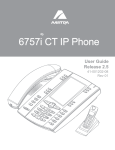
6757i IP Phone
User Guide
Release 2.4
41-001201-15
Rev 00
Aastra Telecom will not accept liability for any damages and/or long distance charges, which result from unauthorized and/or
unlawful use. While every effort has been made to ensure accuracy, Aastra Telecom will not be liable for technical or editorial errors
or omissions contained within this documentation. The information contained in this documentation is subject to change without
notice.
Copyright 2008 Aastra Telecom. www.aastratelecom.com
All Rights Reserved.
Software License Agreement
Aastra Telecom Inc., hereinafter known as "Seller", grants to Customer a personal,
worldwide, non-transferable, non-sublicenseable and non-exclusive, restricted use license
to use Software in object form solely with the Equipment for which the Software was
intended. This Product may integrate programs, licensed to Aastra by third party
Suppliers, for distribution under the terms of this agreement. These programs are
confidential and proprietary, and are protected as such by copyright law as unpublished
works and by international treaties to the fullest extent under the applicable law of the
jurisdiction of the Customer. In addition, these confidential and proprietary programs are
works conforming to the requirements of Section 401 of title 17 of the United States Code.
Customer shall not disclose to any third party such confidential and proprietary programs
and information and shall not export licensed Software to any country except in
accordance with United States Export laws and restrictions.
Customer's use of this software shall be deemed to reflect Customer's agreement to abide
by the terms and conditions contained herein. Removal or modification of trademarks,
copyright notices, logos, etc., or the use of Software on any Equipment other than that for
which it is intended, or any other material breach of this Agreement, shall automatically
terminate this license. If this Agreement is terminated for breach, Customer shall
immediately discontinue use and destroy or return to Seller all licensed software and other
confidential or proprietary information of Seller. In no event shall Seller or its suppliers or
licensors be liable for any damages whatsoever (including without limitation, damages for
loss of business profits, business interruption, loss of business information, other
pecuniary loss, or consequential damages) arising out of the use of or inability to use the
software, even if Seller has been advised of the possibility of such damages.
iii
Software License Agreement
Customer agrees to not reverse engineer, decompile, disassemble or display Software
furnished in object code form. Customer shall not modify, copy, reproduce, distribute,
transcribe, translate or reduce to electronic medium or machine readable form or
language, derive source code without the express written consent of the Seller and its
Suppliers, or disseminate or otherwise disclose the Software to third parties. All Software
furnished hereunder (whether or not part of firmware), including all copies thereof, are
and shall remain the property of Seller and its Suppliers and are subject to the terms and
conditions of this agreement. All rights reserved.
Table of Contents
Table of Contents
Software License Agreement ...................................................................................................... iii
Table of Contents ..........................................................................................................................v
About this Guide ...........................................................................................................................1
Documentation ..........................................................................................................................1
Introduction ...................................................................................................................................2
Phone Features ..........................................................................................................................2
Requirements ............................................................................................................................2
Installation and Setup ................................................................................................................3
Getting Started ..............................................................................................................................4
Plugging in and Starting the Phone ...........................................................................................4
Network Connected/Network Disconnected ............................................................................7
Idle Screen ................................................................................................................................8
IP Phone Keys and Key Descriptions ........................................................................................12
Key Descriptions .....................................................................................................................12
Methods for Customizing Your Phone ......................................................................................15
Phone Options via the IP Phone UI ........................................................................................15
Phone Options via the Aastra Web UI ....................................................................................18
Phone Status ................................................................................................................................22
Phone Status via IP Phone UI .................................................................................................22
Phone Status via IP Phone UI .................................................................................................22
Finding Your Phone’s IP Address ...........................................................................................23
Phone Status via the Aastra Web UI .......................................................................................24
Customizing Your Phone ............................................................................................................27
Ring Tones and Tone Sets .......................................................................................................27
Contrast Level .........................................................................................................................30
Backlight .................................................................................................................................31
Live Dialpad* .........................................................................................................................33
Set Audio ................................................................................................................................34
Time and Date .........................................................................................................................37
Language .................................................................................................................................44
User Password .........................................................................................................................51
Resetting a User Password ......................................................................................................53
Restarting your phone .............................................................................................................54
Phone Lock .............................................................................................................................55
v
Table of Contents
Table of Contents
Defining an Emergency Dial Plan ..........................................................................................57
Line Keys and Softkeys ..............................................................................................................59
Multiple Line and Call Appearances ......................................................................................59
Softkeys ..................................................................................................................................60
State-Based Softkeys (Bottom Keys only) .............................................................................63
Line Key .................................................................................................................................66
Speeddial Key .........................................................................................................................70
Editing Speeddial Keys ...........................................................................................................77
"Do not Disturb" (DND) Key .................................................................................................81
Busy Lamp Field (BLF) Key ..................................................................................................83
BLF List Key ..........................................................................................................................86
Automatic Call Distribution (ACD) Key (for Sylantro Servers) ............................................89
Directed Call Pickup/Group Call Pickup Keys (for Sylantro Servers) ...................................94
XML Key ..............................................................................................................................100
WebApps Key .......................................................................................................................106
Flash Key ..............................................................................................................................108
Sprecode Key ........................................................................................................................110
Park/Pickup Keys ..................................................................................................................112
Last Call Return (lcr) Key (Sylantro Servers only) ..............................................................119
Call Forward Key ..................................................................................................................121
BLF/Xfer ...............................................................................................................................123
Speeddial/Xfer ......................................................................................................................126
Speeddial/Conf ......................................................................................................................129
Services Key .........................................................................................................................132
Directory Key .......................................................................................................................135
Callers List Key ....................................................................................................................137
Intercom Key ........................................................................................................................139
Phone Lock Key ....................................................................................................................142
Paging Key (Sends the RTP Stream) ....................................................................................144
None Key ..............................................................................................................................147
Empty Key ............................................................................................................................149
Deleting a Key ......................................................................................................................151
Making Calls .............................................................................................................................152
Dialing a Number ..................................................................................................................152
vi
Table of Contents
Table of Contents
Pre-dialing a Number ............................................................................................................153
Using Handsfree Speakerphone ............................................................................................153
Using a Headset ....................................................................................................................154
Using Intercom .....................................................................................................................155
Redial ....................................................................................................................................157
Mute ......................................................................................................................................158
Receiving Calls ..........................................................................................................................159
Answering an Incoming Call ................................................................................................159
Sending an Incoming Call to Voicemail ...............................................................................160
Handling Calls ...........................................................................................................................161
Placing a Call on Hold ..........................................................................................................161
Transferring Calls .................................................................................................................163
Conferencing Calls ...............................................................................................................165
Ending Calls ..........................................................................................................................170
Managing Calls .........................................................................................................................171
Directory List ........................................................................................................................171
Callers List ............................................................................................................................182
Account Configuration (DND and Call Forwarding) ...........................................................187
Missed Calls Indicator ..........................................................................................................209
Voicemail ..............................................................................................................................210
Additional Features ..................................................................................................................211
Star Codes .............................................................................................................................211
Suppress DTMF Playback ....................................................................................................211
Display DTMF Digits ...........................................................................................................213
Enable/Disable Call Waiting .................................................................................................215
Play Call Waiting Tone .........................................................................................................217
Stuttered Dial Tone ...............................................................................................................218
XML Beep Support ...............................................................................................................219
Status Scroll Delay ................................................................................................................220
Incoming Call Interrupts Dialing ..........................................................................................221
Switch UI Focus to Ringing Line .........................................................................................223
Preferred Line and Preferred Line Timeout ..........................................................................224
Goodbye Key Cancels Incoming Calls .................................................................................226
UPnP Mapping Lines (for remote phones) ...........................................................................228
vii
Table of Contents
Table of Contents
Message Waiting Indicator ...................................................................................................230
Incoming Intercom Call Features .........................................................................................231
Using Redial Key for “Last Number Redial” .......................................................................234
Group RTP Paging (receives RTP streams) ..........................................................................235
Use LLDP ELIN ...................................................................................................................237
Available Features Enabled by Administrators .....................................................................238
Outgoing Intercom Calls .......................................................................................................238
Missed Call Summary Subscription .....................................................................................238
Customizable Callers List Key and Services Key ................................................................239
Autodial (Hotline and Warmline) .........................................................................................239
Centralized Conferencing .....................................................................................................239
Answer and Ignore Softkeys for XML Applications ............................................................240
XML Softkey for Special Characters in XML Applications ................................................240
Playing a WAV File On Your Phone .....................................................................................241
Using the Keypad During Active XML Applications ..........................................................241
Key Redirection ....................................................................................................................242
XML Applications and Off-Hook Interaction ......................................................................243
XML Override for a Locked Phone ......................................................................................243
RTP Recording and Simultaneous Playing ...........................................................................243
“Hold” Feature Enhancement (for Broadsoft Servers) .........................................................244
Authentication Support for HTTP/HTTPS Download Methods Used with Broadsoft Client
Management System (CMS) .................................................................................................244
Model M670i and M675i Expansion Modules ........................................................................245
Using the Expansion Modules ..............................................................................................247
Troubleshooting Solutions ........................................................................................................250
Limited Warranty .....................................................................................................................257
Appendix A - Time Zone Codes ...................................................................................................1
Index ...............................................................................................................................................1
viii
About this Guide
This guide explains how to use the basic features of your new 6757i phone. Not all features listed
are available by default. Contact your system or network administrator to find out which features
and services are available to you on your system.
Your System Administrator has the ability to customize some features on this phone. For
information on more advanced settings and configurations, administrators should refer to the
Aastra SIP IP Phone Administrator Guide.
Documentation
•
Aastra 6757i SIP IP Phone Installation Guide – Installation and set-up instructions, general
features and functions, and basic options list customization. This Installation Guide is included
with the telephone.
•
Aastra 6757i SIP IP Phone User Guide – Describes the most commonly used features and
functions for an end user.
•
Aastra SIP IP Phone Administrator Guide – Describes how to set the 6757i phone up on the
network and contains advanced configuration instructions for the 6757i. This guide has
instructions that are at an administrator level.
About this Guide
Model 6757i IP Phone User Guide
1
Introduction
Introduction
This 6757i IP telephone has all the features of a regular business phone, allowing you to make
and receive calls, transfer, conference and more. The 6757i IP telephone provides
communications over an IP Network using the SIP IP telephony protocol.
Phone Features
•
11 line graphical LCD screen (144 x 128 pixels) with white backlight
•
12 multi-functional softkeys
— 6 Top Keys: Static softkeys (up to 10 programmable functions)
— 6 Bottom Keys:State-based softkeys (up to 20 programmable functions)
•
Press-and-hold speeddial key configuration feature
•
4 call appearance lines with LEDs
•
Supports up to 9 call lines
•
Full-duplex speakerphone for handsfree calls
•
Headset support (modular connector)
•
Built-in-two-port, 10/100 Ethernet switch - lets you share a connection with your computer.
•
Inline power support (based on 802.3af standard) which eliminates power adapters.
•
AC power adapter (included)
•
Enhanced busy lamp fields*
•
Set paging*
* Availability of feature dependant on your phone system or service provider.
Requirements
The 6757i IP Phone requires the following environment:
2
•
SIP-based IP PBX system or network installed and running with a SIP account created for
the 6757i phone.
•
Access to a Trivial File Transfer Protocol (TFTP), File Transfer Protocol (FTP), Hypertext
Transfer Protocol (HTTP) server, or Hyper Text Transfer Protocol over Secure Sockets
Layer (SSL) (HTTPS).
•
Ethernet/Fast Ethernet LAN (10/100 Mb)
•
Category 5/5e straight through cabling
Model 6757i IP Phone User Guide
•
Power source
For Ethernet networks that supply in-line power to the phone (IEEE 802.3af):
— For power, use the Ethernet cable (supplied) to connect from the phone directly to the
network for power. (No 48v AC power adapter required.)
For Ethernet networks that DO NOT supply power to the phone:
— For power, use the 48V AC Power Adapter (included) to connect from the DC power port
on the phone to a power source.
or
— (optional) For power, use a Power over Ethernet (PoE) power injector or a PoE switch. A
PoE power injector is available as an optional accessory from Aastra Telecom. Contact
your Administrator for more information.
Installation and Setup
If your System Administrator has not already setup your 6757i phone, please refer to the Aastra
6757i Installation Guide for basic installation and physical setup information. For more advanced
administration and configuration information, System Administrators should refer to the
Aastra SIP IP Phone Administrator Guide.
Introduction
Model 6757i IP Phone User Guide
3
Getting Started
Getting Started
The 6757i must be set up and be configured prior to its first use. This section describes phone
behavior and start up screens you may see when the phone is first plugged in, or when it is
restarted.
Plugging in and Starting the Phone
The 6757i automatically begins the start up sequence as soon as it is connected. The phone goes
through this process the first time you plug in your phone and every time you restart your phone.
The phone displays the following startup screens.
Checking for
Firmware.....
DHCP: waiting
for IP...
4
Model 6757i IP Phone User Guide
The 6757i phone then checks settings and looks for new configuration and firmware updates for
the phone from a server. If a new update is found, the phone displays the message “Updating
Configuration”. This may take a few moments while the phone downloads the latest updates.
Updating
configuration.....
Checking for firmware...
Do not unplug the phone!
Note: New updates to your phone can be automatically scheduled from the server.
This is set up on the phone system by your System Administrator and should be
scheduled during non-business hours or slow call periods.
Important! Do not unplug or remove power to the phone while it is checking or
installing firmware and configuration information.
If language packs were loaded to your phone by your System Administrator, the following screen
displays during startup.
Downloading
Language Packs
Getting Started
Model 6757i IP Phone User Guide
5
Getting Started
When the configuration update is complete, the phone displays the following screens and then
displays the Idle screen.
DSP
Network
Done
SIP
Services
Dir
Callers
L1
Icom
John Smith
Sat Jan 1 12:18am
Idle Screen
6
Model 6757i IP Phone User Guide
Network Connected/Network Disconnected
If your phone is successful when connecting to the network the following screen displays before
changing to the Idle screen.
Services
Dir
Callers
Icom
John Smith
L1
Network Connected
Sat Jan 1 12:18am
If your phone did not successfully connect to the network, the "Network Disconnected" prompt
appears on the display and the telephone status light turns on.
Services
Dir
Callers
Icom
John Smith
L1
Network Disconnected
Sat Jan 1 12:18am
Check that the cables are tightly connected to the phone and to the wall jack. The phone should
automatically detect when it is reconnected and displays the "Network Connected" prompt for a
few seconds. However, if changes have been made to your phone’s network settings, you may
need to restart your phone.
For more information about connecting your phone, see the Aastra 6757i IP Phone Installation
Guide, the section "Connecting to the Network and to Power".
Getting Started
Check with your system or network administrator for assistance.
Note: f the phone displays "No Service" you can still use the phone but it is not
registered with the Registrar. For more information about registering your phone,
see your System Administrator.
Model 6757i IP Phone User Guide
7
Getting Started
Idle Screen
When the phone has successfully updated the configuration and connected to the network, the
phone displays the Idle State screen. The idle screen is shown whenever your phone is not in
use.
Services
Dir
Callers
L1
Icom
John Smith
Sat Jan 1 12:18am
Note: Your System Administrator sets up your SIP screen name, line number, and
any other administrative features required. If your name does not display on the
screen, contact your System Administrator.
The Idle State screen lists your name (SIP screen name) and day, date, and time. In the above
screen, the "L1" indicates John Smith is configured on Line 1.
By default, the top softkeys 1 through 4 are configured for Services, Directory, Callers List, and
Intercom, respectively. You can configure the 6 top keys with up to 10 functions, and the 6
bottom softkeys with up to 20 functions as required.
Services
Intercom
Directory
Callers List
8
Model 6757i IP Phone User Guide
Reference
For more information about configuring the top and bottom softkeys, see “Softkeys” on page 60.
For more information about using the Services, Directory, Callers List, Intercom, Dial,
Conference, and Transfer keys, see the following sections:
•
“Making Calls” on page 152.
•
“Handling Calls” on page 161.
•
“Managing Calls” on page 171.
Idle Screen With Softkeys Configured
If you or your administrator have configured softkey functions on your phone, the labels for those
functions display on the screen. For example, in the following illustration, "Home" was configured
as a speeddial key on the bottom set of softkeys and "Do Not Disturb" (DND) was configured on
the top set of softkeys.
Services
Dir
Callers
John Smith
L1
Speeddial Softkey
Icom
DND
More
"Do Not Disturb"
Softkey
Sat Jan 1 12:18am
Home
Idle Screen
You can configure up to 10 functions on the top set of softkeys. If you have additional functions
configured on the top softkeys that do not display on the main idle screen, a "More" displays at the
top right of the screen. Pressing the More softkey toggles between the first screen and a second
screen of softkeys configured on your phone.
Getting Started
HR
Support
More
Speeddial Softkeys
John Smith
L1
Sat Jan 1 12:18am
Home
Idle Screen
Model 6757i IP Phone User Guide
9
Getting Started
Idle Screen with Voicemail Messages
The envelope icon
displays on the Idle State screen only if you have new messages waiting.
The number next to the envelope indicates how many new messages you have.
Services
Dir
Callers
Icom
1
John Smith
L1
Voicemail Icon
Sat Jan 1 12:18am
Idle Screen
To access your voicemail messages, use the star codes for your system if a voicemail softkey has
not been configured on your phone. For more information on your system’s star codes, please
refer to the documentation for the voicemail system you are using.
Screen Display After Picking Up the Handset
When you pickup the handset, the screen displays as follows:
Services
Dir
Callers
L1
Icom
John Smith
>
Dial
Conf
Xfer
More
This screen displays the following keys located on the bottom left of the screen:
•
Dial
•
Conf (Conference)
•
Xfer (Transfer)
A More softkey also displays at the bottom right of the screen if you have configured softkeys
other than the default softkeys.
10
Model 6757i IP Phone User Guide
For example, if you configure a bottom softkey for speeddialing to Home, and then you pickup the
handset, the screen displays the Dial, Conf, and Xfer default softkeys with a More softkey. You
can press the More softkey to toggle between the first and second screens to display all configured
softkeys. See illustrations below.
Services
Dir
Callers
Icom
John Smith
L1
Sat Jan 1 12:18am
Home
Idle Screen
Services
Dir
Callers
L1
Icom
John Smith
L1
Icom
John Smith
>
>
Dial
Conf
Xfer
Services
Dir
Callers
Home
More
More
After Handset Pickup After Pressing "More"
Note: The bottom set of 6 softkeys map to the current state-based configurable
softkeys. The top set of 6 softkeys allow you to configure up to 10 functions.
Getting Started
Model 6757i IP Phone User Guide
11
IP Phone Keys and Key Descriptions
IP Phone Keys and Key Descriptions
The following sections describe the various 6757i phone key functions, and how they help you
make and manage your calls and caller information.
Key Descriptions
The following table identifies the keys on the key panel of your 6757i IP phone that you can use
for handling calls.
Keys
Key Description
Goodbye key - Ends an active call. The Goodbye key also exits an open list,
such as the Options List, without saving changes.
Options key - Accesses options to customize your phone. Your System
Administrator may have already customized some of your settings. Check with
your System Administrator before changing the administrator-only options.
Hold key - Places an active call on hold. To retrieve a held call, press the call
appearance button beside the light that is flashing.
Redial key - Redials up to 100 previously dialed numbers. Pressing the Redial
key twice simultaneously redials the last dialed number.
Volume control key - Adjusts the volume for the handset, headset, ringer, and
handsfree speaker.
12
Model 6757i IP Phone User Guide
Keys
Key Description
Line/Call Appearance key - Connects you to a line or call. The Aastra 6757i IP
phone supports up to 4 line keys.
Handsfree key - Activates Handsfree for making and receiving calls without lifting
the handset. When the audio mode option is set, this key is used to switch
between a headset and the handsfree speakerphone.
Mute key - Mutes the microphone so that your caller cannot hear you (the light
indicator flashes when the microphone is on mute).
IP Phone Keys and Key Descriptions
Navigation keys - Pressing the UP and DOWN arrow keys lets you view different
status and text messages on the LCD display (if there is more than 1 line of
status/text messages). These buttons also let you scroll through menu selections,
such as the Options List.
Pressing the LEFT and RIGHT arrow keys lets you view the different line/call
appearances. While in the Options List, these keys allow you to exit or enter the
current option. When you are editing entries on the display, pressing the LEFT
arrow key erases the character on the left; pressing the RIGHT arrow key sets the
option.
Model 6757i IP Phone User Guide
13
IP Phone Keys and Key Descriptions
Keys
Key Description
Softkeys - 12 softkeys on the 6757i IP Phone.
- 6 Top Keys: static softkeys (up to 10 programmable functions)
- 6 Bottom Keys: state-based softkeys (up to 20 programmable functions)
All top and bottom keys can be configured for specific functions.
By default, keys 1 through 4 are assigned as Services, Directory, Callers List, and
Intercom, respectively:
1 SERVICES
Accesses enhanced features and services such as XML
applications and voicemail, provided by third parties.
2 DIRECTORY
Accesses the Directory List which displays up to 200
names and phone numbers (stored in alphabetical order)
3 CALLERS LIST Accesses the Callers List which lists the last 200 calls
received.
4 INTERCOM
Automatically connects with a remote extension for
outgoing calls, and answers incoming intercom calls.
The following softkeys display when you pick up the handset:
•
DIAL - After entering a phone number from the keypad, you can press the Dial
softkey to immediately dial the number.
•
CONF - Begins a conference with the active call.
•
XFER - Transfers the active call to another number.
Note: For more information about programming the softkeys to perform specific
functions, see the “Softkeys” on page 60.
14
Model 6757i IP Phone User Guide
Methods for Customizing Your Phone
There are two ways to customize specific options on your phone:
•
Using the Options
key on the IP Phone
•
Using the Aastra Web UI in an Internet browser window from your PC.
Phone Options via the IP Phone UI
You can customize your phone by pressing the Options
key and accessing the IP Phone UI.
These options allow you to customize the following phone settings.
1
Option
Methods for Customizing Your Phone
Option
Number
Call Forward
1. Cfwd Number
2. Cfwd Mode
3. No. Rings
Note: The menus that display for Call
Forward are dependant on the Call Forward
Mode set on the phone. Default is "Account"
mode.
2
Preferences
1. Tones
Ring Tone
Tone Set
2. Contrast Level
3. Speeddial Edit
4. Live Dialpad
5. Set Audio
Audio Mode
Headset Mic Vol
6. Time and Date
Time Zone
Daylight Savings
Time Format
Date Format
Time Server
Time Server 1
Time Server 2
Time Server 3
Set Time
Set Date
7. Language
Screen Language
Input Language
Model 6757i IP Phone User Guide
15
Methods for Customizing Your Phone
3
Phone Status
1. IP&MAC Addresses
2. LAN Port
3. PC Port
4. Firmware Info
5. Error Messages
4
User Password
5
Administrator Menu
(Password Protected)
6
Restart Phone
7
Phone Lock
Note: *The "Administrator Menu" options are Administrator level functions only,
and are not accessible by the user. These options should only be set up and changed
by your System Administrator.
Simplified Options Menu
Your System Administrator may configure a simplified options menu for your phone. The
following table indicates the options that may appear on your phone if the simplified options
menu is applied.
Option
Number
1
Option
Call Forward
1. Cfwd Number
2. Cfwd Mode
3. No. Rings
Note: The menus that display for Call
Forward are dependant on the Call Forward
Mode set on the phone. Default is "Account"
mode.
16
2
Preferences
1. Tones
Ring Tone
Tone Set
2. Contrast Level
3. Live Dialpad
4. Set Audio
Audio Mode
Headset Mic Vol
3
Phone Status
1. IP&MAC Addresses
2. LAN Port
3. PC Port
4. Firmware Info
5. Error Messages
4
Phone Lock
Model 6757i IP Phone User Guide
Using the IP Phone UI
IP Phone UI
1. Press the Options key
on the phone to enter the Options List.
2. To go to an Option, use 5 and 2 to scroll through the list, or press the number corresponding
to the Option.
3. Press the Show softkey, the 4 button, or press the digit number of the corresponding option to
select an option.
4. Use the softkeys that display for each option to change a selected option.
5. Press the Done button to save the change.
6. Press the
changes.
button, the 3 button, or the
button at any time to exit without saving
For more information about customizing your phone using the available options from the IP Phone
UI, see the section “Customizing Your Phone” on page 27.
For more information about administrator options, contact your System Administrator.
Model 6757i IP Phone User Guide
17
Methods for Customizing Your Phone
References
Methods for Customizing Your Phone
Phone Options via the Aastra Web UI
In addition to the IP Phone UI options, you can also customize additional options on the IP
Phone using the Aastra Web UI. In order to access your phone using the Aastra Web UI, you
need to know your phone’s IP address. To find your phone’s IP address, see “Finding Your
Phone’s IP Address” on page 23.
Using the Aastra Web UI
Aastra Web UI
1. Open your web browser, enter the phone’s IP address or host name into the address field and
press <Enter>. The following logon screen displays.
2. At the prompt, enter your username and password and click
.
Note: For a user, the default user name is “user” (not case sensitive) and the
password field is left blank.
18
Model 6757i IP Phone User Guide
The Network Status window displays for the IP phone you are accessing.
Methods for Customizing Your Phone
3. You can logout of the Aastra Web UI at any time by clicking Log Off.
Model 6757i IP Phone User Guide
19
Methods for Customizing Your Phone
The following categories display in the side menu of the Aastra Web UI: Status, Operation,
Basic Settings.
Headings
Descriptions
Status
The Status section displays the network status and the MAC address of the IP phone. It
also displays hardware and firmware information about the IP phone, and information about
the SIP account(s) currently configured on the phone. The information in the Network
Status window is read-only.
Operation
User Password - Allows you to change user password.
Phone Lock - Allows you to assign an emergency dial plan to the phone, lock the phone to
prevent any changes to the phone and to prevent use of the phone, and reset the user
password.
Keypad Speeddial - Allows you to assign a speeddial number to a specific digit on the
phone’s keypad for speeddialing purposes.
Softkeys and XML - Allows you to configure up to 6 top softkeys and 6 bottom softkeys
with functions identified in the list below. You can configure up to 10 functions on the top
softkeys and up to 20 functions on the bottom softkeys.
Available Functions for Softkeys
•
none
•
pickup
•
line
•
Last Call Return (lcr)
•
speeddial
•
Call Forward
•
do not disturb (DND)
•
BLF/Xfer
•
Busy Lamp Field
(BLF)
•
Speeddial/Xfer
•
BLF List
•
Speeddial/Conf
•
Auto Call Distribution
(ACD)
•
Directory
•
Directed Call Pickup
•
Callers List
•
Extensible Markup
Language (XML)
•
Intercom
•
WebApps
•
Services
•
flash
•
Phone Lock
•
sprecode
•
Paging
•
park
•
Empty
Expansion Modules - Allows you to configure an additional 36 softkeys with a M670i
Expansion Module, or an additional 60 softkeys with a M675i Expansion Module if an it is
attached to the phone. This option displays on the side menu of the Aastra Web UI only if
an Expansion Module is attached. For more information about the expansion modules see
“Model M670i and M675i Expansion Modules” on page 245.
Directory - Allows you to copy the Callers List and Directory List from your IP phone to
your PC.
Reset - Allows you to restart the IP phone when required.
20
Model 6757i IP Phone User Guide
Descriptions
Basic
Settings
Preferences - Allows you to enable/disable the following:
• Park Call
• Pickup Parked Call
• Suppress DTMF Playback
• Display DTMF Digits
• Call Waiting
• Play Call Waiting Tone
• Stuttered Dial Tone
• XML Beep Support
• Status Scroll Delay (seconds)
• Incoming Call Interrupts Dialing
• Switch UI Focus to Ringing Line
• Preferred Line
• Preferred Line Timeout (seconds)
• Goodbye Key Cancels Incoming Call
• UPnP Mapping Lines
• Message Waiting Indicator Line
• DND Key Mode
• Call Forward Key Mode
• Use LLDP ELIN
Methods for Customizing Your Phone
Headings
This category also allows you to configure:
•
•
•
•
•
•
incoming Intercom call settings
group paging RTP settings
ring tones (global and per-line basis)
ring tone sets
time and date settings
Webpage language and input language
Account Configuration - Allows you to configure “do not disturb” (DND) and “call
forwarding” (CFWD) by account. You can have multiple accounts on the 6757i.
Model 6757i IP Phone User Guide
21
Phone Status
Phone Status
You can view the status of your phone using the IP Phone UI or the Aastra Web UI.
Phone Status via IP Phone UI
Phone Status via IP Phone UI
The "Phone Status" option on the IP phone displays the status of your phone to the LCD
display.
This option allows you to view your phone’s:
•
Network status including your phone’s IP and MAC address
•
Local Area Network (LAN) port
•
PC port
•
Firmware version
•
Error messages from last reboot or startup
Use the following procedure to view the status of your phone using the IP Phone UI.
IP Phone UI
1. Press
on the phone to enter the Options List.
2. Select Phone Status.
3. Select the option you want to view:
•
IP&MAC Address
•
LAN Port
•
PC Port
•
Firmware Info
•
Error Messages
The option you select displays to the LCD. Use the 5 and 2 keys to scroll the through the
LCD display.
22
Model 6757i IP Phone User Guide
Finding Your Phone’s IP Address
If you want to access your phone’s options using an Internet browser, you need to enter the IP
address of the phone in the browser to open the Aastra Web UI. Use the following procedure to
find your phone’s IP address.
IP Phone UI
1. Press
to enter the Options List.
2. Scroll to Phone Status and press Select.
Options List
1. Call Forward
2. Preferences
3. Phone Status
4. User Password
- Select
Done -
3. Scroll to IP&MAC Addresses and press Select.
Phone Status
1. IP&MAC Addresses
2. LAN Port
3. PC Port
4. Firmware Info
5. Error Messages
- Select
Done -
The IP address of your 6757i IP phone displays in the "IP Address" field.
IP&MAC Addresses
IP Address:
192.168.0.100
MAC Address:
00-44-7D-18-03-26
Phone Status
Done -
Model 6757i IP Phone User Guide
23
Phone Status
Phone Status via the Aastra Web UI
Use the following procedure to view the phone status via the Aastra Web UI.
Aastra Web UI
1. Open your web browser, enter the phone’s IP address or host name into the address field and
press <Enter>.
2. In the Username/Password window, enter your username and password and click
.
Note: For a user, the default user name is “user” and the password field is left
blank.
The Network Status window displays for the IP phone you are accessing.
This Network Status window is view only. It displays the Network Status of your phone which
includes the following:
24
•
Link State, Negotiation, Speed, and Duplex setting for the LAN and PC ports
•
MAC Address
•
Hardware Information
•
Firmware Information
•
SIP Account status
Model 6757i IP Phone User Guide
SIP Account Status
The IP Phones show the SIP registration status on the IP Phone’s Network Status screen in the
Aastra Web UI.
The following is an illustration of the Network Status screen in the Aastra Web UI with SIP status
displayed.
SIP Account Status
Phone Status
Model 6757i IP Phone User Guide
25
Phone Status
The following table describes the status conditions that can display for the account.
Status
Condition
Description
Registered
Displays this status on accounts that HAVE been registered with the SIP proxy server.
Example:
Line
1
SIP Account
[email protected]:5060
Status
Registered
Backup
Registrar
Used?
Yes
where
Account Number is “1”
SIP Account is “[email protected]” on port “5060”
Status is “Registered”
Backup registrar is used (“Yes”)
SIP Error
Number
Displays on accounts when registration fails with the SIP proxy server.
Example:
Line
4
SIP Account
[email protected]:5060
Status
401
Backup
Registrar
Used?
No
where
Account Number is “4”
SIP Account is “[email protected]” on port “5060”
Status is “401” - Unregistered if SIP registration fails.
Backup registrar is used (“No”)
26
Model 6757i IP Phone User Guide
Customizing Your Phone
The following paragraphs describe the options available from either the IP Phone UI, the Aastra
Web UI, or both, and provide procedures applicable to the option.
Ring Tones and Tone Sets
You can configure ring tones and ring tone sets on the IP phone.
Ring Tones
There are several distinct ring tones a user can select from to set on the IP phones. You can enable/
disable these ring tones on a global or per-line basis.
The following table identifies the valid settings and default values for each type of configuration
method.
Ring Tones Table
Valid Values
Default Value
IP Phone UI
Global
Tone 1
Tone 2
Tone 3
Tone 4
Tone 5
Silent
Global Setting:
Tone 1
Aastra Web UI
Global:
Tone 1
Tone 2
Tone 3
Tone 4
Tone 5
Silent
Global Setting:
Tone 1
Lines 1 to 9
Per-Line Setting:
Global
Tone 1
Tone 2
Tone 3
Tone 4
Tone 5
Silent
Per-Line Setting:
Global
Model 6757i IP Phone User Guide
Customizing Your Phone
Configuration Method
27
Customizing Your Phone
Ring Tone Sets
In addition to ring tones, you can configure ring tone sets on a global-basis on the IP phone. Ring
tone sets consist of tones customized for a specific country. The ring tone sets you can configure
on the IP phones are:
•
United States (US) (Default - also used in Canada)
•
Mexico
•
United Kingdom (UK)
•
Italy
•
Germany
•
France
•
Europe (generic tones)
•
Australia
When you configure the country's tone set, the country-specific tone is heard on the phone for
the following:
•
dial tone
•
secondary dial tone
•
ring tone
•
busy tone
•
congestion tones
•
call waiting tone
•
ring cadence pattern
You configure global ring tones and tone sets using the Aastra Web UI and the IP Phone UI.
Configuring Ring Tones and Tone Sets
IP Phone UI
Use the following procedures to configure ring tones and tone sets on the IP phone.
Global configuration only
1. Press
on the phone to enter the Options List.
2. Select Preferences.
3. Select Tones.
4. Select Ring Tone.
5. Select the type of ring tone (Tone 1 through Tone 5, or Silent).
28
Model 6757i IP Phone User Guide
6. Press Done.
7. Select Tone Set.
8. Select the country for which you want to apply the tone set. Valid values are
Australia, Europe, France, Germany, Italy, UK, Mexico, and US. Default is US.
9. Press Done.
The ring tone and tone set you select is immediately applied to the IP phone.
Aastra Web UI
1. Click on Basic Settings->Preferences->Ring Tones.
2. In the "Ring Tones" section, select a country from the "Tone Set" field.
Valid values are Australia, Europe, France, Germany, Italy, UK, Mexico, and US. Default
is US.
3. Select a value from the "Global Ring Tone" field.
Note: See the Ring Tones Table on page 27 for valid values.
For per-line configuration:
4. In the "Ring Tone" section, select a line for which you want to set ring tone.
5. Select a value from the "LineN" field.
Note: See the Ring Tones Table on page 27 for valid values.
6. Click
to save your settings.
Model 6757i IP Phone User Guide
29
Customizing Your Phone
For global configuration:
Customizing Your Phone
Contrast Level
The "Contrast Level" option on the IP phone allows you to set the amount of light that
illuminates the LCD display. Use this option to set the preference of contrast level.
You can set the contrast level using the IP Phone UI only.
Setting Contrast Level
IP Phone UI
1. Press
on the phone to enter the Options List.
2. Select Preferences.
3. Select Display.
4. Select Contrast Level.
Display
1. Contrast Level
2. Backlight
- Select
Done -
5. Use the 3 and 4 navigation buttons to increase or decrease the intensity of contrast
lighting on the LCD.
Contrast Level
Contrast Level:
Cancel Done -
6. Press Done to save your selection.
30
Model 6757i IP Phone User Guide
Backlight
The "Backlight" option on the IP phone allows you to set the backlight status on the LCD display
to the following:
•
Off - Backlight is always OFF.
•
Auto (Default)- Automatically turns ON the backlight when the phone is in use, and then
automatically turns OFF the backlight when the phone is idle after a specified length of time.
Auto backlighting sets the phone to turn off the backlighting after a period of inactivity; the idle
period is user definable under the Advanced softkey when you select the Auto mode. In Auto
mode, the backlight turns on with a key press or state change on the phone.
Setting the Backlight
IP Phone UI
1. Press
on the phone to enter the Options List.
2. Select Preferences.
3. Select Display.
4. Select Backlight.
Display
1. Contrast Level
2. Backlight
Done -
5. Use the 5 and 2 navigation buttons to select the Backlight status for your phone. Default is
"Auto". Available options are:
•
Off
•
Auto (Default)
6. If you selected "Off", press Done to save your setting.
Backlight
Off
Auto
Cancel Done -
Model 6757i IP Phone User Guide
31
Customizing Your Phone
- Select
Customizing Your Phone
7. If you selected "Auto", press the Advanced softkey.
Backlight
Off
Auto
Advanced Cancel Done -
8. Using the keypad, enter the amount of seconds you want the phone to stay backlit when the
phone is idle. Valid values are 1 to 120 seconds (2 minutes). Default is 10 seconds. When
this period of time is reached, the phone turns OFF the backlight. Use the "Backspace" and/
or "Clear" softkeys to delete entries if required.
Backlight On Time
10 seconds
- Backspace
- Clear
Cancel Done -
9. Press Done to save your setting.
32
Model 6757i IP Phone User Guide
Live Dialpad*
The "Live Dialpad" option on the IP phone turns the Live Dial Pad mode ON or OFF. With live
dial pad ON, the 6757i IP phone automatically dials out and turns ON Handsfree mode as soon as
a dial pad key or softkey is pressed. With live dial pad OFF, if you dial a number while the phone
is on-hook, lifting the receiver or pressing the
initiates a call to that number.
*Availability of feature dependant on your phone system or service provider.
You can enable/disable the live dialpad using the IP Phone UI only.
Enabling/Disabling Live Dialpad
IP Phone UI
1. Press
on the phone to enter the Options List.
2. Select Preferences.
3. Select Live Dialpad.
Live Dialpad
Live Dialpad is
OFF
- Change
Customizing Your Phone
Cancel Done -
4. Use the Change softkey to turn the live dialpad ON or OFF.
5. Press Done to save your setting.
Model 6757i IP Phone User Guide
33
Customizing Your Phone
Set Audio
The "Set Audio" option on the IP Phone allows you to set the audio mode for your IP phone. It
also allows you to set the volume level of the headset microphone.
You can set Audio on your IP phone using the IP Phone UI only.
Audio Mode
The 6757i allows you to use a handset, a headset, or handsfree mode to handle incoming and
outgoing calls. The audio mode option provides different combinations of these three methods to
provide maximum flexibility in handling calls. There are four audio mode options you can set:
Audio Mode
Option
34
Description
Speaker
This is the default setting. Calls can be made or received using the handset
or handsfree speakerphone. In handset audio mode, pressing the
button on the phone switches to handsfree speakerphone. In Speaker
audio mode, lift the handset to switch to the handset.
Headset
Choose this setting if you want to make or receive all calls using a handset
or headset. Calls can be switched from the handset to headset by pressing
the
button on the phone. To switch from the headset to the handset,
lift the handset.
Speaker/Headset
Incoming calls are sent to the handsfree speakerphone first when the
button is pressed. By pressing the button again, you can switch back
and forth between the handsfree speakerphone and the headset. At
anytime, lifting the handset switches back to the handset from either the
handsfree speakerphone or the headset.
Headset/Speaker
Incoming calls are sent to the headset first when the
button is
pressed. By pressing the button again, you can switch back and forth
between the headset and the handsfree speakerphone. At anytime, lifting
the handset switches back to the handset from either the headset or the
handsfree speakerphone.
Model 6757i IP Phone User Guide
Headset Mic Volume
The "Headset Mic Volume" option allows you to set the volume level for the headset microphone.
Setting Audio Mode and Headset Mic Volume
IP Phone UI
1. Press
on the phone to enter the Options List.
2. Select Preferences.
3. Select Set Audio.
4. Select Audio Mode.
Set Audio
1. Audio Mode
2. Headset Mic Volume
- Select
Done -
5. Select the audio mode you want to use on your phone. Default is Speaker.
Valid values are:
Speaker (Default)
•
Headset
•
Speaker/Headset
•
Headset/Speaker
Customizing Your Phone
•
Audio Mode
Speaker
Headset
Speaker/Headset
Headset/Speaker
Cancel Done -
6. Press Done to save your setting.
Model 6757i IP Phone User Guide
35
Customizing Your Phone
7. Select Headset Mic Volume.
Set Audio
1. Audio Mode
2. Headset Mic Volume
- Select
Done -
8. Select the Low, Medium, or High volume level. Default is Medium.
Headset Mic Volume
Low
Medium
High
Cancel Done -
9. Press Done to save your selection.
36
Model 6757i IP Phone User Guide
Time and Date
On the IP phones, you can configure the following:
•
Time and date
•
Time and date format
•
Time zone
•
Daylight savings time
•
Time Servers
Note: Only the Time and Date Formats and Time Servers can be set using the
Aastra Web UI.
Configuring Time and Date
Use the following procedures to configure the time and date settings on the IP phone.
IP Phone UI
Set Time and Time Format
Note: The time and time format you configure display on the phone’s idle screen.
on the phone to enter the Options List.
Customizing Your Phone
1. Press
2. Select Preferences.
3. Select Time and Date.
4. Select Set Time.
Time and Date
1. Time Zone
2. Daylight Savings
3. Time Format
4. Date Format
5. Time Server
6. Set Time
7. Set Date
- Select
Done -
Model 6757i IP Phone User Guide
37
Customizing Your Phone
5. Using the keys on the keypad, enter a time to set on the IP phone. Use the
"Backspace" key to move back a space and delete a character. Use the "AM/PM" softkey to
specify either AM or PM for the time setting.
Set Time
Enter Time:
01:13am
- Backspace
- AM/PM
Cancel Done -
6. Press Done to save the setting.
7. Select Time Format.
8. Using the "Change" softkey, set the Time Format to either a 12 hour format or a 24 hour
format. Valid values are 12h and 24h. Default is 12h.
Time Format
Time Format:
12h
- Change
Cancel Done -
9. Press Done to save the Time Format you selected.
Set Date and Date Format
Note: The date and date format you configure display on the phone’s idle screen.
1. Select Preferences.
2. Select Time and Date.
3. Select Set Date.
Time and Date
1. Time Zone
2. Daylight Savings
3. Time Format
4. Date Format
5. Time Server
6. Set Time
7. Set Date
- Select
Done -
38
Model 6757i IP Phone User Guide
4. Using the keys on the keypad, enter a date to set on the IP phone. Use the
"Backspace" key to move back a space and delete a character.
Set Date
Enter Date (y-m-d):
2000-01-02
- Backspace
Cancel Done -
5. Press Done to save the setting.
6. Select Date Format.
7. Select a date format from the list of options. Default is Sun Jan 2. Valid values are:
Sun Jan 2 (Default)
•
2-Jan-00
•
2000 01 02
•
02/01/2000
•
02/01/00
•
02-01-00
•
01/.02/00
•
Jan 2
•
2 Jan 2000
•
Sun 2 Jan
•
2 Jan
•
02.01.2000
Date Format
Sun Jan 2
2-Jan-00
2000-01-02
02/01/2000
02/01/00
02-01-00
01/.02/00
Jan 2
2 Jan 2000
Sun 2 Jan
2 Jan
02.01.2000
Customizing Your Phone
•
Cancel Done -
8. Press Done to save the Date Format.
Model 6757i IP Phone User Guide
39
Customizing Your Phone
Set Time Zone
1. Select Preferences.
2. Select Time and Date.
3. Select Time Zone.
Time and Date
1. Time Zone
2. Daylight Savings
3. Time Format
4. Date Format
5. Time Server
6. Set Time
7. Set Date
- Select
Done -
A list of Time Zones display for different areas of the world.
4. Select a Time Zone that applies to your area.
The default Time Zone is US-Eastern.
Time Zone
US-Aleutain
US-Central
US-Eastern
US-Hawaii
United States
Cancel Done -
Note: For a list of the Time Zones values available on the IP Phone, see ‘Appendix
A - Time Zone Codes.”
5. Press Done to save the Time Zone setting.
Daylight Savings Time
1. Select Preferences.
2. Select Daylight Savings.
Time and Date
1. Time Zone
2. Daylight Savings
3. Time Format
4. Date Format
5. Time Server
6. Set Time
7. Set Date
- Select
Done -
40
Model 6757i IP Phone User Guide
3. Select a Daylight Savings time from the list of options.
Default is Automatic. Valid values are:
•
OFF
•
30 min summertime
•
1h summertime
•
Automatic (Default)
Daylight Savings
Off
30 min summertime
1h
summertime
Automatic
Cancel Done -
4. Press Done to save the Daylight Savings value you selected.
Set Time Servers
With a valid time server enabled your IP phone will synchronize the time displayed with the
specified configuration server. The phone will use the time from Time Server 1 unless it is not
configured or unavailable, in which case it will move on to Time Server 2, and if neccessary Time
Server 3.
1. Select Preferences.
Customizing Your Phone
2. Select Time and Date.
3. Select Time Server.
Time and Date
1. Time Zone
2. Daylight Savings
3. Time Format
4. Date Format
5. Time Server
6. Set Time
7. Set Date
- Select
Done -
4. Select from Time Server 1, Time Server 2, or Time Server 3.
Model 6757i IP Phone User Guide
41
Customizing Your Phone
5. Enable the time server if required using the "Enable" key.
Time Server 1
Time Server Address:
Network Time Disabled
- 123
Enable Cancel Done -
Note: The default for Time Servers is Enabled.
6. Using the keys on the keypad, enter an IP address or domain name for the time server.
Use the "Backspace" key to move back a space and delete a character. Use the "Dot"
softkey to enter dots within the IP address or domain name. Use the "123" softkey to toggle
between entering numbers and entering letters.
Time Server 1
Time Server Address:
0.0.0.0
- Backspace
- Dot “ . ”
- 123
Disable Cancel Done -
7. Press Done to save the time server setting.
Aastra Web UI
1. Click on Basic Settings->Preferences->Time and Date Setting.
2. In the “Time Format” field, select the time format you want to use on your phone. Valid
values are:
•
42
12h (12 hour format) (default)
Model 6757i IP Phone User Guide
•
24h (24 hour format)
Note: The time and time format you configure display on the phone’s idle screen.
3. In the “Date Format” field, select the date format you want to use on your phone. Default is
WWW MMM DD. Valid values are:
•
WWW MMM DD (default)
•
DD-MMM-YY
•
YYYY-MM-DD
•
DD/MM/YYYY
•
DD/MM/YY
•
DD-MM-YY
•
MM/DD/YY
•
MMM DD
•
DD MMM YYYY
•
WWW DD MMM
•
DD MMM
•
DD.MM.YYYY
Note: The date and date format you configure display on the phone’s idle screen.
4. In the “NTP Time Servers” field, enable by checking the checkbox or disable by unchecking
the box (default is enabled).
Note: Time Servers can only be entered if NTP Time Servers is enabled.
6. Click
to save your settings.
Model 6757i IP Phone User Guide
43
Customizing Your Phone
5. In the “Time Server 1”, “Time Server 2”, and “Time Server 3” fields, enter IP addresses or
qualified domain names for the primary, secondary, and tertiary time servers.
Customizing Your Phone
Language
The IP phones support several different languages. You can have the IP Phone UI and the Aastra
Web UI display in a specific language as required. When you set the language to use, all of the
display screens (menus, services, options, configuration parameters, etc.) display in that
language. The IP phones support the following languages:
•
English (default)
•
French (European and Canadian)
•
Spanish (European and Mexican)
•
German
•
Italian
You can also configure the language to use when inputing values in the Aastra Web UI and the
IP Phone UI.
Specifying the Language to Use
Once the language pack(s) are available on your phone from your System Administrator, you
can specify which language to use on the phone and/or the Aastra Web UI.
Note: All languages may not be available for selection. The available languages are
dependant on the language packs currently loaded to the IP phone.
IP Phone UI
Use the following procedure to specify which language to use for the IP Phone UI.
1. Press
on the phone to enter the Options List.
2. Select Preferences.
3. Select Language.
4. Select Screen Language.
The current language setting displays on the IP Phone.
5. To change the language setting, use the 5 and 2 keys to scroll through the langugses. Valid
values are:
44
•
English (default)
•
Français (French)
•
Español (Spanish)
•
Deutsch (German)
•
Italiano (Italian)
Model 6757i IP Phone User Guide
Note: All languages may not be available for selection. The available languages are
dependant on the language packs currently loaded to the IP phone. English is the
default language and cannot be changed or removed. For more information about
loading language packs, see your System Administrator.
6. Press Done to set the language on the phone.
The change is dynamic. When you exit the Options Menu, the phone displays all menu items
in the language you selected.
Aastra Web UI
Note: You must have the language pack(s) already loaded to your phone in order to
use them. For more information about loading language packs, see your System
Administrator.
1. Click on Basic Settings->Preferences->Language Settings.
•
English (default)
•
Français (French)
•
Español (Spanish)
•
Deutsch (German)
•
Italiano (Italian)
Note: All languages may not be available for selection. The available languages are
dependant on the language packs currently loaded to the IP phone by your System
Administrator. English is the default language and cannot be changed or removed.
3. Click
to save your settings. The change is dynamic. The Aastra Web UI displays all
screens in the language you selected.
Model 6757i IP Phone User Guide
45
Customizing Your Phone
2. In the “Webpage Language” field, select a language to apply to the Aastra Web UI. The IP
phone supports the following languages:
Customizing Your Phone
Language Input
The 6757i supports text and character inputs in various languages (English, German, French,
Spanish, and Italian). Inputting textual or character information into the IP Phone UI can be done
using the keypad on the phone. You enable the Language Input feature using the Aastra Web UI
or the IP Phone UI. You can then use text and characters in a specific language when performing
inputs on the phone.
The following tables identify the language characters that you can use to enter text and
characters on the 6757i.
Keypad Input Alphabet Tables
English
Key
Uppercase Characters
Lowercase Characters
0
0
0
1
1.:;=_,-'&()
1.:;=_,-'&()
2
ABC2
abc2
3
DEF3
def3
4
GHI4
ghi4
5
JKL5
jkl5
6
MNO6
mno6
7
PQRS7
pqrs7
8
TUV8
tuv8
9
WXYZ9
wxyz9
*
* <SPACE>
* <SPACE>
#
#/\@
#/\@
Key
Uppercase Characters
Lowercase Characters
0
0
0
1
1.:;=_,-'&()
1.:;=_,-'&()
2
ABC2ÀÂÇÁÅÆ
abc2àâçáåæ
3
DEF3ÉÈÊË
def3éèêë
French
46
4
GHI4ÎÏ
ghi4îï
5
JKL5
jkl5
6
MNO6ÑÓÒÔÖ
mno6ñóòôö
7
PQRS7
pqrs7
8
TUV8ÚÙÛÜ
tuv8úùûü
9
WXYZ9
wxyz9
*
* <SPACE>
* <SPACE>
#
#/\@
#/\@
Model 6757i IP Phone User Guide
Spanish
Key
Uppercase Characters
Lowercase Characters
0
0
0
1
1.:;=_,-'&()
1.:;=_,-'&()
2
ABC2ÁÀÇ
abc2áàç
3
DEF3ÉÈ
def3éè
4
GHI4ÏÍ
ghi4ïí
5
JKL5
jkl5
6
MNO6ÑÓÒ
mno6ñóò
7
PQRS7
pqrs7
8
TUV8ÚÜ
tuv8úü
9
WXYZ9
wxyz9
*
* <SPACE>
* <SPACE>
#
#/\@
#/\@
Key
Uppercase Characters
Lowercase Characters
0
0
0
1
1.:;=_,-'&()
1.:;=_,-'&()
2
ABC2ÄÀ
abc2äà
3
DEF3É
def3é
4
GHI4
ghi4
5
JKL5
jkl5
6
MNO6Ö
mno6ö
7
PQRS7ß
pqrs7ß
8
TUV8Ü
tuv8ü
9
WXYZ9
wxyz9
*
* <SPACE>
* <SPACE>
#
#/\@
#/\@
German
Customizing Your Phone
Model 6757i IP Phone User Guide
47
Customizing Your Phone
Italian
Key
Uppercase Characters
Lowercase Characters
0
0
0
1
1.:;=_,-'&()
1.:;=_,-'&()
2
ABC2ÀCÇ
abc2àcç
3
DEF3ÉÈË
def3éèë
4
GHI4
ghi4
5
JKL5
jkl5
6
MNO6ÓÒ
mno6óò
7
PQRS7
pqrs7
8
TUV8Ù
tuv8ù
9
WXYZ9
wxyz9
*
* <SPACE>
* <SPACE>
#
#/\@
#/\@
Configuring Language Input Using the IP Phone UI
You can configure the language you use for inputting on the phone by setting the Input
Language option. The default input language setting is English. You can change this setting
using the IP Phone UI or the Aastra Web UI.
Example
Preferences
1. Tones
2. Contrast Level
3. Speed Dial Edit
4. Live Dialpad
5. Set Audio
6. Time and Date
7. Language
Language
1. Screen Language
2. Input Language
Input Language
1. English
2. Français
3. Español
4. Deutsch
5. Italiano
- Select
- Select
Done -
Language Option
Cancel Done -
Done -
Input Language Option
Select an Input
Language
IP Phone UI
Use the following procedure to change the input language using the IP Phone UI.
1. Press
on the phone to enter the Options List.
2. Select Preferences.
3. Select Language.
48
Model 6757i IP Phone User Guide
4. Select Input Language.
Select the language you want to use when inputting text and characters into the IP Phone UI.
Valid values are:
•
English (default)
•
Français (French)
•
Español (Spanish)
•
Deutsch (German)
•
Italiano (Italian)
Note: Available input languages are dependent on the configuration enabled by
your System Administrator.
5. Press Done when you have selected an input language.
Aastra Web UI
Use the following procedure to set the input language using the Aastra Web UI.
1. Click on Basic Settings-> Preferences->Language Settings.
•
English (default)
•
Français (French)
•
Español (Spanish)
•
Deutsch (German)
•
Italiano (Italian)
Note: All languages may not be available for selection. The available input
languages are dependant on the configuration enabled by your System
Administrator.
3. Click
to save your settings. The change is dynamic. The Aastra Web UI and IP Phone
UI allow you to enter text and characters in the language you selected.
Model 6757i IP Phone User Guide
49
Customizing Your Phone
2. Select a language from the "Input Language" field. Setting this field allows you to specify
the language to use when entering text and characters in the Aastra Web UI and IP Phone UI.
Valid values are:
Customizing Your Phone
Latin 2 Character Set
The 6757i includes support for ISO 8859-2 (Latin2) of multi-national languages when
displaying and inputing in the IP Phone UI and the Aastra Web UI.
UTF-8 is also compatible with XML encoding on the IP Phones.
The following table illustrates the Latin 2 character set used on the 6757i IP Phone.
50
Model 6757i IP Phone User Guide
User Password
This category allows you to change the user password for your phone. Changing your password
ensures that only you can alter your phone settings, and helps keep your system secure. You can
change your user password using the IP Phone UI or the Aastra Web UI.
If you change the password
Then you need to:
using the IP Phone UI,
use that new password to log into
the Aastra Web UI.
using the Aastra Web UI,
use that new password when
changing the user password via the
IP Phone UI.
Note: Valid values when creating or changing a password are 0 to 4294967295
(integers only; symbols and alpha characters are not allowed). Default password is
an empty string "" (field is blank).
Setting a User Password
IP Phone UI
Note: If required, use the following keys while entering a password:
•
•
•
Customizing Your Phone
1. Press
Backspace softkey moves cursor back a space and deletes characters
Clear softkey clears entire field of all characters
Quit softkey cancels the password changing process without saving.
on the phone to enter the Options List.
2. Select User Password and press Select.
3. At the "Current Password:" prompt, enter the current user password and press Enter.
4. At the "New Password:" prompt, enter the new user password and press Enter.
5. At the "Re-enter Password:" prompt, re-enter the new user password and press Enter.
A message, "Password Changed" displays on the screen.
Model 6757i IP Phone User Guide
51
Customizing Your Phone
Aastra Web UI
1. Click on Operation->User Password.
2. In the "Current Password" field, enter the current user password.
Note: By default, the user name is “user” (all lowercase) and the password field is
left blank.
3. In the "New Password" field, enter the new user password.
4. In the "Password Confirm" field, enter the new user password again.
5. Click
52
to save your changes.
Model 6757i IP Phone User Guide
Resetting a User Password
If you forget your password, you can reset it and enter a new password. The reset user password
feature resets the password to the factory default which is blank (no password).
You can reset a user password using the Aastra Web UI only.
Note: Valid values when creating or changing a password are 0 to 4294967295
(integers only; symbols and alpha characters are not allowed). Default password is
an empty string "" (field is blank).
Reset a User Password
Use the following procedure to reset a user password.
Aastra Web UI
1. Click on Operation->Phone Lock.
Customizing Your Phone
2. In the "Reset User Password" field, click
The following screen displays.
.
3. In the "Current Password" field, leave this blank.
4. In the "New Password" field, enter a new password.
5. In the "Password Confirm" field, re-enter your new user password.
6. Click
to save your settings.
Model 6757i IP Phone User Guide
53
Customizing Your Phone
Restarting your phone
You may want to restart your phone to check for updates on the server. You may occasionally
need to restart your phone to set changes or updates to your phone or network settings. You
may also need to restart your phone if you have been asked to do so by your System
Administrator, or should you experience any unexpected behavior.
IP Phone UI
1. Press the
button on the phone to enter the Options List.
2. Select Restart Phone.
3. When the prompt, "Are you sure you wish to restart the phone?" appears, press the Restart
softkey. If you do not wish to restart your phone, press Cancel.
Note: Your phone is out of service temporarily during the restart and downloading
process.
Aastra Web UI
1. Click on Operation->Reset.
2. Click
.
3. Click OK at the confirmation prompt.
54
Model 6757i IP Phone User Guide
Phone Lock
You can lock your phone to prevent the phone from being used or configured. You can lock the
phone using any of the following:
•
At the path Options->Phone Lock on the IP Phone UI.
•
At the path Operations->Phone Lock on the Aastra Web UI.
•
At a configured key on the phone. For more information about configuring a Lock/Unlock key
on your phone, see “Making Calls” on page 152.
In the Aastra Web UI, the Operation->Phone Lock path also allows you to perform the following:
•
Reset a user password. Clicking on the “Reset” button in the “Reset User Password” field
displays a screen that allows you to enter and save a new user password.
•
Set an emergency dial plan. An emergency dial plan can be 911, 999, 112, 110 or all of the
above. The default emergency dial plan is 911|999|112|110.
The following procedures describe locking the phone, setting an emergency dial plan, and
resetting the user password.
Locking/Unlocking a Phone
Use the following procedures to lock an IP phone and prevent it from being used or configured.
IP Phone UI
Customizing Your Phone
Lock the Phone
1. Press
on the phone to enter the Options List.
2. Select Phone Lock and press Select.
3. At the "Lock the phone?" prompt, press Lock.
The message "Phone is locked" displays.
Unlock the Phone
1. Press
on the phone to enter the Options List.
2. At the prompt, "To unlock the phone", enter your user password and press Enter.
The phone unlocks.
Model 6757i IP Phone User Guide
55
Customizing Your Phone
Aastra Web UI
1. Click on Operation->Phone Lock.
Lock the Phone
2. In the "Lock the Phone?" field, click
.
The phone locks dynamically and displays the following message:
"Phone is locked".
Unlock the Phone
3. Click on Operation->Phone Lock.
4. In the "Unlock the Phone?" field, click
.
The phone unlocks dynamically and displays the following message:
"Phone is unlocked".
56
Model 6757i IP Phone User Guide
Defining an Emergency Dial Plan
Public telephone networks in countries around the world have a single emergency telephone
number (emergency services number), that allows a caller to contact local emergency services for
assistance when required. The emergency telephone number may differ from country to country. It
is typically a three-digit number so that it can be easily remembered and dialed quickly. Some
countries have a different emergency number for each of the different emergency services.
You can specify the digits to dial on the IP phone for contacting emergency services. Once you
specify the emergency number(s) on the phone, you can dial those numbers directly on the dial pad
when required and the phone automatically dials to those emergency services.
Note: Contact your local phone service provider for available emergency numbers
in your area.
The following table describes the default emergency numbers on the IP phones.
Description
911
A United States emergency number
999
A United Kingdom emergency number
112
An international emergency telephone number for GSM mobile phone
networks.
In all European Union countries it is also the emergency telephone
number for both mobile and fixed-line telephones.
110
A police and/or fire emergency number in Asia, Europe, Middle East, and
South America.
Customizing Your Phone
Emergency
Number
You can set the emergency dial plan using the Aastra Web UI.
Model 6757i IP Phone User Guide
57
Customizing Your Phone
Define an Emergency Dial Plan
Use the following procedure to specify the numbers to use on your phone for dialing emergency
services in your area.
Aastra Web UI
1. Click on Operation->Phone Lock.
2. In the "Emergency Dial Plan" field, enter the 3-digit number used in your local area to
contact emergency services. For multiple numbers, enter a “|” between each emergency
number. For example:
911|110
Default for this field is 911|999|112|110.
3. Click
to save the emergency dial plan to your phone.
Reference
For more advanced options you can set on your phone, see “Additional Features” on page 211.
58
Model 6757i IP Phone User Guide
Line Keys and Softkeys
This section describes the Multiple Line/Call Appearance Keys (L1, L2, L3, and L4) located on
the bottom-right of the phone, and the customizable softkeys located at the top and bottom of the
phone screen.
Softkeys
Multiple Line/
Call Appearance
Keys
Multiple Line and Call Appearances
The 6757i has 4 hard line/call appearance buttons each with a corresponding status light.
Line/Call Appearance Light Behavior
Line/Call Appearance Status
Off
Idle line or no call activity
Light flashes quickly
Ringing
Light is solid
Connected
Light flashes slowly
Hold
When you have more than one call, you can use the left and right navigation buttons (3 and 4) to
scroll left and right to the different call information. Icons 3 and 4 appear if there is call
information either left, right or both sides of the current information you are viewing.
The display shows which line the call information is referring to (L1, L2, L3, L4 etc.), the Caller
ID information (name and number, if available), the call status (Connected, Ring, Hold, etc.) and
the timer specific to that call.
Model 6757i IP Phone User Guide
59
Line Keys and Softkeys
These line/call appearance buttons and lights can represent physical lines, calls for your extension
or calls from a group that your extension is part of. By pressing a line/call appearance button, you
connect to the line or a call it represents. The line/call appearance light indicates the status of that
line or call. When the phone is taken off-hook, the phone automatically selects a line for you.
Line Keys and Softkeys
Softkeys
Your 6757i has 12 multi-functional softkeys:
•
6 Top Keys: static softkeys
(up to 10 programmable functions)
•
6 Bottom Keys: state-based softkeys
(up to 20 programmable functions).
Services
Directory
Callers List
Intercom
None
None
Softkeys
None
None
None
None
None
None
Softkeys
(state-based)
Note: If a M670i or M675i Expansion Module(s) is attached to the phone, you can
configure up to an additional 36 softkeys on each M670i Expansion Module and up
to 60 softkeys on each M675i Expansion Module. (The 6757i IP Phone allows up to
3 expansion modules on each phone). For more information about expansion
modules, see “Model M670i and M675i Expansion Modules” on page 245.
You can use the Aastra Web UI only, to configure key functions.
60
Model 6757i IP Phone User Guide
The following table lists the functions you can set on the softkeys and provides a description for
each function,.
Key Function
Description
None
Indicates no setting for the key.
Line
Indicates the key is configured for line use.
Speeddial
Indicates the key is configured for speeddial use. You can also
configure a prefix for a speeddial number.
Do Not Disturb
Indicates the key is configured for "do not disturb" on the phone.
Busy Lamp Field (BLF)
Indicates the key is configured for Busy Lamp Field (BLF) use. User can
dial out on a BLF configured key.
(Maximum of 50 BLFs allowed on M670i Expansion Module.)
BLF List
Indicates the key is configured for BLF list use. User can dial out on a
BLF List configured key.
Auto Call Distribution (ACD)
(For Sylantro Servers)
Indicates the key is configured to allow the Sylantro server to distribute
calls from a queue to registered IP phone users (agents).
Directed Call Pickup (DCP)/
(For Sylantro Servers)
Indicates the key is configured to allow you to intercept - or pickup - a
call on a monitored extension(s).
Group Call Pickup (GCP)
Indicates the key is configured to accept an XML application for
accessing customized XML services. You can also specify an XML key
URL for this option.
WebApps
(Key 1 on bottom keys by
default)
Indicates the key is pre-programmed to access an Aastra XML-based
application called, “xml.myaastra.com“. You can access WebApps by
pressing the applicable function key, or by pressing the Services key
and selecting the WebApps option.
Flash
Indicates the key is set to generate a flash event when it is pressed on
the 6757i. The IP phone generates flash events only when a call is
connected and there is an active RTP stream (for example, when the
call is not on hold).
Sprecode
Indicates the key is configured to automatically activate specific
services offered by the server. For example, if the sprecode value of *82
is configured, then by pressing the Sprecode key, *82 automatically
activates a service provided by the server. Contact your System
Administrator for available services.
Park
Indicates the key is configured to park incoming calls when pressed.
Pickup
Indicates the key is configured to pick up parked calls when pressed.
Last Call Return (lcr)
Indicates the key is configured for “last call return” when pressed.
Call Forward
Indicates the key is configured as a Call Forward key. When pressed,
the IP Phone UI displays the Call Forward menus.
BLF/Xfer
Indicates the key is configured as a simplified BLF key and a transfer
key. You can use this key to perform the BLF function, or you can use it
as a transfer key to transfer calls.
Speeddial/Xfer
Indicates the key is configured as a simplified speeddial key and a
transfer key. You can use this key to perform speeddial functions, or you
can use it as a transfer key to transfer calls.
Model 6757i IP Phone User Guide
61
Line Keys and Softkeys
XML
Line Keys and Softkeys
Key Function
Description
Speeddial/Conf
Indicates the key is configured as a speeddial key and a conference
key. You can use this key to speeddial from within a conference call,
and add the new call directly to the conference.
Services
(Key 1 on top keys by default)
Indicates the key is set to access Services, such as, Directory List,
Callers List, Voicemail, or any other XML applications set up by your
System Administrator.
Directory
(Key 2 on top keys by default)
Indicates the key is configured to access the Directory List.
Callers List
(Key 3 on top keys by default)
Indicates the key is configured to access the Callers List.
Intercom
(Key 4 on top keys by default)
Indicates the key is configured to be used for intercom calls.
Phone Lock
Indicates the key is configured as a phone lock key, allowing you to
press this key to lock/unlock the phone.
Paging
Indicates the key is configured as a Paging key. When pressed, the
phone can send Real Time Transport Protocol (RTP) streams from a
pre-configured multicast address without involving SIP signaling. You
can also receive RTP streams from pre-configured multicast addresses
(can specify up to 5 addresses) using the "Paging Listen Addresses" at
the path, Basic Settings->Preferences->Group Paging RTP Settings
in the Aastra Web UI. For more information about setting this parameter,
see “Group RTP Paging (receives RTP streams)” on page 235.
Empty
Indicates the key has no function assigned.
Keys can also be set up to quickly to access features such as Call Return (*69) or Voicemail.
Note: Quick access features like Call Return and Voicemail must first be configured on
your PBX in order to work on your phone. See your System Administrator for more
information.
62
Model 6757i IP Phone User Guide
State-Based Softkeys (Bottom Keys only)
On the 6757i bottom softkeys, you can configure a specific state to display when a softkey is being
used.
None
None
None
None
None
None
Softkeys
(state-based)
The following table describes the states available to configure for the softkeys.
Description
idle
The phone is not being used.
connected
The current line is in an active call (or the call is on hold).
incoming
The phone is ringing.
outgoing
The user is dialing a number, or the far-end is ringing.
busy
The current line is busy because the line is in use or the line is set as “Do Not Disturb”.
The following table identifies the applicable default states for each softkey type on the IP phone.
Softkey Type
Default States
None
All states disabled.
Line
idle, connected, incoming, outgoing, busy
Speeddial
idle, connected, incoming, outgoing, busy
DND
idle, connected, incoming, outgoing, busy
BLF
idle, connected, incoming, outgoing, busy
BLF List
idle, connected, incoming, outgoing, busy
Auto Call Distribution (ACD)
idle
Directed Call Pickup (DCP)
idle, connected, incoming, outgoing, busy
Group Call Pickup (GCP)
XML
Model 6757i IP Phone User Guide
idle, connected, incoming, outgoing, busy
63
Line Keys and Softkeys
State
Line Keys and Softkeys
Softkey Type
Default States
WebApps
idle, connected, incoming, outgoing, busy
Flash
All states disabled.
Sprecode
connected
Park
connected
Pickup
idle, outgoing
Last Call Return
idle, connected, incoming, outgoing, busy
Call Forward
idle, connected, incoming, outgoing, busy
BLF/Xfer
idle, connected, incoming, outgoing, busy
Speeddial/Xfer
idle, connected, incoming, outgoing, busy
Speeddial/Conf
idle, connected, incoming, outgoing, busy
Services
idle, connected, incoming, outgoing, busy
Directory
idle, connected, incoming, outgoing, busy
Callers List
idle, connected, incoming, outgoing, busy
Intercom
idle, connected, incoming, outgoing, busy
Phone Lock
All states disabled.
Paging
All states disabled.
Empty
idle, connected, incoming, outgoing, busy
In the Aastra Web UI, the operational states for each softkey display enabled. To disable a state,
you uncheck the box for that state.
Key Display Behavior
On the 6757i IP Phone, you can configure up to 20 functions on the bottom softkeys. If you have
no softkeys configured on the IP Phone, and you assign softkey functions to higher number keys
in the Aastra Web UI, the key functions automatically appear in the first available position on the
LCD display.
For example, if softkeys 1 through 20 are set to "None", and you set softkey 12 as the following:
Type: speeddial
Label: LAB
Value: 3456
after saving the settings, the "LAB" label actually appears in position 1 of the LCD.
A softkey function of "none" does not display on the idle screen at all.
64
Model 6757i IP Phone User Guide
The following illustrations show the configuration of Key 12 and how that key displays on the
phone.
Key 12 configured as a speeddial
Line Keys and Softkeys
John Smith
L1
Key 12 displays in
softkey position 1
on the phone
Sat Jan 1 12:18am
- LAB
Model 6757i IP Phone User Guide
65
Line Keys and Softkeys
Line Key
You can set a softkey to act as a line/call appearance key on the 6757i. The This key acts as a line
that behaves the same as a hard line key (L1, L2, L3, and L4). For more information about the
behavior of line keys, see “Multiple Line and Call Appearances” on page 59.
If you configure line keys for the softkeys, the status of the lines/call appearance keys appear on
the phone’s display as shown in the following image.
Services
Dir
Callers
1
L5
L6
L7
Icom
John Smith
L8
L9
Sat Jan 1 12:18am
Icons next to the softkeys on the phone’s display indicate the status for that line or call. The
following table provides a description for each icon.
Softkey Line/Call Appearance Lights
Activity
Idle
Connected
Light Icon
Solid
Solid
Ringing Flashing
On Hold Flashing
Definition
There is no call activity for the line/call appearance
softkey.
A call is connected to your phone on this
line/call appearance softkey.
The equivalent on a line/call appearance hard key
is a solid green light.
A call is ringing at your phone on this line/call
appearance softkey.
The equivalent on a line/call appearance hard key
is a fast flashing green light.
A call is on hold on your phone on this line/call
appearance softkey.
The equivalent on a line/call appearance hard key
is a slow flashing green light.
Depending on how the phone has been configured, the maximum number of total line/call
appearances that can be configured is 9 (4 line/call appearance hard keys plus 5 softkeys). If all
line/call appearances have been set up between two different numbers, a total of 8 lines can be
configured.
66
Model 6757i IP Phone User Guide
This means that when all line/call appearances are in use, 1 call is connected while the rest are on
hold. No further outgoing or incoming calls can be made until one of the line/call appearances
becomes available.
In active states, such as ringing, conference, connected, etc., all softkeys disappear except softkeys
that have been set up as line/call appearances, and any context dependent softkeys required for the
active state, such as the Drop softkey in the connected state. Typically, context dependent softkeys
appear in the top left position and all line/call appearance softkeys appear in the remaining
positions.
Note: In some situations, such as during a conference call, the line/call appearance
softkeys may overwrite some of the context dependent softkeys. In this case, instead
of the Previous and Next softkeys, up or down icons, 5 and 2 appear on the
display. By using the 5 and 2 navigation keys, you can access the same
functionality as the Previous and Next softkeys.
You use the Aastra Web UI to set a softkey as a line.
Line Keys and Softkeys
Model 6757i IP Phone User Guide
67
Line Keys and Softkeys
Configuring a Line Key
You can set a key as an additional line on the 6757i. The key acts as a line that behaves the same
as a hard line key. For more information about the behavior of line keys, see “Multiple Line and
Call Appearances” on page 59.
You use the Aastra Web UI to set a key as a line.
Aastra Web UI
Use the following procedure to set a key to function as a line. The procedure shows the softkey
screens as an example.
1. Click on Operation->Softkeys and XML.
or
Click on Operation->Expansion Module <N>.
Softkeys
2. Select from “Key 1” through “Key 10” on the Top keys.
or
Select from "Key 1" through "Key 20" on the Bottom keys.
3. In the "Type" field, select Line to apply to the key.
4. In the "Label" field, enter a label to apply to this key.
5. In the "Line" field, select a line to apply to this key.
Valid values are 5 through 9.
68
Model 6757i IP Phone User Guide
6. (Bottom Softkeys) In the state fields, check (enable) or uncheck (disable) the states you want
to apply to this softkey.
Expansion Module Keys
7. Select from “Key 1” through “Key 36” (M670i)
or
Select from “Key 1” through “Key 60” (M675i)
8. In the "Type" field, select Line to apply to the key.
9. (M675i) In the "Label" field, enter a label to apply to this key.
10. In the "Line" field, select a line to apply to this key.
Valid values are 5 through 9.
11. Click
to save your changes.
Line Keys and Softkeys
Model 6757i IP Phone User Guide
69
Line Keys and Softkeys
Speeddial Key
The normal function of the speeddial option allows you to dial a number quickly by pressing a
key configured for speeddialing. You can program the keys on the 6757i to speeddial outside
numbers, dial directly to another person’s line or extension, or set up to quickly access features
such as Caller ID (*69), Voicemail.
The speeddial function can be set using the IP Phone UI or the Aastra Web UI.
Note: You can use a speeddial key while on an active call by placing the active call
on hold first, and then pressing the speeddial key.
You can create speeddial keys using any of the following methods:
•
Using the Aastra Web UI at the paths:
- Operation->Softkeys and XML
- Operation->Expansion Module Keys
•
Using the IP Phone UI at the path, Options->Preferences->Speed Dial Edit
•
By pressing and holding a softkey, keypad key, or expansion module key.
Speeddial Prefix
The speeddial feature also allows you to specify a preset string of numbers followed by a “+”
that the phone dials automatically after pressing the speeddial key. You can use this feature for
numbers that contain long prefixes.
For example, if you had the following speeddial configuration in the Aastra Web UI:
Key 1
Type=speeddial
Label=Europe Office
Value=1234567+
Line=2
then, after you press key 1 on the phone, the prefix number displays on the phone screen. The
phone proceeds to dial the prefix number automatically and pauses for you to enter the
remaining phone number using the keypad on the phone.
You can save up to 30 speeddial numbers on the 6757i.
Use the following procedures to set speeddial on the 6757i IP phone.
70
Model 6757i IP Phone User Guide
Press-and-Hold to Create a Speeddial
(applicable to softkeys, keypad keys, expansion module keys)
IP Phone UI
Pressing and holding down a softkey, keypad key, or expansion module key on the phone initiates
a speeddial feature.
Note: When creating a speeddial key from the IP Phone UI, you must select a
softkey, keypad key, or expansion module key that has no preassigned function (key
must be set to None or Empty.) If you press and hold a keypad key that is already
configured as a speeddial, the speeddial information displays on the screen for you
to edit.
1. Press a softkey, keypad key, or expansion module key for 3 seconds.
The following screen displays:
Enter Name:
Enter Number:
Line: 1
- Save
- Backspace
- ABC
Cancel -
Note: You can press the "Cancel" softkey at anytime during the speeddial
programming to cancel and not save the speeddial information.
Note: The phone automatically uses an uppercase letter for the first letter of each
word and a lowercase letter for all subsequent letters in the word. If necessary, use
the "ABC 4" softkey to specify uppercase letters or lowercase letters when entering
the name.
You can enter up to 16 letters in the "Enter Name:" field.
3. Press the 2 key to move to the next field.
Model 6757i IP Phone User Guide
71
Line Keys and Softkeys
2. In the "Enter Name:" field, enter a name to apply to the speeddial key.
Use the keypad keys to enter the name. Continue to press the keypad keys to access the next
letter for that key (i.e. press 2 three times to access C). Press 4 to move to the next space, or
wait for the cursor to automatically advance to the next position. To insert a space between
letters, press 4. To backspace and erase a mistake, press the Backspace softkey.
Line Keys and Softkeys
4. In the "Enter Number:" field, enter a number. for the speeddial key using the keypad keys.
You can enter up to 16 numbers in the "Enter Number:" field
Enter Name:
John Smith
Enter Number:
Line: 1
- Save
- Backspace
- 123
Cancel -
Note: When in the "Enter Number:" field, the phone automatically switches to the
numbers softkey.
Press the 2 key to move to the next field.
5. In the "Line:" field, select a line to apply to the speeddial key.
Enter Name:
John Smith
Enter Number:
555-6789
Line: 1
- Save
- Backspace
- 123
Change Cancel -
This is the line that the phone opens to dial the number after you press the speeddial key. By
default, the phone uses Line 1 for the speeddial key. If you want to use a different line, press
the "Change" key, or press the 4 key to select another line.
6. Press the "Save" softkey to save the speeddial information to the speeddial key you selected.
Note: To delete or remove a speeddial configuration from the phone, you can press
the Remove key.
72
Model 6757i IP Phone User Guide
Creating a Speeddial Using the Speed Dial Edit Option
You can use the IP Phone UI at the path, Options->Preferences->Speeddial Edit, to create a
speeddial key.
IP Phone UI
1. Press
on the phone to enter the Options List.
2. Select Preferences and press Select.
3. Select Speed Dial Edit and press Select.
The following prompt displays:
"Press SD button"
All current speeddial key LEDs flash RED (for softkeys and expansion module keys). All
other function key LEDs turn off, during this process. After you press a speeddial key for
editing, the phone restores all key LEDs to their previous state.
Note: If you select a key that is currently set as a speeddial key, the speeddial
information displays for you to edit.
4. Press a non-configured softkey, keypad key, or expansion module key.
The following screen displays:
Enter Name:
Enter Number:
Line: 1
Cancel -
Note: You can press the "Cancel" softkey at anytime during the speeddial
programming to cancel and not save the speeddial information.
5. In the "Enter Name:" field, enter a name to apply to the speeddial key.
Use the keypad keys to enter the name. Continue to press the keypad keys to access the next
letter for that key (i.e. press 2 three times to access C). Press 4 to move to the next space, or
wait for the cursor to automatically advance to the next position. To insert a space between
letters, press 4. To backspace and erase a mistake, press the Backspace softkey.
Model 6757i IP Phone User Guide
73
Line Keys and Softkeys
- Save
- Backspace
- ABC
Line Keys and Softkeys
Note: The phone automatically uses an uppercase letter for the first letter of each
word and a lowercase letter for all subsequent letters in the word. If necessary, use
the "ABC 4" softkey to specify uppercase letters or lowercase letters when entering
the name.
You can enter up to 16 letters in the "Enter Name:" field.
6. Press the 2 key to move to the next field.
7. In the "Enter Number:" field, enter a number. for the speeddial key using the keypad keys.
You can enter up to 16 numbers in the "Enter Number:" field.
Enter Name:
John Smith
Enter Number:
Line: 1
- Save
- Backspace
- 123
Cancel -
Note: When in the "Enter Number:" field, the phone automatically switches to the
numbers softkey.
8. Press the 2 key to move to the next field.
9. In the "Line:" field, select a line to apply to the speeddial key.
Enter Name:
John Smith
Enter Number:
555-6789
Line: 1
- Save
- Backspace
- 123
Change Cancel -
This is the line that the phone opens to dial the number after you press the speeddial key. By
default, the phone uses Line 1 for the speeddial key. If you want to use a different line, press
the "Change" key, or press the 4 key to select another line.
10. Press the "Save" softkey to save the speeddial information to the speeddial key you selected.
Note: To delete or remove a speeddial configuration from the phone, you can press
the Remove key.
74
Model 6757i IP Phone User Guide
Creating a Speeddial Key Using the Sofkeys or Expansion Module Keys
Aastra Web UI
Use the following procedure to set a key to function as a speeddial. The procedure shows the
softkey screens as an example.
1. Click on Operation->Softkeys and XML.
or
Click on Operation->Expansion Module <N>.
2. Select from “Key 1” through “Key 10” on the Top keys.
or
Select from "Key 1" through "Key 20" on the Bottom keys.
3. In the "Type" field, select Speeddial to apply to the key.
4. In the "Label" field, enter a label to apply to this key.
5. In the "Value" field, enter the phone number, extension, or speeddial prefix to apply to this
key. If you enter a speeddial prefix, you must enter the "+" character at the end of the prefix
number (for example, "123456+").
6. In the "Line" field, select a line to apply to this key. Valid values are 1 through 9.
7. (Bottom Softkeys) In the state fields, check (enable) or uncheck (disable) the states you want
to apply to this softkey.
Model 6757i IP Phone User Guide
75
Line Keys and Softkeys
Softkeys
Line Keys and Softkeys
Expansion Module Keys
8. Select from “Key 1” through “Key 36” (M670i)
or
Select from “Key 1” through “Key 60” (M675i)
9. In the "Type" field, select Speeddial to apply to the key.
10. (M675i) In the "Label" field, enter a label to apply to this key.
11. In the "Value" field, enter the phone number, extension, or speeddial prefix to apply to this
key. If you enter a speeddial prefix, you must enter the "+" character at the end of the prefix
number (for example, "123456+").
12. In the "Line" field, select a line to apply to this key. Valid values are 1 through 9.
13. Click
to save your changes.
Creating Speeddial Key Using “Keypad Speeddial” in the Aastra Web UI
Aastra Web UI
1. Click on Operation->Keypad Speeddial..
2. Select from "Digit 1" through "Digit 9".
3. In the input box, enter the phone number, extension, or speeddial prefix to apply to this Digit
key. If you enter a speeddial prefix, you must enter the "+" character at the end of the prefix
number (for example, "123456+").
4. Click
76
to save your changes.
Model 6757i IP Phone User Guide
Editing Speeddial Keys
On the 6757i, you can edit a speeddial key using any of the following methods:
•
Using the Aastra Web UI at the path:
— Operation->Softkeys and XML
— Operation->Expansion Module Keys
•
Using the IP Phone UI at the path:
— Options->Preferences->Speed Dial Edit
The following illustration shows the path in the 6757i IP Phone UI for editing a speeddial key.
Preferences
1. Tones
2. Contrast Level
3. Speed Dial Edit
4. Live Dialpad
5. Set Audio
6. Time and Date
7. Language
Enter Name:
Speed Dial Edit:
Press SD button
John Smith
Enter Number:
555-1212
Line: 1
Save
Backspace
ABC
Remove
Cancel
Select
Done
Speed Dial Edit Option
Press the Speeddial Key
(LED for Speeddial Key
flashes)
Edit and Save the
Speeddial
IP Phone UI
Use the following procedure to edit a speeddial key from the IP Phone UI.
Line Keys and Softkeys
Note: *A speeddial key must be already configured on the phone to edit the key.
1. Press
on the phone to enter the Options List.
2. Select Preferences.
3. Select Speed Dial Edit.
All current speeddial key LEDs flash RED (for softkeys and expansion module keys). All
other function key LEDs turn off, during this process. After you press a speeddial key for
editing, the phone restores all key LEDs to their previous state.
Model 6757i IP Phone User Guide
77
Line Keys and Softkeys
4. Press a speeddial key you want to edit.
The speeddial edit screen displays.
Notes:
1. If a number on the keypad is setup as a speeddial key, pressing the applicable
number in the speeddial editing process also displays the speeddial edit screen. The
edit screen allows you to change the Speeddial Number and Line setting.
2. If you press a key that is NOT setup as a speeddial key, the phone displays an
“Invalid Key” message. However, if you press-and-hold an empty digit key, softkey,
or expansion module key set to "NONE", it initiates the “Add a Speeddial Key”
process allowing you to setup a new speeddial key. For more information, see
“Press-and-Hold to Create a Speeddial (applicable to softkeys, keypad keys,
expansion module keys)” on page 71.
5. Edit the speeddial information as applicable and press SAVE.
Notes: :
1. You can cancel out of the speeddial editing process at any time without saving,
by pressing the
key, or the Cancel key.
2. You can delete a speeddial key by pressing the Remove key.
78
Model 6757i IP Phone User Guide
Editing a Speeddial on a Softkey or Expansion Module Key
Aastra Web UI
1. Click on Operation->Softkeys and XML.
or
Click on Operation->Expansion Module <N>.
3. In the "Value" field, edit the phone number, extension, or speeddial prefix to apply to this hard
key. If you enter a speeddial prefix, you must enter the "+" character at the end of the prefix
number (for example, "123456+").
4. If required in the "Line" field, select a line for which to apply the speeddial to. Valid values are
1 through 9.
5. Click
to save your changes.
Note: You can delete a speeddial key by removing the information from the
"Value" field.
Model 6757i IP Phone User Guide
79
Line Keys and Softkeys
2. Select the key configured for speeddial.
Line Keys and Softkeys
Editing a Speeddial Key Using “Keypad Speeddial” in the Aastra Web UI
Aastra Web UI
1. Click on Operation->Keypad Speeddial..
2. Select from "Digit 1" through "Digit 9".
3. In the input box, edit the phone number, extension, or speeddial prefix for this Digit key. If
you enter a speeddial prefix, you must enter the "+" character at the end of the prefix number
(for example, "123456+").
4. Click
80
to save your changes.
Model 6757i IP Phone User Guide
"Do not Disturb" (DND) Key
The IP phones have a feature you can enable called "Do not Disturb (DND). The DND function
allows you to turn "do not disturb" ON and OFF.
Note: You can configure DND using the Aastra Web UI only.
If DND is ON, callers calling into the phone hear a busy signal or a message, depending on how
your System Administrator set up the configuration server. The second line on the screen of the IP
phone shows when DND is set.
If the phone shares a line with other phones, only the phone that has DND configured is affected.
You can set DND on the keys using the Aastra Web UI only. DND is not configurable from the IP
phone UI.
Configuring a DND Key
Aastra Web UI
Use the following procedure to set a key to function as "Do Not Disturb". The procedure shows the
softkey screens as an example.
1. Click on Operation->Softkeys and XML.
or
Click on Operation->Expansion Module <N>.
Line Keys and Softkeys
Model 6757i IP Phone User Guide
81
Line Keys and Softkeys
Softkeys
2. Select from “Key 1” through “Key 10” on the Top keys.
or
Select from "Key 1" through "Key 20" on the Bottom keys.
3. In the "Type" field, select Do Not Disturb to apply to the key.
4. (Bottom Softkeys) In the state fields, check (enable) or uncheck (disable) the states you want
to apply to this softkey.
Expansion Module Keys
5. Select from “Key 1” through “Key 36” (M670i)
or
Select from “Key 1” through “Key 60” (M675i)
6. In the "Type" field, select Do Not Disturb to apply to the key.
7. Click
82
to save your changes.
Model 6757i IP Phone User Guide
Busy Lamp Field (BLF) Key
The BLF feature on the IP phones allows a specific extension to be monitored for state changes.
BLF monitors the status (busy or idle) of extensions on the IP phone.
Note: The BLF setting is applicable to the Asterisk server only.
Example
A Supervisor configures BLFs on his phone for monitoring the status of a worker’s phone use
(busy or idle). When the worker picks up his phone to make a call, a busy indicator on the
Supervisor’s phone shows that the worker’s phone is in use and busy.
On the 6757i, the busy and idle indicators show on the IP phone screen display next to the key
programmed for BLF functionality. When the monitored user is idle, an icon with the handset
on-hook shows next to the BLF key. When the monitored user is on an active call, a small
telephone icon is shown with the handset off-hook.
Note: You can also use a BLF configured key to dial out. Contact your System
Administrator for more information
Line Keys and Softkeys
Model 6757i IP Phone User Guide
83
Line Keys and Softkeys
Configuring a BLF Key
Aastra Web UI
Use the following procedure to set a key to function as "BLF". The procedure shows the softkey
screens as an example.
1. Click on Operation->Softkeys and XML.
or
Click on Operation->Expansion Module <N>.
Softkeys
2. Select from “Key 1” through “Key 10” on the Top keys.
or
Select from "Key 1" through "Key 20" on the Bottom keys.
3. In the "Type" field, select BLF to apply to the key.
4. In the "Label" field, enter a label to apply to this key.
5. In the "Value" field, enter the phone number or extension you want to monitor.
6. In the "Line" field, select a line for which to apply this key. Valid values are:
•
global
•
1 through 9
7. (Bottom Softkeys) In the state fields, check (enable) or uncheck (disable) the states you want
to apply to this softkey.
84
Model 6757i IP Phone User Guide
Expansion Module Keys
8. Select from “Key 1” through “Key 36” (M670i)
or
Select from “Key 1” through “Key 60” (M675i)
9. In the "Value" field, enter the phone number or extension you want to monitor.
10. (M675i) In the "Label" field, enter a label to apply to this key.
11. In the "Line" field, select a line for which to apply this key. Valid values are:
•
global
•
1 through 9.
12. Click
to save your changes.
Line Keys and Softkeys
Model 6757i IP Phone User Guide
85
Line Keys and Softkeys
BLF List Key
(For use with the BroadSoft Broadworks Rel 13 or higher platform only).
The BLF\List feature on the IP phones is specifically designed to support the BroadSoft
Broadworks Rel 13 Busy Lamp Field feature.
This feature allows the IP phone to subscribe to a list of monitored users defined through the
BroadWorks web portal.
Note: Your System Administrator must have BLF List enabled on the BroadWorks
Server. Contact your System Administrator for more information.
In addition to monitoring the idle and busy state, the BLF\List feature also supports the ringing
state. When the monitored user is idle, there is a small telephone icon shown with the handset
on-hook. When the monitored user is on an active call, a small telephone icon is shown with the
handset off-hook.
Note: You can use a BLF\List configured key to dial out.
Example
A receptionist has a 6757i running Broadsoft firmware that subscribes to a list of extensions
from the BroadWorks Application Server. On the 6757i, the key LEDs illuminate either flashing,
solid, or turn off depending on the state of those extensions.
Note: The Broadworks BLF feature is not the same as the Broadworks Shared Call
Appearance (SCA) feature and does not permit call control over the monitored
extension.
Configuring a BLF List Key
The BLF List function can be configured on the 6757i using the Aastra Web UI only.
If you set a key to use BLF/List, you must also enter a BLF List URI at Operation->Softkeys
and XML->Services. The BLF List URI is the name of the BLF list defined on the BroadSoft
BroadWorks Busy Lamp field page for your particular user. For example,
[email protected]. The value of the BLF\List URI parameter must match the
list name configured. Otherwise, no values display on the 6757i screen and the feature is
disabled.
86
Model 6757i IP Phone User Guide
Aastra Web UI
Use the following procedure to set a key to function as "BLF List". The procedure shows the
softkey screens as an example.
1. Click on Operation->Softkeys and XML.
or
Click on Operation->Expansion Module <N>.
2. Select from “Key 1” through “Key 10” on the Top keys.
or
Select from "Key 1" through "Key 20" on the Bottom keys.
3. In the "Type" field, select "BLF\List" (BroadSoft BroadWorks).
4. In the "Line" field, select a line number that is actively registered to the appropriate SIP proxy
you are using. Valid values are:
•
global
•
1 through 9
Note: The "Label" and "Value" field are not required. The BroadWorks BLF List
name is configured in the "BLF List URI" field instead.
Model 6757i IP Phone User Guide
87
Line Keys and Softkeys
Softkeys
Line Keys and Softkeys
5. In the state fields, check (enable) or uncheck (disable) the states you want to apply to this
softkey.
6. In the "BLF List URI" field, enter the name of the BLF list defined on the BroadSoft
BroadWorks Busy Lamp field page for your particular user. For example,
[email protected].
Note: Contact your System Administrator for the BLF List URI.
Expansion Module Keys
7. Select from “Key 1” through “Key 36” (M670i)
or
Select from “Key 1” through “Key 60” (M675i)
8. In the "Line" field, select a line for which to apply this key. Valid values are:
•
global
•
1 through 9.
Note: The "Value" field is not required. The BroadWorks BLF List name is
configured in the "BLF List URI" field instead.
9. In the "BLF List URI" field, enter the name of the BLF list defined on the BroadSoft
BroadWorks Busy Lamp field page for your particular user. For example,
[email protected].
Note: Contact your System Administrator for the BLF List URI.
10. Click
88
to save your changes.
Model 6757i IP Phone User Guide
Automatic Call Distribution (ACD) Key (for Sylantro Servers)
The 6757i and any attached Expansion Modules support Automatic Call Distribution (ACD) for
Sylantro servers. The ACD feature allows the Sylantro server to distribute calls from a queue to
registered IP phone users (agents).
To use the ACD feature on an IP phone, you must first configure an ACD softkey or expansion
module key. When you want to subscribe to a queue (in order to receive incoming calls), you press
the ACD key and the IP phone UI prompts you to specify the following information:
•
User ID: the phone number(s) used to login into the queue.
•
Password: the password used to login to the queue.
•
Available/unavailable: Shows the current status of the IP phone. Specifies if the IP phone
user is available/unavailable to receive a call from the queue.
Note: Your System Administrator must provide you with your User ID and
Password to access the applicable phone queue.
After creating an ACD key, you are ready to receive calls from a queue on the server. You must
press the ACD key and then log in by entering your User ID and Password. An "Available" softkey
displays allowing you to make your phone available to accept these calls.
When you are on an active call, or you miss a call, the server automatically changes the phone’s
status to unavailable. The server updates it’s database with this new information and no longer
distributes calls to the phone. The phone remains in this "unavailable" state until:
you make yourself “available” again by pressing the "Available" softkey.
•
an ACD timer expires (set by your System Administrator).
Line Keys and Softkeys
•
You can also choose to manually change the phone status to unavailable by pressing the
"Unavailable" softkey on the phone.
Note: It is recommended you configure no more than a single ACD softkey or
expansion module key per IP phone.
Model 6757i IP Phone User Guide
89
Line Keys and Softkeys
Configuring an Automatic Call Distribution (ACD) Key
Aastra Web UI
Use the following procedure to configure ACD on the 6757i IP Phone. The procedure shows the
softkey screens as an example.
1. Click on Operation->Softkeys and XML.
or
Click on Operation->Expansion Module <N>.
Softkeys
2. Select from “Key 1” through “Key 10” on the Top keys.
or
Select from "Key 1" through "Key 20" on the Bottom keys.
3. In the "Type" field, select "Auto call distribution".
4. In the "Label" field, enter a label to apply to this ACD key.
5. In the "Line" field, select a line to apply Automatic call distribution. Valid values are 1
through 9.
6. (Bottom Softkeys) In the state fields, check (enable) or uncheck (disable) the “idle” state for
this softkey.
90
Model 6757i IP Phone User Guide
Expansion Module Keys
7. Select from “Key 1” through “Key 36” (M670i)
or
Select from “Key 1” through “Key 60” (M675i)
8. (M675i) In the "Label" field, enter a label to apply to this ACD key.
9. In the "Line" field, select a line to apply Automatic call distribution. Valid values are 1
through 9.
10. Click
to save your changes.
Using the ACD Feature on your IP Phone
The ACD feature allows you to login to a phone queue in order to receive distributed calls on your
IP phone. To login to a phone queue, you must preconfigure an ACD softkey or expansion module
key on your IP Phone as described in the previous procedure.
Your Administrator sets up the queue that you access when you press the ACD Key. Contact your
System Administrator for more information.
When you press the ACD Key, the phone prompts you to enter a User ID and Password to login
into the queue. Once logged in, you can make your phone “available” or “unavailable” to take calls
by pressing the Available/Unavailable Key (2). The server monitors your IP phone status. When
you set the IP phone to “available,” the server begins distributing calls to your phone. When you
set the IP phone to “unavailable,” the server temporarily stops distributing calls to your phone.
The LED for the ACD Key shows the current status of your phone.
This LED changes when you log into the phone queue and are available to take calls. The LED
changes again when you are busy with an active call. The table below shows the status of the LED
as they may appear on your IP phone.
Phone
Model
Status: Logged In
Status: Unavailable Logged Out
and Available
6757i
Solid Red LED
icon
Blinking Red LED
Blinking
icon
No LED
icon
Using the ACD Key
Use the following procedure to log into a phone queue from your IP phone.
IP Phone UI
Model 6757i IP Phone User Guide
91
Line Keys and Softkeys
ACD LED Table
Line Keys and Softkeys
1. Check with your Administrator to verify the queue linked to your ACD Key.
2. Press the ACD Key on your IP phone. The LCD displays the label of the ACD queue you
are accessing.
Services
Dir
Callers
Icom
L1
Mon Jan 2 10:37am
o Support
The "User ID" and "Password" prompts displays.
Services
Dir
Callers
Icom
ACD: Support
User ID:
Password:
Backspace
Log In
Cancel
3. Using the keypad, enter your User ID (phone number provided by your System
Administrator).
4. Using the keypad, enter your Password (provided by your System Administrator) and press
the Log In Key.
Note: Use the Backspace key to move back a space and delete a character if
required. Use the Cancel softkey to cancel the ACD login.
Your phone logs into the queue on the server.
5. You are logged into the queue and the following screen displays.
Services
Dir
Callers
Icom
ACD: Support
Available
Log Out
92
Model 6757i IP Phone User Guide
6. To allow your phone to be available in the queue, press the Available softkey.
The following screen displays.
Services
Dir
Callers
Icom
ACD: Support
Unavailable
Log Out
If your IP phone status is set to “Available” then the server begins to distribute phone calls
from this queue to your IP phone. You must manually change the state to “Available” in order
to start receiving calls.
7. To temporarily stop receiving calls, press the press the Unavailable softkey.
If you are on a call (or miss a call that has been distributed to your phone), your phone status
automatically changes to "Unavailable". Your phone remains in the "Unavailable" state until
one of the following occurs:
•
You use the IP Phone UI to manually switch the IP phone state back to
"Available"
or
•
The availability “timer” for your IP phone expires. This only occurs if your Administrator
has configured an auto-availability timer on your IP phone. Contact your System
Administrator for more information.
8. To logout of the queue, press the Log Out softkey. The server no longer distributes phone calls
to your IP phone.
Line Keys and Softkeys
Model 6757i IP Phone User Guide
93
Line Keys and Softkeys
Directed Call Pickup/Group Call Pickup Keys (for Sylantro Servers)
Aastra IP phones support the Directed Call Pickup (DCP) and Group Call Pickup (GCP)
features.
The DCP/GCP feature allows you to intercept - or pickup - a call on a monitored extension. You
can configure this feature using the Aastra Web UI to create a DCP or GCP softkey on the IP
phone. When you configure a DCP softkey, you specify the extension that you want to monitor.
Then, when the monitored extension receives a call, you press the DCP softkey to pick up the
call. If the monitored extension receives multiple incoming calls simultaneously, the IP Phone
UI displays a list of incoming calls. You select a call from this list, and are connected to the call.
When you configure a GCP softkey, you specify the ring group (for example, extensions 2200 2210) that you want to monitor for incoming calls. When an incoming call is received on any of
these extensions, the Operator presses the GCP softkey and is connected to the call. If multiple
incoming calls are received simultaneously, the Operator press the GCP softkey, selects an
extension from a list, and presses the Pickup softkey to answer the call.
Note: Your System Administrator must configure the extension range for the Group
Call Pickup feature. Contact your System Administrator for more information.
94
Model 6757i IP Phone User Guide
Configuring Directed Call Pickup (DCP) Key (for Sylantro Servers)
Aastra Web UI
Use the following procedure to configure Directed Call Pickup on the 6757i IP Phone. The
procedure shows the softkey screens as an example.
1. Click on Operation->Softkeys and XML.
or
Click on Operation->Expansion Module <N>.
2. Select from “Key 1” through “Key 10” on the Top keys.
or
Select from "Key 1" through "Key 20" on the Bottom keys.
3. In the “Type” field, select Directed Call Pickup.
4. In the "Label" field, enter a label to apply to this Directed Call Pickup key.
5. In the “Value” field, specify the extension you want to intercept when you press this softkey.
For example: 2200.
6. In the "Line" field, select the line for which to apply the Directed Call Pickup configuration.
Valid values are 1 through 9.
7. (Bottom Softkeys) In the state fields, check (enable) or uncheck (disable) the states you want
to apply to this softkey.
Model 6757i IP Phone User Guide
95
Line Keys and Softkeys
Softkeys
Line Keys and Softkeys
Expansion Module Keys
8. Select from “Key 1” through “Key 36” (M670i)
or
Select from “Key 1” through “Key 60” (M675i)
9. In the “Value” field, specify the extension you want to intercept when you press this softkey.
For example: 2200.
10. (M675i) In the "Label" field, enter a label to apply to this Directed Call Pickup key.
11. In the "Line" field, select the line for which to apply the Directed Call Pickup configuration.
Valid values are:
•
global
•
1 through 9.
12. Click
96
to save your changes.
Model 6757i IP Phone User Guide
Configuring Group Call Pickup (GCP) Key (for Sylantro Servers)
Aastra Web UI
Use the following procedure to configure Group Call Pickup on the 6757i IP Phone. The
procedure shows the softkey screens as an example.
Note: A ring group must be configured on the Sylantro Server in order for a GCP
softkey to function.
1. Click on Operation->Softkeys and XML.
or
Click on Operation->Expansion Module <N>.
Line Keys and Softkeys
Softkeys
2. Select from “Key 1” through “Key 10” on the Top keys.
or
Select from "Key 1" through "Key 20" on the Bottom keys.
3. In the “Type” field, select Directed Call Pickup.
4. In the "Label" field, enter a label to apply to this Group Call Pickup key.
5. In the “Value” field, enter groupcallpickup.
6. In the "Line" field, select the line for which to apply the Group Call Pickup configuration.
Valid value are 1 through 9.
Model 6757i IP Phone User Guide
97
Line Keys and Softkeys
7. (Bottom Softkeys) In the state fields, check (enable) or uncheck (disable) the states you want
to apply to this softkey.
Expansion Module Keys
8. Select from “Key 1” through “Key 36” (M670i)
or
Select from “Key 1” through “Key 60” (M675i)
9. In the “Value” field, specify the extension you want to intercept when you press this softkey.
For example: groupcallpickup.
10. (M675i) In the "Label" field, enter a label to apply to this Group Call Pickup key.
11. In the "Line" field, select the line for which to apply the Directed Call Pickup configuration.
Valid values are:
•
global
•
1 through 9.
12. Click
to save your changes.
Using Directed Call Pickup/Group Call Pickup
Use the following procedure for the DCP/GCP feature on your phone.
IP Phone UI
Note: Before using the DCP/GCP feature on your phone, you must first configure
the DCP or GCP Key. You must identify the extension(s) or phone number(s) you
want to monitor when configuring the key. See the previous procedures to configure
a DCP or GCP Key.
Using Directed Call Pickup (DCP)
1. When the monitored extension receives a call, press the DCP Key to pick up the call.
If the monitored extension receives multiple incoming calls simultaneously, the phone
displays a list of incoming calls.
2. Use the 5 and 2 keys to scroll through the list to select an extension.
3. Press the Pickup Key for the extension you select.
The call is answered.
Using Group Call Pickup (GCP)
1. If any of the monitored group of extensions receives a call, press the GCP Key.
The call is answered.
If the monitored group of extensions receives multiple incoming calls simultaneously, the
phone displays a list of incoming calls.
2. Use the 5 and 2 keys to scroll through the list to select an extension.
98
Model 6757i IP Phone User Guide
3. Press the Pickup Key for the extension you select.
The call is answered.
Services
Dir
Callers
Select an extension
Press the Pickup
Key to answer
the call
Icom
DCP on line:
1. 2201
2. 2202
3. 2203
- Pickup
- Cancel
Line Keys and Softkeys
Model 6757i IP Phone User Guide
99
Line Keys and Softkeys
XML Key
The 6757i IP phone has a feature you can enable called "XML" (Extensible Markup Language).
XML is a markup language much like HTML. Your System Administrator can create
customized XML menu services and load them to your IP phone. These services include things
like weather and traffic reports, contact information, company info, stock quotes, or custom call
scripts. You can configure XML using the Aastra Web UI only.
Note: The XML services must be set up by your System Administrator before you
can use the key. Contact your System Administrator for more information.
On the 6757i IP phone, you can access the XML applications from the IP Phone UI in two ways:
•
By pressing Key 1 on the Top softkeys ("Services" key) or any other configured Services
key.
•
By pressing any configured XML key (setup by your System Administrator)
By default, the Services key is the first key on the top, left keys.
Services Key
Top and Bottom keys
are softkeys
Using the Aastra Web UI, you can configure a key to access XML applications. Under
Operations->Softkeys and XML or Operations->Expansion Module, you can assign a key the
type "XML".
You must also specify an XML URI and a Services label using the following XML fields:
•
XML Application URI
•
XML Application Title
The XML Application URI is the URI loaded by your phone. The phone performs an HTTP
GET. Contact your System Administrator for the applicable XML URI to enter in the "XML
Application URI" field.
100
Model 6757i IP Phone User Guide
The XML Application Title is the label that displays beside the XML softkey on your phone. If
you use the Services key to access the XML features, the "XML Application Title" is the label
that displays on the Services Menu in the IP Phone UI.
Note: Contact your System Administrator for the applicable URI to enter in this
field.
After the XML application is applied, you can use the IP Phone UI to press the Services key and
access the XML services.
Configuring XML Services
Aastra Web UI
1. Click on Operation->Softkeys and XML.
or
Click on Operation->Expansion Module <N>.
Line Keys and Softkeys
Softkeys
2. Select from “Key 1” through “Key 10” on the Top keys.
or
Select from "Key 1" through "Key 20" on the Bottom keys.
3. In the "Type" field, select "Services".
Model 6757i IP Phone User Guide
101
Line Keys and Softkeys
4. In the “Label” field, enter a label for the Services key.
5. (Bottom Softkeys) In the state fields, check (enable) or uncheck (disable) the states you want
to apply to this softkey.
6. In the "XML Application URI" field, enter an application URI(s).
Note: Contact your System Administrator for the appropriate value(s) to enter in
the "XML Application URI" field.
7. In the "XML Application Title" field, enter the title of the service. This title appears in the
Services Menu after pressing the Services key. If multiple XML applications are specified in
the XML Application URI field, a list of applications displays after pressing the Services
key.
Expansion Module Keys
8. Select from “Key 1” through “Key 36” (M670i)
or
Select from “Key 1” through “Key 60” (M675i)
9. In the "Type" field, select "Services".
10. (M675i) In the “Label” field, enter a label for the Services key.
11. In the "XML Application URI" field, enter an application URI(s).
Note: Contact your System Administrator for the appropriate value(s) to enter in
the "XML Application URI" field.
12. In the "XML Application Title" field, enter the title of the service. This title appears in the
Services Menu after pressing the Services key. If multiple XML applications are specified in
the XML Application URI field, a list of applications displays after pressing the Services
key.
13. Click
102
to save your changes.
Model 6757i IP Phone User Guide
Configuring an XML Key
Aastra Web UI
Use the following procedure to configure an XML key on the 6757i IP Phone. The procedure
shows the softkey screen as an example.
1. Click on Operation->Softkeys and XML.
or
Click on Operation->Expansion Module <N>.
2. Select from “Key 1” through “Key 10” on the Top keys.
or
Select from "Key 1" through "Key 20" on the Bottom keys.
3. In the "Type" field, select "XML".
4. In the "Label" field, enter a label to apply to this key.
5. In the "Value" field, enter a URI(s) to apply to this key.
Note: Contact your System Administrator for the appropriate value(s) to enter in
the "Value" field.
6. (Bottom Softkeys) In the state fields, check (enable) or uncheck (disable) the states you want
to apply to this softkey.
Model 6757i IP Phone User Guide
103
Line Keys and Softkeys
Softkeys
Line Keys and Softkeys
7. In the "XML Application URI" field, enter the applicable URI(s).
Note: Contact your System Administrator for the appropriate value(s) to enter in
the "XML Application URI" field.
8. In the "XML Application Title" field, enter the title of the service. This title appears on the
phone’s LCD after pressing the XML key. If multiple XML applications are specified in the
XML Application URI field, a list of applications displays after pressing the XML key.
Expansion Module Keys
9. Select from “Key 1” through “Key 36” (M670i)
or
Select from “Key 1” through “Key 60” (M675i)
10. In the "Type" field, select "XML".
11. In the "Value" field, enter a URI(s) to apply to this key.
Note: Contact your System Administrator for the appropriate value(s) to enter in
the "Value" field.
12. (M675i) In the "Label" field, enter a label to apply to this key.
13. In the "XML Application URI" field, enter the applicable URI(s).
Note: Contact your System Administrator for the appropriate value(s) to enter in
the "XML Application URI" field.
14. In the "XML Application Title" field, enter the title of the service. This title appears on the
phone’s LCD after pressing the XML key. If multiple XML applications are specified in the
XML Application URI field, a list of applications displays after pressing the XML key.
15. Click
104
to save your changes.
Model 6757i IP Phone User Guide
Accessing the XML Service
After an XML application(s) has been saved to your IP phone, and either the Services Menu or a
key have been configured to access the XML applications, the customized service is ready for you
to use.
IP Phone UI
From the Services Menu
Use the following procedure to access XML applications from the Services Menu. Use the
following illustration as a reference.
Services Key
1. Press the Services key.
2. Use the 5 and 2 to scroll through the items.
4. To exit from the "Services" menu, press the Services key again.
From an XML Key
1. Press the XML key on the 6757i phone. A "Custom Features" screen displays or the title you
specified.
2. Use the 5 and 2 to scroll through the customized features.
3. For menu and directory services, select a service to display the information for that customized
service. Message services display to the screen after pressing the softkey. For user input
services, follow the prompts as appropriate.
4. To exit from the "Customized Features" screen, press the XML key again.
Model 6757i IP Phone User Guide
105
Line Keys and Softkeys
3. For menu and directory services, select a service to display the information for that customized
service. Message services display to the screen after pressing the softkey or expansion module
key. For user input services, follow the prompts as appropriate.
Line Keys and Softkeys
WebApps Key
You can set a softkey or expansion module key to automatically access a pre-programmed,
hardcoded, XML-based application. Pressing the WebApps key launches the XML application
“xml.myaastra.com”.
Notes:
1. By default, the WebApps feature can also be accessed by pressing the
Services key and selecting the WebApps option.
2. The WebApps key is configured on Key 1 of the Bottom softkeys by default.
Aastra Web UI
Configuring a WebApps Key
Use the following procedure to configure a WebApps key on the 6757i phone.
1. Click on Operation->Softkeys and XML.
or
Click on Operation->Expansion Module <N>.
106
Model 6757i IP Phone User Guide
Softkeys
2. Select from “Key 1” through “Key 10” on the Top keys.
or
Select from "Key 1" through "Key 20" on the Bottom keys.
3. In the "Type" field, select "WebApps".
4. In the "Label" field, enter a label to display on the phone for this key.
5. (Bottom Softkeys) In the state fields, check (enable) or uncheck (disable) the states you want
to apply to this softkey.
Expansion Module Keys
6. Select from “Key 1” through “Key 36” (M670i)
or
Select from “Key 1” through “Key 60” (M675i)
7. In the "Type" field, select "WebApps".
8. (M675i) In the "Label" field, enter a label to display on the phone for this key.
9. Click
to save your changes.
Using the WebApps Key
IP Phone UI
To use the WebApps key:
•
Press the key you configured as a WebApps key.
Model 6757i IP Phone User Guide
107
Line Keys and Softkeys
The phone launches the XML application “xml.myaastra.com” and displays applicable
information to the LCD.
Line Keys and Softkeys
Flash Key
You can set a key to generate a flash event when it is pressed on the 6757i. You do this by setting
the key to "flash". The IP phone generates flash events only when a call is connected and there is
an active RTP stream (for example, when the call is not on hold).
Configuring a Flash Key
Aastra Web UI
Use the following procedure to configure a Flash key on the 6757i IP Phone. The procedure
shows the softkey screen as an example.
1. Click on Operation->Softkeys and XML.
or
Click on Operation->Expansion Module <N>.
Softkeys
2. Select from “Key 1” through “Key 10” on the Top keys.
or
Select from "Key 1" through "Key 20" on the Bottom keys.
3. In the "Type" field, select "Flash".
4. In the "Label" field, enter a label to display on the phone for the key.
108
Model 6757i IP Phone User Guide
Expansion Module Keys
5. Select from “Key 1” through “Key 36” (M670i)
or
Select from “Key 1” through “Key 60” (M675i)
6. In the "Type" field, select "Flash".
7. (M675i) In the "Label" field, enter a label to display on the phone for the key.
8. Click
to save your changes.
Line Keys and Softkeys
Model 6757i IP Phone User Guide
109
Line Keys and Softkeys
Sprecode Key
You can set a key to automatically activate specific services offered by the server by setting a
key to "sprecode". For example, if the sprecode value of *82 is configured, then by pressing the
key, *82 automatically activates a service provided by the server. The value you enter for this
field is dependent on the services provided by the server. Contact your System Administrator for
information about available services.
Configuring a Sprecode Key
Aastra Web UI
Use the following procedure to configure a Sprecode key on the 6757i IP Phone. The procedure
shows the softkey screen as an example.
1. Click on Operation->Softkeys and XML.
or
Click on Operation->Expansion Module <N>.
Softkeys
2. Select from “Key 1” through “Key 10” on the Top keys.
or
Select from "Key 1" through "Key 20" on the Bottom keys.
3. In the "Type" field, select Sprecode.
110
Model 6757i IP Phone User Guide
4. In the "Label" field, enter a label to display on the IP phone for this key.
5. In the "Value" field, enter the appropriate value for accessing specific services from the server.
Note: For values to enter in this field, contact your System Administrator.
6. (Bottom Softkeys) In the state fields, check (enable) or uncheck (disable) the "Connected"
state for this softkey.
Expansion Module Keys
7. Select from “Key 1” through “Key 36” (M670i)
or
Select from “Key 1” through “Key 60” (M675i)
8. In the "Type" field, select Sprecode.
9. (M675i) In the "Label" field, enter a label to display on the IP phone for this key.
10. In the "Value" field, enter the appropriate value for accessing specific services from the server.
Note: For values to enter in this field, contact your System Administrator.
11. Click
to save your changes.
Line Keys and Softkeys
Model 6757i IP Phone User Guide
111
Line Keys and Softkeys
Park/Pickup Keys
The IP phone has a park and pickup call feature that allows you to park a call and pickup a call
when required.
The IP phones support the Park/Pickup feature on the Asterisk, BroadWorks, Sylantro, and ININ
PBX servers.
There are two ways a user can configure this feature:
•
Using a static configuration
•
Using a programmable configuration (using keys)
Note: The IP phone accepts both methods of configuration. However, to avoid
redundancy, Aastra Telecom recommends you configure either a static configuration
or a programmable configuration.
The following paragraphs describe the park and pickup methods of configuration on the IP
phones.
Park/Pickup Static Configuration
You can configure a static configuration for parking and picking up a call using the Aastra Web
UI at Basic Settings->Preferences->General.
By entering the appropriate value in the "Park Call" and "Pickup Parked Call" fields, you tell
the phone where to park a live call and where to pickup the parked call.
112
Model 6757i IP Phone User Guide
On the IP phone UI, the static configuration method displays the following:
•
When a call comes in, and you pickup the handset, the default label of "Park" displays on the
Phone UI.
•
After pressing the "Park" key to park the call, the default label of "Pickup" displays on the
phone UI.
The values you enter in the Aastra Web UI for the Park/Pickup call feature are dependant on your
type of server. The following table provides the values you enter for the "Park Call" and "Pickup
Parked Call" fields in the Aastra Web UI.
Park/Pickup Call Server Configuration Values
Server
Park Values*
Pickup Values*
Asterisk
700
700
Sylantro
*98
*99
BroadWorks
*68
*88
ININ PBX
callpark
pickup
*Leave "value" fields blank to disable the park and pickup feature.
Line Keys and Softkeys
Model 6757i IP Phone User Guide
113
Line Keys and Softkeys
Configuring Park /Pickup using Static Configuration
Use the following procedure to configure the Park/Pickup call feature using the static
configuration method.
Note: Aastra recommends you configure either the static or the programmable
configuration, but not both.
Aastra Web UI
1. Click on Basic Settings->Preferences->General.
2. Enter a server value in the Park Call field to which incoming live calls are parked.
Note: For values to enter in this field, see the table “Park/Pickup Call Server
Configuration Values” on page 113.
3. Enter a server value in the "Pickup Parked Call" field.
Note: For values to enter in this field, see the table “Park/Pickup Call Server
Configuration Values” on page 113.
4. Click
114
to save your changes.
Model 6757i IP Phone User Guide
Park/Pickup Key Configuration
The programmable method of configuration creates park and pickup keys that you can configure
on the 6757i phone.
You can set a key as "Park" or "Pickup" and then:
•
specify a customized label to display on the Phone UI
•
specify a value
•
specify which line to use
•
specify the state of the park and/or pickup keys
On the IP phone UI, the Park/Pickup feature displays the following:
•
When a call comes in, and you pickup the handset, the custom label that you configured for the
Park key displays on the Phone UI.
•
After the call is parked, the label that you configured for the Pickup key displays on other
phones in the network. You can then press the "Pickup" key, followed by the applicable value
to pickup the call on another phone in your network.
You can configure a Park and Pickup programmable configuration using the Aastra Web UI.
Key Configuration Using the Aastra Web UI
On the 6757i, you configure a Park and/or Pickup key at Operation->Softkeys and XML. You
enter a key label, and value for a specific line on the phone. The default state of the Park
configuration is "connected". The default state of the Pickup configuration is "idle, outgoing".
BroadWorks, Sylantro, ININ PBX. See the table “Park/Pickup Call Server
Configuration Values” on page 113.
Configuring Park/Pickup using Key Configuration
Use the following procedure to configure the Park/Pickup call feature using the key configuration
method.
Aastra Web UI
Use the following procedure to configure a Park/Pickup key on the 6757i IP Phone. The procedure
shows the softkey screen as an example.
Note: For values to enter in the “Value” fields, see the table “Park/Pickup Call
Server Configuration Values” on page 113.
Model 6757i IP Phone User Guide
115
Line Keys and Softkeys
Note: Applicable values depend on the server in your network (Asterisk,
Line Keys and Softkeys
1. Click on Operation->Softkeys and XML.
or
Click on Operation->Expansion Module <N>.
Softkeys
2. Select from “Key 1” through “Key 10” on the Top keys.
or
Select from "Key 1" through "Key 20" on the Bottom keys.
3. In the "Type" field, select Park.
4. In the "Label" field, enter a label for the Park key.
5. In the "Value" field, enter the appropriate value based on the server in your network.
6. In the "Line" field, select a line for which to apply the Park configuration.
7. (Bottom Softkeys) In the state fields, check (enable) or uncheck (disable) the "Connected"
state for this softkey.
8. Select another key to configure for Picking up a call.
9. In the "Label" field, enter a label for the Pickup key.
10. In the "Value" field, enter the appropriate value based on the server in your network.
11. In the "Line" field, select a line for which to apply the Pickup configuration.
12. (Bottom Softkeys) In the state fields, check (enable) or uncheck (disable) the "Idle" and
"Outgoing" states for this softkey.
116
Model 6757i IP Phone User Guide
Expansion Module Keys
13. Select from “Key 1” through “Key 36” (M670i)
or
Select from “Key 1” through “Key 60” (M675i)
14. In the "Type" field, select Park.
15. (M675i) In the "Label" field, enter a label for the Park key.
16. In the "Value" field, enter the appropriate value based on the server in your network.
17. In the "Line" field, select a line for which to apply the Park configuration.
18. Select another key to configure for Picking up a call.
19. (M675i) In the "Label" field, enter a label for the Pickup key.
20. In the "Value" field, enter the appropriate value based on the server in your network.
21. In the "Line" field, select a line for which to apply the Pickup configuration.
22. Click
to save your changes.
Using the Park Call/Pickup Parked Call Feature
Use the following procedure on the IP phones to park a call and pick up a parked call.
Park a Call
1. While on a live call, press the "Park" key.
2. Perform the following for your specific server:
For Asterisk Server
Line Keys and Softkeys
Server announces the extension
number where the call has been
parked. Once the call is parked,
press the y key to
complete parking.
For BroadWorks Server
After you hear the greeting from
the CallPark server, enter the
extension where you want to
park the call.
For Sylantro Server
Enter the extension number
where you want to park the call,
followed by "#" key.
For ININ Server
Enter the extension number
where you want to park the call,
followed by "#" key.
Model 6757i IP Phone User Guide
117
Line Keys and Softkeys
If the call is parked successfully, the response is either a greeting voice confirming that the
call was parked, or a hang up occurs. The parked call party hears music on hold.
3. If the call fails, you can pick up the call (using the next procedure) and press the "Park" key
again to retry step 2.
Pickup a Parked Call
1. Pick up the handset on the phone.
2. Enter the extension number where the call was parked.
3. Press the "Pickup" key.
If the call pick up is successful, you are connected with the parked call.
118
Model 6757i IP Phone User Guide
Last Call Return (lcr) Key (Sylantro Servers only)
Using the Aastra Web UI, you can configure the "Last call return" (lcr) function on a key. This
feature is for Sylantro servers only.
How it works
If you configure "lcr" on a key, and a call comes into your phone, after you are finished with the
call and hang up, you can press the key configured for “lcr” and the phone dials the last call you
received. When you configure an “lcr” key, the label “LCR” displays next to that key on the IP
phone. When the Sylantro server detects an “lcr” request, it translates this request and routes the
call to the last caller.
Configuring a Last Call Return Key
Aastra Web UI
Use the following procedure to configure a Last Call Return key on the 6757i IP Phone. The
procedure shows the softkey screen as an example.
1. Click on Operation->Softkeys and XML.
or
Click on Operation->Expansion Module <N>.
Line Keys and Softkeys
Model 6757i IP Phone User Guide
119
Line Keys and Softkeys
Softkeys
2. Select from “Key 1” through “Key 10” on the Top keys.
or
Select from "Key 1" through "Key 20" on the Bottom keys.
3. In the "Type" field, select Last Call Return.
4. In the "Line" field, select the line you want to apply to this key.
Valid values are 1 through 9.
5. (Bottom Softkeys) In the state fields, check (enable) or uncheck (disable) the states you want
to apply to this softkey.
Expansion Module Keys
6. Select from “Key 1” through “Key 36” (M670i)
or
Select from “Key 1” through “Key 60” (M675i)
7. In the "Type" field, select Last Call Return.
8. In the "Line" field, select the line you want to apply to this key.
Valid values are 1 through 9.
9. Click
120
to save your changes.
Model 6757i IP Phone User Guide
Call Forward Key
Using the Aastra Web UI, you can configure the Call Forward (CFWD) function on a softkey or
expansion module key. Use call forwarding when you want a specific account on your phone to be
forwarded to another number when your phone is in the busy state or the no answer state, or both.
Pressing the Call Forward key on the phone accesses the Call Forward Menus. The menus that
display are dependant on the Call Forward mode (Account (default), Phone, or Custom)
configured for the phone.
For more information about call forwarding and call forwarding modes, see “Call Forward
Account-Based Configuration” on page 193.
Configuring a Call Forward Key
Aastra Web UI
1. Click on Operation->Softkeys and XML.
or
Click on Operation->Expansion Module <N>.
Line Keys and Softkeys
Model 6757i IP Phone User Guide
121
Line Keys and Softkeys
Softkeys
2. Select from “Key 1” through “Key 10” on the Top keys.
or
Select from "Key 1" through "Key 20" on the Bottom keys.
3. In the "Type" field, select Call Forward.
4. (Bottom Softkeys) In the state fields, check (enable) or uncheck (disable) the states you want
to apply to this softkey.
Expansion Module Keys
5. Select from “Key 1” through “Key 36” (M670i)
or
Select from “Key 1” through “Key 60” (M675i)
6. In the "Type" field, select Call Forward.
7. Click
122
to save your changes.
Model 6757i IP Phone User Guide
BLF/Xfer
The BLF key allows one or more extensions to be monitored, and once there is any state change
with those extensions, the key shows the status of the monitored lines. The Xfer key allows a call
to be transferred to other recipients blindly or consultatively. The BLF/Xfer key combines the BLF
and Xfer key's functionality together allowing the user to transfer calls or use BLF with one key.
Note: It is recommended that you enable the “Switch UI Focus to Ringing Line”
parameter when using the BLF/Xfer feature. For more information about this
parameter, see “Switch UI Focus to Ringing Line” on page 223.
BLF/Xfer Key Requirements and Functionality
•
BLF/Xfer and BLF
A BLF/Xfer key can be configured for subscribing to an extension and monitor the status of
the extension, similar to the BLF key functionality. Changes of the state of the monitored
extension are indicated by a LED / Icon.
•
BLF/Xfer and Blind Transfer Calls
When the focused line is in the “Connected” state, pressing the BLF/Xfer key transfers the call
to the extension unconditionally, disregarding the status of the monitored extension.
If transferring a call to an extension fails, a message “Transfer Failed” displays on the phone,
and you can reconnect the call (get the call back) by pressing the line key again.
BLF/Xfer and Call Forward
When the focused line is in the “Ringing” state, pressing the BLF/Xfer key forwards the call to
the extension unconditionally, disregarding the status of the monitored extension.
•
BLF/Xfer and Speeddial
When the focused line and the monitored extension are idle, pressing the BLF/Xfer key causes
the phone to go offhook and dial the number of the extension.
Model 6757i IP Phone User Guide
123
Line Keys and Softkeys
•
Line Keys and Softkeys
Configuring a BLF/Xfer Key
Aastra Web UI
1. Click on Operation->Softkeys and XML.
or
Click on Operation->Expansion Module <N>.
Softkeys
2. Select from “Key 1” through “Key 10” on the Top keys.
or
Select from "Key 1" through "Key 20" on the Bottom keys.
3. In the "Type" field, select BLF/Xfer.
4. In the "Label" field, enter a label for the BLF/Xfer key.
5. In the “Value” field, enter the monitored extension or the extension to transfer calls to (for
example, “35”).
6. In the “Line” field, select the line for which you want to use the key functionality.
Valid values are:
•
global
•
1 through 9
7. (Bottom Softkeys) In the state fields, check (enable) or uncheck (disable) the states you want
to apply to this softkey.
124
Model 6757i IP Phone User Guide
Expansion Module Keys
8. Select from “Key 1” through “Key 36” (M670i)
or
Select from “Key 1” through “Key 60” (M675i)
9. In the "Type" field, select BLF/Xfer.
10. (M675i) In the "Label" field, enter a label for the BLF/Xfer key.
11. In the “Value” field, enter the monitored extension or the extension to transfer calls to (for
example, “35”).
12. In the “Line” field, select the line for which you want to use the key functionality.
Valid values are:
•
global
•
1 through 9
13. Click
to save your changes.
Line Keys and Softkeys
Model 6757i IP Phone User Guide
125
Line Keys and Softkeys
Speeddial/Xfer
The Speeddial key allows a number to be dialed quickly by pressing one key configured for
speeddialing. The Xfer key allows a call to be transferred to other recipients blindly or
consultatively. The Speeddial/Xfer key combines the Speeddial and Xfer key's functionality
together allowing the user to transfer calls or use Speeddial with one key.
Note: It is recommended that you enable the “Switch UI Focus to Ringing Line”
parameter when using the Speeddial/Xfer feature. For more information about this
parameter, see “Switch UI Focus to Ringing Line” on page 223.
Speeddial/Xfer Key Requirements and Functionality
The Speeddial/Xfer key has the following capabilities:
•
Speeddial/Xfer and Speeddial
When the phone is in the “Idle” state, pressing the Speeddial/Xfer key causes the phone to
go offhook and dial the predefined extension.
•
Speeddial/Xfer and Blind Transfer
When the phone is connected to a call, pressing the Speeddial/Xfer key blind transfers the
call to the predefined target.
If transferring a call fails, a message “Transfer Failed” displays, and you can reconnect the
call (get the call back) by pressing the line key again.
•
126
Speeddial/Xfer and Call Forward
When the phone is in the “Ringing” state, pressing the Speeddial/Xfer key forwards the call
to the predefined extension.
Model 6757i IP Phone User Guide
Configuring a Speeddial/Xfer Key
Aastra Web UI
1. Click on Operation->Softkeys and XML.
or
Click on Operation->Expansion Module <N>.
2. Select from “Key 1” through “Key 10” on the Top keys.
or
Select from "Key 1" through "Key 20" on the Bottom keys.
3. In the "Type" field, select Speeddial/Xfer.
4. In the "Label" field, enter a label for the Speeddial/Xfer key.
5. In the “Value” field, enter the speeddial extension or the extension to transfer calls to (for
example, “5551212”).
6. In the “Line” field, select the line for which you want to use the key functionality.
Valid values are:
•
global
•
1 through 9
7. (Bottom Softkeys) In the state fields, check (enable) or uncheck (disable) the states you want
to apply to this softkey.
Model 6757i IP Phone User Guide
127
Line Keys and Softkeys
Softkeys
Line Keys and Softkeys
Expansion Module Keys
8. Select from “Key 1” through “Key 36” (M670i)
or
Select from “Key 1” through “Key 60” (M675i)
9. In the "Type" field, select Speeddial/Xfer.
10. (M675i) In the "Label" field, enter a label for the Speeddial/Xfer key.
11. In the “Value” field, enter the speeddial extension or the extension to transfer calls to (for
example, “5551212”).
12. In the “Line” field, select the line for which you want to use the key functionality.
Valid values are:
•
global
•
1 through 9
13. Click
128
to save your changes.
Model 6757i IP Phone User Guide
Speeddial/Conf
The 6757i allows you to configure a softkey or expansion module key to be used as a speeddial
conference key (Speeddial/Conf key) while remaining in the current call. This key allows a user
on a call to conference another party at a pre-defined number while remaining in the conference.
For example, while on an active call, a user can use the Speeddial/Conf key to dial a recording
service and have the resulting conference recorded.
Note: If not currently in a conference, the Speeddial/Conf key is disabled
on the active call.
If you configure a softkey or expansion module key as a Speeddial/Conf key and you press this
key while on an active call, the focused line changes to the dialing line. A Cancel softkey displays
on the phone allowing you to abort the conference speeddial if required. The message "Ringing..."
displays below the number when the far end is ringing. The message "Conf. Unavailable" briefly
displays when a conference is already in progress. The active call is not put on hold when the
speeddial number is dialed.
Note: This feature is not compatible with centralized conferencing.
Line Keys and Softkeys
Model 6757i IP Phone User Guide
129
Line Keys and Softkeys
Configuring a Speeddial/Conf Key
Aastra Web UI
1. Click on Operation->Softkeys and XML.
or
Click on Operation->Expansion Module <N>.
Softkeys
2. Select from “Key 1” through “Key 10” on the Top keys.
or
Select from "Key 1" through "Key 20" on the Bottom keys.
3. In the "Type" field, select Speeddial/Conf.
4. In the "Label" field, enter a label for the Speeddial/Conf key.
5. In the “Value” field, enter the speeddial extension or the extension to add to the conference
(for example, “5551212”).
6. In the “Line” field, select the line for which you want to use the key functionality.
Valid values are:
•
global
•
1 through 9
7. (Bottom Softkeys) In the state fields, check (enable) or uncheck (disable) the states you want
to apply to this softkey.
130
Model 6757i IP Phone User Guide
Expansion Module Keys
8. Select from “Key 1” through “Key 36” (M670i)
or
Select from “Key 1” through “Key 60” (M675i)
9. In the "Type" field, select Speeddial/Conf.
10. (M675i) In the "Label" field, enter a label for the Speeddial/Conf key.
11. In the “Value” field, enter the speeddial extension or the extension to add to the conference
(for example, “5551212”).
12. In the “Line” field, select the line for which you want to use the key functionality.
Valid values are:
•
global
•
1 through 9
13. Click
to save your changes.
Line Keys and Softkeys
Model 6757i IP Phone User Guide
131
Line Keys and Softkeys
Services Key
By default, the 6757i has a Services key configured on key 1 of the Top keys. However, you can
use any key to configure a "Services" key.
Services
Key
The Services key accesses enhanced features and services provided by third parties. Using the
"Services" key, you can:
•
Select customized (XML) features
•
Utilize a Caller List
•
Utilize a Directory
•
Utilize Voicemail
Note: Other than the Services key, you can also configure the Caller List and
Directory List on separate keys.
The XML customized services are created and provided by your System Administrator through
the diverse web based language of XML. Availability of these services depends on your phone
system or service provider.
Reference
For more information about XML, Caller List, Directory, and Voicemail, see the following:
•
“XML Key” on page 100
•
“Callers List” on page 182
•
“Directory List” on page 171
•
“Voicemail” on page 210
Note: Your System Administrator can create a custom Services key for your
application. For more information about custom Services, see “Customizable Callers
List Key and Services Key” on page 239.
132
Model 6757i IP Phone User Guide
Configuring a Services Key
Aastra Web UI
Use the following procedure to configure a Services key on the 6757i IP Phone. The procedure
shows the top softkeys screen as an example.
Note: By default, the Services key is Key 1 on the Top Softkeys.
1. Click on Operation->Softkeys and XML.
or
Click on Operation->Expansion Module <N>.
2. Select from “Key 1” through “Key 10” on the Top keys.
or
Select from "Key 1" through "Key 20" on the Bottom keys.
3. In the "Type" field, select Services.
4. In the "Label" field, enter a label to apply to this key.
5. (Bottom Softkeys) In the state fields, check (enable) or uncheck (disable) the states you want
to apply to this softkey.
Model 6757i IP Phone User Guide
133
Line Keys and Softkeys
Softkeys
Line Keys and Softkeys
Expansion Module Keys
6. Select from “Key 1” through “Key 36” (M670i)
or
Select from “Key 1” through “Key 60” (M675i)
7. In the "Type" field, select Services.
8. (M675i) In the "Label" field, enter a label to apply to this key.
9. Click
134
to save your changes.
Model 6757i IP Phone User Guide
Directory Key
By default, the 6757i has a Directory key configured on key 2 of the top set of keys. However,
using the Aastra Web UI, you can assign the Directory key to any key on the top or bottom keys on
the phone. Pressing the Directory key displays the “Directory List”.
Directory
Key
The "Directory List" can be used to store a customized list of names with phone numbers and
labels. You can also dial directly from an entry in the Directory List.
In addition to creating a Directory softkey, you can also download a Directory List to your PC if
required using the Aastra Web UI.
Reference
For more information about the Directory List, see “Directory List” on page 171.
Aastra Web UI
Use the following procedure to configure a Directory key on the 6757i IP Phone. The procedure
shows the top softkeys screen as an example.
Note: By default, the Directory key is Key 2 on the Top Softkeys.
Model 6757i IP Phone User Guide
135
Line Keys and Softkeys
Configuring a Directory Key
Line Keys and Softkeys
1. Click on Operation->Softkeys and XML.
or
Click on Operation->Expansion Module <N>.
Softkeys
2. Select from “Key 1” through “Key 10” on the Top keys.
or
Select from "Key 1" through "Key 20" on the Bottom keys.
3. In the "Type" field, select Directory.
4. In the "Label" field, enter a label to apply to this key.
5. (Bottom Softkeys) In the state fields, check (enable) or uncheck (disable) the states you want
to apply to this softkey.
Expansion Module Keys
6. Select from “Key 1” through “Key 36” (M670i)
or
Select from “Key 1” through “Key 60” (M675i)
7. In the "Type" field, select Directory.
8. (M675i) In the "Label" field, enter a label to apply to this key.
9. Click
136
to save your changes.
Model 6757i IP Phone User Guide
Callers List Key
By default, the 6757i has a Callers List key configured on key 3 of the top set of keys. However,
using the Aastra Web UI, you can assign the Callers List key to any key on the top or bottom keys
on the phone. Pressing the Callers List key displays the “Callers List”.
Callers List Key
The “Callers List” is a stored log of your incoming calls. You can use the Callers List key to access
a list of callers that called your phone.
Note: Your System Administrator can create a custom Callers List XML
application allowing you to access the Callers List via an XML Key instead of the
Callers List Key. This allows you to configure the Callers List Key with other
functions if required. Contact your System Administrator for more information.
Reference
For more information about the Callers List, see “Callers List” on page 182.
Aastra Web UI
Use the following procedure to configure a Callers List key on the 6757i IP Phone. The procedure
shows the top softkeys screen as an example.
Note: By default, the Callers List key is Key 3 on the Top Softkeys.
Model 6757i IP Phone User Guide
137
Line Keys and Softkeys
Configuring a Callers List Key
Line Keys and Softkeys
1. Click on Operation->Softkeys and XML.
or
Click on Operation->Expansion Module <N>.
Softkeys
2. Select from “Key 1” through “Key 10” on the Top keys.
or
Select from "Key 1" through "Key 20" on the Bottom keys.
3. In the "Type" field, select Callers List.
4. In the "Label" field, enter a label to apply to this key.
5. (Bottom Softkeys) In the state fields, check (enable) or uncheck (disable) the states you want
to apply to this softkey.
Expansion Module Keys
6. Select from “Key 1” through “Key 36” (M670i)
or
Select from “Key 1” through “Key 60” (M675i)
7. In the "Type" field, select Callers List.
8. (M675i) In the "Label" field, enter a label to apply to this key.
9. Click
138
to save your changes.
Model 6757i IP Phone User Guide
Intercom Key
By default, the 6757i has an Intercom key configured on key 4 of the top set of keys. However,
using the Aastra Web UI, you can assign the Intercom key to any key on the top or bottom keys on
the phone.
Intercom
Key
You can use the Intercom key to automatically connect with a remote extension for outgoing calls,
and to answer an incoming intercom call.
Reference
For more information about the Intercom key, see “Using Intercom” on page 155.
Line Keys and Softkeys
Model 6757i IP Phone User Guide
139
Line Keys and Softkeys
Configuring an Intercom Key
Aastra Web UI
Use the following procedure to configure a Callers List key on the 6757i IP Phone. The
procedure shows the top softkeys screen as an example.
Note: By default, the Intercom key is Key 4 on the Top Softkeys.
1. Click on Operation->Softkeys and XML.
or
Click on Operation->Expansion Module <N>.
Softkeys
2. Select from “Key 1” through “Key 10” on the Top keys.
or
Select from "Key 1" through "Key 20" on the Bottom keys.
3. In the "Type" field, select Intercom.
4. In the "Label" field, enter a label to apply to this key.
5. (Bottom Softkeys) In the state fields, check (enable) or uncheck (disable) the states you want
to apply to this softkey.
Expansion Module Keys
6. Select from “Key 1” through “Key 36” (M670i)
or
Select from “Key 1” through “Key 60” (M675i)
140
Model 6757i IP Phone User Guide
7. In the "Type" field, select Intercom.
8. (M675i) In the "Label" field, enter a label to apply to this key.
9. Click
to save your changes.
Line Keys and Softkeys
Model 6757i IP Phone User Guide
141
Line Keys and Softkeys
Phone Lock Key
You can configure a key on the IP Phone to use as a lock/unlock key. You assign the function of
the key as “Phone Lock”.
Configuring a Phone Lock Key
Aastra Web UI
Use the following procedure to configure a Phone Lock key on the 6757i IP Phone. The
procedure shows the softkey screen as an example.
1. Click on Operation->Softkeys and XML.
or
Click on Operation->Expansion Module <N>.
Softkeys
2. Select from “Key 1” through “Key 10” on the Top keys.
or
Select from "Key 1" through "Key 20" on the Bottom keys.
3. In the "Type" field, select Phone Lock from the list of options.
142
Model 6757i IP Phone User Guide
Expansion Module Keys
4. Select from “Key 1” through “Key 36” (M670i)
or
Select from “Key 1” through “Key 60” (M675i)
5. In the "Type" field, select Phone Lock from the list of options.
6. Click
to save your changes.
Note: You can lock/unlock the phone using the new key you just configured, using
the Aastra Web UI at the path Operation->PhoneLock, or using the "Phone Lock"
option on the IP Phone UI at the path Options->Phone Lock. For more information
about using the lock/unlock feature, see “Locking/Unlocking a Phone” on page 55.
Using the Lock/Unlock Key on the IP Phone
After configuring a key as a lock/unlock key, refer to the following procedure to use the key on the
IP phone.
Lock the Phone
1. Press the LOCK key.
The phone locks.
The LED for the key AND the Message Waiting Lamp illuminate steady ON. An “Unlock”
label appears next to the key you just pressed.
Unlock the Phone
2. Enter your user password and press ENTER.
The phone unlocks.
The LED for the key AND the Message Waiting Lamp go OFF. The “Lock” label appears next
to the key you just pressed.
Model 6757i IP Phone User Guide
143
Line Keys and Softkeys
1. Press the UNLOCK key.
A password prompt displays.
Line Keys and Softkeys
Paging Key (Sends the RTP Stream)
You can configure a Paging key on the phone that allows you to send a Real Time Transport
Protocol (RTP) stream to pre-configured multicast address(es) without involving SIP signaling.
You enter a multicast IP address(es) and a port number for the Paging key, that when pressed,
initiates an outgoing multicast RTP session. This is called Group Paging on the IP phones.
You can also specify group paging RTP addresses that the phone listens for when receiving RTP
streams. You can specify up to 5 listening multicast addresses at the path,
Basic Settings->Preferences->Group Paging RTP Settings.
For more information about Group Paging and how it works, and to specify multicast addresses,
see “Group RTP Paging (receives RTP streams)” on page 235.
Configuring a Paging Key
Aastra Web UI
1. Click on Operation->Softkeys and XML.
or
Click on Operation->Expansion Module <N>.
Softkeys
144
Model 6757i IP Phone User Guide
2. Select from “Key 1” through “Key 10” on the Top keys.
or
Select from "Key 1" through "Key 20" on the Bottom keys.
3. In the "Type" field, select Paging.
4. In the “Label” field, enter a label to apply to this key.
5. In the “Value” field, enter a multicast IP address and a port number for the Paging key. When
you press this key, the phone initiates an outgoing multicast RTP session to the specified
address using the specified port. (For example, 239.0.1.15:10000).
Notes:
1. When you select Paging for the “Type” field, the “Line” field is disabled.
2. The “Value” field allows for one multicast address entry only.
6. To receive RTP steams for Group Paging, you must also configure the "Paging Listen
Addresses" parameter at the path, Basic Settings->Preferences->Group Paging RTP Settings.
For more information about setting this parameter, see “Group RTP Paging (receives RTP
streams)” on page 235.
Expansion Module Keys
7. Select from “Key 1” through “Key 36” (M670i)
or
Select from “Key 1” through “Key 60” (M675i)
8. In the "Type" field, select Paging.
9. (M675i) In the “Label” field, enter a label to apply to this key.
Notes:
1. When you select Paging for the “Type” field, the “Line” field is disabled.
2. The “Value” field allows for one multicast address entry only.
11. To receive RTP steams for Group Paging, you must also configure the "Paging Listen
Addresses" parameter at the path, Basic Settings->Preferences->Group Paging RTP Settings.
For more information about setting this parameter, see “Group RTP Paging (receives RTP
streams)” on page 235.
12. Click
to save your changes
Model 6757i IP Phone User Guide
145
Line Keys and Softkeys
10. In the “Value” field, enter a multicast IP address and a port number for the Paging key. When
you press this key, the phone initiates an outgoing multicast RTP session to the specified
address using the specified port. (For example, 239.0.1.15:10000).
Line Keys and Softkeys
Using the Paging Key
The following procedure describes the use of the Paging key on the IP Phone. The procedure
assumes you have already configured the Paging key using the Aastra Web UI.
IP Phone UI
Notes:
1. Recipient of a Paging call can set a global “Do Not Disturb” (DND) to ignore
any incoming pages.
2. For incoming Paging, the phone uses the Intercom configuration settings. The
incoming Page is dependant on the “Allow Barge-In” parameter setting and the
“Idling/On Call” state.
1. On the IP Phone, press the softkey or expansion module key you configured for
Paging (labeled as “Group 1” in the following illustration).
Services
Dir
Callers
Icom
Tues Jan1 10:00am
Group 1
LAB
ACD
The phone opens a multicast RTP session and an outgoing OR incoming phone screen
displays as follows.
Paging
00:01
Drop
2. Press the Drop key to end the multicast RTP session and return to the idle screen.
Note: If you enable global DND on the phone, the incoming multicast RTP session
is dropped.
146
Model 6757i IP Phone User Guide
None Key
You can set a softkey, or expansion module key to force a blank entry on the IP phone display for a
specific key. You do this by setting the key to "none". The keys are added in order (from key1 to
key20) after any hard-coded keys have been added. If a particular key is not defined, it is ignored.
For more information about key behavior, see “Key Display Behavior” on page 64.
Configuring a None Key
Aastra Web UI
Use the following procedure to configure a None key on the 6757i IP Phone. The procedure shows
the softkey screen as an example.
1. Click on Operation->Softkeys and XML.
or
Click on Operation->Expansion Module <N>.
Line Keys and Softkeys
Softkeys
2. Select from “Key 1” through “Key 10” on the Top keys.
or
Select from "Key 1" through "Key 20" on the Bottom keys.
3. In the "Type" field, select None.
Model 6757i IP Phone User Guide
147
Line Keys and Softkeys
Expansion Module Keys
4. Select from “Key 1” through “Key 36” (M670i)
or
Select from “Key 1” through “Key 60” (M675i)
5. In the "Type" field, select None.
6. Click
148
to save your changes.
Model 6757i IP Phone User Guide
Empty Key
You can set a softkey to force a blank entry on the IP phone display for a specific key. You do this
by setting the softkey to "empty". The keys are added in order (from key 1 to key 20) after any
hard-coded keys have been added. If a particular key is not defined, it is ignored.
Configuring an Empty Key
Aastra Web UI
Use the following procedure to configure an Empty softkey on the 6757i phone.
1. Click on Operation->Softkeys and XML.
or
Click on Operation->Expansion Module <N>.
2. Select from “Key 1” through “Key 10” on the Top keys.
or
Select from "Key 1" through "Key 20" on the Bottom keys.
3. In the "Type" field, select Empty.
4. (Bottom Softkeys) In the state fields, check (enable) or uncheck (disable) the states you want
to apply to this softkey.
Model 6757i IP Phone User Guide
149
Line Keys and Softkeys
Softkeys
Line Keys and Softkeys
Expansion Module Keys
5. Select from “Key 1” through “Key 36” (M670i)
or
Select from “Key 1” through “Key 60” (M675i)
6. In the "Type" field, select Empty.
7. Click
150
to save your changes.
Model 6757i IP Phone User Guide
Deleting a Key
Aastra Web UI
Use the following procedure to delete a key on the 6757i IP Phone. The procedure shows the
softkey screen as an example.
1. Click on Operation->Softkeys and XML.
or
Click on Operation->Expansion Module <N>.
Line Keys and Softkeys
Softkeys and Expansion Module Keys
2. Choose the key you want to delete from the phone.
3. In the "Type" field, select none.
4. Click
to save your changes.
The key function is deleted from the IP phone memory.
Model 6757i IP Phone User Guide
151
Making Calls
Making Calls
This section describes ways to make calls on your 6757i phone, using your handset,
speakerphone or headset.
Dialing a Number
First, take the phone off-hook by:
•
lifting the handset
•
pressing
•
pressing a line/call appearance button
or
At the dial tone, enter the number you wish to call
Note: After dialing the number, the phone has a short delay before sending the call.
To send the call immediately, you can press the "Dial" softkey (if the handset is
offhook) or the "#" key immediately after dialing the number. The phone sends the
call without delay.
If you are unable to make calls within certain area codes, check with your System Administrator
for any toll restrictions placed on your extension that may restrict your access to long distance
area codes or dialing prefixes.
Tue Jan 01 10:10am
L1
> 1203
Dial
Dial
When your party picks up, a timer appears on your display that records the length of your call.
If the Live DialPad option is on, as soon as you press the first digit on the dial pad the phone
automatically selects the next available line, go off-hook and dial as digits are pressed.
152
Model 6757i IP Phone User Guide
Pre-dialing a Number
Tue Jan 01 10:10am
> 1203
Dial
Backspace
Pause
Quit
You can also make a call by pre-dialling a number. Pre-dialling lets you view a number before you
dial. Use the Backspace softkey to correct any errors.
Using Handsfree Speakerphone
The handsfree feature allows you to speak to someone without using the handset or headset. Your
phone must be in either the Speaker or Speaker/Headset audio mode. For more information about
setting the audio mode on your phone, see “Audio Mode” on page 34.
IP Phone UI
•
To dial using handsfree, first press
and enter a number at the dial tone.
•
To answer a call on your phone using handsfree, press
button.
•
If you are in Speaker audio mode, lift the handset and press
handsfree and handset.
•
If you are in Speaker/headset audio mode, press
headset.
•
When the handset is on hook, press
or the line/call appearance
to switch between
to switch between handsfree and
to disconnect the call.
When handsfree is on, the speaker light turns on.
Making Calls
Model 6757i IP Phone User Guide
153
Making Calls
Using a Headset
The 6757i accepts headsets through the modular RJ22 jack on the back of the phone. Contact
your telephone equipment retailer or distributor to purchase a compatible headset.
Note: Customers should read and observe all safety recommendations contained in
headset operating guides when using any headset.
Advanced Volume Controls for the Headset Mic
On the 6757i, there are 3 options for the headset microphone volume. For more information
about the headset microphone, see “Headset Mic Volume” on page 35.
IP Phone UI
To change this volume:
1. Press
to enter the Options list.
2. Select Preferences and press Select.
3. Use 2 to scroll down to Set Audio and press Select.
4. Press 2 to scroll down to Headset/Mic Volume and press Select.
5. Press 2 to scroll down to headset/mic volume and press Select.
6. Use 2 to scroll down the list to select your desired volume.
7. Press Enter to save the setting.
8. Press Done to save changes and exit.
9. If you do not wish to save changes, press Cancel to return to the previous screen.
Note: By default, the volume for the headset microphone is set to medium.
To Make and Receive Calls Using a Headset
IP Phone UI
1. Ensure that you have selected a headset audio mode by accessing the Options list (under
option Preferences->Set Audio->Audio Mode on the IP Phone).
2. Plug the headset into the jack.
3. Press the
key to obtain a dial tone or to answer an incoming call. Depending on the
audio mode selected from the options menu, a dial tone or an incoming call is received on
either the headset or the handsfree speakerphone.
4. Press the
154
key to end the call.
Model 6757i IP Phone User Guide
Using Intercom
On the 6757i, you can use the Icom key to automatically connect with a remote extension. By
default, the Intercom key is configured as Key 4 on the top set of softkeys.
Intercom
Key
Using the Icom Key
IP Phone UI
1. Press the Icom key.
2. Enter the extension number of the person you wish to intercom or the BLF key for that
extension.
3. After a beep tone, your phone automatically connects with the remote extension and you can
speak through its speaker.
4. To cancel intercom, press
or the Cancel key.
5. When you are finished speaking, hang up the phone by placing the handset back on-hook or by
pressing
or the line/call appearance button for the active call. When you hang up,
the remote phone also hangs up.
You can set specific incoming Intercom call features on the 6757i IP phone using the Aastra Web
UI. The following table describes these features.
Incoming Intercom Features
in Aastra Web UI
Description
Allows you to enable or disable the microphone on the IP phone for
Intercom calls made by the originating caller.
Auto Answer
Allows you to enable or disable the IP phone to automatically
answer an Intercom call. If auto-answer is enabled on the IP phone,
the phone plays a tone (if "Play Warning Tone" is enabled) to alert
the user before answering the intercom call. If auto-answer is
disabled, the phone rejects the incoming intercom call and sends a
busy signal to the caller.
Model 6757i IP Phone User Guide
Making Calls
Microphone Mute
155
Making Calls
Incoming Intercom Features
in Aastra Web UI
Description
Play Warning Tone
Allows you to enable or disable a warning tone to play when the
phone receives an incoming intercom call on an active line.
Allow Barge In
Allows you to enable or disable how the phone handles incoming
intercom calls while the phone is on an active call.
For more information about the incoming Intercom features and for procedures on setting these
features, see “Incoming Intercom Call Features” on page 231.
156
Model 6757i IP Phone User Guide
Redial
IP Phone UI
•
Press
to dial the most recent number you dialed from the phone.
•
If you are off-hook and press
•
If you are on-hook and press
the last number you called is called back.
, a Redial List displays.
The redial list is available during active calls. It stores up to the last 100 numbers you called,
allowing you to scroll through and select the number you wish to redial.
Note: Your System Administrator can set your Redial key to speeddial a specific
number. Contact your System Administrator for more information.
Accessing the Redial List
IP Phone UI
1. If you are off-hook and press
called.
, the telephone automatically dials the last number you
2. If you are not on the phone, press
to display the most recently dialed number and use
2 and 5 to scroll through the list to view the other numbers.
3. Press 2 to see the second most recently dialed number, or 5 to see the oldest call on your list.
4. To dial the displayed number press
5. Press
or the
, or lift the Handset or press any line keys.
key to cancel.
Note: The redial list is available during active calls. It also stores up to the last 100
numbers you called, allowing you to scroll through and select the number you wish
to redial.
Deleting from the Redial List.
Making Calls
Note: You cannot delete individual entries in the Redial List.
IP Phone UI
Delete All Items
1. Press
.
2. Press the Delete Key, then press the Delete Key again at the prompt to erase all items.
Model 6757i IP Phone User Guide
157
Making Calls
Mute
You can use the Mute
key to mute the handset, headset, or speakerphone. When you use
the mute key on your phone, you cannot be heard on an active call or on a conference. For muted
calls, the handsfree LED flashes and the Mute key LED is ON.
IP Phone UI
You can use the Mute
key to mute the handset, headset, or speakerphone. The speaker
light flashes slowly and you can hear the caller, but they cannot hear you. To switch mute on or
off, press
.
Note: If you place a muted call on hold, the phone automatically takes the call off
mute when you reconnect to the call.
158
Model 6757i IP Phone User Guide
Receiving Calls
When a call is ringing at your extension, the inbound callers extension and name display to the
screen. The line/call appearance light flashes quickly for the incoming call.
L1
John Smith
Tue May 17 10:19am
L1 Ring
201
Keri March
Answering an Incoming Call
IP Phone UI
To answer the call
•
For handsfree operation, press
or the line/call appearance button for the incoming call.
•
Press
•
Lift the handset for handset operation.
for handsfree or headset operation.
Note: The audio mode setting you have selected in the options list under Headset
Settings determines if the call goes to handsfree or headset operation. For more
information, see the section “Customizing Your Phone” on page 27.
If the phone is already connected to a call, pressing the line/call appearance button for the new
incoming call automatically places the connected call on hold and answers the new call. To
reconnect to a party, press the line/call appearance button for that call.
Note: The
Model 6757i IP Phone User Guide
button can be used to cancel the call pickup procedure.
159
Receiving Calls
If you cannot answer the call, the caller goes to voicemail if voicemail has been configured for
your extension.
Receiving Calls
Sending an Incoming Call to Voicemail
You can send an incoming call directly to voicemail without answering the call. To do this, press
without picking up the handset. If you're already on the phone your incoming call should
go directly to voicemail. Your phone screen displays a voicemail icon (
) along with the
number of waiting messages, if you have unheard messages (example:
x4).
160
Model 6757i IP Phone User Guide
Handling Calls
When you are connected to a call, you can use the softkeys or hard keys on the phone to place a
call on hold, transfer a call, or conference.
Placing a Call on Hold
You can place an active call on hold by pressing the Hold
hold, only your phone can retrieve the call.
key. When you place a call on
IP Phone UI
To place a call on hold
1. Connect to the call (if not already connected).
2. Press the Hold
key.
L1
John Smith
Tue May 17 10:19am
L1 Hold
201
Keri March
The line/call appearance light begins to flash slowly and after a short time the phone beeps softly
to remind you that you still have a call on hold. The screen displays "Call Held" with the line
number the call is held at the phone.
Note: If you are connected to another call, the phone does not beep to remind you
that you still have a call on hold.
Handling Calls
Model 6757i IP Phone User Guide
161
Handling Calls
When on Hold
To let your caller know that they are still on hold, music plays softly (if this has been set up for
your system). The call/line appearance light for the line you are on remains solid to indicate that
you are still connected.
Tue May17 10:19am 00:27
L1 Connected
>201
Keri March
Automatic Hold
When juggling between calls, you do not have to press the hold button to go from one call to the
next. The phone automatically puts your current call on hold as soon as you press a new line/call
appearance button. If you have more than one call on hold, you can reconnect to a held call by
pressing the line/call appearance button where that call is being held. Press
to disconnect
the call.
Retrieving a Held Call
If you have more than 1 call on hold, you can scroll through the held call information by
pressing 3 and 4 navigation keys. To reconnect to a call press the line/call appearance button
where that call is being held. If you press the call/line appearance button again, you disconnect
from the call.
162
Model 6757i IP Phone User Guide
Transferring Calls
Blind Transfer
A blind transfer is when you transfer a call directly to another extension without consulting with
the person receiving the call. To do this, simply complete the transfer immediately after you have
entered the number. The call goes directly to the extension or outside line you transferred to. If the
party you are transferring the call to does not answer, the transferred call rings back to your
extension.
Consultative Transfer
You also have the option to consult with the person you are transferring the call to, before you
complete the transfer. To do this, simply remain on the line until the receiving party answers the
call. After consulting with the receiving party, you can either complete the transfer or cancel the
transfer to go back to the original call.
IP Phone UI
When you lift the handset on the phone, the Transfer key displays on the bottom set of softkeys by
default. Use this key to transfer calls.
L1
John Smith
>
Dial
Conf
Xfer
More
Screen that displays when handset is lifted
Handling Calls
Model 6757i IP Phone User Guide
163
Handling Calls
Use the following procedure to transfer a call to another extension. Use the following illustration
as a reference.
Transfer Key
when handset is
lifted
To transfer a call to another extension
1. Connect to Party 1 (if not already connected). Party 1 is the party you want to transfer.
2. Press the Transfer key. You should hear a dial tone as a second line opens up.
3. Press a line/call appearance button followed by the extension number (or the outside
number) to Party 2. This is the Party for which you want to transfer Party 1
4. To complete a "blind" transfer, press the Transfer Key again before the receiving end
answers. To complete a consultive transfer, remain on the line to speak with the Party 2,
before pressing the Transfer Key again to transfer Party 1 to Party 2. To cancel the transfer,
select Cancel on the display screen or press
.
164
Model 6757i IP Phone User Guide
Conferencing Calls
The 6757i IP phone offers two methods of conferencing:
•
Local conferencing (default method).
•
Centralized conferencing (for Sylantro and Broadsoft Servers) (Administrator must enable this
method).
When you lift the handset on the phone, the Conference key displays on the bottom set of softkeys
by default. Use this key to create conference calls.
L1
John Smith
>
Dial
Conf
Xfer
More
Screen that displays when handset is lifted
Local Conferencing
The 6757i phone supports up to 3 parties (including yourself) in a conference call. This is called
Local Conferencing and is the default method of conferencing on the 6757i.
Note: Your System Administrator can set your Conference key to speeddial a
specific number. Contact your System Administrator for more information.
Handling Calls
Model 6757i IP Phone User Guide
165
Handling Calls
Using Local Conferencing
IP Phone UI
Use the following procedure to create a conference call using local conferencing. Use the
following illustration as a reference.
Conference
Key
1. When you begin a conference, you are the first party in the conference (Party 1). Pickup the
handset or press the speakerphone key.
A line opens up.
2. Call Party 2 by dialing their number (or answer an incoming call of a Party).
3. Wait for Party 2 to answer. When Party 2 answers, you can consult with them before adding
them to the conference.
4. Press the Conf Key. A new line opens.
L2
John Smith
>7788
Dial
Conf
Xfer
5. Enter the phone number of Party 3.
6. Wait for Party 3 to answer. When Party 3 answers, you can consult with them before adding
them to the conference.
7. Press the Conf key again to add Party 3 to the conference. Party 1 (which is yourself), Party
2, and Party 3 are all connected to a single conference.
8. To drop a party from the conference, press the Conf key once more.
Note: You can use 2 and 5 to scroll through and see the numbers and names (if
available) of the parties in the conference call. When a name is displayed, pressing 4
drops the displayed party from the call.
166
Model 6757i IP Phone User Guide
Joining Two Active Calls in a Single Conference
IP Phone UI
1. Begin with active calls on two different lines (for example, Line 1 and Line 2 have active
calls).
2. Press the Line key for which you want to conference the two calls together (for example, Line
1).
3. Press the Conf key.
4. Press the Line key that has the second active call (for example, Line 2).
5. Press the Conf key. The two active calls link into a conference call on Line 1.
Note: You can use 2 and 5 to scroll through and see the numbers and names
(if available) of the parties in the conference call. When a name is displayed,
pressing 4 drops the displayed party from the call.
Centralized Conferencing (for Sylantro and Broadsoft Servers)
The 6757i allows you to create multiple conferences with unlimited participants (depending on
your server limitations) when your Administrator enables Centralized Conferencing.
If your Administrator does not enable Centralized Conferencing, then the 6757i uses Local
Conferencing by default.
Your Administrator can configure Centralized Conferencing globally on all lines or on specific
lines. Although, for the global setting to work, you must configure the lines with the applicable
phone number.
Reference
For more information on Centralized Conferencing, see “Centralized Conferencing” on page 239
or contact your System Administrator.
Handling Calls
Model 6757i IP Phone User Guide
167
Handling Calls
Using Centralized Conferencing
IP Phone UI
Note: When Centralized Conferencing is enabled on your phone, local
conferencing (or three-way conferencing) works as indicated in the previous section,
“Using Local Conferencing” on page 166. Joining two active calls in a conference
also works as indicated in the previous section, “Joining Two Active Calls in a
Single Conference” on page 167.
Use the following procedure to create a conference call using centralized conferencing. Use the
following illustration as a reference.
Conference
Key
Setting Up a Conference and Adding Multiple Parties
(for Sylantro and Broadsoft Servers)
Note: You can have an unlimited number of parties in a conference (dependent on
the limitations of the server.
1. When you begin a conference, you are the first party in the conference (Party 1). Pickup the
handset or press the Speakerphone Key.
A line opens up.
2. Call Party 2 by dialing their number (or answer an incoming call of a Party).
3. Wait for Party 2 to answer. When Party 2 answers, you can consult with them before adding
them to Conference 1.
168
Model 6757i IP Phone User Guide
4. Press the Conf Key. A new line opens.
L2
John Smith
>7788
Dial
Conf
Xfer
5. Enter the phone number of Party 3.
6. Wait for Party 3 to answer. When Party 3 answers, you can consult with them before adding
them to the Conference 1.
7. Press the Conf Key again to add Party 3 to Conference 1. Party 1 (which is yourself), Party 2,
and Party 3 are all connected to Conference 1.
8. Press an available Line Key (or answer an incoming call on an available line). If calling out,
call Party 4.
9. Wait for Party 4 to answer. When Party 4 answers, you can consult with them before adding
them to the conference.
10. Press the Conf Key to add Party 4 to Conference 1.
11. Press the Line Key that has Conference 1.
12. Press the Conf Key to join all parties (Parties 1 through 4) on Conference 1.
13. To add more parties, repeat steps 8 through 12.
Note: You can use 2 and 5 to scroll through and see the numbers and names (if
available) of the parties in the conference call. When a name is displayed, pressing
4 drops the displayed party from the call.
If any party in the conference hangs up (including the party that began the conference), all other
parties in the conference are still connected.
Setting Up Multiple Conferences (for Sylantro Server only)
through 9).
1. Start Conference 1 using the procedures in the previous section, “Setting Up a Conference and
Adding Multiple Parties (for Sylantro and Broadsoft Servers)” on page 168.
2. When you are finished adding all required parties to Conference 1, press an available Line
Key to start Conference 2. You are Party 1 on Conference 2. Call Party 2.
3. When Party 2 answers, press the Conf Key.
4. Press an available Line Key.
Model 6757i IP Phone User Guide
169
Handling Calls
Note: The 6757i is limited to 9 conferences (a single conference each on lines 1
Handling Calls
5. Call Party 3 for Conference 2.
6. When Party 3 answers, press the Conf Key to join Parties 1 (which is yourself), Party 2, and
Party 3 on Conference 2.
You now have two active conferences on two different lines.
Note: When you are connected to multiple conference calls, and you put a
conference on hold, the conference may be on hold for a limited period of time
before it is disconnected. Contact your System Administrator for more information.
If any party in a conference hangs up (including the party that began the conference), all other
parties in the conference are still connected.
Joining Additional Parties to Active Conferences
In centralized conferencing, you can join multiple incoming or outgoing calls to active
conferences. Before following this procedure, at least one active conference must exist on your
phone.
1. As Party 1, pickup the handset or press the speakerphone key.
A line opens up.
2. Call Party 2 by dialing their number (or answer an incoming call of a Party).
3. Wait for Party 2 to answer. When Party 2 answers, you can consult with them before adding
them to the conference.
4. Press the Conf Key.
5. Press the Line Key that has the active conference. (For example, Line 1 and Line 2 both
have active conferences. Pressing Line 1 joins Party 1 and Party 2 to the conference on Line
1. Pressing Line 2 joins Party 1 and Party 2 to the conference on Line 2.)
6. Press the Conf Key again to join the Parties to the active conference.
Ending Calls
IP Phone UI
To end a call, you first need to connect or reconnect to the call if not already connected (for example,
if your caller is on hold). Press
or the line/call appearance button of the active call to end
the call. If connected through the handset, you can also place the handset back on hook to end
the call.
170
Model 6757i IP Phone User Guide
Managing Calls
The 6757i has several features that make it easier to manage calls, and to keep track of your caller
history, as well as your business and personal contacts.
These features include:
•
Directory List
•
Callers List
•
Call Forwarding
•
Missed Calls Indicator
•
Voicemail
Directory List
The Directory List is your personal phone book, conveniently stored within your phone. You can
enter up to 200 entries into the 6757i Directory by adding them manually, or by saving the number
and name from other lists stored on your phone. You can also dial directly from a directory entry.
On the 6757i, you access the Directory by pressing Key 2 which is the Directory key.
Accessing Your Directory
IP Phone UI
Use the following procedure to access your Directory List. Use the following illustration as a
reference.
Directory Key
Managing Calls
Model 6757i IP Phone User Guide
171
Managing Calls
1. Press the Directory Key. The directory displays the number of entries in your list. If the
Directory list is empty, "Directory Empty/Use Save to add" displays. The following is an
example of the Directory List Header screen with 97 entries in the List.
Directory
97 items
Use
to view
Press 1st letter
DeleteList - Add New
Quit -
2. You can access entries by pressing 2 and 5 to scroll through the list.
3. To search for an entry by name, press the dial pad number corresponding to the first letter of
the name (for example, press 7 for the letter P). Continue to press the dial pad number to
access other letters on the same key (for example, press 7 three times for ‘Ron’). If there are
multiple entries under the same letter, you can use 2 and 5 to scroll through the list, or
continue to press the next letters of the name to find a better match.
4. To dial the displayed number press
or just lift the handset or press any line keys.
5. To add new entires, press Add New.
6. To delete the entire Directory List, press DeleteList.
7. Press the Quit to leave the Directory or press the Directory key again to quit.
Sorting Entries and Quick Search Feature
You can sort multiple numbers according to preference and perform a quick-search feature that
allows you to enter the first letter that corresponds to a name in the Directory to find specific line
items. The phone displays the first name with this letter.
Note: The quick-search feature in the Directory List works only when the Directory
is first accessed.
Managing the Directory List
From the Directory List in the IP Phone UI, you can perform the following:
172
•
“Adding New Entries to the Directory List” (page 173)
•
“Editing Entries in the Directory List” (page 174)
•
“Deleting Entries from the Directory List” (page 177)
•
“Saving Entries to the Directory List” (page 178)
Model 6757i IP Phone User Guide
Adding New Entries to the Directory List
You can store a maximum of 7 numbers associated with a unique name. You can apply pre-defined
labels to the entry which include, Office, Home, Cell, and Pager, or create your own labels. The
following table indicates the maximum characters for each line and field in the Directory List.
Directory List Limitations
Maximum length of a line
255
characters
Maximum length of a name
16
characters
Maximum length of a label
14
characters
Maximum length of a URI
45
characters
Maximum number directory entries in the
NVRAM
200
entries
The following examples illustrate the IP Phone UI screens you can use to add entries in the
Directory List.
Name
|
Number
Line: 1
Save
Backspace
abc
more
Cancel
Screen 1
Label
Office |
more
Managing Calls
Save
Backspace
abc
Label
Cancel
Screen 2
Model 6757i IP Phone User Guide
173
Managing Calls
Adding Names, Numbers, Labels
IP Phone UI
On Screen 1:
•
You can add names using the abc softkey.
•
You can add numbers (up to 7 numbers per name) using the numbers on the phone’s keypad.
•
Use the Backspace softkey when required.
•
Use the Save softkey when you are finished adding the name and number(s).
•
You can exit from Screen 1 at any time without saving by pressing the Cancel softkey.
Note: Use the 2 and 5 keys to toggle between Screen 1 and Screen 2.
On Screen 2:
•
You can add a label or URI using the abc softkey; Or you can populate the "Label" field
with a pre-defined label (Office, Home, Cell, Pager) by pressing the Label softkey.
•
Use the Backspace softkey when required.
•
Use the Save softkey when you are finished adding the Label.
•
You can exit from Screen 2 at any time without saving by pressing the Cancel softkey.
Editing Entries in the Directory List
IP Phone UI
On Screen 1, when the cursor is in the "Line" field, softkey 5 displays a Change softkey. The
following example illustrates a Directory entry for "Steve Smith", with a phone number and an
"Office" label. Since the cursor is in the "Line" field, the Change softkey displays.
001 Steve Smith
Office
905-760-9999
Line: 1 |
Dial
Add Number
Delete
Change
Quit
The following example shows the same Directory entry without a label.
001 Steve Smith
905-760-9999
Line: 1 |
Dial
Add Number
174
Delete
Change
Quit
Model 6757i IP Phone User Guide
•
You can use the Dial softkey to automatically dial the number in the Directory entry.
•
You can use the Add Number softkey to add additional numbers to the current Directory entry
(up to 7 numbers per name).
•
You can use the Delete softkey to delete a number or to delete multiple numbers in an entry
(see “Deleting Entries from the Directory List” on page 177.
•
You can use the Change softkey to change a number or a name.
•
You can use the Quit softkey to quit the editing of the current Directory entry.
Scrolling Multiple Screens Per Entry
IP Phone UI
If there are multiple numbers for an entry, the 3 and 4 keys display for you to scroll multiple
screens. The following examples show Screen 1 as Steve Smith’s Office number, Screen 2 as
Steve Smith’s Home number, and Screen 3 as Steve Smith’s Cell number. The first scroll 4
indicates there are multiple number entries for the name. The 3 and 4 indicates you can scroll
forward or backward between screens. The 3 indicates this is the last number entry for the name.
001
905-760-9999
Line: 1 |
Dial
Arrange
Add Number
Delete
Change
Quit
001
Home
783-555-7676
Line: 1 |
Delete
Change
Quit
Managing Calls
Dial
Arrange
Add Number
001
Cell
783-444-5555
Line: 1 |
Dial
Arrange
Add Number
Model 6757i IP Phone User Guide
Delete
Change
Quit
175
Managing Calls
Arranging Multiple Screens
You can use the Arrange softkey to move the number/label/line forward or backward between
screens for the specified name. If there is a label assigned to the entry, the following screen
displays after pressing the Arrange softkey.
Label: Cell
1. Office
2. Home
3. Cell
Save
Cancel
•
Pressing the Save softkey in the above screen places the Cell label, the Cell number, and line
associated with the Cell number, into the one position. So the first screen to display for the
entry would be the Cell number screen. If no label is assigned to the entry, the numbers
would be arranged in the order you specify.
The following example illustrates the new arrangement of Steve Smith’s number.
Note: The Office label moves to the second position and the Home label moves to
the last position.
001
Cell
783-444-5555
Line: 1 |
Dial
Arrange
Add Number
Delete
Change
Quit
001
905-760-9999
Line: 1 |
Dial
Arrange
Add Number
Delete
Change
Quit
001
Home
783-555-7676
Line: 1 |
Dial
Arrange
Add Number
176
Delete
Change
Quit
Model 6757i IP Phone User Guide
Deleting Entries from the Directory List
You can delete entries from the Directory List in the following ways:
•
Delete a single name or number and all associated numbers and labels.
•
Delete specific numbers and labels from a single entry
•
Delete all entries in the Directory List
You use the Delete softkey to delete a single or multiple numbers, names, or labels for an
individual entry.
IP Phone UI
To delete a single entry from the Directory List:
1. Scroll to a name or number in the Directory List.
2. Press Delete. The following screen displays.
Delete?
Steve Smith
Cancel
Yes
3. Press Yes to delete the directory entry (name, number, label, and line) from the Directory List.
4. Press Cancel to cancel the delete function.
To delete specific numbers, names or labels for an entry:
1. Scroll to a name or number in the Directory List that has multiple numbers and/or labels
assigned to the entry.
2. Press Delete. The following screen displays.
Managing Calls
Delete number
2272939
or delete all
Steve Smith
Entries entries?
Number
Cancel
3. Press Number to delete only a specific number associated with a name.
4. Press Entries to delete the entire directory entry (name, all numbers, labels, and lines
associated with the name) from the Directory List.
5. Press Cancel to cancel the delete function.
Model 6757i IP Phone User Guide
177
Managing Calls
To delete all entries from the Directory List:
1. Press the Directory key.
Directory
97 items
Use
to view
Press 1st letter
DeleteList - Add New
Quit -
2. At the “Directory List” top screen, press DeleteList.
Saving Entries to the Directory List
You can save entries (names and numbers) from other sources to your Directory using any of the
following methods:
•
Save from the Display
•
Save from the Caller List
•
Save from the Redial List
Saving from the Display
IP Phone UI
You can save the name, number, and/or label displayed on your screen during an active call to
the Directory List using the following procedure. Use the following illustration as a reference.
Directory Key
1. During an active call, while the name, number, and/or label of the incoming caller displays
to the LCD, press the Directory key.
2. Press the Add New key.
The name and/or number from the active call gets stored to the Directory.
178
Model 6757i IP Phone User Guide
Saving from the Callers List
IP Phone UI
You can save a name, number, and/or label from the Callers List to the Directory List using the
following procedure. Use the following illustration as a reference.
Directory Key
Callers List Key
1. Press the Callers List key.
2. Scroll to the entry you want to copy to the Directory List.
3. Press Copy. The entry is saved in the Directory List.
Saving from the Redial List
IP Phone UI
You can save a name, number, and/or label from the Redial List to the Directory List using the
following procedure. Use the following illustration as a reference.
Directory Key
Managing Calls
Redial List Key
1. Press the
(Redial List) key.
2. Scroll to the entry you want to copy to the Directory List.
3. Press Copy. The entry is saved in the Directory List.
Model 6757i IP Phone User Guide
179
Managing Calls
Downloading the Directory List to Your PC
You can download the Directory List to your PC via the Aastra Web UI. The phone stores the
directorylist.csv file to your PC in comma-separated value (CSV) format.
You can use any spreadsheet application to open the file for viewing. The following is an
example of a Directory List in a spreadsheet application.
The file displays the name, phone number, and line number for each Directory entry.
Note: Your System Administrator can populate your IP phone Directory List with
server directory files. Contact your System Administrator for more details.
180
Model 6757i IP Phone User Guide
Download the Directory List
Use the following procedure to download the Directory List to your PC using the Aastra Web UI.
Aastra Web UI
1. Click on Operation->Directory.
2. In the Directory List field, click on
A File Download message displays.
.
3. Click OK.
4. Enter the location on your computer where you want to download the Directory List and click
SAVE.
The directorylist.csv file downloads to your computer.
5. Use a spreadsheet application to open and view the Directory List.
Managing Calls
Model 6757i IP Phone User Guide
181
Managing Calls
Callers List
The Callers list is a stored log of your incoming calls. The 6757i telephone stores information on
up to 200 incoming calls in the Callers list. Your telephone logs the number and name (if
available) of the caller, when they last called, and the number of times they tried to reach you.
When the Callers list is full, the oldest call records are deleted to accommodate the information
of new callers.
If the telephone number of an incoming or outgoing call matches a number that you have
programmed with a name in a softkey or the Directory, the Callers list display the name and
number.
The display shows you how many callers have been added to the list since you last checked it.
Caller’s List Screen Display
Display Item
Description
450-349-0438
Indicates you have returned the call from the Callers list.
N MAR 04 3:30pm 2x
"N" indicates a new call.
XX New Callers
When you’re not on the telephone and not in the Callers list,
the display shows you how many callers have been added to
the list since you last checked it.
Indicates an unanswered call in the Callers list.
Indicates an answered call in the Callers list.
Indicates a Call Waiting call in the Callers list.
Indicates an incoming Call Waiting call.
John Burns
9054550055
Jun 8 2:41pm 2X
"2x" indicates this caller has called twice. The display shows
the date and time of the last call from that caller.
You can view, scroll, and delete line items in the Callers List from the IP phone UI. You can also
directly dial from a displayed line item in the Callers List.
182
Model 6757i IP Phone User Guide
Access the Callers List
IP Phone UI
Use the following procedure to access the Callers List. Use the following illustration as a
reference.
Callers List Key
Handsfree
Button
1. Press the Callers List key.
2. Use the 2 and 5 keys to scroll through the line items in the Callers List.
Note: To the left of a line item, a b icon displays with the handset ON or OFF the
receiver. The ON receiver indicates the call came in as a missed call. The OFF
receiver indicates the call came in and was answered.
3. To delete all entries in the Callers list, press the Delete softkey at the "Callers List" header.
To delete a line item from the Callers List, select the line item you want to delete and press the
Delete softkey.
4. To cancel a delete function, press the 2 or the 5 Scroll keys.
5. To save a line item to a softkey for speeddialing, press the Save softkey and enter the line
number at the "Save to?" prompt that is already configured for speeddialing at a softkey.
6. To dial a displayed entry from the Callers List, pick up the handset, press the
button, or press a line key.
handsfree
Model 6757i IP Phone User Guide
Managing Calls
7. To exit the Callers List, press the Callers List key.
183
Managing Calls
Edit Entries in the Callers List
Important: The Caller List does not save changes. Editing in the Callers List is generally used if
you plan to call the number and need to add a prefix.
In the Callers List, if a dial pad key is pressed when a number and/or a name is displayed, the
cursor automatically adds the digit at the left side of the number to enable the entry of the prefix.
N
007
Jun 8 2:55pm
John Burn
rns
9054550055
IP Phone UI
Use the following procedure to edit the Callers List. Use the following illustration as a reference.
Callers List
Key
Handsfree
Button
1. Press the Callers List Key.
2. Press 2 and 5 to find the entry you want to edit. Press 2 to view the most recent call, or 5 to
see the oldest call on your list.
3. Press any key on the dial pad to begin editing.
4. To move the cursor one digit to the right, press 4. To erase one digit to the left of the cursor,
press 3.
5. To dial the displayed number press
184
, or just lift the handset, or press any line keys.
Model 6757i IP Phone User Guide
Delete Entries from the Callers List
You can delete individual items from the Callers List, or you can delete all items in the Callers
List.
IP Phone UI
Use the following procedure to delete an individual item from the Callers List. Use the following
illustration as a reference.
Callers List
Key
1. Press the Callers List Key.
2. Use 2 and 5 keys to find the item you want to delete.
3. Press the Delete softkey.
4. Press the Delete softkey again at the prompt to erase the item.
IP Phone UI
Use the following procedure to delete all items from the Callers List.
1. Press the Callers List Key.
2. Press the Delete softkey.
Model 6757i IP Phone User Guide
Managing Calls
3. Press the Delete softkey again at the prompt to erase all items.
185
Managing Calls
Download the Callers List to Your PC
You can download the Callers List to your PC for viewing using the Aastra Web UI. When you
download the Callers List, the phone stores the callerlist.csv file to your computer in
comma-separated value (CSV) format.
You can use any spreadsheet application to open the file for viewing. The following is an
example of a Callers List in a spreadsheet application. This file displays the name, phone
number, and the line that the call came in on.
Download the Callers List
Use the following procedure to download the Callers List to your PC using the Aastra Web UI.
Aastra Web UI
1. Click on Operation->Directory.
2. In the Callers List field, click on
A File Download message displays.
.
3. Click OK.
4. Enter the location on your computer where you want to download the Callers List and click
SAVE.
The callerslist.csv file downloads to your computer.
5. Use a spreadsheet application to open and view the Callers List.
186
Model 6757i IP Phone User Guide
Account Configuration (DND and Call Forwarding)
The 6757i has a feature that allows you to configure “Do Not Disturb” (DND) and “call
forwarding” (CFWD) for multiple accounts on the phone. You can set specific modes for the way
you want the phone to handle DND and CFWD. The three modes you can set on the phone for
these features are:
•
Account
•
Phone
•
Custom
The following paragraphs describe account-based DND and CFWD:
•
DND Account-Based Configuration
•
Call Forward Account-Based Configuration
DND Account-Based Configuration
"Do Not Disturb" (DND) is a feature on the phone that prevents the phone from ringing and
receiving incoming calls. When DND is enabled with "call forwarding" (CFWD), any incoming
calls can be call forwarded to voicemail or another number. See "“Call Forward Account-Based
Configuration”" on page 193 for more information about call forwarding to other numbers.
On the 6757i, you can set DND on the phone-side for a specific account or for all accounts on the
phone. You can set three modes for DND using the Aastra Web UI at the path, Basic
Settings->Preferences->General->DND Key Mode: Account, Phone (default), and Custom.
DND performs according to the mode you set.
You can then configure a DND key (for the phone or for an expansion module) using the Aastra
Web UI at the path, Operation->Softkeys Keys and XML. You can enable and disable DND by
toggling the key, or by setting DND for a specific account at the path, Basic Settings->Account
Configuration. Once you enable DND, "DND" displays on the LCD for the applicable account.
Managing Calls
Services
Dir
Callers
L1
Screenname1
DND On
Tues Jan1 10:00am
- DND
Note: If there is only one account configured on the phone, then the mode setting is
ignored and the phone behaves as if the mode was set to “Phone”.
Model 6757i IP Phone User Guide
187
Managing Calls
The following describes the key behavior for each DND mode.
•
Account - DND key toggles the account in focus on the IP Phone UI, to ON or OFF if DND
enabled for that account.
•
Phone - (default) DND key toggles all accounts on the phone to ON or OFF.
•
Custom - DND key displays custom screens on the IP Phone UI. User can select whether to
enable/disable DND per account, enable DND on all accounts, or disable DND on all
accounts.
The following table describes the key and Message Waiting Indicator (MWI) LEDs when you
enable DND on the IP Phone.
Key LED Behavior
for All Modes
MWI LED Behavior
for All Modes
DND key LED RED if current account in
focus has DND ON.
DND key LED OFF when current account in
focus has DND disabled.
MWI LED ON if current account in focus has
DND ON.
MWI LED OFF if current account in focus has
DND OFF.
Note: If you make changes to the configuration for DND via the IP Phone UI, you
must refresh the Aastra Web UI screen to see the changes.
Configuring DND
The following describes configuring DND on your phone. To configure a DND key, see the
section, “"Do not Disturb" (DND) Key” on page 81.
Note: If there is no DND key configured or if it is removed, DND is disabled on the
IP Phone.
188
Model 6757i IP Phone User Guide
Configuring DND Using the Aastra Web UI.
Aastra Web UI
Use the following procedure to configure DND using the Aastra Web UI.
1. Click on Basic Settings->Preferences->General.
2. In the “DND Key Mode” field, select a “do not disturb” (DND) mode to use on the phone.
Valid values are: Account, Phone (default), Custom. Default is Phone.
accountSets DND for a specific account. DND key toggles the
account in focus on the phone to ON or OFF.
•
phone (default) Sets DND ON for all accounts on the phone. DND key
toggles all accounts on the phone to ON or OFF.
•
custom Sets the phone to display custom screens after pressing
the DND key, that list the account(s) on the phone.
The user can select a specific account for DND, turn
DND ON for all accounts, or turn DND OFF for all accounts.
Notes:
1. If there is only one account configured on the phone, then the mode setting is
ignored and the phone behaves as if the mode was set to “Phone”.
2. Using the Aastra Web UI, if you change the DND Key Mode to “phone”, all
accounts synchronize to the current setting of Account 1.
3. Click
to save your changes. The changes takes affect immediately without a reboot.
Model 6757i IP Phone User Guide
189
Managing Calls
•
Managing Calls
4. Click on Basic Settings->Account Configuration.
5. For each account, enable DND by placing a check mark in the box. Disable DND by
unchecking the box.
Notes:
1. If you selected “Account” or “Custom” mode in step 2, you can enable/disable
each account or all accounts as applicable. If you selected “Phone” mode, the first
account allows you to change the DND status for all accounts.
2. Number and name of accounts that display to this screen are dependant on the
number and name of accounts configured on the phone. In the screen in step 4,
Screenname1 is configured on Line 1, Screenname2 is configured on Line 2, and
Screenname3 is configured on Line 3. Only your Administrator can create accounts
for your phone. Contact your Administrator for more information.
6. Click
to save your changes. The changes takes affect immediately without a reboot.
Using DND Modes via the IP Phone UI
After you add a DND key to your phone, you can toggle the DND state using this key on the
phone. Use the following procedure to enable/disable DND on the IP Phone.
IP Phone UI
The following procedures assume you have already configured a DND key AND assumes there
are three accounts configured on the phone.
Notes:
1. If there is no DND key configured or if it is removed, DND is disabled on the IP
Phone.
2. If there is only one account configured on the phone, then the mode setting is
ignored and the phone behaves as if the mode was set to “Phone”.
3. Using the Aastra Web UI, if you change the DND key mode to “phone”, all
accounts synchronize to the current setting of Account 1.
190
Model 6757i IP Phone User Guide
DND in Account Mode
1. With the account in focus on the IP Phone UI, press the DND key to toggle DND ON or OFF
for the account. Use the RIGHT and LEFT arrow keys to scroll through each account.
2. Use the RIGHT and LEFT arrow keys to scroll through each account.
Services
Dir
Callers
L1
Screenname1
Services
Dir
Callers
L2
Screenname2
Services
Dir
Callers
L3
Screenname3
DND On
Tues Jan1 10:00am
Tues Jan1 10:00am
DND On
Tues Jan1 10:00am
- DND
- DND
- DND
In the above example, Screenname1, Screenname2, and Screenname3, are three accounts
configured on the phone. Only Screenname1 and 3 have DND ON. Screenname 2 has DND OFF.
DND in Phone Mode (Default)
1. Press the DND key to toggle DND ON or OFF for all accounts on the phone. Toggling to ON
enables DND on all accounts on the phone. Toggling to OFF disables DND on all accounts on
the phone. Use the RIGHT and LEFT arrow keys to scroll through each account. Use the
RIGHT and LEFT arrow keys to scroll through each account.
Services
Dir
Callers
L1
Screenname1
Services
Dir
Callers
L2
Screenname2
Services
Dir
Callers
L3
Screenname3
DND On
Tues Jan1 10:00am
DND On
Tues Jan1 10:00am
DND On
Tues Jan1 10:00am
- DND
- DND
- DND
Note: Enabling DND in “Phone” mode toggles all accounts on the phone to DND
ON.
Model 6757i IP Phone User Guide
191
Managing Calls
In the above example, toggling Screenname1 to DND ON, enabled DND for Screenname2 and 3
also.
Managing Calls
DND in Custom Mode
1. Press the DND key on the phone. The screen displays a list of the accounts on the phone and
allows you to enable/disable a specific account or all accounts. Use the UP and DOWN
arrow keys to scroll through the accounts.
Services
Dir
Callers
DND
1. Screenname1
2. Screenname2
3. Screenname3
- Change
- All On
- All Off
X
Cancel -
Indicates
DND On
Indicates
DND Off
Done -
In the above example, Screenname1 and 3 have DND ON as indicated by a check mark (3).
Screenname2 has DND off as indicated by an X. The ALL ON and ALL OFF softkeys allow you
to enable or disable DND on all accounts, respectively.
2. You use the CHANGE key to enable or disable DND for a specific account selected.
3. Press DONE to save the change.
192
Model 6757i IP Phone User Guide
Call Forward Account-Based Configuration
Call Forward (CFWD) on the IP phone allows incoming calls to be forwarded to another
destination.
On the 6757i, you can set Call Forward (CFWD) on the phone-side for a specific account or for all
accounts on the phone. You can set a CFWD mode using the Aastra Web UI at the path, Basic
Settings->Preferences->General->Call Forward Key Mode: Account (default), Phone, and
Custom. CFWD performs according to the mode you set.
You can configure CFWD using the Aastra Web UI at the path, Basic Settings->Account
Configuration, OR you can configure CFWD using the IP Phone UI at the path, Options->Call
Forward.
Using the Aastra Web UI at the path, Operation->Softkeys and XML, you can also configure a
CFWD key for the phone (or for an expansion module) to use as a shortcut for accessing the
CFWD menu on the phone.
The following describes the behavior for each CFWD mode.
•
Account - (default) The account mode allows you to configure CFWD on a per account basis.
Pressing a configured CFWD key applies to the account in focus.
•
Phone - The Phone mode allows you to set the same CFWD configuration for all accounts
(All, Busy, and/or No Answer). When you configure the initial account, the phone applies the
configuration to all other accounts. (In the Aastra Web UI, only the account you configured is
enabled. All other accounts are grayed out but set to the same configuration.) Using the Aastra
Web UI, if you make changes to that initial account, the changes apply to all accounts on the
phone.
•
Custom - The Custom mode allows you to configure CFWD for a specific account or all
accounts. You can configure a specific mode (All, Busy, and/or No Answer) for each account
independently or all accounts. On the 6757i, you can set all accounts to All On, All Off, or
copy the configuration for the account in focus to all other accounts using a CopytoAll
softkey.
ignored and the phone behaves as if the mode was set to “Phone”.
You can enable different CFWD rules/modes independently (for example, you can set different
phone numbers for Busy, All, and NoAnswer modes and then turn them on/off individually).
Model 6757i IP Phone User Guide
193
Managing Calls
Note: If there is only one account configured on the phone, then the mode setting is
The following table describes the key and Message Waiting Indicator (MWI) LEDs when you
enable CFWD on the IP Phone.
Key LED Behavior
for All Modes
MWI LED Behavior
for All Modes
CFWD key LED RED if CFWD All, CFWD
MWI LED ON if current account in focus has
Busy, or CFWD No Answer is enabled for the CFWD ALL enabled.
account in focus.
MWI LED OFF if CFWD All is disabled.
CFWD key LED OFF if any CFWD mode is
disabled.
Note: If you make changes to the configuration for CFWD via the IP Phone UI,
you must refresh the Aastra Web UI screen to see the changes.
Configuring CFWD Using the Aastra Web UI
Aastra Web UI
Use the following procedure to configure CFWD using the Aastra Web UI.
Note: (Optional) You can configure a Call Forward key on your phone to access the
Call Forward menus if desired. If you do not configure a Call Forward key, you can
still access the Call Forward menu from the IP Phone UI at the path, Options->Call
Forward.
1. (optional) Click on Operation->Softkeys and XML;
or
Click on Operation->Expansion Module.
Softkeys
2. Select from “Key 1” through “Key 10” on the Top keys.
or
Select from "Key 1" through "Key 20" on the Bottom keys.
3. In the "Type" field, select Call Forward from the list of options.
4. (optional) If required, enable or disable the applicable states for the Call Forward key (Idle,
Connected, Incoming, Outgoing, and/or Busy).
Model 6757i IP Phone User Guide
195
Managing Calls
Softkey 2 configured for CFWD
Managing Calls
Expansion Module Keys
5. Select from “Key 1” through “Key 36” (M670i)
or
Select from “Key 1” through “Key 60” (M675i)
6. In the "Type" field, select Call Forward from the list of options.
7. Click
to save your changes.
8. Click on Basic Settings->Preferences->General.
Call Forward
Key Mode
Parameter
9. In the “Call Forward Key Mode” field, select a call forward mode to use on the phone.
Valid values are: Account, Phone, Custom. Default is Account.
196
•
Account - (default) The account mode allows you to configure CFWD on a per account
basis. Pressing a configured CFWD key applies to the account in focus.
•
Phone - The Phone mode allows you to set the same CFWD configuration for all accounts
(All, Busy, and/or No Answer). When you configure the initial account, the phone applies
the configuration to all other accounts. (In the Aastra Web UI, only the account you
configured is enabled. All other accounts are grayed out but set to the same configuration.)
Using the Aastra Web UI, if you make changes to that initial account, the changes apply to
all accounts on the phone.
Model 6757i IP Phone User Guide
•
Custom - The Custom mode allows you to configure CFWD for a specific account or all
accounts. You can configure a specific state (All, Busy, and/or No Answer) for each account
independently or all accounts.On the 6757i, you can set all accounts to All On, All Off, or
copy the configuration for the account in focus to all other accounts using a CopytoAll
softkey.
Note: If there is only one account configured on the phone, then the mode setting is
ignored and the phone behaves as if the mode was set to “Phone”.
10. Click
to save your changes.
The changes takes affect immediately without a reboot.
11. Click on Basic Settings->Account Configuration.
The illustration above shows 3 accounts configured on the phone. Accounts must be set up by
your System Administrator.
12. For each account, enable the CFWD state by placing a check mark in one or more of the
following “State” fields:
•
All
•
Busy
•
No Answer
The “Busy” option call forwards incoming calls only if the account is in the busy state. The
calls are forwarded to the specified phone number.
Model 6757i IP Phone User Guide
197
Managing Calls
The “All” option forwards all incoming calls for this account to the specified phone number
regardless of the state of the phone. The phone can be in the Busy or No Answer states, or can
be in the idle state. The phone still forwards all calls to the specified number.
Managing Calls
The “No Answer” option call forwards incoming calls only if the account rings but is not
answered in the defined number of rings. The call gets forwarded to the specified number.
Note: You can use the “Busy” and “No Answer” states together using different
forwarding phone numbers. If these states are enabled for an account (the “All” state
is disabled), and the phone is in the busy state when a call comes in, the phone can
forward the call to the specified phone number (for example, voicemail). If there is
no answer on the phone after the specified number of rings, the phone can forward
the call to a different specified number, such as a cell phone number.
13. For each account, in the “Number” field, enter the phone number for which you want the
incoming calls to forward to if the phone is in the specified state.
If using the “Account” mode or “Custom” mode, you can enter different phone numbers for
each account.
Notes:
1. If you selected “Account” mode in step 5, you can enable/disable each account
or all accounts as applicable. You can enter different phone number for each enabled
state.
If you selected “Custom” mode, you can enable/disable each account or all accounts
as applicable. You can enter different phone numbers for each enabled state.
If you selected “Phone” mode, all accounts are set to the same CFWD configuration
(All, Busy, and/or No Answer) as Account 1 on the phone. (In the Aastra Web UI,
only Account 1 is enabled. All other accounts are grayed out but use the same
configuration as Account 1.)
Using the Aastra Web UI, if you make changes to Account 1, the changes apply to
all accounts on the phone. Using the IP Phone UI, if you make changes to any other
account other then Account 1, the changes also apply to all accounts on the phone.
When enabling a CFWD state, you must specify a phone number for the phone to
CFWD to. The number you specify applies to all accounts of the same mode.
2. Number and name of accounts that display to this screen are dependant on the
number and name of accounts configured on the phone. In the screen in step 7,
Screenname1 is configured on Line 1, Screenname2 is configured on Line 2, and
Screenname3 is configured on Line 3. The name for the account is specified by your
System Administrator. Contact your System Administrator for more information.
14. For the "No Answer" state, in the “No. Rings” field, enter the number of times that the
account rings before forwarding the call to the specified number. Valid values are 1 through
20. Default is 1.
When using the “Account” mode or “Custom” mode, you can enter a different number of
rings for each account. If you use the Aastra Web UI to change the Call Forward Key Mode
to “Phone”, all accounts synchronize to Account 1.
15. Click
to save your changes.
The changes takes affect immediately without a reboot.
198
Model 6757i IP Phone User Guide
Using CFWD via the IP Phone UI
Once CFWD is enabled on your phone, you can access and change the configuration using the IP
Phone UI or the Aastra Web UI. You can access the CFWD menus by pressing a pre-configured
Call Forward key, or by selecting Options->Call Forward from the IP Phone UI.
The following procedure assumes you have already configured a CFWD key AND assumes there
are three accounts configured on the phone.
Notes:
1. If there is no CFWD key configured on the phone or it is removed, you can still
enable CFWD via the IP Phone UI at the path Options->Call Forward.
2. If there is only one account configured on the phone, then the mode setting is
ignored and the phone behaves as if the mode was set to “Phone”.
3. Using the Aastra Web UI, if you change the CFWD key mode to “Phone”, all
accounts synchronize to the current setting of Account 1.
CFWD in Account Mode
1. Use the RIGHT and LEFT arrow keys to scroll through each account.
Services
Dir
Callers
L1
Screenname1
Services
Dir
Callers
L2
Screenname2
Services
Dir
Callers
L3
Screenname3
CFWD All
Tues Jan1 10:00am
CFWD Busy
Tues Jan1 10:00am
Tues Jan1 10:00am
- Call Fwd
- Call Fwd
- Call Fwd
2. Press the Call Forward key. The Call Forward Mode screen displays for the account you
selected. Use the UP and DOWN arrow keys to scroll through each state type.
Model 6757i IP Phone User Guide
199
Managing Calls
In the above example, Screenname1, Screenname2, and Screenname3, are three accounts
configured on the phone. Screenname1 has “CFWD All” enabled, Screenname2 has “CFWD
Busy” enabled, and Screenname3 has CFWD disabled as indicated by no message displayed.
Managing Calls
.
Services
Dir
Callers
Indicates
CFWD Enabled
Call Forward Mode
Call Forward
Mode Screen
1. All
2. Busy
3. No Answer
- Change
- All Off
- All On
!
X
CopytoAll Cancel Done -
Indicates
no CFWD phone
number configured
Indicates
CFWD Disabled
In the above example, CFWD All is enabled as indicated by a check mark (3), CFWD Busy is
enabled but no call forward phone number is configured as indicated by a !, and CFWD NoAns
is disabled as indicated by an X.
3. Select a state for the account(s) in focus using the UP and DOWN arrow keys.
You can enable/disable any or all of the following states for an account:
•
All - Enables CFWD All for an account and forwards all incoming calls for that account, to
the specified number.
•
Busy - Enables CFWD Busy for an account and forwards incoming calls to a specified
number if DND has been enabled for that account OR if the account is currently engaged in
another call.
•
No Answer - Enables CFWD NoAns for an account and forwards incoming calls to a
specified number if the call has not been answered for the specified number of rings.
Note: If CFWD All AND CFWD Busy AND CFWD NoAns are all enabled (and/
or if the account has DND enabled), the CFWD All settings take precedence over
CFWD Busy and CFWD NoAns.
You can also use the following keys if required:
200
•
All Off - Disables all CFWD states for the current account in focus.
•
All On - Enables all CFWD states for the current account in focus.
•
CopytoAll Key - Copies the call forward phone number and state of the Call Forward mode
(All, Busy, No Answer) in focus to every Call Forward mode of that account. For example,
if you have the cursor pointing at the “All” state and it is enabled and has a call forward
phone number configured, pressing the CopytoAll Key enables the Busy state and the
NoAns state and assigns the same phone number to both states.
•
Cancel Key - Cancels any configuration you may have made without saving. To cancel a
configuration, you must press this CANCEL key before pressing the DONE key.
Model 6757i IP Phone User Guide
4. For the CFWD No Answer state, press the CHANGE key for the mode you selected in step 2.
This displays the Call Forward State screen. In the following example, the CFWD All state is
ON.
Services
Dir
Callers
Call Forward
Mode NoAns
State:
On
Number: 5551212
No. Rings: 1
- Change
Cancel - AllAccts
Done -
Call Forward
State Screen
Services
Dir
Callers
Change
Call Forward
Mode NoAns
State:
Off
Number: 5551212
No. Rings: 1
- Change
Cancel - AllAccts
Done -
Change the
State
Services
Dir
Callers
Call Forward
Mode NoAns
State: Off
Number: 5551212__
No. Rings: 1
- Backspace
Cancel - AllAccts
Done -
Services
Dir
Callers
Call Forward
Mode NoAns
State: Off
Number: 5551212
No. Rings: 3
- Change
Cancel - AllAccts
Done -
Change the
Number
Change the
No. Rings
Note: You can press the AllAccts key to copy the settings in the current Call
5. Press the CHANGE key in the CFWD State screen. With the cursor in the “State” field,
toggle the state ON and OFF by pressing the CHANGE key.
6. Use the DOWN arrow key to scroll to the “Number” field. Enter a phone number to apply to
the current state in focus. When the phone is in the state you specified, and a call comes into
the phone, it forwards the call to the number you specify.
Use the BACKSPACE key if required to delete characters.
Model 6757i IP Phone User Guide
201
Managing Calls
Forward Settings screen for a specific call forward mode, to every account on the
phone. Every account will have the same settings for that call forward mode.
Managing Calls
7. Use the DOWN arrow key to scroll to the “No. Rings” field. Press the CHANGE key to
select the number of rings to apply to the phone for call forwarding incoming calls. Valid
values are 1 to 20. Default is 1.
When the phone receives an incoming call, and call forward is configured on the phone, the
phone rings the number of times you specify in the No. Rings screen, and then forwards the
call.
8. Press DONE in the CFWD State Screen to save all changes.
9. Press DONE in the CFWD Mode Screen to save all changes.
CFWD in Phone Mode
Use the RIGHT and LEFT arrow keys to scroll through each account.
Services
Dir
Callers
L1
Screenname1
Services
Dir
Callers
L2
Screenname2
Services
Dir
Callers
L3
Screenname3
CFWD All
Tues Jan1 10:00am
CFWD All
Tues Jan1 10:00am
CFWD All
Tues Jan1 10:00am
- Call Fwd
- Call Fwd
- Call Fwd
In the above example, Screenname1, Screenname2, and Screenname3, are three accounts
configured on the phone. Screenname1, 2 and 3 have “CFWD All” enabled.
Note: In ”Phone” mode, when you change the call forward configuration for an
account, the change applies to all accounts.
10. Press the Call Forward key. The Call Forward menu displays. Use the UP and DOWN
arrow keys to scroll through each state type.
Indicates
CFWD Enabled
Services
Dir
Callers
Call Forward
Mode Screen
Call Forward Mode
1. All
2. Busy
3. No Answer
- Change
- All Off
- All On
!
X
CopytoAll Cancel Done -
Indicates
no CFWD phone
number configured
Indicates
CFWD Disabled
In the above example, CFWD All is enabled as indicated by a check mark (3), CFWD
Busy is enabled but no call forward phone number is configured as indicated by a !, and
CFWD No Answer is disabled, as indicated by an X.
202
Model 6757i IP Phone User Guide
11. Select a state using the UP and DOWN arrow keys.
You can enable/disable a specific account on the phone with any or all of the following states.
However, the configuration you set will apply to all accounts on the phone.
•
All - Enables CFWD All on the phone and forwards all incoming calls to the specified
number.
•
Busy - Enables CFWD Busy on the phone and forwards incoming calls to a specified
number if DND has been enabled OR if the phone is currently engaged in another call.
•
No Answer - Enables CFWD NoAns on the phone and forwards incoming calls to a
specified number if the call has not been answered for the specified number of rings.
Note: If CFWD All AND CFWD Busy AND CFWD NoAns are all enabled (and/
or if the account has DND enabled), the CFWD All settings take precedence over
CFWD Busy and CFWD NoAns.
You can also use the following keys if required:
•
All Off Key- Disables all CFWD modes.
•
All On Key - Disables all CFWD modes.
•
CopytoAll Key - Copies the call forward phone number and state of the Call Forward mode
(All, Busy, No Answer) in focus to every Call Forward mode. For example, if you have the
cursor pointing at the “All” state and it is enabled and has a call forward phone number
configured, pressing the CopytoAll Key enables the Busy state and the NoAns state and
assigns the same phone number to both states.
•
Cancel Key - Cancels any configuration you may have made without saving. To cancel a
configuration, you must press this CANCEL key before pressing the DONE key.
Managing Calls
Model 6757i IP Phone User Guide
203
Managing Calls
12. In the CFWD No Answer state, press the CHANGE key for the mode you selected in step
2. This displays the Call Forward State screen. In the following example, the CFWD All
state is ON.
Services
Dir
Callers
Call Forward
Mode NoAns
State:
On
Number: 5551212
No. Rings: 1
- Change
Cancel Done -
Call Forward
State Screen
Change
Services
Dir
Callers
Call Forward
Mode NoAns
State:
Off
Number: 5551212
No. Rings: 1
- Change
Cancel Done -
Services
Dir
Callers
Call Forward
Mode NoAns
State: Off
Number: 5551212__
No. Rings: 1
- Backspace
Cancel Done -
Services
Dir
Callers
Call Forward
Mode NoAns
State: Off
Number: 5551212
No. Rings: 3
- Change
Cancel Done -
Change the
State
Change the
Number
Change the
No. Rings
13. Press the CHANGE key in the CFWD State screen. With the cursor in the “State” field,
toggle the state ON and OFF by pressing the CHANGE key.
14. Use the DOWN arrow key to scroll to the “Number” field. Enter a phone number to apply
to the current state in focus. When the phone is in the state you specified, and a call comes
into the phone, it forwards the call to the number you specify.
Use the BACKSPACE key if required to delete characters.
15. Use the DOWN arrow key to scroll to the “No. Rings” field. Press the CHANGE key to
select the number of rings to apply to the phone for call forwarding incoming calls. Valid
values are 1 to 20. Default is 1.
When the phone receives an incoming call, and call forward is configured on the phone, the
phone rings the number of times you specify in the No. Rings screen, and then forwards the
call.
16. Press DONE in the CFWD State Screen to save all changes.
204
Model 6757i IP Phone User Guide
17. Press DONE in the CFWD Mode Screen to save all changes.
Note: In “Phone” mode, the configuration applies to all the accounts on the phone.
CFWD in Custom Mode
1. Use the RIGHT and LEFT arrow keys to scroll through each account.
Services
Dir
Callers
L1
Screenname1
Services
Dir
Callers
L2
Screenname2
Services
Dir
Callers
L3
Screenname3
CFWD All
Tues Jan1 10:00am
CFWD Busy
Tues Jan1 10:00am
Tues Jan1 10:00am
- Call Fwd
- Call Fwd
- Call Fwd
In the above example, Screenname1, Screenname2, and Screenname3, are three accounts
configured on the phone. Screenname1 has “CFWD All” enabled, Screenname2 has “CFWD
Busy” enabled, and Screenname3 has CFWD disabled as indicated by no message displayed.
2. With the account in focus on the IP Phone UI, press the Call Forward key. The Call Forward
Account screen displays which lists all the accounts on the phone. Use the UP and DOWN
arrow keys to scroll through each account.
Call Forward
Account Screen
Services
Dir
Callers
Call Forward
1. Screenname1
2. Screenname2
3. Screenname3
- Change
- All Off
- All On
Indicates
CFWD Enabled
!
X
CopytoAll Cancel Done -
Indicates
no CFWD phone
number configured
Indicates
CFWD Disabled
Model 6757i IP Phone User Guide
205
Managing Calls
In the above example, Screenname1 has one or more CFWD states enabled as indicated by a check
mark (3), Screenname 2 has one or more CFWD states enabled but a specific state has no call
forward phone number configured as indicated by a !, and Screenname3 has one or more CFWD
states disabled as indicated by an X.
Managing Calls
3. Select an account using the UP and DOWN arrow keys.
You can also use the following keys if required:
•
All Off Key- Disables CFWD for all accounts on the phone.
•
All On Key - Enables CFWD for all accounts on the phone.
•
CopytoAll Key - Copies all settings for the account you select, to all other accounts on
the Call Forward Account screen. For example, if you have the cursor pointing at
Screenname1, and you press the CopytoAll key, all of the CFWD settings for
Screenname1 are copied to Screenname2 and Screenname3.
•
Cancel Key - Cancels any configuration you may have made without saving. To cancel
a configuration, you must press this CANCEL key before pressing the DONE key.
4. After selecting an account, press CHANGE.
The Call Forward Mode screen displays for the account you selected. Use the UP and
DOWN arrow keys to scroll through each state type.
Services
Dir
Callers
Call Forward
Mode Screen
Call Forward Mode
1. All
2. Busy
3. No Answer
- Change
- All Off
- All On
!
X
CopytoAll Cancel Done -
Indicates
CFWD Enabled
Indicates
no CFWD phone
number configured
Indicates
CFWD Disabled
5. In the above example, CFWD All is enabled as indicated by a check mark (3), CFWD
Busy is enabled but no call forward phone number is configured as indicated by a !, and
CFWD No Answer is disabled, as indicated by an X.
6. Select a state for the selected account(s) using the UP and DOWN arrow keys
You can enable/disable any or all of the following states for a specific account or for all
accounts (with individual configurations):
•
All - Enables CFWD All for an account and forwards all incoming calls for that account, to
the specified number. The phone number can be different between accounts.
•
Busy - Enables CFWD Busy for an account and forwards incoming calls to a specified
number if DND has been enabled for that account OR if that account is currently engaged in
another call. The phone number can be different between accounts.
No Answer - Enables CFWD NoAns for an account and forwards incoming calls to a
specified number if the call has not been answered for a specified number of rings. The
phone number can be different between accounts.
Note: If CFWD All AND CFWD Busy AND CFWD NoAns are all enabled (and/
or if the account has DND enabled), the CFWD All settings take precedence over
CFWD Busy and CFWD NoAns.
206
Model 6757i IP Phone User Guide
You can also use the following keys if required:
•
All Off Key- Disables all CFWD states for the selected account.
•
All On Key - Enables all CFWD states for the selected account.
•
CopytoAll Key - Copies the call forward phone number and state of the selected Call
Forward mode (All, Busy, No Answer) to every Call Forward mode of that account. For
example, if you have the cursor pointing at the “All” state and it is enabled and has a call
forward phone number configured, pressing the CopytoAll Key enables the Busy state
and the NoAns state and assigns the same phone number to both states.
•
Cancel Key - Cancels any configuration you may have made without saving. To cancel a
configuration, you must press this CANCEL key before pressing the DONE key.
7. Press the CHANGE key for the mode you selected in step 4. This displays the Call Forward
State screen. In the following example, the CFWD All state is ON.
Services
Dir
Callers
Call Forward
Mode NoAns
State:
On
Number: 5551212
No. Rings: 1
- Change
Cancel - AllAccts
Done -
Call Forward
State Screen
Services
Dir
Callers
Change
Call Forward
Mode NoAns
State:
Off
Number: 5551212
No. Rings: 1
- Change
Cancel - AllAccts
Done -
Change the
State
Services
Dir
Callers
Call Forward
Mode NoAns
State: Off
Number: 5551212__
No. Rings: 1
- Backspace
Cancel - AllAccts
Done -
Managing Calls
Services
Dir
Callers
Call Forward
Mode NoAns
State: Off
Number: 5551212
No. Rings: 3
- Change
Cancel - AllAccts
Done -
Change the
Number
Change the
No. Rings
Note: You can press the AllAccts key to copy the settings in the current Call
Forward Settings screen for a specific call forward mode, to every account on the
phone. Every account will have the same settings for that call forward mode.
8. Press the CHANGE key in the CFWD State screen. With the cursor in the “State” field,
toggle the state ON and OFF by pressing the CHANGE key.
Model 6757i IP Phone User Guide
207
Managing Calls
9. Use the DOWN arrow key to scroll to the “Number” field. Enter a phone number to apply
to the current state in focus. When the phone is in the state you specified, and a call comes
into the phone, it forwards the call to the number you specify.
Use the BACKSPACE key if required to delete characters.
10. Use the DOWN arrow key to scroll to the “No. Rings” field. Press the CHANGE key to
select the number of rings to apply to the phone for call forwarding incoming calls. Valid
values are 1 to 20. Default is 1.
When the phone receives an incoming call, and call forward is configured on the phone, the
phone rings the number of times you specify in the No. Rings screen, and then forwards the
call.
11. Press DONE in the CFWD State screen to save all changes.
12. Press DONE in the CFWD Mode screen to save all changes.
13. Press DONE in the CFWD Account screen to save all changes.
208
Model 6757i IP Phone User Guide
Missed Calls Indicator
The IP phone has a "missed calls" indicator that increments the number of missed calls to the
phone. This feature is accessible from the IP phone UI only.
The number of calls that have not been answered increment on the phone’s idle screen as
"<number> New Calls". As the number of unanswered calls increment, the phone numbers
associated with the calls are stored in the Callers List. The user can access the Callers List and
clear the call from the list. Once the user accesses the Callers List, the "<number> New Calls" on
the idle screen is cleared.
Accessing and Clearing Missed Calls.
IP Phone UI
Use the following procedure to access and clear missed calls from the Callers List. Once you
display the Callers List, the "<number> New Calls" indicator clears. Use the following illustration
as a reference.
Callers List
Key
1. .Press Callers List key on the phone.
3. To clear a line item from the Callers List, select the line item you want to delete and press the
Clear softkey.
The line item is deleted from the Callers List.
Model 6757i IP Phone User Guide
209
Managing Calls
2. Use the 2 and 5 keys to scroll through the line items in the Callers List to find the line items
that have the b icon with the receiver ON. These are the missed calls to the phone.
Managing Calls
Voicemail
The Voicemail feature on the 6757i IP phone allows you to use a line, configured with a phone
number for dialing out, to connect to a voicemail server.
For each assigned Voicemail number, there can be a minimum of 0 or a maximum of 1 Voicemail
access phone number.
The Voicemail list displays a list of phone numbers assigned to the 6757i that have registered
voicemail accounts associated with them.
Note: The Voicemail list does not display the voicemail access number.
The phone displays up to 99 voicemail messages for an account even if the number of
voicemails exceeds the limit.
Registered account numbers/URIs that exceed the length of the screen, either with or without the
voicemail icon and the message count, are truncated with an ellipse character at the end of the
number/URI string.
The end of the Voicemail list displays the number of new voicemail messages (if any exist).
Contact your System Administrator for lines configured for Voicemail.
Using Voicemail
IP Phone UI
1. Press the Services key on the phone.
2. Select "Voicemail".
3. Use the 2 and 5 keys to scroll through the line items in the Voicemail list.
4. When you have selected a line item, press the
handsfree key, 4 Scroll Right key, or
press a line softkey to make an outgoing call using the voicemail access phone number
associated with the line for which the voicemail account is registered.
From a selected item in the Voicemail list, you can also lift the handset (go offhook) to make
an outgoing call using the voicemail access phone number.
210
Model 6757i IP Phone User Guide
Additional Features
This section describes additional features you can use on the 6757i phone.
Star Codes
All of the main call handling and extension management features using star codes can be set on
your phone by your Administrator. Contact your System Administrator for more information.
If these have not been set up, you can dial any star code commands on the 6757i phone the same
way you would on a regular telephone.
Suppress DTMF Playback
A feature on the IP phones allows you to enable or disable the suppression of DTMF playback
when a number is dialed from the softkeys.
When suppression of DTMF playback is disabled, and you press a softkey, the IP phone dials the
stored number and displays each digit as dialed in the LCD window.
When the suppression of DTMF playback is enabled, the IP phone dials the stored number and
displays the entire number immediately in the LCD window, allowing the call to be dialed faster.
DTMF playback suppression is disabled by default. Suppressing DTMF playback can be
configured using the Aastra Web UI.
Configuring Suppression of DTMF Playback
Additional Features
Aastra Web UI
Use the following procedure to configure suppression of DTMF playback.
Note: "Suppress DTMF Playback" is enabled by default.
Model 6757i IP Phone User Guide
211
Additional Features
1. Click on Basic Settings->Preferences.
2. Go to the "General" section.
3. The “Suppress DTMF Playback” field is enabled by default. To disable this field, uncheck
the box.
4. Click
212
to save your settings.
Model 6757i IP Phone User Guide
Display DTMF Digits
A feature on the 6757i phone allows users to enable or disable DTMF (dual-tone multi-frequency)
digits to display to the IP phone when using the keypad to dial, or when dialing from a softkey or
expansion module key.
DTMF is the signal sent from the phone to the network that you generate when you press the
phone’s touch keys. This is also known as “touchtone” dialing. Each key you press on your phone
generates two tones of specific frequencies. One tone is generated from a high-frequency group of
tones and the other from a low frequency group.
If you enable the Display DTMF Digits parameter, the digits you are dialing from the keypad or
from a softkey, display to the IP phone’s LCD display. This parameter is disabled by default (no
digits display when dialing).
You can enable the "Display DTMF Digits" parameter using the Aastra Web UI.
Configuring Display of DTMF Digits
Aastra Web UI
Use the following procedure to configure the display of DTMF digits on the IP phone.
Note: "Display DTMF Digits" is disabled by default.
1. Click on Basic Settings->Preferences->General.
Additional Features
Model 6757i IP Phone User Guide
213
Additional Features
2. Enable the "Display DTMF Digits" field by checking the check box.
Disable this field by unchecking the box). Default is disabled.
3. Click
214
to save your settings.
Model 6757i IP Phone User Guide
Enable/Disable Call Waiting
The call waiting feature notifies the user on an active call, of a new incoming call. You can disable
the call waiting feature, so that the new incoming call is automatically rejected by the phone with a
busy message.
If you disable call waiting on the phone, and the user is on a call, any further incoming calls
receive busy unless “Call Forward Busy” or “Call Forward No Answer and Busy” is
configured on the phone (for information on
“Call Forward Account-Based Configuration”, see page 193.) It then forwards the call according
to the rule configured. The phone can only:
•
transfer the currently active call
or
•
accept transferred calls if there is no active calls.
If call waiting is disabled:
•
intercom calls are treated as regular incoming calls and are rejected.
•
pre-dialing with live dial pad disabled still accepts incoming calls.
•
the “Incoming Call Interrupts Dialing” parameter is ignored because the incoming call is
automatically rejected (for information on “Incoming Call Interrupts Dialing” see page 221).
•
the Missed Calls List does not get updated with details of calls.
•
the Blind Transfer feature on the phone may not work if two calls are made to the phone at one
time.
You can disable call waiting using the configuration files or the Aastra Web UI.
Enabling/Disabling Call Waiting
Additional Features
Aastra Web UI
Use the following procedure to enable or disable Call Waiting on the IP phone.
Note: "Call Waiting" is enabled by default.
Model 6757i IP Phone User Guide
215
Additional Features
1. Click on Basic Settings->Preferences->General.
2. The “Call Waiting” field is enabled by default.To disable this field, uncheck the box.
3. Click
216
to save your settings.
Model 6757i IP Phone User Guide
Play Call Waiting Tone
You can enable or disable the playing of a call waiting tone when a caller is on an active call and a
new call comes into the phone.
You can configure this feature using the Aastra Web UI.
Configuring Call Waiting Tone
Aastra Web UI
Use the following procedures to configure a call waiting tone on the IP phone.
Note: "Play Call Waiting Tone" is enabled by default.
1. Click on Basic Settings->Preferences->General.
3. Click
to save your settings.
Model 6757i IP Phone User Guide
217
Additional Features
2. The “Play Call Waiting Tone” field is enabled by default.To disable this field, uncheck the
box.
Additional Features
Stuttered Dial Tone
You can enable or disable the playing of a stuttered dial tone when there is a message waiting on
the IP phone.
You can configure this feature using the Aastra Web UI.
Configuring Stuttered Dial Tone
Aastra Web UI
Use the following procedures to configure stuttered dial tone on the IP phone.
Note: "Stuttered Dial Tone" is enabled by default.
1. Click on Basic Settings->Preferences->General.
2. The “Stuttered Dial Tone” field is enabled by default. To disable this field, uncheck the
box.
3. Click
218
to save your settings.
Model 6757i IP Phone User Guide
XML Beep Support
Using the Aastra Web UI, you can enable or disable a beep to be audible when the phone receives
an XML application using the "XML Beep Support" field at the path Basic
Settings->Preferences->General. If you disable this feature, then no beep is heard when the XML
application arrives to the phone.
If your System Administrator has set a value for this feature in a custom XML application or in the
configuration files, the value you set in the Aastra Web UI overrides the Administrator’s setting.
Setting and saving the value in the Aastra Web UI applies to the phone immediately.
Configuring XML Beep Support
Aastra Web UI
Use the following procedures to configure an XML beep on the IP phone.
Note: "XML Beep Support" is enabled by default.
1. Click on Basic Settings->Preferences->General.
3. Click
to save your settings.
Model 6757i IP Phone User Guide
219
Additional Features
2. The "XML Beep Support" field is enabled by default. To disable this field, uncheck the box.
Additional Features
Status Scroll Delay
Using the Aastra Web UI, you can specify a scroll delay option that allows you to set the time
delay, in seconds, between the scrolling of each status message on the phone. You can specify
this setting in the "Status Scroll Delay (seconds)" field at the path Basic
Settings->Preferences->General. The default time is 5 seconds for each message to display
before scrolling to the next message. You can increase or decrease this time as required. Setting
and saving the value in the Aastra Web UI applies to the phone immediately.
Configuring Status Scroll Delay
Aastra Web UI
Use the following procedures to specify a status scroll delay on the IP phone.
1. Click on Basic Settings->Preferences->General.
2. Enter a value in the "Status Scroll Delay (seconds)" field. Valid values are: 1 to 25 seconds.
Default is 5 seconds.
3. Click
220
to save your settings.
Model 6757i IP Phone User Guide
Incoming Call Interrupts Dialing
The 6757i has a feature you can enable or disable called "Incoming Call Interrupts Dialing".
This feature is disabled by default. If you are dialing out on your phone, and you receive an
incoming call at the same time, the incoming call goes to an available line and the LED blinks to
let you know where the call was placed by the phone. If there is no line available to take the call, a
busy signal is sent to the caller. The LCD continues to display the number you were dialing.
If “Incoming Call Interrupts Dialing” is enabled, the incoming call interrupts your dialing
sequence and displays to the phone’s LCD for you to answer. You have a choice to ignore the
incoming call. If you choose to answer the incoming call, you can answer the call, finish the call,
and then hang up. You can still go back to the original outgoing call and finish dialing out.
You can enable or disable this parameter in the Aastra Web UI at the path Basic
Settings->Preferences->General.
Notes:
1. On a 6757i, you can press "Ignore" to ignore the call. To answer the call, you
can press "Answer", lift the handset, or press the Speaker Key.
2. If you disable this field, and the phone receives an incoming call while you are
dialing an outgoing call, you can pick up the call and perform transfer or conference
as required.
Transfer/Conference Call Behavior
Intercom Behavior
If “Incoming Call Interrupts Dialing” is enabled and you are dialing an outgoing Intercom call,
the enabled interrupt setting takes precedence over an enabled “Allow Barge In” setting. The
incoming call interrupts your dialing on an outgoing intercom call. On an incoming intercom call,
the enabled “Allow Barge In” and “Auto-Answer” occurs while you are dialing to transfer or
conference the call. However, the incoming call goes to an available idle line, and the LED blinks
while you are dialing the second half of the conference or transfer.
If “Incoming Call Interrupts Dialing” is disabled, an incoming intercom goes to an available idle
line and the LED blinks for that line. The phone answers the call under all conditions.
Model 6757i IP Phone User Guide
221
Additional Features
If you are dialing the phone to transfer or conference a call, and your phone receives an incoming
call, your dialing is never interrupted (regardless of whether the “Incoming Call Interrupts
Dialing” is enabled or disabled). For Transfer and Conference, the incoming calls always go to an
available line (other than the one you are using for dialing) and the incoming call’s line LED
blinks. The LCD still displays your dialing screen.
Additional Features
Configuring "Incoming Call Interrupts Dialing"
Aastra Web UI
Use the following procedures to configure "Incoming Call Interrupts Dialing" on the IP
Phone.
Note: "Incoming Call Interrupts Dialing" is disabled by default.
1. Click on Basic Settings->Preferences->General.
2. Enable the "Incoming Call Interrupts Dialing" field by checking the check box. Disable
this field by unchecking the box). Default is disabled.
3. Click
222
to save your settings.
Model 6757i IP Phone User Guide
Switch UI Focus to Ringing Line
You can configure a feature on the 6757i that controls the behavior of the phone when it receives
an incoming call when it is already in a connected call. When a call comes into the phone, and the
phone is already on a connected call, the phone switches focus to the ringing line to enable the user
to see who is calling them. You can turn off this functionality so that the phone stays focused on
the connected call. You can do this using the Switch Focus to Ringing Line parameter in the Aastra
Web UI.
Configuring “Switch Focus to Ringing Line” Using the Aastra Web UI
Aastra Web UI
Use the following procedure to enable or disable the “Switch Focus to Ringing Line” using the
Aastra Web UI.
Note: "Switch Focus to Ringing Line" is enabled by default.
1. Click on Basic Settings->Preferences->General.
Additional Features
2. The “Switch Focus to Ringing Line” field is enabled by default. To disable this field,
uncheck the box.
3. Click
to save your settings.
Model 6757i IP Phone User Guide
223
Additional Features
Preferred Line and Preferred Line Timeout
The 6757i has a feature called “preferred line” and “preferred line timeout”. If you enable the
preferred line parameter on your phone, after a call ends (incoming or outgoing), the display
switches back to the preferred line. Next time you go off-hook to make another call, you pickup
on the preferred line. You can enable the preferred line parameter using the Aastra Web UI at
the location, Basic Settings->Preferences->General. You can also set a preferred timeout
parameter that specifies the number of seconds it takes for the phone to switch back to the
preferred line.
Note: You can configure “Preferred Line” and “Preferred Line Timeout” using
the Aastra Web UI only.
The following table provides the behavior of the preferred line focus feature with other features
on the phone.
224
Phone Feature
Preferred Line Behavior
call return
The phone switches back to the focused line immediately after
the call ends.
speeddial
The line is already specified when the speeddial is created. The
phone switches back immediately after the call ends.
conference
For incoming calls, the phone switches back immediately after
the call ends.
transfer
For incoming or outgoing calls, the current behavior is that the
same line used to transfer the call does not change. For incoming
calls, the phone switches back immediately after the call
transfers.
blf
The phone switches back immediately after the call ends.
park
The phone switches back immediately after the call ends.
voicemail
The phone switches back immediately after the call ends.
redial
The phone switches back immediately after the call ends.
dialing
For incomplete dialing on a non-preferred line, the focus does not
change if some digits are entered.
If no digits are entered or digits were cleared, the focus changes
to preferred line after the time out has passed without activities.
caller id
If the "Switch UI Focus To Ringing Line" parameter is disabled,
the User is able to see the Caller ID when the phone switches the
focus to the ringing line.
factory default
Factory default and recovery mode clears the "preferred line" and
"preferred line timeout" parameters, and the phone operates in a
non-preferred line mode.
Model 6757i IP Phone User Guide
Notes:
1.
If you specify a value of “0” for the preferred line parameter, it
disables the preferred line focus feature.
2.
If you specify a value of “0” for the preferred line timeout
parameter, the phone returns the line to the preferred line immediately.
Configuring “Preferred Line” and “Preferred Line Timeout”
Using the Aastra Web UI
Aastra Web UI
Use the following procedure to configure the Preferred Line and Preferred Line Timeout feature
using the Aastra Web UI.
1. Click on Basic Settings->Preferences->General.
• None (disables the preferred line focus feature)
• 1 to 9
For example, if you set the preferred line to “1”, when a call (incoming or outgoing) ends on
the phone (on any line), the phone switches focus back to Line 1.
3. In the “Preferred Line Timeout” field, enter the amount of time, in seconds, that the phone
switches back to the preferred line after a call (incoming or outgoing) ends on the phone, or
after a duration of inactivity on an active line. Default is 0. Valid values are:
• 0 to 999
4. Click
to save your changes.
Model 6757i IP Phone User Guide
225
Additional Features
2. In the “Preferred Line” field, select a preferred line to switch focus to after incoming or
outgoing calls end on the phone. Default is 1. Valid values are:
Additional Features
Goodbye Key Cancels Incoming Calls
The 6757i has a feature that allows you to configure the Goodbye key to drop a second
incoming call or ignore incoming calls presented to the phone when you are on an active call.
The parameter is called "Goodbye Key Cancels Incoming Call" and is configurable via the
Aastra Web UI.
If you enable this parameter, which is the default, pressing the Goodbye key rejects calls coming
into the phone while you are on an active call. When you disable this parameter, pressing the
Goodbye key hangs up the active call.
If you disable this feature, and the phone receives another call when an active call is already
present., the phone displays a softkey 1 as “Answer” and softkey 2 as “Ignore”.
Configuring Goodbye Key to Cancel Incoming Calls
Aastra Web UI
Use the following procedure to configure the Goodbye key to cancel incoming calls on the IP
phone.
Note: "Goodbye Key Cancels Incoming Call" is enabled by default.
1. Click on Basic Settings->Preferences->General.
2. The "Goodbye Key Cancels Incoming Call" field is enabled by default. To disable this
field, uncheck the box.
226
Model 6757i IP Phone User Guide
3. Click
to save your settings.
Using the Goodbye Key to Cancel Incoming Calls Feature
IP Phone UI
IF
THEN
"Goodbye Key Cancels Incoming Call" is
enabled AND a second call comes in while
you are on an active call,
press the Goodbye key to reject the second
incoming call.
"Goodbye Key Cancels Incoming Call" is
disabled AND a second call comes in while
you are on an active call,
press the Goodbye key to hang up on the active
call so you can answer the second incoming call.
"Goodbye Key Cancels Incoming Call" is
disabled AND a second call comes in while
you are on an active call,
press the "Ignore" softkey to ignore the second
incoming call and remain on the active call
OR
press the "Answer" softkey to answer the
second incoming call.
Additional Features
Model 6757i IP Phone User Guide
227
Additional Features
UPnP Mapping Lines (for remote phones)
Universal Plug and Play (UPnP) is a standard that uses Internet protocols to enable devices to be
plugged into a network and automatically know about each other. With UPnP, when a user plugs
a device into the network, the device configures itself, acquires a TCP IP address, and uses a
discovery protocol based on the Internet's HTTP or HTTPS URL to announce its presence on the
network to other devices.
This method of device discovery on a network is called “Universal Plug and Play” or UPnP. If
you enable UPnP, and the phone is discovered on the network, port mappings are set up between
the phone and the Internet Gateway Device (IGD) in your network. The phone controls the
opening, closing, and polling of ports on the IGD. HTTP and SIP use a single port each. RTP/
RTCP uses a range of ports.
You can enable the UPnP mappings to specific lines on your phone. You set this configuration
using the Aastra Web UI at Basic Settings->Preferences->UPnP Mapping Lines.
Note: UPnP must be enabled on your remote phone before you can configure the
UPnP mapping lines. Contact your System Administrator for more information.
Configuring UPnP Mapping Lines
Aastra Web UI
Use the following procedure to configure the UPnP mapping lines on the IP phone.
1. Click on Basic Settings->Preferences->General.
228
Model 6757i IP Phone User Guide
2. The "UPnP Mapping Lines" field is set to 0 by default. If required, change the setting to a
specific line by selecting a line from the list. Valid values are 0 through 10. The line you select
is the line that your remote phone uses to perform Universal Plug and Play on the network you
are connecting to.
3. Click
to save your settings.
Additional Features
Model 6757i IP Phone User Guide
229
Additional Features
Message Waiting Indicator
You can configure the Message Waiting Indicator (MWI) to illuminate for a specific line or for
all lines. For example, if you configure the MWI LED on line 3 only, the LED illuminates if a
voice mail is pending on line 3. If you configure the MWI LED for all lines, the LED illuminates
if a voice mail is pending on any line on the phone (lines 1 through 9).
You configure the MWI indicator using the Aastra Web UI.
Configuring Message Waiting Indicator
Aastra Web UI
Use the following procedure to configure the message waiting indicator on a specific line or on
all lines on the IP phone.
Note: "Message Waiting Indicator Line" parameter is set to ALL lines by default.
1. Click on Basic Settings->Preferences->General.
2. The "Message Waiting Indicator Line" field is set to ALL lines by default. If required,
change the setting to a specific line by selecting a line from the list. Valid values are All and
lines 1 through 9.
3. Click
230
to save your settings.
Model 6757i IP Phone User Guide
Incoming Intercom Call Features
Incoming Intercom
By default, the IP phone allows incoming intercom calls to be automatically answered without
having to set up an Icom key on your phone. The phone automatically plays a warning tone when
it receives an incoming intercom call. It also mutes the microphone. If the intercom call comes into
the phone while an active call is already present, the phone puts the active call on hold and answers
the intercom call.
You can change the behavior of how the phone handles incoming intercom calls by enabling/
disabling specific parameters using the Aastra Web UI. The following table describes these
features.
Incoming Intercom Features in
Aastra Web UI
Description
Microphone Mute
Allows you to enable or disable the microphone on the IP
phone for Intercom calls made by the originating caller.
Auto Answer
Allows you to enable or disable the IP phone to
automatically answer an Intercom call. If auto-answer is
enabled on the IP phone, the phone plays a tone (if "Play
Warning Tone" is enabled) to alert the user before
answering the intercom call. If auto-answer is disabled,
the phone rejects the incoming intercom call and sends a
busy signal to the caller.
Note: Your Administrator can set a time period delay
before the phone automatically answers. Contact your
System Administrator for more information.
Allows you to enable or disable a warning tone to play
when the phone receives an incoming intercom call on
an active line.
Allow Barge In
Allows you to enable or disable how the phone handles
incoming intercom calls while the phone is on an active
call.
Microphone Mute
You can mute or unmute the microphone on the IP phone for intercom calls made by the
originating caller. If you want to mute the intercom call, you enable this feature. If you want to
unmute (or hear the intercom call), you disable this feature. "Microphone Mute" is enabled by
default.
Model 6757i IP Phone User Guide
231
Additional Features
Play Warning Tone
Additional Features
Auto-Answer/Play Warning Tone
The auto-answer feature on the IP phone allows you to enable or disable automatic answering
for an Intercom call. If “Auto-Answer” is enabled, the phone automatically answers an incoming
intercom call. If “Play Warning Tone” is also enabled, the phone plays a tone to alert you before
answering the intercom call. If “Auto-Answer” is disabled, the phone rejects the incoming
intercom call and sends a busy signal to the caller. "Auto-Answer" and "Play Warning Tone"
are enabled by default.
Note: Your Administrator can set a time period delay before the phone
automatically answers. Contact your System Administrator for more information.
Allow Barge In
You can configure whether or not the IP phone allows an incoming intercom call to interrupt an
active call. The “Allow Barge In” parameter controls this feature. When you enable the this
parameter, which is the default value, an incoming intercom call takes precedence over any
active call, by placing the active call on hold and automatically answering the intercom call.
When you disable this parameter, and there is an active call, the phone treats an incoming
intercom call like a normal call and plays the call warning tone. "Allow Barge In" is enabled by
default.
232
Model 6757i IP Phone User Guide
Configuring Incoming Intercom Settings
Aastra Web UI
Use the following procedure to configure incoming intercom call settings on the IP phone.
1. Click on Basic Settings->Preferences->Incoming Intercom Settings.
2. The "Auto-Answer" field is enabled by default. The automatic answering feature is turned on
for the IP phone for answering Intercom calls. To disable this field, uncheck the box.
Note: If the Auto-Answer field is not checked (disabled), the phone rejects the
incoming intercom call and sends a busy signal to the caller.
3. The "Microphone Mute" field is enabled by default. The microphone is muted on the IP
phone for Intercom calls made by the originating caller. To disable this field, uncheck the box.
4. The "Play Warning Tone" field is enabled by default. If “Auto-Answer” is enabled, the phone
plays a warning tone when it receives in incoming intercom call. To disable this field, uncheck
the box.
6. Click
to save your settings.
Model 6757i IP Phone User Guide
233
Additional Features
5. The "Allow Barge In" field is enabled by default. If “Allow Barge In” is enabled, the phone
puts an active call on hold and answers the incoming Intercom call. To disable this field,
uncheck the box.
Additional Features
Using Redial Key for “Last Number Redial”
The IP phone has an enhanced redial user interface that allows a user to quickly redial the last
number that was dialed out from the phone. You can:
•
Press the REDIAL button twice to redial the last number dialed.
•
Press the REDIAL button once, scroll the list of numbers, then press the REDIAL button
again to dial the number that displays on the screen.
The “last number redial” feature for the Redial key is static and is not configurable.
234
Model 6757i IP Phone User Guide
Group RTP Paging (receives RTP streams)
You can configure the phone to allow it to receive a Real Time Transport Protocol (RTP) stream
from pre-configured multicast address(es) without involving SIP signaling. This is called Group
Paging on the IP phones. You can specify up to 5 multicast addresses that the phone listens for on
the network. This feature is configurable using the Aastra Web UI only.
The 6757i in the local network listens for RTP on the preconfigured multicast address. The Phone
displays the “Paging” message to the phone’s LCD. It uses the G711 uLaw CODEC for multicast
RTP.
The recipient can drop the incoming page if required. The recipient can also set Do Not Disturb
(DND) to ignore any incoming pages.
For incoming RTP multicasts, the ringing display is dependant on the setting for the “Allow
Barge-In” parameter. (See “Allow Barge In” on page 232.) If this parameter is disabled, and there
is no other call on the phone, then the paging is automatically played via the default audio device.
If there is an existing call on the phone, the call initially displays in the ringing state. The user has
the option to accept/ignore the call. If the “Allow Barge-In” parameter is enabled, the RTP
multicast call barges in, and any existing calls are put on hold.
If an RTP multicast session already exists on the phone, and the phone receives another incoming
RTP multicast session, the priority is given to the first multicast session and the second multicast
session is ignored. The behavior for the incoming calls in this case is also based on the setting for
the “Allow Barge-in” parameter. The incoming call is handled as if there were an existing call
already on the phone.
Additional Features
Model 6757i IP Phone User Guide
235
Additional Features
Configuring Group RTP Paging
Aastra Web UI
Use the following procedure to configure RTP streaming on the receiving end for Paging
applications using the Aastra Web UI.
1. Click on Basic Settings->Preferences->Group Paging RTP Settings.
Group Paging RTP Settings
2. In the “Paging Listen Addresses” text box, enter the multicast IP address(es) and port
number on which the phone listens for incoming multicast RTP packets.
Enter the IP address in dotted decimal format.
(for example, 239.0.1.15:10000,239.0.1.20:15000)
You can enter up to 5 listening multicast addresses.
If this field is blank, the Paging Listening capability is disabled on the phone.
Notes:
1. Recipient of a Paging call can set a global “Do Not Disturb” (DND) to ignore
any incoming pages.
2. For incoming Paging, the phone uses the Intercom configuration settings. The
incoming Page is dependant on the “Allow Barge-In” parameter setting and the
“Idling/On Call” state.
3. Click
236
to save your settings.
Model 6757i IP Phone User Guide
Use LLDP ELIN
The 6757i IP Phone supports Link Layer Discovery Protocol for Media Endpoint Devices
(LLDP-MED), and Explicit Congestion Notification (ECN) Emergency Location Identification
Number (ELIN). LLDP ELIN allows the phone to use the location information sent by the switch,
as a caller ID for making emergency calls.
Note: If the phone receives location information in ECN ELIN format (10 to 25
numeric string), the phone replaces the caller ID SIP header with the ECN ELIN
value and the SIP URI does not change. The phone determines if this is an
emergency number by checking the emergency dial plan configured on the phone.
You can enable or disable the LLDP ELIN on the IP Phones using the Aastra Web UI.
For more information about LLDP-MED and LLDP ELIN, contact your System Administrator.
Configuring LLDP ELIN
Aastra Web UI
Use the following procedure to enable or disable LLDP ELIN using the Aastra Web UI.
1. Click on Basic Settings->Preferences->General.
Additional Features
2. The "Use LLDP ELIN" field is enabled by default. If required, disable this field by
unchecking the check box.
3. Click
to save your settings.
Model 6757i IP Phone User Guide
237
Available Features Enabled by Administrators
Available Features Enabled by Administrators
There are features on your IP Phone that you can use ONLY if an Administrator has enabled
them on your phone. Those features are described in this section. Contact your System
Administrator for more information.
Outgoing Intercom Calls
If your System Administrator configures the outgoing intercom feature on your phone, pressing
the Icom button allows your phone to find an available line and place an intercom call to a
recipient. To use this feature, you must configure an intercom key on your phone. For more
information about configuring and using an Icom key, see “Intercom Key” on page 139.
Missed Call Summary Subscription
A feature on the IP phones allows missed calls that have been redirected by the server, to be
incremented in the missed calls indicator on the phone it was initially directed to. This feature is
called the Missed Call Summary Subscription and can be configured by your System
Administrator. For this feature to work, you must configure voicemail on the phone that the call
was initially directed to.
For example, phones A, B, and C are connected to the server. Your Administrator configures the
server to direct calls coming into phone B (which has voicemail configured) to be forwarded to
phone C. When phone A calls phone B, the server forwards the call to phone C. With the Missed
Call Summary Subscription enabled, phone B receives notification from the server that the
call was forwarded and the missed calls indicator is incremented on phone B. See the illustration
below.
Phone A
A calls B
Phone C
Phone B
B fowards call to C
Missed calls indicator increments on phone B.
: Voicemail must be configured on phone B.
Note:
Note: Your System Administrator can configure the Missed Call Summary
Subscription feature on a global or per-line basis.
238
Model 6757i IP Phone User Guide
Customizable Callers List Key and Services Key
The 6757i IP Phone currently has a Callers List key and a Services key. Your System
Administrator can specify an XML URI that creates a custom Callers List and Services application
for your phone. When you press the Callers List key or the Services key, the phone accesses a
custom XML URI Callers List, or a custom XML URI Service. These services replace the standard
functions of the Callers List key and Services key. Contact your System Administrator for more
information.
Your System Administrator can configure an autodial feature on your phone. If autodial is enabled,
the phone automatically dials a preconfigured number whenever it is off-hook. Depending on the
configuration specified by your Administrator, the Autodial functions as either a “hotline”, or as a
“warmline,” as follows:
•
Hotline: The IP phone immediately dials a preconfigured number when you lift the handset.
•
Warmline: The IP phone waits for a specified amount of time after you lift the handset before
dialing a preconfigured number. If you do not dial a number within the time allotted, then the
IP phone begins to dial the number.
The Autodial feature is available on a global or per-line basis. Contact your System Administrator
for more information.
Notes:
1. Any speeddial numbers that you configure on your IP phone are not affected by
autodial settings.
2. If Autodial is configured on your phone, any lines that function as hotlines do not
accept conference calls, transferred calls, and/or intercom calls.
Centralized Conferencing
The 6757i supports centralized conferencing for Sylantro and Broadsoft servers. This feature
provides centralized conferencing on the SIP server (versus localized, on the phone). Your System
Administrator must enable this feature on your phone before you can use centralized conferencing.
Centralized Conferencing allows you to perform the following:
•
Conference two active calls together into a conference call.
•
When on an active conference call, invite another party into the call.
•
Create simultaneous conference calls on the same IP phone (Sylantro servers only). For
example, a user at extension 2005 could create two conferences, and put one conference on
hold while conversing with the other party:
— Line 1: conference together extensions 2005, 2010, and 2020.
Model 6757i IP Phone User Guide
239
Available Features Enabled by Administrators
Autodial (Hotline and Warmline)
Available Features Enabled by Administrators
— Line 2: conference together extensions 2005, 2011 and 2021.
•
Disconnect from an active conference call while allowing the other callers to remain
connected.
•
Add unlimited number of users to a conference (dependent on the limitations of the server).
•
Join two active calls together into a conference.
•
Join incoming or outgoing active calls to any existing conference.
Reference
For more information about using Centralized Conferencing, see “Centralized Conferencing (for
Sylantro and Broadsoft Servers)” on page 167.
Answer and Ignore Softkeys for XML Applications
If you are accessing XML applications on your phone and a call comes in, your System
Administrator can create "Answer" and "Ignore" keys that you can use to either answer the
incoming call, or ignore it.
L1
John Smith
An XML application can
display here while a call
is coming in.
- Answer
- Ignore
When the 3 Ignore Answer 4 line displays, you can press the Right Arrow key (Answer) to
answer the incoming call without disturbing the current XML application. When you answer the
call, the 3 Ignore Answer 4 line disappears from the LCD. Pressing the Left Arrow key
(Ignore) ignores the incoming call without disturbing the current XML application. Contact your
System Administrator for more information.
XML Softkey for Special Characters in XML Applications
When using XML applications that require you to enter information such as Email addresses,
that require special symbols (for example, the "@" symbol), your System Administrator can
create an XML softkey to access these symbols. Pressing the symbol key in an XML application
can display a single symbol or a list of symbols from which you can choose the symbol you
need. Contact your System Administrator for more information.
240
Model 6757i IP Phone User Guide
Playing a WAV File On Your Phone
If enabled by your Administrator, the 6757i IP Phone can play a WAV file. A WAV file is an audio
file format standard for storing an audio bit stream on a system in raw, uncompressed format or
compressed format to reduce the file size.
A WAV file is streamed to the phone using the HTTP protocol.
The WAV feature supports the following:
Streaming of the WAV file to allow it to be locally played
•
Allows you to abort the audio streaming by pressing the Goodbye key on the phone.
•
Supports the HTTP file download protocol
•
Supports the aLaw and uLaw codecs
•
Plays the WAV file only if the phone is idle.
•
WAV audio file starts only when 4 seconds of the audio data (or the complete file) has been
accumulated.
•
Follows the standard phone behavior of speaker/head set/hand set.
IP Phone UI Screen During WAV Streaming
The 6757i screen displays the following during WAV streaming.
Streaming
00:10
To abort the WAV streaming, press any of the following:
•
Goodbye key
•
Drop softkey
You can also place the handset (if in use) on hook.
Using the Keypad During Active XML Applications
If enabled by your Administrator, the 6757i IP Phone can allow you to continue using your keypad
keys during active XML applications on your phone. This feature is applicable only when your
phone is in the connected state. By default, the phone suppresses dialpad events when an XML
object is in focus, so your Administrators must enable the keypad to be used during active XML
applications. Contact your System Administrator for more information.
Model 6757i IP Phone User Guide
241
Available Features Enabled by Administrators
•
Available Features Enabled by Administrators
Key Redirection
Conference, Transfer, Redial, Intercom Keys and Voicemail Option
If enabled by your Administrator, the Conference, Transfer, Redial, and Intercom keys, as well
as the Voicemail option, can be redirected to XML scripts.This allows the server to provide the
phone with Redial, Transfer (Xfer), Conference (Conf), and Intercom (Icom) key features, and
the Voicemail option feature, rather then accessing them from the phone-side. By default, the
server-side keys function the same as the phone-side key features.
Notes:
1. Key remapping takes precedence over redirecting.
2. Disabling the redial, conference, or transfer features on the phone
also disables the redirection of these keys.
Contact your System Administrator for more information about this feature.
Options Key
If enabled by your Administrator, the Services Menu on the 6757i IP Phone can be redirected to
an XML script. This allows the server to provide the phone with available options, rather then
accessing them from the phone-side. You access the XML script by selecting the Services Menu.
You can still access the Services Menu from the phone-side by pressing and holding the Options
key to display the phone-side Services Menu.
IMPORTANT NOTES
•
If no Options URI script is configured, the local Options Menu on the phone displays as
normal.
•
If you configure password access to the Options Menu, this password is required when
accessing the local Option Menu, but is not required for the Options Key redirection feature.
•
Pressing the Options Menu for redirection from the server does not interfere with normal
operations of the phone (for example, pressing the options menu when on a call does not
affect the call).
•
If the phone is locked, you must unlock the phone before accessing the Options Menu
redirect feature. After pressing the Options Key, the phone displays a screen that allows you
to unlock the phone before continuing.
•
On the 6757i, the redirection feature works after selecting the Services Menu. To display the
original Options Menu, press and hold the Options key.
Contact your System Administrator for more information about this feature.
242
Model 6757i IP Phone User Guide
XML Applications and Off-Hook Interaction
If enabled by your Administrator, the 6757i can be prevented from going into the off-hook/dialing
state when the handset is off-hook and the call ends. This feature is disabled by default and must
be enabled by your Administrator. The disabled behavior is as follows:
Contact your System Administrator for more information about this feature.
XML Override for a Locked Phone
The 6757i has a feature that allows a locked phone to be overridden when an XML application is
sent to the phone. This feature also allows you to still use softkeys/expansion module keys
applicable to the XML application even though the phone is locked. However, any keys NOT
associated with the XML application cannot be used when the phone is locked.
Also, XML Get Requests override the locked feature on the phone so that any softkey pressed by
the user that initiates a Get Request, continues to get sent.
Only a System Administrator can configure the feature of "XML override for a locked phone:":
RTP Recording and Simultaneous Playing
The IP Phones now allow for Real-Time Transport Protocol (RTP) recording and simultaneous
playing of an audio file via XML commands created by your Administrator. The RTP and
multicast RTP commands allow the phone to send/receive an RTP stream to/from given multicast/
unicast addresses (without involving SIP signaling).
Notes:
1. When an RTP stream is being sent with RTP recording and simultaneous
playing (mix), the IP Phone LCD displays an icon with an ‘m’ on top to indicate
that a mixed RTP stream is being sent.
2. When RTP stream is being received with RTP recording and simultaneous
playing (mix), you can use the volume controls on the IP phone to adjust the
volume (increase or decrease) to your specifications.
Contact your System Administrator for more information about this feature.
Model 6757i IP Phone User Guide
243
Available Features Enabled by Administrators
You are in a call using the handset and the phone displays an XML application. The far-end
terminates the call, and a new XML application gets pushed/pulled onto the display. Since the
handset is off-hook and in idle mode, the "offhook idle timer" starts. When this timer expires, the
phone applies dial tone and moves to the off-hook/dialing state, which then destroys the XML
application that was being displayed.
Available Features Enabled by Administrators
“Hold” Feature Enhancement (for Broadsoft Servers)
The Hold feature allows you to put an active call on “hold,” then retrieve the call later. This
enhancement is intended for IP phones operating with servers that support RFC3264 (for
example, Broadsoft). If a server does not support RFC3264, then the IP phones do not use
RFC3264 functionality.
Authentication Support for HTTP/HTTPS Download Methods Used with
Broadsoft Client Management System (CMS)
If enabled by an Administrator, the 6757i has authentication support when using HTTP or
HTTPS as download protocols (as per RFC 2617). When a phone is connected to a Broadsoft
Server using the CMS tool, a LOGIN key displays. Pressing the LOGIN key displays a login
screen with Username and Password. Username can be up to 40 characters and Password can be
up to 20 characters. A System Administrator can optionally configure a Domain Name to be
used as the Username (e.g. [email protected]). A user can navigate the screen using the
navigation keys (arrow keys) on the phone. The screen provides a SUBMIT key for submission
of the field information, and a CANCEL key for exiting the login screen. Appropriate messages
display if the phone reaches a timeout while trying to connect to the server, or if a Username or
Password are incorrect.
Once the login information for a specific user is entered and accepted by the server, the phone
reboots and downloads the user profile.
IP Phone UI when Broadsoft CMS is Enabled
When the Broadsoft CMS feature is enabled on the IP Phone, the following screens display:
Login Screen
L1
471348471
Tues Jan1 10:00am
Log In -
244
Username/Password Screen
Please Enter:
Username:
Password:
- Backspace
Cancel -
- abc...
Submit -
Model 6757i IP Phone User Guide
Model M670i and M675i Expansion Modules
The 6757i IP Phone offers optional M670i and M675i Expansion Modules that attach to the right
side of the phone to provide additional softkeys.
Model M670i
Model M675i
The M675i provides 10 softkeys in each column (totaling 20 keys) on the keypad. The M675i also
provides 3 keys at the bottom left of the unit. These keys represent
"Page 1", "Page 2", and "Page 3" of the LCD display. The M675i has 20 keys available on each
page (totaling 60 softkeys). Each key provides an LED for indicating call status. The M675i
provides an LCD for displaying key labels.
Reference
For more information about using the M675i with your phone, see “Using the Expansion
Modules” on page 247.
Model 6757i IP Phone User Guide
245
Model M670i and M675i Expansion Modules
The M670i provides 18 softkeys in each column (totaling 36 keys) on the keypad. Each key
provides an LED for indicating call status. The M670i provides a paper label for convenient key
labeling.
Model M670i and M675i Expansion Modules
The Expansion Module keys support the following functions:
•
none
•
pickup
•
line
•
Last Call Return (lcr)
•
speeddial
•
Call Forward
•
do not disturb (DND)
•
BLF/Xfer
•
Busy Lamp Field
(BLF)
•
Speeddial/Xfer
•
BLF List
•
Speeddial/Conf
•
Auto Call Distribution
(ACD)
•
Directory
•
Directed Call Pickup
•
Callers List
•
Extensible Markup
Language (XML)
•
Intercom
•
WebApps
•
Services
•
flash
•
Phone Lock
•
sprecode
•
Paging
•
park
•
Empty
You can configure the keys using the Aastra Web UI at the path,
Operation->Expansion Module <N> when an Expansion Module is attached to the 6757i IP
Phone.
Reference
For more information about configuring the expansion module keys with these functions, see the
“Softkeys” on page 60.
246
Model 6757i IP Phone User Guide
Using the Expansion Modules
M670i Expansion Module
After configuring the softkeys on the M670i Expansion Module, you can record the name of the
softkey on the paper labels provided with the Expansion Module. Press the softkey you want to use
when applicable.
Softkeys
Lock Phone
BLF Key
M675i Expansion Module
The M675i Expansion Module screen displays softkeys in column format. The function keys on
the bottom left of the Module allow you to display 3 full screens of softkeys. Each screen consists
of 2 columns with the following default headings on each page:
Page 1"List 1" and "List 2"
Page 2"List 3" and "List 4"
Model 6757i IP Phone User Guide
247
Model M670i and M675i Expansion Modules
Office (speeddial)
Model M670i and M675i Expansion Modules
Page 3"List 5" and "List 6".
Softkeys
List 1
List 2
Lock/Unlock
BLF 200
Home (speeddial)
(Press for page 1)
(Press for page 2)
Function Keys
(Press for page 3)
Page 1 Screen
List 3
List 4
Page 2 Screen
List 5
List 6
Page 3 Screen
To use the M675i, press the function key for the page you want to display to the LCD (page 1,
page2, or page 3), and press the applicable softkey.
Note: Your System Administrator can customize the headings
on each M675i Expansion Module screen. Contact your
System Administrator for more information.
References
For more information about configuring softkeys, see Softkeys on page 60.
For more information about installing M670i and M675i modules on your phone, see the
Aastra 6757i SIP IP Phone Installation Guide.
248
Model 6757i IP Phone User Guide
Press-and-Hold to Create a Speeddial Key
You can press and hold an expansion module key to create a speeddial key and configure it the
same way you configure a speeddial key on the phone.
For a procedure on creating a speeddial key, see “Press-and-Hold to Create a Speeddial (applicable
to softkeys, keypad keys, expansion module keys)” on page 71.
Model M670i and M675i Expansion Modules
Model 6757i IP Phone User Guide
249
Troubleshooting Solutions
Troubleshooting Solutions
Why is my display blank?
Ensure that power is being provided to your phone. If your network does not provide inline
power over Ethernet, you can obtain an additional accessory, the Aastra PoE (Power over
Ethernet) inline power supply, to provide power over Ethernet locally to your phone. See the
section “Connecting to the Network and to Power” in the Aastra 6757i Installation Guide for
details.
Why is my speakerphone not working?
If you press the
button and the speaker light flashes and you do not hear dial tone through
the speaker phone, the Set Audio option in the phone’s Options list has been set up for headset
use. Press
a second time and if the light goes out, the phone has been set up to be used
only with a headset or handset. If the light stays on steady and you hear dial tone, the phone has
been set up so that you can alternate between the speakerphone and the headset by pressing
. See the section “Set Audio” on page 34 for instructions on how to change the Set Audio
option.
Why can’t I get a dial tone?
Check for any loose connections and that the phone has been installed properly. For installation
instructions, please refer to the “Installation and Setup” section in the Aastra 6757i Installation
Guide provided with your phone.
Why doesn’t my phone ring?
Check the ring volume on your phone. It may be turned down or turned off. To adjust the ringer
volume setting, press the volume button when the phone is on-hook and idle. For more
information, refer to the “Adjusting Volume section” in the
Aastra 6757i Installation Guide provided with your phone.
Why is the light not coming on with a new Voice Mail Message?
Your phone system or service provider must provide “Visual” Message Waiting service for this
function to work. Check with your System Administrator for more information.
Why is my handset not working?
Check to ensure that the handset cord is fully connected to both the phone and handset. See the
section “Connecting a Handset or Headset” in the Aastra 6757i Installation Guide for
information.
250
Model 6757i IP Phone User Guide
What are services, and how do I use them?
Services on the IP phone include:
•
XML Applications
•
Callers List
•
Directory List
•
Voicemail
See the section, “Services Key” on page 132 more information about the options available under
"Services".
How do I find the IP address of my phone?
Instructions on where to find the IP address of your phone can be found in this guide in the section,
“Finding Your Phone’s IP Address” on page 23.
Why does my phone display the “No Service” message?
The phone displays the “No Service” message if the SIP settings have not been set up correctly.
Contact your System Administrator for more information.
How do I change my user password?
Troubleshooting Solutions
You can change the user password from the IP phone UI or the Aastra Web UI.
IP Phone UI
1. Press
on the phone to enter the Options List.
2. Select User Password and press Enter.
3. Enter the current user password and press Enter...
4. Enter the new user password and press Enter...
5. Re-enter the new user password and press Enter.
A message, "Password Changed" displays on the screen.
Model 6757i IP Phone User Guide
251
Troubleshooting Solutions
Aastra Web UI
1. Click on Operation->User Password.
2. In the "Current Password" field, enter the current user password.
Note: By default, the user name is “user” (not case sensitive) and the password
field is left blank. If you have forgotten your password, contact your System
Administrator for assistance.
3. In the "New Password" field, enter the new user password.
4. In the "Password Confirm" field, enter the new user password again.
5. Click
to save your changes.
For information about changing your password, see “User Password” on page 51.
Why does my phone display "Bad Encrypted Config"?
The IP phone displays "Bad Encrypted Config" because encrypted configuration files are
enabled but the decryption process has failed.
Report this error to your System Administrator.
252
Model 6757i IP Phone User Guide
How do I restart the IP phone?
IP Phone UI
1. Press the
button on the phone to enter the Option List.
2. Use the 2 key to scroll down the list of options to Phone Status and press the 4 key to select.
3. Press the 2 key to scroll to the Restart Phone option.
4. Press the 4 key to confirm and restart the phone. If you do not wish to restart your phone,
press the 3 key to cancel.
Note: Your phone is out of service temporarily during the restart and downloading
process.
Aastra Web UI
1. Click on Operation->Reset.
Troubleshooting Solutions
2. Click
.
3. Click OK at the confirmation prompt.
Model 6757i IP Phone User Guide
253
Troubleshooting Solutions
How do I lock my phone?
You can lock your phone to prevent the phone from being used or configured. You can lock the
phone using any of the following:
•
At the path Options->Phone Lock on the IP Phone UI.
•
At the path Operations->Phone Lock on the Aastra Web UI.
•
At a configured key on the phone. For more information about configuring a Lock/Unlock
key on your phone, see “Making Calls” on page 152.
Use the following procedures to lock an IP phone and prevent it from being used or configured.
IP Phone UI
Lock the Phone
1. Press
on the phone to enter the Options List.
2. Select Phone Lock and press Enter.
3. Press 4 to set the phone to lock.
4. Press
on the phone.
The following message displays:
"Phone is locked".
Unlock the Phone
1. Press
on the phone to enter the Options List.
2. Enter your user password and press Enter..
The phone unlocks.
Aastra Web UI
1. Click on Operation->Phone Lock.
254
Model 6757i IP Phone User Guide
Lock the Phone
2. In the "Lock the Phone?" field, click
.
The phone locks dynamically and displays the following message:
"Phone is locked".
Unlock the Phone
3. Click on Operation->Phone Lock.
4. In the "Unlock the Phone?" field, click
.
The phone unlocks dynamically and displays the following message:
"Phone is unlocked".
Troubleshooting Solutions
Model 6757i IP Phone User Guide
255
Limited Warranty
Aastra Telecom warrants this product against defects and malfunctions during a one (1) year
period from the date of original purchase. If there is a defect or malfunction, Aastra Telecom
shall, at its option, and as the exclusive remedy, either repair or replace the telephone set at no
charge, if returned within the warranty period.
If replacement parts are used in making repairs, these parts may be refurbished, or may contain
refurbished materials. If it is necessary to replace the telephone set, it may be replaced with a
refurbished telephone of the same design and color. If it should become necessary to repair or
replace a defective or malfunctioning telephone set under this warranty, the provisions of this
warranty shall apply to the repaired or replaced telephone set until the expiration of ninety (90)
days from the date of pick up, or the date of shipment to you, of the repaired or replacement set, or
until the end of the original warranty period, whichever is later. Proof of the original purchase date
is to be provided with all telephone sets returned for warranty repairs.
Exclusions
Aastra Telecom does not warrant its telephone sets to be compatible with the equipment of any
particular telephone company. This warranty does not extend to damage to products resulting from
improper installation or operation, alteration, accident, neglect, abuse, misuse, fire or natural
causes such as storms or floods, after the telephone is in your possession.
Aastra Telecom shall not be liable for any incidental or consequential damages, including, but not
limited to, loss, damage or expense directly or indirectly arising from the customers use of or
inability to use this telephone, either separately or in combination with other equipment. This
paragraph, however, shall not apply to consequential damages for injury to the person in the case
of telephones used or bought for use primarily for personal, family or household purposes.
This warranty sets forth the entire liability and obligations of Aastra Telecom with respect to
breach of warranty, and the warranties set forth or limited herein are the sole warranties and are in
lieu of all other warranties, expressed or implied, including warranties or fitness for particular
purpose and merchantability.
Should the set fail during the warranty period;
In North America, please call 1-800-574-1611 for further information.
Outside North America, contact your sales representative for return instructions.
You will be responsible for shipping charges, if any. When you return this telephone for warranty
service, you must present proof of purchase.
Model 6757i IP Phone User Guide
257
Limited Warranty
Warranty Repair Services
Limited Warranty
After Warranty Service
Aastra Telecom offers ongoing repair and support for this product. This service provides repair
or replacement of your Aastra Telecom product, at Aastra Telecom's option, for a fixed charge.
You are responsible for all shipping charges. For further information and shipping instructions;
In North America, contact our service information number: 1-800-574-1611.
Outside h America, contact your sales representative.
Note: Repairs to this product may be made only by the manufacturer and its
authorized agents, or by others who are legally authorized. This restriction
applies during and after the warranty period. Unauthorized repair will void the
warranty.
258
Model 6757i IP Phone User Guide
Appendix A - Time Zone Codes
The following table identifies the time zone name and time zone code to use on the IP phone.
Time Zone Name/Time Zone Code Table
Time Zone Code
AD-Andorra
AE - United Arab Emirates (Dubai)
AG-Antigua
AI-Anguilla
AL-Tirane
AN-Curacao
AR-Buenos Aires
AS-Pago Pago
AT-Vienna
AU-Lord Howe
AU-Tasmania
AU-Melbourne
AU-Sydney
AU-Broken Hill
AU-Brisbane
AU-Lindeman
AU-Adelaide
AU-Darwin
AU-Perth
AW-Aruba
AZ - Azerbaijan (Baku)
CET
GST
AST
AST
CET
AST
ART
BST
CET
LHS
EST
EST
EST
CST
EST
EST
CST
CST
WST
AST
AZT
BA-Sarajevo
BB-Barbados
BE-Brussels
BG-Sofia
BM-Bermuda
BO-La Paz
BR-Noronha
BR-Belem
BR-Fortaleza
BR-Recife
BR-Araguaina
BR-Maceio
BR-Sao Paulo
BR-Cuiaba
BR-Porto Velho
BR-Boa Vista
BR-Manaus
BR-Eirunepe
BR-Rio Branco
BS-Nassau
BY-Minsk
BZ-Belize
EET
AST
CET
EET
AST
BOT
FNT
BRT
BRT
BRT
BRS
BRT
BRS
AMS
AMT
AMT
AMT
ACT
ACT
EST
EET
CST
Model 6757i IP Phone User Guide
Appendix A - Time Zone Codes
Time Zone Name
1
Appendix A - Time Zone Codes
2
Time Zone Name
Time Zone Code
CA-Newfoundland
CA-Atlantic
CA-Eastern
CA-Saskatchewan
CA-Central
CA-Mountain
CA-Pacific
CA-Yukon
CH-Zurich
CK-Rarotonga
CL-Santiago
CL-Easter
CN-China
CO-Bogota
CR-Costa Rica
CU-Havana
CY-Nicosia
CZ-Prague
NST
AST
EST
EST
CST
MST
PST
PST
CET
CKS
CLS
EAS
CST
COS
CST
CST
EES
CET
DE-Berlin
DK-Copenhagen
DM-Dominica
DO-Santo Domingo
CET
CET
AST
AST
EE-Tallinn
ES-Madrid
ES-Canary
EET
CET
WET
FI-Helsinki
FJ-Fiji
FK-Stanley
FO-Faeroe
FR-Paris
EET
NZT
FKS
WET
CET
GB-London
GB-Belfast
GD-Grenada
GE - Georgia (Tbilisi)
GF-Cayenne
GI-Gibraltar
GP-Guadeloupe
GR-Athens
GS-South Georgia
GT-Guatemala
GU-Guam
GY-Guyana
GMT
GMT
AST
GET
GFT
CET
AST
EET
GST
CST
CST
GYT
HK-Hong Kong
HN-Tegucigalpa
HR-Zagreb
HT-Port-au-Prince
HU-Budapest
HKS
CST
CET
EST
CET
IE-Dublin
IS-Reykjavik
IT-Rome
GMT
GMT
CET
JM-Jamaica
JP-Tokyo
EST
JST
Model 6757i IP Phone User Guide
Time Zone Code
KY-Cayman
EST
LC-St Lucia
LI-Vaduz
LT-Vilnius
LU-Luxembourg
LV-Riga
AST
CET
EET
CET
EET
MC-Monaco
MD-Chisinau
MK-Skopje
MQ-Martinique
MS-Montserrat
MT-Malta
MU - Mauritius
MX-Mexico City
MX-Cancun
MX-Merida
MX-Monterrey
MX-Mazatlan
MX-Chihuahua
MX-Hermosillo
MX-Tijuana
CET
EET
CET
AST
AST
CET
MUT
CST
CST
CST
CST
MST
MST
MST
PST
NI-Managua
NL-Amsterdam
NO-Oslo
NR-Nauru
NU-Niue
NZ-Auckland
NZ-Chatham
CST
CET
CET
NRT
NUT
NZS
CHA
OM - Oman (Muscat)
GST
PA-Panama
PE-Lima
PL-Warsaw
PR-Puerto Rico
PT-Lisbon
PT-Madeira
PT-Azores
PY-Asuncion
EST
PES
CET
AST
WET
WET
AZO
PYS
RO-Bucharest
RU-Kaliningrad
RU-Moscow
RU-Samara
RU-Yekaterinburg
RU-Omsk
RU-Novosibirsk
RU-Krasnoyarsk
RU-Irkutsk
RU-Yakutsk
RU-Vladivostok
RU-Sakhalin
RU-Magadan
RU-Kamchatka
RU-Anadyr
EET
EET
MSK
SAM
YEK
OMS
NOV
KRA
IRK
YAK
VLA
SAK
MAG
PET
ANA
Model 6757i IP Phone User Guide
Appendix A - Time Zone Codes
Time Zone Name
3
Appendix A - Time Zone Codes
4
Time Zone Name
Time Zone Code
SE-Stockholm
SG-Singapore
SI-Ljubljana
SK-Bratislava
SM-San Marino
SR-Paramaribo
SV-El Salvador
CET
SGT
CET
CET
CET
SRT
CST
TR-Istanbul
TT-Port of Spain
TW-Taipei
EET
AST
CST
UA-Kiev
US-Eastern
US-Central
US-Mountain
US-Pacific
US-Alaska
US-Aleutian
US-Hawaii
UY-Montevideo
EET
EST
CST
MST
PST
AKS
HAS
HST
UYS
VA-Vatican
CET
YU-Belgrade
CET
Model 6757i IP Phone User Guide
Index
Numerics
6757i
additional features of 211
features of 2
line settings 59
making calls 152
requirements of 2
A
Aastra Web UI
Basic Settings parameters 21
Operation parameters 20
Status of Phone 20
about this guide 1
account configuration 187
ACD key 89
allow barge-in, for intercom 232
answering incoming calls 159
auto-answer, for intercom 232
autodial (hotline and warmline) 239
B
backlight, setting 31
bad encrypted config 252
BLF key 83
BLF List key 86
BLF List, setting softkey for 86
BLF, setting softkey for 84
BLF/Xfer 123
BLF/Xfer key 123
BLF/Xfer, softkeys for 124, 127
C
Model 6757i IP Phone User Guide
D
DCP key 94
deleting a key 151
dial plan, emergency 57
dial tones, stuttered 218
dialing
pre-dialling a number 153
dialing a number 152
dialpad, live 33
Directory key 135
directory key, softkey for 135
directory list 171
adding and editing entries 173
arranging entries 176
deleting numbers and labels for an entry 177
downloading to PC 180
limitations for 173
scrolling multiple screens 175
sorting 172
DND key 81
DND, enabling/disabling 187, 193
do not disturb, setting softkey for 81
documentation 1
DTMF digits, displaying 213
DTMF, suppressing playback 211
E
Index
Call Forward key 121
call forwarding, softkeys for 121
call waiting tone 217
callers list 182
deleting entries in 185
downloading to phone 181, 186
editing 184
using 183
using on phone 183
Callers List key 137
callers list key, customizable 239
callers list, softkey for 137
calls
receiving 159
calls, ending 170
calls, transferring 163
conferencing calls 165
conferencing, centralized 239
contrast level, setting 30
emergency dial plan, defining 57
Empty key 149
empty key, softkey for 147, 149
Index-1
Index
Index
expansion module, 675i 245
expansion module, M670i and M675i 245
BLF key 83
BLF List key 86
BLF/Xfer key 123
Call Forward key 121
Callers List key 137
DCP and GCP 94
deleting 151
Directory key 135
DND key 81
Empty key 149
Flash key 108
Intercom key 139
Last Call Return (lcr) 119
None key 147
Paging key 144
Park and Pickup keys 112
Phone Lock key 142
Services key 132
Speeddial/Conf key 129
Speeddial/Xfer key 126
Sprecode key 110
WebApps key 106
XML key 100
F
Flash key 108
G
GCP key 94
getting started 4
Goodbye key cancels incoming call 226
configuring 226
using 227
group RTP paging 235
H
handling calls 161
headset mic 154
headset mode 34
headset, using 154
headset/speaker mode 34
held calls, retrieving 162
hold, automatic 162
hold, feature enhancement for 244
I
idle screen 8
incoming call interrupts dialing 221
installation and setup, 9122i 3
intercom calls
incoming call features 231
Intercom key 139
Intercom key, softkey for 140
intercom, outgoing calls using 238
Intercom, using 155
Introduction 257
IP address, finding 23, 251
K
key descriptions 12
key redirection 242
keys
ACD key 89
Index-2
L
language
latin 2 character set 50
overview 44
specifying on IP phone 44
last call return, softkeys for 119
LCR key 119
line, setting a softkey for 68
LLDP ELIN 237
lock/unlock the phone 55, 254
M
M670i 245
M675i 245
making calls 152
managing calls 171
message waiting indicator, configuring 230
microphone mute, for intercom 231
microphone volume, headset 35
Model 6757i IP Phone User Guide
Index
missed call summary subscription 238
missed calls indicator
accessing and clearing 209
overview 209
multiple line call appearances 59
N
network disconnected 7
no service 251
None key 147
O
on-hold calls 161
options
setting via the phone UI 15
setting via the Web UI 18
P
Paging key 144
paging, softkeys for 144
park and pickup
configuring 115
using on phone 117
Park and Pickup keys 112
park static configuration 112
park/pickup
configuring a static configuration 114
password, resetting user’s 53
phone lock 55
Phone Lock key 142
pickup static configuration 112
playing a WAV file 241
plugging in the phone 4
preferred line 224
preferred line timeout 224
R
Model 6757i IP Phone User Guide
Services key 132
services key, customizable 239
softkeys 60
answer softkey for XML 240
as line/call appearances 66
as speeddials 70
ignore sofkey for XML 240
special character softkey for XML 240
state-based 63
speaker mode 34
speaker/headset mode 34
Speeddial
creating using function keys 75
creating using Keypad Speeddial 76
creating using Speed Dial Edit 73
editing 79
speeddial
creating from Keypad Speeddial in Web UI 76
prefix for 70
Speeddial key
press-and-hold 71
speeddial keys, editing 77
Speeddial/Conf, softkeys for 130
speeddial/Xfer 126
Speeddial/Xfer key 126
Sprecode key 110
sprecode, setting key for 110
star codes 211
starting up the phone 4
status scroll delay 220
switch UI focus to ringing line 223
T
time and date 37
time and date format 37
transfering calls, blind 163
transfering calls, consultative 163
troubleshooting solutions 250
changing user password 251
display blank 250
Index
redial 157
restarting the phone 54
ring tone sets 28
ring tones 27
RTP paging, group 235
S
Index-3
Index
Index
finding IP address 251
handset not working 250
locking/unlocking phone 254
no dial tone 250
no ring 250
no speakerphone 250
phone displays "Bad Encrypted Config" 252
phone displays "No Service" 251
restarting the phone 253
using services 251
VM message light not working 250
U
UPnP mapping lines 228
user password 51
using your phone 59
V
voicemail 160, 210
W
warning tone, for Intercom 232
warranty, limited 257
Web UI, using 18
WebApps key 106
X
XML application title 100
XML application URI 100
XML beep support 219
XML features 241, 243
XML key 100
XML services
accessing 105
Index-4
Model 6757i IP Phone User Guide
Aastra Telecom will not accept liability for any damages and/or long distance charges, which result
from unauthorized and/or unlawful use.
While every effort has been made to ensure accuracy, Aastra Telecom will not be liable for technical
or editorial errors or omissions contained within this documentation. The information contained
in this documentation is subject to change without notice.
Copyright 2008 Aastra Telecom. www.aastra.com
All Rights Reserved.