1
A
Safety and Legal
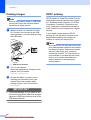
Choosing a location
Put your machine on a flat, stable surface that is free of vibration and shocks, such as a desk. Put
the machine near a standard AC power outlet. Choose a location where the temperature remains
between 50 °F and 95 °F (10 °C and 35 °C).
WARNING
DO NOT put the machine near heaters, air conditioners, refrigerators, medical equipment,
chemicals or water.
DO NOT connect your machine to AC power outlets on the same circuit as large appliances or
other equipment that might disrupt the power supply.
CAUTION
• Avoid placing your machine in a high-traffic area.
• Avoid placing your machine on carpet.
• DO NOT expose the machine to direct sunlight, excessive heat, moisture, or dust.
• DO NOT connect your machine to AC power outlets controlled by wall switches or automatic
timers.
• Disruption of power can wipe out information in the machine's memory.
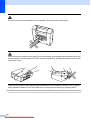
• DO NOT tip the machine, or place it on any tilted surface. Doing this may cause ink spillage
and internal damage to your machine.
64
Downloaded from ManualsPrinter.com Manuals
A
A