1
AR-M150/AR-M155
Online Manual
With the RSPF/SPF installed
Start
Click this "Start" button.
Introduction
This manual describes the printer and scanner functions of the AR-M150/AR-M155 digital multifunctional system.
For information on the following topics, please refer to the Operation Manual for the digital multifunctional system.
• Basic machine procedures (adding paper, replacing the toner cartridge, removing misfeeds, using peripheral devices)
• Copier functions
• Scanning from the operation panel of the machine
• Specifications
● Where "AR-XXXX" appears in this manual, please substitute the name of your model for "XXXX".
● This manual refers to the Single Pass Feeder as the "SPF", and the Reversing Single Pass Feeder as the "RSPF".
● The SPF and RSPF (for only AR-M155) are the optional equipments. Please read the explanation about the SPF and RSPF in
this manual if you have the equipment.
● The screen images and procedures that appear in this manual are mainly for Windows XP. With other versions of Windows, some
screen images may be different from those in this manual.
● For information on using your operating system, refer to your operating system's manual or online Help.
●
Note
Trademark Acknowledgments
Microsoft® Windows® operating system is a trademark or copyright of Microsoft Corporation in the U.S.A. and other countries.
● Windows® 95, Windows® 98, Windows® Me, Windows NT® 4.0, Windows® 2000, and Windows® XP are trademarks or copyrights
of Microsoft Corporation in the U.S.A. and other countries.
● Acrobat® Reader Copyright© 1987- 2002 Adobe Systems Incorporated. All rights reserved. Adobe, the Adobe logo, Acrobat, and
the Acrobat logo are trademarks of Adobe Systems Incorporated.
● All other trademarks and copyrights are the property of their respective owners.
●
The display screens, messages, and key names shown in the manual may differ from those on the actual machine due to product
improvements and modifications.
CONTENTS
I N D E X
2
How to Use the Online Manual
This section explains how to view the online manual. Please read this section before using the online manual.
For information on using Acrobat Reader, see Acrobat Reader Help.
How to Control the Online Manual
Following Links
In this manual, the following buttons are displayed at the
bottom of each page. Click these buttons to move quickly to
pages that you wish to view.
This manual uses a link function that allows you to jump to a
related page. If you click green, underlined text, the related
page will be displayed. (In the Contents and Index sections, the
linked areas are not underlined.)
Example: ☞ Contents
To return to the previous page, click the button on the menu
bar of Acrobat Reader.
CONTENTS
Displays the Contents of this manual. Click on a topic in the
Contents to jump directly to that section.
Using Bookmarks
Bookmarks have been created on the left side of this manual.
You can click on a bookmark to jump directly to that section.
I N D E X
Displays the Index of this manual. Click on a topic in the Index
to jump directly to that section.
How to Print Out This Manual
To print this manual, select "Print" from the "File" menu of
Acrobat Reader. Select the desired printer settings in the "Print"
dialog box, and then click the "OK" button.
Takes you forward page by page.
Takes you back page by page.
CONTENTS
I N D E X
3
Contents
Introduction
How to Use the Online Manual
2
3
1 PRINT
Basic Printing
Opening the Printer Driver From the "Start" Button
Printer Driver Settings
Printing Multiple Pages on One Page
Fitting the Printed Image to the Paper
Two-sided Printing (Only for models that support two-sided printing)
Rotating the Print Image 180 Degrees
Printing a Watermark
Outline of the Print Status Window
5
7
8
9
10
11
12
13
14
3 SCAN
Scanning Overview
Scanning from a TWAIN-Compliant Application
Scanning from a WIA-Compliant Application (Windows XP)
Scanning from the "Scanner and Camera Wizard" (Windows XP)
Outline of Button Manager
Button Manager Settings
20
21
26
28
31
32
4 TROUBLESHOOTING
Troubleshooting
If a Notice Page is printed
34
40
5 PRINTER DRIVER FEATURES
2 PRINTER SHARING
Sharing the Printer Using Windows Networking
Shared Printer Settings
Client Settings
CONTENTS
I N D E X
Printer Driver Features
15
16
17
41
6 INDEX
4
1
PRINT
Basic Printing
(part 1)
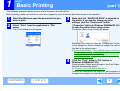
The following example explains how to print a document from WordPad.
Before printing, make sure that the correct size of paper for your document has been loaded in the machine.
1
Start WordPad and open the document that you
wish to print.
3
2
Select "Print" from the application's "File"
menu.
Make sure that "SHARP AR-XXXX" is selected as
the printer. If you need to change any print
settings, click the "Preferences" button
("Properties" button in Windows 95/98/Me/NT 4.0)
to open the printer driver setup screen.
The "Print" dialog box will appear.
The printer driver setup screen will appear.
Windows 2000 does not have the "Preferences" button
in this dialog box. Select settings as needed on each of
the tabs in the setup screen.
☞Printer Driver Settings, Printing Multiple Pages on One Page,
Fitting the Printed Image to the Paper,
Printing a Watermark, Two-sided Printing (Only for models that
support two-sided printing)
4
Click the "Print" button ("OK" button in
Windows 95/98/Me/NT 4.0).
Printing begins. When printing begins, the Print Status
Window automatically opens.
☞ Outline of the Print Status Window)
The print job is delivered to the output tray, with the position of
the paper offset slightly from the previous job (offset function).
CONTENTS
I N D E X
5
1
PRINT
Basic Printing
(part 2)
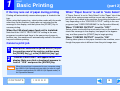
If the tray runs out of paper during printing
When "Paper Source" is set to "Auto Select"
Printing will automatically resume when paper is loaded in the
tray.
When using the bypass tray, select printer mode with the mode
select key on the machine, load paper as instructed by the
message in the display, and then press the [START] key to
resume printing.
If "Paper Source" is set to "Auto Select" in the "Paper" tab of the
printer driver setup screen and the correct size of paper for a
print job is not loaded in the machine, the printing procedure will
vary depending on the "FORCED OUTPUT" setting in the user
programs (see "USER PROGRAMS" in the Operation Manual).
When the 250-sheet paper feed unit is installed:
Select printer mode with the mode select key on the machine,
check the message in the display, load paper in the bypass
tray, and then press the [START] key to begin printing.
Note that if the "AUTO TRAY SWITCH" setting in the user
programs is enabled and there is the same size of paper in
another tray, the machine will automatically switch to the other
tray and continue printing.
Cancel a print job
1
Select printer mode with the [MODE SELECT] key on
the operation panel of the machine, and then press
the [CLEAR] key ( ) or the [CLEAR ALL] key ( ).
2
"CANCEL PRINT JOB?" will appear in the
display. Make sure that a checkmark appears in
front of "YES" and press the [ENTER] key.
Caution
When "FORCED OUTPUT" is set to "OFF"
When "FORCED OUTPUT" is set to "ON"
Printing takes place on the paper loaded in the machine, even
though the paper size is different from the print image size.
When the machine is connected to your computer using
the USB 2.0 (Hi-Speed) ports on each, be sure to read
"System requirements for USB 2.0 (Hi-Speed mode)" in
the Operation Manual.
CONTENTS
I N D E X
6
1
PRINT
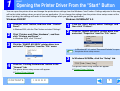
Opening the Printer Driver From the "Start" Button
You can open the printer driver and change the printer driver settings from the Windows "start" button. Settings adjusted in this way
will be the initial settings when you print from an application. (If you change the settings from the printer driver setup screen at the
time of printing, the settings will revert to the initial settings when you quit the application.)
Windows 2000/XP
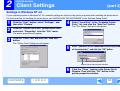
1
Windows 95/98/Me/NT 4.0
Click the "start" button, and then click "Control
Panel".
1
Click the "Start" button, select "Settings" and
then click "Printers".
2
Click the "SHARP AR-XXXX" printer driver icon
and select "Properties" from the "File" menu.
In Windows 2000, click the "Start" button and select "Settings".
2
Click "Printers and Other Hardware", and then
click "Printers and Faxes".
In Windows 2000, click "Printers".
3
Click the "SHARP AR-XXXX" printer driver icon
and select "Properties" from the "File" menu.
Note
3
4
Click the "Printing Preferences" button in the
"General" tab.
The printer driver setup screen will appear.
☞Printer Driver Settings
CONTENTS
I N D E X
In Windows NT 4.0, select "Document Defaults" to open
the printer driver setup screen.
In Windows 95/98/Me, click the "Setup" tab.
The printer driver setup screen will appear.
☞Printer Driver Settings
7
1
PRINT
Printer Driver Settings
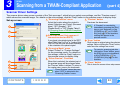
To view Help for a setting, click the
button in the upper right-hand corner of the window and then click the setting.
Some restrictions exist on the combinations of settings that can be selected in the printer driver setup screen. When a restriction is
in effect, an information icon (
) will appear next to the setting. Click the icon to view an explanation of the restriction.
1 Tab
7 "OK" button
Click this button to save
The settings are grouped
1
your settings and exit the
on tabs. Click on a tab to
dialog box.
bring it to the front.
2
2 Checkbox
8 "Cancel" button
Click on a checkbox to activate
Click this button to exit the
3
or deactivate a function.
dialog box without making any
changes to the settings.
3 Print setting image
9 "Apply" button
This shows the effect of the
selected print settings.
Click to save your settings
4
without closing the dialog box.
4 Drop-down list
Allows you to make a selection
Windows NT 4.0
5
Note
from a list of choices.
does not have the
5 Image of paper trays
"Apply" button.
The tray selected in "Paper
The "Apply" button
does not appear when
Selection" in the "Paper" tab
6
you open this window
appears in blue. You can also
7
from an application.
click on a tray to select it.
8
6 Check button
10 "Help" button
9
Allows you to select one
Click this button to display the
10
item from a list of options.
help file for the printer driver.
Note
The above screen is the printer driver setup screen for
models that support two-sided printing.
The settings and the image of the machine will vary
depending on the model.
CONTENTS
I N D E X
8
1
PRINT
Printing Multiple Pages on One Page
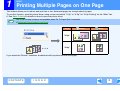
This feature allows you to reduce and print two or four document pages on a single sheet of paper.
To use this function, open the printer driver setup screen and select "2-Up" or "4-Up" for "N-Up Printing" on the "Main" tab.
☞See Basic Printing for details on how to open the printer driver.
Note
The "N-Up Printing" setting is not available when "Fit To Paper Size" is selected.
☞Fitting the Printed Image to the Paper
N-Up
Border
Border
"2-Up"
"4-Up"
If you select the "Border" checkbox, borderlines will be printed around each page.
CONTENTS
I N D E X
9
1
PRINT
Fitting the Printed Image to the Paper
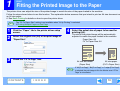
The printer driver can adjust the size of the printed image to match the size of the paper loaded in the machine.
Follow the steps shown below to use this function. The explanation below assumes that you intend to print an A4 size document on
an A5 size paper.
☞See Basic Printing for details on how to open the printer driver.
Note
1
2
The "Fit To Paper Size" setting is not available when "N-Up Printing" is selected.
☞Printing Multiple Pages on One Page
Click the "Paper" tab in the printer driver setup
screen.
Select the original size (A4) of the print image in
"Paper Size".
4
Select the actual size of paper to be used for
printing (A5).
The size of the printed image will be automatically
adjusted to match the paper loaded in the machine.
Paper Size: A4
Fit To Paper Size: A5
210 x 297 mm
A4
3
Check the "Fit To Page" box.
A4 size document
(Paper Size)
A4 on
Note
A5
CONTENTS
I N D E X
A5 size paper
(Fit To Paper Size)
If "A3 [Fit to Page]", "B4 [Fit to Page]", or "Ledger [Fit to Page]"
is selected, the print image is fit to the A4 size even if "Fit to
Page" is not selected.
10
1
PRINT
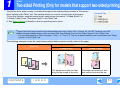
Two-sided Printing (Only for models that support two-sided printing)
The printer driver setup screen of models that support two-sided printing contains a "Document
Style" setting in the "Main" tab. This setting allows you to print on both sides of the paper.
To use this function, open the printer driver setup screen and select "2-Sided (Book)" or
"2-Sided (Tablet)" from "Document Style" in the "Main" tab.
☞See Basic Printing for details on how to open the printer driver.
●
Note
●
Paper sizes that can be used for two-sided printing are Letter, Legal, Folio*, Invoice, A4, A5, B5, Foolscap, and 16K.
When using two-sided printing, select a source other than "Bypass Tray" for the "Paper Source" in the "Paper" tab.
* For two-sided printing on Folio size paper, "Tray 1" or "Tray 2" (if Tray 2 has been installed) must be selected in the "Paper
Source" on the "Paper" tab.
The following example shows the result when portrait data is printed on both sides of the paper.
Print data
Printing result
2-Sided (Book)
The pages are printed so that
they can be bound at the side.
CONTENTS
I N D E X
2-Sided (Tablet)
The pages are printed so that
they can be bound at the top.
11
1
PRINT
Rotating the Print Image 180 Degrees
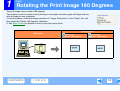
The print image can be rotated 180 degrees.
This feature is used to enable correct printing on envelopes and other paper with flaps that can
only be loaded in one orientation.
To use the feature, select the image orientation in "Image Orientation" on the "Paper" tab, and
then select the "Rotate 180 degrees" checkbox.
☞See Basic Printing for details on how to open the printer driver.
Printing result
Print data
Landscape
Rotate 180 degrees
Landscape
Rotate 180 degrees
ABCD
ABCD
CONTENTS
I N D E X
ABCD
12
1
PRINT
Printing a Watermark
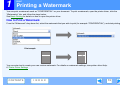
You can print a watermark such as "CONFIDENTIAL" on your document. To print a watermark, open the printer driver, click the
"Watermarks" tab, and follow the steps below.
See Basic Printing for details on how to open the printer driver.
How to Print a Watermark
From the "Watermark" drop-down list, select the watermark that you wish to print (for example "CONFIDENTIAL"), and start printing.
Print sample
You can enter text to create your own custom watermark. For details on watermark settings, view printer driver Help.
☞Printer Driver Settings
CONTENTS
I N D E X
13
1
PRINT
Outline of the Print Status Window
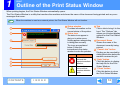
When printing begins, the Print Status Window automatically opens.
The Print Status Window is a utility that monitors the machine and shows the name of the document being printed and any error
messages that occur.
Note
When the machine is used as a network printer, the Print Status Window will not function.
1 Status window
1
Provides information on the
current status of the printer.
2 Status icon
The status icons appear to
alert you to printer errors.
Nothing appears when printing
is taking place normally.
The icons are explained
below. Follow the
instructions in the status
window to solve the problem.
2
3
4
Icon
5
6
7
CONTENTS
I N D E X
Print Status
An error has
occurred that
requires immediate
attention.
An error has
occurred that
requires attention
soon.
3 Tab
4
5
6
7
Click a tab to bring it to the
front. The "Options" tab
allows you to select display
options for the Print Status
Window.
Document Name
Shows the name of the
document currently being
printed.
"Cancel Job" button
Printing can be canceled by
clicking this button before the
machine receives the job.
"Help" button
Click this button to display
the help file for the Print
Status Window.
"Close" button
Click this button to close
the Print Status Window.
14
2
PRINTER SHARING
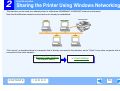
Sharing the Printer Using Windows Networking
The machine can be used as a shared printer in a Windows 95/98/Me/NT 4.0/2000/XP network environment.
Note that the Windows network environment must already be established.
Shared printer
Print server
Client
Client
Client
"Print server" as explained here is a computer that is directly connected to the machine, and a "Client" is any other computer that is
connected to the same network.
☞Shared Printer Settings
(On the print server)
CONTENTS
I N D E X
☞ Client Settings
15
2
PRINTER SHARING
Shared Printer Settings
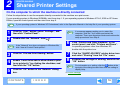
On the computer to which the machine is directly connected
Follow the steps below to use the computer directly connected to the machine as a print server.
If your operating system is Windows 95/98/Me, start from step 1. If your operating system is Windows NT 4.0, 2000 or XP Home
Edition, open the control panel and then start from step 6.
Note
If your operating system is Windows XP Professional, refer to the Operation Manual or the help file of your operating system.
1
Click the "Start" button, select "Settings", and
then click "Control Panel".
2
Double-click the "Network" icon (
Note
).
If the "Network" icon does not appear in Windows Me,
click "view all Control Panel options".
3
Click the "File and Print Sharing" button.
4
Enable "I want to be able to allow others to print
to my printer(s)." by clicking the checkbox, and
then click the "OK" button.
5
Click the "OK" button in the "Network" dialog
box.
CONTENTS
I N D E X
Note
6
If a message appears asking you to restart the
computer, click the "Yes" button and restart the
computer. Then, open the printer folder and continue the
setup procedures from Step 6.
Click "Printers and Other Hardware" in the
control panel, and click "Printers and Faxes".
In operating systems other than Windows XP,
double-click the printer icon.
7
8
Click the "SHARP AR-XXXX" printer driver icon
and select "Sharing" from the "File" menu.
Establish the settings for sharing, and click the
"OK" button.
Note
For information on a setting, click the
button at the
top-right of the dialog box and then click the setting to
display Help.
☞Client Settings
16
2
PRINTER SHARING
Client Settings
(part 1)
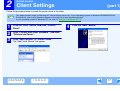
Follow the procedure below to install the printer driver in the client.
Note
This page provides steps for Windows XP Home Edition users only. If your operating system is Windows 95/98/Me/2000/XP
Professional, refer to the Operation Manual or the help file of your operating system.
If your operating system is Windows NT 4.0, refer to "Settings in Windows NT 4.0".
1
Click the "start" button, and click "Control
Panel".
2
Click "Printers and Other Hardware", and click
"Printers and Faxes".
3
Click "Add a printer" in "Printer Tasks".
4
Click the "Next" button.
The "Add Printer Wizard" will appear.
CONTENTS
I N D E X
17
2
5
PRINTER SHARING
Client Settings
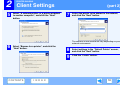
Select "A network printer, or a printer attached
to another computer", and click the "Next"
button.
(part 2)
7
Select the printer to be shared in the network,
and click the "Next" button.
The contents of this window will vary depending on your
network environment.
6
Select "Browse for a printer", and click the
"Next" button.
CONTENTS
I N D E X
8
Select settings in the "Default Printer" screen,
and click the "Next" button.
9
Click the "Finish" button.
18
2
PRINTER SHARING
Client Settings
(part 3)
Settings in Windows NT 4.0
If your operating system is Windows NT 4.0, establish settings as follows in the printer properties after installing the printer driver.
For the procedure for installing the printer driver, see "INSTALLING THE SOFTWARE" in the Software Setup Guide.
1
Click the "Start" button, select "Settings", and
then click "Printers".
2
Click the "SHARP AR-XXXX" printer driver icon
and select "Properties" from the "File" menu.
4
Select "Local Port" in the "Available Printer
Ports" list, and click the "New Port" button.
The "Port Name" dialog box will appear.
5
Enter "\\(name of server connected to machine)\(name
of shared printer)", and click the "OK" button.
The printer properties will appear.
3
Click the "Ports" tab, and click the "Add Port"
button.
The "Printer Ports" dialog box will appear.
name of shared printer
name of server connected to machine
6
CONTENTS
I N D E X
Click the "Close " button in the Printer Ports
Window. Then click the "OK" button in the
printer properties window.
19
3
SCAN
Scanning Overview
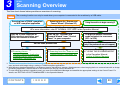
The flow chart shown below provides an overview of scanning.
Caution
The scanning function can only be used when your computer is connected to the machine by a USB cable.
Scanning from a TWAIN*1-compliant
or WIA*2-compliant application
Scanning from the "Scanner and
Camera Wizard" (Windows XP)
Using the machine to begin scanning*3
Place the original in the scanning position
☞For more information, refer to "NORMAL COPYING" in the Operation Manual.
Start up a Twain-compliant or
WIA-compliant application, and
select the machine's scanner
Start up the "Scanner and
Camera Wizard" from "Control
Panel" in your computer.
Set the scan preferences
(only if the preferences are set to appear)
Set the scan preferences
Scanning
Scanning
☞Scanning from a
TWAIN-Compliant Application,
Scanning from a WIA-Compliant
Application (Windows XP)
Change the machine to scanner
mode and select the scan menu.
(SC1: to SC6:)
☞Scanning from the "Scanner and
Camera Wizard" (Windows XP)
Scanning
☞"USING THE SCANNER MODE"
in the Operation Manual,
Outline of Button Manager
*1 TWAIN is an international interface standard for scanners and other image acquisition devices. By installing a TWAIN driver on your computer, you can
scan and work with images using a variety of TWAIN-compliant applications.
*2 WIA (Windows Imaging Acquisition) is a Windows function that allows a scanner, digital camera or other imaging device to communicate with an image
processing application. The WIA driver for this machine can only be used in Windows XP.
*3 To scan using the machine's operation panel, you must first install Button Manager and establish the appropriate settings in the Control Panel. For
details, see "SETTING UP BUTTON MANAGER" in the Operation Manual.
CONTENTS
I N D E X
20
3
SCAN
Scanning from a TWAIN-Compliant Application
(part 1)
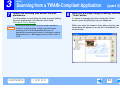
The SHARP scanner driver is compatible with the TWAIN standard, allowing it to be used with a variety of TWAIN-compliant
applications. Below is a step-by-step guide for acquiring a scanned image to the Sharpdesk desktop screen using Sharpdesk.
1
Place the original(s) that you wish to scan on
the document glass/SPF/RSPF.
☞For information on setting an original for scanning,
3
Select "SHARP MFP TWAIN E", and click the
"Select" button.
refer to "NORMAL COPYING" in the Operation
Manual.
2
Start Sharpdesk and then click the "File" menu
and select "Select Scanner".
If you are using Windows XP, you can also select
"WIA-SHARP AR-XXXX" to scan using the WIA driver.
☞Scanning from a WIA-Compliant Application
(Windows XP)
● Depending on your system, "SHARP MFP TWAIN E
1.0 (32-32)" and "WIA-SHARP AR-XXXX 1.0 (32-32)"
may appear in the above "Select Source" screen.
●
Note
Note
The method for accessing "Select Scanner" depends
upon the application. For more information, refer to the
manual or the help file of your application.
CONTENTS
I N D E X
21
SCAN
3
4
Scanning from a TWAIN-Compliant Application
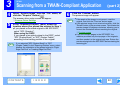
Select "Acquire Image" from the "File" menu, or
click the "Acquire" button ( ).
The scanner driver setup screen will appear.
☞Scanner Driver Settings
5
In the "Scanning Position" menu, select the
location where you placed the original in Step 1.
●
Note
If you placed a one-sided original in the SPF/RSPF,
select "SPF (Simplex)".
When using the RSPF:
If you placed a two-sided original in the RSPF, select
"SPF (Duplex-Book)" or "SPF (Duplex-Tablet)"
according to the binding position of the original.
If you selected "SPF (Duplex-Book)" or "SPF
(Duplex-Tablet)" in the "Scanning Position" menu, select
whether the orientation of the placed original is "Right
Edge Fed First" or "Leading Edge Fed First".
CONTENTS
I N D E X
6
(part 2)
Click the "Preview" button.
The preview image will appear.
If the angle of the image is not correct, reset the
original, and click the "Preview" button again.
● If the preview image is not oriented correctly, click the
"Rotate" button in the preview screen. This rotates the
preview image 90 degrees clockwise, allowing you to
correct the orientation without resetting the original.
☞Preview screen
● If you set multiple pages in the SPF/RSPF, the
machine previews only the top page of the originals,
and then sends it to the original exit area. Return the
previewed original to the SPF/RSPF before starting the
scanning job.
●
Note
22
3
7
SCAN
Scanning from a TWAIN-Compliant Application
Specify the scanning area and set the scan
preferences.
For information on specifying the scan area and setting
the scan preferences, see scanner driver Help.
☞Scanner Driver Settings
Scanning a large area in full color at high resolution
Caution results in a large quantity of data and a prolonged
scanning time. It is recommended that you set
appropriate scanning preferences for the type of original
being scanned, i.e., Web page (monitor), Photo, FAX, or
OCR.
CONTENTS
I N D E X
8
(part 3)
When you are ready to begin scanning, click the
"Scan" button.
To cancel a scanning job after clicking the "Scan"
button, press the [Esc] key on your keyboard.
When you close the scanner driver after scanning, the
image data will appear as a new file in Sharpdesk, as
shown below.
23
3
SCAN
Scanning from a TWAIN-Compliant Application
(part 4)
Scanner Driver Settings
The scanner driver setup screen consists of the "Set-up screen", which lets you select scan settings, and the "Preview screen",
which shows the scanned image. For details on the scan settings, click the "Help" button in the preview screen to display Help.
1 "Scanning Position" menu
5 "Preview" button
Set-up screen
Select the location where the original is
Previews the document.
placed. Selections are "Platen" (document
If "Preview" is canceled by
Note
glass), "SPF (Simplex)", "SPF
1
immediately pressing the [Esc]
(Duplex-Book)" or "SPF (Duplex-Tablet)".
key on your keyboard, or the
☞
Scanning from a TWAIN-Compliant
[CLEAR] key ( ) or [CLEAR
2
Application
ALL] key ( ) on the machine,
nothing will appear in the
2 Scan side menu (Only appears if
3
preview screen.
the machine has an RSPF)
If you placed a two-sided original in the RSPF,
6 "Scan" button
select "Right Edge Fed First" or "Leading Edge
Click to scan an original using the selected
Fed First" from the scan side menu according
settings. Before clicking the "Scan" button,
to the orientation of the placed original.
make sure the settings are correct.
3 "Scanning Mode" menu
To cancel a scanning job after
Select "Preset" or "Custom Settings"
Note
clicking the "Scan" button, press
for the scanning mode. For details on
the [Esc] key on your keyboard,
the settings, click the "Help" button in
or the [CLEAR] key ( ) or
the preview screen to display Help.
[CLEAR ALL] key ( ) on the
4 "Zoom Preview" Checkbox
machine.
When
this
is
selected,
the
selected
part
of
4
7 "Close" button
the preview image will be enlarged when
Click to close the scanner driver setup screen.
5
the "Preview" button is clicked. To return to
the regular view, remove the checkmark.
6
7
CONTENTS
Note
I N D E X
"Zoom Preview" cannot be used
when "SPF" is selected in the
"Scanning Position" menu.
24
3
SCAN
Scanning from a TWAIN-Compliant Application
(part 5)
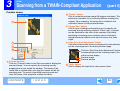
Preview screen
2 "Rotate" button
Click to rotate the preview image 90 degrees clockwise. This
allows the orientation to be corrected without resetting the
original. Upon scanning, the image file is created in the
orientation shown in the preview window.
3 "Image Size" button
Click to open a dialog box that allows you to specify the
scanning area by entering numbers. Pixels, mm, or inches
can be selected for the units of the numbers. By initially
specifying a scanning area, numbers can be entered to
change that area relative to the top left corner as a fixed
origin.
4 "Auto Scan Area Adjustment" button
Click when the preview screen is displayed to automatically
set the scanning area to the entire preview image.
1
2
3
4
Click the "Auto Scan Area Adjustment" button
to automatically set the scanning area to the
entire preview image.
Preview image
Preview window
5
1 Preview window
Click the "Preview" button in the Set-up screen to display the
scanned image. You can specify the scanning area by
dragging the mouse inside the window. The inside of the
frame that is created when you drag the mouse will be the
scanning area. To cancel a specified scanning area and
clear the frame, click anywhere outside the frame.
CONTENTS
I N D E X
5 "Help" button
Click to display the help file for the scanner driver.
25
3
SCAN
Scanning from a WIA-Compliant Application (Windows XP)
(part 1)
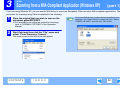
If you are using Windows XP, you can use the WIA driver to scan from Sharpdesk, Paint and other WIA-compliant applications. The
procedure for scanning using Paint is explained in the following.
1
Place the original that you wish to scan on the
document glass/SPF/RSPF.
☞For information on setting an original for scanning,
Note
If you have WIA drivers for other devices installed in your
computer, the "Select Device" screen will open. Select
"SHARP AR-XXXX" and click the "OK" button.
refer to "NORMAL COPYING" in the Operation
Manual.
2
Start Paint and then click the "File" menu and
select "From Scanner or Camera".
The scan screen of the WIA driver will appear.
CONTENTS
I N D E X
26
3
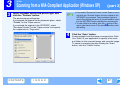
3
SCAN
Scanning from a WIA-Compliant Application (Windows XP)
Select the paper source and picture type, and
click the "Preview" button.
4
I N D E X
If you select "Document Feeder" for the "Paper source"
and click the "Preview" button, the top original in the
SPF/RSPF is previewed. The previewed original is
sent to the original exit area, so you will need to return
it to the SPF/RSPF before starting the scanning job.
● To view Help for a setting, click the
button in the
upper right-hand corner of the window and then click
the setting.
●
Note
The preview image will appear.
If you placed the original on the document glass, select
"Flatbed" for the "Paper source".
If you placed the original in the SPF/RSPF, select
"Document Feeder" for the "Paper source" and specify
the original size in "Page size".
CONTENTS
(part 2)
Click the "Scan" button.
Scanning begins and the image is acquired into Paint.
Use "Save" in your application to specify a file name
and folder for the scanned image, and save the image.
To cancel a scanning job after clicking the "Scan"
button, click the "Cancel" button.
27
3
SCAN
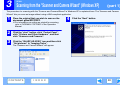
Scanning from the "Scanner and Camera Wizard" (Windows XP)
(part 1)
The procedure for scanning with the "Scanner and Camera Wizard" in Windows XP is explained here. The "Scanner and Camera
Wizard" lets you scan an image without using a WIA-compliant application.
1
Place the original that you wish to scan on the
document glass/SPF/RSPF.
4
Click the "Next" button.
☞For information on setting an original for scanning,
refer to "NORMAL COPYING" in the Operation
Manual.
2
Click the "start" button, click "Control Panel",
click "Printers and Other Hardware", and then
click "Scanners and Cameras".
3
Click the "SHARP AR-XXXX" icon and then click
"Get pictures" in "Imaging Tasks".
The "Scanner and Camera Wizard" will appear.
CONTENTS
I N D E X
28
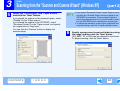
3
5
SCAN
Scanning from the "Scanner and Camera Wizard" (Windows XP)
Select the "Picture type" and "Paper source",
and click the "Next" button.
If you placed the original on the document glass, select
"Flatbed" for the "Paper source".
If you placed the original in the SPF/RSPF, select
"Document Feeder" for the "Paper source" and specify
the original size in "Page size".
You can click the "Preview" button to display the
preview image.
CONTENTS
I N D E X
(part 2)
If you select "Document Feeder" for the "Paper source"
and click the "Preview" button, the top original in the
SPF/RSPF is previewed. The previewed original is
sent to the original exit area, so you will need to return
it to the SPF/RSPF before starting the scanning job.
● To adjust the resolution, picture type, brightness and
contrast settings, click the "Custom settings" button.
●
Note
6
Specify a group name, format and folder for saving
the image, and then click the "Next" button.
JPG, BMP, TIF or PNG can be selected for the format.
To begin scanning, click the "Next" button.
29
3
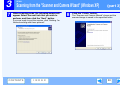
7
SCAN
Scanning from the "Scanner and Camera Wizard" (Windows XP)
When scanning ends, the following screen will
appear. Select the next task that you wish to
perform, and then click the "Next" button.
8
(part 3)
Click the "Finish" button.
The "Scanner and Camera Wizard" closes and the
scanned image is saved in the specified folder.
If you are ready to end the session, click "Nothing. I'm
finished working with these pictures".
CONTENTS
I N D E X
30
3
SCAN
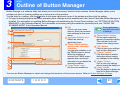
Outline of Button Manager
Button Manager is a software utility that allows you to use the scanner function at the machine. Button Manager allows you to
configure six sets of scanning settings as a scan menu on the machine.
To view Help for a setting, click the
button in the upper right-hand corner of the window and then click the setting.
☞To begin scanning using the machine's operation panel, settings must be established in the Control Panel after Button Manager is
installed. For information on installing Button Manager and establishing the Control Panel settings, see "SETTING UP BUTTON
MANAGER" in the Operation Manual. For information on scanning using the machine's operation panel, see "USING THE
SCANNER MODE" in the Operation Manual.
1 Tab
Some applications
Note
Click to set scan menu
may limit your choice
1
options. Each tab contains
of settings.
scan settings for the scan
2
menu.
5 "Menu Name" button
2 "Application Selection" area
Set the menu names that
appear in the machine display.
Select the start-up
These will also be the tab
application here.
3
names of this setting screen.
3 "Show TWAIN setting
screen when scanning"
6 "OK" button
4
Checkbox
Click to save your settings
You can select whether or not
and exit the dialog box.
the TWAIN screen is shown.
7 "Cancel" button
When the checkbox is
Click this button to exit the
selected, the TWAIN screen
dialog box without making
5
any changes to the settings.
appears when scanning is
6
8 "Apply" button
executed to let you adjust the
7
Click to save your settings
scanning conditions.
without closing the dialog box.
4 "Scan Setup" area
8
9 "Help" button
Set the scan conditions.
9
Click this button to display the
help file for Button Manager.
You can use Button Manager to select and change the functions of the six scan menus. Refer to Button Manager Settings.
CONTENTS
I N D E X
31
3
SCAN
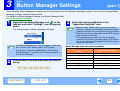
Button Manager Settings
(part 1)
Once installed, Button Manager normally runs in the background in the Windows operating system. If you need to change Button
Manager settings, follow the steps below.
For details on Button Manager settings, see Button Manager Help.
☞Outline of Button Manager
1
Right-click the Button Manager icon ( ) on the
task bar, and select "Settings" from the pop-up
menu.
The setting screen of Button Manager will open.
Note
2
If the Button Manager icon does not appear on the task
bar, click the "start" button, select "All Programs"
("Programs" in Windows 98/Me/2000), select "Sharp
Button Manager E", and then click "Button Manager" to
start Button Manager.
Click the tab of the scan menu that you want to
set up.
CONTENTS
I N D E X
3
Select the start-up application in the
"Application Selection" area.
When the "Show TWAIN setting screen when scanning"
checkbox is selected, the scan setting screen appears when
scanning is executed to let you adjust the scanning conditions.
● When you scan the two-sided originals in the RSPF, only one
sided scan can be performed.
● On the applications other than "Fax", the format can be
selected in "File Format". The image quality of JPEG format
(only can be selected on "Sharpdesk" and "Email") is not as
high as the other formats.
●
Note
Button Manager scan menu (factory default)
Display/Button Manager
menu
SC1:
SC2:
SC3:
SC4:
SC5:
SC6:
Application that starts
Sharpdesk
Email
FAX
OCR
Microsoft Word
Filing
32
3
4
SCAN
Button Manager Settings
(part 2)
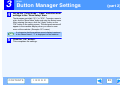
Set up the "Color Mode", "Edge" and other scan
settings in the "Scan Setup" area.
The tab names are initially "SC1:" to "SC6:". To assign a name to
a tab, click the "Menu Name" button and enter the desired name.
After entering the name, click the "Apply" button or the
"OK" button in the setting screen. The assigned names will
appear in the machine display when you select a scan
menu at the machine. (Example: SC1:xxxxx)
Note
5
If a character that the machine cannot display is entered
in the "Menu Name", "?" is displayed on the machine.
Click the "OK" button.
This completes the settings.
CONTENTS
I N D E X
33
4
TROUBLESHOOTING
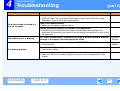
Troubleshooting
(part 1)
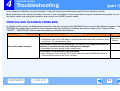
If you experience difficulty using the machine, check the following troubleshooting guide before calling for service.
Many problems can be easily resolved by the user. If you are unable to solve the problem using the troubleshooting guide, turn off
the power switch and unplug the machine, and contact your SHARP service center.
PRINTING AND SCANNING PROBLEMS
In addition to this section, troubleshooting information can also be found in the README files for each of the software programs. The
README file (readme.txt) is copied to your computer when the software is installed, and can be found in the "Program Files" "SHARP" - "ARM150168" folder on the drive where you installed the software.
Problem
The machine does not print.
CONTENTS
Cause and solution
Page
The machine is not correctly connected to your computer.
→ Check both ends of the USB cable or Parallel cable and make sure you have a solid
connection. Try a known good cable.
Operation
Manual
If the machine is used as a shared printer, the name of the computer to which the
machine is connected or the share settings have changed.
→ Reconfigure the port setting of the shared printer.
-
The machine is not selected in the application.
→ After choosing "Print" from the "File" menu, make sure that "SHARP AR-XXXX" is
selected as the printer in the "Print" window.
-
I N D E X
34
4
TROUBLESHOOTING
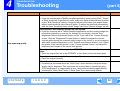
Troubleshooting
Problem
(part 2)
Cause and solution
Page
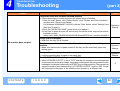
The printer driver has not been installed properly.
→ Follow these steps to check and see if the printer driver is installed.
1 Click the "start" button, click "Control Panel", click "Printers and Other Hardware",
and then click "Printers and Faxes".
(On Windows 95/98/Me/NT 4.0/2000, click the "Start" button, select "Settings" and
then click "Printers".)
2 Does the "SHARP AR-XXXX" printer driver icon appear?
3 If the icon is shown but you still cannot print, the printer driver may not have been
installed correctly.
In this case, delete "SHARP AR-M150/168 Series MFP Driver" and then reinstall it.
Operation
Manual
A copy job is in progress.
→ Wait until the copy job is finished.
The machine does not print.
-
The size of paper loaded in the tray is different from the paper size setting in the
machine.
→ Make sure that the size of paper loaded in the tray and the machine's paper size
setting agree.
Operation
Manual
The specified size of paper has not been loaded.
→ Load the specified size of paper in the paper tray.
Operation
Manual
The "FORCED OUTPUT" setting is set to "OFF".
→ When "FORCED OUTPUT" is set to "OFF" and there is no paper in the machine that
is the same size as the print image, load paper in the bypass tray as instructed by the
message in the display and press the [START] key to begin printing. (The bypass tray
cannot be used for two-sided printing.) If "FORCED OUTPUT" is set to "ON", the job
will be printed on the paper in the machine even though it is a different size.
CONTENTS
I N D E X
35
6
4
TROUBLESHOOTING
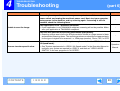
Troubleshooting
Problem
(part 3)
Cause and solution
Page
Printing is slow.
Simultaneous use of two or more application software programs.
→ Start printing after quitting all unused application software programs.
The printed image is light and
uneven.
The paper is loaded so that printing takes place on the back side of the paper.
→ Some paper types have a front and back side. If the paper is loaded so that printing
takes place on the back side, toner will not adhere well to the paper and a good image
will not be obtained.
Operation
Manual
You are using paper that is outside the specified size and weight range.
→ Use copy paper within the specified range.
Operation
Manual
The printed image is dirty.
The printed image is skewed or it
runs off the paper.
CONTENTS
-
Paper is curled or damp.
→ Do not use curled or crimped paper. Replace with dry copy paper. During periods
when the machine is not used for a long time, remove the paper from the tray and
store it in a dark place in a bag to prevent moisture absorption.
-
You did not set sufficient margins in the paper settings of your application.
→ The top and bottom of the paper may be dirty if the margins are set outside of the
specified print quality area.
→ Set the margins in the software application within the specified print quality area.
-
The size of paper loaded in the tray is not the size specified in the printer driver.
→ Check if the "Paper Size" options suit the size of paper loaded in the tray.
→ If the "Fit To Page" setting is activated, make sure that the paper size selected from
the drop-down list of the "Fit To Paper Size" option is the same as the size of the
loaded paper.
-
I N D E X
36
4
TROUBLESHOOTING
Troubleshooting
Problem
Cause and solution
The printed image is skewed or it
runs off the paper.
Error indicator is lit or blinking.
Poor scanning quality.
CONTENTS
(part 4)
Page
The orientation of document setting is not correct.
→ Click the "Paper" tab in the printer driver setup screen, and verify if the "Image
Orientation" option is set to your requirements.
-
Paper is not loaded properly.
→ Make sure the paper is properly loaded.
-
You did not correctly specify the margins in the application.
→ Check the layout of the document margins and the paper size settings in the
application you are using. Also check if the print settings are specified correctly to suit
the paper size.
-
See "DISPLAY MESSAGES" to check the meaning of the error indicator and error
message in the display, and take appropriate action.
Operation
Manual
The document glass or the underside of the SPF/RSPF is dirty.
→ Clean regularly.
Operation
Manual
The original is dirty or rough.
→ Use a clean original.
-
You have not specified a suitable resolution.
→ Make sure that the resolution setting in the scanner driver is appropriate for the
original.
-
I N D E X
37
4
TROUBLESHOOTING
Troubleshooting
Problem
Poor scanning quality.
CONTENTS
(part 5)
Cause and solution
Page
You have not specified a suitable value for the "B/W Threshold" setting.
→ If you are scanning with a TWAIN-compliant application and are using "Red", "Green"
or "Blue" mode from "Light Source" menu, make sure that a suitable value is specified
for the "B/W Threshold" setting. A larger threshold value makes your output darker,
while a small threshold value makes it lighter. To adjust the threshold automatically,
click the "Auto Threshold" button on the "Image" tab of the "Custom Settings" screen.
-
The brightness and contrast settings are not suitable.
→ If you are scanning with a TWAIN-compliant application and the resulting image has
unsuitable brightness or contrast (for example it is too bright), click the "Auto
Brightness/Contrast Adjustment" button on the "Color" tab of the "Custom Settings"
screen. Click the "Brightness/Contrast" button to adjust the brightness and the
contrast while viewing the scanned output image on the screen. If you are scanning
with a WIA-compliant application or the "Scanner and Camera Wizard", click "Adjust
the quality of the scanned picture" or the "Custom settings" button, and adjust the
brightness and contrast in the screen that appears.
-
The original is not placed face up in the SPF/RSPF or face down on the document
glass.
→ Place the original face up in the SPF/RSPF or face down on the document glass.
-
The original was not placed in the correct position.
→ Place the original correctly.
-
"Quick Scan" has been selected.
→ If scanning is performed when the "Quick Scan" option has been selected, image
quality may be degraded. This is because the scanned data is transferred using
JPEG compression. If image quality is poor, then perform scanning again without
selecting the "Quick Scan" option. ("Quick Scan" is not selected by default.)
-
I N D E X
38
4
TROUBLESHOOTING
Troubleshooting
Problem
Unable to scan the image.
Scanner transfer speed is slow.
CONTENTS
(part 6)
Cause and solution
Page
If scanning is not possible, shut down your computer, turn off the machine's
power switch, and unplug the machine's power cord. Next, start your computer,
restore power to the machine, and try scanning again. If scanning is still not
possible, check the following items.
-
Your application is not TWAIN/WIA compliant.
→ If your application is not TWAIN/WIA compliant, scanning will not be possible. Make
sure your application is TWAIN/WIA compliant.
-
You have not specified all scanning preferences appropriately.
→ Scanning a large area in full color at high resolution results in a large amount of data
and extended scanning times. The scanning preferences should be set appropriately
for the type of original to be scanned, i.e., Web page (monitor), Photo, FAX, or OCR.
-
Your computer does not meet the system requirements for the USB 2.0 interface
(Hi-Speed mode).
→ See "System requirements for USB 2.0 (Hi-Speed mode)" in the Operation Manual to
configure your system as required for USB 2.0, and then set "USB2.0 MODE
SWITCH" in the user programs to "HI-SPEED".
Operation
Manual
I N D E X
39
4
TROUBLESHOOTING
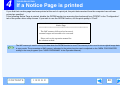
If a Notice Page is printed
If you find that a notice page has been printed at the end of a print job, the print data received from the computer has not been
printed as specified.
If the following Notice Page is printed, disable the ROPM function by removing the checkmark from "ROPM" in the "Configuration"
tab of the printer driver setup screen. If you wish to use the ROPM function, set the print quality to "Draft".
****************************************************
Notice Page
****************************************************
The IMC memory full error had occurred,
a normal output was not able to be executed.
Please refer to the operation manual for
the solution method.
Note
The IMC memory is used to store print data when the ROPM function is used. This memory is also used to store original image data
in copy mode. The percentage of IMC memory allocated to the printer function can be adjusted on the "MEM. FOR PRINTER"
setting in the user programs (see "USER PROGRAMS" in the Operation Manual).
CONTENTS
I N D E X
40
5
PRINTER DRIVER FEATURES
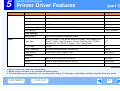
Printer Driver Features
Tab
Main
Setting
(part 1)
Selections
Initial setting
Copies
1 to 999
1
Collate
On/Off
On
N-Up Printing
1-Up/2-Up/4-Up
1-Up
Border
On/Off
Off
Document Style*1
1-Sided/2-Sided (Book)/2-Sided (Tablet)
1-Sided
User Settings
-
Factory Defaults
Setting Name
Up to seven names, 20 characters each
-
Paper Size
A3 [Fit To Page]*2, A4, A5, A6, B4 [Fit To Page]*2, B5, Ledger [Fit To
Page]*2, Letter, Legal, Executive, Invoice, Foolscap, Folio, COM10,
Monarch, DL, C5, 8K [Fit To Page]*2, 16K, Custom Paper
A4*3
Fit To Page
On/Off
Off
Image Orientation
Portrait/Landscape/Rotate 180 degrees
Portrait
Paper Source
Auto Select, Tray 1, Bypass Tray
Auto Select
Width
98.3 to 215.9 (mm.)/3.87 to 8.50 (in.)
98.3 (mm.)*3
Length
148.0 to 355.6 (mm.)/5.83 to 14.00 (in.)
148.0 (mm.)*3
Size
millimeters/inches
millimeters*3
[User Settings]
Paper
[Custom]
(continued)
*1 Only for model that support two-sided printing.
*2 Will be reduced toA4 size or the specified size before printing.
*3 This initial setting may vary depending on your operating system settings. For information on each setting, see Help in the printer driver setup screen.
CONTENTS
I N D E X
41
5
PRINTER DRIVER FEATURES
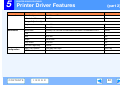
Printer Driver Features
Tab
Advanced
Setting
(part 2)
Selections
Initial setting
Print Quality
Draft/Normal/Photo
Normal
2 Gradation Print
On/Off
Off
Brightness
0 to 100
50
Contrast
0 to 100
50
Watermark
(None)/TOP SECRET/CONFIDENTIAL/DRAFT/ORIGINAL/COPY
(None)
Text
-
-
Size
6 to 300
200
Angle
-90 to +90
+45
Gray Scale
0 to 255
192
On First Page Only
On/Off
Off
Input Tray Options
One tray/Two trays
One Tray
ROPM
On/Off
On
[Image Adjustment]
Watermarks
Configuration
CONTENTS
I N D E X
42
6
INDEX
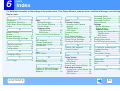
Index
For detailed information on the settings in the printer driver, Print Status Window, scanner driver, and Button Manager, see the help
files for each.
Scanning Mode.................. 24
A
H
P
Scanning Overview............ 20
Advanced ........................... 42 Help
Paper................................. 41 Scanning Position .............. 24
Select Device..................... 26
Application Selection.......... 31
Button Manager .............. 31 "Preview" button
Settings
"Auto Scan Area Adjustment"
Print Status Window ....... 14
Scanner and Camera
Button Manager .............. 32
button ................................. 25
Printer driver ..................... 8
Wizard ............................ 29
Printer driver ..................... 8
Scanner driver
TWAIN driver ................. 24
B
Scanner driver
TWAIN driver............... 25
WIA driver ...................... 27
Scanner and Camera Wizard 29
WIA driver.................... 27 Preview Screen ................. 25
Basic Printing ....................... 5
TWAIN driver ............... 24
Border .................................. 9 How to Use the Online Manual. 3 Print..................................... 5
WIA driver.................... 27
Print
Status
Window..........
14
Button Manager ................. 31
I
Set-up
Screen.................... 24
Printer Driver Features...... 41
Button Manager Settings ... 32
IMC memory ...................... 40 Printer Driver Settings ......... 8 Sharing the printer ............. 15
C
"Image Orientation" ........... 12 Printing a Watermark ........ 13 Show TWAIN setting screen when scanning.... 31
Cancel a print job ................. 6 "Image Size" button ........... 25
T
R
"Close" button .................... 24 Introduction.......................... 2
"Rotate 180 degrees" ........ 12 To cancel a scanning job ... 23
Configuration...................... 42
M
"Rotate" button .................. 25 Troubleshooting ................. 34
TWAIN ............................... 20
D
Main................................... 41
S
Two-sided Printing ............. 11
Document Style.................. 11 Menu Name ....................... 31
Scan .................................. 20
W
N
F
"Scan" button
TWAIN driver ................. 24 Watermark ......................... 13
Fit To Page ........................ 10 Notice Page ....................... 40
WIA driver ...................... 27 Watermarks ....................... 42
N-up printing ........................ 9
Scan Setup........................ 31 WIA .................................... 20
O
Scanner and Camera Wizard. 20
Z
Outline of Button Manager. 31 Scanning an Image
Scanner and Camera Wizard 28 Zoom Preview.................... 24
Outline of the Print Status
TWAIN
driver ................. 21
Window.............................. 14
WIA driver ...................... 26
CONTENTS
43