1
Playing Media Content Saved on a USB Device
111
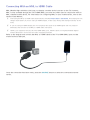
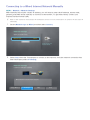
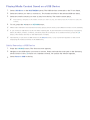
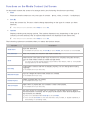
Select USB Drive on the MULTIMEDIA panel. The USB devices connected to the TV are listed.
222
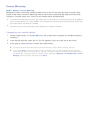
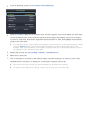
Select the device you want to connect to. The folders and files in the selected USB are listed.
333
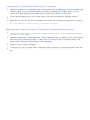
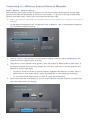
Select the media content you want to play from the list. The media content plays.
"" Alternatively, navigate to the media content you want to play, and then press the ∂ button to play the
content.
444
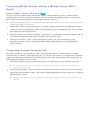
To exit, press the ∫ button or RETURN button.
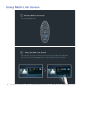
"" While video with UHD-level resolution is being played, Smart View 2.0 and Motion Control are not available.
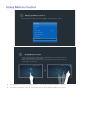
"" If you connect a USB device to the TV while watching the TV, the New Device Connected pop-up appears.
Select All, Music, Videos, or Photos, and then press the touch pad. On a standard remote, press the E
button. The folders and files on the USB device are listed.
"" Alternatively, if you select a USB device on the Source screen, a pop-up window appears on the screen
displaying the folders and files of the USB device.
Safely Removing a USB Device
111
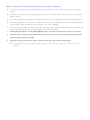
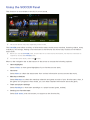
Press the SOURCE button. The Source screen appears.
222
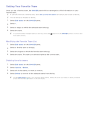
Navigate to the USB device you want to remove. Press and hold the touch pad on the Samsung
Smart Control or the E button on a standard remote. An options list window appears.
333
Select Remove USB in the list.