1
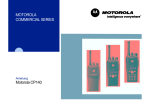
Commercial Series
Radio CP140
User Guide
6866550D02-O
Issue: December 2003
7
6
1
5
4
3
2
8
9
Computer Software Copyrights . . . . . . . . . 2
Radio Overview . . . . . . . . . . . . . . . . . . . . 3
Operation and Control Functions . . . . . . . .
Radio Controls . . . . . . . . . . . . . . . . . . .
Programmable Buttons . . . . . . . . . . . . .
Indicator Tones . . . . . . . . . . . . . . . . . . .
Battery Charge Status. . . . . . . . . . . . . .
LED Indicator . . . . . . . . . . . . . . . . . . . .
3
3
4
7
8
8
Getting Started . . . . . . . . . . . . . . . . . . . . . 9
Battery Information. . . . . . . . . . . . . . . . . . . 9
Charging Your Battery. . . . . . . . . . . . . . 9
Desktop Rapid Charger. . . . . . . . . . . . 10
Accessory Information . . . . . . . . . . . . . . . 11
Attaching the Battery. . . . . . . . . . . . . . 11
Removing The Battery . . . . . . . . . . . . 11
Attaching The Antenna . . . . . . . . . . . . 12
Removing The Antenna . . . . . . . . . . . 12
Attaching The Belt Clip . . . . . . . . . . . . 13
Removing The Belt Clip . . . . . . . . . . . 13
Turning the Radio On or Off. . . . . . . . . . . 14
Adjusting the Volume . . . . . . . . . . . . . . . . 14
Selecting a Radio Channel. . . . . . . . . . . . 14
Receiving a Call . . . . . . . . . . . . . . . . . . . . 15
Sending a Call . . . . . . . . . . . . . . . . . . . . . .15
Monitoring . . . . . . . . . . . . . . . . . . . . . . . . .16
VOX Operation . . . . . . . . . . . . . . . . . . . . .16
Connecting a VOX Headset . . . . . . . . .16
Enable/Disable Headset Sidetone. . . . . . .17
VOX Headset . . . . . . . . . . . . . . . . . . . .17
Non-VOX Headset With In-Line PTT . .17
Radio Calls . . . . . . . . . . . . . . . . . . . . . . . .19
Receiving a Selective Call . . . . . . . . . . . . .19
Receiving a Call Alert Page . . . . . . . . . . . .19
Repeater Or Talkaround Mode . . . . . . . . .20
Scan . . . . . . . . . . . . . . . . . . . . . . . . . . . . .21
Start System Scan . . . . . . . . . . . . . . . . . . .21
Stop System Scan . . . . . . . . . . . . . . . . . . .21
Start Auto Scan . . . . . . . . . . . . . . . . . . . . .21
Stop Auto Scan . . . . . . . . . . . . . . . . . . . . .21
Talkback . . . . . . . . . . . . . . . . . . . . . . . . . .21
Delete a Nuisance Channel . . . . . . . . . . . .22
Restore Channels to the Scan List . . . .22
User Settings . . . . . . . . . . . . . . . . . . . . . .23
Escalert . . . . . . . . . . . . . . . . . . . . . . . . . . .23
Set Squelch Level . . . . . . . . . . . . . . . . . . .23
Set Power Level . . . . . . . . . . . . . . . . . . . .23
Option Board On/Off . . . . . . . . . . . . . . . . .23
1
English
CONTENTS
CONTENTS
CONTENTS
Computer Software Copyright
The products described in this manual may include copyrighted computer
programmes stored in semiconductor memories or other media. Laws in the
United States of America and other countries preserve for Motorola Europe
and Motorola Inc. certain exclusive rights for copyrighted computer
programmes, including the right to copy or reproduce in any form the
copyrighted computer programme. Accordingly, any copyrighted computer
programmes contained in the products described in this manual may not be
copied or reproduced in any manner without the express written permission of
the holders of the rights. Furthermore, the purchase of these products shall not
be deemed to grant either directly or by implication, estoppel, or otherwise, any
licence under the copyrights, patents, or patent applications of the holders of
the rights, except for the normal non-exclusive royalty free licence to use that
arises by operation of the law in the sale of the product.
English
2
This user guide covers the operation of the CP140
Portable Radios.
Before using this product, read the
operating instructions for safe usage
contained in the Product Safety and
RF Exposure booklet 6864117B25_
C a u t i o n enclosed with your radio.
!
ATTENTION!
This radio is restricted to occupational use only to
satisfy ICNIRP RF energy exposure requirements.
Before using this product, read the RF energy
awareness information and operating instructions in
the Product Safety and RF Exposure booklet
(Motorola Publication part number 6864117B25_) to
ensure compliance with RF energy exposure limits.
OPERATION AND CONTROL FUNCTIONS
Radio Controls
The numbers below refer to the illustrations on the
inside front cover.
1.
2.
3. Channel Selector Knob
Used to switch the radio to different channels.
4. LED Indicators
Indicate radio status:
Green: Solid during power up routine; off after
successful power up; flashing when scanning.
Red: Solid - transmitting; Flashing when
transmitting - low battery:
Flashing - channel is busy receiving.
Yellow: Solid when radio is in monitor mode,or
is sending a selective call or call alert;
Flashing - receiving a selective call or call alert.
5. Microphone/Speaker
Hold the microphone 2.5 to 5 cm (1-2 inches)
from your mouth, and speak clearly into it.
6. Side Button 1
7. Side Button 2
8. Accessory Connector
Connects remote microphones, remote
earphones and other accessories. Replace dust
cap when not in use.
9. Belt Clip
Push-to-talk (PTT)
Press and hold down this button to talk;
release it to listen.
On-Off / Volume Knob
Used to turn the radio on or off, and to adjust
the radio’s volume.
3
English
RADIO OVERVIEW
RADIO OVERVIEW
Programmable Buttons
RADIO OVERVIEW
Your radio has two programmable buttons. Your
dealer can program these buttons as shortcuts to
various radio features.
Check with your dealer for a complete list of
functions your radio supports.
Programmable buttons include:
• Side Buttons (S1 and S2)
Some buttons can access up to two features,
depending on the type of button press:
•
short press—quickly pressing and releasing the
programmable buttons
•
long press—pressing and holding the
programmable buttons for a minimum of 2.5
seconds
•
hold down—pressing and holding down the
programmable buttons while checking status or
making adjustments
English
4
The following table is a summary of programmable
radio features and corresponding page references.
In the “Button” column, have your dealer record the
name of the programmable button next to the
feature that has been programmed to it.
Also, where appropriate, have your dealer indicate
whether the button press requires a short press, a
long press, or needs to be held down.
Battery
Indicator
Volume Set
Indicator
Short Press
Long Press
LED
—
—
Checks the
battery charge
status.
8
—
Sounds a tone
for adjusting the
radio’s volume
level.
14
Monitors the
selected
channel for any
activity.
16
—
—
Hold Down
Page Button
Monitor
—
A long press initiates Monitor. A short
press cancels Monitor.
Voice Operated
Transmission
(VOX)
—
Toggle VOX on and off.†
—
16
Repeater/
Talkaround
—
Toggles between using a repeater or
transmitting directly to another radio.†
—
20
Scan/Nuisance
Channel Delete
—
Starts or Stops the
Scan operation.
—
21
Escalert
—
Toggle escalert on and off.†
—
23
†
Deletes a nuisance
channel while
scanning.
This function is activated by EITHER a short OR a long press, but not both.
5
English
RADIO OVERVIEW
Feature
RADIO OVERVIEW
Feature
Indicator
Short Press
Long Press
Hold Down
Page Button
Squelch
—
Toggle squelch level between tight and
normal squelch.†
—
23
Power Level
—
Toggle transmit power level between
High and Low power.†
—
23
Option Board
—
Toggle the option board on and off.†
—
23
†
This function is activated by EITHER a short OR a long press, but not both.
English
6
High pitched tone
Low pitched tone
Self Test Pass Tone
Self Test Fail Tone
Positive Indicator Tone
Negative Indicator Tone
Programmable
Buttons
Positive
Indicator Tone
Negative
Indicator Tone
Scan
Power Level
Squelch
Repeater/
Talkaround
Start
High
Tight
Does not use
repeater
Stop
Low
Normal
Uses repeater
Enabled
Disabled
Silent Monitor/
Open Squelch
—
Enabled
Option Board
Enabled
Disabled
Escalert
Enabled
Disabled
VOX
Good Key Tone
Bad Key Tone
Some programmable buttons use tones to indicate
one of two modes:
7
English
RADIO OVERVIEW
Indicator Tones
RADIO OVERVIEW
Battery Charge Status
LED Indicator
You can check battery charge status if your dealer
has preprogrammed one of the programmable
buttons. Hold down the preprogrammed Battery
Indicator button. The charge status is shown by the
colour of the LED indicator.
The LED shows radio status as follows:
Battery Level
LED Indicator
LED
State
Indication
Radio Call
Red
Solid
Radio transmitting.
Red
Flashing
Receiving.
Red
Flashing
Channel busy.
Flashing
Radio is scanning.
Flashing
Receiving a Call Alert
Good
Green
Sufficient
Yellow
Scan
Low
Flashing Red
Green
Very Low
None
Call Alert
Yellow
Selective Call
Yellow
Flashing
Receiving a Selective Call
Monitor/Open Squelch
Yellow
Solid
Radio in monitor mode.
Low Battery Level
Red
English
8
Flashing
Flashing when
transmitting.
BATTERY INFORMATION
Charging Your Battery
This radio is powered by a either a nickel-metal
hydride (NiMH), or a lithium-ion (Li-lon)
rechargeable battery. Charge the battery before use
to ensure optimum capacity and performance. The
battery was designed specifically to be used with a
Motorola charger. Charging in non-Motorola
equipment may lead to battery damage and void the
battery warranty.
If a battery is new, or its charge level is very low, you
will need to charge it before you can use it. When
the battery level is low and the radio is in transmit
mode you will see the LED indicator flash red. Upon
release of the PTT button, you will hear an alert
tone.
Note: Batteries are shipped uncharged from the
factory. Always charge a new battery 14 to 16
hours before initial use, regardless of the
status indicated by the charger.
Note: When charging a battery attached to a radio,
turn the radio off to ensure a full charge.
The battery should be at about 25°C (77°F) (room
temperature), whenever possible. Charging a cold
battery (below 10°C [50°F]) may result in leakage of
electrolyte and ultimately in failure of the battery.
Charging a hot battery (above 35°C [95°F]) results
in reduced discharge capacity, affecting the
performance of the radio. Motorola rapid-rate
battery chargers contain a temperature-sensing
circuit to ensure that batteries are charged within the
temperature limits stated above.
9
English
GETTING STARTED
GETTING STARTED
Desktop Rapid Charger
GETTING STARTED
LED color
To Charge the Battery
1
Turn the radio off.
2
Place the battery, with or without the radio, in
the charger pocket.
•
The charger LED indicates the charging
progress.
Status
No LED Indication
Battery inserted incorrectly
or battery not detected.
Single Green Flash
Successful charger
power-up.
Flashing Red a
Battery unchargeable or not
making proper contact.
Red
Battery is charging.
Flashing Yellow
Battery in charger but
waiting to be charged. The
battery temperature may be
too hot or too cold. The
voltage may be lower than
the predetermined threshold
level for charging.
Flashing Green b
Battery 90% (or more)
charged.
Green
Battery fully charged.
a Remove the battery from the charger and use a
pencil eraser to clean the three metal contacts
on the back of the battery. Replace the battery
in the charger. If the LED indicator continues to
flash red, consult your dealer.
b A standard battery may require 90 minutes to
charge to 90% capacity.
English
10
Removing the Battery
GETTING STARTED
ACCESSORY INFORMATION
Attaching the Battery
Battery Latch
Locked
1
Align the battery to the battery rails on the
back of the radio (approximately 1 cm from the
top of the radio.)
2
Press the battery firmly to the radio and slide
the battery upward until the latch snaps into
place.
3
Slide the battery latch, located on radio
bottom, into the lock position.
Un-locked
1
Turn off the radio if it is turned on.
2
Slide the battery latch into the unlock position.
Disengage by pushing downward and holding
the latch towards the front of the radio.
3
With the battery latch disengaged, slide the
battery down from the top of the radio
approximately 1 cm. Once the battery is free
from the battery rails, lift it directly away from
the radio.
11
English
Attaching the Antenna
Removing the Antenna
GETTING STARTED
Turn the antenna clockwise to attach it.
English
12
Turn the antenna counter-clockwise to remove it.
Removing the Belt Clip
GETTING STARTED
Attaching the Belt Clip
Belt Clip Tab
1
Align the grooves of the belt clip with those of
the battery.
1
Use a key to press the belt clip tab away from
the battery to unlock the belt clip.
2
Press the belt clip downward until you hear a
click.
2
Slide the belt clip upward to remove it.
13
English
GETTING STARTED
TURNING THE RADIO ON OR OFF
ADJUSTING THE VOLUME
Turn the On/Off/Volume Control knob clockwise to
increase the volume, or counterclockwise to
decrease the volume.
–or– use the pre-programmed Volume Set button
ON
Turn the On/Off/Volume
Control knob clockwise. If
power-up is successful,
you will hear the Self-Test
Pass Tone (
)
and see the LED flash
green.
If the radio fails to power
up, you will hear the Self
Test Fail Tone
(
).
The radio will need to be
returned for reprogramming.
English
14
OFF
Turn the On/Off/
Volume Control knob
counter-clockwise
until you hear a click
and the LED indicator
turns off.
1
Hold down the Volume Set button; you will
hear a continuous tone.
2
Turn the On/Off/Volume Control knob to the
desired volume level.
3
Release the Volume Set button.
SELECTING A RADIO CHANNEL
Your radio offers 16 channels.
Note: Due to government regulations, some
channels may not be programmed. Ask your
dealer for more information.
To select a channel, turn the Channel Selector
knob clockwise or counterclockwise until you reach
the desired channel.
SENDING A CALL
1
Turn your radio on.
1
Turn your radio on.
2
Adjust the radio’s volume.
2
Select the desired channel.
3
Select the desired channel.
3
4
Listen for voice activity. The LED indicator
flashes red while your radio is receiving.
Monitor for traffic (using the pre-programmed
Monitor button) before transmitting to ensure
that you do not ‘talk over’ someone who is
already transmitting.
5
To respond, hold the radio vertically 2.5 to 5
cm (1 to 2 inches) from your mouth. Press the
PTT to talk; release it to listen
3
Hold the radio vertically 2.5 to 5 cm
(1 to 2 inches) from your mouth. Press the
PTT to talk; release it to listen.
Note: The system may have a limited call time and
the call may be terminated automatically if
this call time is exceeded.
Note: Your radio may be configured for ‘Transmit
Inhibit’ under certain conditions (e.g. when
the channel is in use by others) in which
case, the channel busy tone will sound when
you press the PTT or call button to indicate
that transmission is inhibited.
15
English
GETTING STARTED
RECEIVING A CALL
GETTING STARTED
MONITORING
VOX OPERATION
It is important to monitor traffic before transmitting to
ensure that you do not “talk over” someone who is
already transmitting.
When hands-free operation is desired, your radio
can be activated by voice alone using the VOX
feature when you speak through an accessory that
is connected to your radio.
1
Press and hold the preprogrammed
Monitor button to access channel traffic.
2
Once channel traffic has cleared, proceed
with your call by pressing the PTT button.
3
A long press of the preprogrammed Monitor
button places the radio in Permanent Monitor
mode.
• You hear a high-pitched tone.
4
Connecting a VOX Headset
1
Turn off your radio.
2
Connect the VOX accessory to your radio and
turn the radio on.
3
To enable or disable VOX operation, press
the preprogrammed VOX button.
Note:
–or–
A short press of the Monitor button cancels
Permanent Monitor mode and returns the
radio to normal operation.
Select a channel that has been programmed
for VOX by your dealer to enable VOX.
4
English
16
Pressing PTT disables VOX.
Note:
You do not need to press a
preprogrammed VOX button.
Note:
Pressing the PTT button disables
VOX.
Select a channel that has not been
preprogrammed for VOX by your dealer to
disable VOX.
Non-VOX Headset with In-Line PTT
1
Turn off your radio.
Your dealer can program your radio to hear your
voice through the headset during transmit.
2
Connect the non-VOX accessory to your
radio.
VOX Headset
3
Press and hold the In-line PTT on your
headset.
4
Turn the radio on and release the PTT once
the radio has completed start-up.
5
To disable the headset sidetone, turn off your
radio and turn the radio on again.
1
Turn off your radio.
2
Connect the VOX accessory to your radio.
3
Turn the radio on. During transmit, the
sidetone will be enabled, if programmed in
the radio.
4
To disable the headset sidetone, turn off your
radio and turn the radio on again.
17
English
GETTING STARTED
ENABLE/DISABLE HEADSET
SIDETONE
Notes:
GETTING STARTED
English
18
RECEIVING A SELECTIVE CALL
RECEIVING A CALL ALERT PAGE
When you receive a selective call:
• The LED indicator flashes yellow, if programmed
by your dealer/programmer.
When you receive a Call Alert page:
• The LED indicator flashes yellow, if programmed
by your dealer/programmer.
•
•
You hear two high-pitched tones.
1
To acknowledge the call, press and release the
PTT button.
2
Press and hold the PTT button to talk; release
to listen.
You hear four high-pitched tones.
To acknowledge the page, press and release the
PTT button; to cancel the page, press any other key.
19
English
RADIO CALLS
RADIO CALLS
REPEATER OR TALKAROUND MODE
RADIO CALLS
Talkaround Mode enables you to communicate with
another radio when either:
• the repeater is not operating
—or—
• your radio is out of the repeater’s range but
within communicating distance of another radio.
To Select either Repeater Mode or
Talkaround Mode
Press the preprogrammed Repeater/Talkaround
button to toggle between Repeater Mode and
Talkaround Mode.
English
20
Your radio is equipped with the Scan feature, which
allows you to monitor multiple channels for voice
activity. The radio will stop on a channel when it
detects activity on it.
Scan lists are assigned per channel, by your dealer/
programmer. Your radio automatically switches to a
channel, within that scan list, when it detects activity.
• The LED indicator blinks green during scan
mode; it stops blinking when the radio switches
to an active channel.
There are two types of Scan available in your radio:
• System Scan
• Auto Scan
START SYSTEM SCAN
Press the preprogrammed Scan button to start scan.
STOP SYSTEM SCAN
Press the preprogrammed Scan button to stop
System Scan.
Note: Your dealer/programmer can preprogram
your radio when exiting System Scan to
automatically revert to the last scan channel
that had activity on it or to automatically revert
to the channel where scan was initiated.
START AUTO SCAN
Auto Scan automatically starts scanning once a
channel with Auto Scan enabled is selected.
Select a channel that has been preprogrammed for
Auto Scan by your dealer/programmer.
STOP AUTO SCAN
Select a channel that has not been preprogrammed
for Auto Scan by your dealer/programmer.
TALKBACK
The Talkback feature allows you to respond to a
transmission while scanning. If transmission is
detected on a channel while scanning, the radio will
stop on that channel for a default period of time
after activity has ceased. This is referred to as
“hangtime”. During this hangtime you may respond
by pressing the PTT button.
Note: The LED scan indicator stops blinking while
the radio is in hangtime. If the PTT button is
not pressed after the preprogrammed
hangtime, the radio returns to scanning
channels.
21
English
SCAN
SCAN
DELETE A NUISANCE CHANNEL
Note: Your dealer/programmer must preprogram a
button to access this feature.
SCAN
If a channel continually generates unwanted calls or
noise (a “nuisance” channel), you can temporarily
remove it from the scan list:
1
2
While the radio is on the Nuisance Channel,
press the preprogrammed Nuisance
Channel Delete button until you hear a tone.
Restore Channels to the Scan List
1
– or –
1
Press the preprogrammed Scan button to stop
the scan.
2
Press the preprogrammed Scan button again
to start scanning again. The Deleted Nuisance
Channels are restored to the scan list.
Release the Nuisance Channel Delete
button. The nuisance channel is deleted.
Note: You cannot temporarily delete the
channel that has been pre-prgrammed
by your dealer/programmer as your
designated scan channel, a priority
channel, or the last remaining channel
in the scan list.
English
22
Power off the radio. Once the radio is powered
on again, the deleted nuisance channels are
restored to the scan list.
– or –
1
Select a channel that has not been
preprogrammed for scan by your dealer /
programmer to stop Scan. Once you return to
the original channel, the deleted nuisance
channels are restored to the scan list.
You can enable/disable some of your radio features
using the programmable buttons pre-programmed
by your dealer.
ESCALERT
SET POWER LEVEL
Your radio can be programmed to increase the
volume of the alarm tones when a radio call is not
answered.
Press the preprogrammed Escalert button to toggle
between On and Off.
Each channel in your radio has a predefined
transmit power level that can be changed.
• High power allows you to reach a radio that is
farther away.
SET SQUELCH LEVEL
To set the power level, press the preprogrammed
Power Level button to toggle between low and high
power.
Use this feature to filter out (unwanted) calls and/or
background noise. However, tightening squelch
could cause calls from remote locations to be
filtered out as well. In this case, normal squelch may
be more desirable.
Press the preprogrammed Squelch button to toggle
between tight and normal squelch.
•
Low power to conserve the battery.
OPTION BOARD ON/OFF
Use this feature to enable or disable an option
board.
Press the preprogrammed Option Board button to
toggle the option board on or off.
23
English
USER SETTINGS
USER SETTINGS
USER SETTINGS
24
English