1
Viewing Photos via USB
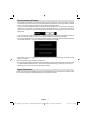
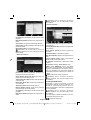
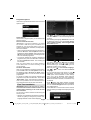
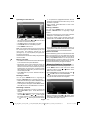
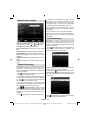
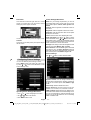
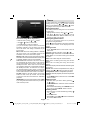
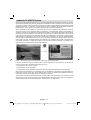
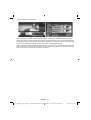
When you select Photos from the main options,
available image files will be filtered and listed on this
screen.
Select a device by using “ ” or “ ” button and press
OK.
Viewing Videos via USB
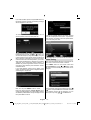
Jump (Numeric buttons): Jump to selected file using
the numeric buttons.
OK: Views the selected picture in full screen.
Slideshow (
all images.
button): Starts the slideshow using
RED: Sorts files by date.
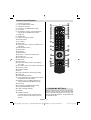
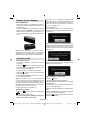
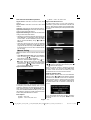
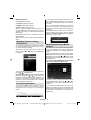
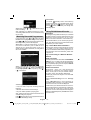
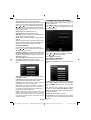
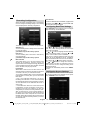
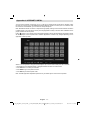
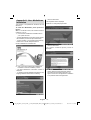
When you select Videos from the main options,
available video files will be filtered and listed on this
screen. You can use “ ” or “ ” button to select a video
file and press OK button to play a video. If you select
a subtitle file and press OK button, you can select or
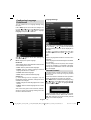
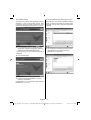
deselect that subtitle file. The following menu will be
displayed while playing a video file:
GREEN: Views images in thumbnails.
BLUE: Switch between music,photo,video and all
YELLOW: Change view style
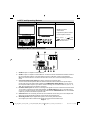
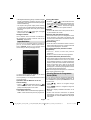
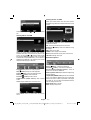
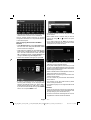
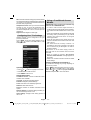
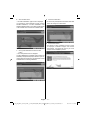
Slideshow Options
Pause (
button) : Pauses the slideshow.
Continue (
Play (
button): Starts the video playback.
Stop (
button): Stops the video playback.
Pause (
button): Pause the video playback.
Rewind (
button): Goes backward.
Forward (
button): Goes forward.
button) : Continues the slideshow.
Previous/Next (Left/Right buttons): Jumps to
previous or next file on slideshow.
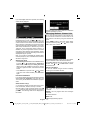
Subtitle/Audio (LANG. button): Sets subtitle/
Audio.
Yellow: Opens subtitle time correction menu
Rotate (Up/Down buttons): Rotates the image using
up/down buttons.
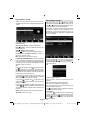
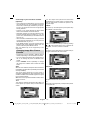
Loop/Shuffle (GREEN button): Press once to disable
Loop. Press again to disable both Loop and Shuffle.
Press once more to enable only Shuffle. Press again
to enable all. You can follow the disabled functions
with the change of the icons.
BACK (Exit): Back to file list.
INFO: Displays help screen.
Press BACK button to switch back to previous
menu.
English - 27 -
A02_[GB]_MB70_5112UK_DVBT_C_DLNA_HBBTV_MMH_WIFI_40942LED_GOLD11_10075763_50200948.indd 27
28.02.2012 17:34:22