1
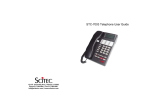
STC-7003 Telephone User Guide STC-7003 Single-Line Caller ID Speakerphone This telephone user guide details installation, programming, and operation instructions for the line-powered STC-7003 singleline Caller ID speakerphone. Please refer to the Scitec website News section and click on Product Notes for updates to this and other Scitec products. Package Contents • Telephone base unit • Handset • Coiled handset cord • Straight line cord • Note: Wall mount bracket sold separately Installation The telephone is designed for use behind a registered PBX system. The telephone user or system installer must supply an RJ-11 6-position 2-wire modular wall jack to connect this telephone to the PBX system. The PBX “station port” type must be “Industry Standard Analog” or “POTS.” This telephone cannot be used with “digital” PBX station ports. Assembly If you will be wall-mounting your phone, it is best to do the conversion before connecting the handset and line cords. If you will using the phone on a desktop, attach the handset. Attaching the handset Connect the supplied coiled handset cord between the jack on the end of handset and the jack marked with a “handset” symbol on the left side of the telephone base unit. Place the handset on the telephone base unit or if wall-mounted, hang it on the desk/wall-mount clip to depress the hook switch. Wall-mounting • The wall/desk handset clip located on the front of the phone directly above the speaker grill. In its wall-mount position, the clip extends up to hold the handset in place. Gently pull it up and turn 1⁄2 turn to change from desk to wall mount. This clip is spring-loaded and not removable, so that it cannot be lost. • Turn the telephone over so the telephone face is down. • Connect line cord to the jack on rear of phone. Route the line cord through the line cord channel. Pass the other end of the line cord through the rectangular hole in the back of the mounting bracket Coil up any excess line cord length for placement between the telephone and the wall-mounting bracket. • Position the wall-mounting bracket so that the Scitec “Sun” designs are toward the front edge of the phone and the four retaining tabs on the bracket line up with the slots in the bottom of the phone. Firmly press on the bracket to snap it into place. • Connect the free end of the RJ-11 line cord to the wall jack. Hold telephone in front of the 2 mushroom shaped mounting posts on the wall jack plate. Line up keyholes on wall-mounting bracket with posts. After engaging wall-mounting bracket with posts, slide telephone down slightly. When properly installed, the telephone will be rmly attached to the wall. STC-7003 Telephone User Guide Telephone Features • High performance voice-switched (half-duplex) speakerphone with in-use LED indicator • Feature keys for ash, hold, redial and mute functions • Nine user-programmable speed-dial keys • Message waiting light responds to NEON/90V, AT&T/Lucent /Avaya/Low Voltage LED, and Centrex/CLASS/VMWI message waiting light signaling formats • Electronic ringer with three-position volume control. (OFF, LOW, and HIGH) • Separate volume controls for handset and speakerphone • Data port jack for connecting another device to the extension, such as a computer modem, fax machine, or credit card terminal • 2.5mm phone jack for connecting a standard telephone headset Caller ID Features ·• Caller ID function is telephone line-powered. AC adaptors or batteries are not required. • Caller ID Type I (on-hook) and Type II (call waiting) compatible. Caller ID Type II may be disabled if desired. • Retains up to 60 messages in memory • High-contrast three line LCD display displays name (up to 15 characters), telephone number (up to 14 digits), date, and time simultaneously • Programmable 3-digit local area code; automatically prexes long distance telephone numbers with a “1” when using onetouch dial back. Caller ID number may be called back as recorded or prexed with a selected PBX code. • Two Caller ID delete modes: single call or all calls • Real time clock with 12-hour format is automatically set by an incoming call or may be set manually if desired Key, Switch, and Connector Descriptions 0-9, *, # - Standard 3 x 4 telephone keypad for dialing. M1 ~M9 - One-touch memory dialing keys. Note that these keys are named M1 through M9 for reference but are not labeled on the telephone. These are the nine blank keys arranged in a three by three grid located above the numeric dialing keys on the keypad. VOL - Adjusts the handset volume (3 levels) UP TOGGLE - Displays the previous Caller ID entry. Also used to set user options DOWN TOGGLE - Displays the next Caller ID entry. Also used to set user options DEL - Deletes Caller ID entries DIAL - Dials the selected Caller ID entry SET - Selects and sets user options STORE - Stores numbers into speed dial memory keys M1 ~M9 FLASH - Generates a hook ash at the programmed ash time (600ms , 300ms or 100ms) RD - Redials the last-dialed telephone number PAUSE - Used to enter a pause during speed dial key programming SPKR - Sets the hands-free speakerphone function on or off. The LED located above this key lights when the speakerphone is on. RINGER - Slide switch on rear of telephone to set ringer volume high, low or off. VOLUME - Slide control for adjusting the speakerphone receive volume. This control is located on the right side of the telephone. HOLD - Functions as “local hold” key or a programmable “system hold” key, depending on the user option setup. As a local hold key, the telephone holds the line off-hook when the handset placed in the cradle. As a “system hold’ key, this key functions as a programmable speed dial key that may be programmed with the PBX “system hold” DTMF sequence. When using “system hold”, the line hold function is provided by the PBX system itself and not by the telephone. Please consult your PBX system vendor or installer for more information on the usage of this key. MUTE - Turns off transmitted audio from both the speakerphone and the handset/headset microphones for privacy. An LED indicator illuminates when the mute function is turned on. With the MUTE function turned on, you will be able to hear the party at the other end of your call, but they will not be able to hear you. MESSAGE WAITING INDICATOR - Lights up when a voicemail message is waiting for the telephone user and the telephone is on-hook. To use this feature, the PBX must support one of the following types of message-waiting light signaling: • NEON/90V • AT&T/Lucent /Avaya/Low Voltage LED • Centrex/CLASS/VMWI/FSK Use of this message waiting indicator requires proper programming of your PBX and voice mail system. Please consult your PBX vendor or installer for more information. STC-7003 Telephone User Guide Operating instructions Telephone Options Setup: The user options should be set on the STC-7003 telephone prior to placing it into service. The following eleven options are user-programmable on the STC-7003: • LCD contrast level (1-8) • Real-time clock time and date (hour, minute, month, and day) • User name (up to 15 characters) • Local telephone number (up to 14 digits) • Local area code (3 digits) • PBX prex (1 digit) • Caller ID on call waiting (on or off) • Voice Message Service Selection(on or off) • Hold mode (local or PBX) • Flash time (600ms, 300ms, or 100ms) • Pause time (2.2 or 3.6 seconds) To Set User Options Verify that the phone is connected to a functioning telephone line. Verify that the phone is “on-hook” and that it is in standby mode. In standby mode, the time, date, new call count, and user name (“SCITEC INC.” by default) will be displayed on the LCD. User options are set as follows: 1) Press SET to enter user options setup mode and to select the CONTRAST menu. (Note: Once in user options setup mode, you must press a key at least once every 10 seconds or the telephone will automatically revert back to standby mode. If this happens, simply press SET and repeat the user options setup sequence.) 2) Press the Up or Down toggle key to select the desired LCD contrast (1-8) 3) Press SET to conrm and to select the SET TIME/DATE menu. 4) Press the Up or Down toggle key to set the hour (1-12) 5) Press SET to conrm and to select minute 6) Press the Up or Down toggle key to set minute (0-59) 7) Press SET to conrm and to select month 8) Press the Up or Down toggle key to set month (0-12) 9) Press SET to conrm and to select Day 10) Press the Up or Down toggle key to set day (1-31) 11) Press SET to conrm and to select SET NAME menu. 12) Press the Up or Down toggle key to position the cursor for each character to be set. 13) Press the following keys alternatively to select characters in the name to be set: 1 to select press the Up or Down toggle key, “:”, or “1” 2 ABC to select “A”, “B”, “C”, or “2” 3 DEF to select “D”, “E”, “F”, or “3” · 4 GHI to select “G”, “H”, “I”, or “4” · 5 JKL to select “J”, “K”, “L”, or “5” · 6 MNO to select “M”, “N”, “O”, or “6” 7 PQRS to select “P”, “Q”, “R”, “S” or “7” · 8 TUV to select “T”, “U”, “V”, or “8” · 9 WXYZ to select “W”, “X”, “Y”, “Z” or “9” 0 to select space “ “, period “.”, slash “/”, or “0” * to select “(“, “)”, semicolon “;”, or plus “+” # to select “<”, “=”, “>”, or “?” 14) For example, to enter “ABEL” as the name: • Press the Up toggle key, 2 ABC to enter an “A” • Press the Up toggle key, 2 ABC to enter a “B” • Press the Up toggle key, 3 DEF, 3 DEF to enter an “E” • Press the Up toggle key, 5 JKL, 5 JKL, 5 JKL to enter an “L” 15) Unused positions may be erased by pressing * then 0 16) Press SET to conrm and select SET LOCAL NUM. menu 17) Press the Up or Down toggle key to position the cursor to the display digit to be set 18) Use the digit keys 0 to 9 WXYZ to select each digit of the telephone number. Use the # key to enter a dash “-” 19) Press to conrm and select the LOCAL AREA CODE menu. 20) Press the Up or Down toggle key repeatedly to set the rst area code digit (0-9) 21) Press SET to conrm and to select the second area code digit 22) Press the Up or Down toggle key repeatedly to set the second area code digit (0-9) 23) Press SET to conrm and to select the third area code digit 24) Press the Up or Down toggle key repeatedly to set the third area code digit (0-9) 25) Press SET to conrm and to select the SET PBX PREFIX menu. 26) Press the Up or Down toggle key repeatedly to set the PBX prex digit (0-9 or none) 27) Press SET to conrm and to select the CALL WAITING? menu. 28) Press the Up or Down toggle key repeatedly to set the Caller ID on call waiting feature ON or OFF. The default mode is ON. 29) Press SET to conrm and to select the SET HOLD MODE menu. STC-7003 Telephone User Guide 30) Press Up or Down toggle to select LOCAL or PBX hold mode of hold. The default mode is PBX. 31) Press SET to conrm and to select the SET FLASH TIME menu. The default ash time is 600ms. 32) Press the Up or Down toggle key to select a ash time of 600MS, 300MS, 100MS. 33) Press SET to conrm and to select the SET PAUSE TIME menu. 34) Press ? or ? to select a pause time of 2.2S or 3.6S. Default pause time is 2.2s. 35) Press SET to conrm and exit user options setup. Placing a call: 1) Lift the handset or press SPKR and listen for a dial tone. 2) Dial the desired telephone number using the keypad. Dialed digits are displayed on the LCD as the number is dialed. After 15 seconds the dialed digits will be replaced by the call length timer. 3) To end a call, place the handset on the telephone base unit, or if using the hands-free speakerphone, press the SPKR key. The call time length will remain on the display for 5 seconds, and then the display will revert to the standby display mode. Placing a call on hold (local hold mode) a. Using handset/headset: Press HOLD, then place the handset in its cradle. b. Using speakerphone: Press HOLD. Retrieving a held call a. Using handset/headset: Lift the handset from its cradle. b. Using speakerphone: Press SPKR. Last number redial 1) Lift the handset or press SPKR and listen for a dial tone. 2) Press RD. The last number dialed will be displayed and dialed automatically. Volume Adjustment Press VOL repeatedly to adjust the handset/headset volume to the desired level. One of three levels (low, medium, and high) may be selected. To adjust the speakerphone volume, slide the control on the right side of telephone. Speed Dial Memory Key Programming and Dialing Programming the One-Touch Speed Dial Keys (M1~M9): 1) Verify that the phone is on-hook, as speed-dial key programming may only be performed with the telephone on-hook. 2) Remove the faceplate overlay to gain access to the programming keys. 3) Press STORE. “STORE NUMBER” will appear on the display. 4) Dial the telephone number to be stored, up to 22 digits. These digits may be 0- 9 WXYZ, * , #, FLASH and PAUSE, each of which is counted as one digit 5) Press the desired one-touch speed dial key (M1 ~ M9) to store the dialed number in memory 6) To change a stored number, repeat the instructions above and the new telephone number will replace the previously stored number Making calls with the One-Touch Speed Dial Keys (M1~ M9) 1) Pick up the handset or press SPKR and listen for dial tone. 2) Press the desired one-touch speed dial key M1~M9; the stored number will be dialed automatically Viewing Caller ID entries The STC-7003 telephone stores Caller ID data for the last 60 calls received, including “UNAVAILABLE” and “BLOCKED” calls 1) Press the Down toggle key to view calls starting with the newest call. 2) Press the Up toggle key to view calls starting with the oldest call. 3) Repeatedly press the Up or Down toggle key to scroll through the call list as desired Deleting entries from the Caller ID list Deleting a single Caller ID entry: 1) Press the Up or Down toggle key as needed to select the Caller ID entry to be deleted. 2) Press DEL. “DELETE CALL ? “ will be displayed on the LCD. 3) To cancel without deleting the selected entry, press ? or ? 4) To continue deleting the selected caller ID entry, press DEL. Deleting all Caller ID entries: 1) Press the Up or Down toggle key to display any caller ID entry. 2) Press and hold DEL for at least 3 seconds, until the LCD displays “ERASE ALL CALL?” 3) To cancel without deleting any calls, press either the Up or Down toggle key 4) To continue deleting all entries, press DEL. All entries will be deleted and “NO CALLS” will be displayed on the LCD. STC-7003 Telephone User Guide Dialing using a Caller ID entry On-hook 1) Press the Up or Down toggle to select the caller ID entry to be dialed. 2) Press DIAL. The LCD will display “PICK UP OR ADJ “ for 10 digit numbers, or “PICK UP PHONE “ for 7 digit or 11 digit numbers. 3) To adjust the phone number, press DIAL. For instance, a 7-digit local number sometimes cannot be dialed because it requires a 10-digit or 11-digit format. Press DIAL repeatedly to scroll through the 7, 10, and 11-digit numbers. 4) To dial the displayed number, pick up the handset or press SPKR. The LCD will display “DIALING ...” and the number will be dialed automatically. Off-hook With Local Area Code programmed 1) Select the telephone number variation to be dialed using the Up and Down toggle keys. 2) If the displayed number is 10 digits, press the DIAL and the LCD will display “DIALING ...”. The selected 10 digit number will be prexed with a “1” and dialed automatically. 3) If a prexed “1” is not desired, press and hold the DIAL key for 2 seconds. The LCD will display “DIALING...” and the 10 digit number will be dialed automatically. 4) If the displayed number is 7 digits, no adjustment can be made. With Local Area Code not programmed (default setting) 1) Press the Up or Down toggle key to select the number to be dialed. 2) If the displayed number is 10 digits, press DIAL . The LCD will display “DIALING...” and the 10-digit number will be dialed automatically. 3) To prex the 10 digit number with a “1”, press and hold the DIAL key for 2 seconds. The LCD will display “DIALING ...” and a “1” followed by the 10 digit number will be dialed automatically. 4) If the displayed number is 7 digits, no adjustment can be made. *Note: If necessary, you may reset the user programmable menu options to the original factory set by disconnecting the telephone line, pressing and holding the ? and DIAL keys simultaneously, connecting the telephone line, then releasing both keys after 2 seconds. All user options will be set to defaults and all the contents of Caller ID messages and speed-dial memory keys will be cleared. Using a Headset A standard telephone headset with a 2.5mm phone plug may be used with the STC-7003 telephone. To use a headset, plug it into the 2.5mm phone jack (labeled with a “headset” symbol) located on the left side of the telephone. When the headset is plugged in, the handset is disconnected and the headset must be used for speaking and listening. To use the handset again, unplug the headset from the telephone. When using a headset, the handset hook switch controls the on-hook or off-hook state of the phone. Remove the handset from its cradle to take the phone off-hook and place the handset on its cradle to put the phone on-hook. Speed-dial Memory Key Labeling (optional) 1. Obtain a pin, sewing needle, knife blade, or similar pointed tool. 2. Press down on the center speed-dial key. Carefully insert the tool in between the upper or lower edge of the pressed speeddial key and its hole in the faceplate. Pry up on the center of the faceplate and lift upward to remove the faceplate from the telephone. 3. Remove the transparent key caps from the nine speed-dial keys. Insert labels of your choice between the keys and the transparent key covers. 4. Orient the faceplate so that the two pins molded on the back of the faceplate align with the corresponding holes on the telephone body. Carefully reinstall the faceplate by inserting the four tabs on the faceplate into the four retaining slots on the telephone body. STC-7003 Telephone User Guide Required FCC Notice This equipment complies with Part 68 of the FCC rules and the requirements adopted by the ACTA. On the bottom of this equipment is a label that contains, among other information, a product identier in the format US:AAAEQ##TXXXX. If requested, this number must be provided to the telephone company. The REN is used to determine the number of devices that may be connected to a telephone line. Excessive RENs on a telephone line may result in the devices not ringing in response to an incoming call. In most but not all areas, the sum of RENs should not exceed ve (5.0). To be certain of the number of devices that may be connected to a line, as determined by the total RENs, contact the local telephone company. The REN for this telephone is part of the product identier that has the format US:AAAEQ##TXXXX. The digits represented by ## are the REN without a decimal point (e.g., 03 is a REN of 0.3). If this equipment causes harm to the telephone network, the telephone company will notify you in advance that temporary discontinuance of service may be required. If advance notice isn’t practical, the Telephone Company will notify you as soon as possible. Also, you will be advised of your right to le a complaint with the FCC if you believe it is necessary. The Telephone Company may make changes in its facilities, equipment, operations, or procedures that could affect the operation of this telephone. If this happens, the Telephone Company will provide advance notice in order for you to make the necessary modications in order to maintain uninterrupted service. If you experience trouble with this telephone, please contact Scitec, Inc. at (217) 384-6041 for repair or warranty information. If the trouble is causing harm to the telephone network, the Telephone Company may request that you 301 E. Mercury Drive Suite 8, Dock 9 Champaign, IL 61822 USA 1.800.451.4035 toll free 217.384.6041 tel. 217.384.6501 fax. [email protected] www.scitecinc.com Required FCC Notice remove this equipment from the network until the problem is resolved. The customer can do the following repairs: replacement of cords or handset; replacement of window for telephone number. Connection to party line service is subject to state tariffs. Contact the state public utility commission, public service commission or corporation commission for information. This telephone cannot be used on Telephone Company provided coin service. If your home has specially wired alarm equipment connected to the telephone line, ensure the installation of the telephone does not disable your alarm equipment. If you have questions about what will disable alarm equipment, consult your telephone company or a qualied installer. This equipment is hearing aid compatible. If the telephone is used with a leased system, permission of the owner of the equipment must be obtained for connection of the telephone because modication of the host system is often required. Jacks A plug and jack used to connect this equipment to the premises wiring and telephone network must comply with the applicable FCC Part 68 rules and requirements adopted by the ACTA. A compliant telephone cord and modular plug is provided with this product. It is designed to be connected to a compatible modular jack that is also compliant. © 2009 Scitec, Inc. Scitec is a registered trademark of Scitec Inc. Specications subject to change without notice. Refer to www.scitecinc.com for latest data. Scitec, Inc. is a minority-owned business.