1
File Menu Operations
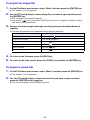
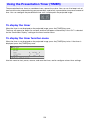
There are two different views for the File Viewer file menu: a list view and an icon view.
List View
This view shows a list of names of folders and files in the projector internal memory, or on memory
device connected to the projector’s USB port. Folders and files are displayed in this format
immediately after you go from the File Viewer main screen to the Presentation Mode, PDF Viewer
Mode, Slide Mode, or Movie Mode.
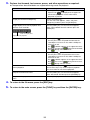
Icon View
This view shows both icons and names for the folders and files. Thumbnails are displayed for all of the
files that can be played back by File Viewer.
To toggle the file menu between the list view and icon view
Press the [FUNC] key. On the menu that appears, select “Screen Format” and then press the [ENTER]
key.
Note
z You can specify either the list view or icon view as the default view. For more information, see
“Configuring File Viewer Settings” on page 32.
To scroll the file menu
Press the [
] key to scroll forward, and the [
] key to scroll back.
To open a folder
Use the cursor keys to move the highlighting to the folder you want to open and then press the
[ENTER] key.
To exit the current folder and move up to the next level
Press the [ESC] key.
To return to the main screen from the file menu
Press the [FUNC] key. On the menu that appears, select “Back to top menu” and then press the
[ENTER] key.
31