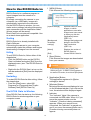
1
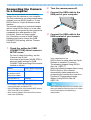
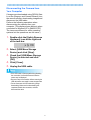
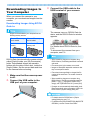
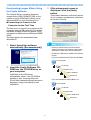
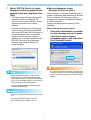
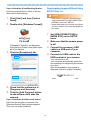
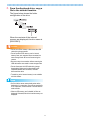
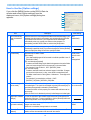
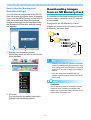
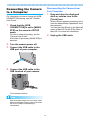
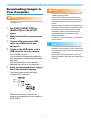
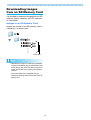
Software User Guide • For the safe use of your camera, be sure to read the “Safety Precautions” thoroughly before use. • Types of software installed on your computer varies depending on the method of installation from the Caplio Software CD-ROM. For details, see the “Camera User Guide”. • For information on the operating systems that support the Caplio Software, see the “Camera User Guide”. Chapter 1 Downloading Images to Your Computer (Windows) This section explains how to download still images and movies to your computer (Windows). The software installed to your computer from the Caplio Software CDROM varies depending on the installation method. For more details, see the “Camera User Guide”. Caution This section explains how to download still images and movies using RICOH Gate La. For information on how to download still images and movies using DeskTopBinder Lite or Auto Document Link, which are installed as standard applications, see the “Auto Document Link Guide”. Connecting the Camera to a Computer There are two methods for downloading images from the camera to your computer. The first method is to use image downloading software such as RICOH Gate La. To use RICOH Gate La, Caplio Software must be installed. The second method is to download images without using RICOH Gate La. In this case, the camera is recognized by the computer as a separate drive and appears on [My Computer]. Select and copy images. For information on how to install Caplio Software and how to change the [USB CONNECTION] setting, see the “Camera User Guide”. 1. 2. 3. Turn the camera power off. 4. Connect the USB cable to the USB terminal of your camera. Connect the USB cable to the USB port of your computer. Check the setting for [USB CONNECTION] on the camera’s SETUP menu. For how to check the setting, see the “Camera User Guide”. At the time of purchase, [MASS STR] is selected. Make settings for [USB CONNECTION] according to the transfer method as follows: Software [USB CONNECTION] setting The computer recognizes the camera as a drive without using software. MASS STR Auto Document Link ORIGINAL RICOH Gate La* MASS STR/ORIGINAL Your camera turns on. RICOH Gate La starts when the Caplio Software is installed. Proceed to “Downloading Images Using RICOH Gate La”. (GP.7) When downloading images without using RICOH Gate La, the computer automatically starts preparation for recognizing the camera as a new drive. Proceed to “Downloading Images Without Using RICOH Gate La”. (GP.10) * RICOH Gate La, which is provided with the Caplio GX100, supports [ORIGINAL] and [MASS STR]. * Set to [ORIGINAL] when using Windows 98SE. However, SDHC (over 4GB) is not compatible. * When using this software with an earlier Ricoh camera model, set to [ORIGINAL]. When downloading images from your camera, load a battery with adequate remaining power in the camera. Use of the AC adapter (sold separately) is recommended. 5 Disconnecting the Camera from Your Computer If images are downloaded using RICOH Gate La or the [Scanner and Camera Wizard], turn the camera off after downloading images and disconnect the USB cable. Perform the following operations when disconnecting the camera from your computer. (The display shown below is when connected to Windows XP in [MASS STR]. The terms are different for other operating systems but the operations are the same.) 1. Double-click the [Safely Remove Hardware] icon at the right end of the task bar. 2. Select [USB Mass Storage Device] and click [Stop]. 3. Check that [USB Mass Storage Device] is selected and click [OK]. 4. 5. Click [Close]. Unplug the USB cable. • If the USB cable is disconnected without disabling the connection, the Unsafe Removal of Device screen may be displayed. • Be sure to stop the connection before removing the USB cable when connected in mass storage mode. • Do not disconnect the USB cable during image downloading. Make sure that downloading has completed, disable the connection, and then disconnect the cable. 6 3. Downloading Images to Your Computer Connect the USB cable to the USB terminal of your camera. When you connect the camera to your computer, you can download images from the camera. Downloading Images Using RICOH Gate La The camera turns on, RICOH Gate La starts, and the RICOH Gate La window appears. Images are downloaded to your computer from the following memory sources. When no SD memory card is loaded When an SD memory card is loaded Loads from internal memory Loads from the SD memory card Image transfer begins automatically. For details about RICOH Gate La, see P.12. To disconnect the camera from your computer, see P.6. • When transferring images to a computer using RICOH Gate La, the file being transferred is renamed and saved. RICOH Gate La automatically creates a folder called [Caplio] inside your [My Documents] folder. Downloaded images are saved in folders with the date of each shot, inside the [Caplio] folder. Set the correct date and time on the camera before shooting. 1. 2. • File names given by the camera are not used. • Images are stored with sequential numbers so that they have unique file names. • Even when the storage folder is changed, the file number will be continuous. The number cannot be initialized. Make sure that the camera power is off. • When transferring images to a computer using RICOH Gate La, the files are assigned names like [RIMG****.jpg] (**** indicates the number of the image), even if [SEQUENTIAL NO.] is set to [ON]. Connect the USB cable to the USB port of your computer. • If images are not automatically downloaded, check [Save automatically when connected to USB] in the RICOH Gate La [Option settings] dialog box. • For details about the RICOH Gate La [Option settings] dialog box, see P.13. • For details about [USB CONNECTION] (MASS STR/ ORIGINAL), see the “Camera User Guide”. 7 3. Downloading Images Without Using the Caplio Software The Original Driver is used to download images when [USB CONNECTION] on the camera is set to [ORIGINAL] (When using Windows 98SE or Auto Document Link). If the subsequent screen is displayed, click the [Next] button. This product has been sufficiently tested at our company and has been confirmed to function correctly. Connecting the Camera to the Computer for the First Time The first time you connect your camera to the computer using a USB cable, the [Found New Hardware Wizard] screen will appear (Does not appear for Macintosh and Windows 98SE/ 2000). The steps below use screenshots from Windows XP. 1. Select [Install the software automatically (Recommended)]. • Screens to confirm security and user accounts appear for Windows Vista. However, other screens are mostly the same as the ones of Windows XP. • By default, the WIA driver is installed in the following location: If you have installed the Irodio Photo & Video Studio: My Computer 2. Local Disk Insert the Caplio Software CDROM into the CD-ROM drive on your computer. Program Files Caplio Software Installation of the WIA driver automatically starts. If the CD-ROM is already on your computer when the [Found New Hardware Wizard] window is displayed, simply click [Next] to start installation. WIA driver If you have installed the DeskTopBinder Lite: My Computer Local Disk Program Files Caplio Software S WIA driver 8 4. Select [RICOH Gate La], check [Always use this program for this action] check box, and then click [OK]. Warning Messages Under Windows XP Service Pack 2 When software for Ricoh’s digital camera is used on a computer with Windows XP Service Pack 2 installed, the following warning message may appear at software activation or USB connection. Change the setting while referring to the following. • To load images from the camera with assistance from the Windows XP “Scanner and Camera Wizard”, select [Microsoft Scanner and Camera Wizard]. When warning messages appear: • Leaving the [Always use this program for this action] check box unchecked will cause the [Caplio GX100] screen to be displayed each time you transfer images from the camera, thereby allowing you to choose whether to use [RICOH Gate La] or the [Microsoft Scanner and Camera Wizard] for image transfers. 1. Check the information provided on the message screen to make sure that it comes from a reputable source, and then click the [Unblock] button. Caution If you do not recognize the program, you should block it because it may be a virus. Click the [Keep Blocking] button to prevent the program from connecting to the Internet. • Before closing RICOH Gate La, if you turn the camera power off, or unplug the USB cable, the RICOH Gate La window is minimized and displayed as an icon on the Windows task bar. If you click the icon, the window will be displayed again. • You can change the folder for downloading your images (Save Destination). • For how to change the Save Destination Folder, see P.13. • For how to start RICOH Gate La, see P.12. • For the RICOH Gate La window, see P.12. 9 Downloading Images Without Using RICOH Gate La If you clicked the [Keep Blocking] button: Follow the steps below to check to see the Windows Firewall settings. Caution 1. Click [Start] and then [Control Panel]. 2. Double-click [Windows Firewall]. • RICOH Gate La is required to download images using Windows 98SE. Set [USB CONNECTION] to [ORIGINAL] and connect. (GP.8) • Images downloaded to your computer using [Import pictures] in Windows Vista cannot be displayed with this camera. If [Windows Firewall] is not displayed, click [Switch to Classic View] at the upper left of the window. 3. Click the [Exceptions] tab. 1. Set [USB CONNECTION] to [MASS STR] on the SETUP menu. 2. Make sure that the camera power is off. 3. Connect the accessory USB cable to a USB port of your computer. 4. Connect the USB cable to the USB terminal of your camera. Your camera turns on. Your computer automatically reads the file necessary for recognizing the camera as a drive. After this preparation, the camera is displayed as a drive at [My Computer]. Example of the display in Windows XP 4. Check that the software is in [Programs and Services]. 5. Click the [Add Program] button to add software that uses the network. If you clicked the [Ask Me Later] button: Each time the program is activated, the [Windows Security Alert] window appears. Then you can select [Unblock]. 10 5. From the displayed drive, copy a file to the desired location. The figure below shows the folder configuration of the drive. When the contents of the internal memory are displayed, the drive name is [RICOHDCI]. Caution • Do not turn off the camera or disconnect the USB cable during image transfer. • Do not format the SD memory card or internal memory from your computer when connected via mass storage mode. Be sure to format using the camera. • Be sure to stop the connection before removing the USB cable when connected in mass storage mode. • Do not disconnect the USB cable during image downloading. Make sure that downloading has completed, disable the connection, and then disconnect the cable. • Transferring to the internal memory is not available with this camera. • If a file with the same name already exists at the destination, it is overwritten. If you do not want the file to be overwritten, rename the file or transfer data to another folder. • When an SD memory card is loaded, its files are displayed. Otherwise, files in the internal memory are displayed. 11 How to Use RICOH Gate La 1 [MENU] Button Click this and the following menu appears. RICOH Gate La is a software program to import images from the camera to a computer. By simply connecting the camera to your computer via a USB cable, images are automatically imported to the computer. On the RICOH Gate La window, you can make various settings including auto-saving upon connection and the destination folder (where images will be saved). Ricoh Gate La is not network-compatible. Use as a stand-alone application. [Option settings] Specifies where to save images, or which application to start after images have been saved or when you click the [Application] button. (GP.13) Starting RICOH Gate La is already installed with Caplio Software. Connecting the camera to your computer automatically starts the software and begins downloading of images from the camera. [Background illustration settings] Changes the background design in the RICOH Gate La window. (GP.14) [About] Exiting Displays the version of RICOH Gate La. [Exit] Closes RICOH Gate La. To exit RICOH Gate La, follow either of the steps below. • Click the [MENU] button on the RICOH Gate La window and select [Exit] from the displayed menu (see “The RICOH Gate La Window”). 2 [Save] Button Click this and the images are downloaded from your camera. Caution If the message indicating that [CONNECTING... PRESS [ADJ.] KEY TO DIRECT PRINT] appears on the camera LCD monitor, do not click the [Save] button. • Right-click the RICOH Gate La icon on the task bar and select [Exit] from the displayed menu. Restarting 3 [Application] Button The application registered in [Option settings] is started. To restart RICOH Gate La after exiting, follow the steps below. • From the [Start] menu, select [All Programs] or [Programs] then [Caplio Software] then [RICOH Gate La]. 4 [Minimize] Button Minimizes the window and displays its icon on the Windows task bar. If you click on the icon, the window will be displayed again. The RICOH Gate La Window 5 Indicator The “Indicator” lights if the camera is connected via USB cable. When lit, if you move the mouse pointer over the “Indicator”, [Camera is being connected] appears. When your camera is not connected, the “Indicator” is grayed out, and if you move the mouse pointer over it, [Camera is being connected] does not appear. Once RICOH Gate La starts up, the following RICOH Gate La window appears on your computer screen. 12 How to Use the [Option settings] If you click the [MENU] button on the RICOH Gate La window and select [Option settings] from the displayed menu, the [Option settings] dialog box appears. Item Description Initial Setting 1 [Save automatically when connected to USB] Select the check box to have images downloaded and saved automatically in your Save computer when the camera is connected to your computer with the USB cable. automatically If you deselect the check box, your images will not be downloaded automatically when you connect your camera to the computer. For downloading, activate RICOH Gate La and click the [Save] button. 2 [Destination folder] Specifies which folder to save your images in. The [Caplio] folder inside [My Documents] is specified initially; if you want to change this, click the [Browse] button to display the dialog box and then specify the folder. 3 [Create folder] Specifies how to create a folder. [Not created] Your downloaded images will all be saved in the folder specified in item “2 [Destination folder]”. [For each date photographed] Creates a new folder assigning the date the images were shot as the folder name, and saves images shot on the same day in the same folder. For example, if shot on March 1, 2007: [20070301] folder [For each time saved] Creates a new folder each time and save images in the folder. If images are saved more than once in a day, a new folder is created each time. The folder name format is “Saving date + Underscore + Three-digit serial number”. For example, if you saved twice on March 1, 2007: [20070301_001] folder, [20070301_002] folder 4 [The same image will not be saved] When this check box is selected, images once loaded into your computer are The same image not loaded again. This check box is enabled only when [Not created] or [For will not be saved each date photographed] is selected in [Create folder]. To allow this function to work properly, the camera date and time must be set correctly. When this check box is deselected, previously loaded images are loaded again. 5 [Application software settings] To start an application after loaded images have been saved, specify the application name here. To set an application, click the [Browse] button and select the application in the displayed dialog box. 6 [Save and start application software] When this is checked, the application specified above is started after the images have been saved. When this is unchecked, the application is not started. Application is started 7 [Camera’s IP Address] Not used by this model but used by other models of Caplio camera. For details, see the documentation that came with the camera. 0.0.0.0 13 Create a new folder for each date photographed Downloading Images from an SD Memory Card How to Use the [Background illustration settings] You can select a background for the RICOH Gate La window from three types of patterns. If you click the [MENU] button on the RICOH Gate La window and select [Background illustration settings] from the displayed menu, the [Background illustration settings] dialog box appears. It is possible to download images from an SD memory card to computer via a PC card slot or card reader. Images in an SD Memory Card Images are stored on an SD memory card in a hierarchy, as shown here. 1 [Background illustration pattern] Select the pattern you wish to use from the three available. Image files • Depending on the type of PC card slot or card reader, a memory card adapter may be required when using an SD memory card. If the SD memory card can be used in the PC card slot, no memory card adapter is required. • Use a card reader that is compatible with your computer’s operating system and the size of the SD memory card. Card Reader This is a device connected to a computer to read the contents of cards. In addition to the memory card adapter-type, there are card readers into which you can directly load an SD memory card. 2 [Preview] You can preview the pattern selected in [Background illustration pattern]. 14 Chapter 2 Downloading Images to Your Computer (Macintosh) This section explains how to download still images and movies to your computer (Macintosh). Connecting the Camera to a Computer Disconnecting the Camera from Your Computer 1. For information on how to change the [USB CONNECTION] setting, see the “Camera User Guide”. 1. When a screen appears prompting you to enter the administrator's password, enter the password. You can also click [Eject] on the [Special] menu in Mac OS 9 or the [File] menu in Mac OS X to cancel the connection. Check that the [USB CONNECTION] is set to [MASS STR] on the camera’s SETUP menu. 2. For how to check the setting, see the “Camera User Guide”. At the time of purchase, [MASS STR] is selected. 2. 3. Turn the camera power off. 4. Connect the USB cable to the USB terminal of your camera. Drag and drop the displayed drive or volume icon to the [Trash] icon. Connect the USB cable to the USB port of your computer. Your camera turns on. When downloading images from your camera, load a battery with adequate remaining power in the camera. Use of the AC adapter (sold separately) is recommended. 16 Unplug the USB cable. Downloading Images to Your Computer Caution • Do not turn off the camera or disconnect the USB cable during image transfer. • Do not format the SD memory card or internal memory from your computer when connected via mass storage mode. Be sure to format using the camera. Caution This function is not available on this camera if you are using Mac OS 8.6. 1. Set [USB CONNECTION] to [MASS STR] on the SETUP menu. 2. Make sure that the camera power is off. 3. Connect the accessory USB cable to a USB port of your computer. 4. • Be sure to stop the connection before removing the USB cable when connected in mass storage mode. • Do not disconnect the USB cable during image downloading. Make sure that downloading has completed, disable the connection, and then disconnect the cable. • Transferring to the internal memory is not available with this camera. • If a file with the same name already exists at the destination, it is overwritten. If you do not want the file to be overwritten, rename the file or transfer data to another folder. Connect the USB cable to the USB terminal of your camera. Your camera turns on. Your computer automatically reads the file necessary for recognizing the camera as a drive. After this preparation, the camera is displayed as a drive on the Desktop. 5. • When an SD memory card is loaded, its files are displayed. Otherwise, files in the internal memory are displayed. From the displayed drive, copy a file to the desired location. The figure below shows the folder configuration in the drive. When the contents of the internal memory are displayed, the drive name is [RICOHDCI]. 17 Downloading Images from an SD Memory Card It is possible to download images from an SD memory card to computer via a PC card slot or card reader. Images in an SD Memory Card Images are stored on an SD memory card in a hierarchy, as shown here. Image files • Depending on the type of PC card slot or card reader, a memory card adapter may be required when using an SD memory card. If the SD memory card can be used in the PC card slot, no memory card adapter is required. • Use a card reader that is compatible with your computer's operating system and the size of the SD memory card. 18 Appendices Troubleshooting Problem 1 Cannot download images Solution 1 The [USB CONNECTION] setting on the camera’s SETUP menu may not match the transfer method preferred. Make settings for [USB CONNECTION] according to the software used for transfer as follows: Software [USB CONNECTION] setting The computer recognizes the camera as a drive without using software. MASS STR Auto Document Link ORIGINAL RICOH Gate La MASS STR/ORIGINAL* * RICOH Gate La, which is provided with the Caplio GX100, also supports Mass Storage Mode. When using this software with an earlier Ricoh camera model, set [USB CONNECTION] to [ORIGINAL]. Solution 2 Your computer does not recognize the camera correctly. Follow the steps below. zFor Windows 98SE/Me Procedure 1: First, follow the steps below. 1. Load the Caplio Software CD-ROM into your computer. 2. Connect your camera via the USB cable to your computer. 3. Click the [Start] button on the Windows taskbar to display the [Start] menu. 4. Select [Settings], and then click [Control Panel]. 5. On the Control Panel displayed, double-click the [System] icon. 6. On the [System Properties] screen displayed, click the [Device Manager] tab. 7. On the [Device Manager] tab page displayed, click [+] on the left side of [Other devices]. 8. Check if there is [Caplio GX100] below it. If there is, click [Caplio GX100], and then click the [Remove] button at the bottom of the [Device Manager] tab. The entry [Caplio GX100] is deleted. 9. Click [Close] to close the [System Properties] screen. 10. When the display returns to the Control Panel, double-click the [Add/Remove Programs] icon. 11. On the [Add/Remove Programs Properties] screen displayed, select [Caplio Software], and then click the [Add/Remove] button. This uninstalls the Caplio Software. 12. Click [OK] to close the [Add/Remove Programs Properties] screen. 13. Click the [×] (Close) button to close the Control Panel. 14. Turn off your camera and computer. 15. Turn your computer back on and reinstall the software from the CD-ROM. *At this time, do not connect your camera. 20 16. Connect your camera via the USB cable to your computer. When the computer recognizes the camera, the [New Hardware Found] screen launches and your camera is registered by the computer. Procedure 2: If your computer still does not recognize the camera, follow the steps below. 1. Load the Caplio Software CD-ROM into your computer. 2. Connect your camera via the USB cable to your computer. 3. Click the [Start] button on the Windows taskbar to display the [Start] menu. 4. Select [Settings], and then click [Control Panel]. 5. On the Control Panel displayed, double-click the [System] icon. 6. On the [System Properties] screen displayed, click the [Device Manager] tab. 7. On the [Device Manager] tab page displayed, click [+] on the left side of [Ports (COM & LPT)] to open. 8. Check whether or not there is an unknown device symbol (!) indicated for [RICOH Camera Port] below [Ports (COM & LPT)]. If there is, select it, and then click the [Remove] button at the bottom of the [Device Manager] tab to delete it. 9. Click [+] on the left side of [Universal Serial Bus controllers] to open. 10. Check whether or not there is an unknown device symbol (!) indicated for [RICOH USB Virtual Com] below [Universal Serial Bus controllers]. If there is, select it, and then click the [Remove] button at the bottom of the [Device Manager] tab to delete it. 11. Click [Close] to close the [System Properties] screen. 12. When the display returns to the Control Panel, double-click the [Add/Remove Programs] icon. 13. On the [Add/Remove Programs Properties] screen displayed, select [Caplio Software], and then click the [Add/Remove] button. This uninstalls the Caplio Software. 14. Click [OK] to close the [Add/Remove Programs Properties] screen. 15. Click the [×] (Close) button to close the Control Panel. 16. Turn off your camera and computer. 17. Turn your computer back on and reinstall the software from the CD-ROM. *At this time, do not connect your camera. 18. Connect your camera via the USB cable to your computer. When the computer recognizes the camera, the [New Hardware Found] screen launches and your camera is registered by the computer. 21 zFor Windows 2000 Procedure 1: First, follow the steps below. 1. Load the Caplio Software CD-ROM into your computer. 2. Connect your camera via the USB cable to your computer. 3. Click the [Start] button on the Windows taskbar to display the [Start] menu. 4. Select [Settings], and then click [Control Panel]. 5. On the Control Panel displayed, double-click the [System] icon. 6. On the [System Properties] screen displayed, click the [Hardware] tab. 7. On the [Hardware] tab page displayed, click the [Device Manager] button. 8. On the [Device Manager] screen displayed, click [+] on the left side of [Other devices]. 9. Check if there is [Caplio GX100] below it. If there is, click [Caplio GX100], and then click the [Uninstall] from the [Action] menu. The entry [Caplio GX100] is deleted. 10. Click the [×] (Close) button to close the [Device Manager] screen. 11. Click [OK] to close the [System Properties] screen. 12. When the display returns to the Control Panel, double-click the [Add/Remove Programs] icon. 13. On the [Add/Remove Programs] screen displayed, select [Caplio Software], and then click the [Change/Remove] button. This uninstalls the Caplio Software. 14. Click the [×] (Close) button to close the [Add/Remove Programs] screen. 15. Click the [×] (Close) button to close the Control Panel. 16. Turn off your camera and computer. 17. Turn your computer back on and reinstall the software from the CD-ROM. *At this time, do not connect your camera. 18. Connect your camera via the USB cable to your computer. When the computer recognizes the camera, the [Found New Hardware] screen launches and your camera is registered by the computer. 22 Procedure 2: If your computer still does not recognize the camera, follow the steps below. 1. Load the Caplio Software CD-ROM into your computer. 2. Connect your camera via the USB cable to your computer. 3. Click the [Start] button on the Windows taskbar to display the [Start] menu. 4. Select [Settings], and then click [Control Panel]. 5. On the Control Panel displayed, double-click the [System] icon. 6. On the [System Properties] screen displayed, click the [Hardware] tab. 7. On the [Hardware] tab page displayed, click the [Device Manager] button. 8. On the [Device Manager] screen displayed, click [+] on the left side of [Ports (COM & LPT)] to open. 9. Check whether or not there is an unknown device symbol (!) indicated for [RICOH Camera Port] below [Ports (COM & LPT)]. If there is, click it, and then click the [Uninstall] from the [Action] menu. 10. Click the [×] (Close) button to close the [Device Manager] screen. 11. Click [OK] to close the [System Properties] screen. 12. When the display returns to the Control Panel, double-click the [Add/Remove Programs] icon. 13. On the [Add/Remove Programs] screen displayed, select [Caplio Software], and then click the [Change/Remove] button. This uninstalls the Caplio Software. 14. Click the [×] (Close) button to close the [Add/Remove Programs] screen. 15. Click the [×] (Close) button to close the Control Panel. 16. Turn off your camera and computer. 17. Turn your computer back on and reinstall the software from the CD-ROM. *At this time, do not connect your camera. 18. Connect your camera via the USB cable to your computer. When the computer recognizes the camera, the [Found New Hardware] screen launches and your camera is registered by the computer. 23 zFor Windows XP Procedure 1: First, follow the steps below. 1. Load the Caplio Software CD-ROM into your computer. 2. Connect your camera via the USB cable to your computer. 3. Click the [Start] button on the Windows taskbar to display the [Start] menu. 4. Click [Control Panel]. 5. On the Control Panel displayed, click [Switch to Classic View]. The display changes its appearance and the [System] icon appears. 6. Double-click the [System] icon. 7. On the [System Properties] screen displayed, click the [Hardware] tab. 8. On the [Hardware] tab page displayed, click the [Device Manager] button. 9. On the [Device Manager] screen displayed, click [+] on the left side of [Other devices]. 10. Check if there is [Caplio GX100] below it. If there is, right-click [Caplio GX100] to display the menu and select [Update Driver]. 11. Windows will display the [Hardware Update Wizard] screen. At this point, check that the Caplio Software CD-ROM is inserted in your computer. If the CD-ROM is not inserted, insert in your computer. 12. Make sure that [Install the software automatically (Recommended)] is selected, and then click [Next]. 13. When the [Completing the Hardware Update Wizard] screen appears, click [Finish]. 14. Click the [×] (Close) button to close the [Device Manager] screen. 15. Click [OK] to close the [System Properties] screen. 16. Click the [×] (Close) button to close the Control Panel. 17. Turn off your camera and computer. 18. Turn your computer back on and reinstall the software from the CD-ROM. *At this time, do not connect your camera. 19. Connect your camera via the USB cable to your computer. When the computer recognizes the camera, the [New Hardware Found] screen launches and your camera is registered by the computer. 24 Procedure 2: If your computer still does not recognize the camera, follow the steps below. 1. Load the Caplio Software CD-ROM into your computer. 2. Connect your camera via the USB cable to your computer. 3. Click the [Start] button on the Windows taskbar to display the [Start] menu. 4. Click [Control Panel]. 5. On the Control Panel displayed, click [Switch to Classic View]. The display changes its appearance and the [System] icon appears. 6. Double-click the [System] icon. 7. On the [System Properties] screen displayed, click the [Hardware] tab. 8. On the [Hardware] tab page displayed, click the [Device Manager] button. 9. On the [Device Manager] screen displayed, click [+] on the left side of [Imaging devices] to open. 10. Check whether or not there is an unknown device symbol (!) indicated for [Caplio GX100]. If there is, right-click the unknown device symbol to display the menu and select [Update Driver]. 11. Windows will display the [Hardware Update Wizard] screen. At this point, check that the Caplio Software CD-ROM is inserted in your computer. If the CD-ROM is not inserted, insert in your computer. 12. Make sure that [Install the software automatically (Recommended)] is selected, and then click [Next]. 13. When the [Completing the Hardware Update Wizard] screen appears, click [Finish]. 14. Click the [×] (Close) button to close the [Device Manager] screen. 15. Click [OK] to close the [System Properties] screen. 16. Click the [×] (Close) button to close the Control Panel. The driver is installed and your computer recognizes the camera correctly. 25 zFor Windows Vista Procedure 1: First, follow the steps below. 1. Connect your camera via the USB cable to your computer. 2. Click the [Start] button on the Windows taskbar to display the [Start] menu. 3. Click [Control Panel]. 4. On the Control Panel displayed, click [Switch to Classic View]. The display changes its appearance and the [System] icon appears. 5. Double-click the [System] icon. 6. Click [Device Manager] for the task. A screen appears to confirm user account management. Select [Continue]. 7. On the [Device Manager] screen displayed, click [+] on the left side of [Other devices]. 8. Check if there is [Caplio GX100] below it. If there is, right-click [Caplio GX100] to display the menu and select [Update Driver Software]. 9. Windows will display the [Update Driver Software] screen. 10. Select [Browse my computer for driver software]. 11. Click the [Browse] button, select C\Program Files\Caplio Software\WIA driver, and then click [Next]. 12. When a Windows security screen appears, select [Install this driver software anyway]. 13. When the [Windows has successfully updated your driver software] screen appears, click [Close]. 14. Click the [×] (Close) button to close the [Device Manager] screen. 15. Click the [×] (Close) button to close the Control Panel. 16. Turn off your camera and computer. 17. Turn your computer back on and reinstall the software from the CD-ROM. *At this time, do not connect your camera. 18. Connect your camera via the USB cable to your computer. When the computer recognizes the camera, the [New Hardware Found] screen launches and your camera is registered by the computer. 26 Procedure 2: If your computer still does not recognize the camera, follow the steps below. 1. Connect your camera via the USB cable to your computer. 2. Click the [Start] button on the Windows taskbar to display the [Start] menu. 3. Click [Control Panel]. 4. On the Control Panel displayed, click [Switch to Classic View]. The display changes its appearance and the [System] icon appears. 5. Double-click the [System] icon. 6. On the [System Properties] screen displayed, click the [Hardware] tab. 7. On the [Hardware] tab page displayed, click the [Device Manager] button. 8. On the [Device Manager] screen displayed, click [+] on the left side of [Imaging devices] to open. 9. Check whether or not there is an unknown device symbol (!) indicated for [Caplio GX100]. If there is, right-click the unknown device symbol to display the menu and select [Update Driver Software]. 10. Windows will display the [Update Driver Software] screen. 11. Select [Browse my computer for driver software]. 12. Click the [Browse] button, select C\Program Files\Caplio Software\WIA driver, and then click [Next]. 13. When a Windows security screen appears, select [Install this driver software anyway]. 14. When the [Windows has successfully updated your driver software] screen appears, click [Close]. 15. Click the [×] (Close) button to close the [Device Manager] screen. 16. Click the [×] (Close) button to close the Control Panel. 17. Turn off your camera and computer. 18. Turn your computer back on and reinstall the software from the CD-ROM. *At this time, do not connect your camera. 19. Connect your camera via the USB cable to your computer. When the computer recognizes the camera, the [New Hardware Found] screen launches and your camera is registered by the computer. 27 Solution 3 For Windows 98SE/Me, the COM Port setting may be wrong. Follow the steps below. 1. Connect your camera via the USB cable to your computer. 2. Click the [Start] button on the Windows taskbar to display the [Start] menu. 3. Select [Settings], and then click [Control Panel]. 4. On the Control Panel displayed, double-click the [System] icon. 5. On the [System Properties] screen displayed, click the [Device Manager] tab. 6. On the [Device Manager] tab page displayed, click [+] on the left side of [Ports (COM & LPT)] to open. 7. Click [RICOH Camera Port] under [Ports (COM & LPT)], and then click the [Properties] button at the bottom of the [Device Manager] tab. 8. On the [RICOH Camera Port Properties] screen displayed, Click the [PortSelect] tab. 9. On the [PortSelect] tab page displayed, select a COM Number not being used from [PortName]. The port (COM number) currently allocated for your camera is indicated by a “*”. Immediately after installing the USB driver, COM7 should be selected, so select a number above COM8. 10. Click [OK] to close the [RICOH Camera Port Properties] screen. 11. Click [OK] to close the [System Properties] screen. 12. Click the [×] (Close) button to close the Control Panel. Solution 4 Your camera may not be recognized correctly if you connect to the USB Port of your computer via a USB hub. Follow the steps below to change the USB port. • Connect your camera directly to the USB port of your computer. • If there are several root hubs, change to another hub. If you are using a non-USB hub, try connecting via a USB hub. Solution 5 The batteries may have worn out. Check whether the batteries have worn out. If worn out, replace them with new ones. Solution 6 The free space on the hard disk in your computer may be insufficient. Check whether the hard disk has sufficient space for running Windows, and whether the drive where you are loading image files has the same capacity or more as that of the SD memory card inserted in the camera. 28 Problem 2 Even if you check [The same image will not be saved] in the RICOH Gate La [Option settings], the same images are loaded into your computer. Solution The camera’s clock is incorrectly set or the camera’s clock information has been reset. To allow the [The same image will not be saved] function to work properly, the camera’s clock information must be set properly. Set it properly. Problem 3 Files loaded from the camera into the computer were deleted. You attempted to load the same files from the camera again but failed. Solution If [The same image will not be saved] is checked in the RICOH Gate La [Option settings], files loaded into your computer once cannot be loaded again. In the RICOH Gate La [Option settings], uncheck [The same image will not be saved]. Problem 4 RICOH Gate La is always activated when the camera is connected to a Windows XP computer through a USB cable. Solution Connect the camera to the computer through the USB cable, and then open [My Computer] from the [Start] menu on Windows Taskbar. Right-click the camera icon on the My Computer screen and click [Properties] to open the camera’s Properties screen. Click the [Events] tab on the Properties screen. Select [Take no action] or [Prompt for which program to run] for [Actions] and click [OK]. If [Take no action] is selected, nothing happens when the camera is connected to the computer. If [Prompt for which program to run] is selected, a screen is displayed each time the camera is connected to the computer. Then you can choose a program to activate. Problem 5 [Failed to save.] appears during image loading from the camera into your computer Solution Set the camera to Playback Mode and check that [UNMATCHED FILE] is not displayed for any file. If [UNMATCHED FILE] is displayed, delete the file from the SD memory card or internal memory after backing up all files on your computer. For backup, copy all files into your computer directly by using a commercially-available card reader or by changing the [USB CONNECTION] setting to [MASS STR] on the SETUP menu. 29 Problem 6 RICOH Gate La does not appear in the [Device connected] screen when the camera is connected to a Windows XP computer through a USB cable. Solution Set the camera to Playback Mode and check if the message [FORMAT CARD] is displayed. If the message is displayed, check that the SD memory card does not contain any image you do not want to delete, and then select [FORMAT [CARD]] (see the “Camera User Guide”) on the SETUP menu to format the SD memory card. Problem 7 The Caplio Software CD-ROM is not available when you attempt to connect your camera via the USB cable to the computer (Windows XP/Windows Vista) for the first time, therefore you cannot install the hardware driver for the camera. (When [USB CONNECTION] is set to [ORIGINAL].) Solution 1. Connect your camera to the computer. The [Found New Hardware Wizard] window appears. 2. Select [Install from a list or specific location (Advanced)]. 3. Click [Next]. 4. Select [Search for the best driver in these locations.] and [Include this location in the search], and then click the [Browse] button. 5. Browse to the folder where the [WIA driver] was installed (by default this should be C:\Program Files\Caplio Software\WIA driver) and then select [Next]. 6. Select [RICOH Gate La], select the [Always use this program for this action] check box, and then click [OK]. 30