1
10.3. Activity Organizer
Activity Filter
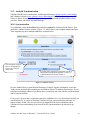
You can filter activities to show only the activities that are of interest to you, resulting in
improved clarity. For instance, when adding a workout (as described in the Adding a Workout
section on page 39), only unfiltered activities will be shown.
To filter activities:
•
•
•
•
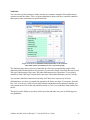
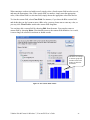
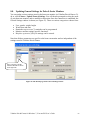
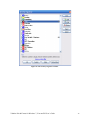
Click Fitness > Activity Organizer. The Activity Organizer window is displayed (see
Figure 65 on page 78).
Check activities to be displayed and uncheck those to be filtered.
Choose All or Clear to select all or clear all checkboxes, respectively.
If desired, click Save as custom filter to record the selected activities as your preferred
filter. You can then modify the filter, review workouts, and later come back and click
Custom to restore your own filter.
Note
Filtered activities (those that are not checked) are no longer displayed in the views.
In order to see them again, you must check them in Filter Activities again.
Exporting and Importing Food Items
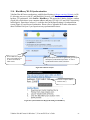
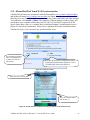
You export workouts as routines by selecting an entry in the list and clicking Export. Then
select a file name (with the VDX file extension) and click OK. To import a routine (e.g. from
your friend), click Import, select a VDX file, and the routine will be stored under My Food.
VidaOne Diet & Fitness for Windows 7, Vista and XP User’s Guide
77