1
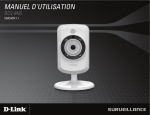
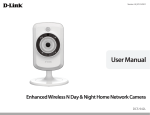
D-Link DCS-942L
Network Camera Setup Manual
for the RavenShoeSecurity.com
Internet Recording Service
Copyright © 2012 RavenShoeSecurity.com
D-Link DSC-942L RavenShoeSecurity.com Setup Manual v2012-04-21(1)
Notice
Copyright © 2012 RavenShoeSecurity.com.
All rights reserved. No part of this document may be reproduced by any
mechanical, photographic, or electronic process without the prior written
permission of the publisher. This document is authorized solely for 1) the use of
RavenShoeSecurity.com customers or 2) review by potential customers.
D-Link and MyDLink
D-Link and MyDLink are trademarks of the D-Link Corporation, Taipei City,
Taiwan. D-Link is not connected in any way to RavenShoeSecurity.com. The
camera configuration information included in this document has not been
reviewed by D-Link and serves solely as a record of our endeavours to use DLink cameras with our service.
Disclaimer
While best efforts have been made to ensure that the content of this document is
accurate and free of errors, the publisher is not responsible for any consequential
or incidental damages arising from the information presented here-in.
Publisher Contact Info
RavenShoeSecurity.com
Box 82, Suite 437
130 Davis Dr.
Newmarket, Ontario
Canada L3Y 8V4
[email protected]
2
Copyright © 2012 RavenShoeSecurity.com
D-Link DSC-942L RavenShoeSecurity.com Setup Manual v2012-04-21(1)
Table of Contents
Introduction ......................................................................................................................... 4
Preparation .......................................................................................................................... 5
DCS-942L Admin Login Credentials ............................................................................. 5
Internet Connection ......................................................................................................... 5
WiFi SSID and WEP/WPA/WPA2 key.......................................................................... 7
Access to Camera’s Internal Website ............................................................................. 7
MyDLink.com ............................................................................................................. 8
DLink Setup Software................................................................................................. 8
Network Places ........................................................................................................... 9
Camera Setup Procedure ................................................................................................... 10
Step 1: Initial Power Up ................................................................................................ 10
Step 2: Access the Camera’s Admin Functions ............................................................ 10
MyDlink.com Admin Access.................................................................................... 11
DLink Setup Wizard Software Admin Access ......................................................... 14
Network Places Admin Access ................................................................................. 16
Step 3: Audio and Video ............................................................................................... 18
Step 4: Time and Date................................................................................................... 19
Step 5: Snapshot ............................................................................................................ 20
Step 6: Motion Detection .............................................................................................. 22
Step 7: Enabling WiFi ................................................................................................... 24
Step 8: Optional SD Recording..................................................................................... 27
Retrieving Video Clips ..................................................................................................... 30
Battery Backup.................................................................................................................. 34
Glossary ............................................................................................................................ 35
3
Copyright © 2012 RavenShoeSecurity.com
D-Link DSC-942L RavenShoeSecurity.com Setup Manual v2012-04-21(1)
Introduction
The D-Link DCS-942L network camera is capable of sending motion activated
pictures over the Internet to RavenShoeSecurity.com while also recording motion
activated video clips (with sound) to a built-in DVR (Digital Video Recorder).
The DCS-942L has a more sophisticated motion detection system than the DCS932L with a finer grained mask. The DCS-942L features a PIR (Passive InfraRed)
sensor that detects the heat signature of people and animals. This PIR can be
used as the sole source of motion detection or can be combined with the video
motion detection system such that either mechanism triggers an event. The
camera can also be configured to ignore the PIR and use the video motion
detection as the sole even trigger.
The DCS-942L has a built in DVR that records to a micro SD slot on the side of
the camera. At the time of this writing the maximum supported chip size is 8GB.
In tests that we have performed the capacity of the micro SD is about 14 hours in
hi-resolution mode (640x480 at 30fps). At low resolution (320x240 at 10fps) the
capacity is approximately 3 days.
This document gives the step by step instructions needed to set up a DCS-942L
network camera to send motion activated pictures to RavenShoeSecurity.com.
The skills required to follow these instructions would include:
1) Be able to use a web browser and have experience with the advanced user
features and settings of Gmail, Hotmail, Yahoo, eBay, Facebook, LinkedIn,
and so forth.
2) Be able to identify and physically access the Internet router or modem
provided by your telephone or cable company. Be comfortable with
connecting computer devices using RJ45 cables.
3) If you are using WiFi to connect your camera you will need to know the
SSID (Service Set Identifier) and WEP/WPA/WPA2 key to activate the
camera’s WiFi functions.
4
Copyright © 2012 RavenShoeSecurity.com
D-Link DSC-942L RavenShoeSecurity.com Setup Manual v2012-04-21(1)
Preparation
In order to set up the camera to operate with RavenShoeSecurity.com you will
need the following items:
DCS-942L Admin Login Credentials
Internet Connection
Optional WiFi SSID and WEP/WPA/WPA2 key
Access to the camera’s Internal Website
RavenShoeSecurity.com ftp Account
DCS-942L Admin Login Credentials
For a DCS-942L out of the box the admin userID is “admin” and the password is
blank. If this has been changed and you do not have this information it will be
necessary to hard reset the camera.
A hard reset is performed by pushing an unfolded paper clip into the small hole
on the back of the camera marked RESET. When you push the paper clip in, you
will feel a click when the reset button has been activated. Hold this pose for 3
seconds or more while the camera power is on. All settings in the camera
(including the admin userID) will be reset to factory defaults.
Internet Connection
If the camera is being hard wired then it will be necessary to install an RJ45
Ethernet jack that provides access to the Internet in the area where the camera is
being deployed. The camera will also need power. Since the camera uses less
than 5 watts of power, the lightest of extensions can be used – such as a 30m
(~100ft) 16 gauge Christmas tree light power cord.
The DCS-942L comes with a 1m (~3ft) RJ45 Ethernet cable. A longer one (up to
30m or ~100ft) can be purchased at a computer supply store. Any RJ45 style
Ethernet connection where a laptop computer can be plugged in and access the
Internet can support a network camera.
5
Copyright © 2012 RavenShoeSecurity.com
D-Link DSC-942L RavenShoeSecurity.com Setup Manual v2012-04-21(1)
If the camera has already been setup to use WiFi then you can skip any specific
WiFi setup procedures listed here.
If the camera has not been setup to use WiFi and you intend to deploy it in the
WiFi mode then there is fair odds that you will need to physically connect the
DCS-942L to your router using an Ethernet cable during the setup process.
Therefore as part of preparation involving a WiFi setup, you should ensure that
you have physical access to the router and that there is power near by for the
camera.
The router is usually a single box that your ISP (Internet Service Provider)
installs to provide Internet service. These single boxes are actually a combo of
modem and router all-in-one. Other times the ISP provides just a modem, and
you add your own router to the mix, which may or may not provide a WiFi
access point. For the purposes of this discussion the router and modem are
assumed to be integrated into one appliance referred to as simply a router.
The router does require power and generally has a few flashing lights. The router
can be identified by a connection from your physical cable TV wire or physical
phone line into the router. This physical wire is the electronic path to and from
the Internet. In a home environment the router is often installed near a TV, if it
has been provided by a cable TV company. In an office environment there is
often a Telephone Room where routers and other telecom equipment are
installed.
Routers generally have 4 or more RJ45 Ethernet connectors to plug in devices
(computers, Internet radios, etc). Some routers also provide wireless access using
WiFi and may or may not have one to three antennae. Any devices connected to
the router either physically with an RJ45 Ethernet cable or wirelessly through
WiFi are said to be on the LAN (Local Area Network).
Devices on the LAN can initiate connections with other devices on the LAN or
the Internet (known as the WAN [Wide Area Network]). However devices on the
WAN are not permitted to initiate connections with devices on the LAN as the
router will not allow it. In this capacity the router functions as a firewall.
6
Copyright © 2012 RavenShoeSecurity.com
D-Link DSC-942L RavenShoeSecurity.com Setup Manual v2012-04-21(1)
WiFi SSID and WEP/WPA/WPA2 key
There are 2 ways to setup the WiFi function of the camera. The easy way is to use
WPS (Wireless Protected Setup). This, as described in the WiFi setup section,
involves pressing the WPS button on the router and the camera at the same time
which causes the router to tell the camera the SSID and key. It is a very easy and
quick method to setup WiFi devices.
However not all WPS functionality is compatible and there are fair odds (in our
humble experience) that it will not work. So Plan “B” is to use the camera’s
admin functions to identify the WiFi networks that it can see and then to
manually enter the key. So for Plan “B” you will need the SSID (aka: wireless
network name) and key.
If you do not have this information at hand then best to call your ISP if they are
ones that provided the router. If they provided just the modem then they will not
be able to help with this problem. ISP tech staff generally can login to routers that
they provide and get this information for you.
Alternatively if you know the IP address, admin userID, and admin password
for your router’s admin functions, you can login yourself from any PC on the
LAN. Since routers are different, it is impossible to give a specific description.
But WiFi routers generally have a wireless settings page where you can see what
the SSID and wireless key is. Accessing the admin functions of a router is
recommended for advanced computer users only. It is very easy to put your
LAN completely out of kilter by accidentally pushing the wrong buttons.
Access to Camera’s Internal Website
During the setup you will need to connect a computer browser to the internal
admin website of your camera. While each camera has a full blown computer
inside, there is no keyboard, mouse, or screen. To provide a human interface for
this computer the camera has an “internal website” with admin and setup
functions as well as access to live video. To access the camera’s admin functions
you may use MyDlink.com – which means you can reconfigure the camera from
anywhere in the world and from pretty much any device (computer or smart
phone). Alternatively you can access the admin functions of the camera from a
7
Copyright © 2012 RavenShoeSecurity.com
D-Link DSC-942L RavenShoeSecurity.com Setup Manual v2012-04-21(1)
computer connected to the same LAN (Local Area Network) as the subject
camera.
MyDLink.com
Setting up MyDlink.com is out of scope for this document. Refer to the
documentation for the DCS-942L for more information. Also, at the time of this
writing, D-Link provides free technical support for users setting up
MyDlink.com within the first 30 days after a camera purchase.
DLink Setup Software
Without MyDlink.com functionality it will be necessary to download the D-Link
setup software for Windows XP, Windows 7, and Mac using this link:
http://www.dlink.ca/products/?pid=DCS-932L&tab=3
Click on the Additional Downloads link. Scroll down to the PC Setup Wizard SE for
Windows XP or Windows 7 users or Mac OSX Setup Utility for Mac users.
Download and install this software. Run it once to make sure it is working. It
should report all the D-Link cameras that you have powered up and connected
on your LAN. If you have none then this software should show that fact as well.
Note that the above software is downloaded from the support page for the DCS932L rather than the DCS-942L. The D-Link setup utility for the DCS-932L is a
small file that can be downloaded quickly. It detects all the D-Link cameras on
your network and suits the purposes of this manual. The DCS-942L support page
only provides a copy of the Install CD in downloadable form. This file is much
bigger and more involved to install.
If the full CD Install better suits your purposes, then please feel free to use it as
the DLink setup utility is included. You may download the full CD Install here:
http://www.dlink.ca/products/?pid=DCS-942L&tab=3
Click on the Additional Downloads link. Click on the Download Now button for the
Install CD.
The main purpose of the DLink setup software, for our purposes, will be to find
the LAN IP address of the camera when it powers up and connects to your
8
Copyright © 2012 RavenShoeSecurity.com
D-Link DSC-942L RavenShoeSecurity.com Setup Manual v2012-04-21(1)
router. The setup software will then open a browser to the camera’s internal
website where you can access the admin and setup functions. You can also use
this same IP address from any other device on the LAN (iPad, SmartPhone) as a
URL to access the camera.
Network Places
DLink setup software is definitely required for Mac. However if you are using
Windows XP or Windows 7 and have the right router and the right updates and
favourable planetary alignments then your camera(s) may show up in Network
Places. Or they may not. The feature required of Windows and your Router for
this to operate is uPNP (Universal Plugs aNd Play). But it is a frustrating thing to
get working. It could make a person climb to the top of a flagpole and set their
hair on fire! So our approach is either uPNP works or it’s best to immediately
switch to using the D-Link Setup SE software. It is worth noting that when uPNP
is working that it seems quite reliable – so it’s worth a shot.
9
Copyright © 2012 RavenShoeSecurity.com
D-Link DSC-942L RavenShoeSecurity.com Setup Manual v2012-04-21(1)
Camera Setup Procedure
Step 1: Initial Power Up
To start the camera setup process, first connect the camera to the router using the
supplied RJ45 Ethernet cable. Power the camera up and observe that the light on
the back of the camera turns red. Wait a minute or so for the light on the back of
the camera to turn green. If the light does not turn green then unplug the cable
from the camera and connect it to a laptop and verify that the Internet works. If
the Internet is working then contact D-Link for support as it would seem there is
something wrong with your camera.
Step 2: Access the Camera’s Admin Functions
The next setup is to access the camera’s internal website. You have 3 possible
options for this:
Method
MyDLink.com
DLink Setup software
Network Places
Platform
All computers, laptops, operating systems,
smart phones, Android, iPhone, Blackberry,…
Windows XP, Windows 7, and Mac
Windows XP and Windows 7 but only works
on randomly selected systems.
10
Copyright © 2012 RavenShoeSecurity.com
D-Link DSC-942L RavenShoeSecurity.com Setup Manual v2012-04-21(1)
MyDlink.com Admin Access
Login to your MyDLink.com account:
11
Copyright © 2012 RavenShoeSecurity.com
D-Link DSC-942L RavenShoeSecurity.com Setup Manual v2012-04-21(1)
Click the Settings tab, the click the Advanced Settings button:
12
Copyright © 2012 RavenShoeSecurity.com
D-Link DSC-942L RavenShoeSecurity.com Setup Manual v2012-04-21(1)
Login a second time (for security concerns) with your MyDLink.com account:
If it’s the first time you have used MyDlink.com to access the admin functions of
your cameras you will be asked to make a security certificate exception.
Next you will be prompted for the Login admin userID and password for your
camera. This is not the same as your MyDLink.com credentials. For a new
camera or one that has been hard reset the User Name is “admin” and the
Password is blank.
Skip ahead to Setup Step 3…
13
Copyright © 2012 RavenShoeSecurity.com
D-Link DSC-942L RavenShoeSecurity.com Setup Manual v2012-04-21(1)
DLink Setup Wizard Software Admin Access
The DLink Setup Wizard software is the sure fire way to access your camera’s
admin functions from any computer that is on the same LAN as the camera.
There are versions for both the PC and the Mac.
The Windows XP Version is shown below:
If you have powered down or powered up any DLink cameras since you started
the wizard then click the Search button to get a fresh list. Click on the subject
camera to highlight it (as shown) and then click the Link button to start a
browser.
14
Copyright © 2012 RavenShoeSecurity.com
D-Link DSC-942L RavenShoeSecurity.com Setup Manual v2012-04-21(1)
You will then be asked to login to the camera’s admin website:
Click on the Setup tab to navigate to this screen:
Now skip ahead to Step 3…
15
Copyright © 2012 RavenShoeSecurity.com
D-Link DSC-942L RavenShoeSecurity.com Setup Manual v2012-04-21(1)
Network Places Admin Access
Open My Network Places (on XP) or Network Places (Windows 7) to see the
following display. The four monitor looking icons are network cameras.
Double click the subject camera and you should then get asked for the camera’s
admin userID and password.
16
Copyright © 2012 RavenShoeSecurity.com
D-Link DSC-942L RavenShoeSecurity.com Setup Manual v2012-04-21(1)
Click on the Setup tab and you should now be at the Camera Admin Website
Setup Page:
17
Copyright © 2012 RavenShoeSecurity.com
D-Link DSC-942L RavenShoeSecurity.com Setup Manual v2012-04-21(1)
Step 3: Audio and Video
Click the Audio and Video menu and set the resolution for Video Profile 3 to
640x480, FPS to 10, and JPEG Quality to Good. Click Save Settings to update.
18
Copyright © 2012 RavenShoeSecurity.com
D-Link DSC-942L RavenShoeSecurity.com Setup Manual v2012-04-21(1)
Step 4: Time and Date
Click on the Time and Date menu. Under Time Configuration select the
appropriate Time Zone. Check or Uncheck Daylight Savings Time, depending on
your location. Under Automatic Time Configuration Check the Synchronize with
NTP Server box and use the dropdown box to Select NTP server. Click the Save
Settings button.
19
Copyright © 2012 RavenShoeSecurity.com
D-Link DSC-942L RavenShoeSecurity.com Setup Manual v2012-04-21(1)
Step 5: Snapshot
Click on the Snapshot menu to see the following page:
Check the Snapshot checkbox.
You can choose either a Single snapshot or 6 snapshots depending on your needs. If
you are using the on-board micro SD to record video clips then you likely would
prefer the Single snapshot option. That way whenever there is a motion event
there will be: 1) a video clip stored on the SD as well as 2) a snapshot sent to
RavenShoeSecurity.com. If you see an interesting image on
RavenShoeSecurity.com you can use the timestamp for that image to easily find
the related video clip (see below: Retrieving Video Clips).
20
Copyright © 2012 RavenShoeSecurity.com
D-Link DSC-942L RavenShoeSecurity.com Setup Manual v2012-04-21(1)
On the other hand if you are not using the micro SD or want more information
captured by RavenShose.com than a single shot then select the 6 snapshot option.
Generally a 1 second interval is good.
Check the FTP box and enter 21 for the Port, / for the Path, and check the Passive
Mode box. Send next FTP after should be set to 10. The Filename Prefix will become
the name that is shown on RavenShoeSecurityl.com home page for this camera. If
you have multiple cameras make sure they each have a unique name or else the
RavenShoeSecurity.com service will intermix the pictures into a single stream.
Copy and paste the FTP Server, User Name, and Password from the Settings area of
your RavenShoeSecurity.com home page as shown here. Easiest to open 2
browsers for this task.
Click on Save Settings.
21
Copyright © 2012 RavenShoeSecurity.com
D-Link DSC-942L RavenShoeSecurity.com Setup Manual v2012-04-21(1)
Step 6: Motion Detection
Click on the Motion Detection menu to see the following page:
If you want to use the PIR (Passive InfraRed) then check the Enable PIR box. The
PIR is the round opaque white object above the lens. It senses other objects that
give off heat such as people and animals. The mask does not effect the PIR.
If you want to enable video motion detection the check the Enable Video Motion
box. With motion detection enabled, the camera constantly and automatically
compares one frame with the previous frame to determine if there were any
significant changes. If so then the camera declares a motion event and sends a
22
Copyright © 2012 RavenShoeSecurity.com
D-Link DSC-942L RavenShoeSecurity.com Setup Manual v2012-04-21(1)
picture to RavenShoeSecurity.com and optionally records a video clip to the built
in micro SD.
You can check both methods of motion detection of you like, but when setting up
the video motion it is often easier when the PIR is turned off during the setup
process.
For video motion detection you can further tune the camera by drawing a mask
and setting the sensitivity level. The Clear button will completely erase the mask
so you can start over again. The Refresh Image button will fetch the latest image
from the camera and use it as the back-drop. Use this button if you have moved
the camera since bringing up the Motion Detection page so that your mask is
accurate.
If you use a video motion mask that blocks out some of the image you should
have the camera fastened down. If the camera is accidentally moved then the
mask will no longer be correct.
Click on the Draw motion area radio button. Then click and drag within the image
to fill in the areas of interest with a red cross-hatch pattern where you want to
camera to look for motion. Click on the Erase motion area radio button to change
the mode such that clicking and dragging will erase cross-hatched areas.
Note that in theory it is possible to draw any shape of mask but it has been
observed problems with irregular shaped masks. When this problem manifests
the camera constantly fires images when nothing is happening. Changing the
mask has no effect. Only a hard reset of the camera will clear this condition. So
our advice is to use simple rectangular shapes like the one shown above.
The higher the Sensitivity the smaller the amount of motion required to set off an
event. The Sensitivity setting has no effect on the PIR. 65% is a good starting point
for Sensitivity.
Click Save Settings.
Do a happy dance in front of the camera. Refresh your RavenShoeSecurity.com
home page to see the images.
23
Copyright © 2012 RavenShoeSecurity.com
D-Link DSC-942L RavenShoeSecurity.com Setup Manual v2012-04-21(1)
Step 7: Enabling WiFi
There are two ways to setup WiFi. One is called WPS (Wireless Protected Setup)
that is quite simple, however it does not work with all routers. But it is worth a
shot.
To use WPS press and hold the WPS button on the back of the DCS-942L camera
until the blue light starts flashing (about 7 seconds). Then immediately press the
WPS button on the router. With some routers it seems to be better to repeatedly
press the WPS button until the blue light on the camera stops flashing. With
other routers it is best to just hold the WPS button down until the blue light stops
flashing. In any case, when the blue light stops flashing the green light on the
front of the camera should come one within a minute. If so then bonus – your
camera has been tuned into your WiFi network using WPS.
If you believe WPS has been successful then remove the camera’s power and
disconnect the RJ45 cable. Power the camera up. The light on the front should
first be red and then within a minute it should turn green – indicating that
camera setup is complete!
If WPS does not work right away then, in our experience, it is better to just
abandon this approach and use manual method. This will be easier than trying to
debug WPS.
24
Copyright © 2012 RavenShoeSecurity.com
D-Link DSC-942L RavenShoeSecurity.com Setup Manual v2012-04-21(1)
Click the Wireless Setup menu under Setup.
Check the Wireless box.
You can click on the Site Survey list box to see what WiFi networks your camera
can “see”. Use the Rescan button to refresh this list. Selecting one of the networks
displayed in the list box causes it to get transferred to the Network Name box. The
Network Name my also be referred to as the SSID (Service Set Identifier). You can
also type or paste into the Network Name box.
The Wireless Mode should be Infrastructure. Generally the camera automatically
detects the Security Mode and Cipher Type.
25
Copyright © 2012 RavenShoeSecurity.com
D-Link DSC-942L RavenShoeSecurity.com Setup Manual v2012-04-21(1)
The Key is the WEP/WPA/WPA2 key for your WiFi network. Remember that
upper and lower case letters are significant on WiFi keys.
Click Save Settings.
Unplug the camera’s power and disconnect the Ethernet cable. Re-power the
camera. The red light on the back should light up and then within a minute the
light should turn green indicating the camera is on-line.
Do your happy dance in front of the camera and refresh your
RavenShoeSecurity.com home page to see the images.
26
Copyright © 2012 RavenShoeSecurity.com
D-Link DSC-942L RavenShoeSecurity.com Setup Manual v2012-04-21(1)
Step 8: Optional SD Recording
One of the great features of the DCS-942L is that it has a built in micro SD drive
that can (at the time of this writing) handle up to an 8GB device. The camera can
store 5,000+ video clips that average 1.5MB in length.
Fitted with a micro SD, the DCS-942L becomes a combo camera/DVR in a very
tiny package. Adding a RavenShoeSecurity.com recording plan provides for
effortless automatic offsite backup of motion activated real time images which
can be viewed and shared over the Internet. As well, should there be an Internet
outage the camera can continue recording on it’s internal SD.
You can view the recordings through the internal website (as described below) or
you can pop the micro SD, put the chip in a larger SD adapter and then put that
combo into a PC, laptop, or Mac and play the files using media player software.
If your computer does not accept SD media, SD readers that plug into a USB port
are readily available at most computer stores for a modest cost.
It is a good practice to use two micro SDs. When popping one out to view a PC
or Mac, pop in the other one so the camera can continue to record. Keep in mind
that when ever you install a micro SD chip that the camera needs to be power
cycled.
Apple Quicktime and VLC are great media players that can be downloaded for
free at these sites:
Apple Quicktime
VLC Media Player
http://www.apple.com/quicktime/download/
http://www.videolan.org/vlc/
27
Copyright © 2012 RavenShoeSecurity.com
D-Link DSC-942L RavenShoeSecurity.com Setup Manual v2012-04-21(1)
To setup the built-in DVR first click on the Audio and Video menu to see this page:
Under Video Profile 2 set the Encoding Type to H.264, Resolution to 640x480, FPS to
30bps, and bps to 1Mbps.
Click on Save Settings.
28
Copyright © 2012 RavenShoeSecurity.com
D-Link DSC-942L RavenShoeSecurity.com Setup Manual v2012-04-21(1)
Click on the SD Recording Menu to see the following page:
Check the SD Recording box. Set Trigger By to Motion. Uncheck the Only during
box.
The example shows a Pre-event recording value of 3 seconds (with a possible
range of 0 to 5) and a Post-event recording value of 2 seconds (with a possible
range of 0 to 60). Feel free to adjust these to best suit the situation.
Click on the Video radio button. Set the Keep Free Space to 64. Checking the Cyclic
box.
Click the Save Settings button.
29
Copyright © 2012 RavenShoeSecurity.com
D-Link DSC-942L RavenShoeSecurity.com Setup Manual v2012-04-21(1)
Retrieving Video Clips
To retrieve video clips click on the SD Management menu to see this page:
30
Copyright © 2012 RavenShoeSecurity.com
D-Link DSC-942L RavenShoeSecurity.com Setup Manual v2012-04-21(1)
Note that the Files Per Page value starts as 5. This may hide some recordings.
When Files Per Page is set to 50 the following is displayed:
Note that only the dates that have one or more recordings are displayed.
31
Copyright © 2012 RavenShoeSecurity.com
D-Link DSC-942L RavenShoeSecurity.com Setup Manual v2012-04-21(1)
Click on the date of interest and an hourly break down is presented:
Note that only the hours for which there are recordings are displayed.
32
Copyright © 2012 RavenShoeSecurity.com
D-Link DSC-942L RavenShoeSecurity.com Setup Manual v2012-04-21(1)
Click on an hour of interest and all the video clips for that hour are listed:
The date and time are encoded in each file name:
yyyymmdd_hhmmssD.avi
The size (in KB) shows the relative length of each clip.
If you click the Format SD Card button and then click OK all the files will be
erased. It is recommended that all new micro SD chips be formatted as means of
testing.
33
Copyright © 2012 RavenShoeSecurity.com
D-Link DSC-942L RavenShoeSecurity.com Setup Manual v2012-04-21(1)
Battery Backup
To further enhance the security offered by the DCS-942L consider adding a UPS
(Uninterruptible Power Supply) to the mix. These devices condition the electrical
supply, suppress surges, and provide power for a brief period of time should
there be an interruption. Typically a desktop computer and monitor use about
150 watts and a UPS will power them for 10 minutes or so. As most power
outages are short these small UPS devices provide coverage most of the time and
give the computer user time to cleanly shut down.
Compared to a desktop computer system, the DCS-942L uses under 5 watts of
power. This greatly extends the time that a small UPS can provide power. In tests
that we have performed, a UPS rated at 425VA will power the camera for over 3
hours. The UPS cost $50.
In more remote areas where power may not be fully reliable (such as at a cottage)
adding a UPS will give you full camera/DVR coverage through power and
Internet outage. If thieves cut the power to your building the DCS-942L with a
425VA UPS can record motion activated video+sound to it’s micro SD for 3 hours
or more.
34
Copyright © 2012 RavenShoeSecurity.com
D-Link DSC-942L RavenShoeSecurity.com Setup Manual v2012-04-21(1)
Glossary
DVR – Digital Video Recorder
GB – GigaByte (1,000,000,000 bytes)
IP – Internet Protocol
IR – Infrared
ISP – Internet Service Provider
KB – KiloByte (1,000 bytes)
LAN – Local Area Network isolated from the Internet by a router/firewall
MB – MegaByte (1,000,000 bytes)
RJ45 – Physical Ethernet connector
SSID – Service Set Identifier (name of your WiFi network)
UPS - Uninterruptible Power Supply
URL – Universal Resource Locator (e.g. website name)
VA – Volt Amps
WAN – Wide Area Network aka: the Internet
WEP/WPA/WPA2 – Encryption methods used for WiFi.
WiFi – Wireless IP protocol used in homes and businesses
WPS – Wireless Protected Setup
35