1
®
VERITAS NetBackup™
Microsoft Windows
User’s Guide
Release 3.2
Windows NT/95/98
May, 1999
P/N 100-001004
© 1994 - 1999 VERITAS® Software Corporation. All rights reserved.
Portions of this software are derived from the RSA Data Security, Inc. MD5 Message-Digest Algorithm. Copyright 1991-92,
RSA Data Security, Inc. Created 1991. All rights reserved.
TRADEMARKS
VERITAS, VxVM, VxVA, VxFS, FirstWatch, and the VERITAS logo are registered trademarks of VERITAS Software
Corporation in the United States and other countries.
VERITAS Volume Manager, VERITAS File System, VERITAS NetBackup, VERITAS HSM, VERITAS Media Librarian,
CVM, VERITAS Quick I/O, and VxSmartSync are trademarks of VERITAS Software Corporation.
Other products mentioned in this document are trademarks or registered trademarks of their respective holders.
Contents
Preface . . . . . . . . . . . . . . . . . . . . . . . . . . . . . . . . . . . . . . . . . . . . . . . . .
ix
1. Introduction . . . . . . . . . . . . . . . . . . . . . . . . . . . . . . . . . . . . . . . . . . . . .
1
Backup and Archive Operations . . . . . . . . . . . . . . . . . . . . . . . . . . . . . . . . .
2
User Directed Backups and Archives . . . . . . . . . . . . . . . . . . . . . . . . .
2
Server Directed Backups and Archives . . . . . . . . . . . . . . . . . . . . . . . .
2
Full Backup . . . . . . . . . . . . . . . . . . . . . . . . . . . . . . . . . . . . . . . . . . .
2
Cumulative-Incremental Backup. . . . . . . . . . . . . . . . . . . . . . . . . .
3
Differential-Incremental Backup . . . . . . . . . . . . . . . . . . . . . . . . . .
3
True Image Backup . . . . . . . . . . . . . . . . . . . . . . . . . . . . . . . . . . . . .
3
Restore Operations . . . . . . . . . . . . . . . . . . . . . . . . . . . . . . . . . . . . . . . . . . . .
4
File Permissions and Open Files. . . . . . . . . . . . . . . . . . . . . . . . . . . . . .
4
Access Control Lists . . . . . . . . . . . . . . . . . . . . . . . . . . . . . . . . . . . . . . . .
4
Server Directed Restore . . . . . . . . . . . . . . . . . . . . . . . . . . . . . . . . . . . . .
4
User Directed Restores. . . . . . . . . . . . . . . . . . . . . . . . . . . . . . . . . . . . . .
5
Alternate Client Restore . . . . . . . . . . . . . . . . . . . . . . . . . . . . . . . . .
5
Restore from True Image Backup . . . . . . . . . . . . . . . . . . . . . . . . .
5
View Status. . . . . . . . . . . . . . . . . . . . . . . . . . . . . . . . . . . . . . . . . . . . . . . . . . .
6
2. User Directed Operations . . . . . . . . . . . . . . . . . . . . . . . . . . . . . . . . . .
7
iii
Start the Browser . . . . . . . . . . . . . . . . . . . . . . . . . . . . . . . . . . . . . . . . . . . . . .
8
Perform Backups or Archives . . . . . . . . . . . . . . . . . . . . . . . . . . . . . . . . . . .
10
Perform Restores . . . . . . . . . . . . . . . . . . . . . . . . . . . . . . . . . . . . . . . . . . . . . .
16
View the Status of a User Directed Operation . . . . . . . . . . . . . . . . . . . . . .
27
Advanced Restore Procedures . . . . . . . . . . . . . . . . . . . . . . . . . . . . . . . . . . .
29
Selecting Specific Backup Dates to Restore . . . . . . . . . . . . . . . . . . . . .
29
Search Procedure . . . . . . . . . . . . . . . . . . . . . . . . . . . . . . . . . . . . . . . . . .
30
Restore an Earlier Version of a Folder . . . . . . . . . . . . . . . . . . . . . . . . .
32
Restoring a True Image of a Folder . . . . . . . . . . . . . . . . . . . . . . . . . . .
34
Restoring All Files, Folders, or Registry Keys to an Alternate Path
36
Restoring Specific Files, Folders, or Registry Keys to an Alternate Path
37
Restore Using a Temporary Filename . . . . . . . . . . . . . . . . . . . . . . . . .
39
Proxy Restore . . . . . . . . . . . . . . . . . . . . . . . . . . . . . . . . . . . . . . . . . . . . .
40
3. Reference . . . . . . . . . . . . . . . . . . . . . . . . . . . . . . . . . . . . . . . . . . . . . . .
iv
43
NetBackup Icons . . . . . . . . . . . . . . . . . . . . . . . . . . . . . . . . . . . . . . . . . . . . . .
44
Menus . . . . . . . . . . . . . . . . . . . . . . . . . . . . . . . . . . . . . . . . . . . . . . . . . . . . . . .
45
Actions Menu . . . . . . . . . . . . . . . . . . . . . . . . . . . . . . . . . . . . . . . . . . . . .
45
Edit Menu . . . . . . . . . . . . . . . . . . . . . . . . . . . . . . . . . . . . . . . . . . . . . . . .
47
View Menu . . . . . . . . . . . . . . . . . . . . . . . . . . . . . . . . . . . . . . . . . . . . . . .
48
Backup Menu . . . . . . . . . . . . . . . . . . . . . . . . . . . . . . . . . . . . . . . . . . . . .
50
Restore Menu . . . . . . . . . . . . . . . . . . . . . . . . . . . . . . . . . . . . . . . . . . . . .
51
Window Menu . . . . . . . . . . . . . . . . . . . . . . . . . . . . . . . . . . . . . . . . . . . .
53
Help Menu . . . . . . . . . . . . . . . . . . . . . . . . . . . . . . . . . . . . . . . . . . . . . . .
54
Windows . . . . . . . . . . . . . . . . . . . . . . . . . . . . . . . . . . . . . . . . . . . . . . . . . . . .
55
NetBackup Window Icons. . . . . . . . . . . . . . . . . . . . . . . . . . . . . . . . . . .
55
Backup, Archive, and Restore - NetBackup Window . . . . . . . . . . . .
58
NetBackup User’s Guide - Microsoft Windows
NetBackup Backup Window . . . . . . . . . . . . . . . . . . . . . . . . . . . . . . . . .
59
Buttons . . . . . . . . . . . . . . . . . . . . . . . . . . . . . . . . . . . . . . . . . . . . . . .
60
Panes . . . . . . . . . . . . . . . . . . . . . . . . . . . . . . . . . . . . . . . . . . . . . . . . .
60
NetBackup Restore Window . . . . . . . . . . . . . . . . . . . . . . . . . . . . . . . . .
61
Buttons . . . . . . . . . . . . . . . . . . . . . . . . . . . . . . . . . . . . . . . . . . . . . . .
62
Panes . . . . . . . . . . . . . . . . . . . . . . . . . . . . . . . . . . . . . . . . . . . . . . . . .
63
NetBackup History Pane . . . . . . . . . . . . . . . . . . . . . . . . . . . . . . . .
64
NetBackup Configuration Dialog Box . . . . . . . . . . . . . . . . . . . . . . . . . . . .
67
General Property Sheet . . . . . . . . . . . . . . . . . . . . . . . . . . . . . . . . . . . . .
67
Exclude List Property Sheet . . . . . . . . . . . . . . . . . . . . . . . . . . . . . . . . .
69
Include List Property Sheet . . . . . . . . . . . . . . . . . . . . . . . . . . . . . . . . . .
70
Servers Property Sheet. . . . . . . . . . . . . . . . . . . . . . . . . . . . . . . . . . . . . .
71
Clients Property Sheet . . . . . . . . . . . . . . . . . . . . . . . . . . . . . . . . . . . . . .
73
Backups Property Sheet . . . . . . . . . . . . . . . . . . . . . . . . . . . . . . . . . . . . .
75
Network Property Sheet . . . . . . . . . . . . . . . . . . . . . . . . . . . . . . . . . . . .
77
Virus Protection Property Sheet . . . . . . . . . . . . . . . . . . . . . . . . . . . . . .
78
Activity Logs . . . . . . . . . . . . . . . . . . . . . . . . . . . . . . . . . . . . . . . . . .
79
Limitations . . . . . . . . . . . . . . . . . . . . . . . . . . . . . . . . . . . . . . . . . . . .
80
Suggestions . . . . . . . . . . . . . . . . . . . . . . . . . . . . . . . . . . . . . . . . . . .
80
Troubleshooting Property Sheet . . . . . . . . . . . . . . . . . . . . . . . . . . . . . .
81
Dialog Boxes . . . . . . . . . . . . . . . . . . . . . . . . . . . . . . . . . . . . . . . . . . . . . . . . .
82
Options Dialog Box . . . . . . . . . . . . . . . . . . . . . . . . . . . . . . . . . . . . . . . . .
82
Preview List Dialog Box . . . . . . . . . . . . . . . . . . . . . . . . . . . . . . . . . . . . . .
83
View Status Dialog Box . . . . . . . . . . . . . . . . . . . . . . . . . . . . . . . . . . . . . .
85
Search Backups Dialog Box . . . . . . . . . . . . . . . . . . . . . . . . . . . . . . . . . .
88
Backup Marked Files Dialog Box . . . . . . . . . . . . . . . . . . . . . . . . . . . . . . .
91
Restore Marked Files Dialog Box . . . . . . . . . . . . . . . . . . . . . . . . . . . . . . .
92
Contents
v
NetBackup Backup Options Dialog Box . . . . . . . . . . . . . . . . . . . . . . .
94
Servers Property Sheet . . . . . . . . . . . . . . . . . . . . . . . . . . . . . . . . . .
94
Backups Property Sheet . . . . . . . . . . . . . . . . . . . . . . . . . . . . . . . . .
96
NetBackup Restore Options Dialog Box . . . . . . . . . . . . . . . . . . . . . . .
98
Clients Property Sheet . . . . . . . . . . . . . . . . . . . . . . . . . . . . . . . . . .
98
Servers Property Sheet . . . . . . . . . . . . . . . . . . . . . . . . . . . . . . . . . .
100
NetBackup Client Job Tracker Dialog Box . . . . . . . . . . . . . . . . . . . . . . . .
102
A. System Administrator . . . . . . . . . . . . . . . . . . . . . . . . . . . . . . . . . . . . . 105
Free Browse . . . . . . . . . . . . . . . . . . . . . . . . . . . . . . . . . . . . . . . . . . . . . . . . . .
106
NetBackup Restore Options for System Administrators . . . . . . . . . . . . .
109
Servers Property Sheet. . . . . . . . . . . . . . . . . . . . . . . . . . . . . . . . . . . . . .
109
Source Clients Property Sheet . . . . . . . . . . . . . . . . . . . . . . . . . . . . . . .
111
Destination Clients Property Sheet . . . . . . . . . . . . . . . . . . . . . . . . . . .
113
NetBackup Configuration . . . . . . . . . . . . . . . . . . . . . . . . . . . . . . . . . . . . . .
115
General Property Sheet . . . . . . . . . . . . . . . . . . . . . . . . . . . . . . . . . . . . .
115
Exclude List Property Sheet . . . . . . . . . . . . . . . . . . . . . . . . . . . . . . . . .
119
Include List Property Sheet . . . . . . . . . . . . . . . . . . . . . . . . . . . . . . . . . .
121
Network Property Sheet . . . . . . . . . . . . . . . . . . . . . . . . . . . . . . . . . . . .
123
Troubleshooting Property Sheet . . . . . . . . . . . . . . . . . . . . . . . . . . . . . .
124
Troubleshooting Logs . . . . . . . . . . . . . . . . . . . . . . . . . . . . . . . . . . .
127
Syntax Rules for Exclude Lists and Include Lists . . . . . . . . . . . . . . . . . . .
128
Syntax Rules . . . . . . . . . . . . . . . . . . . . . . . . . . . . . . . . . . . . . . . . . . . . . .
128
Example of an Exclude List. . . . . . . . . . . . . . . . . . . . . . . . . . . . . . . . . .
130
B. NetBackup Commands . . . . . . . . . . . . . . . . . . . . . . . . . . . . . . . . . . . . 131
vi
bparchive . . . . . . . . . . . . . . . . . . . . . . . . . . . . . . . . . . . . . . . . . . . . . . . . . . . .
132
bpbackup . . . . . . . . . . . . . . . . . . . . . . . . . . . . . . . . . . . . . . . . . . . . . . . . . . . .
137
bplist . . . . . . . . . . . . . . . . . . . . . . . . . . . . . . . . . . . . . . . . . . . . . . . . . . . . . . . .
144
NetBackup User’s Guide - Microsoft Windows
bprestore. . . . . . . . . . . . . . . . . . . . . . . . . . . . . . . . . . . . . . . . . . . . . . . . . . . . .
150
Glossary . . . . . . . . . . . . . . . . . . . . . . . . . . . . . . . . . . . . . . . . . . . . . . . . 159
Index . . . . . . . . . . . . . . . . . . . . . . . . . . . . . . . . . . . . . . . . . . . . . . . . . . . 167
Contents
vii
viii
NetBackup User’s Guide - Microsoft Windows
Preface
This manual describes how to use NetBackup to back up and restore folders
and files that reside on a Microsoft Windows PC.
For specific information about the NetBackup Server software, refer to:
• NetBackup Release Notes - UNIX, if you have a UNIX server,
or
• NetBackup Release Notes - Windows NT Server if you have a Windows NT
server.
ix
Organization
This guide is intended primarily for administrators and users of Microsoft
Windows PCs that are NetBackup clients. The guide will also be useful to
system administrators of the NetBackup master server. It is arranged as
follows:
• Chapter 1, “Introduction” provides an overview of NetBackup, describes
how the end user operates NetBackup, and describes technical terms and
concepts. Read this chapter to become familiar with the world of
NetBackup.
• Chapter 2, “User Directed Operations” explains how to use NetBackup to
perform backup, archive, and restore operations.
• Chapter 3, “Reference” describes the various windows, screens, and menus
associated with NetBackup.
• Appendix A, “System Administrator” contains information important to the
NetBackup system administrator.
• Appendix B, “NetBackup Commands” is a detailed listing of commands
available for use on the NetBackup client.
x
NetBackup User’s Guide - Microsoft Windows
Related Documents Books
The following documents provide related information. For a more detailed
listing of NetBackup documents, refer to NetBackup Release Notes - UNIX or
NetBackup Release Notes - Windows NT Server.
If you have a UNIX server, refer to these documents:
• NetBackup Release Notes - UNIX
Provides important information about UNIX NetBackup server software,
such as the platforms and operating systems that are supported and
operating notes that may not be in the manuals or the online help.
• NetBackup System Administrator’s Guide - UNIX
Explains how to configure and manage NetBackup on a UNIX system.
• Media Manager System Administrator’s Guide - UNIX
Explains how to configure and manage the storage devices and media on
UNIX NetBackup servers. Media Manager is part of NetBackup.
• NetBackup Troubleshooting Guide - UNIX
Provides troubleshooting information for UNIX based NetBackup products.
If you have a Windows NT server, refer to these documents:
• NetBackup Release Notes - Windows NT Server
Provides important information about Windows NT NetBackup server
software, such as the platforms and operating systems that are supported and
operating notes that may not be in the manuals or the online help.
• NetBackup System Administrator’s Guide - Windows NT Server
Explains how to configure and manage NetBackup on a Windows NT server
system.
• Media Manager System Administrator’s Guide - Windows NT Server
Explains how to configure and manage the storage devices and media on
Windows NT NetBackup servers. Media Manager is part of NetBackup.
• NetBackup Troubleshooting Guide - Windows NT Server
Provides troubleshooting information for Windows NT based NetBackup
products.
Preface
xi
Conventions
The following explains typographical and other conventions used in this guide.
Type Style
The following table describes the typographic conventions used in this guide.
Typeface
Usage
Examples
courier
Computer output; user input;
names of commands, files, and
directories
You have mail.
The mkdir command
creates a new directory.
mkdir new
italics
bold
New terms; document titles;
words to be emphasized;
variables to be substituted with
a real name or value
mkdir filename
Refer to the User’s Guide for
details.
Glossary terms
Notes and Cautions
Note: This is a Note and is used to call attention to information that makes it
easier to use the product or helps you to avoid problems.
CAUTION ! This is a Caution and is used to warn you about situations that
can cause data loss.
Keyboard Sequences
Some keyboard command sequences use two or more keys at the same time.
For example, you may have to hold down the Ctrl key before you press another
key. When this type of command is referenced, the keys are connected by
hyphens. For example, Ctrl-t.
xii
NetBackup User’s Guide - Microsoft Windows
Command Usage
The following conventions are frequently used in the synopsis of command
usage.
brackets [ ]
The enclosed command line component is optional.
Vertical bar or pipe (|)
Separates optional arguments from which the user can choose. For
example, when a command has the following format:
command [arg1|arg2]
the user can use either arg1 or arg2.
Getting Help
For license information or information about VERITAS service packages,
contact VERITAS Customer Support.
US Customers: 1-800-342-0652
International Customers: +1 (650) 335-8555
Fax: (650) 335-8428
VERITAS Customer Support can also be reached through electronic mail at:
[email protected]
Preface
xiii
xiv
NetBackup User’s Guide - Microsoft Windows
Introduction
1
During installation, the NetBackup Browser is configured to work with a specific
NetBackup client. When a user starts an operation using the NetBackup Browser,
the browser software sends the appropriate messages to its designated
NetBackup client. The software on the NetBackup client then communicates with
the server and handles the client side of the operation.
NetBackup client software enables server directed backup, archive, and restore
operations on entire folders or individual files that reside on your NetBackup
client. This software also allows you to perform user directed backup, archive,
and restore operations on your NetBackup client, without logging into the
NetBackup master server. Once you start a user directed operation, the
NetBackup process runs under the control of the NetBackup master server. You
request the service and the NetBackup master server manages the rest, including
storage and retrieval of data.
In NetBackup terminology, the system that requires the backup or archive is the
NetBackup client. The system that manages the storage and retrieval of the
backup data is called the NetBackup master server.
1
1
Backup and Archive Operations
A backup saves copies of selected files and folders from a NetBackup client to a
storage device on a NetBackup master server or NetBackup slave server.
An archive saves copies of selected files and folders to a storage device on a
NetBackup master server or NetBackup slave server, then deletes the original
files from the NetBackup client.
User Directed Backups and Archives
You can perform a user directed backup during the time period scheduled by the
NetBackup system administrator. NetBackup allows you to select a combination
of files, folders with files, or entire drives to back up.
Server Directed Backups and Archives
The NetBackup administrator can schedule full backups and incremental
backups that occur automatically and unattended, under control of the
NetBackup master server. Full, incremental and true image backups can only be
performed by the NetBackup master server. When properly scheduled, the
server directed backups will meet most of your backup requirements.
Note: In previous versions of NetBackup for Windows, server directed
backups could be only partially successful since some applications retain locks
on files when left open. This version of the software is packaged with an OTM
(Open File Manager), which resolves this problem. If the OTM is disabled, be
sure to shut down all applications on the NetBackup client before proceeding
with server directed backups.
Full Backup
When the NetBackup master server is configured to perform a full backup,
NetBackup backs up all files in a specified folder or drive to a storage unit. The
archive bit is cleared as each file is backed up. If the full backup fails, NetBackup
will attempt another full backup at the same time each day until successfully
completed. A successfully completed backup will include all files.
2
NetBackup User’s Guide - Microsoft Windows
1
Cumulative-Incremental Backup
When the NetBackup master server is configured to perform a cumulativeincremental backup, NetBackup backs up all files that have changed since the
last successful full backup.
Cumulative incremental backups can be configured to use either the datetime
stamp or the archive bit. If the datetime stamp is used, the cumulativeincremental backup includes all files with a datetime stamp that are more recent
than the last full backup. If the archive bit is used, the cumulative-incremental
backup includes all files that have their archive bit set. Archive bits are not
cleared on cumulative-incrementals. Refer to "General Property Sheet" on
page 67 for more details on performing incremental backups with archive bits.
Differential-Incremental Backup
When the NetBackup master server is configured to perform a differentialincremental backup, NetBackup backs up all files that have changed since the
last successful backup.
Differential incremental backups can be configured to use either the datetime
stamp or the archive bit. If the datetime stamp is used, the differentialincremental backup includes all files with a datetime stamp that are more recent
than the last backup, full or incremental. If the archive bit is used, the
differential-incremental backup includes all files that have their archive bit set.
Archive bits are cleared on differential-incrementals if the file is successfully
backed up. Refer to "General Property Sheet" on page 67 for more details on
performing incremental backups with archive bits.
True Image Backup
A True Image Backup takes place when the True Image Restore Information
attribute has been set on the NetBackup master server. When this attribute is set,
NetBackup collects additional information necessary to restore a folder to exactly
what it was at the time of the full backup or incremental backup.
Only those backups, performed with the True Image Recovery Information
attribute set on the NetBackup master server, can be used for the true image
restore. For complete details, refer to the NetBackup System Administrator’s Guide
- UNIX or the NetBackup System Administrator’s Guide - Windows NT Server.
Introduction
3
1
Restore Operations
A restore reads backups from the storage device on the NetBackup master server
or the NetBackup slave server and restores them to the NetBackup client.
NetBackup allows you to select a combination of files, folders with files, or entire
drives to restore.
File Permissions and Open Files
File permissions require write permission on the destination folder in order to
restore a file. A file will not be restored when a file with the identical name is
open on the NetBackup client.
Access Control Lists
If the access control list to a file on a Windows NT system has changed since the
file was backed up, the file will be restored by NetBackup as follows:
• A user that has been granted access to the file since the backup will not
have access to the file after the restore
• A user that has had access to the file removed since the backup will again
have access after the file is restored
If the access control list has changed since the backup, it will be restored to what
it was at the time of the backup.
Server Directed Restore
The administrator on the NetBackup master server can direct restores to any
NetBackup client (regardless of which NetBackup client the files came from).
Refer to the NetBackup System Administrator’s Guide - UNIX or the NetBackup
System Administrator’s Guide - Windows NT Server for details.
A client can prohibit server directed restores by clearing the Allow Server-Directed
Restores: option on the General property sheet.
4
NetBackup User’s Guide - Microsoft Windows
1
User Directed Restores
You can start a restore operation at any time. Restored folders and drives include
all files that were backed up or archived during a range of backups. NetBackup
is also able to perform an alternate-client restore and a true image restore.
Alternate Client Restore
Files or folders, that were backed up or archived from one NetBackup client, can
be restored to a different NetBackup client. This is possible only if the
NetBackup administrator has configured the NetBackup master server to allow
alternate client restores. Refer to the NetBackup System Administrator’s Guide UNIX or the NetBackup System Administrator’s Guide - Windows NT Server for
details. Also refer to "NetBackup Restore Options for System Administrators"
on page 109 for details on using the NetBackup Browser on the NetBackup
server for alternate client restores.
Restore from True Image Backup
A Restore from True Image Backup can be performed only on server directed
backups and archives in which the True Image Restore Information attribute has
been set. Refer to the NetBackup System Administrator’s Guide - UNIX or the
NetBackup System Administrator’s Guide - Windows NT Server for details.
A true image restore of a folder, by default, restores the folder so its contents are
exactly what they were at the time of the most recent server directed full backup
or incremental backup. Files deleted prior to the specified backup are not
restored.
During a true image restore of a folder, NetBackup determines which files
belong in the folder and then reconstructs it by using the most recent backup of
these files.
NetBackup does not allow a true image restore that is based on the time of a user
operation. However, NetBackup does use the backups from a user directed
operation if they are more recent than the latest server directed full backup or
incremental backup.
A true image restore is the best choice if, for example, you have recently cleaned
up a folder by deleting unwanted files and now want to restore the latest version
without having to repeat your cleanup. It is also possible to restore the true
image of an earlier version of a folder.
Introduction
5
1
View Status
You can view, print and delete status reports.
6
NetBackup User’s Guide - Microsoft Windows
User Directed Operations
2
This section provides step-by-step instructions on using the NetBackup Browser
to perform backups, archives and restores. For information on scheduled
backups and other server directed operations, see the NetBackup System
Administrator’s Guide - UNIX or NetBackup System Administrator’s Guide Windows NT Server.
7
2
Start the Browser
1. Start the NetBackup Browser.
a. Click the Windows Start menu.
b. Click Programs, NetBackup, NetBackup - Client.
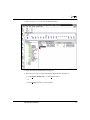
The Backup, Archive, and Restore - NetBackup window will appear.
t
Toolbar
For most operations, it is easier to use the buttons on the toolbar. The horizontal
toolbar on the Backup, Archive, and Restore - NetBackup window opens
windows to browse for backups or restores and to view the progress report of a
NetBackup operation.
The NetBackup Backup window or the NetBackup Restore window have a
vertical toolbar with buttons for frequently used menu commands. Clicking a
button on a toolbar has the same effect as using the menu command. Any action
initiated by the buttons on the vertical toolbar only pertains to the window it is
associated with.
8
NetBackup User’s Guide - Microsoft Windows
2
t
Helpful Hints
Marking Files and Folders
• Select the folder mark circle to mark a folder and all its files and subfolders
for a NetBackup operation. The folder mark circle will appear filled.
• Select the file mark circle to mark a file within a folder, or to mark a sub
folder within the folder. The folder mark circle will appear half filled when
only some files or subfolders are marked.
• Click Mark Displayed Files from the Edit menu to mark all the files (and
folders) that currently appear in the Contents of ’<folder>’ pane.
Unmarking Files and Folders
• Clear the folder mark circle to unmark a folder and all its files and
subfolders for a NetBackup operation. The folder mark circle will appear
empty.
• Clear the file mark circle to unmark a file within a folder, or to unmark a
sub folder within the folder. The folder mark circle will appear half filled
when only some files or subfolders are marked.
• Click Unmark Displayed Files from the Edit menu to unmark all files and
folders that currently appear in the Contents of ’<folder>’ pane of the
NetBackup Backup window or NetBackup Restore window.
• Click Unmark All from the Edit menu to unmark all previously marked files
and folders. You can also use the Unmark All on the NetBackup Backup
window toolbar or the NetBackup Restore window toolbar.
User Directed Operations
9
2
Perform Backups or Archives
This section includes a tutorial. It walks you through a simple backup of the
README.TXT file installed in the NetBackup folder.
1. Start NetBackup as described in "Start the Browser" on page 8. The Backup,
Archive, and Restore - NetBackup window should appear.
2. Open the NetBackup Backup window.
There are two ways to open the NetBackup Backup window.
• Click Backup Files and Folders on the Actions menu.
or
• Click Browse Backup on the Backup, Archive, and Restore - NetBackup
window vertical toolbar.
10
NetBackup User’s Guide - Microsoft Windows
2
The NetBackup Backup window will appear.
User Directed Operations
11
2
3. Mark a file to backup.
a. Open the VERITAS\NetBackup folder.
b. Find the README.TXT file and click the mark circle to the left of the item.
4. Start the backup operation.
a. Open the Backup Marked Files dialog box.
There are two ways to open the Backup Marked Files dialog box
• Click Backup Marked Files... on the Backup menu.
or
12
NetBackup User’s Guide - Microsoft Windows
2
• Click Backup on the NetBackup Backup window vertical toolbar.
The Backup Marked Files dialog box will appear.
b. Review your selections in the Name list box.
• If the README.TXT file is not listed, click Cancel.
This will return you to the NetBackup Backup window. Repeat Step 3
on page 8.
• If the README.TXT file is listed, go to Step 3c.
User Directed Operations
13
2
c. Enter a keyword in the Keyword Phrase to Associate With the Backup
(Optional) box. In this example use test as the keyword.
d. Click Start Backup.
The backup request goes to the NetBackup master server. A NetBackup
message will indicate that the backup was successfully started.
14
NetBackup User’s Guide - Microsoft Windows
2
e. Click Yes on the NetBackup Message dialog box to open the View Status
dialog box.
The View Status dialog box allows you to view the progress report of a
NetBackup operation.
f. Enter a refresh rate of 10 to update both panes every 10 seconds.
The Progress pane will reflect the progress of the item selected in the top
pane. Only the selected item in the top pane is updated. The NetBackup
operation is finished when the Operation Status changes to Successful.
Note: The NetBackup operation may take a few minutes to complete. You can
close the NetBackup Browser after starting a backup operation. NetBackup will
continue the backup operation in the background.
User Directed Operations
15
2
Perform Restores
This section walks you through a simple restore of the README.TXT file backed
up in "Perform Backups or Archives" on page 10 of this manual.
1. Start NetBackup as described in "Start the Browser" on page 8 of this
tutorial.
2. Open the NetBackup Restore window.
There are two ways to open the NetBackup Restore window.
• Click Restore, then Restore from Backup on the Actions menu.
or
• Click Browse Restore on the Backup, Archive, and Restore - NetBackup
window vertical toolbar.
16
NetBackup User’s Guide - Microsoft Windows
2
The NetBackup Restore window will appear.
There may be a delay before lists appear in the NetBackup Restore window.
NetBackup has to obtain the file information from the catalogs on the
NetBackup master server.
If files or folders do not appear in the NetBackup Restore window, it can be
due to one of the following:
• Perform Default Search: is not enabled on the General property sheet. In
this case, start a search manually by clicking Search Backups... on the
Restore menu. The Search Backups dialog box will open. Click Search on
the dialog box.
An alternate method is to click a backup image.
User Directed Operations
17
2
• The NetBackup server does not have any backups of files for your client.
Ensure that the client is connecting to the correct server (see "Servers
Property Sheet" on page 71). Also, ensure that you are using the correct
client name (see "Clients Property Sheet" on page 73). You can also refer
to the title bar. If these settings are correct and you believe there are
backups available, contact your system administrator.
3. Select a file to restore.
If you know the backup image (or the range of images) you can select it
from the NetBackup History pane without going through the Search
Backups dialog box.
In this tutorial, we are going to use the Search Backups feature to restore the
README.TXT file backed up in the "Perform Backups or Archives" on
page 10.
a. Open the Search Backups dialog box.
There are two ways to open the Search Backups dialog box.
• Click Search Backups... on the Restore menu.
or
18
NetBackup User’s Guide - Microsoft Windows
2
• Click Search Backups on the vertical toolbar.
The Search Backups dialog box will appear.
User Directed Operations
19
2
b. Type the path to the backed up file in the Search Folder: box. For this
example we will enter C:\VERITAS\NetBackup\.
c. Type test in the Keyword Phrase (Optional): box.
20
NetBackup User’s Guide - Microsoft Windows
2
d. Press Search. NetBackup will display the tree to the lowest levels of
folders which contain files that were backed up.
User Directed Operations
21
2
e. Select the mark circle to the left of the README.TXT file.
Notice that the mark circles in the All Folders pane are half-filled.
22
NetBackup User’s Guide - Microsoft Windows
2
4. Start the restore operation
a. Open the Restore Marked Files dialog box.
There are two ways to open the Restore Marked Files dialog box
• Click Restore Marked Files... on the Restore menu.
or
User Directed Operations
23
2
• Click Restore from the vertical toolbar.
The Restore Marked Files dialog box will open.
24
NetBackup User’s Guide - Microsoft Windows
2
b. Select the Overwrite Existing Files checkbox.
c. Click Start Restore to start the restore operation.
A NetBackup message will indicate that the restore was successfully
started.
d. Click Yes on the NetBackup Message box to open the View Status dialog
box.
The View Status dialog box allows you to view the progress report of a
NetBackup operation.
User Directed Operations
25
2
e. Enter a refresh rate of 10 to update both panes every 10 seconds.
The Progress pane will reflect the progress of the item selected in the top
pane. Only the selected item in the top pane is updated. The NetBackup
operation is finished when the Operation Status changes to Successful.
Note: The NetBackup operation may take a few minutes to complete. After
starting a restore operation, you can close the NetBackup browser and perform
other tasks on your computer. NetBackup will continue the restore operation in
the background.
26
NetBackup User’s Guide - Microsoft Windows
2
View the Status of a User Directed Operation
1. Open the View Status dialog box to check the progress report.
There are two ways to open this dialog box.
• Click the View Status button on the toolbar in the Backup, Archive, and
Restore - NetBackup window.
or
• Press Alt-a to open the Actions menu and then click View Status....
The status will appear in the top pane under Operation Status. If NetBackup
was unable to back up or restore all of the requested files, a status code
appears a few lines before the end of the progress report. The NetBackup
Troubleshooting Guide - UNIX or the NetBackup Troubleshooting Guide Windows NT Server list the meaning of the final status code.
User Directed Operations
27
2
If you require more details on the netbackup operation, follow these
instructions.
a. Select one of the NetBackup operations in the Operations List. The
Progress box will display the progress report of the selected operation.
b. Click Refresh to update the report.
2. Click Close to return to the previous window.
28
NetBackup User’s Guide - Microsoft Windows
2
Advanced Restore Procedures
The following is a detailed explanation of how to perform advanced restores.
Selecting Specific Backup Dates to Restore
By default, the NetBackup Restore window shows the files and folders that were
backed up from the time of the last full backup to the most-recent backup. If the
client belongs to more than one 1class, the default display starts with the last full
backup that occurred first. For example, assume that the client belongs to
ClassW1 and ClassW2. Full backups occur for both of them-- ClassW1’s most
recent full backup occurred on Feb. 2 and ClassW2’s most recent full occurred on
Feb. 10. The display shows files ranging from the time of the ClassW1 full
backup on Feb. 2.
The default range will satisfy the majority of your needs to restore files. There
will be times, however, when you must restore a file that was not backed up
during the default time period. For example, a file that was deleted prior to the
last full backup does not appear in the default display. In this case, you must use
the NetBackup History pane to select a backup that contains the file.
1. A NetBackup class defines the backup policies for a specific group of one or more clients that have similar
backup requirements. The NetBackup system administrator configures the class for your PC.
User Directed Operations
29
2
Search Procedure
1. Open the NetBackup Restore window.
2. Click Show All Backups on the View menu to display all copies of files and
folders from all of the backups. Show Most Recent Backup will display the
most recent copy of the file or folder.
3. Select the images, from the NetBackup History pane, that you believe
contain the files and folders you want to restore.
4. Narrow the search range as much as possible to speed up your search.
• Select a specific backup image in the NetBackup History pane. Initiate the
search by clicking the item.
• To select a range of backup images, select the first one in the range and
then, while holding the Shift key, select the last one in the range. In this
case, NetBackup searches all the backup images in the selected range.
The range search will start after the second image is selected.
• Cancel previous selections by selecting another backup.
5. Click Search Backups... from the Restore menu to open the Search Backups
dialog box.
30
NetBackup User’s Guide - Microsoft Windows
2
6. Enter the search path that you want NetBackup to use in its search for files
and folders.
The number of files you can list during a search is limited by the amount of
free memory you have on your computer. If you reach the limit, modify the
date or file path parameters to narrow the scope of the search.
By default, the search dialog box shows the information for the folder that
is currently selected in the All Folders pane of the NetBackup Restore
window.
7. Click Search to start the search. When the search is complete, NetBackup
updates the NetBackup Restore window.
User Directed Operations
31
2
Restore an Earlier Version of a Folder
Note: This procedure will restore all files that were backed up during the
range of backup dates. This includes files that were deleted from your on-line
folder after they were backed up. If you do not want the deleted files, refer to
"Restoring a True Image of a Folder" on page 34.
1. Open the NetBackup Restore window.
2. Open the backup NetBackup History pane.
If the NetBackup History pane is not open, click and drag the horizontal
splitter bar down.
3. Select backup images from the NetBackup History pane for the dates of the
backed up files or folders you want to restore.
NetBackup will search the backup images, and display the contents of the
backup images in the All Folders and Contents of ’<folder>’ panes.
To restore a version of a folder that existed prior to the last full backup,
select only the backups that include the desired version of the folder.
To further narrow your search for a specific folder, file or keyword, go to
Step a.
a. Click Search Backups... from the Restore menu to open the Search Backups
dialog box.
32
NetBackup User’s Guide - Microsoft Windows
2
b. Enter a filename or keyword.
c. Click Search to start the search. When the search is complete, the
NetBackup Restore window updates.
4. Select the folder you want to restore from the folder in the All Folders pane
of the NetBackup Restore window.
5. Mark the files or folders you need in the Contents of ’<folder>’ pane. By
default, NetBackup restores files and folders to their original location.
6. Click Restore Marked Files... on the Restore menu.
User Directed Operations
33
2
Restoring a True Image of a Folder
You can restore a true image of a folder only if the NetBackup class that is
backing up your files and folders is configured to collect true image restore
information prior to backup. If in doubt, ask your NetBackup administrator.
1. Open the NetBackup Restore window.
If you get a No Entity Found message at this point, notify the
administrator. The TIR option on the NetBackup server must be set before
you can perform a true image restore. A backup with the TIR option set
needs to exist before a TIR restore can happen.
2. Make sure the root folder is selected.
3. In the All Folders pane of the NetBackup Restore (True Image) window,
double-click the parent of the folder you want to restore.
The double-click updates the NetBackup Restore (True Image) window to
show the folders that are available for true image restores. Notice that the
lists show only folders. Individual files do not appear because true image
restores are intended only for restoring entire folders. To list or select
individual files, use Restore from Backup.
If NetBackup cannot find any folders, check the Search Folder: setting in the
Search Backups dialog box. Also check the range of backups that you are
searching (backup history pane). If all of these settings are correct and no
folders are found, ask the administrator to see if the NetBackup class that is
backing up your files and folders is configured to collect true image restore
information.
4. Select the date range of backups that NetBackup will search in order to find
the desired folder.
It is best to leave the backup selection at the default date range unless you
are restoring a version of the folder that existed before the last full backup
or incremental backup.
5. Select the folder you want to restore by marking it in the Contents of
’<folder>’ pane of the NetBackup Restore (True Image) window (you must
select from this side of the window). By default, NetBackup restores the
folder to its original location.
34
NetBackup User’s Guide - Microsoft Windows
2
Note: When a file in the folder has the same filename as a file in the true
image backup, NetBackup will delete the file from the folder and replace, or
restore, the file from the true image backup. NetBackup will not delete files
from the folder that are not in the true image restore.
6. Click Restore Marked Files... on the Restore menu.
User Directed Operations
35
2
Restoring All Files, Folders, or Registry Keys to an Alternate
Path
1. Open the NetBackup Restore window.
2. Select README.TXT from the NetBackup folder.
3. Click Restore Marked Files... on the Restore menu. The Restore Marked Files
dialog box will appear.
4. Click Restore Everything To a Different Location (maintaing existing structure):.
5. Enter the folder from which the README.TXT file was backed up in the
Source:. In this case:
c:\VERITAS\netbackup\
6. Enter the alternate folder to which you want to restore the README.TXT file
in the Destination:. In this case:
c:\temp\
7. Select Overwrite Existing Files.
8. Click Start Restore.
NetBackup will restore the README.TXT file to the c:\temp folder.
36
NetBackup User’s Guide - Microsoft Windows
2
Restoring Specific Files, Folders, or Registry Keys to an
Alternate Path
1. Open the NetBackup Restore window.
2. Select the NetBackup folder.
3. Click Restore Marked Files... on the Restore menu. The Restore Marked Files
dialog box will appear.
4. Click Restore Individual Folders and Files To Different Locations (double-click to
modify):.
5. Select the files, folders, or registry keys you want to restore.
a. Double click the README.TXT. The Enter New Destination dialog box will
appear over the Restore Marked Files dialog box.
User Directed Operations
37
2
b. Type a new path to restore to.
or
Click the Browse button to browse for and select a new path to restore to.
In this case, we are going to restore to c:\temp.
c. Press OK. The Enter New Destination dialog box will close. The new path
entered in Step b will appear in the Destination column.
d. Repeat these steps for each file, folder, or registry key you want to restore
6. Select Overwrite Existing Files.
7. Click Start Restore.
NetBackup will restore the README.TXT file to the specified path.
38
NetBackup User’s Guide - Microsoft Windows
2
Restore Using a Temporary Filename
1. Open the NetBackup Restore window.
2. Select README.TXT from the NetBackup folder.
3. Click Restore Marked Files... on the Restore menu. The Restore Marked Files
dialog box will appear.
4. Select Restore the File Using a Temporary Filename.
5. Click Start Restore.
NetBackup will restore the README.TXT file to READMEXXXXXX.TMP.
XXXXXX will be something that is generated based on the current date and
time.
User Directed Operations
39
2
Proxy Restore
1. Open the NetBackup Restore window.
a. Click Restore, then Proxy Restore from Backup from the Actions menu. A
Browse for Computer dialog box will appear.
b. Select the computer whose backup image you want to restore from. For
this tutorial we will select a computer called pansy. A NetBackup Restore
window will appear.
40
NetBackup User’s Guide - Microsoft Windows
2
2. Select README.TXT from the NetBackup folder.
3. Open the Restore Marked Files dialog box.
4. There are two ways to open the Restore Marked Files dialog box.
• Click Restore Marked Files... on the Restore menu.
or
• Click Restore from the vertical toolbar.
User Directed Operations
41
2
The Restore Marked Files dialog box will open.
5. Select Overwrite Existing Files.
6. Click Start Restore.
NetBackup will restore the README.TXT file to the c:\temp folder.
42
NetBackup User’s Guide - Microsoft Windows
Reference
3
This chapter provides reference information on the NetBackup Browser. It
includes a description of the Browser menus, windows and dialog boxes.
43
3
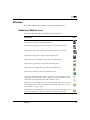
NetBackup Icons
The following table describes NetBackup icons you may see on the Microsoft
Windows desktop.
Description
Represents NetBackup. It is used on the title bar in the Browser, in the
program start menu, and Windows Explorer.
Indicates that the NetBackup Client Job Tracker is running, but there are
currently no backups or restores processing. Used in the system tray.
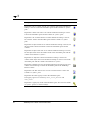
Indicates that the NetBackup Client Job Tracker is running, with at least
one restore processing. Used in the system tray. When the yellow arrow is
blinking, you can open the NetBackup Client Job Tracker for an estimate of
the restore operation.
Indicates that the NetBackup Client Job Tracker is running, with at least
one backup processing. Used in the system tray. When the yellow arrow is
blinking, you can open the NetBackup Client Job Tracker for an estimate of
the backup operation.
Indicates that the NetBackup Client Job Tracker is running, with at least
one backup and one restore processing. Used in the system tray with the
yellow arrows blinking.
44
NetBackup User’s Guide - Microsoft Windows
Icon
3
Menus
This section explains the menu bar commands on the NetBackup Browser.
Actions Menu
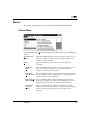
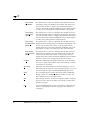
The commands on the Actions menu provide overall control of your NetBackup
session.
Backup Files and
Folders
Opens the NetBackup Backup window. From this window, you can
select files, folders, or registry keys to back up and then start a
backup or archive operation.
Restore...
Opens the submenu and provides access to the following
commands.
Restore from
Backup
Opens a NetBackup Restore window. From this window, you can
select files, folders, or registry keys saved during previous
backups and start a restore operation.
Restore from
Archived Backup
Opens a NetBackup Restore (Archive) window. From this window,
you can select files, folders, or registry keys saved during previous
archives and start a restore operation.
Restore from Raw Opens a NetBackup Restore (Raw Partition) window. From this
Partition Backup window, you can select raw partitions saved during previous raw
partitian backups and start a raw partition restore operation.
Restore From
True Image
Backup
Reference
Opens a NetBackup Restore (True Image) window. From this
window, you can select files, folders, or registry keys saved during
previous true image backups and start a true image restore
operation.
45
3
Proxy Restore
from Backup
This feature allows a user on a Windows NT machine to browse
the backups of the local Windows NT machine. The remote user
can select files, folders, or registry keys from the backup and
restore to the remote machine. NetBackup will see all the requests
as if they were coming from the remote Windows NT machine.
Proxy Restore
from Archived
Backup
This feature allows a user on a Windows NT machine to browse
the archive backup of the local Windows NT machine. The remote
user can select files, folders, or registry keys from the backup and
restore to the remote machine. NetBackup will see all the requests
as if they were coming from the remote machine.
Proxy Restore
This feature allows a user on a Windows NT machine to browse
from Raw Partition the Raw Partitian backup of the local Windows NT machine. The
Backup
remote user can select files, folders, or registry keys from the
backup and restore to the remote machine. NetBackup will see all
the requests as if they were coming from the remote machine.
Proxy Restore
from True Image
Backup
46
This feature allows a user on a Windows NT machine to browse
the True Image backup of the local Windows NT machine. The
remote user can select files, folders, or registry keys from the
backup and restore to the local machine. NetBackup will see all the
requests as if they were coming from the remote machine.
Configure...
Opens the NetBackup Configuration dialog box. From this dialog
box, you can specify the parameters that control backups, archives
and restores for your client.
View Status...
Opens the View Status dialog box. From this dialog box, you can
review the progress report of a user operation in progress. You can
also review logs from past user directed NetBackup operations.
Close
This command appears in the Actions menu when a NetBackup
Backup window or a NetBackup Restore window are open. Use
this command to close a selected window.
Stop
Stops network activities, such as browsing files, folders, or registry
keys for restores. This has no affect on a backup or restore that is
already in progress.
Exit
Closes all NetBackup dialog boxes and windows. Terminates the
browser. Any backups or restores in progress will continue to
completion.
NetBackup User’s Guide - Microsoft Windows
3
Edit Menu
The commands on the Edit menu modify your selections in the currently selected
backup or restore window. It appears when the NetBackup Backup window or
the NetBackup Restore window are opened.
Mark Displayed Files Marks only the files, folders, or registry keys that currently appear
in the Contents of ’<folder>’ pane of the NetBackup Backup
window or NetBackup Restore window.
Unmark Displayed
Files
Unmarks only the selections that currently appear in the Contents
of ’<folder>’ pane of the NetBackup Backup window or NetBackup
Restore window.
Unmark All
Unmarks all files, folders, or registry keys in this window. You can
also execute this command by clicking Unmark All on the
NetBackup Restore window toolbar or the NetBackup Backup
window toolbar.
Preview List of
Marked Files...
Opens the Preview List dialog box. This command is enabled
when files, folders, or registry keys have been selected in the
NetBackup Backup window or the NetBackup Restore window.
You can also execute this command by clicking Preview List of
Marked Files... on the NetBackup Restore window toolbar or the
NetBackup Backup window toolbar.
Reference
47
3
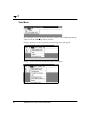
View Menu
The commands on the View menu control the contents of the NetBackup Backup
window and the NetBackup Restore window.
During a backup or archive operation, the following menu will appear.
During a restore operation the following menu will appear.
48
NetBackup User’s Guide - Microsoft Windows
3
Options...
Opens the Options dialog box. Go to "Options Dialog Box" on
page 82" for more details.
Save Settings on Exit When selected, this command will save window specific settings
upon exit.
Brief Descriptions of
Files
Shows files, folders, or registry keys without details. You can also
execute this command on the NetBackup Backup window toolbar
and on the NetBackup Restore window toolbar.
Full Descriptions of
Files
Shows file, folder or registry key details such as size and file
permissions. You can also execute this command on the
NetBackup Backup window toolbar and on the NetBackup Restore
window toolbar.
Split
Changes the cursor to a double bar with two arrows and positions
it over the vertical split bar between the All Folders and Contents
of ’<folder>’ panes. You can then move the cursor left or right to
position the split bar.
Show All Backups
Shows all instances of files, folders, or registry keys in the currently
selected image(s). You can also execute this command on the
NetBackup Restore window toolbar.
Most Recent Backups Shows the most recent backup of files, folders, or registry keys
from the currently selected backup image(s). You can also execute
this command on the NetBackup Restore window toolbar.
NetBackup History
Split
Changes the cursor to a double bar with two arrows and positions
it over the horizontal split bar between the NetBackup History
pane and the All Folders and Contents of ’<folder>’ panes. You can
then move the cursor up or down to position the split bar.
Refresh NetBackup
History
Updates information in the NetBackup History pane.
Reference
49
3
Backup Menu
The Backup menu appears when the NetBackup Backup window is active. The
commands on the Backup menu control backup operations.
50
Backup Marked
Files...
Opens the Backup Marked Files dialog box. You can also execute
this command by clicking Backup on the NetBackup Backup
window toolbar.
Specify NetBackup
Machines...
Opens the NetBackup Backup Options dialog box to the Servers
property sheet. Refer to "NetBackup Backup Options Dialog Box"
on page 94 for more details.
Options...
Opens the Options dialog box to the Backups property sheet. Refer
to "Backups Property Sheet" on page 96 for more details.
Add to Exclude List
Adds the selected files, folders, or registry keys to the Exclude File
List:. For more details, refer to "Exclude List Property Sheet" on
page 119.
Add to Include List
Adds the selected files, folders, or registry keys to the Include File
List:. For more details, refer to "Include List Property Sheet" on
page 121.
NetBackup User’s Guide - Microsoft Windows
3
Restore Menu
The Restore menu appears when the NetBackup Restore window is active. The
commands on the Restore menu control restore operations.
Search Backups...
Opens the Search Backups dialog box. You can also execute this
command by clicking Search Backups on the NetBackup Restore
window toolbar.
Restore Marked
Files...
Opens the Restore Marked Files dialog box. You can also execute
this command by clicking Restore on the NetBackup Restore
window toolbar.
Select Restore
Type...
Opens the submenu and provides access to the following
commands.
Normal Backups
Opens the NetBackup Restore window. You can select files, folders,
or registry keys saved during previous backups and start a restore
operation.
Archive Backups
Opens the NetBackup Restore (Archive) window. You can select
files, folders, or registry keys saved during previous archives and
start a restore operation.
Raw Partition Back- Opens the NetBackup Restore (Raw Partition) window. You can
ups
select and start a raw partition restore operation.
True Image Backups
Opens the NetBackup Restore (True Image) window. You can select
files, folders, or registry keys and start a true image restore
operation.
Proxy Normal
Backups
This feature allows a user on a Windows NT machine to browse
the backups of the local Windows NT machine. The remote user
can select files, folders, or registry keys from the backup and
restore to the remote machine. NetBackup will see all the requests
as if they were coming from the remote Windows NT machine.
Reference
51
3
Proxy Archive
Backups
This feature allows a user on a Windows NT machine to browse
the archives of the local Windows NT machine. The remote user
can select files, folders, or registry keys from the backup and
restore to the remote machine. NetBackup will see all the requests
as if they were coming from the remote Windows NT machine.
Proxy Raw Partition This feature allows a user on a Windows NT machine to browse
Backups
the raw partition backups of the local Windows NT machine. The
remote user can select files, folders, or registry keys from the
backup and restore to the remote machine. NetBackup will see all
the requests as if they were coming from the remote Windows NT
machine.
Proxy True Image
Backups
Specify NetBackup
Machines...
52
This feature allows a user on a Windows NT machine to browse
the true image backups of the local Windows NT machine. The
remote user can select files, folders, or registry keys from the
backup and restore to the remote machine. NetBackup will see all
the requests as if they were coming from the remote Windows NT
machine.
Opens the NetBackup Restore Options dialog box. Refer to
"NetBackup Backup Options Dialog Box" on page 94" for more
details.
NetBackup User’s Guide - Microsoft Windows
3
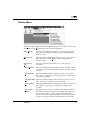
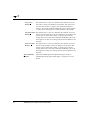
Window Menu
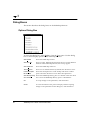
The Window menu has commands for arranging your NetBackup windows. It
appears when the NetBackup Backup window or the NetBackup Restore
window is opened.
Cascade
Arranges NetBackup windows so they overlap, but the title bars
will still be visible.
Tile Horizontally
Modifies the size of NetBackup windows and arranges them
horizontally on the desktop.
Tile Vertically
Modifies the size of NetBackup windows and arranges them
vertically on the desktop.
Arrange Icons
Arranges icons so they are located in the lower left corner of the
desktop.
Close All
Closes the NetBackup Backup windows and the NetBackup
Restore windows.
Reference
53
3
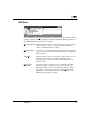
Help Menu
This menu provides access to the on-line instructions for using NetBackup.
54
NetBackup User’s Guide - Microsoft Windows
3
Windows
This section explains the windows on the NetBackup Browser.
NetBackup Window Icons
This section describes all icons displayed in the windows.
Description
Icon
Represents NetBackup. It is used on the title bar in the Browser, in the
program start menu, and Windows Explorer.
Represents a backup. It is used on the title bar of the backup window.
Represents a restore. It is used on the title bar of the restore window.
Represents a floppy drive. Used in the All Folders pane.
Represents a logical hard drive. Used in the All Folders pane.
Represents a cd rom drive. Used in the All Folders pane.
Represents a networked drive. Used in the All Folders pane.
Represents a client PC. Used in the All Folders pane.
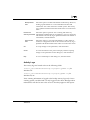
Expand or collapse these structures to see more or fewer subentries. A plus
sign indicates that the folder can be expanded. A minus sign indicates that
the folder can be collapsed. Used in the All Folders pane.
Represents a closed folder that may or may not contain other items. Used in
the All Folders pane where only folders are displayed under drives. Also in
the Contents of ’<folder>’ pane.
Represents an opened folder that may or may not contain other items. Used
in the All Folders pane where only folders are displayed under drives.
Reference
55
3
Description
Represents a file or a folder, with all of its contents, that has been marked for
backup or restore. Used in the All Folders pane and the Contents of ’<folder>’
pane.
Represents a folder with some of its contents marked for backup or restore.
Used in the All Folders pane and the Contents of ’<folder>’ pane.
Represents a file or folder that has not been marked for backup or restore,
but could be. Used in the All Folders pane and the Contents of ’<folder>’
pane.
Represents an object with all of its contents marked for backup or restore, but
the object itself cannot be marked. Used in the All Folders pane and the
contents.
Represents an object with some of its contents marked for backup or restore,
but the object itself cannot be marked. Used in the All Folders pane and the
contents and Contents of ’<folder>’.
Represents an object that cannot be marked for backup or restore but
contains other objects that can be marked for backup or restore. Used in the
All Folders pane and the contents and Contents of ’<folder>’.
Represents a folder that wasn’t specifically backed up, but at least some of its
contents were backed up. Used in the All Folders pane of the NetBackup
Restore window.
Represents a file that doesn’t have an icon associated with it. Used in the
Contents of ’<folder>’ pane.
Represents the entire registry. Used in the All Folders pane.
The registry opens to two base keys: HKEY_LOCAL_MACHINE and
HKEY_USERS.
Represents a registry key. Used in the All Folders pane. Also used in Contents
of ’<folder>’ pane if it contains subkeys.
56
NetBackup User’s Guide - Microsoft Windows
Icon
3
Description
Icon
Represents the entire network. Used in the All Folders pane.
Represents a specific network. Used in the All Folders pane and the Contents
of ’<folder>’ pane.
Represents a domain within a network. Used in the All Folders pane and the
Contents of ’<folder>’ pane.
Reference
57
3
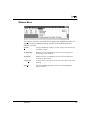
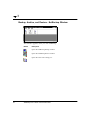
Backup, Archive, and Restore - NetBackup Window
This window appears when you start NetBackup.
Button
Description
Opens the NetBackup Backup window.
Opens the NetBackup Restore window.
Opens the View Status dialog box.
58
NetBackup User’s Guide - Microsoft Windows
3
NetBackup Backup Window
This window shows the files, folders, or registry keys you can mark for back up.
Access this window:
• From the Actions menu, click Backup Files and Folders
• From the toolbar, click Browse Backup
You can position this window separately. You can also cascade, tile or minimize
the window by using commands from the Window menu.
Reference
59
3
Buttons
Button Description
Opens the Backup Marked Files dialog box.
Unmarks all files, folders and registry keys in this window. You can also
execute this command by selecting Unmark All from the Edit menu.
Opens the Preview List dialog box during a backup operation. You can also
execute this command by selecting Preview List of Marked Files... from the Edit
menu.
Shows files and folders only. You can also execute this command by selecting
Brief Descriptions of Files from the View menu.
Shows file, folder or registry key details such as size and file permissions. You
can also execute this command by selecting Full Descriptions of Files from the
View menu.
Panes
The NetBackup Backup window contains two panes: All Folders and Contents
of ’<folder>’. To adjust the width of the panes, position the cursor over the split
bar. The cursor will change to a double bar with two arrows. Press the left mouse
button and move the cursor left or right to position the split bar.
60
NetBackup User’s Guide - Microsoft Windows
3
NetBackup Restore Window
This window shows the files, folders, or registry keys that you can mark for
restore. Access this window:
• From the Actions menu, click Restore, then Restore from Backup
• From the toolbar, click the Browse Restore
The folder trees in this window contain only files and folders that were backed
up. You can position this window separately. You can also cascade, tile or
minimize the window by using the command from the Window menu.
Note: If the NetBackup Restore window does not show any files, folders, or
registry keys, check the items mentioned in "Restoring a True Image of a
Folder" on page 34.
Reference
61
3
Buttons
Button Description
Opens the Search Backups dialog box.
Opens the Restore Marked Files dialog box.
Unmarks all files, folders, or registry keys in this window. You can also execute
this command by selecting Unmark All from the Edit menu.
Opens the Preview List dialog box during a restore operation. You can also
execute this command by selecting Preview List of Marked Files... from the Edit
menu.
Shows files and folders only. You can also execute this command by selecting
Brief Descriptions of Files from the View menu.
Shows file, folder or registry key details such as size and file permissions. You
can also execute this command by selecting Full Descriptions of Files from the
View menu.
Shows all instances of the files, folders, or registry keys in the currently
selected image(s). You can also execute this command by selecting Show All
Backups from the View menu.
Shows the most recent backup of files, folders, or registry keys in the selected
backup images. You can also execute this command by selecting Show Most
Recent Backup from the View menu.
62
NetBackup User’s Guide - Microsoft Windows
3
Panes
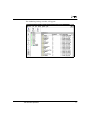
The NetBackup Restore window is split into three panes: the NetBackup History
pane on the top, the All Folders pane on the left and the Contents of ’<folder>’
pane on the right.
Note: If the client belongs to more than one class, the default display starts
with the last full backup that occurred first. For example, assume that the client
belongs to Class A and Class B and full backups occur for both of them. If the
last full backup for Class A occurred before the one for Class B, then the
display shows files ranging from the time of the Class A full backup.
To adjust the height of the NetBackup History pane, position the cursor over the
split bar. The cursor will change to a double bar with two arrows. Press the left
mouse button and move the cursor up or down to position the split bar.
To adjust the width of the All Folders pane and the Contents of ’<folder>’ pane,
position the cursor over the split bar. The cursor will change to a double bar with
two arrows. Press the left mouse button and move the cursor left or right to
position the split bar.
Note: If you are restoring from a true image backup, the NetBackup Restore
window shows only the folders that were included in true image backups. Files
do not appear in this window because you cannot select individual files for a
true image restore.
Reference
63
3
NetBackup History Pane
The NetBackup History pane shows the NetBackup image(s). When first opened,
the following backup images are selected by default:
• The most recent full backup.
• All cumulative-incremental backups and differential-incremental backups
since the most recent full backup.
• All user directed backups that have occurred since the most recent full
backup.
If there is no full backup, only the most recent image will be selected.
t
To Open the NetBackup History Pane
• Position the cursor over the horizontal split bar. The cursor will change to a
double bar with two arrows. Press the left mouse button and move the
cursor up or down to position the split bar.
or
• On the View menu, click NetBackup History Split. This changes the cursor to a
double bar with two arrows. Move the cursor up or down to position the
split bar. Click the left mouse button to hold position.
64
NetBackup User’s Guide - Microsoft Windows
3
t
Backup History as a Timeline
To show the NetBackup History pane as a timeline from the View menu, click
Options... to open the Options dialog box. Select Show Backup History as a Timeline
checkbox.
The icons, representing images, appear directly underneath the date of the
backups. Icons with a square represent selected backup images. Several backup
image icons may appear below a date. The most current backup image is on top
of the list. As you move the cursor over the icons, tool tips will show the
schedule type and the date and time of the backup.
Helpful Hint:
If you do not see tool tips, open the Options dialog box from the View menu and
select Show Tool Tips.
Description
Icon
This green icon represents a full backup.
This blue icon represents a differential incremental backup.
This light blue icon represents a cumulative incremental backup.
This read icon represents a user directed backup.
Represents a user directed archive. Used in the backup images timeline. When
selected, a border appears around the icon.
This grey icon represents an unknown type of backup.
Reference
65
3
t
Backup History as a Detailed List
To show the NetBackup History pane as a detailed list, clear the Keep Status of
User-Directed Backups, Archives, and Restores For: checkbox on the Options dialog
box. The list starts with the most recent backup and includes the following
information (reading from left to right).
• Date and time when the backup occurred.
• Date when NetBackup will expire the backup and delete it from the
NetBackup History pane.
• Number of files in the backup.
• Size of the backup in kilobytes.
• Whether the backup is compressed (Y for yes, N for no).
• Type of schedule.
• Name of the class associated with the backup. The system administrator
configures the class names, as explained in the NetBackup System
Administrator’s Guide - UNIX or the NetBackup System Administrator’s Guide Windows NT Server.
• Keyword assigned to the backup.
66
NetBackup User’s Guide - Microsoft Windows
3
NetBackup Configuration Dialog Box
This section explains the property sheets found on the NetBackup Configuration
dialog box on the NetBackup Browser.
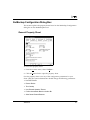
General Property Sheet
To access this property sheet:
1. From the Actions menu, select Configure....
2. Click the General tab to open the property sheet.
Use this property sheet to set any of the configuration parameters for your
client. Only the system administrator should change the following parameters.
• List Files Timeout:
• Restore Retries:
• Time Overlap:
• User Directed Operation Timeout:
• Perform Incrementals Based on Archive Bit:
• Allow Server-Directed Restores:
Reference
67
3
System administrators should refer to "General Property Sheet" on page 115 for
details on these parameters.
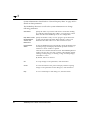
The NetBackup client user as well as the system administrator can change
following parameters.
Client Name:
Specify the name of your client. This name is used when backing
up, archiving and restoring files, folders, or registry keys. It must
match the one in the NetBackup server class configuration.
Keep Status of User- Specify the number of days to store progress reports before the
Directed Backups,
system will automatically delete them. Default is 3 days. The
Archives, and
minimum allowable value is zero. The maximum is 9,999
Restores For:
68
Perform Default
Search:
If selected, NetBackup will automatically search the default range
of backup images and display the backed up folders and files
whenever a restore window is opened.
Clear this box to disable the initial search. The NetBackup Restore
window will not show any files or folders when initially opened.
Clicking a backup image, or selecting a range of backup images,
will initiate a search.
By default, this box is selected.
OK
To accept changes to the parameters, click this button.
Cancel
To cancel and return to the previous display without accepting
changes to the parameters in this dialog box, click this button.
Help
To view on-line help for this dialog box, click this button.
NetBackup User’s Guide - Microsoft Windows
3
Exclude List Property Sheet
Only the system administrator should change the parameters on this property
sheet. System administrators should refer to "Exclude List Property Sheet" on
page 119 for details on these parameters.
Reference
69
3
Include List Property Sheet
Only the system administrator should change the parameters on this property
sheet. System administrators should refer to "Include List Property Sheet" on
page 121 for details on these parameters.
70
NetBackup User’s Guide - Microsoft Windows
3
Servers Property Sheet
To access this property sheet:
1. From the Actions menu, select Configure...
2. Click the Servers tab to open the property sheet.
Use this property sheet to add new NetBackup servers and to specify the default
master server for clients.
Note: Most changes made to the this property sheet will not apply to currently
open backup or restore windows. If, however, a server is added, the open
windows will be able to switch to them.
All changes will apply to all backup and restore windows opened after the
property sheet modifications have been saved. Click OK to save the property
sheet changes
Reference
71
3
72
New Server Name:
To add another NetBackup server to the Server List:, type the name
of the new server in the New Server Name: text box and click Add.
The name must be as defined by the system administrator on that
server.
Add
Adds the server, entered in the New Server Name: text box, to the
Server List:.
Server List:
Shows the names of the NetBackup servers that require access to
the client. The master server and any slave servers must appear in
this list. The master server manages user operations and must be
marked as CURRENT. To mark a master server as CURRENT,
select a server from the Server List: and click Make Current. The
word CURRENT appears in parentheses beside the name of the
new master server.
To add a server to the Server List:, key in the server name in the
New Server Name: and click Add. To remove a name from the Server
List:, select the server and click Remove.
CAUTION! Be careful about removing servers from the list.
Scheduled backups will fail if you remove a master server or slave
server from the Server List:.
Remove
Removes a server. First highlight the server in the Server List:, then
click Remove.
Make Current
Designates a master server. First highlight the server in the Server
List:, then click Make Current.
OK
To accept changes to the parameters, click this button.
Cancel
To cancel and return to the previous display without accepting
changes to the parameters in this dialog box, click this button.
Help
To view on-line help for this dialog box, click this button.
NetBackup User’s Guide - Microsoft Windows
3
Clients Property Sheet
To access this property sheet:
1. From the Actions menu, select Configure...
2. Click the Clients tab to open the property sheet.
Use this property sheet to specify the name of the client whose backups you
want to browse for files, folders, or registry keys to restore. You can also add
names of remote clients.
Note: Most changes made to the this property sheet will not apply to currently
open backup or restore windows. If, however, a client is added, the open
windows will be able to switch to them.
All changes will apply to all backup and restore windows opened after the
property sheet modifications have been saved. Click OK to save the property
sheet changes.
Reference
73
3
74
New Client Name:
To add another client name to the Client List:, type the name of the
client in the New Client Name: and click Add. The client name entered
must also be defined in a class on the NetBackup server.
Add
Adds the client, entered in the New Client Name: box, to the Client
List:.
Client List:
The Client List: contains the client name for your computer. It can
also contain the names of remote NetBackup clients. You can select
local or remote NetBackup clients on which to perform NetBackup
operations.
The NetBackup server administrator must set up the required
permissions before you can browse and restore from any remote
client.
To perform a NetBackup operation on a NetBackup client, select
the name from the Client List: and click Make Current. The word
CURRENT appears in parentheses beside the name of the new
default client.
To add a client to the Client List:, key in the client name in New Client
Name: and click Add.
To remove a name from the Client List:, select the client and click
Remove.
Remove
Removes a client from the Client List:. First highlight the client in
the Client List: then click Remove.
Make Current
Designates the client backup images you can browse for restore
operations. First highlight the server in the Client List:, then click
Make Current.
OK
To accept changes to the parameters, click this button.
Cancel
To cancel and return to the previous display without accepting
changes to the parameters in this dialog box, click this button.
Help
To view on-line help for this dialog box, click this button.
NetBackup User’s Guide - Microsoft Windows
3
Backups Property Sheet
To access this property sheet:
1. From the Actions menu, select Configure...
2. Click the Backups tab to open the property sheet.
Use this property sheet to specify specific class and schedules to use when you
start a backup from the client.
Note: Changes made to the this property sheet will not apply to currently
open backup window. The changes will apply to all backup window opened
after the property sheet modifications have been saved. Click OK to save the
property sheet changes.
Reference
75
3
76
Backup Class:
Specify the class to use for user-directed backups of this client. If
you set this value to any (default), NetBackup uses the first class
that it finds with both the client name and a user-directed backup
schedule.
Backup Schedule:
Specify the schedule to use for the user-directed backups for this
client. If you set this value to any (default), NetBackup uses the
first user-directed backup schedule in the first class that it finds
with both the client name and a user-directed backup schedule.
Archive Class:
Specify the class to use for user-directed archives of this client. If
you set this value to any (default), NetBackup uses the first class
that it finds with both the client name and a user-directed archive
schedule.
Archive Schedule:
Specify the user-directed archive schedule to use for user-directed
archives of this client. If you set this value to any (default),
NetBackup uses the first user-directed archive schedule in the first
class that it finds with both the client name and a user-directed
archive schedule.
OK
To accept changes to the parameters, click this button.
Cancel
To cancel and return to the previous display without accepting
changes to the parameters in this dialog box, click this button.
Help
To view on-line help for this dialog box, click this button.
NetBackup User’s Guide - Microsoft Windows
3
Network Property Sheet
Only the system administrator should change the parameters on this property
sheet. System administrators should refer to "Network Property Sheet" on
page 123 for details on these parameters.
Reference
77
3
Virus Protection Property Sheet
To access this property sheet:
1. From the Actions menu, select Configure....
2. Click the Virus Protection tab to open the property sheet.
Use this property sheet to configure the NetBackup client to pre-scan data before
it is backed up. By default, virus scanning is turned off.
Note: The changes and options in this dialog box do not apply to any open
windows. The values are set on a machine basis. If an option’s value is
changed, the next backup or restore operation will see the changed value, no
matter where the operation was initiated.
Perform Virus
Select this option to perform virus scanning and detect any
Scanning for Backup infected files. NetBackup does not attempt to correct or backup the
infected files. The activity log is updated with the total number of
scanned files, and infected files.
Clean Infected
Files
78
Select this option to correct the infected files. If a file cannot be
cleaned, it is skipped and will not be backed up. The activity log is
updated with the infected file name and its associated virus name.
NetBackup User’s Guide - Microsoft Windows
3
Backup Infected
Files
Select this option to include infected files in the backup. However,
backing up infected files is not recommended. The data still
contains the virus when restored to another system. The activity
log is updated with the infected file name and its associated virus
name.
Perform Virus
Select this option to perform virus scanning and detect any
Scanning for Restore infected files. NetBackup does not attempt to correct or restore the
infected files. The activity log is updated with the total number of
scanned files, and infected files.
Clean Infected
Files
Select this option to correct the infected files. If a file cannot be
cleaned, it is skipped and will not be restored. The activity log is
updated with the infected file name and its associated virus name.
OK
To accept changes to the parameters, click this button.
Cancel
To cancel and return to the previous display without accepting
changes to the parameters in this dialog box, click this button.
Help
To view on-line help for this dialog box, click this button.
Activity Logs
The activity logs are located in the in the following folder.
install_path\VERITAS\NetBackup\logs\bpkar\yymmdd.log for
Windows NT
install_path\VERITAS\NetBackup\logs\bpcd\yymmdd.log for
Windows 95/98
Virus scanning information is logged to the backup activity logs only if virus
scanning option is enabled and it is only logged on the client. Messages about
infected files will also be sent to the server so that they appear in the reports.
Reference
79
3
Limitations
Files with the following conditions are not scanned for viruses:
• Fully qualified file names longer than 256 characters
• Compressed or zipped files
• Open files that are locked
Suggestions
Running another anti-virus software, while running NetBackup with the virus
scanning option enabled:
• may slow down the NetBackup's virus scanning operation
• result in unnecessary alerts or unexpected warning message boxes
New viruses constantly appear, so it is important to keep the protection
signature files, or DAT files, up to date.
To download the latest DAT files:
1. Select VERITAS Web Page from the Help menu. Your browser will open to
the VERITAS website.
2. Follow the virus scanning link for instructions to download DAT files. The
following files will be available for download.
scan.dat
clean.dat
names.dat
3. Copy these files to the install_path\VERITAS\NetBackup\bin folder.
It is recommended to down load these files every 30 days.
80
NetBackup User’s Guide - Microsoft Windows
3
Troubleshooting Property Sheet
Only the system administrator should change the parameters on this property
sheet. System administrators should refer to "Troubleshooting Property Sheet"
on page 124 for details on these parameters.
Reference
81
3
Dialog Boxes
This section describes the dialog boxes on the NetBackup Browser.
Options Dialog Box
To access this dialog box, select Options... from the View menu. Use this dialog
box to control display options on the NetBackup Browser.
Show Toolbar
Shows the NetBackup toolbars.
Show Tool Tips
Shows tool tips. When the mouse pointer moves over the different
elements of the NetBackup Browser, the tool tips appear.
Show Status Bar
Shows the NetBackup status bar.
Text On Buttons
Shows text on toolbar buttons. By default, this check box is clear.
Include Description
Bar for Panes
Shows the description bars on the backup and restore window
panes. Clear this check box to turn off the description bars.
Show Backup History Shows the NetBackup History pane as a timeline. Clear this check
as a Timeline
box to show the NetBackup History pane as a detailed list.
82
OK
To accept changes to the parameters, click this button.
Cancel
To cancel and return to the previous display without accepting
changes to the parameters in this dialog box, click this button.
NetBackup User’s Guide - Microsoft Windows
3
Preview List Dialog Box
Access this dialog box:
• From the NetBackup Backup window, select Preview List of Marked Files.... The
following will appear.
• From the NetBackup Restore window, select Preview List of Marked Files.... The
following will appear.
• From the Edit menu, select Preview List of Marked Files.... The Preview List
dialog box which appears depends upon the backup or restore window
currently selected.
Reference
83
3
Use this dialog box to view all of the files, folders, or registry keys you have
marked. This is a view-only dialog box.
Name
Lists the file or folder being restored.
Time Backed Up Lists the time the backup was initiated.
84
Time Modified
Lists the time that the file or directory, that was backed up, was
changed.
Close
Closes the dialog box. Close does not terminate NetBackup or
affect other dialog boxes or windows.
Help
To view on-line help for this dialog box, click this button.
NetBackup User’s Guide - Microsoft Windows
3
View Status Dialog Box
Access this dialog box:
• From the Actions menu, select View Status....
• From the toolbar on the Backup, Archive, and Restore - NetBackup window,
click View Status.
Reference
85
3
Use this dialog box to view the results of each user operation in a progress
report.
Operations List
Lists operation status reports for NetBackup operations. The most
current NetBackup operation is on top of the list.
By default NetBackup operation status reports will be stored on
your computer for three days. Refer to "General Property Sheet"
on page 67 for more information on changing the Keep Status of
User-Directed Backups, Archives, and Restores For: configuration
setting.
Operation Type
Shows the type of NetBackup operation for the selected progress
report: backup, archive and restore.
Time Requested
Shows the start date and time of the selected NetBackup
operation. The format of the start date and time depends upon
how the date and time display has been configured on the
computer.
Operation Status Shows the status of a NetBackup operation.
86
Close
Closes the dialog box. Close does not terminate NetBackup or
affect other dialog boxes or windows.
Delete
Deletes the progress report selected in the Operations List. First
select the progress report in the Operations List then click Delete.
Operation status reports are automatically deleted after a specified
number of days. The Keep Status of User-Directed Backups, Archives,
and Restores For: parameter in the General Property Sheet on the
NetBackup Configuration dialog box specifies the number of days.
Help
To view on-line help for this dialog box, click this button.
Refresh Rate
(seconds):
Changes the rate at which NetBackup updates the Progress
display for the selected operation. Recommended value is 10. This
parameter can be set at any time during a NetBackup operation.
Enter a value (in seconds) in Refresh Rate (seconds):.
or
Use the spin buttons to the right of Refresh Rate (seconds):. A value
of 0 turns off automatic refreshing.
Refresh
Updates the Progress display for the selected NetBackup
operation. Refresh is enabled when a NetBackup operation is
selected from the Operations List.
Verbose
Generates a more detailed progress report for the selected
NetBackup operation.
NetBackup User’s Guide - Microsoft Windows
3
Print...
Opens the Microsoft Windows print dialog box and prints out the
progress report for the selected NetBackup operation.
Progress
Displays the progress of the selected operation. To update the
display every ten seconds, set the Refresh Rate (seconds): parameter
to 10. If the Refresh Rate (seconds): parameter is not set, the user
can click Refresh to view the progress of the selected NetBackup
operation.
Each message begins with the time of the related event and an
acronym that indicates the nature of the message. Progress also
lists all the media IDs used to store the data.
Select Verbose for a more detailed progress report.
Following is a complete list of acronyms.
DAT
ERR
FTL
INF
TRV
WRN
Informational messages that are helpful in debugging.
Error message.
Fatal error message.
Informational message (no error occurred).
Trivial error message.
Warning error message.
Note: If a backup is split across more than one media ID, the Progress lists all
the media. NetBackup uses only what it needs to restore the requested files,
folders, or registry keys.
Reference
87
3
Search Backups Dialog Box
Access this dialog box:
• From the NetBackup Restore window toolbar, select Search Backups
• From the Restore menu, select Search Backups...
Use this dialog box to narrow the backup history search parameters for your
restore.
88
NetBackup User’s Guide - Microsoft Windows
3
Search Folder:
Shows the folder or registry key for which you are searching. The
initial value for the Search Folder: is ":\". If you select a folder in
the NetBackup Restore window, that folder becomes the new
default.
To change the path, enter a new value and press Return.
If you enter a full path name, NetBackup will search for the
specific path and file in the selected backup images. Or you can
enter only the filename (csb.tmp or *.tmp) and NetBackup will
show, in the All Folders pane, the folders where the specified files
were found.
You can use these wildcard characters:
*
?
Helpful Hint:
Before initiating a search, collapse the tree in the All Folders pane
as mush as possible. NetBackup will expand the tree to the folders
that match your search criteria.
Perform Case
Insensitive Search
Select Perform Case Insensitive Search to perform case insensitive
searches.
The search path is case sensitive and must match what is in the
database on the NetBackup server. When the Perform Case
Insensitive Search checkbox is selected, NetBackup can start a case
insensitive search. By default the checkbox is not checked.
Keyword Phrase
(Optional):
Enter a keyword phrase associated with a backup image.
Start Date: and End View and select the Start Date: and the End Date:. The Start Date: and
End Date: show the range of backups that NetBackup will search.
Date:
By default, the start date will be the time of the last full backup
and the end date will be the time of the most-recent backup.
To change the dates, click in the box and select from the list of
available backup images.
If you change the Start Date: or End Date:, NetBackup clears all the
restore selections that you have previously made.
Search
Reference
Initiates a search for specified files, folders, or registry keys. The
NetBackup Restore window will show the folders that match the
search criteria.
89
3
90
Cancel
To cancel and return to the previous display without accepting
changes to the parameters in this dialog box, click this button.
Help
To view on-line help for this dialog box, click this button.
NetBackup User’s Guide - Microsoft Windows
3
Backup Marked Files Dialog Box
This dialog box appears after you have initiated a backup or archive.
Use this dialog box to view your selections before proceeding with the operation.
List box
Contains a list of objects to be backed up.
Archive Files (Delete Select to perform an archive instead of a backup. Files or folders
Files After Successful will be deleted after they have been backed up successfully.
Backup)
Keyword Phrase to
Associate With the
Backup (Optional)
Specifies a keyword phrase, up to 128 characters in length, that
NetBackup will associate with the image created by this backup
operation. You can then restore the image by specifying the
keyword phrase in the Search Backups dialog box.
All printable characters are permitted including space (" ") and
period ("."). The default keyword phrase is the null (empty) string.
Start Backup
Initiates the backup or archive operation.
Cancel
To cancel and return to the previous display without accepting
changes to the parameters in this dialog box, click this button.
Help
To view on-line help for this dialog box, click this button.
Reference
91
3
Restore Marked Files Dialog Box
This dialog box appears after you have initiated a restore operation. Use this
dialog box to view your selections before proceeding with the operation. If the
list is longer than the list box, a vertical scroll bar appears along the right edge of
the pane.
Restore
Destination
Choices
This pane contains radio buttons which determine the destination
for restored files. The user must choose one of the radio buttons in
the pane.
Restore
Everything To Its
Original Folder:
Restore files, folders, or registry keys to the folder from which
they were backed up. This is the default.
Restore
Enter the alternate folder you want to use to restore files, folders,
Everything To a
or registry keys.
Different Location
(maintaing existing
structure):
Source: Enter the path from which the files, folders, or registry keys was
backed up.
Destination: Enter the path to which the files, folders, or registry keys will be
restored
92
NetBackup User’s Guide - Microsoft Windows
3
Browse This button is enabled when the Restore Individual Folders and Files
To Different Locations (double-click to modify): checkbox is selected.
Click this button to open the Browse for Folder dialog box.
Restore Individual
Folders and Files
To Different
Locations (doubleclick to modify):
Restore Options
Restore files, folders, or registry keys to an alternate path on a file
by file, folder by folder, or registry key by registry key basis. The
default is to restore to the original path.
Select this option, then double-click on an item in the list, and the
Enter New Destination dialog box will pop up on top of the
Restore Marked Files dialog box. In the new dialog box, you can
either manually enter a new destination path, or press a browse
button to browse for a new destination path. If you select OK, that
path will then show up in the "Destination" field of the list for that
item.
This pane contains radio buttons which specify how to restore
files, folders, or registry keys onto a system which may contain
files, folders, or registry keys with identical names. The user must
choose one of the radio buttons in the pane.
Overwrite Existing Overwrites existing files, folders, or registry keys. The default is to
Files
not overwrite. In this mode, the restore does not occur if the files,
folders, or registry keys exist.
Select Overwrite Existing Files to overwrite existing files, folders, or
registry keys.
Restore the File
Using a
Temporary
Filename
NetBackup will rename a file so as not to copy over an existing
file. The renaming convention is NBXXXXXX.TMP, where
XXXXXX will be something that is generated based on the current
date and time to avoid collisions of the restored renamed files.
This option is only valid when the restore has been requested by,
and performed on, the same machine. This option is not supported
by server directed restores.
Do Not Restore
the File
This is the default.
Start Restore
Initiates the restore operation.
Cancel
To cancel and return to the previous display without accepting
changes to the parameters in this dialog box, click this button.
Help
To view on-line help for this dialog box, click this button.
Reference
93
3
NetBackup Backup Options Dialog Box
This dialog box appears when you select Specify NetBackup Machines... from the
Backup menu.
Servers Property Sheet
To access this dialog box, open the Backup menu, select Specify NetBackup
Machines..., then select the Servers tab to open the property sheet. Use this dialog
box to change the current master server.
94
New Server Name:
To add another NetBackup server to the Server List:, type the name
of the new server in the New Server Name: text box and click Add.
The name must be as defined by the system administrator on that
server.
If a new server is added to the list from this dialog box, it will
appear in the server list for all windows currently opened and any
new window that is opened. The new server will be saved in the
Server List: box after the current window is closed.
Add
Adds the server, entered in the New Server Name: box, to the Server
List:.
NetBackup User’s Guide - Microsoft Windows
3
Server List:
Shows the names of the NetBackup servers that require access to
the client. The master server and any slave servers must appear in
this list. The master server manages user operations and must be
marked as CURRENT. To mark a master server as CURRENT,
select a server from the Server List: and click Make Current. The
word CURRENT appears in parentheses beside the name of the
new master server.
Remove
Removes a server. First highlight the server in the Server List:, then
click Remove.
Make Current
Designates a master server. First highlight the server in the Server
List:, then click Make Current. Changing the current server will affect
only the selected window. This setting will not be saved after the
currently selected window is closed.
OK
To accept changes to the parameters, click this button.
Cancel
To cancel and return to the previous display without accepting
changes to the parameters in this dialog box, click this button.
Help
To view on-line help for this dialog box, click this button.
Reference
95
3
Backups Property Sheet
To access this dialog box, open the Backup menu, select Specify NetBackup
Machines..., then select the Backups tab to open the property sheet. Use this
dialog box to select the backup class and the backup schedule for the selected
backup window.
Note: Modifications will only affect the current window.
96
Backup Class:
Specify the class to use for user-directed backups of this client. If
you set this value to any (default), NetBackup uses the first class
that it finds with both the client name and a user-directed backup
schedule.
Backup Schedule:
Specify the schedule to use for the user-directed backups for this
client. If you set this value to any (default), NetBackup uses the
first user-directed backup schedule in the first class that it finds
with both the client name and a user-directed backup schedule.
Archive Class:
Specify the class to use for user-directed archives of this client. If
you set this value to any (default), NetBackup uses the first class
that it finds with both the client name and a user-directed archive
schedule.
NetBackup User’s Guide - Microsoft Windows
3
Archive Schedule:
Specify the user-directed archive schedule to use for user-directed
archives of this client. If you set this value to any (default),
NetBackup uses the first user-directed archive schedule in the first
class that it finds with both the client name and a user-directed
archive schedule.
OK
To accept changes to the parameters, click this button.
Cancel
To cancel and return to the previous display without accepting
changes to the parameters in this dialog box, click this button.
Help
To view on-line help for this dialog box, click this button.
Reference
97
3
NetBackup Restore Options Dialog Box
Clients Property Sheet
To access this dialog box, open the Restore menu, select Specify NetBackup
Machines..., then select the Clients tab to open the property sheet. Use this dialog
box to select the remote client whose backups you want to restore to your client.
98
New Client Name:
To add another client name to the Client List:, type the name of the
client in the New Client Name: and click Add. The client name entered
must also be defined in a class on the NetBackup server.
If a new client is added to the list it will be in the client list for all
windows currently opened and any new window that is opened.
The new client will be saved in the Client List: box after the current
window is closed.
Add
Adds the client, entered in the New Client Name: box, to the Client
List:.
NetBackup User’s Guide - Microsoft Windows
3
Client List:
The Client List: contains the client name for your computer. It can
also contain the names of remote NetBackup clients. You can select
local or remote NetBackup clients on which to perform NetBackup
operations.
The NetBackup server administrator must set up the required
permissions before you can browse and restore from any remote
client.
To perform a NetBackup operation on a NetBackup client, select
the name from the Client List: and click Make Current. The word
CURRENT appears in parentheses beside the name of the new
default client.
Make Current
Designates the client backup images you can browse for restore
operations. First highlight the server in the Client List:, then click
Make Current. Changing the current client will affect only the
selected window. This setting will not be saved after the currently
selected window is closed.
Class Type:
View and select class type for the client selected in the Client List:.
The class type must be the same as specified for the client in the
NetBackup configuration on the NetBackup server.
OK
To accept changes to the parameters, click this button.
Cancel
To cancel and return to the previous display without accepting
changes to the parameters in this dialog box, click this button.
Help
To view on-line help for this dialog box, click this button.
Reference
99
3
Servers Property Sheet
To access this dialog box, open the Restore menu, select Specify NetBackup
Machines..., then select the Servers tab to open the property sheet. Use this dialog
box to change the current master server.
100
New Server Name:
To add another NetBackup server to the Server List:, type the name
of the new server in the New Server Name: text box and click Add.
The name must be as defined by the system administrator on that
server.
If a new server is added to the list from this dialog box, it will
appear in the server list for all windows currently opened and any
new window that is opened. The new server will be saved in the
Server List: box after the current window is closed.
Add
Adds the server, entered in the New Server Name: box, to the Server
List:.
Server List:
Shows the names of the NetBackup servers that require access to
the client. The master server and any slave servers must appear in
this list. The master server manages user operations and must be
marked as CURRENT. To mark a master server as CURRENT,
select a server from the Server List: and click Make Current. The
word CURRENT appears in parentheses beside the name of the
new master server.
NetBackup User’s Guide - Microsoft Windows
3
Remove
Removes a server. First highlight the server in the Server List:, then
click Remove.
Make Current
Designates a master server. First highlight the server in the Server
List:, then click Make Current. Changing the current server will affect
only the selected window. This setting will not be saved after the
currently selected window is closed.
OK
To accept changes to the parameters, click this button.
Cancel
To cancel and return to the previous display without accepting
changes to the parameters in this dialog box, click this button.
Help
To view on-line help for this dialog box, click this button.
Reference
101
3
NetBackup Client Job Tracker Dialog Box
To open the NetBackup Client Job Tracker dialog right click on the NetBackup
Client icon in the system tray and select Details. If Details is disabled, there have
not been any backups or restores since the NetBackup Client Job Tracker was
started. If the NetBackup Client icon is not in the system tray, see "Start the
Browser" on page 8 for information on starting the Job Tracker.
NetBackup Client Job Tracker’s purpose is to inform the user that a backup or
restore is being done on the client machine. The NetBackup Client Job Tracker
gives an estimate of the size of the job. It is not intended to replace the View
Status dialog box available through the NetBackup Browser or the Activity
Monitor available through the NetBackup Server.
Once the NetBackup Client Job Tracker is started, it reports on server directed
operations, scheduled operations, and user operations. When the NetBackup
Client Job Tracker is shut down, it "forgets" about the jobs it has been tracking
(this includes logging off the system).
102
NetBackup User’s Guide - Microsoft Windows
3
Job Tracker only reports on the status of a backup as it is running on the client.
Once a backup is sent to the NetBackup Server, it will not update the status of
that job. Example: the client sends all of the data to be backed up to the server
successfully. It reports the backup status as successful. Later an error occurs on
the server which causes the backup to fail, the status shown by the Job Tracker is
not updated.
Job ID
Displays the NetBackup Job ID.
Job Type
Shows the type of NetBackup operation for the selected job:
backup, archive and restore.
Status
Displays the progress of the selected operation.
Time Started
Displays the time the NetBackup operation started.
Time Stopped
Displays the time the NetBackup operation stopped.
Current File Name Displays the name of the file currently being backed up, archived,
or restored.
Current File Size
Displays the size in bytes of the file currently being backed up,
archived, or restored.
Actual
Displays the status of the NetBackup operation.
Files
Displays the number of the files currently backed up, archived, or
restored.
Folders
Displays the number of folders backed up. A folder is counted
each time a file or sub folder contained in the folder is backed up.
KBytes Data
Displays the amount of data, in kilobytes, currently backed up,
archived, or restored. This is rounded to the nearest whole number,
so it is possible this number may be 0 if the number of bytes being
backed up is less then 500.
KBytes Image
Displays the current size, in kilobytes, of the image backed up or
archived.
KBytes/Sec
Displays the rate of the NetBackup operation in kilobytes per
second.
Estimated
Displays an estimate of the finished NetBackup operation.
Files
Displays the total number of files to be processed by the
NetBackup operation.
Folders
Displays the number of folders being backed up. A folder is
counted each time a file or sub folder contained in the folder is
backed up.
Reference
103
3
KBytes Data
104
Displays the total amount of data, in kilobytes, to be processed by
the NetBackup operation. This is rounded to the nearest whole
number, so it is possible this number may be 0 if the number of
bytes being backed up is less then 500.
Previous
Shows the operating status of the previous NetBackup operation
in the queue.
Next
Shows the operating status of the next NetBackup operation in the
queue.
OK
Closes the NetBackup Client Job Tracker dialog box.
NetBackup User’s Guide - Microsoft Windows
System Administrator
A
This section contains information for the NetBackup Administrator.
105
A
Free Browse
The Free Browse feature allows users without restore privileges to restore from
scheduled backups. In previous versions of NetBackup, when a scheduled
backup was performed by a system administrator using a root user id, the client
user was not able to restore from that backup. The Free Browse feature allows
the user to use a scheduled backup to restore files. The user will be able to
restore only those files to which they have write access.
There are three different settings - Use, Deny, and Allow.
• When the client is set to Use, the user will be allowed to browse scheduled
backups if the NetBackup server is set to Allow or Use.
• When the client is set to Deny, the user will not be allowed to browse
backups no matter how the NetBackup server is configured.
• If the client is set to Allow, the user will be able to browse scheduled
backups if the NetBackup server is set to Use.
The NetBackup master server setting is configured using the bpclient
command.
Note: By default, the NetBackup master server setting is set to Allow.
To set Use:
# bpclient <clientname> -free_browse 2
To set Deny:
# bpclient <clientname> -free_browse 1
To set Allow:
# bpclient <clientname> -free_browse 0
To verify the configuration:
# bpclient <clientname> -L
106
NetBackup User’s Guide - Microsoft Windows
A
The following table displays the different combinations.
NetBackup
Client
NetBackup
Server
Use ’Free
Browse’
Deny
Deny
Deny
Allow
Allow
Allow
Use
Use
Use
Deny
Allow
Use
Deny
Allow
Use
Deny
Allow
Use
No
No
No
No
No
Yes
No
Yes
Yes
The Free Browse feature will only be used when either the NetBackup client or
the NetBackup server has been configured to Use it, and neither have been set to
Deny it. By default, all users get the Allow privilege.
In order to make use of the feature on the client, two registry keys need to be
created using the NT regedt32.exe utility.
1. Use the registry editor to create the following two keys.
’HKEY_LOCAL_MACHINE\
SOFTWARE\
VERITAS\
NetBackup\
CurrentVersion\
Security\
FreeBrowse\
Use’
and
’HKEY_LOCAL_MACHINE\
SOFTWARE\
VERITAS\
NetBackup\
CurrentVersion\
Security\
FreeBrowse\
Deny’.
System Administrator
107
A
2. Set the user share permissions on each key.
3. Enter a data value for each key with the name of Flag (type = DWORD).
Only when a key has a non-zero Flag value will that privilege be turned on.
If both of the Flag values are zero, then all users will get the Allow
privilege.
For example:
• If USERA has read access to the Deny key and the Flag value is non-zero,
then USERA will get the Deny privilege.
• If USERA has read access to the Use key and the Flag value is non-zero,
then USERA will get the Use privilege.
• If USERA has read access to both the Use and Deny keys and they both
have Flag values of non-zero, then USERA will get the Use privilege.
• If USERA has read access to both the Use and Deny keys and the Use key
has a Flag value of zero and the Deny key has a Flag value of non-zero,
then USERA will get the Deny privilege.
• If USERA does not have any access to either the Use and Deny keys, then
USERA will get the Allow privilege no matter what the values of Flag.
108
NetBackup User’s Guide - Microsoft Windows
A
NetBackup Restore Options for System Administrators
When the NetBackup Restore Options dialog box is opened on a NetBackup
Browser running on a master or slave server, three property sheets are displayed:
• Servers
• Source Clients
• Destination Clients
Servers Property Sheet
System Administrator
109
A
To access this dialog box, open the Restore menu, select Specify NetBackup
Machines..., then select the Servers property sheet. Use this dialog box to change
the current master server.
110
New Server Name:
To add another NetBackup server to the Server List:, type the name
of the new server in the New Server Name: text box and click Add.
The name must be as defined by the system administrator on that
server.
If a new server is added to the list from this dialog box, it will
appear in the server list for all windows currently opened and any
new window that is opened. The new server will be saved in the
Server List: box after the current window is closed.
Add
Adds the server, entered in the New Server Name: box, to the Server
List:.
Server List:
Shows the names of the NetBackup servers that require access to
the client. The master server and any slave servers must appear in
this list. The master server manages user operations and must be
marked as CURRENT. To mark a master server as CURRENT,
select a server from the Server List: and click Make Current. The
word CURRENT appears in parentheses beside the name of the
new master server.
Make Current
Designates a master server. First highlight the server in the Server
List:, then click Make Current. Changing the current server will affect
only the selected window. This setting will not be saved after the
currently selected window is closed.
OK
To accept changes to the parameters, click this button.
Cancel
To cancel and return to the previous display without accepting
changes to the parameters in this dialog box, click this button.
Help
To view on-line help for this dialog box, click this button.
NetBackup User’s Guide - Microsoft Windows
A
Source Clients Property Sheet
To access this dialog box, open the Restore menu, select Specify NetBackup
Machines..., then select the Clients property sheet. Use this dialog box to select
select the client whose backups you want to restore.
New Client Name:
To add another client name to the Client List:, type the name of the
client in the New Client Name: and click Add. The client name
entered must also be defined in a class on the NetBackup server.
If a new client is added to the list it will be in the client list for all
windows currently opened and any new window that is opened.
The new client will be saved in the Client List: box after the current
window is closed.
Add
Adds the client, entered in the New Client Name: box, to the Client
List:.
Client List:
The Client List: shows the names of the NetBackup clients that your
client can access. To change the name of the client whose backups
you can browse for files to restore, select a name from the Client
List and click Make Current. The word CURRENT now appears in
parentheses beside the name of the new source client.
Class Type:
View and select class type for the client selected in the Client List:.
The class type must be the same as specified for the client in the
NetBackup configuration on the NetBackup server.
System Administrator
111
A
112
Make Current
Designates the client backup images you can browse for restore
operations. First highlight the server in the Client List:, then click
Make Current. Changing the current client will affect only the
selected window. This setting will not be saved after the currently
selected window is closed.
OK
To accept changes to the parameters, click this button.
Cancel
To cancel and return to the previous display without accepting
changes to the parameters in this dialog box, click this button.
Help
To view on-line help for this dialog box, click this button.
NetBackup User’s Guide - Microsoft Windows
A
Destination Clients Property Sheet
To access this dialog box, open the Restore menu, select Specify NetBackup
Machines..., then select the Clients property sheet. Use this dialog box to select the
client which will receive the restored backups.
New Client Name:
To add another client name to the Client List:, type the name of the
client in the New Client Name: and click Add. The client name
entered must also be defined in a class on the NetBackup server.
If a new client is added to the list it will be in the client list for all
windows currently opened and any new window that is opened.
The new client will be saved in the Client List: box after the current
window is closed.
Add
Adds the client, entered in the New Client Name: box, to the Client
List:.
Client List:
The Client List: shows the names of the NetBackup clients to which
you can restore files or folders. To specify a destination client,
select a name from the Client List and click Make Current. The word
CURRENT will appear in parentheses beside the name of the new
destination client.
Class Type:
View and select class type for the client selected in the Client List:.
The class type must be the same as specified for the client in the
NetBackup configuration on the NetBackup server.
System Administrator
113
A
114
Make Current
Designates the client that will receive the restore operations. First
highlight the server in the Client List:, then click Make Current.
Changing the current client will affect only the selected window.
This setting will not be saved after the currently selected window
is closed.
OK
To accept changes to the parameters, click this button.
Cancel
To cancel and return to the previous display without accepting
changes to the parameters in this dialog box, click this button.
Help
To view on-line help for this dialog box, click this button.
NetBackup User’s Guide - Microsoft Windows
A
NetBackup Configuration
This section contains information on the NetBackup Configuration dialog box for
the system administrator.
Configuration information is kept in the registry key
\HKEY_LOCAL_MACHINE\Software\VERITAS\NetBackup
\CurrentVersion\Config.
General Property Sheet
To access this property sheet:
1. From the Actions menu, select Configure...
2. Click the General property sheet.
System Administrator
115
A
Use this property sheet to set any of the configuration parameters for your
client.
Client Name:
Specify the name of your client. This name is used when backing
up, archiving and restoring files, folders, or registry keys. It must
match one in the NetBackup server class configuration.
List Files Timeout
(Timeout Period):
This parameter should be changed only by a system administrator.
Specify the number of seconds to wait for a response from the
NetBackup master server when listing files. If this amount of time
is exceeded, the user receives the socket read failed error even if the
server is still processing the user’s request. The default is 300
seconds. The minimum setting is zero. The maximum setting is
36,000 seconds.
Restore Retries:
This parameter should be changed only by a system administrator.
Specify the number of times to retry a restore after a failure. The
default is zero, which is no retries. The maximum setting is 999.
Time Overlap:
This parameter should be changed only by a system administrator.
Specify the extra number of minutes to add to the date range for
incremental backups when using date based backups. This value
can be used to compensate for differences in the speed of the clock
between the client and NetBackup server. The default is 60 minutes.
The minimum setting is zero. The maximum setting is 1,440
minutes.
Keep Status of User- Specify the number of days to store progress reports before the
Directed Backups,
system will automatically delete them. Default is 3 days. The
Archives, and
minimum allowable value is zero. The maximum is 9,999
Restores For:
116
NetBackup User’s Guide - Microsoft Windows
A
Perform Incrementals This parameter should be changed only by a system administrator.
Based on Archive Bit: Select this check box to have NetBackup include files in an
incremental backup only if their archive bit is set. The system sets
this bit whenever a file is changed and it will remain set until
NetBackup clears it. A full backup always clears the archive bit. A
differential-incremental backup clears the archive bit if the file is
successfully backed up within the number of seconds indicated by
Clear_Archive_Bit_Incr_Wait. A cumulative-incremental
backup or user backup has no effect on the archive bit.
Clear this checkbox to have NetBackup include a file in an
incremental backup only if the file’s datetime stamp has been
changed since the last backup. For a differential-incremental
backup, NetBackup compares the file’s timestamp against the last
full backup. For a cumulative-incremental backup, NetBackup
compares the timestamp against the last full backup or
incremental backup.
If you install or copy files from another computer, the new files
retain the datetime stamp of the originals. If the original date is
before the last backup date on this computer, then the new files
will not be backed up until the next full backup.
Windows 95/98 and Windows NT clients use the create and
modify datetime stamp.
Allow Server-Directed This parameter should be changed only by a system administrator.
Restores:
Select this check box to let the administrator on the NetBackup
server initiate restores to this client. The default is to allow server
directed restores.
Perform Default
Search:
If selected, NetBackup will automatically search the default range
of backup images and display the backed up folders and files
whenever a restore window is opened.
Clear this box to disable the initial search. The NetBackup Restore
window will not show any files or folders when initially opened.
Clicking a backup image, or selecting a range of backup images,
will initiate a search.
By default, this box is selected.
OK
To accept changes to the parameters, click this button.
System Administrator
117
A
118
Cancel
To cancel and return to the previous display without accepting
changes to the parameters in this dialog box, click this button.
Help
To view on-line help for this dialog box, click this button.
NetBackup User’s Guide - Microsoft Windows
A
Exclude List Property Sheet
Note: Parameters in this dialog box should be changed only by a system
administrator.
To access this property sheet:
1. From the Actions menu, select Configure...
2. Click the Exclude List property sheet.
Use this property sheet to view and change the list of files to exclude from a
master server directed backup. For example, if you add C:\*.bat to the
Exclude File List:, all files with a .bat extension that appear in the root of the C:
drive will not be backed up. If you want to exclude all .bat files, use *.bat.
Exclude lists only apply to full backups, cumulative-incremental backups, and
differential-incremental backups initiated by the NetBackup server. Refer to
"Syntax Rules for Exclude Lists and Include Lists" on page 128 for details.
Exclude lists can be created for specific classes and schedules. The first exclude
list has the class and schedule disabled. The list cannot be deleted, but it can be
empty.
System Administrator
119
A
120
Class
The Exclude File List: applies only to server directed backups for
the specified class.
Schedule:
The Exclude File List: applies only to server directed backups for
the specified class. This requires that a class be specified.
Exclude File:
Enter the file or folder, that you want to exclude, in the list box.
Click Add to move the file or folder to the Exclude File List:.
The exclude list is case sensitive unless the
case_sensitive_exclude_list data value in the registry is set to no.
Add
Click this button to add a file or folder to the Exclude List File.
Exclude File List:
The file list applies only to scheduled backups. It shows the names
of the files that will be excluded in a scheduled backup. To remove
a file from the list, select the name and click Remove.
Modify
Select a list entry, then click this button to edit the selected file or
folder from the file list.
Remove
Click this button to remove a selected file or folder from the file
list.
New List
Use this button to create a new list with a class and schedule.
Duplicates of class and schedule are not allowed.
Delete List
Use this button to delete the current list.
<<Previous
Use this button to view the previous Resource displayed.
Next>>
Use this button to change the contents of the Resource text box to
show the next Resource in the list.
OK
To accept changes to the parameters, click this button.
Cancel
To cancel and return to the previous display without accepting
changes to the parameters in this dialog box, click this button.
Help
To view on-line help for this dialog box, click this button.
NetBackup User’s Guide - Microsoft Windows
A
Include List Property Sheet
Note: Parameters in this dialog box should be changed only by a system
administrator.
To access this property sheet:
1. From the Actions menu, select Configure...
2. Click the Include List property sheet.
Use this property sheet to view and change the list of files which would
otherwise have been excluded during a master server directed backup. For
example, if you add *.bat in the Exclude File List:, all files with a .bat
extension will not be backed up. However, if you decide you want to backup the
autoexec batch file, you would add autoexec.bat to the Include File List:.
Include lists only apply to full backups, cumulative-incremental backups, and
differential-incremental backups initiated by the NetBackup server. Refer to
"Syntax Rules for Exclude Lists and Include Lists" on page 128 for details.
Include lists can be created for specific classes and schedules. The first include
list has the class and schedule disabled. The list cannot be deleted, but it can be
empty.
System Administrator
121
A
122
Class
The Exclude File List: applies only to server directed backups for
the specified class.
Schedule:
The Exclude File List: applies only to server directed backups for
the specified class. This requires that a class be specified.
Include File:
Enter the file or folder, that you want to include, in the list box.
Click Add to move the file or folder to the Include List File.
The include list is case sensitive unless the
case_sensitive_exclude_list data value in the registry is set to no.
Add
Click this button to add a file or folder to the Exclude List File.
Include File List:
The file list applies only to schedulesd backups. It shows the
names of the files that are included in a backup or restore
operation. To remove a file from the list, select the name and click
Remove.
Modify
Select a list entry, then click this button to edit the selected file or
folder from the file list.
Remove
Click this button to remove a selected file or folder from the file
list.
New List
Use this button to create a new list with a class and schedule.
Duplicates of class and schedule are not allowed.
Delete List
Use this button to delete the current list.
<<Previous
Use this button to view the previous Resource displayed.
Next>>
Use this button to change the contents of the Resource text box to
show the next Resource in the list.
OK
To accept changes to the parameters, click this button.
Cancel
To cancel and return to the previous display without accepting
changes to the parameters in this dialog box, click this button.
Help
To view on-line help for this dialog box, click this button.
NetBackup User’s Guide - Microsoft Windows
A
Network Property Sheet
Note: Parameters in this dialog box should be changed only by a system
administrator.
To access this property sheet:
1. From the Actions menu, select Configure...
2. Click the Network property sheet.
Use this property sheet to view and change the port numbers used during
communications between your client and the NetBackup master server.
NetBackup Client
Service Port:
Specify the port the NetBackup server uses to communicate with
the NetBackup client. The default is 13782.
NetBackup Request
Service Port:
Specify the port to which the client should send requests to the
NetBackup request service, bprd, on the NetBackup server. The
default is 13720.
OK
To accept changes to the parameters, click this button.
Cancel
To cancel and return to the previous display without accepting
changes to the parameters in this dialog box, click this button.
Help
To view on-line help for this dialog box, click this button.
System Administrator
123
A
Troubleshooting Property Sheet
Note: Parameters in this dialog box should be changed only by a system
administrator.
To access this property sheet:
1. From the Actions menu, select Configure...
2. Click the Troubleshooting property sheet.
Use this property sheet to view and change the amount of information that
NetBackup saves in its activity/troubleshooting logs. NetBackup only creates log
files if the log folders are created. See "Troubleshooting Logs" on page 127 for
more details. Also see the NetBackup Troubleshooting Guide - UNIX or the
NetBackup Troubleshooting Guide - Windows NT Server for information on using
these logs.
124
NetBackup User’s Guide - Microsoft Windows
A
Note: Troubleshooting logs can consume a lot of disk space. Delete them when
they are no longer needed. For more details on the BPCD logs, refer to
"Troubleshooting Logs" on page 127.
General:
Controls the amount of information that NetBackup writes to the
troubleshooting logs. Supported values are 0, 1, or 2. The higher
the level, the more information is written. The default is 0.
TCP:
Used for debug purposes and enables TCP debugging. Supported
values are:
0 No extra logging. This is the default.
1 Log basic TCP/IP functions.
2 Log all TCP/IP functions, including all read and write requests.
3 Log contents of each read/write buffer.
Setting Debug TCP Level to 2 or 3 can cause the status reports to
be very large. It can also slow performance of a backup or restore
operation.
Heap:
Controls the amount of information that NetBackup writes to the
troubleshooting logs
Enables memory heap debugging. Supported values are:
0 No memory heap debugging information. This is the default.
1 Memory heap information at the start and end of program
2 Near memory heap information at the start and end of program.
3 Near and far memory heap information at the start and end of
program
Flush:
NetBackup periodically flushes the progress reports on NetBackup
operations. This setting specifies the frequency of the flushes or
how often the internal buffer gets written to the progress report.
The higher the flush level, the more often the buffer is written to
the file. Supported values are 0, 1 or 2. The default is 0.
Verbose:
Used for debug purposes, and enables NetBackup to include more
information in its logs.
Verbose controls the amount of information that the NetBackup
NT Server writes to its logs. This parameter is only in effect when
the local machine (where the NetBackup client is being run) is also
a NetBackup NT server.
The values can be 0 to 99.
Supported values are:
0
No extra logging. This is the default.
1- 99 Verbose logging.
Use the default setting of zero unless advised otherwise by
VERITAS Technical Support.
System Administrator
125
A
126
Database:
Controls the amount of information the NetBackup Database
Extensions write to their log files.
Supported values are 0 through 9. The higher the level, the more
information is written. The default is 0.
OK
To accept changes to the parameters, click this button.
Cancel
To cancel and return to the previous display without accepting
changes to the parameters in this dialog box, click this button.
Help
To view on-line help for this dialog box, click this button.
NetBackup User’s Guide - Microsoft Windows
A
Troubleshooting Logs
NetBackup will generate troubleshooting logs only if you create the following
folders on your client.
Windows NT
C:\
\VERITAS
\NetBackup
\Logs
\BPBKAR
\BPCD
\BPINETD
\NBWIN
\TAR
Windows 95/98
C:\
\VERITAS
\NetBackup
\BPCD
\NBWIN
All log files use the format yymmdd.LOG.
BPBKAR
Log files in this folder contains info about backups, both
user and server directed.
BPCD
Log files in this folder have information useful for
troubleshooting communications between your NetBackup
client and the NetBackup server.
BPINETD
Log files in this folder have information on the NetBackup
Client Service operation.
NBWIN
Log files in this folder have information on user operations.
TAR
Log files in this folder contain information about restores,
both user and server
Note: If you use Notepad to view the log files, the file will appear as one long
line. Wordpad recognizes the line breaks and properly displays the lines.
System Administrator
127
A
Syntax Rules for Exclude Lists and Include Lists
Syntax Rules
The following syntax rules apply to exclude lists and include lists.
• Only one pattern per line is allowed.
• The following meta or wildcard characters are recognized:
[]
?
*
• To use the wildcard characters literally (that is, as non wildcard characters),
precede them with a backslash (\). For example, assume that the brackets in
the following example are not being used as wildcards:
\home\abc\fun[ny[name
In your exclude list, precede the brackets with a backslash as in
\home\abc\fun\[ny\[name
to have NetBackup interpret the brackets literally.
Note: Note that a backslash (\) acts as an escape character only when it
precedes a wildcard as in the above example. This means that NetBackup
normally interprets a backslash literally and it is a legal character to use in
pathnames.
• Spaces are considered legal characters. Be careful to omit extra spaces
unless they are part of the file name.
For example, if you want to exclude a file named
C:\home\testfile (with no extra space character at the end)
and your exclude list entry is
C:\home\testfile (with an extra space character at the end)
NetBackup will not be able to find the file until you delete the extra space
from the end of the file name.
128
NetBackup User’s Guide - Microsoft Windows
A
• End a file path with \ to exclude only folders with that path name (for
example, C:\home\test\). If the pattern does not end in \ (for example,
C:\usr\test) NetBackup excludes both files and folders with that path
name.
• To exclude all files with a given name, regardless of their folder path, just
enter the name without a preceding slash. For example:
test
rather than
C:\test
This is equivalent to prefixing the file pattern with
C:\
C:\*\
C:\*\*\
C:\*\*\*\
and so on.
System Administrator
129
A
Example of an Exclude List
If an exclude list has the following entries:
C:\home\doe\john
C:\home\doe\abc\
C:\home\*\test
C:\*\temp
temp
the following are excluded from server directed backups:
• The file or folder named C:\home\doe\john.
• The folder C:\home\doe\abc (because the exclude entry ends with \).
• All files or folders named test that are two levels below home.
• All files or folders named temp that are two levels below the root.
• All files or folders named temp at any level.
130
NetBackup User’s Guide - Microsoft Windows
NetBackup Commands
B
This section describes commands specific to the NetBackup product. Execute
these commands in an MS-DOS window so you can see the results.
The following are special conventions used in the command descriptions.
• Brackets [ ] mean that the enclosed command line component is optional.
• A vertical bar (or pipe) symbol | separates optional arguments from which
the user can choose. For example, assume that a command has the
following format:
command [arg1 | arg2]
Here, the user can choose either arg1 or arg2 (but not both).
• Italics indicate that the information is user supplied. For example, the user
supplies class, schedule, and filename in the following command:
bpbackup -c class -s schedule filename
• An ellipses (...) means that you can repeat the previous parameter. For
example, consider the following command:
bpbackup [-S master_server [,master_server,...]] filename
Here, the -S option requires the first master server name. Additional names
can be added, separated by commas and followed by a file name as in:
bpbackup -S mars,coyote,shark,minnow memofile.doc
131
B
bparchive
NAME
bparchive - archive files to the NetBackup server
SYNOPSIS
install_path\NetBackup\bin\bparchive [-c class] [-s schedule] [-S
master_server [,master_server,...]] [-t class_type] [-L progress_log] [w [hh:mm:ss]] [-help] [-k "keyword_phrase"] -f listfile |
filenames
DESCRIPTION
bparchive processes files that you list on the command line or in the file you
specify with the -f listfile option. Any file path entered can be a file or
directory name. If the list of files includes a directory, bparchive archives all
files and subdirectories of that directory starting at the directory itself.
By default, you are returned to the system prompt after bparchive is
successfully submitted. The command works in the background and does not
return completion status directly to you. The -w option lets you change this
behavior so bparchive works in the foreground and returns completion
status after a specified time period.
bparchive writes its informative and error messages to a progress-log file.
You must create this file prior to the execution of the bparchive command
and then specify it with the -L progress_log option. If bparchive cannot
archive any of the requested files or directories, you can use the progress log to
determine the reason for the failure.
If you create an install_path\NetBackup\logs\bparchive\ directory with
write access, bparchive creates an activity log file in this directory that you
can use for troubleshooting.
The following restrictions apply to this command:
• To archive files with the bparchive command, you must have permission
to delete the file and the file must not be read-only. Otherwise, NetBackup
saves the files but does not delete them from the disk.
• bparchive does not archive the "." or ".." directory entries, and does not
archive disk-image backups.
132
NetBackup User’s Guide - Microsoft Windows
B
OPTIONS
-c class
Names the class to use for the user archive. If it is not specified, the
NetBackup server uses the first class it finds that includes the client
and a user archive schedule.
-s schedule
Names the schedule to use for the user archive. If it is not specified,
the NetBackup server uses the first user archive schedule it finds in
the class it is using (see the -c option).
S master_server [,master_server,...]
Specifies the name of the NetBackup master server. The default is
the server designated as current on the Server tab of the NetBackup
Configuration dialog box. To display this dialog box, start the user
interface on the client and click Configure on the Actions menu.
-t class_type
Specifies the class type as follows:
0 = Standard
3 = Apollo-wbak
4 = Oracle
6 = Informix-On-BAR
7 = Sybase
10 = NetWare
11 = DataTools-SQL-BackTrack
12 = Auspex-FastBackup
13 = MS-Windows-NT
14 = OS/2
15 = MS-SQL-Server
16 = MS-Exchange-Server
17 = SAP
18 = DB2
NetBackup Commands
133
B
19 = NDMP
20 = FlashBackup
21 = Split-Mirror
22 = AFS
The default is 3 on Apollos and 0 (Standard) on other clients.
-L progress_log
Specifies the name of an existing file in which to write progress
information.
For example: c:\proglog.
The default is to not use a progress log.
-w [hh:mm:ss]
Causes NetBackup to wait for a completion status from the server
before returning you to the system prompt.
You can optionally specify a wait time in hours, minutes, and
seconds. The maximum wait time you can specify is 23:59:59. If the
wait time expires before the archive is complete, the command exits
with a timeout status. The archive, however, still completes on the
server.
If you use -w without specifying the wait time or if you specify a
value of 0, NetBackup waits indefinitely for the completion status.
-help
Displays a synopsis of command usage when it is the only option
on the command line.
-k keyword_phrase
Specifies a keyword phrase that NetBackup associates with the
image created by this archive operation. You can then restore the
image by specifying the keyword phrase with the -k option on the
bprestore command.
The keyword phrase is a textual description of the archive that is a
maximum of 128 characters in length. All printable characters are
permitted including space (" ") and period ("."). Enclose the phrase
in double quotes ("...") or single quotes (‘...’).
134
NetBackup User’s Guide - Microsoft Windows
B
The default keyword phrase is the null (empty) string.
-f listfile
Specifies a file (listfile) containing a list of files to be archived and
can be used instead of the filenames option. In listfile, place each file
path on a separate line.
The format required for the file list depends on whether the files
have spaces or returns in the names.
To archive files that do not have spaces or returns in the names, use
this format:
filepath
Where filepath is the path to the file you are archiving. For example:
c:\Programs
c:\winnt
c:\documents\old_memos
To archive files that have spaces or returns in the names, use this
format:
filepathlen filepath
Where filepath is the path to the file you are archiving and filepathlen
is the number of characters in the file path.
For example:
11 c:\Programs
8 c:\winnt
22 c:\documents\old memos
filenames
Names one or more files to be archived and can be used instead of
the -f option.
Any files that you specify must be listed at the end, after all other
options.
NetBackup Commands
135
B
EXAMPLES
Example 1
To archive a single file, enter:
bparchive c:\usr\user1\file1
Example 2
To archive files listed in a file named archive_list, enter:
bparchive -f archive_list
Example 3
To associate the keyword phrase "Archive My Home Directory 01/01/97" to
the archive of the directory c:\home\kwc and use a progress log named
c:\home\kwc\arch.log enter the following (all on one line):
bparchive -k "Archive My Home Directory 01/01/97" -L
c:\home\kwc\arch.log c:\home\kwc
FILES
install_path\NetBackup\logs\bparchive\*.log
136
NetBackup User’s Guide - Microsoft Windows
B
bpbackup
NAME
bpbackup - back up files to the NetBackup server
SYNOPSIS
install_path\NetBackup\bin\bpbackup [-c class] [-s schedule] [-S
master_server [,master_server,...]] [-t class_type] [-L progress_log] [w [hh:mm:ss]] [-help] [-k "keyword_phrase"] -f listfile |
filenames
install_path\NetBackup\bin\bpbackup -i [-c class] [-h hostname] [-s
schedule] [-S master_server [,master_server,...]] [-t class_type] [-w
[hh:mm:ss]] [-k "keyword_phrase"]
DESCRIPTION
bpbackup starts either of the following:
• A user backup that is the equivalent to what is performed by using the
interface on the client (see the first form of the command shown above).
This type of backup can be started from any NetBackup client in order to
back up files from that client.
The bpbackup command processes the files that you list on the command
line or in the file that you specify with the -f listfile option. A file path can
be a file or directory name. If the named files include a directory, bpbackup
backs up all files and subdirectories of that directory starting at the
directory itself.
• An immediate-manual backup of a client (see the second form of the
command shown above). This variation requires the -i option on the
bpbackup command and is available only to the administrator on the
master server. It is the equivalent starting a manual backup from the
NetBackup administrator’s interface. Use the -h option to specify the host.
The following restrictions apply to this command:
• You must be the owner of the file or an administrator to back up a file with
bpbackup.
• You can back up files and directories owned by other users if you have the
necessary permissions.
NetBackup Commands
137
B
• bpbackup does not back up the "." or ".." directory entries.
By default, you are returned to the system prompt after bpbackup is
successfully submitted. The command works in the background and does not
return completion status directly to you. The -w option lets you change this
behavior so the command works in the foreground and returns completion
status after a specified time period.
bpbackup writes informative and error messages to a progress-log file if you
create the file prior to the execution of the bpbackup command and then
specify the file with the -L progress_log option. If bpbackup cannot back up
the requested files or directories, use the progress log to determine the reason
for the failure.
If you create a directory named install_path\NetBackup\logs\bpbackup
with write access, bpbackup creates an activity log file in this directory that
can be used for troubleshooting.
OPTIONS
-c class
Names the class to use for the backup.
If this option is not specified, the action depends on the type of
backup as follows:
For a user backup, NetBackup uses the first class it finds that
includes the client and a user backup schedule.
For an immediate-manual backup (-i option), NetBackup attempts
to back up the specified files in all classes.
-i
Starts an immediate-manual backup. This is the equivalent of
starting a manual backup from the NetBackup administrator
interface. You must be the administrator on a NetBackup server to
use the -i option.
-h hostname
Use this option only in conjunction with the -i option. It names the
client host on which to run the backup. If it is not specified,
NetBackup runs the backup on all clients in the class.
-s schedule
138
NetBackup User’s Guide - Microsoft Windows
B
Names the schedule to use for the backup. If it is not specified, the
NetBackup server uses the first user backup schedule it finds for
the client in the class it is using (see the -c option).
-S master_server [,master_server,...]
Specifies the name(s) of the NetBackup master server(s). The
default is the server designated as current on the Servers tab of the
NetBackup Configuration dialog box. To display this dialog box,
start the user interface on the client and click Configure on the
Actions menu.
-t class_type
Specifies the class type as follows:
0 = Standard
3 = Apollo-wbak
4 = Oracle
6 = Informix-On-BAR
7 = Sybase
10 = NetWare
11 = DataTools-SQL-BackTrack
12 = Auspex-FastBackup
13 = MS-Windows-NT
14 = OS/2
15 = MS-SQL-Server
16 = MS-Exchange-Server
17 = SAP
18 = DB2
19 = NDMP
20 = FlashBackup
21 = Split-Mirror
NetBackup Commands
139
B
22 = AFS
The default is 3 on Apollos and 0 (Standard) on other clients.
-L progress_log
Specifies the name of an existing file in which to write progress
information.
For example: c:\proglog
The default is to not use a progress log.
-w [hh:mm:ss]
Causes NetBackup to wait for a completion status from the server
before returning you to the system prompt.
You can optionally specify a wait time in hours, minutes, and
seconds. The maximum wait time you can specify is 23:59:59. If the
wait time expires before the backup is complete, the command exits
with a timeout status. The backup, however, still completes on the
server.
If you use -w without specifying a wait time or if you specify a
value of 0, NetBackup waits indefinitely for the completion status.
-help
Displays a synopsis of command usage when it is the only option
on the command line.
-k keyword_phrase
Specifies a keyword phrase that NetBackup associates with the
image being created by this backup operation. You can then restore
the image by specifying the keyword phrase with the -k option on
the bprestore command.
If you use the -i option with -k, NetBackup establishes an
association between the keyword phrase and the backup class and
image.
The keyword phrase is a textual description of the backup that is a
maximum of 128 characters in length. All printable characters are
permitted including space (" ") and period ("."). Enclose the phrase
in double quotes ("...") or single quotes ( ‘...’).
The default keyword phrase is the null (empty) string.
140
NetBackup User’s Guide - Microsoft Windows
B
-f listfile
Specifies a file (listfile) containing a list of files to be backed up. This
option can be used instead of the filenames option, but cannot be
used with the -i option. List each file on a separate line.
The format required for the file list depends on whether the files
have spaces or returns in the names.
To back up files that do not have spaces or returns in the names, use
this format:
filepath
Where filepath is the path to the file you are backing up. For
example:
c:\Programs
c:\winnt
c:\documents\old_memos
To back up files that have spaces or returns in the names, use this
format:
filepathlen filepath
Where filepath is the path to the file you are backing up and
filepathlen is the number of characters in the file path.
For example:
11 c:\Programs
8 c:\winnt
22 c:\documents\old memos
filenames
Names one or more files to be backed up. This option can be used
instead of the -f option, but cannot be used with the -i option.
Any files that you specify must be listed at the end, following all
other options.
NetBackup Commands
141
B
EXAMPLES
Example 1
To perform a user backup of a single file, enter:
bpbackup c:\users\user1\file1
Example 2
The following command starts a user backup of the files that are listed in a file
named backup_list.
bpbackup -f backup_list
Example 3
The following command (all on one line) starts an immediate-manual backup
of the client host named diablo, in the class named cis_co. The class type is
Standard class and is in the configuration on the master server named hoss.
The progress log is c:\home\hrp\prog.
bpbackup -C cis_co -i -h diablo -S hoss -t 0 -L
c:\home\hrp\prog
Example 4
The following command (all on one line) associates the keyword phrase
"Backup My Home Directory 01/01/97" to the user backup of the directory
c:\home\kwc . The progress log is c:\home\kwc\bkup.log.
bpbackup -k "Backup My Home Directory 01/01/97" -L
c:\home\kwc\bkup.log c:\home\kwc
Example 5
The following command (all on one line) associates the keyword phrase "Class
Win NT 01/01/97" to the immediate-manual backup of the client host named
slater in the ms-windows-nt type class named win_nt_class. The progress log is
c:\tmp\bkup.log.
bpbackup -k "Class Win NT 01/01/97" -i -h slater -c
win_nt_class -t 13 -L c:\tmp\bkup.log
142
NetBackup User’s Guide - Microsoft Windows
B
FILES
install_path\NetBackup\logs\bpbackup\*.log
NetBackup Commands
143
B
bplist
NAME
bplist - lists backed up and archived files on the NetBackup server
SYNOPSIS
install_path\NetBackup\bin\bplist [-A | -B] [-C client] [-S
master_server] [-t class_type] [-k class] [-F] [-R [n]] [-b | -c |
-u] [-l] [-r] [-T] [-unix_files] [-nt_files] [-s mm/dd/yy
[hh:mm:ss]] [-e mm/dd/yy [hh:mm:ss]] [I] [PI] [-help] [-keyword
"keyword_phrase"] [filename]
DESCRIPTION
bplist shows a list of previously archived or backed up files according to the
options that you specify. You can choose the file or directory and the time
period that you want the listing to cover. Directories can be recursively
displayed to a specified depth.
The list shows only the files that you have read access to. You also must own or
have read access to all directories in the file paths. You can list files that were
backed up or archived by another client only if you are validated to do so by
the NetBackup administrator.
If you create directory install_path\NetBackup\logs\bplist\ with write
access, bplist creates an activity log file in this directory that you can use for
troubleshooting.
The output of bplist goes to standard output.
OPTIONS
-A | -B
Specifies whether to produce the listing from archives (-A) or
backups (-B). The default is -B.
-C client
Specifies a client name to use for finding backups or archives to list.
This name must be as it appears in the NetBackup configuration.
The default is the current client name.
-S master_server
144
NetBackup User’s Guide - Microsoft Windows
B
Specifies the name of the NetBackup server. The default is the
server designated as current on the Server tab of the NetBackup
Configuration dialog box. To display this dialog box, start the user
interface on the client and click Configure on the Actions menu.
-t class_type
Specifies the class type as follows:
0 = Standard
3 = Apollo-wbak
4 = Oracle
6 = Informix-On-BAR
7 = Sybase
10 = NetWare
11 = DataTools-SQL-BackTrack
12 = Auspex-FastBackup
13 = MS-Windows-NT
14 = OS/2
15 = MS-SQL-Server
16 = MS-Exchange-Server
17 = SAP
18 = DB2
19 = NDMP
20 = FlashBackup
21 = Split-Mirror
20 = AFS
The default is 3 (Apollo) on Apollos and 0 (Standard) on other
clients.
NetBackup Commands
145
B
-k class
Names the class to search to produce the list. If not specified, all
classes are searched.
-R [n]
Recursively lists subdirectories encountered to a depth of n. The
default for n is 999.
-b | -c | -u
Specifies an alternate date and time to be used for printing with the
-l option:
-b displays the backup date and time of each file.
-c displays the last modification date and time for each file.
-u displays the last access date and time of each file.
The default is to display the time of last modification of each file.
-l
Shows file details.
-r
Lists disk images that were backed up. The default is to list file
systems.
-T
Lists directories in true-image backups. The default is to list nontrue-image backups.
-unix_files
Lists the files and directories in UNIX format. For example:
/C/users/test.
-nt_files
Lists the files and directories in Windows NT format. For example:
C:\users\test.
-s mm/dd/yy [hh:mm:ss]
-e mm/dd/yy [hh:mm:ss]
Specifies the start and end date range for the listing.
-s specifies a start date and time for the listing. The resulting list
shows only files in backups or archives that occurred at or after the
specified date and time. Use the following format for the start date
and time:
mm/dd/yy [hh[:mm[:ss]]]
146
NetBackup User’s Guide - Microsoft Windows
B
The valid range of dates are from 01/01/70 00:00:00 to 01/19/2038
03:14:07. The default is 01/01/70 00:00:00.
-e specifies an end date and time for the listing. The resulting list
shows only files from backups or archives that occurred at or before
the specified date and time. Use the same format as explained
above for start date and time. The default is the current date and
time.
-I
Specifies a case-insensitive search. This means that capitalization is
not considered when comparing names (for example, Cat matches
cat).
-PI
Specifies a path-independent search, which means that NetBackup
searches for a specified file or directory without regard to the path.
For example, if a file named test exists in the three directories
shown below, a search for test finds all three instances of the file:
/tmp/junk/test
/abc/123/xxx/test
/abc/123/xxx/yyy/zzz/test
-help
Displays a synopsis of command usage when it is the only option
on the command line.
-keyword "keyword_phrase"
Specifies a keyword phrase for NetBackup to use when searching
for backups or archives from which to restore files. The phrase must
match the one that was previously associated with the backup or
archive by the -k option of the bpbackup or bparchive
command.
You can use this option in place of or in combination with the other
restore options in order to make it easier to restore your backups
and archives. The following meta characters can be used to simplify
the task of matching keywords or parts of keywords in the phrase:
* matches any string of characters.
? matches any single character.
[ ] matches one of the sequence of characters specified within the
brackets.
NetBackup Commands
147
B
[ - ] matches one of the range of characters separated by the "-".
The keyword phrase can be up to 128 characters in length. All
printable characters are permitted including space (" " ) and period
("."). The phrase must be enclosed in double quotes ("...") or single
quotes (‘...’ ).
The default keyword phrase is the null (empty) string.
filename
Names the file or directory to list. If you do not specify a path, the
default is the current working directory.
Any files that you specify must be listed at the end, following all
other options.
Use upper case for the drive letter. For example,
C:\NetBackup\log1.
EXAMPLES
Example 1
To list recursively, in long format, the files that were backed up in
D:\WS_FTP.LOG.
bplist -l D:\WS_FTP.LOG
-rwx------ bjm
bjm
64 Oct 10
1997 D:\WS_FTP.LOG
-rwx------ bjm
bjm
64 Oct 10
1997 D:\WS_FTP.LOG
-rwx------ bjm
bjm
64 Oct 10
1997 D:\WS_FTP.LOG
Example 2
To list, with details, the files that were backed up and associated with all or
part of the keyword phrase
"My Home Directory"
in directory C:\home\kwc, enter the following:
bplist -keyword "*My Home Directory*" -l C:\home\kwc
Example 3
To list, with details, the files that were archived and associated with all or part
of the keyword phrase
148
NetBackup User’s Guide - Microsoft Windows
B
"My Home Directory"
in directory C:\home\kwc enter the following:
bplist -A -keyword "*My Home Directory*" -l C:\home\kwc
Example 4
To list, recursively and with details, the files that were backed up on drive D of
Windows NT client slater and associated with all or part of the keyword
phrase
"Win NT"
enter the following:
bplist -keyword "*Win NT*" -C slater -t 13 -R -l D:\
FILES
install_path\NetBackup\logs\bplist\*.log
NetBackup Commands
149
B
bprestore
NAME
bprestore - restores files from the NetBackup server
SYNOPSIS
install_path\NetBackup\bin\bprestore [-A | -B] [-K] [-l | -H | -y]
[-r] [-T] [-L progress_log] [-R rename_file] [-C client] [-D client] [S master_server] [-t class_type] [-s mm/dd/yy [hh:mm:ss]] [-e
mm/dd/yy [hh:mm:ss]] [-w [hh:mm:ss]] [-k "keyword_phrase"] -f
listfile | filenames
DESCRIPTION
bprestore lets users restore a backed up or archived file or list of files. You
can also name directories to restore. If you include a directory name,
bprestore restores all files and subdirectories of that directory.
By default, you are returned to the system prompt after bprestore is
successfully submitted. The command works in the background and does not
return completion status directly to you. The -w option lets you change this
behavior so bprestore works in the foreground and returns completion
status after a specified time period.
The bprestore command restores the file from the most recent backups
within the time period you specify. bprestore overwrites any file of the same
name that already exists on the local client disk, unless you include the -K
option. It is also possible to restore files that were backed up or archived on
another client (-C option). You must be validated by the NetBackup
administrator to restore from other clients.
Use the bplist command to display information on the files and directories
that were backed up or archived.
bprestore writes informative and error messages to a progress-log file if you
create the file prior to the execution of the bprestore command and then
specify the file with the -L progress_log option. If bprestore cannot restore
the requested files or directories, you can use the progress log to find the
reason for the failure.
150
NetBackup User’s Guide - Microsoft Windows
B
For detailed troubleshooting information, create a directory named
install_path\NetBackup\logs\bprestore with write access. bprestore
then creates an activity log file in this directory.
The following restrictions apply to bprestore:
• You can restore files and directories that you own and those owned by other
users if you have read access. You need write access to another user’s
directories and files to restore that user’s files to their original location.
• The operating system restricts the number of files and directories that you
can specify on a single bprestore command line. If this is a problem, use
the -f option to restore the files.
OPTIONS
-A | -B
Specifies whether to restore from archives (-A) or backups (-B). The
default is -B.
-K
Specifying this option causes bprestore to keep existing files
rather than writing over them when restoring files with the same
name. The default is to overwrite existing files.
Note: The -l | -H | -y options apply only when restoring UNIX files to a
UNIX system.
-l | -H | -y
Specifying -l renames the targets of UNIX links by using the -R
rename_file option in the same way as when renaming files.
Specifying -H renames UNIX hard links by using the -R rename_file
option in the same way as when renaming files. Soft links are
unchanged.
Specifying -y renames UNIX soft links by using the -R rename_file
option in the same way as when renaming files. Hard links are
unchanged.
See Example 5 in the EXAMPLES section.
-r
Specifying this option restores disk images instead of file systems.
-L progress_log
NetBackup Commands
151
B
Specifies the name of an existing file in which to write progress
information.
For example: c:\proglog
The default is to not use a progress log.
-R rename_file
Specifies the name of a file with name changes for alternate-path
restores.
For example: bprestore -F c:\renamef C:\testfile
Use the following form for entries within the file:
change backup_filepath to restore_filepath
The file paths must start with / (slash) and the first backup_filepath
that is matched is replaced with the restore_filepath string. The
default is to restore using the original path.
For example, the following entry renames C:\users\fred to
C:\usr\fred2:
change /C/users/fred to /C/users/fred2
-C client
Specifies a client name to use for finding backups or archives from
which to restore files. This name must be as it appears in the
NetBackup database. The default is the current client name.
-D client
Specifies a destination client. This can be done by an administrator
on the master server in order to direct the restored files to a
machine other than the client specified with the -C option.
-S master_server
Specifies the name of the NetBackup server. The default is the
server designated as current on the Servers tab of the NetBackup
Configuration dialog box. To display this dialog box, start the user
interface on the client and click Configure on the Actions menu.
-t class_type
Specifies the class type as follows:
0 = Standard
152
NetBackup User’s Guide - Microsoft Windows
B
3 = Apollo-wbak
4 = Oracle
6 = Informix-On-BAR
7 = Sybase
10 = NetWare
11 = DataTools-SQL-BackTrack
12 = Auspex-FastBackup
13 = MS-Windows-NT
14 = OS/2
15 = MS-SQL-Server
16 = MS-Exchange-Server
17 = SAP
18 = DB2
19 = NDMP
20 = FlashBackup
21 = Split-Mirror
20 = AFS
The default is 3 on Apollos and 0 (Standard) on other clients.
-s mm/dd/yy [hh:mm:ss]
-e mm/dd/yy [hh:mm:ss]
Specifies the start and end date range for the listing. The
bprestore command restores only files from backups or archives
that occurred within the specified start and end date range.
-s specifies a start date and time for the restore window.
bprestore restores files only from backups or archives that
occurred at or after the specified date and time. Use the following
format:
NetBackup Commands
153
B
mm/dd/yy [hh[:mm[:ss]]]
The valid range of dates are from 01/01/70 00:00:00 to 01/19/2038
03:14:07. The default start date is 01/01/70 00:00:00.
-e specifies an end date and time for the restore window.
bprestore restores only files in backups or archives that occurred
at or before the specified date and time. Use the same format as for
the start date and time.
The end backup date and time do not need to be exact. The
bprestore command restores the file that has the specified
backup date and time or the file that is the most recent backup
preceding the end date and time. The default is the current date
and time.
If you do not specify either -s or -e, bprestore restores the most
recently backed up version of the file.
-T
Specifies a true-image restore, where only files and directories that
existed in the last true-image backup are restored. This option is
useful only if true-image backups were performed. If this option is
not specified, all files and directories meeting the specified criteria
are restored, even if they were deleted.
-w [hh:mm:ss]
Causes NetBackup to wait for a completion status from the server
before returning you to the system prompt.
You can optionally specify a wait time in hours, minutes, and
seconds. The maximum wait time you can specify is 23:59:59. If the
wait time expires before the restore is complete, the command exits
with a timeout status. The restore, however, still completes on the
server.
Specifying 0 or not specifying a time, means wait indefinitely for
the completion status.
-k "keyword_phrase"
Specifies a keyword phrase for NetBackup to use when searching
for backups or archives from which to restore files. The phrase must
match the one that was previously associated with backup or
archive by the -k option of the bpbackup or bparchive
command.
154
NetBackup User’s Guide - Microsoft Windows
B
You can use this option in place of or in combination with the other
restore options in order to make it easier to restore your backups
and archives. The following meta characters can simplify the task of
matching keywords or parts of keywords in the phrase:
* matches any string of characters.
? matches any single character.
[ ] matches one of the sequence of characters specified within the
brackets.
[ - ] matches one of the range of characters separated by the "-".
The keyword phrase can be up to 128 characters in length. All
printable characters are permitted including space (" " ) and period
("."). The phrase must be enclosed in double quotes ("...") or single
quotes (‘...’).
The default keyword phrase is the null (empty) string.
-f listfile
Specifies a file (listfile) containing a list of files to be restored and
can be used instead of the filenames option. In listfile, list each file
path on a separate line.
The format required for the file list depends on whether the files
have spaces or newlines in the names.
To restore files that do not have spaces or newlines in the names,
use this format:
filepath
Where filepath is the path to the file that you are restoring. For
example:
Note: Use upper case for the drive letter. For example, C:\NetBackup\Log1.
C:\programs
C:\winnt
C:\documents\old_memos
NetBackup Commands
155
B
To restore files that have spaces or newlines in the names, use one
of the following formats:
filepathlen filepath
filepathlen filepath start_date_time end_date_time
filepathlen filepath -s datetime -e datetime
Where:
filepath is the path to the file you are restoring.
filepathlen is the total number of characters in the file path.
start_date_time and end_date_time are the decimal number of
seconds since 01/01/70 00:00:00.
datetime is the same as the command line (mm/dd/yy [hh[:mm[:ss]]]).
The start and end date and time specified on the command line is
used unless a line in listfile overrides it. The dates may change from
line to line.
The following is an example that uses filepathlen filepath:
11 C:\programs
8 C:\winnt
22 C:\documents\old memos
filenames
Names one or more files to be restored and can be used instead of
the -f option.
Any files that you specify must be listed at the end, following all
other options. You must also specify absolute file paths.
Use upper case for the drive letter. For example,
C:\NetBackup\log1.
156
NetBackup User’s Guide - Microsoft Windows
B
EXAMPLES
Example 1
To restore a file from backups of C:\user1\file1 that were performed
between 04/01/93 06:00:00 and 04/10/93 18:00:00, enter the following (all on
one line):
bprestore -s 04/01/93 06:00:00 -e 04/10/93 18:00:00
C:\user1\file1
Example 2
To restore files listed in a file named restore_list by using the most recent
backups, enter the following:
bprestore -f c:\restore_list
Example 3
To restore the directory C:\kwc from the backups or archives that are
associated with all or part of the keyword phrase "My Home Directory" and
use a progress log named d:\kwc\bkup.log, enter the following (all on one
line):
bprestore -k "*My Home Directory*" -L d:\kwc\bkup.log
C:\kwc
Example 4
To restore the D drive on the Windows NT client slater from the backups or
archives that are associated with all or part of the keyword phrase "My Home
Dir" and use a progress log named c:\kwc\bkup.log, enter the following (all
on one line):
bprestore -k "*My Home Dir*" -C slater -D slater -t 13 -L
c:\kwc\bkup.log D:\
Example 5
Assume you have a rename file named /home/kwc/rename on a UNIX client
and it contains the following:
change /home/kwc/linkback to /home/kwc/linkback_alt
NetBackup Commands
157
B
To restore the hard link named /home/kwc/linkback to alternate path
/home/kwc/linkback_alt on that client, execute:
bprestore -H -R /home/kwc/rename /home/kwc/linkback
FILES
install_path\NetBackup\logs\bprestore\*.log
158
NetBackup User’s Guide - Microsoft Windows
Glossary
activity logs
administrator
Logs that can be optionally enabled for specific NetBackup programs and
processes and then used to investigate problems.
A user that is granted special privileges to install, configure, and manage the
operation of a system, network, or application
alternate-client restore
Restores files to a different client than the one from which they were backed
up.
alternate-target restore
On a Novell NetWare server platform running the NetBackup target version of
client software, this operation restores files to a different target than the one
from which they were backed up.
alternate path restore
Restores files to a different directory than the one from which they were
backed up.
archive
archive bit
A special kind of backup where NetBackup backs up the selected files, and if
the backup is successful, deletes the files from the local disk. In this manual,
references to backups also apply to the backup portion of archive operations
except where otherwise noted.
A file-status bit that the Microsoft based operating system sets when it writes a
file, thereby indicating that the file has changed.
159
attributes for a class
Configuration parameters that control the behavior of NetBackup during
operations involving this class.
automatic backup
A scheduled backup by the master server.
back up
backup
bp.ini file
bprd
catalogs
class
client
compression
configuration
160
The act of copying and saving files and folders to storage media
Refers to the process of copying and saving files and directories to storage
media. For example, "the backup is complete" This term can also refer to the
collection of data that NetBackup saves for a client during a backup or archive.
For example, "duplicate the backup" (also see image).
Backup is two words when used as a verb. For example, "back up the file."
NetBackup initialization file for Novell NetWare target clients.
NetBackup Request Manager service on Windows NT and NetBackup Request
daemon on UNIX.
Internal NetBackup or Media Manager databases on a Windows NT
NetBackup server. These databases contain information about configuration,
status, errors, and the files and directories in the stored backup images.
Defines the backup policy for a group of one or more clients that have similar
backup requirements.
The system with the files to back up, archive, or restore.
The process of compacting data to enable more efficient transmission and
storage.
The parameters that govern the behavior of an application. This term can also
refer to the manner in which a network or system is laid out or connected (for
example, a network configuration).
NetBackup User’s Guide - Microsoft Windows
cumulative-incremental backup
A backup that is scheduled by the administrator on the master server and
backs up all files that have changed since the last successful full backup. All
files are backed up if no prior backup has been done.
daemon
A program on a UNIX system that runs in the background and performs some
task (for example, starting other programs when they are needed). Daemons
are generally referred to as services or processes on Windows NT NetBackup
servers and clients.
databases for NetBackup or Media Manager
Internal NetBackup or Media Manager databases. The NetBackup databases
contain information about configuration, status, errors, and the files and
directories in the stored backup images. The Media Manager On a Windows
NT system, these databases are called catalogs.
differential-incremental backup
Scheduled by the administrator on the master server and backs up files that
have changed since the last successful full or incremental backup.
directory depth
The number of levels below the current directory level that the NetBackup
interfaces show in their directory and file list displays.
directory tree
The hierarchical structure in which files are organized on a disk. Each directory
lists the files and directories that are directly below it in the tree. On UNIX, the
topmost directory is called the root directory.
disaster recovery
Recovering data from backups after a disk crash or other catastrophe.
disk
encryption
exclude list
FlashBackup
Magnetic or optical disk storage media.
Provides additional security by encrypting backup data on the client. This
capability is available only with the NetBackup Encryption option.
A list that designates files or directories to exclude from automatic backups.
A special type of raw-partition backup that is available only with the
NetBackup FlashBackup option.
Glossary
161
flush level
Controls how often Netbackup clears its log files on a Novell NetWare or
Microsoft Windows client platform.
frequency (backup)
How often NetBackup performs scheduled backups. For example, if the
frequency is seven days then backups occur once a week.
full backup
Copies to a storage unit all files and directories that are beneath a specified
directory.
global attributes
NetBackup configuration attributes that affect all classes.
heap level
host
host name
image
include list
A parameter for memory-heap debugging on a Novell NetWare or Windows
NetBackup client.
A computer that executes application programs.
Name by which a host computer is identified by programs and other
computers in the network.
The collection of data that NetBackup saves for an individual client during
each backup or archive. The image contains all the files, directories, and
catalog information associated with the backup or archive.
A list that designates files or directories to add back in from the exclude list.
incremental backup
See "cumulative-incremental backup" and "differential-incremental backup."
jbp
A Java-based interface for performing user backups, archives, and restores.
keyword phrase
A keyword phrase is a textual description of a backup.
load
162
Copy data to internal memory. For example, load the installation program.
NetBackup User’s Guide - Microsoft Windows
logs
Files where a computer or application records information about its activities.
master server
NetBackup server that provides administration and control for backups and
restores of client data.
media
Physical magnetic tapes, optical disks, or magnetic disks where data are stored.
media ID
multiplexing
NLM
pathname
PC Clients
port
progress report
registry
resource
restore
An identifier that is written on a volume as part of the label.
The process of sending concurrent-multiple backups from one or more clients
to a single storage device and interleaving those images onto the media.
NetWare loadable module.
The list of directories in the path to a destination directory or file.
Refers to NetBackup clients that have Microsoft Windows (NT, 98, 95),
Macintosh, or IBM OS/2 operating systems.
A location used for transferring data in or out of a computer.
Log where NetBackup records events that occur during user operations.
A Microsoft Windows NT, 98, and 95 database that has configuration
information about hardware and user accounts.
A Novell NetWare term that refers to a data set on the target. For example, in
DOS, resources are drives, directories, and files. Also see "target service."
(verb) The act of restoring selected files and directories from a previous backup
or archive and returning them to their original directory locations (or to an
alternate directory).
(noun) The process of restoring selected files and directories from a previous
backup and returning them to their original directory locations (or to an
alternate directory).
Glossary
163
schedules
slave server
Controls when backups can occur in addition to other aspects of the backup,
such as: the type of backup (full, incremental) and how long NetBackup retains
the image.
NetBackup servers whose attached storage units provide additional storage.
The master server schedules and manages the backup and restore operations.
server directed restore
Using the client interface on the master server to restore files to any client.
Only the administrator can perform this operation.
server list
session
SMDR
SMS
status code
target
164
The list of servers that a NetBackup client or server refers to when establishing
or verifying connections to NetBackup servers. On a Windows NT server and
Microsoft Windows clients, the list is in the NetBackup Configuration dialog
box in the user interface on the client (see the NetBackup user’s guide for the
client). On a UNIX server and UNIX and Macintosh clients, the list is in the
bp.conf file. On NetWare target and OS/2 clients, the list is in the bp.ini
file.
An instance of NetBackup checking its schedules for backups that are due,
adding them to its worklist, and attempting to complete all jobs in the worklist.
For user backups and archives, a session usually consists of a single backup or
archive.
Storage management data requestor, a Novell NetWare program that provides
its services transparently to all SMS modules and lets remote and local
modules communicate with one another.
Novell NetWare storage management services.
A numerical code, usually accompanied by a message, that indicates the
outcome of an operation.
See "target service."
NetBackup User’s Guide - Microsoft Windows
target service
A Novell NetWare service that needs storage management. The SMS views all
services (for example, print services, communication services, workstations) as
targets.
Target Service Agent
A Target-service agent is a Novell NetWare agent that prepares the target’s data
for SMS during a backup and for the target during a restore.
timeout period
TIR
The period of time that an application has allotted for an event to occur.
See "true image restore."
true image restore
Restores the contents of a directory to what it was at the time of any scheduled
full or incremental backup. Previously deleted files are ignored.
TSA
user operation
volume
"Target Service Agent."
A backup, archive, or restore that is started by a person on a client system.
Removable media that has been assigned a media ID and other attributes so
Media Manager can use it.
wildcard characters
A character that can be used to represent other characters in searches.
Glossary
165
166
NetBackup User’s Guide - Microsoft Windows
Index
A
Administrator
configuration, 115
exclude list tab, 119
include list tab, 121
troubleshooting tab, 124
directed, 1
backup, 2, 5
restore, 4
reference, 105
restore options, 109
true image restore procedure, 34
Alternate
path restore, 93
Alternate client restores
definition, 159
Alternate path restore
definition, 159
Alternate target restore
definition, 159
Archive
class, 76, 96
schedule, 76, 97
Archive bit
cumulative incremental backup, 3
definition, 159
diferential incremental backup, 3
full backup, 2
parameter, 117
Archives
definition, 159
B
Backup
class, 76, 96, 120, 122
cumulative-incremental, 3
differential-incremental, 3
full, 2
menu, 50
procedure, 10
schedule, 76, 96, 120, 122
true image, 3
window, 59
Backup frequency
definition, 162
Backup images, definition, 162
Backup, archive and restore
window, 58
Backups
definition, 160
bparchive command, 132
bpbackup command, 137
BPCD, 127
bplist command, 144
bprestore command, 150
167
C
Class
archive, 76, 96
backup, 29, 76, 96, 120, 122
backup history pane, 66
more than one, 63
server configuration, 68, 74, 98, 111,
113, 116
true-image restore, 34
type, 99, 111, 113
Client
daemon port, 123
Clients
adding and removing, 73
restore options, 98, 111, 113
Clients, NetBackup
definition, 160
Commands, NetBackup, 131
Cumulative-incremental backup, 3
D
DAT files, 80
Database Extension Level, 126
Datetime stamp, 66, 117
cumulative-incremental, 3
Days to keep operation status, 116
Debug, 124
Default
use alternate paths, 93
Dialog box
backup marked files, 91
backup options
backups tab, 96
open from backup menu, 50
servers tab, 94, 110
configuration
backups, 75
clients, 73
exclude list, 69, 119
general, 67, 116
168
NetBackup User’s Guide - Microsoft Windows
include list, 70, 121
network, 123
open from actions menu, 46
servers, 71
troubleshooting, 77, 81, 124
preview list, 83
open from edit menu, 47
restore marked files, 92
restore options, clients tab, 98, 111, 113
restore options, servers tab
on the client, 100
search backups, 89
toolbar options, 82
view status, 85
example backup, 15
how to view status, 27
open from actions menu, 46
restore example, 25
E
Escape character, on UNIX, 128
Exclude files list
example on UNIX client, 130
Exclude list
add from backup menu, 50
configuration tab, 69, 119
syntax rules, 128
F
Files
exclude, 120
include, 122
mark and unmark, 47
marked
backup, 50
Flush level debug, 125
Free browse, 106
G
General level debug, 125
H
Heap level debug, 125
History pane
description, 63
detailed list, 66
refresh, 49
restore procedure, 32
timeline, 65
to open, 64
to select backups, 29
true-image restore procedure, 34
I
Include list
add from backup menu, 50
configuration tab, 70, 121
syntax rules, 128
Incremental backup
archive bit, 117
cumulative, 3
differential, 3
K
Keyword phrase
backup procedure, 14
restore procedure, 20
M
Menu
actions, 45
backup, 50
edit, 47
help, 54
restore, 51
view, 48
window, 53
N
NetWare Loadable Module, 163
Index
NLM (see NetWare Loadable Module)
P
Pane
backup window, 60
restore window, 63
Perform incrementals based on archive bit,
117
Port
client daemon, 123
request daemon, 123
Progress report
BPCD logs, 127
NetBackup Client Job Checker, 102
View Status, 87
R
Request daemon port, 123
Resource (also see Target service), 163
Restore
alternate path, 36, 37, 39, 40
archive, 51
files
advanced procedure, 29
procedure, 16
folder, 32
menu, 51
normal backup, 51
options
open from restore menu, 52
retries, 116
true-image folder, 34
window, 61
Restores
definition, 163
S
Schedule
archive, 76, 97
backup, 76, 96, 120, 122
169
backup history pane, 66
Scheduled
administrator-directed operations, 2
backup
server list, 72
backups
exclude file list, 120
include file list, 122
servers list, 95, 100, 110
Search
backups, dialog box, 89
default search, 117
procedure, 30
specific backup dates, 29
Server
adding and removing, 71, 100
configuration, 68, 71, 74, 98, 100, 106,
111, 113, 116
Server directed restore
definition, 164
Session, NetBackup, 164
SMDR (see Storage Management Data
Requestor)
SMS (see Storage Management Services)
Specific backup dates, 29
Storage Management Data Requestor, 164
Storage Management Services, 164
Submenu
select restore type, 51
Syntax rules, 128
T
Tabs
backup options
backups tab, 96
servers tab, 94, 110
configuration
backups tab, 75
clients tab, 73
exclude list tab, 69, 119
general tab, 67, 116
170
NetBackup User’s Guide - Microsoft Windows
include list tab, 70, 121
network tab, 123
servers tab, 71
troubleshooting tab, 77, 81, 124
restore options
clients tab, 98, 111, 113
servers tabr, 100
Target, 164
Target Service, 165
TCP level debug, 125
Time overlap, 116
Timeline, backup history pane, 65
Timeout
period, 116
Toolbar
dialog box, 82
window, 8
True image restore
definition, 165
True-image restore
description, 5
folders displayed, 63
procedure, 34
window
opening, 45
updating, 51
U
User-directed operation
backup, 10
backup configuration, 75, 96
restore, 16
status, 27, 46, 85
true-image backup, 5
V
Verbose level debug, 125
W
Wildcard characters
escaping on UNIX, 128
in UNIX exclude lists, 128
Window
description
backup, 59
backup, archive and restore, 58
restore, 61
menu, 53
restore
does not display backed up files or
folders, 17
open from actions menu, 45
restore (archive), 51
open from actions menu, 45
restore (true-image), 51
open from actions menu, 45
save settings, 49
toolbar, 8
unmarking files and folders, 9
Index
171
172
NetBackup User’s Guide - Microsoft Windows