1
Quartet 2015
Cordless Telephone & Digital Answering Machine
User Guide
This equipment is not designed for making emergency telephone calls when the power
fails. Alternative arrangements should be made for access to emergency services.
Please open this page for an ‘at a glance’
guide to your Quartet 2015.
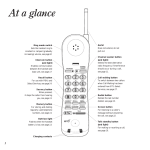
At a glance
Aerial
Extendable.
In use light
Lights up when ringing or
a new message is waiting.
Display screen/Message
Centre
Shows number of stored
messages and all status displays.
Earpiece volume control
Increase or decrease volume
during a call.
See page 15
Command buttons
Used in conjunction with
Display screen options.
Options
For navigating through the
menu.
Talk
For making and ending calls.
Keypad
Keys 0 - 9 plus ✱ and #.
Directory
To call and store up to 20
names and numbers.
See page 16
Recall
For use with switchboards.
Aerial
Redial
Stores last 3 numbers dialled.
See page 13
Extend for use.
Power light
Illuminates when
power is switched on.
Charger
Base unit
Charging light
Illuminates when a handset
is charging.
1
Registration button
For registering new handsets
to the Quartet 2015 base unit.
2
In this guide
At a glance
1
Introduction
4
Setting up
6
Using your Quartet 2015
8
Making and receiving calls
12
Using the directory
16
Using the answering machine
19
Optional settings
32
Using Select Services
35
Using additional handsets
44
Wall mounting
46
Help and advice
48
Technical advice
50
Index
52
Wall mounting template
53
3
Introduction
Your BT Quartet 2015 combined cordless telephone and digital answering
system is designed for ease of use and is made to BT’s high standards.
The BT Quartet 2015 combines the advantages
of cordless operation with the performance of a
high quality telephone and digital answering
system. It offers unparalleled quality and features.
Cordless telephone functions
Your Quartet 2015 offers you the convenience
and flexibility of a cordless telephone system and
has been specifically designed to be easy to use.
You can use up to 4 handsets with the base unit
and transfer calls between them. The handset
is highly functional and has a clear and simple
display to assist you to use the many helpful
features of your telephone, answering machine
and BT Select Services.
Directory
The Directory, which you access via the
directory button, allows you to store up to 20
names and numbers in alphabetical order. You
can scroll through and edit or delete them. You
can also preview entries and set up calls directly
from them.
Answering machine
The answering machine allows callers to leave a
3-minute message tagged with the day and time.
You can also record memos for family or
colleagues. Different outgoing messages can be
recorded and used on demand.
4
If you want your caller to leave a message, set to
‘Answer and Record’ if not, set to ‘Answer Only’.
The Quartet 2015 has pre-recorded greetings and
voice prompts and has visual and audible signals
to alert you when new messages have been left.
Select Services
Your Quartet 2015 is designed to make it easy for
you to access and manage BT’s Friends & Family
and certain BT Select Services. For instance,
you may also want to change the time for your
Reminder Call or switch Call Waiting on or off.
These can all be edited, enabled or cancelled via
the handset display.
Handset functions
Apart from some very basic functions on the
base unit and charger, your Quartet 2015 is
managed almost entirely from the handset.
Using the handset’s display screen and buttons,
you can edit and activate the functions of your
Quartet 2015, both on and off-line. The main
method of control, is via a tree of menus, which
you can access and navigate through by using
buttons beneath the Display.
Please see ‘Menu options’, page 8.
Unpacking your Quartet 2015
Check that your BT Quartet 2015 is complete.
When you unpack it, you should have:
For your records
Date of purchase:
Place of purchase:
● BT Quartet 2015 base
unit with telephone
line cable attached.
Serial number (on the underside of the telephone base unit):
Purchase price:
For warranty purposes, proof of purchase is
required, so please keep your receipt.
● Cordless handset
● Charger
● 2 x 13 amp mains
power adaptor plugs
● Wall plugs
and screws
5
Setting up
Follow these steps to get your Quartet 2015 ready for use.
Situating your Quartet 2015
1
Plug your Quartet 2015 base unit
into the telephone wall socket
Position your Quartet 2015 within 2 metres of
a phone socket and 3 metres of a mains power
socket.
Do not stand it on carpets or other similar
surfaces which might generate fibres.
SETTING UP
Do not cover or enclose the machine. Allow a
free flow of air to its surfaces.
For the best performance do not position your
Quartet 2015 close to other electrical equipment,
eg. TV’s or large metal objects, metal cabinets etc.
Your Quartet 2015 can be wall-mounted.
For instructions on how to do this, see
‘Wall-mounting’ on page 46.
If you have any problems setting up or using
your Quartet 2015, please call Helpline on
08457 697330.
If you do not have a modern-style socket, call
Freefone 0800 800 150 and ask for a BT
engineer to come and fit the correct type. This
is a chargeable service.
Plug your Quartet 2015 base unit
2 and charger into the mains power
socket
There is one mains power adaptor for the charger
and one for the base unit. Simply plug one end
in the socket provided on the underside of each
box, plug the other end into a mains power supply
socket, and switch on.
Base unit
6
Charger
3
Charge the handset batteries for
at least 24 hours
Before you use your Quartet 2015 for the first
time, it is important to have the handset batteries
fully charged. We recommend that you leave the
Quartet 2015 handset on the cradle charger for
at least 24 hours.
Battery Low Indication
When the batteries need re-charging, the display
will show a ‘battery low’ symbol. Replace the
handset on the charger to re-charge.
4
Aerial
SETTING UP
It is advisable to extend the aerials on both
the handset and base unit for optimum
performance.
Extendible
handset
aerial
Extendible
base unit
aerial
Your Quartet 2015 is now ready for use.
7
Using your Quartet 2015
Menu options
Your Quartet 2015 uses a display on the handset
which allows you to select from the various
product features detailed throughout this guide.
Using the keypad, you are guided through the
menu options by the prompts on the display.
At standby (that is the basic screen when not in
use) the handset display shows:
Each menu option offers you with a choice of
prompts that appear on screen (ie. BACK, OK)
which are selected using the 2 buttons located
just below the display.
The Options button is in the middle of these.
For example, if you press OK when in ANS
MACHINE, you will be presented with a further
menu of 3 screens, which you move between by
pressing the OPTIONS button again.
HANDSET 1
ANSWER
USING
OFF
Options
Press the Options button. This opens the top
level menu, showing the first of 3 main options.
The first is:
SELECT SERVS
OK
BACK
Options
Press Options again. Display shows:
Press Options button. Display shows:
RECORD
BACK
MEMO
OK
Options
Press Options button again. Display shows:
ANS SET UP
BACK
OK
ANS MACHINE
BACK
OK
Options
Options
If you wish to select an option, press OK, or BACK
to move back to the previous menu.
Press Options again. Display shows:
TELEPHONE
BACK
OK
Options
8
ON
Options
When you wish to exit the menus completely,
press and hold BACK.
Replacing the handset in the charger at any time
will return the system to standby.
When you have reached the feature you wish
to select or change, just follow the on-screen or
voice prompts to complete.
Using the menus you can edit and set up the
Select Services you subscribe to, switch the
answering machine on and off, record outgoing
messages, set answer modes or change the
number of rings before your outgoing messages
cut in.
PLEASE NOTE
For more details of the menus and how they
work, please refer to the relevant sections in the
guide itself.
Display symbols
The following symbols may appear on your
handset display.
Symbol
Meaning
Battery Low
Call Transfer
In Use
Answering machine ON
USING
You have messages
stored on your answering
machine
Flashing indicates you
have new messages
stored
9
M E N U S T R U C T U R E ( W H E N I N S TA N D B Y )
HANDSET
SELECT SERVICES
ANSWER MACHINE
CALL RETURN
Page 37
FRIENDS/FAM
Page 38
CALL MY BILL
Page 39
CALL DIVERT
Page 40
REMINDER CALL
Page 41
CALL WAITING
Page 43
EDIT SERVICES
Page 36
ANSWER
Page 22
RECORD MEMO
Page 22
ANS MODE
Page 23
OUTGOING MSG
Page 24
DAY AND TIME
Page 25
ANSWER DELAY
Page 26
MESSAGE ALERT
Page 27
SECURITY CODE
Page 27
REMOTE ACCESS
Page 28
BASE SPEAKER
Page 28
USING
ANS SET UP
TELEPHONE
10
HANDSET RING
Page 32
HANDSET VOLUME
Page 32
BASE RING
Page 33
DIAL MODE
Page 33
RECALL MODE
Page 34
REGISTER
Page 44
MENU STRUCTURE (DURING A CALL)
HANDSET OFF HOOK
CALL SCREEN*
See page 30
SECRECY
See page 15
OPTIONS
TRANSFER
CALL WAITING
See page 14
RING BACK
See page 14
CHANNEL SEEK
See page 14
3 WAY CALL
See page 15
See page 44
*This menu is only available when the answering machine has answered an incoming call.
USING
11
Making and receiving calls
To make a call
To view the number before dialling
To make a call, you can choose to enter
the number first, before you dial it.
Press buttons in order shown
Press the TALK button to obtain dial
tone.
DIAL
The handset display shows MAKING
LINK then
, to indicate you are now
connected to a line.
USING
DIAL
Key in the phone number. The number
is displayed and dialled.
If the number keyed in has more than
12 digits, the number scrolls along to
the left so that the last 12 digits are
always displayed.
Within 10 seconds of the number
being entered the call timer starts
from zero, 00:00:00.
PLEASE NOTE
After using one of the 3 option buttons or
the TALK button, the words MAKING LINK may
momentarily appear in the display.
This confirms that a command has been accepted
and is being acted upon.
12
<
>
Enter the number you wish to dial.
The number will appear in the handset
display together with < for back and >
for forward. The black cursor will flash.
To delete a digit press and release the
button under the < symbol. Press the
button under the > symbol to insert a
space.
When you have entered the full number,
press the TALK button. Your number
will be dialled. (If you do not press the
TALK button, you will be returned to
standby after 20 seconds.)
The display shows the number of the
person being called. Within 10 seconds
of the number being dialled the call
timer starts from zero, 00:00:00.
To end a call
Press the TALK button or replace the
handset in its charger.
If the handset is not in its charger:
To redial the last number
Press the TALK button.
If another registered user picks up the
call, an error tone sounds.
Using the redial button that is located
on the bottom left side of your handset:
Redial
Press the REDIAL button. The last
number called appears in the display.
This allows you to check it before
dialling.
To end the call, press the TALK button
or replace the handset in its charger.
To switch on the keyguard
Press TALK to dial the call.
You may like to lock your keypad when
you are carrying it around. This stops
you from accidentally dialling any
numbers.
An alternative way of doing this is:
Redial
Press TALK, then the REDIAL button.
The number is immediately dialled.
REDIAL will store the last 3 numbers
called.
Press the REDIAL button until the
number you wish to redial is displayed.
Press TALK to dial.
✱
USING
Redial
✱
Press the left button (under the display)
followed by the ✱ button. Display shows
KEYGUARD ON.
If you now try to dial, display will show
KEYGUARD CANCEL. When you wish to
cancel the keyguard, press the left
button (under the display) followed by
the ✱ button.
To receive a call
When the phone rings:
The light on the handset flashes.
Display shows CALL. This occurs both
on and off the charger.
If the handset is in its charger:
Lift the handset and you are
immediately in contact with the caller.
To end the call, press the TALK button
or replace the handset in its charger.
13
When you wish to end one of the calls,
press the TALK button. Your current call
will end.
Options during a call
You can use a number of additional functions
during a call.
Your handset will ring, display showing
CALL. Press the TALK button and you
will be re-connected to the remaining
caller. Press the TALK button again when
you wish to end the call.
To seek a stronger channel
Press buttons in order shown
Options
OK
Press the OPTIONS button until the
display shows CHANNEL SEEK.
USING
Your call will continue during Channel
Seek.
To answer a Call Waiting call
For an explanation of Call Waiting
service, please see page 36.
When you hear the Call Waiting beeps
during a call:
14
NOTE: Ring back service must be
Press OK.
The handset automatically finds the
best channel. CHANNEL SEEK will
disappear from the display.
Options
To use Ring Back for an engaged
number
Press the OPTIONS button until the
display shows CALL WAITING.
SWITCH
Press SWITCH to speak to the other
caller. Your first call will be put ‘on hold’.
SWITCH
Press SWITCH to toggle between the
2 callers.
available – check with network provider.
Options
If the number you are calling is
engaged, press the OPTIONS button
until the display shows RING BACK.
OK
Press OK. Voice says ‘Your Ring Back
request has been accepted’.
To end the call, press the TALK button
or replace the handset in its charger.
When the engaged number becomes
free, your phone will ring and you will
be connected to the person you were
trying to contact. (They will answer
the call as if you had just called them.)
To use the secrecy function
While on a call, if you wish to talk to
someone close by without the person at
the other end hearing the conversation,
you can use the secrecy function.
To adjust the handset earpiece
volume (speech)
While on a call or listening to messages:
VOL
During a call:
SEC
To allow the caller to hear you again,
select SEC. You can now resume your
conversation.
To end the call and return to standby,
press TALK.
VOL
Press and release the volume button to
increase/decrease for the required level.
USING
SEC
The volume will get louder or softer,
depending on the start point, and will
beep twice when it has reached either
the highest or lowest volume setting.
It will then go back the other way.
Select the SEC option.
The display shows SECRECY ON.
This confirms that you have activated
the secrecy function and you can now
talk without the other person at the end
of the line hearing you. You will also hear
a beep every 5 seconds or so.
To adjust the volume of speech of the
person you are talking to, press the
VOLUME button situated at the top
left-hand corner of the handset.
To use 3 Way Calling
During a call.
Options
OK
Press the OPTION button until display
shows 3 WAY CALLING
Press OK.
Key in the phone number you require.
JOIN
Press JOIN.
You can now speak to both parties.
To end the call, press the TALK button
or replace the handset on the charger.
15
Using the Directory
Your Quartet 2015 can hold up to 20 names and
numbers in its directory which will be stored in
alphabetical order.
You can add names to the directory and edit or
delete them as required.
>
<
SAVE
You can also set up calls from entries in the
directory.
DIRECTORY
Insert a space if you wish (this is
ignored during dialling).
Press buttons in order shown
Press the DIRECTORY button.
The display shows EMPTY or your first
directory name.
Redial
Select NEW. Display shows ENTER NAME.
KEYPAD
Key the first letter of the name you wish
to enter. (For instance, to display the
letter C, press the 2 button until C
appears on the display.)
You will now see the letter just entered,
and the cursor will start flashing under
the next letter space after a few seconds.
16
Press SAVE. The display shows ENTER
NUMBER.
Enter the number in the same way as
you entered the letters. If there are more
than 12, they will be scrolled along,
allowing the last 12 digits to be shown.
To store an entr y in the Director y
NEW
Finish entering the letters of the name,
using the > symbol to insert a space
between the first and last name.
To delete a letter, use the < symbol.
SAVE
To insert a pause in the string of digits
(for instance for switchboard access),
press the REDIAL button. The pause
is shown as P.
Press SAVE. Display shows UPDATING
DIRECTORY followed by SAVED.
Display confirms name and number
together for up to 15 seconds, then
returns to standby.
BACK
Press and hold BACK to return to standby.
NOTE
DIRECTORY FULL
If you want to enter ‘C’ followed by another ‘C’
wait for a few seconds for the cursor to
automatically move onto the next space before
entering the second ‘C’.
If you try to store a new entry and you see the
message DIRECTORY FULL, you will need to
delete an entry before you can store any others.
See‘to delete an entry in the directory’ page 18.
AVAILABLE CHARACTERS
1
2
3
4
5
=
=
=
=
=
&
A
D
G
J
’
B
E
H
K
( ) 1
C 2
F 3
I 4
L 5
6
7
8
9
=
=
=
=
M
P
T
W
N
Q
U
X
O
R
V
Y
To edit an entr y in the director y
6
S 7
8
Z 9
Press the DIRECTORY button.
Use the DIRECTORY button to scroll
through the names until the name you
wish to edit appears.
Press the OPTIONS button. The display
shows the name.
EDIT
SAVE
Press EDIT. You will now see the name,
such as LOUISE DAVIES. Use the
backspace, the forward space and the
keypad to edit the name. Then press
SAVE until a beep sounds.
SAVE
If it is only the number you wish to edit,
press SAVE to confirm the name.
To add extra entries to the director y
Press the DIRECTORY button.
Options
NEW
Press the OPTIONS button.
Select NEW.
Follow the process on the previous
page.
SAVE
Edit the number as before. Press SAVE.
The revised name and number are
displayed.
BACK
Press BACK to return to standby.
DIRECTORY
Options
17
To view and then dial a call
from the director y
To delete an entr y in the director y
Press buttons in order shown
Press the DIRECTORY button.
The first entry appears on the display.
Press the DIRECTORY button.
The first stored name is displayed with
the telephone number.
DIRECTORY
Press and release the DIRECTORY
button to move to the next entry.
Or
Press and hold the DIRECTORY button
to scroll through all entries. These are
in alphabetical order. After reaching Z
the scrolling takes you back to letter A.
BC
A
2
If the number has more than 12 digits
the display scrolls to the left.
Or
To go to a specific entry, use the
DIRECTORY button then the handset
keypad to enter the first letter of the
name. For example, for “C Davis” press
button 2 three times, for C, wait for the
display to show the first directory entry
under ‘C’, then press the directory button
to access any further names under ‘C’.
If there are no entries under a section
beginning with the chosen letter, the
display will move to the next section
and letter.
To dial the number on the screen:
Press the TALK button. The name of
the person will appear on the display
for a few seconds before the call timing
begins.
18
Use the DIRECTORY button to scroll
through the names until the name you
wish to delete appears.
Options
Press the OPTIONS button. The display
shows the name.
DEL
Press DEL. The display shows DELETE?
YES
Press YES. After a few seconds you will
hear a double beep and the display then
shows UPDATING DIRECTORY then ENTRY
DELETED.
After confirmation of the deletion has
been displayed for one second, the next
entry in the directory is displayed.
Using the answering machine
When you are unable to answer the phone,
your Quartet 2015’s digital answering machine
will take messages. You can also leave your own
recorded messages (see Memos, page 22).
Your Quartet 2015 can record up to 15 minutes
of messages in total, including the outgoing
messages.
Your Quartet 2015 handset display shows the
following symbols relating to the answering
machine functions.
Symbol
Meaning
Answering machine ON
You have messages
stored on your answering
machine
Flashing indicates you
have new messages
stored
Voice prompts
The Quartet 2015 makes using your answering
machine easy by using voice prompts as well as
the instructions on the handset display.
ANSWERING MACHINE
You can skip backwards and forwards through
your messages and memos and delete or save
any or all of them.
The answering machine can be operated from
your Quartet 2015 cordless phone or any external
phone provided it is a Touchtone™.
These announcements can be heard at the base
unit, or through your Quartet 2015 handset.
We recommend that initially, when setting up
your answering machine, you also listen to the
announcements from the base unit.
Messages are tagged with the day and time
which is announced to you at the end of each
individual message during playback. To ensure
that this information is accurate you must set
the date and time. See page 25.
You can adjust the base speaker volume or
switch it off (see page 28). The base speaker
enables you to clearly hear when messages and
voice announcements are being played.
19
Recording time limit
The system also has its own pre-recorded
concluding announcement.
This cuts in automatically to warn callers that
they are about to, or have, run out of time for
recording their message.
Incoming messages are restricted to a maximum
of 3 minutes, with 15 minutes of recording time
in total.
PLEASE NOTE
ANSWERING MACHINE
If a period of silence in excess of 8 seconds
occurs during the recording of the outgoing
messages, memos or incoming messages the
answering machine will stop the recording
and return to standby.
Memos
You can leave messages for members of your
household or office colleagues. Memos can be
recorded and saved as if they were normal
answering machine messages. There is no time
limit on the length of a memo.
Outgoing messages
The Quartet 2015 contains two different
outgoing messages which you can replace with
a recording in your own style and voice.
Of these 2, one announcement invites callers to
leave a message. This is Answer and Record
mode. The second enables you to leave an
announcement, but does not allow callers to leave
a message. This is Answer Only mode.
Your Quartet 2015 will automatically switch to
Answer Only mode when your message memory
is full.
Answer Delay
It is possible to change how many times your
phone will ring before the answering machine
takes a call. The length of the delay is set using
ANSWER DELAY in the ANSWER SET UP menu
options.
Your Quartet 2015 has the following settings:
2, 3, 4, 5, 6, 7, 8, 9 and TIMESAVER (Time Saver).
PLEASE NOTE
If the answering machine is set to TIMESAVER it
will automatically answer after 2 rings if you
have any new messages, or after 6 rings if you
have no new messages.
This facility is useful if you wish to interrogate
your system remotely, since if your answering
machine does not answer after 2 rings, you will
know that there are no new messages and you
can choose to hang up.
20
Message alerts
Your Quartet 2015 features an audible Message
Alert function for new incoming messages.
When the message alert function is switched on,
the handset will beep every 10 seconds to let
you know you have new messages.
Call screening
Call Screening enables you to listen to incoming
calls while they are being recorded, without the
caller knowing. You can then choose to take the
call or allow the caller to finish the message.
Even if the message alert function is switched
off, you can still see if you have new messages
as a visual alert symbol
will flash in the
display. If this symbol does not flash you have
messages stored, but no new messages.
A red light on the top left side of the handset will
also flash if new messages have been received.
The display shows the total number of messages
stored, under the
symbol.
Remote access
You can operate your answering machine from
any other external phone, providing it is
a Touchtone™ phone. To do this you need a
security code to prevent unauthorised access.
The default setting is 000.
Your code authorises you to access your
messages from any Touchtone™ phone.
This feature can be turned on or off.
21
To switch the answering machine
on and off
SAVE
Press buttons in order shown
Options
OK
ON
ANSWERING MACHINE
OFF
Press the OPTIONS button until the
display shows ANS MACHINE.
Display reads MEMO PLAY.
Select OK.
The display reads MAKING LINK then
shows ANSWER.
DEL
If, during memo playback, you press
DEL, then your memo will not be
recorded, the display will show DELETED
and voice will announce ‘Message deleted’.
Select ON. Voice says ‘Answer on’ and
the
symbol will appear on your
handset’s display.
BACK
Select OFF. Voice says ‘Answer off ’, and
the
symbol will disappear from
the display.
STOP
To record a memo
STOP
Options
Press the OPTIONS button until the
display shows ANS MACHINE.
OK
Select OK. The display briefly reads
MAKING LINK then shows ANSWER.
Options
Press OPTIONS until the display shows
RECORD MEMO.
OK
Press OK. The display shows SPEAK
AFTER TONE. Voice says: ‘Please speak
after the tone, then press SAVE to confirm.’
SAVE
22
Speak your memo. The display shows
RECORDING SAVE. When finished, press
SAVE. Voice says ‘Your memo is ....’
Your memo is played and then the day
and time is announced.
Press BACK to return to standby.
If, during memo recording you press,
STOP or replace the handset in the
charger, then you will be returned to
standby immediately. In this case the
portion of the message left before you
stopped recording is recorded.
If you press STOP or replace the
handset in the charger during playback
the whole memo is retained and tagged
with day and time.
The message symbol appears once all or
part of your memo has been recorded.
The red light on the handset will flash
to indicate a new message has been
received.
Options
To play back a memo
Memos are stored as normal answering
machine messages. They are not then
identified separately as memos. See
page 29 for instructions on how to
play back messages.
To select Answer Mode (answer and
record or answer only)
One announcement invites callers to
leave a message. This is Answer and
Record. The other enables you to leave
a greeting, but does not allow callers to
leave a message. This is Answer Only.
When the message memory is full
your Quartet 2015 answering machine
will automatically switch to Answer Only
mode.
Press OK. The display shows ANSWER
MODE and either ANS AND REC or
ANS ONLY.
CHANGE Press CHANGE. The display shows
either ANS AND REC or ANS ONLY.
If the option you want is displayed
SAVE press SAVE. The display returns to
ANSWER MODE.
Options
If not, press OPTIONS to switch to the
other.
As each option appears the voice
confirms either ‘Answer only’ or ‘Answer
and Record’.
SAVE
ANSWERING MACHINE
The Quartet 2015 contains 2 different
outgoing messages which you can
substitute with a recording in your own
style and voice.
OK
Press OPTIONS again until the display
shows ANS SET UP.
Press SAVE to make your choice.
The display returns to ANSWER MODE.
Without leaving ANSWER MODE you may
now record your own outgoing message.
BACK
Press and hold BACK to return to standby.
If you choose not to record your own
outgoing message, the pre-recorded
ones will automatically be selected.
To choose the type of outgoing message
you wish to use:
Options
Press the OPTIONS until the display
shows ANS MACHINE.
OK
Select OK. The display briefly shows
MAKING LINK then shows ANSWER.
23
DEL
To record a new outgoing message
Press buttons in order shown
Options
OK
Options
ANSWERING MACHINE
OK
Options
Press the OPTIONS button until the
display shows ANS MACHINE.
Then
Press OK. The display briefly shows
MAKING LINK.
Press OPTIONS until the display shows
ANS SET UP.
Press OK. The display shows ANSWER
MODE.
Press the OPTIONS button again, until
display shows OUTGOING MSG.
OK
Select OK. Display shows OUTGOING
MSG.
REC
Select REC. The display shows SPEAK
AFTER TONE. Voice says ‘Please speak
after the tone then press save to confirm’.
BACK
SAVE
Record your message. The display
shows RECORDING. Press BACK during
the recording to delete what you have
recorded so far. Voice says ‘Message
deleted’ and the display reverts to
standby.
If you complete the recording and are
happy with it, press SAVE.
Voice says ‘Your outgoing message is....’
Your message is played through.
The display shows OGM PLAY.
24
To delete during playback, press DEL.
Voice says ‘Message deleted. Your
outgoing message is ...’ and the system’s
pre-recorded message is played instead.
At the end the display returns to
standby.
STOP
To stop playback (ie you are happy
with it so far), press STOP. Your new
message is retained. The display returns
to standby.
PLEASE NOTE
Deleting your recorded outgoing messages
will automatically reinstate the original
pre-recorded message.
It is not possible to delete any of the
pre-recorded messages.
You can
check
youryour
outgoing
message
To listen
to or
check
outgoing
at
any
time.
messages
Options
OK
Options
OK
Options
The system’s pre-recorded outgoing
message is then substituted and
played. It will remain until you decide
to record your own. Display returns to
standby.
Press the OPTIONS button until the
display shows ANS MACHINE.
Select OK. The display briefly shows
MAKING LINK.
Press OPTIONS until the display shows
ANS SET UP.
Press OK. The display shows ANSWER
MODE.
Press the OPTIONS button again.
The display reads OUTGOING MSG.
Select OK. The display reads OUTGOING
MSG.
PLAY
Press PLAY. Voice says ‘Your outgoing
message is ...’ and the current message
(ie Answer only or Answer and Record)
is played. The display shows OGM PLAY.
STOP
If you are happy with the message while
it is still playing, press STOP.
Alternatively, wait until the end. In both
instances the display returns to standby.
DEL
However, if you wish to delete the
message, you must press DEL before the
message ends. The display then shows
DELETED briefly and voice says ‘Message
deleted. Your outgoing message is’.
Options
OK
Options
OK
Options
Press the OPTIONS button until the
display shows ANS MACHINE.
Select OK. The display shows MAKING
LINK then shows ANSWER.
Press the OPTIONS button until the
display shows ANS SET UP.
ANSWERING MACHINE
OK
Setting day and time
Press OK. The display shows ANSWER
MODE.
Press the OPTIONS button again until
the display shows DAY AND TIME
alternating with the current setting,
e.g. SAT 12.01PM.
CHANGE Select CHANGE. The display shows SAT
12.01PM. The day flashes, indicating
that it is ready to be changed. Voice says
‘Please enter the day using the buttons 1
to 7, where 1 is Monday and 7 is Sunday,
then press SAVE to confirm’.
SAVE
Use the handset’s keypad to enter the
correct day (eg.1) and press SAVE.
Display shows MON 12.01 PM. Voice says
“Please enter the time in the 12 hour
clock using four digits, then press SAVE
to confirm.”
25
SAVE
SAVE
Use the handset’s keypad to enter the
correct time and press SAVE. Display
shows (eg. 01.45) MON 01.45PM and the
options: AM or PM. Voice says “Press the
AM or PM button, then press SAVE to
confirm”.
Select AM or PM and press SAVE.
Voice confirms day and time set and the
display returns to ANSWER MODE.
To set the number of rings before
your Quartet 2015 answers the call
Press buttons in order shown
Options
At standby press OPTIONS until the
display shows ANS MACHINE.
OK
Select OK. The display briefly shows
MAKING LINK then shows ANSWER.
Options
Press OPTIONS until display shows
ANS SET UP.
MAINS POWER FAILURE
ANSWERING MACHINE
If the mains power fails, your Outgoing
Messages and any Incoming Messages or
Memos that have been recorded will be saved.
However, if the mains power fails for more
than about 1 second, you will need to reset the
time and day announcement.
OK
Press OK. Display shows ANSWER MODE.
Options
Press OPTIONS until the display shows
ANSWER DELAY and X RINGS.
The number of rings shown is the
current setting.
CHANGE Select CHANGE. Display shows the
current setting again: X RINGS.
SAVE
Options
OK
BACK
26
Select SAVE to confirm setting shown or
keep pressing the OPTIONS button to
scroll through the different settings.
As each new number of rings appears
voice says ‘Answer delay X rings’ or
‘Answer delay Timesaver’. Make your
selection by pressing OK. Display
immediately returns to ANSWER DELAY,
showing the new setting.
Wait 20 seconds or press or hold BACK
to return to standby.
To turn the message alert beeps
on and off
Options
At standby, press OPTIONS until the
display shows ANS MACHINE.
OK
Select OK. The display briefly shows
MAKING LINK then shows ANSWER.
Options
OK
Options
Press OPTIONS until the display shows
ANS SET UP.
Press OK. The display shows ANSWER
MODE.
CHANGE Press CHANGE. Display shows OFF or
ON. The setting shown is the current
setting. If this is what you want, select
SAVE SAVE.
Options
BACK
If you wish to change the setting, press
the OPTIONS button and the setting
will change. Voice says ‘Message alert
on/off ’. The display then returns to
MESSGE ALERT, alternating with the
new setting.
Press and hold BACK to return to
standby.
Options
At standby press OPTIONS until the
display shows ANS MACHINE.
OK
Select OK. The display briefly shows
MAKING LINK then shows ANSWER.
Options
Press OPTIONS until display shows
ANS SET UP.
OK
Press OK. Display shows ANSWER MODE.
Options
Press OPTIONS until the display shows
SECURITY CODE and the current three
digit code. (Default code is 000.)
ANSWERING MACHINE
Press the OPTIONS button until the
display reads MESSGE ALERT flashing
alternately with either ON or OFF,
depending on the current setting.
To set your remote access security
code from your handset
CHANGE Press CHANGE. Display repeats the
three digit code with the first digit
flashing. If you wish to retain the
SAVE existing code, select SAVE.
SAVE
BACK
If not, enter a new number, then press
SAVE. Voice says ‘Security code setting
XXX’
and the display returns to SECURITY
CODE showing the new setting.
Wait 20 seconds or press and hold BACK
to return to standby.
27
There are 3 speaker volume settings:
To turn remote access on and off
Press buttons in order shown
Options
OK
Options
OK
ANSWERING MACHINE
Options
At standby press OPTIONS until the
display shows ANS MACHINE.
Select OK. The display briefly shows
MAKING LINK then shows ANSWER.
Press OPTIONS until display shows
ANS SET UP.
Setting
theLow
base
High,
or unit
Off. speaker volume
Options
OK
Options
Press the OPTIONS button to switch
between on and off. At each option
voice says ‘Remote access on’ or ‘off ’.
SAVE
Select the option you want using SAVE.
Options
Press the OPTIONS button until the
display shows BASE SPEAKER alternating
with VOLUME HIGH, LOW or OFF.
CHANGE Select CHANGE. Display shows VOLUME
HI LOW or OFF.
Options
Press the OPTIONS button to switch
between the settings. When HIGH is
shown there is a loud beep, a softer one
for LOW and silence for OFF.
SAVE
Press SAVE to select the one you want.
Display returns to REMOTE ACCESS ON
or OFF, confirming the setting that has
been selected.
BACK
28
Press and hold BACK to return to
standby.
Press the OPTIONS button until the
display shows ANS SET UP.
Press OK. Display shows ANSWER MODE.
Press OPTIONS until the display reads
REMOTE alternating with ACCESS ON.
Options
Select OK. Display briefly shows
MAKING LINK.
OK
Press OK. Display shows ANSWER MODE.
CHANGE Press CHANGE. Display shows
ACCESS ON.
Press the OPTIONS button until the
display shows ANS MACHINE.
The display returns to BASE SPEAKER
and shows the new setting.
BACK
Press and hold BACK to return to
standby.
To listen to your messages
When new messages have been left for
you the message symbol
flashes in
the top right-hand corner of the handset
display, the red light also flashes and
the handset beeps every 10 seconds
(if message alert has been switched on,
see page 27). The handset also shows
the number of messages stored and the
word PLAY.
PLAY
< >
During message playback, as just
described, use < and > to skip
backwards and forwards through your
messages.
To delete a message during playback
During message playback the display
shows MESSAGE 01 together with 3
command options DEL < >.
Select PLAY. The display briefly shows
MAKING LINK then MESSAGE 01. Voice says
‘You have X messages. Message 1’. The
message is played, then voice announces
the day and time the message was left,
then ‘Message 2’ etc.
DEL
Press DEL at any point after this,
including during the day and time
announcement.
To pause a message, press 2. The display
shows PAUSED. Press 2 again to resume
playing.
YES
Display shows DELETE? Select YES.
Voice says ‘Message deleted’ and
‘Message X’, if there is a next message
to be played.
The display returns to standby after a
few seconds or immediately if you
press STOP.
ANSWERING MACHINE
To delete messages while you are
playing through them, wait for the
message to begin.
After all messages have been played
voice says ‘End of messages’. The display
shows END OF MESS.
To stop message playing and revert to
standby, press #.
STOP
To move through your messages
If you change your mind and select NO,
the message continues. The display
reverts to MESSAGE X.
29
To delete all messages at once
The answering
machine
must
To listen
to a caller
leaving
a be
message (Call Screening)
switched on and be set to ANSWER AND
RECORD (see page 23).
Press buttons in order shown
Wait until all messages have been
played. Voice says ‘End of messages.’
The display shows END OF MESS and 3
options DEL << STOP.
Incoming calls will cause the handset
display to show CALL.
OK
DEL
Press DEL. The display shows
DELETE ALL.
YES
Select YES.
ANSWERING MACHINE
Voice says ‘All messages deleted’ and the
display shows DELETED before returning
to standby.
BACK
The message waiting symbol
disappears.
STOP
NO
In both cases the display will return to
standby.
PLEASE NOTE
Any message not deleted will automatically
be saved and stored.
30
If you wish to stop listening, press BACK.
The handset returns to standby and the
message is recorded in the usual way.
If you wish to take the call, press the
TALK button. The display shows SEC
TRANS. You can now talk to the caller.
The portion of the message left before
you pressed the TALK button is
recorded and tagged with day and time.
The message symbol appears.
If you do not want to delete your
messages:
Either
Press STOP during the END OF MESS
screen.
Or
Press NO during the DELETE ALL screen.
After the answering machine has
answered the call, the display shows
CALL SCREEN. Pressing OK allows the
listener to hear the call but the
microphone is muted.
OK
To Call Screen while the handset is on
the charger, handset display shows CALL.
Press the OK button before picking up
the handset.
Contacting your Quartet 2015
answering machine from another
phone (remote access)
KEYPAD
✱
CODE
Dial your phone number.
When you hear your outgoing
message, press the ✱ button. You will
hear the announcement ‘Please enter
your security code’.
When you have accessed your answering
machine, you can turn it off, play and
delete messages, move backwards and
forwards through your messages and
re-record your outgoing message using
the keypad of the phone you are using.
Your Quartet 2015 will announce the
command options and the corresponding
number to press as follows:
‘To play all messages, press 2’
‘To play new messages, press 3’.
If you have entered the correct code
you will hear, ‘You have x messages’, and
the messages are played back, with the
day and time they were recorded. If
there are no new messages you will
hear ‘You have no messages’, then ‘To hear
main menu, press 1’.
‘To skip forward during messages,
press 6’
At the end of the last message, you will
hear ‘End of messages’, then ‘To hear
main menu press 1.
If you enter the wrong security code
the machine announces ‘Incorrect
security code. Please enter your security
code’. You have another chance to
enter the security code. If its wrong
the second time, the Quartet 2015 will
end the call.
ANSWER NG MACH NE
Enter your security code (default 000).
‘To delete during messages, press 5’
‘To delete all messages, press 5’
‘To skip back during messages, press 4’.
‘To play outgoing messages, press 8’
‘To record a new outgoing message,
press 9’
‘To set answer on or off, press 0’
‘To change your answer mode, press 7’
‘To hear main menu, press 1’.
31
Optional settings
The following settings can be altered on your
Quartet 2015.
To change the handset ringer melody
Press buttons in order shown
OPTIONAL SETTINGS
Options
OK
Press the OPTIONS button until the
display shows the TELEPHONE.
SAVE
BACK
32
Options
Press the OPTIONS button until the
display shows TELEPHONE.
OK
Press OK. The display briefly shows
MAKING LINK then HANDSET RING.
Options
Press OK. Display briefly shows MAKING
LINK then HANDSET RING.
CHANGE Press CHANGE. Display shows MELODY.
Options
To change the handset ringer volume
Scroll through the options using the
OPTIONS button. A different melody
plays each time.
Select one and press SAVE. Display
returns to HANDSET RING.
Press the OPTIONS button until the
display shows HANDSET VOL alternating
with VOLUME HIGH ( LOW or OFF).
CHANGE Press CHANGE. The display shows
VOLUME HIGH (LOW or OFF).
Options
Scroll through the options using the
OPTIONS button. You will hear the
various volume options as well as see
them on the display.
SAVE
Select one and press SAVE. The display
returns to HANDSET VOL alternating with
your selected volume level.
BACK
Press and hold BACK to return to
standby.
Press and hold BACK to return to
standby.
To change the base unit
ringer volume
To change the dial mode
Options
Press the OPTIONS button until the
display shows TELEPHONE.
Options
Press the OPTIONS button until the
display shows TELEPHONE.
OK
Press OK. The display briefly shows
MAKING LINK then HANDSET RING.
OK
Press OK. The display briefly shows
MAKING LINK then HANDSET RING.
Options
Press the OPTIONS button until the
display shows BASE RING alternating
with VOLUME HIGH (LOW or OFF).
Options
Press the OPTIONS button until the
display shows DIAL MODE alternating
with TONE.
CHANGE Press CHANGE. The display shows
VOLUME HIGH (LOW or OFF).
CHANGE Press CHANGE. The display shows
TONE (or PULSE).
Scroll through the options using the
OPTIONS button.
Options
Use the OPTIONS button to switch
between the 2 settings.
SAVE
Select one and press SAVE. A beep
sounds. The display returns to BASE
RING alternating with your selected
volume levels.
SAVE
Select one and press SAVE.
A beep sounds and the display returns
to DIAL MODE alternating with your
selected dial mode.
BACK
Press and hold BACK to return to
standby.
BACK
Press and hold BACK to return to
standby.
OPTIONAL SETTINGS
Options
33
To change recall mode
Press buttons in order shown
Options
Press the OPTIONS button until the
display shows TELEPHONE.
OK
Press OK. The display briefly shows
MAKING LINK then HANDSET RING.
Options
Press the OPTIONS button until the
display shows RECALL MODE, alternating
with TIMED BREAK (or EARTH).
OPTIONAL SETTINGS
CHANGE Press CHANGE. The display shows
TIMED BREAK (or EARTH).
Options
Use the OPTIONS button to switch
between the 2 settings.
SAVE
Select one and press SAVE. A beep
sounds. The display returns to RECALL
MODE alternating with your selected
recall mode.
BACK
Press and hold BACK to return to
standby.
NOTE
Timed Break is required for use with
Select Services.
34
NOTE
It is recommended that on all BT lines, Dial
Mode should be set to Tone and Recall Mode
be set to Timed Break.
Using Select Services
Your Quartet 2015 is designed to make it easy
for you to access certain BT Select Services,
Friends & Family and Call My Bill.
The available Select Services are Call Return,
Call Diversion, Reminder Call, Call Waiting,
3 Way Calling and Ring Back.
When you start to use the Select Services menu,
the handset will automatically take you to the
last Select Service you accessed.
For information on BT Select Services, please
call BT free on 0800 800 150 (residential) or
0800 800 152 (business)
PLEASE NOTE
Using Call Return you can find out the number
of the last person who called you and the date
and time of the call by dialling 1471. While on
line you can return the call by dialling 3.
Friends & Family
This is where the telephone number of the
Friends & Family service is pre-programmed
into your Quartet 2015, enabling you to dial the
Friends & Family service and follow the
instructions from the network to add or change
numbers.
SELECT SERVICES
If you have any or all of these services (some do
not require you to subscribe), your Quartet 2015
will help you to manage them from your handset
using the Select Services menu.
Call Return
PLEASE NOTE
Before phoning the Friends & Family service,
you need your BT customer number. This is in
the top right-hand corner of your phone bill.
If your Quartet 2015 is connected via a
switchboard, the pre-programmed access to
some Select Services will not be available but
you can connect to the service by dialling your
switchboard access code.
Please contact your switchboard provider if
you are unsure.
35
Call My Bill
This feature gives you the cost of calls recorded
on your telephone number since your last bill.
You can get an instant bill total including all
charges up to the last working day.
PLEASE NOTE
Before phoning the Call My Bill service,
you need your BT customer number. This is in
the top right-hand corner of your phone bill.
Call Diversion
SELECT SERVICES
You can use your Quartet 2015 to request the
network to divert all incoming calls to another
number.
Using the Quartet 2015 you can only divert all
calls.
Reminder Call
It is possible to select a Select Services option
to ring you at a pre-set time, for instance, to
remind you of an appointment.
Call Waiting
The Call Waiting service lets you know when
you have another caller trying to contact you
while you are already on the phone. You are
alerted that a call is waiting by a series of
on-the- line beeps.
36
Editing your Select Services
You may need to change some of your Select
Services settings from time to time.
For example, Call Diversion has 3 optional
access codes, #21#, #61# or #67#, each of
which might be needed at different times. You
may also want to change the divert number.
PLEASE NOTE
To make this type of change, you need to enter the
Edit Services menu. Do not enter the Edit Select
Services menu unless you are sure you wish to
change your defaults.
3 Way Calling
You can hold a conversation with two other
external callers. You can speak to both people at
the same time or choose to switch between both
callers.
VOICE PROMPTS
When using Select Services, your Quartet 2015
display may show ‘Please listen’ – listen to
Select Service prompts which will
guide you. Please refer to your Select Service
instruction book for further details.
To make a Call Return call
To edit Call Return
(Not to be edited unless requested
by your Network Provider.)
Press buttons in order shown
Options
OK
Options
Press the OPTIONS button until the
display shows SELECT SERVS.
Press OK. The display shows the last
Select Service accessed.
Press the OPTIONS button until the
display shows CALL RETURN.
Options
OK
Options
Either
OK
Options
Press OK. The display shows the last
Select Service accessed.
Press the OPTIONS button until the
display shows EDIT SERVS.
Press OK.
Press OPTIONS until the display shows
CALL RETURN.
SELECT SERVICES
Press the TALK button. The display
briefly shows MAKING LINK then PLEASE
LISTEN. Follow the voice prompts.
Press the OPTIONS button, the display
shows SELECT SERVS.
Or
DIAL
Press DIAL and follow the voice prompts.
The CALL TIMER then replaces the
number some seconds after the number
has been dialled.
CHANGE Select CHANGE. The display shows the
current number the handset uses to
access Call Return (1471).
< >
Using < > as required, edit the
number displayed until it is the one you
want, e.g. 1471.
SAVE
Press SAVE. The handset beeps and the
display returns to CALL RETURN.
BACK
Press and hold BACK to return to
standby.
To end the call press TALK.
PLEASE NOTE
If you dial the number of the person who last
called, you will be charged for this call
37
To call Friends & Family
To set or edit Friends & Family
Press buttons in order shown
Options
OK
Options
Press the OPTIONS button. The display
shows SELECT SERVS.
Press OK. The display shows the last
Select Service accessed.
Press the OPTIONS button until the
display shows FRIENDS/FAM.
SELECT SERVICES
Press the TALK button or DIAL button.
The display briefly shows MAKING LINK
then PLEASE LISTEN, the Friends &
Family 0800 number is then shown.
The call timer then replaces the number
after a few seconds.
Follow the Friends & Family voice
prompts.
(Not to be edited unless requested
by your Network Provider.)
Options
OK
Options
OK
Options
Press the OPTIONS button, the display
shows SELECT SERVS.
Press OK. The display shows the last
Select Service accessed.
Press the OPTIONS button until the
display shows EDIT SERVS.
Press OK.
Press OPTIONS until the display shows
FRIENDS/FAM.
CHANGE Press CHANGE. The display shows the
Friends & Family 0800 number. Edit
< > the number if required, using the arrows
to move the cursor over the digits.
To end the call, press the TALK button.
38
SAVE
Press SAVE. The display returns to
FRIENDS/FAM.
BACK
Press and hold BACK to return to
standby.
To call your bill
Options
OK
Options
OR
DIAL
To set or edit Call My Bill
At standby, press the OPTIONS button.
The display shows SELECT SERVS.
Press OK. The display shows the last
Select Service accessed.
(Not to be edited unless requested
by your Network Provider.)
Options
Press OPTIONS until the display shows
CALL MY BILL.
OK
Press the TALK button or DIAL button.
The display shows the CALL MY BILL
number being dialled and then PLEASE
LISTEN. You are then connected to
Call My Bill. Listen to the voice prompts.
Options
Press TALK to end the call.
Options
Press OK. The display shows the last
Select Service accessed.
Press the OPTIONS button until the
display shows EDIT SERVS.
Press OK.
Press the OPTIONS several times until
the display shows CALL MY BILL.
SELECT SERVICES
The call timer then replaces the number
after the number has been dialled.
OK
Press the OPTIONS button. The display
shows SELECT SERVS.
CHANGE Select CHANGE. The display shows the
current 0800 number for accessing
Call My Bill. Edit the number if
< > required, using the arrows to move the
cursor over the digits.
SAVE
When ready press SAVE. The display
returns to CALL MY BILL.
BACK
Press and hold BACK to return to
standby.
39
To set your Call Diversion setting
Press buttons in order shown
Options
OK
SET
Press the OPTIONS button until the
display shows SELECT SERVS.
Press OK, then press the OPTIONS
button until the display shows CALL
DIVERT.
Press SET. The display briefly shows
MAKING LINK then PLEASE LISTEN.
Follow the voice prompts.
To edit the Call Diversion set code
Options
Press the OPTIONS button, the display
shows SELECT SERVS.
OK
Press OK. Display shows the last Select
Service accessed.
Options
OK
Options
SELECT SERVICES
To end the call press TALK.
To cancel your Call Diversion setting
Options
Press the OPTIONS button until the
display shows SELECT SERVS.
OK
Press OK, then press the OPTIONS
button until the display shows CALL
DIVERT.
CANCEL Press CANCEL. The display briefly
shows MAKING LINK then PLEASE LISTEN.
Follow the voice prompts.
To end the call press TALK.
40
Press the OPTIONS button until the
display shows EDIT SERVS.
Press OK.
Press the OPTIONS button until the
display shows CALL DIVERT alternating
with SET.
CHANGE Press CHANGE.
Display shows the programmed code
✱ 21 ✱ for set.
Using the arrows as required enter or
change the four-digit access number.
SAVE
Press SAVE. The display returns to CALL
DIVERT alternating with SET.
BACK
Press and hold BACK to return to
standby.
To edit the Call Diversion cancel code
To set or edit the Reminder Call
cancel code
Options
Press the OPTIONS button, the display
shows SELECT SERVS.
Options
OK
Press OK. Display shows the last Select
Service accessed.
OK
Options
OK
Options
Press the OPTIONS button until the
display shows EDIT SERVS.
Press OK.
Press the OPTIONS button until the
display shows CALL DIVERT alternating
with CANCEL.
OK
Options
Press SAVE. The display returns to CALL
DIVERT alternating with CANCEL.
BACK
Press and hold BACK to return to
standby.
Press the OPTIONS button until the
display shows EDIT SERVS.
Press OK.
Press the OPTIONS button until the
display shows REMINDER CALL
alternating with SET or CANCEL.
CHANGE Press CHANGE. The display shows
#55#, the default setting.
KEYPAD
Using the numeric buttons as required
enter the new code.
SAVE
Press SAVE. The display returns to
REMINDER CALL. Your reminder call has
been set.
BACK
Press and hold BACK to return to
standby.
Using the arrows as required enter or
change the four-digit access number.
SAVE
Press OK. The display shows the last
Select Service accessed.
SELECT SERVICES
CHANGE Press CHANGE.
Display shows the programmed code
#21 # for cancel.
Options
Press the OPTIONS button, the display
shows SELECT SERVS.
41
To edit or cancel the Reminder Call
set up code
Press buttons in order shown
Options
OK
Options
OK
SELECT SERVICES
Options
Options
Press OPTIONS until the display shows
SELECT SERVS.
Press the OPTIONS button, the display
shows SELECT SERVS.
OK
Press OK. Display shows the last Select
Service accessed.
Press OK, then press OPTIONS until
REMINDER CALL appears.
SET
Press SET. The display shows MAKING
LINK and the REMINDER CALL.
Press the OPTIONS button until the
display shows EDIT SERVS.
Press OK.
Press the OPTIONS button until the
display shows REMINDER CALL
alternating with SET or CANCEL.
CHANGE Press CHANGE. The display shows
✱55✱, as set previously.
42
To turn your Reminder Call ON/OFF
KEYPAD
Using the numeric buttons as required
enter the new code.
SAVE
Press SAVE. The display returns to
REMINDER CALL. Your reminder call has
been set.
BACK
Press and hold BACK to return to
standby.
or
CANCEL Press CANCEL. The display shows
MAKING LINK and the REMINDER CALL.
The number is dialled.
The display shows PLEASE LISTEN.
Follow the voice prompts.
The network voice confirms the setting
or cancellation.
To end the call, press TALK.
To turn Call Waiting ON/OFF
Options
To edit the Call Waiting code
Press OPTIONS button until the display
shows SELECT SERVS.
OK
Press OK. Press the OPTIONS button
until the display shows CALL WAITING.
ON
Press ON or OFF. The display shows
MAKING LINK followed by PLEASE LISTEN
and your setting is confirmed by the
voice.
To end the call press TALK or return
the handset to the base unit.
(Not to be edited unless requested
by your Network Provider.)
Options
OK
Options
OK
Press the OPTIONS button. The display
shows SELECT SERVS.
Press OK. The display shows the last
Select Service accessed.
Press the OPTIONS button until the
display shows EDIT SERVS.
Press OK.
Options
Press the OPTIONS button until the
display shows CALL WAITING alternating
with ON.
Options
Press the OPTIONS button until the
display shows CALL WAITING alternating
with OFF.
CHANGE Select CHANGE. The display shows the
current setting, either ✱ 43# for ON
or #43# for OFF.
<
Using the < as required to enter or
edit the code as required.
SAVE
When ready press SAVE. The display
returns to CALL WAITING alternating
with your chosen setting.
BACK
Press and hold BACK to return to
standby.
43
Using additional handsets
You can register more than one handset on your
Quartet 2015 base unit; the maximum is 4.
A double beep sounds and the display
returns to standby. Your handset is now
registered to the Quartet 2015 base unit.
To register an additional handset
To transfer a call to another handset
Press buttons in order shown
You are Handset 1 and have taken an
incoming call and wish to transfer it to
another Quartet 2015 handset that is
registered to your base unit.
ADDITIONAL HANDSETS
Charge the handset for 24 hours.
The handset display will show
REGISTER
YES
Options
YES
Press YES. The display shows HANDSET X,
with X flashing.
KEYPAD
Enter the number of the handset to be
registered. If yours is the second of two,
enter 2, if the first, enter 1 etc.
OK
Press OK. The display reads PRESS BASE
BUTTON.
Press the BLACK button on the base unit.
During the call
TRANS Press TRANS. The display shows
and TRANSFER X, where X is the number
of one of the registered handsets.
KEYPAD
OK
Enter the number of the handset you
wish to transfer the call to (2, 3, 4).
Press OK. The display shows HANDSET 1
and
.
Press TALK or return the handset to the
base unit. Your call has been transferred.
The display returns to standby.
BLACK
BUTTON
44
To register your handset to another
Quartet 2015 base
VOL
Redial
OK
If you want to re-register the handset
on another Quartet 2015 unit – then the
handset needs to be completely reset.
This is done by pressing the VOLUME
button and the REDIAL button together
until the display shows RESET. This may
take up to 3 seconds.
A double beep sounds and the display
returns to standby. Your handset is now
registered to the Quartet base unit.
NOTE
If the handset is reset the Directory memories
will be erased and the handset options will
return to their default settings.
Press OK to confirm.
You may then follow these instructions
for registering an additional handset.
ADDITIONAL HANDSETS
The handset display will show
REGISTER
YES
Options
YES
Press YES. The display shows HANDSET X,
with X flashing.
KEYPAD
Enter the number of the handset to be
registered. If yours is the second of two,
enter 2, if the first, enter 1 etc.
OK
Press OK. The display reads PRESS BASE
BUTTON.
Press the BLACK button on the base unit.
BLACK
BUTTON
45
Wall mounting
Your BT Quartet 2015 can be wall-mounted using
the screws and wall plugs provided. Use the
wall-mounting template opposite as a guide for
the drill holes.
Before you wall-mount your Quartet 2015 or
handset charger (or both), check that:
• The wall can support the weight of the
apparatus.
WALL MOUNTING
• The position you choose leaves enough space
for the unit to clear any obstruction on the wall
with the aerial extended, such as a shelf.
• The positioning gives you sufficient radio
coverage. Avoid mounting the units near large
metal objects and minimising the amount of
walls between the base unit and the handsets.
46
To wall-mount the Quartet 2015
base unit
1 Using a pencil, mark the place on the wall
where you wish to place the screws using the
wall-mounting template on page 53.
2 Drill two holes suitable for the screws and
wall plugs supplied (if required).
3 Drive the screws into the wall, leaving about
5 mm free on which to hang the Quartet 2015.
4 Position the power and telephone cords down
through the grooves before you hook the unit
on the screws.
To wall-mount the handset charger
6 Press the power cord into its guide groove
before you hook the unit on the screws.
1 Using a pencil, mark two holes on the wall
48mm apart in the position you want to
mount your charger.
2 Drill two holes with a drill bit suitable for the
screws and wall-plugs supplied (if required).
3 Drive the screws into the wall, leaving about
9mm free on which to hang the charger.
4 Remove the back panel of your handset
Power cable
7 Hook the holes on the back of the charger
over the screws heads in the wall.
charger as shown.
WALL MOUNTING
5 If you wish, you can rotate the back panel
round and attach it to the bottom of the
charger.
47
Help and advice
If you have any difficulty using your Quartet 2015,
look in this section first for solutions to the most
common problems
No dialling tone
Make sure the telephone lead is plugged into the
telephone socket at the back of the Quartet 2015
and that the telephone lead is connected to
your wall socket. Check that no other extension
is in use.
HELP & ADVICE
Make sure that you are within range of the
Quartet 2015 base unit. Move closer and try
again.
Phone does not ring
Check that the handset ringer volume is not
switched off.
Check that no other connected phones are off
hook.
Handset beeps
You have new messages recorded on your
answering machine. Play them, and the beeping
will stop. If you do not wish to hear beeps when
you have new messages, you can turn off the
message alert beeps.
Your handset may be out of range and you will
need to move closer the the base unit.
Batteries may be low, ensure that they are charged
I have no answer machine messages
Check that your answering machine is switched
on. There should be
on your display.
Check that your answering machine is set to
Answer and Record mode.
Reception is poor during a call
Check whether you have too many phone
extensions in your home or office. For help
with this, please refer to the section ‘How many
phones can you have?’ in Technical advice on
page 50.
You may need to change the channel. You can
do this during the call.
BT can supply a REN booster to support up to 8
separate pieces of equipment connected to your
line.
Pre-programmed Select Services do not work
Cannot get through, even though dialling
tone can be heard
You may be set to the wrong Dial Mode (Tone or
Pulse). Check to see that it is correct for your use.
48
Batteries may be low, ensure that they are charged
Your handset may be out of range and you will
need to move closer the the base unit.
BT Services Information
Freefone 0800 800 150 (residential customers).
Freefone 0800 800 152 (business customers).
BT Helpline 08457 697330
Please call the BT Helpline (local call rates)
if you need further assistance with your
BT Quartet 2015. Please have your Quartet
2015 Serial Number ready when calling the
Helpline. For your convenience please enter the
Serial Number, place and date of purchase on
Page 5 of this user guide.
Emergency services
The emergency services can be contacted in the
UK by dialling 999. You may also dial 112, which
is valid in any country that is a member of the
European Community.
• If the telephone line is disconnected.
Use only the power adaptor supplied
and the handset battery pack supplied.
Spare batteries – Item Code: 870461 –
are available from BT Shops.
There is a slight chance that your phone
could be damaged by an electrical
storm. We recommend that you unplug
your Quartet 2015 from the mains power and
telephone line socket during storms.
The Quartet 2015 base unit, handset and
charging units produce a small amount
of heat during use. Therefore, we advise
against placing these products on antique, veneered
or wooden surfaces as damage may occur.
HELP & ADVICE
In certain situations you may not be able to
make an emergency call:
Safety instructions
Do not use your Quartet 2015 in damp,
humid conditions such as bathrooms.
• If there is a line fault, whether on your phone
or in the network.
• If there is a power failure.
If your BT Quartet 2015 is connected to a PBX
(switchboard), you may have to dial an access
number before entering 999 to contact the
emergency services.
It is recommended that alternative arrangements
are provided to enable you to make emergency
calls during a mains power failure.
49
Technical advice
Environment
Your BT Quartet 2015 should be kept free of
dust, moisture, high temperature and vibration,
and it should not be exposed to direct sunlight.
It should not be used in bathrooms or near water.
TECHNICAL ADVICE
Your Quartet 2015 is designed to be operated in
a normal office or domestic environment only,
where the relative humidity is no more than 60%.
You must not connect more than 4 products to a
single line.
Maintaining your Quartet 2015
Network connection information
Clean with a soft, dry cloth, do not use a damp
cloth.
Do not use abrasive materials, solvents or
aerosol cleaners as these may damage the unit.
Do not place on untreated antique furniture.
Your Quartet 2015 is designed to work with both
BT and other UK networks, including cable.
How many phones can you have?
Although you may have any number of sockets,
it is important to limit the number of phones and
other pieces of apparatus connected in order to
ensure that each phone will ring.
All telephone equipment has a Ringer
Equivalence Number (REN), which is used to
calculate how many pieces of apparatus may be
connected to any one telephone line.
50
Telephones provided by BT have a REN of 1,
unless otherwise stated on the underside of the
phone. Even where the number of telephones
has been limited, there is no guarantee that
different types of phone on the same line will
ring, even when the REN is less than 4.
Although this equipment can use either Loop
Disconnect (Pulse) or DTMF (Tone) signalling,
the performance of the DTMF (Tone) signalling
is subject to regulatory requirements for correct
operation. It is therefore strongly recommended
that your equipment is set to use DTMF (Tone)
signalling for access to public or private
emergency services.
DTMF signalling also provides faster call set-up.
Advice on connection to BT systems can be
obtained by dialling BT Freefone 0800 800 152.
Guarantee
If you own your BT Quartet 2015 and it is
under BT’s guarantee, BT guarantees the
product for one year, provided that:
The goods have only been used for their
intended purpose, and have not been subjected
to misuse or been wilfully or accidentally
damaged.
The goods have not been tampered with or
repaired by anyone other than BT, its staff or its
agents.
TECHNICAL ADVICE
If a fault does occur, and you bought the unit
yourself, it will be repaired or replaced free of
charge, provided you return it to where you
purchased it and produce your receipt.
The terms and conditions of this guarantee do
not affect your statutory rights.
If you own your BT Quartet 2015, but the
guarantee period has expired:
If your BT Quartet 2015 needs repair after the
guarantee period has ended, it must be repaired
so as to remain compliant with the approval
requirements for connection to the telephone
network.
For details of BT’s recommended repair agents,
please call BT free of charge on Freefone 0800
800 150, or visit your nearest BT shop.
51
INDEX
Index
52
Additional handsets
Aerial
Answer mode
Answering Machine
44
7
23
19
BT Services Information
48
Call Diversion
40,
Call My Bill
Call Return
Call Screening
Call Waiting
14,
Channel seeker
Charging handset batteries
41
39
37
30
43
14
7
Day and time
Delete an entry
Dial mode
Directory
25
18
33
16
Edit an entry
Emergency Services
Ending calls
Environment
17
49
12
50
Friends & Family
38
Guarantee
51
Help and Advice
Helpline
48
49
Keypad guard
Mains power socket
Maintenance
Making calls
Memos
Menu options
Menu structure
Message alert on/off
Messages
Delete all
Delete individual
Listen
Move through
13
6
50
12
22
8
10, 11
27
30
29
29
29
On and off
Optional Settings
Outgoing message
22
32
25
Recall mode
Receiving calls
Recording a new
outgoing message
Redialling the last number
Registering
base unit
Reminder Call
41,
Remote access
Remote access security
code
Ring back
34
13
24
13
44
45
42
28
27
14
Ring delay
Ringer Equivalence Number
(REN)
Ringer melody
Safety Instructions
Secrecy
Select Services
Setting up
Store an entry
Symbols
26
Technical Advice
Telephone wall socket
Three way calling
To view a number
before dialling
Transfer calls
50
6
15
Viewing an entry
Volume, base station
Volume, handset
18
28
15
Wall Mounting
Template
46
53
50
32
49
15
35
6
16
9
12
44
Wall mounting Template
72 mm
101 mm
53
54
Offices in Europe, North America,
Japan and Asia Pacific.
The telecommunications services described in this publication
are subject to availability and may be modified from time to time.
Services and equipment are provided subject to British
Telecommunications plc’s respective standard conditions of contract.
Nothing in this publication forms any part of any contract.
Touchtone™ is a registered trade mark of
British Telecommunications plc in the UK.
© British Telecommunications plc 1998.
Registered Office: 81 Newgate Street, London EC1A 7AJ.
Registered in England No. 1800000.
Printed in Thailand. Quartet 2015 Issue 1 (11/98) 7
Designed by The Art & Design Partnership Limited.
CE compliant to 89/336/EEC
(EMC Directive) & 73/23/EEC
(Low Voltage Directive)
APPROVED for connection to
telecommunication systems specified
in the instructions for use subject to
the conditions set out in them
504624