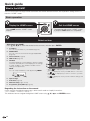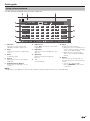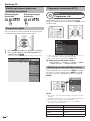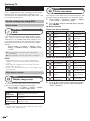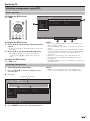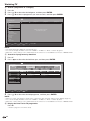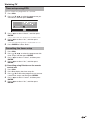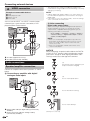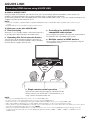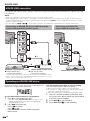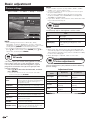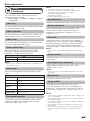
1
MODEL LC-70LE735X LCD COLOUR TELEVISION OPERATION MANUAL OPERATION MANUAL ENGLISH Dear SHARP customer Thank you for your purchase of the SHARP LCD colour TV product. To ensure safety and many years of trouble-free operation of your product, please read Important safety precautions carefully before using this product. Contents Introduction................................................................. 3 Precautions For Daily Use ....................................... 3 Important safety precautions................................... 3 Supplied accessories .............................................. 5 Optional accessories .............................................. 5 Preparation ................................................................. 6 Protection against overturning ................................ 6 Attaching the stand unit .......................................... 7 Connecting the TV .................................................. 8 Using the remote control unit .................................. 9 Inserting the batteries ......................................... 9 Angle of the remote control unit.......................... 9 Cautions regarding the remote control unit ......... 9 Part names and functions........................................ 10 TV (front/side view) ............................................... 10 TV (rear view) ........................................................ 10 Remote control unit .............................................. 11 Quick guide ............................................................... 12 What is the HOME? .............................................. 12 Basic operation ................................................ 12 Initial auto installation ............................................ 14 Checking signal strength and channel strength ..... 14 Watching TV .............................................................. 15 Daily operation ...................................................... 15 Turning on/off the power— using the TV ................................................... 15 Turning on/off the power— using the remote control unit .......................... 15 Switching between digital and analogue broadcasts..................................................... 16 Programme guide ............................................ 16 Programme information (DTV) .......................... 16 Selecting an external video source ................... 16 Switching the digital audio format ..................... 17 Switching the analogue audio format................ 17 Teletext ................................................................. 18 EPG ...................................................................... 20 Useful settings for using EPG ........................... 20 Selecting a programme using EPG ................... 21 Timer setup using EPG .................................... 23 Cancelling the timer setup ................................ 23 Connecting external devices ................................... 24 Video connections ................................................ 25 HDMI connection ............................................. 25 Component connection .................................... 25 VIDEO connection ............................................ 26 Audio connections ................................................ 26 Speaker/amplifier connection ........................... 26 AQUOS LINK ............................................................. 27 Controlling HDMI devices using AQUOS LINK....... 27 AQUOS LINK connection ...................................... 28 Operating an AQUOS LINK device ........................ 28 Basic adjustment ...................................................... 30 Picture settings ..................................................... 30 Audio settings ....................................................... 32 Power save settings.............................................. 33 Channel settings ................................................... 34 Digital setting ................................................... 34 Analogue setting .............................................. 35 Sort .................................................................. 35 Erase programme ............................................ 35 Useful viewing functions.......................................... 36 TV Start-up time setting ........................................ 36 Individual setting—password ................................ 36 Individual setting—time ......................................... 37 Individual setting—language ................................. 37 Optional features settings ..................................... 38 Selecting the picture size manually ................... 38 Selecting the WSS picture size automatically .... 38 Setting audio input ........................................... 39 Skipping specified inputs.................................. 39 Selecting the HDMI picture size automatically ... 40 Adjusting image position .................................. 41 Additional features ................................................ 41 Network function ...................................................... 42 Connecting to the network.................................... 42 Specifications (Wireless LAN USB adapter) ........... 44 Optional accessories (Wireless LAN USB adapter) ... 44 Using AQUOS.NET ............................................... 45 Clear browser setting ............................................ 46 About links............................................................ 46 Other useful features ............................................... 48 Using a USB device .............................................. 48 Connecting a USB device ................................ 48 Selecting USB usage ....................................... 48 Time shift .............................................................. 49 USB media/Home network ................................... 52 Photo mode ..................................................... 53 Music mode ..................................................... 54 Video mode...................................................... 55 USB device compatibility ...................................... 56 Home network server compatibility ....................... 56 1 Connecting a PC....................................................... 57 Connecting a PC .................................................. 57 Displaying a PC image on the screen .................... 57 Selecting the picture size .................................. 57 Adjusting the PC image automatically ............... 58 Adjusting the PC image manually ..................... 58 PC control of the TV ............................................. 59 Command list ................................................... 60 Appendix ................................................................... 61 Troubleshooting .................................................... 61 Troubleshooting—digital broadcasting .................. 61 Reset .................................................................... 62 Updating your TV via DVB-T ................................. 62 Getting information ............................................... 63 Updating your TV via USB/Network ...................... 63 Information on the software licence for this product ........................................................ 64 Software licence ............................................... 64 Specifications ....................................................... 65 Removing the stand .............................................. 66 Mounting the TV on a wall..................................... 67 Dimensional drawings ........................................... 68 This product qualifies for ENERGY STAR when “Home” is selected for “TV Location”. Setting “TV Location” to “Home” allows the TV to achieve an energy-saving status for household use. 2 Introduction Precautions For Daily Use Observe the following items Maintenance of the cabinet • When cleaning the cabinet, use a soft cloth (made of cotton, floss, etc.) to clean gently. • Do not use a dry or damp rag mixed with chemicals, as this could cause the ingredients of the cabinet body to deteriorate or crack. • Be careful not to use an abrasive cloth for cleaning or clean with excessive force, as this could scratch the surface of the cabinet. • If the cabinet is greatly soiled, clean with a soft cloth (made of cotton, floss, etc.) soaked with a small amount of diluted neutral detergent and wrung out, and then clean with a soft dry cloth. • Solvents such as benzene or thinner could cause the cabinet to deteriorate, or make its coating come off. Therefore do not use such solvents to clean the cabinet. • Because plasticizer is included in the plastics, deterioration or the coating peeling off could occur when the cabinet comes into contact with some substances. Therefore keep it away from volatile substances such as insecticide. In addition, do not let it come into contact with objects made of rubber, resin, etc. for a long time. Maintenance of the LCD panel • Before cleaning the LCD panel, be sure to turn off the TV set and unplug the power cord from the outlet. • When cleaning the LCD panel, use a dry and soft cloth (made of cotton, floss, etc.) to clean the surface of the LCD panel gently. For protecting the LCD panel, do not clean with a dirty cloth, detergent, or a dry or damp rag mixed with chemicals, as this could cause peeling of the panel surface. • Be careful not to clean with an abrasive cloth or with excessive force, as this could cause the panel surface to be scratched. • If the LCD panel is greatly soiled, clean it gently with a soft cloth (made of cotton, floss, etc.) soaked with a small amount of water (Do not clean with excessive force, so as to avoid the scratch of the panel surface). • If dust sticks on the surface of the LCD panel, clean the panel with a commercially available cleaning brush (anti-static brush). Important safety precautions Caring for the cabinet Caring for the front panel • Use a soft cloth (cotton, flannel, etc.) and gently wipe the surface of the cabinet. • Using a chemical cloth (wet/dry sheet type cloth, etc.) may deform the components of the main unit cabinet or cause cracking. • Wiping with a hard cloth or using strong force may scratch the surface of the cabinet. • If the cabinet is very dirty, wipe with a soft cloth (cotton, flannel, etc.) soaked in neutral detergent diluted with water and thoroughly wrung out, and then wipe with a soft dry cloth. • The cabinet is primarily made of plastic. Avoid using benzene, thinner, and other solvents, as these may deform the cabinet and cause the paint to peel off. • Do not apply insecticides or other volatile liquids. • Also, do not allow the cabinet to remain in contact with rubber or vinyl products for a long period of time. Plasticizers inside the plastic may cause the cabinet to deform and cause the paint to peel off. • Turn off the main power and unplug the AC cord from the wall outlet before handling. • Gently wipe the surface of the front panel with a soft cloth (cotton, flannel, etc.). • To protect the front panel, do not use a dirty cloth, liquid cleaners, or a chemical cloth (wet/dry sheet type cloth, etc.). This may damage the surface of the front panel. • Wiping with a hard cloth or using strong force may scratch the surface of the front panel. • Use a soft damp cloth to gently wipe the front panel when it is really dirty (It may scratch the surface of the front panel when wiped strongly). • If the front panel is dusty, use an anti-static brush, which is commercially available, to clean it. • When relocating the product placed on a cart, it must be moved with utmost care. Sudden stops, excessive force and uneven floor surface can cause the product to fall from the cart. • Water and moisture—Do not use the product near water, such as bathtub, washbasin, kitchen sink, laundry tub, swimming pool and in a wet basement. 3 Introduction • Do not place vases or any other water-filled containers on this product. The water may spill onto the product causing fire or electric shock. • Stand—Do not place the product on an unstable cart, stand, tripod or table. Doing so can cause the product to fall, resulting in serious personal injuries as well as damage to the product. Use only a cart, stand, tripod, bracket or table recommended by the manufacturer or sold with the product. When mounting the product on a wall, be sure to follow the manufacturer’s instructions. Use only the mounting hardware recommended by the manufacturer. • Ventilation—The vents and other openings in the cabinet are designed for ventilation. Do not cover or block these vents and openings since insufficient ventilation can cause overheating and/or shorten the life of the product. Do not place the product on a bed, sofa, rug or other similar surface, since they can block ventilation openings. This product is not designed for built-in installation; do not place the product in an enclosed place such as a bookcase or rack, unless proper ventilation is provided or the manufacturer’s instructions are followed. • In case the product is dropped and the cabinet is damaged, be sure to turn off the power of the product, and unplug the power cord. If you continue to use the product, it may cause fire or electric shock. Contact your dealer. • Do not open the rear cover of the cabinet to reconstruct the circuits. There exists high voltage within the cabinet and it may cause electric shock and injury. If maintenance is required, contact your dealer. • The LCD panel used in this product is made of glass. Therefore, it can break when the product is struck forcefully or with a sharp object. If the LCD panel is broken, be careful not to be injured by broken glass. • Heat sources—Keep the product away from heat sources such as radiators, heaters, stoves and other heat-generating products (including amplifiers). 4 • To prevent fire, never place any type of candle or naked flames on the top or near the TV set. • To prevent fire or shock hazard, do not place the AC power cord under the TV set or other heavy items. • Do not place heavy objects on this product or stand on it. Doing so could cause injury if the product overturns. Take special care near children and pets. • Unplug the power cord before you move the TV set. If not unplugged beforehand, the power cord may become damaged and cause electric shock. The LCD panel is a very high technology product with 2,073,600 pixels, giving you fine picture details. Due to the very large number of pixels, occasionally a few non-active pixels may appear on the screen as a fixed point of blue, green, red or yellow. This is within product specifications and does not constitute a fault. Precautions when transporting the TV • When transporting the TV, never carry it by holding or otherwise putting pressure onto the display. Be sure to always carry the TV by two people holding it with two hands —one hand on each side of the TV. If a television is not positioned in a sufficiently stable location, it can be potentially hazardous due to falling. Many injuries, particularly to children, can be avoided by taking simple precautions such as: • Using cabinets or stands recommended by the manufacturer of the television. • Only using furniture that can safely support the television. • Ensuring the television is not overhanging the edge of the supporting furniture. • Not placing the television on tall furniture (for example, cupboards or bookcases) without anchoring both the furniture and the television to a suitable support. • Not standing the televisions on cloth or other materials placed between the television and supporting furniture. • Educating children about the dangers of climbing on furniture to reach the television or its controls. • Do not display a still picture for a long time, as this could cause an afterimage to remain. • Install the product on the place where the AC cord can be unplugged easily from the AC outlet, or from the AC INPUT terminal on the rear of the product. NOTE • The above are pictures for reference only; the actual item might be different. Introduction Supplied accessories Remote control unit ( x 1) “AAA” size battery ( x 2) AV cable ( x 1) Pages 9 and 11 Page 9 Page 26 Stand unit Operation manual Page 7 Optional accessories The listed optional accessories are available for this LCD colour TV. Please purchase them at your nearest shop. • Additional optional accessories may be available in the near future. When purchasing, please read the newest catalogue for compatibility and check the availability. No. 1 Part name Wall mount bracket Part number AN-52AG4 KI-OUA004WJN1*1 2 Wireless LAN USB adapter KI-OUA004WJN2*1 KI-OUA004WJN3*1 KI-OUA004WJN4*1 I Refer to page 44 for details on sales areas. 5 Preparation Protection against overturning There is a danger of the product overturning in the case of a disaster or sudden collision. Carry out the following tipresistant measurement for your safety. Anchoring the TV to the wall or a pillar 1 Affix the TV to the wall or a pillar using View from the top extra strong ties and cup hooks. n o Wall Cup hook (commercially available) Tie (commercially available) Fixing the TV to the table 1 Place the TV on the table. 2 Pull the attached restraining bracket out so that it is at a 90 degrees angle. 3 Insert commercially available screws in the holes of the restraining bracket and tighten the screws to secure the TV to the table. • Use commercially available screws to firmly secure the TV. CAUTION • As this product is heavy, use a table that is wide enough to support the product and capable of withstanding the product’s weight. The table should be set where it will not be overturned. • Be sure to use at least two people when moving the TV. Restraining bracket (attached) Screws (commercially available) 6 Preparation 4 Attaching the stand unit Insert and tighten the four screws into the four holes on the rear of the TV. • Before performing work, spread cushioning over the surface on which you will be laying the TV. This will prevent it from being damaged. CAUTION • Attach the stand in the correct direction. • Be sure to follow the instructions. Incorrect installation of the stand may result in the TV falling over. 1 Confirm that there are twelve screws (eight long screws and four short screws) supplied with the stand unit. 2 1 Set the supporting post for the stand unit onto the polystyrene foam. 2 Attach the stand base to the supporting post. 3 Insert and tighten the eight screws into the eight holes on the bottom of the stand base. • Hold the stand unit securely with one hand, and then tighten the screws. Stand base Long screws Short screws NOTE • To detach the stand unit, perform the steps in reverse order. • A screwdriver is not supplied with this product. • In the installation procedure, be careful not to catch your fingers between the TV set and the floor. TV front Supporting post 3 Insert the stand into the openings on the bottom of the TV (hold the stand so it will not drop from the edge of the base area). • Make sure that the stand is firmly inserted into the TV. Improper installation may result in tilting of the TV set. Soft cushion 7 Preparation 4 Connecting the TV Bundle the cables. Notes on installing the TV • Avoid direct sunlight and place the TV in a well-ventilated location. • Place the TV in a level location. • Do not turn on the power of the TV before connecting the AC cord. 1 Connect the antenna cable. p o n Standard DIN45325 connector (IEC169-2) Antenna cable (75-ohm coaxial type: commercially available) Room antenna terminal (75-ohm type) 2 Connect external devices. See pages 24 to 26 for connecting external equipment, such as a VCR and DVD player. 3 Plug the AC cord in to the AC outlet (product shape varies in some countries). TV (rear view) Detach the cable tie on the rear of the TV. Press cable tie clip (1) and completely pull out cable tie (2) to release. • Place the TV close to the AC outlet, and keep the power plug within reach. • Disconnect the AC cord from the AC outlet if the TV will not be used for a long period of time. 8 CAUTION TO PREVENT RISK OF ELECTRIC SHOCK, DO NOT TOUCH UN-INSULATED PARTS OF ANY CABLES WITH THE AC CORD CONNECTED. Preparation Using the remote control unit Inserting the batteries Before using the TV for the first time, insert two supplied “AAA” size batteries. When the batteries become depleted and the remote control unit fails to operate, replace the batteries with new “AAA” size batteries. 1 Open the battery cover. 2 Insert the two supplied “AAA” 3 Close the battery cover. size batteries. • Place batteries with their terminals corresponding to the (e) and (f) indications in the battery compartment. CAUTION Improper use of batteries can result in chemical leakage or explosion. Be sure to follow the instructions below. • Do not mix batteries of different types. Different types of batteries have different characteristics. • Do not mix old and new batteries. Mixing old and new batteries can shorten the life of new batteries or cause chemical leakage in old batteries. • Remove batteries as soon as they have worn out. Chemicals that leak from batteries can cause a rash. If you find any chemical leakage, wipe thoroughly with a cloth. • The batteries supplied with this product may have a shorter life expectancy due to storage conditions. • If you will not be using the remote control unit for an extended period of time, remove the batteries from it. • Batteries shall not be exposed to excessive heat such as sunshine, fire or the like. Angle of the remote control unit Use the remote control unit by pointing it towards the remote control sensor. Objects between the remote control unit and sensor may prevent proper operation. 30° 5m 30° 30° Remote control sensor 30° * When mounting the TV on the wall Cautions regarding the remote control unit • Do not expose the remote control unit to shock. In addition, do not soak the remote control unit to liquids, and do not place in an area with high humidity. • Do not install or place the remote control unit under direct sunlight. The heat may cause deformation of the unit. • The remote control unit may not work properly if the remote control sensor of the TV is under direct sunlight or strong lighting. In such cases, change the angle of the lighting or the TV, or operate the remote control unit closer to the remote control sensor. 9 Part names and functions TV (front/side view) Remote control sensor OPC sensor*1 OPC indicator SLEEP indicator POWER indicator I OPC: Optical Picture Control (Page 30) TV (rear view) RS-232C terminal PC terminal INPUT 2 (VIDEO/AUDIO (L/R)) terminal INPUT 3 (Component/ AUDIO (L/R)) terminal OUTPUT (Headphones/ AUDIO (L/R)) terminal USB 1 port HDMI 1 (HDMI/ARC) terminal (INPUT 4) HDMI 2 (HDMI) terminal (INPUT 5) HDMI 3 (HDMI) terminal (INPUT 6) HDMI 4 (HDMI) terminal (INPUT 7) INPUT 1 (AV IN) terminal USB 3 (WIRELESS LAN) port USB 2 (HDD) port ETHERNET (10/100) terminal I AUDIO IN (HDMI 2/PC) jack*1 DIGITAL AUDIO OUTPUT terminal Antenna terminal The HDMI 2 and PC terminals can both use the same audio input terminal (AUDIO IN (HDMI 2/PC)). However, the proper item must be selected in the “Audio select” menu (refer to page 39 for details). WARNING • Excessive sound pressure from earphones and headphones can cause hearing loss. • Do not set the volume at a high level. Hearing experts advise against extended listening at high volume levels. 10 Part names and functions Remote control unit 1 15 2 16 3 4 5 6 7 17 8 9 18 19 10 11 12 20 21 22 13 14 23 24 25 1 2 3 4 5 6 7 8 9 POWER (Standby/On) To switch the power on and off (Page 15). ATV (Analogue TV) Press to access analogue TV mode (Page 16). DTV (Digital TV) Press to access digital TV mode (Page 16). AQUOS LINK buttons If external equipment such as a AQUOS BD player is connected via HDMI cables and is AQUOS LINK compatible, you can use these AQUOS LINK buttons. See pages 27 and 29 for details. CONTROL Press to display the panel to operate some functions on the screen. TIME SHIFT (READY/!/F/$) Press to temporarily record a programme you are watching if you want to interrupt a programme to answer a phone call, for example (Pages 49–51). 0_9 Set the channel (Page 15). A (Flashback) Press to return to the previously selected channel or external input. MPX Select a sound multiplex mode (Page 17). WIDE Change a wide image mode (Pages 38, 56 and 57). 0 e (Mute) Mute the sound. Q Y+/Set the volume. W HOME Display the “HOME” screen for enjoying Internet connection, Home network functions and to perform settings for the TV (Page 12). E a/b/c/d (Cursor) Select a desired item on the setting screen. ENTER Execute a command. R EXIT Turn off the On-Screen Display (Page 12). T MENU Displays the menu screen (Page 12). FREEZE Freeze a motion picture on the screen. INFO DTV only: Display the programme information (Page 16). Y RADIO DTV only: Switch between radio and data mode. When only data broadcasting (no radio broadcasting) is transmitted by DVB, the radio broadcasting will be skipped. DISPLAY Display the channel or input information. Reveal/hide the guide display for USB media mode (Pages 53–55). U INPUT (INPUT SOURCE) Select an input source (Pages 16, 25, 39, 40 and 57). I ECO Select “Energy save” setting (Page 33). O# Select audio/video settings (Page 30). P m (Teletext) Select the teletext mode (All TV image, all text image and TV/text image) (Page 18). A CHr/s TV input mode: Select the channel (Page 15). AQUOS.NET: Select the page (Page 45). S EPG DTV only: To display EPG (Electronic Programme Guide) screen (Pages 20–23). D RETURN Menu mode: Return to the previous menu screen (Page 12). F Buttons for useful operations [ (Subtitle) Switch subtitle languages on/off (Page 18). k (Reveal hidden teletext) Teletext mode: Display hidden characters (Page 18). 1 (Subpage) Display the teletext subpage directly (Page 18). 3 (Hold) Teletext mode: Stop updating teletext pages automatically. Press 3 again to release the hold mode (Page 18). G R/G/Y/B (Colour) buttons The coloured buttons are correspondingly used to select the coloured items on the screen (e.g., AQUOS LINK, USB media, Home network, teletext). * This button does not work on this model. 11 Quick guide What is the HOME? You can easily launch to enjoy Internet connection and Home network functions and to perform settings for the TV from this “HOME” screen. Basic operation Display the HOME screen Exit the HOME screen Press HOME and the “HOME” screen displays. The operation will exit the “HOME” screen if you press B before it is completed. Select an item Selecting in the HOME. Press a/b/c/d to select the desired service or menu, and then press A. 1 2 3 4 5 6 7 8 9 YouTube™ You can enjoy YouTube on your AQUOS (Page 45). AQUOS.NET You can connect to the internet through AQUOS.NET (Page 45). Home network (Page 52) USB media (Page 52) TV Menu Call up the OSD (On-screen Display) to perform settings for the TV. The OSD (On-screen Display) for the settings is called “TV Menu”. The “TV Menu” enables various settings and adjustments. NOTE You can call up “TV Menu” screen by pressing @. Input change IP Control (Page 59) Network setup (Pages 42–43) Programme guide (CH list) (Page 16) HOME LAN 1 2 TM 7 3 8 4 5 6 USB media Home network IP Control TV Menu Input change CH list Network setup 9 :Select :Enter :End * When “ ” is displayed, you cannot connect to USB devices. If “ ” is displayed, check your USB device’s connection. * When “ ” is displayed, you cannot connect to your TV’s network. If “ ” is displayed, check your TV’s network settings and connection. Regarding the instruction on the manual On this manual, the following expression is often used in order to simplify instructions. • Go to “HOME” > “TV Menu” > “Setup” > ... This indicates how to navigate through the HOME screen using a/b/c/d and A buttons. 12 USB Quick guide Using software keyboard Use the software keyboard when you need to input text. Char.Set Caps Done Clear Cancel Delete Cursor Left 1 2 3 4 5 Char. Set Changes character set into the alphabet, numbers, symbols, etc. Caps Changes characters to capital/lower case. Done Confirm the entry. Cancel Abort input and close the software keyboard. R/G/Y/B (Colour) buttons Selects the coloured items on the screen. Caps 6 7 8 9 Char.Set Input cursor Press c/d to move the cursor when highlighted. Input field The text you enter is displayed as you type it in. Character Input characters by using these buttons. ? Put a line break. Cursor Right 0 Clear Erases the character string. • When the cursor is somewhere in a line: the character string to the right of the cursor will be erased. • When the cursor is at the right end of a line: the entire line will be erased. Q Delete If the cursor is at the right end of a line, this erases text one character at a time. • You can also delete text by pressing C on the remote control unit. NOTE • Depending on the application, there may be a different software keyboard than the one indicated above. 13 Quick guide Initial auto installation When the TV is powered on for the first time after purchase, the initial auto installation wizard appears. Follow the menus and make the necessary settings one after another. Confirm the following before turning on the power E Is the antenna cable connected? E Is the AC cord plugged in? 1 Press < on the TV. • The initial auto installation wizard appears. NOTE • If you turn off the power on the TV while performing a channel search in Step 5, the initial auto installation wizard may not appear. The auto installation function allows you to execute the installation again from “Setup” > “View setting” (Page 34). • The initial auto installation wizard will abort if you leave the TV unattended for 30 minutes before searching for channels in Step 6. Checking signal strength and channel strength If you install a DTV antenna for the first time or relocate it, you should adjust the alignment of the antenna to receive a good reception while checking the antenna setup screen. 1 Go to “HOME” > “TV Menu” > “Setup” > “View setting” > “Channel settings” > “Antenna setupDIGITAL”. E Checking signal strength 2 Press a/b to select “Signal strength”, and then press A. Supply voltage Signal strength 2 Setting the OSD language. 3 Selecting the location of the TV. Channel strength Press a/b to select the desired language, and then press A. Press c/d to select where you will use this TV, and then press A. HOME: • Settings are optimised for normal home viewing and energy efficiency. • “STANDARD” will be the default value for the “AV mode” setting. Current NOTE • STORE: A demonstration image will be displayed after initial auto installation is completed. If you have chosen “STORE” by mistake, go to “Setup” > “View setting” > “Reset” > select “HOME” again. 4 5 6 Setting the country. Press a/b to select your country or area, and then press A. • This setting screen only appears during the initial auto installation. Press c/d to select “Digital search” or “Analogue search”, and then press A. The TV searches for, sorts and stores all the receivable TV stations according to their settings and the connected antenna. • To abort the initial auto installation in progress, press C. 14 97 Max. 97 99 Max. 99 Quality Current E Checking channel strength 3 Press a/b to select “Channel strength”, and then press A. • You can input a specified frequency band using the 0–9 numeric buttons. STORE: • Settings are designed for maximum impact in retail store displays. • “DYNAMIC (Fixed)” will be the default value for the “AV mode” setting. If the “AV mode” is changed, the TV will automatically switch back to “DYNAMIC (Fixed)” when there is no operation using the TV or remote control unit for 30 minutes. • The confirmation screen pops up only when selecting “STORE”. Press c/d to select “Yes” or “No”. * This product qualifies for ENERGY STAR in “HOME” mode default setting. * ENERGY STAR qualification is based on “STANDARD” in the “AV mode” menu. CH No. Signal strength Supply voltage Signal strength Channel strength Frequency MHz CH No. Signal strength Current 97 Max. 97 99 Max. 99 Quality Current 4 Position and align the antenna so that the maximum possible values for “Signal strength” and “Quality” are obtained. NOTE • The values of “Signal strength” and “Quality” indicate when to check the appropriate alignment of the antenna. Supplying power to the antenna You can supply power to the antenna in order to receive digitally/terrestrially broadcast stations after connecting the antenna cable to the antenna terminal on the rear of the TV. 1 Go to “HOME” > “TV Menu” > “Setup” > “View setting” >“Channel settings” > “Antenna setupDIGITAL” >“Supply voltage”. 2 Press c/d to select “On”, and then press A. Watching TV Daily operation Turning on/off the power—using the TV Turning on/off the power 1 Turn on the power. Press < on the TV (after a few seconds, an image appears with sound). • Wait more than five seconds until you press < on the TV after inserting the power plug. 2 Turn off the power. Switch it off by pressing < on the TV. Turning on/off the power—using the remote control unit Standby mode 1 To standby mode If the TV is turn on, you can switch it to standby by pressing < on the remote control unit. 2 Switch on from standby. From standby, press < on the remote control unit. NOTE • If you are not going to use this TV for a long period of time, be sure to remove the AC cord from the AC outlet. • A small amount of electric power is still consumed even when the TV is in standby mode. Changing channels 1 2 Turn on the power. Select a programme using 0–9 numeric buttons or !r/s on the remote control unit. NOTE • You can also select a programme using !r/s on the TV. Operation without a remote control unit You can operate the menu settings using the TV control buttons. TV control buttons Remote control buttons @ @ INPUT ENTER CH r/CH s a/b VOL k/VOL l d/c 15 Watching TV Switching between digital and analogue broadcasts Programme information (DTV) Option Watching digital broadcasts Watching analogue broadcasts Programme info. While watching DTV you can check the extended programme information on the screen using INFO on the remote control. Programme guide You can check the current schedule of DTV events and view detailed information about current events. 001 DTV TV1 SD Moving 20:00 - 21:00 HProgramme info. 1 2 Press A to display the programme guide list. Press a/b to display your desired programme, and then press A. • When you press A, the TV jumps to the channel. Menu Link operation :Select menu EPG :Select :Enter CH list :Exit DTV 001 002 003 004 TV1 SD Moving TV2 HD ColorBar TV3 H264 SD-Color Pat… TV4 H264 HD-Monosco SD Color Pattern 005 HD Moving 006 HInput Info. Video : 576i Audio : STEREO Age : No limit Optic. REC : OK • If there is more information, pressing c/d allows you to go to the next page or return to the previous page. • You can cancel this info by pressing INFO again. E Using Info on the menu screen Go to “HOME” > “TV Menu” > “Setup” > “Option” >“Option for view” > “Programme info.”. Selecting an external video source Once the connection is made, press # to display the “INPUT” screen, and then press # or a/b to switch over to the appropriate external source with A. SD Colour Bar CH list 007 008 MPEG SD Moving INPUT TV Switchable NOTE • You can also select an external video source from “CH list” > “INPUT”. • Only inputs which are not set for “Input skip” (Page 39) and properly connected inputs can be selected. • You can select an external video source for an HDMI connections as shown below. Connected terminal 16 Selectable item HDMI 1 INPUT 4 HDMI 2 INPUT 5 HDMI 3 INPUT 6 HDMI 4 INPUT 7 Watching TV Switching the digital audio format If multi sound modes are received, each time you press MPX the mode switches as follows. Audio (ENG) L/R When receiving a bilingual signal Each time you press MPX, the mode switches among NICAM CH A, NICAM CH B, NICAM CH AB and MONO. Bilingual mode STEREO L R ATV LR ATV CH A Audio (ENG) CH A CH B CH A CH B CH AB ATV Audio (ENG) MONO Press c/d to select L or R sound when the STEREO or DUAL MONO screen is displayed. Audio (ENG) L/R L STEREO R ATV MONO CH AB When receiving a monaural signal Each time you press MPX, the mode switches between NICAM MONO and MONO. Monaural mode LR NOTE ATV • The sound mode screen disappears in six seconds. • Selectable items vary depending on the received broadcasts. • When the “Audio description setting” menu is set to “On”, the audio description sound is selected depending on the main audio. ATV MONO MONO In the TV mode of A2 TV broadcasts When receiving a stereo signal Each time you press MPX, the mode switches between STEREO and MONO. Switching the analogue audio format Stereo mode You can switch between multiple audio modes when watching a multiple audio or stereo broadcast programme. ATV ATV STEREO MONO When receiving a bilingual signal Each time you press MPX, the mode switches among CH A, CH B and CH AB. Bilingual mode In the NICAM TV broadcasts ATV When receiving a stereo signal Each time you press MPX, the mode switches between NICAM STEREO and MONO. ATV CH A CH B Stereo mode ATV ATV CH AB ATV STEREO MONO When receiving a monaural signal When you press MPX, “MONO” displays. Monaural mode ATV MONO NOTE • “BBC1”, “01” and “PAL” are tentative network name, channel and colour system. 17 Watching TV Teletext View setting Text language What is teletext? Teletext broadcasts pages of information and entertainment to specially equipped TV. Your TV receives teletext signals broadcast by a TV network, and decodes them into graphical format for viewing. News, weather and sports information, stock exchange prices and programme previews are among the many services available. Turning teletext on/off 1 2 3 Select a TV channel or external source providing a teletext programme. Press m to display the teletext. Press m again to display the teletext on the right screen and the normal image on the left screen. If Teletext information does not display correctly, perform the procedure below. Select from among six kinds of language tables: West Europe, East Europe, Greek/Turkish, Cyrillic, Arabic and Farsi. Each table is compatible with the Teletext languages listed below. 1 Go to “HOME” > “TV Menu” > “Setup” > “View setting” > “Individual setting” >“Text language”. Text language Teletext language settings West Europe East Europe • Many stations use the TOP operating system, while some use FLOF (e.g., CNN). Your TV supports both these systems. The pages are divided into topic groups and topics. After switching on the teletext, up to 2,000 pages are stored for fast access. • If you select a programme with no teletext signal, “No Teletext available” displays. • The same message displays during other modes if no teletext signal is available. TELETEXT Cyrillic Arabic Farsi TELETEXT • Each time you press m, the screen switches as shown above. Buttons for teletext operations Buttons Greek/Turkish Description Select Back • West Europe—English, French, Scandinavian, Turkish, German, Spanish, Italian • East Europe—Polish, French, Scandinavian, Czech, German, Slovenian/Croatian, Italian, Rumanian • Greek/Turkish—English, French, Scandinavian, Turkish, German, Spanish, Italian, Greek • Cyrillic—English, Russian, Estonian, Czech, German, Slovenian/Croatian, Ukrainian, Lettish • Arabic—English, French, Scandinavian, Turkish, German, Hebrew, Italian, Arabic • Farsi—English, French, Scandinavian, Turkish, German, Hebrew, Italian, Farsi !r/s Increase or decrease the page number. Colour (R/G/Y/B) Select a group or block of pages displayed in the coloured brackets at the bottom of the screen by pressing the corresponding colour (R/G/Y/B) on the remote control unit. Numeric buttons 0_9 Directly select any page from 100 to 899 by using the 0_9 numeric buttons. NOTE k (Reveal hidden teletext) Reveal or hide hidden information such as an answer to a quiz. • Teletext can display only when it is sent by a network. Not used to convert between languages. 3 (Freeze/Hold) Stop updating teletext pages automatically or release the hold mode. [ (Subtitle for teletext) Display the subtitle or exit the subtitle screen. Subtitles will not be displayed when the service does not contain subtitle information. 1 (Subpage) Reveal or hide subpages. Selects directly the desired subpage (0–9). • Move to the previous subpage (R). • Move to the following subpage (G). • These two buttons are shown on the screen by the symbols “e” and “f”. A Display the top menu. • The top menu will not be displayed when the service does not support top menus. 18 Watching TV View setting Initial teletext page If you set the language of the initial page (this page is displayed for the first time after pressing m) for teletext in DTV mode, it will start from the selected language page. 1 Go to “HOME” > “TV Menu” > “Setup” > “View setting” >“Individual setting” > “Initial teletext page”. 2 Press a/b/c/d to select the desired language, and then press A. NOTE • This function is available for teletext in DTV mode. This is not available for teletext in ATV or external input mode. • If the initial teletext page of the selected language in this function is not included in a received broadcast, the default initial page will be displayed. View setting MHEG-5 (EPG) This function is set to enable MHEG-5 in DTV mode. Go to “HOME” > “TV Menu” > “Setup” > “View setting” >“Individual setting” > “MHEG-5 (EPG)” . Item Enable MHEG-5 is displayed during DTV mode. Disable MHEG-5 is not displayed during DTV mode. NOTE • This function is only displayed for models for the New Zealand market. This function is not displayed for models for the Singapore or Australia market. • When the country setting is set to “New Zealand” in the initial auto installation, this function is available. When the country setting is set to countries other than “New Zealand”, this item is greyed out and cannot be selected. • The MHEG-5 is not displayed when there is no MHEG-5 information on broadcast in setting this function to “Enable”. • When this function is set to “Enable”, subtitles may not be displayed. If this occurs, set to “Disable” and then display of subtitles will be possible. 19 Watching TV Option EPG EPG is a programme list that is displayed on the screen. With the EPG, you can check the schedule of DTV/ RADIO/DATA, view detailed information about them, tune to an event currently on-air. Useful settings for using EPG Basic setting Genre icon setup You can grey out or place a mark on desired genres and smoothly search for programmes you frequently watch. 1 Go to “HOME” > “TV Menu” > “Setup” > “Option” > “EPG setup” > “Genre icon setup”. 2 Press a/b to select the desired genre, and then press A. E Genre icon list Genre icon list for Australia View setting EPG Icon If you want to use the EPG for digital stations, select “Yes”. The EPG data must be automatically captured while the TV is in standby mode. After setting to “Yes”, it may take some time to turn off the power using the remote control unit or the TV due to the data capture process. Go to “HOME” > “TV Menu” > “Setup” > “View setting” > “Individual setting” > “Standby search” > “EPG”. Genre Icon Genre Movie Current affairs News Education/ Information Entertainment Infotainment Sport Special Children’s Comedy Music Drama Arts/Culture Documentary E Selecting EPG to “Yes” will result in higher power consumption*. E Selecting EPG to “No” will save power consumption. Genre icon list except Australia NOTE * Approximately 34 W for 15–30 minutes (depending on number of channels tuned) after power off from remote control. • EPG data will not update if the TV is turned off from the power switch on the TV. • “EPG” cannot be selected when the country setting is set to “New Zealand”. Icon Genre Movie/Drama News/Current affairs Show/Game show EPG display settings Sports Option Children’s/Youth programmes Display range setup 3 The “Display range setup” allows you to select three types of time spans for display on the screen. Go to “HOME” > “TV Menu” > “Setup” > “Option” > “EPG setup” > “Display range setup”. Item Mode 1 (Wide angle) Mode 2 (Zoom) Mode 3 (Vertical angle) Displays six hours of programme information. Displays three hours of programme information. Changes to the EPG display format with a vertical time span. NOTE • “Display range setup” cannot be selected when the country setting is set to “New Zealand”. 20 Icon Genre Music/Ballet/ Dance Arts/Culture (without music) Social/Political issues/Economics Education/ Science/Factual topics Leisure hobbies Press a/b to select a level to pick out or search for programmes you want to watch (“Standard”, “Light”, “Remark”). Watching TV Selecting a programme using EPG Basic operation E Display the EPG screen Today EPG [DTV-TV] Press EPG. 001 TV1 20:00 - 21:00 [Sat]2 [Sun]3 [Mon]4 [Tue]5 [Wed]6 [Thu]7 [Fri]8 [Fri] 1/4 20:00 SD Moving 20 21 22 23 0 1 TV1 001 SD Moving SD Moving SD Moving TV2 002 HD ColorBar HD ColorBar HD ColorBar TV3 003 H264 SD-Color P... H264 SD-Color Pattern H264 SD-Color Pattern TV4 004 H264 HD-Monosco H264 HD-Monosco H264 HD-Monosco SD Color Pattern 005 HD Moving 006 SD Color Bar 007 MPEG SD Moving 008 : Select : Enter : Back : Exit Programme info. Search by genre Search by date Timer list E Display the EPG screen NOTE 1 Press c/d to select the time span you want to search. • You can also display the EPG screen from “HOME” > “TV Menu” > “EPG” > “EPG”. • The time displayed on the EPG is information sent by the TV station. • When the country setting is set to “New Zealand”, the EPG screen and operation differ due to the use of MHEG-5 EPG. The EPG screen and operation vary depending on the broadcasts. • When the country setting is set to “New Zealand”, the EPG function is not available when MHEG-5 EPG is not broadcasted. • The MHEG-5 EPG function is not available for models for the Australia market. • Continue to press d to display programmes in the next time span. 2 Press a/b to select the desired programme. • If a or b are displayed on the left of the services, continue to press a/b to display next or previous screen. E Close the EPG screen Press EPG again. Selecting a programme 3 Check programme information NOTE 1 • When the country setting is set to “New Zealand”, this function is not available due to the use of MHEG-5 EPG. 2 Press a/b/c/d to select the programme you want to check. Press R. Programme information Today EPG [DTV-TV] 001 57 20:00 – 21:00 [Sat]2 [Sun]3 [Mon]4 [Tue]5 [Wed]6 [Thu]7 [Fri]8 [Fri] 1/4 20:00 SD Moving Programme Info. Next Back to EPG 20 22 23 0 TV1 001 4%.PWJOH 4%.PWJOH 4%.PWJOH TV2 002 )%$PMPS#BS )%$PMPS#BS )%$PMPS#BS TV3 003 )4%$PMPS1 )4%$PMPS1BUUFSO )4%$PMPS1BUUFSO TV4 004 ))%.POPTDP ))%.POPTDP ))%.POPTDP 4%$PMPS1BUUFSO 005 )%.PWJOH 006 4%$PMPS#BS 007 .1&(4%.PWJOH 008 : Select 3 21 : Enter : Back 1 : Exit Press A to tune to the selected programme. 21 Watching TV 4 Search a programme in a category 1 2 3 Press G. Press a/b to select the desired genre, and then press A. Press a/b to select a programme you want to watch, and then press A. EPG [DTV-TV] Today [Sat]2 [Sun]3 [Mon]4 [Tue]5 [Wed]6 [Thu]7 [Fri] 1/4 20:00 [Fri]8 Search by genre [Today] 1 12-0 [Sat] 2 0-12 [Sat] 2 12-0 [Sun] 3 0-12 Movie News Entertainment Sports Children’s Found no programme by the genre. Select other time by c d Music Arts/Culture Current affairs Education/Information Infotainment Special Comedy Drama Documentary : Select : Enter : Back : Exit Back to EPG NOTE • The genre information depends on the broadcasts. • You can also display the EPG screen from “HOME” > “TV Menu” > “EPG” > “Search by genre”. • When the country setting is set to “New Zealand”, this function is not available due to the use of MHEG-5 EPG. 5 Search for a programme by date/time 1 2 Press Y. Press c/d to select the desired time span, and then press A. Today EPG [DTV-TV] [Sat]2 [Sun]3 [Mon]4 Search by time [Tue]5 [Wed]6 [Thu]7 [Fri]8 [Fri] 1/4 20:00 Today Prev. 0–6 6 – 12 : Enter : Select time 6 12 – 18 Back to EPG 7 8 Prev. 9 Next 10 4%.PWJOH 4%.PWJOH 4%.PWJOH 002 )%$PMPS#BS )%$PMPS#BS )%$PMPS#BS 003 )4%$PMPS1 )4%$PMPS1BUUFSO )4%$PMPS1BUUFSO TV4 004 ))%.POPTDP ))%.POPTDP ))%.POPTDP 4%$PMPS1BUUFSO 005 )%.PWJOH 006 4%$PMPS#BS 007 .1&(4%.PWJOH 008 TV1 001 TV2 TV3 : Select : Enter : Back Next 18 – 0 Enter 11 : Exit 3 Press a/b to select the desired programme, and then press A. NOTE • When you select a programme outside of the current time span, the timer setting screen displays (Page 23). • You can also display the EPG screen from “HOME” > “TV Menu” > “EPG” > “Search by date”. • When the country setting is set to “New Zealand”, this function is not available due to the use of MHEG-5 EPG. 6 Display the timer list for TV programmes Press B. • Refer to page 23 for the timer setup. 22 Watching TV Timer setup using EPG You can switch to a programme at a set time. 1 Press EPG. 2 Press a/b/c/d to select the programme you want to set, and then press A. Programme info. Back to EPG Next Watch 3 No Press c/d to select “Watch”, and then press A. • If you select “No”, the TV returns to the EPG screen. 4 Press c/d to select “Yes”, and then press A. • The selected TV programme is marked with an icon. 5 Press A to select “Back”. Cancelling the timer setup 1 2 3 4 Press EPG. Press a/b/c/d to select the programme with timer setup, and then press A. Press c/d to select “Cancel”, and then press A. Press c/d to select “Yes”, and then press A. E Cancelling using B button on the remote control unit 1 2 3 4 5 Press EPG. Press B to display the timer setup list. Press a/b to select the programme you want to cancel timer setup, and then press A. Press c/d to select “Cancel”, and then press A. Press c/d to select “Yes”, and then press A. 23 Connecting external devices E Before connecting ... • Be sure to turn off the TV and any devices before making any connections. • Firmly connect a cable to a terminal or terminals. • Carefully read the operation manual of each external device for possible connection types. This also helps you get the best possible audiovisual quality to maximise the potential of the TV and the connected device. • Refer to page 57 for connecting a PC to the TV. Connection cable (Connection code) Image quality/ Audio quality Connectable devices Reference page HDMI cable Excellent in both image quality and audio quality Reproduction devices such as a DVD player DVI/HDMI cable/3.5 mm stereo minijack cable 25 Good image quality Game console Component cable Audio cable Average in both image quality and audio quality 25 Reproduction devices such as a DVD player AV cable (Supplied) Reproduction devices such as a DVD player AV cable Average in both image quality and audio quality 26 Game console Optical audio cable Excellent in audio quality Stereo conversion cable 26 Average in audio quality Audio equipment 24 Connecting external devices E When using the HDMI 2 terminal Video connections You must set the audio signal input source depending on the type of HDMI cable connected (refer to page 39 for details). HDMI connection Example of connectable devices E DVD player/recorder E Blu-ray player/recorder E Game console The HDMI connections permit digital video and audio transmission via a connection cable from a player/ recorder. The digital picture and sound data are transmitted without data compression and therefore lose none of their quality. Analogue/digital conversion is no longer necessary in the connected devices, which also would result in quality losses. HDMI-certified cable 1 Press # to select “HDMI2” from the “INPUT” menu, and then press A. 2 Go to “HOME” > “TV Menu” > “Setup” > “Option” > “Terminal setting” > “Audio select” > select “HDMI (Digital)”. DVI/HDMI cable 1 Press # to select “HDMI2” from the “INPUT” menu, and then press A. 2 Go to “HOME” > “TV Menu” > “Setup” > “Option” > “Terminal setting” > “Audio select” > select “HDMI + Analogue”. NOTE • If a connected HDMI device is AQUOS LINK compatible, you can take advantage of versatile functions (Pages 27–29). • Video noise may occur depending on the type of HDMI cable used. Make sure to use a certified HDMI cable. • When playing the HDMI image, the best possible format for the picture will be detected and set automatically. • An ARC (Audio Return Channel) compatible audio receiver must be connected to the HDMI 1 terminal with an ARCcompatible cable. Supported video signal 576i, 576p, 480i, 480p, 1080i, 720p, 1080p See page 58 for PC signal compatibility. n Component connection o p Example of connectable devices E VCR E DVD player/recorder You will enjoy accurate colour reproduction and high quality images through the INPUT 3 terminal when connecting a DVD player/recorder or other device. ø 3.5 mm stereo minijack cable (commercially available) DVI/HDMI cable (commercially available) HDMI-certified cable (commercially available) DVI/HDMI conversion Using a DVI/HDMI cable, the digital video signals of a DVD can also be played via the compatible HDMI connection. The sound must be fed in additionally. • When connecting a DVI/HDMI cable to the HDMI terminal, the image may not come in clearly. • Both HDMI and DVI use the same HDCP copy protection method. o n Component cable (commercially available) Audio cable (commercially available) 25 Connecting external devices * This terminal is also used for headphones. Reduce the volume before using headphones. Overwhelming sound may damage your hearing. VIDEO connection Example of connectable devices NOTE E E E E • Optical digital audio will be output in 2-ch stereo when it is from the external equipment connected to the TV using an HDMI cable. • If the image is not in sync with the audio, check the settings of the connected surround system. VCR DVD player/recorder Game console Camcorder You can use the INPUT 1 or INPUT 2 terminal when connecting to a game console, camcorder, a DVD player/recorder or other device. E After connecting Digital audio output setting After connecting an amplifier with digital audio input and external speakers as shown, you should set an audio output format compatible with the programme you are watching or the device connected. Go to “HOME” > “TV Menu” > “Setup” > “Option” > “Terminal setting” > “Digital audio output” > select “PCM” or “Dolby Digital”. n or NOTE o • When set to “Dolby Digital”, Dolby Digital is output when the Dolby Digital or Dolby Digital Plus audio formats are received. When set to “PCM”, PCM is output no matter what audio formats are received. • When set to “Dolby Digital”, HE-AAC audio formats can be output as Dolby Digital. NOTICE When connecting an optical audio cable to the DIGITAL AUDIO OUTPUT terminal, check the direction carefully, and insert it straight in while aligning the bottom side. Forcing it could cause damage to the terminal. AV cable (supplied accessory) AV cable (commercially available) Audio connections *1 Speaker/amplifier connection (*1) Turn the flat surface aligning the jack shape and insert it straightly. Connect an amplifier with external speakers as shown below. E Connecting an amplifier with digital/ analogue audio inputs *2 o (*2) Do not insert upside-down. Do not twist when inserting. n Do not insert sideways. Optical audio cable (for digital audio) (commercially available) Stereo conversion cable (for analogue audio) (commercially available) 26 (Drawing from a side view) AQUOS LINK Controlling HDMI devices using AQUOS LINK E What is AQUOS LINK? Using the HDMI CEC protocol, with AQUOS LINK you can interactively operate compatible system devices (AV amplifier, DVD player/recorder, Blu-ray player/recorder) using a single remote control unit. By connecting AQUOS LINK-compatible devices with HDMI-certified cables to the TV, you can control a recorder or AV amplifier using the remote control of the TV. NOTE • Check the availability of AQUOS LINK-compatible AQUOS BD Players and AQUOS LINK-compatible audio systems in your country. • AQUOS LINK does not work while using time shift functions. E What you can do with AQUOS LINK ✔ One touch play When the TV is in standby mode, it will automatically turn on and play back the image from the HDMI source. ✔ Operating title list of external devices You can also call up the external player’s top menu or AQUOS BD player’s/AQUOS recorder’s title list provided that the devices support AQUOS LINK. ✔ Controlling the AQUOS LINK- compatible audio system You can adjust the volume and select the sound mode of the AQUOS LINK-compatible audio system. ✔ Multiple control of HDMI devices You can select which HDMI device to operate using the “Link operation” menu. ✔ Single remote control operation AQUOS LINK automatically recognises connected HDMI devices and you can control the TV and the devices as if using a universal remote control unit. NOTE • • • • • When you use AQUOS LINK, make sure to use a certified HDMI cable. Point the remote control unit toward the TV, not to the connected HDMI device. Video noise may occur depending on the type of HDMI cable used. Make sure to use a certified HDMI cable. Up to three HDMI recording devices, one AV amplifier and three players can be connected using this system. These operations affect the HDMI device selected as the current external source. If the device does not operate, turn on the device and select the appropriate external source using #. • When you insert/remove HDMI cables or change connections, turn on all connected HDMI devices before turning on the TV. Confirm that picture and audio are correctly displayed/output by selecting “HDMI1”, “HDMI2”, “HDMI3” or “HDMI4” from the “INPUT” menu. 27 AQUOS LINK AQUOS LINK connection First connect the AQUOS AUDIO speaker system or an AQUOS BD player/AQUOS recorder that supports the HDMI CEC protocol. NOTE • Refer to the operation manual of the device to be connected for further details. • After unplugging connection cables or changing the connection pattern, turn on the power of the TV after all relevant devices’ power have been turned on. Change the external input source by pressing #, select the appropriate external source and verify the audiovisual output. • The four buttons (G, I, V, H) connected by a green line are used for time shift operations for the time shift function. Connecting an AQUOS BD player/AQUOS recorder via the AQUOS AUDIO speaker system Connecting an AQUOS BD player/AQUOS recorder only 1 n o n 2 n AQUOS BD player/AQUOS recorder HDMI-certified cable (commercially available) I J AQUOS AUDIO speaker system AQUOS BD player/AQUOS recorder Optical audio cable (commercially available) The ARC (Audio Return Channel) function works only when using the HDMI 1 terminal. When you use an audio system compatible with the ARC function of the TV, you do not need to connect an optical audio cable to the TV. Operating an AQUOS LINK device AQUOS LINK allows you to operate the HDMI-connected device with a single remote control unit. Use the following procedure to start recording. Check the following items before recording. • Make sure the antenna cable is connected properly. • Check if the recording media (HDD, DVD, etc.) has enough capacity for recording a programme. • Select the equipment for recording in Selecting Recorder. Use the following procedure to start playback. 1 Press I to start playback of a title. • See the section Top menu/title list if you want to start playback using the list of the titles in the AQUOS BD player/AQUOS recorder. 2 28 Press J to fast forward. Press G to reverse. Press H to stop. Press SOURCE to turn the HDMI-connected device on/off. 1 2 3 After you selected recording media (HDD, DVD, etc.) in the menu, please make sure the recording menu in the ready condition. Press REC E to start recording. Press REC STOP H to stop recording. AQUOS LINK AQUOS LINK menu Go to “HOME” > “TV Menu” > “Link operation” > select the menu you want to set. Link Operation Recorder power on/off Top menu/title list Setup menu Media change Recorder EPG Description • Refer to the operation manual of the recorder for details. This section explains how to play back a title in the AQUOS BD player/AQUOS recorder. Press @ to hide the menu screen to operate a/b/c/d buttons. Select the title with a/b/c/d, and then press I. • The linked recorder now powers on and the TV automatically selects the appropriate external input source. • The title list data from the connected AQUOS BD player/AQUOS recorder displays. You can call up the menu of an HDMI CEC-compatible external device (player, recorder, etc.) using the “Setup menu” function. • If a connected device does not have this function or the device is in a status where the menu cannot be displayed (recording, entering standby, etc.), this function may not be available. If your recorder has multiple storage media, select the media type here. Select the desired medium, such as DVD recorder or HDD. The media type changes every time you press A. You can call up the CEC-compatible recorder’s EPG and preset timer recordings using the TV’s remote control. Select the programme to record. Change audio output device You can choose to listen to the TV sound only from the AQUOS TV speaker system. Sound mode change You can manually change the AQUOS AUDIO speaker system’s sound mode. The sound mode changes every time you press A. Model select Note This function is for turning of the CEC-compatible recorder on/off. Every time you press A in “Recorder power on/ off”, the CEC-compatible recorder will be turned on/off. • The external input source switches and the recorder’s EPG is displayed. • You can use a/b/c/d, C, B and the coloured buttons. • Refer to the operation manual of the recorder for details. • Refer to the operation manual of the AQUOS AUDIO speaker system for details. If multiple HDMI devices are connected in a daisy chain, you can specify which device to control here. The HDMI device changes every time you press A. AQUOS LINK setup AQUOS LINK control Auto power on Selecting recorder Set to “On” to enable HDMI CEC functions. If this is activated, the one touch play function is enabled. While the TV is in standby mode, it automatically turns on and plays back the image from the HDMI source. • The factory default for this item is “Off”. Here, you can select a recorder for the recording from several connected recorders. • If you have connected the AQUOS AUDIO speaker system between the TV and an AQUOS recorder, the external source’s indication changes (e.g., from “HDMI1” to “HDMI1 (Sub)”). Selecting channel key This function allows you to select the channel of the connected HDMI device using the TV’s remote control unit. Press a/b to select the input source of the connected HDMI device you want to control using the TV’s remote control unit, and then press A. Press c/d to select “On”, and then press A. Audio return channel If this function is set to “Auto”, the TV can send audio data for video content shown on the TV to a connected audio device with just one ARC-compatible cable. Using this function eliminates the need to use a separate digital or analogue audio cable. • The ARC (Audio Return Channel) function works only when using the HDMI 1 terminal. Connection for using “Audio return channel” • You need to use ARC-compatible cables/devices and connect to the HDMI 1 terminal to activate this function. The connection method is the same as Connecting an AQUOS BD player/AQUOS recorder via the AQUOS AUDIO speaker system (Page 28). 29 Basic adjustment NOTE Picture settings I Go to “HOME” > “TV Menu” > “Setup” > “Picture”. Menu Setup CH list :Enter :Exit J “PC” is available only when selecting “HDMI1”, “HDMI2”, “HDMI3”, “HDMI4” or “PC” from the “INPUT” menu. “x.v.Colour” is available only when accepting an “x.v.Colour” signal through an HDMI terminal. • You can select a different “AV mode” item for each input mode (for example, select “STANDARD” for TV input and “DYNAMIC” for VIDEO input). • If you select “AUTO”, some selections in the “AV mode” menu may not be automatically set. Picture Picture [STANDARD] OPC AV mode [STANDARD] OPC [Off] Automatically adjusts the brightness of the screen. Backlight Contrast Item Off The brightness is fixed at the value set in “Backlight”. On Automatically adjusts. On:Display Displays the OPC effect on the screen while adjusting the brightness of the screen. NOTE • After selecting a menu such as “AV mode”, “OPC”, “Backlight”, “Contrast”, “Brightness”, “Colour”, “Tint” and “Sharpness”, you can adjust while viewing more of the screen area by pressing A to make the menu smaller. • For resetting all adjustment items to factory preset values, press a/b to select “Reset”, press A, press a/b to select “Yes”, and then press A. Picture NOTE • When set to “On”, the TV senses the surrounding light and automatically adjusts the backlight brightness. Make sure no object obstructs the OPC sensor, which could affect its ability to sense surrounding light. • When “Backlight” is adjusted, “OPC” is set to “Off”. AV mode Picture “AV mode” gives you several viewing options to choose from to best match the system environment, which can vary due to factors like room-brightness, type of programme watched or the type of image input from external equipment. Press a/b to select the desired mode, and then press A. • You can also switch the mode on the “Picture” and “Audio” menu screen by pressing #. Picture adjustments Adjusts the picture to your preference with the following picture settings. Adjustment items Selectable items c (Cursor) d (Cursor) Backlight The screen dims The screen brightens The TV automatically sets the appropriate selection from the “AV mode” menu depending on the lighting conditions and the type of programme watched. Contrast For less contrast For more contrast Brightness For less brightness For more brightness STANDARD For a highly defined image in a normally bright room. Colour For less colour intensity For more colour intensity MOVIE For viewing a movie in a darkened room. GAME For playing of video games. Tint Skin tones become purplish Skin tones become greenish PC*1 For PC. Sharpness For less sharpness For more sharpness USER Allows you to customise settings as desired. You can set the mode for each input source. x.v.Colour*2 Produce realistic colour on the TV screen unlike any other signal. DYNAMIC For a clear-cut image emphasising high contrast for sports viewing. DYNAMIC (Fixed) For a clear-cut image emphasising high contrast for sports viewing (the “Picture” and “Audio” settings cannot be adjusted). Item AUTO 30 Basic adjustment NOTE Picture Advanced This TV provides various advanced functions for optimising the picture quality. Go to “HOME” > “TV Menu” > “Setup” > “Picture” > “Advanced”. • This effect is greater on fast moving images. • This function will have no effect in the following cases. 1) The type of signal received is a PC signal. 2) An OSD is being displayed. 3) Teletext is activated. • If images appear blurred, set to “Off”. Quad pixel plus Reproduces high-definition images with higher resolution. C.M.S.-hue This function adjusts the hue of a selected colour using a six-colour adjustment system. C.M.S.-saturation This function increases or decreases the saturation of a selected colour using a six-colour adjustment system. C.M.S.-value This function adjusts the brightness of a selected colour using a six-colour adjustment system. Colour gamut range Adjusts the range of a subset of colour to display the image. Expanded colour gamut means more colourfulness; images become more vivid. Item Standard Standard colour gamut. Expanded More vivid colour with expanded colour gamut. NOTE • This function is available only when selecting “MOVIE” from the “AV mode” menu. Colour temp. Adjusts the colour temperature to give the best white image. Item High White with bluish tone. Mid-High Intermediate tone between “High” and “Middle”. Middle Natural tone. Mid-Low Intermediate tone between “Middle” and “Low”. Low White with reddish tone. R/G/B Gain (LO), R/G/B Gain (HI) Adjusts the white balance by changing the value of each item. Fine motion advanced “Fine motion advanced” technologies provide superior solutions for digital display picture quality removing motion blur (“High”, “Low”, “Off”). Gamma adjustment Selects the tone difference of the brightness and darkness of the image according to the type of programme watched from a maximum of e 2 to a minimum of f 2. Film mode Automatically detects a film-based source (originally encoded at 24 or 25 frames per second, depending on the vertical frequency), analyses it and then recreates each still film frame for high-definition picture quality (“Advanced (High)”, “Advanced (Low)”, “Standard”, “Off”). NOTE • Film mode is not selectable depending on the input signal type. Active contrast Automatically adjusts the contrast of an image according to the scene. DNR (Digital Noise Reduction) “DNR” produces a clearer image (“Auto”, “High”, “Middle”, “Low”, “Off”). NOTE • This function may not be available depending on the input signal type. Monochrome For viewing a video in black & white. Range of OPC The brightness level range of the OPC sensor’s automatic adjustments can be set according to your preferences. The adjustment range of the OPC sensor can be set to a maximum of e 16 and a minimum of f 16. NOTE • This function is available only when the “OPC” setting is set to “On” or “On:Display”. • The maximum setting cannot be set to a smaller number than the minimum setting. • The minimum setting cannot be set to a bigger number than the maximum setting. • The maximum and minimum settings cannot be set to the same number. • Depending on the brightness of the surrounding light, the OPC sensor might not operate if the adjustment range is small. 31 Basic adjustment Audio settings Audio SRS TS HD Go to “HOME” > “TV Menu” > “Setup” > “Audio”. Menu CH list :Enter Setup This function produces a surround effect from the speakers. :Exit Item On SRS TruSurround HD™ creates a high quality surround sound experience, when watching DVD movies and TV programmes broadcast in surround sound. Off Outputs normal sound. Audio STANDARD Auto volume [Off] Treble Bass Audio Balance L30 R30 Audio This function allows you to enjoy bass-enhanced sound. Auto volume Audio Different sound sources sometimes do not have the same volume level, such as a programme and its commercial breaks. This function reduces this problem by equalizing levels. Item Middle Low Slightly reduces the volume gaps among different sound sources. Off Does not adjust the volume gaps. Audio Audio adjustment You can adjust the sound quality to your preference with the following settings. Item c (Cursor) d (Cursor) Treble For weaker treble For stronger treble Bass For weaker bass For stronger bass Balance Decrease audio from the right speaker Decrease audio from the left speaker NOTE • For resetting all adjustment items to factory preset values, press a/b to select “Reset”, press A, press a/b to select “Yes”, and then press A. 32 Clear voice This function emphasises speech against background noise for greater clarity. Audio Strongly reduces the volume gaps among different sound sources. High Bass enhancer Audio description setting This function allows you to enable output of audio description if the TV receives a signal including audio description. NOTE • When the “Audio description” is set to “On”, the audio description sound is superimposed on the main audio when you select a broadcast compatible with audio description. • If you do not clearly hear the sound for the visually impaired, go to “HOME” > “TV Menu” > “Setup” > “Audio” > “Audio description setting” > “Mix level”, and select the upper level to turn up the volume. • This function is available only for DTV broadcasts. This “Audio description setting” menu is not displayed for the ATV or the external inputs. • The audio description sound is superimposed on the main audio only when the sound is output on the speaker sound output, headphone sound output and sound for audio out output. The sound is not output on the digital audio output and the HDMI sound output. • This function is not available for the AQUOS Audio speaker system. • This function does not work during time shift playback. Basic adjustment Power save settings ECO No signal off Go to “HOME” > “TV Menu” > “Setup” > “ECO”. Menu CH list :Enter Setup :Exit When set to “Enable”, the TV will automatically enter standby mode if there is no signal input for 15 minutes. NOTE • Even if a TV programme finishes, this function may not operate because of interference from other TV stations or other signals. ECO ECO picture control ECO [On] No operation off Energy save [Off] No signal off [Disable] No operation off [Disable] You can set the TV to automatically power off when no TV operation is performed for 30 minutes or 3 hours. NOTE • “Disable” is the factory preset value. NOTE ECO • You can also select “ECO” by pressing ECO. Sleep timer ECO ECO picture control This function automatically detects the image source and decreases the power consumption while keeping the brightness of the image unchanged. NOTE • This function does not work when “AV mode” is set to “DYNAMIC (Fixed)”, “DYNAMIC” or “AUTO”. • This function does not work when “Energy save” is set to “Standard” or “Advanced”. Allows you to set a time when the TV automatically enters standby mode. You can set the time span for entering standby mode after selecting “Change”. NOTE • Select “Off” to cancel the sleep timer. • When the time has been set, countdown automatically starts. • Five minutes before the preset of time expires, the remaining time displays each minute. ECO Audio only ECO Energy save This function enables you to reduce the backlight brightness in order to decrease the power consumption and increase the backlight life span as shown in the following table. When listening to music from a music programme, you can set the TV off and enjoy audio only. Item On Audio is output without a screen image. Off Both screen images and audio are output. Item Off Standard Reduces the backlight brightness. NOTE Advanced Reduces the backlight brightness more than “Standard”. • When you make operations that change the picture on the TV such as by changing the input source, the “Audio only” function is set to “Off”. The backlight brightness is the same value of your settings in the selected “AV mode”. When “Energy save” is set to “Standard” or “Advanced”, “Energy save” status icons appear in the “Picture” menu and channel information windows. NOTE • This function does not work when “AV mode” is set to “DYNAMIC (Fixed)”. 33 Basic adjustment 3 Channel settings Go to “HOME” > “TV Menu” > “Setup” > “View setting”. Menu CH list :Enter The “Digital setting” screen displays, and then press A. Press a/b to select the desired menu item, and then press A. Press c/d to select “Yes”, and then press A. 4 5 Setup :Back Additional search View setting Auto installation Use this menu to add new services automatically after “Auto installation” has been completed. • Start searching channels after selecting the colour system and sound system. Channel settings Quick start Individual setting Manual search Add new services within a specified frequency band. • Enter the frequency using 0–9 numeric buttons. Manual adjust View setting Auto installation Configure various settings for each service using the colour (R/G/Y/B) buttons. Service no. The TV automatically detects and stores all available services in your area. This function also allows you to perform the channel setting and reconfigure the settings after the initial auto installation has been completed. 1 Go to “HOME” > “TV Menu” > “Setup” > “View setting” > “Auto installation”. 2 If you have already set the password, enter it here. • See page 36 for setting a password. 3 4 Lock 1 2 Service name Lock CH skip CH skip Delete Old LCN Sort Press a/b to select the desired service. Press the colour button on the remote control unit corresponding with the item you want to reconfigure. Press c/d to select “Yes”, and then press A. Press a/b to select the desired language, and then press A. • The ✔ mark indicates the operation is set to on. Each time the colour button is pressed, you can switch the corresponding operation on/off. • You do not need to do anything during the auto search. 5 Press a/b to select “Digital search” or “Analogue search”, and then press A. • When the country setting is set to “Australia”, only “Digital search” is available. NOTE • You cannot set the Home/Store setting and the country setting in “Auto installation” in the “Setup” menu. If you want to reconfigure those settings, automatically execute initial auto installation after executing “Reset” from the “Setup” menu. • The current country setting is displayed on the screen. View setting Programme setup Buttons for “Manual adjust” operation Lock CH skip Digital setting You can reconfigure the DTV channel settings automatically or manually. 1 Go to “HOME” > “TV Menu” > “Setup” > “View setting” > “Channel settings” > “Programme setup”. 2 If you have already set the password, enter it here. • See page 36 for setting a password. 34 Press G button. Services with a ✔ mark are passed over when pressing !r/s on the TV or remote control unit. Delete Press Y button. The selected service is deleted. If you want to watch the service you deleted once again, perform “Auto installation”, “Additional search”, or “Manual search”. Sort You can run the auto search procedure again at any time by accessing the “Setup” menu and “Programme setup”. Channels can be tuned automatically or manually. Press R button. When the service is locked, you must enter your password whenever you tune to the service. Press B button. The item position of services can be sorted. 1 Press a/b to select the service whose item position you want to move, and then press A. 2 Press a/b to move it to the desired position, and then press A. 3 Repeat steps 1 and 2 until all desired service items are sorted. Basic adjustment Analogue setting Sound sys. 1 2 Repeat steps 1 and 2 in Digital setting. The “Analogue setting” screen displays, and then press A. 3 Repeat steps 4 and 5 in Digital setting. NOTE • The “Analogue setting” menu is available only for watching TV in ATV mode. Additional search Use this menu to add new services automatically after “Analogue search” in the “Auto installation” menu has been completed. • Start searching channels after selecting the colour system and sound system. Manual adjust You can reconfigure the analogue TV channels settings automatically or manually. After selecting “Yes” on the screen, press a/b/ c/d to select the channel you want to set and then press A. Programme Setup “Manual Adjust” menu Select the optimum sound systems (broadcasting systems) to receive (“B/G”, “D/K”, “I”, “M”). NOTE • Check the sound system if the sound output were not correct. Label When a TV channel sends its network name, the “Auto installation” detects the information and assigns a name to it. However, you can change channel names individually. Select each character of the new name for the channel with using the software keyboard (see page 13). NOTE • The name can be five characters or less. Select “Cancel” to set the channel name. Skip Channels with “Skip” set to “On” are passed over when using !r/s even if selected while watching the image from the TV. Lock You can block the viewing of any channel. NOTE Next You can select one of the following settings. • See page 36 for setting a password. • When “Lock” is set to “On” for a channel, “Child lock has been activated” displays, and the image and sound of the channel are blocked. • When pressing C while “Child lock has been activated” displays, the password input window will display. Inputting the correct password unlocks the “Password” temporarily until the power is turned off. Search You can add a new channel within a specified frequency band. Item Next Search the next channel. Store Memorise the current display channel. Cancel Return to the previous screen (the search result will not be stored). Fine You can adjust the frequency to the desired position. NOTE • Adjust while checking the background picture as a reference. • Instead of pressing c/d to adjust the frequency, you can set by directly entering the frequency number of the channel with 0_9 numeric buttons. • When setting a frequency on the “Fine” screen, the last figure of the frequency needs to be “0” or “5”. EXAMPLE • 179.25 MHz: Press 1 > 7 > 9 > 2 > 5. • 49.25 MHz: Press 4 > 9 > 2 > 5 > A. Colour sys. Select the optimum colour system to receive (“Auto”, “PAL”, “SECAM”, “NTSC3.58”, “NTSC4.43”). Sort Channel positions can be sorted freely. 1 Press c/d to select “Yes”, and then press A. 2 Press a/b/c/d to select the channel you want to move, and then press A. 3 Press a/b/c/d to move it to the desired position, and then press A. 4 Repeat steps 2 and 3 until all desired channels are sorted. Erase programme Channels can be erased individually. 1 Press c/d to select “Yes”, and then press A. 2 Press a/b/c/d to select the channel you want to erase, and then press A. • A message window pops up. 3 4 Press c/d to select “Yes”, and then press A to erase the selected channel. All the subsequent channels move up. Repeat steps 2 and 3 until all desired channels are erased. 35 Useful viewing functions TV Start-up time setting View setting NOTE • To view a locked channel, you must enter the password (see page 35 for locking channels password). When you select a locked channel, a password prompt message pops up. Press C to display the password input window. E Deleting the password Quick start You can reduce the TV’s start-up time after turning on the power with the remote control unit. Go to “HOME” > “TV Menu” > “Setup” > “View setting” > “Quick start”. Item On The TV quickly starts up from standby. 34 W or more of power consumption is required during standby. Off Power consumption is small during standby. Individual setting—password Allows you to reset your password. 1 Enter the password. 2 Press c/d to select “No”, and then press C. 3 Press c/d to select “Yes”, and then press A. Password Delete password? Yes NOTE • As a precautionary measure, make a note of your password on page 68, cut it out and keep it in a safe place that children cannot reach. • This function is only available for TV input mode. • To relock a channel which has been temporarily unlocked by inputting the correct password, turn power off and then on again. View setting Password Allows you to use a password to protect certain settings from being accidentally changed. Go to “HOME” > “TV Menu” > “Setup” > “View setting” > “Individual setting” > “Password”. E Setting a password Register a four-digit password number to use the “Password” function. 1 If you already set the password, enter it here. 2 Press c/d to select “Yes”, and then press A. 3 Enter the four-digit number as a password using 0_9 numeric buttons. View setting Parental rating This function allows DTV services to be restricted. It prevents children from watching violent or sexual scenes that may be harmful. 1 Go to “HOME” > “TV Menu” > “Setup” > “View setting” >“Individual setting” > “Parental rating”. • Repeat steps 1 to 5 in Setting a password to the left. Selected item Cancel the blocking. age xx years Select desired age to block. (Example) If age 14 is selected, programmes rated for ages of 15 or more are blocked. General and above (G) Content is not offensive to most viewers. Parental guidance and above (PG) Content is such that parents may not want their children to view the programme. Mature and above (M) Mature audience only. This programme is specifically designed to be viewed by adults and therefore may be unsuitable for children under 15. Mature adult and above (MA) Mature adult only. This programme is specifically designed to be viewed by adults and therefore may be unsuitable for children under 15. Adult violence and above (AV) Not for children under age 15. Strong elements of sex and/or violence. Restricted and above (R) Not for children under age 18. Strong elements of sex and/or violence. No Enter your new password. Use 4 digits Enter the password again to confirm 4 5 36 Enter the same four-digit number as in step 3 to confirm. Press A. Description No block Password Setting Password. You can change or clear Password Yes No Useful viewing functions Individual setting—time View setting Time display Go to “HOME” > “TV Menu” > “Setup” > “View setting” > “Individual setting” > “Time display”. E Switching the multi audio languages Each time you press MPX on the remote control unit, the audio language switches. NOTE • This function depends on audio language information from broadcasters. • If audio for the selected language is not included in a received broadcast, audio will not be output for that language. View setting Time display Subtitle This function allows you to display the clock time in the lower-right corner of the screen. Item On Displays the clock time. On (half-hourly) Displays the clock time in 30-minute increments. Off Hides the clock time. NOTE • Time information is available when channel time information including the teletext information is obtained in the “TV” mode. Time format Set up to two preferred subtitle languages (including subtitles for the hearing impaired) to display if subtitles are available. Go to “HOME” > “TV Menu” > “Setup” > “View setting” > “Individual setting” > “Subtitle”. Selectable items E 1st language E 2nd language E For hearing impaired E Switching subtitle languages Each time you press [ on the remote control unit, the subtitle switches. Off You can select the time format (either “24HR” or “AM/ PM”) for the clock time. NOTE • The displayed time may differ depending on the programmes because of the programme information. View setting Time zone This function enables you to select your local time zone. Go to “HOME” > “TV Menu” > “Setup” > “View setting” >“Individual setting” > “Time zone”. NOTE • This function lets you select the right time zone in case the time displayed in the EPG does not match the local time of your area. • When the country setting is set to “Australia” or “Indonesia”, this function is available. When the country setting is set to “Singapore”, “New Zealand” or “Malaysia”, this function is not available. Individual setting—language View setting 1st language 2nd language E Set “For hearing impaired” to “Yes” Subtitles for the hearing impaired have priority over each of the subtitle language settings (e.g., “1st language”, “2nd language”, etc.). EXAMPLE 1st language (For hearing impaired) 1st language NOTE • Subtitles will not be displayed when the programme does not contain subtitle information. View setting Language You can select an OSD language. Refer to the OSD language column in the specification table for the selectable languages (Page 65). Go to “HOME” > “TV Menu” > “Setup” > “View setting” > “Language”. Digital audio language Set up to three preferred multi audio languages to display if the audio languages are available. Go to “HOME” > “TV Menu” > “Setup” > “View setting” > “Individual setting” > “Digital audio language”. 37 Useful viewing functions Item (for SD [Standard-Definition] signals) Optional features settings Go to “HOME” > “TV Menu” > “Setup” > “Option”. Menu CH list :Enter Normal Keeps the original aspect ratio in a full screen display. Zoom 14:9 For 14:9 letterbox pictures. A thin side bar appears on each side, and you may also see bars on the top and bottom with some programmes. Panorama In this mode, the picture is stretched toward each side of the screen. The picture may appear similar to “Full” depending on broadcast signals. Full For 16:9 squeeze pictures. Cinema 16:9 For 16:9 letterbox pictures. Bars may appear on the top and bottom with some programmes. Cinema 14:9 For 14:9 letterbox pictures. Bars may appear on the top and bottom with some programmes. Setup :Back Option Option for view AQUOS LINK setup Terminal setting EPG setup Item (for HD [High-Definition] signals) Selecting the picture size manually Full Displays with an overscan image. Crops all sides of screen. Underscan Displays with an underscan image only when receiving a 720p signal. Displays with the High-Definition image adjusted optimally. Noise may appear on the edge of the screen with some programmes. Dot by Dot Displays an image with the same number of pixels on the screen when receiving 1080i/1080p signals only. Option Wide mode You can select the picture size. Selectable picture size varies with the type of signal received. 1 Go to “HOME” > “TV Menu” > “Setup” > “Option” > “Option for view” > “Wide mode”. • You can also select an item by pressing WIDE on the remote control unit. • The menu lists the “Wide mode” options selectable for the type of video signal currently received. 2 Press a/b to select the desired item. • As you toggle the options, each is immediately reflected on the screen. There is no need to press A. Basically, if you set “WSS” to “On” in the “Option” menu, the optimum “Wide mode” is automatically chosen for every broadcast or programme played using a VCR or DVD player/recorder. NOTE • Even if you select your desired “Wide mode” manually, the TV may automatically switch to the optimum “Wide mode” depending on the signal received when “WSS” is set to “On”. NOTE • Some items do not appear depending on the type of received signal. • Refer to page 57 for PC signals. Selecting the WSS picture size automatically Option WSS The “WSS” allows the TV to switch automatically among the different picture size. Go to “HOME” > “TV Menu” > “Setup” > “Option” > “WSS”. NOTE • Use “Wide mode” if an image does not switch to the appropriate picture size. When the broadcast signal contains no “WSS” information, the function will not work even if enabled. 38 Useful viewing functions Skipping specified inputs Option 4:3 mode Option The “WSS” signal has 4:3 auto-switching that allows you to select between “Normal” and “Panorama”. Go to “HOME” > “TV Menu” > “Setup” > “Option” > “4:3 mode”. Item Normal Normal range keeping 4:3 or 16:9 aspect ratio. Panorama Wide image without side bars. Input skip This setting allows you to skip the inputs on the input source selection operation. Go to “TV Menu” > “Setup” > “Option” > “Terminal setting” > “Input skip”. WSS signal 4:3 screen 4:3 mode “Normal” 4:3 mode “Panorama” Setting audio input Option Audio select When using the PC terminal or HDMI 2 terminal, you must select which terminal uses the AUDIO IN jack for analogue audio input. Go to “HOME” > “TV Menu” > “Setup” > “Option” > “Terminal setting” > “Audio select”. When selecting “HDMI2” from the “INPUT” menu Item HDMI (Digital) When connecting devices (including a PC) with a HDMI cable to the HDMI 2 terminal. HDMI + Analogue When connecting devices (including a PC) with a DVI/HDMI cable to the HDMI 2 terminal and inputting analogue audio signals from the AUDIO IN jack. When selecting “PC” from the “INPUT” menu Item Video When connecting devices with AV cable to the PC terminal, display images without audio. Video + Audio When connecting a PC to the PC terminal, and inputting analogue audio signals from the AUDIO IN jack. 39 Useful viewing functions Option Option Input label Headphone/Audio out select You can label each input source with a custom description. 1 Press # to select the desired input source from the “INPUT” menu, and then press A. 2 Go to “HOME” > “TV Menu” > “Setup” > “Option” > “Terminal setting” > “Input label”. 3 Select each character of the new name for the input source with using the software keyboard (Page 13). 4 Repeat the above until the name is fully spelt out, and then press @. • The label can be six characters or less. • When you want to set an input source name of less than six characters, select “Cancel”. CH list INPUT You can select which device is used for outputting audio. Go to “HOME” > “TV Menu” > “Setup” > “Option” > “Terminal setting” > “Headphone/Audio out select”. Item Headphone Output audio through headphones. Audio out Output audio through an A/V receiver or surround audio controller. Regarding the headphone jack • Use headphones with a stereo mini plug (Ø 3.5 mm). • Be sure to unplug headphones from the jack when they are not in use. • The speakers do not output volume when headphones are plugged in. • The “Audio” menu cannot be operated when headphones are plugged in. • You can set the volume to different levels for each input source. Volume display when headphones are plugged in TV Switchable 20 INPUT2 CAUTION NOTE • You cannot change labels if the input source is “TV”, “USB media”, “Home network”, “YouTube” or “AQUOS.NET”. • This terminal is also used for headphones. Reduce the volume before using headphones. Overwhelming sound may damage your hearing. NOTE Selecting the HDMI picture size automatically Option HDMI auto view • If you select “Audio out” when a cable is inserted in the AUDIO IN terminal, the TV speakers are muted. • When you select “Audio out”, you can adjust the TV sound volume with the Yl/k buttons on the TV or the remote control unit. Option Colour system This function allows you to automatically change to the appropriate picture size when viewing an HDMI signal using the HDMI 1, 2, 3 and 4 terminals. 1 Press # to select the input source (“HDMI1”, “HDMI2”, “HDMI3” or “HDMI4”) connected to your HDMI device, and then press A. 2 Go to “HOME” > “TV Menu” > “Setup” > “Option” > “Terminal setting” > “HDMI auto view”. Item Enable/Disable Set whether or not to use “Wide mode” based on signal recognition, including an HDMI signal. NOTE • Refer to your external equipment operation manual for the above settings. • When connecting a DVI-HDMI conversion adaptor/cable to the HDMI terminal, the image may not come in clearly. 40 You can change the colour system to one that is compatible with the image on the screen. Go to “HOME” > “TV Menu” > “Setup” > “Option” > “Colour system”. NOTE • The factory preset value is “Auto”. • If “Auto” is selected, the colour system for each channel is automatically set. If an image does not display clearly, select another colour system (e.g., “PAL”, “SECAM”). Useful viewing functions Additional features Option Channel selecting effect Option This function shows a screen effect when choosing or changing channels. Go to “HOME” > “TV Menu” > “Setup” > “Option” > “Screen effect” > “Channel selecting effect”. Option Game play time This function allows you to display the elapsed time on the screen when “AV mode” is set to “GAME”. Go to “HOME” > “TV Menu” > “Setup” > “Option” > “Game play time”. Programme title display This function allows you to display programme information such as the title and airtime by tuning a channel. Go to “HOME” > “TV Menu” > “Setup” > “Option” > “Screen effect” > “Programme title display”. NOTE • This function is available only when the DTV mode is selected. Adjusting image position Option Item On Under connecting a game console to the TV, the elapsed time is displayed in 30-minute increments after you start playing a game. Off Hides the time. NOTE • This function is displayed in the external input mode. • This function is reset after performing the following operations: 1. When toggling the input. 2. When changing “AV mode”. Option Position Key lock For adjusting a picture’s horizontal and vertical position. Go to “HOME” > “TV Menu” > “Setup” > “Option” > “Screen effect” > “Position”. Item H-Pos. Centres the image by moving it to the left or right. V-Pos. Centres the image by moving it up or down. NOTE • For resetting all adjustment items to the factory preset values, press a/b to select “Reset”, and then press A. • Adjustments are stored separately for each input source. • Depending on the input signal type, “Wide mode” setting or “Video mode” for the USB media mode, a position setting may not be available. • Images may not be displayed properly depending on the settings and/or signals. This function allows you to lock the buttons on the TV or remote control unit in order to prohibit children from changing the channel or volume. Go to “HOME” > “TV Menu” > “Setup” > “Option” > “Key lock”. Item Off Unlocks the buttons. RC control lock Locks all buttons on the remote control unit. Button control lock Locks the buttons on the TV except the power switch. NOTE • You cannot set both “RC control lock” and “Button control lock” at the same time. E Cancelling the lock Press @ on the TV and set to “Off” to cancel the “RC control lock”. Press @ on the remote control unit and set to “Off” to cancel the “Button control lock”. NOTE • See page 15 for the functions of the TV control buttons. • To cancel “Button control lock”, use the remote control. 41 Network function Connecting to the network E How to connect Router To enjoy internet services, you need to connect the TV to a router with a high speed connection to the internet. You can also connect the TV to your Home network server through a router or access point. The TV connection to the router can either be wired or wireless. NOTE • If you choose a wired connection to the router, you need an ETHERNET cable (commercially available). • If you do not have a broadband internet connection, consult the store where you purchased your TV or ask your internet service provider or telephone company. • An Ethernet and wireless connection cannot be used at the same time. Use only one of the connection types. • A stable connection speed is required to play back streaming content, otherwise you may not be able to watch normally. Wired installation ETHERNET terminal n LAN ETHERNET cable (commercially available) 1 2 3 4 Use an ETHERNET cable to connect the ETHERNET terminal on the TV to your broadcast router as shown below. This is recommended when enjoying services which require stable connection speeds, such as streaming media. Switch on the router (commercially available). Refer to the router’s operation manual for switching on. Connect the ETHERNET terminal on the TV to the router (commercially available) with an ETHERNET cable (commercially available). Go to “HOME” > “Network setup” > “Connection type”. Press c/d to select “Wired”, and then press A. • The wired connection will be automatically established. To change the settings manually, go to “HOME” > “Network setup” > “IP setup” and follow the on-screen instructions and the operation manual of the router. TV [Setup....View settting....Network setup] Connection type Wireless setup Setting Ethernet info. IP setup [Current setup] IP Control setup IP address : Auto : Auto Netmask : Auto Gateway : Auto DNS MAC address : xx xx xx xx xx xx E Wired connection overview Change PC (home network server) Router (commercially available) ETHERNET cable (commercially available) Network 42 5 Initialize Select “OK” to confirm. • If you have failed to connect to the internet in the above operation, an error message will appear. In this case, press # to return to the normal TV screen and check the relevant settings. Network function Wireless installation Use the wireless LAN USB adapter (optional accessory). E Wireless connection overview 4 5 6 7 8 Press c/d to select “Wireless”, and then press A. Select “OK” to confirm. Press a/b to select “Wireless setup” in the “Network setup” menu. Press c/d to select “Change”, and then press A. Press a/b to select “WPS”, and then press A. WPS Search PC (home network server) Wireless LAN router/access point Wireless LAN USB adapter (optional accessory) Network Manual setup • If your router/access point does not support WPS (= Wi-Fi Protected Setup), select “Search” and follow the on-screen instructions and the operation manual of the router/access point. • To establish the connection manually, select “Manual setup” and follow the on-screen instructions and the operation manual of the router/access point. NOTE • When using the SHARP wireless LAN USB adapter (optional accessory), try to provide as much free space around the device for best performance. • A wireless LAN connection and performance cannot be guaranteed for all residential environments. In the following cases, the wireless LAN signal may be poor or drop, or the connection speed may become slower. − When used in buildings made with concrete, reinforced steel, or metal − When placed near objects that obstruct the signal − When used with other wireless devices that emit the same frequency − When used in the vicinity of microwave ovens and other devices that emit a magnetic field, electrostatic charge, or electromagnetic interference • Make sure the firewalls in your network allows access to the TV wireless connection. • Operations cannot be guaranteed when used with access points that do not have Wi-Fi® certification. • A wireless LAN access point is required to connect the TV to the Internet using a wireless LAN. See the operation manual of your access point for setup. • A stable connection speed is required to play back streaming content. Use an Ethernet connection if the wireless LAN speed is unstable. • Before transferring to a third party or disposal, be sure to initialise the wireless LAN settings. E How to connect 9 Press a/b to select “Push button”, and then press A. Push button PIN code • To establish the connection manually, select “PIN code”. Follow the on-screen instructions and the operation manual of the router/access point. 0 Select “Next” to proceed. Q Press the WPS button on the router/access point. When you press the WPS button, a progress bar will appear on the display. Wait until the connection is established. W Select “OK” when the connection details are displayed. • If you have failed to connect to the internet in the above operation, an error message will appear. In this case, press # to return to the normal TV screen and check the relevant settings. NOTE • There is no need to enter the security key for subsequent connections to the wireless network. • If your access point is set to a stealth mode (that prevents detection by other devices), you may not be able to establish a connection. In this case, disable the stealth mode on the access point. • If you want to change the IP settings manually, go to “HOME” > “Network setup” > “IP setup” and follow the on-screen instructions and the operation manual of the router. • See page 44 to check the wireless LAN USB adapter specifications. 1 2 3 Switch on your router before starting the network installation. Connect the wireless LAN USB adapter (optional accessory) to the USB 3 (WIRELESS LAN) port on the rear of the TV. Go to “HOME” > “Network setup” > “Connection type”. 43 Network function Specifications (Wireless LAN USB adapter) Product name 802.11n Dual Band WLAN adapter Standard IEEE 802.11a/b/g/n Host interface USB Frequency band 2412_2484 MHz 5150_5850 MHz Security Static WEP (64/128 bit, key index 1 only) WPA-PSK (TKIP) WPA2-PSK (AES) Modulation DBPSK@1 Mbps DQPSK@2 Mbps [email protected]/11 Mbps BPSK@6/9 Mbps QPSK@12/18 Mbps 16-QAM@24 Mbps 64-QAM@48/54 Mbps and above, Rx up to 300 Mbps Transmit power and sensitivity Tx output power: (Typical) 2.4 GHz 11b 17 e/_ 1.5 dBm 11g 14 e/_ 1.5 dBm 11n 13 e/_ 1.5 dBm 5 GHz (5150_5250 MHz, 5250_5350 MHz) 11a 14 e/_ 1.5 dBm 11n 13 e/_ 1.5 dBm 5 GHz (5470_5725 MHz, 5725_5850 MHz) 11a 13 e/_ 1.5 dBm 11n 13 e/_ 1.5 dBm Rx sensitivity: (Typical) _84 dBm@11 Mbps _72 dBm@54 Mbps _64 dBm@64-QAM, 20 MHz channel spacing _61 dBm@64-QAM, 40 MHz channel spacing Current Consumption (5 V DC) Tx: 2.2 W (Typical) Rx: 1.4 W (Typical) Weight 13 g Dimensions 20.0 (W) g73.3 (D) g 8.0 (H) mm Operating temperature 0°C to e 40°C NOTE • The optional wireless LAN USB adapter has received the following certifications. _ Wi-Fi CERTIFIED™ (certification program from the Wi-Fi Alliance®) _ Wi-Fi Protected Setup™ (certification program from the Wi-Fi Alliance®) • When there is significant interference in the 2.4 GHz frequency (such as from other wireless LAN devices, Bluetooth® devices, 2.4 GHz cordless telephones, and microwave ovens), it is recommended that you use a wireless LAN access point that supports IEEE802.11a/n (5 GHz) and set the access point to transmit at 5 GHz. For setup details, see the operation manual of your access point. • Before transferring to a third party or disposal, be sure to initialize the wireless LAN settings. • Wireless LAN USB adapter is Peripheral Device for TV and supports WEP64, WEP128, TKIP and AES encryptions. Optional accessories (Wireless LAN USB adapter) The optional wireless LAN USB adapters vary by model available for purchase depending on the sales area. See the following table. KI-OUA004WJN1 Indonesia, Malaysia, Philippines, Singapore, Thailand, Vietnam, Australia, New Zealand, India, Taiwan, UAE, Saudi Arabia KI-OUA004WJN2 Morocco, Egypt, Kenya, South Africa, Bahrain, Kuwait, Oman, Qatar, Jordan, Lebanon, Ghana, Cambodia, Bangladesh, Brunei, Papua New Guinea, Mauritius, Maldives, Kazakhstan, Georgia, Angola, Myanmar, Sri Lanka, Laos KI-OUA004WJN3 Algeria, Senegal, Niger, Benin, Burkina Faso, Mali, Mozambique, Madagascar, Zambia, Nepal, Tanzania, Fiji Islands KI-OUA004WJN4 Nigeria 44 Network function 4 Using AQUOS.NET By connecting the TV to the Internet, you can enjoy a variety of broadband content. 1 Press HOME to display the “HOME” screen. 2 Press a/b/c/d to select the “AQUOS.NET” service, and then press A. Press a/b/c/d to select a function, and then press A. Selected item Displays the AQUOS.NET Top page. Returns to the previous page. HOME LAN Description USB Goes back to the original page after viewing the previous page. TM Refreshes the page. Interrupts a page while it is loading. USB media Home network Select this to open a bookmark. Network setup IP Control Adds the current page to your bookmarks. Input change TV Menu :Select :Enter CH list 5 :End • If “ ” is displayed, check your TV’s network settings and connection. 3 Press a/b/c/d to select the address bar, and then press A. Example : The image shown below, which is only for explanation, is subject to change. The screen for AQUOS.NET is displayed. Example : The image shown below, which is only for explanation, is subject to change. Twitter Twitter Picasa Picasa .NET Coming soon © 2011 Sharp Corporation Coming soon .NET © 2011 Sharp Corporation Terms of Use Terms of Use Privacy Policy http://aquos.tv/portal/ Privacy Policy Address bar http://aquos.tv/portal/ NOTE • Additional applications will be available in the future. • The delivery speed of applications varies depending on the network speed. Check the web site of the provider for details on application setup and other information. 6 The software keyboard will pop up when you press A again. Use the software keyboard to input the URL, and then press A. NOTE When “z” is displayed in a page: • The page failed to load successfully, or it contains images with formats that cannot be displayed on the TV. Try reloading the page by selecting “ ” (see this page) in the toolbar. • Press !r : Page up during Internet access. • Press !s : Page down during Internet access. 45 Network function Clear browser setting You can clear browser settings, which include cookies, bookmarks and caches. Go to “HOME” > “TV Menu” > “Setup” > “View setting” > “Clear browser setting”. NOTE • Password input is required when executing “Clear browser setting” if password is set. CAUTION • If you perform this operation, browser settings will be completely cleared. If there is important information, take notes before executing. About links • Web pages on the Internet often include “links” that allow you to jump to other web pages (or sites). • “Links” can take various forms, including words or images, but they always work in the same way, letting you jump to the link destination when you select them. • You can jump from a “link” to the corresponding link destination. CAUTION • If the power is cut due to a power failure or the TV being unplugged while you are using the Internet, information such as bookmarks or cookies may not be saved correctly. For users who access the Internet from a PC • When you access the Internet from this TV, the procedures may not be the same as regular browser-based access on a PC. • You cannot download files nor install programmes. • Video and audio* cannot be played, and text or images may not be displayed correctly. * Including content which can be viewed using the Adobe® Flash® Player. 46 Network function DISCLAIMERS This Sharp device facilitates the access to content and services provided by third parties. The content and services accessible via this device belong to and may be proprietary to third parties. Therefore, any use of such third party content and services must be in accordance with any authorization or terms of use provided by such content or service provider. Sharp shall not be liable to you or any third party for your failure to abide by such authorization or terms of use. Unless otherwise specifically authorized by the applicable content or service provider, all third party content and services provided are for personal and non-commercial use; you may not modify, copy, distribute, transmit, display, perform, reproduce, upload, publish, license, create derivative works from, transfer or sell in any manner or medium any content or services available via this device. Sharp is not responsible, nor liable, for customer service-related issues related to the third party content or services. Any questions, comments or service-related inquiries relating to the third party content or service should be made directly to the applicable content or service provider. You may not be able to access content or services from the device for a variety of reasons which may be unrelated to the device itself, including, but not limited to, power failure, other Internet connection, or failure to configure your device properly. Sharp, its directors, officers, employees, agents, contractors and affiliates shall not be liable to you or any third party with respect to such failures or maintenance outages, regardless of cause or whether or not it could have been avoided. ALL THIRD PARTY CONTENT OR SERVICES ACCESSIBLE VIA THIS DEVICE IS PROVIDED TO YOU ON AN “AS-IS” AND “AS AVAILABLE” BASIS AND SHARP AND ITS AFFILIATES MAKE NO WARRANTY OR REPRESENTATION OF ANY KIND TO YOU, EITHER EXPRESS OR IMPLIED, INCLUDING, WITHOUT LIMITATION, ANY WARRANTIES OF MERCHANTABILITY, NON-INFRINGEMENT, FITNESS FOR A PARTICULAR PURPOSE OR ANY WARRANTIES OF SUITABILITY, AVAILABILITY, ACCURACY, COMPLETENESS, SECURITY, TITLE, USEFULNESS, LACK OF NEGLIGENCE OR ERROR-FREE OR UNINTERRUPTED OPERATION OR USE OF THE CONTENT OR SERVICES PROVIDED TO YOU OR THAT THE CONTENT OR SERVICES WILL MEET YOUR REQUIREMENTS OR EXPECTATIONS. SHARP IS NOT AN AGENT OF AND ASSUMES NO RESPONSIBILITY FOR THE ACTS OR OMISSIONS OF THIRD PARTY CONTENT OR SERVICE PROVIDERS, NOR ANY ASPECT OF THE CONTENT OR SERVICE RELATED TO SUCH THIRD PARTY PROVIDERS. IN NO EVENT WILL SHARP AND/OR ITS AFFILIATES BE LIABLE TO YOU OR ANY THIRD PARTY FOR ANY DIRECT, INDIRECT, SPECIAL, INCIDENTAL, PUNITIVE, CONSEQUENTIAL OR OTHER DAMAGES, WHETHER THE THEORY OF LIABILITY IS BASED ON CONTRACT, TORT, NEGLIGENCE, BREACH OF WARRANTY, STRICT LIABILITY OR OTHERWISE AND WHETHER OR NOT SHARP AND/OR ITS AFFILIATES HAVE BEEN ADVISED OF THE POSSIBILITY OF SUCH DAMAGES. This product includes the Opera™ browser. • This product contains fonts provided by Monotype Imaging Inc. • Monotype® is a trademark of Monotype Imaging Inc. registered in the United States Patent and Trademark Office and may be registered in certain jurisdictions. • Tioga™ is a trademark of Monotype Imaging Inc. and may be registered in certain jurisdictions. • Letter Gothic™ is a trademark of The Monotype Corp. and may be registered in certain jurisdictions. • iType® is a trademark of Monotype Imaging Inc. registered in the United States Patent and Trademark Office and may be registered in certain jurisdictions. • This product contains the iType® font engine from Monotype Imaging Inc. 47 Other useful features NOTE Using a USB device The TV provides you some functions using a USB device. You can select which function to use after inserting a USB device in the USB port, and the TV starts the settings for each function. USB usage E Storage device for time shift E USB media to enjoy photos, music and videos • When you have inserted two or more USB storage devices in the ports, an error message appears. Insert only one USB storage device for time shift. • You can also set the USB storage device to be used for time shift in the “Device registration” menu (Page 51). • At least 1 GB is required for a USB storage device for time shift. • A USB HDD cannot be used as a USB storage device for time shift. 2 • The TV starts initialising the USB storage device. • Delete the data in the USB storage device. Connecting a USB device Connect a USB device to the TV as shown below. Press c/d to select “ Yes”, and then press A. NOTE • Do not disconnect the USB storage device when the TV is recognising the memory for time shift. 3 Select “OK”. Press A. NOTE • If an error message is displayed on the screen, follow the screen prompts and remove the USB storage device. Go to Time shift on page 57. For USB media NOTE • Some USB devices may not work properly for this function. • Directly connect the USB storage device for time shift to the USB port. • Do not connect and disconnect a USB device from the TV repeatedly. Selecting USB usage • The screen prompt pops up. NOTE • If a USB storage device is inserted during time shift operation, a screen prompt will not pop up. Select the function you want to use. Press c/d, and then press A. USB media Go to USB media/Home network on page 52. NOTE You need to select which function a USB device is used for when the USB device is inserted in the USB port. 1 Connect a USB device to one of the USB ports. 2 After selecting “USB media”, the TV switches to the USB media. Time shift • Depending on the USB device, the TV may not be able to recognise the contained data. • Use only alphanumeric characters for naming files. • File names over 80 characters (may vary depending on the character set) may not be displayed. • Do not disconnect a USB device or memory card from the TV while transferring files, using the slide show function, when a screen is switching to another or before you exit “USB media” from the “INPUT” menu. Disconnecting the USB device When you disconnect the USB device, be sure to the following steps. For time shift NOTE • When you want to configure a software update, you need to press B to close the window. For time shift You need to complete the following procedure to use the USB storage device for time shift. After selecting “Time shift”, the TV starts initialising the USB storage device. Follow the screen prompt to complete the setting. 1 Press c/d to select “ Yes”, and then press A. • Reconfirm use of the USB storage device for time shift. 48 Go to “HOME” > “TV Menu” > “Setup” > “Option” > “Time shift setting” > “Device removal”. NOTE • This menu item cannot be selected when a USB storage device for time shift is not registered. • The USB storage device registration for time shift is cancelled in the following cases: − When the USB storage device is removed. − When another USB storage device is registered for time shift; only one USB device can be registered for time shift. For USB media Press B on the remote control unit while the “Photo”, “Music”, “Video” folder or a sub-folder is selected. Other useful features NOTE Time shift This function enables you to pause the digital TV programme you are watching and start watching it again from the paused scene. 1 Press READY. • The TV starts temporary recording of the real time broadcast in the background. 2 Press I. • The TV shows the programme from the scene that the TV started recording and the recording carries on. • When the TV again playbacks after once pressing H to stop the programme, the TV shows the programme from the stopped scene. Buttons for time shift operation Buttons Description READY Start recording the programme you are watching. • You cannot playback the recorded programme until approximately three seconds after pressing READY to start recording. I Playback the recorded programme. H Stop the programme in playback (time shift recording continues) and go back to the real time broadcast (live). F Pause the programme in playback (time shift recording continues). • This function is released in 15 minutes. S Reverse (each time you press this button, the reverse speed changes in three levels). J Fast forward (each time you press this button, the fast forward speed changes in three levels). a Playback after jumping backwards by 10 seconds. b Playback after jumping forward by 30 seconds. CONTROL*1 Activate the control panel. c*2 Playback will resume after jumping backwards by the time interval you set in “Jump time setting” (Page 51). d*2 Playback will resume after jumping forward by the time interval you set in “Jump time setting” (Page 51). I J • Instead of pressing buttons on the remote control unit, most of the operations shown to the left are also available on the screen with the control panel. You can call up this control panel by pressing CONTROL on the remote control unit or select “Control (Time shift)” from “Option” > “Option for view”. • The control panel for time shift displays only during time shift operation. • The “Audio description setting” menu does not work during time shift playback. • When the amount of memory used for time shift reaches “Full” and the blue point is around the left edge of the bar (see and in the Counter section on page 50), you cannot operate some functions (F (Pause), S (Reverse), a (Jumping backwards by 10 seconds), c (Jumping backwards by the time interval you set in “Jump time setting” (Page 51)). • Time shift recording stops if no operation detected for three hours. • Time shift does not work for ATV, external inputs, data broadcasts and radio broadcasts. • To release time shift, press READY, change the DTV channel, change “INPUT” or turn off the power of the TV. • Time shift will be released if no operations are performed for three hours. • Some functions do not work during time shift. • Time shift is not actually a recording function, so the recorded data is reset when you exit time shift. • Time shift does not work automatically, it starts only when you press READY. • The password is required when you use the buttons such as S, J, a, b, c, d if you set the password and any options for “Parental rating” except “No block” are selected. • Time shift does not work for any copy protected programmes. • For certain signals, resolution may be reduced during time shift playback. • Do not disconnect the USB storage device used for time shift during time shift operation. • The “HOME” screen cannot be displayed during Time shift. The CONTROL button is only available on the remote control unit. The c and d buttons are only available on the control panel. 49 Other useful features Examples of time shift usage When you move away from the TV for a while (press READY when you move away from the TV) Display information regarding time shift Channel display Channel information displays by pressing DISPLAY on the remote control unit. Without time shift Away You miss the scene while you are away. Audio (ENG) STEREO Video Subtitle Off >> New information With time shift Away The time shift ready icon shows up when READY is You can watch the missed scene when you come back. When you want to watch the same scene again (you must press READY in advance for time shift to function) Without time shift pressed and the TV is recording the programme. The status icon shows up depending on what is shown on the screen. Counter The counter displays when you set “On” in “Display the Time shift memory” (Go to “HOME” > “TV Menu” > “Setup” > “Option” > “Time shift setting”). Time shift Memory used: You cannot watch the same scene again. With time shift You can watch the same scene again. The grey bar shows how much memory is in use. This blue point shows how much time has progressed. “Full” shows up when the grey bar reaches the right edge. The TV starts overwriting the previously recorded data. NOTE • You can also call up the information above by pressing CONTROL on the remote control unit or select “Control (Time shift)” from “TV Menu” > “Setup” > “Option” > “Option for view”. 50 Other useful features Option Option Auto input selection Device check You can choose whether or not to switch the input source automatically when receiving an AQUOS LINK compatible signal on the TV during time shift operations. Go to “HOME” > “TV Menu” > “Setup” > “Option” > “Time shift setting” > “Auto input selection”. Item Enable Release time shift when receiving an AQUOS LINK compatible signal. Switch input source automatically. Disable Time shift continues to work. The TV does not switch input source automatically even when receiving an AQUOS LINK compatible signal. You can manually check the condition of a USB storage device to be used for time shifting. Go to “HOME” > “TV Menu” > “Setup” > “Option” > “Time shift setting” > “Device check” > select “Yes”. NOTE • This menu item cannot be selected when a USB storage device for time shift is not registered. Option Jump time setting You can set the time interval for playback to resume after jumping backwards/forward. Go to “HOME” > “TV Menu” > “Setup” > “Option” > “Time shift setting” > “Jump time setting”. • A time interval from 1 to 99 minutes can be selected. NOTE • You can use the time interval you set using the c or d buttons on the control panel. Option Device registration You need to perform this function to register the USB storage device for the time shift. Go to “HOME” > “TV Menu” > “Setup” > “Option” > “Time shift setting” > “Device registration”. • Refer to For time shift (Page 48) for registering a USB storage device. NOTE • Only one USB storage device can be registered for time shift. Remove all USB storage devices except the one used for time shift. • At least 1 GB is required for a USB storage device for time shift. • A USB HDD cannot be used as a USB storage device for time shift. • Some USB storage devices, such as ones which have multiple drives, etc., cannot be used for time shift. 51 Other useful features USB media/Home network USB media/Home network Selecting modes and drives/servers 1 In both modes, you can enjoy viewing photos, listening to music and watching videos from external USB devices (USB Memory, USB card reader (Mass Storage Class), USB HDD) or Home network server. NOTE USB media mode (Example) 1 • To connect a Home network server, refer to Network function (Pages 42 and 43). • Home network function is available via Windows 7. • Some USB devices may not work properly for this function. • The corresponding file format is different between “USB media” and “Home network”. • “Wide mode” is fixed during “Photo mode”. During “Video mode”, you can select “Auto”, “Original” or “Full”. • Depending on the Home network server, the TV may not be able to recognise the contained data. • Use only alphanumeric characters for naming files. • Do not disconnect a Home network server from the TV while transferring files, using the slide show function, when a screen is switching to another or before you exit “Home network” from the “INPUT” menu. Selecting the mode Common operation Select “USB media” or “Home network” from the “HOME” screen to enter this mode. Other operation You can select the mode from “INPUT” menu. • USB media Select the USB media mode option on the screen when a USB device is connected to the TV. 2 USB1-1 USB1-2 USB3-2 USB3-3 USB2 USB3-1 Press a/b to select “Select USB drive”, and then press A. • The available selections are “Select USB drive” and “Folder display setting”. Press a/b/c/d to select the USB drive where you want to find your files, and then press A. • You can select from “All” or “Folder” for the type of folder directory in the “Folder display setting”. Home network mode (Example) Server1 Server2 Press a/b to select the server where you want to find your files, and then A. • Press Y to search for servers. 2 Press c/d to select “Photo mode”, “Music mode” or “Video mode”, and then press A. NOTE • The explanations for the buttons that can be used in each mode are the explanations when using USB media mode. • • • • 52 Press B. Some operations may differ in Home network mode. Follow the on-screen instructions during operations. You do not need to select the drive/server in step 1 when there is only one drive in the connected USB device or there is only one Home network server connected to the TV. 16 is the maximum number of drives that can be displayed in USB media mode. 10 is the maximum number of servers that can be displayed in Home network mode. You cannot enter these modes when there is no server connected to the TV in Home network mode. Other useful features Photo mode Viewing enlarged photos Buttons for enlarged photo display operation (When using USB media mode) Viewing thumbnails Buttons c/d (Cursor) C Return to the thumbnail selection screen. R button Rotate the photo by 90 degrees to the left. G button Rotate the photo by 90 degrees to the right. B button * This screen image is for the USB media mode. It may be slightly different in the Home network mode. Buttons for thumbnail operations (When using USB media mode) Buttons Description Go to the previous/next photo in the same directory. DISPLAY Display “USB media menu”. • USB device removal Reveal the guide display. NOTE • Rotating photos only applies to the temporarily selected item and this setting is not saved. Description A When selecting a folder icon: Enter this directory. When selecting a photo thumbnail: Enlarge the photo. a/b/c/d (Cursor) Select a desired item. C Return to the previous operation. R button Select/deselect items (✔ mark appears on the selected items). G button All*: Select BGM for the slide show. Folder*: Move to the parent folder. Y button Start the slide show. Display “USB media menu”. B button • • • • • Select slide show interval Select slide show BGM Set all slide show image Reset all slide show image USB device removal * The mode selected in “Folder display setting” NOTE • When there are invalid photo files, the g mark will be displayed for the file. • You can see the file name, shooting date, file size and pixel size of the selected photo on the left of the screen (shooting date is only available in the EXIF file format). 53 Other useful features E Slide show Slide show Buttons for slide show operation (When using USB media mode) E Selecting the BGM Setup the slide show BGM from “Select slide show BGM” by pressing B when selecting photo thumbnails. This function is available only for the USB media mode. Buttons Description C Return to the previous operation. DISPLAY Reveal/hide the guide display. B button Display the “USB media menu”. • Select slide show interval • USB device removal NOTE • The selected BGMs are played repeatedly. • The slide show continues until you press C. • Depending on the photo, the slide show interval per photo may be longer than the interval selected in the settings. Music mode Buttons for slide show BGM select operation Buttons Description A When selecting a music file: Play music. a/b/c/d (Cursor) Select a desired item. C When music is stopped: Return to the previous operation. When music is being played: Stop music. R button Select/deselect items (✔ mark appears on the selected items). G button All*: Stop music. Folder*: Move to the parent folder. Y button Play/pause music. B button Display “USB media menu”. • Set all BGM • Reset all BGM • USB device removal * The mode selected in “Folder display setting” * This screen image is for the USB media mode. It may be slightly different in the Home network mode. Buttons for music mode (When using USB media mode) Buttons When selecting a music file: Play music. a/b/c/d (Cursor) Select a desired item. C When music is stopped: Return to the previous operation. When music is being played: Stop music. R button Select/deselect items (✔ mark appears on the selected items). G button All*: Stop music. Folder*: Move to the parent folder. Y button Play/pause music. B button Display “USB media menu”. • Set all auto play • Reset all auto play • USB device removal NOTE • Slide show BGM will be reset in the cases below. • Select “Reset all BGM” by pressing B during selecting music files. • Go back to the top menu. • Change the “INPUT”. • When there are invalid music files, the g mark will be displayed for the file. • The displayed play time may differ slightly from the actual play time depending on the files. Description A * The mode selected in “Folder display setting” NOTE • When there are invalid music files, the g mark will be displayed for the file. • The displayed play time may differ slightly from the actual play time depending on the files. 54 Other useful features Buttons Video mode 16 Files 8 Files 15 Files 15 Files 10 Files Buttons for file selecting operations (When using USB media mode) Buttons Description Description C Go back to the file selection screen. R button Start playback from the previously stopped scene.*1 G button Stop a video. CONTROL or Y button Display the USB control panel. B button Display “USB media menu”. • Title (edition) • Chapter • Show video information • USB device removal 0–9 Jump to scenes at 10% increments (0%–90%). • Limited to files without chapters. DISPLAY Reveal/hide the guide display. When selecting a folder icon: Enter this directory. When selecting a video file: Play the video. I a/b/c/d (Cursor) Select a desired item. E Control panel C Return to the previous operation. R button Select/deselect items (✔ mark appears on the selected items). G button All*: Folder*: Move to the parent folder. B button Display the “USB media menu”. • Set all auto play • Reset all auto play • USB device removal A This function is available only for the USB media mode. Press CONTROL or Y button and the control panel displays and operations for video playback will be available.* * This screen image is for the USB media mode. It may be slightly different in the Home network mode. * The mode selected in “Folder display setting” REW/FWD Title Play/Pause Back Resume jump Stop Buttons for playing mode (When using USB media mode) Description A When video is being played: Pause the video. When video is paused: Play the video. a (Cursor) Go to the beginning of a file by pressing a once and the previous file by pressing a twice. b (Cursor) Go to the next file. c/d (Cursor) Reverse/fast forward a video. [ Resume jump j Video without chapters: Press one time to return to the previous playback point.* Press two times to return to the previous file. Video with chapters: Press one time to return to the previous chapter. Press two times to return to the previous file. k Video without chapters: Press one time to advance to the next playback point.* Press two times to display the next file. Video with chapters: Press one time to return to the previous chapter. Press two times to return to the previous file. Guide off/On * This screen image is for the USB media mode. It may be slightly different in the Home network mode. Buttons PLAY Audio Viewing a video Previous/Next Tool NOTE * During playback of a file without chapters, playback points are set automatically. Playback points are set at intervals of a one-tenth of playback time. • The key guide is shown when playback is resumed. • You can also display the control panel by selecting “Control (USB media)” or “Control (Home network)” from “Option” > “Option for view”. • Reverse/fast forward continues from one file to another during continuous playback in the USB media mode. Jump forward/ back may not be available depending on the files in the Home network mode. 55 Other useful features USB device compatibility Selecting the picture size for video mode You can select the picture size in “Video mode”. 1 Select “Video mode”. 2 USB device USB memory, USB card reader (Mass Storage class), USB HDD • Refer to Selecting modes and drives/servers on page 52. File system FAT/FAT32/NTFS Press WIDE. Photo file format JPEG (.jpg) (DCF2.0 compliant) Music file format MP3 (.mp3) Bitrate: 32 k, 40 k, 48 k, 56 k, 64 k, 80 k, 96 k, 112 k, 128 k, 160 k, 192 k, 224 k, 256 k, 320 kbps Sampling frequency: 32 k, 44.1 k, 48 kHz • The “Wide mode” menu displays. 3 Press WIDE or a/b to select the desired item. • As you toggle the options, each is immediately reflected on the screen. There is no need to press A. EXAMPLE Video file format File extension Container Video Audio .avi AVI DivX 3.11/4.x/5.1/6.0 XviD H.264 MPEG4 Motion Jpeg MP3 Dolby Digital LPCM ADPCM .mkv MKV DivX 3.11/4.x/5.1/6.0 XviD H.264 MPEG4 MP3 Dolby Digital LPCM ADPCM .asf .wmv ASF DivX 3.11/4.x/5.1/6.0 XviD MPEG4 VC-1 Windows Media Video V9 MP3 Dolby Digital LPCM WMA .mp4 .mov MP4 H.264 MPEG4 Motion Jpeg MP3 AAC .mpg .mpeg PS MPEG2 MPEG1 Dolby Digital MPEG LPCM Item Auto Keeps the original aspect ratio in a enlarged screen display. Original Keeps the original aspect ratio and size. Full An image fully fills the screen. View setting DivX® setup This is the function to confirm your registration code. You need to register the code at www.divx.com. Go to “HOME” > “TV Menu” > “Setup” > “View setting” > “DivX® setup”. E DivX® VOD registration You can find your registration code on this menu. You need to register the TV at www.divx.com before playing the DivX content. E DivX® VOD deregistration You can find your deregistration code on this menu. You need to deregister the TV at www.divx.com to release the registration. NOTE • • • • Progressive format jpeg files are not supported. Files in USB 1.1 devices may not be played properly. Operation using USB hubs is not guaranteed. Some video file formats may not be played depending on the file. • Files may not be playable depending on the bitrate. • Some USB devices may not work properly depending on the file system. Home network server compatibility Photo file format JPEG Music file format LPCM, MP3 Video file format MPEG2-PS, MPEG2-TS, WMV, ASF, MP4, MOV, AVI NOTE • Progressive format jpeg files are not supported. • Some video file formats may not be played depending on the file and server. 56 Connecting a PC Connecting a PC Displaying a PC image on the screen HDMI connection Selecting the picture size PC HDMI 1, 2, 3 or 4 terminals n You can select the picture size. 1 Press WIDE. • The “Wide mode” menu displays. 2 Press WIDE or a/b to select the desired item. EXAMPLE HDMI-certified cable PC HDMI 2 terminal* Input signal o 1024g768 1360g768 p DVI/HDMI cable ø 3.5 mm stereo minijack Normal Keeps the original aspect ratio in a full screen display. Cinema For viewing wide screen programmes. The top and bottom of the image is slightly cropped (only 1024g768 signals). Full An image fully fills the screen. Dot by Dot Detects the resolution of the signal and displays an image with the same number of pixels on the screen. cable * When using the HDMI 2 terminal, you must select the proper item in the “Audio select” menu depending on the type of HDMI cable connected (refer to page 39 for details). Analogue connection PC PC terminal* q r NOTE RGB cable ø 3.5 mm stereo minijack cable PC PC terminal* s • You can also select an item from “Setup” > “Option” > “Option for view” > “Wide mode”. • Connect the PC before making adjustments. • Selectable picture size may vary with input signal type. • Refer to page 38 for AV signals. HDMI: 480i/480p/576i/576p/720p/1080i/1080p ANALOGUE RGB: 576p/720p (50 Hz)/1080i • The PC terminal is not compatible with 480i/576i/1080p signals. t DVI/RGB conversion cable ø 3.5 mm stereo minijack cable * When using the PC terminal, you must select “Video + Audio” in the “Audio select” menu (refer to page 39 for details). NOTE • The PC input terminals are DDC 2B-compatible. • Refer to page 58 for a list of PC signals compatible with the TV. 57 Connecting a PC Adjusting the PC image automatically Adjusting the PC image manually Option Option Fine sync. Auto sync. This function enables the screen to be automatically adjusted to its best possible condition when the analogue terminals of the TV and PC are connected with a commercially available DVI/RGB conversion cable, etc. 1 Press # to select “PC” from the “INPUT” menu, and then press A. 2 Go to “HOME” > “TV Menu” > “Setup” > “Option” > “Terminal setting” > “PC signal setting” > “Auto sync.”. NOTE • When “Auto sync.” is successful, “Auto Sync completed successfully” displays. If not, “Auto sync.” failed. • “Auto Sync.” is likely to succeed when an input PC image has wide vertical stripes (e.g. pattern with high contrast stripes, or cross-hatched). It may fail when an input PC image is solid (low contrast). • “Auto sync.” may fail even if “Auto Sync completed successfully” displays. • “Auto sync.” may fail if the PC image has low resolution, has unclear (black) edges, or is moved while executing “Auto sync.”. • Be sure to connect the PC to the TV and switch it on before starting “Auto sync.”. • “Auto sync.” can be executed only when inputting analogue signals through the PC terminal. Ordinarily you can easily adjust the picture as necessary to change image position using “Auto sync.”. In some cases, however, manual adjustment is needed to optimise the image. 1 Press # to select “PC” from the “INPUT” menu, and then press A. 2 Go to “HOME” > “TV Menu” > “Setup” > “Option” > “Terminal setting” > “PC signal setting” > “Fine sync.”. 3 Press a/b to select the specific adjustment item. 4 Press c/d to adjust the item to the desired position. Item H-Pos. Centres the image by moving it to the left or right. V-Pos. Centres the image by moving it up or down. Clock Adjusts when the image flickers with vertical stripes. Phase Adjusts when characters have low contrast or when the image flickers. NOTE • For resetting all adjustment items to the factory preset values, press a/b to select “Reset”, and then press A. • “Clock” and “Phase” in the “Fine sync.” menu can be adjusted only when inputting analogue signals through the PC terminal. • Images may not be displayed properly depending on the settings and/or input signals. PC compatibility chart Resolution Horizontal frequency Analogue (D-Sub) Digital (HDMI) VESA standard VGA 640 x 480 31.5 kHz 60 Hz ✔ ✔ ✔ SVGA 800 x 600 37.9 kHz 60 Hz ✔ ✔ ✔ XGA 1,024 x 768 48.4 kHz 60 Hz ✔ ✔ ✔ WXGA 1,360 x 768 47.7 kHz 60 Hz ✔ ✔ ✔ SXGA 1,280 x 1,024 64.0 kHz 60 Hz ✔ ✔ ✔ SXGA+ 1,400 x 1,050 65.3 kHz 60 Hz ✔ ✔ ✔ UXGA 1,600 x 1,200 75.0 kHz 60 Hz ✔ ✔ ✔ 1080p 1,920 x 1,080 67.5 kHz 60 Hz ✔ ✔ VGA, SVGA, XGA, WXGA, SXGA, SXGA+ and UXGA are registered trademarks of International Business Machines Corporation. 58 Vertical frequency NOTE • This TV has only limited PC compatibility, correct operation can only be guaranteed if the video card conforms exactly to the VESA 60 Hz standard. Any variations from this standard will result in picture distortions. Connecting a PC PC control of the TV • When a programme is set, the TV can be controlled from the PC using the RS-232C or IP. The input signal (PC/video) can be selected, the volume can be adjusted and various other adjustments and settings can be made, enabling automatic programmed playing. • Use an RS-232C serial control cable (cross type), ETHERNET cable (commercially available) or wireless LAN USB adapter for the connections. NOTE • This PC control should be used by a person who is accustomed to using PCs. Communication conditions for IP LAN ETHERNET cable (commercially available) Connect to the TV with the following settings made for IP on the PC. IP protocol Host IP address Service TCP port# TCP/IP Set the IP address on the TV menu. None (do not select Telnet or SSH). Set a port number on the TV menu (Control port). When you set your ID and password on the TV menu, you need to enter them as soon as you connect to the TV. NOTE • The connection will be cut off when there has been no communication for 3 minutes. 1 2 3 4 5 6 Set the RS-232C communications settings on the PC to match the TV’s communications conditions. The TV’s communications settings are as follows: Baud rate 9,600 bps Data length 8 bits Parity bit None Stop bit 1 bit Flow control None Communication procedure Send the control commands from the PC via the RS232C connector. The TV operates according to the received command and sends a response message to the PC. Do not send multiple commands at the same time. Wait until the PC receives the OK response before sending the next command. Make sure to send “A” with the carriage return and confirm that “ERR” returns before operating. Command format Eight ASCII codes +CR C1 C2 C3 C4 P1 P2 P3 n o p Command four digits: Command. The text of four characters. Parameter four digits: Parameter 0_9, blank, ?, minus Return code (0DH): ? Parameter Input the parameter values, aligning left, and fill with blank(s) for the remainder (be sure that four values are input for the parameter). When the input parameter is not within an adjustable range, “ERR” returns (refer to “Response code format”). View setting 0 IP Control setup 0 0 0 1 0 0 0 0 5 Go to “HOME” > “TV Menu” > “Setup” > “View setting” > “Network setup” > “IP Control setup” > select “Change”. To use IP Control, select “Enable”. Set the device name. Set your login ID and password. Set the port to use with IP Control. Confirm the settings, and press c/d to select “OK” and then press A. P4 9 5 When “?” is input for some commands, the present setting value responds. ? ? ? ? Response code format Normal response Communication conditions for RS-232C O K Return code (0DH) Problem response (communication error or incorrect command) E R R Return code (0DH) RS-232C serial control cable (cross type) (commercially available) 59 Connecting a PC Command list CONTROL ITEM POWER SETTING INPUT SELECTION COMMAND PARAMETER CONTROL CONTENTS CONTROL ITEM POSITION WIDE MODE 60 CONTROL CONTENTS T E 0 _ _ _ TOGGLE O W R 0 _ _ _ POWER OFF (STANDBY) M U T E 1 _ _ _ MUTE I T G D _ _ _ _ INPUT SWITCHING (TOGGLE) M U T E 2 _ _ _ MUTE OFF ATV (CHANNEL FIXED) A C S U 0 _ _ _ SRS TS HD TOGGLE A C S U 1 _ _ _ SRS TS HD ON A C S U 2 _ _ _ SRS TS HD OFF A C H A _ _ _ _ TOGGLE O F T M 0 _ _ _ OFF O F T M 1 _ _ _ SLEEP TIMER 30 MIN O F T M 2 _ _ _ SLEEP TIMER 1 HOUR O F T M 3 _ _ _ SLEEP TIMER 1 HOUR 30 MIN O F T M 4 _ _ _ SLEEP TIMER 2 HOUR O F T M 5 _ _ _ SLEEP TIMER 2 HOUR 30 MIN T E X T 0 _ _ _ TELETEXT OFF T E X T 1 _ _ _ TELETEXT ON (TOGGLE) D C P G * * * _ DIRECT PAGE JUMP (100–899) DEVICE NAME T V N M 1 _ _ _ DISPLAY THE DEVICE NAME MUTE I I T D A V T V D V D _ _ * _ _ _ _ _ _ _ _ _ DTV (CHANNEL FIXED) INPUT 1–3 (1–3), HDMI 1–4 (4–7), PC (8) SRS TS HD AUDIO CHANGE D C C H * * _ _ TV DIRECT CHANNEL (1–99) C H U P _ _ _ _ CHANNEL UP C H D W _ _ _ _ CHANNEL DOWN D T V D * * * _ DTV DIRECT CHANNEL (1–999) D T U P _ _ _ _ DTV CHANNEL UP D T D W _ _ _ _ DTV CHANNEL DOWN A V M D 0 _ _ _ TOGGLE A V M D 1 _ _ _ STANDARD A V M D 2 _ _ _ MOVIE A V M D 3 _ _ _ GAME A V M D 4 _ _ _ USER A V M D 5 _ _ _ DYNAMIC (Fixed) A V M D 6 _ _ _ DYNAMIC A V M D 7 _ _ _ PC MODEL NAME M N R D 1 _ _ _ DISPLAY THE MODEL NAME A V M D 8 _ _ _ x.v.Colour W V N 1 _ _ _ O L M * * _ _ VOLUME (0–60) SOFTWARE VERSION S V DISPLAY THE SOFTWARE VERSION H P O S * * * _ H-POSITION (AV/PC) (–nn~nn) IP PROTOCOL VERSION I P P V 1 V P O S * * * _ V-POSITION (AV/PC) (–nn~nn) C L C K * * * _ CLOCK (0–180) CHANNEL VOLUME PARAMETER U P I AV MODE SELECTION COMMAND M P H S E * * _ _ PHASE (0–40) W I D E 0 _ _ _ TOGGLE (AV) NORMAL (AV) W I D E 1 _ _ _ W I D E 2 _ _ _ ZOOM 14:9 (AV) W I D E 3 _ _ _ PANORAMA (AV) W I D E 4 _ _ _ FULL (AV/USB - Video/ Home network - Video) W I D E 5 _ _ _ CINEMA 16:9 (AV) W I D E 6 _ _ _ CINEMA 14:9 (AV) W I D E 7 _ _ _ NORMAL (PC) W I D E 8 _ _ _ CINEMA (PC) FULL (PC) W I D E 9 _ _ _ W I D E 1 0 _ _ DOT by DOT (AV/PC) W I D E 1 1 _ _ UNDERSCAN (AV/PC) W I D E 1 2 _ _ AUTO (USB-Video/Home network-Video) W I D E 1 3 _ _ ORIGINAL (USB-Video/ Home network-Video) SLEEP TIMER TELETEXT DISPLAY THE IP PROTOCOL VERSION NOTE • If an underbar (_) appears in the parameter column, enter a space. • If an asterisk (*) appears, enter a value in the range indicated in brackets under CONTROL CONTENTS. Appendix Troubleshooting Problem Possible solution • No power. • Is the AC cord disconnected? • Check if you pressed < on the TV. • When the power switch does not work, remove the power plug and insert it again, and press < on the TV after waiting more than five seconds. • The TV cannot be operated. • External influences such as lightning, static electricity, etc., may cause improper operation. In this case, operate the TV after first turning off the power, or unplugging the AC cord and re-plugging it in after one or two minutes. • Remote control unit does not operate. • • • • • Picture is cut off. • Is the image position correct? • Are screen mode adjustments (Wide mode) such as picture size made correctly? (Pages 38–39, 56 and 57) • Strange colour, light colour, or dark colour, or colour misalignment. • • • • • Power is suddenly turned off. • The TV’s internal temperature has increased. Remove any objects blocking the vent or clean. • Is the “Sleep timer” set? Select “Off” from the “Sleep timer” menu (Page 33). • Is “No signal off” or “No operation off” activated? (Page 33) • No picture. • • • • • • Are connections to external equipment correct? (Pages 24–26) Is the correct input source selected? (Page 16) Is a non-compatible signal being input? (Page 58) Is the picture adjustment correct? (Pages 30–31) Is the antenna connected properly? (Page 8) Is “On” selected in “Audio only”? (Page 33) • No sound. • • • • Is the volume too low? Make sure that headphones are not connected. Check if you pressed e on the remote control unit. Is the proper item selected in the “Audio select” menu when connecting devices to the HDMI 2 terminal or the PC terminal? (Pages 25, 39 and 57) • The TV sometimes makes a cracking sound. • This is not a malfunction. This happens when the cabinet slightly expands and contracts according to changes in temperature. This does not affect the TV’s performance. • AQUOS.NET top page cannot be displayed. • Is the ETHERNET cable connected correctly? (Page 42) • Check the settings of “Network setup” (Pages 42–43). • Some Internet functions used on a PC are not available from the TV. • The TV has only limited functions compared with regular PC browsers (Page 46). Are batteries inserted with polarity (e, f) aligned? Are batteries worn out? (Replace with new batteries.) Are you using it under strong or fluorescent lighting? Is a fluorescent light illuminating to the remote control sensor? Adjust the picture tone (Pages 30–31). Is the room too bright? The picture may look dark in a room that is too bright. Check the “Colour system” setting (Pages 35 and 40). Check the “HDMI auto view” setting (Page 40). Troubleshooting—digital broadcasting Problem • No picture or no sound. Error code — • Block noise appears on the screen. • DTV broadcasts cannot be received. • A specific channel cannot be received. • No broadcast now Possible solution • Is the correct input source selected? (Page 16) • • • • E202 — E203 Is the antenna pointing in the correct direction? Check the “Signal strength” and “Quality” (Page 14). Are physical objects blocking the antenna? Is the antenna or antenna cable compatible with DTV broadcast? • Is the DTV antenna set up properly? • Is the antenna cable connected properly? (Page 8) • Is the channel settings correct? (Page 14) • Check the “Signal strength” and “Quality” (Page 14). • Check the current broadcast. NOTE • As a precautionary measure, make a note of your password above, remove it from this manual, and keep it in a familiar place. 61 Appendix Reset If complex adjustments are made so that the settings cannot be restored to normal, you can reset the settings to the factory preset values. 1 Go to “HOME” > “TV Menu” > “Setup” > “View setting” > “Reset”. 2 If you have already set the password, enter it here. 3 Press c/d to select “Yes”, and then press A. Updating your TV via DVB-T Ensure that your TV software version is always up to date. From time to time SHARP will make updated TV base software and DVB software available. View setting Download setup Go to “HOME” > “TV Menu” > “Setup” > “View setting” > “Individual setting” > “Standby search” > “Download setup”. • “Now, TV will restart automatically, OK?” displays on the screen. 4 Press c/d to select “Yes”, and then press A. • “Now initialising...” displays on the screen and blinks. • After the reset has completed, the power shuts off and then comes back on. The screen will have returned to its original settings. 5 6 Press a/b to select the desired language listed on the screen, and then press A. Press c/d to select “HOME” or “STORE”, and then press A. Setting the country. Press a/b to select your country or area, and then press A. • This setting screen only appears during the initial auto installation. 7 The TV searches for and stores all the receivable TV stations according to their settings and the connected antenna. • To abort the initial auto installation in progress, press C. NOTE • When the TV is in “STORE” mode, repeat steps 1 to 5 to change to “HOME” mode. Searching for updates The TV automatically determines whether a new software version is available when the TV is in standby mode. Item Yes Automatically searches for new software updates available when the TV is in standby mode. No Does not search for update information. Now Lowers image brightness for easier viewing. Checks if there is new software immediately. Downloading the software You can select the method of update. 1 If the software is updated, the confirmation message “New download information has been detected.” appears. • If the TV receives the update service while in standby mode, a confirmation message displays after turning on the power. 2 Follow the screen prompts. Item Yes Starts downloading immediately. It takes approximately one hour to update. You cannot carry out other operations while downloading. • Cancels the download by pressing A on the remote control unit when “Discontinue” is displayed on the screen during the update. No Starts downloading automatically several minutes after entering standby mode. NOTE • Do not unplug the AC cord while receiving the data, otherwise it will not be captured properly. • Updating the software may take some time. 62 Appendix Getting information Updating your TV via USB/Network Information Information Message list Software update When new software is detected, you can confirm the update information and download the software from “Message list”. Go to “HOME” > “TV Menu” > “Setup” > “Information” > “Message list”. NOTE This function allows you to update to the latest software via a USB device or network. 1 Go to “HOME” > “TV Menu” > “Setup” > “Information” > “Software update” > “USB update”. • You can also update the software through the network. Go to “HOME” > “TV Menu” > “Setup” > “Information” > “Software update” > “Network update” and follow the on-screen instruction. • A broadband connection and Network setup are required to update the software using the internet (Pages 42–43). • When the TV succeeds at downloading new software, the message is updated in the “Message list” of the “Information” menu. • The software update will not be carried out if there is no new software available at the specified download time. Information 2 Receiver report Press A and then insert the USB device containing the software update file. Display reports regarding failures and changes for timer settings. Go to “HOME” > “TV Menu” > “Setup” > “Information” > “Receiver report”. Information Identification You can check the TV ID on the screen for reporting to customer service. Go to “HOME” > “TV Menu” > “Setup” > “Information” > “Identification”. CAUTION • Be sure to insert the USB device correctly into the terminal. 3 Press B to close the window when a screen prompt pops up. 4 The TV displays a confirmation screen while checking the data in the inserted USB device. CAUTION • If the data is not compatible with the system, an error message appears on the screen. Repeat steps 2 and 3 after pressing A. • When an error message displays, check to see if: • • • • • The USB device is inserted firmly. The USB memory has two or more software update files. No data for updating the system exists in the USB memory. The software update file is broken. The software update file is not compatible with your TV’s software. • The current system is same as the system update data. 5 6 7 The TV displays the software version information after checking the data. Press c/d to select “Yes” to update the system, and then press A. The TV restarts automatically, and the software update will be complete. • This operation may take a while. 63 Appendix Information on the software licence for this product Software licence You can read the software licences in this menu. Go to “HOME” > “TV Menu” > “Setup” > “Information” > “Software licence”. E Software composition The software included in this product is comprised of various software components whose individual copyrights are held by SHARP or by third parties. Warning regarding basic use Cautions regarding use in high and low temperature environments • When the TV is used in a low temperature space (e.g., room, office), the picture may leave trails or appear slightly delayed. This is not a malfunction, and the TV will recover when the temperature returns to normal. • Do not leave the TV in a hot or cold location. Also, do not leave the TV in a location exposed to direct sunlight or near a heater, as this may cause the cabinet to deform and the LCD panel to malfunction. Storage temperature: – 20°C to e 60°C. Trademarks TruSurround HD, SRS and @ symbol are trademarks of SRS Labs, Inc. TruSurround HD technology is incorporated under license from SRS Labs, Inc. Manufactured under license from Dolby Laboratories. Dolby and the double-D symbol are trademarks of Dolby Laboratories. “HDMI, the HDMI logo and High-Definition Multimedia Interface are trademarks or registered trademarks of HDMI Licensing LLC in the United States and other countries.” Products that have earned the ENERGY STAR® are designed to protect the environment through energy efficiency. DivX®, DivX Certified®, DivX Plus® HD and associated logos are trademarks of Rovi Corporation or its subsidiaries and are used under license. ABOUT DIVX VIDEO: DivX® is a digital video format created by DivX, LLC, a subsidiary of Rovi Corporation. This is an official DivX Certified® device that plays DivX video. Visit divx.com for more information and software tools to convert your files into DivX videos. ABOUT DIVX VIDEO-ON-DEMAND: This DivX Certified® device must be registered in order to play purchased DivX Video-on-Demand (VOD) movies. To obtain your registration code, locate the DivX VOD section in your device setup menu. Go to vod.divx.com for more information on how to complete your registration. LC_LCFONT+ and LC logo mark are registered trademarks of SHARP Corporation. This product is embedded with LC Font technology, which was developed by SHARP Corporation for clearly displaying easy-to-read characters on an LCD screen. However, other non-LCD fonts are used for displaying some screen pages. “x.v.Colour” and are trademarks of Sony Corporation. DLNA®, the DLNA Logo and DLNA CERTIFIED™ are trademarks, service marks, or certification marks of the Digital Living Network Alliance. Contains Adobe® Flash® Lite® by Adobe Systems Incorporated. Adobe Flash Lite Copyright© 2003-2011 Adobe System Incorporated. All rights reserved. Adobe Flash and Flash Lite are either registered trademarks or trademarks of Adobe Systems Incorporated in the United States and/or other countries. YouTube and the YouTube logo are trademarks of Google Inc. All other company or product names are trademarkes or registered trademarkes of their respective companies. 64 Appendix Specifications Item LC-70LE735X Resolution 1,920 x 1,080 Video colour system TV function TV-standard Receiving channel PAL/SECAM/NTSC 3.58/NTSC 4.43/PAL 60 Analogue PAL ( B/G, D/K, I), SECAM ( B/G, D/K, K/K1), NTSC:(M) Digital DVB-T VHF/UHF 44.25–863.25 MHz TV tuning system Auto preset 02ch/07ch/09ch/10ch/28ch at Australia. STEREO/BILINGUAL NICAM ( B/G, I, D/K), A2 stereo (B/G), BTSC Audio amplifier 10 W x 2 Speaker (3.4 cm x 15 cm) x 2 Terminals ANT (Antenna input) UHF/VHF 75 q Din type RS-232C D-Sub 9 pin male connector INPUT 1 VIDEO in, AUDIO in INPUT 2 VIDEO in, AUDIO in INPUT 3 AUDIO in, COMPONENT in (480I, 576I, 480P, 576P, 720P/50 Hz, 720P/60 Hz, 1080I/50 Hz, 1080I/60 Hz) HDMI 1 (INPUT 4) (ARC) HDMI (HDMI input) (480I, 576I, 480P, 576P, 720P/50 Hz, 720P/60 Hz, 1080I/50 Hz, 1080I/60 Hz, 1080P/50 Hz, 1080P/60 Hz, 1080P/24 Hz) HDMI 2 (INPUT 5) HDMI (HDMI input) (480I, 576I, 480P, 576P, 720P/50 Hz, 720P/60 Hz, 1080I/50 Hz, 1080I/60 Hz, 1080P/50 Hz, 1080P/60 Hz, 1080P/24 Hz), AUDIO in (shared usage with PC) (Ø 3.5 mm jack) HDMI 3 (INPUT 6) HDMI (HDMI input) (480I, 576I, 480P, 576P, 720P/50 Hz, 720P/60 Hz, 1080I/50 Hz, 1080I/60 Hz, 1080P/50 Hz, 1080P/60 Hz, 1080P/24 Hz) HDMI 4 (INPUT 7) HDMI (HDMI input) (480I, 576I, 480P, 576P, 720P/50 Hz, 720P/60 Hz, 1080I/50 Hz, 1080I/60 Hz, 1080P/50 Hz, 1080P/60 Hz, 1080P/24 Hz) PC (INPUT 8) 15 pin mini D-sub, AUDIO in (shared usage with HDMI 2) (Ø 3.5 mm jack) USB 1 USB (type A) USB 2 (HDD) USB (type A) USB 3 (WIRELESS LAN) USB (type A) ETHERNET (10/100 BASE-T) Network connector AUDIO IN (HDMI 2/PC) Ø 3.5 mm jack*1 DIGITAL AUDIO OUTPUT Optical S/PDIF digital audio output OUTPUT/Headphones Ø 3.5 mm jack (audio output) OSD language English/Simplified Chinese/Arabic/Persian/French/Indonesian Power requirement AC 110–240 V, 50/60 Hz Power consumption (method IEC62087) 240 W (0.3 W Stand by) Weight With Stand 42.5 kg Without Stand 40.0 kg Operating temperature I 0°C to e 40°C The HDMI 2 and PC terminals can both use the same audio input terminal. • As a part of our policy of continuous improvement, SHARP reserves the right to make design and specification changes for product improvement without prior notice. The performance specification figures indicated are nominal values of production units. There may be some deviations from these values in individual units. 65 Appendix Removing the stand For wall mounting with the optional bracket (AN-52AG4) remove the stand. Before setting TV on the wall • Remove the connected cables (DVD, VCR, etc) from the terminals. • Before performing work, make sure to turn off the TV. • Before performing work spread cushioning over the base area to lay the TV on. This will prevent it from being damaged. NOTE • To attach the stand, perform the above steps in reverse order. • As the TV is very heavy, be careful when moving it. 1 Unfasten the screws at the 4 locations on the rear of the stand. 2 Detach the stand from the TV (hold the stand so it will not drop from the edge of the base area). 66 Appendix Mounting the TV on a wall To use this TV mounted on a wall, remove the cord holders and the screws at the 4 locations on the rear of the TV, and then use the screws supplied with the wall mount bracket to secure the bracket to the rear of the TV. • This TV should be mounted on a wall only with the wall mount bracket available from SHARP (Page 5). The use of other wall mount brackets may result in an unstable installation and may cause serious injuries. • Mounting the LCD colour TV requires special skills and should only be performed by qualified service personnel. Customers should not attempt to do the work themselves. SHARP bears no responsibility for improper mounting or mounting that results in accident or injury. • You can ask qualified service personnel about using an optional bracket to mount the TV to a wall. • When you mount the TV on a wall, you should attach the supporting post. • Detach the cord holders on the rear of the TV before mounting the TV on a wall. Hanging on the wall About setting the TV angle AN-52AG4 wall mount bracket (see the bracket instructions for details). Vertical mounting 0/5° Angular mounting AN-52AG4 E Wall mount audio setup When you mount the TV on a wall, you can adjust the sound to a more suitable one by setting this function to “Yes”. Go to “HOME” > “TV Menu” > “Setup” > “View setting” > “Wall mount audio setup”. 67 Appendix Dimensional drawings LC-70LE735X 89*2 52*3 1613 136 538 865.62*1 975 1008 1538.88*1 333*4 536 383*5 400 972 190 215 400 114 261 5° 201 137 AN-52AG4 I J K L M Active area Including projecting part Thinnest part Including tip prevention brackets when stored Including tip prevention brackets when attached NOTE • Dimensions do not include protrusions such as screws and some parts. CLEARING THE PASSWORD 1 Go to “HOME” > “TV Menu” > “Setup” > “View setting” > “Individual setting” > “Password”. 2 The password input screen displays. 3 Press and hold both !r and Y+ on the TV simultaneously until the message appears on the screen. NOTE • To set the password again, refer to Password on page 36 and follow the instructions. The Password is . NOTE • As a precautionary measure, make a note of your password above, remove it from this manual, and keep it in a familiar place. 68 Printed in Malaysia TINS-F359WJZZ 1 11P11-MA-NG