1
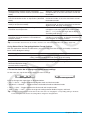
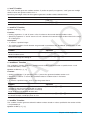
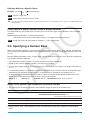
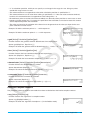
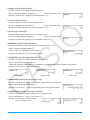
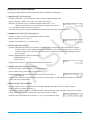
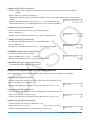
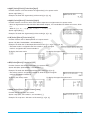
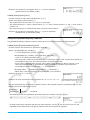
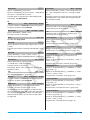
Tip: Note that the above operation is not possible while a user-defined function (page 196) is open.
Using Text Files
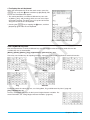
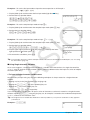
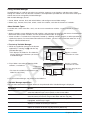
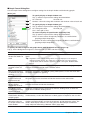
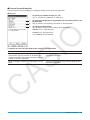
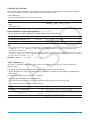
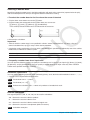
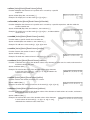
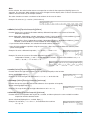
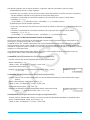
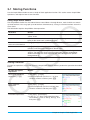
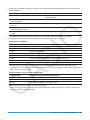
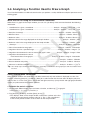
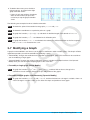
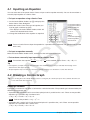
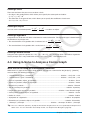
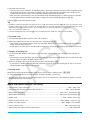
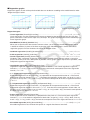
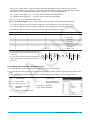
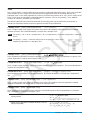
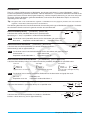
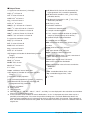
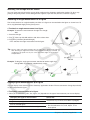
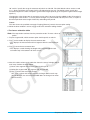
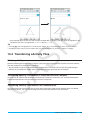
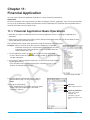
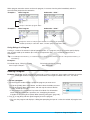
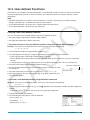
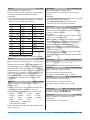
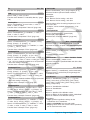
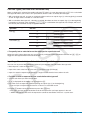
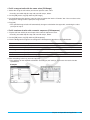
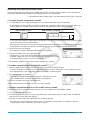
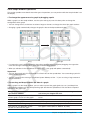
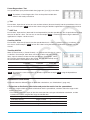
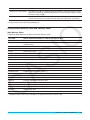
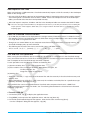
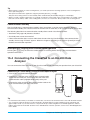
• Running a text file from the Program Loader window displays the contents of the file in the Text File Contents
window.
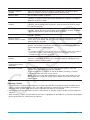
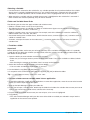
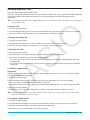
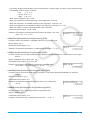
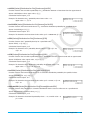
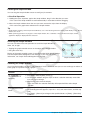
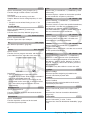
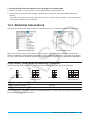
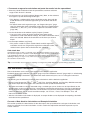
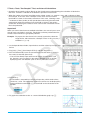
• Inserting a text file name followed by “()” inside a program causes the contents of the text file to be displayed
in the Text File Contents window when execution reaches the name.
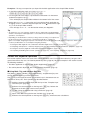
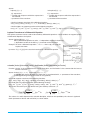
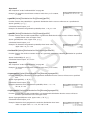
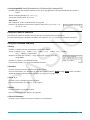
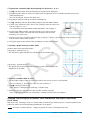
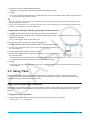
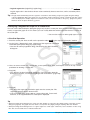
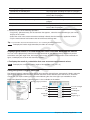
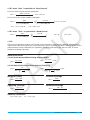
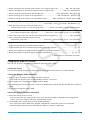
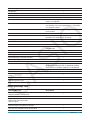
Example:
File Name: “CAUTION”
Program that displays contents of
“CAUTION” file
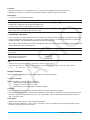
Converting a Text File to a Program File
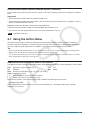
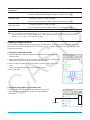
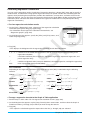
You can convert a text file created on the ClassPad to a program file. You also can transfer a text file created
on your computer to a ClassPad unit, and then convert it to a program file.
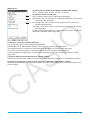
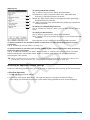
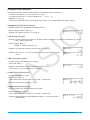
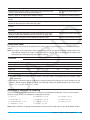
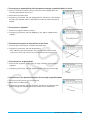
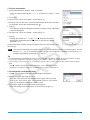
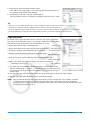
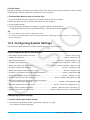
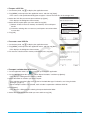
u To change a text file to a program file
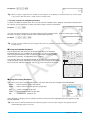
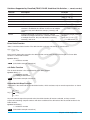
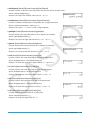
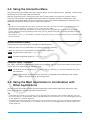
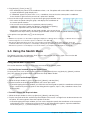
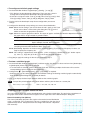
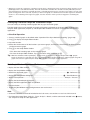
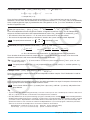
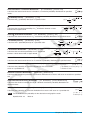
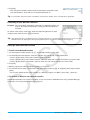
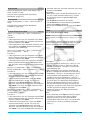
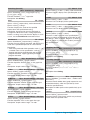
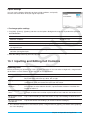
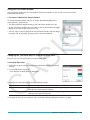
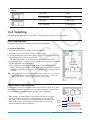
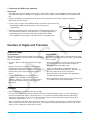
While a text file is open, tap [Edit], [Mode Change], and then ['Normal].
Tip
• Note that the above operation is not possible while a user-defined function (page 196) is open.
• For information about transferring data between a computer and a ClassPad unit, see Chapter 15 of this manual.
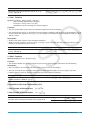
Converting a Program File to an Executable File
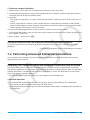
You can use the procedure below to change a program file (PRGM file type) to an executable file (EXE file
type).
• An EXE file is about half the size as its corresponding PRGM file.
• An EXE file can only be executed. It cannot be edited. Because of this, converting a PRGM file to an EXE file
also generates an editable PRGM file as a backup.
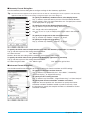
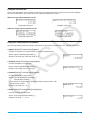
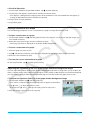
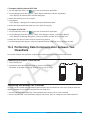
u To convert a program file (PRGM) to an executable file (EXE)
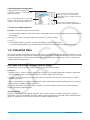
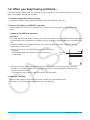
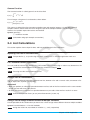
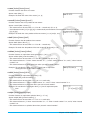
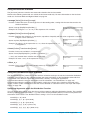
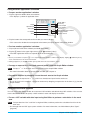
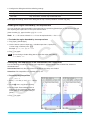
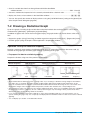
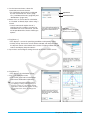
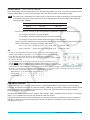
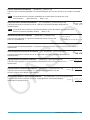
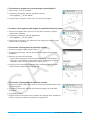
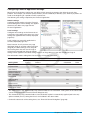
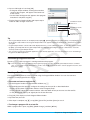
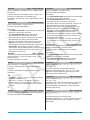
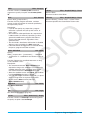
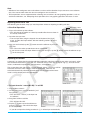
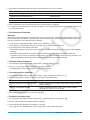
1. Open the PRGM file that you want to convert and display it in the Program Editor window.
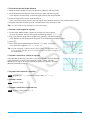
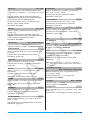
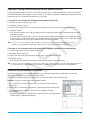
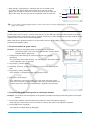
2. Tap [Edit] and then [Compress].
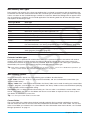
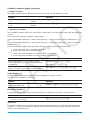
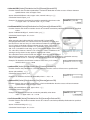
• This displays a dialog box for inputting the backup file name.
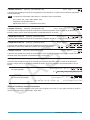
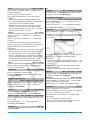
3. Enter the backup file name and then tap [OK].
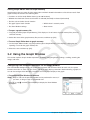
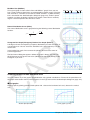
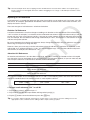
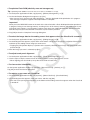
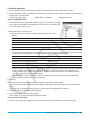
• This saves two copies of the file. One is an EXE file under the name of the original PRGM file. The other is
a backup file, which is created under the name you specify here.
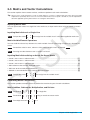
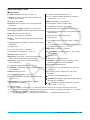
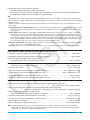
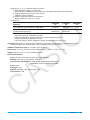
Original File:
OCTA (type: PRGM)
Specified File Name: OCTA2
Resulting Files:
OCTA (type: EXE), OCTA2 (type: PRGM)
Chapter 12: Program Application 194