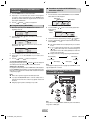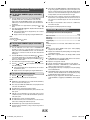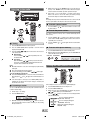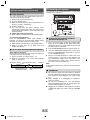
1
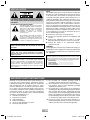
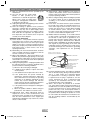
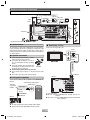
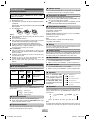
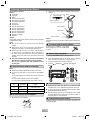
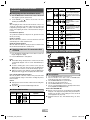
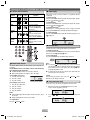
ENGLISH MODEL XL-HF200P(BK) HI FI COMPONENT SYSTEM OPERATION MANUAL XL-HF200P(BK) Hi Fi Component System consisting of XL-HF200P(BK) (main unit) and CP-HF200 (speaker system). iPhone, iPod, iPod classic, iPod nano, and iPod touch are trademarks of Apple Inc., registered in the U.S. and other countries. RRMCGA232AWSA “Made for iPod” and “Made for iPhone” mean that an electronic accessory has been designed to connect specifically to iPod or iPhone, respectively, and has been certified by the developer to meet Apple performance standards. Apple is not responsible for the operation of this device or its compliance with safety and regulatory standards. Accessories RRM CGA 232 AWS A Please confirm that the following accessories are included. iPhone® adaptor x 2 (GCOVAA238AWSA - No 12) (GCOVAA239AWSA - No 15) Remote control x 1 (RRMCGA244AWSA) AM loop antenna x 1 (QANTL005AWZZ) FM antenna x 1 (FANT1535A) Speaker wires x 2 (QCNWHA033AWPZ) Special Note Supply of this product does not convey a license nor imply any right to distribute content created with this product in revenue-generating broadcast systems (terrestrial, satellite, cable and/or other distribution channels), revenue generating streaming applications (via Internet, intranets and/or other networks), other revenue-generating content distribution systems (pay-audio or audio-on-demand applications and the like) or on revenue-generating physical media (compact discs, digital versatile discs, semiconductor chips, hard drives, memory cards and the like). An independent license for such use is required. For details, please visit http://mp3licensing.com MPEG Layer-3 audio coding technology licensed from Fraunhofer IIS and Thomson. TINSZA964AWZZ XL-HF200P_USA_EN_cover.indd 1 Printed in Malaysia 11F R AS 1 4/14/2011 5:02:54 PM SPECIAL NOTES NOTE This equipment has been tested and found to comply with the limits for a Class B digital device, pursuant to Part 15 of the FCC Rules. These limits are designed to provide reasonable protection against harmful interference in a residential installation. This equipment generates, uses, and can radiate radio frequency energy and, if not installed and used in accordance with the instructions, may cause harmful interference to radio communications. However, there is no guarantee that interference will not occur in a particular installation. If this equipment does cause harmful interference to radio or television reception, which can be determined by turning the equipment off and on, the user is encouraged to try to correct the interference by one or more of the following measures: Reorient or relocate the receiving antenna. Increase the separation between the equipment and receiver. Connect the equipment into an outlet on a circuit different from that to which the receiver is connected. Consult the dealer or an experienced radio/TV technician for help. CAUTION: TO REDUCE THE RISK OF ELECTRIC SHOCK, DO NOT REMOVE COVER (OR BACK). NO USER-SERVICEABLE PARTS INSIDE. REFER SERVICING TO QUALIFIED SERVICE PERSONNEL. Explanation of Graphical Symbols: The lightning flash with arrowhead symbol, within an equilateral triangle, is intended to alert the user to the presence of uninsulated “dangerous voltage” within the product’s enclosure that may be of sufficient magnitude to constitute a risk of electric shock to persons. The exclamation point within an equilateral triangle is intended to alert the user to the presence of important operating and maintenance (servicing) instructions in the literature accompanying the appliance. WARNING : TO REDUCE THE RISK OF FIRE OR ELECTRIC SHOCK, DO NOT EXPOSE THIS APPLIANCE TO RAIN OR MOISTURE. WARNING FCC Regulations state that any unauthorized changes or modifications to this equipment not expressly approved by the manufacturer could void the user’s authority to operate this equipment. This product is classified as a CLASS 1 LASER PRODUCT Caution - Use of any controls, adjustments or procedures other than those specified herein may result in hazardous radiation exposure. FOR YOUR RECORDS For your assistance in reporting this unit in case of loss or theft, please record below the model number and serial number which are located on the rear of the unit. Please retain this information. Model number .............................................. Serial number .............................................. Date of purchase .............................................. Place of purchase .............................................. Note to CATV system installer: This reminder is provided to call the CATV system installer’s attention to Article 820-40 of the National Electrical Code that provides guidelines for proper grounding and, in particular, specifies that the cable ground shall be connected to the grounding system of the building, as close to the point of cable entry as practical. IMPORTANT SAFETY INSTRUCTIONS Electricity is used to perform many useful functions, but it can also cause personal injuries and property damage if improperly handled. This product has been engineered and manufactured with the highest priority on safety. However, improper use can result in electric shock and/or fire. In order to prevent potential danger, please observe the following instructions when installing, operating and cleaning the product. To ensure your safety and prolong the service life of this product, please read the following precautions carefully before use. 1) Read these instructions. 2) Keep these instructions. 3) Heed all warnings. 4) Follow all instructions. 5) Do not use this apparatus near water. 6) Clean only with dry cloth. 7) Do not block any ventilation openings. Install in accordance with the manufacturer’s instructions. 8) Do not install near any heat sources such as radiators, heat registers, stoves, or other apparatus (including amplifiers) that produce heat. 9) Do not defeat the safety purpose of the polarized or grounding-type plug. A polarized plug has two blades with one wider than the other. A grounding type plug has two blades and a third grounding prong. The wide blade or the third prong are provided for your safety. If the provided plug does not fit into your outlet, consult an electrician for replacement of the obsolete outlet. 10) Protect the power cord from being walked on or pinched particularly at plugs, convenience receptacles, and the point where they exit from the apparatus. E-1 XL-HF200P_USA_EN.indd 1 4/14/2011 5:05:35 PM IMPORTANT SAFETY INSTRUCTIONS (continued) 11) Only use attachments/accessories specified by the manufacturer. 12) Use only with the cart, stand, tripod, bracket, or table specified by the manufacturer, or sold with the apparatus. When a cart is used, use caution when moving the cart/apparatus combination to avoid injury from tip-over. 13) Unplug this apparatus during lightning storms or when unused for long periods of time. 14) Refer all servicing to qualified service personnel. Servicing is required when the apparatus has been damaged in any way, such as power-supply cord or plug is damaged, liquid has been spilled or objects have fallen into the apparatus, the apparatus has been exposed to rain or moisture, does not operate normally, or has been dropped. Additional Safety Information 15) Power Sources - This product should be operated only from the type of power source indicated on the marking label. If you are not sure of the type of power supply to your home, consult your product dealer or local power company. For product intended to operate from battery power, or other sources, refer to the operating instructions. 16) Overloading - Do not overload wall outlets, extension cords, or integral convenience receptacles as this can result in a risk of fire or electric shock. 17) Object and Liquid Entry - Never push objects of any kind into this product through openings as they may touch dangerous voltage points or short-out parts that could result in a fire or electric shock. Never spill liquid of any kind on the product. 18) Damage Requiring Service - Unplug this product from the wall outlet and refer servicing to qualified service personnel under the following conditions: a) When the AC cord or plug is damaged, b) If liquid has been spilled, or objects have fallen into the product, c) If the product has been exposed to rain or water, d) If the product does not operate normally by following the operating instructions. Adjust only those controls that are covered by the operating instructions as an improper adjustment of other controls may result in damage and will often require extensive work by a qualified technician to restore the product to its normal operation, e) If the product has been dropped or damaged in any way, and f) When the product exhibits a distinct change in performance - this indicates a need for service. 19) Replacement Parts - When replacement parts are required, be sure the service technician has used replacement parts specified by the manufacturer or have the same characteristics as the original part. Unauthorized substitutions may result in fire, electric shock, or other hazards. 20) Safety Check - Upon completion of any service or repairs to this product, ask the service technician to perform safety checks to determine that the product is in proper operating condition. 21) Wall or ceiling mounting - When mounting the product on a wall or ceiling, be sure to install the product according to the method recommended by the manufacturer. 22) Power Lines - An outside antenna system should not be located in the vicinity of overhead power lines or other electric light or power circuits, or where it can fall into such power lines or circuits. When installing an outside antenna system, extreme care should be taken to keep from touching such power lines or circuits as contact with them might be fatal. 23) Outdoor Antenna Grounding - If an outside antenna or cable system is connected to the product, be sure the antenna or cable system is grounded so as to provide some protection against voltage surges and built-up static charges. Article810 of the National Electrical Code, ANSI/NFPA 70, provides information with regards to proper grounding of the mast and supporting structure, grounding of the cord-in wire to an antenna discharge unit, connection to grounding electrodes, and requirements for the grounding electrode. Example of antenna grounding asper National Electrical Code, ANSI/NFPA 70 ANTENNA CORD IN WIRE GROUND CLAMP ANTENNA DISCHARGE UNIT (NEC SECTION 810-20) ELECTRIC SERVICE EQUIPMENT GROUNDING CONDUCTORS (NEC SECTION 810-21) GROUND CLAMPS NEC - NATIONAL ELECTRICAL CODE S2898A POWER SERVICE GROUNDING ELECTRODE SYSTEM (NEC ART250, PARTH) 24) Protective Attachment Plug - The product is equipped with an attachment plug having overload protection. This is a safety feature. See Instruction Manual for replacement or resetting of protective device. If replacement of the plug is required, be sure the service technician has used a replacement plug specified by the manufacturer that has the same overload protection as the original plug. 25) Stand - Do not place the product on an unstable cart, stand, tripod or table. Placing the product on an unstable base can cause the product to fall, resulting in serious personal injuries as well as damage to the product. Use only a cart, stand, tripod, bracket or table recommended by the manufacturer or sold with the product. When mounting the product on a wall, be sure to follow the manufacturer’s instructions. Use only the mounting hardware recommended by the manufacturer. E-2 XL-HF200P_USA_EN.indd 2 4/14/2011 5:05:35 PM For U.S. customer only CONSUMER LIMITED WARRANTY SHARP ELECTRONICS CORPORATION warrants to the first consumer purchaser that this Sharp brand product (the "Product"), when ship in its original container, will be free from defective workmanship and materials, and agrees that it will, at its option, either repair the defect or replace the defective Product or part thereof with a new or remanufactured equivalent at no charge to the purchaser for parts or labor for the period(s) set forth below. This warranty does not apply to any appearance items of the Product nor to the additional excluded item(s) set forth below nor to any Product the exterior of which has been damaged or defaced, which has been subjected to improper voltage or other misuse, abnormal service or handling, or which has been altered or modified in design or construction. In order to enforce the rights under this limited warranty, the purchaser should follow the steps set forth below and provide proof of purchase to the servicer. The limited warranty described herein is in addition to whatever implied warranties may be granted to purchasers by law. ALL IMPLIED WARRANTIES INCLUDING THE WARRANTIES OF MERCHANTABILITY AND FITNESS FOR USE ARE LIMITED TO THE PERIOD(S) FROM THE DATE OF PURCHASE SET FORTH BELOW. Some states do not allow limitations on how long an implied warranty lasts, so the above limitation may not apply to you. Neither the sales personnel of the seller nor any other person is authorized to make any warranties other than those described herein, or to extend the duration of any warranties beyond the time period described herein on behalf of Sharp. The warranties described herein shall be the sole and exclusive warranties granted by Sharp and shall be the sole and exclusive remedy available to the purchaser. Correction of defects, in the manner and for the period of time described herein, shall constitute complete fulfillment of all liabilities and responsibilities of Sharp to the purchaser with respect to the Product, and shall constitute full satisfaction of all claims, whether based on contract, negligence, strict liability or otherwise. In no event shall Sharp be liable, or in any way responsible, for any damages or defects in the Product which were caused by repairs or attempted repairs performed by anyone other than an authorized servicer. Nor shall Sharp be liable or in any way responsible for any incidental or consequential economic or property damage. Some states do not allow the exclusion of incidental or consequential damages, so the above exclusion may not apply to you. THIS WARRANTY GIVES YOU SPECIFIC LEGAL RIGHTS. YOU MAY ALSO HAVE OTHER RIGHTS WHICH VARY FROM STATE TO STATE. Model Specific Section Your Product Model Number & Description: XL-HF200P(BK) HI FI COMPONENT SYSTEM (Be sure to have this information available when you need service for your Product.) Warranty Period for this Product: One (1) year parts and labor from the date of purchase. Additional Item(s) Excluded from Warranty Coverage (if any): Non-functional accessories, supplies, and consumable items. Where to Obtain Service: At a Sharp Authorized Servicer located in the United States. To find a location of the nearest Sharp Authorized Servicer, call Sharp toll free at 1-800-BE-SHARP. What to do to Obtain Service: Ship prepaid or carry in your Product to a Sharp Authorized Servicer. Be sure to have Proof of Purchase available. If you ship the Product, be sure it is insured and packaged securely. TO OBTAIN SUPPLY, ACCESSORY OR PRODUCT INFORMATION, CALL 1-800-BE-SHARP SHARP ELECTRONICS CORPORATION Sharp Plaza, Mahwah, New Jersey 07495-1163 System connections Precautions Please ensure that the equipment is positioned in a well ventilated area and ensure that there is at least 4” (10 cm) of free space along the sides, top and back of 4” (10 cm) 4” (10 cm) 4” (10 cm) Do not expose the unit to moisture, to temperatures higher than 140˚F (60˚C) or to extremely low temperatures. If your system does not work properly, disconnect the AC power cord from the AC outlet. Plug the AC power cord back in, and then turn on your system. In case of an electrical storm, unplug the unit for safety. Hold the AC power plug by the head when removing it from the AC outlet, as pulling the cord can damage internal wires. The AC power plug is used as a disconnect device and shall always remain readily operable. Do not remove the outer cover, as this may result in electric shock. Refer internal service to your local SHARP service facility. This unit should only be used within the range of 41˚F - 95˚F (5˚C - 35˚C). Warning: The voltage used must be the same as that specified on this unit. Using this product with a higher voltage other than that which is specified is dangerous and may result in a fire or other type of accident causing damage. SHARP will not be held responsible for any damage resulting from use of this unit with a voltage other than that which is specified. 4” (10 cm) the equipment. Use the unit on a firm, level surface free from vibration. Place the speakers at least 12” (30 cm) away from any CRT TV to avoid color variations across the TV screen. If the variations persist, move the speakers further away from the TV. LCD TV is not prone to such variation. Keep the unit away from direct sunlight, strong magnetic fields, excessive dust, humidity and electronic/electrical equipment (home computers, facsimiles, etc.) which generate electrical noise. E-3 Do not place anything on top of the unit. XL-HF200P_USA_EN.indd 3 4/14/2011 5:05:35 PM System connections (continued) Make sure to unplug the AC power cord before making any connections. AM loop antenna Right speaker Installing the AM loop antenna < Attaching to the wall > Video cable < Assembling > (not supplied) wall screws (not supplied) To video input jack Left speaker FM antenna Red Black AC outlet (AC 120 V ~ 60 Hz) Volume control The sound level at a given volume setting depends on speaker efficiency, location, and various other factors. It is advisable to avoid exposure to high volume levels. Do not turn the volume on to full at switch on. Listen to music at moderate levels. Excessive sound pressure from earphones and headphones can cause hearing loss. Connecting a TV, etc. Connect to the TV using an audio cable. TV Speaker connection To audio output jack Audio cable (commercially available) Audio signal Connect the black wire to the minus (–) terminal, and the red wire to the plus (+) terminal. Use speakers with an impedance of 4 ohms or more, as lower impedance speakers can damage the unit. Do not make a mistake when connecting the right Incorrect and left speakers. The right speaker is the one on the right side when you face the unit. Do not let the bare speaker wires touch each other. Do not allow any objects to fall into or to be placed in the bass reflex ducts. Do not stand or sit on the speakers. You may be injured. Main unit Using other subwoofer To LINE input jack You can connect a subwoofer with an amplifier to the SUBWOOFER PRE OUT jack. Commercially available subwoofer Audio cable (amplifier built in) (commercially Audio signal available) To audio input jack Main unit To SUBWOOFER PRE OUT jack To select Line In function: On main unit: Press FUNCTION button repeatedly until Line In is displayed. On remote control: Press AUDIO/LINE (INPUT) button repeatedly until Line In is displayed. Notes: No sound is heard from the subwoofer without a built-in amplifier. Subwoofer Pre-out (audio signal): 200mV / 10k ohms at 70 Hz. E-4 XL-HF200P_USA_EN.indd 4 4/14/2011 5:05:35 PM Volume control Remote control Turn the volume knob toward VOL +/- (on main unit) or press VOLUME +/- (on remote control) to increase or decrease the volume. Battery installation Auto power on function Use 2 “AAA” size batteries (UM/SUM-4, R3, HP-16 or similar). Batteries are not included. When you press any of the following buttons, the unit turns on. iPod® / iPhone, CD, USB, AUDIO / LINE (INPUT), TUNER (BAND) on the remote control: Selected function is activated. button on the main unit: The unit turns on and playback of the last function will start (CD, TUNER, USB, iPod, AUDIO IN, LINE IN) Plastic film covering can be removed or peeled off. 1 Open the battery cover. 2 Insert the batteries according to the direction indicated in the battery 3 compartment. When inserting or removing the batteries, push them toward the battery terminals. Close the battery cover. Auto power off function Caution: Replace all old batteries with new ones at the same time. Do not mix old and new batteries. Do not mix old and new batteries. Remove the batteries if the unit will not be used for a long period of time. This will prevent potential damage due to battery leakage. Do not use rechargeable batteries (nickel-cadmium battery, etc.). Installing the batteries incorrectly may cause the unit to malfunction. Batteries (battery pack or batteries installed) shall not be exposed to excessive heat such as sunshine, fire or the like. Notes concerning use: Replace the batteries if the operating distance is reduced or if the operation becomes erratic. Purchase 2 “AAA” size batteries (UM/SUM-4, R3, HP-16 or similar). Periodically clean the transmitter on the remote control and the sensor on the unit with a soft cloth. Exposing the sensor on the unit to strong light may interfere with operation. Change the lighting or the direction of the unit. Keep the remote control away from moisture, heat, shock, and vibrations. The main unit will enter the stand-by mode (when iPod/iPhone is not docked) after 15 minutes of inactivity during: iPod/iPhone: No connection. AUDIO IN / LINE IN: No detection of input signal or very low sound audibility. TUNER: No reception of broadcast signal. CD / USB: In the stop mode. Note: However, if iPod/iPhone is docked, the unit will begin charging. “Charge Mode” will be displayed. Muting The volume is muted temporarily when pressing the MUTE button on the remote control. Press again to restore the volume. X-Bass control When the power is first turned on, the unit will enter the extra bass mode which emphasizes the bass frequencies, and “X-BASS” will appear. To cancel the extra bass mode, press the X-BASS button on the remote control. Bass control 1 2 General control The first time the unit is plugged in, the unit will enter the demonstration mode. Remote control Main unit Power on/ off Demo on/ off Within 5 seconds, press the VOLUME (+ or -) button to adjust the bass. Treble control To turn the power on Function Press the BASS/TREBLE button to select “BASS”. Operation Press to turn the power on or to go to stand-by mode. ____ 1 2 Press to enter to demonstration on or off mode. Press the BASS/TREBLE button to select “TREBLE”. Within 5 seconds, press the VOLUME (+ or -) button to adjust the treble. Equalizer Flat When the EQUALIZER MODE button is pressed, the current mode setting will be displayed. To change to a different mode, press the EQUALIZER MODE button repeatedly until the desired sound mode appears. Classic For classical music. Display brightness control To dim the display brightness, press the DEMO/DIMMER button on the remote control. Dimmer 1 (Display is dim). Dimmer 2 (Display gets dimmer). Equalizer off. Game For game. Pops For pop music. Vocal Vocals are enhanced. Jazz For jazz. Function When the FUNCTION button on main unit is pressed, the current function will change to different mode. Press the FUNCTION button repeatedly to select desired function. Dimmer off (Display is bright). CD FM STEREO FM MONO AM Volume illuminator When the power is turned on, volume illuminator lights up. To turn on/off the light, hold down the DEMO/DIMMER button on the remote control for more than 2 seconds. Volume auto fade-in Line In Audio In iPod USB Note: The backup function will protect the memorized function mode for a few hours should there be a power failure or the AC power cord becomes disconnected. If you turn off and on the main unit with the volume set to 27 or higher, the volume starts at 16 and fades in to the last set level. E-5 XL-HF200P_USA_EN.indd 5 4/14/2011 5:05:36 PM Listening to the iPod or iPhone 2 Insert the iPod or iPhone adaptor into unit and connect your iPod iPhone and iPod operations Made for: iPhone 3GS iPhone 3G iPhone iPod touch (3rd generation) iPod touch (2nd generation) iPod touch (1st generation) iPod classic iPod with video iPod nano (5th generation) iPod nano (4th generation) iPod nano (3rd generation) iPod nano (2nd generation) iPod nano (1st generation) iPod with color display iPod mini or iPhone. iPhone (bottom) iPhone Dock connector iPhone adaptor iPhone dock iPhone connector Caution: Please update your iPod unit to the latest software version from Apple’s homepage before using it. Notes: Once the iPod or iPhone is connected to the unit it will begin charging. Error message “This accessory is not made to work with iPhone” may appear on the iPhone screen when iPhone battery is low. The message “This accessory is not made to work with iPhone” or “This accessory is not supported by iPhone” may appear on the iPhone screen when the iPhone is not properly docked (eg. slanting) on this product. If this occurs, please remove and re-dock the iPhone. This product is made for iPhone. To prevent random interference when iPhone is docked, the headphone output is disabled. You may also experience brief audio interference during incoming calls. Caution: Unplug all accessories from the iPod or iPhone before inserting it into the dock. To remove iPod or iPhone adaptor Insert the tip of a screwdriver (“-” type, small) into the adaptor hole as shown and lift upward to remove. iPod or iPhone playback 1 Press the ON/STAND-BY button to turn the power on. 2 Press the iPod/iPhone button on the remote control or Function button repeatedly on the main unit to select iPod function. 3 Insert iPod or iPhone unit in iPod dock of main unit. 4 Press the (iPod/iPhone ) button to start playback. iPod and iPhone adaptor connection Notes: Please use the adaptor supplied with your iPod or iPhone unit. You can use an audio cable to connect your iPod to the AUDIO IN jack if: 1. your iPod adaptor does not fit into the iPod dock on the main unit. 2. you have an iPod that does not have an iPod adaptor. 3. you have an iPod that does not have an iPod 30 pin connector. iPhone Adaptor No. iPhone Description RRMCGA232AWSA iPhone playback Capacity 12 iPhone 15 iPhone 3G 8GB & 16GB 15 iPhone 3GS 16GB & 32GB 4GB & 8GB & 16GB To insert iPod or iPhone adaptor 1 Open the iPod cover by pulling up. Sound will only switch from iPhone to the main unit after authentication process is completed in approximately 10 seconds. Incoming calls will pause the playback and iPhone ringtones will be heard from the main unit speakers only. Once the calls are answered, the conversation can only be heard through the built-in iPhone speaker. Turn on the iPhone speaker or undock the iPhone to start conversation. To disconnect iPod or iPhone Simply remove the iPod or iPhone from the iPod dock. It is safe to do so even during playback. E-6 XL-HF200P_USA_EN.indd 6 4/14/2011 5:05:36 PM Listening to the iPod or iPhone (continued) Function Navigating the iPod and iPhone menus 1 Press the MENU button to view the menu on iPod or iPhone unit. Main unit or ) button to select an item on the menu and then press ENTER button. Note: When navigating the iPod or iPhone menu with remote control, do not operate any of the buttons on the iPod or iPhone unit. The volume level is adjusted by pressing the VOL (+ or -) button on the main unit or the remote control. Adjusting the volume on the iPod and iPhone units give no effect. Press in the playback or pause mode. If you press the button in the pause mode, press the button to start the desired track. Fast forward/ reverse Press and hold down in the playback mode. Release the button to resume playback. Display ____ Repeat iPod and iPhone operations: The operations described below depend on the generation iPod and iPhone you are using. Shuffle System on operation: When the main unit is powered on, the iPod and iPhone units will automatically power on when docked in the unit. System off (stand-by operation): When the main unit is turned to stand-by mode, the docked iPod and iPhone unit will automatically turn to stand-by mode. Operation Track up/ down Press it again to go back to previous menu. 2 Use the PRESET ( Remote control ____ iPod back light ON. Press for more than 2 seconds to toggle the video out display between iPod or TV. Press to toggle repeat mode. ____ Press and hold down to toggle shuffle mode. iPod Menu ____ Press to view the iPod menu during iPod function. iPod Enter ____ iPod Cursor Up/Down Watching videos on a TV connected to iPod or iPhone Press to confirm the selection. Press to select the iPod menu. ____ Listening to a CD or MP3/WMA disc 1 Press the DISPLAY (TV OUT) button for more than 2 seconds. “TV Display” will appear on display. 2 Press the ENTER button to start playback. Notes: If the TV Out setting is already turned on at video menu, the video is automatically displayed on the TV screen when ENTER key is pressed. To return to watching video on iPod or iPhone screen, press the MENU button to enter video menu. Then press the DISPLAY (TV OUT) button for more than 2 seconds until “iPod Display” appears. During iPod or iPhone video playback, pressing the DISPLAY (TV OUT) button will not toggle video out display between iPod and TV. RRMCGA232AWSA iPod or iPhone playback detection function: Once the play button on the iPod or iPhone unit is pressed, the main unit will automatically change to iPod function overriding the previous function selected. Disc playback 1 Press the ON/STAND-BY button to turn the power on. 2 Press the CD button on the remote control or FUNCTION button Caution: Unplug all accessories for the iPod or iPhone before inserting it into the iPod dock. Stop button ( ) at main unit is invalid during iPod function. 3 4 5 6 Various iPod functions Function Main unit Remote control Operation Play Press in the pause mode. Pause Press in the playback mode. repeatedly on the main unit to select CD function. Press the OPEN/CLOSE button to open the disc tray. Place the disc on the disc tray, label side up. Press the OPEN/CLOSE button to close the disc tray. Press the (CD/USB ) button to start playback. After the last track is played, the unit will stop automatically. Notes for CD or MP3/WMA disc: When the end of the last track is reached during fast forward, “END” will appear on the display and CD operation will be paused. When the beginning of the first track is reached during fast reverse, the unit will enter the playback mode (only for CD). Rewritable multi-session discs with unfinished writing, can still be played. E-7 XL-HF200P_USA_EN.indd 7 4/14/2011 5:05:36 PM Listening to a CD or MP3/WMA disc (continued) Various disc functions Function Main unit Repeat play Remote control Operation Play Press in the stop mode. Stop Press in the playback mode. Pause Track up/ down Fast forward/ reverse Repeat play can play one track, all tracks or a programed sequence continuously. To repeat one track: Press the PLAY MODE button repeatedly until “Repeat One” appears. (CD/USB ) button. Press the To repeat all tracks: Press the PLAY MODE button repeatedly until “Repeat All” appears. (CD/USB ) button. Press the Press in the playback button mode. Press the to resume playback from the paused point. Press in the playback or stop mode. If you press the button in the stop mode, press the button to start the desired track. Press and hold down in the playback mode. Release the button to resume playback. To repeat desired tracks: Perform steps 1 - 5 in “Programed play” section on page 8-9 and then press the PLAY MODE button repeatedly until “Repeat All” appears. To cancel repeat play: Press the PLAY MODE button repeatedly until “Normal” appears and “ ” disappears. Random play The tracks on the disc can be played in random order automatically. To random play all tracks: Press and hold down PLAY MODE button on the remote control until “Random” (CD/USB ) button. appears. Press the To cancel random play: Press the PLAY MODE button until “RDM” indicator disappears. RRMCGA232AWSA Direct track search By using the Numeric buttons, the desired tracks on the current disc can be played. Use the Numeric buttons on the remote control to select the desired track while playing the selected disc. The Numeric buttons allow you to select up to number 9. When selecting number 10 or higher, use the “10+” button. Caution: After performing repeat play, be sure to press the Otherwise, the disc will play continuously. A. For example, to choose 13 1 Press the “10+” button once. 2 Press the “1” button. 3 Press the “3” button. Notes: If you press the button during random play, you can move to the track selected next by the random operation. On the other hand, the button does not allow you to move to the previous track. The beginning of the track being played will be located. In random play, the unit will select and play tracks automatically. (You cannot select the order of the tracks.) 2 Press the “1” button. 3 Press the “3” button. 4 Press the “0” button. Notes: A track number higher than the number of tracks on the disc cannot be selected. During random play, direct search is not possible. ) button. Programed play (CD) Selected track number B. For example, to choose 130 1 Press the “10+” button twice. (CD/USB You can choose up to 32 selections for playback in the order you like. 1 While in the stop mode, press the MEMORY button on the remote control to enter the programing save mode. 2 Press the track. or buttons on the remote control to select the desired To stop playback: Press the (CD/USB ) button. Selected track number E-8 XL-HF200P_USA_EN.indd 8 4/14/2011 5:05:36 PM Procedure to playback MP3/WMA disc with folder mode on Listening to a CD or MP3/WMA disc (continued) 3 4 Press the MEMORY button to save the track number. 5 Press the To play back CD-R/RW. Repeat steps 2 - 3 for other tracks. Up to 32 tracks can be programed. If you want to check the programed tracks, press the MEMORY button repeatedly. If you make a mistake, the programed tracks can be cleared by pressing the CLEAR button. (CD/USB 1 Press the CD button, and load an MP3/WMA disc. Press the FOLDER button and disc info will be displayed. MP3 indicator WMA indicator TOTAL indicator 2 Press the PRESET ( (Folder mode on) FOLDER indicator ) button to start playback. Programed play (MP3/WMA) 1 While in the stop mode, press the MEMORY button to enter the Total number of folder programing save mode. 2 Press the PRESET ( the desired folder Then press the desired tracks. or or ) button on the remote control to select 3 4 Press the MEMORY button to save the folder and track number. 5 Press the Repeat steps 2 - 3 for other folder/tracks. Up to 32 tracks can be programed. (CD/USB ) button to select desired playback folder. FOLDER number First track number in the folder Select desired file to be played back by pressing the or button. Press the (CD/USB will be displayed. ) button. Playback will start and file name Title, Artist and Album name are displayed if they are recorded on the disc. In case of playback with the folder mode on, press the PRESET ( or ) button, and the folder can be selected even though it is in playback/pause mode. It will continue playback/pause mode in the 1st track of the selected folder. Display content can be changed by pressing the DISPLAY button. button on the remote control to select the 3 4 Total number of files or File name display ) button to start playback. Folder display Title display Counter display To cancel the programed play mode: During programed stop mode, press the (CD/USB ) button. The display will show “Memory Clear” and all the programed contents will be cleared Album display Adding tracks to the program: If a program has been previously stored, the “MEM” indicator will be displayed. Press the MEMORY button repeatedly to go to the last program memory. Then follow steps 2 - 3 to add tracks. The new tracks will be stored after the last track of the previous program. Artist display Note: If “Not Support” is displayed, it means “Copyright protected WMA file” or “Not supported playback file” is selected. Listening to USB mass storage device/MP3 player Notes: When a disc is ejected, the program is automatically canceled. If you press the ON/STAND-BY button to enter the stand-by mode or change the function from CD to another, the programed selections will be cleared. During the program operation, random play is not possible. RRMCGA232AWSA Note: This product is not compatible with MTP and AAC file systems from USB mass storage device or MP3 player. E-9 XL-HF200P_USA_EN.indd 9 4/14/2011 5:05:36 PM Listening to USB mass storage device/ MP3 player (continued) To play back USB/MP3 player with folder mode off 1 2 3 Press the USB button on the remote control or FUNCTION button repeatedly on main unit to select USB function. Connect the USB memory device that has MP3/WMA format files on the unit. When the USB memory is connected to the main unit, the device information will be displayed. Select desired file to be played back by pressing the or button. Press the (CD/USB ) button. Playback will start and the file name will be displayed. Title, Artist and Album name are displayed if they are recorded in the USB memory device. Display content can be changed by pressing the DISPLAY button. Note: To pause playback: (CD/USB Press the ) button. 1 Press the USB button on the remote control or FUNCTION button repeatedly on main unit to select USB function. Connect the USB memory device that has MP3/WMA format files on the unit. When the USB memory is connected to the main unit, the device information will be displayed. 2 Press the FOLDER button, and press the PRESET ( or ) button to select desired playback folder. To start playback with folder mode on, go to step 4. To change the playback folder, press the PRESET ( or ) button to select another folder. 3 4 Select desired file to be played back by pressing the or button. ) button. Playback will start and the file Title, Artist and Album name are displayed if they are recorded in the USB memory device. Display content can be changed by pressing the DISPLAY button. To remove USB memory device 1 2 Advanced USB playback The following functions are the same as CD operations: Page Direct track search .......................................................................................8 Repeat play ...................................................................................................8 Random play .................................................................................................8 Programed play......................................................................................... 8-9 Note: If USB memory device is not connected, “USB No Media” will be shown on the display. To play back USB/MP3 player with folder mode on Press the (CD/USB name will be displayed. This product can play WMA and MP3 files. It will automatically detect the file type being played. If unplayable file is played on this product, “Not Support” is indicated and the file will be automatically skipped. This will take a few seconds. If abnormal indications appear on the display due to the unspecified file, turn off the unit and then turn it on again. This product relates to USB mass storage devices and MP3 players. It may however face some irregularities due to various unforeseen reasons from some devices. Should this happen, turn off the unit and then turn it on again. The USB port is only intended for direct connection to a USB memory device without any cable. During CD function, MP3 player will not be charging. Press the (CD/USB ) button to stop playback. Disconnect USB memory device from the USB terminal. Notes: SHARP will not be held liable for the loss of data while the USB memory device is connected to the audio system. Files compressed in MP3 and/or WMA format can be played back when connected to the USB terminal. This USB memory’s format supports FAT 16 or FAT 32. SHARP cannot guarantee that all USB memory devices will work on this audio system. USB cable is not recommended for use in this audio system to connect to USB memory device. Use of the USB cable will affect the performance of this audio system. This USB memory cannot be operated via USB hub. The USB terminal in this unit is not intended for a PC connection but is used for music streaming with a USB memory device. External HDD-storage cannot be played back via USB terminal. If the data inside the USB memory is large, it may take longer time for the data to be read. Notes: This unit only supports “MPEG-1 Audio Layer-3” format. (Sampling Frequency is 32, 44.1, 48kHz) Playback order for MP3 files may differ depending on the writing software used during file download. Bitrate which is supported by MP3 is 32~320 kbps, WMA is 64~160 kbps. For MP3/WMA files, please put “.MP3” “.WMA” extension. Files cannot be played back if there is no MP3/WMA extension. Playlists are not supported on this unit. This unit can display Folder Name or File Name up to 32 characters. Maximum total number of MP3/WMA files is 1024. Maximum total number of folders is 255 inclusive of root directory. The display playback time may not be displayed correctly when playing back a variable bitrate file. The ID3TAG information supported are TITLE, ARTIST and ALBUM only. Title name, artist name and album name can be displayed by pressing the DISPLAY button during file playback or pause mode. WMA meta tag also supports title, artist and album name which are recorded in WMA files. Copyright protected WMA files cannot be played back. E-10 XL-HF200P_USA_EN.indd 10 4/14/2011 5:05:36 PM Listening to the radio 4 Within 30 seconds, press the MEMORY button to store that station in memory. If the “MEMORY” and preset number indicators disappear before the station is memorized, repeat the operation from step 2. 5 Repeat steps 1 - 4 to set other stations, or to change a preset station. When a new station is stored in the memory, the station previously memorized for that preset channel number will be erased. Note: The backup function protects the memorized stations for a few hours should there be a power failure or the AC power cord become disconnected. To recall a preset station 1 Press the PRESET ( the desired station. or ) button for less than 0.5 seconds to select To scan the preset stations The stations saved in the memory can be scanned automatically. (Preset memory scan) RRMCGA232AWSA Tuning 1 2 3 1 Press the PRESET ( or ) button for more than 0.5 seconds. The preset number will flash and the programed stations will be tuned in sequentially, for 5 seconds each. 2 Press the PRESET ( is located. or ) button again when the desired station Press the ON/STAND-BY button to turn the power on. Press the TUNER (BAND) button repeatedly to select the desired frequency band (FM or AM). Press the TUNING ( to the desired station. or ) button on the remote control to tune in Manual tuning: or ) button repeatedly to tune in to Press the TUNING ( the desired station. Auto tuning: or ) button is pressed for more than When the TUNING ( 0.5 seconds, scanning will start automatically and the tuner will stop at the first receivable broadcast station. Notes: When radio interference occurs, auto scan tuning may stop automatically at that point. Auto scan tuning will skip weak signal stations. To stop the auto tuning, press the TUNING ( or ) button again. To receive an FM stereo transmission: Press the TUNER (BAND) button to select stereo mode and “ST” indicator will be displayed. “ ” and “ ” will appear when an FM broadcast is in stereo. If the FM reception is weak, press the TUNER (BAND) button to extinguish the “ST” indicator. The reception changes to monaural, and the sound becomes clearer. To erase entire preset memory 1 2 Press the ON/STAND-BY button to enter the stand-by mode. While pressing down the FUNCTION button, press the ON/STAND-BY button until “Tuner Clear” appears. FUNCTION ON/STAND-BY Setting the clock (Remote control only) In this example, the clock is set for the 12-hour (AM 12:00) display. Presetting a station You can store 40 AM and FM stations in memory and recall them at the push of a button. (Preset tuning) 1 2 Perform steps 1 - 3 in “Tuning”. 3 Within 30 seconds, press the PRESET ( or ) button to select the preset channel number. Store the stations in memory, in order, starting with preset channel 1. Press the MEMORY button. 1 2 3 Press the ON/STAND-BY button to turn the power on. 4 Press the or button to select 24-hour or 12-hour display and then press the ENTER button. Press the CLOCK/TIMER button. Within 10 seconds, press the ENTER button. To adjust the day, press the or button and then press the ENTER button. The 12-hour display will appear. (AM 12:00 - PM 11:59) The 12-hour display will appear. (AM 00:00 - PM 11:59) The 24-hour display will appear. (00:00 - 23:59) E-11 XL-HF200P_USA_EN.indd 11 4/14/2011 5:05:36 PM 6 To adjust the day, press the Setting the clock (continued) 5 To adjust the hour, press the or button and then press the ENTER button. Press the or button once to advance the time by 1 hour. Hold it down to advance continuously. 6 To adjust the minutes, press the the ENTER button. Press the time by 1 minute. or or button and then press button once to advance the To confirm the time display: Press the CLOCK/TIMER button. The time display will appear for about 5 seconds. Note: When power supply is restored after unit is plugged in again or after a power failure, reset the clock (pages 11). or button and then press the ENTER button. 7 Press the ENTER button to adjust the hour. Press the or button and then press the ENTER button. 8 To adjust the minutes, press the or button and then press the ENTER button. 9 Set the time to finish as in steps 7 and 8 above. 10 Adjust the volume using the VOLUME control, and then press the ENTER button. Do not turn the volume up too high. 11 Press the ON/STAND-BY button to enter the power stand-by mode. The “TIMER” indicator lights up and the unit is ready for timer playback. To readjust the clock: Perform “Setting the clock” from step 1. If the “Clock” does not appear in step 2, step 4 (for selecting the 24-hour or 12-hour display) will be skipped. To change the 24-hour or 12-hour display: 1 Clear all the programed contents. [Refer to “Factory reset, clearing all memory” on page 14 for details.] 2 Perform “Setting the clock” from step 1 onwards. Timer and sleep operation (Remote control only) Once timer: Once timer play works for one time only at a preset time. (“ ” indicator). Daily timer: Daily timer play works at the same preset time every day that we set. For example, set the timer as a wake-up call every morning. (“DAILY” indicator). Using the once timer and daily timer in combination: For example, use the once timer to listen a radio program, and use the daily timer to wake up. 1 minute or more Daily timer Start Once timer Stop Start Stop Timer playback Before setting timer: Check that the clock is set to the correct time (refer to page 11-12). If it is not set, you cannot use the timer function. For timer playback: Plug in USB or load discs or dock iPod to be played. 1 Press the ON/STAND-BY button to turn the power on. 2 Press and hold the CLOCK/TIMER button. 3 Within 10 seconds, press the or button to select “Once” or “Daily”, and press the ENTER button. or button to select “Timer Set”, and press the ENTER button. 5 To select the timer playback source (CD, TUNER, USB, iPod, AUDIO IN, LINE IN), press the or button. Press the ENTER button. When you select the tuner, select a station by pressing the or button, and then press the ENTER button. If a station has not been programed, “No Preset” will be displayed and timer setting will be canceled. 4 Within 10 seconds, press the 12 When the preset time is reached, playback will start. The volume will increase gradually until it reaches the preset volume. The timer indicator will blink during timer playback. 13 When the timer end time is reached, the system will enter the power stand-by mode automatically. Once timer: The timer will be canceled. Daily timer: The timer operates at the same time every day. It will continue until the daily timer setting is canceled. Cancel the daily timer when it is not in use. Notes: When performing timer playback using another unit connected to the USB terminal or AUDIO IN jack, select “USB” or “AUDIO IN” or “LINE IN” in step 5. This unit will turn on or enter the power stand-by mode automatically. However, the connected unit will not turn on or off. To stop the timer playback, follow step “Canceling the timer setting” of this page. Checking the timer setting: 1 Turn the power on and press and hold down the CLOCK/ TIMER button. 2 Within 10 seconds, press the or button to select “Once” or “Daily”, and press the ENTER button. 3 Within 10 seconds, press the or button to select “Timer Call”, and press the ENTER button. Canceling the timer setting: 1 Turn the power on and press and hold down the CLOCK/ TIMER button. 2 Within 10 seconds, press the or button to select “Once” or “Daily”, and press the ENTER button. 3 Within 10 seconds, press the or button to select “Timer Off”, and press the ENTER button. Timer will be canceled (the setting will not be canceled). Reusing the memorized timer setting: The timer setting will be memorized once it is entered. To reuse the same setting, perform the following operations. 1 Turn the power on and press and hold down the CLOCK/ TIMER button. 2 Within 10 seconds, press the or button to select “Once” or “Daily”, and press the ENTER button. 3 Within 10 seconds, press the or button to select “Timer On” , and press the ENTER button. 4 Press the ON/STAND-BY button to enter the power standby mode. E-12 XL-HF200P_USA_EN.indd 12 4/14/2011 5:05:36 PM Timer and sleep operation (Remote control only) (continued) Enhancing your system The connection cord is not included. Purchase a commercially available cord as shown below. Sleep operation The radio, compact disc, iPod, USB, Audio In and Line In can all be turned off automatically. 1 Play back the desired sound source. 2 Press the SLEEP button. 3 Within 5 seconds, press the direct search button to set the time. (1 minute ~ 99 minutes) 4 “SLEEP” will appear. 5 The unit will enter the power stand-by mode automatically after the preset time has elapsed. The volume will be turned down 1 minute before the sleep operation finishes. To confirm the remaining sleep time: 1 While “SLEEP” is indicated, press the SLEEP button. To cancel the sleep operation: Press the ON/STAND-BY button while “SLEEP” is indicated. To cancel the sleep operation without setting the unit to the stand-by mode, proceed as follows. 1 While “SLEEP” is indicated, press the SLEEP button. 2 Within 5 seconds, press the “0” button twice until “SLEEP 00” appears. To use timer and sleep operation together Sleep and timer playback: For example, you can fall asleep listening to the radio and wake up to CD in the next morning. 1 Set the sleep time (see above, steps 1 - 5). 2 While the sleep timer is set, set the timer playback (steps 2 - 9, page 12). Sleep timer setting Timer playback setting 1-99 minutes Sleep operation will automatically stop Portable audio player, etc. Audio cable (not supplied) Listening to the playback sounds of portable audio player, etc. 1 Use a connection cord to connect the portable audio player etc. to the AUDIO IN jack. When using video equipment, connect the audio output to this unit and the video output to a television. 2 Press the ON/STAND-BY button to turn the power on. 3 Press the AUDIO/LINE (INPUT) button on the remote control or FUNCTION button repeatedly on main unit to select AUDIO IN function. 4 Play the connected equipment. If volume level of the connected device is too high, sound distortion may occur. Should this happen, lower the volume of the connected device. If volume level is too low, increase the volume of the connected device. End time Desired time Timer playback start time Note: To prevent noise interference, place the unit away from the television. Headphones Do not turn the volume on to full at switch on and listen to music at moderate levels. Excessive sound pressure from earphones and headphones can cause hearing loss. Before plugging in or unplugging the headphone, reduce the volume. Be sure your headphone has a 3.5 mm diameter plug and impedance between 16 and 50 ohms. The recommended impedance is 32 ohms. Plugging in the headphone disconnects the speakers automatically. Adjust the volume using the VOLUME control. E-13 XL-HF200P_USA_EN.indd 13 4/14/2011 5:05:36 PM iPod and iPhone Troubleshooting chart Many potential problems can be resolved by the owner without calling a service technician. If something is wrong with this product, check the following before calling your authorized SHARP dealer or service center. General Symptom Did a power failure occur? Reset the clock. (Refer page 11) When a button is pressed, the unit does not respond. Set the unit to the power stand-by mode and then turn it back on. If the unit still malfunctions, reset it. (Refer page 14) No sound is heard. Is the volume level set to “Min”? Are the headphones connected? Are the speaker wires disconnected? CD player Possible cause Playback does not start. Is the disc loaded upside down? Playback stops in Does the disc satisfy the standards? the middle or is not Is the disc distorted or scratched? performed properly. Playback sounds are skipped, or stopped in the middle of a track. Is the unit located near excessive vibrations? Is the disc very dirty? Has condensation formed inside the unit? Remote control Symptom The remote control does not operate. Possible cause The iPod or iPhone is not playing. The iPod or iPhone is not properly connected to the unit. Is the AC power cord of the unit plugged in? The video cable is not properly connected. The TV/monitor’s input selection is not properly set. The iPod TV out feature has not been set to output video. iPod or iPhone will not charge. The iPod or iPhone is not making full contact with the connector. Using iPod (3rd generation). The iPod or iPhone is not supported. Refer to page 6 for compatible models. “This accessory is not made to work with iPhone” or “This accessory is not supported by iPhone” appears on iPhone screen. The iPhone battery is low. Please charge the iPhone. iPhone is not properly docked. Possible cause The clock is not set to the correct time. Symptom Symptom No sound is produced. No image appears on the TV/monitor. Possible cause Is the AC power cord of the unit plugged in? Is the battery polarity correct? Are the batteries dead? Is the distance or angle incorrect? Does the remote control sensor receive strong light? Condensation Sudden temperature changes, storage or operation in an extremely humid environment may cause condensation inside the cabinet (CD pickup, etc.) or on the transmitter on the remote control. Condensation can cause the unit to malfunction. If this happens, leave the power on with no disc in the unit until normal playback is possible (about 1 hour). Wipe off any condensation on the transmitter with a soft cloth before operating the unit. If problem occurs When this product is subjected to strong outdoor interference (mechanical shock, excessive static electricity, abnormal supply voltage due to lightning, etc.) or if it is operated incorrectly, it may malfunction. If such a problem occurs, do the following: 1 Set the unit to the stand-by mode and turn the power on again. 2 Tuner Symptom The radio makes unusual noises continuously. Possible cause Is the unit placed near the TV or computer? Is the FM antenna or AM loop antenna placed properly? Move the antenna away from the AC power cord if it is located nearby. Note: If neither operation above restores the unit, clear all the memory by resetting it. Factory reset, clearing all memory 1 2 USB Symptom Device cannot be detected. Press the ON/STAND-BY button to enter the power stand-by mode. While pressing down the OPEN/CLOSE button, press the ON/STANDBY button until “Clear All” appears. Possible cause Is there any MP3/WMA file available? Is the device properly connected? Is it an MTP device? Does the device contain AAC file only? Playback does not start. Is it a copyright protected WMA file? Is it a false MP3 file? Wrong time display. Wrong file name display. If the unit is not restored in the previous operation, unplug and plug in the unit again, and then turn the power on. Is Variable Bitrate file being played back? Is the File Name written in Chinese or Japanese characters? Caution: This operation will erase all data stored in memory including clock, timer settings, tuner preset, and CD program. Before transporting the unit Remove the iPod/iPhone, USB memory device and disc from the unit. Then, set the unit to the power stand-by mode. Carrying the unit with iPod/iPhone or USB memory device left docked or discs left inside might damage the unit. E-14 XL-HF200P_USA_EN.indd 14 4/14/2011 5:05:36 PM Troubleshooting chart (continued) Amplifier Care of compact discs Output power RMS: Total 100 watt (50 W per channel into 4 ohms at 1 kHz, 10% Total harmonic distortion.) FTC: 37.5 watt minimum RMS per channel into 4 ohms from 100 Hz to 20 kHz, 10% Total harmonic distortion. Output terminals Speakers: 4 ohms 20Hz - 20kHz Subwoofer Pre-out (audio signal): 200 mV/10 k ohms at 70 Hz Video output: 1 Vp-p Headphones: 16-50 ohms (recommended: 32 ohms) Input terminals Audio In (audio signal): 500 mV/47 k ohms Line in (Analog input): 500 mV/47 k ohms Compact discs are fairly resistant to damage, however mistracking can occur due to an accumulation of dirt on the disc surface. Follow the guidelines below for maximum enjoyment from your CD collection and player. Do not write on either side of the disc, particularly the non-label side from which signals are read. Do not mark this surface. Keep your discs away from direct sunlight, heat, and excessive moisture. Always hold the CDs by the edges. Fingerprints, dirt, or water on the CDs can cause noise or mistracking. If a CD is dirty or does not play properly, clean it with a soft, dry cloth, wiping straight out from the center, along the radius. Maintenance Cleaning the CD pickup lens In order to ensure proper operation of the CD player, preventative maintenance (cleaning of the laser pickup lens) should be performed periodically. Lens cleaners are commercially available. Contact your local CD software dealer for options. USB USB host interface Complies with USB 1.1 (Full Speed)/2.0 Mass Storage Class. Support Bulk only and CBI protocol. Support file MPEG 1 Layer 3 WMA (Non DRM) Bitrate support MP3 (32 ~ 320 kbps) WMA (64 ~ 160 kbps) Other Maximum total number of MP3/WMA files is 1024. Maximum total number of folders is 255 INCLUSIVE of root directory. The ID3TAG information supported are TITLE, ARTIST and ALBUM only. Supports ID3TAG version 1 and version 2. File system support Support USB devices with Microsoft Windows/DOS/FAT 12/FAT 16/ FAT 32. 2 kbyte block length for sector. Cleaning the cabinet Periodically wipe the cabinet with a soft cloth and a diluted soap solution, then with a dry cloth. Caution: Do not use chemicals for cleaning (gasoline, paint thinner, etc.). It may damage the cabinet. Do not apply oil to the inside of the unit. It may cause malfunctions. Specifications As part of our policy of continuous improvement, SHARP reserves the right to make design and specification changes for product improvement without prior notice. The performance specification figures indicated are nominal values of production units. There may be some deviations from these values in individual units. General Power source AC 120 V ~ 60 Hz Power consumption 40 W Dimensions Width: 8 - 1/2” (215 mm) Height: 3 - 1/2” (90 mm) Depth: 11 - 4/5” (300 mm) Weight 8.8 lbs. (4.0 kg) Tuner Frequency range FM: 87.5 - 108 MHz AM: 530 - 1,710 kHz Preset 40 (FM and AM station) CD player Type Single disc multi-play compact disc player Signal readout Non-contact, 3-beam semiconductor laser pickup D/A converter Multi bit D/A converter Frequency response Dynamic range Speaker Type 2-way type speaker system 1” (2.5 cm) Dome-Tweeter 4-3/4” (12 cm) woofer 20 - 20,000 Hz Maximum input power 100 W 90 dB (1 kHz) Rated input power 50 W Impedance 4 ohms Dimensions Width: 5 - 13/16” (148 mm) Height: 10-1/4” (260 mm) Depth: 8” (203.5 mm) Weight 5.4 lbs. (2.5 kg)/each E-15 XL-HF200P_USA_EN.indd 15 4/14/2011 5:05:36 PM