1
118
Section 12 F Installing and Upgrading CDOS for Control Desktop
12.3.2
Using the CDOS installation and Upgrade Menu
The CDOS installation menu system is similar to that used for the
installation of SYBASE and ENVOX software. The following information
will help you navigate in the menu system:
J
J
J
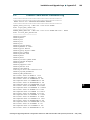
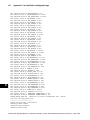
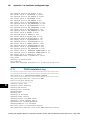
When you install CDOS, a menu-driven, character-based interface is
displayed on the screen.
You can navigate through the menu items by using the up and down
keys and by pressing Return on any of the menu item fields.
You can navigate through the menu item data fields by using the left
and right arrow keys.
J
The menu item data fields are set up for insert mode.
J
If a menu item is incorrect, the data field is shown in reverse video.
J
Most of the menu data is defaulted for you when the menu is
displayed. The default values may be modified.
J
Pressing Ctrl-w refreshes the screen.
J
Pressing Ctrl-e deletes the current data field.
J
J
12
J
J
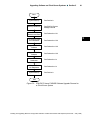
Moving the cursor to Enter and pressing Return causes the data from
the menu to be checked.
If there are no errors or warnings, the installation proceeds normally.
When the installation starts, the menu disappears from the screen
and is replaced with information messages during the various stages
of installation.
If there are errors or warnings, they are shown by messages: first the
system errors, then the menu errors, and finally the warnings. The
error messages appear with the menu item number and the text.
By repeatedly pressing Return, you can cycle through these
messages, and then back to the main menu. Once in the main menu,
you can quit if the system errors need to be corrected. For menu
errors, you can correct the menu data and press Return to check the
corrected data.
Installing and Upgrading ENVOXr Configuration Software on DEC VAX and DEC AXP Systems (Revision B — May 1998)