1
Appendix
Troubleshooting
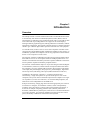
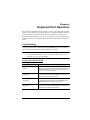
Overview
Operation problems can be due to a variety of causes. The first step in solving
them is to make sure that all cables are securely attached and seated completely
in their sockets.
In addition, updating the product’s firmware may solve problems that have
been discovered and resolved since the prior version was released. If your
product is not running the latest firmware version, we strongly recommend that
you upgrade. See Chapter 6, The Firmware Upgrade Utility, for upgrade
details.
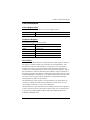
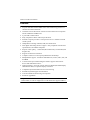
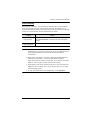
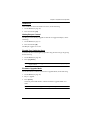
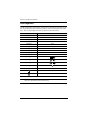
Symptom
Mouse and/or
Keyboard not
responding.
USB devices
not responding.
Possible Cause
Action
Improper mouse
and/or keyboard
reset.
Unplug the cable(s) from the console port(s),
then plug it/them back in.
CS1642 / CS1644
needs to be reset.
Power off all devices on the installation (see
safety note, top of page 9); power off the
CS1642 / CS1644; wait five seconds; then
power up
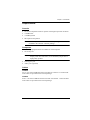
USB ports need to
reset.
Unplug the device’s USB cable from the USB
port on the CS1642 / CS1644’s rear panel,
then plug it back in.
PC or OS does not
support USB 2.0.
The CS1642 / CS1644 has a built-in USB 2.0
hub, so will not support PCs or OS that do not
support USB 2.0.
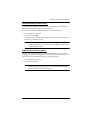
For OS that do not support USB 2.0,
keyboard and mouse functions can be reset
using the [F1] hotkey function. See SPC
Mode, page 22.
Device not
recognized
(Windows).
Windows timing
problem.
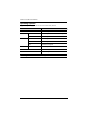
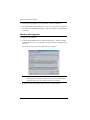
1. Unplug the KVM cable from the computer’s USB port.
2. Go into Windows’ System Settings and
remove the Unknown Device entry.
3. Plug the KVM cable back in. Windows will
now recognize the device.
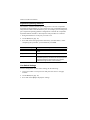
DVI video card
not responding.
DVI video card does
not support hot
plugging.
Some DVI video cards do not support hot
plugging. Power off the PC; reconnect the
DVI video card; power up the PC.
37