1
Get
Started
All you need to know to get going.
Samsung M400
Welcome!
Sprint is committed to developing technologies that give you the
ability to get what you want when you want it, faster than ever before.
This booklet introduces you to the basics of getting started with
Sprint and your new Samsung M400.
Visit sprint.com/support for the complete User Guide, along with
tutorials and community forums for your phone.
This Get Started guide is designed to help you set up and use your new
Samsung M400. It’s divided into three sections to help you find the information
you need quickly and easily.
Get Ready − page 1 − Find out
what you need to do before you use
your phone the first time, including
inserting a battery and activating
Sprint service on your phone.
Use Your Phone − page 2 − Take
advantage of your phone’s features
and Sprint services.
Tools & Resources − page 12 −
Find useful tips for your phone
and discover resources and other
helpful Sprint information. For
additional information including
the full User Guide and tutorials
visit sprint.com/support.
Using This Guide
Using This Guide
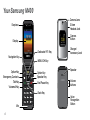
Your Samsung M400
Camera Lens
3.5mm
Headset Jack
Earpiece
Camera
Button
Display
Dedicated 911 Key
Navigation Key
Option Key
Emergency Contacts
Talk Key
Voicemail Key
MENU/OK Key
Option Key
Speaker Key
End/Power Key
Back Key
Mic
d
Charger/
Accessory Jack
Speaker
Volume
Buttons
Voice
Recognition
Button
Install the Battery
Turn the Phone On
1. Insert a coin or other flat object into the slot at
the top of the battery compartment cover and lift
the cover up gently.
•Press and hold
2. Insert the battery, contacts end first, and gently
press the battery into place.
1. Press
> Setting/Tools > Settings >
Others > Language.
3. Replace the battery compartment cover, making
sure all the tabs are secure and there are no
gaps around the cover.
2. Highlight Español and press
Get Ready
Get Your Phone Ready
to turn the phone on.
Switch to Spanish Menus (optional)
.
Charge the Battery
1. Insert the USB cable into the phone’s Charger/
Accessory jack.
2. Plug the charging head into a standard AC
power outlet. Fully charging a battery may take
up to three hours.
visit sprint.com/support for complete user guide
1
Activate Your Phone
Make and Answer Calls
Activate Your Phone
Make Your First Phone Call
•If you purchased your phone at a Sprint Store, it
is probably activated and ready to use.
1. Enter a phone number from standby mode.
(If you make a mistake while dialing, press
to erase.)
•If you received your phone in the mail, and it is for
a new Sprint account or a new line of service, your
phone is designed to activate automatically.
•If you received your phone in the mail and it is
going to be activated on an existing number on
your account (you’re swapping phones), you can
activate on your computer online or directly on
your phone.
To confirm activation, make a phone call. If your
phone is still not activated or you do not have
access to the Internet, contact Sprint Customer
Service at 1-888-211-4727 for assistance.
2. Press
3. Press
.
when you are finished.
Answer an Incoming Call
•Press Answer.
Ignore an Incoming Call
•Press Send to VoiceMail if you want the call to
go straight to VoiceMail or Ignore with Text if you
would rather reply with a text message.
Mute the Ringtone on a Call
•Select Silence from the onscreen menu
to mute the ringtone and turn off vibration.
2
Contacts
1. From standby mode, enter a phone number and
press OPTIONS (right softkey) > Save. (If this is
the first time you are saving an entry to Contacts,
skip to step 3.)
2. Select New Contact or Existing Contact.
3. If you chose New Contact, select a number type,
and then enter the new entry name.
– or –
If you chose Existing Contact, select an entry to
which you want to save the number, and then
.
highlight a number type and press
4. Press DONE (left softkey) to save the entry.
Retrieve a Phone Number
1. Enter four or more digits of the number in
standby mode. (The more numbers you enter,
the more specific the search becomes.)
2. All Contacts entries matching the entered
numbers will be displayed. Highlight an entry
and press
to dial the number.
Add a New Contacts Entry
1. From standby mode, press CONTACTS
(right softkey) > Add New > New Contact.
2. Enter a name for the new entry and press the
navigation key down.
3. Enter the phone number for the entry and
press
.
4. Highlight a number type for the entry
(Mobile, Home, Work, Pager, Fax, or Others)
and press
.
5. Add other information if desired and press
DONE (left softkey).
visit sprint.com/support for complete user guide
3
Use Your Phone
Save a Phone Number
Voicemail
Set Up Your Voicemail
Retrieve Your Voicemail
All unanswered calls are automatically transferred
to your voicemail, even if your phone is in use or
turned off. You should set up your voicemail and
personal greeting as soon as your phone is
activated:
•Press and and hold
1. Press and hold
.
2. Follow the voice prompts to create your
password and record your name and greeting.
Sprint strongly recommends setting a voicemail
password. Without a password, anyone who has
access to your phone can access your messages.
4
.
From any other phone:
1. Dial your wireless phone number.
2. When your voicemail answers, press
3. Enter your password.
*.
Messaging
Keep in touch your way using text and picture messaging.
1. Press
> Messages > Send Message.
2. Select Go to Contacts to select a contact.
— or —
Press MULTIPLE (left softkey) > Go to Contacts
to select multiple recipients, and then press
CONTINUE (left softkey).
— or —
Press NEW ADDR (right softkey) to enter a phone
number or email address directly, and then press
CONTINUE (left softkey).
3. Use your keyboard to enter a message or press
OPTIONS (right softkey) to select additional
options.
4. To send a text message with no attachments, skip
to step 8.
5. Select <Add attachments> and select a
category of file to attach (My Albums, Take new
picture, or Voice).
6. Select a location where your file is stored. (You
can also choose to take a new picture or to
record a new voice or audio clip.)
7. Select files to attach.
8. If you are satisfied with your message, press
SEND (left softkey).
visit sprint.com/support for complete user guide
5
Use Your Phone
Send a Message
Accessibility
Voice Recognition
To adapt the system to your voice:
You can use your phone’s built-in automatic
speech recognition (ASR) software to dial a phone
number in your Contacts or to launch phone
functions. All you have to do is press the Voice
Recognition Button on the side of the phone and
talk into the speaker, and ASR will recognize your
voice and complete tasks by itself.
> Settings/Tools > Settings >
1. Press
Accessibility > Voice Recognition.
> Settings/Tools > Settings >
1. Press
Accessibility > Voice Recognition.
2. Select Confirmation and select an option.
• Automatic to ask for confirmation only when
the system is not sure what you said.
• Always Confirm to always ask for confirmation.
• Never Confirm to never ask for confirmation.
6
2. Select Adaptation > Adapt Voice.
3. Press START (left softkey) and repeat each word,
phrase, or telephone number you hear.
Accessibility
Voice Guide
Font Size
Voice Guide provides audible output of selected
menu items. For example, in GRID VIEW of the
main menu, if you highlight Messages you will
hear “Messages”.
To enable Voice Guide:
> Settings/Tools > Settings >
1. Press
Accessibility > Voice Guide > Readout.
2. Highlight On and press
.
To adjust Voice guide Speech Volume:
1. Press
> Settings/Tools > Settings >
Accessibility > Voice Guide > Speech Volume.
2. Select the desired volume level and press
.
To adjust Voice Guide Speech Rate:
1. Press
> Settings/Tools > Settings >
Accessibility > Voice Guide > Speech Rate.
2. Highlight the desired Speech Rate and press
.
The Font size option allows you to change the
size of the fonts used on the phone within
menus, etc.
Use Your Phone
1. Press
Settings/Tools > Settings >
Accessibility > Font Size.
2. Select Normal, Large, or Huge.
3. Press to
assign the option.
Note: Additional Accessibility options allow you
to select a negative color display and other
specific display themes.
visit sprint.com/support for complete user guide
7
Accessibility
TTY Options
To turn TTY Mode on or off:
A TTY (also known as a TDD or Text Telephone) is
a telecommunications phone that allows people
who are deaf, hard of hearing, or who have
speech or language disabilities, to communicate
by telephone. Your phone is compatible with select
TTY phones. Please check with the manufacturer
of your TTY phone to ensure that it is compatible
with digital cell phones. Your phone and TTY
phone will connect via a special cable that plugs
into your phone’s headset jack. If this cable was
not provided with your TTY phone, contact your
TTY phone manufacturer to purchase the
connector cable.
> Settings/Tools > Settings >
1. Press
Others > TTY Options. (You will see an
informational message.)
8
2. Highlight TTY Full, TTY + Talk, or TTY + Hear
and press
.
– or –
Highlight TTY Off and press
.
Dedicated 911 Key
Enhanced 911 (E911) Information
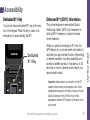
Your phone has a dedicated 911 key at the very
top of the keypad. Press this key in case of an
emergency to automatically dial 911.
This phone features an embedded Global
Positioning System (GPS) chip necessary for
utilizing E911 emergency location services
where available.
Dedicated
911 Key
When you place an emergency 911 call, the
GPS feature of your phone seeks information to
calculate your approximate location. Depending
on several variables, including availability and
access to satellite signals, it may take up to 30
seconds or more to determine and report your
approximate location.
Important: Always report your location to the 911
operator when placing an emergency call. Some
designated emergency call takers, known as Public
Safety Answering Points (PSAPs) may not be
equipped to receive GPS location information from
your phone.
visit sprint.com/support for complete user guide
9
Use Your Phone
Accessibility
Web
Find sports scores, news, and weather. Shop
online. On-the-go access lets you browse
full-color versions of your favorite websites.
Go Online
•Press
> Web. (Your data connection starts and
you see the SprintWebSM home page.)
While connecting, you may see an animation and
a “Connecting” message.
Camera
Capture your life’s moments as stunning
digital photos and share them at a touch of
the screen.
Take a Picture
1. Press
> Photos > Camera.
2. Frame your subject in the screen.
3. Press the camera button on the right side of the
phone or .
4. Press OPTIONS (right softkey) for more options
(Send Picture, Camera, Assign, Erase, or
Review Album).
Share a Picture
•After you have taken a picture, press SEND (left
softkey) and choose a contact.
•If you want to share a picture from your Gallery,
see "Send a Message" on page 5 of this guide.
10
Ringtones, Wallpapers & More
Use GPS technology to locate your child’s
phone and display the location on an
interactive map.
Sign Up for Sprint Family Locator
Personalize your phone with a huge
selection of ringtones and wallpapers. Know
exactly who’s calling by matching contacts
with unique ringtones.
Note: Sprint Family Locator service requires an additional
monthly fee. Visit sprint.com/familylocator for complete details.
Set Up
1. Press
> Web.
2. Enter http://SFL.sprint.com/m into your phone's
browser and follow the directions within the
Family Locator Web page.
Use Sprint Family Locator
1. Follow the same instructions from step 1 and 2
of "Sign up for Sprint Family Locator."
2. Enter the parent phone number and password to
sign in to your account.
3. Select a phone to locate from the available child
phone list.
4. When you are finished, select Sign Out.
1. Press
> My Stuff > [Application Manager,
Games, Ringtones, Wallpapers, or
Applications].
2. Select Get New Games/Ringtones/
Wallpapers/Applications (not necessary in
the case of Application Manager). The
browser will start and take you to the
corresponding download menu.
3. Follow the onscreen prompts.
visit sprint.com/support for complete user guide
11
Use Your Phone
Sprint Family Locator
Manage Your Account
Manage your Sprint account from your computer,
your Sprint phone, or any other phone.
Online: www.sprint.com
•Access your account information.
•Check your minutes used (depending on your
Sprint service plan).
•View and pay your bill.
•Enroll in Sprint online billing and automatic
payment.
•Purchase accessories.
•Shop for the latest Sprint phones.
•View available Sprint service plans and options.
•Learn more about data services and other
products like games, ringtones, wallpapers,
and more.
12
From Your Sprint Phone
•Press
to check minute usage and
account balance.
•Press
to make a payment.
•Press
Care.
to access Sprint Customer
From Any Other Phone
•Sprint Customer Service:
Dial 1-888-211-4727
•Business Customer Service:
Dial 1-888-788-4727
Resources
Resources For Your Phone
Be a hero. Don't drive distracted.
•This Get Started Guide to get you up and running.
•Web – Visit sprint.com/support for the complete
User Guide, along with tutorials and community
forums for your Samsung M400.
Sprint 411
Tools & Resources
Dial 411 for nationwide listings, movie show
times, restaurant reservations, driving directions and
more. Spanish-speaking operators are available.
See sprint.com for pricing and details.
sprint.com/focusondriving
visit sprint.com/support for complete user guide
13
Responsibility
At Sprint, environmental responsibility is more than
talk. We’re continuously working to reduce our
carbon footprint and decrease our use of natural
resources.
So where is my user guide?
In an effort to increase our responsibility efforts, we’ve
put expanded instructional materials online for you.
Just visit sprint.com/support from any computer to
access your complete user guide and other support
materials.
Survey
We are interested in your initial impressions
of this new Sprint phone. Within two weeks of
your phone purchase, please go to the website
http://labs.sprint.com/sprintphonesurvey to
complete a brief survey. Your feedback will
help us provide the wireless features and
services you want most.
Thank you for choosing Sprint.
What else has Sprint been doing?
Plenty. To find out just what we’ve been up to, visit
sprint.com/responsibility.
This guide is printed with soy based inks and
contains up to 30% post consumer paper.
14
Index
Accessibility 6 - 9
Account
Balance 12
Details 12
Minutes Used 12
Activate 2
Answer a Phone Call 2
Applications 11
B
Battery
Charge 1
Install 1
C
Camera
Share pictures 10
Take a picture 10
Contacts
Add 3
D
Dedicated 911 Key 9
Mute 2
Multimedia Messages 5
P
Phone
E
Activate 2
Email 5
F
Font Size 7
G
Games 11
I
Turn On 1
Phone Calls 2
Phone Numbers 3
Picture Messages 5
T
Text Messages 5
TTY Options 8
Index
A
V
Voice Recognition 6
Voice Guide 7
Voicemail 4
W
Web 10
Pictures 10
R
Internet
see Web
M
Make a Phone Call 2
Menus
Switch to Spanish 1
Resources 13
Ringtones 11
S
Screen Savers 11
Sprint Customer Service 12
Sprint Family Locator 11
visit sprint.com/support for complete user guide
15
The services described in this guide may require a subscription to a service plan and/or may incur
additional charges. Not all services will work on all phones. See sprint.com/coverage for more details.
Important Privacy Message. This phone is capable of determining its/your geographical location. To
set controls for access and use of your location information by others, press
> Settings/Tools >
Settings > Location. These settings for the use of location information can be turned on and off. For some
applications and services you select, your phone must be turned on and set to allow collection of location
information in order to function.
©2012 Sprint. Sprint and the logo are trademarks of Sprint. Samsung and M400 are trademarks of
Samsung Electronics Co., Ltd. Other marks are property of their respective owners. Screen images
simulated.
Printed in the USA
GH68-37351A