1
Rev: 4.1.3
-1-
Introduction
Thank you for purchasing Dataman Vali-Flash for your CompactFlash® validation needs. Dataman Vali-Flash is a PC
based validator designed for calculating the CRC-32 1 and SHA-1 2 signatures for CompactFlash® memory cards. ValiFlash offers many exciting and advanced features including:
•
Support for complete range of CompactFlash® devices both Type I and Type II with the supplied card reader
•
Signature compatibility with all Dataman Validator products
•
Full database features including search and edit of all records
•
Encrypted database and visual CRC32 checksum to thwart tampering
•
Protected Program File (.exe) to prevent tampering
•
Supports Microsoft Windows® 2000 and XP
•
Full logging to aid in auditing
•
On-the-fly support for resizing/padding images to fit larger CompactFlash® cards while burning new images
•
Better license management featuring online registration
•
Use Vali-Flash without administrative privileges. This option is selected during installation
•
New user-friendly design that incorporates context sensitive help and tool-tips (bubble hints)
•
Fully supported fast USB 2.0 CompactFlash® card reader
Table of Contents
For quick reference to section headers please refer to the page numbers below.
INTRODUCTION .......................................................................................................................................................................................................... 2
QUICK START GUIDE ................................................................................................................................................................................................ 4
OVERVIEW .................................................................................................................................................................................................................... 4
Installation – New Install........................................................................................................................................................................................ 4
Installation – Upgrade............................................................................................................................................................................................ 4
Registration............................................................................................................................................................................................................. 5
REGISTRATION – SUPPLEMENTAL INFORMATION ........................................................................................................................................ 6
LICENSE TRANSFER ....................................................................................................................................................................................................... 7
LICENSE REMOVAL ....................................................................................................................................................................................................... 7
MISCELLANEOUS INFORMATION......................................................................................................................................................................... 8
VALI-FLASH VERSION DIFFERENCES ............................................................................................................................................................................. 8
CERTIFIED COMPACTFLASH® CARD READERS .............................................................................................................................................................. 9
LOGGING INFORMATION ................................................................................................................................................................................................ 9
SOFTWARE OPERATION ........................................................................................................................................................................................ 10
DATABASE OPERATION ......................................................................................................................................................................................... 13
FREQUENTLY ASKED QUESTIONS...................................................................................................................................................................... 16
1
2
The Dataman CRC-32 algorithm is proprietary to Dataman. This is not the same as the CCITT CRC32 algorithm.
The SHA-1 hash algorithm refers to a published standard, please see the Federal Information Processing Standards Publication 180-1: Secure Hash Standard.
-2-
Table of Figures
Figure
Figure
Figure
Figure
Figure
Figure
Figure
Figure
Figure
Figure
Figure
Figure
Figure
Figure
Figure
Figure
Figure
Figure
Figure
Figure
Figure
Figure
1 - License Manager - Evaluation mode.............................................................................................5
2 - License Manager - Evaluation has expired ....................................................................................5
3 - License Manager - Online Registration .........................................................................................5
4 - License Manager - Enter Activation Code ......................................................................................5
5 - License Manager - Application Unlocked .......................................................................................6
6 - License Manager - Licensed........................................................................................................7
7 - License Manager - Remove Code.................................................................................................7
8 - “E” version of software ..............................................................................................................8
9 - “M” version of software .............................................................................................................8
10 - Validate Button..................................................................................................................... 10
11 - Add Game To Database ......................................................................................................... 10
12 - Enter Game Title................................................................................................................... 10
13 - Add Game Details ................................................................................................................. 11
14 - Save Button ......................................................................................................................... 11
15 - Burn Button ......................................................................................................................... 12
16 - Create Resized Image............................................................................................................ 12
17 - Database Search/Edit ............................................................................................................ 13
18 - Database Browse Names........................................................................................................ 13
19 - Database Edit Game Dialog .................................................................................................... 14
20 - Database Information Dialog .................................................................................................. 14
21 - Database Backup .................................................................................................................. 15
22 - Database Restore.................................................................................................................. 15
-3-
Quick Start Guide
This quick start guide is designed to get Dataman Vali-Flash installed and operational on your computer as soon as
possible.
Overview
The process will include two steps: Installation and Activation.
Installation – New Install
You can install Vali-Flash from the provided CD-ROM or from our website at www.dataman.com.
1. Run setup.exe from either location.
2. Review License Agreement
3. Enter Customer Details
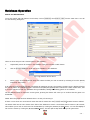
4. Select the desired option for having a read-only or read-write database. The default option is a read-write
database that allows new games to be added or existing games to be modified or deleted. A read-only
database does not allow any modifications to the database.
a. A red “ ” for the Make Database Modifiable item indicates a read-only database.
b. Whereas a “
” indicates a read-write database.
5. Select Install, and once that operation is complete you may click Finish.
Installation – Upgrade
In order to perform an upgrade, you will want to consider two issues: the existing database and migrating the license
to Vali-Flash 4.1.
•
•
To backup the existing database:
1. Start your previous version of Vali-Flash.
2. Select the menu option DatabaseÆBackup
3. Enter the filename and save the file. Please note the directory path location.
4. Close Vali-Flash.
5. Uninstall the existing version of Vali-Flash.
6. Return to this section after you convert the license.
7. Once Vali-Flash 4.1 is installed, you can select the menu option DatabaseÆRestore and enter the
appropriate location that you saved previously in step 3.
8. You may confirm that your database was properly restored, by selecting the menu option
DatabaseÆSearch/Edit.
Converting the License
The next issue to consider is upgrading the license. The license from previous versions of Vali-Flash is
incompatible with version 4.1. You will have to contact Dataman in order to upgrade your license as
the migration process differs on each version of Vali-Flash. Please have the following information
ready:
•
Dataman Invoice # (or your Purchase Order #)
o The invoice # for the original purchase and/or the invoice for the upgrade.
•
Your site, and mid codes from your existing version
o You will have to obtain a remove code during the conversion process
•
Your init or activation code
-4-
Registration
Once you have received your serial number you may use the online registration feature in order to quickly register
your software. Registration is required in order to activate your software.
Your software will run as a demo at first and will need to be converted to the full version. In order to do this, please
select HelpÆLicense Manager from within Vali-Flash. This will display the number of remaining runs for this demo,
please see Figure 1.
Figure 1 - License Manager - Evaluation mode
Figure 2 - License Manager - Evaluation has expired
If your license has already expired then you will receive a dialog similar to Figure 2.
In either case, you can register on the same computer Vali-Flash is installed on or you can use any PC as long as you
write down the MID and Site codes.
If you want to register on the same computer (i.e. you have Internet access) then simply enter your serial number
into the License Manager dialog as shown in Figure 3:
Figure 3 - License Manager - Online Registration
Figure 4 - License Manager - Enter Activation Code
Otherwise, please visit: http://www.dataman.com/Registration/ValiFlash.aspx and create a user account. Once you
have created a user account you may then enter the license by clicking on Add License. Then follow the instructions
as specified during the registration process.
If you do not have Internet access at all, please contact Dataman. Please see page 20 for contact details.
-5-
Please Note
Please be sure to record all of your registration codes in a secure location to ensure
software registration and licensing. When you register online, all of the information will
be generated on the registration page. It is highly recommended that you print out this
page so that all of this information is available. The end user is responsible for retaining
these codes at all times. Loss of these codes will require a new Vali-Flash software
purchase.
Once you have registered you will receive your activation code, which will activate the software. This code must be
entered into Vali-Flash in order to activate the software as shown in Figure 4.
Figure 5 - License Manager - Application Unlocked
After you have activated your software, you will receive a dialog as shown in Figure 5. This indicates that Vali-Flash
was successfully registered.
For additional information about registration please refer to the next section.
Registration – Supplemental Information
This section is optional to read and provides a more in-depth look at how the registration process works.
Let’s start with defining the terms used in the entire registration process.
Site Code:
This is an 8-digit hexadecimal number that uniquely identifies a new install of Vali-Flash. When the license is
removed or transferred this site code will change. If hardware on your computer changes then this will also
change along with the MID code.
MID Code:
This is the Machine ID code. This number is used to uniquely identify the system that Vali-Flash is installed on.
The format is 16 hex-digits xxxx-xxxx-xxxx-xxxx with the included dashes. This code also changes every time
the site code changes. Both the Site and MID codes together identify your computer.
Activation Code:
This is a 32-character code used to initialize or unlock the application. The application will become licensed
after the correct code in entered. The format is: xxxxxxxx-xxxxxxxx-xxxxxxxx-xxxxxxxx and dashes are
required. This was called an Init code in the previous versions of Vali-Flash.
Serial Number:
This number uniquely identifies a particular copy of Vali-Flash. This 12-character code is required for online
registration. It is included with your physical package of Vali-Flash.
Remove/Removal code:
This code is issued when the Vali-Flash license is removed. The format is (xxxxxxxx) or an 8-characture hex
digit. This code is used for license transfers or for a credit of one license. Always make sure to record this
number.
License Transfer:
If you wish to install Vali-Flash on a different computer you will need to perform what is called a license
transfer, which will disable the current license and enable the license on a different computer. This operation
actually requires a removal on the old system and an activation on the new system.
License Re-Issue:
If you change the hardware on your system, both your site and mid codes will change. This is a normal
operation and simply requires a License Update. If you sign on to the online registration you will be able to
enter your details and obtain a new activation code. In rare circumstances, you may have to contact Dataman
for out of the ordinary hardware changes.
A file called License.TXT will be created in the same directory where Vali-Flash is installed to keep the site, mid, and
activation codes for future use. You may refer to this file if you do not have your current codes.
-6-
License Transfer
If at some point you want to use Vali-Flash on a different computer you will need to perform a license transfer.
Start the Vali-Flash application and select HelpÆLicense Manager. You will be presented with the following dialog.
Figure 6 - License Manager - Licensed
In order to process a license transfer you must remove the active license and request a new code. Once you remove
the license you will be given a remove code. This remove code will be used to generate a new activation code on
another computer with the online registration. Enter your activation code and click on the remove license button. If
you are unable to locate your activation code please take a look at the file license.TXT which will have the code
recorded.
Once you have confirmed that you want to remove the license, Vali-Flash will issue a remove code as shown.
Figure 7 - License Manager - Remove Code
Always make sure to record this number in a safe location. This code is also saved to file License.TXT.
The license removal process will not delete or un-install Vali-Flash. It will just make Vali-Flash expire and it will
generate a different site code. This new site code will require a new activation code in order to unlock or activate ValiFlash. If you want to completely remove Vali-Flash you will have to go to Add/Remove programs and remove it from
there.
Once you have your remove code you will then want to install Vali-Flash on the new computer. Once you have
completed this, you will need your removal code from the old computer, your serial number, and your new site and
new mid code from the new computer.
Then, please visit: http://www.dataman.com/Registration/ValiFlash.aspx and click License Transfer. The online
registration instructions should be self-explanatory. If you have any additional questions or concerns please contact
Dataman. Dataman contact details are on page 20.
License Removal
The procedure is exactly the same as a license transfer, except you would not re-register the software and obtain a
new license. Please see the above section for more information.
Other questions or concerns should be directed to the Dataman Support Team. Please see page 20 for contact details.
-7-
Miscellaneous Information
The following sections cover the differences in versions, certified card readers and auditing information.
Vali-Flash Version Differences
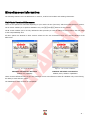
There are two options for Vali-Flash depending on your needs: the E or (End user) and the M (Manufacturers) version.
The E version enables you to perform Validation only. The Save and Burn buttons are not present.
The M version enables you to not only Validate but also provides you with the ability to Save and Burn the raw image
to the CompactFlash® card.
All other options are identical in both versions. Please see the two screenshots below for a visual indication of the
differences.
Figure 8 - “E” version of software
Figure 9 - “M” version of software
Dataman Vali-Flash 4.1 E Version
Validate only capability
Dataman Vali-Flash 4.1 M Version
Validate, Save, and Burn capabilities
These versions differences exist to give our customers a more cost effective method for validation only versus having
the ability to save and burn cards.
The databases to both versions are compatible.
-8-
Certified CompactFlash® Card Readers
Our goal is for maximum interoperability with all CompactFlash® card readers; however, some card readers, their
device drivers, and associated firmware do not interface well with Vali-Flash. Vali-Flash accesses the device at the
lowest level possible from user mode and reads the data as an array of contiguous bytes without regard to files and/or
directory structure. This gives you, our customer, the ability to use any file system without concern for file system
support. Specifically, our testing has shown the following symptoms from various off-the-shelf card readers with our
software.
•
•
•
•
Missing EOF (End of File) at the end of the physical device
Does not correctly detect a newly inserted card on all supported platforms
Returns spurious data at end of the card
Does not allow access to the last 2 kilobytes of data on the card.
Dataman will continuously evaluate card readers and test them for compatibility.
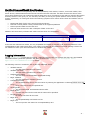
ID
Certified
P/N: SDDR-91
9
Manufacturer
SanDisk ImageMate® CompactFlash® USB 2.0
At the time this manual was written, the only compatible card reader for support on all supported platforms is the
CompactFlash® card reader listed above. This reader is included with the Dataman Vali-Flash package. Please visit
our website for more up-to-date information on certified card readers.
Logging Information
The file ValiFlash.log is generated for logging / auditing purposes. Each line contains the date, time and detailed
information about a particular operation. This file is located under Documents and Settings\All Users\
Application Data\DATAMAN\ValiFlash by default.
The following events are recorded in the log file with additional details.
•
•
•
•
•
•
•
•
•
•
•
ValiFlash started
o The Vali-Flash application was started.
ValiFlash shut down
o The Vali-Flash application was shutdown.
Database Search/Edit
o The user went into the Database Search/Edit dialog.
Begin validation
o The user started the validation process.
CompactFlash found
o The CompactFlash® device was found either by entering the application or selecting Refresh drive list
Drive 2 - …
o Drive 2 was found with the specified size.
Seeking SHA1 ...
o The calculated SHA1 and Dataman CRC32 codes.
Match found: …
o A match was found for this card and the name will be specified.
No match found
o No match was found for this card.
Begin save
o The CompactFlash® card saved to a file.
Begin burn
o The burn process was started on a CompactFlash® card.
-9-
Software Operation
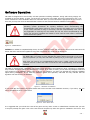
Vali-Flash is designed to be user friendly. All card operations including validation, saving and burning images, are
available on the main dialog. To start, just insert the card into the card reader and select “Refresh drive list”. This
action refreshes the list of available devices to Vali-Flash. Once you have selected the appropriate device from the
drive list you may then click the desired button. Please see the sections below for additional information.
As with any piece of hardware, please make sure you follow the proper Windows®
operating system procedures for ejecting hardware when disconnecting the
CompactFlash® card reader. Failure to eject or stop the card reader prior to removing
it may cause Vali-Flash to hang or incorrectly read the CompactFlash® card. This is
only applicable to removing the card reader and not the actual CompactFlash® card
unless you are using a PCMCIA card reader in which case the card reader is physically
removed from the system.
Note
Figure 10 - Validate Button
Validate: To validate a CompactFlash® device, click the Validate button and wait for the device to be read. Once the
device has been read and the signatures have been calculated, the results will be displayed.
Please
Note
Please make sure you never remove the CompactFlash® media from the reader while
the BUSY LED is lit. Doing so may damage the reader and/or the media. If you must
abort an operation you may close Vali-Flash by hitting the [X] in the upper right corner.
Each time you insert a new CompactFlash® device into a reader, please click on the
“Refresh drive list” button and make sure that the new CompactFlash® card has been
selected.
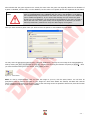
Vali-Flash is designed with a database that records game information and signatures. Once a signature is calculated,
they are then compared against the database for a match. If no match is found, you will then be prompted to add this
new signature to the database. Please note, that this only applies if you have not selected the read-only database
option during installation. If the read-only database option was specified, Vali-Flash will only indicate that the
signature was not found in the database.
Figure 11 - Add Game To Database
If you select No, the signature and game details will not be recorded in the database. However, if you select, Yes, you
will be prompted to enter a game name.
Figure 12 - Enter Game Title
It is suggested that you include the name of the game and any other version or identification numbers that you wish
to uniquely identify this game. This is the name that will be pulled up when this game is validated in the future. This
- 10 -
also indicates that the game signatures are exactly the same when the game was originally added to the database. If
a game is validated, and the entry is in the database, but the name is not pulled up then the signatures do not match.
Note
There are only two conditions that will prompt you to enter a new game: Either the
game in CompactFlash® being validated does not exist in the database, or the data in
the CompactFlash® being tested does not match the data of the game in the database
(hence a different signature). If you receive this message and you believe the game
already exist in the database, you should search the database for the game to confirm
that it does not exist. If the game exists, but the signatures are different you should
take all precautionary measures to verify the data integrity of the game.
Once you have entered a game name you will then have the option to enter additional game details.
Figure 13 - Add Game Details
You may enter the appropriate game details, if desired. Additionally, you may save an image of the CompactFlash®
card by clicking the Save CompactFlash® image file checkbox and entering the filename and path (or Browse). Once
you have finished entering all of the details, click Update to save.
Figure 14 - Save Button
Save: To read a CompactFlash® card and save the image to your PC, click the Save button. You will then be
prompted to enter a filename and path for your image file. Once these details are entered, Vali-Flash will read the
entire CompactFlash® device and will save a copy of the raw image to the file specified. Please note, that this function
is only available on the “M” version of the software.
- 11 -
Figure 15 - Burn Button
Burn: To program or burn a CompactFlash® card from a saved image, insert a CompactFlash® card into the card
reader and click the Burn button. You will then be prompted to enter the filename and path of your saved image file.
Once this has been entered, Vali-Flash will read the specified image file and then burn the data into the
CompactFlash® card. Please note, that this function is only available on the “M” version of the software.
Please make sure that you burn CompactFlash® cards that are equal to or larger then the image file. If a
CompactFlash® card is larger then the image then you will see the following message box.
Figure 16 - Create Resized Image
If you wish to continue the burn operation, click, Create Resized Image. This will generate a new image file while
padding it to the full size of the CompactFlash® card in the card reader.
You will be prompted to enter the location of the new image file, by default the name includes [Resized] in the image
name. Save this image.
Once the new resized image file is created, Vali-Flash will switch into validation mode to allow you to enter new game
details. The procedure is exactly the same as if you were validating this game for the first time.
Please note that creating resized images is a completely safe operation and enables you to use larger CompactFlash®
cards should the need arise. The reason the signatures are different is due to a larger image size and that blank data
is padded at the end to fill the entire card with empty (or null) data.
It is suggested that the new game name resemble the existing game name with the note indicating that this is a
resized image.
When validating this card or the original card, Vali-Flash will pull up the appropriate game name, either the original or
the resized game name.
Please note, that due to potential for truncated data, there is no option to burn an image file that is larger than the
card. Such an attempt causes the error: Image file is larger than card size.
- 12 -
Database Operation
Search and Edit Database
To use the search and edit features of Vali-Flash, click on Database, then Search / Edit from the main menu. You will
see the following dialog box:
Figure 17 - Database Search/Edit
There are three ways to find a desired game in the database:
1.
Sequentially search all records in the database using the Forward or Back button.
2.
Click on Browse NAMES to list all the Game “NAMES” in the database.
Figure 18 - Database Browse Names
3.
Enter a value in the Search Text field, then select the field you wish to search by selecting it from the Search
Field drop down menu.
In all cases clicking the Search button will display all matching records. The matching records count is displayed below
the search button. If a matching game is found then the Edit and Delete buttons will become visible. Please note, that
if you have selected a read-only database during installation, editing and deleting games is not enabled.
Use the Delete button to delete the current game, pressing this button will cause you to confirm that the game is to
be deleted.
NOTE: Once the game has been deleted there is no way of retrieving it.
If there is more than one record which meets the search criteria then the Forward and Back buttons become enabled.
The Search field lets the user choose which field of the database to search. The default search criterion is All records.
This enables you to look at each record in the database by clicking the Forward or Back button. You can also display a
list of all the names by clicking the Browse NAMES button; this will open a drop down listing of all game titles.
- 13 -
Once a game has been found in the database it is possible to edit the details. To find a game, simply use the search
function and then click the Edit Record button. This will display the following screen:
Edit Dialog
Figure 19 - Database Edit Game Dialog
All fields that have a white background can be edited, once all changes have been made click the Update button and
the Database will be updated with the changes.
Database Information
Located on the right hand side of the Search / Edit screen is the database information panel. This panel looks like the
following:
Figure 20 - Database Information Dialog
Database information shows the total number of games held in the database and the calculated CRC-32 checksum for
the database file. The database itself is encrypted and any attempts at modifying it outside the Vali-Flash software will
render the file useless. The CRC32 checksum is calculated from the main database file and any changes to this file will
change this checksum. This can be used to ensure that a known trusted database is being used.
Database Backup/Restore operations
Once you have recorded all of your games into the database, it is highly recommended that you keep a backup of
your database. In the unlikely event that you lose your data you can always restore it from a backup location. How
frequently you backup your database depends on how often you add new games. The database file is fairly small and
can be backed up on a floppy disk, CD-R/CD-RW, or to a network location.
- 14 -
Backup
Figure 21 - Database Backup
To backup the database file, select DatabaseÆBackup. You will then be prompted to enter a file name. Once you save
the database, a snapshot is taken and saved into that file.
Restore
Figure 22 - Database Restore
To restore a database from a file, select DatabaseÆRestore. You will then be prompted to enter an existing filename.
Once you have selected the file, Vali-Flash will overwrite the existing database with the selected database.
- 15 -
Frequently Asked Questions
Q: Do you need to have the CD inserted after Vali-Flash is installed in order to register (or unlock) the
application?
A: No, the CD is only required to install the software application. Once the application is installed, the CD is not
required, unless of course you wish to reinstall. It is recommend that you keep the CD for future use. You may also
download the software from our website and install from there. The CD is not even required if you download the full
version from our website.
Q: I purchased multiple copies of Vali-Flash, do I need to install one CD per computer and keep that CD
bound to that computer?
A: All CDs and even the download section are exactly the same. When you purchase multiple copies of Vali-Flash, you
will receive identical CDs. Even if you have E and M versions, the Vali-Flash 4.1 CDs will be identical. The E/M
licensing is done in software during the registration. If you have previous versions of Vali-Flash, (e.g. 2.0/3.0) those
CDs are different from version 4.1
Q: Will Vali-Flash read a non-Windows® (e.g. UFS, ext2/ext3, ReiserFS, HPFS) or Windows® (NTFS, FAT)
formatted CompactFlash™?
A: Yes, Vali-Flash does not care about the file system. It just reads from the start of the CompactFlash® to the very
end. The signature is computed on the "raw" data from the CompactFlash®. Any changes made to the
CompactFlash® card will result in a new signature. This includes changes made to any file or directory (“content”) as
well as file attributes such as the MAC (Modified, Access, and Creation times), file system level access control lists and
any other file or directory related (“meta-data”). Defragging your disk, changing or even looking at files (access time)
will completely change the signature. If you are concerned about accidentally changing data while you are validating.
Consider the product Vali-Flash 4MR or Vali-Flash 4ER. Both of these products include a special reader to prevent
writes at the hardware level. The 4MR and 4ER are priced the same as the 4M and 4E versions. These products just
have a different reader. They also include a read/write reader so you can write to the cards, if you need to. We
introduced these additional products for customers who run file systems that can be read by the operation system. It
can be extremely difficult to prevent writes from the operation system during general use (e.g. if the file desktop.ini
exists it will automatically be read, if you reboot it can do a disk check, etc.). If the file system is not recognized by
the operating system then this problem doesn’t really exist.
Q: How can I transfer a license if I have removed Vali-Flash?
A: Just install Vali-Flash. Once this is done the license screen will be displayed with the existing license information.
You can then transfer the license to a new computer. License information will persist even after Vali-Flash is removed
from add/remove programs. Once Vali-Flash is transferred you can then remove Vali-Flash from add/remove
programs to free up disk space. Keep in mind, that after a transfer, the license is removed from that PC. Any time the
license is removed, a new site code will be generated. If you need another copy please contact Dataman about
purchasing an additional copy. Additional registration information can be found in the online help manual.
Q: I receive the error message, “Corrupt, tampered, or missing files” followed by “Re-install software or
contact Dataman.”
OR
I received an error message about a corrupt table or index header. What does this mean?
A: This indicates that the database file valisig.dbf is missing or corrupted. This file by default is located under
Documents and Settings\All Users\Application Data\DATAMAN\ValiFlash. This file will have to be restored in
order to run Vali-Flash. You may either restore from your latest backup or you may reinstall Vali-Flash, which will
install a blank database or copy over the database from the previously installed version of Vali-Flash, if available. You
may also download a blank database from our website, if desired. The database file is fully self-contained and does
not need any additional information outside of the file to be restored. Please make sure when you attempt to copy a
database file manually that Vali-Flash is closed so that the database file is also closed. You do not have to close ValiFlash for backup/restore operations within Vali-Flash. Please see the manual for additional information about backup
or restore operations.
- 16 -
Q: I get the error “Card reader cannot determine exact size of card”?
A: This indicates that Vali-Flash was unable to determine the exact disk geometry from the partition information off of
the CompactFlash® card. Please make sure that you are using a certified card reader as specified in the manual or
website. You may want to try another card to see if there is a problem with the card reader or card. If you have ValiFlash 4.0 instead of Vali-Flash 4.1 then there is a known problem with Vali-Flash 4.0. Please upgrade to the latest
version. You can contact us and request a CD or you can download it from our website. Additionally, you may contact
Dataman for technical support.
Q: Do I need administrative permissions?
A: One of the new features of Vali-Flash 4.1 is that you may run Vali-Flash with the CFAccessService service. What
this means is that you will be able to run Vali-Flash without administrative permissions during validation, burning or
saving CompactFlash® cards. Please note that administrative permissions are required when installing either new
hardware or when installing Vali-Flash. This option is automatically installed. If you want to use administrative
permissions without using the service you may disable the service. If you have administrative permissions, Vali-Flash
will directly access the card reader.
Q: Is Vali-Flash supported under Windows NT®?
A: No. The Windows NT® operating system does not have USB support. Please see the Microsoft® Knowledge base
article Q196661 regarding the status of USB support available online at
http://support.microsoft.com/default.aspx?scid=kb;en-us;196661.
Q: How does my serial number work?
A: A serial number is issued for the online registration system. A serial number uniquely identifies Vali-Flash 4.1. This
number is not predictable and can be used for online registration. This number is only needed to register and
consequently can only be used one time to register one computer. If you purchase multiple copies then you will
receive multiple serial numbers. Once you register you may transfer your license but that does not require your serial
number. A serial number is issued on your invoice.
Q: If we use commercial grade CompactFlash® can we create the same image on different cards which
would be a different size?
A: Yes, providing that the image you burn is smaller then the card (i.e. it will fit on the card). This is the "resize
feature" of Vali-Flash 4.1. Keep in mind, that the signatures will be different but then you name the game a different
name. Commercial grade or off the shelf cards can vary in size. If you require the exact same size check with your
CompactFlash® vendor about “standard grade” (SanDisk® for example) or some other type of industrial grade card
which guarantees the exact size of the cards to be the same. If you want to use off the shelf Vali-Flash will pad the
image but the signature will be completely different. The reason for this is null data is data. The signature is taken of
the entire card. What you can do is name a game, “Game Sample” which some type of naming system so that you
can see which card provides the signature. Check with your regulatory commission to make sure this is acceptable
and for additional information, contact Dataman.
Q: Does the "resize image" feature create a different signature?
A: Yes. The signature is very specific to the data, including size and everything about the data. Our signatures are
based upon the actual data on the card--from the very start to the very end.
Q: Commercial grade CF's usually never have the exact same size, and therefore Validation would create
different results. Only industrial grade CF's are guaranteed to have the same size.
A: Yes, SanDisk® calls their industrial grade "Standard Grade" which has a guaranteed size according to their spec
sheet.
Q: The manufacturer version of Vali-Flash is able to burn images on CF's but you don't mention to use
only industrial grade CF's or the same manufacturer.
A: When you burn an image the first thing Vali-Flash 4.1 does is it checks the size of the card versus the size of the
image. If they match, it burns without question. If the card is too small it reports an error (Vali-Flash will never
truncate the data). If the card is bigger than the image size it will prompt you to create a resized image. This image
file will be created and saved to the disk under whatever name. You can then burn with that image. Please note that
the signatures will be different.
- 17 -
Q: What changes the Vali-Flash signature?
A: If the data changes, then the signatures change. Anytime the data is different, it will produce a different CRC32
and SHA1. Keep in mind that the Dataman CRC32 is not as secure as the SHA1 in terms of data tampering. The
CRC32 is reasonably secure. However, just be aware that there are ways of tampering with data while keeping the
CRC32 signature the same. Vali-Flash keeps these signatures in a database and matches the SHA1 and CRC32. This is
extremely secure.
Q: Could you please confirm that we could use Vali-Flash to burn an image of the same size (e.g. 29KB) to
CF's with various raw sizes (e.g. 32MB, 64MB, 128MB), and different manufacturers (e.g. Hitachi,
Toshiba), and that Vali-Flash after that would create the same signature for these CF's.
A: Vali-Flash will 100% definitely NOT create the same signature with different data sizes. It doesn't matter who
makes the card, what matters is the size of the card. These cards are completely read for security reasons. For
example, offset data could pose a security risk. The entire card is checked, including slack space and everything. So
the signature is very dependent on the data. Think of the signature as a unique fingerprint of that data. If altered or
changed the signature will change.
Now this is not a problem. When you create resized images you can use a game name that is specific to that card.
Something like "Game Sample Hitachi-128MB-China" can be the game name or "Game Sample 1", "Game Sample 2",
etc. Then when you validate this card it will pull up that specific record ("Game Sample Hitachi-128MB-China"). You
can have as many of these as you want, all you have to do is put some forethought in the naming methodology. There
is no reduction of security at all, with the added benefit of being able to use cards off the shelf. If the cards are
altered or changed or go bad, they will still produce a completely unknown signature.
We do have another product that does not check "meta-data". It only checks the files. This product is called Vali-File.
Q: If you create resized images of the same original data, is there any way to know that the original data
is the same on those different images, and that the original data is just put onto different sized CF's?
A: No. Not currently. A SHA1/CRC32 is calculated for that card in full. A resized image is just the base image +
padded (all zeros) data to the end until the end of the drive. This obviously changes the signature, if the data size is
different.
Q: The Vali-Flash program generated a CRC32 of 399FCU6F. As I understand, it generates a CRC32 a 32
bit hex value. 'U' is not a hex value [0-F]. For which number does 'U' stand for? Does it stand for '0'?
A: The CRC32 is actually a Dataman CRC32. The Dataman CRC-32 algorithm is proprietary to Dataman. The
calculated signature has similar properties to that of the CRC-32 algorithm, which is used to identify data corruption.
All Dataman validators will produce the Dataman CRC-32 signature.
Now the SHA1 is a standard SHA1 algorithm. The SHA-1 hash algorithm refers to a published standard; please see the
Secure Hash Standard, in the Federal Information Processing Standards Publication 180-1. This publication is available
at http://www.itl.nist.gov/fipspubs/fip180-1.htm.
So the 'U' actually stands for a 'U'. This is the same for Vali-File, the Dataman S4 Validator and Dataman Vali-Flash.
Q: Does a different 'created' timestamp of a file change the Vali-Flash signature?
Q: Does a different 'modified' timestamp change the Vali-Flash signature?
Q: Does a different 'accessed' timestamp change the Vali-Flash signature?
Q: Does a different 'created' timestamp of a folder change the Vali-Flash signature?
A: With Vali-Flash, the entire card is validated. If any data changes, the signature will change. The created timestamp
is part of the file system. If any part of the file system changes, then the signature will also change.
Folders, files, attributes, metadata, slack space, etc. is all included in the raw data. If any part of this changes then
the signature will not match.
Q: Does the order of the files change the Vali-Flash signature?
A: Yes. Files are not looked at. The raw data is analyzed.
Q: I would also like to know what actions change the Vali-Flash signature?
A: Anything that changes the raw actual data on a CompactFlash card would change the signatures.
- 18 -
Q: Does viewing properties of files on a PC change the Vali-Flash signature?
A: If viewing a file caused the OS to update the access timestamp then yes. Otherwise no. File systems that are
supported by Windows® can be updated. This is outside of our control.
Customers who do not use Microsoft® Windows® supported file systems do not have this problem.
Customers who use a file system supported by Microsoft® Windows® would be advised to request a read-only reader.
The actual reader will prevent the OS from writing to the card. This can be bundled with Vali-Flash as a special order
but due to supplier requirements it cannot be resold as is. It must be bundled with Vali-Flash. Contact us for more
details.
Q: Does copying files on a PC change the Vali-Flash signature?
A: Copying a file would update the access timestamp and thus changes the raw data, so yes. Unless some software
layer blocked the write or timestamp was not used or the media is read-only. By default they will change.
Q: Does opening files on a PC change the Vali-Flash signature?
A: Yes, this would change the access timestamp of that file by default.
- 19 -
Contact Us
If you wish to contact us for sales, technical support, or general questions then please use the information below.
D
A T A M A N
O
F F I C E S
DATAMAN PROGRAMMERS, LTD.
UK / WORLDWIDE
DATAMAN, INC.
USA / CANADA
Station Road
Maiden Newton
Dorchester
Dorset
DT2 0AE
Dataman, Inc.
215 East Michigan Avenue
Orange City, FL 32763
USA
Office Hours:
Monday-Friday
9:00A to 5:30P GMT
Office Hours:
Monday-Friday
8:00A to 5:00P EST
TEL:01300 320719
(+44 1300 320719)
FAX: 01300 321012
(+44 1300 321012)
EMAIL: [email protected]
WEB: www.dataman.com
Hotline: 1 (800) 328-2336
TEL: (386) 774-7785
FAX: (386) 774-7796
EMAIL: [email protected]
WEB: www.dataman.com
Thank you for reading this manual.
All trademarks and/or registered trademarks are held by their respective owners in the United States and/or other countries.
Every effort has been made to ensure the accuracy of this document as much as possible,
E&OE.
- 20 -